Knowledgebase (2370)
Children categories
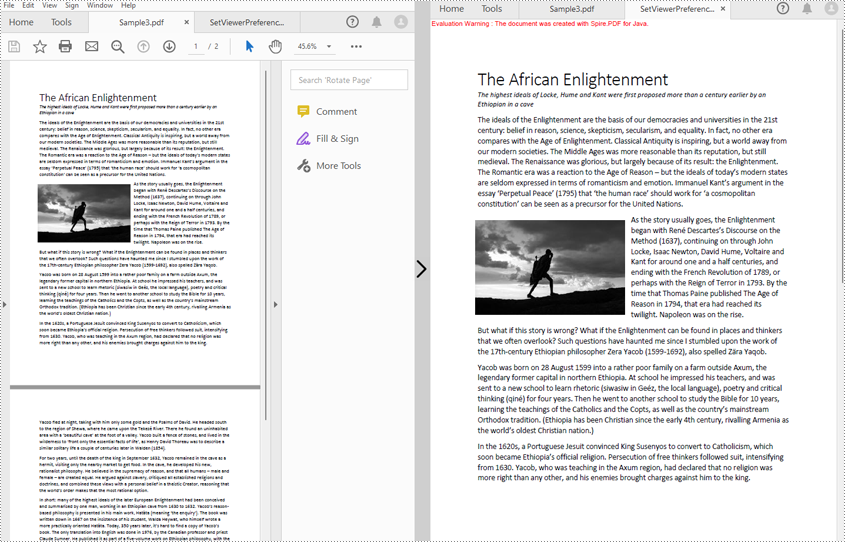
Preserving and displaying documents precisely is a primary function of PDF. However, the viewing preference settings of different devices and users would still affect the display of PDF documents. To solve this problem, PDF provides the viewer preference entry in a document to control the way the PDF document presents on screen. Without it, PDF documents will display according to the current user’s preference setting. This article will show how to set PDF viewer preferences by programming using Spire.PDF for Java.
Install Spire.PDF for Java
First of all, you're required to add the Spire.Pdf.jar file as a dependency in your Java program. The JAR file can be downloaded from this link. If you use Maven, you can easily import the JAR file in your application by adding the following code to your project's pom.xml file.
<repositories>
    <repository>
        <id>com.e-iceblue</id>
        <name>e-iceblue</name>
        <url>https://repo.e-iceblue.com/nexus/content/groups/public/</url>
    </repository>
</repositories>
<dependencies>
    <dependency>
        <groupId>e-iceblue</groupId>
        <artifactId>spire.pdf</artifactId>
        <version>12.7.0</version>
    </dependency>
</dependencies>
Set Viewer Preferences of a PDF Document
Spire.PDF for Java includes several methods under PdfViewerPreferences class, which can decide whether to center the window, display title, fit the window, and hide menu bar as well as tool bar and set page layout, page mode, and scaling mode. The detailed steps of setting viewer preferences are as follows.
- Create an object of PdfDocument class.
- Load a PDF file using PdfDocument.loadFromFile() method.
- Get viewer preferences of the document using PdfDocument.getViewerPreferences() method.
- Set the viewer preferences using the methods under PdfViewerPreferences object.
- Save the file using PdfDocument.saveToFile() method.
- Java
import com.spire.pdf.*;

public class setViewerPreference {
    public static void main(String[] args) {

        //Create an object of PdfDocument class
        PdfDocument pdf = new PdfDocument();

        //Load a PDF file
        pdf.loadFromFile("C:/Sample3.pdf");

        //Get viewer preferences of the document
        PdfViewerPreferences preferences = pdf.getViewerPreferences();

        //Set viewer preferences
        preferences.setCenterWindow(true);
        preferences.setDisplayTitle(false);
        preferences.setFitWindow(true);
        preferences.setHideMenubar(true);
        preferences.setHideToolbar(true);
        preferences.setPageLayout(PdfPageLayout.Single_Page);
        //preferences.setPageMode(PdfPageMode.Full_Screen);
        //preferences.setPrintScaling(PrintScalingMode.App_Default);

        //Save the file
        pdf.saveToFile("SetViewerPreference.pdf");
        pdf.close();
    }
}
Apply for a Temporary License
If you'd like to remove the evaluation message from the generated documents, or to get rid of the function limitations, please request a 30-day trial license for yourself.
Compared with text and images, videos are more engaging to people. By including videos in your presentation, you can easily capture the attention of your audience, explain complex concepts in an efficient and easy-to-understand way as well as make the presentation look more dynamic and creative. In this article, you will learn how to insert, replace or extract videos in PowerPoint in Java using Spire.Presentation for Java.
- Insert a Video into a PowerPoint Presentation
- Replace a Video in a PowerPoint Presentation
- Extract Videos from a PowerPoint Presentation
Install Spire.Presentation for Java
First of all, you're required to add the Spire.Presentation.jar file as a dependency in your Java program. The JAR file can be downloaded from this link. If you use Maven, you can easily import the JAR file in your application by adding the following code to your project's pom.xml file.
<repositories>
    <repository>
        <id>com.e-iceblue</id>
        <name>e-iceblue</name>
        <url>https://repo.e-iceblue.com/nexus/content/groups/public/</url>
    </repository>
</repositories>
<dependencies>
    <dependency>
        <groupId>e-iceblue</groupId>
        <artifactId>spire.presentation</artifactId>
        <version>11.7.2</version>
    </dependency>
</dependencies>
Insert a Video into a PowerPoint Presentation in Java
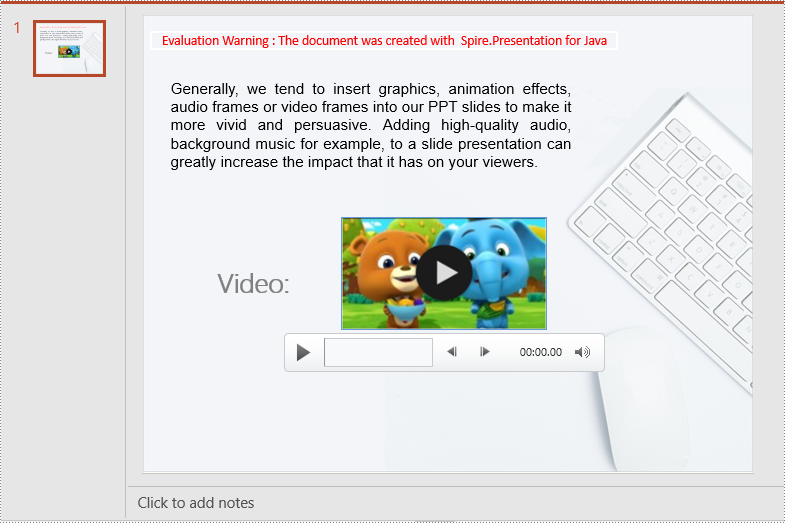
By inserting a video into your presentation, you can share the video with your audience instantly without having to look for it on your computer while presenting. The following steps demonstrate how to insert a video into a PowerPoint presentation:
- Create an instance of the Presentation class.
- Load a PowerPoint document using Presentation.loadFromFile() method.
- Get a specific slide by its index using Presentation.getSlides().get(int) method.
- Create an instance of the Rectangle2D class.
- Add a video to the slide using ISlide.getShapes().appendVideoMedia(String, Rectangle2D) method.
- Set a thumbnail image for the video using IVideo.getPictureFill().getPicture().setUrl() method.
- Save the result document using Presentation.SaveToFile() method.
- Java
import com.spire.presentation.*;
import com.spire.presentation.drawing.FillFormatType;

import java.awt.*;
import java.awt.geom.Rectangle2D;

public class InsertVideo {
    public static void main(String []args) throws Exception {
        //Create a Presentation instance
        Presentation presentation = new Presentation();
        //Load a PowerPoint document
        presentation.loadFromFile("Input.pptx");

        //Get the first slide
        ISlide slide = presentation.getSlides().get(0);

        //Add description text
        Rectangle2D.Double rec_title = new Rectangle2D.Double(50, 280, 160, 50);
        IAutoShape shape_title = slide.getShapes().appendShape(ShapeType.RECTANGLE, rec_title);
        shape_title.getLine().setFillType(FillFormatType.NONE);
        shape_title.getFill().setFillType(FillFormatType.NONE);
        ParagraphEx para_title = new ParagraphEx();
        para_title.setText("Video:");
        para_title.setAlignment(TextAlignmentType.CENTER);
        para_title.getTextRanges().get(0).setLatinFont(new TextFont("Myriad Pro Light"));
        para_title.getTextRanges().get(0).setFontHeight(32);
        para_title.getTextRanges().get(0).isBold(TriState.TRUE);
        para_title.getTextRanges().get(0).getFill().setFillType(FillFormatType.SOLID);
        para_title.getTextRanges().get(0).getFill().getSolidColor().setColor(Color.gray);
        shape_title.getTextFrame().getParagraphs().append(para_title);

        //Add a video to the first slide
        Rectangle2D.Double videoRect = new Rectangle2D.Double(presentation.getSlideSize().getSize().getWidth() / 2 - 125, 240, 240, 130);
        IVideo video = slide.getShapes().appendVideoMedia("Video.mp4", videoRect);
        //Set a thumbnail image for the video
        video.getPictureFill().getPicture().setUrl("https://cdn.e-iceblue.com/Picture.png");

        //Save the result document
        presentation.saveToFile("InsertVideo.pptx", FileFormat.PPTX_2013);
    }
}
Replace a Video in a PowerPoint Presentation in Java
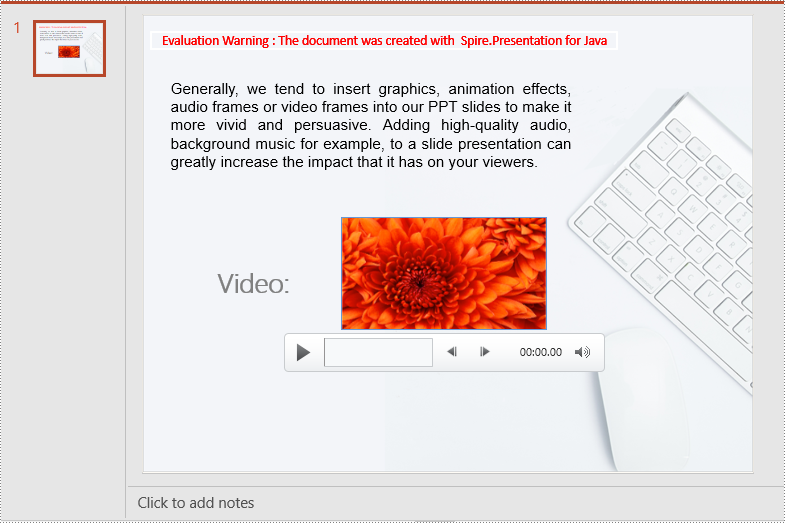
If you think an existing video cannot support your statements well, you can replace it with another suitable one. The following steps demonstrate how to replace an existing video with another video in a PowerPoint presentation:
- Create an instance of the Presentation class.
- Load a PowerPoint document using Presentation.loadFromFile() method.
- Get a specific slide by its index using Presentation.getSlides().get(int) method.
- Load a video into a byte array.
- Add the loaded video to the video collection of the document using Presentation.getVideos().append(byte[]) method.
- Loop through all shapes on the slide and find the video shape.
- Replace the original video with the loaded video using IVideo.setEmbeddedVideoData() method. Then change the thumbnail image of the video using IVideo.getPictureFill().getPicture().setUrl() method.
- Save the result document using Presentation.saveToFile() method.
- Java
import com.spire.presentation.*;

import java.io.File;
import java.io.FileInputStream;

public class ReplaceVideo {
    public static void main(String []args) throws Exception {
        //Create a Presentation instance
        Presentation ppt = new Presentation();
        //Load a PowerPoint document
        ppt.loadFromFile("InsertVideo.pptx");

        //Get the first slide
        ISlide iSlide = ppt.getSlides().get(0);

        //Load a video into a byte array
        File file = new File("NewVideo.mp4");
        FileInputStream fileInputStream = new FileInputStream(file);
        byte[] data = new byte[(int) file.length()];
        fileInputStream.read(data);

        //Add the loaded video to the video collection of the document
        VideoData videoData = ppt.getVideos().append(data);

        //Loop through all shapes on the first slide
        for (Object shape : iSlide.getShapes()) {
            //Check if the current shape is of IVideo type
            if (shape instanceof IVideo) {
                IVideo video = (IVideo) shape;
                //Replace the original video with the loaded video
                video.setEmbeddedVideoData(videoData);
                //Change the thumbnail image of the video
                video.getPictureFill().getPicture().setUrl("https://cdn.e-iceblue.com/Picture1.png");
            }
        }
        //Save the result document
        ppt.saveToFile("ReplaceVideo.pptx", FileFormat.PPTX_2013);
    }
}
Extract Videos from a PowerPoint Presentation in Java
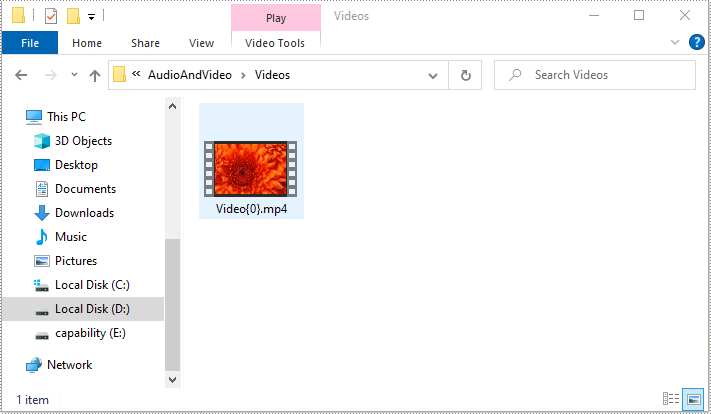
If you like the videos in a PowerPoint presentation and want to use them in other places, you can extract and save them to your disk. The following steps demonstrate how to extract videos from a PowerPoint presentation:
- Create an instance of the Presentation class.
- Load a PowerPoint document using Presentation.LoadFromFile() method.
- Loop through all slides in the document.
- Loop through all shapes on each slide.
- Find the video shapes, then save the videos to disk using IVideo.getEmbeddedVideoData().saveToFile() method.
- Java
import com.spire.presentation.*;

public class ExtractVideo {
    public static void main(String []args) throws Exception {
        //Create a Presentation instance
        Presentation presentation = new Presentation();
        //Load a PowerPoint document
        presentation.loadFromFile("ReplaceVideo.pptx");

        int i = 0;
        //Specify the output file path
        String videoPath = String.format("Videos/Video{0}.mp4", i);

        //Loop through all slides in the document
        for (Object slideObj : presentation.getSlides()) {
            ISlide slide = (ISlide) slideObj;
            //Loop through all shapes on each slide
            for (Object shapeObj : slide.getShapes()) {
                IShape shape = (IShape) shapeObj;
                //Check if the shape is of IVideo type
                if (shape instanceof IVideo) {
                    //Save the video to the specified path
                    ((IVideo) shape).getEmbeddedVideoData().saveToFile(videoPath);
                    i++;
                }
            }
        }
    }
}
Apply for a Temporary License
If you'd like to remove the evaluation message from the generated documents, or to get rid of the function limitations, please request a 30-day trial license for yourself.
In this article, we will explain how to copy a shapes or all shapes from one slide into another within the same PowerPoint document by using Spire.Presentation.
Firstly, view the sample PowerPoint document:
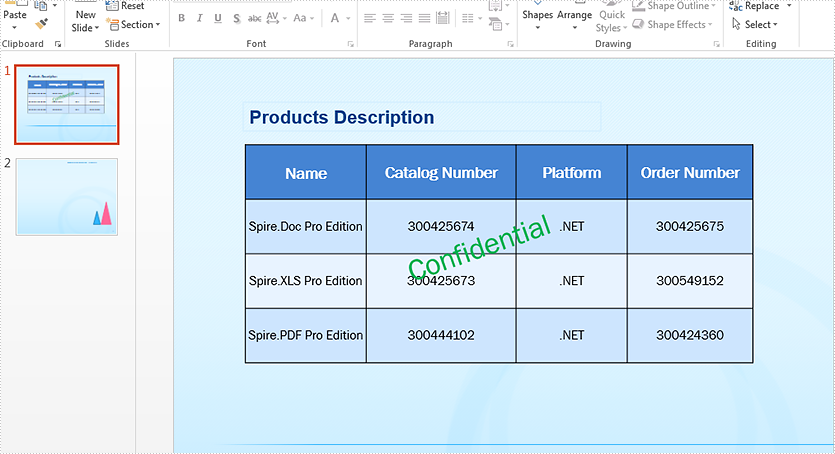
Copy a single shape from the first slide to the second slide:
//Load the sample document
Presentation ppt = new Presentation();
ppt.LoadFromFile("Sample.pptx");


//define the source slide and target slide
ISlide sourceSlide = ppt.Slides[0];
ISlide targetSlide = ppt.Slides[1];

//copy the second shape from the source slide to the target slide
targetSlide.Shapes.AddShape((Shape)sourceSlide.Shapes[1]);

//save the document to file
ppt.SaveToFile("Copyshape.pptx", FileFormat.Pptx2013);
Effective screenshot after copy a single shape from the first slide to second slide:
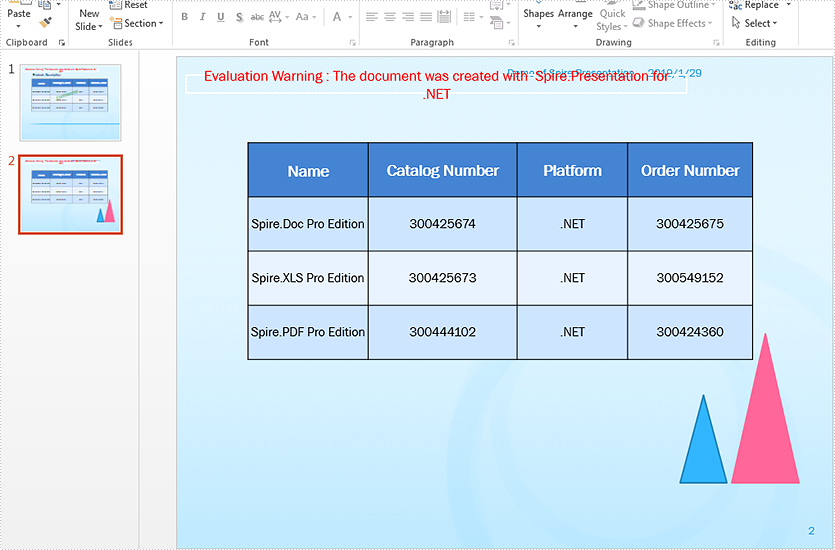
Copy all shapes from the first slide to the second slide:
//Load the sample document
Presentation ppt = new Presentation();
ppt.LoadFromFile("Sample.pptx");


//copy all the shapes from the source slide to the target slide
for (int i = 0; i < ppt.Slides.Count - 1; i++)
{
    ISlide sourceSlide = ppt.Slides[i];
    ISlide targetSlide = ppt.Slides[ppt.Slides.Count - 1];
    for (int j = 0; j < sourceSlide.Shapes.Count; j++)
    {
        targetSlide.Shapes.AddShape((Shape)sourceSlide.Shapes[j]);
    }
}

//save the document to file
ppt.SaveToFile("Copyshapes.pptx", FileFormat.Pptx2013);
Effective screenshot after copy all shapes from the first slide to second slide: