
Knowledgebase (2370)
Children categories
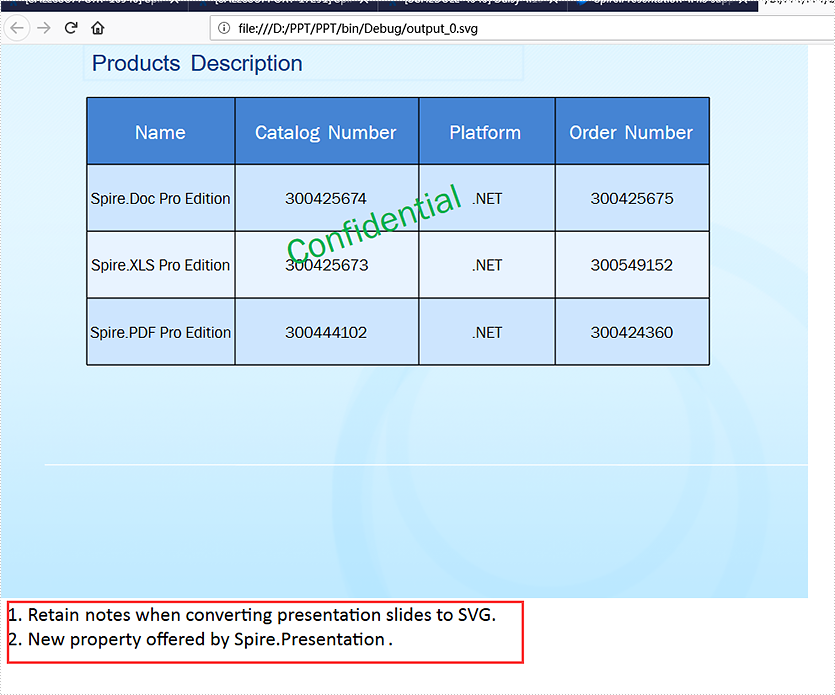
With the help of Spire.Presentation, developers can easily add and get speaker notes on presentation slides. From v 4.4.3, Spire.Presentation supports to retain the notes when converting presentation slides to SVG. This article will show you how to keep the notes when saving presentation slides to SVG in C#.
using Spire.Presentation;
using Spire.Presentation.Drawing;
using System.IO;
using System.Collections.Generic;

namespace PPT
{
    class Program
    {
        static void Main(string[] args)
        {
            //load the sample document with speaker notes
            Presentation ppt = new Presentation();
            ppt.LoadFromFile("Sample.pptx");

            //retain the notes when converting ppt to svg
            ppt.IsNoteRetained = true;


            //convert presentation slides to SVG
            Queue<byte[]> bytes = ppt.SaveToSVG();

            int length = bytes.Count;
            for (int i = 0; i < length; i++)
            {
                FileStream filestream = new FileStream(string.Format(@"output_{0}.svg", i), FileMode.Create);
                byte[] outputBytes = bytes.Dequeue();
                filestream.Write(outputBytes, 0, outputBytes.Length);
            }
            ppt.Dispose();
            ppt.SaveToSVG();

        }
    }
}
Effective screenshot of retaining the speaker notes when converting presentation slides to SVG:

Spire.Doc for Java is a professional Word API that empowers Java applications to create, convert, manipulate and print Word documents without dependency on Microsoft Word.
By using this multifunctional library, developers are able to process copious tasks effortlessly, such as inserting images, shapes, lists, hyperlink, pages, digital signature, WordArt, variables, bookmark, watermark, barcodes, page breaks, section breaks, math equations, and setting header and footer, creating table, setting background image, setting fonts, adding footnote/endnote etc.


A hyperlink is the most important element that we use in digital documents to make connections between two things. When readers click on a hyperlink in a Word document, it will take them to a different location within the document, to a different file or website, or to a new email message. This article introduces how to add hyperlinks to Word documents in Java using Spire.Doc for Java.
Install Spire.Doc for Java
First, you're required to add the Spire.Doc.jar file as a dependency in your Java program. The JAR file can be downloaded from this link. If you use Maven, you can easily import the JAR file in your application by adding the following code to your project's pom.xml file.
<repositories>
    <repository>
        <id>com.e-iceblue</id>
        <name>e-iceblue</name>
        <url>https://repo.e-iceblue.com/nexus/content/groups/public/</url>
    </repository>
</repositories>
<dependencies>
    <dependency>
        <groupId>e-iceblue</groupId>
        <artifactId>spire.doc</artifactId>
        <version>14.7.0</version>
    </dependency>
</dependencies>
Insert Hyperlinks When Adding Paragraphs to Word
Spire.Doc for Java offers the Paragraph.appendHyperlink() method to add a web link, an email link, a file link, or a bookmark link to a piece of text or an image inside a paragraph. The following are the detailed steps.
- Create a Document object.
- Add a section and a paragraph to it.
- Insert a hyperlink based on text using Paragraph.appendHyerplink(String link, String text, HyperlinkType type) method.
- Add an image to the paragraph using Paragraph.appendPicture() method.
- Add a hyperlink to the image using Paragraph.appendHyerplink(String link, DocPicture picture, HyperlinkType type) method.
- Save the document using Document.saveToFile() method.
- Java
import com.spire.doc.BookmarkStart;
import com.spire.doc.Document;
import com.spire.doc.FileFormat;
import com.spire.doc.Section;
import com.spire.doc.documents.BreakType;
import com.spire.doc.documents.HyperlinkType;
import com.spire.doc.documents.Paragraph;
import com.spire.doc.fields.DocPicture;

public class InsertHyperlinks {

    public static void main(String[] args) {

        //Create a Word document
        Document doc = new Document();

        //Add a section
        Section section = doc.addSection();

        //Add a paragraph
        Paragraph paragraph = section.addParagraph();
        paragraph.appendHyperlink("https://www-iceblue.com/", "Home Page", HyperlinkType.Web_Link);

        //Append line breaks
        paragraph.appendBreak(BreakType.Line_Break);
        paragraph.appendBreak(BreakType.Line_Break);

        //Add an email link
        paragraph.appendHyperlink("mailto:support@e-iceblue.com", "Mail Us", HyperlinkType.E_Mail_Link);

        //Append line breaks
        paragraph.appendBreak(BreakType.Line_Break);
        paragraph.appendBreak(BreakType.Line_Break);

        //Add a file link
        String filePath = "C:\\Users\\Administrator\\Desktop\\report.xlsx";
        paragraph.appendHyperlink(filePath, "Click to open the report", HyperlinkType.File_Link);

        //Append line breaks
        paragraph.appendBreak(BreakType.Line_Break);
        paragraph.appendBreak(BreakType.Line_Break);

        //Add another section and create a bookmark
        Section section2 = doc.addSection();
        Paragraph bookmarkParagraph = section2.addParagraph();
        bookmarkParagraph.appendText("Here is a bookmark");
        BookmarkStart start = bookmarkParagraph.appendBookmarkStart("myBookmark");
        bookmarkParagraph.getItems().insert(0, start);
        bookmarkParagraph.appendBookmarkEnd("myBookmark");

        //Link to the bookmark
        paragraph.appendHyperlink("myBookmark", "Jump to a location inside this document", HyperlinkType.Bookmark);

        //Append line breaks
        paragraph.appendBreak(BreakType.Line_Break);
        paragraph.appendBreak(BreakType.Line_Break);

        //Add an image link
        String imagePath = "C:\\Users\\Administrator\\Desktop\\logo.png";
        DocPicture picture = paragraph.appendPicture(imagePath);
        paragraph.appendHyperlink("https://www.e-iceblue.com/", picture, HyperlinkType.Web_Link);

        //Save to file
        doc.saveToFile("output/InsertHyperlinks.docx", FileFormat.Docx_2013);
    }
}
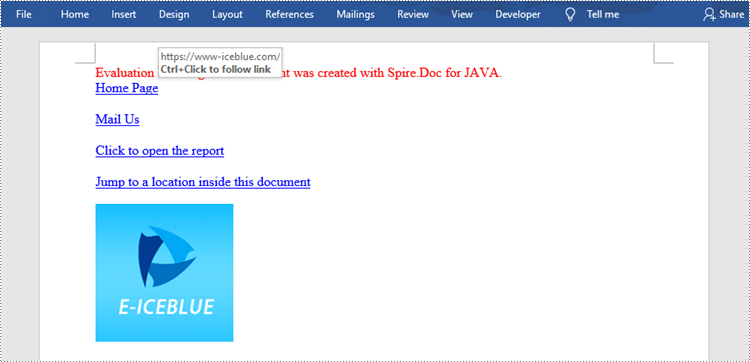
Add Hyperlinks to Existing Text in Word
Adding hyperlinks to existing text in a document is a bit more complicated. You need to find the target string first, and then replace it in the paragraph with a hyperlink field. The following are the steps.
- Create a Document object.
- Load a Word file using Document.loadFromFile() method.
- Find all the occurrences of the target string in the document using Document.findAllString() method, and get the specific one by its index from the collection.
- Get the string’s own paragraph and its position in it.
- Remove the string from the paragraph.
- Create a hyperlink field and insert it to position where the string is located.
- Save the document to another file using Document.saveToFle() method.
- Java
import com.spire.doc.Document;
import com.spire.doc.FieldType;
import com.spire.doc.FileFormat;
import com.spire.doc.Hyperlink;
import com.spire.doc.documents.*;
import com.spire.doc.fields.Field;
import com.spire.doc.fields.FieldMark;
import com.spire.doc.fields.TextRange;
import com.spire.doc.interfaces.IParagraphBase;
import com.spire.doc.interfaces.ITextRange;

import java.awt.*;

public class AddHyperlinksToExistingText {

    public static void main(String[] args) {

        //Create a Document object
        Document document = new Document();

        //Load a Word file
        document.loadFromFile("C:\\Users\\Administrator\\Desktop\\sample.docx");

        //Find all the occurrences of the string "Java" in the document
        TextSelection[] selections = document.findAllString("Java", true, true);

        //Get the second occurrence
        TextRange range = selections[1].getAsOneRange();

        //Get its owner paragraph
        Paragraph paragraph = range.getOwnerParagraph();

        //Get its position in the paragraph
        int index = paragraph.getItems().indexOf(range);

        //Remove it from the paragraph
        paragraph.getItems().remove(range);

        //Create a hyperlink field
        Field field = new Field(document);
        field.setType(FieldType.Field_Hyperlink);
        Hyperlink hyperlink = new Hyperlink(field);
        hyperlink.setType(HyperlinkType.Web_Link);
        hyperlink.setUri("https:\\en.wikipedia.org\\wiki\\Java_(programming_language)");
        paragraph.getItems().insert(index, field);

        //Insert a field mark "start" to the paragraph
        IParagraphBase item = document.createParagraphItem(ParagraphItemType.Field_Mark);
        FieldMark start = (FieldMark)item;
        start.setType(FieldMarkType.Field_Separator);
        paragraph.getItems().insert(index + 1, start);

        //Insert a text range between two field marks
        ITextRange textRange = new TextRange(document);
        textRange.setText("Java");
        textRange.getCharacterFormat().setFontName(range.getCharacterFormat().getFontName());
        textRange.getCharacterFormat().setFontSize(range.getCharacterFormat().getFontSize());
        textRange.getCharacterFormat().setBold(range.getCharacterFormat().getBold());
        textRange.getCharacterFormat().setTextColor(Color.blue);
        textRange.getCharacterFormat().setUnderlineStyle(UnderlineStyle.Single);
        paragraph.getItems().insert(index + 2, textRange);

        //Insert a field mark "end" to the paragraph
        IParagraphBase item2 = document.createParagraphItem(ParagraphItemType.Field_Mark);
        FieldMark end = (FieldMark)item2;
        end.setType(FieldMarkType.Field_End);
        paragraph.getItems().insert(index + 3, end);

        //Save to file
        document.saveToFile("output/AddHyperlink.docx", FileFormat.Docx_2013);
    }
}
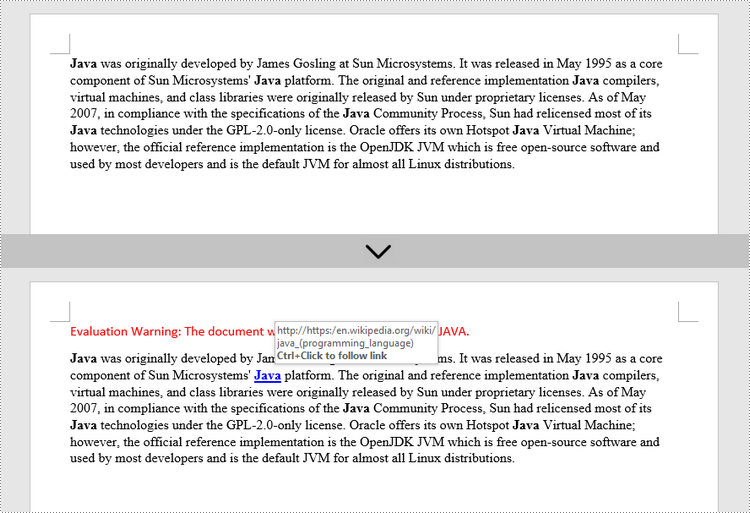
Apply for a Temporary License
If you'd like to remove the evaluation message from the generated documents, or to get rid of the function limitations, please request a 30-day trial license for yourself.
