
Knowledgebase (2370)
Children categories
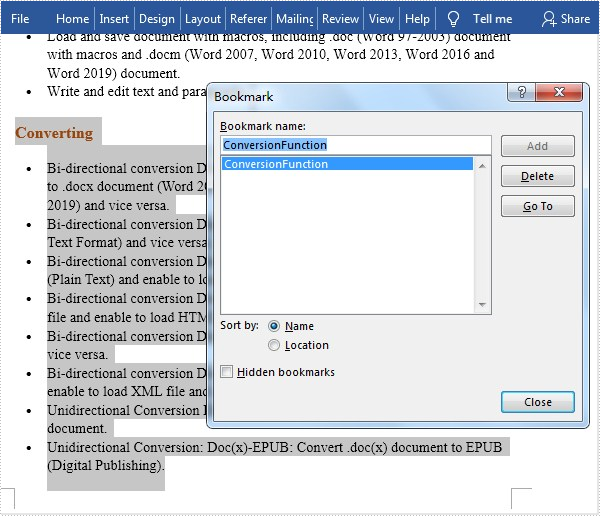
Bookmarks in Microsoft Word can mark text, pictures, and places in a document, allowing you to jump straight to the desired text, picture, or place without scrolling through several paragraphs or pages. This is especially useful for navigating some research papers or contracts that contain a lot of pages. In this article, you will learn how to programmatically add or remove a bookmark in a Word document using Spire.Doc for Java.
Install Spire.Doc for Java
First of all, you're required to add the Spire.Doc.jar file as a dependency in your Java program. The JAR file can be downloaded from this link. If you use Maven, you can easily import the JAR file in your application by adding the following code to your project's pom.xml file.
<repositories>
    <repository>
        <id>com.e-iceblue</id>
        <name>e-iceblue</name>
        <url>https://repo.e-iceblue.com/nexus/content/groups/public/</url>
    </repository>
</repositories>
<dependencies>
    <dependency>
        <groupId>e-iceblue</groupId>
        <artifactId>spire.doc</artifactId>
        <version>14.7.0</version>
    </dependency>
</dependencies>
Add a Bookmarks to an Existing Word Document
The detailed steps are as follows:
- Create a Document instance.
- Load a sample Word document using Document.loadFromFile() method.
- Get the first section using Document.getSections().get() method.
- Get a specified paragraph using Section.getParagraphs().get() method.
- Append the start of the bookmark with specified name to the specified paragraph using Paragraph.appendBookmarkStart(java.lang.String name) method.
- Append the end of the bookmark with specified name to the specified paragraph using Paragraph.appendBookmarkEnd(java.lang.String name) method.
- Save the document to another file using Document. saveToFile() method.
- Java
import com.spire.doc.*;
import com.spire.doc.documents.Paragraph;

public class InsertBookmark {

    public static void main(String[] args) {

        //Create a Document instance
        Document doc = new Document();

        //Load a sample Word file
        doc.loadFromFile("sample.docx");

        //Get the first section
        Section section = doc.getSections().get(0);

        //Insert a bookmark with specified name into the specified paragraphs
        section.getParagraphs().get(7).appendBookmarkStart("ConversionFunction");
        section.getParagraphs().get(16).appendBookmarkEnd("ConversionFunction");


        //Save the document
        doc.saveToFile("AddBookmark.docx", FileFormat.Docx_2013);
    }
}
Remove an Existing Bookmark in a Word Document
The detailed steps are as follows:
- Create a Document instance.
- Load a sample Word document using Document.loadFromFile() method.
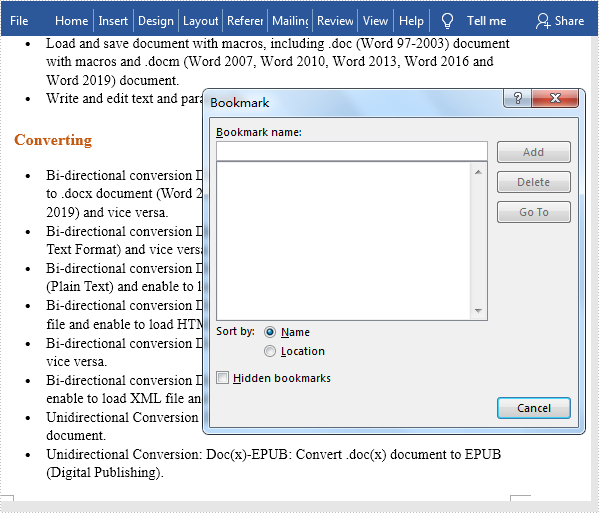
- Get a specified bookmark by its index using Document.getBookmarks().get() method.
- Remove the specified bookmark using Document.getBookmarks().remove() method.
- Save the document to another file using Document.saveToFile() method.
- Java
import com.spire.doc.Bookmark;
import com.spire.doc.Document;
import com.spire.doc.FileFormat;

public class RemoveBookmark {

    public static void main(String[] args) {

        //Create a Document instance
        Document doc = new Document();

        //Load a sample Word file
        doc.loadFromFile("C:\\Users\\Administrator\\Desktop\\AddBookmark.docx");

        //Get bookmark by its index
        Bookmark bookmark = doc.getBookmarks().get(0);

        //Remove the bookmark
        doc.getBookmarks().remove(bookmark);

        //Save the document.
        doc.saveToFile("RemoveBookmark.docx", FileFormat.Docx);
    }
}
Apply for a Temporary License
If you'd like to remove the evaluation message from the generated documents, or to get rid of the function limitations, please request a 30-day trial license for yourself.
In Microsoft Word, we can set the paragraph indents as left, right, first line or hanging. In this article, we will demonstrate how to achieve this functionality using Spire.Doc for Java.
Install Spire.Doc for Java
First of all, you're required to add the Spire.Doc.jar file as a dependency in your Java program. The JAR file can be downloaded from this link. If you use Maven, you can easily import the JAR file in your application by adding the following code to your project's pom.xml file.
<repositories>
    <repository>
        <id>com.e-iceblue</id>
        <name>e-iceblue</name>
        <url>https://repo.e-iceblue.com/nexus/content/groups/public/</url>
    </repository>
</repositories>
<dependencies>
    <dependency>
        <groupId>e-iceblue</groupId>
        <artifactId>spire.doc</artifactId>
        <version>14.7.0</version>
    </dependency>
</dependencies>
Set Paragraph Indents in Word
Spire.Doc for Java provides a ParagraphFormat class to work with paragraph formatting. You can use Paragraph.getFormat() method to get the ParagraphFormat object, and then use the following methods to set the corresponding paragraph indents with the object:
| Indents | Methods | Descriptions |
| Left | ParagraphFormat.setLeftIndent(float value) | Indents the paragraph on the left by the amount you set. |
| Right | ParagraphFormat.setRightIndent(float value) | Indents the paragraph on the right by the amount you set. |
| First line | ParagraphFormat.setFirstLineIndent(float value) | Indent the first line of a paragraph. |
| Hanging | ParagraphFormat.setFirstLineIndent(float negativeValue) | Sets off the first line of a paragraph by positioning it at the margin, and then indenting each subsequent line of the paragraph. |
The following are the steps to set paragraph indents:
- Create a Document instance.
- Load a Word document using Document.loadFromFile() method.
- Get the desired section by its index using Document.getSections.get() method.
- Get the desired paragraph by index using Section.getParagraphs.get() method.
- Get the ParagraphFormat object using Paragraph.getFormat() method.
- Call the methods listed in above table to set paragraph indents with the object.
- Save the result document using Document.saveToFile() method.
- Java
import com.spire.doc.Document;
import com.spire.doc.FileFormat;
import com.spire.doc.Section;
import com.spire.doc.documents.Paragraph;
import com.spire.doc.formatting.ParagraphFormat;

public class IndentParagraph {
    public static void main(String[] args) {
        //Create a Document instance
        Document document= new Document();
        //Load a Word document
        document.loadFromFile("Input.docx");

        //Get the first section
        Section section = document.getSections().get(0);

        //Get the second paragraph and set left indent
        Paragraph para = section.getParagraphs().get(1);
        ParagraphFormat format = para.getFormat();
        format.setLeftIndent(30);

        //Get the third paragraph and set right indent
        para = section.getParagraphs().get(2);
        format = para.getFormat();
        format.setRightIndent(30);

        //Get the fourth paragraph and set first line indent
        para = section.getParagraphs().get(3);
        format = para.getFormat();
        format.setFirstLineIndent(30);

        //Get the fifth paragraph and set hanging indent
        para = section.getParagraphs().get(4);
        format = para.getFormat();
        format.setFirstLineIndent(-30);

        //Save the result document
        document.saveToFile("SetParagraphIndents.docx", FileFormat.Docx_2013);
    }
}
The following is the output Word document after setting paragraph indents:

Apply for a Temporary License
If you'd like to remove the evaluation message from the generated documents, or to get rid of the function limitations, please request a 30-day trial license for yourself.
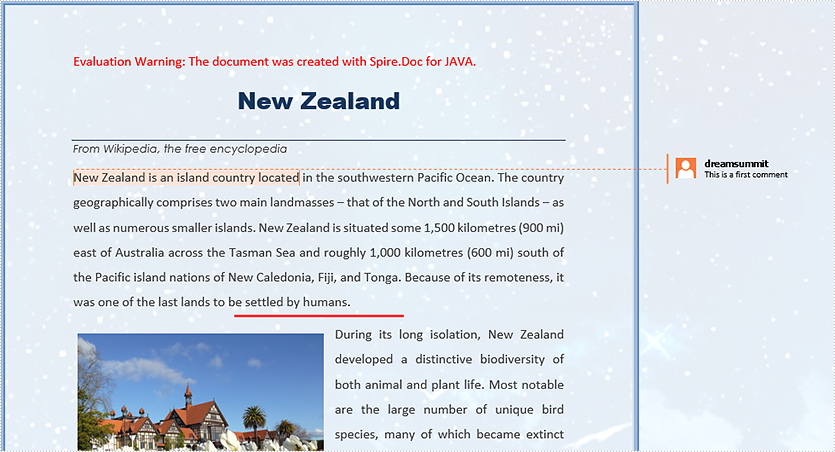
MS Word Comments feature allows authors to discuss the content with the readers without having to directly edit the content. It is a good way to keep the document neat and clean. In this article, you will learn how to add, delete, or reply to comments in a Word document using Spire.Doc for Java.
Install Spire.Doc for Java
First of all, you're required to add the Spire.Doc.jar file as a dependency in your Java program. The JAR file can be downloaded from this link. If you use Maven, you can easily import the JAR file in your application by adding the following code to your project’s pom.xml file.
<repositories>
    <repository>
        <id>com.e-iceblue</id>
        <name>e-iceblue</name>
        <url>https://repo.e-iceblue.com/nexus/content/groups/public/</url>
    </repository>
</repositories>
<dependencies>
    <dependency>
        <groupId>e-iceblue</groupId>
        <artifactId>spire.doc</artifactId>
        <version>14.7.0</version>
    </dependency>
</dependencies>
Add a Comment to Word
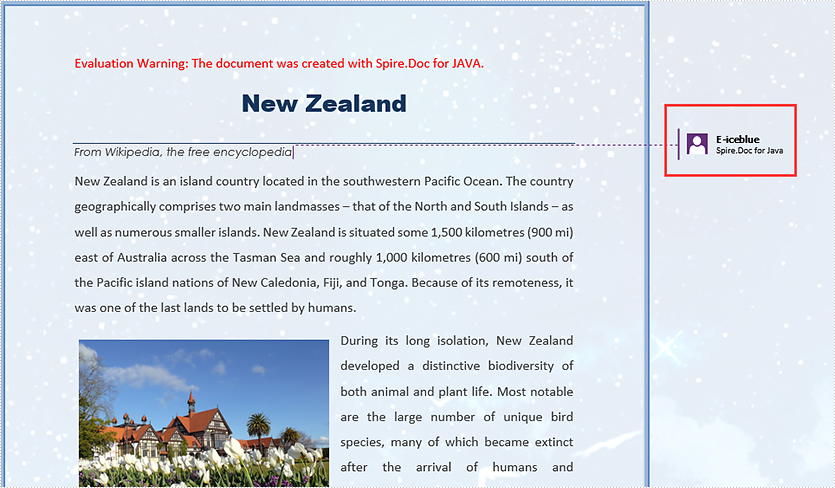
Spire.Doc offers the Paragraph.appendComment() method to a paragraph. The detailed steps are as follows.
- Load the sample Word document while initializing the Document object.
- Get the specific section using Document.getSection() method.
- Get the paragraphs collection using Section.getParagraphs() method, and then get the specific paragraph using ParagraphCollection.get() method.
- Add a comment to the paragraph using Paragraph.appendComment() method.
- Save the document using Document.saveToFile() method.
- Java
import com.spire.doc.*;
import com.spire.doc.documents.Paragraph;
import com.spire.doc.fields.Comment;

public class AddComment {

    public static void main(String[] args) {

        //Load the sample Word document
        Document document= new Document("C:\\Users\\Administrator\\Desktop\\Sample.docx");

        //Get the first section
        Section section = document.getSections().get(0);

        //Get the second paragraph
        Paragraph paragraph = section.getParagraphs().get(1);

        //Add a comment
        Comment comment = paragraph.appendComment("Spire.Doc for Java");
        comment.getFormat().setAuthor("E-iceblue");
        comment.getFormat().setInitial("CM");

        //Save to file
        document.saveToFile("output/AddComment.docx", FileFormat.Docx);
    }
}
Reply to a Comment
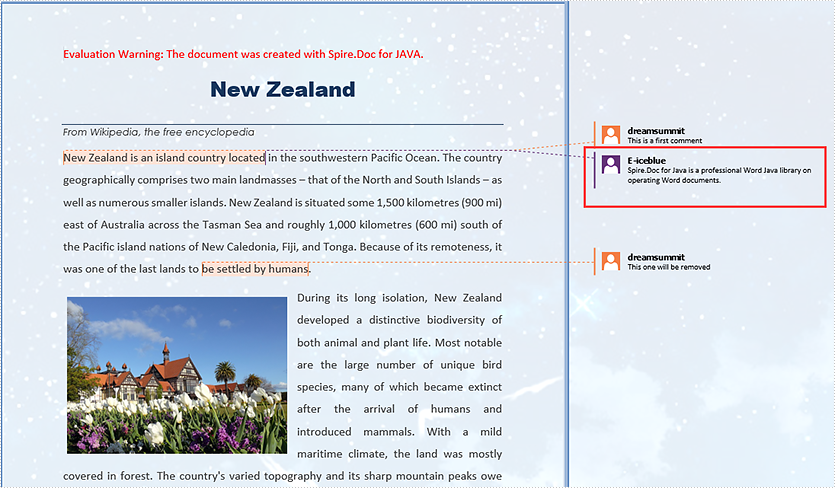
To add a reply to an existing comment, use Comment.replyToComment() method. The following are the detailed steps.
- Load the sample Word document while initializing the Document object.
- Get the comment collection using Document.getComments() method, and then get the specific comment using CommentsCollection.get() method.
- Create a new instance of Comment class, and specify its content and author.
- Add the comment as a reply to an existing comment using Comment.replyToComment() method.
- Save the document using Document.saveToFile() method.
- Java
import com.spire.doc.*;
import com.spire.doc.FileFormat;
import com.spire.doc.fields.*;

public class ReplyToComment {

    public static void main(String[] args) {

        //Load the sample Word document
        Document document= new Document("C:\\Users\\Administrator\\Desktop\\Sample.docx");

        //Get the first comment
        Comment comment1 = document.getComments().get(0);

        //Initialize a Comment object
        Comment replyComment = new Comment(document);

        //Set the author and content of the comment
        replyComment.getFormat().setAuthor("E-iceblue");
        replyComment.getBody().addParagraph().appendText("Spire.Doc for Java is a professional Word Java library on operating Word documents.");

        //Add the new comment as a reply to the first comment
        comment1.replyToComment(replyComment);

        //Save to file
        document.saveToFile("output/ReplyToComment.docx", FileFormat.Docx);
    }
Delete a Comment from Word
After getting the comments collection through Document.getComments() method, you can use CommentsCollection.removeAt() method to delete the specific comment by its index. Here come the detailed steps.
- Load the sample Word document while initializing the Document object.
- Get the comments collection using Document.getComments() method.
- Remove the specific comment using CommentsCollection.removeAt() method.
- Save the document using Document.saveToFile() method.
- Java
import com.spire.doc.*;
import com.spire.doc.FileFormat;

public class DeleteComment {

    public static void main(String[] args) {

        //Load the sample Word document
        Document document= new Document("C:\\Users\\Administrator\\Desktop\\Sample.docx");

        //Remove the comment by its index
        document.getComments().removeAt(1);

        //Save to file
        document.saveToFile("output/DeleteComment.docx", FileFormat.Docx);
    }
}
Apply for a Temporary License
If you'd like to remove the evaluation message from the generated documents, or to get rid of the function limitations, please request a 30-day trial license for yourself.
