
Knowledgebase (2370)
Children categories
This tutorial is going to show you how to make a color of a image transparent using Spire.Doc.
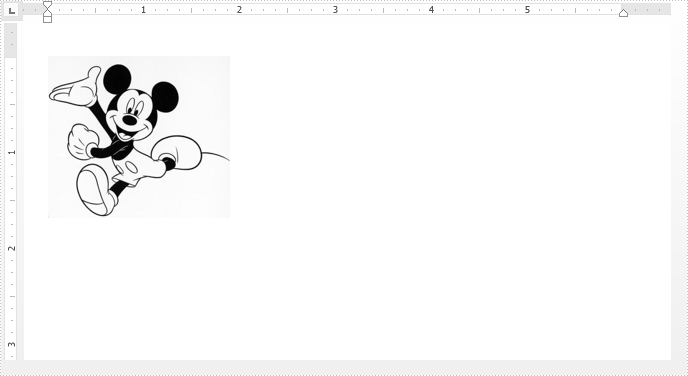
Below screenshot shows an example image with black and white colors:
Detail steps:
Step 1: Instantiate a Document object and Load the Word file.
Document doc = new Document();
doc.LoadFromFile("Input.docx");
Step 2: Get the first Paragraph in the first section.
Paragraph paragraph = doc.Sections[0].Paragraphs[0];
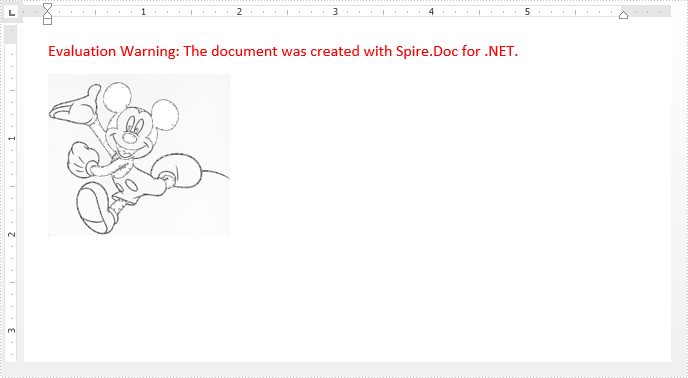
Step 3: Set the black color of the image(s) in the paragraph to transperant.
foreach (DocumentObject obj in paragraph.ChildObjects)
{
    if (obj is DocPicture)
    {
        (obj as DocPicture).TransparentColor = Color.Black;
    }
}
Step 4: Save the file.
doc.SaveToFile("Result.docx", FileFormat.Docx2013);
Screenshot:
Full code:
using Spire.Doc;
using Spire.Doc.Documents;
using Spire.Doc.Fields;
using System.Drawing;
namespace Transeperant
{
    class Program
    {
        static void Main(string[] args)
        {
            //Instantiate a Document object
            Document doc = new Document();
            //Load the Word file
            doc.LoadFromFile("Input.docx");

            //Get the first paragraph in the first section
            Paragraph paragraph = doc.Sections[0].Paragraphs[0];

            //Set the black color of the image(s) in the paragraph to transperant
            foreach (DocumentObject obj in paragraph.ChildObjects)
            {
                if (obj is DocPicture)
                {
                    (obj as DocPicture).TransparentColor = Color.Black;
                }
            }

            //Save the file
            doc.SaveToFile("Result.docx", FileFormat.Docx2013);
        }
    }
}
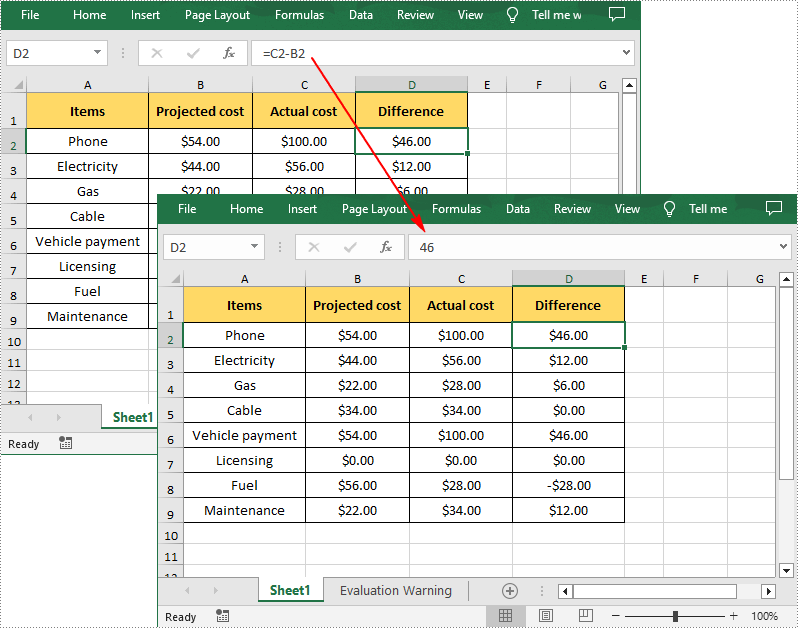
When you need to share an Excel file with others but don't want to give them access to the underlying formulas, converting the formulas to numeric values ensures that the recipients can view and work with the calculated results without altering the original calculations. In this article, you will learn how to programmatically remove formulas from cells in Excel but keep the values using Spire.XLS for .NET.
Install Spire.XLS for .NET
To begin with, you need to add the DLL files included in the Spire.XLS for .NET package as references in your .NET project. The DLL files can be either downloaded from this link or installed via NuGet.
PM> Install-Package Spire.XLS
Remove Formulas from Excel Cells but Keep Values in C#
MS Excel provides the "Paste Values" function to help remove formulas while keeping the values. To implement the same functionality in C# through code, refer to the below steps.
- Create a Workbook instance.
- Load a sample Excel file using Workbook.LoadFromFile() method.
- Loop through the worksheets in the file, and then loop through the cells in each sheet.
- Determine whether the cell contains a formula using CellRange.HasFormula property.
- If yes, get the formula value using CellRange.FormulaValue property. Then clear the original formula in the cell and fill it with the formula value using CellRange.Value2 property.
- Save the result file using Workbook.SaveToFile() method.
- C#
using Spire.Xls;
using System;
namespace RemoveFormulas
{
    class Program
    {
        static void Main(string[] args)
        {
            //Create a Workbook instance
            Workbook workbook = new Workbook();

            //Load an Excel file
            workbook.LoadFromFile("Sample.xlsx");

            //Loop through worksheets
            foreach (Worksheet sheet in workbook.Worksheets)
            {
                //Loop through cells
                foreach (CellRange cell in sheet.Range)
                {
                    //Determine whether the cell contain formula
                    if (cell.HasFormula)
                    {
                        //If yes, get the formula value in the cell
                        Object value = cell.FormulaValue;

                        //Clear cell content
                        cell.Clear(ExcelClearOptions.ClearContent);

                        //Fill the formula value into the cell
                        cell.Value2 = value;
                    }
                }
            }

            //Save the result file
            workbook.SaveToFile("DeleteFormula.xlsx", ExcelVersion.Version2016);
        }
    }
}
Apply for a Temporary License
If you'd like to remove the evaluation message from the generated documents, or to get rid of the function limitations, please request a 30-day trial license for yourself.
Create Multiple Slide Maters and Apply Them to Individual Slides in C#, VB.NET
2018-05-03 09:09:22 Written by KoohjiWhen you want to use multiple themes in one presentation, you’ll need multiple slide masters. In this article, you will learn how create additional slide masters and apply them to different slides, by using Spire.Presentation with C# and VB.NET.
Step 1: Create a PowerPoint document and insert four slides to it. There are five slides in total including the default slide.
Presentation ppt = new Presentation();
for (int i = 0; i < 4; i++)
{
    ppt.Slides.Append();
}
Step 2: Get the first default slide master.
IMasterSlide first_master = ppt.Masters[0];
Step 3: Append another slide master.
ppt.Masters.AppendSlide(first_master);
IMasterSlide second_master = ppt.Masters[1];
Step 4: Set different background image for the two slide masters.
string pic1 = @"C:\Users\Administrator\Desktop\image-1.png";
string pic2 = @"C:\Users\Administrator\Desktop\image-2.png";
RectangleF rect = new RectangleF(0, 0, ppt.SlideSize.Size.Width, ppt.SlideSize.Size.Height);
first_master.SlideBackground.Fill.FillType = FillFormatType.Picture;
IEmbedImage image1 = first_master.Shapes.AppendEmbedImage(ShapeType.Rectangle, pic1, rect);
first_master.SlideBackground.Fill.PictureFill.Picture.EmbedImage = image1 as IImageData;
second_master.SlideBackground.Fill.FillType = FillFormatType.Picture;
IEmbedImage image2 = second_master.Shapes.AppendEmbedImage(ShapeType.Rectangle, pic2, rect);
second_master.SlideBackground.Fill.PictureFill.Picture.EmbedImage = image2 as IImageData;
Step 5: Apply the first master with layout to the first slide.
ppt.Slides[0].Layout = first_master.Layouts[1];
Step 6: Apply the second master with layout to other slides.
for (int i = 1; i < ppt.Slides.Count; i++)
{
    ppt.Slides[i].Layout = second_master.Layouts[8];
}
Step 7: Save the file.
ppt.SaveToFile("result.pptx", FileFormat.Pptx2013);
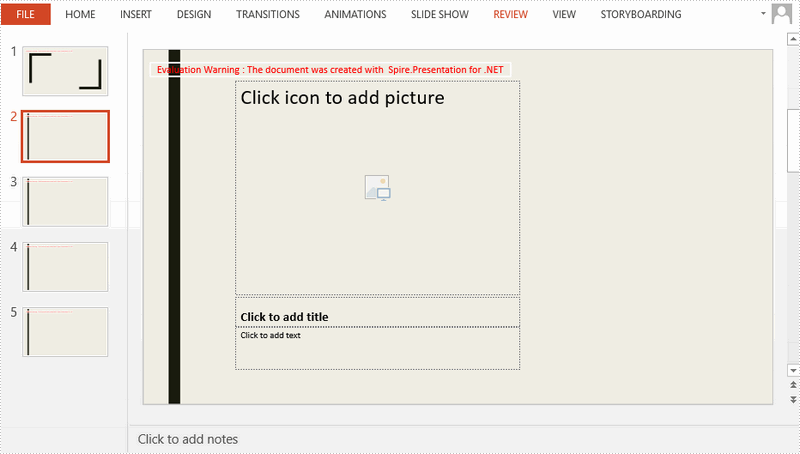
Output:
Full Code:
using Spire.Presentation;
using Spire.Presentation.Drawing;
using System.Drawing;
namespace  CreateMultipleMaster
{
    class Program
    {
        static void Main(string[] args)
        {
            Presentation ppt = new Presentation();
            ppt.SlideSize.Type = SlideSizeType.Screen16x9;
            for (int i = 0; i < 4; i++)
            {
                ppt.Slides.Append();
            }

            IMasterSlide first_master = ppt.Masters[0];
            ppt.Masters.AppendSlide(first_master);
            IMasterSlide second_master = ppt.Masters[1];

            string pic1 = @"C:\Users\Administrator\Desktop\image-1.png";
            string pic2 = @"C:\Users\Administrator\Desktop\image-2.png";
            RectangleF rect = new RectangleF(0, 0, ppt.SlideSize.Size.Width, ppt.SlideSize.Size.Height);
            first_master.SlideBackground.Fill.FillType = FillFormatType.Picture;
            IEmbedImage image1 = first_master.Shapes.AppendEmbedImage(ShapeType.Rectangle, pic1, rect);
            first_master.SlideBackground.Fill.PictureFill.Picture.EmbedImage = image1 as IImageData;
            second_master.SlideBackground.Fill.FillType = FillFormatType.Picture;
            IEmbedImage image2 = second_master.Shapes.AppendEmbedImage(ShapeType.Rectangle, pic2, rect);
            second_master.SlideBackground.Fill.PictureFill.Picture.EmbedImage = image2 as IImageData;

            ppt.Slides[0].Layout = first_master.Layouts[1];
            for (int i = 1; i < ppt.Slides.Count; i++)
            {
                ppt.Slides[i].Layout = second_master.Layouts[8];
            }
            ppt.SaveToFile("result.pptx", FileFormat.Pptx2013);

            }
        }
    }
Imports Spire.Presentation
Imports Spire.Presentation.Drawing
Imports System.Drawing
Namespace CreateMultipleMaster
	Class Program
		Private Shared Sub Main(args As String())
			Dim ppt As New Presentation()
			ppt.SlideSize.Type = SlideSizeType.Screen16x9
			For i As Integer = 0 To 3
				ppt.Slides.Append()
			Next

			Dim first_master As IMasterSlide = ppt.Masters(0)
			ppt.Masters.AppendSlide(first_master)
			Dim second_master As IMasterSlide = ppt.Masters(1)

			Dim pic1 As String = "C:\Users\Administrator\Desktop\image-1.png"
			Dim pic2 As String = "C:\Users\Administrator\Desktop\image-2.png"
			Dim rect As New RectangleF(0, 0, ppt.SlideSize.Size.Width, ppt.SlideSize.Size.Height)
			first_master.SlideBackground.Fill.FillType = FillFormatType.Picture
			Dim image1 As IEmbedImage = first_master.Shapes.AppendEmbedImage(ShapeType.Rectangle, pic1, rect)
			first_master.SlideBackground.Fill.PictureFill.Picture.EmbedImage = TryCast(image1, IImageData)
			second_master.SlideBackground.Fill.FillType = FillFormatType.Picture
			Dim image2 As IEmbedImage = second_master.Shapes.AppendEmbedImage(ShapeType.Rectangle, pic2, rect)
			second_master.SlideBackground.Fill.PictureFill.Picture.EmbedImage = TryCast(image2, IImageData)

			ppt.Slides(0).Layout = first_master.Layouts(1)
			For i As Integer = 1 To ppt.Slides.Count - 1
				ppt.Slides(i).Layout = second_master.Layouts(8)
			Next
			ppt.SaveToFile("result.pptx", FileFormat.Pptx2013)

		End Sub
	End Class
End Namespace
