
Knowledgebase (2370)
Children categories
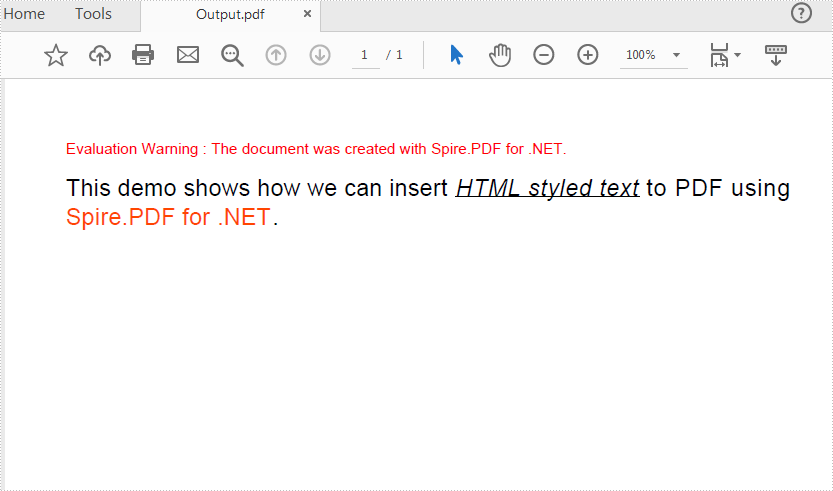
Spire.PDF provides support to render simple HTML string in a PDF document by using PdfHTMLTextElement class. (Only available on .NET, .Net Core/ .NET Standard doesn't offer PdfHTMLTextElement & PdfMetafileLayoutFormat class) This class supports a set of basic HTML tags including Font, B, I, U, Sub, Sup and BR. For complex HTML rendering with CSS, please check Convert HTML String to PDF.
Following code snippets demonstrates how we can insert HTML styled text to PDF.
Step 1: Create a new PDF document, add a page to it.
PdfDocument doc = new PdfDocument();
PdfNewPage page = doc.Pages.Add() as PdfNewPage;
Step 2: Define HTML string.
string htmlText= "This demo shows how we can insert <u><i>HTML styled text</i></u> to PDF using "
                 + "<font color='#FF4500'>Spire.PDF for .NET</font>. ";
Step 3: Render HTML text.
PdfFont font = new PdfFont(PdfFontFamily.Helvetica, 5);
PdfBrush brush = PdfBrushes.Black;
PdfHTMLTextElement richTextElement = new PdfHTMLTextElement(htmlText, font, brush);
richTextElement.TextAlign = TextAlign.Left;
Step 4: Format page layout to enable that the HTML text will break into multiple pages if the content exceeds one page.
PdfMetafileLayoutFormat format = new PdfMetafileLayoutFormat();
format.Layout = PdfLayoutType.Paginate;
format.Break = PdfLayoutBreakType.FitPage;
Step 5: Draw HTML string on page.
richTextElement.Draw(page, new RectangleF(0, 20, page.GetClientSize().Width, page.GetClientSize().Height/2),format);
Step 6: Save the document.
doc.SaveToFile("Output.pdf");
Output:
Full Code:
using Spire.Pdf;
using Spire.Pdf.Graphics;
using System.Drawing;


namespace InsertHTMLStyledTexttoPDF
{
    class Program
    {
        static void Main(string[] args)
        {
            //Create a Pdf document
            PdfDocument doc = new PdfDocument();

            //Add a new page
            PdfNewPage page = doc.Pages.Add() as PdfNewPage;

            //HTML string
            string htmlText = "This demo shows how we can insert HTML styled text to PDF using "
                             + "Spire.PDF for .NET. ";

            //Render HTML text
            PdfFont font = new PdfFont(PdfFontFamily.Helvetica, 5);
            PdfBrush brush = PdfBrushes.Black;
            PdfHTMLTextElement richTextElement = new PdfHTMLTextElement(htmlText, font, brush);
            richTextElement.TextAlign = TextAlign.Left;

            //Format Layout
            PdfMetafileLayoutFormat format = new PdfMetafileLayoutFormat();
            format.Layout = PdfLayoutType.Paginate;
            format.Break = PdfLayoutBreakType.FitPage;

            //Draw htmlString
            richTextElement.Draw(page, new RectangleF(0, 20, page.GetClientSize().Width, page.GetClientSize().Height / 2), format);
            doc.SaveToFile("Output.pdf");
        }
    }
}
Imports Spire.Pdf
Imports Spire.Pdf.Graphics
Imports System.Drawing


Namespace InsertHTMLStyledTexttoPDF
	Class Program
		Private Shared Sub Main(args As String())
			'Create a Pdf document
			Dim doc As New PdfDocument()

			'Add a new page
			Dim page As PdfNewPage = TryCast(doc.Pages.Add(), PdfNewPage)

			'HTML string
			Dim htmlText As String = "This demo shows how we can insert HTML styled text to PDF using " + "Spire.PDF for .NET. "

			'Render HTML text
			Dim font As New PdfFont(PdfFontFamily.Helvetica, 5)
			Dim brush As PdfBrush = PdfBrushes.Black
			Dim richTextElement As New PdfHTMLTextElement(htmlText, font, brush)
			richTextElement.TextAlign = TextAlign.Left

			'Format Layout
			Dim format As New PdfMetafileLayoutFormat()
			format.Layout = PdfLayoutType.Paginate
			format.Break = PdfLayoutBreakType.FitPage

			'Draw htmlString
			richTextElement.Draw(page, New RectangleF(0, 20, page.GetClientSize().Width, page.GetClientSize().Height / 2), format)
			doc.SaveToFile("Output.pdf")
		End Sub
	End Class
End Namespace

PDF is one of the most popular formats for distributing, archiving, and presenting digital documents. However, when PDFs include high-resolution images, scanned pages, or embedded fonts, their file sizes can grow considerably. Large PDF files can slow down upload and download speeds, take up unnecessary storage space, and even cause issues with email attachments and website performance.
This complete guide shows you how to compress PDF documents in C# using the Spire.PDF for .NET library. It covers multiple compression strategies—image compression, font optimization, and content compression—with practical, ready-to-use C# code examples to help you streamline PDF size effectively in your .NET applications.
Table of Contents
- Why Compress PDF Files
- Install the Library for PDF Compression in .NET
- How to Optimize PDF File Size in C# (Methods and Code Examples)
- Conclusion
- FAQs
Why Compress PDF Files?
Compressing PDF files can bring significant benefits, especially in professional and enterprise environments:
- Faster upload and download speeds
- Reduced storage consumption
- Easier email sharing with smaller attachments
- Improved performance in web-based PDF viewers
- Better experience on mobile and low-bandwidth environments
Whether you're working with reports, invoices, or scanned documents, PDF compression ensures efficient document handling and delivery.
Install the Library for PDF Compression in .NET
Spire.PDF for .NET is a robust and developer-friendly library that enables developers to create, edit, convert, and compress PDF documents without relying on Adobe Acrobat. It supports various compression options to minimize PDF file sizes effectively.
Installation Steps
You can easily install Spire.PDF for .NET via NuGet using one of the following methods:
Option 1: Using NuGet Package Manager
- Open your project in Visual Studio.
- Right-click on the project → Manage NuGet Packages.
- Search for Spire.PDF.
- Click Install.
Option 2: Using the Package Manager Console
Install-Package Spire.PDF
Once installed, you can start using the built-in compression APIs to optimize PDF file size.
How to Optimize PDF File Size in C# (Methods and Code Examples)
Spire.PDF provides multiple techniques to reduce PDF size. In this section, you'll learn how to implement three key methods: compressing images, optimizing fonts, and compressing overall document content.
Method 1. Compressing Images
High-resolution images embedded in PDF files often consume the most space. Spire.PDF offers flexible image compression options that allow you to reduce file size by compressing either all images or individual images in the document.
Example 1: Compress All Images with PdfCompressor
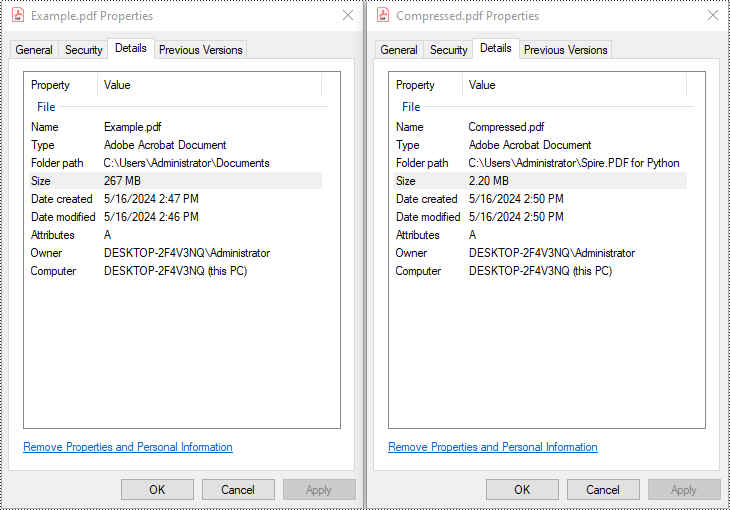
You can compress the images in a PDF document by creating a PdfCompressor object, enabling CompressImage and ResizeImages properties, and setting the ImageQuality to a predefined level such as Low, Medium, or High.
using Spire.Pdf.Conversion.Compression;

namespace CompressImages
{
    class Program
    {
        static void Main(string[] args)
        {
            // Create a PdfCompressor object and load the PDF file
            PdfCompressor compressor = new PdfCompressor("C:\\Users\\Administrator\\Documents\\Example.pdf");

            // Get the image compression options
            ImageCompressionOptions imageCompression = compressor.Options.ImageCompressionOptions;

            // Enable Image resizing
            imageCompression.ResizeImages = true;

            // Enable image compression
            imageCompression.CompressImage = true;

            // Set the image quality to Medium (available options: Low, Medium, High)
            imageCompression.ImageQuality = ImageQuality.Medium;


            // Compress the PDF file according to the compression options and save it to a new file
            compressor.CompressToFile("Compressed.pdf");
        }
    }
}
Example 2: Compress Images Individually Using TryCompressImage()
If you need more precise control over image compression, you can use the PdfImageHelper class to access the images on each page and compress them individually using the TryCompressImage() method.
using Spire.Pdf;
using Spire.Pdf.Utilities;

namespace CompressImagesIndividually
{
    internal class Program
    {
        static void Main(string[] args)
        {
            // Create a PdfDocument object
            PdfDocument pdf = new PdfDocument();
            // Load the PDF file
            pdf.LoadFromFile("C:\\Users\\Administrator\\Documents\\Example.pdf");

            // Disable the incremental update
            pdf.FileInfo.IncrementalUpdate = false;

            // Create an instance of PdfImageHelper to work with images
            PdfImageHelper imageHelper = new PdfImageHelper();

            // Iterate through each page in the document
            foreach (PdfPageBase page in pdf.Pages)
            {
                // Retrieve information about the images on the page
                foreach (PdfImageInfo info in imageHelper.GetImagesInfo(page))
                {
                    // Attempt to compress the image
                    info.TryCompressImage();
                }
            }

            // Save the updated file
            pdf.SaveToFile("Compressed.pdf");
            pdf.Close();
        }
    }
}
Method 2. Optimize Fonts
Fonts embedded in a PDF file can contribute significantly to its size, especially when multiple fonts or large font sets are used. You can compress or unembed fonts that aren't essential for document rendering through the TextCompressionOptions property.
using Spire.Pdf.Conversion.Compression;

namespace OptimizeFonts
{
    internal class Program
    {
        static void Main(string[] args)
        {
            // Create a PdfCompressor object and load the PDF file
            PdfCompressor compressor = new PdfCompressor("C:\\Users\\Administrator\\Documents\\Example.pdf");

            // Get the text compression options
            TextCompressionOptions textCompression = compressor.Options.TextCompressionOptions;

            // Compress the fonts
            textCompression.CompressFonts = true;

            // Unembed the fonts
            // textCompression.UnembedFonts = true;

            // Compress the PDF file according to the compression options and save it to a new file
            compressor.CompressToFile("CompressFonts.pdf");
        }
    }
}
Method 3. Optimizing Document Content
Beyond images and fonts, overall document content can be optimized by setting the CompressionLevel property of the document to PdfCompressionLevel.Best.
using Spire.Pdf;
using Spire.Pdf.Conversion.Compression;

namespace OptimizeDocumentContent
{
    internal class Program
    {
        static void Main(string[] args)
        {
            // Create a PdfDocument object
            PdfDocument pdf = new PdfDocument();
            // Load the PDF file
            pdf.LoadFromFile("C:\\Users\\Administrator\\Documents\\Example.pdf");

            // Disable the incremental update
            pdf.FileInfo.IncrementalUpdate = false;

            // Set the compression level to best
            pdf.CompressionLevel = PdfCompressionLevel.Best;

            // Save the updated file
            pdf.SaveToFile("OptimizeDocumentContent.pdf");
            pdf.Close();
        }
    }
}
Conclusion
Compressing PDF files in C# using Spire.PDF for .NET is straightforward, efficient, and highly customizable. Whether your goal is to reduce file size for web uploads, email attachments, or storage management, this library offers flexible solutions such as:
- Compressing images
- Optimizing fonts
- Minimizing document content
By applying one or a combination of these techniques, you can significantly reduce PDF file sizes while preserving readability and document structure—making your files easier to share, store, and distribute.
FAQs
Q1: Is it possible to compress PDF files in bulk?
A1: Yes. You can loop through multiple PDF files in a directory and apply compression using the same logic programmatically.
Q2: Can I compress a PDF and then convert it to PDF/A or other formats?
A2: Absolutely. You can compress the PDF first, then convert it to PDF/A, ensuring long-term archival with optimized size.
Q3: Can I preserve hyperlinks, bookmarks, and metadata during compression?
A3: Yes. Compression will not remove document structure like links, bookmarks, or metadata. Spire.PDF preserves document integrity.
Q4: Does Spire.PDF support other PDF operations besides compression?
A4: Yes. Besides compression, Spire.PDF offers a wide range of PDF features, such as:
- Merging/Splitting PDFs
- Extracting text, images and tables
- Adding watermarks
- Digitally signing and encrypting PDFs
For detailed tutorials and sample projects, you can visit the Spire.PDF tutorial page and explore the GitHub demo repository to see practical code examples.
Get a Free License
To fully experience the capabilities of Spire.PDF for .NET without any evaluation limitations, you can request a free 30-day trial license.
A doughnut chart (also spelled donut) is a variant of the pie chart, with a blank center allowing for additional information about the data as a whole to be included. In this article, you will learn how to create a doughnut chart in PowerPoint using Spire.Presentation.
Step 1: Initialize an instance of Presentation class.
Presentation presentation = new Presentation();
Step 2: Insert a Doughnut chart in the first slide and set the chart title.
RectangleF rect = new RectangleF(40, 100, 550, 320);
IChart chart = presentation.Slides[0].Shapes.AppendChart(ChartType.Doughnut, rect, false);
chart.ChartTitle.TextProperties.Text = "Market share by country";
chart.ChartTitle.TextProperties.IsCentered = true;
chart.ChartTitle.Height = 30;
Step 3: Define the chart data.
string[] countries = new string[] { "Guba", "Mexico","France","German" };
int[] sales = new int[] { 1800, 3000, 5100, 6200 };
chart.ChartData[0, 0].Text = "Countries";
chart.ChartData[0, 1].Text = "Sales";
for (int i = 0; i < countries.Length; ++i)
{
    chart.ChartData[i + 1, 0].Value = countries[i];
    chart.ChartData[i + 1, 1].Value = sales[i];
}
Step 4: Set the data range of category labels, series label and series values.
chart.Series.SeriesLabel = chart.ChartData["B1", "B1"];
chart.Categories.CategoryLabels = chart.ChartData["A2", "A5"];
chart.Series[0].Values = chart.ChartData["B2", "B5"];
Step 5: Add data points to series and fill each data point with different color.
for (int i = 0; i < chart.Series[0].Values.Count; i++)
{
    ChartDataPoint cdp = new ChartDataPoint(chart.Series[0]);
    cdp.Index = i;
    chart.Series[0].DataPoints.Add(cdp);
}
chart.Series[0].DataPoints[0].Fill.FillType = FillFormatType.Solid;
chart.Series[0].DataPoints[0].Fill.SolidColor.Color = Color.LightBlue;
chart.Series[0].DataPoints[1].Fill.FillType = FillFormatType.Solid;
chart.Series[0].DataPoints[1].Fill.SolidColor.Color = Color.MediumPurple;
chart.Series[0].DataPoints[2].Fill.FillType = FillFormatType.Solid;
chart.Series[0].DataPoints[2].Fill.SolidColor.Color = Color.DarkGray;
chart.Series[0].DataPoints[3].Fill.FillType = FillFormatType.Solid;
chart.Series[0].DataPoints[3].Fill.SolidColor.Color = Color.DarkOrange;
Step 6: Display value and percentage in data labels.
chart.Series[0].DataLabels.LabelValueVisible = true;
chart.Series[0].DataLabels.PercentValueVisible = true;
Step 7: Adjust the hole size of doughnut chart.
chart.Series[0].DoughnutHoleSize = 60;
Step 8: Save the file.
presentation.SaveToFile("DoughnutChart.pptx", FileFormat.Pptx2013);
Output:

Full Code:
using Spire.Presentation;
using Spire.Presentation.Charts;
using Spire.Presentation.Drawing;
using System.Drawing;

namespace SetFont
{
    class Program
    {
        static void Main(string[] args)
        {
            Presentation presentation = new Presentation();
            RectangleF rect = new RectangleF(40, 100, 550, 320);
            IChart chart = presentation.Slides[0].Shapes.AppendChart(ChartType.Doughnut, rect, false);
            chart.ChartTitle.TextProperties.Text = "Market share by country";
            chart.ChartTitle.TextProperties.IsCentered = true;
            chart.ChartTitle.Height = 30;

            string[] countries = new string[] { "Guba", "Mexico", "France", "German" };
            int[] sales = new int[] { 1800, 3000, 5100, 6200 };
            chart.ChartData[0, 0].Text = "Countries";
            chart.ChartData[0, 1].Text = "Sales";
            for (int i = 0; i < countries.Length; ++i)
            {
                chart.ChartData[i + 1, 0].Value = countries[i];
                chart.ChartData[i + 1, 1].Value = sales[i];
            }
            chart.Series.SeriesLabel = chart.ChartData["B1", "B1"];
            chart.Categories.CategoryLabels = chart.ChartData["A2", "A5"];
            chart.Series[0].Values = chart.ChartData["B2", "B5"];

            for (int i = 0; i < chart.Series[0].Values.Count; i++)
            {
                ChartDataPoint cdp = new ChartDataPoint(chart.Series[0]);
                cdp.Index = i;
                chart.Series[0].DataPoints.Add(cdp);
            }
            chart.Series[0].DataPoints[0].Fill.FillType = FillFormatType.Solid;
            chart.Series[0].DataPoints[0].Fill.SolidColor.Color = Color.LightBlue;
            chart.Series[0].DataPoints[1].Fill.FillType = FillFormatType.Solid;
            chart.Series[0].DataPoints[1].Fill.SolidColor.Color = Color.MediumPurple;
            chart.Series[0].DataPoints[2].Fill.FillType = FillFormatType.Solid;
            chart.Series[0].DataPoints[2].Fill.SolidColor.Color = Color.DarkGray;
            chart.Series[0].DataPoints[3].Fill.FillType = FillFormatType.Solid;
            chart.Series[0].DataPoints[3].Fill.SolidColor.Color = Color.DarkOrange;

            chart.Series[0].DataLabels.LabelValueVisible = true;
            chart.Series[0].DataLabels.PercentValueVisible = true;
            chart.Series[0].DoughnutHoleSize = 60;

            presentation.SaveToFile("DoughnutChart.pptx", FileFormat.Pptx2013);
        }
    }
}
