
Knowledgebase (2370)
Children categories
When creating a PDF table using PdfTable, there is no direct API available in this class that allows to change the row height of the table. However, it is possible to change the row height through BeginRowLayout event.
Step 1: Create a new PDF document.
PdfDocument doc = new PdfDocument();
PdfPageBase page = doc.Pages.Add();
Step 2: Initialize an instance of PdfTable class.
PdfTable table = new PdfTable();
Step 3: Create a DataTable.
DataTable dataTable = new DataTable();
dataTable.Columns.Add("ID");
dataTable.Columns.Add("First Name");
dataTable.Columns.Add("Last Name");
dataTable.Columns.Add("Job Id");
dataTable.Rows.Add(new string[] { "102", "Lexa", "De Haan","AD_VP" });
dataTable.Rows.Add(new string[] { "103", "Alexander", "Hunoldsssss","IT_PROG" });
dataTable.Rows.Add(new string[] { "104", "Bruce", "Ernst", "IT_PROG" });
dataTable.Rows.Add(new string[] { "105", "John", "Chen", "FI_ACCOUNT" })
Step 4: Assign data table as data source to the table.
table.DataSource = dataTable;
table.Style.ShowHeader = true;
Step 5: Subscribe to event.
table.BeginRowLayout += Table_BeginRowLayout;
Step 6: Draw the table on the page and save the document.
table.Draw(page, new RectangleF(0,20,300,90));
doc.SaveToFile("Output.pdf");
Step 7: Set the row height in the BeginRowLayout event.
private static void Table_BeginRowLayout(object sender, BeginRowLayoutEventArgs args)
{
    args.MinimalHeight = 15f;
}
Output:
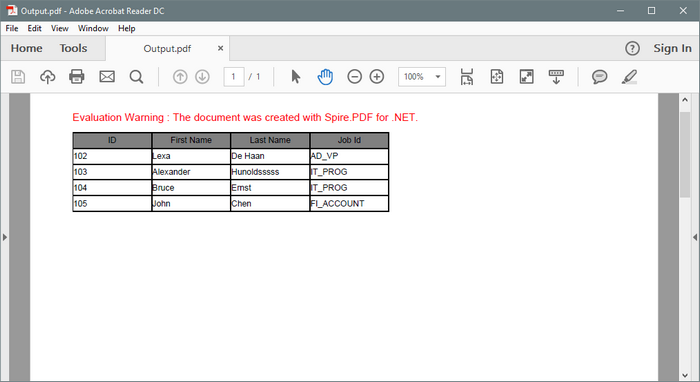
Full Code:
using Spire.Pdf;
using Spire.Pdf.Graphics;
using Spire.Pdf.Tables;
using System.Data;
using System.Drawing;


namespace SetRowHeight
{
    class Program
    {
        static void Main(string[] args)
        {
            PdfDocument doc = new PdfDocument();
            PdfPageBase page = doc.Pages.Add();

            PdfTable table = new PdfTable();
            DataTable dataTable = new DataTable();
            dataTable.Columns.Add("ID");
            dataTable.Columns.Add("First Name");
            dataTable.Columns.Add("Last Name");
            dataTable.Columns.Add("Job Id");
            dataTable.Rows.Add(new string[] { "102", "Lexa", "De Haan", "AD_VP" });
            dataTable.Rows.Add(new string[] { "103", "Alexander", "Hunoldsssss", "IT_PROG" });
            dataTable.Rows.Add(new string[] { "104", "Bruce", "Ernst", "IT_PROG" });
            dataTable.Rows.Add(new string[] { "105", "John", "Chen", "FI_ACCOUNT" });
            table.DataSource = dataTable;
            table.Style.ShowHeader = true;

            foreach (PdfColumn col in table.Columns)
            {
                col.StringFormat = new PdfStringFormat(PdfTextAlignment.Left, PdfVerticalAlignment.Middle);
            }
            table.Style.HeaderStyle.StringFormat = new PdfStringFormat(PdfTextAlignment.Center, PdfVerticalAlignment.Middle);
            table.Style.HeaderStyle.BackgroundBrush = PdfBrushes.Gray;

            table.BeginRowLayout += Table_BeginRowLayout;
            table.Draw(page, new RectangleF(0, 20, 300, 90));
            doc.SaveToFile("Output.pdf");


            System.Diagnostics.Process.Start("Output.pdf");

        }
        private static void Table_BeginRowLayout(object sender, BeginRowLayoutEventArgs args)
        {
            args.MinimalHeight = 15f;
        }
    }
}
With the help of Spire.Doc, developers can encrypt word with password, and also convert the word document to PDF. This article will show you how to convert Word to PDF with encrypted password for the resulted PDF file.
Make sure Spire.Doc for .NET Version 5.8.92 (or above) has been installed correctly and then add Spire.Doc.dll as reference in the downloaded Bin folder though the below path: "..\Spire.Doc\Bin\NET4.0\ Spire.Doc.dll".
Here comes to the code snippets of how to create password encrypted PDF directly from word to PDF conversion.
Step 1: Create a new word document and load the document from file.
Document document = new Document(false);
document.LoadFromFile("Sample.docx");
Step 2: Create an instance of ToPdfParameterList.
ToPdfParameterList toPdf = new ToPdfParameterList();
Step 3: Set open password, permission password and user's permission over the PDF document
toPdf.PdfSecurity.Encrypt("open password","permission password", PdfPermissionsFlags.None, PdfEncryptionKeySize.Key128Bit);
Step 4: Save the document to file.
document.SaveToFile("EncryptedPDF.pdf",toPdf);
Effective screenshot:
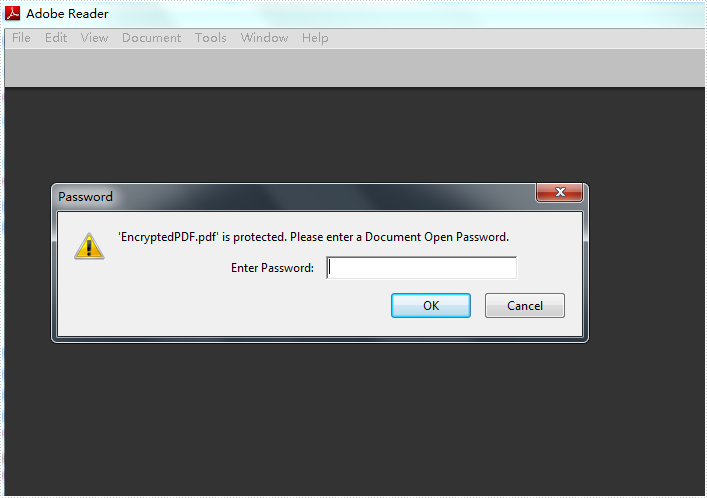
Full codes:
using Spire.Doc;
namespace EncryptPDF
{
    class Program
    {
        static void Main(string[] args)
        {
            Document document = new Document(false);
            document.LoadFromFile("Sample.docx");

            ToPdfParameterList toPdf = new ToPdfParameterList();
            toPdf.PdfSecurity.Encrypt("open password","permission password", PdfPermissionsFlags.None, PdfEncryptionKeySize.Key128Bit);

            document.SaveToFile("EncryptedPDF.pdf", toPdf);
        }
    }
}
In the previous article, we've introduced how to insert image into excel worksheet. In this article, we'll demonstrate how to extract image from Excel worksheet. Please check the below screenshot of the source excel worksheet which contains an image:
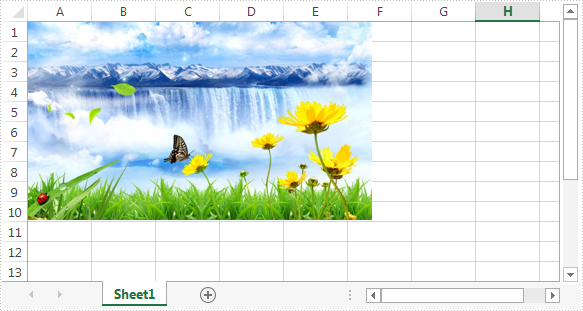
Code snippet:
Step 1: Instantiate an instance of Workbook class and load the excel file.
Workbook workbook = new Workbook();
workbook.LoadFromFile(@"C:\Users\Administrator\Desktop\test.xlsx");
Step 2: Get the first worksheet.
Worksheet sheet = workbook.Worksheets[0];
Step 3: Get the first picture in the worksheet and save it to disk.
ExcelPicture picture = sheet.Pictures[0];
picture.Picture.Save(@"Image\image.png", ImageFormat.Png);
Screenshot:
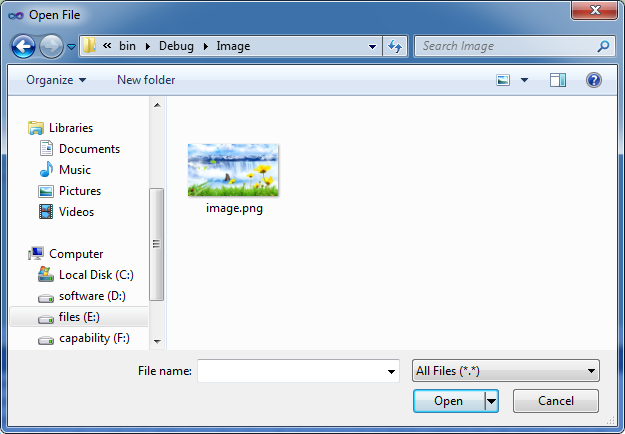
Full code:
using System.Drawing.Imaging;
using Spire.Xls;

namespace Extract_Image
{
    class Program
    {
        static void Main(string[] args)
        {
            Workbook workbook = new Workbook();
            workbook.LoadFromFile(@"C:\Users\Administrator\Desktop\test.xlsx");
            Worksheet sheet = workbook.Worksheets[0];
            ExcelPicture picture = sheet.Pictures[0];
            picture.Picture.Save(@"Image\image.png", ImageFormat.Png);
        }
    }
}
Imports System.Drawing.Imaging
Imports Spire.Xls

Namespace Extract_Image
	Class Program
		Private Shared Sub Main(args As String())
			Dim workbook As New Workbook()
			workbook.LoadFromFile("C:\Users\Administrator\Desktop\test.xlsx")
			Dim sheet As Worksheet = workbook.Worksheets(0)
			Dim picture As ExcelPicture = sheet.Pictures(0)
			picture.Picture.Save("Image\image.png", ImageFormat.Png)
		End Sub
	End Class
End Namespace
