
Knowledgebase (2370)
Children categories
Building Error
Q: When I drag and drop the PdfDocumentViewer control on the winform application and build the project, I get an error like this:

What should I do?
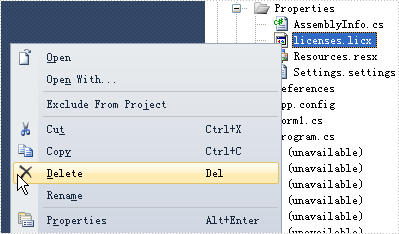
A: To get rid of this error, please delete "licenses.licx" file in Properties folder and rebuild the project.
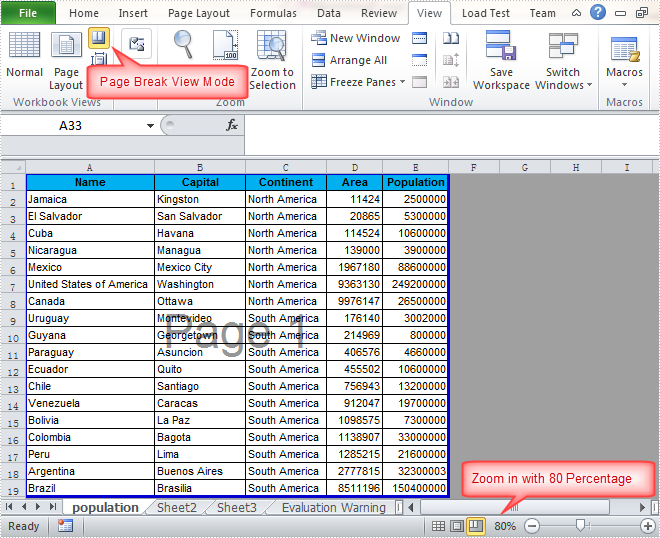
Users can change the Excel view mode according to reading habit. By default, there are several view modes we can choose, including Normal View, Page Layout View, Page Break Preview, Full Screen View and Custom Views. Besides, Microsoft Excel also enables us to zoom in/out the document to a specified level. In this article, I'll make a brief introduction about how to set Excel view mode using Spire.XLS in C# and VB.NET.
In this sample, the Excel view mode will be set as Page Break Preview with zoom in 80 percent. Download the Spire.XLS for .NET, add the Spire.Xls.dll as a reference into assemblies, then we can use the following code snippet to achieve this end goal.
Detailed Steps
Step 1: Create a new instance of Workbook and load the sample file.
Workbook workbook = new Workbook();
workbook.LoadFromFile("Sample.xlsx", ExcelVersion.Version2010);
Step 2: Get the first the worksheet from the Excel workbook.
Worksheet sheet = workbook.Worksheets[0];
Step 3: Set view mode as Page Break Preview and Zoom in the sheet with 80 percent.
sheet.ViewMode = ViewMode.Preview;
sheet.ZoomScalePageBreakView = 80;
Step 4: Save the changes to workbook in a new file.
workbook.SaveToFile("Result.xlsx", ExcelVersion.Version2010);
Output:
Full Code:
using Spire.Xls;
namespace SetExcelViewMode
{
    class Program
    {

        static void Main(string[] args)
        {
            Workbook workbook = new Workbook();
            workbook.LoadFromFile("Sample.xlsx", ExcelVersion.Version2010);
            Worksheet sheet = workbook.Worksheets[0];
            ////Page Layout
            //sheet.ViewMode = ViewMode.Layout;
            //sheet.ZoomScalePageLayoutView = 80;
            ////Normal View(Default)
            //sheet.ViewMode = ViewMode.Normal;
            //sheet.ZoomScaleNormal = 80;
            //Preview
            sheet.ViewMode = ViewMode.Preview;
            sheet.ZoomScalePageBreakView = 80;

            workbook.SaveToFile("Result.xlsx", ExcelVersion.Version2010);

        }

    }
}
Imports Spire.Xls
Namespace SetExcelViewMode
	Class Program

		Private Shared Sub Main(args As String())
			Dim workbook As New Workbook()
			workbook.LoadFromFile("Sample.xlsx", ExcelVersion.Version2010)
			Dim sheet As Worksheet = workbook.Worksheets(0)
			'''/Page Layout
			'sheet.ViewMode = ViewMode.Layout;
			'sheet.ZoomScalePageLayoutView = 80;
			'''/Normal View(Default)
			'sheet.ViewMode = ViewMode.Normal;
			'sheet.ZoomScaleNormal = 80;
			'Preview
			sheet.ViewMode = ViewMode.Preview
			sheet.ZoomScalePageBreakView = 80

			workbook.SaveToFile("Result.xlsx", ExcelVersion.Version2010)

		End Sub

	End Class
End Namespace
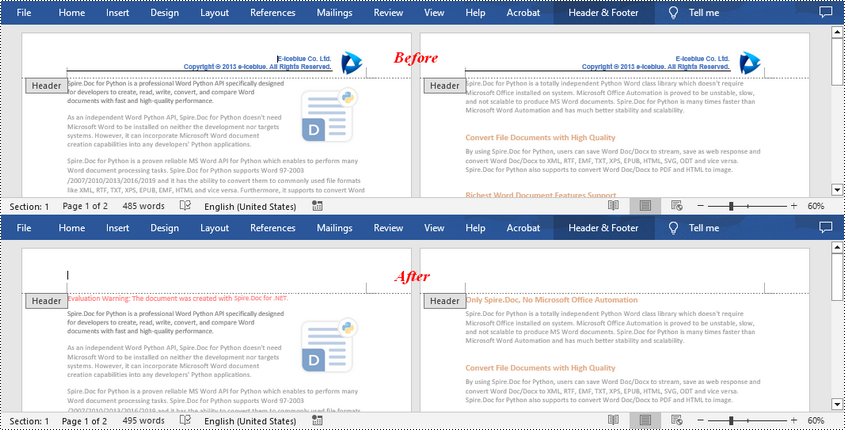
If the headers or footers in a Word document contains unnecessary information, such as outdated version numbers, redundant company logos, or incorrect author names, removing them can make the document look more professional and concise. In this article, you will learn how to remove headers or footers in Word in C# using Spire.Doc for .NET.
Install Spire.Doc for .NET
To begin with, you need to add the DLL files included in the Spire.Doc for.NET package as references in your .NET project. The DLL files can be either downloaded from this link or installed via NuGet.
PM> Install-Package Spire.Doc
Remove Headers in Word in C#
Spire.Doc for .NET supports getting different headers in the first pages, odd pages, and even pages, and then delete all of them through the HeaderFooter.ChildObjects.Clear() method. The following are the detailed steps:
- Create a Document instance.
- Load a Word document using Document.LoadFromFile() method.
- Get a specified section using Document.Sections[] property.
- Iterate through all paragraphs in the section, and then all child objects in each paragraph.
- Get the headers for the first, odd, and even pages using Section.HeadersFooters[HeaderFooterType hfType] property, and then delete them using HeaderFooter.ChildObjects.Clear() method.
- Save the result document using Document.SaveToFile() method.
- C#
using Spire.Doc;
using Spire.Doc.Documents;

namespace RemoveHeader
{
    class Program
    {
        static void Main(string[] args)
        {
            //Create a Document instance
            Document doc = new Document();

            //Load a Word document
            doc.LoadFromFile("HeaderFooter.docx");

            //Get the first section
            Section section = doc.Sections[0];

            //Iterate through all paragraphs in the section
            foreach (Paragraph para in section.Paragraphs)
            {
                //Iterate through all child objects in each paragraph
                foreach (DocumentObject obj in para.ChildObjects)
                {
                    //Delete header in the first page
                    HeaderFooter header;
                    header = section.HeadersFooters[HeaderFooterType.HeaderFirstPage];
                    if (header != null)
                        header.ChildObjects.Clear();

                    //Delete headers in the odd pages
                    header = section.HeadersFooters[HeaderFooterType.HeaderOdd];
                    if (header != null)
                        header.ChildObjects.Clear();

                    //Delete headers in the even pages
                    header = section.HeadersFooters[HeaderFooterType.HeaderEven];
                    if (header != null)
                        header.ChildObjects.Clear();
                }
            }

            //Save the result document
            doc.SaveToFile("RemoveHeader.docx", FileFormat.Docx);
        }
    }
}
Remove Footers in Word in C#
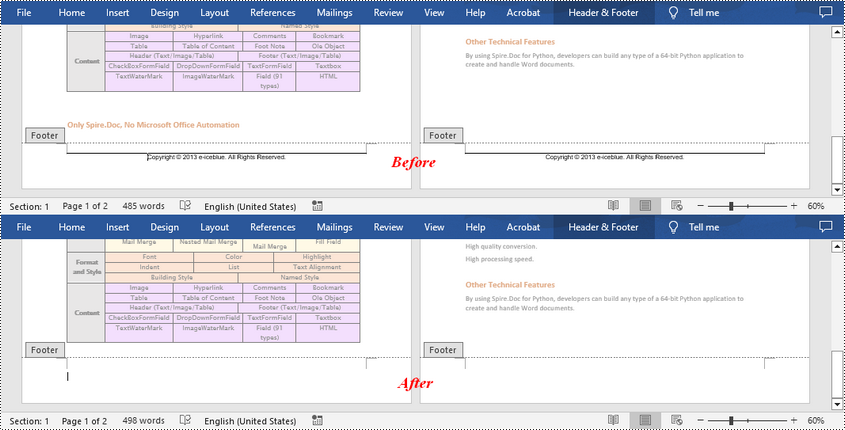
Deleting footers is similar to that of deleting headers, you can also get the footers on different pages first and then delete them at once. The following are the detailed steps:
- Create a Document instance.
- Load a Word document using Document.LoadFromFile() method.
- Get a specified section using Document.Sections[] property.
- Iterate through all paragraphs in the section, and then all child objects in each paragraph.
- Get the footers for the first, odd, and even pages using Section.HeadersFooters[HeaderFooterType hfType] property, and then delete them using HeaderFooter.ChildObjects.Clear() method.
- Save the result document using Document.SaveToFile() method.
- C#
using Spire.Doc;
using Spire.Doc.Documents;

namespace RemoveHeader
{
    class Program
    {
        static void Main(string[] args)
        {
            //Create a Document instance
            Document doc = new Document();

            //Load a Word document
            doc.LoadFromFile("HeaderFooter.docx");

            //Get the first section
            Section section = doc.Sections[0];

            //Iterate through all paragraphs in the section
            foreach (Paragraph para in section.Paragraphs)
            {
                //Iterate through all child objects in each paragraph
                foreach (DocumentObject obj in para.ChildObjects)
                {
                    //Delete footer in the first page
                    HeaderFooter footer;
                    footer = section.HeadersFooters[HeaderFooterType.FooterFirstPage];
                    if (footer != null)
                        footer.ChildObjects.Clear();

                    //Delete footer in the odd page
                    footer = section.HeadersFooters[HeaderFooterType.FooterOdd];
                    if (footer != null)
                        footer.ChildObjects.Clear();

                    //Delete footer in the even page
                    footer = section.HeadersFooters[HeaderFooterType.FooterEven];
                    if (footer != null)
                        footer.ChildObjects.Clear();
                }
            }

            //Save the result document
            doc.SaveToFile("RemoveFooter.docx", FileFormat.Docx);
        }
    }
}
Apply for a Temporary License
If you'd like to remove the evaluation message from the generated documents, or to get rid of the function limitations, please request a 30-day trial license for yourself.
