
Knowledgebase (2370)
Children categories
A table provides fast and efficient access to data displayed in rows and columns in a visually appealing manner. When presented in a table, data has a greater impact than when just used as words and enables readers to easily compare and understand relationships between them. In this article, you will learn how to create a table in PDF in C# and VB.NET using Spire.PDF for .NET.
Spire.PDF for .NET offers the PdfTable and the PdfGrid class to work with the tables in a PDF document. The PdfTable class is used to quickly create simple, regular tables without too much formatting, while the PdfGrid class is used to create more complex tables.
The table below lists the differences between these two classes.
| PdfTable | PdfGrid | |
| Formatting | ||
| Row | Can be set through events. No API support. | Can be set through API. |
| Column | Can be set through API (StringFormat). | Can be set through API (StringFormat). |
| Cell | Can be set through events. No API support. | Can be set through API. |
| Others | ||
| Column span | Not support. | Can be set through API. |
| Row span | Can be set through events. No API support. | Can be set through API. |
| Nested table | Can be set through events. No API support. | Can be set through API. |
| Events | BeginCellLayout, EndCellLayout, BeginRowLayout, EndRowLayout, BeginPageLayout, EndPageLayout. | BeginPageLayout, EndPageLayout. |
The following sections demonstrate how to create a table in PDF using the PdfTable class and the PdfGrid class, respectively.
Install Spire.PDF for .NET
To begin with, you need to add the DLL files included in the Spire.PDF for.NET package as references in your .NET project. The DLL files can be either downloaded from this link or installed via NuGet.
PM> Install-Package Spire.PDF
Create a Table Using PdfTable Class
The following are the steps to create a table using the PdfTable class.
- Create a PdfDocument object.
- Add a page to it using PdfDocument.Pages.Add() method.
- Create a Pdftable object.
- Set the table style through PdfTable.Style property.
- Insert data to table through PdfTable.DataSource property.
- Set row height and row color through BeginRowLayout event.
- Draw table on the PDF page using PdfTable.Draw() method.
- Save the document to a PDF file using PdfDocument.SaveToFile() method.
- C#
- VB.NET
using System;
using System.Data;
using System.Drawing;
using Spire.Pdf;
using Spire.Pdf.Graphics;
using Spire.Pdf.Tables;

namespace CreateTable
{
    class Program
    {
        static void Main(string[] args)
        {
            //Create a PdfDocument object
            PdfDocument doc = new PdfDocument();

            //Add a page
            PdfPageBase page = doc.Pages.Add(PdfPageSize.A4, new PdfMargins(40));

            //Create a PdfTable object
            PdfTable table = new PdfTable();

            //Set font for header and the rest cells
            table.Style.DefaultStyle.Font = new PdfTrueTypeFont(new Font("Times New Roman", 12f, FontStyle.Regular), true);
            table.Style.HeaderStyle.Font = new PdfTrueTypeFont(new Font("Times New Roman", 12f, FontStyle.Bold), true);

            //Crate a DataTable
            DataTable dataTable = new DataTable();
            dataTable.Columns.Add("ID");
            dataTable.Columns.Add("Name");
            dataTable.Columns.Add("Department");
            dataTable.Columns.Add("Position");
            dataTable.Columns.Add("Level");
            dataTable.Rows.Add(new string[] { "1", "David", "IT", "Manager", "1" });
            dataTable.Rows.Add(new string[] { "3", "Julia", "HR", "Manager", "1" });
            dataTable.Rows.Add(new string[] { "4", "Sophie", "Marketing", "Manager", "1" });
            dataTable.Rows.Add(new string[] { "7", "Wickey", "Marketing", "Sales Rep", "2" });
            dataTable.Rows.Add(new string[] { "9", "Wayne", "HR", "HR Supervisor", "2" });
            dataTable.Rows.Add(new string[] { "11", "Mia", "Dev", "Developer", "2" });

            //Set the datatable as the data source of table
            table.DataSource = dataTable;

            //Show header(the header is hidden by default)
            table.Style.ShowHeader = true;

            //Set font color and backgroud color of header row
            table.Style.HeaderStyle.BackgroundBrush = PdfBrushes.Gray;
            table.Style.HeaderStyle.TextBrush = PdfBrushes.White;

            //Set text alignment in header row
            table.Style.HeaderStyle.StringFormat = new PdfStringFormat(PdfTextAlignment.Center, PdfVerticalAlignment.Middle);

            //Set text alignment in other cells
            for (int i = 0; i < table.Columns.Count; i++)
            {
                table.Columns[i].StringFormat = new PdfStringFormat(PdfTextAlignment.Center, PdfVerticalAlignment.Middle);
            }

            //Register with BeginRowLayout event
            table.BeginRowLayout += Table_BeginRowLayout;

            //Draw table on the page
            table.Draw(page, new PointF(0, 30));

            //Save the document to a PDF file
            doc.SaveToFile("PdfTable.pdf");
        }

        //Event handler
        private static void Table_BeginRowLayout(object sender, BeginRowLayoutEventArgs args)
        {
            //Set row height
            args.MinimalHeight = 20f;

            //Alternate row color
            if (args.RowIndex < 0)
            {
                return;
            }
            if (args.RowIndex % 2 == 1)
            {
                args.CellStyle.BackgroundBrush = PdfBrushes.LightGray;
            }
            else
            {
                args.CellStyle.BackgroundBrush = PdfBrushes.White;
            }
        }
    }
}
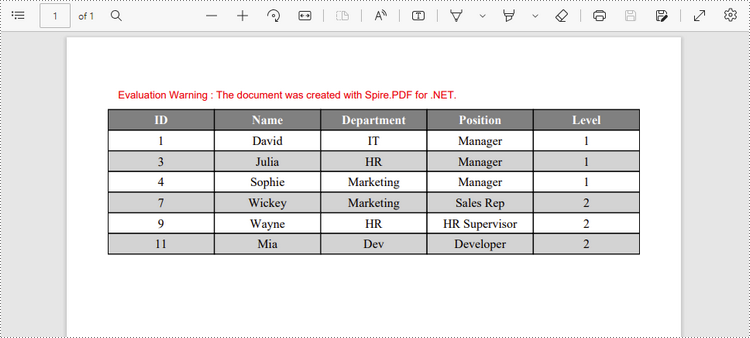
Create a Table Using PdfGrid Class
Below are the steps to create a table using the PdfGrid class.
- Create a PdfDocument object.
- Add a page to it using PdfDocument.Pages.Add() method.
- Create a PdfGrid object.
- Set the table style through PdfGrid.Style property.
- Add rows to the table using PdfGrid.Rows.Add() method.
- Insert data to specific cells through PdfGridRow.Cells[index].Value property.
- Span cells across columns or rows through PdfGridRow.RowSpan or PdfGridRow.ColumnSpan property.
- Set the formatting of a specific cell through PdfGridRow.Cells[index].StringFormat and PdfGridRow.Cells[index].Style properties.
- Draw table on the PDF page using PdfGrid.Draw() method.
- Save the document to a PDF file using PdfDocument.SaveToFile() method.
- C#
- VB.NET
using Spire.Pdf;
using Spire.Pdf.Graphics;
using Spire.Pdf.Grid;
using System.Drawing;

namespace CreateGrid
{
    class Program
    {
        static void Main(string[] args)
        {
            //Create a PdfDocument object
            PdfDocument doc = new PdfDocument();

            //Add a page
            PdfPageBase page = doc.Pages.Add(PdfPageSize.A4,new PdfMargins(40));

            //Create a PdfGrid
            PdfGrid grid = new PdfGrid();

            //Set cell padding
            grid.Style.CellPadding = new PdfPaddings(1, 1, 1, 1);

            //Set font
            grid.Style.Font = new PdfTrueTypeFont(new Font("Times New Roman", 13f, FontStyle.Regular), true);

            //Add rows
            PdfGridRow row1 = grid.Rows.Add();
            PdfGridRow row2 = grid.Rows.Add();
            PdfGridRow row3 = grid.Rows.Add();
            PdfGridRow row4 = grid.Rows.Add();
            grid.Columns.Add(4);

            //Set column width
            foreach (PdfGridColumn col in grid.Columns)
            {
                col.Width = 110f;
            }

            //Write data into specific cells
            row1.Cells[0].Value = "Order and Payment Status";
            row2.Cells[0].Value = "Order number";
            row2.Cells[1].Value = "Date";
            row2.Cells[2].Value = "Customer";
            row2.Cells[3].Value = "Paid or not";
            row3.Cells[0].Value = "00223";
            row3.Cells[1].Value = "2022/06/02";
            row3.Cells[2].Value = "Brick Lane Realty";
            row3.Cells[3].Value = "Yes";
            row4.Cells[0].Value = "00224";
            row4.Cells[1].Value = "2022/06/03";
            row4.Cells[3].Value = "No";

            //Span cell across columns
            row1.Cells[0].ColumnSpan = 4;

            //Span cell across rows
            row3.Cells[2].RowSpan = 2;

            //Set text alignment of specific cells
            row1.Cells[0].StringFormat = new PdfStringFormat(PdfTextAlignment.Center);
            row3.Cells[2].StringFormat = new PdfStringFormat(PdfTextAlignment.Left, PdfVerticalAlignment.Middle);

            //Set background color of specific cells
            row1.Cells[0].Style.BackgroundBrush = PdfBrushes.Orange;
            row4.Cells[3].Style.BackgroundBrush = PdfBrushes.LightGray;

            //Format cell border
            PdfBorders borders = new PdfBorders();
            borders.All = new PdfPen(Color.Orange, 0.8f);
            foreach (PdfGridRow pgr in grid.Rows)
            {
                foreach (PdfGridCell pgc in pgr.Cells)
                {
                    pgc.Style.Borders = borders;
                }
            }

            //Draw table on the page
            grid.Draw(page, new PointF(0, 30));

            //Save the document to a PDF file
            doc.SaveToFile("PdfGrid.pdf");
        }
    }
}
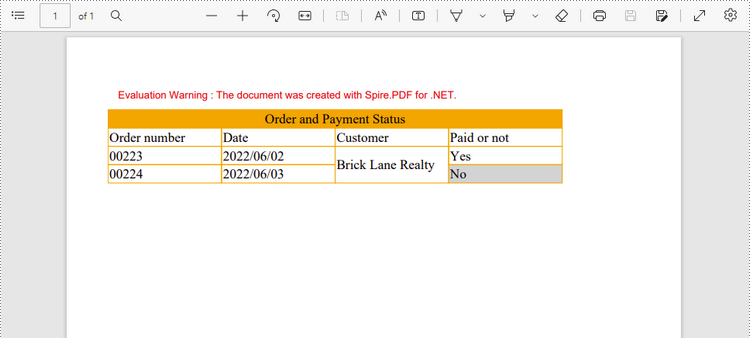
Apply for a Temporary License
If you'd like to remove the evaluation message from the generated documents, or to get rid of the function limitations, please request a 30-day trial license for yourself.
When receiving or downloading a Word document from the Internet, you may sometimes need to extract content from the document for other purposes. In this article, you will learn how to programmatically extract text and images from a Word document using Spire.Doc for .NET.
Install Spire.Doc for .NET
To begin with, you need to add the DLL files included in the Spire.Doc for.NET package as references in your .NET project. The DLL files can be either downloaded from this link or installed via NuGet.
PM> Install-Package Spire.Doc
Extract Text from a Word Document
Below are detailed steps on how to extract text from a Word document and save in a TXT file.
- Create a Document instance.
- Load a sample Word document using Document.LoadFromFile() method.
- Create a StringBuilder instance.
- Get each paragraph of each section in the document.
- Get the text of a specified paragraph using Paragraph.Text property, and then append the extracted text to the StringBuilder instance using StringBuilder.AppendLine() method.
- Create a new txt file and write the extracted text to the file using File.WriteAllText() method.
- C#
- VB.NET
using Spire.Doc;
using Spire.Doc.Documents;
using System.Text;
using System.IO;

namespace ExtractTextfromWord
{
    class ExtractText
    {
        static void Main(string[] args)
        {
            //Create a Document instance
            Document document = new Document();

            //Load a sample Word document
            document.LoadFromFile("input.docx");

            //Create a StringBuilder instance
            StringBuilder sb = new StringBuilder();

            //Extract text from Word and save to StringBuilder instance
            foreach (Section section in document.Sections)
            {
                foreach (Paragraph paragraph in section.Paragraphs)
                {
                    sb.AppendLine(paragraph.Text);
                }
            }

            //Create a new txt file to save the extracted text
            File.WriteAllText("Extract.txt", sb.ToString());
        }
    }
}
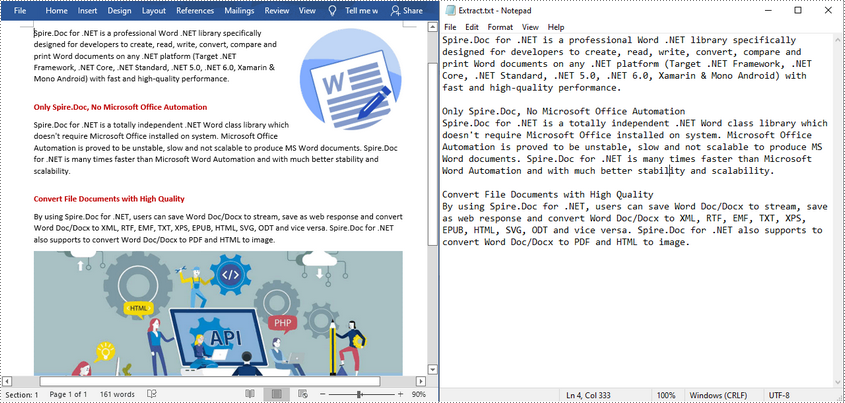
Extract Images from a Word Document
Below are detailed steps on how to extract all images from a Word document.
- Create a Document instance and load a sample Word document.
- Get each paragraph of each section in the document.
- Get each document object of a specific paragraph.
- Determine whether the document object type is picture. If yes, save the image out of the document using DocPicture.Image.Save(String, ImageFormat) method.
- C#
- VB.NET
using Spire.Doc;
using Spire.Doc.Documents;
using Spire.Doc.Fields;
using System;

namespace ExtractImage
{
    class Program
    {
        static void Main(string[] args)
        {
            //Load a Word document
            Document document = new Document("input.docx");
            int index = 0;

            //Get each section of document
            foreach (Section section in document.Sections)
            {
                //Get each paragraph of section
                foreach (Paragraph paragraph in section.Paragraphs)
                {
                    //Get each document object of a specific paragraph
                    foreach (DocumentObject docObject in paragraph.ChildObjects)
                    {
                        //If the DocumentObjectType is picture, save it out of the document
                        if (docObject.DocumentObjectType == DocumentObjectType.Picture)
                        {
                            DocPicture picture = docObject as DocPicture;
                            picture.Image.Save(string.Format("image_{0}.png", index), System.Drawing.Imaging.ImageFormat.Png);
                            index++;
                        }
                    }
                }
            }
        }
    }
}
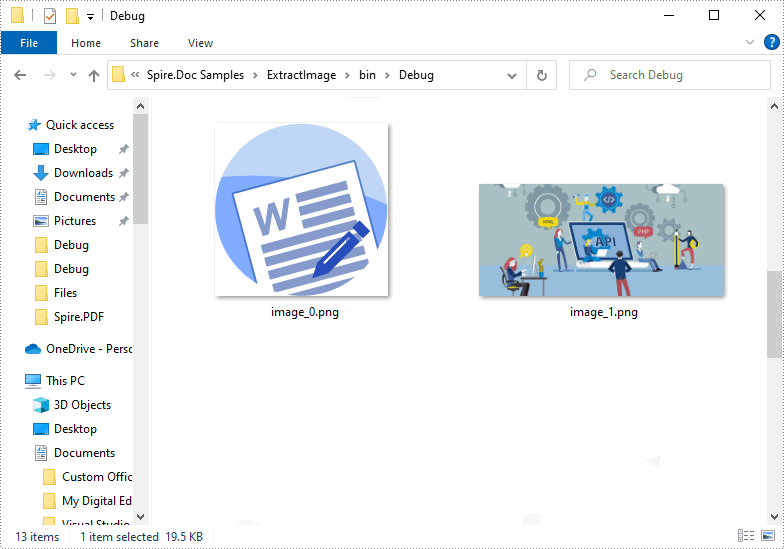
Apply for a Temporary License
If you'd like to remove the evaluation message from the generated documents, or to get rid of the function limitations, please request a 30-day trial license for yourself.
In Excel, a page break is a separator that divides a worksheet into several different pages/segments for the purpose of better printing. By inserting page breaks where necessary, you can avoid misalignment of data and ensure a desired print result, which is especially useful when working with a large data set. This article will demonstrate how to programmatically insert horizontal or vertical page breaks in Excel using Spire.XLS for .NET.
- Insert Horizontal Page Breaks in an Excel Worksheet
- Insert Vertical Page Breaks in an Excel Worksheet
Install Spire.XLS for .NET
To begin with, you need to add the DLL files included in the Spire.XLS for .NET package as references in your .NET project. The DLL files can be either downloaded from this link or installed via NuGet.
PM> Install-Package Spire.XLS
Insert Horizontal Page Breaks in an Excel Worksheet
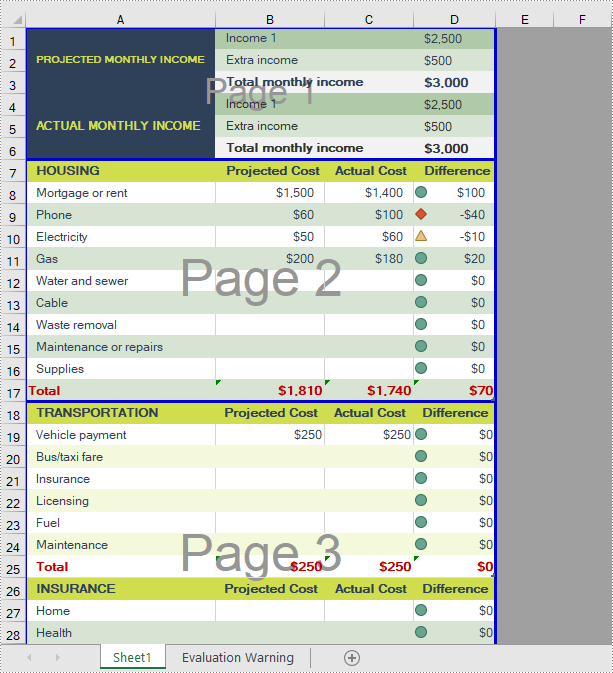
A horizontal page break is inserted between a selected row and the row above it. After insertion, the selected row will become the top row of the new page. With Spire.XLS for .NET, developers are allowed to use the Worksheet.HPageBreaks.Add(CellRange) method to insert horizontal page breaks. The detailed steps are as follows.
- Create a Workbook instance.
- Load a sample Excel file using Workbook.LoadFromFile() method.
- Get a specified worksheet using Workbook.Worksheets[sheetIndex] property.
- Add horizontal page break to a specified cell range using Worksheet.HPageBreaks.Add(CellRange) method.
- Set view mode to Preview mode using Worksheet.ViewMode property.
- Save the result file using Workbook.SaveToFile() method.
- C#
- VB.NET
using Spire.Xls;

namespace EditExcelComment
{
    class Program
    {
        static void Main(string[] args)
        {
            //Create a Workbook instance
            Workbook workbook = new Workbook();

            //Load a sample Excel document
            workbook.LoadFromFile("input.xlsx");

            //Get the first worksheet
            Worksheet sheet = workbook.Worksheets[0];

            //Set Excel page break horizontally
            sheet.HPageBreaks.Add(sheet.Range["A7"]);
            sheet.HPageBreaks.Add(sheet.Range["A18"]);

            //Set view mode to Preview mode
            sheet.ViewMode = ViewMode.Preview;

            //Save the result document
            workbook.SaveToFile("SetHorizontalPageBreak.xlsx");
        }
    }
}
Insert Vertical Page Breaks in an Excel Worksheet
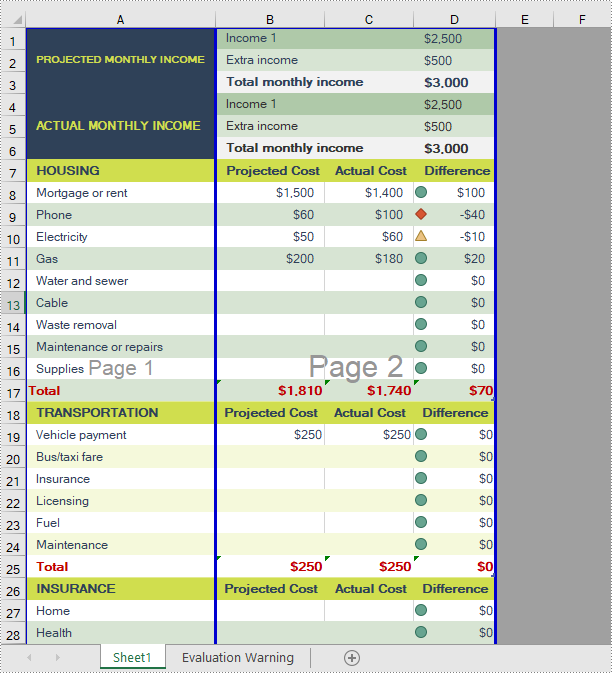
A vertical page break is inserted between a selected column and the column to its left. After insertion, the selected column will become the left most column of the new page. To insert vertical page breaks, developers can use the Worksheet.VPageBreaks.Add(CellRange) method offered by Spire.XLS for .NET offers. The detailed steps are as follows.
- Create a Workbook instance.
- Load a sample Excel file using Workbook.LoadFromFile() method.
- Get a specified worksheet using Workbook.Worksheets[sheetIndex] property.
- Add vertical page break to a specified cell range using Worksheet.VPageBreaks.Add(CellRange) method.
- Set view mode to Preview mode using Worksheet.ViewMode property.
- Save the result file using Workbook.SaveToFile() method.
- C#
- VB.NET
using Spire.Xls;

namespace EditExcelComment
{
    class Program
    {
        static void Main(string[] args)
        {
            //Create a Workbook instance
            Workbook workbook = new Workbook();

            //Load a sample Excel document
            workbook.LoadFromFile("input.xlsx");

            //Get the first worksheet
            Worksheet sheet = workbook.Worksheets[0];

            //Set Excel page break vertically
            sheet.VPageBreaks.Add(sheet.Range["B1"]);

            //Set view mode to Preview mode
            sheet.ViewMode = ViewMode.Preview;

            //Save the result document
            workbook.SaveToFile("SetVerticalPageBreak.xlsx");
        }
    }
}
Apply for a Temporary License
If you'd like to remove the evaluation message from the generated documents, or to get rid of the function limitations, please request a 30-day trial license for yourself.
