
Knowledgebase (2421)
Children categories
This section aims at providing developers a solution to unlock sheet in Excel workbook with C#, VB.NET via this Excel library Spire.XLS for .NET.
Spire.XLS for .NET enables you to unlock any sheet in Excel file only by one line of key code: Spire.Xls.Worksheet.Unprotect(string password); Besides, as an MS Excel component, Spire.XLS for .NET also enables you to create, read and handle Excel files with fast speed. Below is an Excel file with protected worksheets which will be unlocked in my task.
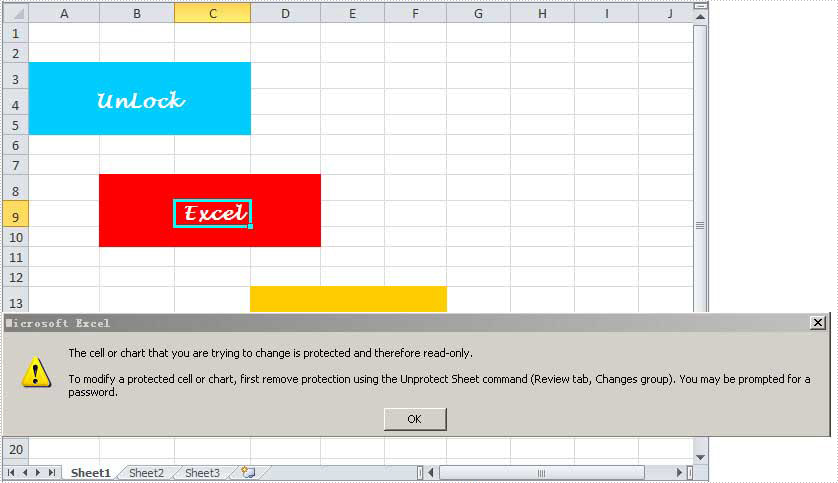
Since you will use Spire.XLS for .NET, you have to download Spire.XLS for .NET and install it on system. When you create your project, please do not forget to add Spire.XLS.dll as reference from Bin folder. The default path is "..\Spire.XLS\Bin\NET4.0\Spire.XLS.dll". Please note that Spire.XLS for .NET supports .NET Framework 2.0 and above. Here is the whole code for unlocking Excel sheet:
namespace UnlockExcelSheet
{
    class Program
    {
        static void Main(string[] args)
        {
            //initialize an instance of Workbook
            Workbook workbook = new Workbook();
            //Load an Excel file with protected worksheet
            workbook.LoadFromFile(@"..\Unlock Excel Worksheet.xlsx");
            //get the first worksheet
            Worksheet sheet = workbook.Worksheets[0];
            //Unprotect worksheet
            sheet.Unprotect("iceblue");
            //Save the file
            workbook.SaveToFile("Sample.xlsx",ExcelVersion.Version2010);
            //Launch the file
            System.Diagnostics.Process.Start("Sample.xlsx");
        }
    }
}
Namespace UnlockExcelSheet
	Class Program
		Private Shared Sub Main(args As String())
			'initialize an instance of Workbook
			Dim workbook As New Workbook()
			'Load an Excel file with protected worksheet
			workbook.LoadFromFile("..\Unlock Excel Worksheet.xlsx")
			'get the first worksheet
			Dim sheet As Worksheet = workbook.Worksheets(0)
			'Unprotect worksheet
			sheet.Unprotect("iceblue")
			'Save the file
			workbook.SaveToFile("Sample.xlsx",ExcelVersion.Version2010)
			'Launch the file
			System.Diagnostics.Process.Start("Sample.xlsx")
		End Sub
	End Class
End Namespace
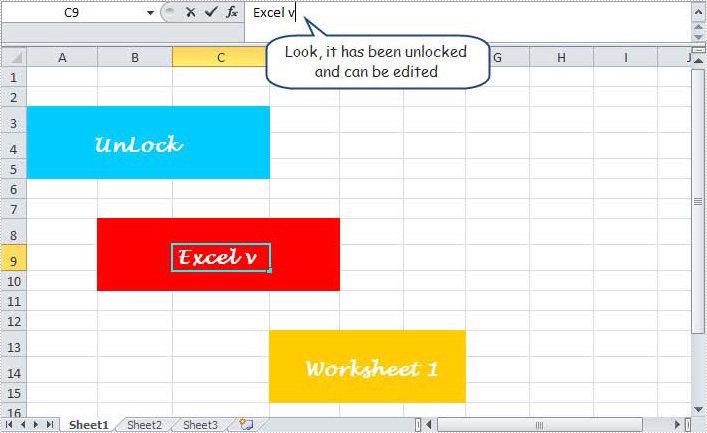
After executing above code, you can see that the protected worksheet in the original Excel file has been unlocked, we can edit it also. Please see following image.
In this section, I have introduced the solution to unlock any sheet in Excel file via Spire.XLS for .NET. I hope it can help you. If you have any questions, feedbacks and advice, you can put them on E-iceblue Forum. We will promise a prompt reply.
By running VBA within the Office applications, developers/programmers can build customized solutions and programs to enhance the capabilities of those applications. The VBA function of Excel is very powerful. Below I will show you how to use VBA by Spire.XLS.
VBA is the acronym for VB.NET for Applications. It is an implementation of Microsoft's event-driven programming language VB.NET 6 and its associated integrated development environment (IDE), which are built into most Microsoft Office applications. VBA is closely related to VB.NET and uses the VB.NET Runtime Library, but can normally only run code within a host application rather than as a standalone program. It can be used to control one application from another via OLE Automation.
Spire.XLS for .NET is a professional Excel .NET component that can be linked into any type of .NET 2.0, 3.5 or 4.0 projects, either ASP.NET web sites or Windows Forms application. Spire.XLS for .NET offers a combination of APIs and GUI controls for speeding up Excel programming in .NET platform-create new Excel documents from scratch, edit existing Excel documents and convert Excel files. At the same time, Spire.XLS supports VBA and it can load/Save Excel VBA.
Here comes to the steps:
- Write a template with VBA program with which you can execute your work in Excel.
- Create another workbook to load the VBA template.
In this demo, it generates a new worksheet named "test" with the VBA template we provide.
Please check the codes as below:
using Spire.Xls;

namespace NumberFormat
{
    class Program
    {
        static void Main(string[] args)
        {
            //Create a workbook
            Workbook workbook = new Workbook();

            //Initailize worksheet
            workbook.LoadFromFile("VBASample.xls");
            Worksheet sheet = workbook.Worksheets[0];

            //VBA function
            sheet.Range["A1"].Text = "test";

            //Save the file
            workbook.SaveToFile("Sample.xls",ExcelVersion.Version97to2003);

            //Launch the file
            System.Diagnostics.Process.Start("Sample.xls");
        }
    }
}
Imports Spire.Xls

Module Module1

    Sub Main()
        'Create a workbook
        Dim workbook As New Workbook()

        'Initailize worksheet
        workbook.LoadFromFile("VBASample.xls")
        Dim sheet As Worksheet = workbook.Worksheets(0)

        'VBA function
        sheet.Range("A1").Text = "test"

        'Save doc file.
        workbook.SaveToFile("Sample.xls",ExcelVersion.Version97to2003)

        'Launching the MS Word file.
        System.Diagnostics.Process.Start("Sample.xls")
    End Sub
End Module
Convert Excel to DataTable in C#: Worksheets, Ranges & Beyond
2024-11-14 03:59:00 Written by hayes Liu
Working with Excel data is a common requirement in .NET development. Developers often need to convert Excel files into a DataTable, which provides a structured way to manipulate data, perform LINQ queries, bind to UI controls, or import into a database.
Although this task is common, the implementation details are not always straightforward. Converting Excel data into a DataTable in C# can be achieved in several ways, but traditional approaches often depend on OLEDB drivers or involve lengthy OpenXML programming, both of which add unnecessary complexity and external dependencies. In this guide, we’ll use Spire.XLS for .NET to simplify the process of importing Excel data into a DataTable with C# code. The library provides built-in methods to load Excel files, export worksheets or specific ranges, and work with the data directly in a DataTable.
Quick Navigation
- What is a DataTable and Why Use It?
- Preparing the Environment
- Converting Excel to DataTable in C#
- Bonus: Exporting DataTable Back to Excel
- Handling Large Excel Files and Performance Tips
- Best Practices
- Conclusion
- FAQ
What is a DataTable and Why Use It?
A DataTable in C# is a memory-resident representation of structured data. It allows developers to:
- Store Excel data in tabular form.
- Perform filtering, sorting, and LINQ queries.
- Bind to UI components like DataGridView.
- Bulk insert into relational databases.
Compared with DataSet, a DataTable is lightweight and especially well-suited for working with a single worksheet or range of data.
Preparing the Environment
Before starting, install Spire.XLS for .NET in your project. The easiest way is through NuGet:
Install-Package Spire.XLS
Then, import the required namespaces in your C# code:
using Spire.Xls;
using System.Data;
Converting Excel to DataTable in C#
The following sections demonstrate how to load an Excel file and convert its contents into a DataTable using Spire.XLS. Unlike older methods that depend on OLEDB, this library works without Microsoft Office installation, making it reliable for both desktop and server-side applications.
Load an Excel File
Workbook workbook = new Workbook();
workbook.LoadFromFile("Sample.xlsx");
This creates a Workbook object from the specified Excel file, which you can then use to access individual worksheets.
Convert a Worksheet to DataTable
Worksheet sheet = workbook.Worksheets[0];
DataTable dataTable = sheet.ExportDataTable(sheet.AllocatedRange, true);
Here, the entire first worksheet is exported to a DataTable.
- sheet.AllocatedRange retrieves the used range of the worksheet.
- The true parameter means the first row will be treated as column headers.
This approach is useful when you want to import all data from a sheet directly into a DataTable, for example when binding to a DataGridView or performing bulk inserts into a database.
Convert a Specific Range to DataTable
DataTable partialTable = sheet.ExportDataTable(sheet.Range["A1:C10"], true);
This snippet converts only the range A1:C10 into a DataTable. It’s a practical choice when dealing with large Excel files, where only part of the sheet is needed for processing, or when extracting a specific report section.
Complete Example: Excel Worksheet to DataTable with C#
The following example demonstrates the entire workflow of loading an Excel file and converting it into a DataTable. After running this code, you can process the table further, such as querying, filtering, or inserting into a database.
using Spire.Xls;
using System.Data;

class Program
{
    static void Main()
    {
        // Load Excel file
        Workbook workbook = new Workbook();
        workbook.LoadFromFile("Sample.xlsx");

        // Convert first worksheet to DataTable
        Worksheet sheet = workbook.Worksheets[0];
        DataTable dataTable = sheet.ExportDataTable(sheet.AllocatedRange, true);

        // Print row count
        Console.WriteLine("Rows imported: " + dataTable.Rows.Count);

        // Print column names
        foreach (DataColumn col in dataTable.Columns)
        {
            Console.Write(col.ColumnName + "\t");
        }
        Console.WriteLine();

        // Print all rows
        foreach (DataRow row in dataTable.Rows)
        {
            foreach (var item in row.ItemArray)
            {
                Console.Write(item + "\t");
            }
            Console.WriteLine();
        }
    }
}
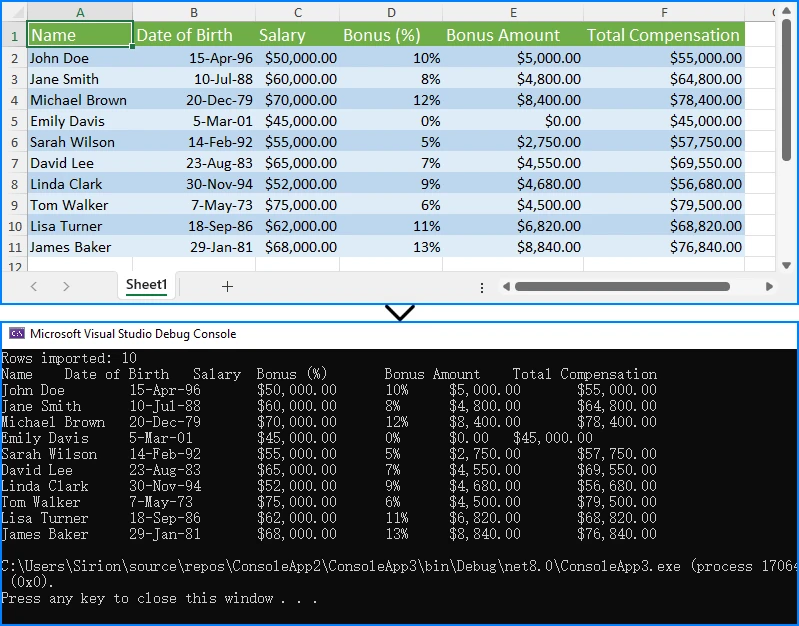
This code loads the first worksheet from an Excel file, exports its content into a DataTable, and prints the table to the console. The following screenshot shows an example of the output:
For scenarios where you need to read Excel data cell by cell, see our guide on reading Excel files in C#.
Bonus: Exporting DataTable Back to Excel in C#
In some cases, you may also need to write modified data from a DataTable back to Excel. This can be done easily:
Workbook wb = new Workbook();
Worksheet ws = wb.Worksheets[0];

// Assume dataTable is already populated
ws.InsertDataTable(dataTable, true, 1, 1);

wb.SaveToFile("Output.xlsx", ExcelVersion.Version2016);
This code inserts the DataTable starting at cell A1 and saves the file. It demonstrates the reverse workflow, ensuring smooth two-way data exchange between Excel and C#. For more details, you can check How to Export DataTable into Excel in C#.
Handling Large Excel Files and Performance Tips
When working with large Excel files, performance optimization is key. Here are a few best practices:
- Read only the required worksheets instead of loading all.
- Export specific ranges rather than entire sheets if possible.
- Use stream-based methods (LoadFromStream) to avoid file locks.
- Minimize memory usage by processing rows iteratively when handling very large DataTables.
Spire.XLS supports .xls, .xlsx, and .csv formats consistently, making it suitable across different scenarios.
Best Practices
When converting Excel to DataTable, keep in mind:
- Data type handling: Excel stores values as text by default. Convert them to int, decimal, or DateTime as needed.
- Null or empty cells: Always check for missing values to prevent runtime errors.
- Database integration: Before bulk inserting into SQL Server or another database, validate and sanitize the DataTable.
Conclusion
Converting Excel data into a DataTable is a common but critical task in .NET development. With Spire.XLS for .NET, you can achieve this efficiently without relying on OLEDB drivers or complex OpenXML parsing.
Whether you need to convert an entire worksheet, extract a specific range, or write data back to Excel, the process remains straightforward and reliable. Mastering this workflow ensures smoother integration between Excel data and your C# applications.
If you want to unlock the full feature set of Spire.XLS, you can apply for a free temporary license. For smaller projects, you can also use Free Spire.XLS for .NET.
FAQ
Q: How do I import data from Excel to DataTable in C#?
Use Worksheet.ExportDataTable() to directly convert worksheet data into a DataTable.
Q: Can I read Excel into DataTable without OLEDB?
Yes. Spire.XLS does not require OLEDB or Microsoft Office installation.
Q: How to read only a specific worksheet or range into a DataTable?
Pass the target Worksheet or Range to ExportDataTable().
Q: Can I export a DataTable back to Excel in C#?
Yes. Use Worksheet.InsertDataTable() and then save the file with SaveToFile().
