
Knowledgebase (2597)
Children categories
When you create an Excel table and want to publish it online as a web page, the simplest way is to convert it to an HTML file. This article will demonstrate how to convert Excel to HTML programmatically from the following two aspects using Spire.XLS for .NET.
Install Spire.XLS for .NET
To begin with, you need to add the DLL files included in the Spire.XLS for .NET package as references in your .NET project. The DLL files can be either downloaded from this link or installed via NuGet.
PM> Install-Package Spire.XLS
Convert Excel to HTML
Spire.XLS for .NET supports converting a specific Excel worksheet to HTML using Worksheet.SaveToHtml() method. Detailed steps are listed below.
- Create a Workbook instance.
- Load an Excel sample document using Workbook.LoadFromFile() method.
- Get a specific worksheet using Workbook.Worksheets[] property
- Save the worksheet as an HTML file using Worksheet.SaveToHtml() method.
- C#
- VB.NET
using Spire.Xls;

namespace XLSToHTML

{
    class Program
    {
        static void Main(string[] args)
        {
            //Create a Workbook instance
            Workbook workbook = new Workbook();

            //Load an Excel sample document
            workbook.LoadFromFile(@"sample.xlsx");

            //Get the first worksheet of the document
            Worksheet sheet = workbook.Worksheets[0];

            //Save the worksheet to HTML
            sheet.SaveToHtml("ExcelToHTML.html");
        }
    }
}

Convert Excel to HTML with Images Embedded
The following are steps to convert an Excel worksheet to HTML with images embedded.
- Create a Workbook instance.
- Load an Excel sample document using Workbook.LoadFromFile() method.
- Get a specific worksheet using Workbook.Worksheets[] property.
- Create an HTMLOptions instance.
- Set the ImageEmbedded as true to embed images to HTML.
- Save the worksheet as an HTML file using Worksheet.SaveToHtml() method.
- C#
- VB.NET
using Spire.Xls;
using Spire.Xls.Core.Spreadsheet;

namespace XLSToHTML

{
    class Program
    {
        static void Main(string[] args)
        {
            //Create a Workbook instance
            Workbook workbook = new Workbook();

            //Load an Excel sample document
            workbook.LoadFromFile(@"sample.xlsx");

            //Get the first worksheet of the document
            Worksheet sheet = workbook.Worksheets[0];

            //Create an HTMLOptions instance
            HTMLOptions options = new HTMLOptions();

            //Embed images to HTML
            options.ImageEmbedded = true;

            //Save the worksheet to HTML
            sheet.SaveToHtml("XLS2HTML.html", options);
        }
    }
}

Apply for a Temporary License
If you'd like to remove the evaluation message from the generated documents, or to get rid of the function limitations, please request a 30-day trial license for yourself.
Spire.DataExport supports exporting data from DataTable into HTML. HTML (HyperText Markup Language) is a language for describing web pages. HTML documents are also called web pages which contain HTML tags and plain text. Use Spire.DataExport exporting DataTable to HTML to share your data on internet.
Download Spire.DataExport (or Spire.Office) with .NET Framework together. Only 2 Simple steps you can finish the whole datatable to HTML exporting process.
Step 1: Load Data Information
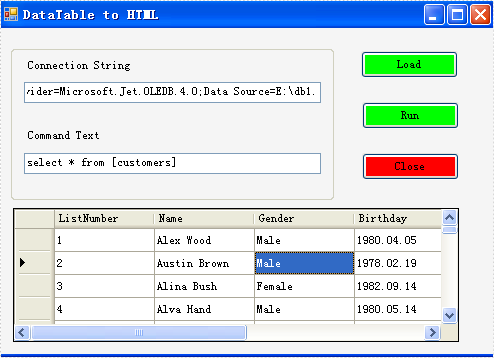
Before exporting data from DataTable, we should load data information from data source. And select which information we need export. Through DataGridVew, we even can preview and modify data information. So, in this step, our job is to prepare data which are about to be exported out.
        private void btnLoad_Click(object sender, EventArgs e)
        {
            using (OleDbConnection oleDbConnection = new OleDbConnection())
            {
                oleDbConnection.ConnectionString = this.tbCS.Text;
                System.Data.OleDb.OleDbCommand oleDbCommand = new OleDbCommand();
                oleDbCommand.CommandText = this.tbCT.Text;
                oleDbCommand.Connection = oleDbConnection;
                using (OleDbDataAdapter da = new OleDbDataAdapter(oleDbCommand))
                {
                    DataTable dt = new DataTable();
                    da.Fill(dt);
                    dataGridView1.DataSource = dt;
                }
            }
        }
Effect Screenshot
Step 2: Set Export into HTML
Spire.DataExport allows user to export data into most popular file formats including MS Excel, MS Word, HTML, PDF, XML, CSV, DBF, DIF, etc. Here we need set it as HTML format. Spire.DataExport will create a new HTML file and through DataGridView export data into HTML file. You also can rename the file as you like.
        private void btnRun_Click(object sender, EventArgs e)
        {
            Spire.DataExport.HTML.HTMLExport HTMLExport = new Spire.DataExport.HTML.HTMLExport();
            HTMLExport.DataSource = Spire.DataExport.Common.ExportSource.DataTable;
            HTMLExport.DataTable = this.dataGridView1.DataSource as DataTable;
            HTMLExport.ActionAfterExport = Spire.DataExport.Common.ActionType.OpenView;
            HTMLExport.SaveToFile("20110223.html");
        }
Effect Screenshot

Export DataTable to Excel can be very easy through Spire.DataExport (or Spire.Office). Furthermore, Spire.DataExport enables user to Export data to Excel through DataGridView. Through DataGridView users can preview and modify data information before exporting.
Download Spire.DataExport (or Spire.Office) with .NET Framework together. Only 2 Simple steps you can finish the whole datatable to Excel exporting process.
Step 1: Load Data Information
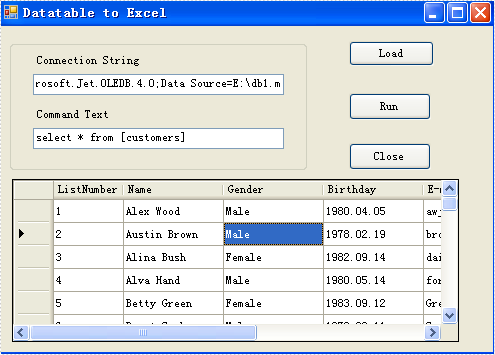
In this step, Spire.DataExport will help you load Data information from your datatable. After you put in your data source and SQL command, you can preview and modify data information in DataGridView area.
        private void btnLoad_Click(object sender, EventArgs e)
        {
            using(OleDbConnection oleDbConnection = new OleDbConnection())
            {
                oleDbConnection.ConnectionString = this.textBox1.Text;
                OleDbCommand oleDbCommand = new OleDbCommand();
                oleDbCommand.CommandText = this.textBox2.Text;
                oleDbCommand.Connection = oleDbConnection;
                using(OleDbDataAdapter da = new OleDbDataAdapter(oleDbCommand))
                {
                    DataTable dt = new DataTable();
                    da.Fill(dt);
                    dataGridView1.DataSource = dt;
                }
            }
        }
Effect Screenshot
Step 2: Set Export into Excel
Spire.DataExport allows user to export data into most popular file formats including MS Excel, MS Word, HTML, PDF, XML, CSV, DBF, DIF, etc. Now, in this step you should give an order to Export Data into Excel file format. Spire.DataExport will create a new MS Excel Worksheet for storing Data which exported out. You can rename the excel file in this step either.
        private void btnRun_Click(object sender, EventArgs e)
        {
            Spire.DataExport.XLS.CellExport cellExport = new Spire.DataExport.XLS.CellExport();
            Spire.DataExport.XLS.WorkSheet worksheet1 = new Spire.DataExport.XLS.WorkSheet();
            worksheet1.DataSource = Spire.DataExport.Common.ExportSource.DataTable;
            worksheet1.DataTable = this.dataGridView1.DataSource as DataTable;
            worksheet1.StartDataCol = ((System.Byte)(0));
            cellExport.Sheets.Add(worksheet1);
            cellExport.ActionAfterExport = Spire.DataExport.Common.ActionType.OpenView;
            cellExport.SaveToFile("20110223.xls");
        }
Effect Screenshot