Spire.Doc for Python (103)
A watermark is a semitransparent text or an image placed behind the content of a document. In Word, you can add a watermark to protect the intellectual property of the document, for example to include a copyright symbol, author's name or company logo. Or you can use it to indicate the status of a document, such as "Draft", "Confidential", or "Final". This article will demonstrate how to add text watermarks and image watermarks to Word in Python using Spire.Doc for Python.
Install Spire.Doc for Python
This scenario requires Spire.Doc for Python and plum-dispatch v1.7.4. They can be easily installed in your Windows through the following pip commands.
pip install Spire.Doc
If you are unsure how to install, please refer to this tutorial: How to Install Spire.Doc for Python on Windows
Add a Text Watermark to a Word Document in Python
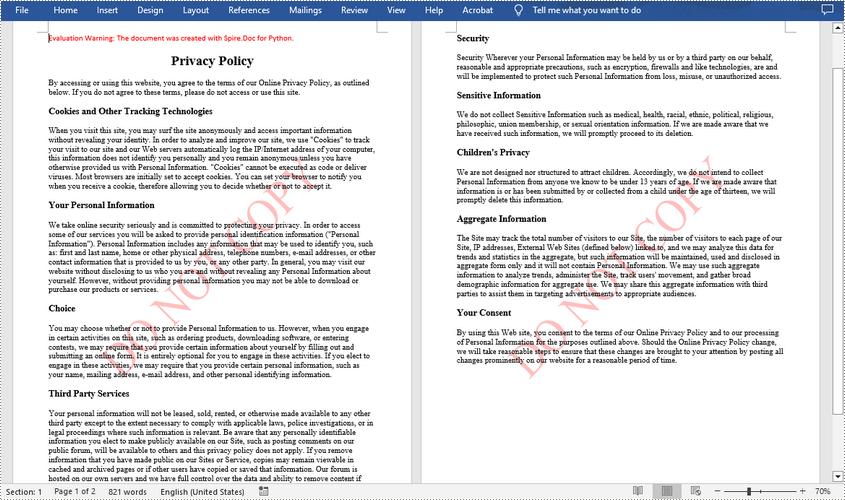
Spire.Doc for Python provides the TextWatermark class to set a text watermark, and then you can add it to Word document through Document.Watermark property. The following are the detailed steps.
- Create a Document object.
- Load a sample Word document using Document.LoadFromFile() method.
- Create an instance of TextWatermark class.
- Set the text, font size, color and layout of the text watermark using the methods of TextWatermark class.
- Add the text watermark to the Word document using Document.Watermark property.
- Save the result document using Document.SaveToFile() method.
- Python
from spire.doc import *
from spire.doc.common import *

# Create a Document object
document = Document()

# Load a Word document
document.LoadFromFile("test.docx")

# Create a TextWatermark object
txtWatermark = TextWatermark()

# Set the format of the text watermark
txtWatermark.Text = "DO NOT COPY"
txtWatermark.FontSize = 65
txtWatermark.Color = Color.get_Red()
txtWatermark.Layout = WatermarkLayout.Diagonal

# Add the text watermark to document
document.Watermark = txtWatermark

#Save the result document
document.SaveToFile("Output/TextWatermark.docx", FileFormat.Docx)
document.Close()
Add an Image Watermark in a Word Document in Python
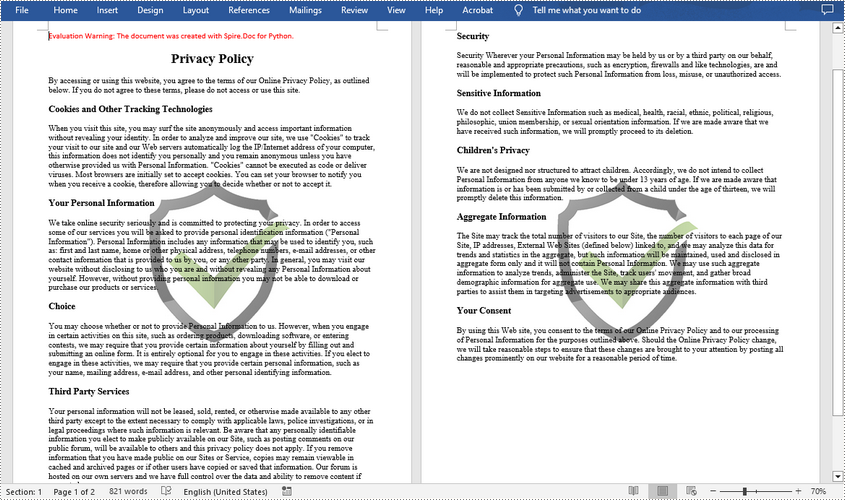
To set the image watermark, you can use the methods of PictureWatermark class. The following are the detailed steps.
- Create a Document object.
- Load a sample Word document using Document.LoadFromFile() method.
- Create an instance of PictureWatermark class.
- Load an image as the image watermark using PictureWatermark.SetPicture() method, and then set scaling as well as washout property of the image watermark.
- Add the image watermark to the Word document using Document.Watermark property.
- Save the result document using Document.SaveToFile() method.
- Python
from spire.doc import *
from spire.doc.common import *

# Create a Document object
document = Document()

# Load a Word document
document.LoadFromFile("test.docx")

# Create a PictureWatermark object
picture = PictureWatermark()

# Set the format of the picture watermark
picture.SetPicture("logo.png")
picture.Scaling = 100
picture.IsWashout = False

# Add the image watermark to document
document.Watermark = picture

#Save the result document
document.SaveToFile("Output/ImageWatermark.docx", FileFormat.Docx)
document.Close()
Apply for a Temporary License
If you'd like to remove the evaluation message from the generated documents, or to get rid of the function limitations, please request a 30-day trial license for yourself.
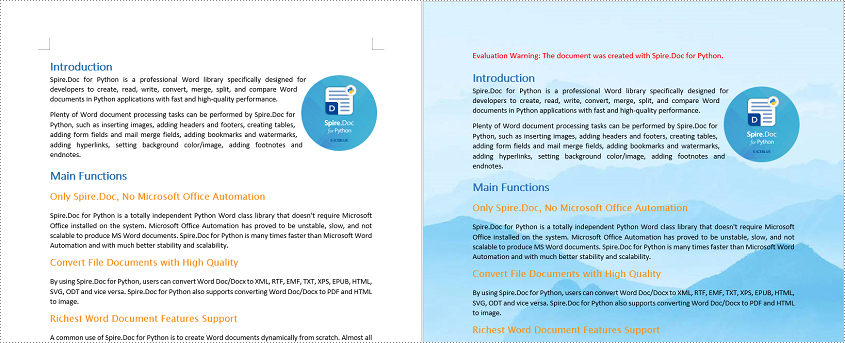
Adding background colors or pictures to your Word documents is a powerful way to enhance their visual appeal and captivate your audience. Whether you're creating a professional report, a creative flyer, or a personal invitation, incorporating a well-chosen background color or image can transform an ordinary document into a visually captivating piece. In this article, we will demonstrate how to add a background color or picture to a Word document in Python using Spire.Doc for Python.
- Add a Background Color to Word in Python
- Add a Gradient Background to Word in Python
- Add a Background Picture to Word in Python
Install Spire.Doc for Python
This scenario requires Spire.Doc for Python and plum-dispatch v1.7.4. They can be easily installed in your Windows through the following pip command.
pip install Spire.Doc
If you are unsure how to install, please refer to this tutorial: How to Install Spire.Doc for Python on Windows
Add a Background Color to Word in Python
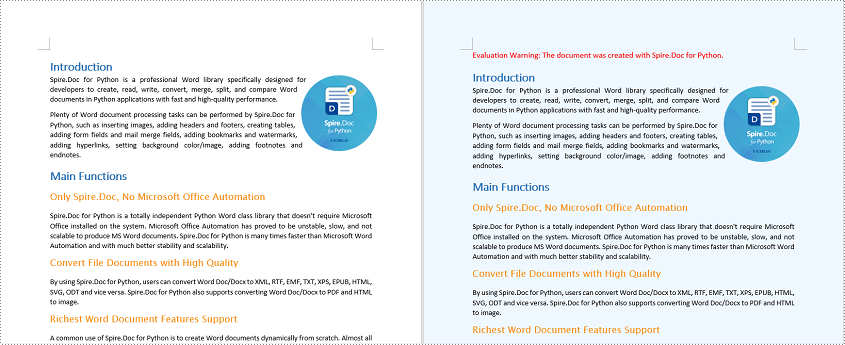
You can set a background color for a Word document by changing its background type to "Color" and then selecting a color as the background. The detailed steps are as follows.
- Create a Document object.
- Load a Word document using Document.LoadFromFile() method.
- Get the background of the document using Document.Background property.
- Set the background type as Color using Background.Type property.
- Set a color as the background using Background.Color property.
- Save the resulting document using Document.SaveToFile() method.
- Python
from spire.doc import *
from spire.doc.common import *

# Create a Document object
document = Document()
# Load a Word document
document.LoadFromFile("Sample.docx")

# Get the document's background
background = document.Background

# Set the background type as Color
background.Type = BackgroundType.Color
# Set the background color
background.Color = Color.get_AliceBlue()

#save the resulting document
document.SaveToFile("AddBackgroundColor.docx", FileFormat.Docx2016)
document.Close()
Add a Gradient Background to Word in Python
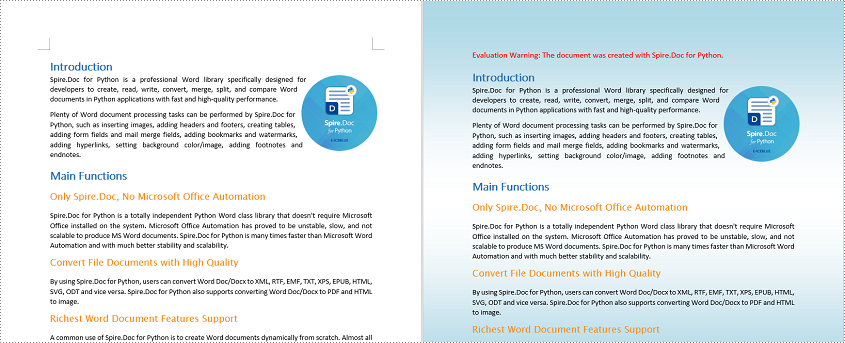
A gradient background refers to a background style that transitions smoothly between two or more colors. To add a gradient background, you need to change the background type as "Gradient", specify the gradient colors and then set the gradient shading variant and style. The detailed steps are as follows.
- Create a Document object.
- Load a Word document using Document.LoadFromFile() method.
- Get the background of the document using Document.Background property.
- Set the background type as Gradient using Background.Type property.
- Set two gradient colors using Background.Gradient.Color1 and Background.Gradient.Color2 properties.
- Set gradient shading variant and style using Background.Gradient.ShadingVariant and Background.Gradient.ShadingStyle properties.
- Save the resulting document using Document.SaveToFile() method.
- Python
from spire.doc import *
from spire.doc.common import *

# Create a Document object
document = Document()
# Load a Word document
document.LoadFromFile("Sample.docx")

# Get the document's background
background = document.Background

# Set the background type as Gradient
background.Type = BackgroundType.Gradient

# Set two gradient colors
background.Gradient.Color1 = Color.get_White()
background.Gradient.Color2 = Color.get_LightBlue()

# Set gradient shading variant and style
background.Gradient.ShadingVariant = GradientShadingVariant.ShadingDown
background.Gradient.ShadingStyle = GradientShadingStyle.Horizontal

#Save the resulting document
document.SaveToFile("AddGradientBackground.docx", FileFormat.Docx2016)
document.Close()
Add a Background Picture to Word in Python
To add a background picture to a Word document, you need to change the background type as "Picture", and then set a picture as the background. The detailed steps are as follows.
- Create a Document object.
- Load a Word document using Document.LoadFromFile() method.
- Get the background of the document using Document.Background property.
- Set the background type as Picture using Background.Type property.
- Set a picture as the background using Background.SetPicture() method.
- Save the resulting document using Document.SaveToFile() method.
- Python
from spire.doc import *
from spire.doc.common import *

# Create a Document object
document = Document()
# Load a Word document
document.LoadFromFile("Sample.docx")

# Get the document's background
background = document.Background

# Set the background type as Picture
background.Type = BackgroundType.Picture

# Set the background picture
background.SetPicture("background.jpg")

#save the resulting document
document.SaveToFile("AddBackgroundPicture.docx", FileFormat.Docx2016)
document.Close()
Apply for a Temporary License
If you'd like to remove the evaluation message from the generated documents, or to get rid of the function limitations, please request a 30-day trial license for yourself.
Nowadays, digital documents play a significant role in our daily lives, both in personal and professional settings. One such common format is Microsoft Word - used for creating and editing textual documents. However, there may come a time when you need to convert your Word files into a more universally accessible format, such as PDF. PDFs offer advantages like preserving formatting, ensuring compatibility, and maintaining document integrity across different devices and operating systems. In this article, you will learn how to convert Word to PDF in Python using Spire.Doc for Python.
- Convert Doc or Docx to PDF in Python
- Convert Word to Password-Protected PDF in Python
- Convert Word to PDF with Bookmarks in Python
- Convert Word to PDF with Fonts Embedded in Python
- Set Image Quality When Converting Word to PDF in Python
Install Spire.Doc for Python
This scenario requires Spire.Doc for Python and plum-dispatch v1.7.4. They can be easily installed in your Windows through the following pip command.
pip install Spire.Doc
If you are unsure how to install, please refer to this tutorial: How to Install Spire.Doc for Python on Windows
Convert Doc or Docx to PDF in Python
Spire.Doc for Python offers the Document.SaveToFile(string fileName, FileFormat fileFormat) method that allows to save Word as PDF, XPS, HTML, RTF, etc. If you just want to save your Word documents as regular PDFs without additional settings, follow the steps below.
- Create a Document object.
- Load a sample Word document using Document.LoadFromFile() method.
- Save the document to PDF using Doucment.SaveToFile() method.
- Python
from spire.doc import *
from spire.doc.common import *

# Create word document
document = Document()

# Load a doc or docx file
document.LoadFromFile("C:\\Users\\Administrator\\Desktop\\input.docx")

#Save the document to PDF
document.SaveToFile("output/ToPDF.pdf", FileFormat.PDF)
document.Close()

Convert Word to Password-Protected PDF in Python
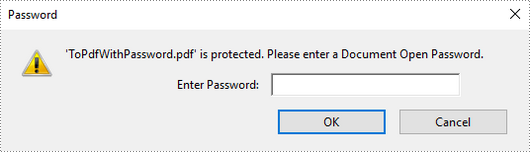
To convert Word to a Password-Protected PDF, you can utilize the Document.SaveToFile(string fileName, ToPdfParameterList paramList) method, where the ToPdfParameterList parameter allows you to control the conversion process of a Word document into a PDF format. This includes options such as encrypting the document during the conversion. Here are the specific steps to accomplish this task.
- Create a Document object.
- Load a sample Word document using Document.LoadFromFile() method.
- Create a ToPdfParameterList object, which is used to set conversion options.
- Specify the open password and permission password and then set both passwords for the generated PDF using ToPdfParameterList.PdfSecurity.Encrypt() method.
- Save the Word document to PDF with password using Doucment.SaveToFile(string fileName, ToPdfParameterList paramList) method.
- Python
from spire.doc import *
from spire.doc.common import *

# Create a Document object
document = Document()

# Load a Word file
document.LoadFromFile("C:\\Users\\Administrator\\Desktop\\input.docx")

# Create a ToPdfParameterList object
parameter = ToPdfParameterList()

# Specify open password and permission password
openPsd = "abc-123"
permissionPsd = "permission"

# Protect the PDF to be generated with open password and permission password
parameter.PdfSecurity.Encrypt(openPsd, permissionPsd, PdfPermissionsFlags.Default, PdfEncryptionKeySize.Key128Bit)

# Save the Word document to PDF
document.SaveToFile("output/ToPdfWithPassword.pdf", parameter)
document.Close()
Convert Word to PDF with Bookmarks in Python
Adding bookmarks to a document can improve its readability. When creating PDF from Word, you may want to keep the existing bookmarks or create new ones based on the headings. Here are the steps to convert Word to PDF while maintaining bookmarks.
- Create a Document object.
- Load a Word file using Document.LoadFromFile() method.
- Create a ToPdfParameterList object, which is used to set conversion options.
- Create bookmarks in PDF from the headings in Word by setting ToPdfParameterList.CreateWordBookmarksUsingHeadings to true.
- Save the document to PDF with bookmarks using Doucment.SaveToFile(string fileName, ToPdfParameterList paramList) method.
- Python
from spire.doc import *
from spire.doc.common import *

# Create a Document object
document = Document()

# Load a Word file
document.LoadFromFile("C:\\Users\\Administrator\\Desktop\\input.docx")

# Create a ToPdfParameterList object
parames = ToPdfParameterList()

# Create bookmarks from Word headings
parames.CreateWordBookmarksUsingHeadings = True

# Create bookmarks in PDF from existing bookmarks in Word
# parames.CreateWordBookmarks = True

# Save the document to PDF
document.SaveToFile("output/ToPdfWithBookmarks.pdf", FileFormat.PDF)
document.Close()

Convert Word to PDF with Fonts Embedded in Python
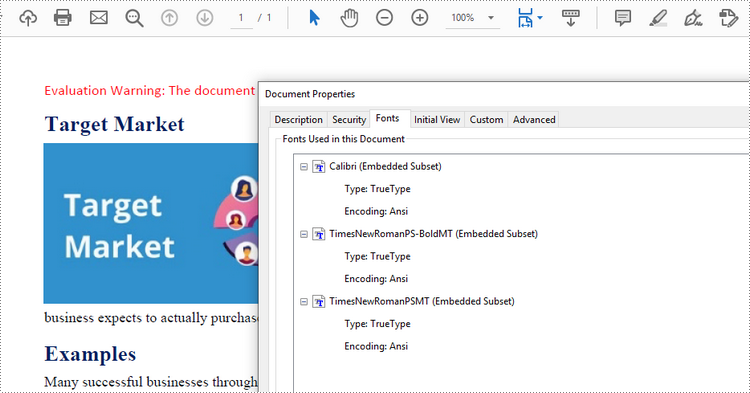
To ensure consistent appearance of a PDF document on any device, you probably need to embed fonts in the generated PDF document. The following are the steps to embed the fonts used in a Word document into the resulting PDF.
- Create a Document object.
- Load a sample Word file using Document.LoadFromFile() method.
- Create a ToPdfParameterList object, which is used to set conversion options.
- Embed fonts in generated PDF through ToPdfParameterList.IsEmbeddedAllFonts property.
- Save the document to PDF using Doucment.SaveToFile(string fileName, ToPdfParameterList paramList) method.
- Python
from spire.doc import *
from spire.doc.common import *

# Create a Document object
document = Document()

# Load a Word file
document.LoadFromFile("C:\\Users\\Administrator\\Desktop\\input.docx")

# Create a ToPdfParameterList object
parameter = ToPdfParameterList()

# Embed fonts in PDF
parameter.IsEmbeddedAllFonts = True

# Save the Word document to PDF
document.SaveToFile("output/EmbedFonts.pdf", parameter)
document.Close()
Set Image Quality When Converting Word to PDF in Python
When converting a Word document to PDF, it is important to consider the size of the resulting file, especially if it contains numerous high-quality images. You have the option to compress the image quality during the conversion process. To do this, follow the steps below.
- Create a Document object.
- Load a sample Word file using Document.LoadFromFile() method.
- Set the image quality through Document.JPEGQuality property.
- Save the document to PDF using Doucment.SaveToFile() method.
- Python
from spire.doc import *
from spire.doc.common import *

# Create a Document object
document = Document()

# Load a Word file
document.LoadFromFile("C:\\Users\\Administrator\\Desktop\\input.docx")

# Compress image to 40% of its original quality
document.JPEGQuality = 40

# Preserve original image quality
# document.JPEGQuality = 100

# Save the Word document to PDF
document.SaveToFile("output/SetImageQuality.pdf", FileFormat.PDF)
document.Close()
Get a Free License
To fully experience the capabilities of Spire.Doc for Python without any evaluation limitations, you can request a free 30-day trial license.
Spire.Doc for Python is a Python library for reading, creating, editing and converting Word (.doc & .docx) files in any Python application. This article shows you how to install Spire.Doc for Python on Windows.
Step 1
Download the latest version of Python and install it on your computer. If you have already installed it, skip to step 2.

Step 2
Click "Extensions" in VS Code, search for "Python" and then install it.

Step 3
Click "Explorer" - "NO FOLRDER OPENED" - "Open Folder".

Choose an existing folder as the workspace, or you can create a new folder and then select it.
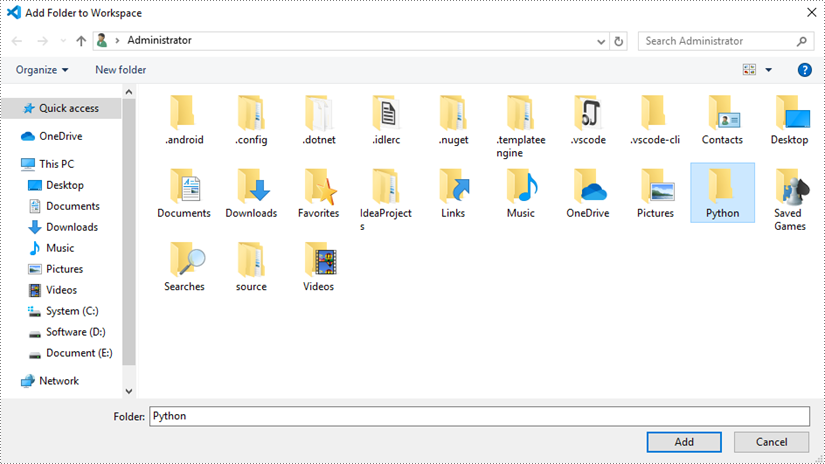
Add a .py file to the folder you just added (Python folder in this case), and name it whatever you like.

Step 4
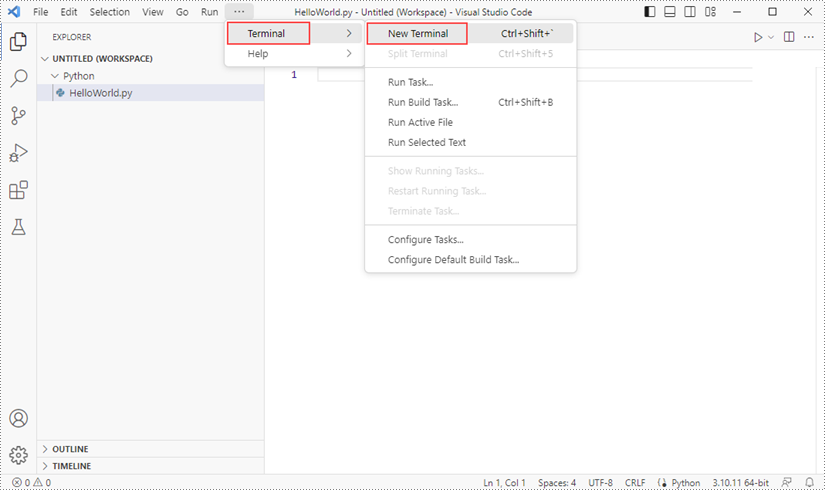
Click "Terminal" and then "New Terminal".
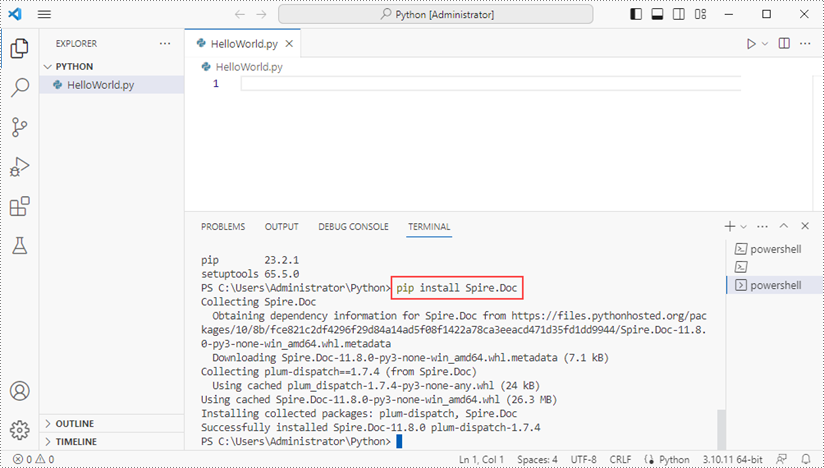
Input the following pip command to install Spire.Doc for Python and plum-dispatch v1.7.4.
pip install Spire.Doc
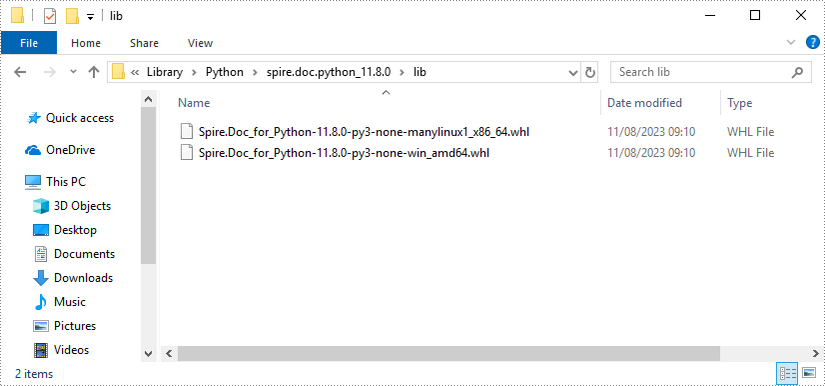
Alternatively, you can download Spire.Doc for Python from our website, and unzip it to get two .whl files from the "lib" folder. They're for Linux and Windows systems, respectively.
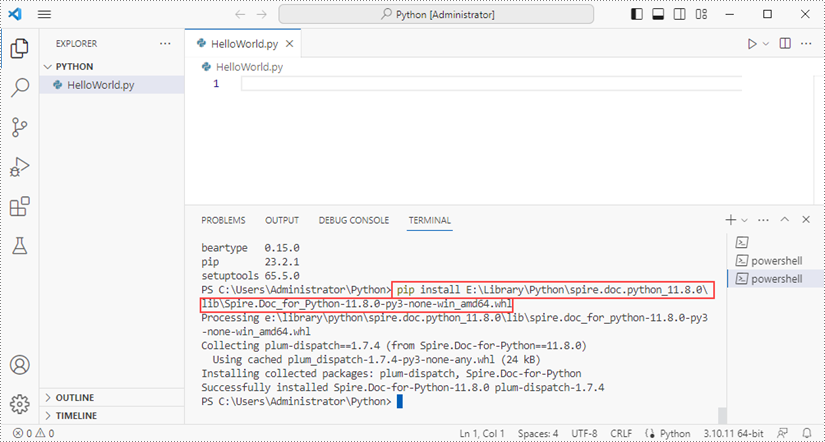
Then, install Spire.Doc for Python and plum-dispatch v1.7.4 by running the following commands.
pip install E:\Library\Python\spire.doc.python_11.8.0\lib\Spire.Doc_for_Python-11.8.0-py3-none-win_amd64.whl
Step 5
Add the following code snippet to the "HelloWorld.py" file.
- Python
from spire.doc.common import *
from spire.doc import *

document = Document()
section = document.AddSection()
paragraph = section.AddParagraph()
paragraph.AppendText("Hello World!")
document.SaveToFile("output.docx", FileFormat.Docx)
document.Close()
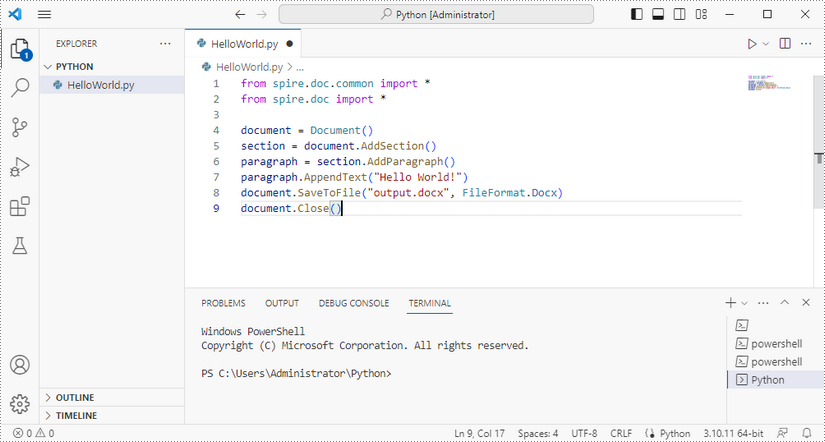
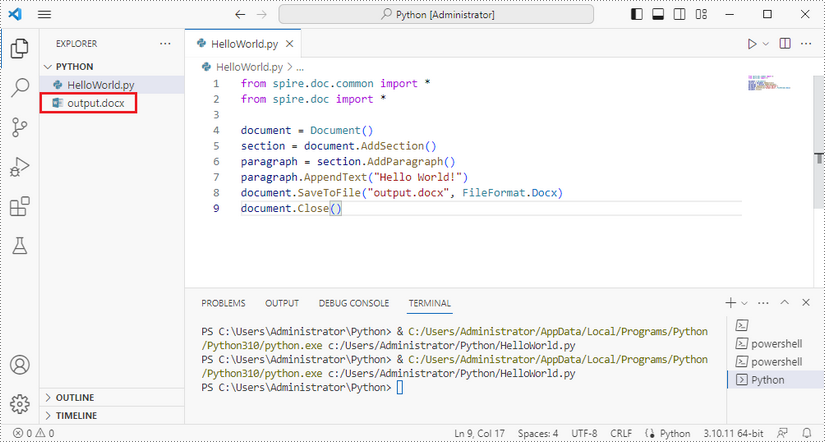
Once you run the Python file, you'll see the result Word document in the "EXPORER" panel.

Spire.Doc for Python is a professional Word Python API specifically designed for developers to create, read, write, convert and compare Word documents with fast and high-quality performance.
As an independent Word Python API, Spire.Doc for Python doesn't need Microsoft Word to be installed on neither the development nor target systems. However, it can incorporate Microsoft Word document creation capabilities into any developers' Python applications.