Adding an explanatory note to an existing document, inserting a supplementary clause at a given position, or placing a horizontal line between chapters are common actions in document automation. Manual operations are difficult to integrate into batch processes; when handled on a server, the file leaves the user's device as soon as it is uploaded.
This article uses Spire.Doc for JavaScript to perform these operations in the browser: appending and inserting paragraphs, drawing horizontal lines, and setting the appearance of those lines. The whole process runs on WebAssembly in the browser, with no Office installation and no backend service, so the document stays on the user's device the entire time.
This article covers four features:
- Append a Paragraph at the End of the Document
- Insert a Paragraph at a Given Position
- Add a Horizontal Line to a Paragraph
- Set the Line Style and Colour of a Horizontal Line
For installation and project setup, refer to Integrating Spire.Doc for JavaScript in a React Project. The examples below assume that Spire.Doc is installed and the WebAssembly module is initialized. The sample document is the Equipment Inspection and Operations Service Quarterly Report (OpsReport.docx).
Append a Paragraph at the End of the Document
When the new content only has to follow the body text, Section.AddParagraph() is the most direct way. It creates an empty paragraph at the end of the current section, leaving the existing paragraphs, tables and section breaks unchanged. After the paragraph is created, write the text with AppendText and set the font size, font name and space before as required.
| Member | Purpose |
|---|---|
Section.AddParagraph() |
Creates an empty paragraph at the end of the current section |
Paragraph.AppendText() |
Writes text and returns a TextRange whose character format can be set |
TextRange.CharacterFormat.FontSize |
Sets the font size (in points) |
Paragraph.Format.BeforeSpacing |
Sets the space before the paragraph (in points) |
The specific steps are as follows:
- Get the Spire.Doc WASM module and confirm that it is ready.
- Load the document to be modified, create a
Documentobject and load the file. - Use
Section.AddParagraph()to create a paragraph at the end of the section. - Use
Paragraph.AppendText()to write the text, and set the font size, font name and space before. - Use
Document.SaveToFile()to save the result, read the file from the VFS and trigger a browser download.
The code for appending a paragraph at the end of the document is as follows:
function App() {
  const appendParagraph = async () => {
    // Get the Spire.Doc WASM module
    const docModule = window.wasmModule?.spiredoc;

    // Check whether the module is ready
    if (!docModule) {
      alert('Spire.Doc is not ready yet');
      return;
    }

    // Load the sample document
    await window.spire.FetchFileToVFS('OpsReport.docx', '', `${process.env.PUBLIC_URL}/data/`);

    const doc = new docModule.Document();
    doc.LoadFromFile('OpsReport.docx');

    const section = doc.Sections.get_Item(0);

    // Create a paragraph at the end of the section, write the text and set its format
    const paragraph = section.AddParagraph();
    const range = paragraph.AppendText('Note: The data in this report comes from the operations management platform. To consult the original inspection records, please contact the duty room of the Operations Center.');
    range.CharacterFormat.FontSize = 9;
    range.CharacterFormat.FontName = 'Arial';
    paragraph.Format.BeforeSpacing = 12;

    // Save the result file
    const outputFileName = 'OpsReportWithNote.docx';
    doc.SaveToFile({ fileName: outputFileName, fileFormat: docModule.FileFormat.Docx2013 });
    doc.Dispose();

    // Read the generated file from the VFS and trigger the download
    const fileArray = window.dotnetRuntime.Module.FS.readFile(outputFileName);
    const blob = new Blob([fileArray], {
      type: 'application/vnd.openxmlformats-officedocument.wordprocessingml.document',
    });
    const url = URL.createObjectURL(blob);
    const a = document.createElement('a');
    a.href = url;
    a.download = outputFileName;
    a.click();
    URL.revokeObjectURL(url);
  };

  return (
    <div style={{ textAlign: 'center', height: '300px' }}>
      <h1>Append a Paragraph at the End</h1>
      <button onClick={appendParagraph}>Append Paragraph</button>
    </div>
  );
}

export default App;
The appended note appears after the signature block:
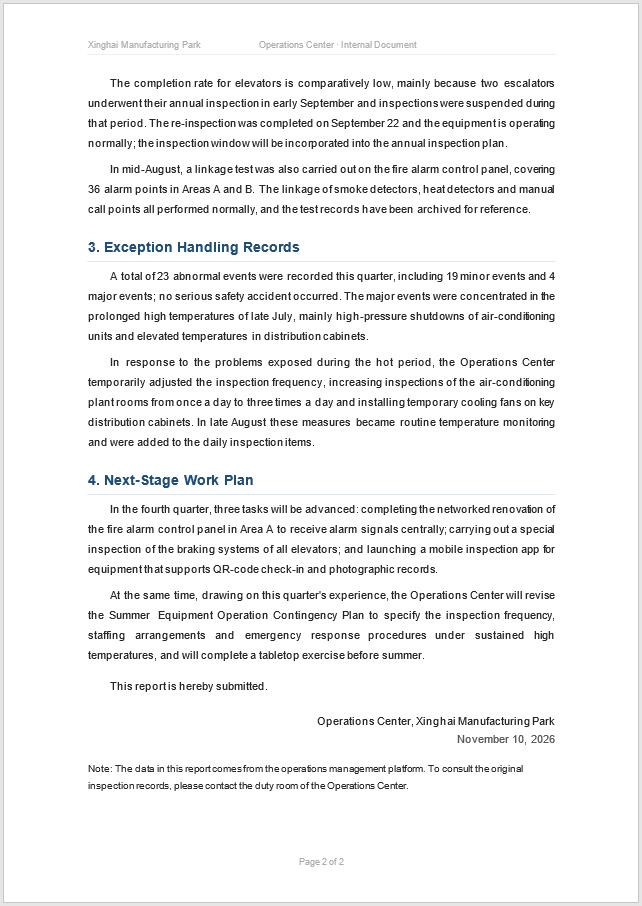
AddParagraph() only concerns the end of the current section, so it suits content that always follows at the end, such as signatures, notes and footer explanations. When a paragraph has to go into the middle of a chapter, use the insertion approach in the next section.
Insert a Paragraph at a Given Position
When a paragraph has to be placed in the middle of a chapter, AddParagraph() does not apply, because it can only append to the end of a section. The correct approach takes two steps: first create a standalone paragraph object with Document.CreateParagraph(), then place it into the body's object list with Body.ChildObjects.Insert(index, paragraph). The new paragraph is inserted before the object at index, and the objects after it shift back one position.
| Call | Purpose |
|---|---|
Document.CreateParagraph() |
Creates a paragraph object that is not yet in the body |
Body.ChildObjects.Insert(index, paragraph) |
Inserts the paragraph before the body object at index |
Body.ChildObjects.IndexOf(object) |
Returns the current index of an object |
index is counted over the body's Body.ChildObjects, where a table also occupies one index, so the numbering differs from that of Section.Paragraphs. The sample document opens with a report information table and chapter 2 contains a data table, so the two tables each occupy one index; the heading "3. Exception Handling Records" sits at body index 17, while its position in the paragraph collection is 15. If the paragraph number is passed instead, the insertion point moves two positions forward.
The specific steps are as follows:
- Get the Spire.Doc WASM module and confirm that it is ready.
- Load the document to be modified, create a
Documentobject and load the file. - Walk
Body.ChildObjectsto find the actual index of the target heading paragraph. - Use
Document.CreateParagraph()to create a paragraph, write the text and set its format. - Use
Body.ChildObjects.Insert(index, paragraph)to insert the paragraph before the heading. - Save the result, read the file from the VFS and trigger a browser download.
The code for inserting a paragraph at a given position is as follows:
function App() {
  const insertParagraph = async () => {
    // Get the Spire.Doc WASM module
    const docModule = window.wasmModule?.spiredoc;

    // Check whether the module is ready
    if (!docModule) {
      alert('Spire.Doc is not ready yet');
      return;
    }

    // Load the sample document
    await window.spire.FetchFileToVFS('OpsReport.docx', '', `${process.env.PUBLIC_URL}/data/`);

    const doc = new docModule.Document();
    doc.LoadFromFile('OpsReport.docx');

    const section = doc.Sections.get_Item(0);
    const children = section.Body.ChildObjects;

    // Locate the target heading by its text and get its actual index in the body objects
    let index = -1;
    for (let i = 0; i < children.Count; i++) {
      const obj = children.get_Item(i);
      if (obj.DocumentObjectType === docModule.DocumentObjectType.Paragraph &&
          obj.Text.trim().startsWith('3.')) {
        index = i;
        break;
      }
    }
    if (index < 0) {
      alert('The target paragraph was not found');
      return;
    }

    // Create a paragraph, write the text and set its format
    const paragraph = doc.CreateParagraph();
    const range = paragraph.AppendText('Supplementary note: The phenomena and handling measures recorded in this section are subject to the duty log of the day; any matter not covered by the log will be explained retroactively in the next report.');
    range.CharacterFormat.FontSize = 10.5;
    range.CharacterFormat.FontName = 'Arial';
    paragraph.Format.FirstLineIndent = 21;
    paragraph.Format.AfterSpacing = 6;

    // Insert it before the target heading
    children.Insert(index, paragraph);

    // Save the result file
    const outputFileName = 'OpsReportWithInsert.docx';
    doc.SaveToFile({ fileName: outputFileName, fileFormat: docModule.FileFormat.Docx2013 });
    doc.Dispose();

    // Read the generated file from the VFS and trigger the download
    const fileArray = window.dotnetRuntime.Module.FS.readFile(outputFileName);
    const blob = new Blob([fileArray], {
      type: 'application/vnd.openxmlformats-officedocument.wordprocessingml.document',
    });
    const url = URL.createObjectURL(blob);
    const a = document.createElement('a');
    a.href = url;
    a.download = outputFileName;
    a.click();
    URL.revokeObjectURL(url);
  };

  return (
    <div style={{ textAlign: 'center', height: '300px' }}>
      <h1>Insert a Paragraph at a Given Position</h1>
      <button onClick={insertParagraph}>Insert Paragraph</button>
    </div>
  );
}

export default App;
The supplementary note appears before "3. Exception Handling Records":
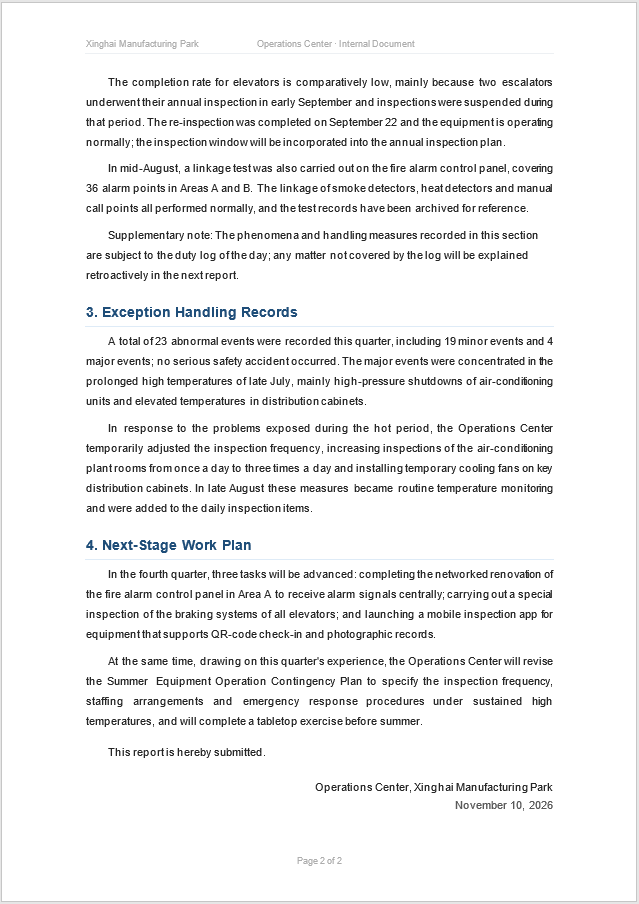
Take the Object Index Before Inserting
When the target paragraph object is already at hand, there is no need to calculate the index by hand; Body.ChildObjects.IndexOf() returns its current position in the body:
// paragraph is the paragraph object created above
const target = section.Paragraphs.get_Item(15);
const index = section.Body.ChildObjects.IndexOf(target);
section.Body.ChildObjects.Insert(index, paragraph);
When several paragraphs are inserted in a row, the index has to be handled step by step. Each insertion shifts every later object back one position; if the same index is used every time, the paragraph inserted later will be placed before the one inserted first. The reliable approach is to take the index again before each insertion, or to add the paragraphs in reverse order.
Add a Horizontal Line to a Paragraph
Paragraph.AppendHorizonalLine() adds a Word horizontal line after the paragraph content, with the same effect as typing three hyphens in Word and pressing Enter. The line is attached to the paragraph as a drawing object (the method returns a shape object) rather than a paragraph border; its width matches the text area of the paragraph, so left and right indents shorten it together with the text area.
| Member | Purpose |
|---|---|
Paragraph.AppendHorizonalLine() |
Adds a line with the default style at the end of the paragraph |
| Return value | The shape object representing the line |
The specific steps are as follows:
- Take the target paragraph; when there is no ready-made paragraph, create one with
Section.AddParagraph(). - Use
Paragraph.AppendText()to write the text above the line. - Call
Paragraph.AppendHorizonalLine()to add the line. - Save the result, read the file from the VFS and trigger a browser download.
The code for adding a horizontal line to a paragraph is as follows:
const section = doc.Sections.get_Item(0);

// Create a paragraph, write the text and then add the horizontal line
const paragraph = section.AddParagraph();
paragraph.AppendText('The signature block follows; before signing, please check the report number and the reporting period.');
paragraph.AppendHorizonalLine();
A full-width line appears below the text:
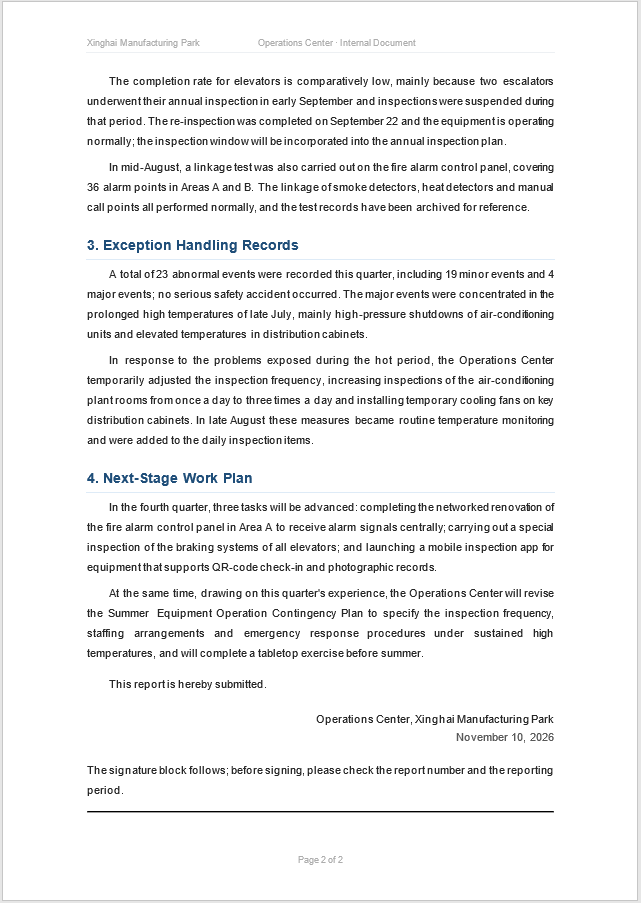
Remove the Horizontal Line
The line added by AppendHorizonalLine() is a shape object inside the paragraph, saved and deleted together with the paragraph. Deleting the paragraph removes the line as well; to keep the text and remove only the line, remove the shape from the paragraph's child objects:
// Walk the paragraph's child objects backwards and remove the shape objects
for (let i = paragraph.ChildObjects.Count - 1; i >= 0; i--) {
  const child = paragraph.ChildObjects.get_Item(i);
  if (child.DocumentObjectType === docModule.DocumentObjectType.Shape) {
    paragraph.ChildObjects.Remove(child);
  }
}
This removes every shape in the paragraph; if the paragraph also contains pictures or other shapes, further conditions are needed to tell them apart. Setting the paragraph's Format.Borders.Bottom.BorderType to None does not affect this line, because it is not a border.
Set the Line Style and Colour of a Horizontal Line
AppendHorizonalLine() only draws a line with the default style. To control the line style, width and colour, use the paragraph's bottom border instead: Paragraph.Format.Borders.Bottom provides BorderType, LineWidth and Color, which correspond to the line style, width and colour.
| Member | Purpose |
|---|---|
Format.Borders.Bottom.BorderType |
The line style, such as Single, Double, DashLargeGap and None |
Format.Borders.Bottom.LineWidth |
The line width (in points) |
Format.Borders.Bottom.Color |
The colour of the line |
The specific steps are as follows:
- Take the target paragraph; when there is no ready-made paragraph, create one with
Section.AddParagraph(). - Use
Paragraph.AppendText()to write the text above the line. - Set the
BorderType,LineWidthandColorofFormat.Borders.Bottom. - Save the result, read the file from the VFS and trigger a browser download.
The code for setting the line style and colour is as follows:
const section = doc.Sections.get_Item(0);

const paragraph = section.AddParagraph();
paragraph.AppendText('This chapter ends here; before the next chapter, please note the change of the version number.');

// A 1.5-point, dark blue single solid bottom border
const bottom = paragraph.Format.Borders.Bottom;
bottom.BorderType = docModule.BorderStyle.Single;
bottom.LineWidth = 1.5;
bottom.Color = docModule.Color.FromArgb(255, 31, 78, 121);
The bottom border is drawn as a 1.5-point dark blue line:
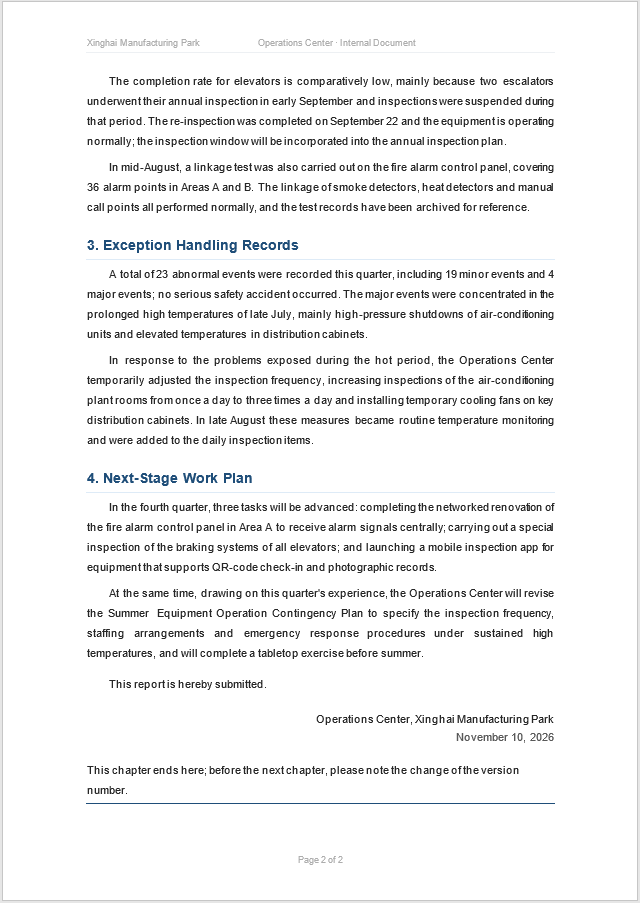
The bottom border is drawn at the bottom of the paragraph's text area and spans the paragraph width: after left and right indents are set, the line shortens with the text area. For a shorter line, adjust the paragraph's left and right indents rather than inserting spaces repeatedly. Setting BorderType to BorderStyle.None removes the bottom border; reading the property again after setting it may return BorderStyle.Cleared, so a check should not compare against the single None value only.
FAQ
Why Does the Inserted Paragraph Not Inherit the Font and Indent of the Previous Paragraph
Cause: Document.CreateParagraph() creates a blank paragraph without any character format or paragraph indent. Once it is inserted into the body it uses the document's default style, while the font, first-line indent and line spacing of the neighbouring paragraphs usually come from their own direct formatting or style and are not inherited by the new paragraph.
Fix: Set the required format explicitly before inserting; when the paragraph has to match the context exactly, read the style name of the neighbouring paragraph and apply the same style with ApplyStyle:
const sibling = section.Body.ChildObjects.get_Item(index - 1);
paragraph.ApplyStyle(sibling.StyleName);

// or set the properties one by one
range.CharacterFormat.FontSize = 10.5;
range.CharacterFormat.FontName = 'Arial';
paragraph.Format.FirstLineIndent = 21;
When the neighbouring paragraph has no style name (for example in a document generated by another program), skip ApplyStyle and set the properties one by one instead.
Why Is the Position Always a Few Places Off When Inserting by Paragraph Number
Cause: Body.ChildObjects counts every object in the body, so a paragraph and a table each occupy one index, whereas Section.Paragraphs counts only paragraphs. When the document contains tables, the two numbering schemes differ by the number of tables.
Fix: Use body object indices consistently when inserting. Walk Body.ChildObjects to locate the target paragraph first, or call Body.ChildObjects.IndexOf(target) to get the index, and then pass that value to Insert.
Why Cannot the Line Drawn by AppendHorizonalLine Be Removed by Setting BorderType=None
Cause: AppendHorizonalLine() adds a shape object inside the paragraph, while Format.Borders.Bottom controls the paragraph's bottom border; the two are unrelated. Setting the border to None only clears the bottom border, and the shape object remains in the paragraph.
Fix: Remove the shape through the paragraph's child objects, or delete the whole paragraph (see the "Remove the Horizontal Line" section).
Can the Length of the Horizontal Line Be Adjusted
Yes. The width of both the line drawn by AppendHorizonalLine() and the bottom border set through Format.Borders.Bottom follows the text area of the paragraph: after Format.LeftIndent and Format.RightIndent are set, the line shortens with the text area. When the line style, width and colour have to be controlled precisely, use the bottom border approach.
Can Several Paragraphs Be Inserted at Once
Yes, by calling the methods in a loop: for appending, call Section.AddParagraph() repeatedly; for inserting, call CreateParagraph() and Body.ChildObjects.Insert() repeatedly. Note that each insertion shifts every later object back one position, so consecutive insertions should recalculate the index each time or work in reverse order; reusing the same index places the later paragraph before the earlier one.
Get a Free License
Spire.Doc for JavaScript offers a 30-day full-featured free trial license with no functional limitations. Apply here to evaluate before purchasing.
