PDF keeps its layout stable and is easy to distribute, but the cost is that the content is locked inside the page structure — changing a single word often means redoing the whole layout. Markdown takes a different path: plain text with a clear hierarchy that drops straight into Git repositories and knowledge bases, and is also easy to hand to a large language model for summarization or question answering. Converting a PDF to Markdown is essentially turning the content back into editable, structured text.
Spire.PDF for JavaScript is built on WebAssembly, so PDFs can be loaded, converted and saved entirely in the browser, with input and output managed through a virtual file system (VFS) and no backend service required. There are two entry points for conversion: set the output format of PdfDocument.SaveToFile to FileFormat.Markdown for a one-step result, or use PdfToMarkdownConverter, which exposes MarkdownOptions so you can fine-tune the details of the conversion.
This article covers two core features:
For installation and project configuration, refer to Integrate Spire.PDF for JavaScript in a React Project. The examples below assume Spire.PDF is already installed and the WebAssembly module is initialized.
Convert PDF to Markdown
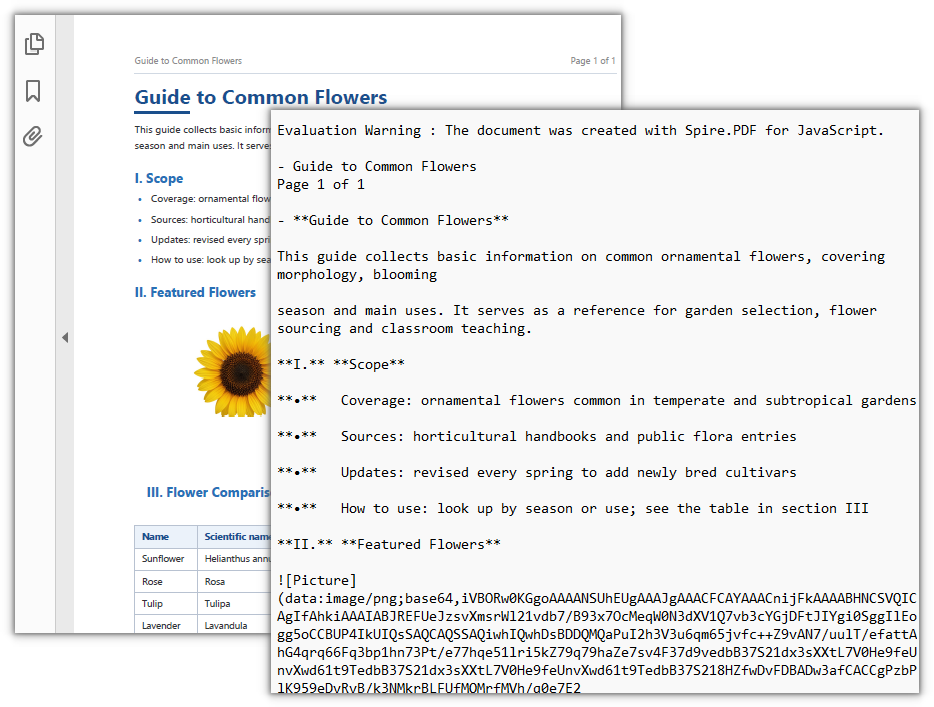
PdfDocument.SaveToFile can also output Markdown: set fileFormat to FileFormat.Markdown, and the headings, paragraphs and lists in the PDF are organized into Markdown text according to their original hierarchy. Images in the document are extracted as well by default.
function App() {
  const convertPdfToMarkdown = async () => {
    // Get the Spire.PDF WASM module
    const pdfModule = window.wasmModule?.spirepdf;

    // Check if the module is ready
    if (!pdfModule) {
      alert('Spire.PDF is not ready yet');
      return;
    }

    // Load the PDF file into the virtual file system
    const inputFileName = 'Flowers.pdf';
    await window.spire.FetchFileToVFS(inputFileName, "", `${process.env.PUBLIC_URL}/data/`);

    // Load the font into the virtual file system (the WebAssembly environment has no system fonts)
    await window.spire.FetchFileToVFS('ARIAL.TTF', '/Library/Fonts/', `${process.env.PUBLIC_URL}/font/`);

    // Create a PdfDocument object and load the PDF
    let doc = new pdfModule.PdfDocument();
    doc.LoadFromFile(inputFileName);

    // Define the output file name and convert to Markdown format
    const outputFileName = 'ConvertedResult.md';
    doc.SaveToFile({ fileName: outputFileName, fileFormat: pdfModule.FileFormat.Markdown });
    doc.Close();

    // Read the generated file from the VFS and trigger download
    const fileArray = window.dotnetRuntime.Module.FS.readFile(outputFileName);
    const blob = new Blob([fileArray], { type: 'text/markdown' });
    const url = URL.createObjectURL(blob);
    const a = document.createElement('a');
    a.href = url;
    a.download = outputFileName;
    a.click();
    URL.revokeObjectURL(url);
  };

  return (
    <div style={{ textAlign: 'center', height: '300px' }}>
      <h1>Convert PDF to Markdown</h1>
      <button onClick={convertPdfToMarkdown}>
        Convert
      </button>
    </div>
  );
}

export default App;
Markdown file after converting PDF to Markdown
Convert text only and skip images
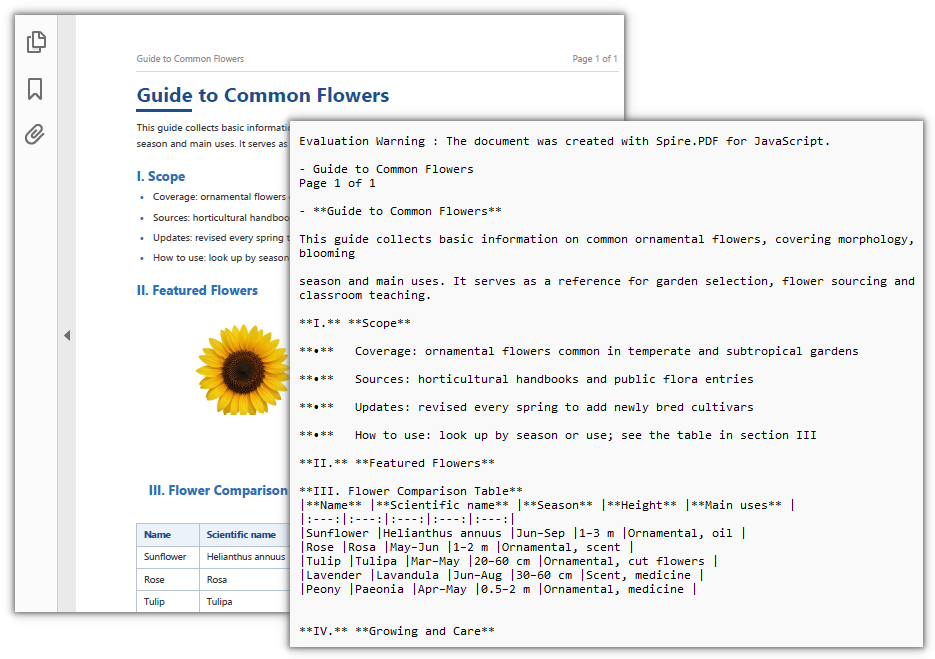
If you only want the text, PdfToMarkdownConverter is more direct. It extracts the images in the document by default; set MarkdownOptions.IgnoreImage to true and the output contains plain text only.
function App() {
  const convertPdfToTextOnlyMarkdown = async () => {
    // Get the Spire.PDF WASM module
    const pdfModule = window.wasmModule?.spirepdf;

    // Check if the module is ready
    if (!pdfModule) {
      alert('Spire.PDF is not ready yet');
      return;
    }

    // Load the PDF file into the virtual file system
    const inputFileName = 'Flowers.pdf';
    await window.spire.FetchFileToVFS(inputFileName, "", `${process.env.PUBLIC_URL}/data/`);

    // Load the font into the virtual file system (the WebAssembly environment has no system fonts)
    await window.spire.FetchFileToVFS('ARIAL.TTF', '/Library/Fonts/', `${process.env.PUBLIC_URL}/font/`);

    // Create the converter and set it to ignore images
    const converter = new pdfModule.PdfToMarkdownConverter(inputFileName);
    converter.MarkdownOptions.IgnoreImage = true;

    // Define the output file name and run the conversion
    const outputFileName = 'TextOnlyResult.md';
    converter.ConvertToMarkdown(outputFileName);
    converter.Dispose();

    // Read the generated file from the VFS and trigger download
    const fileArray = window.dotnetRuntime.Module.FS.readFile(outputFileName);
    const blob = new Blob([fileArray], { type: 'text/markdown' });
    const url = URL.createObjectURL(blob);
    const a = document.createElement('a');
    a.href = url;
    a.download = outputFileName;
    a.click();
    URL.revokeObjectURL(url);
  };

  return (
    <div style={{ textAlign: 'center', height: '300px' }}>
      <h1>Convert PDF to Text-only Markdown</h1>
      <button onClick={convertPdfToTextOnlyMarkdown}>
        Convert
      </button>
    </div>
  );
}

export default App;
Conversion result with text only and images skipped
Frequently Asked Questions
Where do the heading and list levels come from after conversion
Reason: A PDF has no semantic markers such as "heading" or "list" — only individual text fragments with coordinates. The converter has to infer the original structure from layout clues such as font size, font weight, indentation and line spacing.
Solution: Spire.PDF judges the levels from those clues and outputs the corresponding Markdown markers. If the source document has a loose layout (for example, distinguishing headings with spaces instead of actual font size differences), the inferred result may be poor. In that case, adjust the layout of the source PDF first, or proofread the converted output manually:
// Load the PDF and convert it to Markdown for inspection
let doc = new pdfModule.PdfDocument();
doc.LoadFromFile(inputFileName);
doc.SaveToFile({ fileName: outputFileName, fileFormat: pdfModule.FileFormat.Markdown });
doc.Close();
Why are the images gone after I set IgnoreImage
Reason: MarkdownOptions.IgnoreImage means exactly "skip images during conversion". Once it is set to true, images are neither extracted as separate files nor referenced in the Markdown output.
Solution: If you want both the text and the images, remove the property or set it to false, and the converter will handle images as usual:
// Keep images (default behavior)
const converter = new pdfModule.PdfToMarkdownConverter(inputFileName);
converter.MarkdownOptions.IgnoreImage = false;
converter.ConvertToMarkdown(outputFileName);
converter.Dispose();
The conversion of a scanned document comes out blank
Reason: A scanned document is a full-page image with no text layer, so the converter can extract no text from it and the output is nearly empty.
Solution: Such PDFs need OCR first to recognize the image into a text layer, and only then can Spire.PDF convert them. The check is simple: open the file in a reader and try to select the text. If nothing can be selected, it is a scanned document:
// Read the result back from the VFS to confirm whether text was actually produced
const fileArray = window.dotnetRuntime.Module.FS.readFile(outputFileName);
console.log('Output size:', fileArray.length, 'bytes');
Get a Free License
If you would like to remove the evaluation message from the result document or lift feature restrictions, please contact sales for a 30-day temporary license.
