Converting plain text files to PDF is useful when you need to turn text-based content into a fixed-layout document that is easier to share, archive, print, or distribute. Compared with TXT files, PDF documents also provide more control over page size, margins, fonts, text alignment, and pagination.
In this article, we will demonstrate how to convert a TXT file to PDF with JavaScript in a React application using Spire.PDF for JavaScript. We will also explore several common formatting options, including setting the PDF page size and margins, using custom fonts, changing text alignment, and controlling where the text begins on the page.
On this page:
- Set Up Spire.PDF for JavaScript in React
- Convert Text to PDF with JavaScript
- Page and Text Configuration
- Conclusion
- FAQs
Set Up Spire.PDF for JavaScript in React
Before working with PDF files, make sure that Spire.PDF for JavaScript has been integrated into your React project and that its WebAssembly module can be loaded correctly.
If you haven't completed the setup yet, refer to the tutorial How to Integrate Spire.PDF for JavaScript in a React Project for detailed instructions.
The examples below assume that the required JavaScript, WebAssembly, and supporting files have already been added to the React project's public directory and that the Spire.PDF module can be accessed through:
window.wasmModule.spirepdf
The source TXT file used in this example should also be placed in a location accessible from the application's public directory.
Convert Text to PDF with JavaScript
The basic process of converting a TXT file to PDF involves several steps.
First, load the TXT file into the WebAssembly virtual file system (VFS). The file content can then be read as bytes and decoded into a JavaScript string.
Next, create a new PDF document and add a page. A PdfTextWidget can be used to draw the text onto the PDF page. By using PdfTextLayout with pagination enabled, long text can automatically flow across multiple PDF pages instead of being limited to the first page.
Finally, save the generated PDF to the virtual file system, read the resulting PDF data, and convert it into a Blob so that users can download the file directly from the browser.
The following example demonstrates the complete process:
import React, { useEffect, useState } from 'react';

function App() {
  const [ready, setReady] = useState(false);
  const [downloadUrl, setDownloadUrl] = useState(null);
  const [downloadName, setDownloadName] = useState('');

  useEffect(() => {
    (async () => {
      const publicUrl = process.env.PUBLIC_URL || '';
      await import(/* webpackIgnore: true */ `${publicUrl}/spire.common.js`);
      const spireModule = await import(/* webpackIgnore: true */ `${publicUrl}/spire.pdf.js`);
      const rawModule = spireModule.default || spireModule;

      window.wasmModule = typeof rawModule === 'function'
        ? await rawModule({ locateFile: p => p.endsWith('.wasm') ? `${publicUrl}/${p}` : p })
        : rawModule;

      setReady(true);
    })();
  }, []);

  const textToPdf = async () => {
    const wasmModule = window.wasmModule.spirepdf;
    if (!wasmModule) return;

    // 1. Load the text file into the virtual file system (VFS)
    const inputFileName = 'TextToPdf.txt';
    await window.spire.FetchFileToVFS(inputFileName, '', `${process.env.PUBLIC_URL || ''}/`);

    // 2. Read the text from the .txt file
    const textByte = window.dotnetRuntime.Module.FS.readFile(inputFileName);
    const text = new TextDecoder('utf-8').decode(textByte);

    // 3. Create a PDF document
    const doc = new wasmModule.PdfDocument();

    // 4. Add a section to the document
    const section = doc.Sections.Add();

    // 5. Add a page to the section
    const page = section.Pages.Add();

    // 6. Create a PdfFont using Microsoft YaHei at size 12
    await window.spire.FetchFileToVFS('msyh.ttc', '/Library/Fonts/', `${process.env.PUBLIC_URL}/fonts/`);
    let font = new wasmModule.PdfTrueTypeFont({
        fontFamily:'Microsoft YaHei',
        size: 12,
        style: wasmModule.PdfFontStyle.Regular,
        unicode:true
    });

    // 7. Create a PdfStringFormat for text formatting
    const format = new wasmModule.PdfStringFormat();
    format.Alignment = wasmModule.PdfTextAlignment.Left;
    format.LineSpacing = 20;

    // 8. Create a PdfBrush for text color
    const brush = wasmModule.PdfBrushes.get_Black();

    // 9. Create a PdfTextLayout for text layout options
    const textLayout = new wasmModule.PdfTextLayout();
    textLayout.Break = wasmModule.PdfLayoutBreakType.FitPage;
    textLayout.Layout = wasmModule.PdfLayoutType.Paginate;

    // 10. Define the bounds of the text widget on the page
    const bounds = new wasmModule.RectangleF({
      location: new wasmModule.PointF(0, 0),
      size: page.Canvas.ClientSize,
    });

    // 11. Create a PdfTextWidget with the given text, font, and brush
    const textWidget = new wasmModule.PdfTextWidget({ text, font, brush });
    textWidget.StringFormat = format;

    // 12. Draw the text widget on the page using the given bounds and layout options
    const layoutWidget = new wasmModule.PdfLayoutWidget(textWidget.H);
    layoutWidget.Draw({ page, layoutRectangle: bounds, format: textLayout });

    // 13. Define the output file name
    const outputFileName = 'TextToPdf_result.pdf';

    // 14. Save the document to the specified path
    doc.SaveToFile(outputFileName);
    doc.Close();

    // 15. Read the saved file and convert it to a Blob
    const bytes = window.dotnetRuntime.Module.FS.readFile(outputFileName);
    const blob = new Blob([bytes], { type: 'application/pdf' });

    // 16. Generate the download link
    setDownloadName(outputFileName);
    setDownloadUrl(URL.createObjectURL(blob));
  };

  return (
    <div style={{ textAlign: 'center', padding: 30 }}>
      <h1>Convert Text to PDF</h1>
      <span>Click the following button to convert text to PDF document.</span>
      <div style={{ marginTop: '20px' }}>
        <button onClick={textToPdf} disabled={!ready}>Convert to PDF</button>
        {downloadUrl && (
          <div style={{ marginTop: '10px' }}>
            <a href={downloadUrl} download={downloadName}>Click here to download the generated file</a>
          </div>
        )}
      </div>
    </div>
  );
}

export default App;
In this example, TextDecoder converts the UTF-8 byte data from the TXT file into a JavaScript string.
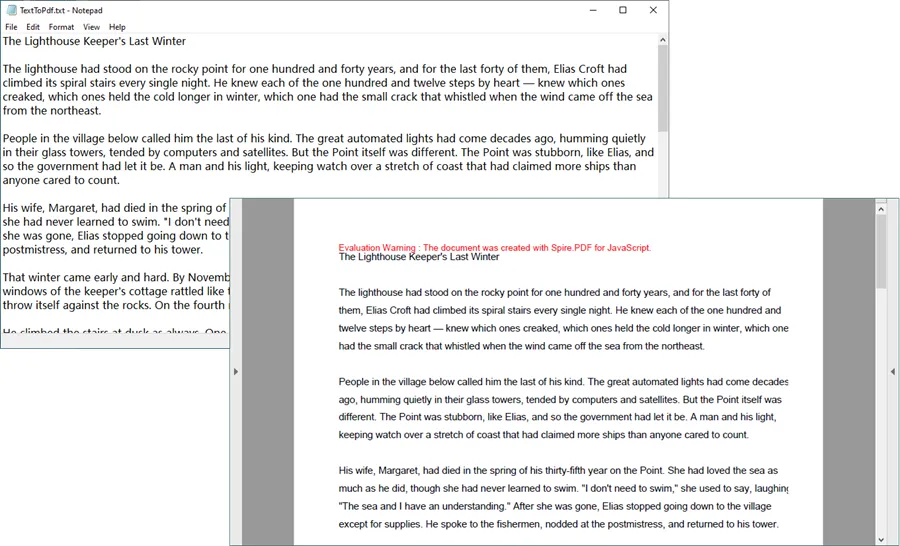
The text is then passed to PdfTextWidget, while PdfLayoutWidget.Draw() handles the actual layout process. Since PdfLayoutType.Paginate is used, text that exceeds the available space on the first page can continue onto additional pages automatically.
Output:
Page and Text Configuration
Set PDF Page Size and Margins
Page size and margins are important when converting long text documents because they determine how much content can fit on each page.
For example, you can set the page size to A4 and use 20-point margins on all four sides:
const page = section.Pages.Add();

page.PageSettings.Size = wasmModule.PdfPageSize.A4;

page.PageSettings.Margins = new wasmModule.PdfMargins({
  top: 20,
  bottom: 20,
  left: 20,
  right: 20
});
The page margins reduce the available drawing area for the text and prevent the content from being positioned too close to the edges of the PDF page.
You can adjust these values depending on the type of document being generated. Larger margins may be more appropriate for reports or printable documents, while smaller margins allow more text to fit on each page.
Use a Custom Font in the PDF
The built-in PDF fonts, such as Helvetica, are sufficient for many English documents. However, documents containing multilingual characters may require a Unicode-compatible TrueType font.
For example, you can load ARIALUNI.TTF into the virtual file system and use Arial Unicode MS when drawing text:
await window.spire.FetchFileToVFS(
  'ARIALUNI.TTF',
  '/Library/Fonts/',
  `${process.env.PUBLIC_URL}/static/font/`
);

let font = new wasmModule.PdfTrueTypeFont({
  fontFamily: 'Arial Unicode MS',
  size: 12,
  style: wasmModule.PdfFontStyle.Regular,
  unicode: true
});
In this case, the font file can be stored under:
public/static/font/
Using a Unicode-compatible font is particularly useful when the source text contains languages such as Chinese, Japanese, Korean, or other characters that are not fully covered by standard PDF fonts.
The unicode: true option enables Unicode text rendering when the TrueType font is used.
Change Text Alignment
Text alignment can be controlled through PdfStringFormat.
For example, the following code justifies the text so that it aligns with both sides of the available text area:
const format = new wasmModule.PdfStringFormat();

format.Alignment =
  wasmModule.PdfTextAlignment.Justify;
The alignment can be changed according to the layout requirements of the document.
For normal paragraphs, left alignment or justified alignment is generally the most practical choice. Other alignment options can be useful for titles, headings, or specially formatted text.
The same PdfStringFormat object can also be used to configure settings such as line spacing:
format.LineSpacing = 20;
Increasing the line spacing can improve readability, especially when converting large blocks of plain text into PDF.
Control the Starting Position of Text
When drawing text onto a PDF page, the RectangleF object determines the area in which the text is laid out.
The starting position is defined by the PointF object:
const bounds = new wasmModule.RectangleF({
  location: new wasmModule.PointF(0, y),
  size: page.Canvas.ClientSize,
});
Here, the y value determines how far the text starts from the top of the page.
For example:
location: new wasmModule.PointF(0, 30)
moves the beginning of the text downward by 30 points.
It is generally recommended to keep the x-coordinate at 0 when the drawing area uses page.Canvas.ClientSize.
Changing the x-coordinate without reducing the width of the drawing area accordingly can result in uneven left and right spacing. In some cases, text near the right edge may also extend beyond the available area and become clipped.
Therefore, when the goal is simply to create additional space above the first line of text, adjusting the y coordinate is usually the safer approach:
const bounds = new wasmModule.RectangleF({
  location: new wasmModule.PointF(0, 40),
  size: page.Canvas.ClientSize,
});
This starts the text 40 points below its default top position while preserving the full available page width.
Conclusion
Converting plain text to PDF in a React application involves more than simply changing the file extension. The text first needs to be read and decoded, after which it can be drawn onto PDF pages using appropriate fonts, formatting, and layout rules.
With Spire.PDF for JavaScript, you can create a PDF document from TXT content directly in a React application and configure important output properties such as page size, margins, fonts, text alignment, line spacing, starting position, and automatic pagination .
These options make it possible to turn basic plain-text content into a more structured and portable PDF document while keeping the entire processing workflow within the JavaScript application.
FAQs
Can JavaScript convert a TXT file to PDF in a React application?
Yes. A React application can read the contents of a TXT file and use a JavaScript PDF library such as Spire.PDF for JavaScript to create PDF pages and draw the text onto them.
How can I convert long text to multiple PDF pages?
Use PdfTextLayout together with PdfLayoutType.Paginate. This allows PdfTextWidget content to continue onto subsequent pages when the available space on the current page is exhausted.
const textLayout = new wasmModule.PdfTextLayout();

textLayout.Break =
  wasmModule.PdfLayoutBreakType.FitPage;

textLayout.Layout =
  wasmModule.PdfLayoutType.Paginate;
Can I specify the page size when converting text to PDF?
Yes. The page size can be configured through the page settings. For example, the following code creates an A4 page:
page.PageSettings.Size =
  wasmModule.PdfPageSize.A4;
You can also configure the top, bottom, left, and right margins to control the available text area.
How can I display Unicode characters in the generated PDF?
Use a Unicode-compatible TrueType font and create a PdfTrueTypeFont with Unicode support enabled:
let font = new wasmModule.PdfTrueTypeFont({
  fontFamily: 'Arial Unicode MS',
  size: 12,
  style: wasmModule.PdfFontStyle.Regular,
  unicode: true
});
The corresponding font file should also be made available to the WebAssembly virtual file system.
How can I move the text farther down from the top of the PDF page?
Change the y coordinate of the PointF used to define the text drawing area:
const bounds = new wasmModule.RectangleF({
  location: new wasmModule.PointF(0, 40),
  size: page.Canvas.ClientSize,
});
A larger y value moves the starting position of the text farther down the page.
Get a Free License
To fully experience the capabilities of Spire.PDF for JavaScript without any evaluation limitations, you can request a 30-day free trial license.
