If all the text on a slide shows up at once, the audience has to take in every point at the same moment; revealing a block of text paragraph by paragraph makes the pace of the explanation much easier to follow. Setting the animation for each paragraph by hand takes time and is hard to keep consistent once the deck grows. Setting text animations with Spire.Presentation for JavaScript while the presentation is generated fixes how each paragraph enters, and later reuse needs no repeated adjustment.
This article uses Spire.Presentation for JavaScript to animate text in PowerPoint in the browser. The whole process runs locally on the user's device through WebAssembly, requires no Office installation and no back-end service, and keeps the presentation from leaving the browser.
This article covers two features:
For installation and project configuration, see Integrating Spire.Presentation for JavaScript in a React Project. The examples below assume that Spire.Presentation for JavaScript is installed and the WebAssembly module has been initialized.
Animate the paragraphs of the text
A block of text often falls into several paragraphs: a summary first, then the details one by one. When an animation is added to the whole text box, all the text plays as one piece; splitting the animation by paragraph lets the points appear in turn. The number of paragraphs is not fixed, so read the paragraph count first, then loop over it and add one effect per paragraph, each limited to its own range; to bring out just one paragraph first, give that paragraph its own start and end range.
| Writing | Result |
|---|---|
slide.Shapes.get_Item(index) |
Returns a shape of the slide by index; text shapes use the same member |
slide.Timeline.MainSequence.AddEffect(shape, effectType) |
Adds an animation effect to a shape and returns the effect object |
effect.SetStartEndParagraphs(start, end) |
Limits the effect to the given paragraphs; paragraph indexing starts at 0 |
shape.TextFrame.Paragraphs.Count |
Returns the number of paragraphs in the text shape, used as the loop bound |
AnimationEffectType.FadedZoom, etc. |
Selects the entrance effect, such as faded zoom |
The steps are:
- Get the Spire.Presentation WASM module and make sure it is ready, load the font and the presentation into the VFS, then create a
Presentationobject and load the file. - Get the first slide through
Presentation.Slides.get_Item(0)and take its text shape withShapes.get_Item(). - Read the paragraph count through
TextFrame.Paragraphs.Countand use it as the number of loop iterations. - Inside the loop, call
MainSequence.AddEffect()on the text shape, then useSetStartEndParagraphs()to make the i-th paragraph the range of that effect. - Call
Presentation.SaveToFile()to save the result file, release the presentation withDispose(), then read the file from the VFS and trigger the download.
The code for animating the paragraphs of the text is as follows:
function App() {
  const animateParagraphs = async () => {
    // Get the Spire.Presentation WASM module
    const pptModule = window.wasmModule?.spirepresentation;

    // Check if the module is ready
    if (!pptModule) {
      alert('Spire.Presentation is not ready yet');
      return;
    }

    // Load the font and the presentation into VFS
    await window.spire.FetchFileToVFS('ARIAL.TTF', '/Library/Fonts/', `${process.env.PUBLIC_URL}/font/`);
    const inputFileName = 'en_AnimationText.pptx';
    await window.spire.FetchFileToVFS(inputFileName, '', `${process.env.PUBLIC_URL}/data/`);

    // Load the presentation
    const ppt = new pptModule.Presentation();
    ppt.LoadFromFile(inputFileName);

    // Get the first slide and its text shape
    const slide = ppt.Slides.get_Item(0);
    const textShape = slide.Shapes.get_Item(1);

    // Get the number of paragraphs in the text shape
    const paragraphCount = textShape.TextFrame.Paragraphs.Count;

    // Add one animation effect for each paragraph
    for (let i = 0; i < paragraphCount; i++) {
      const effect = slide.Timeline.MainSequence.AddEffect(textShape, pptModule.AnimationEffectType.FadedZoom);
      effect.SetStartEndParagraphs(i, i);
    }

    // Save the result file
    const outputFileName = 'AnimateParagraphs_result.pptx';
    ppt.SaveToFile({ file: outputFileName, fileFormat: pptModule.FileFormat.Pptx2013 });
    ppt.Dispose();

    // Read the generated file from VFS and download it
    const fileArray = window.dotnetRuntime.Module.FS.readFile(outputFileName);
    const blob = new Blob([fileArray], { type: 'application/vnd.openxmlformats-officedocument.presentationml.presentation' });
    const url = URL.createObjectURL(blob);
    const a = document.createElement('a');
    a.href = url;
    a.download = outputFileName;
    a.click();
    URL.revokeObjectURL(url);
  };

  return (
    <div style={{ textAlign: 'center', height: '300px' }}>
      <h1>Paragraph Animations</h1>
      <button onClick={animateParagraphs}>Animate each paragraph</button>
    </div>
  );
}

export default App;
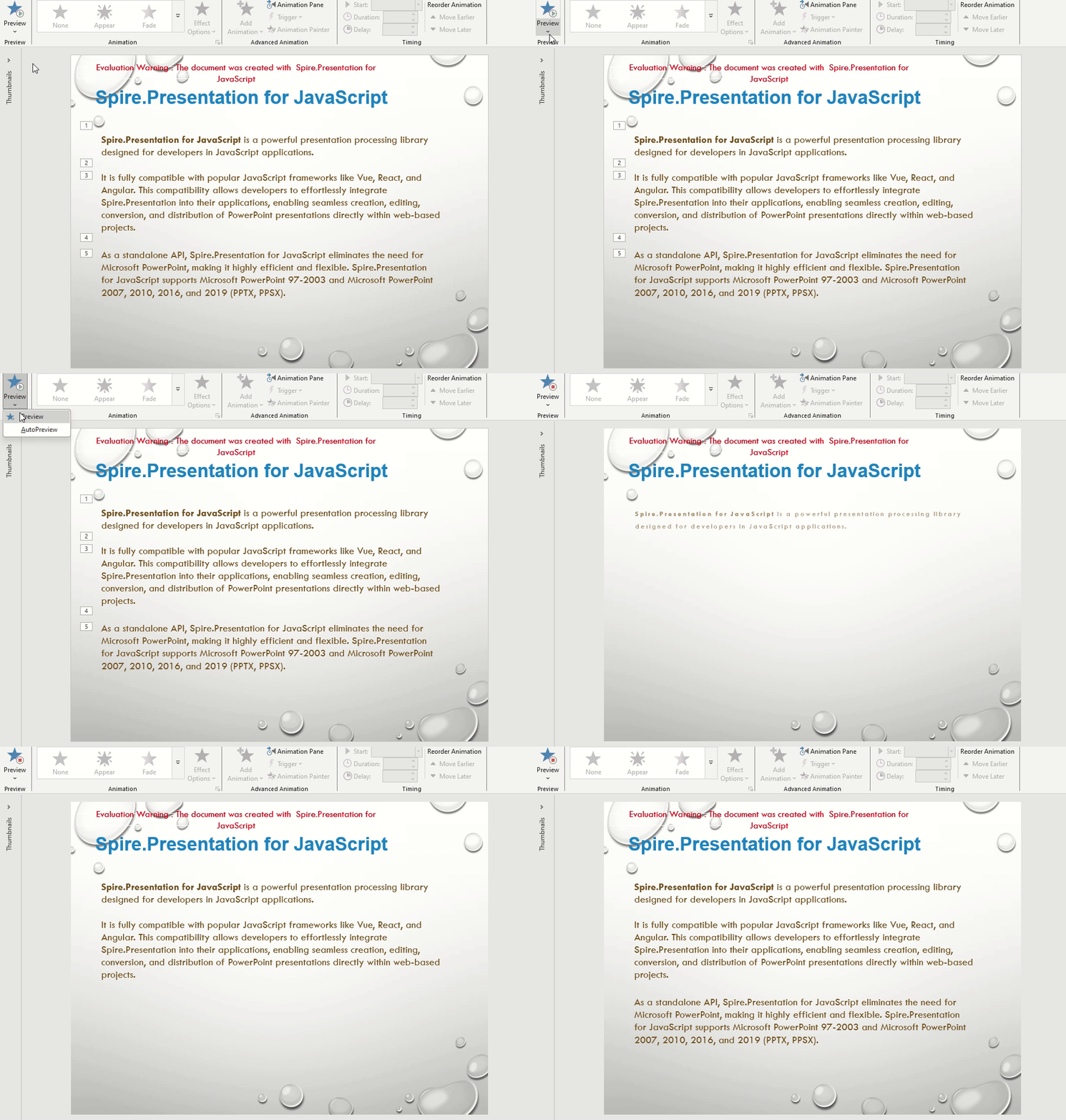
The presentation after animating the paragraphs of the text:
Play text letter by letter or word by word
When a sentence itself is what the audience should focus on, showing it all at once can feel abrupt, while revealing it letter by letter or word by word guides the eye through the line. A text effect can specify the grouping unit: letters make the text appear character by character, words make it appear word by word; the interval setting then controls how fast the groups follow each other.
| Writing | Result |
|---|---|
effect.IterateType with AnimateType.Letter, AnimateType.Word |
Groups the text by letter or by word |
effect.IterateTimeValue |
Sets the interval between two consecutive groups |
The steps are:
- Load the font and the presentation into the VFS, then get the second slide and its text shape from the loaded presentation.
- Add an effect for the first paragraph and limit it with
SetStartEndParagraphs(), setIterateTypetoAnimateType.Letter, then set the interval between letters withIterateTimeValue. - Add another effect for the second paragraph and limit it as well, set
IterateTypetoAnimateType.Word, then set the interval between words withIterateTimeValue. - Call
Presentation.SaveToFile()to save the result file, release the presentation withDispose(), then read the file from the VFS and trigger the download.
The code for playing text letter by letter or word by word is as follows:
function App() {
  const iterateText = async () => {
    // Get the Spire.Presentation WASM module
    const pptModule = window.wasmModule?.spirepresentation;

    // Check if the module is ready
    if (!pptModule) {
      alert('Spire.Presentation is not ready yet');
      return;
    }

    // Load the font and the presentation into VFS
    await window.spire.FetchFileToVFS('ARIAL.TTF', '/Library/Fonts/', `${process.env.PUBLIC_URL}/font/`);
    const inputFileName = 'en_AnimationText.pptx';
    await window.spire.FetchFileToVFS(inputFileName, '', `${process.env.PUBLIC_URL}/data/`);

    // Load the presentation
    const ppt = new pptModule.Presentation();
    ppt.LoadFromFile(inputFileName);

    // Get the second slide and its text shape
    const slide = ppt.Slides.get_Item(1);
    const textShape = slide.Shapes.get_Item(1);

    // The first paragraph plays letter by letter, with an interval of 10
    const letterEffect = slide.Timeline.MainSequence.AddEffect(textShape, pptModule.AnimationEffectType.FadedZoom);
    letterEffect.SetStartEndParagraphs(0, 0);
    letterEffect.IterateType = pptModule.AnimateType.Letter;
    letterEffect.IterateTimeValue = 10;

    // The second paragraph plays word by word, with an interval of 15
    const wordEffect = slide.Timeline.MainSequence.AddEffect(textShape, pptModule.AnimationEffectType.Float);
    wordEffect.SetStartEndParagraphs(1, 1);
    wordEffect.IterateType = pptModule.AnimateType.Word;
    wordEffect.IterateTimeValue = 15;

    // Save the result file
    const outputFileName = 'IterateText_result.pptx';
    ppt.SaveToFile({ file: outputFileName, fileFormat: pptModule.FileFormat.Pptx2013 });
    ppt.Dispose();

    // Read the generated file from VFS and download it
    const fileArray = window.dotnetRuntime.Module.FS.readFile(outputFileName);
    const blob = new Blob([fileArray], { type: 'application/vnd.openxmlformats-officedocument.presentationml.presentation' });
    const url = URL.createObjectURL(blob);
    const a = document.createElement('a');
    a.href = url;
    a.download = outputFileName;
    a.click();
    URL.revokeObjectURL(url);
  };

  return (
    <div style={{ textAlign: 'center', height: '300px' }}>
      <h1>Letter and Word Playback</h1>
      <button onClick={iterateText}>Letter and word playback</button>
    </div>
  );
}

export default App;
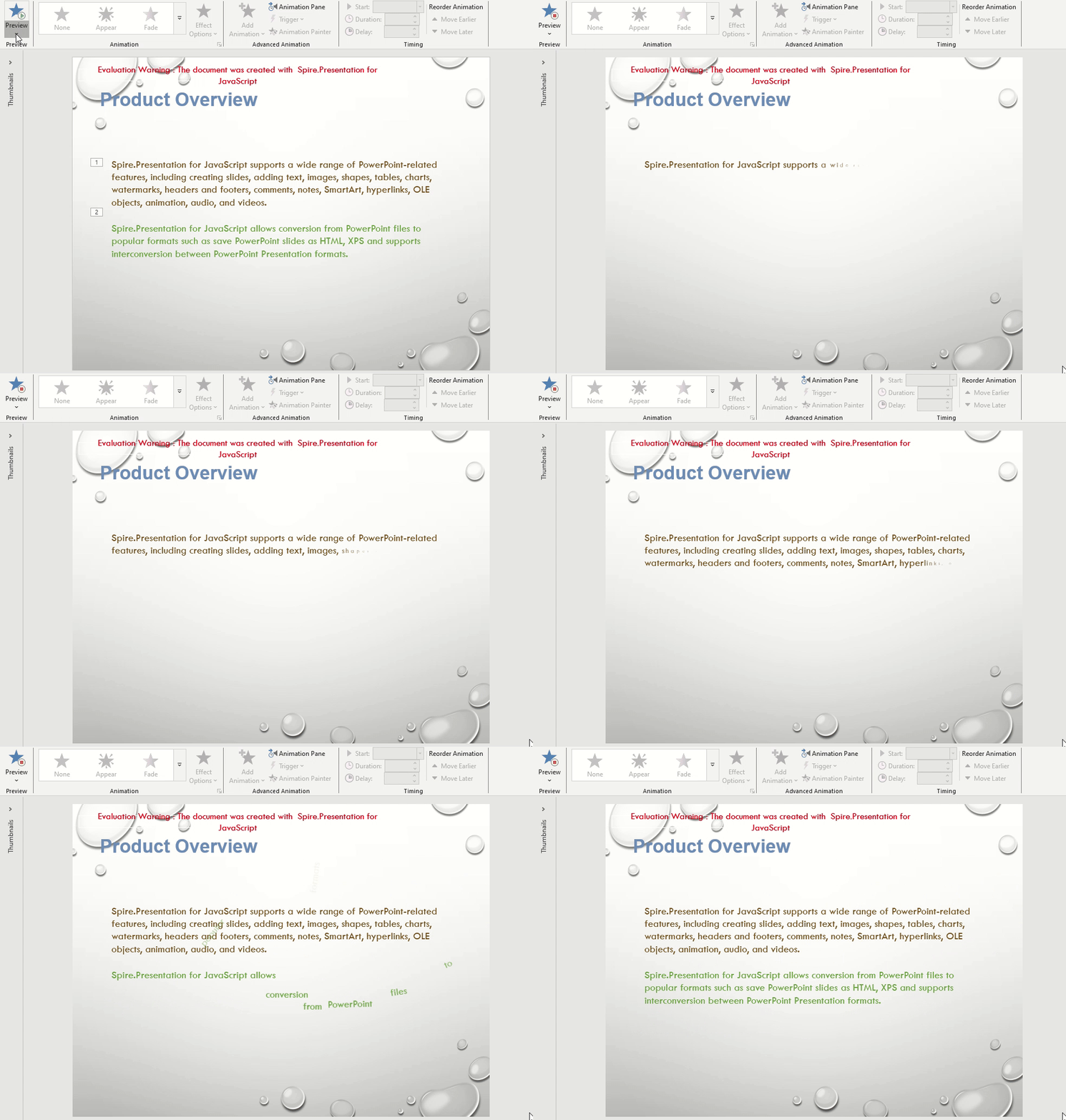
The presentation after playing text letter by letter or word by word:
FAQ
How to change the playback order of several animations
Cause: The main animation sequence keeps effects in the order they are added and fires them in that order during the show, so an effect added last always plays last.
Solution: Call AddEffect() in the order you need. If an effect has already been added in the wrong place, remove it with MainSequence.RemoveAt() and add it again in the correct order; a re-added effect goes to the end of the sequence. Set the paragraph range and timing again after re-adding:
const sequence = slide.Timeline.MainSequence;
sequence.RemoveAt(0); // remove the effect that is out of order
const effect = sequence.AddEffect(textShape, pptModule.AnimationEffectType.FadedZoom);
effect.SetStartEndParagraphs(0, 0);
How to set the duration, delay and repeat count of an animation
Cause: The default duration and trigger pace are fixed, so a slower explanation or a looping emphasis needs its own timing.
Solution: Use the effect's Timing to set the playback duration, trigger delay and repeat mode. Duration and TriggerDelayTime are in seconds; for a fixed number of repeats, set AnimationRepeatType to Number and give the count in RepeatCount:
const effect = slide.Timeline.MainSequence.get_Item(0);
effect.Timing.Duration = 1.5;          // play once for 1.5 seconds
effect.Timing.TriggerDelayTime = 0.5;  // wait 0.5 seconds after the trigger
effect.Timing.AnimationRepeatType = pptModule.AnimationRepeatType.Number;
effect.Timing.RepeatCount = 3;         // repeat three times
To keep the animation repeating until the slide is left, set AnimationRepeatType to UtilEndOfSlide.
How to make several paragraph animations run one after another
Cause: A newly added animation waits for a click, so several paragraphs need one click each and the pace of the explanation keeps breaking.
Solution: Set the effect's Timing.TriggerType to AnimationTriggerType.AfterPrevious, and the animation starts right after the previous one ends:
effect.Timing.TriggerType = pptModule.AnimationTriggerType.AfterPrevious;
Get a Free License
If you wish to delete the evaluation message from the resulting documents, or to get rid of function limitations, please contact sales to obtain a valid 30-day temporary license.
