Digital signatures ensure the authenticity of an Excel file's source and verify that its content has not been tampered with. Spire.XLS for JavaScript runs entirely in the browser via WebAssembly, using a virtual file system (VFS) to manage input and output files — no backend server required.
This article covers two core features:
For installation and project setup, refer to Integrating Spire.XLS for JavaScript in a React Project. The examples below assume Spire.XLS is installed and the WebAssembly module is initialized.
Detect Whether an Excel File Is Signed
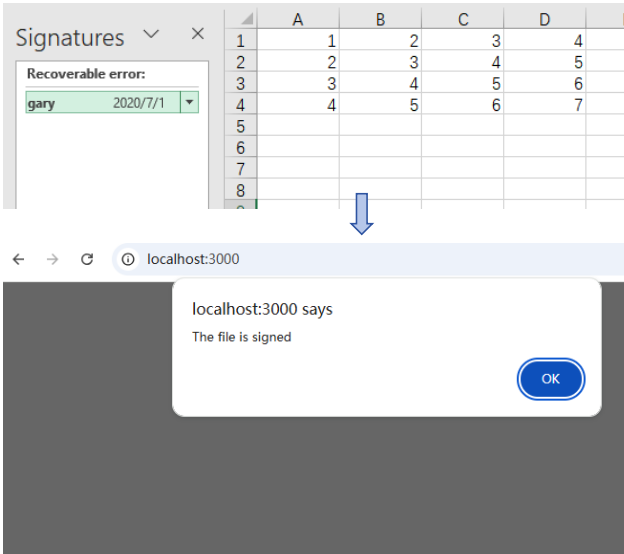
Before processing a signed Excel file, checking its signature status can prevent unintended operations. Spire.XLS provides the IsDigitallySigned property to determine whether a workbook contains digital signatures. The core process consists of three stages: first, load the font files and the target Excel file into the WASM virtual file system via FetchFileToVFS; then, instantiate a Workbook and load the file; finally, retrieve the signature status through the IsDigitallySigned property.
function App() {
  const detectDigitalSignature = async () => {
    // Get the Spire.XLS WASM module
    const xlsModule = window.wasmModule?.spirexls;

    // Check if the module is ready
    if (!xlsModule) {
      alert('Spire.Xls is not ready yet');
      return;
    }

    // Load fonts and Excel file into VFS
    await window.spire.FetchFileToVFS('arial.ttf', '/Library/Fonts/', `${process.env.PUBLIC_URL}/font/`);
    const inputFileName = 'Sample.xlsx';
    await window.spire.FetchFileToVFS(inputFileName, '', `${process.env.PUBLIC_URL}data/`);

    // Load the workbook
    const workbook = new xlsModule.Workbook();
    workbook.LoadFromFile({ fileName: inputFileName });

    // Detect if the workbook contains digital signatures
    const isSigned = workbook.IsDigitallySigned;

    // Dispose of the workbook object to release resources
    workbook.Dispose();

    // Show the detection result
    alert(isSigned ? 'The file is signed' : 'The file is not signed');
  };

  return (
    <div style={{ textAlign: 'center', height: '300px' }}>
      <h1>Detect Digital Signature</h1>
      <button onClick={detectDigitalSignature}>
        Detect
      </button>
    </div>
  );
}

export default App;
Detection result dialog showing whether the file is signed
Remove Digital Signatures from an Excel File
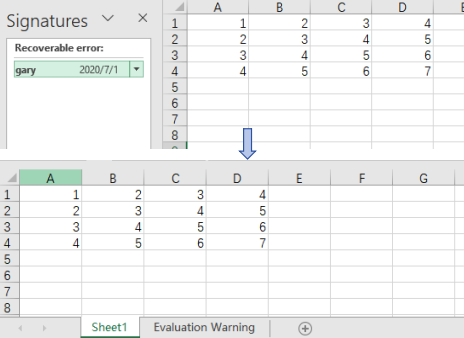
In cases where signature information needs to be updated, certificates replaced, or digital authentication canceled, the existing digital signatures must be removed from the Excel file. Using Spire.XLS, the core process consists of three stages: first, load the font files and the signed Excel file into the WASM virtual file system via FetchFileToVFS; then, instantiate a Workbook and load the file, calling RemoveAllDigitalSignatures to remove all digital signatures from the workbook at once; finally, save the workbook file with signatures removed via SaveToFile.
function App() {
  const removeDigitalSignatures = async () => {
    // Get the Spire.XLS WASM module
    const xlsModule = window.wasmModule?.spirexls;

    // Check if the module is ready
    if (!xlsModule) {
      alert('Spire.Xls is not ready yet');
      return;
    }

    // Load fonts and Excel file into VFS
    await window.spire.FetchFileToVFS('arial.ttf', '/Library/Fonts/', `${process.env.PUBLIC_URL}/font/`);
    const inputFileName = 'Sample.xlsx';
    await window.spire.FetchFileToVFS(inputFileName, '', `${process.env.PUBLIC_URL}data/`);

    // Load the signed workbook
    const workbook = new xlsModule.Workbook();
    workbook.LoadFromFile({ fileName: inputFileName });

    // Remove all digital signatures
    workbook.RemoveAllDigitalSignatures();

    // Save the workbook without signatures
    const outputFileName = 'SignatureRemoved.xlsx';
    workbook.SaveToFile({ fileName: outputFileName, version: xlsModule.ExcelVersion.Version2010 });

    // Dispose of the workbook object to release resources
    workbook.Dispose();

    // Read the file from VFS and trigger download
    const fileArray = window.dotnetRuntime.Module.FS.readFile(outputFileName);
    const blob = new Blob([fileArray], { type: 'application/vnd.openxmlformats-officedocument.spreadsheetml.sheet' });
    const url = URL.createObjectURL(blob);
    const a = document.createElement('a');
    a.href = url;
    a.download = outputFileName;
    a.click();
    URL.revokeObjectURL(url);
  };

  return (
    <div style={{ textAlign: 'center', height: '300px' }}>
      <h1>Remove Digital Signatures</h1>
      <button onClick={removeDigitalSignatures}>
        Remove Signatures
      </button>
    </div>
  );
}

export default App;
Output document after removing digital signatures
FAQ
Can I detect a signature on a specific worksheet instead of the entire workbook?
Cause: Digital signatures are applied to the entire workbook, not individual worksheets.
Solution: Digital signatures operate at the workbook level. It is not possible to detect or remove signatures on a single worksheet. Both IsDigitallySigned and RemoveAllDigitalSignatures are workbook-level methods.
How do I batch detect or remove signatures from multiple Excel files?
Cause: Real-world projects often involve processing large numbers of files, making manual processing inefficient.
Solution: Use a loop to process files in batch:
const files = ['report1.xlsx', 'report2.xlsx', 'report3.xlsx'];
for (const file of files) {
  await window.spire.FetchFileToVFS(file, '', dataPath);
  const wb = new xlsModule.Workbook();
  wb.LoadFromFile({ fileName: file });
  if (wb.IsDigitallySigned) {
    wb.RemoveAllDigitalSignatures();
  }
  wb.SaveToFile({ fileName: `unsigned_${file}`, version: xlsModule.ExcelVersion.Version2016 });
  wb.Dispose();
}
Get a Free License
Spire.XLS for JavaScript offers a 30-day full-featured free trial license with no functional limitations. Apply here to evaluate before purchasing.
