C++: Change the Margins of a PDF Document
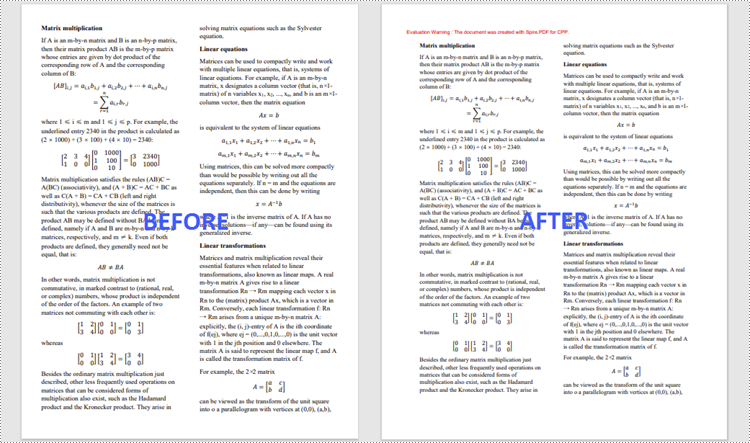
Margins are the empty and unused spaces between the document's content and edges. The margins generally don't contain any text or image, and their primary purpose is to prevent text from colliding with document boundaries. Depending on your needs, you can change the margins to become wider or narrower. In this article, you will learn how to increase or decrease the page margins of a PDF document in C++ using Spire.PDF for C++.
Install Spire.PDF for C++
There are two ways to integrate Spire.PDF for C++ into your application. One way is to install it through NuGet, and the other way is to download the package from our website and copy the libraries into your program. Installation via NuGet is simpler and more recommended. You can find more details by visiting the following link.
Integrate Spire.PDF for C++ in a C++ Application
Increase the Margins of a PDF Document in C++
The way to enlarge the margins of a PDF document is to create a new PDF that has a larger page size, and then draw the source page on the large page at the appropriate location. The following are the steps to increase the margins of a PDF document using Spire.PDF for C++.
- Load the original PDF document while initialing the PdfDocument object.
- Create another PdfDocument object, which is used to create a new PDF document that has a larger page size.
- Set the increasing values of the margins.
- Calculate the page size of the new PDF document.
- Loop through the pages in the original document, and create a template based on a specific page using PdfPageBase->CreateTemplate() method.
- Add a page to the new PDF document using PdfDocument->GetPages()->Add() method.
- Draw the template on the page at the coordinate (0, 0) using PdfTemplate->Draw() method.
- Save the new PDF document to file using PdfDocument->SaveToFile() method.
- C++
//Load the original PDF document
 PdfDocument* originalPdf = new PdfDocument(L"C:\\Users\\Administrator\\Desktop\\sample.pdf");

 //Get the first page
 boost::intrusive_ptr<PdfPageBase> firstPage = originalPdf->GetPages()->GetItem(0);

 //Create a new PdfDocument object
 PdfDocument* newPdf = new PdfDocument();

 //Set increasing value of the margins
 boost::intrusive_ptr<PdfMargins> margins = newPdf->GetPageSettings()->GetMargins();
 margins->SetTop(40);
 margins->SetBottom(40);
 margins->SetLeft(40);
 margins->SetRight(40);

 //Calculate the new page size
 SizeF* sizeF = new SizeF(firstPage->GetSize()->GetWidth() + margins->GetLeft() + margins->GetRight(), firstPage->GetSize()->GetHeight() + margins->GetTop() + margins->GetBottom());

 //Loop through the pages in the original document
 for (size_t i = 0; i < originalPdf->GetPages()->GetCount(); i++)
 {
     //Create a template based on a spcific page
     boost::intrusive_ptr<PdfTemplate> pdfTemplate = originalPdf->GetPages()->GetItem(i)->CreateTemplate();

     //Add a page to the new PDF
     boost::intrusive_ptr<PdfPageBase> page = newPdf->GetPages()->Add(sizeF);

     //Draw template on the page
     pdfTemplate->Draw(page, 0.0f, 0.0f);
 }
Decrease the Margins of a PDF Document in C++
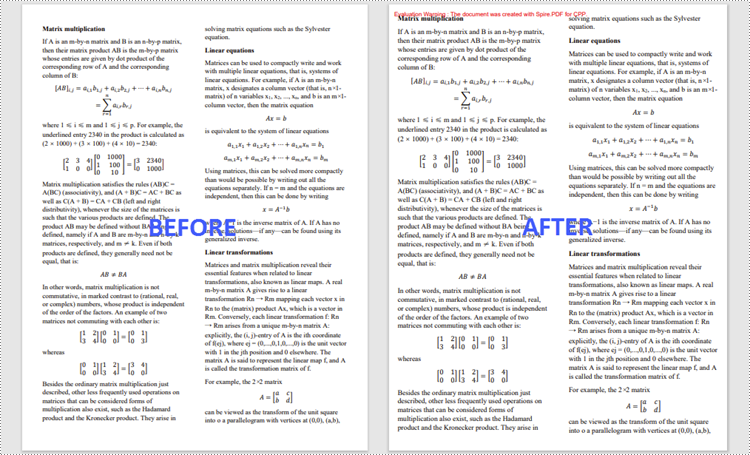
The way to decrease the margins of a PDF is to create a new PDF that has a smaller page size, and then draw the source page on the small page at a specified coordinate. The following are the steps to decrease the margins of a PDF document using Spire.PDF for C++.
- Load the original PDF document while initialing the PdfDocument object.
- Create another PdfDocument object, which is used to create a new PDF document that has a smaller page size.
- Set the decreasing values of the margins.
- Calculate the page size of the new PDF document.
- Loop through the pages in the original document, and create a template based on a specific page using PdfPageBase->CreateTemplate() method.
- Add a page to the new PDF document using PdfDocument->GetPages()->Add() method.
- Draw the template on the page at a specified coordinate using PdfTemplate->Draw() method.
- Save the new PDF document to file using PdfDocument->SaveToFile() method.
- C++
#include "Spire.Pdf.o.h";

using namespace Spire::Pdf;

int main() {

    //Load the original PDF document
    PdfDocument* originalPdf = new PdfDocument(L"C:\\Users\\Administrator\\Desktop\\sample.pdf");

    //Get the first page
    PdfPageBase* firstPage = originalPdf->GetPages()->GetItem(0);

    //Create a new PdfDocument object
    PdfDocument* newPdf = new PdfDocument();

    //Set decreasing value
    double left = -20;
    double right = -20;
    double top = -20;
    double bottom = -20;

    //Calculate the new page size
    SizeF* sizeF = new SizeF(firstPage->GetSize()->GetWidth() + left + right, firstPage->GetSize()->GetHeight() + top + bottom);

    //Loop through the pages in the original document
    for (size_t i = 0; i < originalPdf->GetPages()->GetCount(); i++)
    {
        //Create a template based on a specific page
        PdfTemplate* pdfTemplate = originalPdf->GetPages()->GetItem(i)->CreateTemplate();

        //Add a page to the new PDF
        PdfPageBase* page = newPdf->GetPages()->Add(sizeF, new PdfMargins(0));

        //Draw template on the page
        pdfTemplate->Draw(page, left, top);
    }

    //Save the new document
    newPdf->SaveToFile(L"Output/DecreaseMargins.pdf", FileFormat::PDF);
    newPdf->Close();
    delete originalPdf;
    delete newPdf;
}
Apply for a Temporary License
If you'd like to remove the evaluation message from the generated documents, or to get rid of the function limitations, please request a 30-day trial license for yourself.
C++: Change Font Color in Word
Changing the font color in a Word document can be an effective way to emphasize important points. For example, if you are creating a report that contains crucial data, changing the font color of the data text to a brighter color can make it stand out from other text and quickly grab your reader's attention. Another benefit of changing the font color is that it can enhance the visual appearance and readability of the document. For instance, when preparing marketing materials, changing the font color of headings and subheadings to a different font color than the rest of the text can help create a clear information hierarchy, making the materials more attractive and easier to read. In this article, we will demonstrate how to change the font color in a Word document in C++ using Spire.Doc for C++.
- Change the Font Color of a Paragraph in Word in C++
- Change the Font Color of a Specific Text in Word in C++
Install Spire.Doc for C++
There are two ways to integrate Spire.Doc for C++ into your application. One way is to install it through NuGet, and the other way is to download the package from our website and copy the libraries into your program. Installation via NuGet is simpler and more recommended. You can find more details by visiting the following link.
Integrate Spire.Doc for C++ in a C++ Application
Change the Font Color of a Paragraph in Word in C++
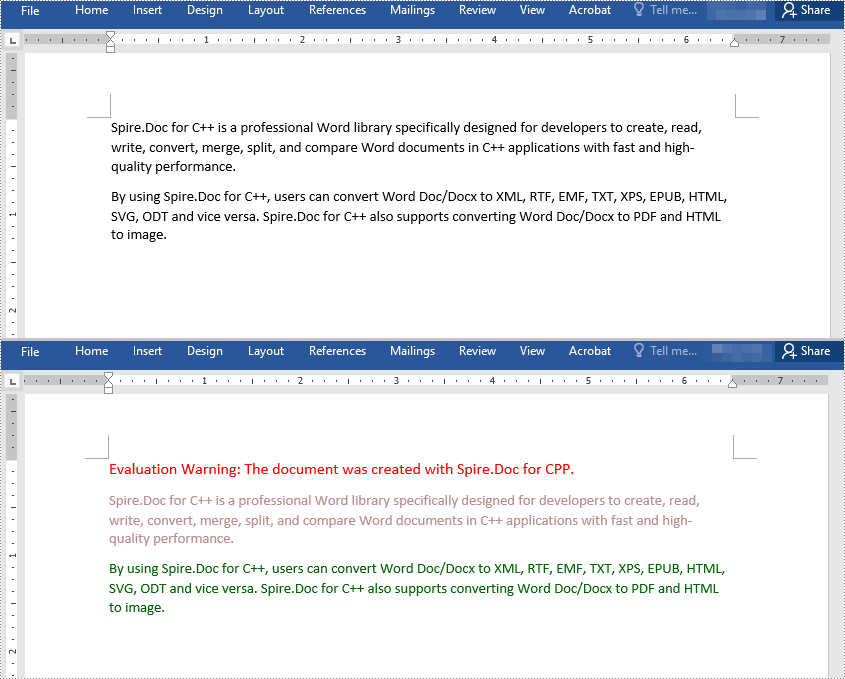
To change the font color of a specific paragraph in a Word document, you can create a custom paragraph style with a specific font color, then add the style to the document and apply it to the paragraph you want to modify. The detailed steps are as follows:
- Create an instance of the Document class.
- Load a Word document using the Document->LoadFromFile() method.
- Access a specific section in the document by its index using the Document->GetSections()->GetItem(int index) method.
- Access the paragraph you want to modify by its index using the Section->GetParagraphs()->GetItem(int index) method.
- Create an instance of the ParagraphStyle class to define a custom paragraph style.
- Set the name and font color of the paragraph style using the ParagraphStyle->SetName() and ParagraphStyle->GetCharacterFormat()->SetTextColor() methods.
- Add the custom paragraph style to the document using the Document->GetStyles()->Add() method.
- Apply the custom paragraph style to the specific paragraph using the Paragraph->ApplyStyle() method.
- Save the modified document using the Document->SaveToFile() method.
- C++
#include "Spire.Doc.o.h";

using namespace Spire::Doc;

int main()
{
    //Create a Document instance
    intrusive_ptr<Document> document = new Document();

    //Load a Word document
    document->LoadFromFile(L"Sample.docx");

    //Get the first section
    intrusive_ptr<Section> section = document->GetSections()->GetItemInSectionCollection(0);

    //Change the font color of the first Paragraph
    intrusive_ptr<Paragraph> p1 = section->GetParagraphs()->GetItemInParagraphCollection(0);
    intrusive_ptr<ParagraphStyle> style1 = new ParagraphStyle(document);
    style1->SetName(L"Color1");
    style1->GetCharacterFormat()->SetTextColor(Color::GetRosyBrown());
    document->GetStyles()->Add(style1);
    p1->ApplyStyle(style1);

    //Change the font color of the second Paragraph
    intrusive_ptr<Paragraph> p2 = section->GetParagraphs()->GetItemInParagraphCollection(1);
    intrusive_ptr<ParagraphStyle> style2 = new ParagraphStyle(document);
    style2->SetName(L"Color2");
    style2->GetCharacterFormat()->SetTextColor(Color::GetDarkGreen());
    document->GetStyles()->Add(style2);
    p2->ApplyStyle(style2);

    //Save the result document
    document->SaveToFile(L"ChangeFontColorForParagraph.docx", FileFormat::Docx2013);
    document->Close();
}
Change the Font Color of a Specific Text in Word in C++
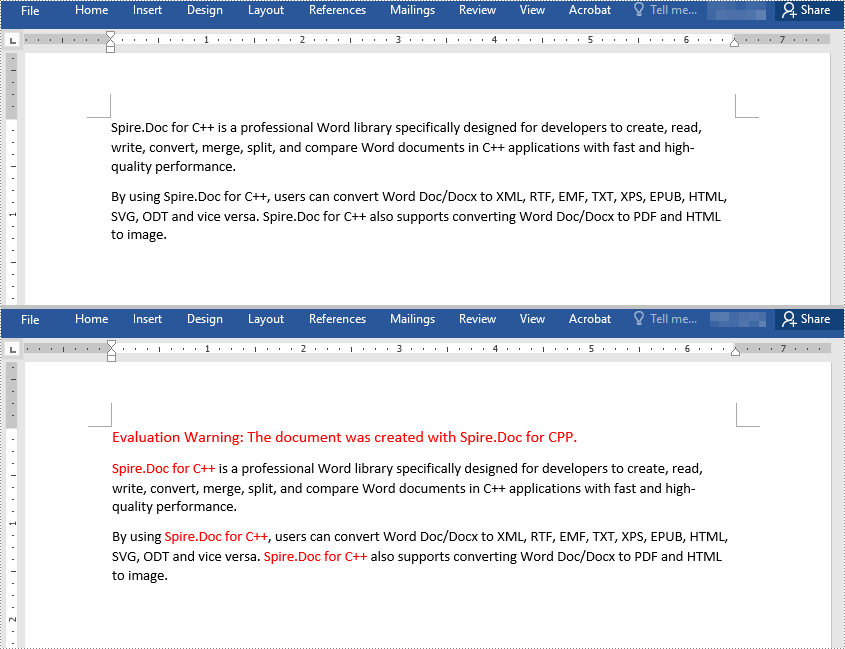
To change the font color of a specific text in a Word document, you need to search for the text in the document, then change the font color of its all occurrences. The detailed steps are as follows:
- Create an instance of the Document class.
- Load a Word document using the Document->LoadFromFile() method.
- Find the text that you want to change the font color of using the Document->FindAllString() method.
- Iterate through all occurrences of the text and change the font color of each occurrence using the TextSelection->GetAsOneRange()->GetCharacterFormat()->SetTextColor() method.
- Save the result document using the Document->SaveToFile() method.
- C++
#include "Spire.Doc.o.h";

using namespace Spire::Doc;
using namespace std;

int main()
{
 //Create a Document instance
 intrusive_ptr<Document> document = new Document();

 //Load a Word document
 document->LoadFromFile(L"Sample.docx");

 //Find the text that you want to change the font color of
 vector<intrusive_ptr<TextSelection>> selection = document->FindAllString(L"Spire.Doc for C++", false, true);

 //Change the font color of all occurrences of the text
 for (auto text : selection)
 {
  text->GetAsOneRange()->GetCharacterFormat()->SetTextColor(Color::GetRed());
 }

 //Save the result document
 document->SaveToFile(L"ChangeFontColorForCertainText.docx", FileFormat::Docx2013);
 document->Close();
}
Apply for a Temporary License
If you'd like to remove the evaluation message from the generated documents, or to get rid of the function limitations, please request a 30-day trial license for yourself.
C++: Create a Pie Chart or a Doughnut Chart in Excel
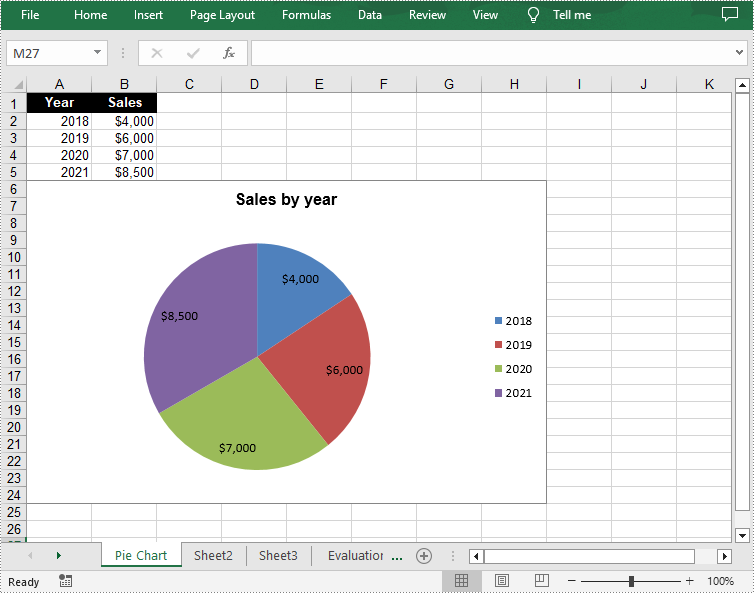
Pie charts and donut charts are two similar types of charts used to show a percentage breakdown of data. Both charts are visually simple and provide an instant understanding of the part-to-whole relationship. In this article, you will learn how to programmatically create a pie chart or a doughnut chart in Excel using Spire.XLS for C++.
Install Spire.XLS for C++
There are two ways to integrate Spire.XLS for C++ into your application. One way is to install it through NuGet, and the other way is to download the package from our website and copy the libraries into your program. Installation via NuGet is simpler and more recommended. You can find more details by visiting the following link.
Integrate Spire.XLS for C++ in a C++ Application
Create a Pie Chart in Excel in C++
A pie chart is a circular graph divided into several sectors. To add a pie chart in a worksheet, you can use the Worksheet->GetCharts()->Add(ExcelChartType::Pie) method provided by Spire.XLS for C++. The following are the detailed steps.
- Create a Workbook object.
- Get a specified worksheet using Workbook->GetWorksheets()->Get() method.
- Add a pie chart to the worksheet using Worksheet->GetCharts()->Add(ExcelChartType::Pie) method.
- Add some data to specified cells and set the cell styles.
- Set data range for the chart using Chart->SetDataRange() method.
- Set the position and title of the chart.
- Get a specified series in the chart and set category labels and values for the series using ChartSerie->SetCategoryLabels() and ChartSerie->SetValues() methods.
- Show data labels for data points.
- Save the result file using Workbook->SaveToFile() method.
- C++
#include "Spire.Xls.o.h";

using namespace Spire::Xls;

int main()
{
	//Specify the output file path
	std::wstring outputFile = L"Output\\PieChart.xlsx";

	//Create a Workbook object
	intrusive_ptr<Workbook> workbook = new Workbook();

	//Get the first worksheet and set sheet name
	intrusive_ptr<Worksheet> sheet = dynamic_pointer_cast<Worksheet>(workbook->GetWorksheets()->Get(0));
	sheet->SetName(L"Pie Chart");

	//Add a pie chart to the worksheet
	intrusive_ptr<Chart> chart = nullptr;
	chart = sheet->GetCharts()->Add(ExcelChartType::Pie);

	//Set chart data
	sheet->GetRange(L"A1")->SetValue(L"Year");
	sheet->GetRange(L"A2")->SetValue(L"2018");
	sheet->GetRange(L"A3")->SetValue(L"2019");
	sheet->GetRange(L"A4")->SetValue(L"2020");
	sheet->GetRange(L"A5")->SetValue(L"2021");

	sheet->GetRange(L"B1")->SetValue(L"Sales");
	sheet->GetRange(L"B2")->SetNumberValue(4000);
	sheet->GetRange(L"B3")->SetNumberValue(6000);
	sheet->GetRange(L"B4")->SetNumberValue(7000);
	sheet->GetRange(L"B5")->SetNumberValue(8500);

	//Set cell styles
	sheet->GetRange(L"A1:B1")->SetRowHeight(15);
	sheet->GetRange(L"A1:B1")->GetStyle()->SetColor(Spire::Xls::Color::GetBlack());
	sheet->GetRange(L"A1:B1")->GetStyle()->GetFont()->SetColor(Spire::Xls::Color::GetWhite());
	sheet->GetRange(L"A1:B1")->GetStyle()->SetVerticalAlignment(VerticalAlignType::Center);
	sheet->GetRange(L"A1:B1")->GetStyle()->SetHorizontalAlignment(HorizontalAlignType::Center);

	//Set number format
	sheet->GetRange(L"B2:C5")->GetStyle()->SetNumberFormat(L"\"$\"#,##0");

	//Set data range for the chart
	chart->SetDataRange(sheet->GetRange(L"B2:B5"));
	chart->SetSeriesDataFromRange(false);

	//Set position of the chart
	chart->SetLeftColumn(1);
	chart->SetTopRow(6);
	chart->SetRightColumn(9);
	chart->SetBottomRow(25);

	//Set and format chart title
	chart->SetChartTitle(L"Sales by year");
	chart->GetChartTitleArea()->SetIsBold(true);
	chart->GetChartTitleArea()->SetSize(12);

	//Get a specified series in the chart
	intrusive_ptr<ChartSerie> cs = chart->GetSeries()->Get(0);

	//Set category labels for the series
	cs->SetCategoryLabels(sheet->GetRange(L"A2:A5"));

	//Set values for the series
	cs->SetValues(sheet->GetRange(L"B2:B5"));

	//Show data labels for data points
	cs->GetDataPoints()->GetDefaultDataPoint()->GetDataLabels()->SetHasValue(true);

	//Save the result file
	workbook->SaveToFile(outputFile.c_str(), ExcelVersion::Version2013);
	workbook->Dispose();
}
Create a Doughnut Chart in Excel in C++
The doughnut chart is a variant of the pie chart. It has a hole in the center which allows additional information to be displayed. The following are the steps to add a donut chart in an Excel worksheet.
- Create a Workbook object.
- Get a specified worksheet using Workbook->GetWorksheets()->Get() method.
- Add some data to specified cells and set the cell styles.
- Add a chart to the worksheet using Worksheet->GetCharts()->Add() method and then set its type as doughnut chart using Chart->SetChartType(ExcelChartType::Doughnut) method.
- Set data range for the chart using Chart->SetDataRange() method.
- Set the position and title of the chart.
- Show data labels for data points.
- Set the legend position of the chart using Chart->GetLegend()->SetPosition() method.
- Save the result file using Workbook->SaveToFile() method.
- C++
#include "Spire.Xls.o.h";

using namespace Spire::Xls;

int main()
{
	//Specify the output file path
	std::wstring outputFile = L"Output\\DoughnutChart.xlsx";

	//Create a Workbook object
	intrusive_ptr<Workbook> workbook = new Workbook();

	//Get the first worksheet
	intrusive_ptr<Worksheet> sheet = dynamic_pointer_cast<Worksheet>(workbook->GetWorksheets()->Get(0));

	//Insert data to specified cells
	sheet->GetRange(L"A1")->SetValue(L"Country");
	sheet->GetRange(L"A2")->SetValue(L"Cuba");
	sheet->GetRange(L"A3")->SetValue(L"Mexico");
	sheet->GetRange(L"A4")->SetValue(L"France");
	sheet->GetRange(L"A5")->SetValue(L"German");
	sheet->GetRange(L"B1")->SetValue(L"Sales");
	sheet->GetRange(L"B2")->SetNumberValue(6000);
	sheet->GetRange(L"B3")->SetNumberValue(8000);
	sheet->GetRange(L"B4")->SetNumberValue(9000);
	sheet->GetRange(L"B5")->SetNumberValue(8500);

	//Set cell styles
	sheet->GetRange(L"A1:B1")->SetRowHeight(15);
	sheet->GetRange(L"A1:B1")->GetStyle()->SetColor(Spire::Xls::Color::GetBlack());
	sheet->GetRange(L"A1:B1")->GetStyle()->GetFont()->SetColor(Spire::Xls::Color::GetWhite());
	sheet->GetRange(L"A1:B1")->GetStyle()->GetFont()->SetIsBold(true);
	sheet->GetRange(L"A1:B1")->GetStyle()->SetVerticalAlignment(VerticalAlignType::Center);
	sheet->GetRange(L"A1:B1")->GetStyle()->SetHorizontalAlignment(HorizontalAlignType::Center);

	//Add a doughnut chart to the worksheet
	intrusive_ptr<Chart> chart = sheet->GetCharts()->Add();
	chart->SetChartType(ExcelChartType::Doughnut);

	//Set data range for chart
	chart->SetDataRange(sheet->GetRange(L"A1:B5"));
	chart->SetSeriesDataFromRange(false);

	//Set position of the chart
	chart->SetLeftColumn(4);
	chart->SetTopRow(2);
	chart->SetRightColumn(12);
	chart->SetBottomRow(22);

	//Chart title
	chart->SetChartTitle(L"Market share by country");
	chart->GetChartTitleArea()->SetIsBold(true);
	chart->GetChartTitleArea()->SetSize(12);

	//Show data labels for data points
	for (int i = 0; i < chart->GetSeries()->GetCount(); i++)
	{
		intrusive_ptr<ChartSerie> cs = chart->GetSeries()->Get(i);
		cs->GetDataPoints()->GetDefaultDataPoint()->GetDataLabels()->SetHasPercentage(true);
	}

	//Set the legend position of the chart
	chart->GetLegend()->SetPosition(LegendPositionType::Top);

	//Save the result file
	workbook->SaveToFile(outputFile.c_str(), ExcelVersion::Version2013);
	workbook->Dispose();
}

Apply for a Temporary License
If you'd like to remove the evaluation message from the generated documents, or to get rid of the function limitations, please request a 30-day trial license for yourself.
C++: Create, Fill or Remove Form Fields in PDF
PDF form fields are digital elements that allow users to input and manipulate data within a PDF document. PDF form fields enable users to complete forms, surveys, questionnaires, and other types of documents electronically, which streamlines the process of data collection and eliminates the need for paper-based methods. In this article, you will learn how to create, fill, or remove form fields in a PDF document in C++ using Spire.PDF for C++.
Install Spire.PDF for C++
There are two ways to integrate Spire.PDF for C++ into your application. One way is to install it through NuGet, and the other way is to download the package from our website and copy the libraries into your program. Installation via NuGet is simpler and more recommended. You can find more details by visiting the following link.
Integrate Spire.PDF for C++ in a C++ Application
Create Form Fields in PDF in C++
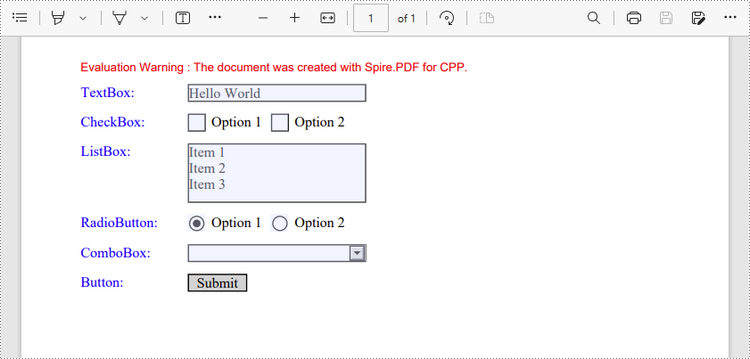
Spire.PDF for C++ offers a set of useful classes that allow developers to create and edit various types of form fields in PDF, including text box, check box, combo box, list box, and radio button. The table below lists some of the core classes involved in this tutorial.
| Class | Description |
| PdfForm | Represents interactive form of the PDF document. |
| PdfField | Represents field of the PDF document's interactive form. |
| PdfTextBoxField | Represents text box field in the PDF form. |
| PdfCheckBoxField | Represents check box field in the PDF form. |
| PdfComboBoxField | Represents combo box field in the PDF Form. |
| PdfListBoxField | Represents list box field of the PDF form. |
| PdfListFieldItem | Represents an item of a list field. |
| PdfRadioButtonListField | Represents radio button field in the PDF form. |
| PdfRadioButtonListItem | Represents an item of a radio button list. |
| PdfButtonField | Represents button field in the PDF form. |
| PdfSignatureField | Represents signature field in the PDF form. |
To create a field, initialize an instance of the corresponding class. Specify its size and position in the document using SetBounds() method, and then add it to the PDF form using PdfForm->GetFields()->Add() method. The following are the steps to create various types of form fields in a PDF document using Spire.PDF for C++.
- Create a PdfDocument object.
- Add a page using PdfDocument->GetPages()->Add() method.
- Create a PdfTextBoxField object, set the properties of the field including Bounds, Font and Text, and then add it to the document using PdfForm->GetFields()->Add() method.
- Repeat the step 3 to add check boxes, combo boxes, list boxes, radio buttons, and buttons to the document.
- Save the document to a PDF file using PdfDocument->SaveToFile() method.
- C++
#include "Spire.Pdf.o.h";

using namespace Spire::Pdf;
using namespace std;

int main() {

    //Create a PdfDocument object
    PdfDocument* doc = new PdfDocument();

    //Add a page
    intrusive_ptr<PdfPageBase> page = doc->GetPages()->Add();

    //Initialize x and y coordinates
    float baseX = 100;
    float baseY = 30;

    //Create two brush objects
    PdfSolidBrush* brush1 = new PdfSolidBrush(new PdfRGBColor(Spire::Pdf::Color::GetBlue()));
    PdfSolidBrush* brush2 = new PdfSolidBrush(new PdfRGBColor(Spire::Pdf::Color::GetBlack()));

    //Create a font
    PdfFont * font = new PdfFont(PdfFontFamily::TimesRoman, 12.0f, PdfFontStyle::Regular);

    //Add a textbox
    page->GetCanvas()->DrawString(L"TextBox:", font, brush1, 10, baseY);
    RectangleF* tbxBounds = new RectangleF(baseX, baseY, 150, 15);
    PdfTextBoxField* textBox = new PdfTextBoxField(page, L"textbox");
    textBox->SetBounds(tbxBounds);
    textBox->SetText(L"Hello World");
    textBox->SetFont(font);
    doc->GetForm()->GetFields()->Add(textBox);
    baseY += 25;

    //add two checkboxes
    page->GetCanvas()->DrawString(L"CheckBox:", font, brush1, 10, baseY);
    RectangleF* checkboxBound1 = new RectangleF(baseX, baseY, 15, 15);
    PdfCheckBoxField* checkBoxField1 = new PdfCheckBoxField(page, L"checkbox1");
    checkBoxField1->SetBounds(checkboxBound1);
    checkBoxField1->SetChecked(false);
    page->GetCanvas()->DrawString(L"Option 1", font, brush2, baseX + 20, baseY);

    RectangleF* checkboxBound2 = new RectangleF(baseX + 70, baseY, 15, 15);
    PdfCheckBoxField* checkBoxField2 = new PdfCheckBoxField(page, L"checkbox2");
    checkBoxField2->SetBounds(checkboxBound2);
    checkBoxField2->SetChecked(false);
    page->GetCanvas()->DrawString(L"Option 2", font, brush2, baseX + 90, baseY);
    doc->GetForm()->GetFields()->Add(checkBoxField1);
    doc->GetForm()->GetFields()->Add(checkBoxField2);
    baseY += 25;

    //Add a listbox
    page->GetCanvas()->DrawString(L"ListBox:", font, brush1, 10, baseY);
    RectangleF* listboxBound = new RectangleF(baseX, baseY, 150, 50);
    PdfListBoxField* listBoxField = new PdfListBoxField(page, L"listbox");
    listBoxField->GetItems()->Add(new PdfListFieldItem(L"Item 1", L"item1"));
    listBoxField->GetItems()->Add(new PdfListFieldItem(L"Item 2", L"item2"));
    listBoxField->GetItems()->Add(new PdfListFieldItem(L"Item 3", L"item3")); ;
    listBoxField->SetBounds(listboxBound);
    listBoxField->SetFont(font);
    listBoxField->SetSelectedIndex(0);
    doc->GetForm()->GetFields()->Add(listBoxField);
    baseY += 60;

    //Add two radio buttons
    page->GetCanvas()->DrawString(L"RadioButton:", font, brush1, 10, baseY);
    PdfRadioButtonListField* radioButtonListField = new PdfRadioButtonListField(page, L"radio");
    PdfRadioButtonListItem* radioItem1 = new PdfRadioButtonListItem(L"option1");
    RectangleF* radioBound1 = new RectangleF(baseX, baseY, 15, 15);
    radioItem1->SetBounds(radioBound1);
    page->GetCanvas()->DrawString(L"Option 1", font, brush2, baseX + 20, baseY);

    PdfRadioButtonListItem* radioItem2 = new PdfRadioButtonListItem(L"option2");
    RectangleF* radioBound2 = new RectangleF(baseX + 70, baseY, 15, 15);
    radioItem2->SetBounds(radioBound2);
    page->GetCanvas()->DrawString(L"Option 2", font, brush2, baseX + 90, baseY);
    radioButtonListField->GetItems()->Add(radioItem1);
    radioButtonListField->GetItems()->Add(radioItem2);
    radioButtonListField->SetSelectedIndex(0);
    doc->GetForm()->GetFields()->Add(radioButtonListField);
    baseY += 25;

    //Add a combobox
    page->GetCanvas()->DrawString(L"ComboBox:", font, brush1, 10, baseY);
    RectangleF* cmbBounds = new RectangleF(baseX, baseY, 150, 15);
    PdfComboBoxField* comboBoxField = new PdfComboBoxField(page, L"combobox");
    comboBoxField->SetBounds(cmbBounds);
    comboBoxField->GetItems()->Add(new PdfListFieldItem(L"Item 1", L"item1"));
    comboBoxField->GetItems()->Add(new PdfListFieldItem(L"Item 2", L"itme2"));
    comboBoxField->GetItems()->Add(new PdfListFieldItem(L"Item 3", L"item3"));
    comboBoxField->GetItems()->Add(new PdfListFieldItem(L"Item 4", L"item4"));
    comboBoxField->SetSelectedIndex(0);
    comboBoxField->SetFont(font);
    comboBoxField->SetEditable(true);
    doc->GetForm()->GetFields()->Add(comboBoxField);
    baseY += 25;

    //Add a button
    page->GetCanvas()->DrawString(L"Button:", font, brush1, 10, baseY);
    RectangleF* btnBounds = new RectangleF(baseX, baseY, 50, 15);
    PdfButtonField* buttonField = new PdfButtonField(page, L"button");
    buttonField->SetBounds(btnBounds);
    buttonField->SetText(L"Submit");
    buttonField->SetFont(font);
    PdfSubmitAction* submitAction = new PdfSubmitAction(L"https://www.e-iceblue.com/getformvalues.php");
    buttonField->GetActions()->SetMouseDown(submitAction);
    doc->GetForm()->GetFields()->Add(buttonField);

    //Save to file
    doc->SaveToFile(L"Output/FillableForm.pdf", FileFormat::PDF);
    doc->Close();
    delete doc;
}
Fill Form Fields in PDF in C++
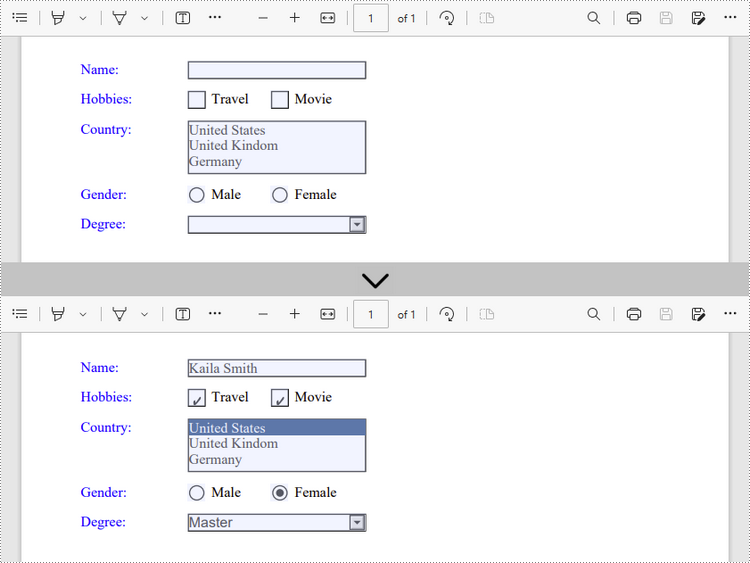
In order to fill out a form, you need first get all the form fields from the PDF document, determine the type of a certain field, and then input a value or select a value from a predefined list. The following are the steps to fill form fields in an existing PDF document using Spire.PDF for C++.
- Create a PdfDocument object.
- Load a sample PDF document using PdfDocument->LoadFromFile() method.
- Get the form from the document using PdfDocument->GetForm() method.
- Get the form field widget collection using PdfFormWidget->GetFieldsWidget() method.
- Loop through the field widget collection to get a specific PdfField.
- Determine if the PdfField is a certain field type such as text box. If yes, set the text of the text box using PdfTextBoxFieldWidget->SetText() method.
- Repeat the step above to fill radio button, check box, combo box, and list box with values.
- Save the document to a PDF file using PdfDocument->SaveToFile() method.
- C++
#include "Spire.Pdf.o.h";

using namespace Spire::Pdf;
using namespace std;

int main() {

    //Create a PdfDocument object
    PdfDocument* doc = new PdfDocument();

    //Load a PDF file containing form fields
    doc->LoadFromFile(L"C:\\Users\\Administrator\\Desktop\\Form.pdf");

    //Get the form from the document
    intrusive_ptr<PdfFormWidget> form = Object::Convert<PdfFormWidget>(doc->GetForm());

    //Get the form widget collection
    intrusive_ptr<PdfFormFieldWidgetCollection> formWidgetCollection = form->GetFieldsWidget();

    //Loop through the widgets
    for (int i = 0; i < formWidgetCollection->GetCount(); i++)
    {
        //Get a specific field
        intrusive_ptr<PdfField> field = formWidgetCollection->GetItem(i);

        //Determine if the field is a text box
        wchar_t nm_w1[100];
        swprintf(nm_w1, 100, L"%hs", typeid(PdfTextBoxFieldWidget).name());
        LPCWSTR_S newName1 = nm_w1;
        if (wcscmp(newName1, field->GetInstanceTypeName()) == 0)
        {
            intrusive_ptr<PdfTextBoxFieldWidget> textBoxField = Object::Convert<PdfTextBoxFieldWidget>(field);
            wstring str = textBoxField->GetName();
            if (str == L"name")
            {
                //Set the text of text box
                textBoxField->SetText(L"Kaila Smith");
            }
        }

        //Determine if the field is a check box
        wchar_t nm_w2[100];
        swprintf(nm_w2, 100, L"%hs", typeid(PdfCheckBoxWidgetFieldWidget).name());
        LPCWSTR_S newName2 = nm_w2;
        if (wcscmp(newName2, field->GetInstanceTypeName()) == 0)
        {
            intrusive_ptr<PdfCheckBoxWidgetFieldWidget> checkBoxField = Object::Convert<PdfCheckBoxWidgetFieldWidget>(field);
            wstring str = checkBoxField->GetName();
            if (str == L"travel")
            {
                //Set the "Checked" status of check box
                checkBoxField->SetChecked(true);
            }
            else if (str == L"movie")
            {
                checkBoxField->SetChecked(true);
            }
        }

        //Determine if the field is a combo box
        wchar_t nm_w3[100];
        swprintf(nm_w3, 100, L"%hs", typeid(PdfListBoxWidgetFieldWidget).name());
        LPCWSTR_S newName3 = nm_w3;
        if (wcscmp(newName3, field->GetInstanceTypeName()) == 0)
        {
            intrusive_ptr<PdfListBoxWidgetFieldWidget> listBoxField = Object::Convert<PdfListBoxWidgetFieldWidget>(field);
            wstring str = listBoxField->GetName();
            if (str == L"country")
            {
                //Set the selected index of combo box
                vector<int> item = { 0 };
                listBoxField->SetSelectedIndex(item);
            }
        }

        //Determine if the field is a radio button
        wchar_t nm_w4[100];
        swprintf(nm_w4, 100, L"%hs", typeid(PdfRadioButtonListFieldWidget).name());
        LPCWSTR_S newName4 = nm_w4;
        if (wcscmp(newName4, field->GetInstanceTypeName()) == 0)
        {
            intrusive_ptr<PdfRadioButtonListFieldWidget> radioButtonListField = Object::Convert<PdfRadioButtonListFieldWidget>(field);
            wstring str = radioButtonListField->GetName();
            if (str == L"gender")
            {
                //Set the selected index of radio button
                radioButtonListField->SetSelectedIndex(1);
            }
        }

        //Determine if the field is a list box
        wchar_t nm_w5[100];
        swprintf(nm_w5, 100, L"%hs", typeid(PdfComboBoxWidgetFieldWidget).name());
        LPCWSTR_S newName5 = nm_w5;
        if (wcscmp(newName5, field->GetInstanceTypeName()) == 0)
        {
            intrusive_ptr<PdfComboBoxWidgetFieldWidget> comBoxField = Object::Convert<PdfComboBoxWidgetFieldWidget>(field);
            wstring str = comBoxField->GetName();
            if (str == L"degree")
            {
                //Set the selected index of list box
                vector<int> item = { 1 };
                comBoxField->SetSelectedIndex(item);
            }
        }
    }

    //Save to file
    doc->SaveToFile(L"Output/FillFormFields.pdf", FileFormat::PDF);
    doc->Close();
    delete doc;
}
Remove Form Fields from PDF in C++
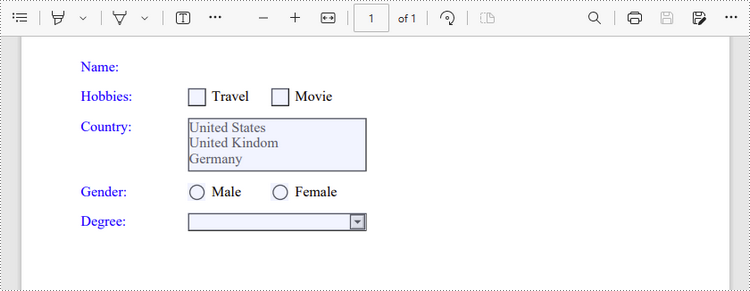
A form field in a PDF document can be accessed by its index or name and removed by PdfFieldCollection->Remove() method. The following are the steps to remove a particular field or all fields from a PDF document using Sprie.PDF for C++.
- Create a PdfDocument object.
- Load a sample PDF document using PdfDocument->LoadFromFile() method.
- Get the form from the document using PdfDocument->GetForm() method.
- Get the form field widget collection using PdfFormWidget->GetFieldsWidget() method.
- Get a specific field using PdfFormFieldWidgetCollection->GetItem() method, and remove it using PdfFieldCollection->Remove() method.
- To remove all fields at once, use PdfFieldCollection->Clear() method.
- Save the document to a PDF file using PdfDocument->SaveToFile() method.
- C++
#include "Spire.Pdf.o.h";

using namespace Spire::Pdf;
using namespace std;

int main() {

    //Create a PdfDocument object
    PdfDocument* doc = new PdfDocument();

    //Load a PDF file
    doc->LoadFromFile(L"C:\\Users\\Administrator\\Desktop\\Form.pdf");

    //Get the form from the document
    intrusive_ptr<PdfFormWidget> form = Object::Convert<PdfFormWidget>(doc->GetForm());

    //Get form widgets from the form
    intrusive_ptr<PdfFormFieldWidgetCollection> widgets = form->GetFieldsWidget();

    //Get a specific field by its name
    intrusive_ptr<PdfField> field = widgets->GetItem(L"name");

    //Remove the field
    widgets->Remove(field);

    //Remove all fields
    //widgets->Clear();

    //Save to file
    doc->SaveToFile(L"Output/DeleteFields.pdf", FileFormat::PDF);
    doc->Close();
    delete doc;
}
Apply for a Temporary License
If you'd like to remove the evaluation message from the generated documents, or to get rid of the function limitations, please request a 30-day trial license for yourself.
C++: Convert Excel to XPS
XPS stands for XML Paper Specification, which is a fixed layout file format developed by Microsoft. Unlike some formats that allow for dynamic content and layout changes, XPS is built to preserve the layout of documents and maintain their visual appearance across different devices. XPS files can be easily viewed using the Microsoft XPS Viewer, which is pre-installed on many Windows computers.
There are several benefits to converting Excel files to XPS format. Firstly, it provides an efficient way to share Excel data with others who lack access to Microsoft Excel or other spreadsheet software. Secondly, it ensures that the formatting of the original Excel file remains intact, making it easy to read and understand. Another advantage of converting Excel to XPS is accessibility: XPS files are built to be accessible, meaning they can be read by screen readers and assistive technology. In this article, we will explain how to convert an Excel file to XPS format in C++ using Spire.XLS for C++.
Install Spire.XLS for C++
There are two ways to integrate Spire.XLS for C++ into your application. One way is to install it through NuGet, and the other way is to download the package from our website and copy the libraries into your program. Installation via NuGet is simpler and more recommended. You can find more details by visiting the following link.
Integrate Spire.XLS for C++ in a C++ Application
Convert Excel to XPS in C++
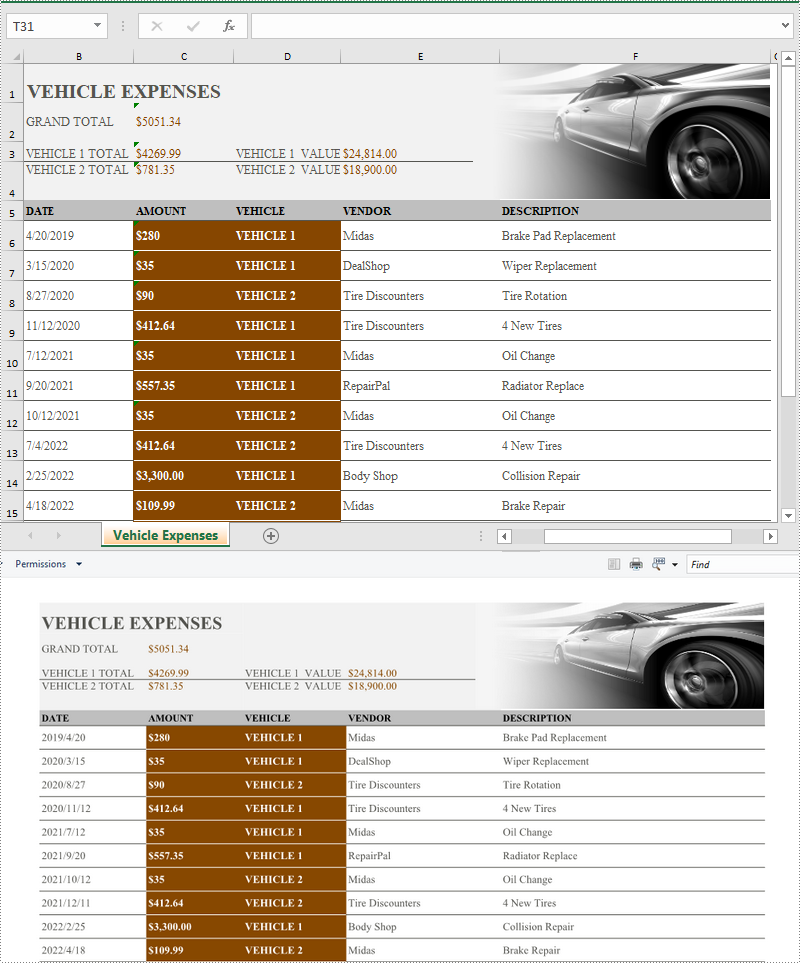
Converting an Excel file to XPS format is very straightforward using Spire.XLS for C++. You just need to load the Excel file using the Workbook->LoadFromFile(LPCWSTR_S fileName) method and then call the Workbook->SaveToFile(LPCWSTR_S fileName, FileFormat::XPS) method to save it as XPS. The detailed steps are as follows:
- Specify the input and output file paths.
- Initialize an instance of the Workbook class.
- Load the Excel file specified by the input file path using Workbook->LoadFromFile() method.
- Save the Excel file to an XPS file with the specified file path using Workbook->SaveToFile(LPCWSTR_S fileName, FileFormat::XPS) method.
- C++
#include "Spire.Xls.o.h"

using namespace Spire::Xls;
using namespace std;

int main()
{
	//Specify the input and output file paths
	wstring inputFile = L"Sample.xlsx";
	wstring outputFile = L"ExcelToXPS.xps";

	//Initialize an instance of the Workbook class
	intrusive_ptr<Workbook> workbook = new Workbook();

	//Load the Excel file specified by the input file path
	workbook->LoadFromFile(inputFile.c_str());

	//Save the Excel file to an XPS file with the specified file path
	workbook->SaveToFile(outputFile.c_str(), Spire::Xls::FileFormat::XPS);
	workbook->Dispose();
}
Apply for a Temporary License
If you'd like to remove the evaluation message from the generated documents, or to get rid of the function limitations, please request a 30-day trial license for yourself.
C++: Add or Remove Bookmarks in Word Documents
A bookmark in a Word document enables you to navigate to any specific place within the document without having to scroll through large blocks of text. It functions just like an internal link between sections of your document. Bookmarks are particularly useful for navigating through lengthy documents. In this article, you will learn how to add or remove bookmarks in Word documents in C++ using Spire.Doc for C++.
- Add a Bookmark to a Paragraph in C++
- Add a Bookmark to Selected Text in C++
- Remove Bookmarks from a Word Document in C++
Install Spire.Doc for C++
There are two ways to integrate Spire.Doc for C++ into your application. One way is to install it through NuGet, and the other way is to download the package from our website and copy the libraries into your program. Installation via NuGet is simpler and more recommended. You can find more details by visiting the following link.
Integrate Spire.Doc for C++ in a C++ Application
Add a Bookmark to a Paragraph in C++
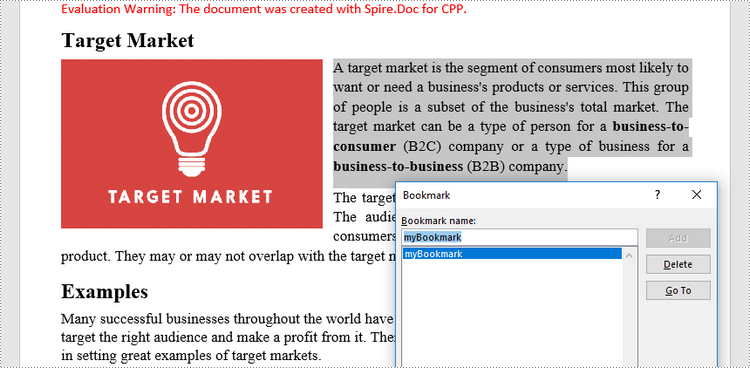
Bookmarks are usually created based on whole paragraphs, especially when the paragraphs themselves are headings. The following are the steps to add a bookmark to a paragraph using Spire.Doc for C++.
- Create a Document object.
- Load a Word file using Document->LoadFromFile() method.
- Get a specific section using Document->GetSections()->GetItem() method.
- Get a specific paragraph from the section using Section->GetParagraphs()->GetItem() method.
- Create a BookmarkStart object, and insert it at the beginning of the paragraph using Paragraph->GetChildObjects()->Insert(int index, Spire::Doc::IDocumentObject *entity) method.
- Append a BookmarkEnd object at the end of the paragraph using Paragraph->AppendBookmarkEnd(LPCWSTR_S name) method.
- Save the document to another Word file using Document->SaveToFile() method.
- C++
#include "Spire.Doc.o.h";

using namespace Spire::Doc;

int main() {

 //Create a Document object
 intrusive_ptr<Document> document = new Document();

 //Load a Word file
 document->LoadFromFile(L"C:\\Users\\Administrator\\Desktop\\sample2.docx");

 //Get a specific paragraph
 intrusive_ptr<Paragraph> paragraph = document->GetSections()->GetItemInSectionCollection(0)->GetParagraphs()->GetItemInParagraphCollection(1);

 //Create a bookmark start
 intrusive_ptr<BookmarkStart> start = new BookmarkStart(document, L"myBookmark");

 //Insert the bookmark start before the selected text
 paragraph->GetChildObjects()->Insert(0, start);

 //Append a bookmark end at the end of the paragraph
 paragraph->AppendBookmarkEnd(L"myBookmark");

 //Save the document to another Word file
 document->SaveToFile(L"Output/AddBookmarkToParagraph.docx", FileFormat::Docx2013);
 document->Close();
}
Add a Bookmark to Selected Text in C++
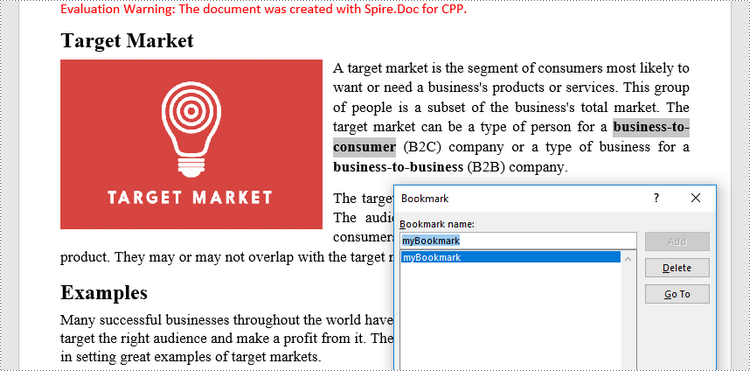
A bookmark can also be inserted to a specific position within a paragraph. The following are the steps to add a bookmark to selected text using Spire.Doc for C++.
- Create a Document object.
- Load a Word file using Document->LoadFromFile() method.
- Find the selected text from the document using Document->FindAllString() method.
- Find the owner paragraph of the text using TextSelection-> ->GetAsOneRange()->GetOwnerParagraph() method.
- Get the index of the text in the paragraph using Paragraph->GetChildObjects()->IndexOf() method.
- Create a BookmarkStart object, and insert it before the selected text using Paragraph->GetChildObjects()->Insert(int index, Spire::Doc::IDocumentObject *entity) method.
- Create a BookmarkEnd object, and insert it after the selected text using Paragraph->GetChildObjects()->Insert(int index, Spire::Doc::IDocumentObject *entity) method.
- Save the document to another Word file using Document->SaveToFile() method.
- C++
#include "Spire.Doc.o.h";

using namespace Spire::Doc;
using namespace std;

int main() {

    //Create a Document object
    intrusive_ptr<Document> document = new Document();

    //Load a Word file
    document->LoadFromFile(L"C:\\Users\\Administrator\\Desktop\\sample2.docx");

    //Specify text to find
    wstring stringToFind = L"business-to-consumer";

    //Find the text from the document
    vector<intrusive_ptr<TextSelection>>  finds = document->FindAllString(stringToFind.c_str(), false, true);
    intrusive_ptr<TextSelection> specificText = finds[0];

    //Find the paragraph where the text is located
    intrusive_ptr<Paragraph> para = specificText->GetAsOneRange()->GetOwnerParagraph();

    //Get the index of the text in the paragraph
    int index = para->GetChildObjects()->IndexOf(specificText->GetAsOneRange());

    //Create a bookmark start
    intrusive_ptr<BookmarkStart> start = new BookmarkStart(document, L"myBookmark");

    //Insert the bookmark start before the selected text
    para->GetChildObjects()->Insert(index, start);

    //Create a bookmark end
    intrusive_ptr<BookmarkEnd> end = new BookmarkEnd(document, L"myBookmark");

    //Insert the bookmark end after the selected text
    para->GetChildObjects()->Insert(index + 2, end);

    //Save the document to another Word file
    document->SaveToFile(L"Output/AddBookmarkToText.docx", FileFormat::Docx2013);
    document->Close();
}
Remove Bookmarks from a Word Document in C++
Using Spire.Doc for C++, you can easily get and remove all bookmarks or a particular bookmark from a Word document. The following are the detailed steps.
- Create a Document object.
- Load a Word file containing bookmarks using Document->LoadFromFile() method.
- Get a specific bookmark using Document->GetBookmarks()->GetItem() method.
- Remove the bookmark using Document->GetBookmarks()->Remove() method. To remove all bookmarks at once, use Document->GetBookmarks()->Clear() method.
- Save the document to another Word file using Document->SaveToFile() method.
- C++
#include "Spire.Doc.o.h";

using namespace Spire::Doc;

int main() {

 //Create a Document object
 intrusive_ptr<Document> document = new Document();

 //Load a Word file
 document->LoadFromFile(L"C:\\Users\\Administrator\\Desktop\\Bookmarks.docx");

 //Get a specific bookmark by its index
 intrusive_ptr<Bookmark> bookmark = document->GetBookmarks()->GetItem(0);

 //Remove the bookmark
 document->GetBookmarks()->Remove(bookmark);

 //Remove all bookmarks
 //document->GetBookmarks()->Clear();

 //Save the document to another Word file
 document->SaveToFile(L"Output/RemoveBookmarks.docx", FileFormat::Docx2013);
 document->Close();
}
Apply for a Temporary License
If you'd like to remove the evaluation message from the generated documents, or to get rid of the function limitations, please request a 30-day trial license for yourself.
C++: Apply Fonts to Excel Cells
While creating a worksheet, the default font MS Excel uses is "Calibri" with a size of 11 and a color of black. However, there are times when you may want to apply a different font style such as bold, italic to optimize the appearance of your document, or set a unique font color to highlight useful information within a large set of data. In this article, you will learn how to programmatically apply multiple font styles to Excel cells using Spire.XLS for C++.
- Apply Different Fonts to Different Excel Cells in C++
- Apply Multiple Fonts to a Single Excel Cell in C++
Install Spire.XLS for C++
There are two ways to integrate Spire.XLS for C++ into your application. One way is to install it through NuGet, and the other way is to download the package from our website and copy the libraries into your program. Installation via NuGet is simpler and more recommended. You can find more details by visiting the following link.
Integrate Spire.XLS for C++ in a C++ Application
Apply Different Fonts to Different Excel Cells in C++
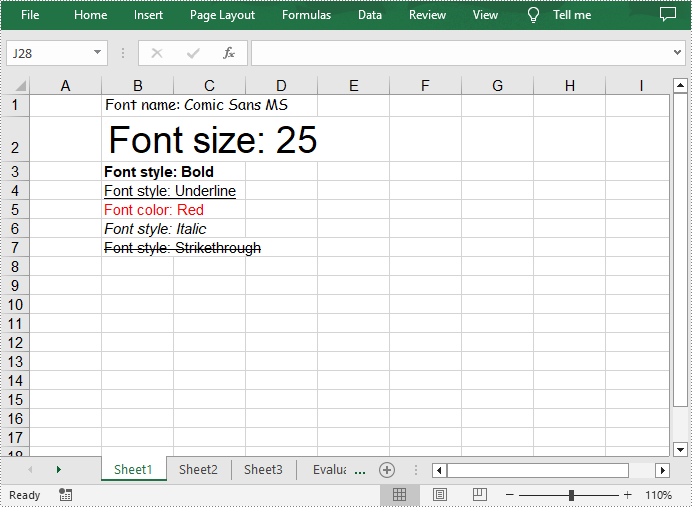
The ExcelFont class provided by Spire.XLS for C++ allows you to set or change the font name, color, size, and style in a cell easily. The following are the steps to apply different fonts to different cells in Excel.
- Create a Workbook object.
- Get a specific worksheet using Workbook->GetWorksheets()->Get() method.
- Get a specified cell using Worksheet->GetRange() method.
- Set the value of the cell using CellRange->SetText() method.
- Get the font in the specified cell using CellRange->GetStyle()->GetFont() method.
- Set the font name, color, size and style using the methods under the ExcelFont class.
- Save the result file using Workbook->SaveToFile() method.
- C++
#include ""Spire.Xls.o.h"";

using namespace Spire::Xls;

int main()
{
	//Specify output file path and name
	std::wstring outputPath = L""Output\\"";
	std::wstring outputFile = outputPath + L""ApplyFontToCell.xlsx"";

	//Create a Workbook object
	intrusive_ptr<Workbook> workbook = new Workbook();

	//Get the first worksheet
	intrusive_ptr<Worksheet> sheet = dynamic_pointer_cast<Worksheet>(workbook->GetWorksheets()->Get(0));

	//Set font name
	sheet->GetRange(L""B1"")->SetText(L""Font name: Comic Sans MS"");
	sheet->GetRange(L""B1"")->GetStyle()->GetFont()->SetFontName(L""Comic Sans MS"");

	//Set font size
	sheet->GetRange(L""B2"")->SetText(L""Font size: 25"");
	sheet->GetRange(L""B2"")->GetStyle()->GetFont()->SetSize(25);

	//Set text to bold
	sheet->GetRange(L""B3"")->SetText(L""Font style: Bold"");
	sheet->GetRange(L""B3"")->GetStyle()->GetFont()->SetIsBold(true);

	//Underline text
	sheet->GetRange(L""B4"")->SetText(L""Font style: Underline"");
	sheet->GetRange(L""B4"")->GetStyle()->GetFont()->SetUnderline(FontUnderlineType::Single);

	//Set font color
	sheet->GetRange(L""B5"")->SetText(L""Font color: Red"");
	sheet->GetRange(L""B5"")->GetStyle()->GetFont()->SetColor(Spire::Xls::Color::GetRed());

	//Set text to italic
	sheet->GetRange(L""B6"")->SetText(L""Font style: Italic"");
	sheet->GetRange(L""B6"")->GetStyle()->GetFont()->SetIsItalic(true);

	//Add strikethrough to text
	sheet->GetRange(L""B7"")->SetText(L""Font style: Strikethrough"");
	sheet->GetRange(L""B7"")->GetStyle()->GetFont()->SetIsStrikethrough(true);

	//Save the result file
	workbook->SaveToFile(outputFile.c_str(), ExcelVersion::Version2013);
	workbook->Dispose();
}
Apply Multiple Fonts to a Single Excel Cell in C++
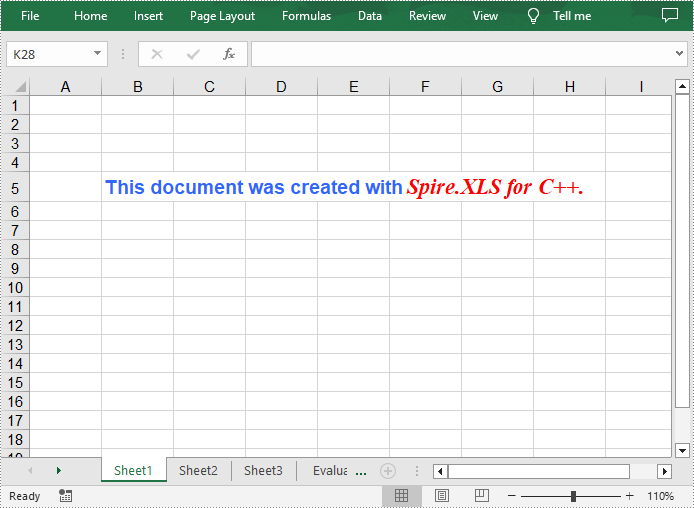
Mixing different fonts in one cell can help you emphasize some specific characters. The following are the steps to apply multiple fonts in an Excel cell.
- Create a Workbook object.
- Get a specific worksheet using Workbook->GetWorksheets()->Get() method.
- Create two ExcelFont objects using Workbook->CreateExcelFont() method.
- Get a specified cell using Worksheet->GetRange() method, and then set the rich text content of the cell using CellRange->GetRichText()->SetText() method.
- Apply the two ExcelFont objects to the rich text using RichText->SetFont(int startPos, int endPos, ExcelFont* font) method.
- Save the result file using Workbook->SaveToFile() method.
- C++
#include ""Spire.Xls.o.h"";

using namespace Spire::Xls;

int main()
{
	//Specify output file path and name
	std::wstring outputPath = L""Output\\"";
	std::wstring outputFile = outputPath + L""ApplyMultipleFontstoCell.xlsx"";

	//Create a Workbook object
	intrusive_ptr<Workbook> workbook = new Workbook();

	//Get the first worksheet
	intrusive_ptr<Worksheet> sheet = dynamic_pointer_cast<Worksheet>(workbook->GetWorksheets()->Get(0));

	//Create a ExcelFont object and set its font style, color and size
	intrusive_ptr<ExcelFont> font1 = workbook->CreateExcelFont();
	font1->SetKnownColor(ExcelColors::LightBlue);
	font1->SetIsBold(true);
	font1->SetSize(13);

	//Create another ExcelFont object and set its font style, color and size
	intrusive_ptr<ExcelFont> font2 = workbook->CreateExcelFont();
	font2->SetKnownColor(ExcelColors::Red);
	font2->SetIsBold(true);
	font2->SetIsItalic(true);
	font2->SetFontName(L""Times New Roman"");
	font2->SetSize(15);

	//Write a RichText string to cell B5
	intrusive_ptr<RichText> richText = dynamic_pointer_cast<RichText>(dynamic_pointer_cast<CellRange>(sheet->GetRange(L""B5""))->GetRichText());
	richText->SetText(L""This document was created with Spire.XLS for C++."");

	//Apply two fonts to the text in the cell B5
	richText->SetFont(0, 29, font1);
	richText->SetFont(31, 48, font2);

	//Save to the result file
	workbook->SaveToFile(outputFile.c_str(), ExcelVersion::Version2013);
	workbook->Dispose();
}
Apply for a Temporary License
If you'd like to remove the evaluation message from the generated documents, or to get rid of the function limitations, please request a 30-day trial license for yourself.
C++: Protect or Unprotect Word Documents
Document security is particularly important when critical or private data is involved in a Word document. There are several security options in Word that you can use to protect your documents, including password protection, read-only mode, editing restrictions, and partial protection. On the contrary, when the protection is no longer required, you may need to unprotect a Word document to improve work efficiency.
In this article, you will learn how to protect or unprotect Word documents in C++ using Spire.Doc for C++.
- Password Protect a Word Document in C++
- Restrict Editing of a Word Document in C++
- Protect Sections of a Word Document in C++
- Create Editable Regions in a Word Document in C++
- Remove Editable Regions from a Word Document in C++
- Remove Restrictions from a Word Document in C++
- Remove Password from a Password-Protected Word Document in C++
Install Spire.Doc for C++
There are two ways to integrate Spire.Doc for C++ into your application. One way is to install it through NuGet, and the other way is to download the package from our website and copy the libraries into your program. Installation via NuGet is simpler and more recommended. You can find more details by visiting the following link.
Integrate Spire.Doc for C++ in a C++ Application
Password Protect a Word Document in C++
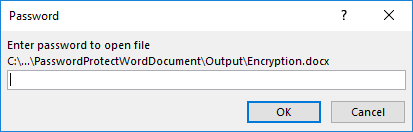
Encrypting a document with a password makes sure that only you and certain people can read or edit it. The following are the steps to password protect a Word document using Spire.Doc for C++.
- Create a Document object.
- Load a Word document using Document->LoadFromFile() method.
- Encrypt the document with a password using Document->Eencrypt(LPCWSTR_S password) method.
- Save the document to another Word file using Document->SaveToFile() method.
- C++
#include "Spire.Doc.o.h";

using namespace Spire::Doc;

int main() {

    //Create a Document object
    intrusive_ptr<Document> document = new Document();

    //Load a Word file
    document->LoadFromFile(L"C:\\Users\\Administrator\\Desktop\\sample.docx");

    //Encrypt the document with a password
    document->Encrypt(L"open-psd");

    //Save the document to another Word file
    document->SaveToFile(L"Output/Encryption.docx", FileFormat::Docx2013);
    document->Close();
}
Restrict Editing of a Word Document in C++
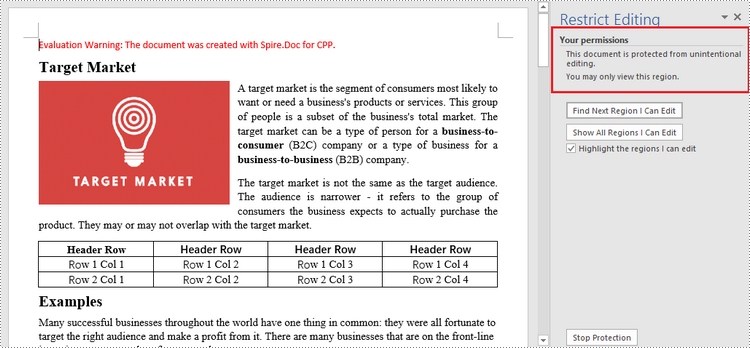
If you want to grant people permission to read your document but restrict the types of modifications that someone can make, you can protect your document with a specific protection type and a permission password.
| Protection Type | Description |
| AllowOnlyComments | Modification of comments in the document is allowed. |
| AllowOnlyFormFields | The user can only enter data in the form fields in the document. |
| AllowOnlyReading | The document is read-only. |
| AllowOnlyRevisions | The user can only add revision marks to the document. |
| NoProtection | The document is not protected. |
The following are the steps to restrict editing of a Word document using Spire.Doc for C++.
- Create a Document object.
- Load a Word document using Document->LoadFromFile() method.
- Protect the document by specifying the protection type and the permission password using Document->Protect(Spire::Doc::ProtectionType type, LPCWSTR_S password) method.
- Save the document to another Word file using Document->SaveToFile() method.
- C++
#include "Spire.Doc.o.h";

using namespace Spire::Doc;

int main() {

    //Create a Document object
    intrusive_ptr<Document> document = new Document();

    //Load a Word file
    document->LoadFromFile(L"C:\\Users\\Administrator\\Desktop\\sample.docx");

    //Protect the document by specifying the protection type and the password
    document->Protect(ProtectionType::AllowOnlyReading, L"permission-psd");

    //Save the document to another Word file
    document->SaveToFile(L"Output/RestrictEditing.docx", FileFormat::Docx2013);
    document->Close();
}
Protect Sections of a Word Document in C++
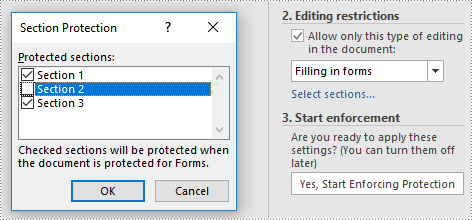
Word allows you to lock some sections of your Word document and leave the rest available for editing. The following are the steps to protect selected sections of a Word document using Spire.Doc for C++.
- Create a Document object.
- Load a Word document using Document->LoadFromFile() method.
- Set the protection type to AllowOnlyFormFields using Document->Protect() method.
- Unprotect a particular section by passing false as an argument to the Section->SetProtectForm() method. Other sections will continue to be protected.
- Save the document to another Word file using Document->SaveToFile() method.
- C++
#include "Spire.Doc.o.h";

using namespace Spire::Doc;

int main() {

    //Create a Document object
    intrusive_ptr<Document> document = new Document();

    //Load a Word file
    document->LoadFromFile(L"C:\\Users\\Administrator\\Desktop\\sample.docx");

    //Set the protection type as "AllowOnlyFormFields"
    document->Protect(ProtectionType::AllowOnlyFormFields, L"permission-psd");

    //Unprotect section 2
    document->GetSections()->GetItemInSectionCollection(1)->SetProtectForm(false);

    //Save the document to another Word file
    document->SaveToFile(L"Output/ProtectSections.docx", FileFormat::Docx2013);
    document->Close();
}
Create Editable Regions in a Word Document in C++
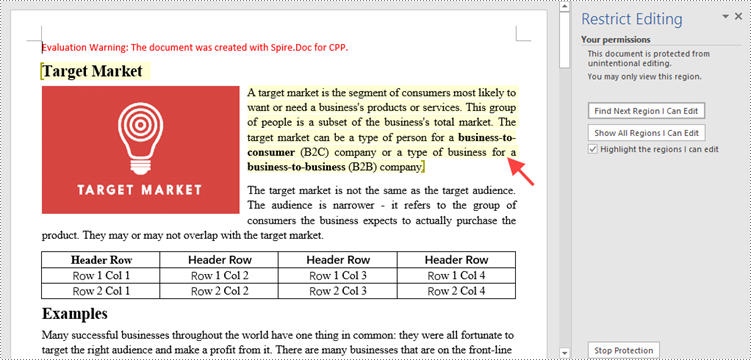
Aside from making certain sections editable, you can create editable regions based on text ranges in order to narrow down the scope of changes that users are able to make. The following are the steps to create editable regions in a read-only Word document using Spire.Doc for C++.
- Create a Document object.
- Load a Word file using Document->LoadFromFile() method.
- Set the protection type to AllowOnlyReading using Document->Protect() method.
- Create a PermissionStart object and a PermissionEnd object.
- Insert the PermissionStart object at the beginning of a paragraph using DocumentObjectCollection->Insert(int index, Spire::Doc::lDocumentObject *entity) method, which indicates the start of an editable region.
- Add the PermissionEnd object at the end of a paragraph using DocumentObjectCollection->Add(Spire::Doc::lDocumentObject *entity) method, which indicates the end of an editable region.
- Save the document to another Word file using Document->SaveToFile() method.
- C++
#include "Spire.Doc.o.h";

using namespace Spire::Doc;

int main() {

    //Create a Document object
    intrusive_ptr<Document> document = new Document();

    //Load a Word file
    document->LoadFromFile(L"C:\\Users\\Administrator\\Desktop\\sample2.docx");

    //Set the protect type to AllowOnlyReading
    document->Protect(ProtectionType::AllowOnlyReading, L"permission-psd");

    //Create tags for permission start and end
    intrusive_ptr<PermissionStart> start = new PermissionStart(document, L"regionOne");
    intrusive_ptr<PermissionEnd> end = new PermissionEnd(document, L"regionOne");

    //Add the start and end tags to allow the selected paragraphs to be editable
    document->GetSections()->GetItemInSectionCollection(0)->GetParagraphs()->GetItemInParagraphCollection(0)->GetChildObjects()->Insert(0, start);
    document->GetSections()->GetItemInSectionCollection(0)->GetParagraphs()->GetItemInParagraphCollection(1)->GetChildObjects()->Add(end);

    //Save the document to another Word file
    document->SaveToFile(L"Output/SetEditableRegions.docx", FileFormat::Docx2013);
    document->Close();
}
Remove Editable Regions from a Word Document in C++
In order to remove the editable regions, you need to find the "PermissionStart" and "PermissionEnd" tags in the document and remove them. The following are the detailed steps.
- Create a Document object.
- Load a Word document containing editable regions using Document->LoadFromFile() method.
- Traverse through all the child objects in the document, and determine if a certain child object is an instance of PermissionStart class or PermissionEnd class. If yes, remove the child object from the paragraph using Paragraph->GetChildObjects()->Remove(Spire::Doc::IDocumentObject *entity) method.
- Save the document to another Word file using Document->SaveToFile() method.
- C++
#include "Spire.Doc.o.h";

using namespace Spire::Doc;

int main() {

 //Create a Document object
 intrusive_ptr<Document> document = new Document();

 //Load a Word file
 document->LoadFromFile(L"C:\\Users\\Administrator\\Desktop\\SetEditableRegions.docx");

 //Find "PermissionStart" and "PermissionEnd" tags and remove them
 for (int i = 0; i < document->GetSections()->GetCount(); i++)
 {
  intrusive_ptr<Section> section = document->GetSections()->GetItemInSectionCollection(i);
  for (int j = 0; j < section->GetBody()->GetParagraphs()->GetCount(); j++)
  {
   intrusive_ptr<Paragraph> para = section->GetBody()->GetParagraphs()->GetItemInParagraphCollection(j);
   for (int k = 0; k < para->GetChildObjects()->GetCount(); k++)
   {
    intrusive_ptr<DocumentObject> obj = para->GetChildObjects()->GetItem(k);
    if (Object::Dynamic_cast<PermissionStart>(obj) != nullptr || Object::Dynamic_cast<PermissionEnd>(obj) != nullptr)
    {
     para->GetChildObjects()->Remove(obj);
    }
    else
    {
     k++;
    }
   }
  }
 }

 //Save the document to another Word file
 document->SaveToFile(L"Output/RemoveEditableRegions.docx", FileFormat::Docx2013);
 document->Close();
}
Remove Restrictions from a Word Document in C++
Spire.Doc for C++ allows you to remove editing restrictions without knowing the permission password. The following are the detailed steps.
- Create a Document object.
- Load a Word document containing editing restrictions using Document->LoadFromFile() method.
- Set the protection type to NoProtection using Document->Protect() method.
- Save the document to another Word file using Document->SaveToFile() method.
- C++
#include "Spire.Doc.o.h";

using namespace Spire::Doc;

int main() {

    //Create a Document object
    intrusive_ptr<Document> document = new Document();

    //Load a Word file
    document->LoadFromFile(L"C:\\Users\\Administrator\\Desktop\\RestrictEditing.docx");

    //Set the protect type to NoProtection
    document->Protect(ProtectionType::NoProtection);

    //Save the document to another Word file
    document->SaveToFile(L"Output/RemoveRestrictions.docx", FileFormat::Docx2013);
    document->Close();
}
Remove Password from a Password-Protected Word Document in C++
The password of an encrypted Word document can be removed if it is no longer needed. The following are the detailed steps.
- Create a Document object.
- Load a password-protected Word document using Document->LoadFromFile((LPCWSTR_S fileName, Spire::Doc::FileFormat fileFormat, LPCWSTR_S password) method.
- Remove the password using Document->RemoveEncryption() method.
- Save the document to another Word file using Document->SaveToFile() method.
- C++
#include "Spire.Doc.o.h";

using namespace Spire::Doc;

int main() {

    //Create a Document object
    intrusive_ptr<Document> document = new Document();

    //Load an encrypted Word file
    document->LoadFromFile(L"C:\\Users\\Administrator\\Desktop\\Encryption.docx", FileFormat::Docx, L"open-psd");

    //Remove the open password
    document->RemoveEncryption();

    //Save the document to another Word file
    document->SaveToFile(L"Output/RemovePassword.docx", FileFormat::Docx2013);
    document->Close();
}
Apply for a Temporary License
If you'd like to remove the evaluation message from the generated documents, or to get rid of the function limitations, please request a 30-day trial license for yourself.
C++: Convert Excel to CSV or CSV to Excel
Excel and CSV (Comma-Separated Values) are two commonly used file formats for managing and storing tabular data in various industries. Excel organizes data in rows and columns and provides users with a wide range of advanced features for data manipulation, analysis and visualization, whereas CSV stores data in a plain text format that is lightweight and highly compatible with various applications. Converting Excel files to CSV format can be very helpful when users need to exchange or import Excel data in different programs. Conversely, users who require more advanced data analysis features, such as creating charts or applying formulas, may find it beneficial to convert CSV files to Excel format. In this article, we will demonstrate how to convert Excel to CSV or CSV to Excel in C++ using Spire.XLS for C++.
Install Spire.XLS for C++
There are two ways to integrate Spire.XLS for C++ into your application. One way is to install it through NuGet, and the other way is to download the package from our website and copy the libraries into your program. Installation via NuGet is simpler and more recommended. You can find more details by visiting the following link.
Integrate Spire.XLS for C++ in a C++ Application
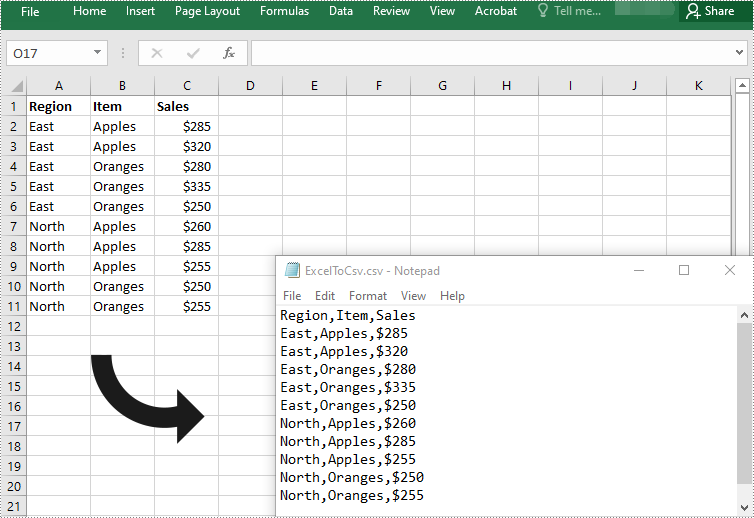
Convert Excel to CSV in C++
Spire.XLS for C++ offers the XlsWorksheet->SaveToFile (LPCWSTR_S fileName, LPCWSTR_S separator, Spire::Common::Encoding* encoding) method to convert a worksheet in an Excel file to CSV. The detailed steps are as follows:
- Initialize an instance of the Workbook class.
- Load an Excel file using Workbook->LoadFromFile() method.
- Get a specific worksheet in the workbook by its index using Workbook->GetWorksheets()->Get(int index) method.
- Save the worksheet to a CSV file using XlsWorksheet->SaveToFile (LPCWSTR_S fileName, LPCWSTR_S separator, Spire::Common::Encoding* encoding) method.
- C++
#include "Spire.Xls.o.h"

using namespace Spire::Xls;

int main()
{
	//Initialize an instance of the Workbook class
	intrusive_ptr<Workbook> workbook = new Workbook();

	//Load an Excel file
	workbook->LoadFromFile(L"Input.xlsx");

	//Get the first worksheet
	intrusive_ptr<Worksheet> sheet = dynamic_pointer_cast<Worksheet>(workbook->GetWorksheets()->Get(0));

	//Save the worksheet to a CSV file
	sheet->SaveToFile(L"ExcelToCsv.csv", L",", Encoding::GetUTF8());
	workbook->Dispose();
}
Convert Visible Data in Excel to CSV in C++
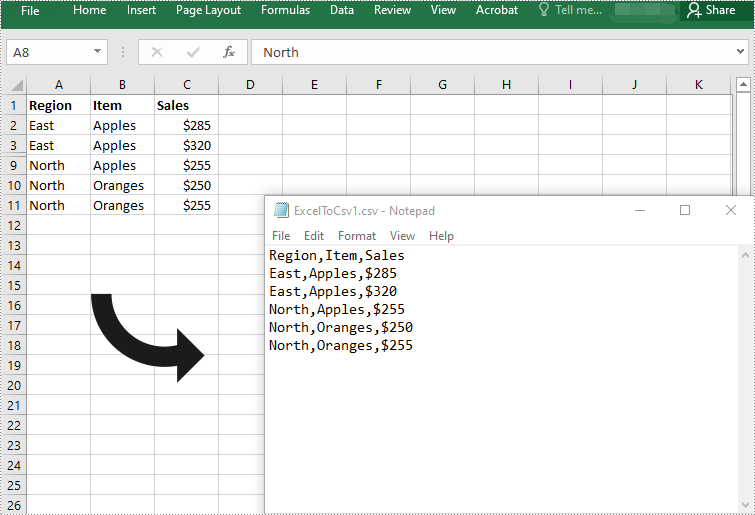
When converting an Excel worksheet to CSV using the above code, all data, including both visible and hidden data, will be saved to CSV. If you only want to save visible data in the worksheet to CSV, you can use the XlsWorksheet->SaveToFile (LPCWSTR_S fileName, LPCWSTR_S separator, bool retainHiddenData) method. The detailed steps are as follows:
- Initialize an instance of the Workbook class.
- Load an Excel file using Workbook->LoadFromFile() method.
- Get a specific worksheet in the workbook by its index using Workbook->GetWorksheets()->Get(int index) method.
- Save visible data in the worksheet to a CSV file using XlsWorksheet->SaveToFile (LPCWSTR_S fileName, LPCWSTR_S separator, bool retainHiddenData) method.
- C++
#include "Spire.Xls.o.h"

using namespace Spire::Xls;

int main()
{
	//Initialize an instance of the Workbook class
	intrusive_ptr<Workbook> workbook = new Workbook();

	//Load an Excel file
	workbook->LoadFromFile(L"Input.xlsx");

	//Get the first worksheet
	intrusive_ptr<Worksheet> sheet = dynamic_pointer_cast<Worksheet>(workbook->GetWorksheets()->Get(0));

	//Save visible data in the worksheet to a CSV file
	sheet->SaveToFile(L"ExcelToCsv1.csv", L",", false);
	workbook->Dispose();
}
Convert CSV to Excel in C++
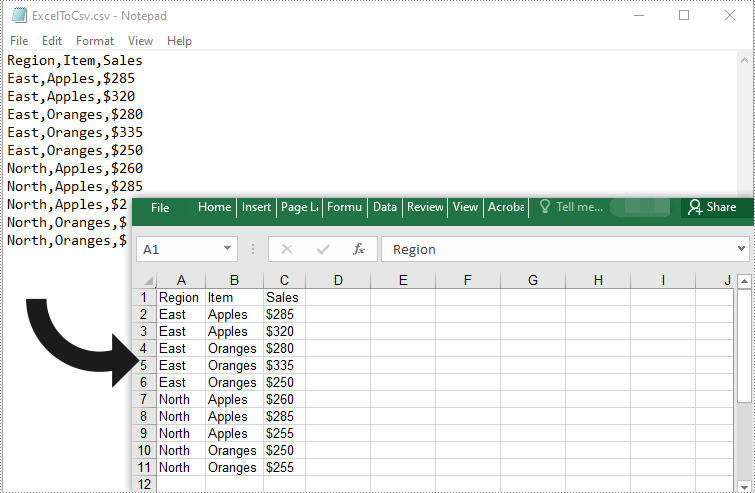
To convert a CSV file to Excel, you need to load the CSV file using Workbook->LoadFromFile(LPCWSTR_S fileName, LPCWSTR_S separator) method, then use the Workbook->SaveToFile (LPCWSTR_S fileName, ExcelVersion version) method to save it to an Excel file. The detailed steps are as follows:
- Initialize an instance of the Workbook class.
- Load a CSV file with separator using Workbook->LoadFromFile(LPCWSTR_S fileName,LPCWSTR_S separator) method.
- Get a specific worksheet in the file by its index using Workbook->GetWorksheets()->Get(int index) method.
- Set ignore error option to ignore errors when saving numbers in a specific cell range as text using Worksheet->GetRange(LPCWSTR_S name)->SetIgnoreErrorOptions(IgnoreErrorType::NumberAsText) method.
- Auto-fit column widths using Worksheet->GetAllocatedRange()->AutoFitColumns() method.
- Save the CSV file to an Excel file using Workbook->SaveToFile (LPCWSTR_S fileName, ExcelVersion version) method.
- C++
#include "Spire.Xls.o.h"

using namespace Spire::Xls;

int main()
{
	//Initialize an instance of the Workbook class
	intrusive_ptr<Workbook> workbook = new Workbook();

	//Load a CSV file with separator
	workbook->LoadFromFile(L"ExcelToCSV.csv", L",");

	//Get the first worksheet
	intrusive_ptr<Worksheet> sheet = dynamic_pointer_cast<Worksheet>(workbook->GetWorksheets()->Get(0));

	//Set ignore error option to ignore errors when saving numbers in a specific cell range as text
	sheet->GetRange(L"C2:C11")->SetIgnoreErrorOptions(IgnoreErrorType::NumberAsText);

	//Auto-fit column widths
	sheet->GetAllocatedRange()->AutoFitColumns();

	//Save the file to an Excel XLSX file
	workbook->SaveToFile(L"CsvToExcel.xlsx", ExcelVersion::Version2013);
	workbook->Dispose();
}
Apply for a Temporary License
If you'd like to remove the evaluation message from the generated documents, or to get rid of the function limitations, please request a 30-day trial license for yourself.
C++: Insert Text or Image Watermarks to Word
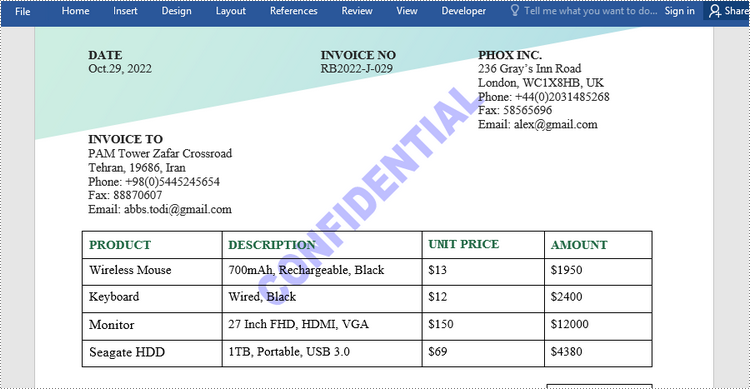
In Word, a watermark is a semi-transparent text or image that you can place in the background. Typically, watermarks are used to emphasize something important about a document. For example, you can use it to remind the user that the content is confidential or a draft. Or other times, you may want to add a washout mark to include the company logo in the document. In this article, you will learn how to insert text or image watermarks to Word documents in C++ using Spire.Doc for C++.
Install Spire.Doc for C++
There are two ways to integrate Spire.Doc for C++ into your application. One way is to install it through NuGet, and the other way is to download the package from our website and copy the libraries into your program. Installation via NuGet is simpler and more recommended. You can find more details by visiting the following link.
Integrate Spire.Doc for C++ in a C++ Application
Insert a Text Watermark to Word in C++
Spire.Doc for C++ offers the TextWatermark class to represent a text watermark. The content and appearance of the watermark can be set using the methods under it. Once a text watermark is created, you can apply it to the whole document by using Document->SetWatermark() method. The following are the detailed steps.
- Create a Document object.
- Load a Word file using Document->LoadFromFile() method.
- Create a TextWatermark object.
- Se the content and appearance of the watermark using the methods under the TextWatermark object.
- Apply the text watermark to the document using Document->SetWatermrak() method.
- Save the document using Document->SaveToFile() method.
- C++
#include "Spire.Doc.o.h";

using namespace Spire::Doc;
using namespace std;

int main() {

    //Create a Document object
    intrusive_ptr<Document> document = new Document();

    //Load a Word file
    document->LoadFromFile(L"C:\\Users\\Administrator\\Desktop\\sample.docx");

    //Create a TextWatermark object
    intrusive_ptr<TextWatermark> txtWatermark = new TextWatermark();

    //Set the content and format of the text watermark
    txtWatermark->SetText(L"CONFIDENTIAL");
    txtWatermark->SetFontSize(40);
    txtWatermark->SetSemitransparent(90);
    txtWatermark->SetFontName(L"Arial Black");
    txtWatermark->SetColor(Color::GetBlue());
    txtWatermark->SetLayout(WatermarkLayout::Diagonal);

    //Apply the text watermark to the document
    document->SetWatermark(txtWatermark);

    //Save the document
    document->SaveToFile(L"Output/TextWatermark.docx", FileFormat::Docx2013);
    document->Close();
}
Insert an Image Watermark to Word in C++
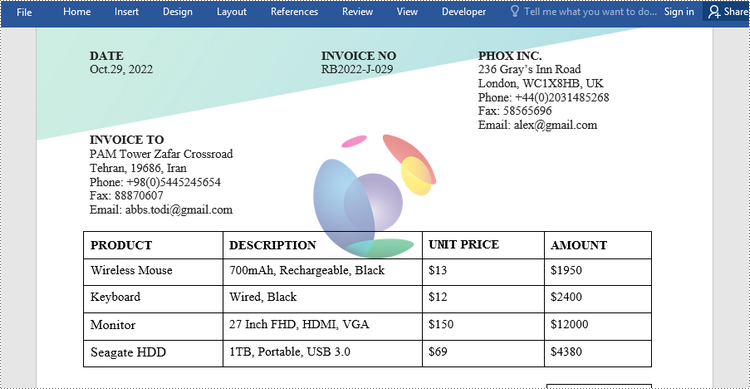
Likewise, an image watermark can be created using PictureWatermark class. Once created, you can apply it to a Word document using Document->SetWatermark() method. Here are the detailed steps.
- Create a Document object.
- Load a Word file using Document->LoadFromFile() method.
- Create a PictureWatermark object.
- Set the image and appearance of the watermark using the methods under the PictureWatermark object.
- Apply the image watermark to the document using Document->SetWatermrak() method.
- Save the document using Document->SaveToFile() method.
- C++
#include "Spire.Doc.o.h";

using namespace Spire::Doc;
using namespace std;

int main() {

    //Create a Document object
    intrusive_ptr<Document> document = new Document();

    //Load a Word file
    document->LoadFromFile(L"C:\\Users\\Administrator\\Desktop\\sample.docx");

    //Create a PictureWatermark object
    intrusive_ptr<PictureWatermark> pictureWatermark = new PictureWatermark();

    //Specify image for the watermark
    pictureWatermark->SetPicture(L"C:\\Users\\Administrator\\Desktop\\company-png.png");
    pictureWatermark->SetScaling(100);
    pictureWatermark->SetIsWashout(false);

    //Apply the image watermark to the document
    document->SetWatermark(pictureWatermark);

    //Save the document
    document->SaveToFile(L"Output/ImageWatermark.docx", FileFormat::Docx2013);
    document->Close();
}
Apply for a Temporary License
If you'd like to remove the evaluation message from the generated documents, or to get rid of the function limitations, please request a 30-day trial license for yourself.