C++: Add or Delete Pages in PDF
When you are handling a PDF document with lots of pages, you will most likely need to add new pages to include more information or remove some redundant pages. In this article, you will learn how to programmatically add or delete pages in a PDF document using Spire.PDF for C++.
- Add a Blank Page at the End of a PDF Document in C++
- Insert a Blank Page After a Specific Page in PDF in C++
- Delete an Existing Page in a PDF Document in C++
Install Spire.PDF for C++
There are two ways to integrate Spire.PDF for C++ into your application. One way is to install it through NuGet, and the other way is to download the package from our website and copy the libraries into your program. Installation via NuGet is simpler and more recommended. You can find more details by visiting the following link.
Integrate Spire.PDF for C++ in a C++ Application
Add a Blank Page at the End of a PDF Document in C++
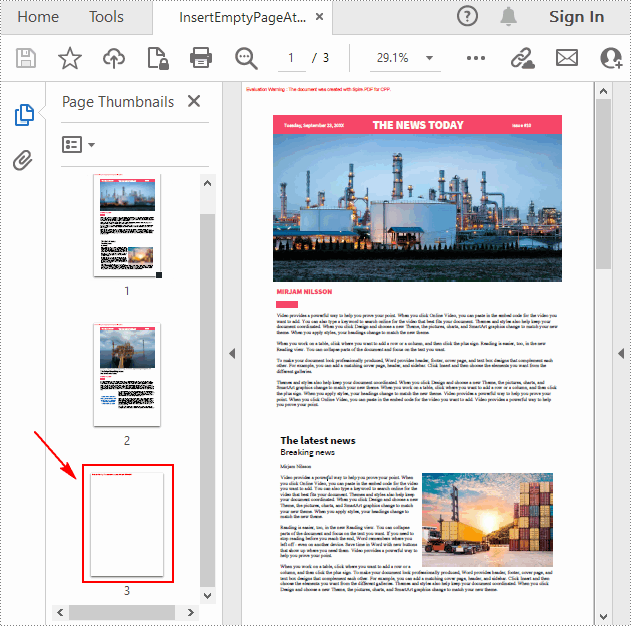
Spire.PDF for C++ allows you to add an empty page with specific size and margins at the end of the document using PdfDocument->GetPages()->Add(SizeF* size, PdfMargins* margins) method. The following are the detailed steps.
- Create a PdfDocument object.
- Load a sample PDF document using PdfDocument->LoadFromFile() method.
- Create an empty page with the specified size and margins and then append it to the end of the document using PdfDocument->GetPages()->Add(SizeF* size, PdfMargins* margins) method.
- Save the result document using PdfDocument->SaveToFile () method.
- C++
#include "Spire.Pdf.o.h"

using namespace Spire::Pdf;
using namespace std;

int main() {
	//Specify input and output file paths
	wstring inputFile = L"Data\\input.pdf";
	wstring outputFile = L"Output\\InsertEmptyPageAtEnd.pdf";

	//Create a PdfDocument object
	PdfDocument* pdf = new PdfDocument();

	//Load a PDF document
	pdf->LoadFromFile(inputFile.c_str());

	//Add an empty page at the end of the document
	PdfMargins tempVar(0, 0);
	pdf->GetPages()->Add(new SizeF(PdfPageSize::A4()), &tempVar);

	//Save the result document
	pdf->SaveToFile(outputFile.c_str());
	pdf->Close();

	delete pdf;
}
Insert a Blank Page After a Specific Page in PDF in C++
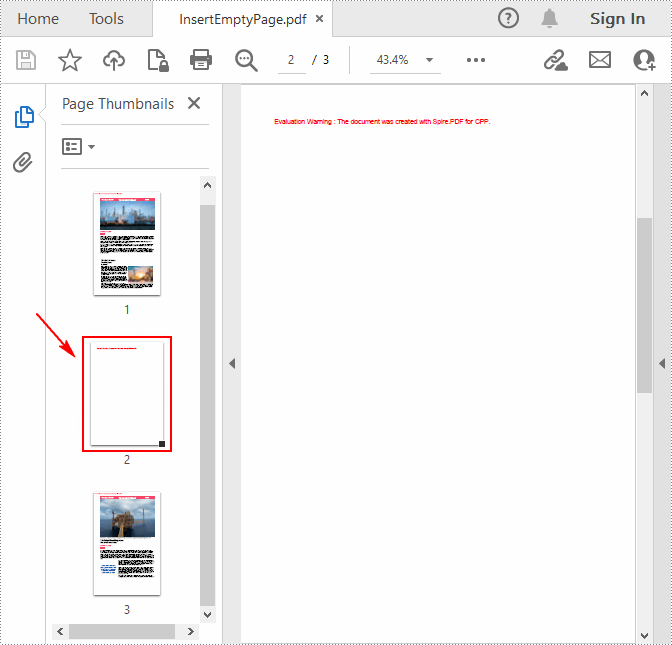
If you want to insert an empty page into a specific position of a PDF document, you can use the PdfDocument->GetPages()->Insert(int index) method. The following are the detailed steps.
- Create a PdfDocument object.
- Load a sample PDF document using PdfDocument->LoadFromFile() method.
- Create a blank page and insert it after a specified PDF page using PdfDocument->GetPages()->Insert(int index) method.
- Save the result document using PdfDocument->SaveToFile () method.
- C++
#include "Spire.Pdf.o.h"

using namespace Spire::Pdf;
using namespace std;

int main() {
	//Specify input and output file paths
	wstring inputFile = L"Data\\input.pdf";
	wstring outputFile = L"Output\\InsertEmptyPage.pdf";

	//Create a PdfDocument object
	PdfDocument* pdf = new PdfDocument();

	//Load a PDF document
	pdf->LoadFromFile(inputFile.c_str());

	//Insert a blank page as the second page
	pdf->GetPages()->Insert(1);

	//Save the result document
	pdf->SaveToFile(outputFile.c_str());
	pdf->Close();

	delete pdf;
}
Delete an Existing Page in a PDF Document in C++
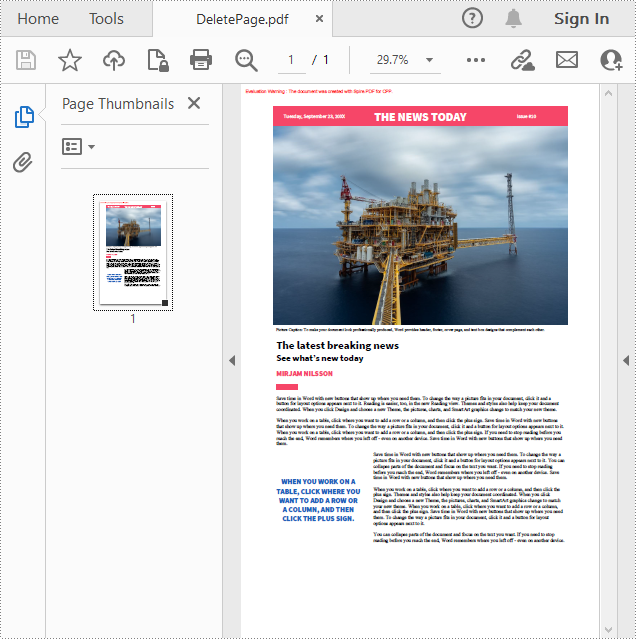
For PDF pages containing useless information, you can also remove them using Spire.PDF for C++. The following are the steps to delete a specific page in PDF.
- Create a PdfDocument object.
- Load a sample PDF document using PdfDocument->LoadFromFile() method.
- Remove a specified page from the document using PdfDocument->GetPages()->RemoveAt(int index) method.
- Save the result document using PdfDocument->SaveToFile () method.
- C++
#include "Spire.Pdf.o.h"

using namespace Spire::Pdf;
using namespace std;

int main() {
	//Specify input and output file paths
	wstring inputFile = L"Data\\input.pdf";
	wstring outputFile = L"Output\\DeletePage.pdf";

	//Create a PdfDocument object
	PdfDocument* pdf = new PdfDocument();

	//Load a PDF document
	pdf->LoadFromFile(inputFile.c_str());

	//Delete the first page in the document
	pdf->GetPages()->RemoveAt(0);

	//Save the result document
	pdf->SaveToFile(outputFile.c_str());
	pdf->Close();

	delete pdf;
}
Apply for a Temporary License
If you'd like to remove the evaluation message from the generated documents, or to get rid of the function limitations, please request a 30-day trial license for yourself.
C++: Merge Excel files into One
Merging Excel files is an essential task when you need to summarize data stored in multiple Excel files. For instance, if you have sales reports for each quarter of the year, you might need to merge them into one file to get a more comprehensive view of the data for the entire year. By merging Excel files, you are able to concentrate on a single organized workbook instead of switching between multiple files. This streamlines your work process and improves efficiency. In this article, you will learn how to merge Excel files into one in C++ using Spire.XLS for C++ library.
Install Spire.XLS for C++
There are two ways to integrate Spire.XLS for C++ into your application. One way is to install it through NuGet, and the other way is to download the package from our website and copy the libraries into your program. Installation via NuGet is simpler and more recommended. You can find more details by visiting the following link.
Integrate Spire.XLS for C++ in a C++ Application
Merge Multiple Excel Workbooks into One in C++
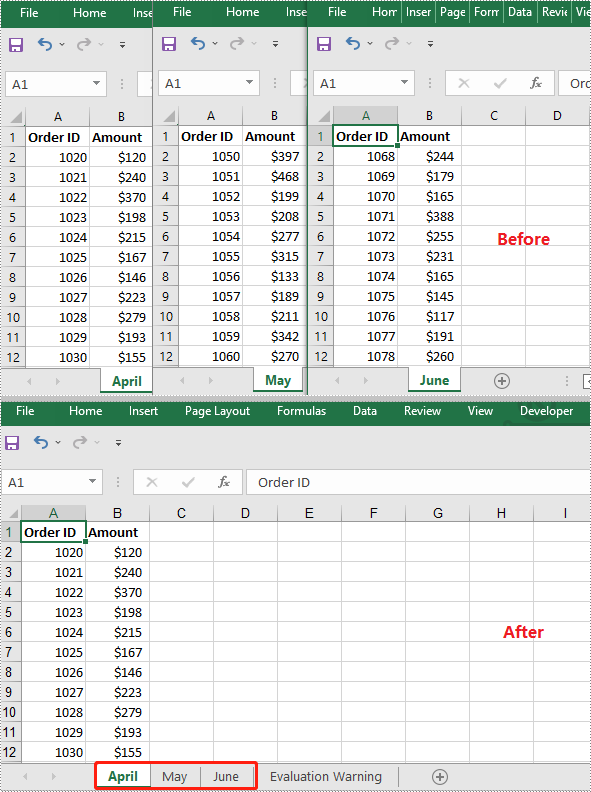
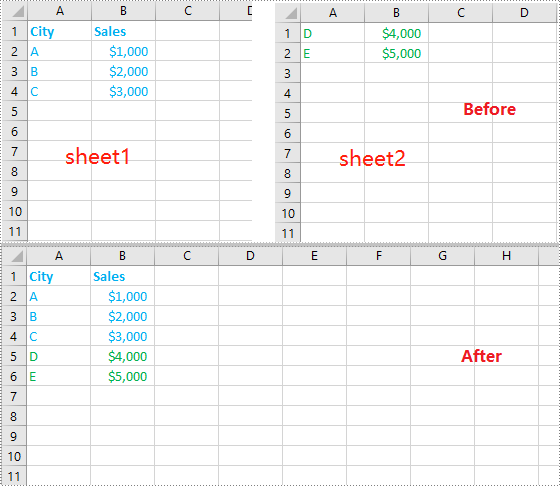
You can merge multiple Excel workbooks into one by creating a new workbook, then copying worksheets in the original workbooks to the new workbook. The detailed steps are as follows:
- Put the paths of the original workbooks into a vector.
- Initialize a Workbook object to create a new workbook and clear the default worksheets in it.
- Initialize a temporary Workbook object.
- Iterate through the workbooks in the vector.
- Load the workbook into the temporary Workbook object using Workbook->LoadFromFile() method.
- Iterate through the worksheets in the workbook, then copy each worksheet from the workbook to the new workbook using Workbook->GetWorksheets()->AddCopy() method.
- Save the result workbook to file using Workbook->SaveToFile() method.
- C++
#include "Spire.Xls.o.h"

using namespace Spire::Xls;

int main()
{
	//Put the paths of the workbooks into a vector
	std::vector<std::wstring> files = { L"File1.xlsx", L"File2.xlsx", L"File3.xlsx" };;

	//Initialize a Workbook object to create a new workbook
	intrusive_ptr<Workbook> newWorkbook = new Workbook();
	newWorkbook->SetVersion(ExcelVersion::Version2013);
	//Clear the default worksheets
	newWorkbook->GetWorksheets()->Clear();

	//Initialize a temporary Workbook object
	intrusive_ptr<Workbook> tempWorkbook = new Workbook();

	//Iterate through the workbooks in the vector
	for (auto file : files)
	{
		//Load the current workbook
		tempWorkbook->LoadFromFile(file.c_str());
		//Iterate through all worksheets in the workbook
		for (int i = 0; i < tempWorkbook->GetWorksheets()->GetCount(); i++)
		{
			intrusive_ptr<Worksheet> sheet = dynamic_pointer_cast<Worksheet>(tempWorkbook->GetWorksheets()->Get(i));

			//Copy each worksheet from the workbook to the new workbook
			(intrusive_ptr<XlsWorksheetsCollection>(newWorkbook->GetWorksheets()))->AddCopy(sheet, WorksheetCopyType::CopyAll);
		}
	}

	//Save the result workbook to file
	newWorkbook->SaveToFile(L"MergeExcelFiles.xlsx", ExcelVersion::Version2013);
	newWorkbook->Dispose();
	tempWorkbook->Dispose();
}
Merge Multiple Excel Worksheets into One in C++
You can merge multiple worksheets into one worksheet by copying the used data range in the original worksheets to the destination worksheet. The following steps show you how to merge two worksheets within the same workbook into one worksheet:
- Initialize a Workbook object and load an Excel workbook using Workbook->LoadFromFile() method.
- Get the two worksheets that need to be merged using Workbook->GetWorksheets()->Get(int index) method (the sheet index here is zero-based).
- Get the used range of the second worksheet using Worksheet->GetAllocatedRange() method.
- Specify the destination range in the first worksheet using Worksheet->GetRange(int row, int column) method (the row and column indexes here are 1-based).
- Copy the used range of the second worksheet to the destination range in the first worksheet using CellRange->Copy(CellRange destRange) method.
- Remove the second worksheet from the workbook using XlsWorksheet->Remove() method.
- Save the result workbook to file using Workbook->SaveToFile() method.
- C++
#include "Spire.Xls.o.h"

using namespace Spire::Xls;
using namespace std;

int main()
{
	//Initialize a Workbook object
	intrusive_ptr<Workbook> workbook = new Workbook();
	//Load an Excel workbook
	workbook->LoadFromFile(L"Sample.xlsx");

	//Get the first worksheet
	intrusive_ptr<Worksheet> sheet1 = dynamic_pointer_cast<Worksheet>(workbook->GetWorksheets()->Get(0));
	//Get the second worksheet
	intrusive_ptr<Worksheet> sheet2 = dynamic_pointer_cast<Worksheet>(workbook->GetWorksheets()->Get(1));

	//Get the used range in the second worksheet
	intrusive_ptr<CellRange> sourceRange = dynamic_pointer_cast<CellRange>(sheet2->GetAllocatedRange());
	//Specify the destination range in the first worksheet
	intrusive_ptr<CellRange> destRange = dynamic_pointer_cast<CellRange>(sheet1->GetRange(sheet1->GetLastRow() + 1, 1));

	//Copy the used range of the second worksheet to the destination range in the first worksheet
	sourceRange->Copy(destRange);

	//Remove the second worksheet
	sheet2->Remove();

	//Save the result workbook to file
	workbook->SaveToFile(L"MergeExcelWorksheets.xlsx", ExcelVersion::Version2013);
	workbook->Dispose();
}
Apply for a Temporary License
If you'd like to remove the evaluation message from the generated documents, or to get rid of the function limitations, please request a 30-day trial license for yourself.
C++: Find and Replace Text in Word Documents
The find and replace feature in Microsoft Word is an essential tool when editing documents. It enables you to quickly find a specific word or phrase in a Word document and lets you replace all instances of it at once. This is especially helpful in situations where you need to update information or correct misspelled words in large Word documents. In this article, you will learn how to find and replace text in Word documents in C++ using Spire.Doc for C++.
- Find Text and Replace All Its Instances with New Text
- Find Text and Replace Its First Instance with New Text
- Find and Replace Text Using a Regular Expression
- Find and Replace Text with an Image
Install Spire.Doc for C++
There are two ways to integrate Spire.Doc for C++ into your application. One way is to install it through NuGet, and the other way is to download the package from our website and copy the libraries into your program. Installation via NuGet is simpler and more recommended. You can find more details by visiting the following link.
Integrate Spire.Doc for C++ in a C++ Application
Find Text and Replace All Its Instances with New Text
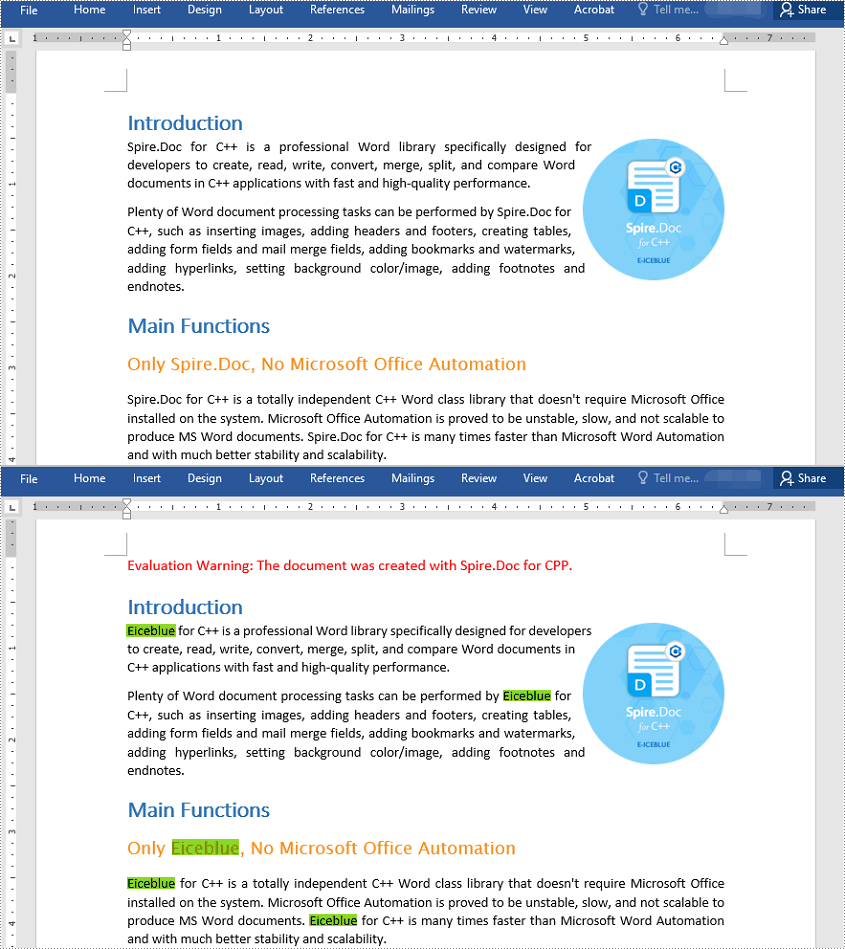
You can find a text and replace all its instances with another text easily using the Document->Replace() method. The detailed steps are as follows:
- Initialize an instance of the Document class.
- Load a Word document using Document->LoadFromFile() method.
- Find a specific text and replace all its instances with another text using Document->Replace() method.
- Save the result document using Document->SaveToFile() method.
- C++
#include "Spire.Doc.o.h"

using namespace Spire::Doc;
using namespace std;

int main()
{
 //Initialize an instance of the Document class
 intrusive_ptr<Document> document = new Document();

 //Load a Word document
 document->LoadFromFile(L"Input.docx");

 //Find a specific text and replace all its instances with another text
 document->Replace(L"Spire.Doc", L"Eiceblue", false, true);

 //Save the result document
 document->SaveToFile(L"ReplaceAllInstances.docx", FileFormat::Docx2013);
 document->Close();
}
Find Text and Replace Its First Instance with New Text
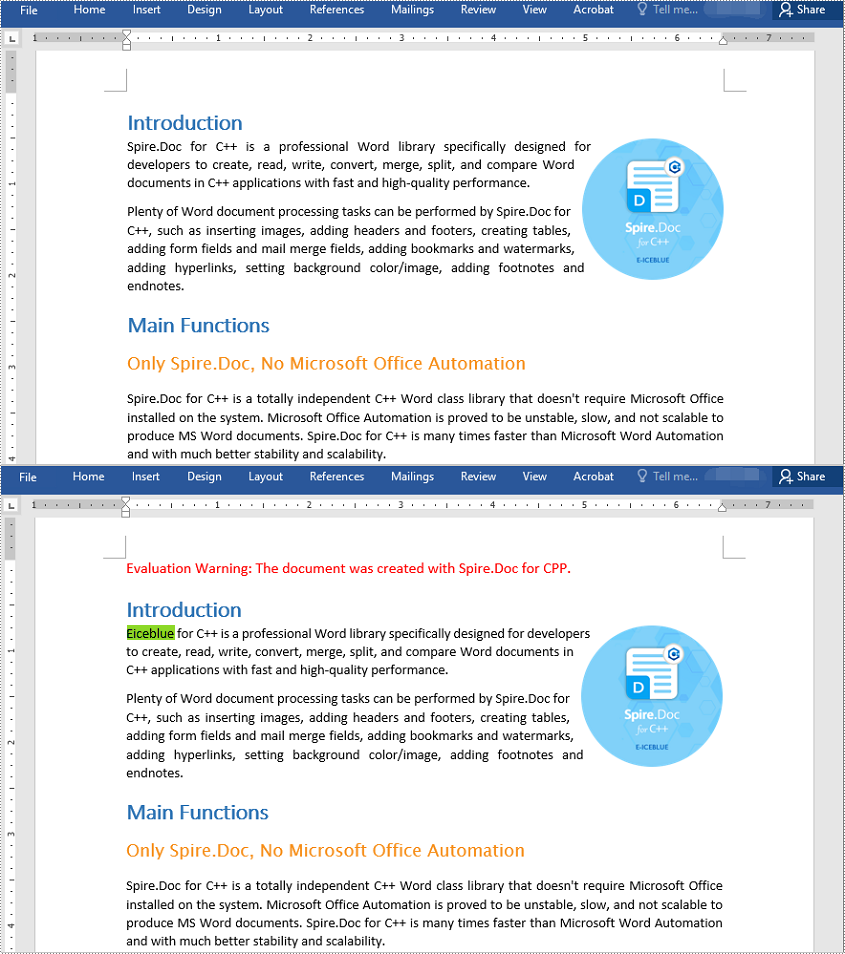
Spire.Doc for C++ provides the Document->SetReplaceFirst() method which enables you to change the replacement mode from replacing all instances to replacing the first instance. The following steps explain how to find a text and replace its first instance:
- Initialize an instance of the Document class.
- Load a Word document using Document->LoadFromFile() method.
- Change the replacement mode to replace the first instance using Document->SetReplaceFirst(true) method.
- Replace the first instance of a text with another text using Document->Replace() method.
- Save the result document using Document->SaveToFile() method.
- C++
#include "Spire.Doc.o.h"

using namespace Spire::Doc;
using namespace std;

int main()
{
 //Initialize an instance of the Document class
 intrusive_ptr<Document> document = new Document();

 //Load a Word document
 document->LoadFromFile(L"Input.docx");

 //Change the replacement mode to replace the first match
 document->SetReplaceFirst(true);

 //Replace the first instance of a text with another text
 document->Replace(L"Spire.Doc", L"Eiceblue", false, true);

 //Save the result document
 document->SaveToFile(L"ReplaceFirstInstance.docx", FileFormat::Docx2013);
 document->Close();
}
Find and Replace Text Using a Regular Expression
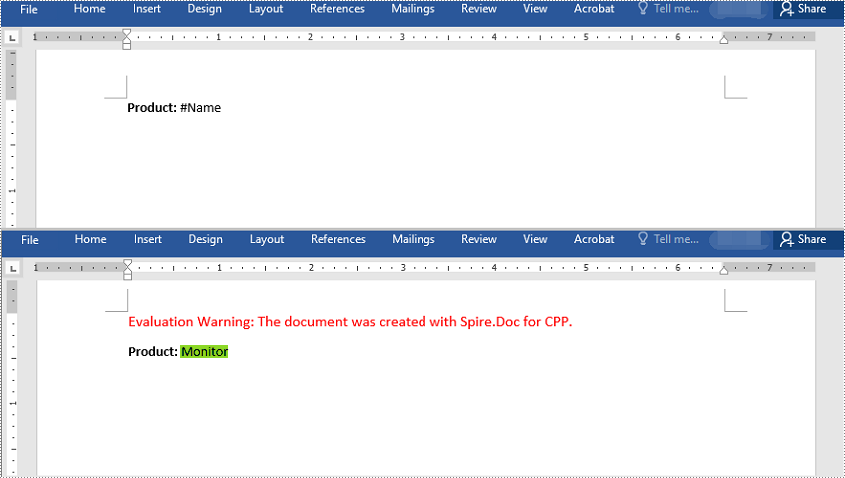
You can replace a text matching a regular expression with new text using the Document->Replace() method and passing a Regex instance and the new text to the method as parameters. The detailed steps are as follows:
- Initialize an instance of the Document class.
- Load a Word document using Document->LoadFromFile() method.
- Initialize an instance of the Regex class to create a regular expression.
- Find the text matching the regex and replace it with another text using Document->Replace() method.
- Save the result document using Document->SaveToFile() method.
- C++
#include "Spire.Doc.o.h"

using namespace Spire::Doc;
using namespace std;

int main()
{
 //Initialize an instance of the Document class
 intrusive_ptr<Document> doc = new Document();
 //Load a Word document
 doc->LoadFromFile(L"Input1.docx");

 //Create a regex to match the text that starts with #
 intrusive_ptr<Regex> regex = new Regex(L"\\#\\w+\\b");

 //Find the text matching the regex and replace it with another text
 doc->Replace(regex, L"Monitor");

 //Save the result document
 doc->SaveToFile(L"ReplaceWithRegex.docx", FileFormat::Docx2013);
 doc->Close();;
}
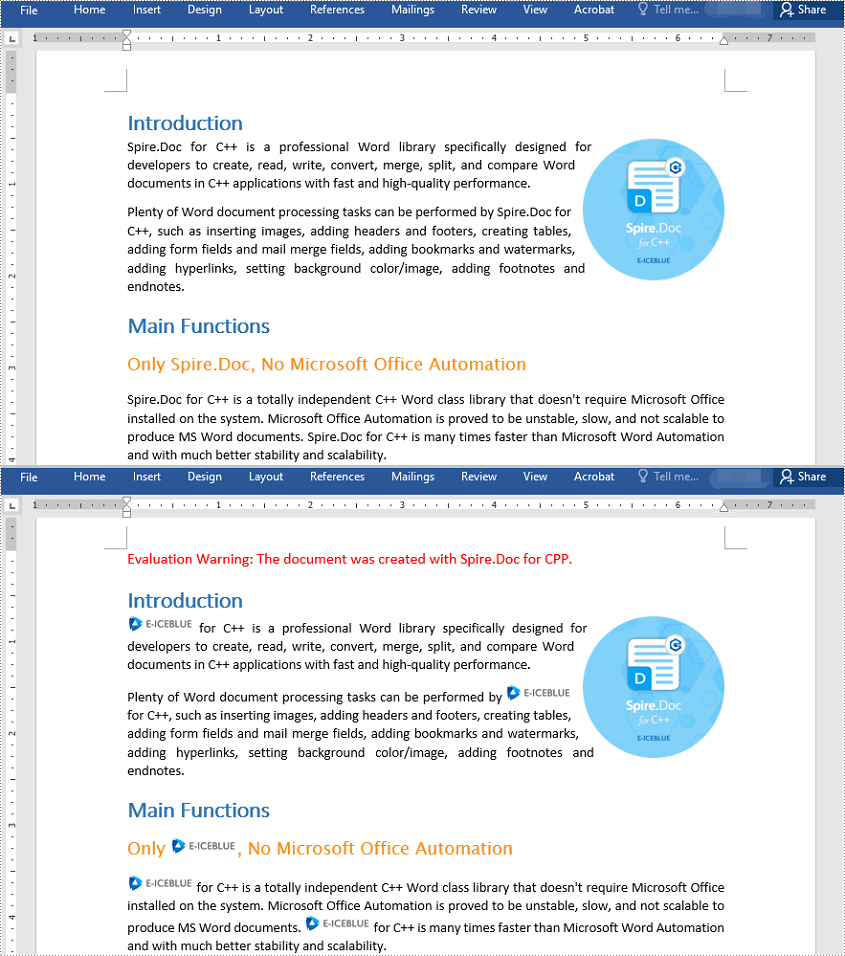
Find and Replace Text with an Image
Spire.Doc for C++ doesn't offer a direct method to replace text with image, but you can achieve this by inserting the image at the position of the text and then removing the text from the document. The detailed steps are as follows:
- Initialize an instance of the Document class.
- Load a Word document using Document->LoadFromFile() method.
- Find a specific text using Document->FindAllString() method and put the found text into a vector.
- Iterate through the found text in the vector.
- Initialize an instance of DocPicture class and load an image using DocPicture->LoadImageSpire() method.
- Get the found text as a single text range and then get the index of the text range in its owner paragraph.
- Insert an image at the position of the text range and then remove the text range from the document.
- Save the result document using Document->SaveToFile() method.
- C++
#include "Spire.Doc.o.h"

using namespace Spire::Doc;
using namespace std;

int main()
{
 //Initialize an instance of the Document class
 intrusive_ptr<Document> doc = new Document();

 //Load a Word document
 doc->LoadFromFile(L"Input.docx");

 //Find a text in the document and put the found results into a vector
 vector<intrusive_ptr<TextSelection>> selections = doc->FindAllString(L"Spire.Doc", true, true);

 int index = 0;
 intrusive_ptr<TextRange> range = nullptr;

 //Iterate through the found text in the vector
 for (auto selection : selections)
 {
  //Load an image
  intrusive_ptr<DocPicture> pic = new DocPicture(doc);
  pic->LoadImageSpire(L"img.jpg");
  //Get the found text as a single text range
  range = selection->GetAsOneRange();
  //Get the index of the text range in its owner paragraph
  index = range->GetOwnerParagraph()->GetChildObjects()->IndexOf(range);
  //Insert an image at the index
  range->GetOwnerParagraph()->GetChildObjects()->Insert(index, pic);
  //Remove the text range
  range->GetOwnerParagraph()->GetChildObjects()->Remove(range);
 }

 //Save the result document
 doc->SaveToFile(L"ReplaceWithImage.docx", FileFormat::Docx2013);
 doc->Close();
}
Apply for a Temporary License
If you'd like to remove the evaluation message from the generated documents, or to get rid of the function limitations, please request a 30-day trial license for yourself.
C++: Protect or Unprotect Excel Documents
When an Excel document contains some sensitive financial or confidential data, it is essential to protect it during transmission. In MS Excel, you can encrypt an entire workbook with a password to prevent unauthorized access, or just lock selected Excel sheets or individual cells to avoid unwanted modifications. In this article, you will learn how to programmatically protect and unprotect a workbook or a worksheet using Spire.XLS for C++.
- Password Protect an Entire Workbook in C++
- Protect a Worksheet with a Specific Protection Type in C++
- Allow Users to Edit Ranges in a Protected Worksheet in C++
- Lock Specific Cells in a Worksheet in C++
- Unprotect a Password Protected Worksheet in C++
- Remove or Reset Password of an Encrypted Workbook in C++
Install Spire.XLS for C++
There are two ways to integrate Spire.XLS for C++ into your application. One way is to install it through NuGet, and the other way is to download the package from our website and copy the libraries into your program. Installation via NuGet is simpler and more recommended. You can find more details by visiting the following link.
Integrate Spire.XLS for C++ in a C++ Application
Password Protect an Entire Workbook in C++
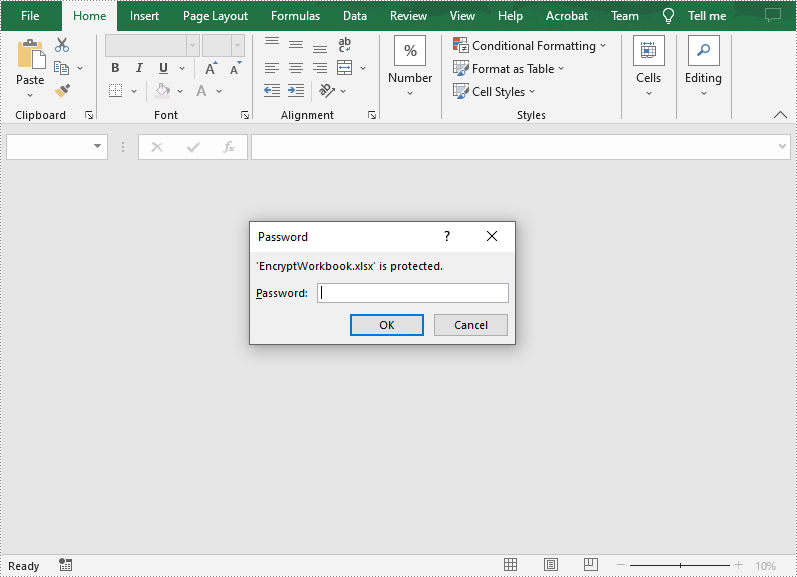
By encrypting an Excel document with a password, you ensure that only you and authorized individuals can read or edit it. The following are the steps to password protect a workbook.
- Create a Workbook object.
- Load an Excel document using Workbook->LoadFromFile() method.
- Protect the Excel workbook with a password using Workbook->Protect() method.
- Save the result document using Workbook->SaveToFile() method.
- C++
#include "Spire.Xls.o.h"

using namespace Spire::Xls;

int main()
{
	//Specify the input and output file paths
	std::wstring inputFile = L"Data\\Budget.xlsx";
	std::wstring outputFile = L"Output\\EncryptWorkbook.xlsx";

	//Create a Workbook object
	intrusive_ptr<Workbook> workbook = new Workbook();

	//Load an Excel document from disk
	workbook->LoadFromFile(inputFile.c_str());

	//Protect workbook with a password
	workbook->Protect(L"e-iceblue");

	//Save the result document
	workbook->SaveToFile(outputFile.c_str(), ExcelVersion::Version2013);
	workbook->Dispose();
}
Protect a Worksheet with a Specific Protection Type in C++
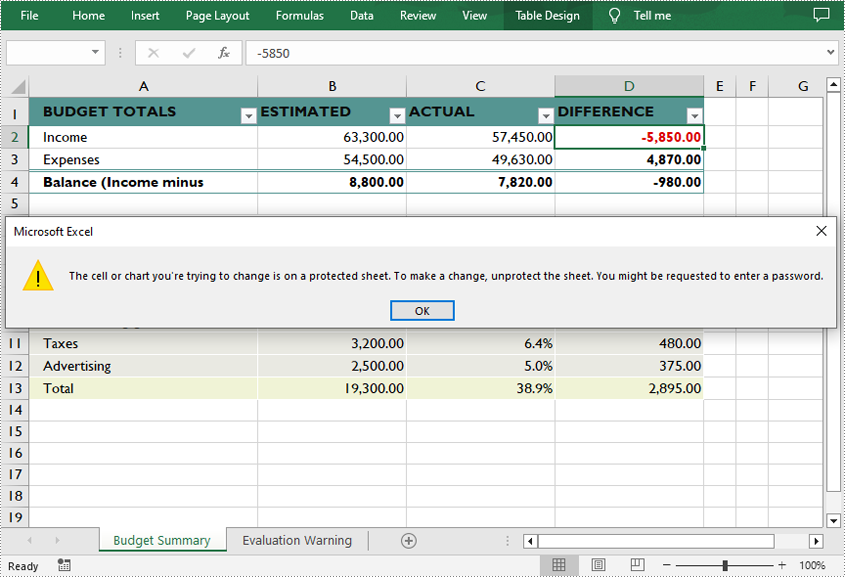
If you wish to grant people permission to read your Excel document but restrict the types of modifications they are allowed to make on a worksheet, you can protect the worksheet with a specific protection type. The table below lists a variety of pre-defined protection types under the SheetProtectionType enumeration.
| Protection Type | Allow users to |
| Content | Modify or insert content. |
| DeletingColumns | Delete columns. |
| DeletingRows | Delete rows. |
| Filtering | Set filters. |
| FormattingCells | Format cells. |
| FormattingColumns | Format columns. |
| FormattingRows | Format rows. |
| InsertingColumns | Insert columns. |
| InsertingRows | Insert rows. |
| InsertingHyperlinks | Insert hyperlinks. |
| LockedCells | Select locked cells. |
| UnlockedCells | Select unlocked cells. |
| Objects | Modify drawing objects. |
| Scenarios | Modify saved scenarios. |
| Sorting | Sort data. |
| UsingPivotTables | Use pivot table and pivot chart. |
| All | Do any operations listed above on the protected worksheet. |
| None | Do nothing on the protected worksheet. |
The following are the steps to protect a worksheet with a specific protection type.
- Create a Workbook object.
- Load an Excel document using Workbook->LoadFromFile() method.
- Get a specified worksheet using Workbook->GetWorksheets()->Get() method.
- Protect the worksheet with a protection type using Worksheet->XlsWorksheetBase::Protect (LPCWSTR_S password, SheetProtectionType options) method.
- Save the result document using Workbook->SaveToFile() method.
- C++
#include "Spire.Xls.o.h"

using namespace Spire::Xls;

int main()
{
	//Specify the input and output file paths
	std::wstring inputFile = L"Data\\Budget.xlsx";
	std::wstring outputFile = L"Output\\ProtectWorksheet.xlsx";

	//Create a Workbook object
	intrusive_ptr<Workbook> workbook = new Workbook();

	//Load an Excel document from disk
	workbook->LoadFromFile(inputFile.c_str());

	//Get the first worksheet
	intrusive_ptr<Worksheet> sheet = dynamic_pointer_cast<Worksheet>(workbook->GetWorksheets()->Get(0));

	//Protect the worksheet with the permission password and the specific protect type
	sheet->XlsWorksheetBase::Protect(L"e-iceblue", SheetProtectionType::None);

	//Save the result document
	workbook->SaveToFile(outputFile.c_str(), ExcelVersion::Version2013);
	workbook->Dispose();
}
Allow Users to Edit Ranges in a Protected Worksheet in C++
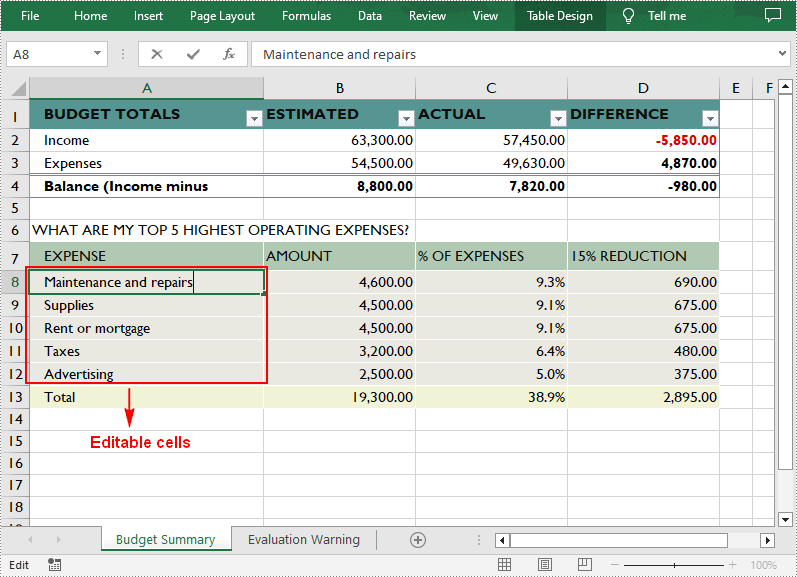
In certain cases, you may need to allow users to be able to edit selected ranges in a protected worksheet. The following are the detailed steps.
- Create a Workbook object.
- Load an Excel document using Workbook->LoadFromFile() method.
- Get a specified worksheet using Workbook->GetWorksheets()->Get() method.
- Specify the editable cell ranges using Worksheet->AddAllowEditRange() method.
- Protect the worksheet with a password using Worksheet->XlsWorksheetBase::Protect() method.
- Save the result document using Workbook->SaveToFile() method.
- C++
#include "Spire.Xls.o.h"

using namespace Spire::Xls;

int main()
{
	//Specify the input and output file paths
	std::wstring inputFile = L"Data\\Budget.xlsx";
	std::wstring outputFile = L"Output\\AllowEditRange.xlsx";

	//Create a Workbook object
	intrusive_ptr<Workbook> workbook = new Workbook();

	//Load an Excel document from disk
	workbook->LoadFromFile(inputFile.c_str());

	//Get the first worksheet
	intrusive_ptr<Worksheet> sheet = dynamic_pointer_cast<Worksheet>(workbook->GetWorksheets()->Get(0));

	//Define a range that allow users to edit while sheet is protected
	sheet->AddAllowEditRange(L"EditableRange", dynamic_pointer_cast<CellRange>(sheet->GetRange(L"A8:A12")));

	//Protect the worksheet with a password
	sheet->XlsWorksheetBase::Protect(L"TestPassword");

	//Save the result document
	workbook->SaveToFile(outputFile.c_str(), ExcelVersion::Version2013);
	workbook->Dispose();
}
Lock Specific Cells in a Worksheet in C++
Normally, the locked option is enabled for all cells in a worksheet. Therefore, before locking a cell or range of cells, all cells must be unlocked. Keep in mind that locking cells doesn't take effect until the worksheet is protected. The following are the detailed steps.
- Create a Workbook object.
- Load an Excel document using Workbook->LoadFromFile() method.
- Get a specified worksheet using Workbook->GetWorksheets()->Get() method.
- Access the used range in the worksheet and then unlock all cells in the range.
- Access specific cells and then lock them by setting the parameter of XlsRange->GetStyle()->SetLocked() method to true.
- Protect the worksheet using Worksheet->XlsWorksheetBase::Protect() method.
- Save the result document using Workbook->SaveToFile() method.
- C++
#include "Spire.Xls.o.h"

using namespace Spire::Xls;

int main()
{
	//Specify the input and output file paths
	std::wstring inputFile = L"Data\\Budget.xlsx";
	std::wstring outputFile = L"Output\\LockCells.xlsx";

	//Create a Workbook object
	intrusive_ptr<Workbook> workbook = new Workbook();

	//Load an Excel document from disk
	workbook->LoadFromFile(inputFile.c_str());

	//Get the first worksheet
	intrusive_ptr<Worksheet> sheet = dynamic_pointer_cast<Worksheet>(workbook->GetWorksheets()->Get(0));

	//Unlock all cells in the used range of the worksheet
	sheet->XlsWorksheet::GetRange()->GetStyle()->SetLocked(false);

	//Lock specific cells
	intrusive_ptr<XlsRange> cells = dynamic_pointer_cast<XlsRange>(sheet->GetRange(L"A1:D1"));
	cells->GetStyle()->SetLocked(true);

	//Protect the worksheet with password
	sheet->XlsWorksheetBase::Protect(L"TestPassword");

	//Save the result document
	workbook->SaveToFile(outputFile.c_str(), ExcelVersion::Version2013);
	workbook->Dispose();
}
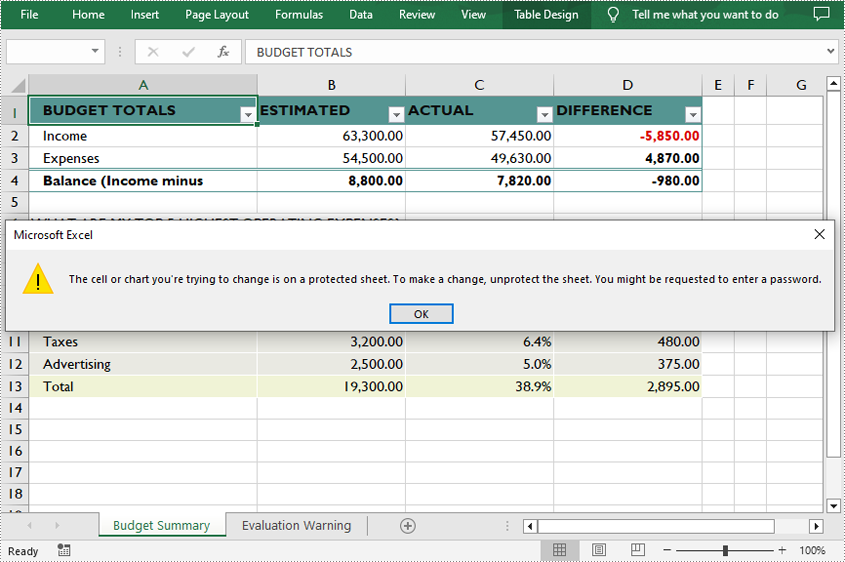
Unprotect a Password Protected Worksheet in C++
To remove the protection of a password-protected worksheet, invoke the Worksheet->XlsWorksheetBase::Unprotect() method and pass in the original password as a parameter. The following are the detailed steps.
- Create a Workbook object.
- Load an Excel document using Workbook->LoadFromFile() method.
- Get a specified worksheet using Workbook->GetWorksheets()->Get() method.
- Unprotect the worksheet with the original password using Worksheet->XlsWorksheetBase::Unprotect(LPCWSTR_S password) method.
- Save the result document using Workbook->SaveToFile() method.
- C++
#include "Spire.Xls.o.h"

using namespace Spire::Xls;

int main()
{
	//Specify the input and output file paths
	std::wstring inputFile = L"Data\\ProtectWorksheet.xlsx";
	std::wstring outputFile = L"Output\\UnprotectWorksheet.xlsx";

	//Create a Workbook object
	intrusive_ptr<Workbook> workbook = new Workbook();

	//Load an Excel document from disk
	workbook->LoadFromFile(inputFile.c_str());

	//Get the first worksheet
	intrusive_ptr<Worksheet> sheet = dynamic_pointer_cast<Worksheet>(workbook->GetWorksheets()->Get(0));

	//Unprotect the worksheet using the specified password
	sheet->XlsWorksheetBase::Unprotect(L"e-iceblue");

	//Save the result document
	workbook->SaveToFile(outputFile.c_str(), ExcelVersion::Version2013);
	workbook->Dispose();
}
Remove or Reset Password of an Encrypted Workbook in C++
To remove or reset password of an encrypted workbook, you can use the Workbook->UnProtect() method and the Workbook->Protect() method respectively. The following are the steps to load an encrypted Excel document and delete or change the password of it.
- Create a Workbook object.
- Specify the open password using Workbook->SetOpenPassword() method.
- Load an Excel document using Workbook->LoadFromFile() method.
- Remove the encryption using Workbook->UnProtect() method. Or change the password using Workbook->Protect() method.
- Save the result document using Workbook->SaveToFile() method.
- C++
#include "Spire.Xls.o.h"

using namespace Spire::Xls;

int main()
{
	//Specify the input and output file paths
	std::wstring inputFile = L"Output\\EncryptWorkbook.xlsx";
	std::wstring outputFile = L"Output\\Unprotect.xlsx";

	//Create a Workbook object
	intrusive_ptr<Workbook> workbook = new Workbook();

	//Specify the open password
	workbook->SetOpenPassword(L"e-iceblue");

	//Load an Excel document from disk
	workbook->LoadFromFile(inputFile.c_str());

	//Unprotect workbook
	workbook->UnProtect();

	//Reset password
	//workbook->Protect(L"newpassword");

	//Save the result document
	workbook->SaveToFile(outputFile.c_str(), ExcelVersion::Version2013);
	workbook->Dispose();
}
Apply for a Temporary License
If you'd like to remove the evaluation message from the generated documents, or to get rid of the function limitations, please request a 30-day trial license for yourself.
C++: Convert PDF to Images
The PDF file format is ideal for most occasions. But still, you may encounter situations where you need to convert PDF to images. Once you convert a certain PDF page into an image, you can post it on social media, upload or transfer it in devices that can only display images, or embed it in your Word document or PowerPoint presentation. In this article, you will learn how to programmatically convert PDF to images in C++ using Spire.PDF for C++.
Install Spire.PDF for C++
There are two ways to integrate Spire.PDF for C++ into your application. One way is to install it through NuGet, and the other way is to download the package from our website and copy the libraries into your program. Installation via NuGet is simpler and more recommended. You can find more details by visiting the following link.
Integrate Spire.PDF for C++ in a C++ Application
Convert a Specific Page to an Image in C++
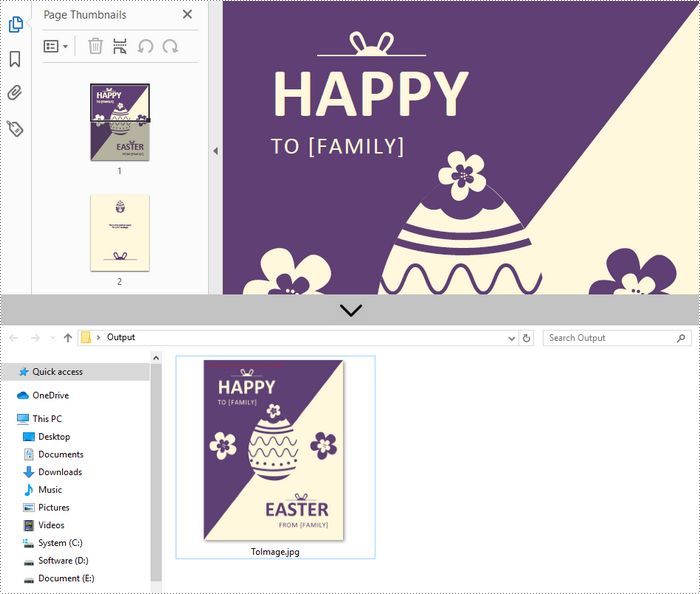
Spire.PDF for C++ offers the PdfDocument->SaveAsImage(int pageIndex) method to convert a particular page into image stream. The stream can be then saved as an image file with the desired extension like PNG, JPG, and BMP. The following are the detailed steps.
- Create a PdfDocument instance.
- Load a PDF file using PdfDocument->LoadFromFile() method.
- Convert a specific page into image stream using PdfDocument->SaveAsImage() method.
- Save the image steam as a JPG file using Stream->Save() method.
- C++
#include "Spire.Pdf.o.h";

using namespace Spire::Pdf;
using namespace std;

int main() {

	//Specify input and output file paths
	wstring inputFile = L"C:\\Users\\Administrator\\Desktop\\sample.pdf";
	wstring outputFile = L"C:\\Users\\Administrator\\Desktop\\Output\\ToImage";

	//Create a PdfDocument object
	PdfDocument* doc = new PdfDocument();

	//Load a PDF file
	doc->LoadFromFile(inputFile.c_str());

	//Convert a specific page as image
	boost::intrusive_ptr<Stream> image = doc->SaveAsImage(0, PdfImageType::Bitmap);

	//Write image to a .jpg file
	wstring fileName = outputFile + L".jpg";
	image->Save(fileName.c_str());

	doc->Close();
	delete doc;
}
Convert an Entire PDF to Multiple Images in C++
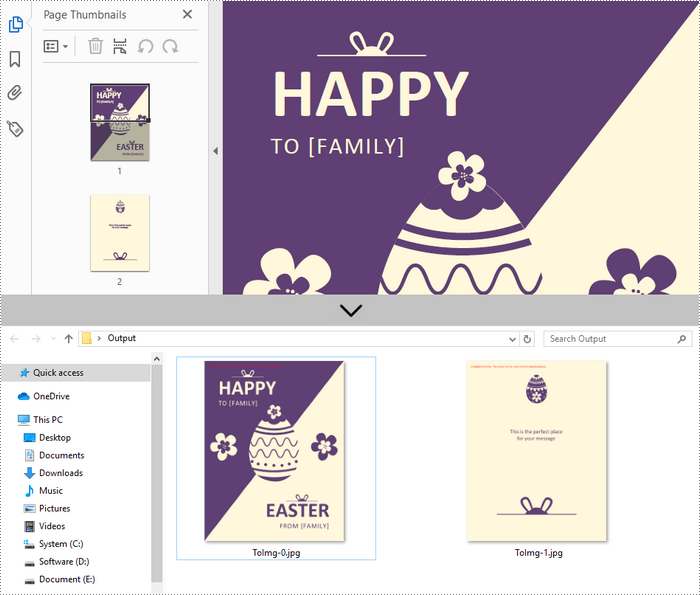
In order to save the whole PDF as separate individual images, you just need to put the conversion part inside a loop statement. The follows are the detailed steps.
- Create a PdfDocument instance.
- Load a PDF file using PdfDocument->LoadFromFile() method.
- Loop through the pages in the document and convert each of them into image stream using PdfDocument->SaveAsImage(int pageIndex) method.
- Save the image steam as JPG files using Stream->Save() method.
- C++
#include "Spire.Pdf.o.h";

using namespace Spire::Pdf;
using namespace std;

int main() {

	//Specify input and output file paths
	wstring inputFile = L"C:\\Users\\Administrator\\Desktop\\sample.pdf";
	wstring outputFile = L"C:\\Users\\Administrator\\Desktop\\Output\\ToImg-";

	//Create a PdfDocument object
	PdfDocument* doc = new PdfDocument();

	//Load a PDF file
	doc->LoadFromFile(inputFile.c_str());

	//Iterate through the pages in the document
	for (int i = 0; i < doc->GetPages()->GetCount(); i++) {

		//Save a specific page as image
		boost::intrusive_ptr<Stream> image = doc->SaveAsImage(i);

		//Write image to a .jpg file
		wstring fileName = outputFile + to_wstring(i) + L".jpg";
		image->Save(fileName.c_str());
	}
	doc->Close();
	delete doc;
}
Apply for a Temporary License
If you'd like to remove the evaluation message from the generated documents, or to get rid of the function limitations, please request a 30-day trial license for yourself.
C++: Convert PowerPoint Presentation to PDF
When you need to share or present your PowerPoint presentations on different computers/devices, you may occasionally find that some content cannot be displayed properly. To avoid such incompatibility issues, a common method is to convert your PowerPoint document to PDF to ensure document integrity. In this article, you will learn how to convert a PowerPoint Presentation to PDF in C++ using Spire.Presentation for C++.
- Convert an Entire PowerPoint Presentation to PDF in C++
- Convert a Specific PowerPoint Slide to PDF in C++
- Convert a PowerPoint to PDF with Specific Page Size in C++
Install Spire.Presentation for C++
There are two ways to integrate Spire.Presentation for C++ into your application. One way is to install it through NuGet, and the other way is to download the package from our website and copy the libraries into your program. Installation via NuGet is simpler and more recommended. You can find more details by visiting the following link.
Integrate Spire.Presentation for C++ in a C++ Application
Convert an Entire PowerPoint Presentation to PDF in C++
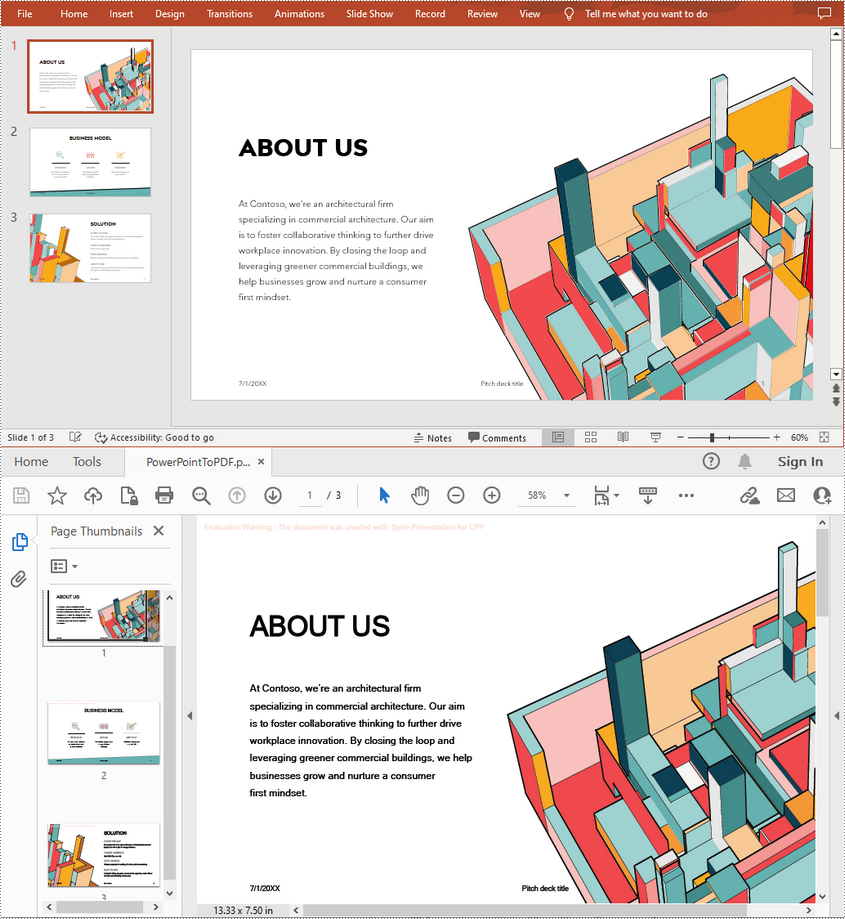
The Presentation->SaveToFile(LPCWSTR_S fileName, FileFormat::PDF) method allows you to convert each slide in PowerPoint to a PDF page. The following are the steps to convert a whole PowerPoint presentation to PDF.
- Create a Presentation object.
- Load a PowerPoint presentation using Presentation->LoadFromFile() method.
- Save it to PDF using Presentation->SaveToFile(LPCWSTR_S fileName, FileFormat::PDF) method.
- C++
#include "Spire.Presentation.o.h";
using namespace Spire::Presentation;
using namespace std;
int main()
{
//Specify the input and output file paths
std::wstring inputFile = L"Data\\sample.pptx";
std::wstring outputFile = L"Output\\PowerPointToPDF.pdf";
//Create a Presentation object
intrusive_ptrPresentation> ppt = new Presentation();
//Load a PowerPoint document from disk
ppt->LoadFromFile(inputFile.c_str());
//Save the document to PDF
ppt->SaveToFile(outputFile.c_str(), FileFormat::PDF);
ppt->Dispose();
}
Convert a Specific PowerPoint Slide to PDF in C++
If you only want to convert a particular slide to PDF, you can use the ISlide->SaveToFile(LPCWSTR_S fileName, FileFormat::PDF) method provided by Spire.Presentation for C++. The following are the detailed steps.
- Create a Presentation object.
- Load a PowerPoint presentation using Presentation->LoadFromFile() method.
- Get a specified slide by index using Presentation->GetSlides()->GetItem(slideIndex) method.
- Save the slide to PDF using ISlide->SaveToFile(LPCWSTR_S fileName, FileFormat::PDF) method.
- C++
#include "Spire.Presentation.o.h";
using namespace Spire::Presentation;
using namespace std;
int main()
{
//Specify the input and output file paths
std::wstring inputFile = L"Data\\sample.pptx";
std::wstring outputFile = L"Output\\SlideToPDF.pdf";
//Create a Presentation object
intrusive_ptrPresentation> ppt = new Presentation();
//Load a PowerPoint document from disk
ppt->LoadFromFile(inputFile.c_str());
//Get the second slide
intrusive_ptr slide = ppt->GetSlides()->GetItem(1);
//Save the second slide to PDF
slide->SaveToFile(outputFile.c_str(), FileFormat::PDF);
ppt->Dispose();
}

Convert a PowerPoint to PDF with Specific Page Size in C++
Spire.Presentation for C++ also allows you to set a desired slide size and orientation for a PowerPoint document before converting it to PDF. The following are the steps to convert a PowerPoint to PDF with Specific Page Size (A4 slide size = 10.83x7.05 inch).
- Create a Presentation object.
- Load a PowerPoint presentation using Presentation->LoadFromFile() method.
- Set the slide size of the PowerPoint document using Presentation->GetSlideSize()->SetType() method.
- Set the slide orientation of the PowerPoint document using Presentation->GetSlideSize()->SetOrientation() method.
- Save the document to PDF using Presentation->SaveToFile(LPCWSTR_S fileName, FileFormat::PDF) method.
- C++
#include "Spire.Presentation.o.h";
using namespace Spire::Presentation;
using namespace std;
int main()
{
//Specify the input and output file paths
std::wstring inputFile = L"Data\\sample.pptx";
std::wstring outputFile = L"Output\\ToPdfWithSpecificPageSize.pdf";
//Create a Presentation object
intrusive_ptrPresentation> ppt = new Presentation();
//Load a PowerPoint document from disk
ppt->LoadFromFile(inputFile.c_str());
//Set the slide size to A4
ppt->GetSlideSize()->SetType(SlideSizeType::A4);
//Set the slide orientation to Landscape
ppt->GetSlideSize()->SetOrientation(SlideOrienation::Landscape);
//Save the document to PDF
ppt->SaveToFile(outputFile.c_str(), FileFormat::PDF);
ppt->Dispose();
}

Apply for a Temporary License
If you'd like to remove the evaluation message from the generated documents, or to get rid of the function limitations, please request a 30-day trial license for yourself.
C++: Add Image Watermarks to PDF Documents
Watermarks are faded text or images that appear behind the existing content of a document. You can use them to indicate a document's state (confidential, draft, etc.), or add a subtle company logo. A watermark helps prove the origin of a document and discourage unauthorized copies or distribution. In this article, you will learn how to add image watermarks to PDF in C++ using Spire.PDF for C++.
Install Spire.PDF for C++
There are two ways to integrate Spire.PDF for C++ into your application. One way is to install it through NuGet, and the other way is to download the package from our website and copy the libraries into your program. Installation via NuGet is simpler and more recommended. You can find more details by visiting the following link.
Integrate Spire.PDF for C++ in a C++ Application
Add a Single Image Watermark to PDF in C++
The PdfPageBase->GetCanvas()->DrawImage() method provided by Spire.PDF for C++ allows developers to draw images at any position of a PDF page. The image can be faded by adjusting the transparency of the canvas to prevent it from overwriting the text. The detailed steps to add a single image watermark to PDF are as follows.
- Create a PdfDocument object.
- Load a sample PDF document using PdfDocument->LoadFromFile() method.
- Get a specific page from the document using PdfDocument->GetPages()->GetItem() method.
- Set the transparency of the page using PdfPageBase->GetCanvas()->SetTransparency() method.
- Draw an image at the center of the page using PdfPageBase->GetCanvas()->DrawImage() method.
- Save the document to a different PDF file using PdfDocument->SaveToFile() method.
- C++
#include "Spire.Pdf.o.h";

using namespace std;
using namespace Spire::Pdf;

int main()
{
	//Specify input file and output file paths
	wstring inputFilePath = L"C:\\Users\\Administrator\\Desktop\\sample.pdf";
	wstring outputFilePath = L"C:\\Users\\Administrator\\Desktop\\ImageWatermark.pdf";

	//Create a PdfDocument object
	PdfDocument* doc = new PdfDocument();

	//Load a PDF file
	doc->LoadFromFile(inputFilePath.c_str());

	//Load an image
	boost::intrusive_ptr image = PdfImage::FromFile(L"C:\\Users\\Administrator\\Desktop\\logo.png");

	//Get image height and width
	int imgHeight = image->GetHeight();
	int imgWidth = image->GetWidth();

	//Traverse through the pages in the document
	for (size_t i = 0; i < doc->GetPages()->GetCount(); i++)
	{
		//Get a specific page
		boost::intrusive_ptr page = doc->GetPages()->GetItem(i);

		//Set the page transparency
		page->GetCanvas()->SetTransparency(0.5);

		//Get the page width and height
		float pageWidth = page->GetActualSize()->GetWidth();
		float pageHeight = page->GetActualSize()->GetHeight();

		//Draw image at the center of the page
		RectangleF* rect = new RectangleF((float)(pageWidth - imgWidth) / 2, (float)(pageHeight - imgHeight) / 2, imgWidth, imgHeight);
		page->GetCanvas()->DrawImage(image, rect);
	}

	//Save the document
	doc->SaveToFile(outputFilePath.c_str());
	doc->Close();
	delete doc;
}
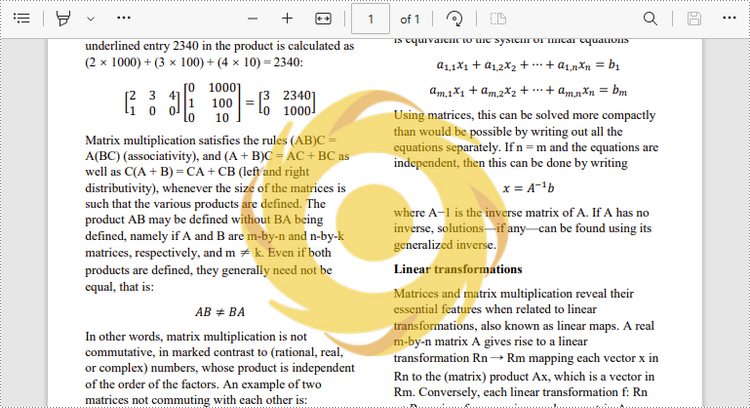
Add a Tiled Image Watermark to PDF in C++
A tiled watermark effect can be achieved by using the PdfTilingBrush class. The tiling brush produces a tiled pattern that is repeated to fill a graphics area. The following are the steps to add a tiled image watermark to a PDF document.
- Create a custom method InsertTiledImagetWatermark(PdfPageBase* page, PdfImage* image, int rowNum, int columnNum) to add a tiled watermark to a PDF page. The parameter rowNum and columnNum specify the row number and column number of the tiled watermark.
- Create a PdfDocument object.
- Load a sample PDF document using PdfDocument->LoadFromFile() method.
- Traverse through all pages in the document, and invoke the custom method InsertTiledImageWatermark() to apply watermark to each page.
- Save the document to another file using PdfDocument->SaveToFile() method.
- C++
#include "Spire.Pdf.o.h";

using namespace std;
using namespace Spire::Pdf;

static void InsertTiledImagetWatermark(PdfPageBase* page, PdfImage* image, int rowNum, int columnNum)
{
	//Get page height and width
	float height = page->GetActualSize()->GetHeight();
	float width = page->GetActualSize()->GetWidth();

	//Get image heigh and width
	float imgHeight = image->GetHeight();
	float imgWidth = image->GetWidth();

	//Create a tiling brush
	PdfTilingBrush* brush = new PdfTilingBrush(new SizeF(width / columnNum, height / rowNum));

	//Set transparency
	brush->GetGraphics()->SetTransparency(0.5f);

	//Translate coordinate system to a certain position
	brush->GetGraphics()->TranslateTransform((brush->GetSize()->GetWidth() - imgWidth) / 2, (brush->GetSize()->GetHeight() - imgHeight) / 2);

	//Draw image on the brush at the specified coordinates
	brush->GetGraphics()->DrawImage(image, 0.0, 0.0);

	//Draw rectangle that covers the whole page with the brush
	page->GetCanvas()->DrawRectangle(brush, 0, 0, width, height);
}

int main()
{
	//Specify input file and output file paths
	wstring inputFilePath = L"C:\\Users\\Administrator\\Desktop\\sample.pdf";
	wstring outputFilePath = L"C:\\Users\\Administrator\\Desktop\\TiledImageWatermark.pdf";

	//Create a PdfDocument object
	PdfDocument* doc = new PdfDocument();

	//Load a PDF file
	doc->LoadFromFile(inputFilePath.c_str());

	//Load an image
	PdfImage* image = PdfImage::FromFile(L"C:\\Users\\Administrator\\Desktop\\small-logo.png");

	//Traverse through the pages in the document
	for (size_t i = 0; i < doc->GetPages()->GetCount(); i++)
	{
		//Get a specific page
		PdfPageBase* page = doc->GetPages()->GetItem(i);

		//Add tiled image watermark to the page
		InsertTiledImagetWatermark(page, image, 4, 4);
	}

	//Save the document
	doc->SaveToFile(outputFilePath.c_str());
	doc->Close();
	delete doc;
}
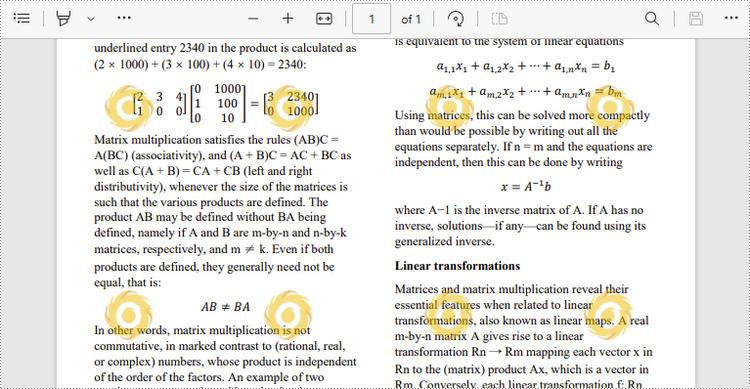
Apply for a Temporary License
If you'd like to remove the evaluation message from the generated documents, or to get rid of the function limitations, please request a 30-day trial license for yourself.
C++: Convert Excel to HTML
Converting Excel to HTML makes it easier to embed your spreadsheet data on a website and also ensures that other people can view the document online in their browsers without opening Excel. In this article, you will learn how to convert Excel to HTML using Spire.XLS for C++.
- Convert an Entire Excel Workbook to HTML in C++
- Convert a Specific Worksheet to HTML with Images Embedded in C++
- Convert a Specific Worksheet to HTML Stream in C++
Install Spire.XLS for C++
There are two ways to integrate Spire.XLS for C++ into your application. One way is to install it through NuGet, and the other way is to download the package from our website and copy the libraries into your program. Installation via NuGet is simpler and more recommended. You can find more details by visiting the following link.
Integrate Spire.XLS for C++ in a C++ Application
Convert an Entire Excel Workbook to HTML in C++
The Workbook->SaveToHtml() method provided by Spire.XLS for C++ allows you to convert the whole workbook to HTML. The following are the detailed steps.
- Create a Workbook object.
- Load an Excel document using Workbook->LoadFromFile() method.
- Save the entire Excel workbook as an HTML file using Workbook->SaveToHtml() method.
- C++
#include "Spire.Xls.o.h"

using namespace Spire::Xls;

int main()
{
	//Specify input file path and name
	std::wstring data_path = L"Data\\";
	std::wstring inputFile = data_path + L"input.xlsx";

	//Specify output file path and name
	std::wstring outputPath = L"Output\\";
	std::wstring outputFile = outputPath + L"ToHtml.html";

	//Create a Workbook object
	intrusive_ptr<Workbook> workbook = new Workbook();

	//Load an Excel document from disk
	workbook->LoadFromFile(inputFile.c_str());

	//Save the whole Excel workbook to Html
	workbook->SaveToHtml(outputFile.c_str());
	workbook->Dispose();
}
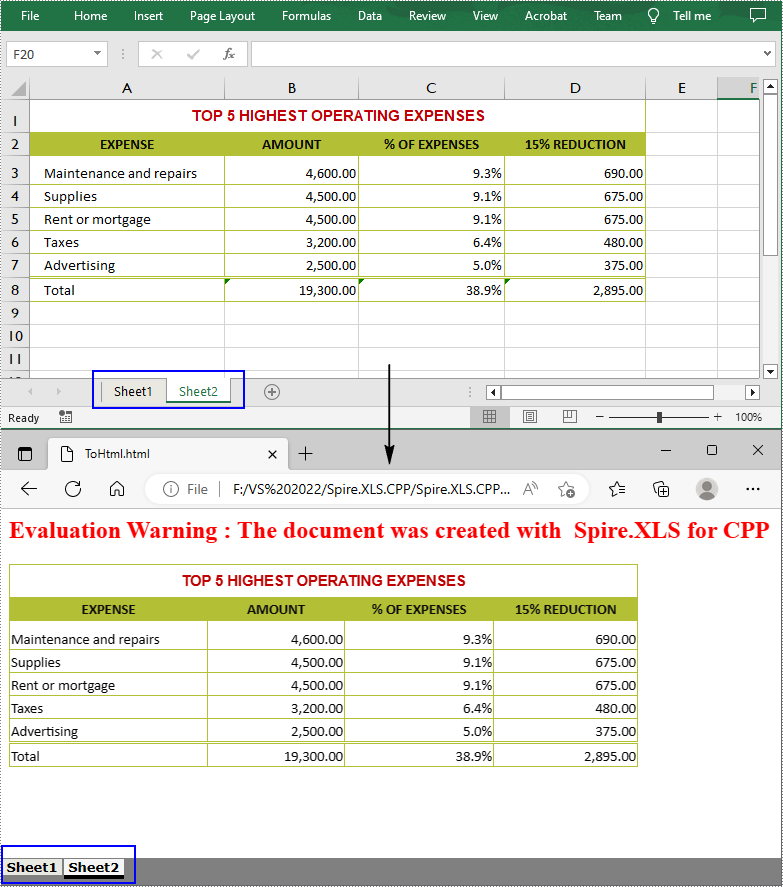
Convert a Specified Worksheet to HTML with Images Embedded in C++
If you want the images in a worksheet to be embedded into the HTML code while conversion, you can set the parameter of HTMLOptions->SetImageEmbedded() method to true. The following are the detailed steps.
- Create a Workbook object.
- Load an Excel document using Workbook->LoadFromFile() method.
- Get a specific worksheet using Workbook->GetWorksheets()->Get() method.
- Create an HTMLOptions instance and enable image embedding using HTMLOptions->SetImageEmbedded(true) method.
- Save the worksheet to HTML with image embedded using Worksheet->SaveToHtml(LPCWSTR_S fileName, HTMLOptions* saveOption) method.
- C++
#include "Spire.Xls.o.h"

using namespace Spire::Xls;

int main()
{
	//Specify input file path and name
	std::wstring data_path = L"Data\\";
	std::wstring inputFile = data_path + L"sample.xlsx";

	//Specify output file path and name
	std::wstring outputPath = L"Output\\";
	std::wstring outputFile = outputPath + L"ExcelToHtml.html";

	//Create a Workbook object
	intrusive_ptr<Workbook> workbook = new Workbook();

	//Load an Excel document from disk
	workbook->LoadFromFile(inputFile.c_str());

	//Get the first worksheet
	intrusive_ptr<Worksheet> sheet = dynamic_pointer_cast<Worksheet>(workbook->GetWorksheets()->Get(0));

	//Set embedded image as true
	intrusive_ptr<HTMLOptions> options = new HTMLOptions();
	options->SetImageEmbedded(true);

	//Save the worksheet to HTML
	sheet->SaveToHtml(outputFile.c_str(), options);
	workbook->Dispose();
}
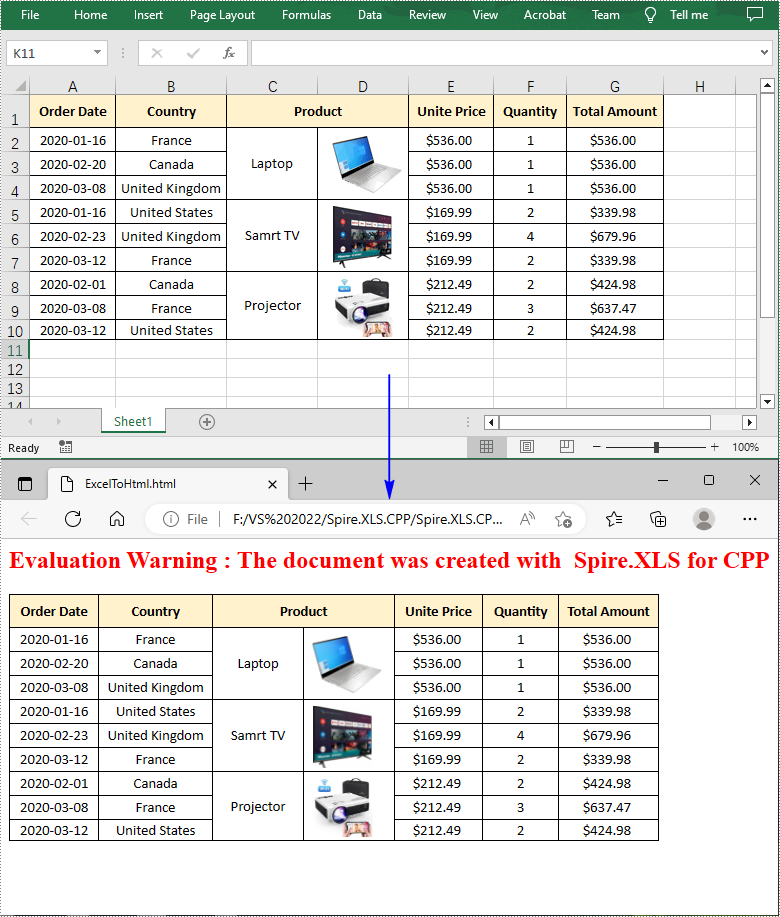
Convert a Specified Worksheet to HTML Stream in C++
Spire.XLS for C++ also allows you to convert a worksheet to HTML stream using Worksheet->SaveToHtml(Stream* stream, HTMLOptions* saveOption) method. The following are the detailed steps.
- Create a Workbook object.
- Load an Excel document using Workbook->LoadFromFile() method.
- Get a specific worksheet using Workbook->GetWorksheets()->Get() method.
- Create an HTMLOptions instance and enable image embedding using HTMLOptions->SetImageEmbedded(true) method.
- Create a stream and save the worksheet to HTML stream with image embedded using Worksheet->SaveToHtml(Stream* stream, HTMLOptions* saveOption) method.
- C++
#include "Spire.Xls.o.h"

using namespace Spire::Xls;

int main()
{
	//Specify input file path and name
	std::wstring data_path = L"Data\\";
	std::wstring inputFile = data_path + L"sample.xlsx";

	//Specify output file path and name
	std::wstring outputPath = L"Output\\";
	std::wstring outputFile = outputPath + L"ToHtmlStream.html";

	//Create a Workbook object
	intrusive_ptr<Workbook> workbook = new Workbook();

	//Load an Excel document from disk
	workbook->LoadFromFile(inputFile.c_str());

	//Get the first worksheet
	intrusive_ptr<Worksheet> sheet = dynamic_pointer_cast<Worksheet>(workbook->GetWorksheets()->Get(0));

	//Set embedded image as true
	intrusive_ptr<HTMLOptions> options = new HTMLOptions();
	options->SetImageEmbedded(true);

	//Create a stream
	intrusive_ptr<Stream> stream = new Stream();

	//Save worksheet to html stream
	sheet->SaveToHtml(stream, options);
	workbook->Dispose();

	stream->Save(outputFile.c_str());
}
Apply for a Temporary License
If you'd like to remove the evaluation message from the generated documents, or to get rid of the function limitations, please request a 30-day trial license for yourself.
C++: Add Text Watermarks to PDF Documents
As increasingly diverse types of documents are created in PDF, you may find yourself with a need to protect confidential information. Although many other PDF security options are available to keep confidential information secure, the most common approach is to add a custom watermark to the PDF document. In this article, you will learn how to add a single-line or multi-line text watermark to PDF in C++ using Spire.PDF for C++.
Install Spire.PDF for C++
There are two ways to integrate Spire.PDF for C++ into your application. One way is to install it through NuGet, and the other way is to download the package from our website and copy the libraries into your program. Installation via NuGet is simpler and more recommended. You can find more details by visiting the following link.
Integrate Spire.PDF for C++ in a C++ Application
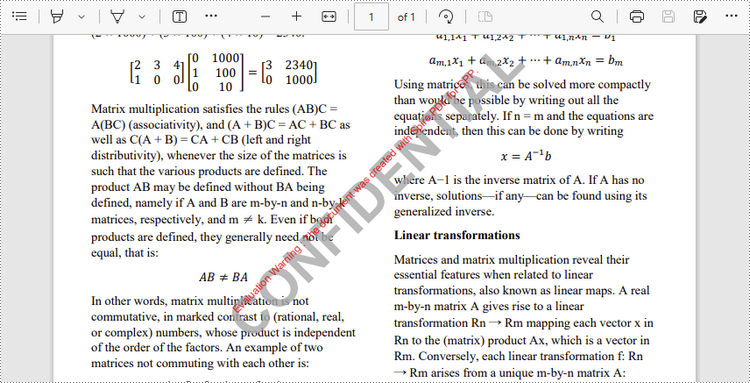
Add a Single-Line Text Watermark to PDF in C++
Spire.PDF for C++ does not provide an interface or a class responsible for inserting watermarks into PDF files. You could, however, draw text like "confidential", "do not copy", or "draft" on each page to mimic the watermark effect. The following are the steps to add a single-line text watermark to a PDF document.
- Create a PdfDocument object.
- Load a sample PDF document using PdfDocument->LoadFromFile() method.
- Get a specific page from the document using PdfDocument->GetPages()->GetItem() method.
- Translate the coordinate system to the specified coordinate using PdfPageBase->GetCanvas()->TraslateTransform() method.
- Rotate the coordinate system 45 degrees counterclockwise using PdfPageBase->GetCanvas()->RotateTransform() method. This step and the step above make sure that the watermark will appear in the middle of the page with an angle of 45 degrees.
- Draw a text watermark on the page using PdfPageBase->GetCanvas()->DrawString() method.
- Save the document to a different PDF file using PdfDocument->SaveToFile() method.
- C++
"#include ""Spire.Pdf.o.h"";

using namespace std;
using namespace Spire::Pdf;
using namespace Spire::Common;

int main()
{
	//Specify input file and output file paths
	wstring inputFilePath = L""C:\\Users\\Administrator\\Desktop\\sample.pdf"";
	wstring outputFilePath = L""Output\\SingleLineTextWatermark.pdf"";

	//Create a PdfDocument object
	PdfDocument* doc = new PdfDocument();

	//Load a PDF file
	doc->LoadFromFile(inputFilePath.c_str());

	//Create a true type font
	PdfTrueTypeFont* font = new PdfTrueTypeFont(L""Arial"", 50.0f, PdfFontStyle::Bold, true);

	//Create a brush
	PdfBrush* brush = PdfBrushes::GetDarkGray();

	//Specify watermark text
	wstring text = L""CONFIDENTIAL"";

	//Measure the text size
	SizeF textSize = font->MeasureString(text.c_str());

	//Calculate two offsets, which are used to calculate the translation amount of coordinate system
	float offset1 = (float)(textSize.GetWidth() * sqrt(2) / 4);
	float offset2 = (float)(textSize.GetHeight() * sqrt(2) / 4);

	//Traverse through the pages in the document
	for (size_t i = 0; i < doc->GetPages()->GetCount(); i++)
	{
		//Get a specific page
		PdfPageBase* page = doc->GetPages()->GetItem(i);

		//Set the page transparency
		page->GetCanvas()->SetTransparency(0.8);

		//Translate the coordinate system to a specified coordinate
		page->GetCanvas()->TranslateTransform(page->GetCanvas()->GetSize()->GetWidth() / 2 - offset1 - offset2, page->GetCanvas()->GetSize()->GetHeight() / 2 + offset1 - offset2);

		//Rotate the coordinate system 45 degrees counterclockwise
		page->GetCanvas()->RotateTransform(-45);

		//Draw watermark text on the page
		page->GetCanvas()->DrawString(text.c_str(), font, brush, 0, 0, new PdfStringFormat(PdfTextAlignment::Left));
	}

	//Save the document
	doc->SaveToFile(outputFilePath.c_str());
	doc->Close();
	delete doc;
}"
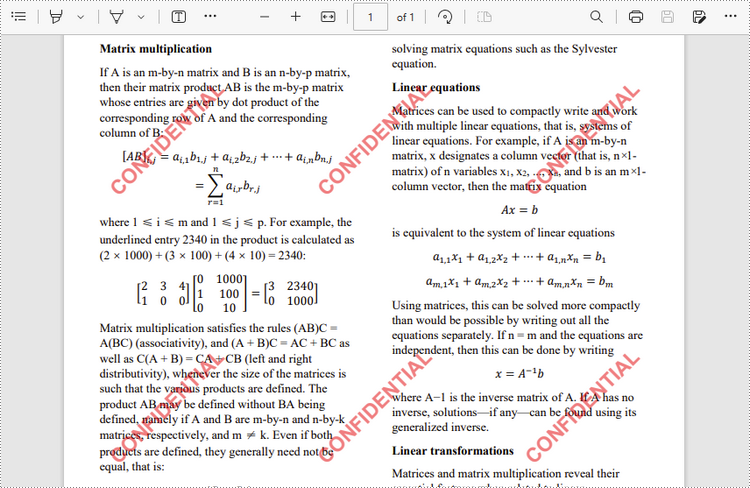
Add a Tiled Text Watermark to PDF in C++
To achieve the tiled watermark effect, you can make use of the PdfTilingBrush class. The tiling brush produces a tiled pattern that is repeated to fill a graphics area. The following are the steps to add a tiled text watermark to a PDF document.
- Create a custom method InsertTiledTextWatermark(PdfPageBase* page, wstring watermarkText, PdfTrueTypeFont* font, int rowNum, int columnNum) to add a tiled watermark to a PDF page. The parameter rowNum and columnNum specify the row number and column number of the tiled watermark.
- Create a PdfDocument object.
- Load a sample PDF document using PdfDocument->LoadFromFile() method.
- Traverse through all pages in the document, and call the custom method InsertTiledTextWatermark() to apply watermark to each page.
- Save the document to another file using PdfDocument->SaveToFile() method.
- C++
#include "Spire.Pdf.o.h";

using namespace std;
using namespace Spire::Pdf;

static void InsertTiledTextWatermark(PdfPageBase* page, wstring watermarkText, PdfTrueTypeFont* font, int rowNum, int columnNum)
{
	//Measure text size
	SizeF textSize = font->MeasureString(watermarkText.c_str());

	//Calculate two offsets, which are used to calculate the translation amount of coordinate system
	float offset1 = (float)(textSize.GetWidth() * sqrt(2) / 4);
	float offset2 = (float)(textSize.GetHeight() * sqrt(2) / 4);

	//Get page height and width
	float height = page->GetActualSize()->GetHeight();
	float width = page->GetActualSize()->GetWidth();

	//Create a tiling brush
	PdfTilingBrush* brush = new PdfTilingBrush(new SizeF(width / columnNum, height / rowNum));
	brush->GetGraphics()->SetTransparency(0.5f);
	brush->GetGraphics()->TranslateTransform(brush->GetSize()->GetWidth() / 2 - offset1 - offset2, brush->GetSize()->GetHeight() / 2 + offset1 - offset2);
	brush->GetGraphics()->RotateTransform(-45);

	//Draw watermark text on the brush
	brush->GetGraphics()->DrawString(watermarkText.c_str(), font, PdfBrushes::GetRed(), 0, 0, new PdfStringFormat(PdfTextAlignment::Left));

	//Draw a rectangle (that covers the whole page) using the tiling brush
	page->GetCanvas()->DrawRectangle(brush, new RectangleF(new PointF(0, 0), page->GetActualSize()));
}

int main()
{
	//Specify input file and output file paths
	wstring inputFilePath = L"C:\\Users\\Administrator\\Desktop\\sample.pdf";
	wstring outputFilePath = L"Output\\MultiLineTextWatermark.pdf";

	//Create a PdfDocument object
	PdfDocument* doc = new PdfDocument();

	//Load a PDF file
	doc->LoadFromFile(inputFilePath.c_str());

	//Specify watermark text
	wstring text = L"CONFIDENTIAL";

	//Creat a true type font
	PdfTrueTypeFont* font = new PdfTrueTypeFont(L"Arial", 20.0f, PdfFontStyle::Bold, true);

	//Traverse through the pages in the document
	for (size_t i = 0; i < doc->GetPages()->GetCount(); i++)
	{
		//Call the custom method to insert multi-line text watermark
                boost::intrusive_ptr page = doc->GetPages()->GetItem(i);
                InsertTiledTextWatermark(page.get(), text.c_str(), font, 3, 3);"
	}

	//Save the document
	doc->SaveToFile(outputFilePath.c_str());
	doc->Close();
	delete doc;
}
Apply for a Temporary License
If you'd like to remove the evaluation message from the generated documents, or to get rid of the function limitations, please request a 30-day trial license for yourself.
C++: Add or Delete Attachments in PDF Documents
Adding documents as attachments to PDF brings you a lot of convenience. For example, you can transfer multiple documents as a single document; you can open another file inside a PDF document without needing to find the document from other places; you reduce the possibility of losing documents referenced in the PDF document.
Spire.PDF for C++ allows you to attach files in two ways:
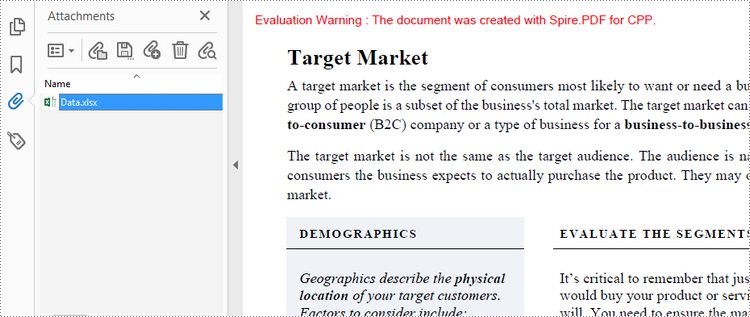
- Document Level Attachment (or Regular Attachment): A document-level attachment refers to the attachment that’s added to the Attachment tab and cannot be found on a specific page.
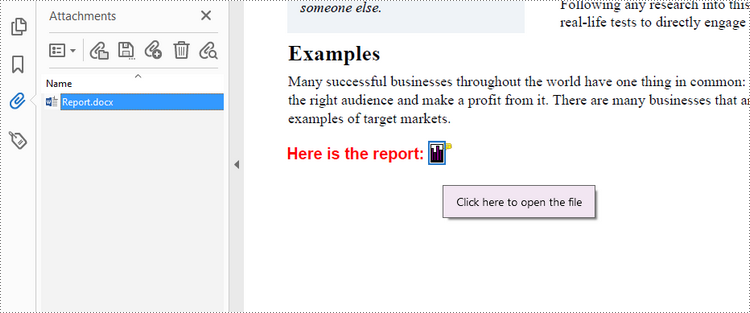
- Annotation Attachment: An annotation attachment refers to the attachment that’s added to a specific position of a page. Annotation attachments are shown as a paper clip icon on the page; reviewers can double-click the icon to open the file.
This article will show you how to add or delete regular attachments and annotation attachments in a PDF document in C++ using Spire.PDF for C++.
- Add a Regular Attachment to PDF in C++
- Add an Annotation Attachment to PDF in C++
- Delete Regular Attachments in PDF in C++
- Delete Annotation Attachments in PDF in C++
Install Spire.PDF for C++
There are two ways to integrate Spire.PDF for C++ into your application. One way is to install it through NuGet, and the other way is to download the package from our website and copy the libraries into your program. Installation via NuGet is simpler and more recommended. You can find more details by visiting the following link.
Integrate Spire.PDF for C++ in a C++ Application
Add a Regular Attachment to PDF in C++
To add a regular attachment, use PdfDocument->GetAttachments()->Add() method. The following are the detailed steps.
- Create a PdfDocument object.
- Load a PDF document using PdfDocument->LoadFromFile() method.
- Create a PdfAttachment object based on an external file.
- Add the attachment to PDF using PdfDocument->GetAttachments()->Add() method.
- Save the document to another PDF file using PdfDocument.SaveToFile() method.
- C++
#include "Spire.Pdf.o.h";

using namespace Spire::Pdf;
using namespace std;

int main() {

    //Specify input file path
    wstring inputPdfPath = L"C:\\Users\\Administrator\\Desktop\\Sample.pdf";
    wstring inputFilePath = L"C:\\Users\\Administrator\\Desktop\\Data.xlsx";

    //Specify output file path
    wstring outputFilePath = L"Output\\Attachment.pdf";

    //Create a PdfDocument object
    PdfDocument* doc = new PdfDocument();

    //Load a sample PDF file
    doc->LoadFromFile(inputPdfPath.c_str());

    //Create a PdfAttachment object based on an external file
    PdfAttachment* attachment = new PdfAttachment(inputFilePath.c_str());

    //Add the attachment to PDF
    doc->GetAttachments()->Add(attachment);

    //Save to file
doc->SaveToFile(outputFilePath.c_str());
delete doc;
}
Add an Annotation Attachment to PDF in C++
An annotation attachment is represented by the PdfAttachmentAnnotation class. You need to create an instance of the class based on an external file, and then add it to a specific page using PdfPageBase->GetAnnotationsWidget()->Add() method. The following are the detailed steps.
- Create a PdfDocument object.
- Load a PDF document using PdfDocument->LoadFromFile() method.
- Get a specific page to add annotation using PdfDocument->GetPages()->GetItem() method.
- Create a PdfAttachmentAnnotation object based on an external file.
- Add the annotation attachment to the page using PdfPageBase->GetAnnotationsWidget->Add() method.
- Save the document using PdfDocument->SaveToFile() method.
- C++
#include "Spire.Pdf.o.h";

using namespace Spire::Pdf;
using namespace std;

int main() {

    //Specify input file path
    wstring inputPdfPath = L"C:\\Users\\Administrator\\Desktop\\Attachment.pdf";
    wstring inputFilePath = L"C:\\Users\\Administrator\\Desktop\\Report.docx";

    //Specify output file path
    wstring outputFilePath = L"Output\\AnnotationAttachment.pdf";

    //Create a PdfDocument object
    PdfDocument* doc = new PdfDocument();

    //Load a sample PDF file
    doc->LoadFromFile(inputPdfPath.c_str());

    //Get a specific page
    boost::intrusive_ptr<PdfPageBase> page = doc->GetPages()->GetItem(0);

    //Draw a label on PDF
    wstring label = L"Here is the report:";
    PdfTrueTypeFont* font = new PdfTrueTypeFont(L"Arial", 13.0f, PdfFontStyle::Bold, true);
    float x = 35;
    float y = doc->GetPages()->GetItem(0)->GetActualSize()->GetHeight() - 220;
    page->GetCanvas()->DrawString(label.c_str(), font, PdfBrushes::GetRed(), x, y);

    //Convert the file to be attached to stream
    ifstream is1(inputFilePath.c_str(), ifstream::in | ios::binary);
    is1.seekg(0, is1.end);
    int length1 = is1.tellg();
    is1.seekg(0, is1.beg);
    char* buffer1 = new  char[length1];
    is1.read(buffer1, length1);
    Stream* stream = new Spire::Pdf::Stream((unsigned char*)buffer1, length1);
    boost::intrusive_ptr <SizeF> size = font->MeasureString(label.c_str());
    RectangleF* bounds = new RectangleF((float)(x + size->GetWidth() + 5), (float)y, 10, 15);

    //Create a PdfAttachmentAnnotation object based on the file
    PdfAttachmentAnnotation* annotation = new PdfAttachmentAnnotation(bounds, L"Report.docx", stream);
    annotation->SetColor(new PdfRGBColor(Spire::Pdf::Color::GetDarkOrange()));
    annotation->SetFlags(PdfAnnotationFlags::ReadOnly);
    annotation->SetIcon(PdfAttachmentIcon::Graph);
    annotation->SetText(L"Click here to open the file");

    //Add the attachment annotation to PDF
    page->GetAnnotationsWidget()->Add(annotation);

    //Save to file
    doc->SaveToFile(outputFilePath.c_str());
    delete doc;
}
Delete Regular Attachments in PDF in C++
The PdfDocument->GetAttachments() method returns a collection of regular attachments of a PDF document. A specific attachment or all attachments can be removed by using PdfAttachmentCollection->RemoveAt() method or PdfAttachmentCollection->Clear() method. The detailed steps are as follows.
- Create a PdfDocument object.
- Load a PDF document using PdfDocument->LoadFromFile() method.
- Get the attachment collection from the document using PdfDocument->GetAttachments() method.
- Remove a specific attachment using PdfAttachmentCollection->RemoveAt() method. To remove all attachments at once, use PdfAttachmentCollection->Clear() method.
- Save the document using PdfDocument->SaveToFile() method.
- C++
#include "Spire.Pdf.o.h";

using namespace Spire::Pdf;
using namespace std;

int main() {

	//Specify input file path
	wstring inputPdfPath = L"C:\\Users\\Administrator\\Desktop\\Sample.pdf";

	//Specify output file path
	wstring outputFilePath = L"Output\\DeleteAttachments.pdf";

	//Create a PdfDocument object
	PdfDocument* doc = new PdfDocument();

	//Load a PDF file
	doc->LoadFromFile(inputPdfPath.c_str());

	//Get all attachments
	boost::intrusive_ptr<PdfAttachmentCollection> attachments = doc->GetAttachments();

	//Delete all attachments
	attachments->Clear();

	//Delete a specific attachment
	//attachments->RemoveAt(0);

	//Save the document
	doc->SaveToFile(outputFilePath.c_str());
	doc->Close();
	delete doc;
}
Delete Annotation Attachments in PDF in C++
The annotation is a page-based element. You can get annotations from a specific page using PdfPageBase->GetAnnotationsWidget() method, and determine if a certain annotation is an annotation attachment. After that, remove the annotation attachment from the annotation collection using PdfAnnotationCollection->Remove() method. The following are the detailed steps.
- Create a PdfDocument object.
- Load a PDF document using PdfDocument->LoadFromFile() method.
- Get the annotation collection from a specific page using PdfPageBase->GetAnnotationsWidget() method.
- Determine if an annotation is an instance of PdfAttachmentAnnotationWidget. If yes, remove the annotation attachment using PdfAnnotationCollection->Remove() method.
- Save the document using PdfDocument->SaveToFile() method.
- C++
#include "Spire.Pdf.o.h";

using namespace Spire::Pdf;
using namespace std;

int main() {

    //Specify input file path
    wstring inputPdfPath = L"C:\\Users\\Administrator\\Desktop\\AnnotationAttachment.pdf";

    //Specify output file path
    wstring outputFilePath = L"Output\\DeleteAnnotationAttachments.pdf";

    //Create a PdfDocument object
    PdfDocument* doc = new PdfDocument();

    //Load a PDF file
    doc->LoadFromFile(inputPdfPath.c_str());

    //Loop through the pages
    for (int i = 0; i < doc->GetPages()->GetCount(); i++)
    {
        //Get the annotation collection
        boost::intrusive_ptr <PdfAnnotationCollection> annotationCollection = doc->GetPages()->GetItem(i)->GetAnnotationsWidget();


        //Loop through the annotations
        for (int j = 0; j < annotationCollection->GetCount(); j++)
        {
            //Get a specific annotation
            boost::intrusive_ptr <PdfAnnotation> annotation = annotationCollection->GetItem(j);

            //Determine if the annotation is an instance of PdfAttachmentAnnotationWidget
            wstring content;
            wchar_t nm_w[100];
            swprintf(nm_w, 100, L"%hs", typeid(PdfAttachmentAnnotationWidget).name());
            LPCWSTR_S newName = nm_w;
            if (wcscmp(newName, annotation->GetInstanceTypeName()) == 0) {

                //Remove the annotation attachment
                annotationCollection->RemoveAt(j);
            }
        }
    }

    //Save the document
    doc->SaveToFile(outputFilePath.c_str());
    doc->Close();
    delete doc;
}
Apply for a Temporary License
If you'd like to remove the evaluation message from the generated documents, or to get rid of the function limitations, please request a 30-day trial license for yourself.