C#/VB.NET: Convert PDF to XPS or XPS to PDF
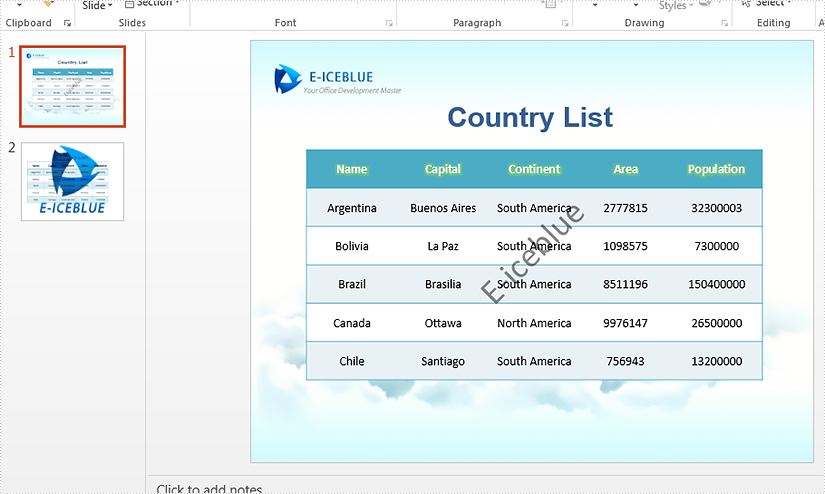
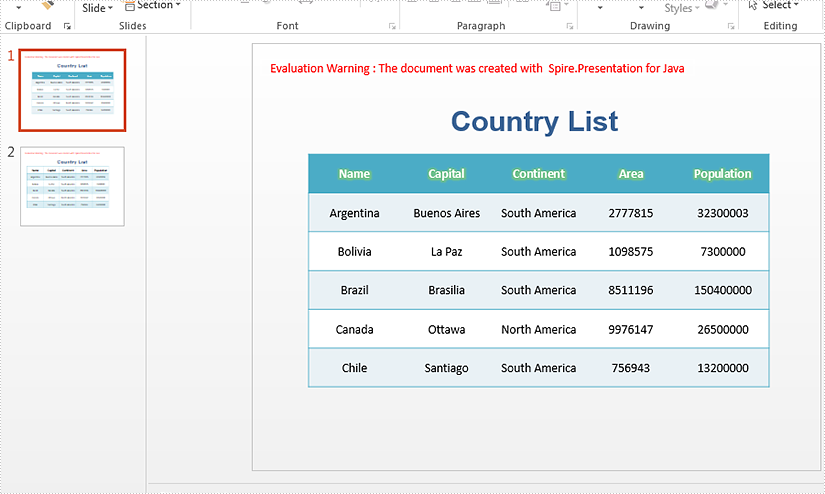
XPS is a format similar to PDF but uses XML in layout, appearance and printing information of a file. XPS format was developed by Microsoft and it is natively supported by the Windows operating systems. If you want to work with your PDF files on a Windows computer without installing other software, you can convert it to XPS format. Likewise, if you need to share a XPS file with a Mac user or use it on various devices, it is more recommended to convert it to PDF. This article will demonstrate how to programmatically convert PDF to XPS or XPS to PDF using Spire.PDF for .NET.
Install Spire.PDF for .NET
To begin with, you need to add the DLL files included in the Spire.PDF for.NET package as references in your .NET project. The DLL files can be either downloaded from this link or installed via NuGet.
PM> Install-Package Spire.PDF
Convert PDF to XPS in C# and VB.NET
Spire.PDF for .NET supports converting PDF to various file formats, and to achieve the PDF to XPS conversion, you just need three lines of core code. The following are the detailed steps.
- Create a PdfDocument instance.
- Load a sample PDF document using PdfDocument.LoadFromFile() method.
- Convert the PDF document to an XPS file using PdfDocument.SaveToFile (string filename, FileFormat.XPS) method.
- C#
- VB.NET
using Spire.Pdf;
namespace ConvertPdfToXps
{
class Program
{
static void Main(string[] args)
{
//Create a PdfDocument instance
PdfDocument pdf = new PdfDocument();
//Load sample PDF document
pdf.LoadFromFile("sample.pdf");
//Save it to XPS format
pdf.SaveToFile("ToXPS.xps", FileFormat.XPS);
pdf.Close();
}
}
}

Convert XPS to PDF in C# and VB.NET
Conversion from XPS to PDF can also be achieved with Spire.PDF for .NET. While converting, you can set to keep high quality image on the generated PDF file by using the PdfDocument.ConvertOptions.SetXpsToPdfOptions() method. The following are the detailed steps.
- Create a PdfDocument instance.
- Load an XPS file using PdfDocument.LoadFromFile(string filename, FileFormat.XPS) method or PdfDocument.LoadFromXPS() method.
- While conversion, set the XPS to PDF convert options to keep high quality images using PdfDocument.ConvertOptions.SetXpsToPdfOptions() method.
- Save the XPS file to a PDF file using PdfDocument.SaveToFile(string filename, FileFormat.PDF) method.
- C#
- VB.NET
using Spire.Pdf;
namespace ConvertXPStoPDF
{
class Program
{
static void Main(string[] args)
{
//Create a PdfDocument instance
PdfDocument pdf = new PdfDocument();
//Load a sample XPS file
pdf.LoadFromFile("Sample.xps", FileFormat.XPS);
//pdf.LoadFromXPS("Sample.xps");
//Keep high quality images when converting XPS to PDF
pdf.ConvertOptions.SetXpsToPdfOptions(true);
//Save the XPS file to PDF
pdf.SaveToFile("XPStoPDF.pdf", FileFormat.PDF);
}
}
}

Apply for a Temporary License
If you'd like to remove the evaluation message from the generated documents, or to get rid of the function limitations, please request a 30-day trial license for yourself.
How to Calculate Formulas in XLS Document in C#
Background
Excel is widely used to organize data manipulations like arithmetic operations. Excel provides many built-in functions which automate a number of types of calculation. Functions are pre-programmed formulate for example, the square-root function, trigonometric functions, logarithms etc. Excel has more than 300 functions covering a range of statistical, mathematical, financial and logical operations. There is no doubt that using a function offers a shortcut method.
Calculate Formulas in XLS Document
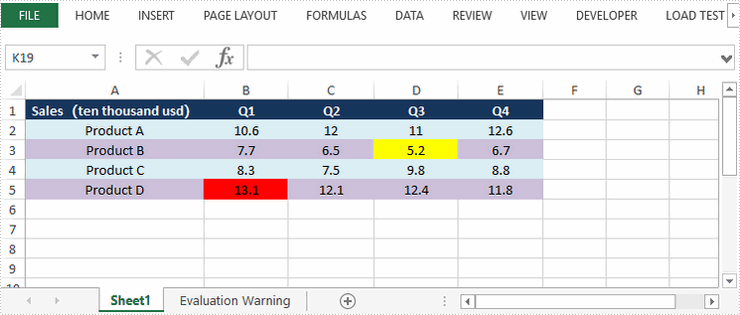
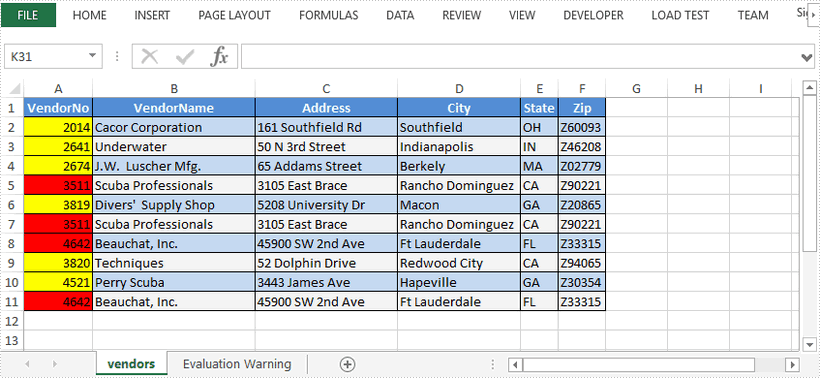
Microsoft Excel is a powerful tool which has many uses, the most basic feature of which is performing functions. The aim of this article is to help you perform simple arithmetic operations on values in programming by using excel functions. Spire.Xls for .NET can help you easily create a new excel document or load an existing excel document into program, and calculate data of designated cell by function. Applied in Console platform, WinForm and Asp.net, It provide different types of mathematical functions, statistical functions , logic functions ,and string functions to calculate data with C# codes.
The following is the method example of using Console application to show how Spire.XLS for .NET realizes the calculation formula:
Step 1: Build a console application, and add spire.XLS.dll, Spire.Common.dll assembly.
Step 2: Instantiate an object of Spire.Xls.WorkBook, and add a “WorkSheet” in WorkBook object.
Workbook workbook = new Workbook(); Worksheet sheet = workbook. Worksheets[0];
Step 3: Set the value and format in Cell A1 and Cell A3.veiwing the C# Code.
//set Column A, B, C width sheet.SetColumnWidth(1, 32); sheet.SetColumnWidth(2, 16); sheet.SetColumnWidth(3, 16); // Set value of Cell A1 sheet.Range[currentRow++, 1].Value = "Examples of formulas :"; // Set value of Cell A2. sheet.Range[++currentRow, 1].Value = "Test data:"; // Set text format Of Cell A1 CellRange range = sheet.Range["A1"]; range.Style.Font.IsBold = true; range.Style.FillPattern = ExcelPatternType.Solid; range.Style.KnownColor = ExcelColors.LightGreen1; range.Style.Borders[BordersLineType.EdgeBottom].LineStyle = LineStyleType.Medium;
Step 4: Set some cells value and then to sum up some cells data and the results will be displayed in one of the cells.
sheet.Range[currentRow, 2].NumberValue = 7.3; sheet.Range[currentRow, 3].NumberValue = 5; sheet.Range[currentRow, 4].NumberValue = 8.2; sheet.Range[currentRow, 5].NumberValue = 4; sheet.Range[currentRow, 6].NumberValue = 3; sheet.Range[currentRow, 7].NumberValue = 11.3; //Create arithmetic expression string about cells currentFormula = "=Sheet1!$B$3 + Sheet1!$C$3+Sheet1!$D$3+Sheet1!$E$3+Sheet1!$F$3+Sheet1!$G$3"; //Caculate arithmetic expression about cells formulaResult = workbook.CaculateFormulaValue(currentFormula); value = formulaResult.ToString(); sheet.Range[currentRow, 2].Value = value;
Step 5: Respectively set value and text format of Cell A4, B4.
sheet.Range[++currentRow, 1].Value = "Formulas"; ; sheet.Range[currentRow, 2].Value = "Results"; range = sheet.Range[currentRow, 1, currentRow, 2]; range.Style.Font.IsBold = true; range.Style.KnownColor = ExcelColors.LightGreen1; range.Style.FillPattern = ExcelPatternType.Solid; range.Style.Borders[BordersLineType.EdgeBottom].LineStyle = LineStyleType.Medium;
Step 6: Realize calculation simple expression.
// Create arithmetic tables enclosed type string currentFormula = "=33*3/4-2+10"; sheet.Range[++currentRow, 1].Text = currentFormula; // Caculate arithmetic expression formulaResult = workbook.CaculateFormulaValue(currentFormula); value = formulaResult.ToString(); sheet.Range[currentRow, 2].Value = value;
Step 7: Realize some mathematic functions.
//absolute value function . currentFormula = "=ABS(-1.21)"; sheet.Range[currentRow, 1].Text = currentFormula; sheet.Range[currentRow++, 2].Formula = currentFormula;
Step 8: Realize some logic function.
//NOT function //Create NOT function string currentFormula = "=NOT(true)"; sheet.Range[currentRow, 1].Text = currentFormula; //Caculate NOT function formulaResult = workbook.CaculateFormulaValue(currentFormula); value = formulaResult.ToString(); sheet.Range[currentRow, 2].Value = value; sheet.Range[currentRow, 2].HorizontalAlignment = HorizontalAlignType.Right;
Step 9: Realize some string handling functions.
//Get the substring // Build substring function currentFormula = "=MID(\"world\",4,2)"; sheet.Range[++currentRow, 1].Text = currentFormula; //Caculate substring function formulaResult = workbook.CaculateFormulaValue(currentFormula); value = formulaResult.ToString(); sheet.Range[currentRow, 2].Value = value; sheet.Range[currentRow, 2].HorizontalAlignment = HorizontalAlignType.Right;
Step 10: Realize a random function.
// Random function // Create random function string. currentFormula = "=RAND()"; sheet.Range[++currentRow, 1].Text = currentFormula; //Caculate random function formulaResult = workbook.CaculateFormulaValue(currentFormula); value = formulaResult.ToString(); sheet.Range[currentRow, 2].Value = value;
Step 11: Save workbook object as file.
workbook.SaveToFile("formulaTest.xls",ExcelVersion.Version97to2003);
Viewing the full c# code
using System;
using System.Collections.Generic;
using System.Text;
using Spire.Xls;
namespace XlsCalculateFormula
{
class Program
{
static void Main(string[] args)
{
//Instanitate an object of Spire.Xls.Workbook
Workbook workbook = new Workbook();
// Add a Spire.Xls.Worksheet to Spire.Xls.Workbook
Worksheet sheet = workbook.Worksheets[0];
int currentRow = 1;
string currentFormula = string.Empty;
object formulaResult = null;
string value = string.Empty;
// Set width respectively of Column A ,Column B,Column C
sheet.SetColumnWidth(1, 32);
sheet.SetColumnWidth(2, 16);
sheet.SetColumnWidth(3, 16);
//Set the value of Cell A1
sheet.Range[currentRow++, 1].Value = "Examples of formulas :";
// Set the value of Cell A2
sheet.Range[++currentRow, 1].Value = "Test data:";
// Set the style of Cell A1
CellRange range = sheet.Range["A1"];
range.Style.Font.IsBold = true;
range.Style.FillPattern = ExcelPatternType.Solid;
range.Style.KnownColor = ExcelColors.LightGreen1;
range.Style.Borders[BordersLineType.EdgeBottom].LineStyle = LineStyleType.Medium;
// Additive operation of mutiple cells
sheet.Range[currentRow, 2].NumberValue = 7.3;
sheet.Range[currentRow, 3].NumberValue = 5; ;
sheet.Range[currentRow, 4].NumberValue = 8.2;
sheet.Range[currentRow, 5].NumberValue = 4;
sheet.Range[currentRow, 6].NumberValue = 3;
sheet.Range[currentRow, 7].NumberValue = 11.3;
// Create arithmetic expression string about cells
currentFormula = "=Sheet1!$B$3 + Sheet1!$C$3+Sheet1!$D$3+Sheet1!$E$3+Sheet1!$F$3+Sheet1!$G$3";
//Caculate arithmetic expression about cells
formulaResult = workbook.CaculateFormulaValue(currentFormula);
value = formulaResult.ToString();
sheet.Range[currentRow, 2].Value = value;
// Set the value and format of two head cell
sheet.Range[++currentRow, 1].Value = "Formulas"; ;
sheet.Range[currentRow, 2].Value = "Results";
sheet.Range[currentRow, 2].HorizontalAlignment = HorizontalAlignType.Right;
range = sheet.Range[currentRow, 1, currentRow, 2];
range.Style.Font.IsBold = true;
range.Style.KnownColor = ExcelColors.LightGreen1;
range.Style.FillPattern = ExcelPatternType.Solid;
range.Style.Borders[BordersLineType.EdgeBottom].LineStyle = LineStyleType.Medium;
// Expression caculation
// Create arithmetic tables enclosed type string
currentFormula = "=33*3/4-2+10";
sheet.Range[++currentRow, 1].Text = currentFormula;
// Caculate arithmetic expression
formulaResult = workbook.CaculateFormulaValue(currentFormula);
value = formulaResult.ToString();
sheet.Range[currentRow, 2].Value = value;
/// The mathematics function ///
//Absolute value function
// Create abosolute value function string
currentFormula = "=ABS(-1.21)";
sheet.Range[++currentRow, 1].Text = currentFormula;
// Caculate abosulte value function
formulaResult = workbook.CaculateFormulaValue(currentFormula);
value = formulaResult.ToString();
sheet.Range[currentRow, 2].Value = value;
/// Statistical function///
// Sum function
// Create sum function string
currentFormula = "=SUM(18,29)";
sheet.Range[++currentRow, 1].Text = currentFormula;
// Caculate sum function
formulaResult = workbook.CaculateFormulaValue(currentFormula);
value = formulaResult.ToString();
sheet.Range[currentRow, 2].Value = value;
///logic function///
//NOT function
// Create NOT function string
currentFormula = "=NOT(true)";
sheet.Range[currentRow, 1].Text = currentFormula;
//Caculate NOT function
formulaResult = workbook.CaculateFormulaValue(currentFormula);
value = formulaResult.ToString();
sheet.Range[currentRow, 2].Value = value;
sheet.Range[currentRow, 2].HorizontalAlignment = HorizontalAlignType.Right;
///String Manipulation function///
//Get the substring
// Build substring function
currentFormula = "=MID(\"world\",4,2)";
sheet.Range[++currentRow, 1].Text = currentFormula;
//Caculate substring function
formulaResult = workbook.CaculateFormulaValue(currentFormula);
value = formulaResult.ToString();
sheet.Range[currentRow, 2].Value = value;
sheet.Range[currentRow, 2].HorizontalAlignment = HorizontalAlignType.Right;
// Random function
// Create random function string.
currentFormula = "=RAND()";
sheet.Range[++currentRow, 1].Text = currentFormula;
//Caculate random function
formulaResult = workbook.CaculateFormulaValue(currentFormula);
value = formulaResult.ToString();
sheet.Range[currentRow, 2].Value = value;
// Save Spire.Xls.Workbook as exel file
workbook.SaveToFile("formulaTest2.xls",ExcelVersion.Version97to2003);
System.Diagnostics.Process.Start("formulaTest2.xls");
}
}
}
Screenshot:

Modify Passwords of Encrypted PDF in C#/VB.NET
Modifying passwords of PDF file is really a rational choice especially when the passwords are known by someone and your PDF file is no longer safe. Spire.PDF for .NET enables you to modify passwords of your encrypted PDF file in C#, VB.NET. You can modify your owner password as well as user password and set user restrictions when access the PDF file. Now please see the process of modifying encrypted PDF passwords as below picture:

From above picture, you can easily find that the first step is to decrypt PDF file by owner password. So the original owner password is necessary. You can decrypt it by this method: Spire.Pdf.PdfDocument(string filename, string password)
Then, modify passwords by resetting owner password and user password. PDFSecurity class which is in the namespace Spire.PDFDocument.Security can help you not only to set owner password and user password, but also can set user permissions to restrict user access.
Below shows the whole code of modifying passwords of encrypted PDF file, please download Spire.PDF for .NET and install it on system before following the code:
using Spire.Pdf;
using Spire.Pdf.Security;
namespace modify_PDF_passwords
{
class Program
{
static void Main(string[] args)
{
//load a encrypted file and decrypt it
String encryptedPdf = @""..\Encrypt.pdf"";
PdfDocument doc = new PdfDocument(encryptedPdf, ""e-iceblue"");
// Define user and owner passwords
string userPassword = ""user"";
string ownerPassword = ""owner"";
// Create a security policy with the specified passwords
PdfSecurityPolicy securityPolicy = new PdfPasswordSecurityPolicy(userPassword, ownerPassword);
// Set the encryption algorithm to AES 128-bit
securityPolicy.EncryptionAlgorithm = PdfEncryptionAlgorithm.AES_128;
// Allow printing of the document
securityPolicy.DocumentPrivilege.AllowPrint = true;
// Allow filling form fields in the document
securityPolicy.DocumentPrivilege.AllowFillFormFields = true;
// Allow copying content from the document
securityPolicy.DocumentPrivilege.AllowContentCopying = true;
// Encrypt the PDF document using the specified security policy
doc.Encrypt(securityPolicy);
// Save the encrypted PDF document to a file named ""SecurityPermission.pdf""
doc.SaveToFile(""Encryption-result.pdf"");
}
}
}
Imports Spire.Pdf
Imports Spire.Pdf.Security
Namespace modify_PDF_passwords
Class Program
Private Shared Sub Main(args As String())
load a encrypted file and decrypt it
Dim encryptedPdf As String = ""..\Encrypt.pdf""
Dim doc As New PdfDocument(encryptedPdf, ""e-iceblue"")
' Define user and owner passwords
Dim userPassword As String = ""user""
Dim ownerPassword As String = ""owner""
' Create a security policy with the specified passwords
Dim securityPolicy As PdfSecurityPolicy = New PdfPasswordSecurityPolicy(userPassword, ownerPassword)
' Set the encryption algorithm to AES 128-bit
securityPolicy.EncryptionAlgorithm = PdfEncryptionAlgorithm.AES_128
' Allow printing of the document
securityPolicy.DocumentPrivilege.AllowPrint = True
' Allow filling form fields in the document
securityPolicy.DocumentPrivilege.AllowFillFormFields = True
' Allow copying content from the document
securityPolicy.DocumentPrivilege.AllowContentCopying = True
' Encrypt the PDF document using the specified security policy
doc.Encrypt(securityPolicy)
' Save the encrypted PDF document to a file named ""SecurityPermission.pdf""
doc.SaveToFile(""Encryption-result.pdf"")
End Sub
End Class
End Namespace
Spire.PDF for .NET is a .NET PDF component that enables you to generate, read, edit and manipulate PDF files in C#, VB.NET.
C#/VB.NET: Create Lists in PDF Documents
A list is a collection of related values written one after another. Lists are the best tool to make important information stand out on the page, show the steps in a process, or present an overview to the readers. In this article, you will learn how to create ordered or unordered lists in a PDF document in C# and VB.NET using Spire.PDF for .NET.
- Create an Ordered List in PDF
- Create an Unordered List with Symbol Bullets in PDF
- Create an Unordered List with Image Bullets in PDF
- Create a Nested Numbered List in PDF
Spire.PDF provides the PdfSortedList class and the PdfList class to represent the ordered lists and unordered lists, respectively. To set the list's content, indent, font, marker style and other attributes, use the methods, properties, or events under these two classes. The following table lists some of the core items involved in this tutorial.
| Member | Description |
| PdfSortedList class | Represents an ordered list in a PDF document. |
| PdfList class | Represents an unordered list in a PDF document. |
| Brush property | Gets or sets a list's brush. |
| Font property | Gets or sets a list's font. |
| Indent property | Gets or sets a list's indent. |
| TextIndent property | Gets or sets the indent from the marker to the list item text. |
| Items property | Gets items of a list. |
| Marker property | Gets or sets the marker of a list. |
| Draw() method | Draw list on the canvas of a page at the specified location. |
| PdfOrderedMarker class | Represents the marker style of an ordered list, such as numbers, letters, and roman numerals. |
| PdfMarker class | Represents bullet style for an unordered list. |
Install Spire.PDF for .NET
To begin with, you need to add the DLL files included in the Spire.PDF for.NET package as references in your .NET project. The DLL files can be either downloaded from this link or installed via NuGet.
PM> Install-Package Spire.PDF
Create an Ordered List in PDF
An ordered list is a container which holds a sequence of objects. Each item in the list is marked with a number, a letter, or a roman numeral. The following are the step to create an ordered list in PDF using Spire.PDF for .NET.
- Create a PdfDocument object.
- Add a page to it using PdfDocument.Pages.Add() method.
- Create PdfBrush and PdfFont objects for the list.
- Create a PdfOrderedMarker object, specifying the marker style.
- Specify the list content with a string, and create an object of PdfSortedList class based on the string.
- Set the font, indent, brush and marker of the list though the properties under the PdfSortedList object.
- Draw the list on the page at the specified location using PdfSortedList.Draw() method.
- Save the document to another file using PdfDocument.SaveToFile() method.
- C#
- VB.NET
using System;
using Spire.Pdf;
using Spire.Pdf.Graphics;
using Spire.Pdf.Lists;
namespace CreateOrderedList
{
class Program
{
static void Main(string[] args)
{
//Create a PdfDocument object
PdfDocument doc = new PdfDocument();
//Set the margins
PdfMargins margins = new PdfMargins(30);
//Add a page
PdfPageBase page = doc.Pages.Add(PdfPageSize.A4, margins);
//Create a brush
PdfBrush brush = PdfBrushes.Black;
//Create fonts
PdfFont titleFont = new PdfFont(PdfFontFamily.TimesRoman, 12f, PdfFontStyle.Bold);
PdfFont listFont = new PdfFont(PdfFontFamily.TimesRoman, 12f, PdfFontStyle.Regular);
//Create a maker for ordered list
PdfOrderedMarker marker = new PdfOrderedMarker(PdfNumberStyle.LowerLatin, listFont);
//Specify the initial coordinate
float x = 10;
float y = 20;
//Draw title
String title = "Required Web Development Skills:";
page.Canvas.DrawString(title, titleFont, brush, x, y);
y = y + (float)titleFont.MeasureString(title).Height;
y = y + 5;
//Create a numbered list
String listContent = "Command-line Unix\n"
+ "Vim\n"
+ "HTML\n"
+ "CSS\n"
+ "Python\n"
+ "JavaScript\n"
+ "SQL";
PdfSortedList list = new PdfSortedList(listContent);
//Set the font, indent, text indent, brush of the list
list.Font = listFont;
list.Indent = 2;
list.TextIndent = 4;
list.Brush = brush;
list.Marker = marker;
//Draw list on the page at the specified location
list.Draw(page, x, y);
//Save to file
doc.SaveToFile("OrderedList.pdf");
}
}
}

Create an Unordered List with Symbol Bullets in PDF
An unordered list, also named bulleted list, is a collection of related items that have no special order or sequence. Each item in the list is marked with a bullet. The following are the step to create an unordered list in PDF using Spire.PDF for .NET.
- Create a PdfDocument object.
- Add a page to it using PdfDocument.Pages.Add() method.
- Create PdfBrush and PdfFont objects for the list.
- Create a PdfMarker object, specifying the marker style.
- Specify the list content with a string, and create an object of PdfList class based on the string.
- Set the font, indent, brush and marker of the list though the properties under the PdfList object.
- Draw the list on the page at the specified location using PdfList.Draw() method.
- Save the document to another file using PdfDocument.SaveToFile() method.
- C#
- VB.NET
using Spire.Pdf;
using Spire.Pdf.Graphics;
using Spire.Pdf.Lists;
using System;
namespace CreateBulletedList
{
class Program
{
static void Main(string[] args)
{
//Create a PdfDocument object
PdfDocument doc = new PdfDocument();
//Set the margin
PdfMargins margin = new PdfMargins(30);
//Add a page
PdfPageBase page = doc.Pages.Add(PdfPageSize.A4, margin);
//Create fonts
PdfFont titleFont = new PdfFont(PdfFontFamily.TimesRoman, 12f, PdfFontStyle.Bold);
PdfFont listFont = new PdfFont(PdfFontFamily.TimesRoman, 12f, PdfFontStyle.Regular);
PdfFont markerFont = new PdfFont(PdfFontFamily.TimesRoman, 6f, PdfFontStyle.Regular);
//Create a brush
PdfBrush brush = PdfBrushes.Black;
//Specify the initial coordinate
float x = 10;
float y = 20;
//Draw title
String title = "Computer Science Subjects:";
page.Canvas.DrawString(title, titleFont, brush, x, y);
y = y + (float)titleFont.MeasureString(title).Height;
y = y + 5;
//Specify the marker style
PdfMarker marker = new PdfMarker(PdfUnorderedMarkerStyle.Asterisk);
marker.Font = markerFont;
//Create an unordered list
String listContent = "Data Structure\n"
+ "Algorithm\n"
+ "Computer Networks\n"
+ "Operating System\n"
+ "Theory of Computations\n"
+ "C Programming\n"
+"Computer Organization and Architecture";
PdfList list = new PdfList(listContent);
//Set the font, indent, text indent, brush, maker of the list
list.Font = listFont;
list.Indent = 2;
list.TextIndent = 4;
list.Brush = brush;
list.Marker = marker;
//Draw list on a page at the specified location
list.Draw(page, x, y);
//Save to file
doc.SaveToFile("UnorderedList.pdf");
}
}
}

Create an Unordered List with Image Bullets in PDF
In addition to symbols, the bullet points of an unordered list can be also a picture. The steps to create an unordered list with images bullets are as follows.
- Create a PdfDocument object.
- Add a page to it using PdfDocument.Pages.Add() method.
- Create PdfBrush and PdfFont objects for the list.
- Create a PdfMarker object, setting the marker style as CustomImage.
- Set an image as the mark through PdfMarker.Image property.
- Specify the list content with a string, and create an object of PdfList class based on the string.
- Set the font, indent, brush and marker of the list though the properties under the PdfList object.
- Draw the list on the page at the specified location using PdfList.Draw() method.
- Save the document to another file using PdfDocument.SaveToFile() method.
- C#
- VB.NET
using System;
using Spire.Pdf;
using Spire.Pdf.Graphics;
using Spire.Pdf.Lists;
namespace CustomizeBulletPointsWithImage
{
class Program
{
static void Main(string[] args)
{
//Create a PdfDocument object
PdfDocument doc = new PdfDocument();
//Set the margin
PdfMargins margin = new PdfMargins(30);
//Add a page
PdfPageBase page = doc.Pages.Add(PdfPageSize.A4, margin);
//Create fonts
PdfFont titleFont = new PdfFont(PdfFontFamily.TimesRoman, 12f, PdfFontStyle.Bold);
PdfFont listFont = new PdfFont(PdfFontFamily.TimesRoman, 12f, PdfFontStyle.Regular);
//Create a brush
PdfBrush brush = PdfBrushes.Black;
//Specify the initial coordinate
float x = 10;
float y = 20;
//Draw title
String title = "Project Task To-Do List:";
page.Canvas.DrawString(title, titleFont, brush, x, y);
y = y + (float)titleFont.MeasureString(title).Height;
y = y + 5;
//Specify the marker style to image
PdfMarker marker = new PdfMarker(PdfUnorderedMarkerStyle.CustomImage);
//Set the image for the marker
marker.Image = PdfImage.FromFile(@"C:\Users\Administrator\Desktop\checkmark.jpg");
//Create an unordered list
String listContent = "Define projects and tasks you're working on\n"
+ "Assign people to tasks\n"
+ "Define the priority levels of your tasks\n"
+ "Keep track of the progress status of your tasks\n"
+ "Mark tasks as done when completed";
PdfList list = new PdfList(listContent);
//Set the font, indent, text indent, brush, maker of the list
list.Font = listFont;
list.Indent = 2;
list.TextIndent = 4;
list.Brush = brush;
list.Marker = marker;
//Draw list on a page at the specified location
list.Draw(page, x, y);
//Save to file
doc.SaveToFile("ImageBullets.pdf");
}
}
}

Create a Nested Numbered List in PDF
A nested list is a list that contains at least one sub list. Nested lists are used to present data in hierarchical structures. The following are the steps to create a nested numbered list in PDF using Spire.PDF for .NET.
- Create a PdfDocument object.
- Add a page to it using PdfDocument.Pages.Add() method.
- Create a PdfOrderedMarker object, specifying the marker style as Numeric.
- Specify the list content with a string, and create a parent list based on the string. And then set the font, indent, brush and marker of the list though the properties under the PdfSortedList object.
- Repeat the above step to create sub lists and sub-sub lists.
- Get the specific item of the parent list through PdfSortedList.Items[] property, and add a list to it as its sub list through PdfListItem.Sublist property.
- Draw the list on the page at the specified location using PdfSortedList.Draw() method.
- Save the document to another file using PdfDocument.SaveToFile() method.
- C#
- VB.NET
using System;
using Spire.Pdf;
using Spire.Pdf.Graphics;
using Spire.Pdf.Lists;
namespace CreateMultiLevelLists
{
class Program
{
static void Main(string[] args)
{
//Create a PdfDocument object
PdfDocument doc = new PdfDocument();
//Set the margin
PdfMargins margin = new PdfMargins(30);
//Add a page
PdfPageBase page = doc.Pages.Add(PdfPageSize.A4, margin);
//Specify the initial coordinate
float x = 10;
float y = 20;
//Create two brushes
PdfBrush blackBrush = PdfBrushes.Black;
PdfBrush purpleBrush = PdfBrushes.Purple;
//Create two fonts
PdfFont titleFont = new PdfFont(PdfFontFamily.TimesRoman, 12f, PdfFontStyle.Bold);
PdfFont listFont = new PdfFont(PdfFontFamily.TimesRoman, 12f, PdfFontStyle.Regular);
//Create a maker for ordered list
PdfOrderedMarker marker = new PdfOrderedMarker(PdfNumberStyle.Numeric, listFont);
//Draw title
String title = "Below is a Nested Numbered List:";
page.Canvas.DrawString(title, titleFont, blackBrush, x, y);
y = y + (float)titleFont.MeasureString(title).Height;
y = y + 5;
//Create a parent list
String parentListContent = "Parent Item 1\n"
+ "Parent Item 2";
PdfSortedList parentList = new PdfSortedList(parentListContent);
parentList.Font = listFont;
parentList.Indent = 2;
parentList.Brush = purpleBrush;
parentList.Marker = marker;
//Create a sub list - "subList_1"
String subListContent_1 = "Sub Item 1\n"
+ "Sub Item 2\n"
+ "Sub Item 3\n"
+ "Sub Item 4";
PdfSortedList subList_1 = new PdfSortedList(subListContent_1);
subList_1.Indent = 12;
subList_1.Font = listFont;
subList_1.Brush = blackBrush;
subList_1.Marker = marker;
subList_1.MarkerHierarchy = true;
//Create another sub list -"subList_2"
String subListContent_2 = "Sub Item 1\n"
+ "Sub Item 2\n"
+ "Sub Item 3";
PdfSortedList subList_2 = new PdfSortedList(subListContent_2);
subList_2.Indent = 12;
subList_2.Font = listFont;
subList_2.Brush = blackBrush;
subList_2.Marker = marker;
subList_2.MarkerHierarchy = true;
//Create a sub-sub list - "subList_1"
String subSubListContent_1 = "Sub Sub Item 1\n"
+ "Sub Sub Item 2";
PdfSortedList subSubList = new PdfSortedList(subSubListContent_1);
subSubList.Indent = 20;
subSubList.Font = listFont;
subSubList.Brush = blackBrush;
subSubList.Marker = marker;
subSubList.MarkerHierarchy = true;
//Set subList_1 as sub list of the first item of parent list
PdfListItem item_1 = parentList.Items[0];
item_1.SubList = subList_1;
//Set subList_2 as sub list of the second item of parent list
PdfListItem item_2 = parentList.Items[1];
item_2.SubList = subList_2;
//Set subSubList as sub list of the first item of subList_1
PdfListItem item_1_1 = subList_1.Items[0];
item_1_1.SubList = subSubList;
//Draw parent list
parentList.Draw(page, x, y);
//Save to file
doc.SaveToFile("MultiLevelList.pdf");
}
}
}

Apply for a Temporary License
If you'd like to remove the evaluation message from the generated documents, or to get rid of the function limitations, please request a 30-day trial license for yourself.
C#/VB.NET: Insert Hyperlinks into Existing Text in PDF
Hyperlinks in PDF are a valuable feature that enables readers to effortlessly access a given webpage. By including hyperlinks in a PDF, it becomes easier to offer readers supplementary information about the document or direct them to relevant resources. When a reader clicks on a hyperlink, the corresponding page opens immediately in the browser. In this article, we will demonstrate how to add hyperlinks to existing text in a PDF document through .NET programs using Spire.PDF for .NET.
Install Spire.PDF for .NET
To begin with, you need to add the DLL files included in the Spire.PDF for.NET package as references in your .NET project. The DLL files can be either downloaded from this link or installed via NuGet.
PM> Install-Package Spire.PDF
Insert a Hyperlink to Existing Text in PDF with C#/VB.NET
Hyperlinks in PDF documents are inserted to the page as annotation elements. Adding a hyperlink to existing text in a PDF document requires locating the text first. Once the location has been obtained, an object of PdfUriAnnotation class with the link can be created and added to the position. The detailed steps are as follows:
- Create an object of PdfDocument class and load a PDF file using PdfDocument.LoadFromFile() method.
- Get the first page using PdfDocument.Pages property.
- Create an object of PdfTextFinder class and set the finder options using PdfTextFinder.Options.Parameter property.
- Find the specified text in the page using PdfTextFinder.Find() method and get the third occurrence.
- Loop through the text bounds of the specified occurrence (because the text being searched may span multiple lines and have more than one bound, the retrieved text bounds are stored in a list to accommodate this variability).
- Create an object of PdfUriAnnotation class within the text bound and set the URL, border, and border color using properties under PdfUriAnnotation class.
- Insert the hyperlink to the page annotations using PdfPageBase.AnnotationsWidget.Add(PdfUriAnnotation) method.
- Save the PDF file using PdfDocument.SaveToFile() method.
- C#
- VB.NET
using Spire.Pdf;
using Spire.Pdf.Annotations;
using Spire.Pdf.Texts;
using System.Collections.Generic;
using System.Drawing;
using TextFindParameter = Spire.Pdf.Texts.TextFindParameter;
namespace ChangeHyperlink
{
internal class Program
{
static void Main(string[] args)
{
//Create an object of PdfDocument class
PdfDocument pdf = new PdfDocument();
//Load a PDF file
pdf.LoadFromFile("Sample.pdf");
//Get the first page
PdfPageBase page = pdf.Pages[0];
//Create an object of PdfTextFinder and set the finder options
PdfTextFinder finder = new PdfTextFinder(page);
finder.Options.Parameter = TextFindParameter.IgnoreCase;
//Find the specified text in the page and get the third occurrence
ListPdfTextFragment> collection = finder.Find("climate change");
PdfTextFragment fragment = collection[2];
//Loop through the text bounds of the specified occurrence
foreach (RectangleF bounds in fragment.Bounds)
{
//Create a hyperlink annotation
PdfUriAnnotation url = new PdfUriAnnotation(bounds);
//Set the URL of the hyperlink
url.Uri = "https://en.wikipedia.org/wiki/Climate_change";
//Set the border of the hyperlink annotation
url.Border = new PdfAnnotationBorder(1f);
//Set the color of the border
url.Color = Color.Blue;
//Add the hyperlink annotation to the page
page.Annotations.Add(url);
}
//Save the PDF file
pdf.SaveToFile("AddHyperlinks.pdf");
pdf.Dispose();
}
}
}

Apply for a Temporary License
If you'd like to remove the evaluation message from the generated documents, or to get rid of the function limitations, please request a 30-day trial license for yourself.
Manage Word Headings to Form a Catalogue in C#, VB.NET
Word Heading can be taken as title of each part in Word document. This guide demonstrates solution to manage these Word headings and form them as a catalogue in C# and VB.NET.
In Word document, users can set some contents, for example, phrases of summary of the following paragraphs, as headings. These Word headings can be displayed in the first page of whole document and form as catalogue after arrangement so that readers can get outline of whole document. Solution in this guide presents how to manage Word headings with numbered style in a new created document in C# and VB.NET via Spire.Doc for .NET and screenshot below shows results of managing Word headings.

Heading is one of kind of styles for paragraphs and Spire.Doc for .NET provides several BuiltinStyle types for paragraphs. In this example, three BuiltinStyle types will be applied: Heading1, Heading2 and Heading3. Following, details will be presented step by step.
Firstly, initialize a Document instance and add section, paragraph for this instance. Secondly, invoke AppendText method with parameter string text and ApplyStyle(BuiltinStyle.Heading1) method of Paragraph class to add text and set heading style for new added paragraph. Then, invoke ListFromat.ApplyNumberedStyle() method of Paragraph class to set number list for it. Thirdly, add new paragraph and set Heading2 style for it as the previous step. Initialize a ListStyle instance for document with Numbered ListType. Then, initialize a ListLevel instance from ListStyle and set UsePrevLevelPattern and NumberPrefix properties for this instance. After that, invoke ListStyleCollection.Add(ListStyle) method of Document class and ListFormat.ApplyStyle method of Paragraph class with parameter string styleName to add ListStyle for Heading2. Fourthly, add a new paragraph and set BuiltinStyle as Heading3 and apply ListStyle for this paragraph as the previous step. Finally, invoke SaveToFile method of Document class with parameter string fileName and FileFormat to save this document. Refer the code:
using Spire.Doc;
using Spire.Doc.Documents;
namespace WordHeading
{
class Heading
{
static void Main(string[] args)
{
//Create Document
Document document = new Document();
Section section = document.AddSection();
Paragraph paragraph = section.Paragraphs.Count > 0 ? section.Paragraphs[0] : section.AddParagraph();
//Add Heading 1
paragraph = section.AddParagraph();
paragraph.AppendText(BuiltinStyle.Heading1.ToString());
paragraph.ApplyStyle(BuiltinStyle.Heading1);
paragraph.ListFormat.ApplyNumberedStyle();
//Add Heading 2
paragraph = section.AddParagraph();
paragraph.AppendText(BuiltinStyle.Heading2.ToString());
paragraph.ApplyStyle(BuiltinStyle.Heading2);
//List Style for Headings 2
ListStyle listSty2 = document.Styles.Add(ListType.Numbered, "MyStyle2");
foreach (ListLevel listLev in listSty2.ListRef.Levels)
{
listLev.UsePrevLevelPattern = true;
listLev.NumberPrefix = "1.";
}
paragraph.ListFormat.ApplyStyle(listSty2.Name);
//Add List Style 3
ListStyle listSty3 = document.Styles.Add(ListType.Numbered, "MyStyle3");
foreach (ListLevel listLev in listSty3.ListRef.Levels)
{
listLev.UsePrevLevelPattern = true;
listLev.NumberPrefix = "1.1.";
}
//Add Heading 3
for (int i = 0; i < 4; i++)
{
paragraph = section.AddParagraph();
//Append Text
paragraph.AppendText(BuiltinStyle.Heading3.ToString());
//Apply List Style 3 for Heading 3
paragraph.ApplyStyle(BuiltinStyle.Heading3);
paragraph.ListFormat.ApplyStyle(listSty3.Name);
}
//Save and Launch
document.SaveToFile("Word Headings.docx", FileFormat.Docx);
}
}
}
Imports Spire.Doc
Imports Spire.Doc.Documents
Namespace WordHeading
Friend Class Heading
Shared Sub Main(ByVal args() As String)
'Create Document
Dim document As New Document()
Dim section As Section = document.AddSection()
Dim paragraph As Paragraph = If(section.Paragraphs.Count > 0, section.Paragraphs(0), section.AddParagraph())
'Add Heading 1
paragraph = section.AddParagraph()
paragraph.AppendText(BuiltinStyle.Heading1.ToString())
paragraph.ApplyStyle(BuiltinStyle.Heading1)
paragraph.ListFormat.ApplyNumberedStyle()
'Add Heading 2
paragraph = section.AddParagraph()
paragraph.AppendText(BuiltinStyle.Heading2.ToString())
paragraph.ApplyStyle(BuiltinStyle.Heading2)
' List Style for Headings 2
Dim listSty2 As ListStyle = document.Styles.Add(ListType.Numbered, "MyStyle2")
For Each listLev As ListLevel In listSty2.ListRef.Levels
listLev.UsePrevLevelPattern = True
listLev.NumberPrefix = "1."
Next
paragraph.ListFormat.ApplyStyle(listSty2.Name)
' Add List Style 3
Dim listSty3 As ListStyle = document.Styles.Add(ListType.Numbered, "MyStyle3")
For Each listLev As ListLevel In listSty3.ListRef.Levels
listLev.UsePrevLevelPattern = True
listLev.NumberPrefix = "1.1."
Next
'Add Heading 3
For i As Integer = 0 To 3
paragraph = section.AddParagraph()
'Append Text
paragraph.AppendText(BuiltinStyle.Heading3.ToString())
'Apply List Style 3 for Heading 3
paragraph.ApplyStyle(BuiltinStyle.Heading3)
paragraph.ListFormat.ApplyStyle(listSty3.Name)
Next i
'Save and Launch
document.SaveToFile("Word Headings.docx", FileFormat.Docx)
End Sub
End Class
End Namespace
Spire.Doc, as professional Word component, is very powerful on fast generating, loading, writing, modifying and saving Word documents in .NET, WPF, Silverlight without Word automation and any third party tools.
Merge PDF Files and Add Page Number in C#/VB.NET
After searching so much information about PDF merge, it is easy to find that whether you merge PDF files online or use C#/VB.NET to realize this task, you never escape worrying some important points such as the safety of your PDF file, so much time it costs or whether the merged file supports to print page number and so on. However, as long as you come here, these troubles will not appear. This section will specifically introduce you a secure solution to merge PDF files into one with C#, VB.NET via a .NET PDF component Spire.PDF for .NET.
Spire.PDF for .NET, built from scratch in C#, enables programmers and developers to create, read, write and manipulate PDF documents in .NET applications without using Adobe Acrobat or any external libraries. Using Spire.PDF for .NET, you not only can quickly merge PDF files but also enables you to print PDF page with page number. Now please preview the effective screenshot below:

Before following below procedure, please download Spire.PDF for .NET and install it on system.
Step1: You can use the String array to save the names of the three PDF files which will be merged into one PDF and demonstrate Spire.Pdf.PdfDocument array. Then, load three PDF files and select the first PdfDocument for the purpose of merging the second and third PDF file to it. In order to import all pages from the second PDF file to the first PDF file, you need to call the method public void AppendPage(PdfDocument doc). Also by calling another method public PdfPageBase InsertPage(PdfDocument doc, int pageIndex),every page of the third PDF file can be imported to the first PDF file.
private void button1_Click(object sender, EventArgs e)
{
//pdf document list
String[] files = new String[]
{
@"..\PDFmerge0.pdf",
@"..\ PDFmerge1.pdf",
@"..\ PDFmerge2.pdf"
};
//open pdf documents
PdfDocument[] docs = new PdfDocument[files.Length];
for (int i = 0; i < files.Length; i++)
{
docs[i] = new PdfDocument(files[i]);
}
//append document
docs[0].AppendPage(docs[1]);
//import PDF pages
for (int i = 0; i < docs[2].Pages.Count; i = i + 2)
{
docs[0].InsertPage(docs[2], i);
}
Private Sub button1_Click(sender As Object, e As EventArgs)
'pdf document list
Dim files As [String]() = New [String]() {"..\PDFmerge0.pdf", "..\ PDFmerge1.pdf", "..\ PDFmerge2.pdf"}
'open pdf documents
Dim docs As PdfDocument() = New PdfDocument(files.Length - 1) {}
For i As Integer = 0 To files.Length - 1
docs(i) = New PdfDocument(files(i))
Next
'append document
docs(0).AppendPage(docs(1))
'import PDF pages
Dim j As Integer = 0
While j < docs(2).Pages.Count
docs(0).InsertPage(docs(2), j)
j = j + 2
End While"
Step2: Draw page number in the first PDF file. In this step, you can set PDF page number margin by invoking the class Spire.Pdf.Graphics. PdfMargins. Then, Call the custom method DrawPageNumber(PdfPageCollection pages, PdfMargins margin, int startNumber, int pageCount) to add page number in the bottom of every page in the first PDF. Please see the detail code below:
//set PDF margin
PdfUnitConvertor unitCvtr = new PdfUnitConvertor();
PdfMargins margin = new PdfMargins();
margin.Top = unitCvtr.ConvertUnits(2.54f, PdfGraphicsUnit.Centimeter, PdfGraphicsUnit.Point);
margin.Bottom = margin.Top;
margin.Left = unitCvtr.ConvertUnits(3.17f, PdfGraphicsUnit.Centimeter, PdfGraphicsUnit.Point);
margin.Right = margin.Left;
this.DrawPageNumber(docs[0].Pages, margin, 1, docs[0].Pages.Count);
private void DrawPageNumber(PdfPageCollection pages, PdfMargins margin, int startNumber, int pageCount)
{
foreach (PdfPageBase page in pages)
{
page.Canvas.SetTransparency(0.5f);
PdfBrush brush = PdfBrushes.Black;
PdfPen pen = new PdfPen(brush, 0.75f);
PdfTrueTypeFont font = new PdfTrueTypeFont(new Font("Arial", 9f, System.Drawing.FontStyle.Italic), true);
PdfStringFormat format = new PdfStringFormat(PdfTextAlignment.Right);
format.MeasureTrailingSpaces = true;
float space = font.Height * 0.75f;
float x = margin.Left;
float width = page.Canvas.ClientSize.Width - margin.Left - margin.Right;
float y = page.Canvas.ClientSize.Height - margin.Bottom + space;
page.Canvas.DrawLine(pen, x, y, x + width, y);
y = y + 1;
String numberLabel
= String.Format("{0} of {1}", startNumber++, pageCount);
page.Canvas.DrawString(numberLabel, font, brush, x + width, y, format);
page.Canvas.SetTransparency(1);
}
}
'set PDF margin
Dim unitCvtr As New PdfUnitConvertor()
Dim margin As New PdfMargins()
margin.Top = unitCvtr.ConvertUnits(2.54F, PdfGraphicsUnit.Centimeter, PdfGraphicsUnit.Point)
margin.Bottom = margin.Top
margin.Left = unitCvtr.ConvertUnits(3.17F, PdfGraphicsUnit.Centimeter, PdfGraphicsUnit.Point)
margin.Right = margin.Left
Me.DrawPageNumber(docs(0).Pages, margin, 1, docs(0).Pages.Count)
Private Sub DrawPageNumber(pages As PdfPageCollection, margin As PdfMargins, startNumber As Integer, pageCount As Integer)
For Each page As PdfPageBase In pages
page.Canvas.SetTransparency(0.5F)
Dim brush As PdfBrush = PdfBrushes.Black
Dim pen As New PdfPen(brush, 0.75F)
Dim font As New PdfTrueTypeFont(New Font("Arial", 9F, System.Drawing.FontStyle.Italic), True)
Dim format As New PdfStringFormat(PdfTextAlignment.Right)
format.MeasureTrailingSpaces = True
Dim space As Single = font.Height * 0.75F
Dim x As Single = margin.Left
Dim width As Single = page.Canvas.ClientSize.Width - margin.Left - margin.Right
Dim y As Single = page.Canvas.ClientSize.Height - margin.Bottom + space
page.Canvas.DrawLine(pen, x, y, x + width, y)
y = y + 1
Dim numberLabel As [String] = [String].Format("{0} of {1}", System.Math.Max(System.Threading.Interlocked.Increment(startNumber),startNumber - 1), pageCount)
page.Canvas.DrawString(numberLabel, font, brush, x + width, y, format)
page.Canvas.SetTransparency(1)
Next
End Sub
The PDF merge code can be very long when you view it at first sight, actually, if you do not need to add page number in your merged PDF, steps two should be avoided. However, in many cases, page number brings great convenience for users to read PDF as well as print it. Spire.PDF for .NET can satisfy both your requirements of merging PDF files and adding page numbers in the merged PDF file.
Export PDF Document to images
The sample demonstrates how to export PDF pages as images by PdfDocumentViewer Component.

C#/VB.NET: Create, Fill, or Remove Fillable Forms in PDF
The ability to create fillable PDF forms that end users can fill out (without having to print) can be a real benefit to making your business efficient. With these documents, users can download them, fill them out, save them, and send them back to you. No more printing and scanning. In this article, you will learn how to create, fill, or remove fillable forms in PDF in C# and VB.NET by using Spire.PDF for .NET.
- Create Fillable Form Fields in a PDF Document
- Fill Form Fields in an Existing PDF Document
- Remove a Particular Field or All Fields from an Existing PDF Document
Spire.PDF for .NET offers a series of useful classes under the Spire.Pdf.Fields namespace, allowing programmers to create and edit various types of form fields including text box, check box, combo box, list box, and radio button. The table below lists some of the core classes involved in this tutorial.
| Class | Description |
| PdfForm | Represents interactive form of the PDF document. |
| PdfField | Represents field of the PDF document's interactive form. |
| PdfTextBoxField | Represents text box field in the PDF form. |
| PdfCheckBoxField | Represents check box field in the PDF form. |
| PdfComboBoxField | Represents combo box field in the PDF Form. |
| PdfListBoxField | Represents list box field of the PDF form. |
| PdfListFieldItem | Represents an item of a list field. |
| PdfRadioButtonListField | Represents radio button field in the PDF form. |
| PdfRadioButtonListItem | Represents an item of a radio button list. |
| PdfButtonField | Represents button field in the PDF form. |
| PdfSignatureField | Represents signature field in the PDF form. |
Install Spire.PDF for .NET
To begin with, you need to add the DLL files included in the Spire.PDF for.NET package as references in your .NET project. The DLLs files can be either downloaded from this link or installed via NuGet.
PM> Install-Package Spire.PDF
Create Fillable Form Fields in a PDF Document
To create a PDF form, initialize an instance of the corresponding field class. Set its size and position in the document through the Bounds property, and then add it to PDF using PdfFormFieldCollection.Add() method. The following are the main steps to create various types of form fields in a PDF document using Spire.PDF for .NET.
- Create a PdfDocument object.
- Add a page using PdfDocuemnt.Pages.Add() method.
- Create a PdfTextBoxField object, set the properties of the field including Bounds, Font and Text, and then add it to the document using PdfFormFieldCollection.Add() method.
- Repeat the step 3 to add check box, combo box, list box, radio button, signature field and button to the document.
- Save the document to a PDF file using PdfDocument.SaveToFile() method.
- C#
- VB.NET
using Spire.Pdf;
using Spire.Pdf.Actions;
using Spire.Pdf.Fields;
using Spire.Pdf.Graphics;
using System.Drawing;
namespace CreateFillableFormsInPdf
{
class Program
{
static void Main(string[] args)
{
//Create a PdfDocument object
PdfDocument doc = new PdfDocument();
//Add a page
PdfPageBase page = doc.Pages.Add();
//Initialize x and y coordinates
float baseX = 100;
float baseY = 30;
//Create two brush objects
PdfSolidBrush brush1 = new PdfSolidBrush(new PdfRGBColor(Color.Blue));
PdfSolidBrush brush2 = new PdfSolidBrush(new PdfRGBColor(Color.Black));
//Create a font
PdfFont font = new PdfFont(PdfFontFamily.TimesRoman, 12f, PdfFontStyle.Regular);
//Add a textbox
page.Canvas.DrawString("TextBox:", font, brush1, new PointF(10, baseY));
RectangleF tbxBounds = new RectangleF(baseX, baseY, 150, 15);
PdfTextBoxField textBox = new PdfTextBoxField(page, "textbox");
textBox.Bounds = tbxBounds;
textBox.Text = "Hello World";
textBox.Font = font;
doc.Form.Fields.Add(textBox);
baseY += 25;
//add two checkboxes
page.Canvas.DrawString("CheckBox:", font, brush1, new PointF(10, baseY));
RectangleF checkboxBound1 = new RectangleF(baseX, baseY, 15, 15);
PdfCheckBoxField checkBoxField1 = new PdfCheckBoxField(page, "checkbox1");
checkBoxField1.Bounds = checkboxBound1;
checkBoxField1.Checked = false;
page.Canvas.DrawString("Option 1", font, brush2, new PointF(baseX + 20, baseY));
RectangleF checkboxBound2 = new RectangleF(baseX + 70, baseY, 15, 15);
PdfCheckBoxField checkBoxField2 = new PdfCheckBoxField(page, "checkbox2");
checkBoxField2.Bounds = checkboxBound2;
checkBoxField2.Checked = false;
page.Canvas.DrawString("Option 2", font, brush2, new PointF(baseX + 90, baseY));
doc.Form.Fields.Add(checkBoxField1);
doc.Form.Fields.Add(checkBoxField2);
baseY += 25;
//Add a listbox
page.Canvas.DrawString("ListBox:", font, brush1, new PointF(10, baseY));
RectangleF listboxBound = new RectangleF(baseX, baseY, 150, 50);
PdfListBoxField listBoxField = new PdfListBoxField(page, "listbox");
listBoxField.Items.Add(new PdfListFieldItem("Item 1", "item1"));
listBoxField.Items.Add(new PdfListFieldItem("Item 2", "item2"));
listBoxField.Items.Add(new PdfListFieldItem("Item 3", "item3")); ;
listBoxField.Bounds = listboxBound;
listBoxField.Font = font;
listBoxField.SelectedIndex = 0;
doc.Form.Fields.Add(listBoxField);
baseY += 60;
//Add two radio buttons
page.Canvas.DrawString("RadioButton:", font, brush1, new PointF(10, baseY));
PdfRadioButtonListField radioButtonListField = new PdfRadioButtonListField(page, "radio");
PdfRadioButtonListItem radioItem1 = new PdfRadioButtonListItem("option1");
RectangleF radioBound1 = new RectangleF(baseX, baseY, 15, 15);
radioItem1.Bounds = radioBound1;
page.Canvas.DrawString("Option 1", font, brush2, new PointF(baseX + 20, baseY));
PdfRadioButtonListItem radioItem2 = new PdfRadioButtonListItem("option2");
RectangleF radioBound2 = new RectangleF(baseX + 70, baseY, 15, 15);
radioItem2.Bounds = radioBound2;
page.Canvas.DrawString("Option 2", font, brush2, new PointF(baseX + 90, baseY));
radioButtonListField.Items.Add(radioItem1);
radioButtonListField.Items.Add(radioItem2);
radioButtonListField.SelectedIndex = 0;
doc.Form.Fields.Add(radioButtonListField);
baseY += 25;
//Add a combobox
page.Canvas.DrawString("ComboBox:", font, brush1, new PointF(10, baseY));
RectangleF cmbBounds = new RectangleF(baseX, baseY, 150, 15);
PdfComboBoxField comboBoxField = new PdfComboBoxField(page, "combobox");
comboBoxField.Bounds = cmbBounds;
comboBoxField.Items.Add(new PdfListFieldItem("Item 1", "item1"));
comboBoxField.Items.Add(new PdfListFieldItem("Item 2", "itme2"));
comboBoxField.Items.Add(new PdfListFieldItem("Item 3", "item3"));
comboBoxField.Items.Add(new PdfListFieldItem("Item 4", "item4"));
comboBoxField.SelectedIndex = 0;
comboBoxField.Font = font;
doc.Form.Fields.Add(comboBoxField);
baseY += 25;
//Add a signature field
page.Canvas.DrawString("Signature Field:", font, brush1, new PointF(10, baseY));
PdfSignatureField sgnField = new PdfSignatureField(page, "sgnField");
RectangleF sgnBounds = new RectangleF(baseX, baseY, 150, 80);
sgnField.Bounds = sgnBounds;
doc.Form.Fields.Add(sgnField);
baseY += 90;
//Add a button
page.Canvas.DrawString("Button:", font, brush1, new PointF(10, baseY));
RectangleF btnBounds = new RectangleF(baseX, baseY, 50, 15);
PdfButtonField buttonField = new PdfButtonField(page, "button");
buttonField.Bounds = btnBounds;
buttonField.Text = "Submit";
buttonField.Font = font;
PdfSubmitAction submitAction = new PdfSubmitAction("https://www.e-iceblue.com/getformvalues.php");
submitAction.DataFormat = SubmitDataFormat.Html;
buttonField.Actions.MouseDown = submitAction;
doc.Form.Fields.Add(buttonField);
//Save to file
doc.SaveToFile("FillableForms.pdf", FileFormat.PDF);
}
}
}

Fill Form Fields in an Existing PDF Document
In order to fill out a form, we must first get all the form fields from the PDF document, determine the type of a certain field, and then input a value or select a value from a predefined list. The following are the steps to fill form fields in an existing PDF document using Spire.PDF for .NET.
- Create a PdfDocument object.
- Load a sample PDF document using PdfDocument.LoadFromFile() method.
- Get the form from the document through PdfDocument.Form property.
- Get the form widget collection through PdfFormWidget.FieldsWidget property.
- Loop through the form widget collection to get a specific PdfField.
- Determine if the PdfField is a certain field type such as text box. If yes, set the text of the text box through PdfTextBoxFieldWidget.Text property.
- Repeat the sixth step to fill radio button, check box, combo box, and list box with values.
- Save the document to a PDF file using PdfDocument.SaveToFile() method.
- C#
- VB.NET
using Spire.Pdf;
using Spire.Pdf.Fields;
using Spire.Pdf.Widget;
namespace FillFormFields
{
class Program
{
static void Main(string[] args)
{
//Create a PdfDocument object
PdfDocument doc = new PdfDocument();
//Load a template containing forms
doc.LoadFromFile(@"C:\Users\Administrator\Desktop\FormsTemplate.pdf");
//Get the form from the document
PdfFormWidget form = (PdfFormWidget)doc.Form;
//Get the form widget collection
PdfFormFieldWidgetCollection formWidgetCollection = form.FieldsWidget;
//Loop through the widgets
for (int i = 0; i < formWidgetCollection.Count; i++)
{
//Get a specific field
PdfField field = formWidgetCollection[i];
//Determine if the field is a text box
if (field is PdfTextBoxFieldWidget)
{
if (field.Name == "name")
{
//Set the text of text box
PdfTextBoxFieldWidget textBoxField = (PdfTextBoxFieldWidget)field;
textBoxField.Text = "Kaila Smith";
}
}
//Determine if the field is a radio button
if (field is PdfRadioButtonListFieldWidget)
{
if (field.Name == "gender")
{
//Set the selected index of radio button
PdfRadioButtonListFieldWidget radioButtonListField = (PdfRadioButtonListFieldWidget)field;
radioButtonListField.SelectedIndex = 1;
}
}
//Determine if the field is a combo box
if (field is PdfComboBoxWidgetFieldWidget)
{
if (field.Name == "country")
{
//Set the selected index of combo box
PdfComboBoxWidgetFieldWidget comboBoxField = (PdfComboBoxWidgetFieldWidget)field;
int[] index = { 0 };
comboBoxField.SelectedIndex = index;
}
}
//Determine if the field is a check box
if (field is PdfCheckBoxWidgetFieldWidget)
{
//Set the "Checked" status of check box
PdfCheckBoxWidgetFieldWidget checkBoxField = (PdfCheckBoxWidgetFieldWidget)field;
switch (checkBoxField.Name)
{
case "travel":
checkBoxField.Checked = true;
break;
case "movie":
checkBoxField.Checked = true;
break;
}
}
//Determine if the field is a list box
if (field is PdfListBoxWidgetFieldWidget)
{
if (field.Name == "degree")
{
//Set the selected index of list box
PdfListBoxWidgetFieldWidget listBox = (PdfListBoxWidgetFieldWidget)field;
int[] index = { 1 };
listBox.SelectedIndex = index;
}
}
}
//Save to file
doc.SaveToFile("FillFormFields.pdf", FileFormat.PDF);
}
}
}

Remove a Particular Field or All Fields from an Existing PDF Document
A form field in a PDF document can be accessed by its index or name and removed by PdfFieldCollection.Remove() method. The following are the steps to remove a particular field or all fields from an existing PDF document using Sprie.PDF for .NET.
- Create a PdfDocument object.
- Load a PDF document using PdfDocument.LoadFromFile() method.
- Get the form widget collection from the document.
- Loop through the widget collection to get a specific PdfField. Remove the field one by one using PdfFieldCollection.Remove() method.
- To remove a certain form field, get it from the document through PdfFormWidget.FieldsWidget["fieldName"] property and then call the PdfFieldCollectiont.Remove() method.
- Save the document to a PDF file using PdfDocument.SaveToFile() method.
- C#
- VB.NET
using Spire.Pdf;
using Spire.Pdf.Fields;
using Spire.Pdf.Widget;
namespace RemoveFormFields
{
class Program
{
static void Main(string[] args)
{
//Create a PdfDocument object
PdfDocument doc = new PdfDocument();
//Load a PDF file
doc.LoadFromFile(@"C:\Users\Administrator\Desktop\FormsTemplate.pdf");
//Get the form fields from the document
PdfFormWidget formWidget = doc.Form as PdfFormWidget;
//Loop through the widgets
for (int i = formWidget.FieldsWidget.List.Count - 1; i >= 0; i--)
{
//Get a specific field
PdfField field = formWidget.FieldsWidget.List[i] as PdfField;
//Remove the field
formWidget.FieldsWidget.Remove(field);
}
//Get a specific field by its name
//PdfField field = formWidget.FieldsWidget["name"];
//Remove the field
//formWidget.FieldsWidget.Remove(field);
//Save to file
doc.SaveToFile("DeleteAllFields.pdf");
}
}
}
Apply for a Temporary License
If you'd like to remove the evaluation message from the generated documents, or to get rid of the function limitations, please request a 30-day trial license for yourself.
Draw Special Shapes in PDF in C#/VB.NET
Spire.PDF can help us draw different shapes in PDF document. We can use Spire.PDF to draw rectangles in PDF, draw circles in PDF, draw arcs in PDF and draw ellipses in PDF. Besides these shapes, we can also use Spire.PDF to draw some other special shapes such as Spiral and five-pointed stars.
Draw Five-Pointed Star in PDF
By using Spire.PDF, we can draw different stars in PDF document. The sample below is showing how to draw 6 types of different five-pointed star.
using Spire.Pdf;
using Spire.Pdf.Graphics;
using System;
using System.Drawing;
namespace FivePointedStar
{
class Program
{
private static void DrawStar(PdfPageBase page)
{
PdfDocument doc = new PdfDocument();
PdfPageBase page = doc.Pages.Add();
PointF[] points = new PointF[5];
for (int i = 0; i < points.Length; i++)
{
float x = (float)Math.Cos(i * 2 * Math.PI / 5);
float y = (float)Math.Sin(i * 2 * Math.PI / 5);
points[i] = new PointF(x, y);
}
PdfPath path = new PdfPath();
path.AddLine(points[2], points[0]);
path.AddLine(points[0], points[3]);
path.AddLine(points[3], points[1]);
path.AddLine(points[1], points[4]);
path.AddLine(points[4], points[2]);
//save graphics state
PdfDocument doc = new PdfDocument();
PdfPageBase page = doc.Pages.Add();
PdfGraphicsState state = page.Canvas.Save();
PdfPen pen = new PdfPen(Color.DeepSkyBlue, 0.02f);
PdfBrush brush1 = new PdfSolidBrush(Color.CadetBlue);
page.Canvas.ScaleTransform(50f, 50f);
page.Canvas.TranslateTransform(5f, 1.2f);
page.Canvas.DrawPath(pen, path);
page.Canvas.TranslateTransform(2f, 0f);
path.FillMode = PdfFillMode.Alternate;
page.Canvas.DrawPath(pen, brush1, path);
page.Canvas.TranslateTransform(2f, 0f);
path.FillMode = PdfFillMode.Winding;
page.Canvas.DrawPath(pen, brush1, path);
PdfLinearGradientBrush brush2
= new PdfLinearGradientBrush(new PointF(-2, 0), new PointF(2, 0), Color.Red, Color.Blue);
page.Canvas.TranslateTransform(-4f, 2f);
path.FillMode = PdfFillMode.Alternate;
page.Canvas.DrawPath(pen, brush2, path);
PdfRadialGradientBrush brush3
= new PdfRadialGradientBrush(new PointF(0f, 0f), 0f, new PointF(0f, 0f), 1f, Color.Red, Color.Blue);
page.Canvas.TranslateTransform(2f, 0f);
path.FillMode = PdfFillMode.Winding;
page.Canvas.DrawPath(pen, brush3, path);
PdfTilingBrush brush4 = new PdfTilingBrush(new RectangleF(0, 0, 4f, 4f));
brush4.Graphics.DrawRectangle(brush2, 0, 0, 4f, 4f);
page.Canvas.TranslateTransform(2f, 0f);
path.FillMode = PdfFillMode.Winding;
page.Canvas.DrawPath(pen, brush4, path);
//restor graphics
page.Canvas.Restore(state);
}
}
}
Imports Spire.Pdf
Imports Spire.Pdf.Graphics
Imports System.Drawing
Namespace FivePointedStar
Class Program
Private Shared Sub DrawStar(page As PdfPageBase)
Dim doc As New PdfDocument()
Dim page As PdfPageBase = doc.Pages.Add()
Dim points As PointF() = New PointF(4) {}
For i As Integer = 0 To points.Length - 1
Dim x As Single = CSng(Math.Cos(i * 2 * Math.PI / 5))
Dim y As Single = CSng(Math.Sin(i * 2 * Math.PI / 5))
points(i) = New PointF(x, y)
Next
Dim path As New PdfPath()
path.AddLine(points(2), points(0))
path.AddLine(points(0), points(3))
path.AddLine(points(3), points(1))
path.AddLine(points(1), points(4))
path.AddLine(points(4), points(2))
'save graphics state
Dim doc As New PdfDocument()
Dim page As PdfPageBase = doc.Pages.Add()
Dim state As PdfGraphicsState = page.Canvas.Save()
Dim pen As New PdfPen(Color.DeepSkyBlue, 0.02F)
Dim brush1 As PdfBrush = New PdfSolidBrush(Color.CadetBlue)
page.Canvas.ScaleTransform(50F, 50F)
page.Canvas.TranslateTransform(5F, 1.2F)
page.Canvas.DrawPath(pen, path)
page.Canvas.TranslateTransform(2F, 0F)
path.FillMode = PdfFillMode.Alternate
page.Canvas.DrawPath(pen, brush1, path)
page.Canvas.TranslateTransform(2F, 0F)
path.FillMode = PdfFillMode.Winding
page.Canvas.DrawPath(pen, brush1, path)
Dim brush2 As New PdfLinearGradientBrush(New PointF(-2, 0), New PointF(2, 0), Color.Red, Color.Blue)
page.Canvas.TranslateTransform(-4F, 2F)
path.FillMode = PdfFillMode.Alternate
page.Canvas.DrawPath(pen, brush2, path)
Dim brush3 As New PdfRadialGradientBrush(New PointF(0F, 0F), 0F, New PointF(0F, 0F), 1F, Color.Red, Color.Blue)
page.Canvas.TranslateTransform(2F, 0F)
path.FillMode = PdfFillMode.Winding
page.Canvas.DrawPath(pen, brush3, path)
Dim brush4 As New PdfTilingBrush(New RectangleF(0, 0, 4F, 4F))
brush4.Graphics.DrawRectangle(brush2, 0, 0, 4F, 4F)
page.Canvas.TranslateTransform(2F, 0F)
path.FillMode = PdfFillMode.Winding
page.Canvas.DrawPath(pen, brush4, path)
'restor graphics
page.Canvas.Restore(state)
End Sub
End Class
End Namespace
Effective Screenshot:

Draw Spiral in PDF
A spiral is a curve which emanates from a central point, getting progressively farther away as it revolves around the point. Spire.PDF can also help us easily draw Spiral in PDF and we can design at will.
using Spire.Pdf;
using Spire.Pdf.Graphics;
using System;
namespace DrawSpiral
{
class Program
{
static void Main(string[] args)
{
PdfDocument doc = new PdfDocument();
PdfPageBase page = doc.Pages.Add();
//save graphics state
PdfGraphicsState state = page.Canvas.Save();
//Draw shap - spiro
PdfPen pen = PdfPens.DeepSkyBlue;
int nPoints = 1000;
double r1 = 30;
double r2 = 25;
double p = 35;
double x1 = r1 + r2 - p;
double y1 = 0;
double x2 = 0;
double y2 = 0;
page.Canvas.TranslateTransform(100, 100);
for (int i = 0; i < nPoints; i++)
{
double t = i * Math.PI / 90;
x2 = (r1 + r2) * Math.Cos(t) - p * Math.Cos((r1 + r2) * t / r2);
y2 = (r1 + r2) * Math.Sin(t) - p * Math.Sin((r1 + r2) * t / r2);
page.Canvas.DrawLine(pen, (float)x1, (float)y1, (float)x2, (float)y2);
x1 = x2;
y1 = y2;
}
//restor graphics
page.Canvas.Restore(state);
}
}
}
Imports Spire.Pdf
Imports Spire.Pdf.Graphics
Imports Spire.Pdf.Texts
Imports System.Drawing
Namespace AddLineNumber
Class Program
Shared Sub Main(ByVal args() As String)
Dim doc As New PdfDocument()
Dim page As PdfPageBase = doc.Pages.Add()
'save graphics state
Dim state As PdfGraphicsState = page.Canvas.Save()
'Draw shap - spiro
Dim pen As PdfPen = PdfPens.DeepSkyBlue
Dim nPoints As Integer = 1000
Dim r1 As Double = 30
Dim r2 As Double = 25
Dim p As Double = 35
Dim x1 As Double = r1 + r2 - p
Dim y1 As Double = 0
Dim x2 As Double = 0
Dim y2 As Double = 0
page.Canvas.TranslateTransform(100, 100)
For i As Integer = 0 To nPoints - 1
Dim t As Double = i * Math.PI / 90
x2 = (r1 + r2) * Math.Cos(t) - p * Math.Cos((r1 + r2) * t / r2)
y2 = (r1 + r2) * Math.Sin(t) - p * Math.Sin((r1 + r2) * t / r2)
page.Canvas.DrawLine(pen, CSng(x1), CSng(y1), CSng(x2), CSng(y2))
x1 = x2
y1 = y2
Next
'restor graphics
page.Canvas.Restore(state)
End Sub
End Class
End Namespace
Effective Screenshot: