Verrouiller les zones modifiables dans les documents Word avec JavaScript
Table des matières
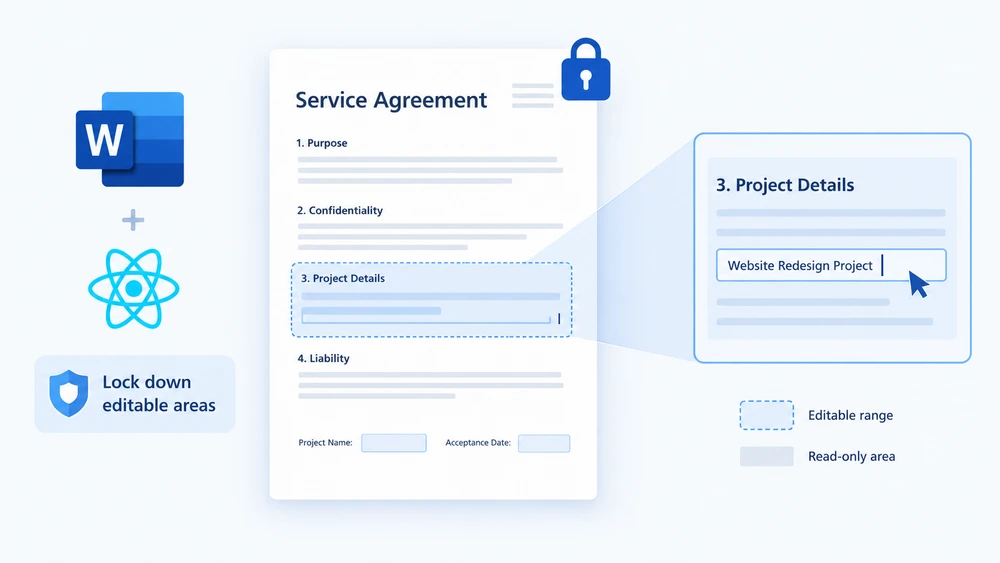
Imaginez un modèle de contrat envoyé à des dizaines de clients. L'équipe juridique a soigneusement rédigé chaque clause, et les seuls éléments que chaque destinataire doit toucher sont le bloc de signature, le nom du projet et la date d'acceptation. Remettez-leur un fichier Word entièrement modifiable et quelqu'un reformulera inévitablement une clause pénale ou supprimera une section de responsabilité. Verrouillez l'intégralité du document et personne ne pourra remplir les champs. Ce dont vous avez réellement besoin, c'est d'une édition sélective — un moyen de dire « ces paragraphes précis sont modifiables, tout le reste est figé ».
C'est exactement ce que vous offrent les plages modifiables. Vous protégez l'ensemble du document en lecture seule, puis vous placez une paire de marqueurs d'autorisation autour des paragraphes que vous souhaitez laisser ouverts. Toute personne ouvrant le fichier dans Word peut saisir du texte à l'intérieur de la zone balisée, mais ne peut modifier le moindre caractère en dehors. Spire.Doc for JavaScript met cette fonctionnalité à la disposition du navigateur via WebAssembly, ce qui vous permet de générer des documents protégés depuis une application React sans aller-retour vers le serveur — les polices et les fichiers d'entrée sont gérés par un système de fichiers virtuel en mémoire (VFS).
Ce guide parcourt les deux volets du processus :
- Définir une plage modifiable — protéger le document et baliser la zone ouverte
- Supprimer une plage modifiable — retirer les marqueurs et lever la restriction
Si vous n'avez pas encore intégré Spire.Doc à votre projet, commencez par Intégrer Spire.Doc for JavaScript dans un projet React. Les extraits de code ci-dessous supposent que le module WebAssembly est chargé et prêt.
Définir une plage modifiable
Le processus comporte trois étapes. Tout d'abord, chargez les fichiers de polices et le document Word cible dans le système de fichiers virtuel WASM avec FetchFileToVFS. Ensuite, instanciez un Document, chargez le fichier, appelez Protect pour verrouiller l'intégralité du document en lecture seule, puis créez une paire PermissionStart / PermissionEnd partageant le même id — ces deux marqueurs encadrent le paragraphe que vous souhaitez laisser modifiable. Enfin, enregistrez le fichier, relisez-le depuis le VFS, encapsulez-le dans un Blob et déclenchez un téléchargement.
function App() {
  const SetEditableRange = async () => {
    const docModule = window.wasmModule?.spiredoc;
    if (!docModule) {
      alert('Spire.Doc is not ready yet');
      return;
    }

    // Load the input document into VFS
    const inputFileName = "SetEditableRange.docx";
    await window.spire.FetchFileToVFS(inputFileName, "", `${process.env.PUBLIC_URL}static/data/`);

    // Create a document object and load the document
    const doc = new docModule.Document();
    doc.LoadFromFile(inputFileName);

    // Protect the whole document: everything outside the editable range is read-only
    doc.Protect({ type: docModule.ProtectionType.AllowOnlyReading, password: "password" });

    // Create the permission markers: a start and an end with the same id form one editable range
    const start = new docModule.PermissionStart(doc, "testID");
    const end = new docModule.PermissionEnd(doc, "testID");

    // Insert the markers into the first paragraph: the start at the beginning, the end appended at the end
    doc.Sections.get_Item(0).Paragraphs.get_Item(0).ChildObjects.Insert(0, start);
    doc.Sections.get_Item(0).Paragraphs.get_Item(0).ChildObjects.Add(end);

    // Save the document
    const outputFileName = "Set Editable Range.docx";
    doc.SaveToFile({ fileName: outputFileName, fileFormat: docModule.FileFormat.Docx2013 });
    doc.Dispose();

    const modifiedFileArray = window.dotnetRuntime.Module.FS.readFile(outputFileName);
    const blob = new Blob([modifiedFileArray], { type: 'application/vnd.openxmlformats-officedocument.wordprocessingml.document' });
    const url = URL.createObjectURL(blob);
    const a = document.createElement('a');
    a.href = url;
    a.download = outputFileName;
    a.click();
    URL.revokeObjectURL(url);
  };

 return (
    <div style={{ textAlign: 'center', height: '300px' }}>
      <h1>Set Editable Range in a Word Document</h1>
      <button onClick={SetEditableRange}>
        Generate
      </button>
    </div>
  );
}
export default App;
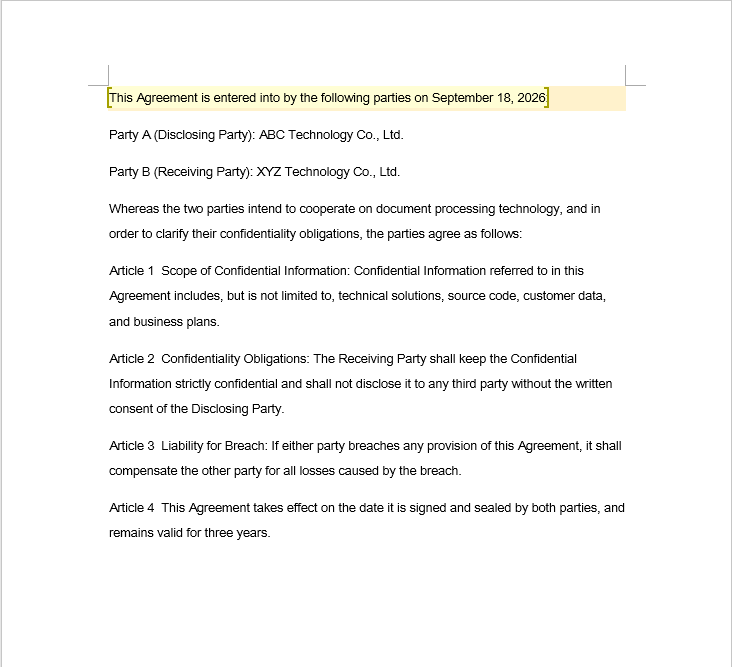
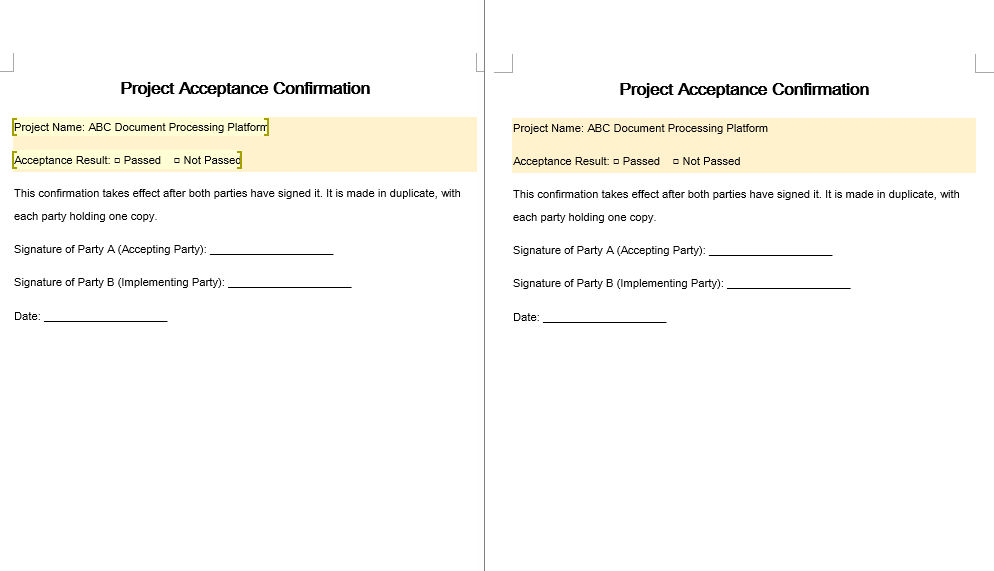
Dans le fichier d'exemple, les champs qu'un relecteur est autorisé à remplir portent un léger grisé — il s'agit uniquement d'un repère visuel pour le lecteur, sans aucune incidence sur la façon dont la plage modifiable est définie dans le code. Une fois les marqueurs en place, Word considère le paragraphe grisé comme modifiable et tous les autres paragraphes comme verrouillés.
Supprimer une plage modifiable
Supprimer la plage modifiable ne demande qu'un seul parcours : bouclez sur chaque section et chaque paragraphe, inspectez chaque objet de la collection ChildObjects du paragraphe et extrayez tout ce qui est un PermissionStart ou un PermissionEnd.
Une subtilité prend souvent les gens au dépourvu : ChildObjects.Remove réduit la collection immédiatement, de sorte que chaque élément suivant celui qui a été supprimé remonte d'un index. Si vous incrémentez votre compteur de boucle pendant la suppression, chaque suppression fait sauter le marqueur suivant — et plus vous avez de marqueurs, plus vous en laissez derrière vous.
function App() {
  const RemoveEditableRange = async () => {
    const docModule = window.wasmModule?.spiredoc;
    if (!docModule) {
      alert('Spire.Doc is not ready yet');
      return;
    }

      // Load the input document into VFS
      const inputFileName = "RemoveEditableRange.docx";
      await window.spire.FetchFileToVFS(inputFileName, "", `${process.env.PUBLIC_URL}static/data/`);

      // Create a document object and load the document
      const doc = new docModule.Document();
      doc.LoadFromFile(inputFileName);

      // Iterate over every section and paragraph and delete the permission markers
      for (let i = 0; i < doc.Sections.Count; i++) {
        const section = doc.Sections.get_Item(i);
        for (let j = 0; j < section.Body.Paragraphs.Count; j++) {
          const paragraph = section.Body.Paragraphs.get_Item(j);

          // Remove on a match; the collection shrinks, so the index is not incremented
          for (let k = 0; k < paragraph.ChildObjects.Count;) {
            const obj = paragraph.ChildObjects.get_Item(k);
            if (obj instanceof docModule.PermissionStart || obj instanceof docModule.PermissionEnd) {
              paragraph.ChildObjects.Remove(obj);
            } else {
              k++;
            }
          }
        }
      }

      // Save the document
      const outputFileName = "Remove Editable Range.docx";
      doc.SaveToFile({ fileName: outputFileName, fileFormat: docModule.FileFormat.Docx2013 });

    // Release resources
    doc.Dispose();

    const modifiedFileArray = window.dotnetRuntime.Module.FS.readFile(outputFileName);
    const blob = new Blob([modifiedFileArray], { type: 'application/vnd.openxmlformats-officedocument.wordprocessingml.document' });
    const url = URL.createObjectURL(blob);
    const a = document.createElement('a');
    a.href = url;
    a.download = outputFileName;
    a.click();
    URL.revokeObjectURL(url);
  };

 return (
    <div style={{ textAlign: 'center', height: '300px' }}>
      <h1>Remove Editable Ranges from a Word Document</h1>
      <button onClick={RemoveEditableRange}>
        Generate
      </button>
    </div>
  );
}
export default App;
La suppression des marqueurs ne fait que redéfinir la limite de ce qui est modifiable — le texte lui-même et toute la mise en forme restent intacts.
Le cycle de vie complet de la protection
Dans un véritable processus de validation, il est rare de ne faire qu'une seule chose. Un aller-retour type se déroule ainsi :
- Protéger — Appelez
doc.ProtectavecAllowOnlyReading(ouAllowOnlyFormFields) et un mot de passe. L'intégralité du document est désormais verrouillée. - Baliser — Encadrez chaque paragraphe modifiable par le relecteur dans une paire
PermissionStart/PermissionEndpartageant un même id. Ces zones deviennent les seuls endroits où un relecteur peut saisir du texte. - Débaliser — Une fois la campagne de révision terminée, parcourez le document et supprimez tous les marqueurs d'autorisation. Les zones rejoignent le corps en lecture seule.
- Déprotéger — Appelez
doc.Unprotect("password")pour libérer entièrement le document et le rétablir dans un état totalement modifiable pour l'étape suivante du traitement.
L'idée clé est que la protection et les plages modifiables sont deux couches indépendantes. La protection détermine si le document est verrouillé ou non ; la paire de marqueurs détermine quelles portions échappent à ce verrou. Vous pouvez ajouter et supprimer des marqueurs autant de fois que vous le souhaitez sans toucher à l'état de protection, et activer ou désactiver la protection sans perturber les marqueurs — mais les marqueurs n'ont de portée réelle que tant que la protection est active.
FAQ
La plage modifiable est définie, mais le contenu qu'elle renferme reste non modifiable
Pourquoi cela se produit : les marqueurs d'autorisation sont inactifs en eux-mêmes. Ils ne font que créer des exceptions à une restriction appliquée à l'ensemble du document ; donc si Protect n'a jamais été appelé, il n'existe aucune restriction dont ils pourraient exempter quoi que ce soit et les marqueurs ne font rien. Une seconde condition est que PermissionStart et PermissionEnd doivent porter la même chaîne d'id — Word ne les traite comme une paire que si les id correspondent.
Solution : activez d'abord la restriction de modification, puis créez les deux marqueurs avec un id identique :
// Enable protection first so that the markers mean something
document.Protect({ type: wasmModule.ProtectionType.AllowOnlyReading, password: "password" });

// The start and the end must use the same id
const start = new wasmModule.PermissionStart(document, "testID");
const end = new wasmModule.PermissionEnd(document, "testID");
Certains marqueurs sont oubliés lors de la suppression des plages modifiables
Pourquoi cela se produit : chaque appel à ChildObjects.Remove réduit la collection d'un élément, ce qui décale vers le bas l'index de tous les éléments suivants. Si le compteur de boucle progresse lors de la même itération qu'une suppression, l'élément qui a glissé à la position courante n'est jamais examiné — il est ignoré, et le problème s'aggrave à chaque marqueur supplémentaire.
Solution : soit maintenez l'index fixe pendant la suppression (ne l'incrémentez que lorsqu'aucune suppression n'a eu lieu), soit collectez d'abord les objets cibles et supprimez-les dans l'ordre inverse :
for (let k = 0; k < paragraph.ChildObjects.Count;) {
  const obj = paragraph.ChildObjects.get_Item(k);
  if (obj instanceof wasmModule.PermissionStart || obj instanceof wasmModule.PermissionEnd) {
    paragraph.ChildObjects.Remove(obj);
    // Do not increment k here: check the new object at the current index
  } else {
    k++;
  }
}
Le document reste en lecture seule après la suppression des marqueurs
Pourquoi cela se produit : les marqueurs définissent uniquement les zones exemptées du verrou — ils ne constituent pas le verrou lui-même. Les supprimer ne fait que supprimer les exemptions ; la protection sous-jacente établie par Protect est toujours en vigueur, de sorte que tout le document reste en lecture seule.
Solution : une fois les marqueurs supprimés et la restriction devenue inutile, appelez Unprotect avec le mot de passe d'origine :
document.Unprotect("password");
Voir aussi
Bloquear áreas editables en documentos de Word con JavaScript
Tabla de contenidos
Imagina una plantilla de contrato que se envía a decenas de clientes. El equipo legal ha redactado con cuidado cada cláusula, y lo único que cada destinatario debería tocar son el bloque de firma, el nombre del proyecto y la fecha de aceptación. Entrega un archivo de Word totalmente editable y alguien acabará reformulando una cláusula de penalización o eliminando una sección de responsabilidad. Bloquea todo el documento y nadie podrá rellenar los campos. Lo que realmente necesitas es edición selectiva: una forma de decir "estos párrafos concretos son editables, todo lo demás está congelado".
Eso es exactamente lo que te ofrecen los rangos editables. Proteges todo el documento como solo lectura y luego colocas un par de marcadores de permiso alrededor de los párrafos que quieres mantener abiertos. Cualquiera que abra el archivo en Word puede escribir dentro de la región marcada, pero no puede alterar ni un solo carácter fuera de ella. Spire.Doc for JavaScript lleva esta capacidad al navegador mediante WebAssembly, de modo que puedes generar documentos protegidos desde una aplicación React sin idas y vueltas al servidor: las fuentes y los archivos de entrada se gestionan a través de un sistema de archivos virtual (VFS) en memoria.
Esta guía recorre ambas partes del flujo de trabajo:
- Establecer un rango editable: protege el documento y marca el área abierta
- Eliminar un rango editable: quita los marcadores y levanta la restricción
Si aún no has integrado Spire.Doc en tu proyecto, empieza por Integrar Spire.Doc for JavaScript en un proyecto de React. Los fragmentos siguientes suponen que el módulo WebAssembly está cargado y listo.
Establecer un rango editable
El proceso tiene tres etapas. Primero, carga los archivos de fuentes y el documento de Word de destino en el sistema de archivos virtual de WASM con FetchFileToVFS. A continuación, crea una instancia de Document, carga el archivo, llama a Protect para bloquear todo el documento como solo lectura y luego crea un par PermissionStart / PermissionEnd que comparta el mismo id: estos dos marcadores delimitan el párrafo que quieres dejar editable. Por último, guarda el archivo, vuelve a leerlo desde el VFS, envuélvelo en un Blob y activa la descarga.
function App() {
  const SetEditableRange = async () => {
    const docModule = window.wasmModule?.spiredoc;
    if (!docModule) {
      alert('Spire.Doc is not ready yet');
      return;
    }

    // Load the input document into VFS
    const inputFileName = "SetEditableRange.docx";
    await window.spire.FetchFileToVFS(inputFileName, "", `${process.env.PUBLIC_URL}static/data/`);

    // Create a document object and load the document
    const doc = new docModule.Document();
    doc.LoadFromFile(inputFileName);

    // Protect the whole document: everything outside the editable range is read-only
    doc.Protect({ type: docModule.ProtectionType.AllowOnlyReading, password: "password" });

    // Create the permission markers: a start and an end with the same id form one editable range
    const start = new docModule.PermissionStart(doc, "testID");
    const end = new docModule.PermissionEnd(doc, "testID");

    // Insert the markers into the first paragraph: the start at the beginning, the end appended at the end
    doc.Sections.get_Item(0).Paragraphs.get_Item(0).ChildObjects.Insert(0, start);
    doc.Sections.get_Item(0).Paragraphs.get_Item(0).ChildObjects.Add(end);

    // Save the document
    const outputFileName = "Set Editable Range.docx";
    doc.SaveToFile({ fileName: outputFileName, fileFormat: docModule.FileFormat.Docx2013 });
    doc.Dispose();

    const modifiedFileArray = window.dotnetRuntime.Module.FS.readFile(outputFileName);
    const blob = new Blob([modifiedFileArray], { type: 'application/vnd.openxmlformats-officedocument.wordprocessingml.document' });
    const url = URL.createObjectURL(blob);
    const a = document.createElement('a');
    a.href = url;
    a.download = outputFileName;
    a.click();
    URL.revokeObjectURL(url);
  };

 return (
    <div style={{ textAlign: 'center', height: '300px' }}>
      <h1>Set Editable Range in a Word Document</h1>
      <button onClick={SetEditableRange}>
        Generate
      </button>
    </div>
  );
}
export default App;
En el archivo de ejemplo, los campos que el revisor puede rellenar llevan un sombreado claro: es solo una pista visual para el lector y no influye en cómo se define el rango editable en el código. Una vez colocados los marcadores, Word trata el párrafo sombreado como editable y todos los demás como bloqueados.
Eliminar un rango editable
Quitar el rango editable es un único recorrido: itera por cada sección y cada párrafo, inspecciona cada objeto de la colección ChildObjects del párrafo y extrae cualquier cosa que sea un PermissionStart o un PermissionEnd.
Un detalle sutil suele pillar desprevenidos a muchos: ChildObjects.Remove reduce la colección en el acto, por lo que cada elemento posterior al eliminado se desplaza un índice hacia delante. Si incrementas el contador del bucle mientras eliminas, cada eliminación provoca que se omita el marcador inmediatamente siguiente, y cuantos más marcadores tengas, más supervivientes dejarás atrás.
function App() {
  const RemoveEditableRange = async () => {
    const docModule = window.wasmModule?.spiredoc;
    if (!docModule) {
      alert('Spire.Doc is not ready yet');
      return;
    }

      // Load the input document into VFS
      const inputFileName = "RemoveEditableRange.docx";
      await window.spire.FetchFileToVFS(inputFileName, "", `${process.env.PUBLIC_URL}static/data/`);

      // Create a document object and load the document
      const doc = new docModule.Document();
      doc.LoadFromFile(inputFileName);

      // Iterate over every section and paragraph and delete the permission markers
      for (let i = 0; i < doc.Sections.Count; i++) {
        const section = doc.Sections.get_Item(i);
        for (let j = 0; j < section.Body.Paragraphs.Count; j++) {
          const paragraph = section.Body.Paragraphs.get_Item(j);

          // Remove on a match; the collection shrinks, so the index is not incremented
          for (let k = 0; k < paragraph.ChildObjects.Count;) {
            const obj = paragraph.ChildObjects.get_Item(k);
            if (obj instanceof docModule.PermissionStart || obj instanceof docModule.PermissionEnd) {
              paragraph.ChildObjects.Remove(obj);
            } else {
              k++;
            }
          }
        }
      }

      // Save the document
      const outputFileName = "Remove Editable Range.docx";
      doc.SaveToFile({ fileName: outputFileName, fileFormat: docModule.FileFormat.Docx2013 });

    // Release resources
    doc.Dispose();

    const modifiedFileArray = window.dotnetRuntime.Module.FS.readFile(outputFileName);
    const blob = new Blob([modifiedFileArray], { type: 'application/vnd.openxmlformats-officedocument.wordprocessingml.document' });
    const url = URL.createObjectURL(blob);
    const a = document.createElement('a');
    a.href = url;
    a.download = outputFileName;
    a.click();
    URL.revokeObjectURL(url);
  };

 return (
    <div style={{ textAlign: 'center', height: '300px' }}>
      <h1>Remove Editable Ranges from a Word Document</h1>
      <button onClick={RemoveEditableRange}>
        Generate
      </button>
    </div>
  );
}
export default App;
Eliminar los marcadores solo redibuja el límite de lo que es editable: el texto en sí y todo el formato permanecen intactos.
El ciclo de vida completo de la protección
En un flujo de trabajo de aprobación real, rara vez haces solo una cosa. Un ciclo típico de ida y vuelta es así:
- Proteger: llama a
doc.ProtectconAllowOnlyReading(oAllowOnlyFormFields) y una contraseña. Todo el documento queda bloqueado. - Marcar: envuelve cada párrafo editable por el revisor en un par
PermissionStart/PermissionEndque comparta un mismo id. Esas regiones pasan a ser los únicos lugares donde el revisor puede escribir. - Desmarcar: cuando termina la ronda de revisión, recorre el documento y elimina todos los marcadores de permiso. Las regiones vuelven a formar parte del cuerpo de solo lectura.
- Desproteger: llama a
doc.Unprotect("password")para liberar el documento por completo, devolviéndolo a un estado totalmente editable para la siguiente etapa del procesamiento.
La clave está en que la protección y los rangos editables son dos capas independientes. La protección decide si el documento está bloqueado; el par de marcadores decide qué pequeñas porciones quedan exentas de ese bloqueo. Puedes añadir y eliminar marcadores tantas veces como quieras sin tocar el estado de protección, y puedes activar o desactivar la protección sin alterar los marcadores, pero los marcadores solo tienen efecto mientras la protección está activa.
Preguntas frecuentes
El rango editable está establecido, pero el contenido dentro de él aún no se puede editar
Por qué ocurre: los marcadores de permiso son inertes por sí solos. Solo establecen excepciones a una restricción que abarca todo el documento, así que si nunca se llamó a Protect, no hay ninguna restricción de la que eximirse y los marcadores no hacen nada. Un segundo requisito es que PermissionStart y PermissionEnd lleven la misma cadena de id: Word solo los trata como un par cuando los ids coinciden.
Solución: activa primero la restricción de edición y luego crea ambos marcadores con un id idéntico:
// Enable protection first so that the markers mean something
document.Protect({ type: wasmModule.ProtectionType.AllowOnlyReading, password: "password" });

// The start and the end must use the same id
const start = new wasmModule.PermissionStart(document, "testID");
const end = new wasmModule.PermissionEnd(document, "testID");
Algunos marcadores se omiten al eliminar rangos editables
Por qué ocurre: cada llamada a ChildObjects.Remove reduce la colección en uno, desplazando hacia abajo el índice de todos los elementos siguientes. Si el contador del bucle avanza en la misma iteración que una eliminación, el elemento que se deslizó a la posición actual nunca se examina: se omite, y el problema se agrava con cada marcador adicional.
Solución: mantén el índice fijo mientras eliminas (avánzalo solo cuando no se haya producido ninguna eliminación) o reúne primero los objetos objetivo y elimínalos en orden inverso:
for (let k = 0; k < paragraph.ChildObjects.Count;) {
  const obj = paragraph.ChildObjects.get_Item(k);
  if (obj instanceof wasmModule.PermissionStart || obj instanceof wasmModule.PermissionEnd) {
    paragraph.ChildObjects.Remove(obj);
    // Do not increment k here: check the new object at the current index
  } else {
    k++;
  }
}
El documento sigue siendo de solo lectura después de eliminar los marcadores
Por qué ocurre: los marcadores solo definen qué áreas quedan exentas del bloqueo; no son el bloqueo en sí. Eliminarlos simplemente quita las exenciones; la protección subyacente que estableció Protect sigue vigente, por lo que todo el documento permanece de solo lectura.
Solución: una vez que los marcadores han desaparecido y ya no necesitas la restricción, llama a Unprotect con la contraseña original:
document.Unprotect("password");
Véase también
Bearbeitbare Bereiche in Word-Dokumenten mit JavaScript sperren
Inhaltsverzeichnis
Stellen Sie sich eine Vertragsvorlage vor, die an Dutzende von Kunden versendet wird. Das Rechtsteam hat jede Klausel sorgfältig ausgearbeitet, und die einzigen Dinge, die jeder Empfänger anfassen sollte, sind der Unterschriftsblock, der Projektname und das Annahmedatum. Geben Sie ihnen eine vollständig bearbeitbare Word-Datei, und irgendjemand wird unweigerlich eine Vertragsstrafenklausel umformulieren oder einen Haftungsabschnitt löschen. Sperren Sie das gesamte Dokument, und niemand kann die Felder überhaupt ausfüllen. Was Sie wirklich brauchen, ist selektives Bearbeiten — eine Möglichkeit zu sagen: „Diese bestimmten Absätze sind freigegeben, alles andere ist eingefroren.“
Genau das ermöglichen Ihnen bearbeitbare Bereiche. Sie schützen das gesamte Dokument als schreibgeschützt und setzen dann ein Paar Berechtigungsmarkierungen um die Absätze, die Sie offen halten möchten. Jeder, der die Datei in Word öffnet, kann innerhalb des markierten Bereichs tippen, aber außerhalb davon kein einziges Zeichen ändern. Spire.Doc for JavaScript bringt diese Funktion über WebAssembly in den Browser, sodass Sie geschützte Dokumente aus einer React-App ohne Server-Roundtrip erzeugen können — Schriftarten und Eingabedateien werden über ein virtuelles In-Memory-Dateisystem (VFS) verwaltet.
Dieser Leitfaden behandelt beide Hälften des Workflows:
- Einen bearbeitbaren Bereich festlegen — das Dokument schützen und den offenen Bereich markieren
- Einen bearbeitbaren Bereich entfernen — die Markierungen entfernen und die Einschränkung aufheben
Wenn Sie Spire.Doc noch nicht in Ihr Projekt eingebunden haben, beginnen Sie mit Integrating Spire.Doc for JavaScript in a React Project. Die folgenden Snippets gehen davon aus, dass das WebAssembly-Modul geladen und bereit ist.
Einen bearbeitbaren Bereich festlegen
Der Prozess hat drei Phasen. Zuerst laden Sie die Schriftartdateien und das Ziel-Word-Dokument mit FetchFileToVFS in das virtuelle WASM-Dateisystem. Als Nächstes instanziieren Sie ein Document, laden die Datei, rufen Protect auf, um das gesamte Dokument als schreibgeschützt zu sperren, und erstellen dann ein Paar aus PermissionStart / PermissionEnd, das dieselbe id teilt — diese beiden Markierungen umschließen den Absatz, den Sie bearbeitbar lassen möchten. Abschließend speichern Sie die Datei, lesen sie aus dem VFS zurück, verpacken sie in einen Blob und lösen einen Download aus.
function App() {
  const SetEditableRange = async () => {
    const docModule = window.wasmModule?.spiredoc;
    if (!docModule) {
      alert('Spire.Doc is not ready yet');
      return;
    }

    // Load the input document into VFS
    const inputFileName = "SetEditableRange.docx";
    await window.spire.FetchFileToVFS(inputFileName, "", `${process.env.PUBLIC_URL}static/data/`);

    // Create a document object and load the document
    const doc = new docModule.Document();
    doc.LoadFromFile(inputFileName);

    // Protect the whole document: everything outside the editable range is read-only
    doc.Protect({ type: docModule.ProtectionType.AllowOnlyReading, password: "password" });

    // Create the permission markers: a start and an end with the same id form one editable range
    const start = new docModule.PermissionStart(doc, "testID");
    const end = new docModule.PermissionEnd(doc, "testID");

    // Insert the markers into the first paragraph: the start at the beginning, the end appended at the end
    doc.Sections.get_Item(0).Paragraphs.get_Item(0).ChildObjects.Insert(0, start);
    doc.Sections.get_Item(0).Paragraphs.get_Item(0).ChildObjects.Add(end);

    // Save the document
    const outputFileName = "Set Editable Range.docx";
    doc.SaveToFile({ fileName: outputFileName, fileFormat: docModule.FileFormat.Docx2013 });
    doc.Dispose();

    const modifiedFileArray = window.dotnetRuntime.Module.FS.readFile(outputFileName);
    const blob = new Blob([modifiedFileArray], { type: 'application/vnd.openxmlformats-officedocument.wordprocessingml.document' });
    const url = URL.createObjectURL(blob);
    const a = document.createElement('a');
    a.href = url;
    a.download = outputFileName;
    a.click();
    URL.revokeObjectURL(url);
  };

 return (
    <div style={{ textAlign: 'center', height: '300px' }}>
      <h1>Set Editable Range in a Word Document</h1>
      <button onClick={SetEditableRange}>
        Generate
      </button>
    </div>
  );
}
export default App;
In der Beispieldatei tragen die Felder, die ein Prüfer ausfüllen darf, eine leichte Schattierung — das ist lediglich ein visueller Hinweis für den Leser und hat keinen Einfluss darauf, wie der bearbeitbare Bereich im Code definiert wird. Sobald die Markierungen platziert sind, behandelt Word den schattierten Absatz als bearbeitbar und jeden anderen Absatz als gesperrt.
Einen bearbeitbaren Bereich entfernen
Das Entfernen des bearbeitbaren Bereichs ist eine einzige Durchquerung: Sie durchlaufen jeden Abschnitt und jeden Absatz, prüfen jedes Objekt in der ChildObjects-Sammlung des Absatzes und ziehen alles heraus, was ein PermissionStart oder PermissionEnd ist.
Eine Feinheit überrascht viele: ChildObjects.Remove verkleinert die Sammlung sofort, sodass jedes Element nach dem entfernten um einen Index nach vorne rutscht. Wenn Sie Ihren Schleifenzähler beim Löschen erhöhen, wird bei jeder Entfernung genau die nächste Markierung übersprungen — und je mehr Markierungen Sie haben, desto mehr Überbleibsel bleiben zurück.
function App() {
  const RemoveEditableRange = async () => {
    const docModule = window.wasmModule?.spiredoc;
    if (!docModule) {
      alert('Spire.Doc is not ready yet');
      return;
    }

      // Load the input document into VFS
      const inputFileName = "RemoveEditableRange.docx";
      await window.spire.FetchFileToVFS(inputFileName, "", `${process.env.PUBLIC_URL}static/data/`);

      // Create a document object and load the document
      const doc = new docModule.Document();
      doc.LoadFromFile(inputFileName);

      // Iterate over every section and paragraph and delete the permission markers
      for (let i = 0; i < doc.Sections.Count; i++) {
        const section = doc.Sections.get_Item(i);
        for (let j = 0; j < section.Body.Paragraphs.Count; j++) {
          const paragraph = section.Body.Paragraphs.get_Item(j);

          // Remove on a match; the collection shrinks, so the index is not incremented
          for (let k = 0; k < paragraph.ChildObjects.Count;) {
            const obj = paragraph.ChildObjects.get_Item(k);
            if (obj instanceof docModule.PermissionStart || obj instanceof docModule.PermissionEnd) {
              paragraph.ChildObjects.Remove(obj);
            } else {
              k++;
            }
          }
        }
      }

      // Save the document
      const outputFileName = "Remove Editable Range.docx";
      doc.SaveToFile({ fileName: outputFileName, fileFormat: docModule.FileFormat.Docx2013 });

    // Release resources
    doc.Dispose();

    const modifiedFileArray = window.dotnetRuntime.Module.FS.readFile(outputFileName);
    const blob = new Blob([modifiedFileArray], { type: 'application/vnd.openxmlformats-officedocument.wordprocessingml.document' });
    const url = URL.createObjectURL(blob);
    const a = document.createElement('a');
    a.href = url;
    a.download = outputFileName;
    a.click();
    URL.revokeObjectURL(url);
  };

 return (
    <div style={{ textAlign: 'center', height: '300px' }}>
      <h1>Remove Editable Ranges from a Word Document</h1>
      <button onClick={RemoveEditableRange}>
        Generate
      </button>
    </div>
  );
}
export default App;
Das Löschen der Markierungen verschiebt nur die Grenze dessen, was bearbeitbar ist — der Text selbst und die gesamte Formatierung bleiben unberührt.
Der vollständige Schutz-Lebenszyklus
In einem realen Genehmigungsworkflow tun Sie selten nur eine einzige Sache. Ein typischer Durchlauf sieht so aus:
- Schützen — Rufen Sie
doc.ProtectmitAllowOnlyReading(oderAllowOnlyFormFields) und einem Kennwort auf. Das gesamte Dokument ist nun gesperrt. - Markieren — Umschließen Sie jeden für Prüfer bearbeitbaren Absatz mit einem Paar aus
PermissionStart/PermissionEnd, das eine id teilt. Diese Bereiche werden zu den einzigen Stellen, an denen ein Prüfer tippen kann. - Markierung entfernen — Wenn die Prüfungsrunde vorbei ist, durchlaufen Sie das Dokument und entfernen jede Berechtigungsmarkierung. Die Bereiche fügen sich wieder in den schreibgeschützten Hauptteil ein.
- Schutz aufheben — Rufen Sie
doc.Unprotect("password")auf, um das Dokument vollständig freizugeben und es für die nächste Verarbeitungsphase wieder in einen vollständig bearbeitbaren Zustand zu versetzen.
Die entscheidende Erkenntnis ist, dass Schutz und bearbeitbare Bereiche zwei unabhängige Ebenen sind. Der Schutz entscheidet, ob das Dokument überhaupt gesperrt ist; das Markierungspaar entscheidet, welche kleinen Bereiche von dieser Sperre ausgenommen sind. Sie können Markierungen beliebig oft hinzufügen und entfernen, ohne den Schutzstatus zu berühren, und Sie können den Schutz ein- oder ausschalten, ohne die Markierungen zu stören — aber die Markierungen haben nur dann Wirkung, wenn der Schutz aktiv ist.
FAQ
Der bearbeitbare Bereich ist festgelegt, aber der Inhalt darin kann trotzdem nicht bearbeitet werden
Warum das passiert: Berechtigungsmarkierungen sind für sich genommen wirkungslos. Sie schaffen lediglich Ausnahmen von einer dokumentweiten Einschränkung. Wenn Protect also nie aufgerufen wurde, gibt es keine Einschränkung, von der ausgenommen werden könnte, und die Markierungen bewirken nichts. Eine zweite Voraussetzung ist, dass PermissionStart und PermissionEnd dieselbe id-Zeichenfolge tragen müssen — Word behandelt sie nur dann als Paar, wenn die ids übereinstimmen.
Lösung: Aktivieren Sie zuerst die Bearbeitungseinschränkung und erstellen Sie dann beide Markierungen mit einer identischen id:
// Enable protection first so that the markers mean something
document.Protect({ type: wasmModule.ProtectionType.AllowOnlyReading, password: "password" });

// The start and the end must use the same id
const start = new wasmModule.PermissionStart(document, "testID");
const end = new wasmModule.PermissionEnd(document, "testID");
Beim Entfernen bearbeitbarer Bereiche werden einige Markierungen übersehen
Warum das passiert: Jeder Aufruf von ChildObjects.Remove verkleinert die Sammlung um eins und verschiebt den Index jedes nachfolgenden Elements nach unten. Wenn der Schleifenzähler im selben Durchlauf wie eine Entfernung erhöht wird, wird das Element, das an die aktuelle Position gerutscht ist, nie geprüft — es wird übersprungen, und das Problem verstärkt sich mit jeder weiteren Markierung.
Lösung: Halten Sie den Index beim Entfernen entweder stabil (erhöhen Sie ihn nur, wenn keine Entfernung stattgefunden hat) oder sammeln Sie die Zielobjekte zuerst und löschen Sie sie in umgekehrter Reihenfolge:
for (let k = 0; k < paragraph.ChildObjects.Count;) {
  const obj = paragraph.ChildObjects.get_Item(k);
  if (obj instanceof wasmModule.PermissionStart || obj instanceof wasmModule.PermissionEnd) {
    paragraph.ChildObjects.Remove(obj);
    // Do not increment k here: check the new object at the current index
  } else {
    k++;
  }
}
Das Dokument ist nach dem Entfernen der Markierungen weiterhin schreibgeschützt
Warum das passiert: Die Markierungen definieren nur, welche Bereiche von der Sperre ausgenommen sind — sie sind nicht die Sperre selbst. Ihr Entfernen hebt lediglich die Ausnahmen auf; der zugrunde liegende Schutz, den Protect eingerichtet hat, ist weiterhin in Kraft, sodass das gesamte Dokument schreibgeschützt bleibt.
Lösung: Sobald die Markierungen entfernt sind und Sie die Einschränkung nicht mehr benötigen, rufen Sie Unprotect mit dem ursprünglichen Kennwort auf:
document.Unprotect("password");
Siehe auch
Блокировка редактируемых областей в документах Word с помощью JavaScript
Представьте шаблон договора, который отправляется десяткам клиентов. Юридический отдел тщательно проработал каждую статью, и единственное, что должен изменить каждый получатель, — это блок подписи, название проекта и дата принятия. Дайте им полностью редактируемый файл Word, и кто-нибудь неизбежно переформулирует статью о штрафах или удалит раздел об ответственности. Заблокируйте весь документ, и никто не сможет заполнить поля. На самом деле вам нужно выборочное редактирование — способ сказать: «эти конкретные абзацы можно редактировать, всё остальное заморожено».
Именно это и дают вам редактируемые диапазоны. Вы защищаете весь документ как доступный только для чтения, а затем размещаете пару маркеров разрешений вокруг абзацев, которые хотите оставить открытыми. Любой, кто откроет файл в Word, сможет печатать внутри отмеченной области, но не сможет изменить ни одного символа за её пределами. Spire.Doc for JavaScript предоставляет эту возможность в браузере через WebAssembly, так что вы можете создавать защищённые документы из приложения React без обращения к серверу — шрифты и входные файлы управляются через виртуальную файловую систему в памяти (VFS).
В этом руководстве рассматриваются обе части рабочего процесса:
- Задать редактируемый диапазон — защитить документ и отметить открытую область
- Удалить редактируемый диапазон — удалить маркеры и снять ограничение
Если вы ещё не подключили Spire.Doc к своему проекту, начните с Интеграция Spire.Doc for JavaScript в проект React. Приведённые ниже фрагменты предполагают, что модуль WebAssembly загружен и готов.
Задать редактируемый диапазон
Процесс состоит из трёх этапов. Сначала загрузите файлы шрифтов и целевой документ Word в виртуальную файловую систему WASM с помощью FetchFileToVFS. Затем создайте экземпляр Document, загрузите файл, вызовите Protect, чтобы заблокировать весь документ как доступный только для чтения, и создайте пару PermissionStart / PermissionEnd с одинаковым идентификатором — эти два маркера обрамляют абзац, который вы хотите оставить редактируемым. Наконец, сохраните файл, прочитайте его из VFS, оберните в Blob и инициируйте скачивание.
function App() {
  const SetEditableRange = async () => {
    const docModule = window.wasmModule?.spiredoc;
    if (!docModule) {
      alert('Spire.Doc is not ready yet');
      return;
    }

    // Load the input document into VFS
    const inputFileName = "SetEditableRange.docx";
    await window.spire.FetchFileToVFS(inputFileName, "", `${process.env.PUBLIC_URL}static/data/`);

    // Create a document object and load the document
    const doc = new docModule.Document();
    doc.LoadFromFile(inputFileName);

    // Protect the whole document: everything outside the editable range is read-only
    doc.Protect({ type: docModule.ProtectionType.AllowOnlyReading, password: "password" });

    // Create the permission markers: a start and an end with the same id form one editable range
    const start = new docModule.PermissionStart(doc, "testID");
    const end = new docModule.PermissionEnd(doc, "testID");

    // Insert the markers into the first paragraph: the start at the beginning, the end appended at the end
    doc.Sections.get_Item(0).Paragraphs.get_Item(0).ChildObjects.Insert(0, start);
    doc.Sections.get_Item(0).Paragraphs.get_Item(0).ChildObjects.Add(end);

    // Save the document
    const outputFileName = "Set Editable Range.docx";
    doc.SaveToFile({ fileName: outputFileName, fileFormat: docModule.FileFormat.Docx2013 });
    doc.Dispose();

    const modifiedFileArray = window.dotnetRuntime.Module.FS.readFile(outputFileName);
    const blob = new Blob([modifiedFileArray], { type: 'application/vnd.openxmlformats-officedocument.wordprocessingml.document' });
    const url = URL.createObjectURL(blob);
    const a = document.createElement('a');
    a.href = url;
    a.download = outputFileName;
    a.click();
    URL.revokeObjectURL(url);
  };

 return (
    <div style={{ textAlign: 'center', height: '300px' }}>
      <h1>Set Editable Range in a Word Document</h1>
      <button onClick={SetEditableRange}>
        Generate
      </button>
    </div>
  );
}
export default App;
В образце документа поля, которые разрешено заполнять рецензенту, имеют лёгкую заливку — это чисто визуальная подсказка для читателя, и она не влияет на то, как редактируемый диапазон определяется в коде. После установки маркеров Word рассматривает абзац с заливкой как редактируемый, а все остальные абзацы как заблокированные.
Удалить редактируемый диапазон
Удаление редактируемого диапазона — это один обход: пройдитесь по каждому разделу и каждому абзацу, проверьте каждый объект в коллекции ChildObjects абзаца и извлеките все, что является PermissionStart или PermissionEnd.
Одна тонкость застаёт людей врасплох: ChildObjects.Remove уменьшает коллекцию на месте, поэтому каждый элемент после удалённого сдвигается на один индекс вперёд. Если вы увеличиваете счётчик цикла во время удаления, каждое удаление приводит к пропуску следующего маркера — и чем больше маркеров, тем больше их останется.
function App() {
  const RemoveEditableRange = async () => {
    const docModule = window.wasmModule?.spiredoc;
    if (!docModule) {
      alert('Spire.Doc is not ready yet');
      return;
    }

      // Load the input document into VFS
      const inputFileName = "RemoveEditableRange.docx";
      await window.spire.FetchFileToVFS(inputFileName, "", `${process.env.PUBLIC_URL}static/data/`);

      // Create a document object and load the document
      const doc = new docModule.Document();
      doc.LoadFromFile(inputFileName);

      // Iterate over every section and paragraph and delete the permission markers
      for (let i = 0; i < doc.Sections.Count; i++) {
        const section = doc.Sections.get_Item(i);
        for (let j = 0; j < section.Body.Paragraphs.Count; j++) {
          const paragraph = section.Body.Paragraphs.get_Item(j);

          // Remove on a match; the collection shrinks, so the index is not incremented
          for (let k = 0; k < paragraph.ChildObjects.Count;) {
            const obj = paragraph.ChildObjects.get_Item(k);
            if (obj instanceof docModule.PermissionStart || obj instanceof docModule.PermissionEnd) {
              paragraph.ChildObjects.Remove(obj);
            } else {
              k++;
            }
          }
        }
      }

      // Save the document
      const outputFileName = "Remove Editable Range.docx";
      doc.SaveToFile({ fileName: outputFileName, fileFormat: docModule.FileFormat.Docx2013 });

    // Release resources
    doc.Dispose();

    const modifiedFileArray = window.dotnetRuntime.Module.FS.readFile(outputFileName);
    const blob = new Blob([modifiedFileArray], { type: 'application/vnd.openxmlformats-officedocument.wordprocessingml.document' });
    const url = URL.createObjectURL(blob);
    const a = document.createElement('a');
    a.href = url;
    a.download = outputFileName;
    a.click();
    URL.revokeObjectURL(url);
  };

 return (
    <div style={{ textAlign: 'center', height: '300px' }}>
      <h1>Remove Editable Ranges from a Word Document</h1>
      <button onClick={RemoveEditableRange}>
        Generate
      </button>
    </div>
  );
}
export default App;
Удаление маркеров лишь перерисовывает границу того, что можно редактировать — сам текст и всё форматирование остаются нетронутыми.
Полный жизненный цикл защиты
В реальном процессе утверждения вы редко делаете что-то одно. Типичный цикл выглядит так:
- Защитить — Вызовите
doc.ProtectсAllowOnlyReading(илиAllowOnlyFormFields) и паролем. Теперь весь документ заблокирован. - Отметить — Оберните каждый редактируемый рецензентом абзац в пару
PermissionStart/PermissionEndс одним идентификатором. Эти области становятся единственными местами, где рецензент может печатать. - Снять отметку — Когда раунд проверки завершён, пройдите по документу и удалите все маркеры разрешений. Области снова присоединяются к телу, доступному только для чтения.
- Снять защиту — Вызовите
doc.Unprotect("password"), чтобы полностью снять защиту с документа и вернуть его в полностью редактируемое состояние для следующего этапа обработки.
Ключевая идея в том, что защита и редактируемые диапазоны — это два независимых слоя. Защита решает, заблокирован ли документ вообще; пара маркеров решает, какие фрагменты освобождены от этой блокировки. Вы можете добавлять и удалять маркеры сколько угодно раз, не затрагивая состояние защиты, и включать или выключать защиту, не нарушая маркеры — но маркеры имеют силу только пока защита активна.
Часто задаваемые вопросы
Редактируемый диапазон задан, но содержимое внутри него всё ещё нельзя редактировать
Почему это происходит: Маркеры разрешений сами по себе инертны. Они лишь создают исключения из ограничения на весь документ, поэтому если Protect никогда не вызывался, то нет ограничения, из которого можно сделать исключение, и маркеры ничего не делают. Второе требование — PermissionStart и PermissionEnd должны иметь одинаковую строку идентификатора — Word рассматривает их как пару только при совпадении идентификаторов.
Решение: Сначала включите ограничение редактирования, затем создайте оба маркера с одинаковым идентификатором:
// Enable protection first so that the markers mean something
document.Protect({ type: wasmModule.ProtectionType.AllowOnlyReading, password: "password" });

// The start and the end must use the same id
const start = new wasmModule.PermissionStart(document, "testID");
const end = new wasmModule.PermissionEnd(document, "testID");
Некоторые маркеры пропускаются при удалении редактируемых диапазонов
Почему это происходит: Каждый вызов ChildObjects.Remove уменьшает коллекцию на один элемент, сдвигая индекс каждого последующего элемента вниз. Если счётчик цикла увеличивается в той же итерации, что и удаление, элемент, сдвинувшийся на текущую позицию, не проверяется — он пропускается, и проблема усугубляется с каждым дополнительным маркером.
Решение: Либо удерживайте индекс на месте во время удаления (увеличивайте его только когда удаления не было), либо сначала соберите целевые объекты, а затем удаляйте их в обратном порядке:
for (let k = 0; k < paragraph.ChildObjects.Count;) {
  const obj = paragraph.ChildObjects.get_Item(k);
  if (obj instanceof wasmModule.PermissionStart || obj instanceof wasmModule.PermissionEnd) {
    paragraph.ChildObjects.Remove(obj);
    // Do not increment k here: check the new object at the current index
  } else {
    k++;
  }
}
Документ всё ещё доступен только для чтения после удаления маркеров
Почему это происходит: Маркеры лишь определяют, какие области освобождены от блокировки — они не являются самой блокировкой. Их удаление просто убирает исключения; основная защита, установленная Protect, всё ещё действует, поэтому весь документ остаётся доступным только для чтения.
Решение: После удаления маркеров и когда ограничение больше не нужно, вызовите Unprotect с исходным паролем:
document.Unprotect("password");
См. также
Proteja documentos do Word com JavaScript: restrinja a edição
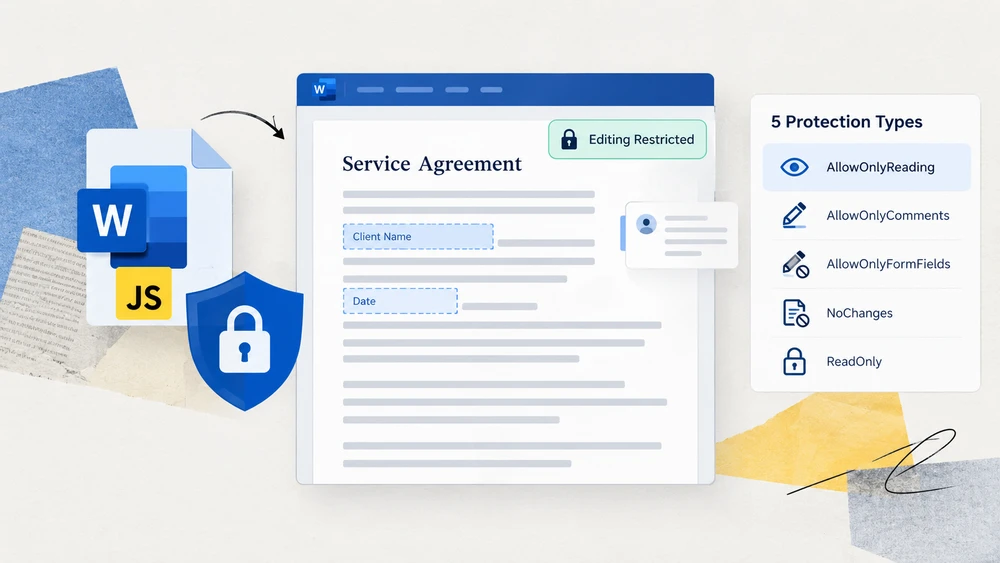
Quando os desenvolvedores ouvem "proteger um documento do Word", a primeira coisa que costuma vir à mente é a criptografia — definir uma senha para que ninguém consiga abrir o arquivo. Mas existe uma segunda camada de segurança de documentos, igualmente importante: restringir o que um leitor pode fazer depois que o documento está aberto. Um modelo de contrato enviado a um cliente deve permitir que ele preencha as lacunas sem alterar os termos acordados. Um rascunho final circulado para revisão deve permitir comentários, mas bloquear edições diretas no corpo do texto. Esses cenários exigem restrições de edição, não criptografia com senha de abertura.
Spire.Doc for JavaScript traz essa capacidade diretamente para o navegador por meio do WebAssembly. Usando um sistema de arquivos virtual (VFS) para gerenciar fontes e recursos de arquivo, ele processa documentos do Word inteiramente no lado do cliente — sem servidor back-end, sem upload de arquivo, sem latência de ida e volta. O método Protect aceita um valor de enumeração ProtectionType junto com uma senha e aplica a restrição de edição correspondente ao documento.
Este artigo apresenta os cinco tipos de proteção disponíveis no Spire.Doc for JavaScript, compara-os em uma única tabela de referência e, em seguida, demonstra como aplicar um tipo de proteção ao documento inteiro e como bloquear apenas seções específicas, deixando as demais editáveis.
Proteção vs. Criptografia: dois objetivos diferentes
Antes de mergulhar nos tipos de proteção, vale traçar uma linha clara entre dois conceitos que são frequentemente confundidos:
- Criptografia (senha de abertura) controla quem pode abrir o documento. Sem a senha, o conteúdo do arquivo fica inacessível.
- Restrições de edição (tipo de proteção) controlam o que um leitor pode alterar depois que o documento já está aberto. O leitor pode visualizar o conteúdo livremente; a restrição limita quais ações de edição estão disponíveis.
As restrições de edição não impedem a seleção, a cópia ou a pesquisa — elas apenas bloqueiam modificações. Se o seu objetivo é impedir que o conteúdo seja levado embora, você precisa de criptografia. Se o seu objetivo é impedir que o conteúdo seja alterado, permitindo ainda que ele seja lido, você precisa de uma restrição de edição. Os dois mecanismos são complementares e podem ser usados juntos, mas atendem a propósitos distintos.
Tipos de proteção em resumo
O Spire.Doc for JavaScript expõe cinco valores de enumeração ProtectionType. Cada um deles define um escopo editável diferente — de totalmente aberto a totalmente bloqueado. A tabela abaixo resume todos os cinco para que você possa escolher o certo num relance.
| ProtectionType | Efeito no documento | Caso de uso típico |
|---|---|---|
NoProtection |
Nenhuma restrição aplicada; todas as ações de edição estão disponíveis. | Remover uma restrição existente ou começar de um estado limpo. |
AllowOnlyReading |
O documento pode ser visualizado, mas não editado. Os comandos de edição da faixa de opções ficam desabilitados. | Relatórios finais, avisos publicados ou qualquer entrega somente leitura. |
AllowOnlyComments |
Os leitores podem adicionar comentários, mas não podem modificar o corpo do texto. | Ciclos de revisão em que os revisores devem deixar feedback sem alterar o conteúdo. |
AllowOnlyFormFields |
Apenas os campos de formulário são editáveis; o restante do documento fica bloqueado. | Contratos, pesquisas e modelos com áreas para preenchimento. |
AllowOnlyRevisions |
Todas as edições são aceitas como alterações controladas e podem ser revisadas posteriormente. | Redação colaborativa em que cada alteração deve ser visível e reversível. |
Como escolher: Se o leitor não deve alterar nada, use AllowOnlyReading. Se o leitor deve preencher apenas os espaços designados, use AllowOnlyFormFields. Se o leitor deve deixar feedback sem tocar no texto, use AllowOnlyComments. Se cada alteração deve ser controlada para revisão posterior, use AllowOnlyRevisions. Se você precisa remover uma restrição aplicada anteriormente, use NoProtection.
Aplicar um tipo de proteção ao documento inteiro
A abordagem mais direta é proteger o documento inteiro com um único valor de ProtectionType. O fluxo de trabalho tem três estágios: carregar os arquivos de fonte e o documento do Word de destino no sistema de arquivos virtual do WASM via FetchFileToVFS; instanciar um Document, carregar o arquivo e chamar Protect com o tipo de proteção desejado e a senha que posteriormente removerá a restrição; depois salvar o documento, ler o arquivo gerado do VFS, envolvê-lo como um Blob e disparar o download pelo navegador.
O exemplo abaixo usa AllowOnlyReading, mas você pode substituí-lo por qualquer um dos cinco valores de ProtectionType da tabela acima.
function App() {
  const protectWithSpecifiedType = async () => {
    const docModule = window.wasmModule?.spiredoc;
    if (!docModule) {
      alert('Spire.Doc is not ready yet');
      return;
    }

    const inputFileName = 'Template.docx';
    await window.spire.FetchFileToVFS(inputFileName, '', `${process.env.PUBLIC_URL}/data/`);

    // Load the document
    const doc = new docModule.Document();
    doc.LoadFromFile(inputFileName);

    // Protect the document with the "AllowOnlyReading" type; the password lifts the restriction
    doc.Protect({ type: docModule.ProtectionType.AllowOnlyReading, password: "123456" });

    // Define the output file name and save
    const outputFileName = "SpecifiedProtectionType.docx";
    doc.SaveToFile({ fileName: outputFileName, fileFormat: docModule.FileFormat.Docx2013 });
    doc.Dispose();

    const modifiedFileArray = window.dotnetRuntime.Module.FS.readFile(outputFileName);
    const blob = new Blob([modifiedFileArray], { type: 'application/vnd.openxmlformats-officedocument.wordprocessingml.document' });
    const url = URL.createObjectURL(blob);
    const a = document.createElement('a');
    a.href = url;
    a.download = outputFileName;
    a.click();
    URL.revokeObjectURL(url);
  };

 return (
    <div style={{ textAlign: 'center', height: '300px' }}>
      <h1>Protect a Document with a Specified Type</h1>
      <button onClick={protectWithSpecifiedType}>Generate</button>
    </div>
  );
}
export default App;
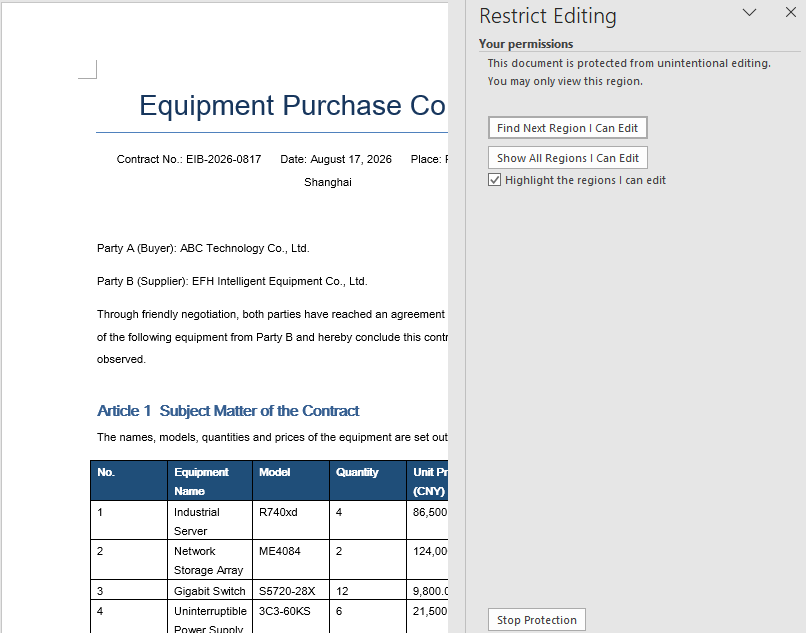
Depois que o documento é protegido com o tipo AllowOnlyReading, seu conteúdo só pode ser visualizado e os comandos de edição na faixa de opções ficam restritos.
Bloquear apenas seções especificadas
Proteger o documento inteiro de forma uniforme funciona bem para entregas simples, mas muitos documentos do mundo real exigem um cuidado mais refinado. Um modelo de orçamento, por exemplo, pode ter termos fixos que devem permanecer bloqueados ao lado de uma seção em que o cliente insere seus dados. O Spire.Doc for JavaScript resolve isso combinando a proteção do documento inteiro com substituições por seção.
A estratégia é: primeiro proteger o documento inteiro com AllowOnlyFormFields, depois definir a propriedade ProtectForm de qualquer seção que deva permanecer editável como false. Isso libera seletivamente seções individuais enquanto o restante do documento permanece bloqueado.
O fluxo de trabalho tem três estágios: carregar os arquivos de fonte no sistema de arquivos virtual do WASM via FetchFileToVFS; instanciar um Document, criar seções com AddSection e escrever conteúdo nelas, chamar Protect para bloquear o documento inteiro apenas para campos de formulário e definir ProtectForm como false na seção a ser liberada; depois salvar o documento, ler o arquivo gerado do VFS, envolvê-lo como um Blob e disparar o download pelo navegador.
function App() {
  const lockSpecifiedSections = async () => {
    const docModule = window.wasmModule?.spiredoc;
    if (!docModule) {
      alert('Spire.Doc is not ready yet');
      return;
    }

    // Create a new document and add two sections
    const doc = new docModule.Document();
    let s1 = doc.AddSection();
    let s2 = doc.AddSection();

    // Write content into each of the two sections
    s1.AddParagraph().AppendText("Spire.Doc demo, section 1");
    s2.AddParagraph().AppendText("Spire.Doc demo, section 2");

    // Protect the whole document for form fields only
    doc.Protect({ type: docModule.ProtectionType.AllowOnlyFormFields, password: "123" });

    // Release section 2 on its own so that it can be edited
    s2.ProtectForm = false;

    // Define the output file name and save
    const outputFileName = 'LockSpecifiedSections.docx';
    doc.SaveToFile({ fileName: outputFileName, fileFormat: docModule.FileFormat.Docx2013 });
    doc.Dispose();

    const modifiedFileArray = window.dotnetRuntime.Module.FS.readFile(outputFileName);
    const blob = new Blob([modifiedFileArray], { type: 'application/vnd.openxmlformats-officedocument.wordprocessingml.document' });
    const url = URL.createObjectURL(blob);
    const a = document.createElement('a');
    a.href = url;
    a.download = outputFileName;
    a.click();
    URL.revokeObjectURL(url);
  };

 return (
    <div style={{ textAlign: 'center', height: '300px' }}>
      <h1>Lock Specified Sections of a Word Document</h1>
      <button onClick={lockSpecifiedSections}>Generate</button>
    </div>
  );
}
export default App;
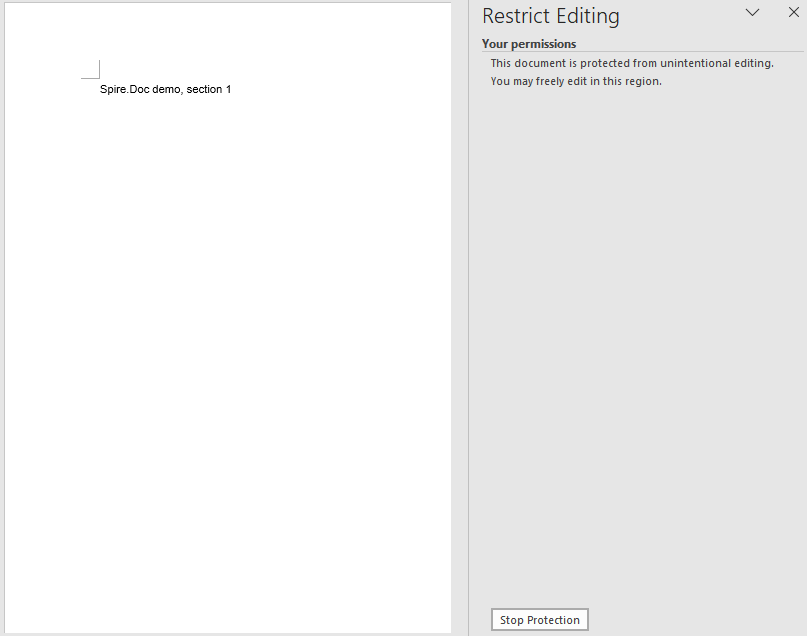
Depois que a seção 2 foi liberada, apenas a seção 1 mantém sua restrição de edição no documento.
Perguntas frequentes
Uma seção ainda não é editável após ProtectForm = false
A propriedade ProtectForm só tem efeito quando o documento foi protegido com AllowOnlyFormFields. Se um tipo de proteção diferente, como AllowOnlyReading, estiver ativo, definir ProtectForm como false em uma seção individual não a liberará — a restrição do documento inteiro tem precedência.
Para corrigir isso, certifique-se de que o tipo de proteção passado para Protect seja AllowOnlyFormFields antes de liberar seções individuais:
doc.Protect({ type: wasmModule.ProtectionType.AllowOnlyFormFields, password: "123" });
s2.ProtectForm = false;
Um documento protegido ainda pode ser selecionado e copiado
Todos os cinco tipos de proteção restringem o comportamento de edição, não o de leitura. O AllowOnlyReading, por exemplo, impede alterações no corpo do texto, mas não bloqueia a seleção, a cópia ou a pesquisa de texto. Isso é intencional — as restrições de edição controlam o que os usuários podem modificar, não o que eles podem visualizar ou extrair.
Se o conteúdo não deve ser copiável ou visível por usuários não autorizados, use a criptografia de documento (uma senha de abertura) em vez de uma restrição de edição. As duas abordagens tratam ameaças diferentes e podem ser combinadas quando tanto a confidencialidade quanto o controle de edição forem necessários:
doc.Protect({ type: wasmModule.ProtectionType.AllowOnlyReading, password: "123456" });
Veja também
JavaScript로 Word 문서 보호: 편집 제한
개발자들이 "Word 문서 보호"라는 말을 들으면 가장 먼저 떠올리는 것은 흔히 암호화입니다 — 아무도 파일을 열 수 없도록 비밀번호를 설정하는 것이죠. 하지만 문서 보안에는 똑같이 중요한 두 번째 계층이 있습니다: 문서를 연 뒤 독자가 무엇을 할 수 있는지 제한하는 것입니다. 고객에게 보내는 계약서 템플릿은 합의된 조건을 바꾸지 않고 빈칸을 채울 수 있어야 합니다. 검토를 위해 배포되는 최종 초안은 댓글은 허용하되 본문 텍스트를 직접 편집하는 것은 막아야 합니다. 이런 시나리오에는 열기 암호 암호화가 아니라 편집 제한이 필요합니다.
Spire.Doc for JavaScript는 WebAssembly를 통해 이 기능을 브라우저에 직접 제공합니다. 가상 파일 시스템(VFS)을 사용해 글꼴과 파일 리소스를 관리하며, Word 문서를 전적으로 클라이언트 측에서 처리합니다 — 백엔드 서버도, 파일 업로드도, 왕복 지연도 없습니다. Protect 메서드는 ProtectionType 열거형 값과 비밀번호를 받아 문서에 해당 편집 제한을 적용합니다.
이 글에서는 Spire.Doc for JavaScript에서 사용할 수 있는 다섯 가지 보호 유형을 살펴보고, 하나의 참조 표에서 비교한 다음, 전체 문서에 보호 유형을 적용하는 방법과 다른 섹션은 편집 가능하게 둔 채 특정 섹션만 잠그는 방법을 보여 줍니다.
보호 vs. 암호화: 서로 다른 두 가지 목표
보호 유형으로 들어가기 전에, 자주 혼동되는 두 개념 사이에 명확한 선을 그어 둘 필요가 있습니다:
- 암호화(열기 암호)는 누가 문서를 열 수 있는지를 제어합니다. 비밀번호가 없으면 파일 내용에 접근할 수 없습니다.
- 편집 제한(보호 유형)은 문서가 이미 열린 뒤 독자가 무엇을 변경할 수 있는지를 제어합니다. 독자는 내용을 자유롭게 볼 수 있으며, 제한은 사용 가능한 편집 작업을 제한합니다.
편집 제한은 선택, 복사, 검색을 막지 않습니다 — 수정만 차단합니다. 콘텐츠를 가져가는 것을 막는 것이 목표라면 암호화가 필요합니다. 읽을 수 있게 허용하면서 콘텐츠가 변경되는 것을 막는 것이 목표라면 편집 제한이 필요합니다. 두 메커니즘은 상호 보완적이며 함께 사용할 수 있지만, 각각 다른 목적을 수행합니다.
보호 유형 한눈에 보기
Spire.Doc for JavaScript는 다섯 가지 ProtectionType 열거형 값을 제공합니다. 각 값은 완전히 개방된 상태부터 완전히 잠긴 상태까지 서로 다른 편집 가능 범위를 정의합니다. 아래 표는 다섯 가지를 모두 요약하므로 한눈에 알맞은 것을 선택할 수 있습니다.
| ProtectionType | 문서에 미치는 영향 | 일반적인 사용 사례 |
|---|---|---|
NoProtection |
제한이 적용되지 않으며 모든 편집 작업을 사용할 수 있습니다. | 기존 제한을 제거하거나 깨끗한 상태에서 시작할 때. |
AllowOnlyReading |
문서를 볼 수는 있지만 편집할 수 없습니다. 리본 편집 명령이 비활성화됩니다. | 최종 보고서, 게시된 공지, 또는 모든 읽기 전용 결과물. |
AllowOnlyComments |
독자는 댓글을 추가할 수 있지만 본문 텍스트를 수정할 수 없습니다. | 검토자가 내용을 변경하지 않고 피드백을 남겨야 하는 검토 주기. |
AllowOnlyFormFields |
양식 필드만 편집할 수 있으며 문서의 나머지 부분은 잠깁니다. | 빈칸 채우기 영역이 있는 계약서, 설문 조사 및 템플릿. |
AllowOnlyRevisions |
모든 편집은 추적된 변경 사항으로 기록되고 나중에 검토할 수 있습니다. | 모든 변경 사항을 확인하고 되돌릴 수 있어야 하는 공동 작성. |
선택 방법: 독자가 아무것도 변경하지 않아야 한다면 AllowOnlyReading을 사용하세요. 독자가 지정된 빈칸만 채워야 한다면 AllowOnlyFormFields를 사용하세요. 텍스트를 건드리지 않고 피드백만 남겨야 한다면 AllowOnlyComments를 사용하세요. 모든 변경 사항을 나중에 검토할 수 있도록 추적해야 한다면 AllowOnlyRevisions를 사용하세요. 이전에 적용한 제한을 제거해야 한다면 NoProtection을 사용하세요.
전체 문서에 보호 유형 적용하기
가장 간단한 방법은 단일 ProtectionType 값으로 전체 문서를 보호하는 것입니다. 워크플로에는 세 단계가 있습니다: FetchFileToVFS를 통해 글꼴 파일과 대상 Word 문서를 WASM 가상 파일 시스템에 로드합니다; Document를 인스턴스화하고 파일을 로드한 다음, 원하는 보호 유형과 나중에 제한을 해제할 비밀번호로 Protect를 호출합니다; 그런 다음 문서를 저장하고, VFS에서 생성된 파일을 읽어 Blob으로 감싼 뒤 브라우저 다운로드를 트리거합니다.
아래 예제에서는 AllowOnlyReading을 사용하지만, 위 표의 다섯 가지 ProtectionType 값 중 무엇이든 대체할 수 있습니다.
function App() {
  const protectWithSpecifiedType = async () => {
    const docModule = window.wasmModule?.spiredoc;
    if (!docModule) {
      alert('Spire.Doc is not ready yet');
      return;
    }

    const inputFileName = 'Template.docx';
    await window.spire.FetchFileToVFS(inputFileName, '', `${process.env.PUBLIC_URL}/data/`);

    // Load the document
    const doc = new docModule.Document();
    doc.LoadFromFile(inputFileName);

    // Protect the document with the "AllowOnlyReading" type; the password lifts the restriction
    doc.Protect({ type: docModule.ProtectionType.AllowOnlyReading, password: "123456" });

    // Define the output file name and save
    const outputFileName = "SpecifiedProtectionType.docx";
    doc.SaveToFile({ fileName: outputFileName, fileFormat: docModule.FileFormat.Docx2013 });
    doc.Dispose();

    const modifiedFileArray = window.dotnetRuntime.Module.FS.readFile(outputFileName);
    const blob = new Blob([modifiedFileArray], { type: 'application/vnd.openxmlformats-officedocument.wordprocessingml.document' });
    const url = URL.createObjectURL(blob);
    const a = document.createElement('a');
    a.href = url;
    a.download = outputFileName;
    a.click();
    URL.revokeObjectURL(url);
  };

 return (
    <div style={{ textAlign: 'center', height: '300px' }}>
      <h1>Protect a Document with a Specified Type</h1>
      <button onClick={protectWithSpecifiedType}>Generate</button>
    </div>
  );
}
export default App;
문서가 AllowOnlyReading 유형으로 보호되면 내용은 보기만 가능하고 리본의 편집 명령이 제한됩니다.
지정된 섹션만 잠그기
전체 문서를 일괄적으로 보호하는 것은 단순한 결과물에는 잘 맞지만, 실제 문서 중 상당수는 더 세밀한 조정이 필요합니다. 예를 들어 견적서 템플릿에는 잠긴 상태로 유지해야 하는 고정 조건과 고객이 세부 정보를 입력하는 섹션이 함께 있을 수 있습니다. Spire.Doc for JavaScript는 전체 문서 보호와 섹션별 재정의를 결합하여 이를 처리합니다.
전략은 다음과 같습니다: 먼저 AllowOnlyFormFields로 전체 문서를 보호한 다음, 편집 가능한 상태로 남겨 둘 섹션의 ProtectForm 속성을 false로 설정합니다. 이렇게 하면 나머지 문서는 잠긴 상태로 두면서 개별 섹션을 선택적으로 해제할 수 있습니다.
워크플로에는 세 단계가 있습니다: FetchFileToVFS를 통해 글꼴 파일을 WASM 가상 파일 시스템에 로드합니다; Document를 인스턴스화하고, AddSection으로 섹션을 만들어 내용을 작성하고, Protect를 호출해 전체 문서를 양식 필드에만 잠그고, 해제할 섹션의 ProtectForm을 false로 설정합니다; 그런 다음 문서를 저장하고, VFS에서 생성된 파일을 읽어 Blob으로 감싼 뒤 브라우저 다운로드를 트리거합니다.
function App() {
  const lockSpecifiedSections = async () => {
    const docModule = window.wasmModule?.spiredoc;
    if (!docModule) {
      alert('Spire.Doc is not ready yet');
      return;
    }

    // Create a new document and add two sections
    const doc = new docModule.Document();
    let s1 = doc.AddSection();
    let s2 = doc.AddSection();

    // Write content into each of the two sections
    s1.AddParagraph().AppendText("Spire.Doc demo, section 1");
    s2.AddParagraph().AppendText("Spire.Doc demo, section 2");

    // Protect the whole document for form fields only
    doc.Protect({ type: docModule.ProtectionType.AllowOnlyFormFields, password: "123" });

    // Release section 2 on its own so that it can be edited
    s2.ProtectForm = false;

    // Define the output file name and save
    const outputFileName = 'LockSpecifiedSections.docx';
    doc.SaveToFile({ fileName: outputFileName, fileFormat: docModule.FileFormat.Docx2013 });
    doc.Dispose();

    const modifiedFileArray = window.dotnetRuntime.Module.FS.readFile(outputFileName);
    const blob = new Blob([modifiedFileArray], { type: 'application/vnd.openxmlformats-officedocument.wordprocessingml.document' });
    const url = URL.createObjectURL(blob);
    const a = document.createElement('a');
    a.href = url;
    a.download = outputFileName;
    a.click();
    URL.revokeObjectURL(url);
  };

 return (
    <div style={{ textAlign: 'center', height: '300px' }}>
      <h1>Lock Specified Sections of a Word Document</h1>
      <button onClick={lockSpecifiedSections}>Generate</button>
    </div>
  );
}
export default App;
섹션 2가 해제되면 문서에서 섹션 1만 편집 제한을 유지합니다.
자주 묻는 질문
ProtectForm = false 이후에도 섹션이 편집 가능해지지 않음
ProtectForm 속성은 문서가 AllowOnlyFormFields로 보호된 경우에만 효과가 있습니다. AllowOnlyReading과 같은 다른 보호 유형이 활성화되어 있으면 개별 섹션에서 ProtectForm을 false로 설정해도 해당 섹션이 해제되지 않습니다 — 전체 문서 제한이 우선합니다.
이 문제를 해결하려면 개별 섹션을 해제하기 전에 Protect에 전달된 보호 유형이 AllowOnlyFormFields인지 확인하세요:
doc.Protect({ type: wasmModule.ProtectionType.AllowOnlyFormFields, password: "123" });
s2.ProtectForm = false;
보호된 문서도 여전히 선택하고 복사할 수 있습니다
다섯 가지 보호 유형은 모두 읽기 동작이 아니라 편집 동작을 제한합니다. 예를 들어 AllowOnlyReading은 본문 텍스트 변경을 방지하지만 텍스트 선택, 복사 또는 검색을 차단하지는 않습니다. 이는 의도된 설계입니다 — 편집 제한은 사용자가 볼 수 있거나 추출할 수 있는 내용이 아니라 수정할 수 있는 내용을 제어합니다.
권한이 없는 사용자가 콘텐츠를 복사하거나 볼 수 없어야 한다면 편집 제한 대신 문서 암호화(열기 암호)를 사용하세요. 두 접근 방식은 서로 다른 위협을 해결하며, 기밀성과 편집 제어가 모두 필요할 때 결합할 수 있습니다:
doc.Protect({ type: wasmModule.ProtectionType.AllowOnlyReading, password: "123456" });
같이 보기
Proteggere i documenti Word con JavaScript: limitare la modifica
Quando gli sviluppatori sentono parlare di "proteggere un documento Word", la prima cosa che spesso viene in mente è la crittografia — impostare una password in modo che nessuno possa aprire il file. Ma esiste un secondo livello di sicurezza del documento, altrettanto importante: limitare ciò che un lettore può fare una volta che il documento è aperto. Un modello di contratto inviato a un cliente dovrebbe permettergli di compilare gli spazi vuoti senza modificare i termini concordati. Una bozza finale fatta circolare per la revisione dovrebbe consentire i commenti ma bloccare le modifiche dirette al testo del corpo. Questi scenari richiedono restrizioni di modifica, non la crittografia con password di apertura.
Spire.Doc for JavaScript porta questa funzionalità direttamente nel browser tramite WebAssembly. Utilizzando un file system virtuale (VFS) per gestire i font e le risorse dei file, elabora i documenti Word interamente sul lato client — nessun server backend, nessun caricamento di file, nessuna latenza di andata e ritorno. Il metodo Protect accetta un valore di enumerazione ProtectionType insieme a una password e applica la restrizione di modifica corrispondente al documento.
Questo articolo esamina i cinque tipi di protezione disponibili in Spire.Doc for JavaScript, li confronta in un'unica tabella di riferimento e poi mostra come applicare un tipo di protezione all'intero documento e come bloccare solo sezioni specifiche lasciandone altre modificabili.
Protezione vs. crittografia: due obiettivi diversi
Prima di addentrarci nei tipi di protezione, vale la pena tracciare una linea netta tra due concetti che vengono spesso confusi:
- Crittografia (password di apertura) controlla chi può aprire il documento. Senza la password, il contenuto del file è inaccessibile.
- Restrizioni di modifica (tipo di protezione) controllano cosa può modificare un lettore dopo che il documento è già aperto. Il lettore può visualizzare liberamente il contenuto; la restrizione limita quali azioni di modifica sono disponibili.
Le restrizioni di modifica non impediscono la selezione, la copia o la ricerca — bloccano solo le modifiche. Se il tuo obiettivo è impedire che il contenuto venga portato via, hai bisogno della crittografia. Se il tuo obiettivo è impedire che il contenuto venga modificato pur consentendone la lettura, hai bisogno di una restrizione di modifica. I due meccanismi sono complementari e possono essere usati insieme, ma servono scopi distinti.
I tipi di protezione a colpo d'occhio
Spire.Doc for JavaScript espone cinque valori di enumerazione ProtectionType. Ognuno definisce un diverso ambito modificabile — da completamente aperto a completamente bloccato. La tabella seguente li riassume tutti e cinque, così puoi scegliere quello giusto a colpo d'occhio.
| ProtectionType | Effetto sul documento | Caso d'uso tipico |
|---|---|---|
NoProtection |
Nessuna restrizione applicata; tutte le azioni di modifica sono disponibili. | Rimuovere una restrizione esistente o partire da uno stato pulito. |
AllowOnlyReading |
Il documento può essere visualizzato ma non modificato. I comandi di modifica della barra multifunzione sono disabilitati. | Report finali, avvisi pubblicati o qualsiasi documento di sola lettura. |
AllowOnlyComments |
I lettori possono aggiungere commenti ma non possono modificare il testo del corpo. | Cicli di revisione in cui i revisori dovrebbero lasciare feedback senza alterare il contenuto. |
AllowOnlyFormFields |
Solo i campi modulo sono modificabili; il resto del documento è bloccato. | Contratti, sondaggi e modelli con aree da compilare. |
AllowOnlyRevisions |
Tutte le modifiche vengono accettate come revisioni tracciate e possono essere riviste in seguito. | Stesura collaborativa in cui ogni modifica deve essere visibile e reversibile. |
Come scegliere: se il lettore non deve cambiare nulla, usa AllowOnlyReading. Se il lettore deve solo compilare gli spazi designati, usa AllowOnlyFormFields. Se il lettore deve lasciare feedback senza toccare il testo, usa AllowOnlyComments. Se ogni modifica deve essere tracciata per una revisione successiva, usa AllowOnlyRevisions. Se devi rimuovere una restrizione applicata in precedenza, usa NoProtection.
Applicare un tipo di protezione all'intero documento
L'approccio più semplice è proteggere l'intero documento con un unico valore ProtectionType. Il flusso di lavoro prevede tre fasi: caricare i file dei font e il documento Word di destinazione nel file system virtuale WASM tramite FetchFileToVFS; istanziare un Document, caricare il file e chiamare Protect con il tipo di protezione desiderato e la password che in seguito rimuoverà la restrizione; quindi salvare il documento, leggere il file generato dal VFS, racchiuderlo in un Blob e avviare il download dal browser.
L'esempio seguente usa AllowOnlyReading, ma puoi sostituirlo con uno qualsiasi dei cinque valori ProtectionType della tabella precedente.
function App() {
  const protectWithSpecifiedType = async () => {
    const docModule = window.wasmModule?.spiredoc;
    if (!docModule) {
      alert('Spire.Doc is not ready yet');
      return;
    }

    const inputFileName = 'Template.docx';
    await window.spire.FetchFileToVFS(inputFileName, '', `${process.env.PUBLIC_URL}/data/`);

    // Load the document
    const doc = new docModule.Document();
    doc.LoadFromFile(inputFileName);

    // Protect the document with the "AllowOnlyReading" type; the password lifts the restriction
    doc.Protect({ type: docModule.ProtectionType.AllowOnlyReading, password: "123456" });

    // Define the output file name and save
    const outputFileName = "SpecifiedProtectionType.docx";
    doc.SaveToFile({ fileName: outputFileName, fileFormat: docModule.FileFormat.Docx2013 });
    doc.Dispose();

    const modifiedFileArray = window.dotnetRuntime.Module.FS.readFile(outputFileName);
    const blob = new Blob([modifiedFileArray], { type: 'application/vnd.openxmlformats-officedocument.wordprocessingml.document' });
    const url = URL.createObjectURL(blob);
    const a = document.createElement('a');
    a.href = url;
    a.download = outputFileName;
    a.click();
    URL.revokeObjectURL(url);
  };

 return (
    <div style={{ textAlign: 'center', height: '300px' }}>
      <h1>Protect a Document with a Specified Type</h1>
      <button onClick={protectWithSpecifiedType}>Generate</button>
    </div>
  );
}
export default App;
Una volta che il documento è protetto con il tipo AllowOnlyReading, il suo contenuto può solo essere visualizzato e i comandi di modifica sulla barra multifunzione sono limitati.
Bloccare solo sezioni specifiche
Proteggere l'intero documento in modo uniforme funziona bene per documenti semplici, ma molti documenti reali richiedono un tocco più raffinato. Un modello di preventivo, ad esempio, può avere termini fissi che devono rimanere bloccati accanto a una sezione in cui il cliente inserisce i propri dati. Spire.Doc for JavaScript gestisce questa situazione combinando la protezione dell'intero documento con override per singola sezione.
La strategia è: proteggere prima l'intero documento con AllowOnlyFormFields, poi impostare su false la proprietà ProtectForm di qualsiasi sezione che deve rimanere modificabile. Questo sblocca selettivamente singole sezioni mentre il resto del documento rimane bloccato.
Il flusso di lavoro prevede tre fasi: caricare i file dei font nel file system virtuale WASM tramite FetchFileToVFS; istanziare un Document, creare sezioni con AddSection e scrivervi del contenuto, chiamare Protect per bloccare l'intero documento solo per i campi modulo e impostare ProtectForm su false nella sezione da sbloccare; quindi salvare il documento, leggere il file generato dal VFS, racchiuderlo in un Blob e avviare il download dal browser.
function App() {
  const lockSpecifiedSections = async () => {
    const docModule = window.wasmModule?.spiredoc;
    if (!docModule) {
      alert('Spire.Doc is not ready yet');
      return;
    }

    // Create a new document and add two sections
    const doc = new docModule.Document();
    let s1 = doc.AddSection();
    let s2 = doc.AddSection();

    // Write content into each of the two sections
    s1.AddParagraph().AppendText("Spire.Doc demo, section 1");
    s2.AddParagraph().AppendText("Spire.Doc demo, section 2");

    // Protect the whole document for form fields only
    doc.Protect({ type: docModule.ProtectionType.AllowOnlyFormFields, password: "123" });

    // Release section 2 on its own so that it can be edited
    s2.ProtectForm = false;

    // Define the output file name and save
    const outputFileName = 'LockSpecifiedSections.docx';
    doc.SaveToFile({ fileName: outputFileName, fileFormat: docModule.FileFormat.Docx2013 });
    doc.Dispose();

    const modifiedFileArray = window.dotnetRuntime.Module.FS.readFile(outputFileName);
    const blob = new Blob([modifiedFileArray], { type: 'application/vnd.openxmlformats-officedocument.wordprocessingml.document' });
    const url = URL.createObjectURL(blob);
    const a = document.createElement('a');
    a.href = url;
    a.download = outputFileName;
    a.click();
    URL.revokeObjectURL(url);
  };

 return (
    <div style={{ textAlign: 'center', height: '300px' }}>
      <h1>Lock Specified Sections of a Word Document</h1>
      <button onClick={lockSpecifiedSections}>Generate</button>
    </div>
  );
}
export default App;
Una volta sbloccata la sezione 2, solo la sezione 1 mantiene la sua restrizione di modifica nel documento.
Domande frequenti
Una sezione non è ancora modificabile dopo ProtectForm = false
La proprietà ProtectForm ha effetto solo quando il documento è stato protetto con AllowOnlyFormFields. Se è attivo un tipo di protezione diverso, come AllowOnlyReading, impostare ProtectForm su false su una singola sezione non la sbloccherà — la restrizione sull'intero documento ha la precedenza.
Per risolvere, assicurati che il tipo di protezione passato a Protect sia AllowOnlyFormFields prima di sbloccare le singole sezioni:
doc.Protect({ type: wasmModule.ProtectionType.AllowOnlyFormFields, password: "123" });
s2.ProtectForm = false;
Un documento protetto può comunque essere selezionato e copiato
Tutti e cinque i tipi di protezione limitano il comportamento di modifica, non quello di lettura. AllowOnlyReading, per esempio, impedisce le modifiche al testo del corpo ma non blocca la selezione del testo, la copia o la ricerca. Questo è intenzionale — le restrizioni di modifica controllano ciò che gli utenti possono modificare, non ciò che possono visualizzare o estrarre.
Se il contenuto non deve essere copiabile o visualizzabile da utenti non autorizzati, usa la crittografia del documento (una password di apertura) invece di una restrizione di modifica. I due approcci affrontano minacce diverse e possono essere combinati quando sono richiesti sia la riservatezza che il controllo delle modifiche:
doc.Protect({ type: wasmModule.ProtectionType.AllowOnlyReading, password: "123456" });
Vedi anche
Protéger les documents Word avec JavaScript : restreindre la modification
Quand les développeurs entendent « protéger un document Word », la première chose qui leur vient souvent à l’esprit est le chiffrement — définir un mot de passe pour que personne ne puisse ouvrir le fichier. Mais il existe une seconde couche de sécurité documentaire tout aussi importante : restreindre ce qu’un lecteur peut faire une fois le document ouvert. Un modèle de contrat envoyé à un client doit lui permettre de remplir les champs vides sans modifier les conditions convenues. Une version finale diffusée pour relecture doit autoriser les commentaires mais bloquer les modifications directes du corps de texte. Ces scénarios nécessitent des restrictions de modification, et non un chiffrement par mot de passe à l’ouverture.
Spire.Doc for JavaScript apporte cette fonctionnalité directement dans le navigateur via WebAssembly. En utilisant un système de fichiers virtuel (VFS) pour gérer les polices et les ressources de fichiers, il traite les documents Word entièrement côté client — pas de serveur backend, pas de téléversement de fichier, pas de latence d’aller-retour. La méthode Protect accepte une valeur d’énumération ProtectionType accompagnée d’un mot de passe, et applique la restriction de modification correspondante au document.
Cet article présente les cinq types de protection disponibles dans Spire.Doc for JavaScript, les compare dans un seul tableau de référence, puis montre comment appliquer un type de protection à l’ensemble du document et comment verrouiller uniquement des sections spécifiques tout en laissant les autres modifiables.
Protection ou chiffrement : deux objectifs différents
Avant d’examiner les types de protection, il convient d’établir une distinction claire entre deux concepts souvent confondus :
- Chiffrement (mot de passe à l’ouverture) contrôle qui peut ouvrir le document. Sans le mot de passe, le contenu du fichier est inaccessible.
- Restrictions de modification (type de protection) contrôlent ce qu’un lecteur peut modifier une fois le document déjà ouvert. Le lecteur peut consulter librement le contenu ; la restriction limite les actions de modification disponibles.
Les restrictions de modification n’empêchent pas la sélection, la copie ou la recherche — elles bloquent uniquement les modifications. Si votre objectif est d’empêcher que le contenu soit emporté, vous avez besoin du chiffrement. Si votre objectif est d’empêcher que le contenu soit modifié tout en permettant sa lecture, vous avez besoin d’une restriction de modification. Les deux mécanismes sont complémentaires et peuvent être utilisés ensemble, mais ils répondent à des objectifs distincts.
Types de protection en un coup d’œil
Spire.Doc for JavaScript expose cinq valeurs d’énumération ProtectionType. Chacune définit une portée modifiable différente — de totalement ouverte à totalement verrouillée. Le tableau ci-dessous résume les cinq afin que vous puissiez choisir la bonne en un coup d’œil.
| ProtectionType | Effet sur le document | Cas d’utilisation typique |
|---|---|---|
NoProtection |
Aucune restriction appliquée ; toutes les actions de modification sont disponibles. | Supprimer une restriction existante ou partir d’un état vierge. |
AllowOnlyReading |
Le document peut être consulté mais pas modifié. Les commandes de modification du ruban sont désactivées. | Rapports finaux, avis publiés ou tout livrable en lecture seule. |
AllowOnlyComments |
Les lecteurs peuvent ajouter des commentaires mais ne peuvent pas modifier le corps du texte. | Cycles de relecture où les relecteurs doivent laisser des retours sans altérer le contenu. |
AllowOnlyFormFields |
Seuls les champs de formulaire sont modifiables ; le reste du document est verrouillé. | Contrats, enquêtes et modèles comportant des zones à remplir. |
AllowOnlyRevisions |
Toutes les modifications sont enregistrées comme modifications suivies et peuvent être examinées ultérieurement. | Rédaction collaborative où chaque modification doit être visible et réversible. |
Comment choisir : Si le lecteur ne doit rien modifier, utilisez AllowOnlyReading. S’il doit uniquement remplir des champs prévus, utilisez AllowOnlyFormFields. S’il doit laisser un retour sans toucher au texte, utilisez AllowOnlyComments. Si chaque changement doit être suivi pour une relecture ultérieure, utilisez AllowOnlyRevisions. Si vous devez supprimer une restriction appliquée précédemment, utilisez NoProtection.
Appliquer un type de protection à l’ensemble du document
L’approche la plus simple consiste à protéger l’ensemble du document avec une seule valeur ProtectionType. Le flux de travail comporte trois étapes : charger les fichiers de police et le document Word cible dans le système de fichiers virtuel WASM via FetchFileToVFS ; instancier un Document, charger le fichier et appeler Protect avec le type de protection souhaité et le mot de passe qui lèvera ensuite la restriction ; puis enregistrer le document, lire le fichier généré depuis le VFS, l’encapsuler dans un Blob et déclencher un téléchargement dans le navigateur.
L’exemple ci-dessous utilise AllowOnlyReading, mais vous pouvez remplacer par n’importe laquelle des cinq valeurs ProtectionType du tableau ci-dessus.
function App() {
  const protectWithSpecifiedType = async () => {
    const docModule = window.wasmModule?.spiredoc;
    if (!docModule) {
      alert('Spire.Doc is not ready yet');
      return;
    }

    const inputFileName = 'Template.docx';
    await window.spire.FetchFileToVFS(inputFileName, '', `${process.env.PUBLIC_URL}/data/`);

    // Load the document
    const doc = new docModule.Document();
    doc.LoadFromFile(inputFileName);

    // Protect the document with the "AllowOnlyReading" type; the password lifts the restriction
    doc.Protect({ type: docModule.ProtectionType.AllowOnlyReading, password: "123456" });

    // Define the output file name and save
    const outputFileName = "SpecifiedProtectionType.docx";
    doc.SaveToFile({ fileName: outputFileName, fileFormat: docModule.FileFormat.Docx2013 });
    doc.Dispose();

    const modifiedFileArray = window.dotnetRuntime.Module.FS.readFile(outputFileName);
    const blob = new Blob([modifiedFileArray], { type: 'application/vnd.openxmlformats-officedocument.wordprocessingml.document' });
    const url = URL.createObjectURL(blob);
    const a = document.createElement('a');
    a.href = url;
    a.download = outputFileName;
    a.click();
    URL.revokeObjectURL(url);
  };

 return (
    <div style={{ textAlign: 'center', height: '300px' }}>
      <h1>Protect a Document with a Specified Type</h1>
      <button onClick={protectWithSpecifiedType}>Generate</button>
    </div>
  );
}
export default App;
Une fois le document protégé avec le type AllowOnlyReading, son contenu peut uniquement être consulté et les commandes de modification du ruban sont restreintes.
Verrouiller uniquement les sections spécifiées
Protéger uniformément l’ensemble du document fonctionne bien pour des livrables simples, mais de nombreux documents réels nécessitent une approche plus fine. Un modèle de devis, par exemple, peut comporter des conditions fixes qui doivent rester verrouillées à côté d’une section où le client saisit ses informations. Spire.Doc for JavaScript gère cela en combinant une protection de l’ensemble du document avec des exceptions par section.
La stratégie est la suivante : protéger d’abord l’ensemble du document avec AllowOnlyFormFields, puis définir la propriété ProtectForm de toute section qui doit rester modifiable sur false. Cela libère sélectivement certaines sections tandis que le reste du document reste verrouillé.
Le flux de travail comporte trois étapes : charger les fichiers de police dans le système de fichiers virtuel WASM via FetchFileToVFS ; instancier un Document, créer des sections avec AddSection et y écrire du contenu, appeler Protect pour verrouiller tout le document aux seuls champs de formulaire, et définir ProtectForm sur false pour la section à libérer ; puis enregistrer le document, lire le fichier généré depuis le VFS, l’encapsuler dans un Blob et déclencher un téléchargement dans le navigateur.
function App() {
  const lockSpecifiedSections = async () => {
    const docModule = window.wasmModule?.spiredoc;
    if (!docModule) {
      alert('Spire.Doc is not ready yet');
      return;
    }

    // Create a new document and add two sections
    const doc = new docModule.Document();
    let s1 = doc.AddSection();
    let s2 = doc.AddSection();

    // Write content into each of the two sections
    s1.AddParagraph().AppendText("Spire.Doc demo, section 1");
    s2.AddParagraph().AppendText("Spire.Doc demo, section 2");

    // Protect the whole document for form fields only
    doc.Protect({ type: docModule.ProtectionType.AllowOnlyFormFields, password: "123" });

    // Release section 2 on its own so that it can be edited
    s2.ProtectForm = false;

    // Define the output file name and save
    const outputFileName = 'LockSpecifiedSections.docx';
    doc.SaveToFile({ fileName: outputFileName, fileFormat: docModule.FileFormat.Docx2013 });
    doc.Dispose();

    const modifiedFileArray = window.dotnetRuntime.Module.FS.readFile(outputFileName);
    const blob = new Blob([modifiedFileArray], { type: 'application/vnd.openxmlformats-officedocument.wordprocessingml.document' });
    const url = URL.createObjectURL(blob);
    const a = document.createElement('a');
    a.href = url;
    a.download = outputFileName;
    a.click();
    URL.revokeObjectURL(url);
  };

 return (
    <div style={{ textAlign: 'center', height: '300px' }}>
      <h1>Lock Specified Sections of a Word Document</h1>
      <button onClick={lockSpecifiedSections}>Generate</button>
    </div>
  );
}
export default App;
Une fois la section 2 libérée, seule la section 1 conserve sa restriction de modification dans le document.
FAQ
Une section n’est toujours pas modifiable après ProtectForm = false
La propriété ProtectForm ne prend effet que lorsque le document a été protégé avec AllowOnlyFormFields. Si un autre type de protection tel que AllowOnlyReading est actif, définir ProtectForm sur false pour une section individuelle ne la libérera pas — la restriction de l’ensemble du document est prioritaire.
Pour corriger cela, assurez-vous que le type de protection transmis à Protect est AllowOnlyFormFields avant de libérer des sections individuelles :
doc.Protect({ type: wasmModule.ProtectionType.AllowOnlyFormFields, password: "123" });
s2.ProtectForm = false;
Un document protégé peut toujours être sélectionné et copié
Les cinq types de protection restreignent le comportement de modification, pas le comportement de lecture. AllowOnlyReading, par exemple, empêche les modifications du corps du texte mais ne bloque pas la sélection, la copie ou la recherche de texte. C’est intentionnel — les restrictions de modification contrôlent ce que les utilisateurs peuvent modifier, pas ce qu’ils peuvent consulter ou extraire.
Si le contenu ne doit pas pouvoir être copié ou consulté par des utilisateurs non autorisés, utilisez le chiffrement du document (un mot de passe à l’ouverture) plutôt qu’une restriction de modification. Les deux approches répondent à des menaces différentes et peuvent être combinées lorsque la confidentialité et le contrôle des modifications sont tous deux requis :
doc.Protect({ type: wasmModule.ProtectionType.AllowOnlyReading, password: "123456" });
Voir aussi
Proteger documentos de Word con JavaScript: restringir la edición
Cuando los desarrolladores oyen "proteger un documento de Word", lo primero que suele venir a la mente es el cifrado: establecer una contraseña para que nadie pueda abrir el archivo. Pero existe una segunda capa de seguridad de documentos, igualmente importante: restringir lo que un lector puede hacer una vez que el documento está abierto. Una plantilla de contrato enviada a un cliente debería permitirle rellenar los espacios en blanco sin alterar los términos acordados. Un borrador final que se distribuye para su revisión debería permitir comentarios pero bloquear las ediciones directas del cuerpo del texto. Estos escenarios requieren restricciones de edición, no cifrado con contraseña de apertura.
Spire.Doc for JavaScript lleva esta capacidad directamente al navegador mediante WebAssembly. Utilizando un sistema de archivos virtual (VFS) para gestionar fuentes y recursos de archivos, procesa documentos de Word completamente en el lado del cliente: sin servidor backend, sin carga de archivos, sin latencia de ida y vuelta. El método Protect acepta un valor de enumeración ProtectionType junto con una contraseña, y aplica la restricción de edición correspondiente al documento.
Este artículo repasa los cinco tipos de protección disponibles en Spire.Doc for JavaScript, los compara en una única tabla de referencia y, a continuación, muestra cómo aplicar un tipo de protección a todo el documento y cómo bloquear solo secciones específicas dejando otras editables.
Protección vs. cifrado: dos objetivos diferentes
Antes de profundizar en los tipos de protección, conviene trazar una línea clara entre dos conceptos que con frecuencia se confunden:
- El cifrado (contraseña de apertura) controla quién puede abrir el documento. Sin la contraseña, no se puede acceder al contenido del archivo.
- Las restricciones de edición (tipo de protección) controlan qué puede cambiar un lector una vez que el documento ya está abierto. El lector puede ver el contenido libremente; la restricción limita qué acciones de edición están disponibles.
Las restricciones de edición no impiden la selección, la copia ni la búsqueda: solo bloquean las modificaciones. Si tu objetivo es evitar que el contenido se extraiga, necesitas cifrado. Si tu objetivo es evitar que el contenido se modifique sin dejar de permitir su lectura, necesitas una restricción de edición. Ambos mecanismos son complementarios y pueden usarse juntos, pero cumplen propósitos distintos.
Tipos de protección de un vistazo
Spire.Doc for JavaScript expone cinco valores de enumeración ProtectionType. Cada uno define un ámbito editable diferente, desde totalmente abierto hasta totalmente bloqueado. La siguiente tabla resume los cinco para que puedas elegir el adecuado de un vistazo.
| ProtectionType | Efecto en el documento | Caso de uso típico |
|---|---|---|
NoProtection |
No se aplica ninguna restricción; todas las acciones de edición están disponibles. | Eliminar una restricción existente o comenzar desde un estado limpio. |
AllowOnlyReading |
El documento se puede ver pero no editar. Los comandos de edición de la cinta de opciones están deshabilitados. | Informes finales, avisos publicados o cualquier entregable de solo lectura. |
AllowOnlyComments |
Los lectores pueden añadir comentarios pero no modificar el cuerpo del texto. | Ciclos de revisión en los que los revisores deben dejar comentarios sin alterar el contenido. |
AllowOnlyFormFields |
Solo los campos de formulario son editables; el resto del documento está bloqueado. | Contratos, encuestas y plantillas con áreas para rellenar espacios en blanco. |
AllowOnlyRevisions |
Todas las ediciones se aceptan como cambios registrados y pueden revisarse posteriormente. | Redacción colaborativa en la que cada cambio debe ser visible y reversible. |
Cómo elegir: Si el lector no debe cambiar nada, usa AllowOnlyReading. Si el lector solo debe rellenar espacios designados, usa AllowOnlyFormFields. Si el lector debe dejar comentarios sin tocar el texto, usa AllowOnlyComments. Si cada cambio debe registrarse para revisarlo posteriormente, usa AllowOnlyRevisions. Si necesitas eliminar una restricción aplicada previamente, usa NoProtection.
Aplicar un tipo de protección a todo el documento
El enfoque más directo es proteger todo el documento con un único valor de ProtectionType. El flujo de trabajo tiene tres etapas: cargar los archivos de fuentes y el documento de Word de destino en el sistema de archivos virtual de WASM mediante FetchFileToVFS; instanciar un Document, cargar el archivo y llamar a Protect con el tipo de protección deseado y la contraseña que posteriormente levantará la restricción; luego guardar el documento, leer el archivo generado desde el VFS, envolverlo como un Blob y desencadenar una descarga en el navegador.
El ejemplo siguiente usa AllowOnlyReading, pero puedes sustituirlo por cualquiera de los cinco valores de ProtectionType de la tabla anterior.
function App() {
  const protectWithSpecifiedType = async () => {
    const docModule = window.wasmModule?.spiredoc;
    if (!docModule) {
      alert('Spire.Doc is not ready yet');
      return;
    }

    const inputFileName = 'Template.docx';
    await window.spire.FetchFileToVFS(inputFileName, '', `${process.env.PUBLIC_URL}/data/`);

    // Load the document
    const doc = new docModule.Document();
    doc.LoadFromFile(inputFileName);

    // Protect the document with the "AllowOnlyReading" type; the password lifts the restriction
    doc.Protect({ type: docModule.ProtectionType.AllowOnlyReading, password: "123456" });

    // Define the output file name and save
    const outputFileName = "SpecifiedProtectionType.docx";
    doc.SaveToFile({ fileName: outputFileName, fileFormat: docModule.FileFormat.Docx2013 });
    doc.Dispose();

    const modifiedFileArray = window.dotnetRuntime.Module.FS.readFile(outputFileName);
    const blob = new Blob([modifiedFileArray], { type: 'application/vnd.openxmlformats-officedocument.wordprocessingml.document' });
    const url = URL.createObjectURL(blob);
    const a = document.createElement('a');
    a.href = url;
    a.download = outputFileName;
    a.click();
    URL.revokeObjectURL(url);
  };

 return (
    <div style={{ textAlign: 'center', height: '300px' }}>
      <h1>Protect a Document with a Specified Type</h1>
      <button onClick={protectWithSpecifiedType}>Generate</button>
    </div>
  );
}
export default App;
Una vez que el documento está protegido con el tipo AllowOnlyReading, su contenido solo se puede visualizar y los comandos de edición de la cinta de opciones quedan restringidos.
Bloquear solo secciones específicas
Proteger todo el documento de forma uniforme funciona bien para entregables sencillos, pero muchos documentos del mundo real necesitan un ajuste más fino. Una plantilla de presupuesto, por ejemplo, puede tener términos fijos que deben permanecer bloqueados junto a una sección donde el cliente introduce sus datos. Spire.Doc for JavaScript lo resuelve combinando la protección de todo el documento con anulaciones por sección.
La estrategia es: primero proteger todo el documento con AllowOnlyFormFields, y luego establecer en false la propiedad ProtectForm de cualquier sección que deba permanecer editable. Esto libera selectivamente secciones individuales mientras el resto del documento permanece bloqueado.
El flujo de trabajo tiene tres etapas: cargar los archivos de fuentes en el sistema de archivos virtual de WASM mediante FetchFileToVFS; instanciar un Document, crear secciones con AddSection y escribir contenido en ellas, llamar a Protect para bloquear todo el documento solo para campos de formulario, y establecer ProtectForm en false en la sección que se va a liberar; luego guardar el documento, leer el archivo generado desde el VFS, envolverlo como un Blob y desencadenar una descarga en el navegador.
function App() {
  const lockSpecifiedSections = async () => {
    const docModule = window.wasmModule?.spiredoc;
    if (!docModule) {
      alert('Spire.Doc is not ready yet');
      return;
    }

    // Create a new document and add two sections
    const doc = new docModule.Document();
    let s1 = doc.AddSection();
    let s2 = doc.AddSection();

    // Write content into each of the two sections
    s1.AddParagraph().AppendText("Spire.Doc demo, section 1");
    s2.AddParagraph().AppendText("Spire.Doc demo, section 2");

    // Protect the whole document for form fields only
    doc.Protect({ type: docModule.ProtectionType.AllowOnlyFormFields, password: "123" });

    // Release section 2 on its own so that it can be edited
    s2.ProtectForm = false;

    // Define the output file name and save
    const outputFileName = 'LockSpecifiedSections.docx';
    doc.SaveToFile({ fileName: outputFileName, fileFormat: docModule.FileFormat.Docx2013 });
    doc.Dispose();

    const modifiedFileArray = window.dotnetRuntime.Module.FS.readFile(outputFileName);
    const blob = new Blob([modifiedFileArray], { type: 'application/vnd.openxmlformats-officedocument.wordprocessingml.document' });
    const url = URL.createObjectURL(blob);
    const a = document.createElement('a');
    a.href = url;
    a.download = outputFileName;
    a.click();
    URL.revokeObjectURL(url);
  };

 return (
    <div style={{ textAlign: 'center', height: '300px' }}>
      <h1>Lock Specified Sections of a Word Document</h1>
      <button onClick={lockSpecifiedSections}>Generate</button>
    </div>
  );
}
export default App;
Una vez liberada la sección 2, solo la sección 1 conserva su restricción de edición en el documento.
Preguntas frecuentes
Una sección sigue sin ser editable después de ProtectForm = false
La propiedad ProtectForm solo surte efecto cuando el documento se ha protegido con AllowOnlyFormFields. Si está activo un tipo de protección diferente, como AllowOnlyReading, establecer ProtectForm en false en una sección individual no la liberará: la restricción de todo el documento tiene prioridad.
Para solucionarlo, asegúrate de que el tipo de protección pasado a Protect sea AllowOnlyFormFields antes de liberar secciones individuales:
doc.Protect({ type: wasmModule.ProtectionType.AllowOnlyFormFields, password: "123" });
s2.ProtectForm = false;
Un documento protegido todavía se puede seleccionar y copiar
Los cinco tipos de protección restringen el comportamiento de edición, no el de lectura. AllowOnlyReading, por ejemplo, impide cambios en el cuerpo del texto pero no bloquea la selección, la copia ni la búsqueda de texto. Es algo deliberado: las restricciones de edición controlan lo que los usuarios pueden modificar, no lo que pueden ver o extraer.
Si el contenido no debe poder copiarse ni ser visto por usuarios no autorizados, utiliza el cifrado de documentos (una contraseña de apertura) en lugar de una restricción de edición. Ambos enfoques abordan amenazas distintas y pueden combinarse cuando se requiere tanto confidencialidad como control de edición:
doc.Protect({ type: wasmModule.ProtectionType.AllowOnlyReading, password: "123456" });
Ver también
Word-Dokumente mit JavaScript schützen: Bearbeitung einschränken
Wenn Entwickler von „ein Word-Dokument schützen“ hören, denken sie zuerst meist an Verschlüsselung – ein Passwort festlegen, damit niemand die Datei öffnen kann. Doch es gibt eine zweite, ebenso wichtige Ebene der Dokumentsicherheit: einzuschränken, was ein Leser tun kann, nachdem das Dokument geöffnet wurde. Eine an einen Kunden gesendete Vertragsvorlage sollte es ihm ermöglichen, die Lücken auszufüllen, ohne die vereinbarten Bedingungen zu ändern. Ein zur Überprüfung verteilter finaler Entwurf sollte Kommentare zulassen, aber direkte Änderungen am Fließtext blockieren. Solche Szenarien erfordern Bearbeitungseinschränkungen, nicht eine Öffnungs-Passwort-Verschlüsselung.
Spire.Doc for JavaScript bringt diese Fähigkeit über WebAssembly direkt in den Browser. Mithilfe eines virtuellen Dateisystems (VFS) zur Verwaltung von Schriftarten und Dateiressourcen verarbeitet es Word-Dokumente vollständig auf der Client-Seite – kein Backend-Server, kein Datei-Upload, keine Roundtrip-Verzögerung. Die Methode Protect akzeptiert einen ProtectionType-Enum-Wert zusammen mit einem Passwort und wendet die entsprechende Bearbeitungseinschränkung auf das Dokument an.
Dieser Artikel führt durch die fünf Schutztypen, die in Spire.Doc for JavaScript verfügbar sind, vergleicht sie in einer einzigen Referenztabelle und zeigt dann, wie man einen Schutztyp auf das gesamte Dokument anwendet und wie man nur bestimmte Abschnitte sperrt, während andere bearbeitbar bleiben.
Schutz vs. Verschlüsselung: Zwei unterschiedliche Ziele
Bevor wir in die Schutztypen eintauchen, lohnt es sich, klar zwischen zwei Konzepten zu unterscheiden, die häufig verwechselt werden:
- Verschlüsselung (Öffnungspasswort) steuert, wer das Dokument öffnen kann. Ohne das Passwort sind die Dateiinhalte nicht zugänglich.
- Bearbeitungseinschränkungen (Schutztyp) steuern, was ein Leser ändern kann, nachdem das Dokument bereits geöffnet ist. Der Leser kann den Inhalt frei anzeigen; die Einschränkung begrenzt, welche Bearbeitungsaktionen verfügbar sind.
Bearbeitungseinschränkungen verhindern nicht das Markieren, Kopieren oder Suchen – sie blockieren nur Änderungen. Wenn Ihr Ziel darin besteht, zu verhindern, dass der Inhalt entnommen wird, benötigen Sie Verschlüsselung. Wenn Ihr Ziel darin besteht, zu verhindern, dass der Inhalt geändert wird, während er weiterhin gelesen werden kann, benötigen Sie eine Bearbeitungseinschränkung. Die beiden Mechanismen ergänzen sich und können zusammen verwendet werden, erfüllen aber unterschiedliche Zwecke.
Schutztypen im Überblick
Spire.Doc for JavaScript stellt fünf ProtectionType-Enum-Werte bereit. Jeder definiert einen anderen bearbeitbaren Bereich – von vollständig offen bis vollständig gesperrt. Die folgende Tabelle fasst alle fünf zusammen, damit Sie auf einen Blick den richtigen auswählen können.
| ProtectionType | Auswirkung auf das Dokument | Typischer Anwendungsfall |
|---|---|---|
NoProtection |
Keine Einschränkung angewendet; alle Bearbeitungsaktionen sind verfügbar. | Entfernen einer bestehenden Einschränkung oder Start von einem unbelasteten Zustand aus. |
AllowOnlyReading |
Das Dokument kann angezeigt, aber nicht bearbeitet werden. Bearbeitungsbefehle im Menüband sind deaktiviert. | Abschlussberichte, veröffentlichte Bekanntmachungen oder jedes schreibgeschützte Ergebnis. |
AllowOnlyComments |
Leser können Kommentare hinzufügen, aber den Fließtext nicht ändern. | Überprüfungszyklen, in denen Prüfer Feedback hinterlassen sollen, ohne den Inhalt zu verändern. |
AllowOnlyFormFields |
Nur Formularfelder sind bearbeitbar; der Rest des Dokuments ist gesperrt. | Verträge, Umfragen und Vorlagen mit auszufüllenden Lücken. |
AllowOnlyRevisions |
Alle Änderungen werden als nachverfolgte Änderungen übernommen und können später überprüft werden. | Gemeinsames Verfassen, bei dem jede Änderung sichtbar und umkehrbar sein muss. |
Wie man wählt: Wenn der Leser nichts ändern soll, verwenden Sie AllowOnlyReading. Wenn der Leser nur die vorgesehenen Lücken ausfüllen soll, verwenden Sie AllowOnlyFormFields. Wenn der Leser Feedback hinterlassen soll, ohne den Text anzutasten, verwenden Sie AllowOnlyComments. Wenn jede Änderung für eine spätere Überprüfung nachverfolgt werden soll, verwenden Sie AllowOnlyRevisions. Wenn Sie eine zuvor angewendete Einschränkung entfernen müssen, verwenden Sie NoProtection.
Einen Schutztyp auf das gesamte Dokument anwenden
Der geradlinigste Ansatz besteht darin, das gesamte Dokument mit einem einzigen ProtectionType-Wert zu schützen. Der Ablauf hat drei Phasen: Laden Sie die Schriftartdateien und das Ziel-Word-Dokument über FetchFileToVFS in das virtuelle WASM-Dateisystem; instanziieren Sie ein Document, laden Sie die Datei und rufen Sie Protect mit dem gewünschten Schutztyp und dem Passwort auf, mit dem die Einschränkung später aufgehoben wird; speichern Sie anschließend das Dokument, lesen Sie die erzeugte Datei aus dem VFS, verpacken Sie sie als Blob und lösen Sie einen Browser-Download aus.
Das folgende Beispiel verwendet AllowOnlyReading, aber Sie können jeden der fünf ProtectionType-Werte aus der obigen Tabelle einsetzen.
function App() {
  const protectWithSpecifiedType = async () => {
    const docModule = window.wasmModule?.spiredoc;
    if (!docModule) {
      alert('Spire.Doc is not ready yet');
      return;
    }

    const inputFileName = 'Template.docx';
    await window.spire.FetchFileToVFS(inputFileName, '', `${process.env.PUBLIC_URL}/data/`);

    // Load the document
    const doc = new docModule.Document();
    doc.LoadFromFile(inputFileName);

    // Protect the document with the "AllowOnlyReading" type; the password lifts the restriction
    doc.Protect({ type: docModule.ProtectionType.AllowOnlyReading, password: "123456" });

    // Define the output file name and save
    const outputFileName = "SpecifiedProtectionType.docx";
    doc.SaveToFile({ fileName: outputFileName, fileFormat: docModule.FileFormat.Docx2013 });
    doc.Dispose();

    const modifiedFileArray = window.dotnetRuntime.Module.FS.readFile(outputFileName);
    const blob = new Blob([modifiedFileArray], { type: 'application/vnd.openxmlformats-officedocument.wordprocessingml.document' });
    const url = URL.createObjectURL(blob);
    const a = document.createElement('a');
    a.href = url;
    a.download = outputFileName;
    a.click();
    URL.revokeObjectURL(url);
  };

 return (
    <div style={{ textAlign: 'center', height: '300px' }}>
      <h1>Protect a Document with a Specified Type</h1>
      <button onClick={protectWithSpecifiedType}>Generate</button>
    </div>
  );
}
export default App;
Sobald das Dokument mit dem Typ AllowOnlyReading geschützt ist, kann sein Inhalt nur angezeigt werden und die Bearbeitungsbefehle im Menüband sind eingeschränkt.
Nur bestimmte Abschnitte sperren
Das gesamte Dokument einheitlich zu schützen, funktioniert gut für einfache Ergebnisse, aber viele reale Dokumente benötigen ein feineres Vorgehen. Eine Angebotsvorlage beispielsweise kann feste Bedingungen enthalten, die gesperrt bleiben müssen, neben einem Abschnitt, in dem der Kunde seine Angaben einträgt. Spire.Doc for JavaScript löst dies, indem es den Schutz des gesamten Dokuments mit Überschreibungen pro Abschnitt kombiniert.
Die Strategie lautet: Schützen Sie zuerst das gesamte Dokument mit AllowOnlyFormFields und setzen Sie dann die ProtectForm-Eigenschaft jedes Abschnitts, der bearbeitbar bleiben soll, auf false. Dadurch werden einzelne Abschnitte gezielt freigegeben, während der Rest des Dokuments gesperrt bleibt.
Der Ablauf hat drei Phasen: Laden Sie die Schriftartdateien über FetchFileToVFS in das virtuelle WASM-Dateisystem; instanziieren Sie ein Document, erstellen Sie Abschnitte mit AddSection und schreiben Sie Inhalte hinein, rufen Sie Protect auf, um das gesamte Dokument nur für Formularfelder zu sperren, und setzen Sie ProtectForm für den freizugebenden Abschnitt auf false; speichern Sie anschließend das Dokument, lesen Sie die erzeugte Datei aus dem VFS, verpacken Sie sie als Blob und lösen Sie einen Browser-Download aus.
function App() {
  const lockSpecifiedSections = async () => {
    const docModule = window.wasmModule?.spiredoc;
    if (!docModule) {
      alert('Spire.Doc is not ready yet');
      return;
    }

    // Create a new document and add two sections
    const doc = new docModule.Document();
    let s1 = doc.AddSection();
    let s2 = doc.AddSection();

    // Write content into each of the two sections
    s1.AddParagraph().AppendText("Spire.Doc demo, section 1");
    s2.AddParagraph().AppendText("Spire.Doc demo, section 2");

    // Protect the whole document for form fields only
    doc.Protect({ type: docModule.ProtectionType.AllowOnlyFormFields, password: "123" });

    // Release section 2 on its own so that it can be edited
    s2.ProtectForm = false;

    // Define the output file name and save
    const outputFileName = 'LockSpecifiedSections.docx';
    doc.SaveToFile({ fileName: outputFileName, fileFormat: docModule.FileFormat.Docx2013 });
    doc.Dispose();

    const modifiedFileArray = window.dotnetRuntime.Module.FS.readFile(outputFileName);
    const blob = new Blob([modifiedFileArray], { type: 'application/vnd.openxmlformats-officedocument.wordprocessingml.document' });
    const url = URL.createObjectURL(blob);
    const a = document.createElement('a');
    a.href = url;
    a.download = outputFileName;
    a.click();
    URL.revokeObjectURL(url);
  };

 return (
    <div style={{ textAlign: 'center', height: '300px' }}>
      <h1>Lock Specified Sections of a Word Document</h1>
      <button onClick={lockSpecifiedSections}>Generate</button>
    </div>
  );
}
export default App;
Sobald Abschnitt 2 freigegeben wurde, behält nur Abschnitt 1 seine Bearbeitungseinschränkung im Dokument.
FAQ
Ein Abschnitt ist nach ProtectForm = false immer noch nicht bearbeitbar
Die ProtectForm-Eigenschaft wirkt nur, wenn das Dokument mit AllowOnlyFormFields geschützt wurde. Wenn ein anderer Schutztyp wie AllowOnlyReading aktiv ist, gibt das Setzen von ProtectForm auf false für einen einzelnen Abschnitt diesen nicht frei – die Einschränkung des gesamten Dokuments hat Vorrang.
Um dies zu beheben, stellen Sie sicher, dass der an Protect übergebene Schutztyp AllowOnlyFormFields ist, bevor Sie einzelne Abschnitte freigeben:
doc.Protect({ type: wasmModule.ProtectionType.AllowOnlyFormFields, password: "123" });
s2.ProtectForm = false;
Ein geschütztes Dokument kann weiterhin markiert und kopiert werden
Alle fünf Schutztypen schränken das Bearbeitungsverhalten ein, nicht das Leseverhalten. AllowOnlyReading beispielsweise verhindert Änderungen am Fließtext, blockiert aber nicht das Markieren, Kopieren oder Suchen von Text. Das ist beabsichtigt – Bearbeitungseinschränkungen steuern, was Benutzer ändern können, nicht, was sie anzeigen oder entnehmen können.
Wenn der Inhalt für unbefugte Benutzer nicht kopierbar oder einsehbar sein darf, verwenden Sie stattdessen Dokumentverschlüsselung (ein Öffnungspasswort) anstelle einer Bearbeitungseinschränkung. Die beiden Ansätze adressieren unterschiedliche Bedrohungen und können kombiniert werden, wenn sowohl Vertraulichkeit als auch Bearbeitungskontrolle erforderlich sind:
doc.Protect({ type: wasmModule.ProtectionType.AllowOnlyReading, password: "123456" });