How to Create Excel Files in JavaScript (XLSX/XLS)
Table of Contents
JavaScript can generate Excel workbooks directly in the browser. With Spire.XLS for JavaScript, you can create a workbook, add worksheets, write values and formulas, apply formatting, and save the result as either an XLSX or XLS file—all client-side, with no Microsoft Excel installation required.
This tutorial starts with a basic XLSX workbook and then adds typed cell values, formulas, formatting, multiple worksheets, browser download support, CSV conversion, and XLS output for legacy compatibility.
Install and Initialize Spire.XLS for JavaScript
Spire.XLS for JavaScript ships inside the spire.office package, together with Spire.PDF, Spire.Doc, and Spire.Presentation:
npm i spire.office
Booting the runtime takes two imports. The first starts the shared .NET WebAssembly host; the second registers the spreadsheet API:
// 1. Boot the shared runtime once per page.
const common = await import('/node_modules/spire.office/spire.common.js');
await common.initializeWasm();

// 2. Load the spreadsheet engine — this is what creates window.spirexls.
await import('/node_modules/spire.office/spire.xls.js');
The Spire.*.Wasm.zip archives and the _framework folder must be reachable from the site root. The runtime resolves them against the document URL rather than against the module that performed the import, so in a Vite or Create React App project they have to sit in public/. The process.env.PUBLIC_URL prefix shown in React-based setups is a Create React App convention, not a browser standard — adjust the base path to match your build tool if you are not using CRA. If the archives are missing, the browser logs WebAssembly.compile(): expected magic word — the dev server has answered the archive request with index.html.
Everything then hangs off one global:
const xls = window.spirexls;
In the current package setup used by this tutorial, the spreadsheet API is exposed through window.spirexls. Use that global after the runtime has been initialized. Older releases exposed it as window.wasmModule.spirexls; if you are working with a different package version, check which global is available.
You're now ready to generate Excel files.
Create a Basic Excel File in JavaScript
Let's build a sales report. We'll create a workbook, add a worksheet, write product data into cells, and save the result as an XLSX file that downloads automatically.
async function createExcelFile() {
    const xls = window.spirexls;
    if (!xls) {
        console.error('Spire.XLS is not initialized.');
        return;
    }

    // A fresh Workbook() already contains three blank worksheets, so clear them
    // and add the single sheet this report needs.
    const workbook = new xls.Workbook();
    workbook.Worksheets.Clear();
    const sheet = workbook.Worksheets.Add("Sales Report");

    // Sample data: product sales
    const data = [
        ["Product", "Quantity", "Price"],
        ["Laptop", 10, 999.99],
        ["Mouse", 50, 24.99],
        ["Keyboard", 30, 59.99],
        ["Monitor", 15, 329.99]
    ];

    // Write data to cells
    for (let row = 0; row < data.length; row++) {
        for (let col = 0; col < data[row].length; col++) {
            const cell = sheet.Range.get({ row: row + 1, column: col + 1 });
            if (typeof data[row][col] === "string") {
                cell.Text = data[row][col];
            } else {
                cell.NumberValue = data[row][col];
            }
        }
    }

    // Save to the virtual file system, read the bytes, download, then dispose
    const fileName = "SalesReport.xlsx";
    workbook.SaveToFile({
        fileName: fileName,
        version: xls.ExcelVersion.Version2016
    });

    const fileData = window.dotnetRuntime.Module.FS.readFile(fileName);
    const blob = new Blob([fileData], {
        type: "application/vnd.openxmlformats-officedocument.spreadsheetml.sheet"
    });
    const url = URL.createObjectURL(blob);
    const a = document.createElement("a");
    a.href = url;
    a.download = fileName;
    a.click();
    URL.revokeObjectURL(url);

    workbook.Dispose();
}
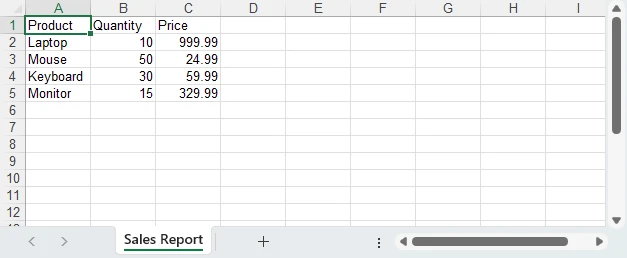
Call createExcelFile() and you'll get a SalesReport.xlsx with four product rows plus a header. The workflow is simple: create workbook → write data → save → download.
The following sections extend this example. Each code snippet assumes it is added inside createExcelFile() after the workbook and worksheet have been created.
Write Different Data Types to Excel Cells
Excel distinguishes between text, numbers, dates, and booleans. Getting this wrong leads to files where sorting breaks, formulas return errors, and numbers display as text.
const sheet = workbook.Worksheets.get(0);

// Text — for labels, names, descriptions
sheet.Range.get("A1").Text = "Product Name";

// Number — for anything you'll calculate, sort, or filter
sheet.Range.get("B1").NumberValue = 999.99;

// Date — a real DateTimeValue plus a display format
const dateCell = sheet.Range.get("C1");
dateCell.DateTimeValue = new Date(Date.UTC(2025, 2, 15));
dateCell.NumberFormat = "yyyy-mm-dd";

// Boolean — use BooleanValue, not text
sheet.Range.get("D1").BooleanValue = true;
The most common mistake? Writing cell.Text = "999.99" instead of cell.NumberValue = 999.99. The value looks identical when you open the file, but Excel treats it as text—you can't sum it, average it, or sort it numerically. Always use NumberValue for numbers, DateTimeValue for dates, and BooleanValue for booleans.
Dates need one extra precaution. DateTimeValue preserves the UTC instant represented by the JavaScript Date. Creating a date with local midnight can therefore shift the displayed day in some time zones; use Date.UTC() when you want a specific calendar date to be preserved.
Add Formulas to the Excel Worksheet
Formulas make your generated file a real spreadsheet, not just a data dump. Let's add a Total column that calculates Quantity × Price for each row, plus a grand total at the bottom:
// Add "Total" header
sheet.Range.get({ row: 1, column: 4 }).Text = "Total";

// Per-row formula: Total = Quantity × Price
for (let i = 2; i <= 5; i++) {
    sheet.Range.get({ row: i, column: 4 }).Formula = `=B${i}*C${i}`;
}

// Grand total row
sheet.Range.get({ row: 6, column: 1 }).Text = "Total";
sheet.Range.get({ row: 6, column: 2 }).Formula = "=SUM(B2:B5)";
sheet.Range.get({ row: 6, column: 4 }).Formula = "=SUM(D2:D5)";

// Evaluate the formulas once, so their results are written into the file.
workbook.CalculateAllValue();
Call workbook.CalculateAllValue() before saving when you need the generated workbook to contain calculated formula results. This is useful for viewers or applications that rely on cached values instead of recalculating formulas on open.
For a comprehensive guide to Excel functions and formula operations, see Insert or Read Functions and Formulas in Excel Worksheets with JavaScript in React.
Format the Generated Excel File
A spreadsheet with raw data works, but a formatted spreadsheet communicates. Let's turn our sales report into something you'd actually send to a stakeholder:
// Bold, colored header row
const header = sheet.Range.get("A1:D1");
header.Style.Font.IsBold = true;
header.Style.Font.Size = 12;
header.Style.Color = xls.Color.get_LightSkyBlue();

// Currency format for Price and Total columns
for (let i = 2; i <= 5; i++) {
    sheet.Range.get({ row: i, column: 3 }).NumberFormat = "$#,##0.00";
    sheet.Range.get({ row: i, column: 4 }).NumberFormat = "$#,##0.00";
}

// Set column widths explicitly
[26, 10, 12, 12].forEach((width, i) => {
    sheet.Columns.get(i).ColumnWidth = width;
});

// Clean borders
const usedRange = sheet.Range.get("A1:D6");
usedRange.Borders.LineStyle = xls.LineStyleType.Thin;
usedRange.Borders.Color = xls.Color.get_LightSteelBlue();
Two details are worth knowing here. sheet.Columns.get(i) and sheet.Rows.get(i) are 0-based and use get, unlike the get_Item that other collections expose. And in the tested browser setup, AutoFitColumn requires a font that is not available in the WebAssembly sandbox, so setting ColumnWidth explicitly is more reliable.
The result: a bold blue header, currency-formatted prices, properly sized columns, and clean borders.
For detailed guidance on row and column dimensions, see Set Row Height and Column Width in Excel with JavaScript in React.
Create Multiple Worksheets in an Excel Workbook
Real reports rarely fit on one sheet. A sales report might have a summary on the first tab, product details on the second, and monthly breakdowns on the third.
workbook.Worksheets.Clear();
const summarySheet = workbook.Worksheets.Add("Summary");
const productsSheet = workbook.Worksheets.Add("Products");
const monthlySheet = workbook.Worksheets.Add("Monthly Data");

// Products sheet — write actual data so cross-sheet formulas work
productsSheet.Range.get("A1").Text = "Product";
productsSheet.Range.get("B1").Text = "Quantity";
productsSheet.Range.get("C1").Text = "Price";
productsSheet.Range.get("D1").Text = "Total";

const products = [
    ["Laptop", 10, 999.99],
    ["Mouse", 50, 24.99],
    ["Keyboard", 30, 59.99],
    ["Monitor", 15, 329.99]
];

for (let i = 0; i < products.length; i++) {
    const row = i + 2;
    productsSheet.Range.get({ row: row, column: 1 }).Text = products[i][0];
    productsSheet.Range.get({ row: row, column: 2 }).NumberValue = products[i][1];
    productsSheet.Range.get({ row: row, column: 3 }).NumberValue = products[i][2];
    productsSheet.Range.get({ row: row, column: 4 }).Formula = `=B${row}*C${row}`;
}

// Summary sheet with cross-sheet reference
summarySheet.Range.get("A1").Text = "Sales Summary";
summarySheet.Range.get("A1").Style.Font.IsBold = true;
summarySheet.Range.get("A2").Text = "Total Products";
summarySheet.Range.get("B2").NumberValue = 4;
summarySheet.Range.get("A3").Text = "Total Revenue";
summarySheet.Range.get("B3").Formula = "=SUM(Products!D2:D5)";
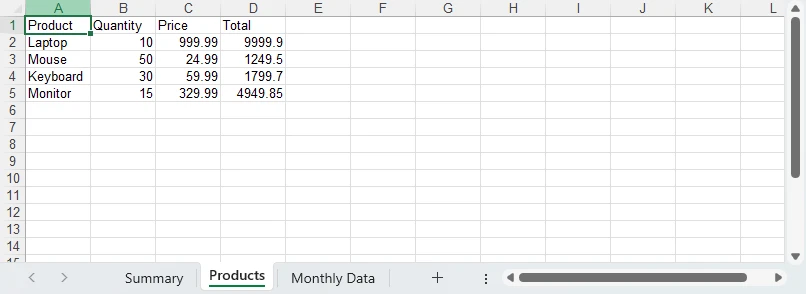
Each Worksheets.Add(name) returns the sheet it just created, in the order the calls are made, so the tab order matches the code order. Notice the cross-sheet formula: =SUM(Products!D2:D5) on the Summary sheet references the Total column on the Products sheet. Excel handles this automatically when the file opens—no extra code needed.
For more on worksheet management — adding, removing, and reordering sheets — see Add, Remove, and Move Excel Worksheets with JavaScript in React.
Save and Download the XLSX File in the Browser
Once your workbook is ready, Spire.XLS saves it to a WebAssembly virtual file system. You then read the file data, convert it to a Blob, and trigger a download:
workbook.SaveToFile({
    fileName: "Report.xlsx",
    version: xls.ExcelVersion.Version2016
});

const fileData = window.dotnetRuntime.Module.FS.readFile("Report.xlsx");
const blob = new Blob([fileData], {
    type: "application/vnd.openxmlformats-officedocument.spreadsheetml.sheet"
});
const url = URL.createObjectURL(blob);
const a = document.createElement("a");
a.href = url;
a.download = "Report.xlsx";
a.click();
URL.revokeObjectURL(url);

workbook.Dispose();
Always call workbook.Dispose() after the download to free memory—especially in apps where users generate multiple files in a session. The workbook itself lives in the WebAssembly heap until you do, and that heap is not reclaimed by the browser's garbage collector.
Looking for React integration or HTML table export? Check out our guide to downloading and exporting Excel files in JavaScript & React.
Putting It Together: A Formatted Sales Report
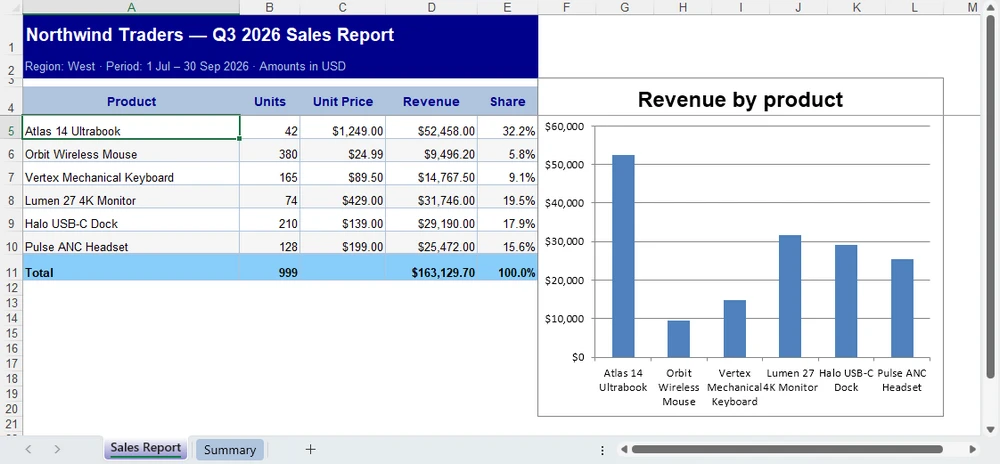
The snippets above build a workbook one concern at a time. Here they are in a single function: a styled worksheet with zebra banding and currency formats, formula-driven revenue and share columns, a column chart, and a second worksheet that rolls the numbers up.
/**
 * Build a formatted sales report workbook in the browser and download it as
 * SalesReport.xlsx.
 *
 * The layout is driven by `products` below — swap it for form input, an API
 * response or component state and nothing else needs to change.
 */
async function createExcelReport() {
  // spire.office 11.7.0 exposes Spire.XLS as `window.spirexls`. Older builds
  // hung it off `window.wasmModule.spirexls`; that global no longer exists.
  const xls = window.spirexls;
  if (!xls) throw new Error('Spire.XLS is not ready yet');

  // [product, units sold, unit price] — revenue and share are derived by formula
  const products = [
    ['Atlas 14 Ultrabook', 42, 1249.0],
    ['Orbit Wireless Mouse', 380, 24.99],
    ['Vertex Mechanical Keyboard', 165, 89.5],
    ['Lumen 27 4K Monitor', 74, 429.0],
    ['Halo USB-C Dock', 210, 139.0],
    ['Pulse ANC Headset', 128, 199.0],
  ];
  const FIRST = 5; // first data row
  const TOTAL = FIRST + products.length; // total row

  const wb = new xls.Workbook();
  wb.Worksheets.Clear();
  const sheet = wb.Worksheets.Add('Sales Report');

  const at = (a) => sheet.Range.get(a);
  const cell = (row, col) => sheet.Range.get({ row: row, column: col });
  const paint = (a, colour) => {
    at(a).Style.Color = colour;
  };

  // ── Sizing ── explicit widths (AutoFitColumn is unreliable in the WASM sandbox)
  [34, 9, 13, 14, 9].forEach((w, i) => {
    sheet.Columns.get(i).ColumnWidth = w;
  });
  sheet.Rows.get(0).RowHeight = 34; // title
  sheet.Rows.get(1).RowHeight = 20; // subtitle
  sheet.Rows.get(2).RowHeight = 8; // spacer
  sheet.Rows.get(3).RowHeight = 24; // header

  // ── Title band ── merge first, then style the whole merged area
  at('A1:E1').Merge();
  cell(1, 1).Text = 'Sales Report — Q3 2026';
  paint('A1:E1', xls.Color.get_DarkBlue());
  at('A1:E1').Style.Font.Color = xls.Color.get_White();
  at('A1:E1').Style.Font.IsBold = true;
  at('A1:E1').Style.Font.Size = 15;
  at('A1:E1').Style.VerticalAlignment = xls.VerticalAlignType.Center;

  at('A2:E2').Merge();
  cell(2, 1).Text = 'Region: West · Period: 1 Jul – 30 Sep 2026 · Amounts in USD';
  paint('A2:E2', xls.Color.get_DarkBlue());
  at('A2:E2').Style.Font.Color = xls.Color.get_LightSteelBlue();
  at('A2:E2').Style.Font.Size = 9.5;
  at('A2:E2').Style.VerticalAlignment = xls.VerticalAlignType.Center;

  // ── Header row ───────────────────────────────────────────────────────────
  ['Product', 'Units', 'Unit Price', 'Revenue', 'Share'].forEach((label, i) => {
    cell(4, i + 1).Text = label;
  });
  paint('A4:E4', xls.Color.get_LightSteelBlue());
  at('A4:E4').Style.Font.Color = xls.Color.get_DarkBlue();
  at('A4:E4').Style.Font.IsBold = true;
  at('A4:E4').Style.Font.Size = 10.5;
  at('A4:E4').Style.HorizontalAlignment = xls.HorizontalAlignType.Center;
  at('A4:E4').Style.VerticalAlignment = xls.VerticalAlignType.Center;

  // ── Data rows ── numbers go in as NumberValue, never as text
  products.forEach(([name, units, price], i) => {
    const r = FIRST + i;
    cell(r, 1).Text = name;
    cell(r, 2).NumberValue = units;
    cell(r, 3).NumberValue = price;
    cell(r, 4).Formula = `=B${r}*C${r}`;
    cell(r, 5).Formula = `=D${r}/$D${TOTAL}`; // share of the grand total
    sheet.Rows.get(r - 1).RowHeight = 20;
    if (i % 2) paint(`A${r}:E${r}`, xls.Color.get_WhiteSmoke()); // zebra banding
  });

  // ── Total row ────────────────────────────────────────────────────────────
  cell(TOTAL, 1).Text = 'Total';
  [2, 4, 5].forEach((col) => {
    const letter = String.fromCharCode(64 + col);
    cell(TOTAL, col).Formula = `=SUM(${letter}${FIRST}:${letter}${TOTAL - 1})`;
  });
  paint(`A${TOTAL}:E${TOTAL}`, xls.Color.get_LightSkyBlue());
  at(`A${TOTAL}:E${TOTAL}`).Style.Font.IsBold = true;
  sheet.Rows.get(TOTAL - 1).RowHeight = 22;

  // ── Number formats and borders ───────────────────────────────────────────
  at(`B${FIRST}:B${TOTAL}`).NumberFormat = '#,##0';
  at(`C${FIRST}:D${TOTAL}`).NumberFormat = '$#,##0.00';
  at(`E${FIRST}:E${TOTAL}`).NumberFormat = '0.0%';

  const table = at(`A4:E${TOTAL}`);
  table.Borders.LineStyle = xls.LineStyleType.Thin;
  table.Borders.Color = xls.Color.get_LightSteelBlue();
  at(`A${TOTAL}:E${TOTAL}`).Borders.get_Item(xls.BordersLineType.EdgeTop).LineStyle =
    xls.LineStyleType.Medium;

  // ── Chart ── build the series by hand (DataRange would mix units)
  const chart = sheet.Charts.Add();
  chart.ChartType = xls.ExcelChartType.ColumnClustered;
  chart.LeftColumn = 6;
  chart.TopRow = 3;
  chart.RightColumn = 13;
  chart.BottomRow = 21;
  const serie = chart.Series.Add();
  serie.CategoryLabels = at(`A${FIRST}:A${TOTAL - 1}`);
  serie.Values = at(`D${FIRST}:D${TOTAL - 1}`);
  serie.Name = 'Revenue';
  chart.ChartTitleArea.Text = 'Revenue by product';
  chart.HasLegend = false;
  chart.PrimaryValueAxis.NumberFormat = '$#,##0';

  // ── Sheet chrome ──
  sheet.FreezePanes(FIRST, 1);
  sheet.GridLinesVisible = false;
  sheet.TabColor = xls.Color.get_DarkBlue();

  // ── Second worksheet: cross-sheet roll-up ──
  const summary = wb.Worksheets.Add('Summary');
  summary.Columns.get(0).ColumnWidth = 26;
  summary.Columns.get(1).ColumnWidth = 18;
  summary.Rows.get(0).RowHeight = 30;
  summary.Rows.get(1).RowHeight = 18;
  summary.Rows.get(3).RowHeight = 22;

  const band = (a, text, size) => {
    summary.Range.get(a).Merge();
    summary.Range.get(a.split(':')[0]).Text = text;
    summary.Range.get(a).Style.Color = xls.Color.get_DarkBlue();
    summary.Range.get(a).Style.Font.Color = xls.Color.get_White();
    summary.Range.get(a).Style.Font.IsBold = true;
    summary.Range.get(a).Style.Font.Size = size;
    summary.Range.get(a).Style.VerticalAlignment = xls.VerticalAlignType.Center;
  };
  band('A1:B1', 'Executive Summary', 14);
  band('A2:B2', 'Sales Report · Q3 2026', 9.5);

  ['Metric', 'Value'].forEach((label, i) => {
    summary.Range.get({ row: 4, column: i + 1 }).Text = label;
  });
  summary.Range.get('A4:B4').Style.Color = xls.Color.get_LightSteelBlue();
  summary.Range.get('A4:B4').Style.Font.Color = xls.Color.get_DarkBlue();
  summary.Range.get('A4:B4').Style.Font.IsBold = true;

  [
    ['Total revenue', "='Sales Report'!D" + TOTAL, '$#,##0.00'],
    ['Units shipped', "='Sales Report'!B" + TOTAL, '#,##0'],
    ['Average unit price', `='Sales Report'!D${TOTAL}/'Sales Report'!B${TOTAL}`, '$#,##0.00'],
  ].forEach(([label, formula, format], i) => {
    summary.Range.get({ row: 5 + i, column: 1 }).Text = label;
    const value = summary.Range.get({ row: 5 + i, column: 2 });
    value.Formula = formula;
    value.NumberFormat = format;
    value.Style.HorizontalAlignment = xls.HorizontalAlignType.Right;
    if (i % 2) summary.Range.get(`A${5 + i}:B${5 + i}`).Style.Color = xls.Color.get_WhiteSmoke();
  });

  // Date — use Date.UTC to avoid timezone shift
  summary.Range.get('A8').Text = 'Report date';
  const reportDate = summary.Range.get('B8');
  reportDate.DateTimeValue = new Date(Date.UTC(2026, 8, 28));
  reportDate.NumberFormat = 'yyyy-mm-dd';
  reportDate.Style.HorizontalAlignment = xls.HorizontalAlignType.Right;

  const kpis = summary.Range.get('A4:B8');
  kpis.Borders.LineStyle = xls.LineStyleType.Thin;
  kpis.Borders.Color = xls.Color.get_LightSteelBlue();
  summary.GridLinesVisible = false;
  summary.TabColor = xls.Color.get_LightSteelBlue();

  // ── Save, then release ──
  wb.CalculateAllValue();
  const fileName = 'SalesReport.xlsx';
  wb.SaveToFile({ fileName: fileName, version: xls.ExcelVersion.Version2016 });

  const fileData = window.dotnetRuntime.Module.FS.readFile(fileName);
  const blob = new Blob([fileData], {
    type: 'application/vnd.openxmlformats-officedocument.spreadsheetml.sheet',
  });
  const url = URL.createObjectURL(blob);
  Object.assign(document.createElement('a'), { href: url, download: fileName }).click();
  URL.revokeObjectURL(url);

  wb.Dispose(); // free the WASM heap — one workbook per generation cycle
}
The layout follows the data. Replace the products array with a response from your own API and everything else — totals, share percentages, the chart range, the summary roll-up — keeps working, because they are all expressed as formulas or derived ranges rather than hard-coded values.
For more chart types and configuration options, see Create Excel Charts with JavaScript in React.
Create an Excel File from CSV Data
You can load tabular data from a CSV file into a worksheet and save the result as XLSX. The resulting workbook can then be formatted or extended with formulas and additional worksheets:
// The library reads from its own virtual file system, so the CSV has to be
// there before you can load it — written from a string here, from the bytes of
// a File object in a real application.
const csv = "Product,Quantity,Price\nLaptop,10,999.99\nMouse,50,24.99\nKeyboard,30,59.99";
window.dotnetRuntime.Module.FS.writeFile("data.csv", new TextEncoder().encode(csv));

workbook.LoadFromFile("data.csv", ",");
workbook.SaveToFile({
    fileName: "ConvertedFromCSV.xlsx",
    version: xls.ExcelVersion.Version2016
});
The imported sheet is named after the file (data), so Worksheets.get(0) picks it up.
The separator is a required second argument. LoadFromFile("data.csv") on its own is rejected with This is not a structured storage file, because the single-argument overload expects a structured format such as .xlsx or .xls and does not sniff CSV.
There is a second catch: the CSV importer writes every field as text. A quantity column arrives as "10" rather than 10, which means it cannot be summed or sorted numerically — the exact problem described earlier in this tutorial. Convert the columns you need before saving:
const csvSheet = workbook.Worksheets.get(0);

// The importer leaves every field as text — coerce each numeric column.
// Columns 2 and 3 hold Quantity and Price; both arrive as "10" and "999.99".
for (let row = 2; row <= 4; row++) {
    [2, 3].forEach((column) => {
        const cell = csvSheet.Range.get({ row: row, column: column });
        if (cell.Text !== "") {
            cell.NumberValue = Number(cell.Text);
        }
    });
}
For a full guide on converting between CSV and Excel formats, see our CSV to Excel conversion tutorial.
Create an XLS File Instead of XLSX
If your application needs to generate the legacy .xls format instead of .xlsx, change the version parameter:
workbook.SaveToFile({
    fileName: "Report.xls",
    version: xls.ExcelVersion.Version97to2003
});
The enum member is Version97to2003 — there is no Version97. Keep charts in XLSX; the tested XLS writer fails when chart font metrics are required.
XLSX (Excel 2007+) is the recommended format for new applications. XLS (Excel 97–2003) is only necessary when backward compatibility is required.
Common Problems
window.wasmModule is undefined. Older samples read the spreadsheet API from window.wasmModule.spirexls. Current releases install it directly on window.spirexls and leave wasmModule undefined, so the very first access throws. Check window.spirexls instead.
WASM module not initialized. If window.spirexls is undefined, the runtime hasn't finished loading. Show a loading indicator and wait for initialization to complete before attempting any Excel operations.
Auto-fit throws a font error. AutoFitColumn and AutoFitRow need a system font to measure text, and the WebAssembly sandbox has none. They fail with Cannot found font(Arial) installed on the system. Compute or hard-code your column widths with sheet.Columns.get(i).ColumnWidth.
Numbers stored as text. Using cell.Text = "100" instead of cell.NumberValue = 100 breaks sorting and calculations. This is the most common issue developers encounter when writing Excel files in JavaScript, and CSV import triggers it automatically—always use NumberValue for numeric data.
An "Evaluation Warning" sheet appears. When using the evaluation build without a valid license, Spire.XLS adds an evaluation sheet to the saved workbook. This sheet is recreated on save, so removing it programmatically is not a reliable workaround. Apply a license key to prevent it.
Memory leaks in long-running apps. Call workbook.Dispose() after every generation cycle. In single-page applications, undisposed workbooks accumulate memory and degrade performance over time.
FAQ
Can JavaScript create Excel files without Microsoft Excel?
Yes. Spire.XLS for JavaScript runs entirely in the browser via WebAssembly. No Microsoft Excel or server-side Office installation is required to generate XLSX files.
Can JavaScript create XLSX files directly in the browser?
Yes. All spreadsheet operations happen client-side. The file is saved to a virtual file system, then downloaded as a Blob—no backend server needed.
What's the difference between XLS and XLSX?
XLSX (Excel 2007 and later) is the modern XML-based format, recommended for new applications. XLS (Excel 97–2003) is the legacy binary format, useful for older system compatibility.
Conclusion
Creating Excel files in JavaScript doesn't require a backend server or Microsoft Excel. With Spire.XLS for JavaScript, you can build workbooks from scratch, write typed data, add formulas, apply formatting, and organize data across multiple sheets—all in the browser.
Start with the basic example above, then layer in formulas and formatting as your needs grow. For React-specific integration and HTML table export, see our dedicated export tutorial.
See Also
Copiar e Reutilizar Páginas PDF entre Documentos com JavaScript
Índice
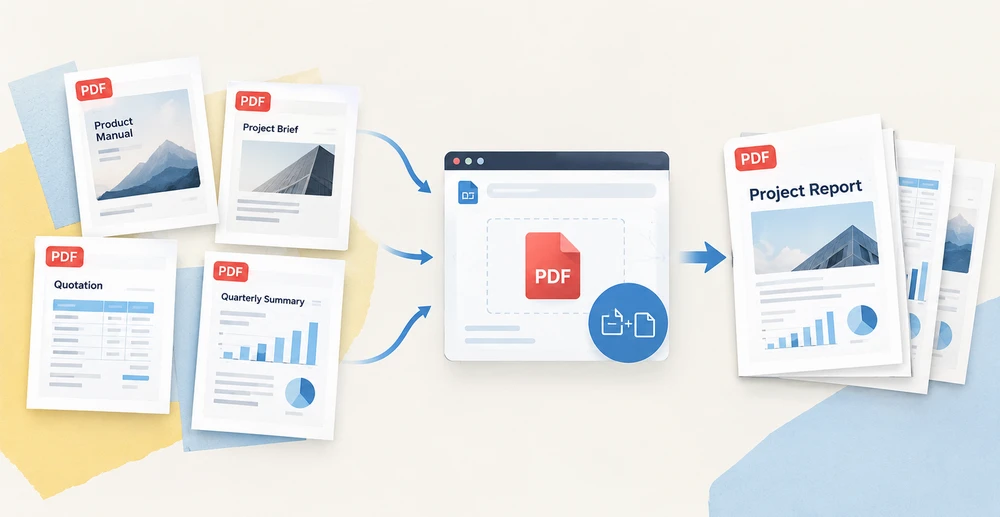
Montar um PDF refinado a partir de arquivos de origem dispersos é uma tarefa rotineira, mas delicada: uma página de capa precisa ficar na frente de um resumo de projeto, páginas de preços pertencem ao seu contrato, um resumo trimestral reúne gráficos de uma dúzia de relatórios. Fazer isso manualmente significa lidar com vários leitores de PDF e torcer para que a ordem das páginas saia correta, com tamanhos de página incompatíveis complicando ainda mais o problema.
O Spire.PDF for JavaScript transfere toda a operação para o navegador. Com o suporte do WebAssembly, ele carrega, manipula e salva documentos PDF inteiramente no lado do cliente por meio de um sistema de arquivos virtual (VFS), o que significa que nenhum arquivo é enviado a um servidor de backend. Este artigo apresenta quatro técnicas distintas para copiar páginas de PDF entre documentos — três que realocam páginas inteiras e uma que extrai o conteúdo da página como um template reutilizável — com exemplos completos de código React para cada uma.
Para instruções de configuração do projeto e instalação, consulte Integrating Spire.PDF for JavaScript in a React Project. Os exemplos abaixo pressupõem que o Spire.PDF esteja instalado e o módulo WebAssembly tenha sido inicializado.
Quatro Maneiras de Copiar Páginas de PDF em Resumo
Antes de examinar cada método individualmente, a tabela abaixo oferece uma comparação rápida. As três primeiras técnicas movem páginas intactas e transferem automaticamente as dimensões, a rotação e as margens da página de origem. A quarta desvincula o conteúdo da geometria da página, dando a você controle total sobre o tamanho da página de destino e a posição de desenho.
| Método | Chamada de API | O Que É Copiado | Tamanho da Página | Caso de Uso Típico |
|---|---|---|---|---|
| Inserir uma única página | InsertPage |
Uma página em uma posição que você escolher | Herdado da origem | Adicionar uma capa ou página de título na frente |
| Inserir um intervalo de páginas | InsertPageRange |
Um bloco consecutivo de páginas | Herdado da origem | Anexar uma seção específica, como tabelas de preços |
| Anexar um documento inteiro | AppendPage |
Todas as páginas do documento de origem | Herdado da origem | Concatenar documentos completos de ponta a ponta |
| Desenhar o conteúdo da página como template | CreateTemplate + DrawTemplate |
Apenas o conteúdo da página, desenhado em qualquer página | Você decide o tamanho de destino | Reutilizar conteúdo em tamanhos de página diferentes ou repeti-lo várias vezes |
Os três primeiros métodos são simples movimentações de páginas — escolha a origem, escolha o destino, e a biblioteca faz o resto. A abordagem com template é mais avançada e abre possibilidades que a simples cópia de páginas não consegue atender, como dimensionar o conteúdo para caber em um tamanho de página diferente ou carimbar o mesmo conteúdo em várias páginas. Abordaremos primeiro os três métodos de movimentação de páginas e, em seguida, exploraremos a técnica de template em profundidade.
Copiar uma Única Página para uma Posição Específica
O mais preciso dos quatro métodos, PdfDocument.InsertPage, copia uma página de um documento de origem e a coloca em um índice exato no destino. O parâmetro resultPageIndex controla onde a cópia é inserida: passe 0 para colocá-la no início, passe a contagem atual de páginas do destino para anexá-la, ou forneça qualquer índice intermediário para inseri-la nessa posição. Omita resultPageIndex completamente e a página será colocada no final por padrão.
function App() {
  const copyPageAtPosition = async () => {
    // Get the Spire.PDF WASM module
    const pdfModule = window.wasmModule?.spirepdf;

    // Check whether the module is ready
    if (!pdfModule) {
      alert('Spire.PDF is not ready yet');
      return;
    }

    // Load both the source and the target document into the VFS
    const sourceFileName = 'SourceDocument.pdf';
    const targetFileName = 'TargetDocument.pdf';
    await window.spire.FetchFileToVFS(sourceFileName, "", `${process.env.PUBLIC_URL}/data/`);
    await window.spire.FetchFileToVFS(targetFileName, "", `${process.env.PUBLIC_URL}/data/`);

    // Load the two documents
    const sourceDoc = new pdfModule.PdfDocument();
    sourceDoc.LoadFromFile(sourceFileName);
    const targetDoc = new pdfModule.PdfDocument();
    targetDoc.LoadFromFile(targetFileName);

    // Copy page 1 of the source document to the front of the target document
    // pageIndex comes from the source document, resultPageIndex is where the copy lands
    targetDoc.InsertPage({ ldDoc: sourceDoc, pageIndex: 0, resultPageIndex: 0 });

    // Save the result document
    const outputFileName = 'CopyPageAtPosition.pdf';
    targetDoc.SaveToFile(outputFileName);
    sourceDoc.Close();
    targetDoc.Close();

    // Read the generated file from the VFS and trigger the download
    const fileArray = window.dotnetRuntime.Module.FS.readFile(outputFileName);
    const blob = new Blob([fileArray], { type: 'application/pdf' });
    const url = URL.createObjectURL(blob);
    const a = document.createElement('a');
    a.href = url;
    a.download = outputFileName;
    a.click();
    URL.revokeObjectURL(url);
  };

  return (
    <div style={{ textAlign: 'center', height: '300px' }}>
      <h1>Copy Page at Position</h1>
      <button onClick={copyPageAtPosition}>
        Start
      </button>
    </div>
  );
}

export default App;
Entre todos os quatro métodos de cópia,
resultPageIndexé o único parâmetro que permite escolher o ponto de inserção. Defini-lo como 0 coloca a página em primeiro lugar, 1 a coloca em segundo, e passar a contagem atual de páginas do documento de destino produz o mesmo efeito que anexar.
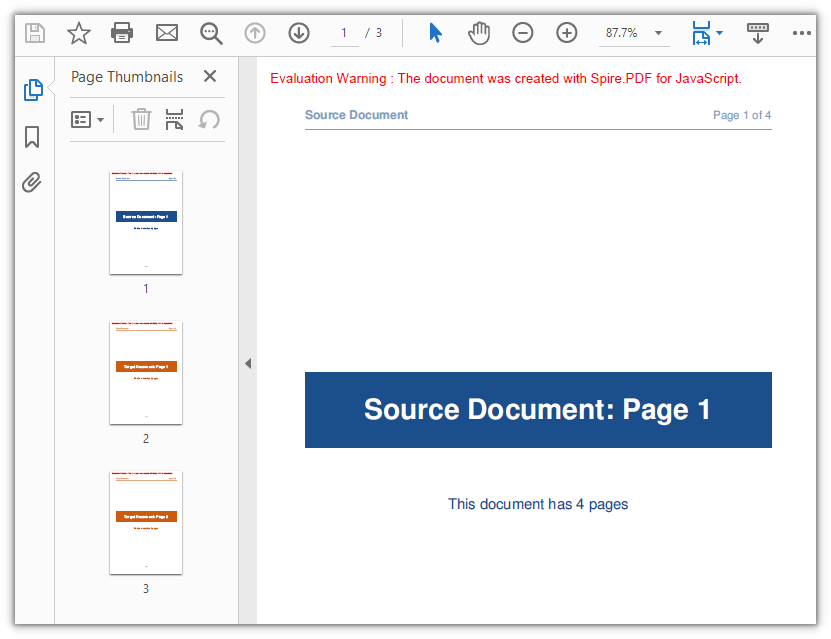
O documento de destino cresce de duas para três páginas, com a primeira página do documento de origem agora ocupando a posição inicial:
Copiar um Intervalo de Páginas para o Final
Quando você precisa de mais de uma página, mas menos do que um documento inteiro, PdfDocument.InsertPageRange copia um bloco contíguo de páginas definido por um índice inicial e final. Diferentemente de InsertPage, este método aceita argumentos posicionais em vez de um objeto de opções, e sempre anexa as páginas copiadas ao final do destino — não há parâmetro para escolher a posição de inserção. O índice final é inclusivo, portanto passar (sourceDoc, 1, 2) copia as páginas 2 e 3 (com base zero).
function App() {
  const appendPageRange = async () => {
    // Get the Spire.PDF WASM module
    const pdfModule = window.wasmModule?.spirepdf;

    // Check whether the module is ready
    if (!pdfModule) {
      alert('Spire.PDF is not ready yet');
      return;
    }

    // Load both the source and the target document into the VFS
    const sourceFileName = 'SourceDocument.pdf';
    const targetFileName = 'TargetDocument.pdf';
    await window.spire.FetchFileToVFS(sourceFileName, "", `${process.env.PUBLIC_URL}/data/`);
    await window.spire.FetchFileToVFS(targetFileName, "", `${process.env.PUBLIC_URL}/data/`);

    // Load the two documents
    const sourceDoc = new pdfModule.PdfDocument();
    sourceDoc.LoadFromFile(sourceFileName);
    const targetDoc = new pdfModule.PdfDocument();
    targetDoc.LoadFromFile(targetFileName);

    // Append pages 2 to 3 of the source document to the end of the target document
    // Note: these are positional arguments, not an object; endIndex is inclusive
    targetDoc.InsertPageRange(sourceDoc, 1, 2);

    // Save the result document
    const outputFileName = 'CopyPageRange.pdf';
    targetDoc.SaveToFile(outputFileName);
    sourceDoc.Close();
    targetDoc.Close();

    // Read the generated file from the VFS and trigger the download
    const fileArray = window.dotnetRuntime.Module.FS.readFile(outputFileName);
    const blob = new Blob([fileArray], { type: 'application/pdf' });
    const url = URL.createObjectURL(blob);
    const a = document.createElement('a');
    a.href = url;
    a.download = outputFileName;
    a.click();
    URL.revokeObjectURL(url);
  };

  return (
    <div style={{ textAlign: 'center', height: '300px' }}>
      <h1>Copy Page Range</h1>
      <button onClick={appendPageRange}>
        Copy pages 2-3
      </button>
    </div>
  );
}

export default App;
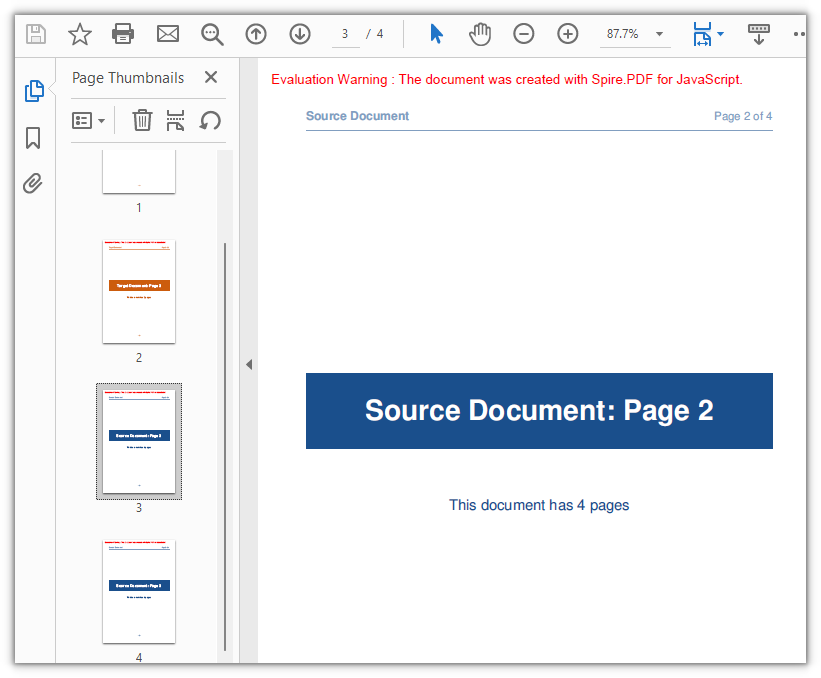
O documento de destino ganha duas páginas adicionais, passando de um total de duas para quatro:
Anexar um Documento Inteiro
Para o caso mais simples — mover todas as páginas de um documento para outro — PdfDocument.AppendPage elimina a necessidade de calcular índices. Passe o objeto do documento de origem e todas as suas páginas serão anexadas ao destino em sua sequência original. Para concatenar vários documentos, chame AppendPage repetidamente com cada documento de origem, um por vez.
function App() {
  const appendWholeDocument = async () => {
    // Get the Spire.PDF WASM module
    const pdfModule = window.wasmModule?.spirepdf;

    // Check whether the module is ready
    if (!pdfModule) {
      alert('Spire.PDF is not ready yet');
      return;
    }

    // Load both the source and the target document into the VFS
    const sourceFileName = 'SourceDocument.pdf';
    const targetFileName = 'TargetDocument.pdf';
    await window.spire.FetchFileToVFS(sourceFileName, "", `${process.env.PUBLIC_URL}/data/`);
    await window.spire.FetchFileToVFS(targetFileName, "", `${process.env.PUBLIC_URL}/data/`);

    // Load the two documents
    const sourceDoc = new pdfModule.PdfDocument();
    sourceDoc.LoadFromFile(sourceFileName);
    const targetDoc = new pdfModule.PdfDocument();
    targetDoc.LoadFromFile(targetFileName);

    // Use AppendPage when the whole document has to be copied; all pages are appended in order
    targetDoc.AppendPage({ doc: sourceDoc });

    // Save the result document
    const outputFileName = 'CopyAllPages.pdf';
    targetDoc.SaveToFile(outputFileName);
    sourceDoc.Close();
    targetDoc.Close();

    // Read the generated file from the VFS and trigger the download
    const fileArray = window.dotnetRuntime.Module.FS.readFile(outputFileName);
    const blob = new Blob([fileArray], { type: 'application/pdf' });
    const url = URL.createObjectURL(blob);
    const a = document.createElement('a');
    a.href = url;
    a.download = outputFileName;
    a.click();
    URL.revokeObjectURL(url);
  };

  return (
    <div style={{ textAlign: 'center', height: '300px' }}>
      <h1>Copy Whole Document</h1>
      <button onClick={appendWholeDocument}>
        Start
      </button>
    </div>
  );
}

export default App;
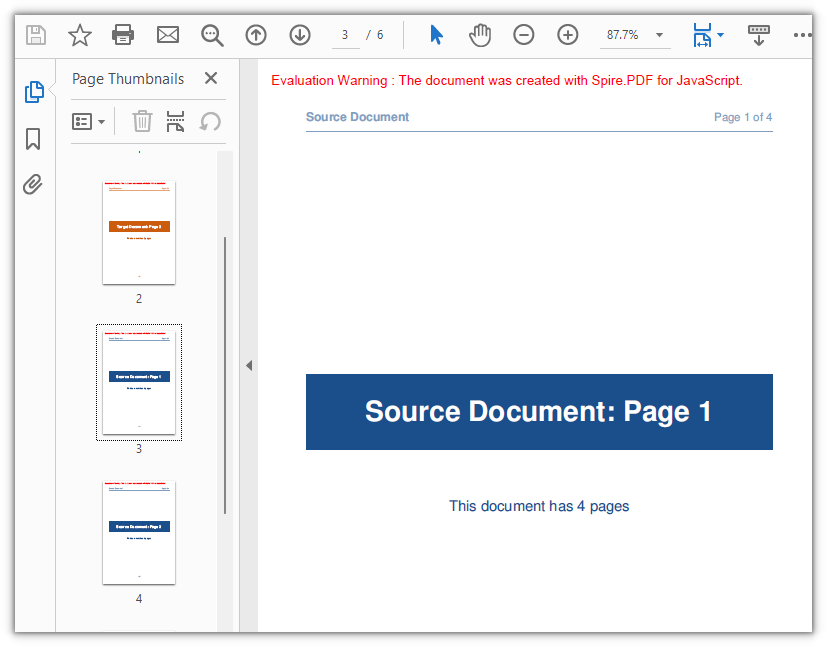
Todas as quatro páginas do documento de origem se juntam ao destino, expandindo-o de duas para seis páginas:
Copiar o Conteúdo da Página com um Template
Os três métodos acima tratam uma página como uma unidade indivisível: ela se move com seu tamanho, rotação e margens preservados. Mas a montagem de documentos no mundo real frequentemente exige um controle mais refinado — colocar o conteúdo de uma página em uma página de tamanho diferente, ampliá-lo ou reduzi-lo, ou carimbar o mesmo conteúdo em várias páginas. É aqui que PdfPageBase.CreateTemplate entra em cena.
CreateTemplate extrai o conteúdo visual de uma página para um objeto PdfTemplate. Em seguida, você desenha esse template em qualquer página usando Canvas.DrawTemplate, especificando a posição e o tamanho da área de desenho. O template é desvinculado da geometria da página original, então você pode renderizá-lo em qualquer escala, em qualquer posição, em qualquer tamanho de página — e pode desenhar o mesmo template quantas vezes precisar.
Isso torna os templates especialmente úteis para cenários como:
- Colocar o conteúdo de uma capa A5 centralizado em uma página A4 sem borda branca
- Criar uma marca d'água ou padrão de fundo a partir de uma página existente
- Duplicar o layout de um formulário em várias páginas novas, em escalas diferentes
function App() {
  const copyPageWithTemplate = async () => {
    // Get the Spire.PDF WASM module
    const pdfModule = window.wasmModule?.spirepdf;

    // Check whether the module is ready
    if (!pdfModule) {
      alert('Spire.PDF is not ready yet');
      return;
    }

    // Load the PDF file to work on into the VFS
    const inputFileName = 'SourceDocument.pdf';
    await window.spire.FetchFileToVFS(inputFileName, "", `${process.env.PUBLIC_URL}/data/`);

    // Load the document
    const doc = new pdfModule.PdfDocument();
    doc.LoadFromFile(inputFileName);

    // Take the page to be reused and turn it into a template: read the content once, draw it many times
    const sourcePage = doc.Pages.get_Item(0);
    const template = sourcePage.CreateTemplate();

    // First placement: insert an A4 page at position 2, a different size from the source,
    // and draw the content scaled to 297.6 x 421.6 at (80, 80)
    const page1 = doc.Pages.Insert(1, new pdfModule.SizeF(595.0, 842.0), new pdfModule.PdfMargins({ margin: 0.0 }));
    page1.Canvas.DrawTemplate(template, new pdfModule.PointF(80.0, 80.0), new pdfModule.SizeF(297.6, 421.6));

    // Second placement: insert another A4 page, drawing the same template smaller in the lower right
    const page2 = doc.Pages.Insert(2, new pdfModule.SizeF(595.0, 842.0), new pdfModule.PdfMargins({ margin: 0.0 }));
    page2.Canvas.DrawTemplate(template, new pdfModule.PointF(320.0, 460.0), new pdfModule.SizeF(200.0, 283.3));

    // Save the result document
    const outputFileName = 'CopyPageWithTemplate.pdf';
    doc.SaveToFile(outputFileName);
    doc.Close();

    // Read the generated file from the VFS and trigger the download
    const fileArray = window.dotnetRuntime.Module.FS.readFile(outputFileName);
    const blob = new Blob([fileArray], { type: 'application/pdf' });
    const url = URL.createObjectURL(blob);
    const a = document.createElement('a');
    a.href = url;
    a.download = outputFileName;
    a.click();
    URL.revokeObjectURL(url);
  };

  return (
    <div style={{ textAlign: 'center', height: '300px' }}>
      <h1>Copy Page with Template</h1>
      <button onClick={copyPageWithTemplate}>
        Start
      </button>
    </div>
  );
}

export default App;
Alguns detalhes que vale a pena observar sobre DrawTemplate:
- Argumento de tamanho: Quando o terceiro argumento (tamanho de destino) é omitido, o template é renderizado em suas dimensões originais, sem escala. Em uma página de destino maior, o conteúdo ocupa apenas uma parte do espaço disponível.
- Criação de página: As dimensões e margens da página de destino vêm de
Pages.Insert, não do template. No exemplo, margens zero em todos os lados fazem a origem do desenho coincidir com o canto superior esquerdo da página. - Múltiplos desenhos: O mesmo objeto
templateé desenhado duas vezes em duas páginas separadas, em posições e escalas diferentes, demonstrando a capacidade de reutilização.
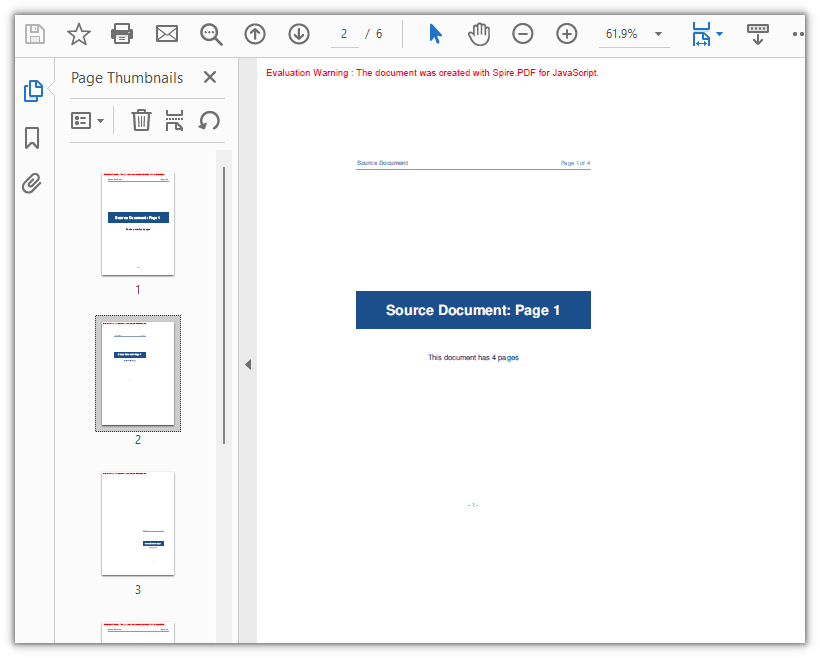
O conteúdo da página 1 agora aparece em duas páginas A4 recém-inseridas, em escalas e posições diferentes, fazendo o documento crescer de quatro para seis páginas:
Perguntas Frequentes
Criar uma página com new PdfMargins(0.0) gera Arg_NullReferenceException
Causa: O construtor de PdfMargins interpreta um argumento numérico simples como um identificador interno, e não como um valor de margem. Portanto, chamar new pdfModule.PdfMargins(0.0) produz um objeto que não representa margens válidas — acessar sua propriedade Left ou Top dispara Arg_NullReferenceException, e passá-lo para a criação de página produz resultados inesperados.
Solução: Sempre passe as margens como um objeto de configuração. Para margens zero uniformes, use { margin: 0.0 }; para valores individuais por lado, especifique cada lado explicitamente:
// Zero margins on all four sides
const margins = new pdfModule.PdfMargins({ margin: 0.0 });

// Or set each side separately
const custom = new pdfModule.PdfMargins({ left: 20.0, top: 20.0, right: 20.0, bottom: 20.0 });
Um erro de intervalo fora dos limites ou invertido é lançado ao copiar páginas
Causa: Os índices de página são com base zero, e endIndex em InsertPageRange é inclusivo. O intervalo válido, portanto, vai de 0 a Pages.Count - 1. Fornecer um índice fora desse intervalo gera Index out of range, enquanto definir startIndex maior que endIndex gera The start index is greater then the end index.
Solução: Proteja o limite superior limitando-o em relação a Pages.Count antes de chamar o método:
// To copy pages 2 to 4: start = 1, end = 3, with the page count as the upper bound
const start = 1;
const end = Math.min(3, sourceDoc.Pages.Count - 1);
targetDoc.InsertPageRange(sourceDoc, start, end);
Uma página rotacionada sai com a orientação errada após a cópia
Causa: CreateTemplate() captura o conteúdo desenhado da página, mas não seu ângulo de rotação (a entrada /Rotate). Quando a página de origem possui uma rotação, o sistema de coordenadas do template fica desalinhado com a página de destino — desenhá-lo diretamente coloca o conteúdo fora da área visível, e a cópia resultante tem Rotation igual a 0.
Solução: Para páginas de origem rotacionadas, prefira uma cópia de página inteira para que o ângulo de rotação acompanhe o conteúdo:
// Whole-page copy: the rotation angle comes with the page
targetDoc.InsertPage({ ldDoc: sourceDoc, pageIndex: 0, resultPageIndex: 1 });
Se a abordagem com template for inevitável, limpe temporariamente a rotação da página de origem antes de extrair o template e depois restaure o ângulo original tanto na origem quanto na nova página:
const rotation = sourcePage.Rotation.value;

// Zero it temporarily so the template exports at the page's real coordinates
sourcePage.Rotation = 0;
const newPage = doc.Pages.Insert(1, sourcePage.Size, new pdfModule.PdfMargins({ margin: 0.0 }));
newPage.Canvas.DrawTemplate(sourcePage.CreateTemplate(), new pdfModule.PointF(0.0, 0.0));

// Restore the source page and give the copy the same angle
sourcePage.Rotation = rotation;
newPage.Rotation = rotation;
Para remover a marca d'água de avaliação dos documentos de saída ou desbloquear o acesso completo aos recursos, entre em contato com vendas para obter uma licença temporária de 30 dias.
Veja Também
JavaScript로 문서 간 PDF 페이지 복사 및 재사용
흩어진 원본 파일에서 완성도 높은 PDF를 조립하는 일은 일상적이지만 까다로운 작업입니다. 표지 페이지는 프로젝트 개요서 맨 앞에 있어야 하고, 가격 페이지는 계약서 안에 들어가야 하며, 분기 요약본은 수십 개 보고서의 차트를 하나로 엮어야 합니다. 이 작업을 수작업으로 하면 여러 PDF 리더를 오가며 페이지 순서가 제대로 나오기를 바라야 하고, 페이지 크기가 서로 맞지 않으면 문제가 더 커집니다.
Spire.PDF for JavaScript는 이 모든 작업을 브라우저 안으로 옮깁니다. WebAssembly를 기반으로 하며, 가상 파일 시스템(VFS)을 통해 전적으로 클라이언트 측에서 PDF 문서를 로드하고 조작하고 저장하므로 파일이 백엔드 서버로 업로드되는 일이 전혀 없습니다. 이 글에서는 문서 간에 PDF 페이지를 복사하는 네 가지 기법을 살펴봅니다. 세 가지는 전체 페이지를 이동하는 방법이고, 하나는 페이지 콘텐츠를 재사용 가능한 템플릿으로 추출하는 방법입니다. 각 방법에는 완전한 React 코드 예제가 포함되어 있습니다.
프로젝트 설정 및 설치 지침은 React 프로젝트에서 Spire.PDF for JavaScript 통합하기를 참조하세요. 아래 예제는 Spire.PDF가 설치되어 있고 WebAssembly 모듈이 초기화되었다고 가정합니다.
한눈에 보는 PDF 페이지 복사 네 가지 방법
각 방법을 개별적으로 살펴보기 전에, 아래 표에서 빠르게 비교해 보겠습니다. 처음 세 가지 기법은 페이지를 그대로 이동하며 원본 페이지의 크기, 회전, 여백을 자동으로 이어받습니다. 네 번째는 콘텐츠를 페이지 지오메트리에서 분리하여 대상 페이지 크기와 그리기 위치를 완전히 제어할 수 있게 해줍니다.
| 방법 | API 호출 | 복사되는 내용 | 페이지 크기 | 일반적인 사용 사례 |
|---|---|---|---|---|
| 단일 페이지 삽입 | InsertPage |
선택한 위치에 한 페이지 | 원본에서 상속 | 앞에 표지나 제목 페이지 추가 |
| 페이지 범위 삽입 | InsertPageRange |
연속된 페이지 블록 | 원본에서 상속 | 가격표 같은 특정 섹션 추가 |
| 전체 문서 추가 | AppendPage |
원본 문서의 모든 페이지 | 원본에서 상속 | 전체 문서를 처음부터 끝까지 연결 |
| 페이지 콘텐츠를 템플릿으로 그리기 | CreateTemplate + DrawTemplate |
페이지 콘텐츠만, 모든 페이지에 그려짐 | 대상 크기를 직접 결정 | 다른 페이지 크기에서 콘텐츠를 재사용하거나 여러 번 반복 |
처음 세 가지 방법은 간단한 페이지 이동입니다. 원본을 선택하고 대상을 선택하면 나머지는 라이브러리가 처리합니다. 템플릿 접근 방식은 더 고급이며, 콘텐츠를 다른 페이지 크기에 맞게 조정하거나 동일한 콘텐츠를 여러 페이지에 찍어내는 등 단순 페이지 복사로는 할 수 없는 가능성을 열어줍니다. 먼저 세 가지 페이지 이동 방법을 다룬 다음, 템플릿 기법을 깊이 살펴보겠습니다.
단일 페이지를 특정 위치에 복사
네 가지 방법 중 가장 정밀한 PdfDocument.InsertPage는 원본 문서에서 한 페이지를 복사하여 대상의 정확한 인덱스에 배치합니다. resultPageIndex 매개변수는 복사본이 들어갈 위치를 제어합니다. 0을 전달하면 맨 앞에 추가되고, 대상의 현재 페이지 수를 전달하면 맨 뒤에 추가되며, 그 사이의 임의 인덱스를 전달하면 해당 위치에 삽입됩니다. resultPageIndex를 완전히 생략하면 페이지는 기본적으로 맨 끝에 추가됩니다.
function App() {
  const copyPageAtPosition = async () => {
    // Get the Spire.PDF WASM module
    const pdfModule = window.wasmModule?.spirepdf;

    // Check whether the module is ready
    if (!pdfModule) {
      alert('Spire.PDF is not ready yet');
      return;
    }

    // Load both the source and the target document into the VFS
    const sourceFileName = 'SourceDocument.pdf';
    const targetFileName = 'TargetDocument.pdf';
    await window.spire.FetchFileToVFS(sourceFileName, "", `${process.env.PUBLIC_URL}/data/`);
    await window.spire.FetchFileToVFS(targetFileName, "", `${process.env.PUBLIC_URL}/data/`);

    // Load the two documents
    const sourceDoc = new pdfModule.PdfDocument();
    sourceDoc.LoadFromFile(sourceFileName);
    const targetDoc = new pdfModule.PdfDocument();
    targetDoc.LoadFromFile(targetFileName);

    // Copy page 1 of the source document to the front of the target document
    // pageIndex comes from the source document, resultPageIndex is where the copy lands
    targetDoc.InsertPage({ ldDoc: sourceDoc, pageIndex: 0, resultPageIndex: 0 });

    // Save the result document
    const outputFileName = 'CopyPageAtPosition.pdf';
    targetDoc.SaveToFile(outputFileName);
    sourceDoc.Close();
    targetDoc.Close();

    // Read the generated file from the VFS and trigger the download
    const fileArray = window.dotnetRuntime.Module.FS.readFile(outputFileName);
    const blob = new Blob([fileArray], { type: 'application/pdf' });
    const url = URL.createObjectURL(blob);
    const a = document.createElement('a');
    a.href = url;
    a.download = outputFileName;
    a.click();
    URL.revokeObjectURL(url);
  };

  return (
    <div style={{ textAlign: 'center', height: '300px' }}>
      <h1>Copy Page at Position</h1>
      <button onClick={copyPageAtPosition}>
        Start
      </button>
    </div>
  );
}

export default App;
네 가지 복사 방법 중
resultPageIndex는 삽입 지점을 선택할 수 있는 유일한 매개변수입니다. 0으로 설정하면 페이지가 맨 앞에, 1로 설정하면 두 번째에 위치하며, 대상 문서의 현재 페이지 수를 전달하면 추가하는 것과 같은 효과가 납니다.
대상 문서는 2페이지에서 3페이지로 늘어나고, 원본 문서의 첫 페이지가 맨 앞자리를 차지합니다.
페이지 범위를 끝에 복사
한 페이지보다 많지만 전체 문서보다는 적은 페이지가 필요할 때, PdfDocument.InsertPageRange는 시작 및 끝 인덱스로 정의된 연속된 페이지 블록을 복사합니다. InsertPage와 달리 이 메서드는 옵션 객체가 아니라 위치 인수를 받으며, 복사한 페이지를 항상 대상의 끝에 추가합니다. 삽입 위치를 선택하는 매개변수는 없습니다. 끝 인덱스는 포함되므로 (sourceDoc, 1, 2)를 전달하면 2페이지와 3페이지(0부터 시작)를 복사합니다.
function App() {
  const appendPageRange = async () => {
    // Get the Spire.PDF WASM module
    const pdfModule = window.wasmModule?.spirepdf;

    // Check whether the module is ready
    if (!pdfModule) {
      alert('Spire.PDF is not ready yet');
      return;
    }

    // Load both the source and the target document into the VFS
    const sourceFileName = 'SourceDocument.pdf';
    const targetFileName = 'TargetDocument.pdf';
    await window.spire.FetchFileToVFS(sourceFileName, "", `${process.env.PUBLIC_URL}/data/`);
    await window.spire.FetchFileToVFS(targetFileName, "", `${process.env.PUBLIC_URL}/data/`);

    // Load the two documents
    const sourceDoc = new pdfModule.PdfDocument();
    sourceDoc.LoadFromFile(sourceFileName);
    const targetDoc = new pdfModule.PdfDocument();
    targetDoc.LoadFromFile(targetFileName);

    // Append pages 2 to 3 of the source document to the end of the target document
    // Note: these are positional arguments, not an object; endIndex is inclusive
    targetDoc.InsertPageRange(sourceDoc, 1, 2);

    // Save the result document
    const outputFileName = 'CopyPageRange.pdf';
    targetDoc.SaveToFile(outputFileName);
    sourceDoc.Close();
    targetDoc.Close();

    // Read the generated file from the VFS and trigger the download
    const fileArray = window.dotnetRuntime.Module.FS.readFile(outputFileName);
    const blob = new Blob([fileArray], { type: 'application/pdf' });
    const url = URL.createObjectURL(blob);
    const a = document.createElement('a');
    a.href = url;
    a.download = outputFileName;
    a.click();
    URL.revokeObjectURL(url);
  };

  return (
    <div style={{ textAlign: 'center', height: '300px' }}>
      <h1>Copy Page Range</h1>
      <button onClick={appendPageRange}>
        Copy pages 2-3
      </button>
    </div>
  );
}

export default App;
대상 문서에 두 페이지가 추가되어 총 2페이지에서 4페이지로 늘어납니다.
전체 문서 추가
가장 간단한 경우, 즉 한 문서의 모든 페이지를 다른 문서로 옮기는 작업에는 PdfDocument.AppendPage를 사용하면 인덱스를 계산할 필요가 전혀 없습니다. 원본 문서 객체를 전달하면 모든 페이지가 원래 순서대로 대상에 추가됩니다. 여러 문서를 하나로 연결하려면 각 원본 문서를 차례로 AppendPage에 전달하여 반복 호출하면 됩니다.
function App() {
  const appendWholeDocument = async () => {
    // Get the Spire.PDF WASM module
    const pdfModule = window.wasmModule?.spirepdf;

    // Check whether the module is ready
    if (!pdfModule) {
      alert('Spire.PDF is not ready yet');
      return;
    }

    // Load both the source and the target document into the VFS
    const sourceFileName = 'SourceDocument.pdf';
    const targetFileName = 'TargetDocument.pdf';
    await window.spire.FetchFileToVFS(sourceFileName, "", `${process.env.PUBLIC_URL}/data/`);
    await window.spire.FetchFileToVFS(targetFileName, "", `${process.env.PUBLIC_URL}/data/`);

    // Load the two documents
    const sourceDoc = new pdfModule.PdfDocument();
    sourceDoc.LoadFromFile(sourceFileName);
    const targetDoc = new pdfModule.PdfDocument();
    targetDoc.LoadFromFile(targetFileName);

    // Use AppendPage when the whole document has to be copied; all pages are appended in order
    targetDoc.AppendPage({ doc: sourceDoc });

    // Save the result document
    const outputFileName = 'CopyAllPages.pdf';
    targetDoc.SaveToFile(outputFileName);
    sourceDoc.Close();
    targetDoc.Close();

    // Read the generated file from the VFS and trigger the download
    const fileArray = window.dotnetRuntime.Module.FS.readFile(outputFileName);
    const blob = new Blob([fileArray], { type: 'application/pdf' });
    const url = URL.createObjectURL(blob);
    const a = document.createElement('a');
    a.href = url;
    a.download = outputFileName;
    a.click();
    URL.revokeObjectURL(url);
  };

  return (
    <div style={{ textAlign: 'center', height: '300px' }}>
      <h1>Copy Whole Document</h1>
      <button onClick={appendWholeDocument}>
        Start
      </button>
    </div>
  );
}

export default App;
원본 문서의 네 페이지가 모두 대상에 합쳐져 2페이지에서 6페이지로 늘어납니다.
템플릿으로 페이지 콘텐츠 복사
위의 세 가지 방법은 페이지를 분할할 수 없는 단위로 취급합니다. 페이지는 크기, 회전, 여백이 유지된 채로 이동합니다. 하지만 실제 문서 조립에서는 더 세밀한 제어가 필요한 경우가 많습니다. 페이지 콘텐츠를 다른 크기의 페이지에 배치하거나, 확대/축소하거나, 동일한 콘텐츠를 여러 페이지에 찍어내는 경우가 그렇습니다. 바로 이때 PdfPageBase.CreateTemplate이 등장합니다.
CreateTemplate은 페이지의 시각적 콘텐츠를 PdfTemplate 객체로 추출합니다. 그런 다음 Canvas.DrawTemplate을 사용하여 해당 템플릿을 원하는 페이지에 그리면서 그리기 영역의 위치와 크기를 지정할 수 있습니다. 템플릿은 원본 페이지의 지오메트리에서 분리되므로 어떤 크기로든, 어떤 위치에든, 어떤 페이지 크기에서든 렌더링할 수 있으며, 동일한 템플릿을 필요한 만큼 여러 번 그릴 수 있습니다.
이 덕분에 템플릿은 다음과 같은 시나리오에서 특히 유용합니다.
- 흰색 테두리 없이 A4 페이지에 A5 표지의 콘텐츠를 중앙에 배치
- 기존 페이지에서 워터마크나 배경 패턴 만들기
- 양식 레이아웃을 여러 새 페이지에 다양한 크기로 복제
function App() {
  const copyPageWithTemplate = async () => {
    // Get the Spire.PDF WASM module
    const pdfModule = window.wasmModule?.spirepdf;

    // Check whether the module is ready
    if (!pdfModule) {
      alert('Spire.PDF is not ready yet');
      return;
    }

    // Load the PDF file to work on into the VFS
    const inputFileName = 'SourceDocument.pdf';
    await window.spire.FetchFileToVFS(inputFileName, "", `${process.env.PUBLIC_URL}/data/`);

    // Load the document
    const doc = new pdfModule.PdfDocument();
    doc.LoadFromFile(inputFileName);

    // Take the page to be reused and turn it into a template: read the content once, draw it many times
    const sourcePage = doc.Pages.get_Item(0);
    const template = sourcePage.CreateTemplate();

    // First placement: insert an A4 page at position 2, a different size from the source,
    // and draw the content scaled to 297.6 x 421.6 at (80, 80)
    const page1 = doc.Pages.Insert(1, new pdfModule.SizeF(595.0, 842.0), new pdfModule.PdfMargins({ margin: 0.0 }));
    page1.Canvas.DrawTemplate(template, new pdfModule.PointF(80.0, 80.0), new pdfModule.SizeF(297.6, 421.6));

    // Second placement: insert another A4 page, drawing the same template smaller in the lower right
    const page2 = doc.Pages.Insert(2, new pdfModule.SizeF(595.0, 842.0), new pdfModule.PdfMargins({ margin: 0.0 }));
    page2.Canvas.DrawTemplate(template, new pdfModule.PointF(320.0, 460.0), new pdfModule.SizeF(200.0, 283.3));

    // Save the result document
    const outputFileName = 'CopyPageWithTemplate.pdf';
    doc.SaveToFile(outputFileName);
    doc.Close();

    // Read the generated file from the VFS and trigger the download
    const fileArray = window.dotnetRuntime.Module.FS.readFile(outputFileName);
    const blob = new Blob([fileArray], { type: 'application/pdf' });
    const url = URL.createObjectURL(blob);
    const a = document.createElement('a');
    a.href = url;
    a.download = outputFileName;
    a.click();
    URL.revokeObjectURL(url);
  };

  return (
    <div style={{ textAlign: 'center', height: '300px' }}>
      <h1>Copy Page with Template</h1>
      <button onClick={copyPageWithTemplate}>
        Start
      </button>
    </div>
  );
}

export default App;
DrawTemplate에 대해 주목할 만한 몇 가지 세부 사항은 다음과 같습니다.
- 크기 인수: 세 번째 인수(대상 크기)를 생략하면 템플릿은 크기 조정 없이 원래 크기로 렌더링됩니다. 더 큰 대상 페이지에서는 콘텐츠가 사용 가능한 공간의 일부만 차지합니다.
- 페이지 생성: 대상 페이지의 크기와 여백은 템플릿이 아니라
Pages.Insert에서 가져옵니다. 예제에서는 사방 여백이 0이므로 그리기 원점이 페이지의 왼쪽 위 모서리와 일치합니다. - 여러 번 그리기: 동일한
template객체를 서로 다른 위치와 크기로 두 개의 별도 페이지에 두 번 그려서 재사용 기능을 보여줍니다.
1페이지의 콘텐츠가 이제 서로 다른 크기와 위치로 새로 삽입된 두 개의 A4 페이지에 나타나며, 문서는 4페이지에서 6페이지로 늘어납니다.
자주 묻는 질문
new PdfMargins(0.0)으로 페이지를 만들면 Arg_NullReferenceException이 발생합니다
원인: PdfMargins 생성자는 단순 숫자 인수를 여백 값이 아니라 내부 핸들로 해석합니다. 따라서 new pdfModule.PdfMargins(0.0)을 호출하면 유효한 여백을 나타내지 않는 객체가 생성됩니다. 이 객체의 Left 또는 Top 속성에 접근하면 Arg_NullReferenceException이 발생하고, 페이지 생성에 전달하면 예기치 않은 결과가 나옵니다.
해결 방법: 여백은 항상 구성 객체로 전달하세요. 모든 면을 0으로 균일하게 설정하려면 { margin: 0.0 }을 사용하고, 각 면의 값을 개별적으로 지정하려면 각 면을 명시적으로 설정하세요.
// Zero margins on all four sides
const margins = new pdfModule.PdfMargins({ margin: 0.0 });

// Or set each side separately
const custom = new pdfModule.PdfMargins({ left: 20.0, top: 20.0, right: 20.0, bottom: 20.0 });
페이지를 복사할 때 범위를 벗어나거나 역전된 범위 오류가 발생합니다
원인: 페이지 인덱스는 0부터 시작하며, InsertPageRange의 endIndex는 포함됩니다. 따라서 유효한 범위는 0부터 Pages.Count - 1까지입니다. 이 범위를 벗어난 인덱스를 전달하면 Index out of range가 발생하고, startIndex를 endIndex보다 크게 설정하면 The start index is greater then the end index.가 발생합니다.
해결 방법: 메서드를 호출하기 전에 상한을 Pages.Count에 맞춰 제한하여 보호하세요.
// To copy pages 2 to 4: start = 1, end = 3, with the page count as the upper bound
const start = 1;
const end = Math.min(3, sourceDoc.Pages.Count - 1);
targetDoc.InsertPageRange(sourceDoc, start, end);
회전된 페이지를 복사한 후 방향이 잘못 나옵니다
원인: CreateTemplate()은 페이지의 그려진 콘텐츠는 캡처하지만 회전 각도(/Rotate 항목)는 캡처하지 않습니다. 원본 페이지에 회전이 있으면 템플릿의 좌표계가 대상 페이지와 어긋나서, 템플릿을 그대로 그리면 콘텐츠가 보이는 영역 밖에 배치되고 결과 복사본의 Rotation은 0이 됩니다.
해결 방법: 회전된 원본 페이지에는 회전 각도가 콘텐츠와 함께 이동하도록 전체 페이지 복사를 사용하는 것이 좋습니다.
// Whole-page copy: the rotation angle comes with the page
targetDoc.InsertPage({ ldDoc: sourceDoc, pageIndex: 0, resultPageIndex: 1 });
템플릿 접근 방식을 피할 수 없다면, 템플릿을 추출하기 전에 원본 페이지의 회전을 일시적으로 지우고, 그런 다음 원본과 새 페이지 모두에 원래 각도를 복원하세요.
const rotation = sourcePage.Rotation.value;

// Zero it temporarily so the template exports at the page's real coordinates
sourcePage.Rotation = 0;
const newPage = doc.Pages.Insert(1, sourcePage.Size, new pdfModule.PdfMargins({ margin: 0.0 }));
newPage.Canvas.DrawTemplate(sourcePage.CreateTemplate(), new pdfModule.PointF(0.0, 0.0));

// Restore the source page and give the copy the same angle
sourcePage.Rotation = rotation;
newPage.Rotation = rotation;
출력 문서에서 평가판 워터마크를 제거하거나 전체 기능 액세스를 잠금 해제하려면 영업팀에 문의하여 30일 임시 라이선스를 받으세요.
참고 항목
Copia e riutilizza pagine PDF tra documenti con JavaScript
Assemblare un PDF rifinito a partire da file sorgente sparsi è un'operazione di routine ma delicata: una copertina deve stare in testa a una sintesi di progetto, le pagine dei prezzi appartengono al loro contratto, un riepilogo trimestrale mette insieme i grafici di una dozzina di report. Farlo a mano significa destreggiarsi tra più lettori PDF e sperare che l'ordine delle pagine risulti corretto, con dimensioni di pagina non omogenee che complicano ulteriormente il problema.
Spire.PDF for JavaScript sposta l'intera operazione nel browser. Basato su WebAssembly, carica, modifica e salva documenti PDF interamente lato client tramite un file system virtuale (VFS), il che significa che nessun file viene mai caricato su un server backend. Questo articolo illustra quattro tecniche distinte per copiare pagine PDF tra documenti — tre che spostano intere pagine e una che estrae il contenuto di una pagina come modello riutilizzabile — con esempi di codice React completi per ciascuna.
Per la configurazione del progetto e le istruzioni di installazione, consulta Integrare Spire.PDF for JavaScript in un progetto React. Gli esempi seguenti presuppongono che Spire.PDF sia installato e che il modulo WebAssembly sia stato inizializzato.
Quattro modi per copiare pagine PDF in sintesi
Prima di esaminare singolarmente ogni metodo, la tabella seguente offre un rapido confronto. Le prime tre tecniche spostano pagine intatte e trasferiscono automaticamente dimensioni, rotazione e margini della pagina di origine. La quarta svincola il contenuto dalla geometria della pagina, offrendoti il pieno controllo sulle dimensioni della pagina di destinazione e sulla posizione di disegno.
| Metodo | Chiamata API | Cosa viene copiato | Dimensioni pagina | Caso d'uso tipico |
|---|---|---|---|---|
| Inserire una singola pagina | InsertPage |
Una pagina in una posizione a tua scelta | Ereditata dall'origine | Aggiungere una copertina o un frontespizio in testa |
| Inserire un intervallo di pagine | InsertPageRange |
Un blocco consecutivo di pagine | Ereditata dall'origine | Aggiungere in fondo una sezione specifica, come tabelle dei prezzi |
| Aggiungere un intero documento | AppendPage |
Tutte le pagine del documento di origine | Ereditata dall'origine | Concatenare documenti completi uno dopo l'altro |
| Disegnare il contenuto della pagina come modello | CreateTemplate + DrawTemplate |
Solo il contenuto della pagina, disegnato su qualsiasi pagina | Sei tu a decidere le dimensioni di destinazione | Riutilizzare il contenuto su dimensioni di pagina diverse o ripeterlo più volte |
I primi tre metodi sono semplici spostamenti di pagine: scegli l'origine, scegli la destinazione e la libreria fa il resto. L'approccio con modello è più avanzato e apre possibilità che la semplice copia di pagine non può offrire, come ridimensionare il contenuto per adattarlo a una pagina di formato diverso o apporre lo stesso contenuto su più pagine. Tratteremo prima i tre metodi di spostamento delle pagine, poi approfondiremo la tecnica del modello.
Copiare una singola pagina in una posizione specifica
Il più preciso dei quattro metodi, PdfDocument.InsertPage, copia una pagina da un documento di origine e la colloca in un indice esatto del documento di destinazione. Il parametro resultPageIndex controlla dove finisce la copia: passa 0 per anteporla, passa il numero di pagine corrente del documento di destinazione per aggiungerla in fondo, oppure fornisci un indice qualsiasi intermedio per inserirla in quella posizione. Se ometti del tutto resultPageIndex, la pagina viene inserita per impostazione predefinita in fondo.
function App() {
  const copyPageAtPosition = async () => {
    // Get the Spire.PDF WASM module
    const pdfModule = window.wasmModule?.spirepdf;

    // Check whether the module is ready
    if (!pdfModule) {
      alert('Spire.PDF is not ready yet');
      return;
    }

    // Load both the source and the target document into the VFS
    const sourceFileName = 'SourceDocument.pdf';
    const targetFileName = 'TargetDocument.pdf';
    await window.spire.FetchFileToVFS(sourceFileName, "", `${process.env.PUBLIC_URL}/data/`);
    await window.spire.FetchFileToVFS(targetFileName, "", `${process.env.PUBLIC_URL}/data/`);

    // Load the two documents
    const sourceDoc = new pdfModule.PdfDocument();
    sourceDoc.LoadFromFile(sourceFileName);
    const targetDoc = new pdfModule.PdfDocument();
    targetDoc.LoadFromFile(targetFileName);

    // Copy page 1 of the source document to the front of the target document
    // pageIndex comes from the source document, resultPageIndex is where the copy lands
    targetDoc.InsertPage({ ldDoc: sourceDoc, pageIndex: 0, resultPageIndex: 0 });

    // Save the result document
    const outputFileName = 'CopyPageAtPosition.pdf';
    targetDoc.SaveToFile(outputFileName);
    sourceDoc.Close();
    targetDoc.Close();

    // Read the generated file from the VFS and trigger the download
    const fileArray = window.dotnetRuntime.Module.FS.readFile(outputFileName);
    const blob = new Blob([fileArray], { type: 'application/pdf' });
    const url = URL.createObjectURL(blob);
    const a = document.createElement('a');
    a.href = url;
    a.download = outputFileName;
    a.click();
    URL.revokeObjectURL(url);
  };

  return (
    <div style={{ textAlign: 'center', height: '300px' }}>
      <h1>Copy Page at Position</h1>
      <button onClick={copyPageAtPosition}>
        Start
      </button>
    </div>
  );
}

export default App;
Tra tutti e quattro i metodi di copia,
resultPageIndexè l'unico parametro che consente di scegliere il punto di inserimento. Impostandolo a 0 la pagina va in prima posizione, a 1 in seconda, mentre passando il numero di pagine corrente del documento di destinazione si ottiene lo stesso effetto di un'aggiunta in fondo.
Il documento di destinazione passa da due a tre pagine, con la prima pagina del documento di origine che ora occupa la posizione iniziale:
Copiare un intervallo di pagine in fondo
Quando servono più pagine ma meno di un intero documento, PdfDocument.InsertPageRange copia un blocco contiguo di pagine definito da un indice iniziale e uno finale. A differenza di InsertPage, questo metodo accetta argomenti posizionali anziché un oggetto di opzioni e aggiunge sempre le pagine copiate in fondo al documento di destinazione: non esiste un parametro per scegliere la posizione di inserimento. L'indice finale è incluso, quindi passando (sourceDoc, 1, 2) si copiano le pagine 2 e 3 (con indice a base zero).
function App() {
  const appendPageRange = async () => {
    // Get the Spire.PDF WASM module
    const pdfModule = window.wasmModule?.spirepdf;

    // Check whether the module is ready
    if (!pdfModule) {
      alert('Spire.PDF is not ready yet');
      return;
    }

    // Load both the source and the target document into the VFS
    const sourceFileName = 'SourceDocument.pdf';
    const targetFileName = 'TargetDocument.pdf';
    await window.spire.FetchFileToVFS(sourceFileName, "", `${process.env.PUBLIC_URL}/data/`);
    await window.spire.FetchFileToVFS(targetFileName, "", `${process.env.PUBLIC_URL}/data/`);

    // Load the two documents
    const sourceDoc = new pdfModule.PdfDocument();
    sourceDoc.LoadFromFile(sourceFileName);
    const targetDoc = new pdfModule.PdfDocument();
    targetDoc.LoadFromFile(targetFileName);

    // Append pages 2 to 3 of the source document to the end of the target document
    // Note: these are positional arguments, not an object; endIndex is inclusive
    targetDoc.InsertPageRange(sourceDoc, 1, 2);

    // Save the result document
    const outputFileName = 'CopyPageRange.pdf';
    targetDoc.SaveToFile(outputFileName);
    sourceDoc.Close();
    targetDoc.Close();

    // Read the generated file from the VFS and trigger the download
    const fileArray = window.dotnetRuntime.Module.FS.readFile(outputFileName);
    const blob = new Blob([fileArray], { type: 'application/pdf' });
    const url = URL.createObjectURL(blob);
    const a = document.createElement('a');
    a.href = url;
    a.download = outputFileName;
    a.click();
    URL.revokeObjectURL(url);
  };

  return (
    <div style={{ textAlign: 'center', height: '300px' }}>
      <h1>Copy Page Range</h1>
      <button onClick={appendPageRange}>
        Copy pages 2-3
      </button>
    </div>
  );
}

export default App;
Il documento di destinazione acquisisce due pagine aggiuntive, passando da due a quattro pagine in totale:
Aggiungere un intero documento
Nel caso più semplice — spostare tutte le pagine di un documento in un altro — PdfDocument.AppendPage elimina del tutto la necessità di calcolare indici. Passa l'oggetto del documento di origine e tutte le sue pagine vengono aggiunte in fondo al documento di destinazione nella loro sequenza originale. Per concatenare più documenti tra loro, chiama AppendPage ripetutamente con ciascun documento di origine, uno alla volta.
function App() {
  const appendWholeDocument = async () => {
    // Get the Spire.PDF WASM module
    const pdfModule = window.wasmModule?.spirepdf;

    // Check whether the module is ready
    if (!pdfModule) {
      alert('Spire.PDF is not ready yet');
      return;
    }

    // Load both the source and the target document into the VFS
    const sourceFileName = 'SourceDocument.pdf';
    const targetFileName = 'TargetDocument.pdf';
    await window.spire.FetchFileToVFS(sourceFileName, "", `${process.env.PUBLIC_URL}/data/`);
    await window.spire.FetchFileToVFS(targetFileName, "", `${process.env.PUBLIC_URL}/data/`);

    // Load the two documents
    const sourceDoc = new pdfModule.PdfDocument();
    sourceDoc.LoadFromFile(sourceFileName);
    const targetDoc = new pdfModule.PdfDocument();
    targetDoc.LoadFromFile(targetFileName);

    // Use AppendPage when the whole document has to be copied; all pages are appended in order
    targetDoc.AppendPage({ doc: sourceDoc });

    // Save the result document
    const outputFileName = 'CopyAllPages.pdf';
    targetDoc.SaveToFile(outputFileName);
    sourceDoc.Close();
    targetDoc.Close();

    // Read the generated file from the VFS and trigger the download
    const fileArray = window.dotnetRuntime.Module.FS.readFile(outputFileName);
    const blob = new Blob([fileArray], { type: 'application/pdf' });
    const url = URL.createObjectURL(blob);
    const a = document.createElement('a');
    a.href = url;
    a.download = outputFileName;
    a.click();
    URL.revokeObjectURL(url);
  };

  return (
    <div style={{ textAlign: 'center', height: '300px' }}>
      <h1>Copy Whole Document</h1>
      <button onClick={appendWholeDocument}>
        Start
      </button>
    </div>
  );
}

export default App;
Tutte e quattro le pagine del documento di origine si uniscono a quelle di destinazione, portando il documento da due a sei pagine:
Copiare il contenuto di una pagina con un modello
I tre metodi precedenti trattano la pagina come un'unità indivisibile: viene spostata conservando dimensioni, rotazione e margini. Ma l'assemblaggio di documenti nel mondo reale richiede spesso un controllo più fine: collocare il contenuto di una pagina su una pagina di formato diverso, ridimensionarlo verso l'alto o verso il basso, oppure apporre lo stesso contenuto su più pagine. È qui che entra in gioco PdfPageBase.CreateTemplate.
CreateTemplate estrae il contenuto visivo di una pagina in un oggetto PdfTemplate. Puoi poi disegnare quel modello su qualsiasi pagina usando Canvas.DrawTemplate, specificando la posizione e le dimensioni dell'area di disegno. Il modello è svincolato dalla geometria della pagina originale, quindi puoi renderizzarlo a qualsiasi scala, in qualsiasi posizione, su qualsiasi formato di pagina — e puoi disegnare lo stesso modello tutte le volte che ti servono.
Questo rende i modelli particolarmente utili in scenari come:
- Posizionare il contenuto di una copertina A5 centrato su una pagina A4 senza bordi bianchi
- Creare una filigrana o un motivo di sfondo a partire da una pagina esistente
- Duplicare il layout di un modulo su più pagine nuove a scale diverse
function App() {
  const copyPageWithTemplate = async () => {
    // Get the Spire.PDF WASM module
    const pdfModule = window.wasmModule?.spirepdf;

    // Check whether the module is ready
    if (!pdfModule) {
      alert('Spire.PDF is not ready yet');
      return;
    }

    // Load the PDF file to work on into the VFS
    const inputFileName = 'SourceDocument.pdf';
    await window.spire.FetchFileToVFS(inputFileName, "", `${process.env.PUBLIC_URL}/data/`);

    // Load the document
    const doc = new pdfModule.PdfDocument();
    doc.LoadFromFile(inputFileName);

    // Take the page to be reused and turn it into a template: read the content once, draw it many times
    const sourcePage = doc.Pages.get_Item(0);
    const template = sourcePage.CreateTemplate();

    // First placement: insert an A4 page at position 2, a different size from the source,
    // and draw the content scaled to 297.6 x 421.6 at (80, 80)
    const page1 = doc.Pages.Insert(1, new pdfModule.SizeF(595.0, 842.0), new pdfModule.PdfMargins({ margin: 0.0 }));
    page1.Canvas.DrawTemplate(template, new pdfModule.PointF(80.0, 80.0), new pdfModule.SizeF(297.6, 421.6));

    // Second placement: insert another A4 page, drawing the same template smaller in the lower right
    const page2 = doc.Pages.Insert(2, new pdfModule.SizeF(595.0, 842.0), new pdfModule.PdfMargins({ margin: 0.0 }));
    page2.Canvas.DrawTemplate(template, new pdfModule.PointF(320.0, 460.0), new pdfModule.SizeF(200.0, 283.3));

    // Save the result document
    const outputFileName = 'CopyPageWithTemplate.pdf';
    doc.SaveToFile(outputFileName);
    doc.Close();

    // Read the generated file from the VFS and trigger the download
    const fileArray = window.dotnetRuntime.Module.FS.readFile(outputFileName);
    const blob = new Blob([fileArray], { type: 'application/pdf' });
    const url = URL.createObjectURL(blob);
    const a = document.createElement('a');
    a.href = url;
    a.download = outputFileName;
    a.click();
    URL.revokeObjectURL(url);
  };

  return (
    <div style={{ textAlign: 'center', height: '300px' }}>
      <h1>Copy Page with Template</h1>
      <button onClick={copyPageWithTemplate}>
        Start
      </button>
    </div>
  );
}

export default App;
Alcuni dettagli da notare su DrawTemplate:
- Argomento delle dimensioni: quando il terzo argomento (dimensioni di destinazione) viene omesso, il modello viene renderizzato alle sue dimensioni originali, senza ridimensionamento. Su una pagina di destinazione più grande, il contenuto occupa solo una parte dello spazio disponibile.
- Creazione della pagina: le dimensioni e i margini della pagina di destinazione provengono da
Pages.Insert, non dal modello. Nell'esempio, margini a zero su tutti i lati fanno coincidere l'origine del disegno con l'angolo in alto a sinistra della pagina. - Disegni multipli: lo stesso oggetto
templateviene disegnato due volte su due pagine separate, in posizioni e scale diverse, dimostrando la possibilità di riutilizzo.
Il contenuto della pagina 1 ora compare su due pagine A4 appena inserite, a scale e posizioni diverse, portando il documento da quattro a sei pagine:
FAQ
La creazione di una pagina con new PdfMargins(0.0) genera Arg_NullReferenceException
Causa: il costruttore PdfMargins interpreta un argomento numerico nudo come handle interno anziché come valore di margine. Chiamare new pdfModule.PdfMargins(0.0) produce quindi un oggetto che non rappresenta margini validi: accedere alla sua proprietà Left o Top genera Arg_NullReferenceException e passarlo alla creazione di una pagina produce risultati inattesi.
Soluzione: passa sempre i margini come oggetto di configurazione. Per margini zero uniformi usa { margin: 0.0 }; per valori distinti per ogni lato, specifica esplicitamente ciascun lato:
// Zero margins on all four sides
const margins = new pdfModule.PdfMargins({ margin: 0.0 });

// Or set each side separately
const custom = new pdfModule.PdfMargins({ left: 20.0, top: 20.0, right: 20.0, bottom: 20.0 });
Durante la copia delle pagine viene generato un errore di indice fuori intervallo o di intervallo invertito
Causa: gli indici delle pagine partono da zero e endIndex in InsertPageRange è incluso. L'intervallo valido va quindi da 0 a Pages.Count - 1. Fornire un indice fuori da questo intervallo genera Index out of range, mentre impostare startIndex maggiore di endIndex genera The start index is greater then the end index.
Soluzione: limita il limite superiore verificandolo rispetto a Pages.Count prima di chiamare il metodo:
// To copy pages 2 to 4: start = 1, end = 3, with the page count as the upper bound
const start = 1;
const end = Math.min(3, sourceDoc.Pages.Count - 1);
targetDoc.InsertPageRange(sourceDoc, start, end);
Una pagina ruotata risulta con orientamento errato dopo la copia
Causa: CreateTemplate() cattura il contenuto disegnato della pagina ma non il suo angolo di rotazione (la voce /Rotate). Quando la pagina di origine presenta una rotazione, il sistema di coordinate del modello non è allineato con la pagina di destinazione: disegnandolo direttamente il contenuto finisce fuori dall'area visibile e la copia risultante ha una Rotation pari a 0.
Soluzione: per le pagine di origine ruotate, preferisci una copia dell'intera pagina, in modo che l'angolo di rotazione accompagni il contenuto:
// Whole-page copy: the rotation angle comes with the page
targetDoc.InsertPage({ ldDoc: sourceDoc, pageIndex: 0, resultPageIndex: 1 });
Se l'approccio con modello è inevitabile, azzera temporaneamente la rotazione della pagina di origine prima di estrarre il modello, poi ripristina l'angolo originale sia sulla pagina di origine sia sulla nuova pagina:
const rotation = sourcePage.Rotation.value;

// Zero it temporarily so the template exports at the page's real coordinates
sourcePage.Rotation = 0;
const newPage = doc.Pages.Insert(1, sourcePage.Size, new pdfModule.PdfMargins({ margin: 0.0 }));
newPage.Canvas.DrawTemplate(sourcePage.CreateTemplate(), new pdfModule.PointF(0.0, 0.0));

// Restore the source page and give the copy the same angle
sourcePage.Rotation = rotation;
newPage.Rotation = rotation;
Per rimuovere la filigrana di valutazione dai documenti di output o per sbloccare l'accesso completo alle funzionalità, contatta il reparto vendite per ottenere una licenza temporanea di 30 giorni.
Vedi anche
Copier et réutiliser des pages PDF entre documents avec JavaScript
Assembler un PDF soigné à partir de fichiers sources dispersés est une tâche routinière mais délicate : une page de couverture doit figurer au début d'un dossier de projet, les pages de tarification appartiennent à leur contrat, un résumé trimestriel rassemble les graphiques d'une douzaine de rapports. Faire cela manuellement signifie jongler avec plusieurs lecteurs PDF et espérer que l'ordre des pages soit correct, les tailles de page disparates aggravant le problème.
Spire.PDF for JavaScript déplace toute l'opération dans le navigateur. Propulsé par WebAssembly, il charge, manipule et enregistre des documents PDF entièrement côté client via un système de fichiers virtuel (VFS), ce qui signifie qu'aucun fichier n'est jamais téléchargé vers un serveur backend. Cet article présente quatre techniques distinctes pour copier des pages PDF entre documents — trois qui déplacent des pages entières et une qui extrait le contenu d'une page sous forme de modèle réutilisable — avec des exemples de code React complets pour chacune.
Pour la configuration du projet et les instructions d'installation, voir Intégration de Spire.PDF for JavaScript dans un projet React. Les exemples ci-dessous supposent que Spire.PDF est installé et que le module WebAssembly a été initialisé.
Quatre façons de copier des pages PDF en un coup d'œil
Avant d'examiner chaque méthode individuellement, le tableau ci-dessous fournit une comparaison rapide. Les trois premières techniques déplacent des pages intactes et reportent automatiquement les dimensions, la rotation et les marges de la page source. La quatrième dissocie le contenu de la géométrie de la page, vous donnant un contrôle total sur la taille de la page cible et la position de dessin.
| Méthode | Appel API | Ce qui est copié | Taille de page | Cas d'utilisation typique |
|---|---|---|---|---|
| Insérer une seule page | InsertPage |
Une page à une position de votre choix | Hérite de la source | Ajouter une page de couverture ou de titre au début |
| Insérer une plage de pages | InsertPageRange |
Un bloc consécutif de pages | Hérite de la source | Ajouter une section spécifique comme des tableaux de tarifs |
| Ajouter un document entier | AppendPage |
Chaque page du document source | Hérite de la source | Concaténer des documents complets de bout en bout |
| Dessiner le contenu d'une page comme modèle | CreateTemplate + DrawTemplate |
Contenu de page uniquement, dessiné sur n'importe quelle page | Vous décidez de la taille cible | Réutiliser le contenu sur différentes tailles de page ou le répéter plusieurs fois |
Les trois premières méthodes sont des déplacements de pages simples : choisissez la source, choisissez la destination, et la bibliothèque s'occupe du reste. L'approche par modèle est plus avancée et ouvre des possibilités que la simple copie de pages ne peut pas offrir, comme la mise à l'échelle du contenu pour l'adapter à une taille de page différente ou l'apposition du même contenu sur plusieurs pages. Nous aborderons d'abord les trois méthodes de déplacement de pages, puis nous explorerons en profondeur la technique du modèle.
Copier une seule page à une position spécifique
La plus précise des quatre méthodes, PdfDocument.InsertPage, copie une page d'un document source et la place à un index exact dans la cible. Le paramètre resultPageIndex contrôle l'emplacement de la copie : passez 0 pour la placer au début, passez le nombre actuel de pages de la cible pour l'ajouter à la fin, ou fournissez n'importe quel index intermédiaire pour l'insérer à cette position. Omettez complètement resultPageIndex et la page sera placée par défaut à la fin.
function App() {
  const copyPageAtPosition = async () => {
    // Get the Spire.PDF WASM module
    const pdfModule = window.wasmModule?.spirepdf;

    // Check whether the module is ready
    if (!pdfModule) {
      alert('Spire.PDF is not ready yet');
      return;
    }

    // Load both the source and the target document into the VFS
    const sourceFileName = 'SourceDocument.pdf';
    const targetFileName = 'TargetDocument.pdf';
    await window.spire.FetchFileToVFS(sourceFileName, "", `${process.env.PUBLIC_URL}/data/`);
    await window.spire.FetchFileToVFS(targetFileName, "", `${process.env.PUBLIC_URL}/data/`);

    // Load the two documents
    const sourceDoc = new pdfModule.PdfDocument();
    sourceDoc.LoadFromFile(sourceFileName);
    const targetDoc = new pdfModule.PdfDocument();
    targetDoc.LoadFromFile(targetFileName);

    // Copy page 1 of the source document to the front of the target document
    // pageIndex comes from the source document, resultPageIndex is where the copy lands
    targetDoc.InsertPage({ ldDoc: sourceDoc, pageIndex: 0, resultPageIndex: 0 });

    // Save the result document
    const outputFileName = 'CopyPageAtPosition.pdf';
    targetDoc.SaveToFile(outputFileName);
    sourceDoc.Close();
    targetDoc.Close();

    // Read the generated file from the VFS and trigger the download
    const fileArray = window.dotnetRuntime.Module.FS.readFile(outputFileName);
    const blob = new Blob([fileArray], { type: 'application/pdf' });
    const url = URL.createObjectURL(blob);
    const a = document.createElement('a');
    a.href = url;
    a.download = outputFileName;
    a.click();
    URL.revokeObjectURL(url);
  };

  return (
    <div style={{ textAlign: 'center', height: '300px' }}>
      <h1>Copy Page at Position</h1>
      <button onClick={copyPageAtPosition}>
        Start
      </button>
    </div>
  );
}

export default App;
Parmi les quatre méthodes de copie,
resultPageIndexest le seul paramètre qui vous permet de choisir le point d'insertion. Le définir à 0 place la page en premier, à 1 en deuxième, et passer le nombre actuel de pages du document cible produit le même effet qu'un ajout à la fin.
Le document cible passe de deux à trois pages, la première page du document source occupant désormais la position de tête :
Copier une plage de pages à la fin
Lorsque vous avez besoin de plus d'une page mais de moins qu'un document entier, PdfDocument.InsertPageRange copie un bloc contigu de pages défini par un index de début et de fin. Contrairement à InsertPage, cette méthode accepte des arguments positionnels plutôt qu'un objet d'options, et elle ajoute toujours les pages copiées à la fin de la cible — il n'y a aucun paramètre pour choisir la position d'insertion. L'index de fin est inclusif, donc passer (sourceDoc, 1, 2) copie les pages 2 et 3 (indexées à partir de zéro).
function App() {
  const appendPageRange = async () => {
    // Get the Spire.PDF WASM module
    const pdfModule = window.wasmModule?.spirepdf;

    // Check whether the module is ready
    if (!pdfModule) {
      alert('Spire.PDF is not ready yet');
      return;
    }

    // Load both the source and the target document into the VFS
    const sourceFileName = 'SourceDocument.pdf';
    const targetFileName = 'TargetDocument.pdf';
    await window.spire.FetchFileToVFS(sourceFileName, "", `${process.env.PUBLIC_URL}/data/`);
    await window.spire.FetchFileToVFS(targetFileName, "", `${process.env.PUBLIC_URL}/data/`);

    // Load the two documents
    const sourceDoc = new pdfModule.PdfDocument();
    sourceDoc.LoadFromFile(sourceFileName);
    const targetDoc = new pdfModule.PdfDocument();
    targetDoc.LoadFromFile(targetFileName);

    // Append pages 2 to 3 of the source document to the end of the target document
    // Note: these are positional arguments, not an object; endIndex is inclusive
    targetDoc.InsertPageRange(sourceDoc, 1, 2);

    // Save the result document
    const outputFileName = 'CopyPageRange.pdf';
    targetDoc.SaveToFile(outputFileName);
    sourceDoc.Close();
    targetDoc.Close();

    // Read the generated file from the VFS and trigger the download
    const fileArray = window.dotnetRuntime.Module.FS.readFile(outputFileName);
    const blob = new Blob([fileArray], { type: 'application/pdf' });
    const url = URL.createObjectURL(blob);
    const a = document.createElement('a');
    a.href = url;
    a.download = outputFileName;
    a.click();
    URL.revokeObjectURL(url);
  };

  return (
    <div style={{ textAlign: 'center', height: '300px' }}>
      <h1>Copy Page Range</h1>
      <button onClick={appendPageRange}>
        Copy pages 2-3
      </button>
    </div>
  );
}

export default App;
Le document cible gagne deux pages supplémentaires, passant d'un total de deux à quatre :
Ajouter un document entier
Pour le cas le plus simple — déplacer toutes les pages d'un document dans un autre — PdfDocument.AppendPage élimine le besoin de calculer des index. Passez l'objet du document source et toutes ses pages sont ajoutées à la cible dans leur séquence d'origine. Pour concaténer plusieurs documents, appelez AppendPage de façon répétée avec chaque document source à tour de rôle.
function App() {
  const appendWholeDocument = async () => {
    // Get the Spire.PDF WASM module
    const pdfModule = window.wasmModule?.spirepdf;

    // Check whether the module is ready
    if (!pdfModule) {
      alert('Spire.PDF is not ready yet');
      return;
    }

    // Load both the source and the target document into the VFS
    const sourceFileName = 'SourceDocument.pdf';
    const targetFileName = 'TargetDocument.pdf';
    await window.spire.FetchFileToVFS(sourceFileName, "", `${process.env.PUBLIC_URL}/data/`);
    await window.spire.FetchFileToVFS(targetFileName, "", `${process.env.PUBLIC_URL}/data/`);

    // Load the two documents
    const sourceDoc = new pdfModule.PdfDocument();
    sourceDoc.LoadFromFile(sourceFileName);
    const targetDoc = new pdfModule.PdfDocument();
    targetDoc.LoadFromFile(targetFileName);

    // Use AppendPage when the whole document has to be copied; all pages are appended in order
    targetDoc.AppendPage({ doc: sourceDoc });

    // Save the result document
    const outputFileName = 'CopyAllPages.pdf';
    targetDoc.SaveToFile(outputFileName);
    sourceDoc.Close();
    targetDoc.Close();

    // Read the generated file from the VFS and trigger the download
    const fileArray = window.dotnetRuntime.Module.FS.readFile(outputFileName);
    const blob = new Blob([fileArray], { type: 'application/pdf' });
    const url = URL.createObjectURL(blob);
    const a = document.createElement('a');
    a.href = url;
    a.download = outputFileName;
    a.click();
    URL.revokeObjectURL(url);
  };

  return (
    <div style={{ textAlign: 'center', height: '300px' }}>
      <h1>Copy Whole Document</h1>
      <button onClick={appendWholeDocument}>
        Start
      </button>
    </div>
  );
}

export default App;
Les quatre pages du document source rejoignent la cible, la faisant passer de deux à six pages :
Copier le contenu d'une page avec un modèle
Les trois méthodes ci-dessus traitent une page comme une unité indivisible : elle se déplace avec sa taille, sa rotation et ses marges préservées. Mais l'assemblage de documents dans le monde réel exige souvent un contrôle plus fin — placer le contenu d'une page sur une page de taille différente, le mettre à l'échelle vers le haut ou vers le bas, ou apposer le même contenu sur plusieurs pages. C'est là qu'intervient PdfPageBase.CreateTemplate.
CreateTemplate extrait le contenu visuel d'une page dans un objet PdfTemplate. Vous dessinez ensuite ce modèle sur n'importe quelle page à l'aide de Canvas.DrawTemplate, en spécifiant la position et la taille de la zone de dessin. Le modèle est dissocié de la géométrie de la page d'origine, vous pouvez donc le rendre à n'importe quelle échelle, à n'importe quelle position, sur n'importe quelle taille de page — et vous pouvez dessiner le même modèle autant de fois que nécessaire.
Cela rend les modèles particulièrement utiles pour des scénarios tels que :
- Placer le contenu d'une couverture A5 centré sur une page A4 sans bordure blanche
- Créer un filigrane ou un motif d'arrière-plan à partir d'une page existante
- Dupliquer une mise en page de formulaire sur plusieurs nouvelles pages à différentes échelles
function App() {
  const copyPageWithTemplate = async () => {
    // Get the Spire.PDF WASM module
    const pdfModule = window.wasmModule?.spirepdf;

    // Check whether the module is ready
    if (!pdfModule) {
      alert('Spire.PDF is not ready yet');
      return;
    }

    // Load the PDF file to work on into the VFS
    const inputFileName = 'SourceDocument.pdf';
    await window.spire.FetchFileToVFS(inputFileName, "", `${process.env.PUBLIC_URL}/data/`);

    // Load the document
    const doc = new pdfModule.PdfDocument();
    doc.LoadFromFile(inputFileName);

    // Take the page to be reused and turn it into a template: read the content once, draw it many times
    const sourcePage = doc.Pages.get_Item(0);
    const template = sourcePage.CreateTemplate();

    // First placement: insert an A4 page at position 2, a different size from the source,
    // and draw the content scaled to 297.6 x 421.6 at (80, 80)
    const page1 = doc.Pages.Insert(1, new pdfModule.SizeF(595.0, 842.0), new pdfModule.PdfMargins({ margin: 0.0 }));
    page1.Canvas.DrawTemplate(template, new pdfModule.PointF(80.0, 80.0), new pdfModule.SizeF(297.6, 421.6));

    // Second placement: insert another A4 page, drawing the same template smaller in the lower right
    const page2 = doc.Pages.Insert(2, new pdfModule.SizeF(595.0, 842.0), new pdfModule.PdfMargins({ margin: 0.0 }));
    page2.Canvas.DrawTemplate(template, new pdfModule.PointF(320.0, 460.0), new pdfModule.SizeF(200.0, 283.3));

    // Save the result document
    const outputFileName = 'CopyPageWithTemplate.pdf';
    doc.SaveToFile(outputFileName);
    doc.Close();

    // Read the generated file from the VFS and trigger the download
    const fileArray = window.dotnetRuntime.Module.FS.readFile(outputFileName);
    const blob = new Blob([fileArray], { type: 'application/pdf' });
    const url = URL.createObjectURL(blob);
    const a = document.createElement('a');
    a.href = url;
    a.download = outputFileName;
    a.click();
    URL.revokeObjectURL(url);
  };

  return (
    <div style={{ textAlign: 'center', height: '300px' }}>
      <h1>Copy Page with Template</h1>
      <button onClick={copyPageWithTemplate}>
        Start
      </button>
    </div>
  );
}

export default App;
Quelques détails à noter à propos de DrawTemplate :
- Argument de taille : Lorsque le troisième argument (taille cible) est omis, le modèle est rendu à ses dimensions d'origine sans mise à l'échelle. Sur une page cible plus grande, le contenu n'occupe qu'une partie de l'espace disponible.
- Création de page : Les dimensions et marges de la page cible proviennent de
Pages.Insert, et non du modèle. Dans l'exemple, des marges nulles sur tous les côtés font coïncider l'origine du dessin avec le coin supérieur gauche de la page. - Dessins multiples : Le même objet
templateest dessiné deux fois sur deux pages distinctes à des positions et échelles différentes, démontrant la capacité de réutilisation.
Le contenu de la page 1 apparaît maintenant sur deux pages A4 nouvellement insérées à différentes échelles et positions, faisant passer le document de quatre à six pages :
FAQ
La création d'une page avec new PdfMargins(0.0) lève Arg_NullReferenceException
Cause : Le constructeur PdfMargins interprète un argument numérique nu comme un handle interne plutôt qu'une valeur de marge. Appeler new pdfModule.PdfMargins(0.0) produit donc un objet qui ne représente pas des marges valides — accéder à sa propriété Left ou Top déclenche Arg_NullReferenceException, et le passer à la création de page donne des résultats inattendus.
Solution : Passez toujours les marges sous forme d'objet de configuration. Pour des marges nulles uniformes, utilisez { margin: 0.0 } ; pour des valeurs par côté individuelles, spécifiez chaque côté explicitement :
// Zero margins on all four sides
const margins = new pdfModule.PdfMargins({ margin: 0.0 });

// Or set each side separately
const custom = new pdfModule.PdfMargins({ left: 20.0, top: 20.0, right: 20.0, bottom: 20.0 });
Une erreur de plage hors limites ou inversée est levée lors de la copie de pages
Cause : Les index de page sont basés sur zéro, et endIndex dans InsertPageRange est inclusif. La plage valide va donc de 0 à Pages.Count - 1. Fournir un index en dehors de cette plage déclenche Index out of range, tandis que définir startIndex supérieur à endIndex déclenche The start index is greater then the end index.
Solution : Protégez la borne supérieure en la limitant à Pages.Count avant d'appeler la méthode :
// To copy pages 2 to 4: start = 1, end = 3, with the page count as the upper bound
const start = 1;
const end = Math.min(3, sourceDoc.Pages.Count - 1);
targetDoc.InsertPageRange(sourceDoc, start, end);
Une page pivotée ressort avec une mauvaise orientation après la copie
Cause : CreateTemplate() capture le contenu dessiné de la page mais pas son angle de rotation (l'entrée /Rotate). Lorsque la page source porte une rotation, le système de coordonnées du modèle est désaligné avec la page cible — le dessiner directement place le contenu en dehors de la zone visible, et la copie résultante a une Rotation de 0.
Solution : Pour les pages sources pivotées, privilégiez une copie de page entière afin que l'angle de rotation accompagne le contenu :
// Whole-page copy: the rotation angle comes with the page
targetDoc.InsertPage({ ldDoc: sourceDoc, pageIndex: 0, resultPageIndex: 1 });
Si l'approche par modèle est inévitable, effacez temporairement la rotation de la page source avant d'extraire le modèle, puis restaurez l'angle d'origine sur la source et sur la nouvelle page :
const rotation = sourcePage.Rotation.value;

// Zero it temporarily so the template exports at the page's real coordinates
sourcePage.Rotation = 0;
const newPage = doc.Pages.Insert(1, sourcePage.Size, new pdfModule.PdfMargins({ margin: 0.0 }));
newPage.Canvas.DrawTemplate(sourcePage.CreateTemplate(), new pdfModule.PointF(0.0, 0.0));

// Restore the source page and give the copy the same angle
sourcePage.Rotation = rotation;
newPage.Rotation = rotation;
Pour supprimer le filigrane d'évaluation des documents de sortie ou débloquer l'accès complet aux fonctionnalités, contactez le service commercial pour une licence temporaire de 30 jours.
Voir aussi
Copiar y reutilizar páginas PDF entre documentos con JavaScript
Tabla de contenido
Ensamblar un PDF pulido a partir de archivos de origen dispersos es una tarea rutinaria pero complicada: una página de portada debe ir al principio de un resumen de proyecto, las páginas de precios pertenecen a su contrato, un resumen trimestral une gráficos de una docena de informes. Hacerlo a mano significa hacer malabares con varios lectores de PDF y esperar que el orden de las páginas salga bien, con tamaños de página que no coinciden y que agravan el problema.
Spire.PDF for JavaScript traslada toda la operación al navegador. Impulsado por WebAssembly, carga, manipula y guarda documentos PDF completamente en el lado del cliente a través de un sistema de archivos virtual (VFS), lo que significa que ningún archivo se sube a un servidor backend. Este artículo recorre cuatro técnicas distintas para copiar páginas PDF entre documentos — tres que reubican páginas completas y una que extrae el contenido de la página como una plantilla reutilizable — con ejemplos de código React completos para cada una.
Para obtener instrucciones de configuración e instalación del proyecto, consulta Integrar Spire.PDF for JavaScript en un proyecto React. Los ejemplos a continuación asumen que Spire.PDF está instalado y que el módulo WebAssembly se ha inicializado.
Cuatro maneras de copiar páginas PDF de un vistazo
Antes de examinar cada método individualmente, la siguiente tabla proporciona una comparación rápida. Las tres primeras técnicas mueven páginas intactas y transfieren automáticamente las dimensiones, la rotación y los márgenes de la página de origen. La cuarta desvincula el contenido de la geometría de la página, otorgándote control total sobre el tamaño de la página de destino y la posición de dibujo.
| Método | Llamada a la API | Qué se copia | Tamaño de página | Caso de uso típico |
|---|---|---|---|---|
| Insertar una sola página | InsertPage |
Una página en una posición que elijas | Hereda del origen | Agregar una portada o página de título al principio |
| Insertar un rango de páginas | InsertPageRange |
Un bloque consecutivo de páginas | Hereda del origen | Anexar una sección específica como tablas de precios |
| Anexar un documento completo | AppendPage |
Todas las páginas del documento de origen | Hereda del origen | Concatenar documentos completos de principio a fin |
| Dibujar el contenido de la página como una plantilla | CreateTemplate + DrawTemplate |
Solo el contenido de la página, dibujado en cualquier página | Tú decides el tamaño de destino | Reutilizar contenido en diferentes tamaños de página o repetirlo varias veces |
Los tres primeros métodos son movimientos de páginas sencillos: elige el origen, elige el destino y la biblioteca se encarga del resto. El enfoque de plantilla es más avanzado y abre posibilidades que la simple copia de páginas no puede abordar, como escalar contenido para ajustarlo a un tamaño de página diferente o estampar el mismo contenido en varias páginas. Cubriremos primero los tres métodos de movimiento de páginas y luego exploraremos la técnica de plantilla en profundidad.
Copiar una sola página a una posición específica
El más preciso de los cuatro métodos, PdfDocument.InsertPage, copia una página de un documento de origen y la coloca en un índice exacto del destino. El parámetro resultPageIndex controla dónde aterriza la copia: pasa 0 para anteponerla, pasa el recuento actual de páginas del destino para anexarla, o proporciona cualquier índice intermedio para insertarla en esa posición. Omite resultPageIndex por completo y la página se colocará al final de forma predeterminada.
function App() {
  const copyPageAtPosition = async () => {
    // Get the Spire.PDF WASM module
    const pdfModule = window.wasmModule?.spirepdf;

    // Check whether the module is ready
    if (!pdfModule) {
      alert('Spire.PDF is not ready yet');
      return;
    }

    // Load both the source and the target document into the VFS
    const sourceFileName = 'SourceDocument.pdf';
    const targetFileName = 'TargetDocument.pdf';
    await window.spire.FetchFileToVFS(sourceFileName, "", `${process.env.PUBLIC_URL}/data/`);
    await window.spire.FetchFileToVFS(targetFileName, "", `${process.env.PUBLIC_URL}/data/`);

    // Load the two documents
    const sourceDoc = new pdfModule.PdfDocument();
    sourceDoc.LoadFromFile(sourceFileName);
    const targetDoc = new pdfModule.PdfDocument();
    targetDoc.LoadFromFile(targetFileName);

    // Copy page 1 of the source document to the front of the target document
    // pageIndex comes from the source document, resultPageIndex is where the copy lands
    targetDoc.InsertPage({ ldDoc: sourceDoc, pageIndex: 0, resultPageIndex: 0 });

    // Save the result document
    const outputFileName = 'CopyPageAtPosition.pdf';
    targetDoc.SaveToFile(outputFileName);
    sourceDoc.Close();
    targetDoc.Close();

    // Read the generated file from the VFS and trigger the download
    const fileArray = window.dotnetRuntime.Module.FS.readFile(outputFileName);
    const blob = new Blob([fileArray], { type: 'application/pdf' });
    const url = URL.createObjectURL(blob);
    const a = document.createElement('a');
    a.href = url;
    a.download = outputFileName;
    a.click();
    URL.revokeObjectURL(url);
  };

  return (
    <div style={{ textAlign: 'center', height: '300px' }}>
      <h1>Copy Page at Position</h1>
      <button onClick={copyPageAtPosition}>
        Start
      </button>
    </div>
  );
}

export default App;
Entre los cuatro métodos de copia,
resultPageIndexes el único parámetro que te permite elegir el punto de inserción. Establecerlo en 0 coloca la página primero, 1 la coloca en segundo lugar, y pasar el recuento actual de páginas del documento de destino produce el mismo efecto que anexar.
El documento de destino pasa de dos páginas a tres, y la primera página del documento de origen ahora ocupa la posición inicial:
Copiar un rango de páginas al final
Cuando necesitas más de una página pero menos que un documento completo, PdfDocument.InsertPageRange copia un bloque contiguo de páginas definido por un índice de inicio y otro de fin. A diferencia de InsertPage, este método acepta argumentos posicionales en lugar de un objeto de opciones, y siempre anexa las páginas copiadas al final del destino — no hay parámetro para elegir la posición de inserción. El índice de fin es inclusivo, por lo que pasar (sourceDoc, 1, 2) copia las páginas 2 y 3 (con índice base cero).
function App() {
  const appendPageRange = async () => {
    // Get the Spire.PDF WASM module
    const pdfModule = window.wasmModule?.spirepdf;

    // Check whether the module is ready
    if (!pdfModule) {
      alert('Spire.PDF is not ready yet');
      return;
    }

    // Load both the source and the target document into the VFS
    const sourceFileName = 'SourceDocument.pdf';
    const targetFileName = 'TargetDocument.pdf';
    await window.spire.FetchFileToVFS(sourceFileName, "", `${process.env.PUBLIC_URL}/data/`);
    await window.spire.FetchFileToVFS(targetFileName, "", `${process.env.PUBLIC_URL}/data/`);

    // Load the two documents
    const sourceDoc = new pdfModule.PdfDocument();
    sourceDoc.LoadFromFile(sourceFileName);
    const targetDoc = new pdfModule.PdfDocument();
    targetDoc.LoadFromFile(targetFileName);

    // Append pages 2 to 3 of the source document to the end of the target document
    // Note: these are positional arguments, not an object; endIndex is inclusive
    targetDoc.InsertPageRange(sourceDoc, 1, 2);

    // Save the result document
    const outputFileName = 'CopyPageRange.pdf';
    targetDoc.SaveToFile(outputFileName);
    sourceDoc.Close();
    targetDoc.Close();

    // Read the generated file from the VFS and trigger the download
    const fileArray = window.dotnetRuntime.Module.FS.readFile(outputFileName);
    const blob = new Blob([fileArray], { type: 'application/pdf' });
    const url = URL.createObjectURL(blob);
    const a = document.createElement('a');
    a.href = url;
    a.download = outputFileName;
    a.click();
    URL.revokeObjectURL(url);
  };

  return (
    <div style={{ textAlign: 'center', height: '300px' }}>
      <h1>Copy Page Range</h1>
      <button onClick={appendPageRange}>
        Copy pages 2-3
      </button>
    </div>
  );
}

export default App;
El documento de destino incorpora dos páginas adicionales, pasando de dos a cuatro en total:
Anexar un documento completo
Para el caso más sencillo — mover todas las páginas de un documento a otro — PdfDocument.AppendPage elimina la necesidad de calcular índices por completo. Pasa el objeto del documento de origen y todas sus páginas se anexan al destino en su secuencia original. Para concatenar varios documentos, llama a AppendPage repetidamente con cada documento de origen a su vez.
function App() {
  const appendWholeDocument = async () => {
    // Get the Spire.PDF WASM module
    const pdfModule = window.wasmModule?.spirepdf;

    // Check whether the module is ready
    if (!pdfModule) {
      alert('Spire.PDF is not ready yet');
      return;
    }

    // Load both the source and the target document into the VFS
    const sourceFileName = 'SourceDocument.pdf';
    const targetFileName = 'TargetDocument.pdf';
    await window.spire.FetchFileToVFS(sourceFileName, "", `${process.env.PUBLIC_URL}/data/`);
    await window.spire.FetchFileToVFS(targetFileName, "", `${process.env.PUBLIC_URL}/data/`);

    // Load the two documents
    const sourceDoc = new pdfModule.PdfDocument();
    sourceDoc.LoadFromFile(sourceFileName);
    const targetDoc = new pdfModule.PdfDocument();
    targetDoc.LoadFromFile(targetFileName);

    // Use AppendPage when the whole document has to be copied; all pages are appended in order
    targetDoc.AppendPage({ doc: sourceDoc });

    // Save the result document
    const outputFileName = 'CopyAllPages.pdf';
    targetDoc.SaveToFile(outputFileName);
    sourceDoc.Close();
    targetDoc.Close();

    // Read the generated file from the VFS and trigger the download
    const fileArray = window.dotnetRuntime.Module.FS.readFile(outputFileName);
    const blob = new Blob([fileArray], { type: 'application/pdf' });
    const url = URL.createObjectURL(blob);
    const a = document.createElement('a');
    a.href = url;
    a.download = outputFileName;
    a.click();
    URL.revokeObjectURL(url);
  };

  return (
    <div style={{ textAlign: 'center', height: '300px' }}>
      <h1>Copy Whole Document</h1>
      <button onClick={appendWholeDocument}>
        Start
      </button>
    </div>
  );
}

export default App;
Las cuatro páginas del documento de origen se unen al destino, expandiéndolo de dos páginas a seis:
Copiar el contenido de la página con una plantilla
Los tres métodos anteriores tratan una página como una unidad indivisible: se mueve conservando su tamaño, rotación y márgenes. Pero el ensamblaje de documentos del mundo real a menudo exige un control más preciso: colocar el contenido de una página en una página de tamaño diferente, escalarlo hacia arriba o hacia abajo, o estampar el mismo contenido en varias páginas. Aquí es donde entra en juego PdfPageBase.CreateTemplate.
CreateTemplate extrae el contenido visual de una página a un objeto PdfTemplate. Luego dibujas esa plantilla en cualquier página usando Canvas.DrawTemplate, especificando la posición y el tamaño del área de dibujo. La plantilla se desvincula de la geometría de la página original, por lo que puedes renderizarla a cualquier escala, en cualquier posición, en cualquier tamaño de página, y puedes dibujar la misma plantilla tantas veces como necesites.
Esto hace que las plantillas sean especialmente útiles para escenarios como:
- Colocar el contenido de una portada A5 centrado en una página A4 sin un borde blanco
- Crear una marca de agua o un patrón de fondo a partir de una página existente
- Duplicar el diseño de un formulario en varias páginas nuevas a diferentes escalas
function App() {
  const copyPageWithTemplate = async () => {
    // Get the Spire.PDF WASM module
    const pdfModule = window.wasmModule?.spirepdf;

    // Check whether the module is ready
    if (!pdfModule) {
      alert('Spire.PDF is not ready yet');
      return;
    }

    // Load the PDF file to work on into the VFS
    const inputFileName = 'SourceDocument.pdf';
    await window.spire.FetchFileToVFS(inputFileName, "", `${process.env.PUBLIC_URL}/data/`);

    // Load the document
    const doc = new pdfModule.PdfDocument();
    doc.LoadFromFile(inputFileName);

    // Take the page to be reused and turn it into a template: read the content once, draw it many times
    const sourcePage = doc.Pages.get_Item(0);
    const template = sourcePage.CreateTemplate();

    // First placement: insert an A4 page at position 2, a different size from the source,
    // and draw the content scaled to 297.6 x 421.6 at (80, 80)
    const page1 = doc.Pages.Insert(1, new pdfModule.SizeF(595.0, 842.0), new pdfModule.PdfMargins({ margin: 0.0 }));
    page1.Canvas.DrawTemplate(template, new pdfModule.PointF(80.0, 80.0), new pdfModule.SizeF(297.6, 421.6));

    // Second placement: insert another A4 page, drawing the same template smaller in the lower right
    const page2 = doc.Pages.Insert(2, new pdfModule.SizeF(595.0, 842.0), new pdfModule.PdfMargins({ margin: 0.0 }));
    page2.Canvas.DrawTemplate(template, new pdfModule.PointF(320.0, 460.0), new pdfModule.SizeF(200.0, 283.3));

    // Save the result document
    const outputFileName = 'CopyPageWithTemplate.pdf';
    doc.SaveToFile(outputFileName);
    doc.Close();

    // Read the generated file from the VFS and trigger the download
    const fileArray = window.dotnetRuntime.Module.FS.readFile(outputFileName);
    const blob = new Blob([fileArray], { type: 'application/pdf' });
    const url = URL.createObjectURL(blob);
    const a = document.createElement('a');
    a.href = url;
    a.download = outputFileName;
    a.click();
    URL.revokeObjectURL(url);
  };

  return (
    <div style={{ textAlign: 'center', height: '300px' }}>
      <h1>Copy Page with Template</h1>
      <button onClick={copyPageWithTemplate}>
        Start
      </button>
    </div>
  );
}

export default App;
Algunos detalles que vale la pena señalar sobre DrawTemplate:
- Argumento de tamaño: Cuando se omite el tercer argumento (tamaño de destino), la plantilla se renderiza en sus dimensiones originales sin escalar. En una página de destino más grande, el contenido ocupa solo una parte del espacio disponible.
- Creación de página: Las dimensiones y los márgenes de la página de destino provienen de
Pages.Insert, no de la plantilla. En el ejemplo, los márgenes cero en todos los lados hacen que el origen del dibujo coincida con la esquina superior izquierda de la página. - Dibujos múltiples: El mismo objeto
templatese dibuja dos veces en dos páginas separadas en diferentes posiciones y escalas, lo que demuestra la capacidad de reutilización.
El contenido de la página 1 ahora aparece en dos páginas A4 recién insertadas, a diferentes escalas y posiciones, aumentando el documento de cuatro páginas a seis:
Preguntas frecuentes
Crear una página con new PdfMargins(0.0) lanza Arg_NullReferenceException
Causa: El constructor de PdfMargins interpreta un argumento numérico sin más como un identificador interno en lugar de un valor de margen. Por lo tanto, llamar a new pdfModule.PdfMargins(0.0) produce un objeto que no representa márgenes válidos — acceder a su propiedad Left o Top desencadena Arg_NullReferenceException, y pasarlo a la creación de páginas genera resultados inesperados.
Solución: Pasa siempre los márgenes como un objeto de configuración. Para márgenes cero uniformes, usa { margin: 0.0 }; para valores individuales por lado, especifica cada lado explícitamente:
// Zero margins on all four sides
const margins = new pdfModule.PdfMargins({ margin: 0.0 });

// Or set each side separately
const custom = new pdfModule.PdfMargins({ left: 20.0, top: 20.0, right: 20.0, bottom: 20.0 });
Se produce un error de rango fuera de límites o de rango invertido al copiar páginas
Causa: Los índices de página se basan en cero y endIndex en InsertPageRange es inclusivo. Por lo tanto, el rango válido va de 0 a Pages.Count - 1. Proporcionar un índice fuera de este rango genera Index out of range, mientras que establecer startIndex mayor que endIndex genera The start index is greater then the end index.
Solución: Protege el límite superior limitándolo a Pages.Count antes de llamar al método:
// To copy pages 2 to 4: start = 1, end = 3, with the page count as the upper bound
const start = 1;
const end = Math.min(3, sourceDoc.Pages.Count - 1);
targetDoc.InsertPageRange(sourceDoc, start, end);
Una página rotada sale con la orientación incorrecta después de copiarla
Causa: CreateTemplate() captura el contenido dibujado de la página pero no su ángulo de rotación (la entrada /Rotate). Cuando la página de origen tiene una rotación, el sistema de coordenadas de la plantilla se desalinea con la página de destino — dibujarla directamente coloca el contenido fuera del área visible, y la copia resultante tiene una Rotation de 0.
Solución: Para páginas de origen rotadas, prefiere una copia de página completa para que el ángulo de rotación viaje con el contenido:
// Whole-page copy: the rotation angle comes with the page
targetDoc.InsertPage({ ldDoc: sourceDoc, pageIndex: 0, resultPageIndex: 1 });
Si el enfoque de plantilla es inevitable, borra temporalmente la rotación de la página de origen antes de extraer la plantilla, y luego restaura el ángulo original tanto en la página de origen como en la nueva:
const rotation = sourcePage.Rotation.value;

// Zero it temporarily so the template exports at the page's real coordinates
sourcePage.Rotation = 0;
const newPage = doc.Pages.Insert(1, sourcePage.Size, new pdfModule.PdfMargins({ margin: 0.0 }));
newPage.Canvas.DrawTemplate(sourcePage.CreateTemplate(), new pdfModule.PointF(0.0, 0.0));

// Restore the source page and give the copy the same angle
sourcePage.Rotation = rotation;
newPage.Rotation = rotation;
Para eliminar la marca de agua de evaluación de los documentos de salida o desbloquear el acceso completo a las funciones, contacta con ventas para obtener una licencia temporal de 30 días.
Ver también
PDF-Seiten mit JavaScript dokumentübergreifend kopieren und wiederverwenden
Inhaltsverzeichnis
Das Zusammenstellen einer ansprechenden PDF aus verstreuten Quelldateien ist eine Routineaufgabe, die jedoch fummelig sein kann: Ein Deckblatt muss am Anfang eines Projektberichts stehen, Preisseiten gehören in den zugehörigen Vertrag, und eine Quartalszusammenfassung fügt Diagramme aus einem Dutzend Berichte zusammen. Das manuell zu erledigen bedeutet, mehrere PDF-Reader jonglieren zu müssen und zu hoffen, dass die Seitenreihenfolge stimmt, wobei unterschiedliche Seitengrößen das Problem zusätzlich verschärfen.
Spire.PDF for JavaScript verlagert den gesamten Vorgang in den Browser. Angetrieben von WebAssembly lädt, bearbeitet und speichert es PDF-Dokumente vollständig clientseitig über ein virtuelles Dateisystem (VFS), sodass niemals eine Datei auf einen Backend-Server hochgeladen wird. Dieser Artikel stellt vier unterschiedliche Techniken zum Kopieren von PDF-Seiten zwischen Dokumenten vor – drei, die ganze Seiten verschieben, und eine, die Seiteninhalte als wiederverwendbare Vorlage extrahiert – jeweils mit vollständigen React-Codebeispielen.
Informationen zur Projekteinrichtung und Installation finden Sie unter Integrieren von Spire.PDF for JavaScript in ein React-Projekt. Die folgenden Beispiele setzen voraus, dass Spire.PDF installiert und das WebAssembly-Modul initialisiert wurde.
Vier Möglichkeiten zum Kopieren von PDF-Seiten im Überblick
Bevor wir die einzelnen Methoden untersuchen, bietet die folgende Tabelle einen schnellen Vergleich. Die ersten drei Techniken verschieben unversehrte Seiten und übernehmen automatisch die Abmessungen, Drehung und Ränder der Quellseite. Die vierte entkoppelt den Inhalt von der Seitengeometrie und gibt Ihnen die volle Kontrolle über Zielseitengröße und Zeichenposition.
| Methode | API-Aufruf | Was kopiert wird | Seitengröße | Typischer Anwendungsfall |
|---|---|---|---|---|
| Eine einzelne Seite einfügen | InsertPage |
Eine Seite an einer von Ihnen gewählten Position | Übernimmt von der Quelle | Hinzufügen einer Deck- oder Titelseite am Anfang |
| Einen Seitenbereich einfügen | InsertPageRange |
Einen zusammenhängenden Block von Seiten | Übernimmt von der Quelle | Anhängen eines bestimmten Abschnitts wie Preistabellen |
| Ein ganzes Dokument anhängen | AppendPage |
Jede Seite des Quelldokuments | Übernimmt von der Quelle | Vollständige Dokumente von Ende zu Ende verketten |
| Seiteninhalt als Vorlage zeichnen | CreateTemplate + DrawTemplate |
Nur Seiteninhalt, auf eine beliebige Seite gezeichnet | Sie bestimmen die Zielgröße | Inhalte auf verschiedenen Seitengrößen wiederverwenden oder mehrfach wiederholen |
Die ersten drei Methoden sind unkomplizierte Seitenverschiebungen – Quelle auswählen, Ziel auswählen, und die Bibliothek erledigt den Rest. Der Vorlagenansatz ist fortgeschrittener und eröffnet Möglichkeiten, die einfaches Seitenkopieren nicht abdeckt, etwa das Skalieren von Inhalten auf eine andere Seitengröße oder das Aufstempeln derselben Inhalte auf mehrere Seiten. Wir behandeln zuerst die drei Seitenverschiebungsmethoden und untersuchen anschließend die Vorlagentechnik eingehend.
Eine einzelne Seite an eine bestimmte Position kopieren
Die präziseste der vier Methoden, PdfDocument.InsertPage, kopiert eine Seite aus einem Quelldokument und platziert sie an einem exakten Index im Ziel. Der Parameter resultPageIndex steuert, wo die Kopie landet: Übergeben Sie 0, um sie voranzustellen, übergeben Sie die aktuelle Seitenzahl des Ziels, um sie anzuhängen, oder geben Sie einen beliebigen Index dazwischen an, um an dieser Position einzufügen. Wenn Sie resultPageIndex ganz weglassen, wird die Seite standardmäßig am Ende eingefügt.
function App() {
  const copyPageAtPosition = async () => {
    // Get the Spire.PDF WASM module
    const pdfModule = window.wasmModule?.spirepdf;

    // Check whether the module is ready
    if (!pdfModule) {
      alert('Spire.PDF is not ready yet');
      return;
    }

    // Load both the source and the target document into the VFS
    const sourceFileName = 'SourceDocument.pdf';
    const targetFileName = 'TargetDocument.pdf';
    await window.spire.FetchFileToVFS(sourceFileName, "", `${process.env.PUBLIC_URL}/data/`);
    await window.spire.FetchFileToVFS(targetFileName, "", `${process.env.PUBLIC_URL}/data/`);

    // Load the two documents
    const sourceDoc = new pdfModule.PdfDocument();
    sourceDoc.LoadFromFile(sourceFileName);
    const targetDoc = new pdfModule.PdfDocument();
    targetDoc.LoadFromFile(targetFileName);

    // Copy page 1 of the source document to the front of the target document
    // pageIndex comes from the source document, resultPageIndex is where the copy lands
    targetDoc.InsertPage({ ldDoc: sourceDoc, pageIndex: 0, resultPageIndex: 0 });

    // Save the result document
    const outputFileName = 'CopyPageAtPosition.pdf';
    targetDoc.SaveToFile(outputFileName);
    sourceDoc.Close();
    targetDoc.Close();

    // Read the generated file from the VFS and trigger the download
    const fileArray = window.dotnetRuntime.Module.FS.readFile(outputFileName);
    const blob = new Blob([fileArray], { type: 'application/pdf' });
    const url = URL.createObjectURL(blob);
    const a = document.createElement('a');
    a.href = url;
    a.download = outputFileName;
    a.click();
    URL.revokeObjectURL(url);
  };

  return (
    <div style={{ textAlign: 'center', height: '300px' }}>
      <h1>Copy Page at Position</h1>
      <button onClick={copyPageAtPosition}>
        Start
      </button>
    </div>
  );
}

export default App;
Von allen vier Kopiermethoden ist
resultPageIndexder einzige Parameter, mit dem Sie die Einfügeposition wählen können. Wenn Sie ihn auf 0 setzen, wird die Seite an erster Stelle platziert, bei 1 an zweiter Stelle, und wenn Sie die aktuelle Seitenzahl des Zieldokuments übergeben, hat das denselben Effekt wie Anhängen.
Das Zieldokument wächst von zwei auf drei Seiten, wobei die erste Seite des Quelldokuments nun die führende Position einnimmt:
Einen Seitenbereich an das Ende kopieren
Wenn Sie mehr als eine Seite, aber weniger als ein ganzes Dokument benötigen, kopiert PdfDocument.InsertPageRange einen zusammenhängenden Block von Seiten, der durch einen Start- und Endindex definiert ist. Anders als InsertPage akzeptiert diese Methode positionale Argumente statt eines Optionsobjekts, und sie hängt die kopierten Seiten immer an das Ende des Ziels an – es gibt keinen Parameter zur Wahl der Einfügeposition. Der Endindex ist inklusive, daher kopiert die Übergabe von (sourceDoc, 1, 2) die Seiten 2 und 3 (nullbasiert).
function App() {
  const appendPageRange = async () => {
    // Get the Spire.PDF WASM module
    const pdfModule = window.wasmModule?.spirepdf;

    // Check whether the module is ready
    if (!pdfModule) {
      alert('Spire.PDF is not ready yet');
      return;
    }

    // Load both the source and the target document into the VFS
    const sourceFileName = 'SourceDocument.pdf';
    const targetFileName = 'TargetDocument.pdf';
    await window.spire.FetchFileToVFS(sourceFileName, "", `${process.env.PUBLIC_URL}/data/`);
    await window.spire.FetchFileToVFS(targetFileName, "", `${process.env.PUBLIC_URL}/data/`);

    // Load the two documents
    const sourceDoc = new pdfModule.PdfDocument();
    sourceDoc.LoadFromFile(sourceFileName);
    const targetDoc = new pdfModule.PdfDocument();
    targetDoc.LoadFromFile(targetFileName);

    // Append pages 2 to 3 of the source document to the end of the target document
    // Note: these are positional arguments, not an object; endIndex is inclusive
    targetDoc.InsertPageRange(sourceDoc, 1, 2);

    // Save the result document
    const outputFileName = 'CopyPageRange.pdf';
    targetDoc.SaveToFile(outputFileName);
    sourceDoc.Close();
    targetDoc.Close();

    // Read the generated file from the VFS and trigger the download
    const fileArray = window.dotnetRuntime.Module.FS.readFile(outputFileName);
    const blob = new Blob([fileArray], { type: 'application/pdf' });
    const url = URL.createObjectURL(blob);
    const a = document.createElement('a');
    a.href = url;
    a.download = outputFileName;
    a.click();
    URL.revokeObjectURL(url);
  };

  return (
    <div style={{ textAlign: 'center', height: '300px' }}>
      <h1>Copy Page Range</h1>
      <button onClick={appendPageRange}>
        Copy pages 2-3
      </button>
    </div>
  );
}

export default App;
Das Zieldokument erhält zwei zusätzliche Seiten und wächst damit von zwei auf vier Seiten:
Ein gesamtes Dokument anhängen
Für den einfachsten Fall – jede Seite eines Dokuments in ein anderes zu verschieben – macht PdfDocument.AppendPage die Berechnung von Indizes vollständig überflüssig. Übergeben Sie das Quelldokumentobjekt, und alle seine Seiten werden in ihrer ursprünglichen Reihenfolge an das Ziel angehängt. Um mehrere Dokumente zu verketten, rufen Sie AppendPage nacheinander mit jedem Quelldokument auf.
function App() {
  const appendWholeDocument = async () => {
    // Get the Spire.PDF WASM module
    const pdfModule = window.wasmModule?.spirepdf;

    // Check whether the module is ready
    if (!pdfModule) {
      alert('Spire.PDF is not ready yet');
      return;
    }

    // Load both the source and the target document into the VFS
    const sourceFileName = 'SourceDocument.pdf';
    const targetFileName = 'TargetDocument.pdf';
    await window.spire.FetchFileToVFS(sourceFileName, "", `${process.env.PUBLIC_URL}/data/`);
    await window.spire.FetchFileToVFS(targetFileName, "", `${process.env.PUBLIC_URL}/data/`);

    // Load the two documents
    const sourceDoc = new pdfModule.PdfDocument();
    sourceDoc.LoadFromFile(sourceFileName);
    const targetDoc = new pdfModule.PdfDocument();
    targetDoc.LoadFromFile(targetFileName);

    // Use AppendPage when the whole document has to be copied; all pages are appended in order
    targetDoc.AppendPage({ doc: sourceDoc });

    // Save the result document
    const outputFileName = 'CopyAllPages.pdf';
    targetDoc.SaveToFile(outputFileName);
    sourceDoc.Close();
    targetDoc.Close();

    // Read the generated file from the VFS and trigger the download
    const fileArray = window.dotnetRuntime.Module.FS.readFile(outputFileName);
    const blob = new Blob([fileArray], { type: 'application/pdf' });
    const url = URL.createObjectURL(blob);
    const a = document.createElement('a');
    a.href = url;
    a.download = outputFileName;
    a.click();
    URL.revokeObjectURL(url);
  };

  return (
    <div style={{ textAlign: 'center', height: '300px' }}>
      <h1>Copy Whole Document</h1>
      <button onClick={appendWholeDocument}>
        Start
      </button>
    </div>
  );
}

export default App;
Alle vier Seiten des Quelldokuments werden an das Ziel angehängt, wodurch es von zwei auf sechs Seiten erweitert wird:
Seiteninhalt mit einer Vorlage kopieren
Die drei oben genannten Methoden behandeln eine Seite als unteilbare Einheit: Sie wird mit beibehaltener Größe, Drehung und Rändern verschoben. Doch die Dokumentzusammenstellung in der Praxis erfordert oft eine feinere Steuerung – das Platzieren des Inhalts einer Seite auf einer anders großen Seite, das Vergrößern oder Verkleinern oder das Aufstempeln desselben Inhalts auf mehrere Seiten. Hier kommt PdfPageBase.CreateTemplate ins Spiel.
CreateTemplate extrahiert den visuellen Inhalt einer Seite in ein PdfTemplate-Objekt. Anschließend zeichnen Sie diese Vorlage mit Canvas.DrawTemplate auf eine beliebige Seite und geben Position und Größe des Zeichenbereichs an. Die Vorlage ist von der Geometrie der Originalseite entkoppelt, sodass Sie sie in jedem Maßstab, an jeder Position und auf jeder Seitengröße rendern können – und Sie können dieselbe Vorlage so oft zeichnen, wie Sie möchten.
Dies macht Vorlagen besonders nützlich für Szenarien wie:
- Den Inhalt eines A5-Covers ohne weißen Rand zentriert auf einer A4-Seite platzieren
- Ein Wasserzeichen oder Hintergrundmuster aus einer vorhandenen Seite erstellen
- Ein Formularlayout in verschiedenen Maßstäben auf mehrere neue Seiten duplizieren
function App() {
  const copyPageWithTemplate = async () => {
    // Get the Spire.PDF WASM module
    const pdfModule = window.wasmModule?.spirepdf;

    // Check whether the module is ready
    if (!pdfModule) {
      alert('Spire.PDF is not ready yet');
      return;
    }

    // Load the PDF file to work on into the VFS
    const inputFileName = 'SourceDocument.pdf';
    await window.spire.FetchFileToVFS(inputFileName, "", `${process.env.PUBLIC_URL}/data/`);

    // Load the document
    const doc = new pdfModule.PdfDocument();
    doc.LoadFromFile(inputFileName);

    // Take the page to be reused and turn it into a template: read the content once, draw it many times
    const sourcePage = doc.Pages.get_Item(0);
    const template = sourcePage.CreateTemplate();

    // First placement: insert an A4 page at position 2, a different size from the source,
    // and draw the content scaled to 297.6 x 421.6 at (80, 80)
    const page1 = doc.Pages.Insert(1, new pdfModule.SizeF(595.0, 842.0), new pdfModule.PdfMargins({ margin: 0.0 }));
    page1.Canvas.DrawTemplate(template, new pdfModule.PointF(80.0, 80.0), new pdfModule.SizeF(297.6, 421.6));

    // Second placement: insert another A4 page, drawing the same template smaller in the lower right
    const page2 = doc.Pages.Insert(2, new pdfModule.SizeF(595.0, 842.0), new pdfModule.PdfMargins({ margin: 0.0 }));
    page2.Canvas.DrawTemplate(template, new pdfModule.PointF(320.0, 460.0), new pdfModule.SizeF(200.0, 283.3));

    // Save the result document
    const outputFileName = 'CopyPageWithTemplate.pdf';
    doc.SaveToFile(outputFileName);
    doc.Close();

    // Read the generated file from the VFS and trigger the download
    const fileArray = window.dotnetRuntime.Module.FS.readFile(outputFileName);
    const blob = new Blob([fileArray], { type: 'application/pdf' });
    const url = URL.createObjectURL(blob);
    const a = document.createElement('a');
    a.href = url;
    a.download = outputFileName;
    a.click();
    URL.revokeObjectURL(url);
  };

  return (
    <div style={{ textAlign: 'center', height: '300px' }}>
      <h1>Copy Page with Template</h1>
      <button onClick={copyPageWithTemplate}>
        Start
      </button>
    </div>
  );
}

export default App;
Einige Details, die bei DrawTemplate beachtenswert sind:
- Größenargument: Wenn das dritte Argument (Zielgröße) weggelassen wird, wird die Vorlage in ihren ursprünglichen Abmessungen ohne Skalierung gerendert. Auf einer größeren Zielseite nimmt der Inhalt nur einen Teil des verfügbaren Platzes ein.
- Seitenerstellung: Die Abmessungen und Ränder der Zielseite stammen von
Pages.Insert, nicht von der Vorlage. Im Beispiel sorgen Nullränder an allen Seiten dafür, dass der Zeichenursprung mit der oberen linken Ecke der Seite zusammenfällt. - Mehrfaches Zeichnen: Dasselbe
template-Objekt wird zweimal auf zwei separate Seiten an unterschiedlichen Positionen und in unterschiedlichen Maßstäben gezeichnet, was die Wiederverwendbarkeit demonstriert.
Der Inhalt von Seite 1 erscheint nun auf zwei neu eingefügten A4-Seiten in unterschiedlichen Maßstäben und Positionen, wodurch das Dokument von vier auf sechs Seiten wächst:
Häufig gestellte Fragen
Das Erstellen einer Seite mit new PdfMargins(0.0) löst Arg_NullReferenceException aus
Ursache: Der PdfMargins-Konstruktor interpretiert ein bloßes numerisches Argument als internes Handle und nicht als Randwert. Der Aufruf new pdfModule.PdfMargins(0.0) erzeugt daher ein Objekt, das keine gültigen Ränder darstellt – der Zugriff auf seine Eigenschaft Left oder Top löst Arg_NullReferenceException aus, und die Übergabe an die Seitenerstellung liefert unerwartete Ergebnisse.
Lösung: Übergeben Sie Ränder immer als Konfigurationsobjekt. Für einheitliche Nullränder verwenden Sie { margin: 0.0 }; für einzelne Seitenwerte geben Sie jede Seite explizit an:
// Zero margins on all four sides
const margins = new pdfModule.PdfMargins({ margin: 0.0 });

// Or set each side separately
const custom = new pdfModule.PdfMargins({ left: 20.0, top: 20.0, right: 20.0, bottom: 20.0 });
Beim Kopieren von Seiten wird ein Fehler wegen außerhalb des Bereichs liegendem oder umgekehrtem Bereich ausgelöst
Ursache: Seitenindizes sind nullbasiert, und endIndex in InsertPageRange ist inklusive. Der gültige Bereich reicht daher von 0 bis Pages.Count - 1. Die Angabe eines Index außerhalb dieses Bereichs löst Index out of range aus, während das Setzen von startIndex auf einen höheren Wert als endIndex The start index is greater then the end index. auslöst.
Lösung: Sichern Sie die Obergrenze ab, indem Sie sie vor dem Aufruf der Methode auf Pages.Count begrenzen:
// To copy pages 2 to 4: start = 1, end = 3, with the page count as the upper bound
const start = 1;
const end = Math.min(3, sourceDoc.Pages.Count - 1);
targetDoc.InsertPageRange(sourceDoc, start, end);
Eine gedrehte Seite hat nach dem Kopieren die falsche Ausrichtung
Ursache: CreateTemplate() erfasst den gezeichneten Inhalt der Seite, aber nicht ihren Drehwinkel (den Eintrag /Rotate). Wenn die Quellseite eine Drehung aufweist, ist das Koordinatensystem der Vorlage gegenüber der Zielseite fehlausgerichtet – wird sie direkt gezeichnet, landet der Inhalt außerhalb des sichtbaren Bereichs, und die resultierende Kopie hat eine Rotation von 0.
Lösung: Bevorzugen Sie bei gedrehten Quellseiten eine Ganzseitenkopie, damit der Drehwinkel mit dem Inhalt übertragen wird:
// Whole-page copy: the rotation angle comes with the page
targetDoc.InsertPage({ ldDoc: sourceDoc, pageIndex: 0, resultPageIndex: 1 });
Wenn der Vorlagenansatz unvermeidbar ist, setzen Sie die Drehung der Quellseite vorübergehend zurück, bevor Sie die Vorlage extrahieren, und stellen Sie dann den ursprünglichen Winkel sowohl auf der Quell- als auch auf der neuen Seite wieder her:
const rotation = sourcePage.Rotation.value;

// Zero it temporarily so the template exports at the page's real coordinates
sourcePage.Rotation = 0;
const newPage = doc.Pages.Insert(1, sourcePage.Size, new pdfModule.PdfMargins({ margin: 0.0 }));
newPage.Canvas.DrawTemplate(sourcePage.CreateTemplate(), new pdfModule.PointF(0.0, 0.0));

// Restore the source page and give the copy the same angle
sourcePage.Rotation = rotation;
newPage.Rotation = rotation;
Um das Evaluierungswasserzeichen aus Ausgabedokumenten zu entfernen oder den vollen Funktionsumfang freizuschalten, kontaktieren Sie den Vertrieb für eine temporäre 30-Tage-Lizenz.
Siehe auch
Копирование и повторное использование страниц PDF в разных документах с помощью JavaScript
Содержание
Сборка аккуратного PDF из разрозненных исходных файлов — рутинная, но кропотливая задача: титульная страница должна стоять в начале проектного задания, страницы с ценами должны быть внутри договора, а квартальная сводка объединяет диаграммы из десятка отчётов. При ручной работе приходится переключаться между несколькими программами для просмотра PDF и надеяться, что порядок страниц получится правильным, а несовпадающие размеры страниц только усугубляют проблему.
Spire.PDF for JavaScript переносит всю операцию в браузер. Работая на WebAssembly, он загружает, обрабатывает и сохраняет PDF-документы полностью на стороне клиента через виртуальную файловую систему (VFS), а это значит, что ни один файл не отправляется на сервер. В этой статье рассматриваются четыре различных метода копирования страниц PDF между документами — три для переноса целых страниц и один для извлечения содержимого страницы в виде многоразового шаблона — с полными примерами кода на React для каждого.
Инструкции по настройке проекта и установке см. в разделе Интеграция Spire.PDF for JavaScript в проект React. Приведённые ниже примеры предполагают, что Spire.PDF установлен, а модуль WebAssembly инициализирован.
Четыре способа копирования страниц PDF: краткий обзор
Прежде чем рассматривать каждый метод по отдельности, таблица ниже предлагает краткое сравнение. Первые три метода переносят целые страницы и автоматически сохраняют размеры, поворот и поля исходной страницы. Четвёртый отделяет содержимое от геометрии страницы, давая вам полный контроль над размером целевой страницы и позицией отрисовки.
| Метод | Вызов API | Что копируется | Размер страницы | Типичный сценарий использования |
|---|---|---|---|---|
| Вставка одной страницы | InsertPage |
Одна страница в выбранной вами позиции | Наследуется от источника | Добавление обложки или титульной страницы в начало |
| Вставка диапазона страниц | InsertPageRange |
Последовательный блок страниц | Наследуется от источника | Добавление определённого раздела, например таблиц с ценами |
| Добавление целого документа | AppendPage |
Все страницы исходного документа | Наследуется от источника | Объединение полных документов от начала до конца |
| Отрисовка содержимого страницы как шаблона | CreateTemplate + DrawTemplate |
Только содержимое страницы, отрисованное на любой странице | Вы задаёте целевой размер | Повторное использование содержимого на страницах разного размера или его многократное повторение |
Первые три метода — это простой перенос страниц: выберите источник, выберите назначение, а всё остальное библиотека сделает сама. Подход с шаблоном сложнее и открывает возможности, которые простое копирование страниц не может реализовать, например масштабирование содержимого под другой размер страницы или нанесение одного и того же содержимого на несколько страниц. Сначала мы рассмотрим три метода переноса страниц, а затем подробно изучим технику работы с шаблоном.
Копирование одной страницы в определённую позицию
Самый точный из четырёх методов, PdfDocument.InsertPage, копирует одну страницу из исходного документа и помещает её на точный индекс в целевом. Параметр resultPageIndex управляет тем, куда попадёт копия: передайте 0, чтобы вставить её в начало, передайте текущее количество страниц целевого документа, чтобы добавить её в конец, или укажите любой индекс между ними, чтобы вставить её в эту позицию. Если полностью опустить resultPageIndex, страница по умолчанию добавляется в конец.
function App() {
  const copyPageAtPosition = async () => {
    // Get the Spire.PDF WASM module
    const pdfModule = window.wasmModule?.spirepdf;

    // Check whether the module is ready
    if (!pdfModule) {
      alert('Spire.PDF is not ready yet');
      return;
    }

    // Load both the source and the target document into the VFS
    const sourceFileName = 'SourceDocument.pdf';
    const targetFileName = 'TargetDocument.pdf';
    await window.spire.FetchFileToVFS(sourceFileName, "", `${process.env.PUBLIC_URL}/data/`);
    await window.spire.FetchFileToVFS(targetFileName, "", `${process.env.PUBLIC_URL}/data/`);

    // Load the two documents
    const sourceDoc = new pdfModule.PdfDocument();
    sourceDoc.LoadFromFile(sourceFileName);
    const targetDoc = new pdfModule.PdfDocument();
    targetDoc.LoadFromFile(targetFileName);

    // Copy page 1 of the source document to the front of the target document
    // pageIndex comes from the source document, resultPageIndex is where the copy lands
    targetDoc.InsertPage({ ldDoc: sourceDoc, pageIndex: 0, resultPageIndex: 0 });

    // Save the result document
    const outputFileName = 'CopyPageAtPosition.pdf';
    targetDoc.SaveToFile(outputFileName);
    sourceDoc.Close();
    targetDoc.Close();

    // Read the generated file from the VFS and trigger the download
    const fileArray = window.dotnetRuntime.Module.FS.readFile(outputFileName);
    const blob = new Blob([fileArray], { type: 'application/pdf' });
    const url = URL.createObjectURL(blob);
    const a = document.createElement('a');
    a.href = url;
    a.download = outputFileName;
    a.click();
    URL.revokeObjectURL(url);
  };

  return (
    <div style={{ textAlign: 'center', height: '300px' }}>
      <h1>Copy Page at Position</h1>
      <button onClick={copyPageAtPosition}>
        Start
      </button>
    </div>
  );
}

export default App;
Среди всех четырёх методов копирования
resultPageIndex— единственный параметр, который позволяет выбрать точку вставки. Значение 0 помещает страницу первой, 1 — второй, а передача текущего количества страниц целевого документа даёт тот же эффект, что и добавление в конец.
Целевой документ увеличивается с двух страниц до трёх, и первая страница исходного документа теперь занимает начальную позицию:
Копирование диапазона страниц в конец
Когда вам нужно больше одной страницы, но меньше целого документа, PdfDocument.InsertPageRange копирует непрерывный блок страниц, заданный начальным и конечным индексом. В отличие от InsertPage, этот метод принимает позиционные аргументы, а не объект с параметрами, и всегда добавляет скопированные страницы в конец целевого документа — параметра для выбора позиции вставки нет. Конечный индекс включается в диапазон, поэтому передача (sourceDoc, 1, 2) копирует страницы 2 и 3 (с нумерацией от нуля).
function App() {
  const appendPageRange = async () => {
    // Get the Spire.PDF WASM module
    const pdfModule = window.wasmModule?.spirepdf;

    // Check whether the module is ready
    if (!pdfModule) {
      alert('Spire.PDF is not ready yet');
      return;
    }

    // Load both the source and the target document into the VFS
    const sourceFileName = 'SourceDocument.pdf';
    const targetFileName = 'TargetDocument.pdf';
    await window.spire.FetchFileToVFS(sourceFileName, "", `${process.env.PUBLIC_URL}/data/`);
    await window.spire.FetchFileToVFS(targetFileName, "", `${process.env.PUBLIC_URL}/data/`);

    // Load the two documents
    const sourceDoc = new pdfModule.PdfDocument();
    sourceDoc.LoadFromFile(sourceFileName);
    const targetDoc = new pdfModule.PdfDocument();
    targetDoc.LoadFromFile(targetFileName);

    // Append pages 2 to 3 of the source document to the end of the target document
    // Note: these are positional arguments, not an object; endIndex is inclusive
    targetDoc.InsertPageRange(sourceDoc, 1, 2);

    // Save the result document
    const outputFileName = 'CopyPageRange.pdf';
    targetDoc.SaveToFile(outputFileName);
    sourceDoc.Close();
    targetDoc.Close();

    // Read the generated file from the VFS and trigger the download
    const fileArray = window.dotnetRuntime.Module.FS.readFile(outputFileName);
    const blob = new Blob([fileArray], { type: 'application/pdf' });
    const url = URL.createObjectURL(blob);
    const a = document.createElement('a');
    a.href = url;
    a.download = outputFileName;
    a.click();
    URL.revokeObjectURL(url);
  };

  return (
    <div style={{ textAlign: 'center', height: '300px' }}>
      <h1>Copy Page Range</h1>
      <button onClick={appendPageRange}>
        Copy pages 2-3
      </button>
    </div>
  );
}

export default App;
Целевой документ получает две дополнительные страницы, и их общее количество увеличивается с двух до четырёх:
Добавление целого документа
В самом простом случае — переносе всех страниц одного документа в другой — PdfDocument.AppendPage избавляет от необходимости вычислять индексы. Передайте объект исходного документа, и все его страницы будут добавлены к целевому в исходной последовательности. Чтобы объединить несколько документов, вызывайте AppendPage повторно для каждого исходного документа по очереди.
function App() {
  const appendWholeDocument = async () => {
    // Get the Spire.PDF WASM module
    const pdfModule = window.wasmModule?.spirepdf;

    // Check whether the module is ready
    if (!pdfModule) {
      alert('Spire.PDF is not ready yet');
      return;
    }

    // Load both the source and the target document into the VFS
    const sourceFileName = 'SourceDocument.pdf';
    const targetFileName = 'TargetDocument.pdf';
    await window.spire.FetchFileToVFS(sourceFileName, "", `${process.env.PUBLIC_URL}/data/`);
    await window.spire.FetchFileToVFS(targetFileName, "", `${process.env.PUBLIC_URL}/data/`);

    // Load the two documents
    const sourceDoc = new pdfModule.PdfDocument();
    sourceDoc.LoadFromFile(sourceFileName);
    const targetDoc = new pdfModule.PdfDocument();
    targetDoc.LoadFromFile(targetFileName);

    // Use AppendPage when the whole document has to be copied; all pages are appended in order
    targetDoc.AppendPage({ doc: sourceDoc });

    // Save the result document
    const outputFileName = 'CopyAllPages.pdf';
    targetDoc.SaveToFile(outputFileName);
    sourceDoc.Close();
    targetDoc.Close();

    // Read the generated file from the VFS and trigger the download
    const fileArray = window.dotnetRuntime.Module.FS.readFile(outputFileName);
    const blob = new Blob([fileArray], { type: 'application/pdf' });
    const url = URL.createObjectURL(blob);
    const a = document.createElement('a');
    a.href = url;
    a.download = outputFileName;
    a.click();
    URL.revokeObjectURL(url);
  };

  return (
    <div style={{ textAlign: 'center', height: '300px' }}>
      <h1>Copy Whole Document</h1>
      <button onClick={appendWholeDocument}>
        Start
      </button>
    </div>
  );
}

export default App;
Все четыре страницы из исходного документа присоединяются к целевому, увеличивая его с двух страниц до шести:
Копирование содержимого страницы с помощью шаблона
Три метода выше рассматривают страницу как неделимую единицу: она переносится с сохранением размера, поворота и полей. Но в реальной сборке документов часто требуется более тонкий контроль — размещение содержимого страницы на странице другого размера, его увеличение или уменьшение, а также нанесение одного и того же содержимого на несколько страниц. Здесь на сцену выходит PdfPageBase.CreateTemplate.
CreateTemplate извлекает визуальное содержимое страницы в объект PdfTemplate. Затем вы отрисовываете этот шаблон на любой странице с помощью Canvas.DrawTemplate, указывая позицию и размер области отрисовки. Шаблон отделён от геометрии исходной страницы, поэтому вы можете отобразить его в любом масштабе, в любом месте и на странице любого размера — и можете отрисовать один и тот же шаблон столько раз, сколько нужно.
Это делает шаблоны особенно полезными для таких сценариев, как:
- Размещение содержимого обложки A5 по центру страницы A4 без белой рамки
- Создание водяного знака или фонового узора из существующей страницы
- Дублирование макета формы на нескольких новых страницах в разных масштабах
function App() {
  const copyPageWithTemplate = async () => {
    // Get the Spire.PDF WASM module
    const pdfModule = window.wasmModule?.spirepdf;

    // Check whether the module is ready
    if (!pdfModule) {
      alert('Spire.PDF is not ready yet');
      return;
    }

    // Load the PDF file to work on into the VFS
    const inputFileName = 'SourceDocument.pdf';
    await window.spire.FetchFileToVFS(inputFileName, "", `${process.env.PUBLIC_URL}/data/`);

    // Load the document
    const doc = new pdfModule.PdfDocument();
    doc.LoadFromFile(inputFileName);

    // Take the page to be reused and turn it into a template: read the content once, draw it many times
    const sourcePage = doc.Pages.get_Item(0);
    const template = sourcePage.CreateTemplate();

    // First placement: insert an A4 page at position 2, a different size from the source,
    // and draw the content scaled to 297.6 x 421.6 at (80, 80)
    const page1 = doc.Pages.Insert(1, new pdfModule.SizeF(595.0, 842.0), new pdfModule.PdfMargins({ margin: 0.0 }));
    page1.Canvas.DrawTemplate(template, new pdfModule.PointF(80.0, 80.0), new pdfModule.SizeF(297.6, 421.6));

    // Second placement: insert another A4 page, drawing the same template smaller in the lower right
    const page2 = doc.Pages.Insert(2, new pdfModule.SizeF(595.0, 842.0), new pdfModule.PdfMargins({ margin: 0.0 }));
    page2.Canvas.DrawTemplate(template, new pdfModule.PointF(320.0, 460.0), new pdfModule.SizeF(200.0, 283.3));

    // Save the result document
    const outputFileName = 'CopyPageWithTemplate.pdf';
    doc.SaveToFile(outputFileName);
    doc.Close();

    // Read the generated file from the VFS and trigger the download
    const fileArray = window.dotnetRuntime.Module.FS.readFile(outputFileName);
    const blob = new Blob([fileArray], { type: 'application/pdf' });
    const url = URL.createObjectURL(blob);
    const a = document.createElement('a');
    a.href = url;
    a.download = outputFileName;
    a.click();
    URL.revokeObjectURL(url);
  };

  return (
    <div style={{ textAlign: 'center', height: '300px' }}>
      <h1>Copy Page with Template</h1>
      <button onClick={copyPageWithTemplate}>
        Start
      </button>
    </div>
  );
}

export default App;
Несколько деталей, которые стоит отметить в DrawTemplate:
- Аргумент размера: Если третий аргумент (целевой размер) опущен, шаблон отрисовывается в исходных размерах без масштабирования. На более крупной целевой странице содержимое занимает лишь часть доступного пространства.
- Создание страницы: Размеры и поля целевой страницы берутся из
Pages.Insert, а не из шаблона. В примере нулевые поля со всех сторон совмещают начало координат отрисовки с верхним левым углом страницы. - Многократная отрисовка: Один и тот же объект
templateотрисовывается дважды на двух отдельных страницах в разных позициях и масштабах, демонстрируя возможность повторного использования.
Содержимое страницы 1 теперь появляется на двух новых вставленных страницах A4 в разных масштабах и позициях, увеличивая документ с четырёх страниц до шести:
Часто задаваемые вопросы
Создание страницы с new PdfMargins(0.0) вызывает Arg_NullReferenceException
Причина: Конструктор PdfMargins интерпретирует простой числовой аргумент как внутренний дескриптор, а не как значение поля. Поэтому вызов new pdfModule.PdfMargins(0.0) создаёт объект, который не представляет корректные поля, — доступ к его свойству Left или Top вызывает Arg_NullReferenceException, а передача его при создании страницы даёт неожиданные результаты.
Решение: Всегда передавайте поля как объект конфигурации. Для одинаковых нулевых полей используйте { margin: 0.0 }; для отдельных значений сторон указывайте каждую сторону явно:
// Zero margins on all four sides
const margins = new pdfModule.PdfMargins({ margin: 0.0 });

// Or set each side separately
const custom = new pdfModule.PdfMargins({ left: 20.0, top: 20.0, right: 20.0, bottom: 20.0 });
При копировании страниц возникает ошибка выхода за пределы диапазона или неверного порядка диапазона
Причина: Индексы страниц начинаются с нуля, а endIndex в InsertPageRange включается в диапазон. Поэтому допустимый диапазон — от 0 до Pages.Count - 1. Указание индекса вне этого диапазона вызывает Index out of range, а если задать startIndex больше endIndex, возникает ошибка The start index is greater then the end index.
Решение: Ограничьте верхнюю границу, приведя её к Pages.Count перед вызовом метода:
// To copy pages 2 to 4: start = 1, end = 3, with the page count as the upper bound
const start = 1;
const end = Math.min(3, sourceDoc.Pages.Count - 1);
targetDoc.InsertPageRange(sourceDoc, start, end);
После копирования повёрнутая страница получает неправильную ориентацию
Причина: CreateTemplate() захватывает отрисованное содержимое страницы, но не её угол поворота (запись /Rotate). Когда исходная страница имеет поворот, система координат шаблона не совпадает с целевой страницей — при прямой отрисовке содержимое оказывается за пределами видимой области, а у полученной копии Rotation равно 0.
Решение: Для повёрнутых исходных страниц предпочитайте копирование целой страницы, чтобы угол поворота переносился вместе с содержимым:
// Whole-page copy: the rotation angle comes with the page
targetDoc.InsertPage({ ldDoc: sourceDoc, pageIndex: 0, resultPageIndex: 1 });
Если без подхода с шаблоном не обойтись, временно сбросьте поворот исходной страницы перед извлечением шаблона, а затем восстановите исходный угол и для исходной, и для новой страницы:
const rotation = sourcePage.Rotation.value;

// Zero it temporarily so the template exports at the page's real coordinates
sourcePage.Rotation = 0;
const newPage = doc.Pages.Insert(1, sourcePage.Size, new pdfModule.PdfMargins({ margin: 0.0 }));
newPage.Canvas.DrawTemplate(sourcePage.CreateTemplate(), new pdfModule.PointF(0.0, 0.0));

// Restore the source page and give the copy the same angle
sourcePage.Rotation = rotation;
newPage.Rotation = rotation;
Чтобы удалить оценочный водяной знак из выходных документов или разблокировать полный доступ к функциям, свяжитесь с отделом продаж для получения временной 30-дневной лицензии.
См. также
Dados de Formulário PDF de Ida e Volta: Exportar e Importar com JavaScript
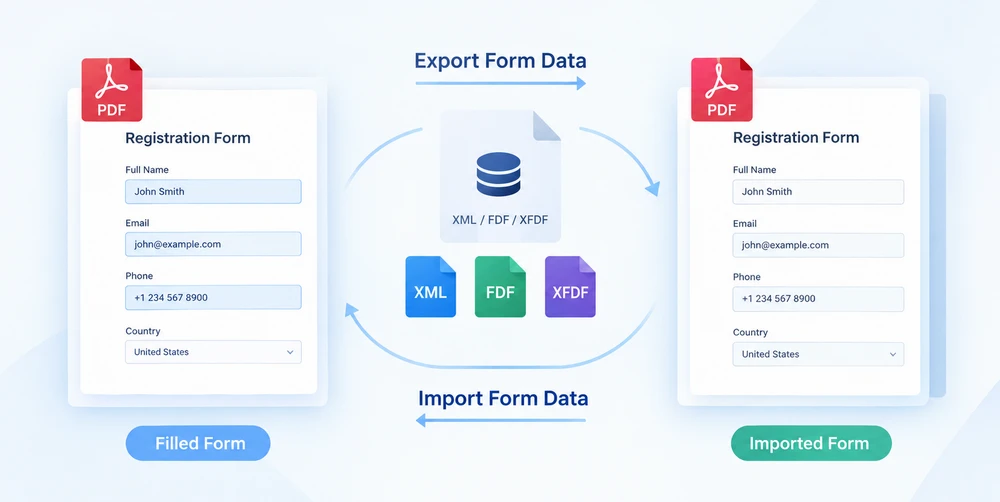
Quando um formulário PDF é preenchido, os valores inseridos se fundem com o layout visual em um artefato fechado. Migrar essas entradas para um modelo diferente significa redigitar cada campo manualmente. A saída é tratar os dados do formulário como um ativo portátil: extrair os valores dos campos para um arquivo de dados independente e, em seguida, alimentá-lo de volta em uma cópia em branco do formulário para reproduzir todas as entradas em uma única passagem automática. Esse ciclo de exportação e importação é o que o Spire.PDF for JavaScript oferece por meio de PdfFormWidget.ExportData e PdfFormWidget.ImportData.
Ambos os métodos aceitam três formatos de arquivo: XML, FDF e XFDF. Alternar entre eles não é mais do que alterar um valor de enum DataFormat — a convenção de chamada permanece idêntica; apenas a estrutura em disco do arquivo de saída muda. Como o Spire.PDF for JavaScript é executado inteiramente no navegador sobre WebAssembly, todo o ciclo é executado localmente por meio de um sistema de arquivos virtual (VFS), sem envolvimento de servidor backend e sem que qualquer documento saia do cliente.
Este artigo percorre o fluxo de dados completo:
- Exportar dados do formulário — extrair valores de campos de um formulário preenchido
- Importar dados do formulário — inserir esses valores de volta em um formulário em branco
Para instalação e configuração do projeto, consulte Integrar o Spire.PDF for JavaScript em um projeto React. Os exemplos abaixo pressupõem que o Spire.PDF está instalado e o módulo WebAssembly foi inicializado.
Três formatos de dados de formulário em resumo
Antes de mergulhar no código, ajuda entender os três formatos com os quais ExportData e ImportData trabalham. Todos os três carregam a mesma carga útil — um conjunto de pares nome de campo/valor —, mas a empacotam de maneiras diferentes. Escolher o formato certo desde o início economiza atrito depois, quando o arquivo de dados precisa ser compartilhado, inspecionado ou alimentado em outra ferramenta.
| Formato | Valor do enum | Estrutura do arquivo | Legível por humanos | Melhor para |
|---|---|---|---|---|
| XML | DataFormat.Xml |
XML de dados de formulário Adobe; o nome do campo se torna o nome do elemento, o valor fica como conteúdo do elemento | Sim | Inspeção rápida, depuração, ferramentas simples |
| FDF | DataFormat.Fdf |
Forms Data Format; uma estrutura de texto que começa com %FDF-, em que /T contém o nome do campo e /V o valor |
Não | Transferência compacta entre programas |
| XFDF | DataFormat.XFdf |
XFDF, XML padrão; um <field name="…"> por campo, com o valor dentro de <value> |
Sim | Controle de versão, intercâmbio entre sistemas |
Todos os três são sem perdas em relação aos valores dos campos — nada é descartado ou transformado durante a exportação ou importação. A escolha entre eles é puramente uma questão de adequação ao fluxo de trabalho, à qual voltamos no guia de seleção de formato abaixo.
Exportar dados de formulário PDF
A primeira metade do ciclo é a extração. PdfFormWidget.ExportData pega cada valor de campo no formulário e o grava em um único arquivo de dados. O segundo argumento — um enum DataFormat — controla qual formato é gravado. O terceiro argumento é o nome do formulário; para um AcroForm sem nome, passe uma string vazia.
O exemplo abaixo carrega um formulário de informações do cliente preenchido, envolve seu identificador de formulário em um PdfFormWidget e exporta os valores dos campos para um arquivo XML. As variantes FDF e XFDF são incluídas como linhas comentadas — descomente qualquer uma para alternar os formatos sem tocar em qualquer outra coisa:
function App() {
  const exportFormData = async () => {
    // Get the Spire.PDF WASM module
    const pdfModule = window.wasmModule?.spirepdf;

    // Check that the module is ready
    if (!pdfModule) {
      alert('Spire.PDF is not ready yet');
      return;
    }

    // Load the PDF file to be exported into the VFS
    const inputFileName = 'CustomerInformationForm.pdf';
    await window.spire.FetchFileToVFS(inputFileName, "", `${process.env.PUBLIC_URL}/data/`);

    // Create a PdfDocument object and load the PDF document
    const doc = new pdfModule.PdfDocument();
    doc.LoadFromFile(inputFileName);

    // Build a PdfFormWidget from the document's form handle to reach the data export API
    const formWidget = new pdfModule.PdfFormWidget(doc.Form.H);

    // This demo exports XML
    const dataFiles = [
      { fileName: 'FormData.xml', format: pdfModule.DataFormat.Xml },
      // { fileName: 'FormData.fdf', format: pdfModule.DataFormat.Fdf },
      // { fileName: 'FormData.xfdf', format: pdfModule.DataFormat.XFdf },
    ];

    for (const item of dataFiles) {
      // The third parameter is the form name; pass an empty string for an unnamed form
      formWidget.ExportData(item.fileName, item.format, '');
    }
    doc.Close();

    // Read the generated file from the VFS and trigger the download
    for (const item of dataFiles) {
      const fileArray = window.dotnetRuntime.Module.FS.readFile(item.fileName);
      const blob = new Blob([fileArray], { type: 'application/octet-stream' });
      const url = URL.createObjectURL(blob);
      const a = document.createElement('a');
      a.href = url;
      a.download = item.fileName;
      a.click();
      URL.revokeObjectURL(url);
    }
  };

  return (
    <div style={{ textAlign: 'center', height: '300px' }}>
      <h1>Export Form Data</h1>
      <button onClick={exportFormData}>
        Export
      </button>
    </div>
  );
}

export default App;
Depois que a chamada de exportação termina, o arquivo de dados reside no sistema de arquivos virtual. O código então o lê de volta do VFS e aciona um download do navegador para que o arquivo possa ser salvo, compartilhado ou arquivado junto com outros dados de formulário:
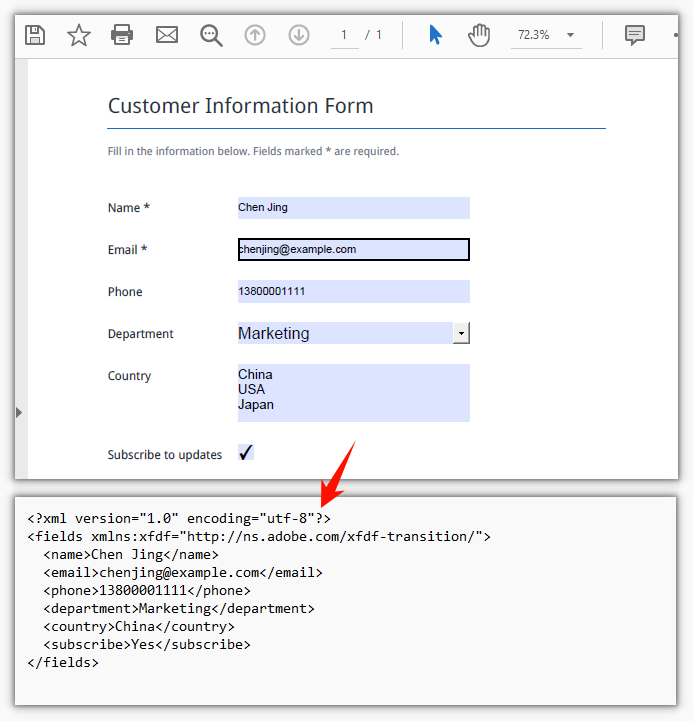
Importar dados de formulário PDF
A segunda metade do ciclo é a reidratação. PdfFormWidget.ImportData lê um arquivo de dados e grava cada valor de volta no campo de formulário correspondente por nome. O parâmetro DataFormat informa ao analisador como interpretar o conteúdo do arquivo — ele não tem nada a ver com a extensão do arquivo, então o formato declarado deve corresponder ao formato real do arquivo.
O alvo aqui é uma cópia em branco do formulário original. O modelo é enviado vazio; quando o arquivo de dados retorna, todos os campos são preenchidos em uma única passagem — sem redigitação manual, sem cópia campo por campo, sem necessidade de digitar tudo uma segunda vez:
function App() {
  const importFormData = async () => {
    // Get the Spire.PDF WASM module
    const pdfModule = window.wasmModule?.spirepdf;

    // Check that the module is ready
    if (!pdfModule) {
      alert('Spire.PDF is not ready yet');
      return;
    }

    // Load the blank form to be filled into the VFS
    const inputFileName = 'BlankCustomerInformationForm.pdf';
    await window.spire.FetchFileToVFS(inputFileName, "", `${process.env.PUBLIC_URL}/data/`);

    // This demo refills from the XML data file
    const dataFiles = [
      { fileName: 'FormData.xml', format: pdfModule.DataFormat.Xml, outputFileName: 'ImportedXMLData.pdf' },
      // { fileName: 'FormData.fdf', format: pdfModule.DataFormat.Fdf, outputFileName: 'ImportedFDFData.pdf' },
      // { fileName: 'FormData.xfdf', format: pdfModule.DataFormat.XFdf, outputFileName: 'ImportedXFDFData.pdf' },
    ];

    for (const item of dataFiles) {
      // The data file also has to be loaded into the VFS first
      await window.spire.FetchFileToVFS(item.fileName, "", `${process.env.PUBLIC_URL}/data/`);

      const doc = new pdfModule.PdfDocument();
      doc.LoadFromFile(inputFileName);

      // Read the data file and write the values back into the fields by name
      const formWidget = new pdfModule.PdfFormWidget(doc.Form.H);
      formWidget.ImportData(item.fileName, item.format);

      doc.SaveToFile(item.outputFileName);
      doc.Close();

      // Read the generated file from the VFS and trigger the download
      const fileArray = window.dotnetRuntime.Module.FS.readFile(item.outputFileName);
      const blob = new Blob([fileArray], { type: 'application/pdf' });
      const url = URL.createObjectURL(blob);
      const a = document.createElement('a');
      a.href = url;
      a.download = item.outputFileName;
      a.click();
      URL.revokeObjectURL(url);
    }
  };

  return (
    <div style={{ textAlign: 'center', height: '300px' }}>
      <h1>Import Form Data</h1>
      <button onClick={importFormData}>
        Import
      </button>
    </div>
  );
}

export default App;
Depois que a chamada de importação é concluída, o formulário antes em branco fica totalmente preenchido e pronto para ser salvo ou exibido. O resultado é um novo PDF com todos os campos preenchidos a partir do arquivo de dados:
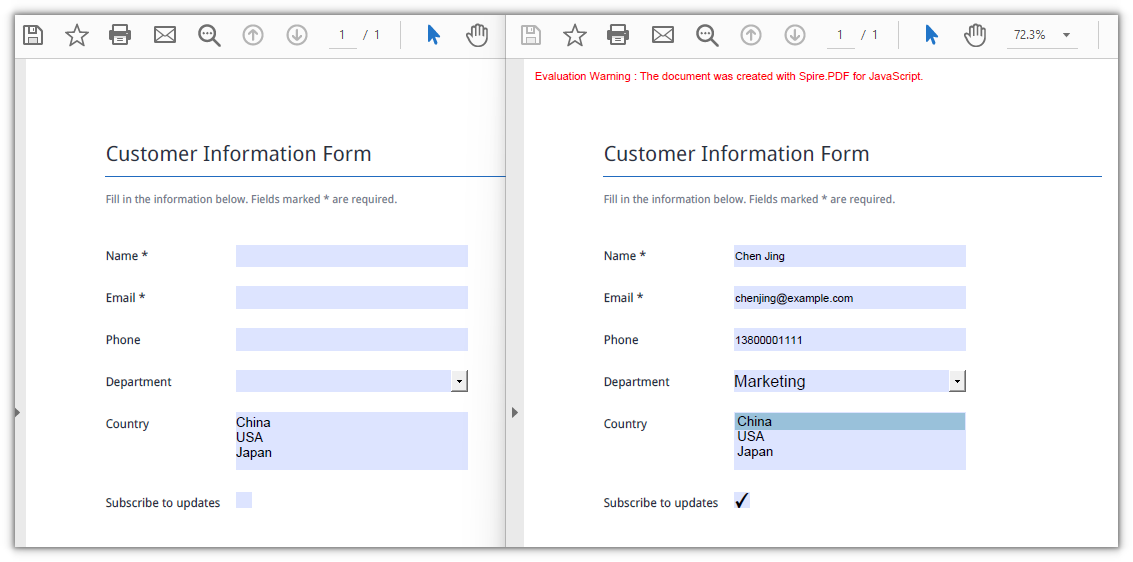
Escolhendo o formato de dados certo
Todos os três formatos contêm valores de campo idênticos, então a decisão se resume à estrutura e ao suporte de ferramentas, em vez da fidelidade dos dados. Veja como pensar em cada um no contexto de um ciclo de dados de formulário:
- FDF produz os menores arquivos. Ele começa com
%FDF-e usa uma notação de texto compacta em que/Tcarrega o nome do campo e/Vo valor. Isso o torna eficiente para passar dados entre programas de manipulação de formulários, mas o conteúdo não é facilmente lido por uma pessoa e não se dá bem com ferramentas de texto ou sistemas de controle de versão. - XFDF é XML padrão com um elemento
<field>por campo. Por ser XML bem formado, pode ser comparado, mesclado e inspecionado com ferramentas de texto comuns, tornando-o a escolha mais segura quando o arquivo de dados entra em controle de versão, precisa de revisão humana ou deve interoperar com outro sistema. - XML (XML de dados de formulário Adobe) coloca o nome do campo diretamente no nome do elemento, proporcionando a estrutura mais direta dos três. É ideal quando você simplesmente quer uma lista legível de nomes de campos e valores sem qualquer formalidade extra.
Em resumo: use FDF para ciclos que permanecem dentro de um único programa; use XFDF quando o arquivo cruza limites de ferramentas ou equipes; use XML quando a legibilidade é a prioridade máxima.
Perguntas frequentes
Alguns campos ainda estão vazios após a importação
Causa: ImportData faz correspondência por nome de campo, então os nomes no arquivo de dados devem corresponder exatamente aos nomes dos campos no formulário — incluindo maiúsculas e minúsculas e espaços em branco. Um campo que não corresponde é silenciosamente ignorado; não há erro nem valor de retorno indicando uma incompatibilidade. Somente os campos cujos nomes coincidem recebem um valor.
Solução: Antes de importar, percorra a coleção de campos do formulário e imprima os nomes reais, depois compare-os com o arquivo de dados:
const fields = formWidget.FieldsWidget;
for (let i = 0; i < fields.Count; i++) {
  console.log(fields.get_Item({ index: i }).Name);
}
A importação lança Xml_MessageWithErrorPosition ou "not a valid FDF file"
Causa: ImportData analisa o arquivo de acordo com o formato indicado pelo segundo parâmetro e nunca inspeciona a extensão do arquivo. Quando o conteúdo não corresponde ao formato declarado, a análise falha imediatamente: arquivos XML relatam Xml_MessageWithErrorPosition, Xml_InvalidRootData, e um arquivo não FDF relata The source is not a valid FDF file because it does not start with "%FDF-".
Solução: Passe o DataFormat que corresponde ao conteúdo real do arquivo e use o arquivo de dados exportado original, em vez de um que tenha sido salvo novamente em um formato diferente.
Veja também
PDF 양식 데이터 왕복: JavaScript로 내보내기 및 가져오기
PDF 양식이 작성되면 입력된 값은 시각적 레이아웃과 결합하여 봉인된 결과물이 됩니다. 이러한 항목을 다른 템플릿으로 마이그레이션하려면 모든 필드를 손으로 다시 입력해야 합니다. 해결책은 양식 데이터를 이식 가능한 자산으로 취급하는 것입니다. 즉, 필드 값을 독립형 데이터 파일로 추출한 다음, 양식의 빈 복사본에 다시 넣어 모든 항목을 한 번의 자동 작업으로 재현하는 것입니다. 이 내보내기-가져오기 주기를 Spire.PDF for JavaScript가 PdfFormWidget.ExportData 및 PdfFormWidget.ImportData를 통해 제공합니다.
두 메서드 모두 XML, FDF, XFDF의 세 가지 파일 형식을 사용할 수 있습니다. 이들 사이를 전환하는 것은 DataFormat 열거형 값을 변경하는 것에 불과합니다. 호출 방식은 동일하게 유지되며, 출력 파일의 디스크상 구조만 변경됩니다. Spire.PDF for JavaScript는 WebAssembly 위에서 전적으로 브라우저에서 실행되므로 전체 왕복 작업이 가상 파일 시스템(VFS)을 통해 로컬로 실행되며, 백엔드 서버가 관여하지 않고 문서가 클라이언트를 벗어나지 않습니다.
이 문서에서는 전체 데이터 흐름을 살펴봅니다.
- 양식 데이터 내보내기 — 작성된 양식에서 필드 값을 추출합니다
- 양식 데이터 가져오기 — 해당 값을 빈 양식에 다시 채웁니다
설치 및 프로젝트 설정은 React 프로젝트에 Spire.PDF for JavaScript 통합을 참조하세요. 아래 예제에서는 Spire.PDF가 설치되어 있고 WebAssembly 모듈이 초기화되었다고 가정합니다.
한눈에 보는 세 가지 양식 데이터 형식
코드를 살펴보기 전에 ExportData 및 ImportData가 사용하는 세 가지 형식을 이해하면 도움이 됩니다. 세 가지 모두 동일한 페이로드(필드 이름/값 쌍의 집합)를 전달하지만 패키징 방식이 다릅니다. 처음부터 올바른 형식을 선택하면 나중에 데이터 파일을 공유하거나 검사하거나 다른 도구에 넣어야 할 때 번거로움을 줄일 수 있습니다.
| 형식 | 열거형 값 | 파일 구조 | 사람이 읽을 수 있음 | 최적 용도 |
|---|---|---|---|---|
| XML | DataFormat.Xml |
Adobe 양식 데이터 XML. 필드 이름이 요소 이름이 되고 값은 요소 내용으로 위치합니다 | 예 | 빠른 검사, 디버깅, 간단한 도구 |
| FDF | DataFormat.Fdf |
Forms Data Format. %FDF-로 시작하는 텍스트 구조이며, /T는 필드 이름을, /V는 값을 담습니다 |
아니요 | 프로그램 간 간결한 전송 |
| XFDF | DataFormat.XFdf |
XFDF, 표준 XML. 필드마다 하나의 <field name="…">가 있으며, 값은 <value> 안에 있습니다 |
예 | 버전 관리, 시스템 간 교환 |
세 가지 모두 필드 값과 관련해 손실이 없습니다 — 내보내기나 가져오기 중에 삭제되거나 변환되는 항목은 없습니다. 이들 중 선택은 전적으로 워크플로 적합성에 관한 것이며, 아래의 형식 선택 가이드에서 다시 다룹니다.
PDF 양식 데이터 내보내기
왕복의 첫 번째 절반은 추출입니다. PdfFormWidget.ExportData는 양식의 모든 필드 값을 가져와 단일 데이터 파일에 기록합니다. 두 번째 인수인 DataFormat 열거형은 기록할 형식을 제어합니다. 세 번째 인수는 양식 이름입니다. 이름이 없는 AcroForm의 경우 빈 문자열을 전달합니다.
아래 예제에서는 작성된 고객 정보 양식을 로드하고, 양식 핸들을 PdfFormWidget로 감싼 다음, 필드 값을 XML 파일로 내보냅니다. FDF 및 XFDF 변형은 주석 처리된 줄로 포함되어 있습니다. 다른 항목을 건드리지 않고 형식을 전환하려면 아무 줄이나 주석 해제하세요.
function App() {
  const exportFormData = async () => {
    // Get the Spire.PDF WASM module
    const pdfModule = window.wasmModule?.spirepdf;

    // Check that the module is ready
    if (!pdfModule) {
      alert('Spire.PDF is not ready yet');
      return;
    }

    // Load the PDF file to be exported into the VFS
    const inputFileName = 'CustomerInformationForm.pdf';
    await window.spire.FetchFileToVFS(inputFileName, "", `${process.env.PUBLIC_URL}/data/`);

    // Create a PdfDocument object and load the PDF document
    const doc = new pdfModule.PdfDocument();
    doc.LoadFromFile(inputFileName);

    // Build a PdfFormWidget from the document's form handle to reach the data export API
    const formWidget = new pdfModule.PdfFormWidget(doc.Form.H);

    // This demo exports XML
    const dataFiles = [
      { fileName: 'FormData.xml', format: pdfModule.DataFormat.Xml },
      // { fileName: 'FormData.fdf', format: pdfModule.DataFormat.Fdf },
      // { fileName: 'FormData.xfdf', format: pdfModule.DataFormat.XFdf },
    ];

    for (const item of dataFiles) {
      // The third parameter is the form name; pass an empty string for an unnamed form
      formWidget.ExportData(item.fileName, item.format, '');
    }
    doc.Close();

    // Read the generated file from the VFS and trigger the download
    for (const item of dataFiles) {
      const fileArray = window.dotnetRuntime.Module.FS.readFile(item.fileName);
      const blob = new Blob([fileArray], { type: 'application/octet-stream' });
      const url = URL.createObjectURL(blob);
      const a = document.createElement('a');
      a.href = url;
      a.download = item.fileName;
      a.click();
      URL.revokeObjectURL(url);
    }
  };

  return (
    <div style={{ textAlign: 'center', height: '300px' }}>
      <h1>Export Form Data</h1>
      <button onClick={exportFormData}>
        Export
      </button>
    </div>
  );
}

export default App;
내보내기 호출이 완료되면 데이터 파일은 가상 파일 시스템에 저장됩니다. 그런 다음 코드는 VFS에서 파일을 다시 읽고 브라우저 다운로드를 트리거하여 파일을 저장, 공유 또는 다른 양식 데이터와 함께 보관할 수 있게 합니다.
PDF 양식 데이터 가져오기
왕복의 두 번째 절반은 데이터를 다시 채우는 작업입니다. PdfFormWidget.ImportData는 데이터 파일을 읽고 각 값을 이름으로 일치하는 양식 필드에 다시 기록합니다. DataFormat 매개변수는 파서에게 파일 내용을 해석하는 방법을 알려줍니다. 파일 확장자와는 아무 관련이 없으므로 선언된 형식은 파일의 실제 형식과 일치해야 합니다.
여기서 대상은 원본 양식의 빈 복사본입니다. 템플릿은 비어 있는 상태로 나가고, 데이터 파일이 돌아오면 모든 필드가 한 번에 채워집니다. 수동으로 다시 입력할 필요도, 필드별로 복사할 필요도, 모든 내용을 두 번째로 입력할 필요도 없습니다.
function App() {
  const importFormData = async () => {
    // Get the Spire.PDF WASM module
    const pdfModule = window.wasmModule?.spirepdf;

    // Check that the module is ready
    if (!pdfModule) {
      alert('Spire.PDF is not ready yet');
      return;
    }

    // Load the blank form to be filled into the VFS
    const inputFileName = 'BlankCustomerInformationForm.pdf';
    await window.spire.FetchFileToVFS(inputFileName, "", `${process.env.PUBLIC_URL}/data/`);

    // This demo refills from the XML data file
    const dataFiles = [
      { fileName: 'FormData.xml', format: pdfModule.DataFormat.Xml, outputFileName: 'ImportedXMLData.pdf' },
      // { fileName: 'FormData.fdf', format: pdfModule.DataFormat.Fdf, outputFileName: 'ImportedFDFData.pdf' },
      // { fileName: 'FormData.xfdf', format: pdfModule.DataFormat.XFdf, outputFileName: 'ImportedXFDFData.pdf' },
    ];

    for (const item of dataFiles) {
      // The data file also has to be loaded into the VFS first
      await window.spire.FetchFileToVFS(item.fileName, "", `${process.env.PUBLIC_URL}/data/`);

      const doc = new pdfModule.PdfDocument();
      doc.LoadFromFile(inputFileName);

      // Read the data file and write the values back into the fields by name
      const formWidget = new pdfModule.PdfFormWidget(doc.Form.H);
      formWidget.ImportData(item.fileName, item.format);

      doc.SaveToFile(item.outputFileName);
      doc.Close();

      // Read the generated file from the VFS and trigger the download
      const fileArray = window.dotnetRuntime.Module.FS.readFile(item.outputFileName);
      const blob = new Blob([fileArray], { type: 'application/pdf' });
      const url = URL.createObjectURL(blob);
      const a = document.createElement('a');
      a.href = url;
      a.download = item.outputFileName;
      a.click();
      URL.revokeObjectURL(url);
    }
  };

  return (
    <div style={{ textAlign: 'center', height: '300px' }}>
      <h1>Import Form Data</h1>
      <button onClick={importFormData}>
        Import
      </button>
    </div>
  );
}

export default App;
가져오기 호출이 완료되면 이전에 비어 있던 양식이 완전히 채워지고 저장하거나 표시할 준비가 됩니다. 결과는 데이터 파일에서 모든 필드가 채워진 새 PDF입니다.
올바른 데이터 형식 선택
세 가지 형식 모두 동일한 필드 값을 담고 있으므로 결정은 데이터 충실도보다는 구조와 도구 지원에 달려 있습니다. 다음은 양식 데이터 왕복 맥락에서 각 형식을 고려하는 방법입니다.
- FDF는 가장 작은 파일을 생성합니다.
%FDF-로 시작하며/T가 필드 이름을,/V가 값을 담는 간결한 텍스트 표기법을 사용합니다. 따라서 양식 처리 프로그램 간에 데이터를 전달하는 데 효율적이지만, 내용을 사람이 쉽게 읽을 수 없고 텍스트 도구나 버전 관리 시스템과 잘 맞지 않습니다. - XFDF는 필드마다 하나의
<field>요소를 갖는 표준 XML입니다. 잘 구성된 XML이므로 일반 텍스트 도구로 차이를 비교하고, 병합하고, 검사할 수 있어 데이터 파일이 버전 관리에 들어가거나 사람이 검토해야 하거나 다른 시스템과 상호 운용해야 할 때 가장 안전한 선택입니다. - XML(Adobe 양식 데이터 XML)은 필드 이름을 요소 이름에 직접 넣어 세 가지 중 가장 간단한 구조를 제공합니다. 별도의 복잡한 과정 없이 읽을 수 있는 필드 이름과 값 목록을 원할 때 이상적입니다.
요약하자면, 단일 프로그램 내에서 이루어지는 왕복에는 FDF를 사용하고, 파일이 도구나 팀 경계를 넘을 때는 XFDF를 사용하며, 가독성이 최우선일 때는 XML을 사용하세요.
자주 묻는 질문
가져온 후 일부 필드가 여전히 비어 있음
원인: ImportData는 필드 이름으로 일치시키므로 데이터 파일의 이름은 대소문자와 공백을 포함해 양식의 필드 이름과 정확히 일치해야 합니다. 일치하지 않는 필드는 조용히 건너뜁니다. 불일치를 나타내는 오류나 반환 값은 없습니다. 이름이 일치하는 필드만 값을 받습니다.
해결 방법: 가져오기 전에 양식의 필드 컬렉션을 순회하며 실제 이름을 출력한 다음 데이터 파일과 비교하세요.
const fields = formWidget.FieldsWidget;
for (let i = 0; i < fields.Count; i++) {
  console.log(fields.get_Item({ index: i }).Name);
}
가져오기 시 Xml_MessageWithErrorPosition 또는 "not a valid FDF file" 오류 발생
원인: ImportData는 두 번째 매개변수로 지정된 형식에 따라 파일을 구문 분석하며 파일 확장자를 검사하지 않습니다. 내용이 선언된 형식과 일치하지 않으면 구문 분석이 즉시 실패합니다. XML 파일은 Xml_MessageWithErrorPosition, Xml_InvalidRootData를 보고하고, FDF가 아닌 파일은 The source is not a valid FDF file because it does not start with "%FDF-"를 보고합니다.
해결 방법: 파일의 실제 내용과 일치하는 DataFormat을 전달하고, 다른 형식으로 다시 저장된 파일이 아니라 원래 내보낸 데이터 파일을 사용하세요.