Линеаризация PDF для быстрого веб-просмотра в JavaScript (React)
Содержание

Вы нажимаете ссылку на большой PDF-файл и видите пустой фрейм. Крутится индикатор загрузки, приходят несколько мегабайт, и только потом появляется первая страница. С файлом всё было в порядке, сеть тоже была в порядке — документ просто был записан в таком порядке, который заставляет средство просмотра ждать загрузки всего файла, прежде чем что-либо отрисовать. Именно эту проблему решает линеаризация, и это структурное исправление, а не исправление размера: те же самые байты, упорядоченные так, что части, необходимые для отображения первой страницы, находятся в начале.
В этой статье выполняется линеаризация PDF в браузере с помощью Spire.PDF for JavaScript. Библиотека работает на WebAssembly и обрабатывает документ через виртуальную файловую систему (VFS), поэтому файл можно перестроить на машине пользователя, не отправляя его через удалённый сервис оптимизации.
Инструкции по установке приведены в разделе Интеграция Spire.PDF for JavaScript в проект React. В приведённом ниже примере предполагается, что пакет установлен и модуль WebAssembly инициализирован.
Что на самом деле означает быстрый веб-просмотр
PDF — это контейнер, и его объекты хранятся в том порядке, в котором они были записаны тем, что его создало. Средству просмотра, напротив, нужен определённый небольшой набор — каталог документа, дерево страниц и объекты, лежащие в основе первой страницы, — прежде чем оно сможет что-либо отрисовать. Если эти объекты оказались ближе к концу файла, за большим встроенным изображением, у средства просмотра нет выбора, кроме как продолжать загрузку, пока оно до них не доберётся.
Быстрый веб-просмотр — это название, обращённое к потребителю, для линеаризованного PDF: такого, внутренняя структура которого размещает объекты первой страницы ближе к началу, так что клиент, поддерживающий HTTP-запросы диапазона байтов, может запросить только эти байты, немедленно отобразить первую страницу и загрузить остальное в фоновом режиме. Читатель видит содержимое, пока загрузка продолжается, вместо того чтобы смотреть на пустой фрейм.
Практическое следствие состоит в том, что два файла одинакового размера могут ощущаться при открытии совершенно по-разному. То же количество страниц, те же изображения, тот же текст — разное время до первой отрисовки.
Как линеаризация перестраивает файл
Линеаризация переписывает структуру файла, не затрагивая его содержимое:
- Объекты, от которых зависит первая страница, перемещаются в начало файла.
- Словарь линеаризации записывается ближе к началу, чтобы клиент мог обнаружить структуру до того, как прочитает весь документ.
- Таблица подсказок фиксирует, где расположены объекты каждой страницы, что позволяет программе чтения перейти вперёд к произвольной странице с помощью запроса диапазона байтов.
- Информация о перекрёстных ссылках размещается так, чтобы её можно было прочитать раньше, а не в конце файла.
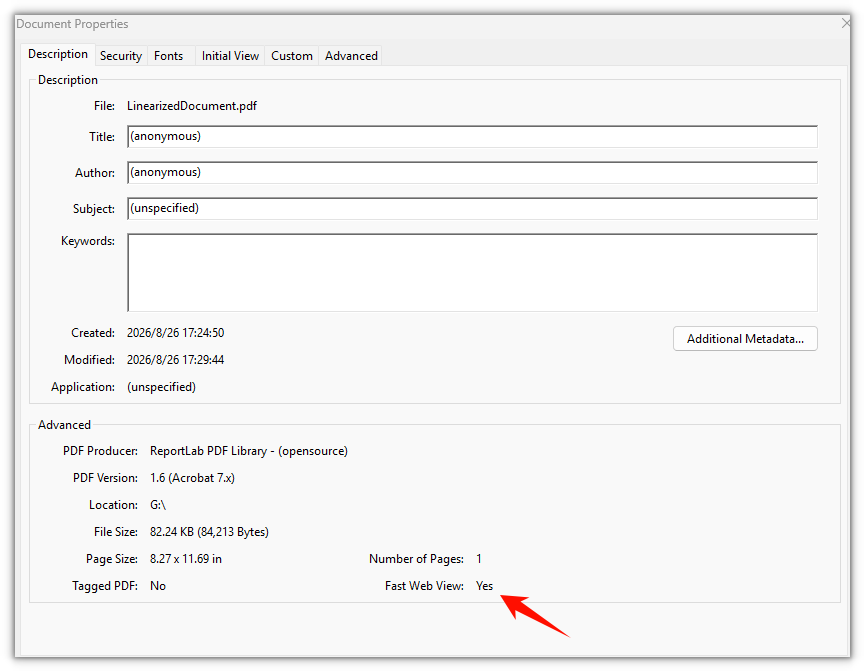
Всё, что читатель действительно видит — текст, изображения, шрифты, векторную графику, ссылки, аннотации, закладки, метаданные, — переносится без изменений. Слова на странице — те же слова в тех же местах. Изменился порядок байтов, а не содержимое. Вот почему линеаризованный документ невозможно распознать, просто взглянув на него: откройте оригинал и результат рядом, и они неотличимы, потому что разница проявляется только в том, когда части могут быть прочитаны.
Линеаризация документа в браузере
Использование повторяет другие конвертеры библиотеки: передайте входной файл в PdfToLinearizedPdfConverter, затем вызовите ToLinearizedPdf, чтобы записать перестроенный документ.
function App() {
  const convertToLinearized = async () => {
    // Get the Spire.PDF WASM module
    const pdfModule = window.wasmModule?.spirepdf;

    // Check whether the module is ready
    if (!pdfModule) {
      alert('Spire.PDF is not ready yet');
      return;
    }

    // Load the PDF file to be converted into the VFS
    const inputFileName = 'Business_Data_Overview.pdf';
    await window.spire.FetchFileToVFS(inputFileName, "", `${process.env.PUBLIC_URL}/data/`);

    // Define the output file name
    const outputFileName = 'LinearizedDocument.pdf';

    // Construct the linearization converter from the input file and write out the linearized document
    const converter = new pdfModule.PdfToLinearizedPdfConverter({ filePath: inputFileName });
    converter.ToLinearizedPdf({ filePath: outputFileName });
    converter.Dispose();

    // Read the generated file from the VFS and trigger the download
    const fileArray = window.dotnetRuntime.Module.FS.readFile(outputFileName);
    const blob = new Blob([fileArray], { type: 'application/pdf' });
    const url = URL.createObjectURL(blob);
    const a = document.createElement('a');
    a.href = url;
    a.download = outputFileName;
    a.click();
    URL.revokeObjectURL(url);
  };

  return (
    <div style={{ textAlign: 'center', height: '300px' }}>
      <h1>Linearize a PDF</h1>
      <button onClick={convertToLinearized}>
        Start Converting
      </button>
    </div>
  );
}

export default App;
ToLinearizedPdf записывает новый файл, поэтому входной файл остаётся в VFS и оригинал доступен для сравнения. Вызов никак не зависит от содержимого документа — отчёт, руководство и отсканированный архив проходят через одни и те же два члена.
Линеаризованный документ выглядит на странице точно так же, изменение находится внутри структуры файла
Линеаризовать или сжимать
Эти два прохода регулярно путают, потому что оба описываются как «оптимизация PDF», но они отвечают на разные вопросы.
| Сжатие | Линеаризация | |
|---|---|---|
| Что изменяет | Удаляет избыточность, поэтому файл содержит меньше байтов | Переупорядочивает байты так, чтобы полезные приходили первыми |
| Цель | Меньший объём загрузки | Более быстрая первая страница |
| Влияние на размер файла | В этом и смысл упражнения | Практически никакого; байты остаются теми же байтами |
| Влияние на внешний вид | Только если в жертву принесено качество изображения | Совсем никакого |
| Типичный повод | Ограничение на загрузку или лимит вложения | Длинный документ, опубликованный для просмотра |
Файлу может потребоваться и то, и другое, и порядок имеет значение. Сжатие переписывает документ, а любой проход, переписывающий PDF, уничтожает линеаризованную структуру — поэтому, если вам нужно и то, и другое, сначала сжимайте, а линеаризуйте в конце, чтобы линеаризованная структура была конечным состоянием файла.
Когда линеаризация того стоит
Линеаризация окупается в определённой ситуации: документ достаточно большой, чтобы загрузка была заметной, доставляется по HTTP средству просмотра, поддерживающему запросы диапазонов.
- Руководства, каталоги и длинные отчёты, размещённые на сайте. Это классический случай — десятки мегабайт, открываются по ссылке, а читатели хотят сразу перейти к нужной главе.
- Мобильные читатели на медленных соединениях. Первая страница появляется из первых запрошенных байтов, поэтому воспринимаемое время загрузки снижается, даже если общая загрузка — нет.
- Документы, которые читатели обычно открывают с середины. Запросы диапазона байтов позволяют клиенту сначала получить более позднюю страницу, что возможно только благодаря таблице подсказок, которую несёт линеаризованный файл.
В других случаях это не стоит усилий. Файл, открываемый с локального диска, не загружается по HTTP, поэтому нет запроса диапазона, который можно было бы использовать. Короткий документ и так отображается раньше, чем разница могла бы быть ощутима. А внутренний процесс печати ни потоково не передаёт, ни перескакивает — ему нужен весь документ, по порядку, сразу.
Подтверждение того, что результат линеаризован
Поскольку видимые страницы идентичны, «выглядит правильно» ничего не доказывает. Изменение находится в файле, поэтому проверка должна читать файл.
Линеаризованный PDF несёт словарь линеаризации ближе к началу своих байтов, а маркер представляет собой обычный текст, поэтому первых нескольких сотен байтов результата достаточно для подтверждения. И входной, и выходной файлы находятся в VFS, что делает сравнение парой операций чтения файлов:
// Read the head of the file and look for the linearization marker
const bytes = window.dotnetRuntime.Module.FS.readFile(outputFileName);
const head = new TextDecoder('latin1').decode(bytes.slice(0, 1024));
const linearized = head.includes('/Linearized');
Это полезная защита для конвейера: преобразуйте документ, затем убедитесь, что маркер присутствует, прежде чем передавать файл дальше. Если он отсутствует, значит, файл был перезаписан чем-то ниже по потоку после линеаризации — помните, что любое повторное сохранение, включая проход сжатия, уничтожает линеаризованную структуру.
Типичные проблемы
Первая страница всё ещё появляется с задержкой. Проверьте, как доставляется файл. Линеаризация помогает только тогда, когда клиент может запрашивать части файла — при доставке по HTTP с поддержкой диапазонов. Если весь файл загружается сразу или документ короткий, этот проход не может изменить то, что вы видите.
В результате появилась лишняя строка текста.
Незалицензированная сборка добавляет к документу Evaluation Warning : The document was created with Spire.PDF for JavaScript. — по одному разу на каждый вызов преобразования. Временная 30-дневная лицензия убирает её вместе с функциональными ограничениями — свяжитесь с отделом продаж, чтобы получить её.
Размер файла не уменьшился. Обычно так и будет. Линеаризация переупорядочивает существующие байты; она ничего не удаляет. Если проблема в размере, это задача сжатия, а не линеаризации.
При первом нажатии ничего не происходит.
Модуль WebAssembly загружается асинхронно. В примере защитой служит if (!pdfModule) return;; в реальном интерфейсе отключайте элемент управления, пока модуль не готов, вместо показа предупреждения.
Часто задаваемые вопросы
Меняет ли линеаризация PDF его содержимое или качество? Нет. Текст, изображения, шрифты, форматирование, ссылки и метаданные переносятся в точности; меняется только внутренний порядок байтов. Страницы выглядят и ведут себя одинаково.
Линеаризация — это то же самое, что сжатие PDF? Нет. Сжатие удаляет избыточность, чтобы получить меньше байтов; линеаризация переупорядочивает уже имеющиеся байты так, чтобы первую страницу можно было прочитать раньше. Одно нацелено на объём загрузки, другое — на время до первой отрисовки.
Помогает ли это, если файл открывается с локального диска? Редко. Преимущество возникает при потоковой передаче по HTTP с запросами диапазонов, поэтому документу, открываемому по локальному пути, нечего выиграть.
Останется ли линеаризованный файл линеаризованным? Только до тех пор, пока что-нибудь его не перезапишет. Любой инструмент, повторно сохраняющий документ — проход сжатия, редактирование, объединение, — уничтожает линеаризованную структуру, поэтому линеаризация должна быть последним шагом в конвейере.
Работает ли это с зашифрованным файлом или файлом, защищённым паролем? Шифрование — это отдельный вопрос от структуры. Сначала расшифруйте документ и позвольте конвертеру работать с уже читаемым файлом.
Можно ли преобразовать несколько файлов сразу? Да. Конвертер выполняет операцию с одним файлом, поэтому пакетная обработка — это цикл: те же два члена, с отдельным именем выходного файла для каждого входного.
См. также
- Как преобразовать PDF в оттенки серого в JavaScript (React)
- Уменьшение размера PDF-файла: изображения, шрифты и потоки содержимого в JavaScript (React)
- Как получить количество страниц PDF в JavaScript (React)
- Интеграция Spire.PDF for JavaScript в проект React
- Страница продукта Spire.PDF for JavaScript
Build a Clickable Table of Contents in a PDF with JavaScript (React)
Table of Contents

When a generated report comes back with complaints, they are almost never about the content — they are about finding it. A few hundred pages assembled by a reporting pipeline, no contents page, and the reader is left dragging a scrollbar or typing words into the viewer's search box to locate chapter four. The document has a structure; it just never told anyone about it.
This article builds that structure: a contents page drawn at exactly the position it should occupy, with chapter entries, leader dots and page numbers, and with each entry clickable so a reader lands on the chapter instead of the top of the file. It uses Spire.PDF for JavaScript, which loads, edits and saves documents in the browser on WebAssembly, reading and writing through a virtual file system (VFS).
Two pieces are covered here:
For installation and project configuration, refer to Integrating Spire.PDF for JavaScript in a React Project. The examples assume the package is installed and the WebAssembly module has been initialized.
Why generated PDFs ship without a contents page
Two things get called a table of contents in a PDF, and it is worth separating them before writing any code.
The first is a visible contents page — a printed list of chapters with page numbers, sitting after the cover. This is what most readers mean when they ask for one, it is what survives when the file is printed, and it is what this article builds.
The second is the outline a viewer shows in a sidebar, which is a separate data structure inside the file. A generator that assembles pages from templates typically produces neither: it knows how to lay out a chapter but has no concept of a chapter list, so the navigation is simply not written.
Knowing the page numbers before you draw the list is the other half of the job. Those numbers come from the document itself — if you need to derive them rather than hard-code them, getting the page count of the PDF is where the arithmetic starts.
Inserting the contents page at the right index
The contents page has to exist before anything can be drawn on it, and it has to land in a specific slot: after the cover, before chapter one. Pages.Insert({ index }) inserts a page at a given index and returns it, ready to draw on.
// Insert the contents page after the cover; the body pages shift down by one
const tocPage = doc.Pages.Insert({ index: 1 });
There is a consequence hidden in that one call, and it causes the most common bug in this whole exercise: the insertion shifts every page after it down by one. If the cover was page 1 and chapter one was page 2 before the insert, then after inserting the contents page, chapter one is page 3. Any page number written onto the contents page has to reflect the document as it now stands, not as it was when the chapter list was compiled.
Drawing entries, leader dots and page numbers
A contents page is drawn, not typeset — the title, every entry, the leader dots and the page numbers are each an individual Canvas.DrawString call. Fonts come from a built-in family, the title is centered with a PdfStringFormat, and entries are measured with MeasureString so their width is known before anything is placed against them.
function App() {
  const createTocPage = async () => {
    // Get the Spire.PDF WASM module
    const pdfModule = window.wasmModule?.spirepdf;

    // Check whether the module is ready
    if (!pdfModule) {
      alert('Spire.PDF is not ready yet');
      return;
    }

    // Load the PDF to process into the VFS
    const inputFileName = 'Chapter_Document.pdf';
    await window.spire.FetchFileToVFS(inputFileName, '', `${process.env.PUBLIC_URL}/data/`);

    // Create a PdfDocument object and load the PDF
    let doc = new pdfModule.PdfDocument();
    doc.LoadFromFile(inputFileName);

    // Insert the contents page after the cover; the body pages shift down by one
    const tocPage = doc.Pages.Insert({ index: 1 });

    // Fonts for the title and the entries, using the built-in Helvetica (no font file to load)
    const titleFont = new pdfModule.PdfFont({ fontFamily: pdfModule.PdfFontFamily.Helvetica, size: 20, style: pdfModule.PdfFontStyle.Bold });
    const entryFont = new pdfModule.PdfFont({ fontFamily: pdfModule.PdfFontFamily.Helvetica, size: 14 });
    const centerFormat = new pdfModule.PdfStringFormat({ alignment: pdfModule.PdfTextAlignment.Center });

    // Draw the centered contents title
    const title = 'Contents';
    tocPage.Canvas.DrawString({
      s: title,
      font: titleFont,
      brush: pdfModule.PdfBrushes.get_Black(),
      point: new pdfModule.PointF(tocPage.Canvas.ClientSize.Width / 2, 50),
      format: centerFormat
    });

    // Chapter titles and their page numbers after the contents page is inserted
    const chapters = [
      { title: 'Chapter 1 Overview', page: 3 },
      { title: 'Chapter 2 Architecture', page: 4 },
      { title: 'Chapter 3 Deployment', page: 5 },
      { title: 'Chapter 4 Maintenance', page: 6 }
    ];

    const width = tocPage.Canvas.ClientSize.Width;
    let y = 110;
    for (const chapter of chapters) {
      // Entry text
      const titleSize = entryFont.MeasureString({ text: chapter.title });
      tocPage.Canvas.DrawString({ s: chapter.title, font: entryFont, brush: pdfModule.PdfBrushes.get_Black(), x: 40, y: y });

      // Right-aligned page number
      const pageText = chapter.page.toString();
      const pageSize = entryFont.MeasureString({ text: pageText });
      tocPage.Canvas.DrawString({ s: pageText, font: entryFont, brush: pdfModule.PdfBrushes.get_Black(), x: width - 40 - pageSize.Width, y: y });

      // Leader dots: fill from the end of the entry to the start of the page number
      const dotStart = 40 + titleSize.Width + 6;
      const dotEnd = width - 40 - pageSize.Width - 6;
      for (let x = dotStart; x < dotEnd; x += 6) {
        tocPage.Canvas.DrawString({ s: '.', font: entryFont, brush: pdfModule.PdfBrushes.get_Gray(), x: x, y: y });
      }

      y += 24;
    }

    // Define the output file name and save
    const outputFileName = 'Document-with-TOC.pdf';
    doc.SaveToFile(outputFileName);
    doc.Close();

    // Read the generated file from the VFS and trigger the download
    const fileArray = window.dotnetRuntime.Module.FS.readFile(outputFileName);
    const blob = new Blob([fileArray], { type: 'application/pdf' });
    const url = URL.createObjectURL(blob);
    const a = document.createElement('a');
    a.href = url;
    a.download = outputFileName;
    a.click();
    URL.revokeObjectURL(url);
  };

  return (
    <div style={{ textAlign: 'center', height: '300px' }}>
      <h1>Create a Table of Contents Page</h1>
      <button id="btn-1" onClick={createTocPage}>
        Create TOC
      </button>
    </div>
  );
}

export default App;
Every x-position is derived rather than hard-coded. The entry starts at the left margin of 40, the page number lands at width - 40 - pageSize.Width so it right-aligns to that same margin, and the leader dots run from just past the entry to just short of the number — move the margin and the dots follow.
The document with a contents page: the page after the cover lists each chapter with its page number
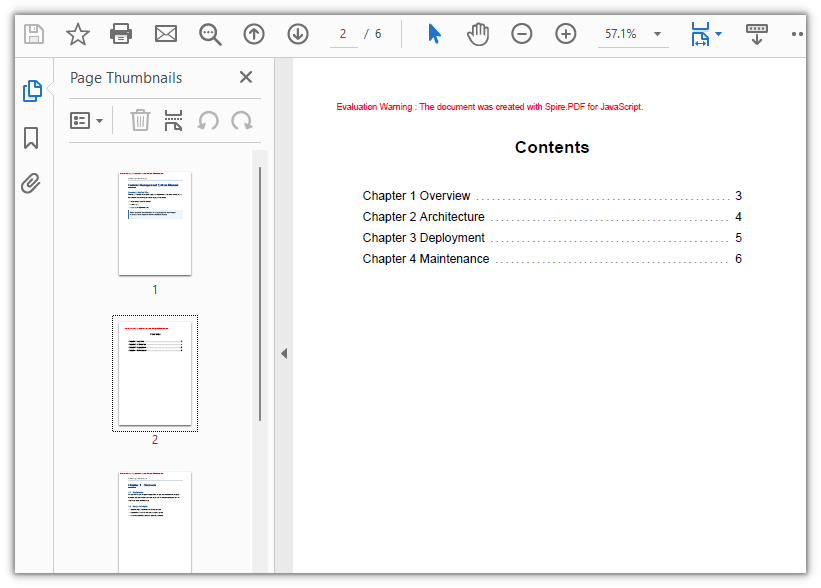
At this point the page looks finished, and that is the trap. Every entry is ink. Clicking one does nothing, because a page of drawn text has no interactive elements at all.
Making each entry clickable
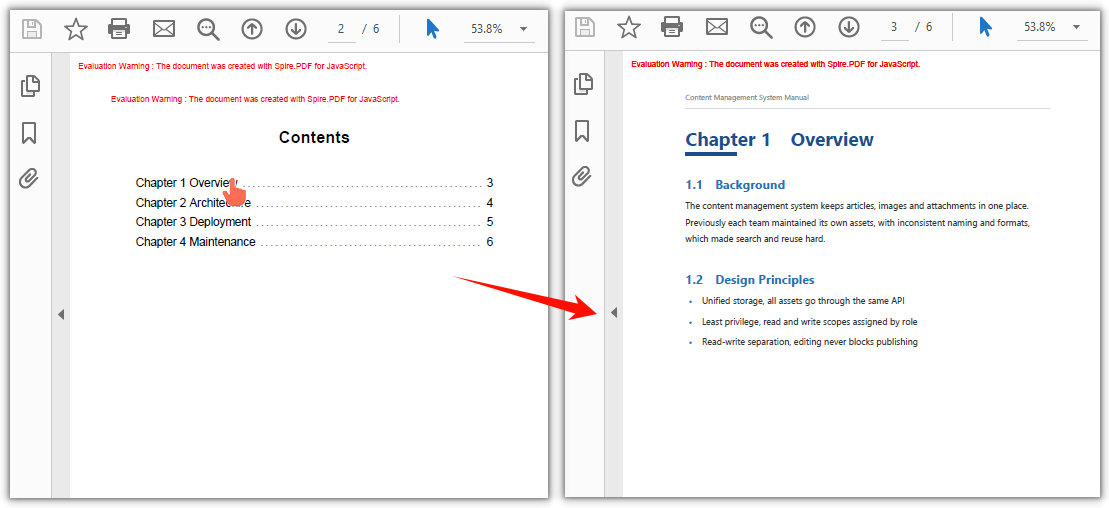
Interaction in a PDF comes from annotations, not from the text itself. To make a line of the contents page respond to a click, it has to be covered by a PdfActionAnnotation whose action is a PdfGoToAction carrying a PdfDestination — the destination names the page to jump to.
function App() {
  const addTocNavigation = async () => {
    // Get the Spire.PDF WASM module
    const pdfModule = window.wasmModule?.spirepdf;

    // Check whether the module is ready
    if (!pdfModule) {
      alert('Spire.PDF is not ready yet');
      return;
    }

    // Load the document generated in the previous step
    const inputFileName = 'Document-with-TOC.pdf';
    await window.spire.FetchFileToVFS(inputFileName, '', `${process.env.PUBLIC_URL}/data/`);

    let doc = new pdfModule.PdfDocument();
    doc.LoadFromFile(inputFileName);

    // The contents page is page 2 of the document (index 1)
    const tocPage = doc.Pages.get_Item(1);

    // The entry text and the page each one should jump to
    const chapters = [
      { title: 'Chapter 1 Overview', page: 3 },
      { title: 'Chapter 2 Architecture', page: 4 },
      { title: 'Chapter 3 Deployment', page: 5 },
      { title: 'Chapter 4 Maintenance', page: 6 }
    ];

    // Search the contents page by keyword
    const finder = new pdfModule.PdfTextFinder(tocPage);

    for (const chapter of chapters) {
      const found = finder.Find(chapter.title);
      if (found.length === 0) {
        continue;
      }

      // Define the hit area based on the keyword position
      const lineBounds = found.get(0).Bounds[0];
      const bounds = new pdfModule.RectangleF({
        location: new pdfModule.PointF(0, lineBounds.Y),
        size: new pdfModule.SizeF({ width: tocPage.Canvas.ClientSize.Width, height: lineBounds.Height })
      });

      // The jump target is the chapter's page, aligned to the top-left corner of the body
      const targetPage = doc.Pages.get_Item(chapter.page - 1);
      const destination = new pdfModule.PdfDestination({
        page: targetPage,
        location: new pdfModule.PointF(0, 0)
      });

      // Attach the jump action and set the border width to 0
      const action = new pdfModule.PdfActionAnnotation(bounds, new pdfModule.PdfGoToAction({ destination }));
      action.Border = new pdfModule.PdfAnnotationBorder({ borderWidth: 0 });
      tocPage.Annotations.Add(action);
    }

    // Define the output file name and save
    const outputFileName = 'Clickable-TOC.pdf';
    doc.SaveToFile(outputFileName);
    doc.Close();

    // Read the generated file from the VFS and trigger the download
    const fileArray = window.dotnetRuntime.Module.FS.readFile(outputFileName);
    const blob = new Blob([fileArray], { type: 'application/pdf' });
    const url = URL.createObjectURL(blob);
    const a = document.createElement('a');
    a.href = url;
    a.download = outputFileName;
    a.click();
    URL.revokeObjectURL(url);
  };

  return (
    <div style={{ textAlign: 'center', height: '300px' }}>
      <h1>Add Navigation to Table of Contents Entries</h1>
      <button id="btn-2" onClick={addTocNavigation}>
        Add Navigation
      </button>
    </div>
  );
}

export default App;
Two choices in there are deliberate. Border is zeroed, because a visible border draws a rectangle around each entry — the reader should see a list, not a boxed form. And the target is fetched as a real page object with doc.Pages.get_Item(...), since a destination needs a page, not an index.
Clicking a chapter title in the contents page jumps to that page
Finding the hit area by text search
The interesting part of that loop is the hit area. The obvious approach is to compute it from the drawing coordinates — the entry was drawn at y, the line is entryFont tall, so the rectangle goes there. It works for the first row and drifts by the last.
Drawing y and the annotation rectangle sit in different frames of reference: the text was drawn downward from the top, while the hit area must be expressed in page coordinates. Bridging them means accounting for page height and a top margin, and any error in font metrics or line spacing accumulates row by row — until the click lands on the row below.
The fix is to stop deriving the position and go look it up. PdfTextFinder searches a page for a piece of text and returns the rectangles it occupies, already in page coordinates:
const finder = new pdfModule.PdfTextFinder(tocPage);
const found = finder.Find(chapter.title);
const lineBounds = found.get(0).Bounds[0];
const bounds = new pdfModule.RectangleF({
  location: new pdfModule.PointF(0, lineBounds.Y),
  size: new pdfModule.SizeF({ width: tocPage.Canvas.ClientSize.Width, height: lineBounds.Height })
});
const targetPage = doc.Pages.get_Item(chapter.page - 1);
const action = new pdfModule.PdfActionAnnotation(bounds, new pdfModule.PdfGoToAction({ destination }));
Searching for the entry's own text returns where that text actually ended up, so no top margin has to be added and no line-spacing assumption has to hold. The rectangle is then widened to span the full page width, so the whole row is clickable rather than just the glyphs, and the search result's height sets the row height. If an entry is not found, Find returns an empty list and the loop skips it — a continue instead of a link pointing nowhere.
This is also why drawing and linking are separate passes: the search needs the entries to exist as text before it can find them.
Extending to a multi-level contents
A real manual has chapters and sections, not one flat list. The mechanics above scale with three adjustments.
| Change | What to adjust |
|---|---|
| Sub-entries indented | Shift the sub-entry's x to the right, and start the leader dots from the new text end |
| Sub-entries quieter | Draw them in a smaller size or a gray brush so the hierarchy reads at a glance |
| Tighter spacing | Reduce the y step for section rows so a chapter and its sections read as a group |
Two cautions come with it. Leader dots start from the entry's measured width, so an indented sub-entry needs its dots computed from the indented margin, or they will overlap the text. And the hit area is found by searching for the text, so two entries reading the same thing resolve to the first occurrence — numbering sections (2.1, 2.2) sidesteps that.
If the list outgrows one page, insert a second contents page and search each entry on the page it was drawn on — the finder is created per page.
Common issues
The page numbers are all off by one. The contents page was inserted into the document, so every page after it moved down by one. Write the numbers as they stand after the insert. If the cover was page 1 and chapter one was page 2, then once the contents page sits at index 1, chapter one is page 3.
Clicking an entry jumps to the wrong chapter, or nothing happens. The hit area was derived from the drawing coordinates instead of searched for. Measured offsets accumulate down the page, so the rectangle drifts off its row. Search the contents page for the entry's text and use the returned rectangle — it is already in page coordinates.
A visible box appeared around every entry.
That is the annotation border. Set action.Border to a PdfAnnotationBorder with borderWidth: 0 so the hit area stays invisible.
The first click does nothing. The WebAssembly module had not finished loading. Guard on the module reference, or keep the control disabled until it is ready.
FAQ
Can the page numbers be filled in automatically? The list has to be told which page each chapter starts on — the contents page cannot infer your document's structure by itself. Read the document's page count and build the entry list from your own chapter metadata, remembering to account for the pages the contents page itself adds.
Do the links survive printing? No, and they are not supposed to. Printing produces the visible contents page with its page numbers; the click behaviour only exists in the digital file, where a reader can act on it.
Can I change how the contents page looks?
Yes. The title and entries use PdfFont, so family, size and style are yours to set, and the colours come from PdfBrushes — the leader dots in the example are drawn in gray so they recede behind the entries.
Does the clickable entry need a visible underline or colour? No. The hit area is an invisible annotation covering the row, so the entry looks like ordinary text and still responds to a click. That is why the border width is zeroed.
Does any of this need a server? No. The document is loaded, edited and saved in the browser through the virtual file system, and the resulting file is read back out for download.
See Also
Linearizing a PDF for Fast Web View in JavaScript (React)
You click a link to a large PDF and get a blank frame. The spinner turns, a few megabytes arrive, and only then does page one appear. The file was fine, the network was fine — the document was simply written in an order that forces the viewer to wait for the whole thing before it can draw anything. That is the problem linearization solves, and it is a structural fix, not a size fix: the same bytes, arranged so that the parts needed to render the first page sit at the front.
This article linearizes a PDF in the browser with Spire.PDF for JavaScript. The library runs on WebAssembly and works on the document through a virtual file system (VFS), so a file can be restructured on the user's machine without being pushed through a remote optimization service.
Setup instructions live in Integrating Spire.PDF for JavaScript in a React Project. The example below assumes the package is installed and the WebAssembly module has been initialized.
What fast web view actually means
A PDF is a container, and its objects are stored in the order they were written by whatever produced it. A viewer, on the other hand, needs a specific small set — the document catalog, the page tree and the objects backing page one — before it can paint anything at all. If those objects happen to sit near the end of the file, behind a large embedded image, the viewer has no choice but to keep downloading until it reaches them.
Fast web view is the consumer-facing name for a linearized PDF: one whose internal layout places the first page's objects near the front, so a client that supports HTTP byte-range requests can ask for just those bytes, render page one immediately, and fetch the rest in the background. The reader sees content while the download continues instead of staring at an empty frame.
The practical consequence is that two files of identical size can feel completely different to open. Same page count, same images, same text — different time to first paint.
How linearization rearranges a file
Linearization rewrites how the file is laid out without touching what it contains:
- The objects that page one depends on are moved to the beginning of the file.
- A linearization dictionary is written near the start so a client can discover the layout before it has read the whole document.
- A hint table records where each page's objects live, which is what lets a reader jump ahead to an arbitrary page with a byte-range request.
- The cross-reference information is placed so it can be read early rather than at the end of the file.
Everything a reader actually sees — text, images, fonts, vector art, links, annotations, bookmarks, metadata — is carried over unchanged. The words on the page are the same words in the same places. What moved is the byte ordering, not the content. That is why a linearized document is impossible to spot by looking at it: open the original and the output side by side and they are indistinguishable, because the difference only shows up in when the pieces can be read.
Linearizing a document in the browser
The usage mirrors the library's other converters: hand the input file to PdfToLinearizedPdfConverter, then call ToLinearizedPdf to write the restructured document.
function App() {
  const convertToLinearized = async () => {
    // Get the Spire.PDF WASM module
    const pdfModule = window.wasmModule?.spirepdf;

    // Check whether the module is ready
    if (!pdfModule) {
      alert('Spire.PDF is not ready yet');
      return;
    }

    // Load the PDF file to be converted into the VFS
    const inputFileName = 'Business_Data_Overview.pdf';
    await window.spire.FetchFileToVFS(inputFileName, "", `${process.env.PUBLIC_URL}/data/`);

    // Define the output file name
    const outputFileName = 'LinearizedDocument.pdf';

    // Construct the linearization converter from the input file and write out the linearized document
    const converter = new pdfModule.PdfToLinearizedPdfConverter({ filePath: inputFileName });
    converter.ToLinearizedPdf({ filePath: outputFileName });
    converter.Dispose();

    // Read the generated file from the VFS and trigger the download
    const fileArray = window.dotnetRuntime.Module.FS.readFile(outputFileName);
    const blob = new Blob([fileArray], { type: 'application/pdf' });
    const url = URL.createObjectURL(blob);
    const a = document.createElement('a');
    a.href = url;
    a.download = outputFileName;
    a.click();
    URL.revokeObjectURL(url);
  };

  return (
    <div style={{ textAlign: 'center', height: '300px' }}>
      <h1>Linearize a PDF</h1>
      <button onClick={convertToLinearized}>
        Start Converting
      </button>
    </div>
  );
}

export default App;
ToLinearizedPdf writes a new file, so the input stays in the VFS and the original is available for comparison. Nothing about the call depends on the document's content — a report, a manual and a scanned archive all go through the same two members.
The linearized document looks no different on the page, the change is inside the file structure
Linearize or compress
These two passes are routinely confused because both are described as "optimizing a PDF", but they answer different questions.
| Compressing | Linearizing | |
|---|---|---|
| What it changes | Removes redundancy so the file holds fewer bytes | Reorders bytes so the useful ones arrive first |
| Goal | A smaller download | A faster first page |
| Effect on file size | The point of the exercise | Little to none; the bytes are the same bytes |
| Effect on appearance | Only if image quality is sacrificed | None at all |
| Typical trigger | An upload limit or an attachment cap | A long document published for browsing |
A file can need both, and the order matters. Compression rewrites the document, and any pass that rewrites a PDF discards the linearized layout — so if you want both, compress first and linearize last, so the linearized structure is the final state of the file.
When linearization is worth the pass
Linearization pays off in a specific setting: a document large enough that the download is noticeable, delivered over HTTP to a viewer that supports range requests.
- Manuals, catalogs and long reports served from a site. This is the classic case — tens of megabytes, opened from a link, with readers who want to jump straight to a chapter.
- Mobile readers on slow connections. The first page appears from the first bytes requested, so the perceived load time drops even when the total download does not.
- Documents readers usually enter in the middle. Byte-range requests let a client fetch a later page first, which is only possible with the hint table a linearized file carries.
It is not worth the pass in others. A file opened from local disk is not fetched over HTTP, so there is no range request to take advantage of. A short document already renders before the difference could be felt. And an internal print workflow neither streams nor jumps — it wants the whole document, in order, at once.
Confirming the output is linearized
Because the visible pages are identical, "it looks right" proves nothing. The change is in the file, so the check has to read the file.
A linearized PDF carries a linearization dictionary near the start of its bytes, and the marker is plain text, so the first few hundred bytes of the output are enough to confirm it. Both the input and the output are in the VFS, which makes the comparison a couple of file reads:
// Read the head of the file and look for the linearization marker
const bytes = window.dotnetRuntime.Module.FS.readFile(outputFileName);
const head = new TextDecoder('latin1').decode(bytes.slice(0, 1024));
const linearized = head.includes('/Linearized');
That is a useful guard for a pipeline: convert a document, then assert the marker is present before handing the file on. If it is missing, the file was rewritten by something downstream after linearization — remember that any re-save, including a compression pass, drops the linearized layout.
Common issues
The first page still takes time to appear. Check how the file is delivered. Linearization only helps when the client can request parts of the file — served over HTTP with range support. If the whole file is fetched at once, or the document is short, the pass cannot change what you are seeing.
The output has an extra line of text.
An unlicensed build appends Evaluation Warning : The document was created with Spire.PDF for JavaScript. to the document, once per conversion call. A temporary 30-day license removes it along with the functional limits — contact sales to get one.
The file size didn't drop. It usually won't. Linearization reorders the existing bytes; it does not remove any. If size is the problem, that is a compression job, not a linearization one.
Nothing happens on the first click.
The WebAssembly module loads asynchronously. if (!pdfModule) return; is the guard in the sample; in a real UI, disable the control until the module is ready instead of showing an alert.
FAQ
Does linearizing a PDF change its content or quality? No. Text, images, fonts, formatting, links and metadata all carry over exactly; only the internal byte ordering changes. The pages look and behave identically.
Is linearization the same as compressing a PDF? No. Compressing removes redundancy to produce fewer bytes; linearizing rearranges the bytes it already has so the first page can be read sooner. One targets download size, the other targets time to first render.
Does it help if the file is opened from the local disk? Rarely. The benefit comes from streaming over HTTP with byte-range requests, so a document opened from a local path has nothing to gain.
Will a linearized file stay linearized? Only until something rewrites it. Any tool that re-saves the document — a compression pass, an edit, a merge — drops the linearized layout, so linearization should be the last step in the pipeline.
Does it work on an encrypted or password-protected file? Encryption is a separate concern from layout. Decrypt the document first and let the converter work on an already-readable file.
Can I convert several files at once? Yes. The converter is a one-file operation, so a batch is a loop — the same two members, with a distinct output name for each input.
See Also
How to Convert PDF to Grayscale in JavaScript (React)

Send a color-heavy report to an office mono laser and you pay for it twice: once in the toner the printer wastes trying to fake gray out of CMYK dots, and again in the quality of the result — screens and chart fills turn into muddy speckle instead of clean tone. Send the same file to a records archive and the color is worse than useless. Spot colors age, color management drifts between machines, and every re-print comes back slightly different from the last. Grayscale is the format both of those jobs actually want, and it is a single call away once the PDF is being handled in code.
This article turns a PDF into a grayscale document inside the browser with Spire.PDF for JavaScript. The library is compiled to WebAssembly and drives the document through a virtual file system (VFS), so the file is read and rewritten on the user's machine and nothing is handed to a conversion service.
For project setup, follow Integrating Spire.PDF for JavaScript in a React Project. The example below assumes the package is installed and the WebAssembly module has finished initializing.
Why grayscale a PDF (and when it is the wrong move)
Three situations come up again and again:
- Printing on monochrome hardware. A mono laser has one toner. When you hand it a color PDF it has to approximate every color with a halftone pattern, which is why colored text and thin chart lines come out fuzzy. A grayscale source removes the guesswork — the printer receives tone, not color to interpret.
- Records and archival. Long-term storage standards are written around a fixed, device-independent appearance. A grayscale document reproduces the same way on every printer and every scanner, so the archived copy cannot drift.
- Scan and index pipelines. Once a document has been scanned and OCR'd, the color carries no information the index can use — it is only weight.
There are cases to leave alone. If color is doing semantic work — a chart where each series is a different hue, a brand asset, a photograph portfolio — grayscaling destroys the very thing the reader needs. It is also the wrong tool when the actual problem is size: if the goal is a smaller file rather than cheaper printing, reaching for grayscale attacks only the images and ignores fonts and content streams, which is a job for a compressor instead.
What grayscale actually changes
It is easy to assume "grayscale" means the page is re-rendered as a picture. It is not. The conversion works at the object level:
| Part of the page | What happens |
|---|---|
| Color images | Re-encoded as single-channel grayscale, one luminance value per pixel instead of three color channels |
| Text | Untouched as text — still selectable, still searchable, still copyable |
| Layout and page count | Unchanged; nothing is cropped, moved or removed |
| Document metadata | Preserved |
Because the images are re-encoded rather than rasterized into a screenshot, the output is a normal PDF with a smaller color space — not a picture of a PDF. That distinction matters the moment anyone tries to search the result or select a line of text.
Converting a document to grayscale
Two members do the work: pass the input file to the PdfGrayConverter constructor, then call ToGrayPdf with the output file. The rest of the component is the usual VFS load and Blob download.
function App() {
  const convertToGrayscale = async () => {
    // Get the Spire.PDF WASM module
    const pdfModule = window.wasmModule?.spirepdf;

    // Check whether the module is ready
    if (!pdfModule) {
      alert('Spire.PDF is not ready yet');
      return;
    }

    // Load the PDF file to be converted into the VFS
    const inputFileName = 'Business_Data_Overview.pdf';
    await window.spire.FetchFileToVFS(inputFileName, "", `${process.env.PUBLIC_URL}/data/`);

    // Define the output file name
    const outputFileName = 'GrayscaleDocument.pdf';

    // Construct the grayscale converter from the input file and write out the grayscale document
    const converter = new pdfModule.PdfGrayConverter({ filePath: inputFileName });
    converter.ToGrayPdf({ filePath: outputFileName });
    converter.Dispose();

    // Read the generated file from the VFS and trigger the download
    const fileArray = window.dotnetRuntime.Module.FS.readFile(outputFileName);
    const blob = new Blob([fileArray], { type: 'application/pdf' });
    const url = URL.createObjectURL(blob);
    const a = document.createElement('a');
    a.href = url;
    a.download = outputFileName;
    a.click();
    URL.revokeObjectURL(url);
  };

  return (
    <div style={{ textAlign: 'center', height: '300px' }}>
      <h1>Convert PDF to Grayscale</h1>
      <button onClick={convertToGrayscale}>
        Start Converting
      </button>
    </div>
  );
}

export default App;
Three details are worth noticing. ToGrayPdf writes a new file — the input in the VFS is left as it was, so a "keep the color version" option costs nothing. Dispose releases the converter once the file is written. And the color images on the page are what the call actually rewrites; the text never becomes an image.
The sample document after grayscaling, with the color charts turned to grayscale

Grayscale vs desaturation vs black-and-white
Three different results all get called "grayscale" in casual use, and they are not the same file:
| Output | How it is stored | Size of the image data | Where it belongs |
|---|---|---|---|
| True grayscale | One channel, DeviceGray |
Smallest — one value per pixel | Print, archive, general documents |
| Desaturated color | Three equal channels, DeviceRGB with R=G=B |
Roughly three times the grayscale data | A quick visual filter where the file already exists |
| Threshold black-and-white | One bit per pixel, no tones | Tiny | Scanned text pages where grain is noise, not detail |
On screen the first two are indistinguishable; the difference is entirely in how many bytes each pixel costs and in how a printer has to interpret it. A threshold conversion is a completely different operation — it drops the midtones, so photographs turn into blotches and only line art and clean text survive.
The converter writes the first kind: a single-channel grayscale image, which is why it is also the cheapest of the three to store.
The file-size side effect
Grayscale is not a compression feature, but it does shrink files, and it is worth knowing why. In the sample document the color images were three-channel PNGs totalling about 66 KB; after conversion the same images came out around 31 KB. The whole file went from 82 KB to 44 KB — roughly a 46% reduction, achieved purely by dropping the color channels. The page count and the text did not change at all.
That comes for free with the ink saving. But read the number correctly: the gain scales with how much of the file is bitmap. A document that is mostly text and vector art has almost no bitmap to re-encode, so grayscaling it barely moves the size — and if size is the actual target, images are only one of three places the weight hides. Reducing PDF file size in JavaScript (React) covers the other two.
Wiring it into a React UI
In a real component the pattern above needs two adjustments.
Do not leave the alert in. The WebAssembly module loads asynchronously, so the first click can arrive before the converter exists. Disable the button until the module reports ready rather than interrupting the user with a dialog:
// The module may not have finished loading on the first render
const [ready, setReady] = useState(false);
// ...
<button disabled={!ready} onClick={convertToGrayscale}>Convert to Grayscale</button>
Batch the same call. Because the converter takes one file at a time and writes one file at a time, a folder of documents is just a loop — same constructor, same method, a different output name per input:
// The converter is a one-file operation, so a batch is a loop
for (const name of inputNames) {
  await window.spire.FetchFileToVFS(name, "", `${process.env.PUBLIC_URL}/data/`);
  const out = name.replace(/\.pdf$/i, '-gray.pdf');
  const converter = new pdfModule.PdfGrayConverter({ filePath: name });
  converter.ToGrayPdf({ filePath: out });
  converter.Dispose();
  // read out from the VFS and download (or report per-file sizes)
}
Since both the original and the grayscale copy sit in the VFS, you can report a real before-and-after figure next to each row instead of a bare link:
// Both files are in the VFS, so the saving can be measured
const before = window.dotnetRuntime.Module.FS.readFile(name).length;
const after = window.dotnetRuntime.Module.FS.readFile(out).length;
Showing the percentage saved turns the button into a result. If the two numbers are nearly equal, the document had nothing in its images to give back — that is information, not a failure.
Common issues
The output carries an extra warning line.
An unlicensed build inserts Evaluation Warning : The document was created with Spire.PDF for JavaScript. into the document, and it is appended per call — convert the same file twice in a session and the line appears twice. A temporary license removes it; contact sales for a 30-day key, which also lifts the functional limits.
The converted document looks identical. Check what the document is made of. If it is text and vector art with no bitmaps, there is very little for a grayscale pass to change, and the difference will be invisible. That is expected, not a bug.
Nothing happens on the first click. The module was still loading. Guard the handler on the module reference, or keep the button disabled until it is ready, as shown above.
The file barely shrank. Grayscaling only touches the images. If the weight is in the fonts or the content streams, this conversion is not the lever — see the compression article linked above.
FAQ
Does converting to grayscale make the text unselectable? No. The text is not rasterized. Only the images are re-encoded, so the result is still searchable, selectable and copyable — it simply has no color.
Can I convert only some pages? The converter works on the document as a whole. If part of a file needs to stay in color, split the document first, convert the portion that should be gray, and merge the pieces back together.
Will grayscaling always reduce the file size? Not always, but usually a little — the saving comes from the images, so the more bitmap there is, the bigger the gain. Documents that are already text and vector may hardly move.
Do I have to upload the file anywhere? No. Everything happens in the browser. The PDF enters the virtual file system, is rewritten there, and is read back out for download, so a confidential document never leaves the device.
Can I offer both versions to the user?
Yes. ToGrayPdf writes to a new file name and leaves the input untouched, so the color original and the grayscale copy are both available in the same session.
See Also
JavaScript로 Word 문서 배경 설정
모든 계약서, 공식 서신, 브랜드 홍보물에는 암묵적인 시각적 정체성이 담겨 있습니다. 순백의 페이지도 용도는 충분히 해내지만, 그 뒤에 있는 조직에 대해서는 아무것도 말해 주지 않습니다. 부드러운 색조, 은은한 두 가지 색 그라데이션, 또는 타일로 반복되는 배경 이미지를 추가하는 순간, 문서 전체가 일반적인 파일에서 알아볼 수 있는 브랜드 결과물로 바뀌며, 독자들은 그 이유를 설명하지 못하더라도 이를 알아차립니다.
Spire.Doc for JavaScript는 WebAssembly를 통해 이러한 시각적 스타일링을 브라우저로 직접 가져옵니다. 서버 왕복도, Office 자동화 의존성도, 데스크톱 설치 요구 사항도 없습니다. Word 파일을 WASM 가상 파일 시스템(VFS)에 로드하고, 세 가지 배경 모드 중 하나를 선택한 다음, 스타일이 적용된 문서를 내보냅니다. 이 모든 과정이 React 애플리케이션의 클라이언트 측에서 이루어집니다.
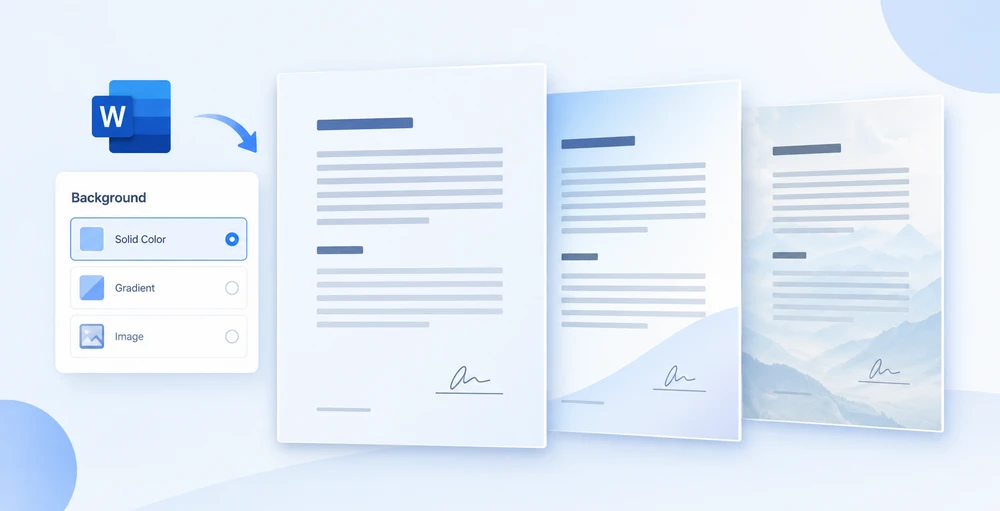
이 가이드는 세 가지 배경 옵션 각각을 API 목록이 아니라 일련의 디자인 결정으로 살펴봅니다. 먼저 빠른 비교를 통해 사용 사례에 맞는 올바른 기법을 선택할 수 있도록 한 다음, 각각의 구현 세부 사항으로 들어갑니다.
한눈에 보는 세 가지 배경 접근법
코드를 작성하기 전에, 각 배경 유형이 디자인 관점에서 어떤 가치를 제공하는지 이해하면 도움이 됩니다. 아래 표는 시각적 결과, 필요한 구성의 정도, 각 접근법이 빛을 발하는 시나리오를 요약합니다.
| 접근법 | 시각적 효과 | 구성 작업량 | 가장 적합한 용도 |
|---|---|---|---|
| 단색 | 하나의 균일한 색상이 모든 페이지를 채웁니다 | 낮음 — BackgroundType.Color를 설정하고 색상 하나를 지정합니다 |
깔끔하고 전문적인 기본 색조가 필요한 계약서, 내부 메모, 공식 서신 |
| 그라데이션 | 페이지 전체에 걸친 두 색상의 방향성 혼합 | 보통 — Color1, Color2, 그리고 ShadingStyle 및 ShadingVariant를 정의합니다 |
은은한 깊이감이 도움이 되는 표지 페이지, 인증서, 마케팅 템플릿 |
| 그림 | 전체 페이지에 타일로 반복되는 배경 이미지 | 보통 — 이미지를 VFS에 로드한 다음 SetPicture를 호출합니다 |
브랜드 문구류, 장식 요소가 있는 레터헤드, 테마 문서 템플릿 |
세 가지 모두 동일한 전체 워크플로를 공유합니다. 원본 문서를 VFS에 로드하고, Document 인스턴스의 Background 속성을 구성하고, 결과를 저장한 다음, 브라우저 다운로드를 트리거합니다. 차이는 전적으로 해당 Background 속성을 구성하는 방식에 있으며, 바로 여기에서 디자인 선택이 시작됩니다.
프로젝트 설정 및 설치 지침은 React 프로젝트에 Spire.Doc for JavaScript 통합하기를 참조하세요. 아래 코드 예제는 WASM 모듈이 이미 초기화되어 window.wasmModule에서 사용할 수 있다고 가정합니다.
단색 배경
단색은 가장 절제된 배경 선택이며, 종종 가장 효과적입니다. 검은색 텍스트 뒤의 따뜻한 크림색이나 옅은 회색은 시선을 빼앗지 않으면서 눈의 피로를 줄여 줍니다. 계약서와 정책 문서 같은 공식 문서에서 은은한 색조는 "이 문서는 특정 조직에 속한다"는 신호를 주면서 장식으로 넘어가지 않습니다.
구현은 세 가지 명확한 단계를 따릅니다. 첫째, FetchFileToVFS를 사용하여 대상 Word 파일(및 글꼴 파일)을 WASM 가상 파일 시스템에 로드합니다. 둘째, Document를 만들고, 파일을 로드하고, Background.Type을 BackgroundType.Color로 설정한 다음, Background.Color에 기본 제공 색상을 할당합니다. 셋째, SaveToFile로 문서를 다시 VFS에 저장하고, 결과 파일을 바이트 배열로 읽고, Blob으로 감싼 다음, 다운로드를 시작합니다.
function App() {
  const SetSolidColorBackground = async () => {
    const docModule = window.wasmModule?.spiredoc;
    if (!docModule) {
      alert('Spire.Doc is not ready yet');
      return;
    }
    // Load the sample file into the virtual file system (VFS)
    let inputFileName = "ScienceTemplate.docx";
    await window.spire.FetchFileToVFS(inputFileName, "", `${process.env.PUBLIC_URL}static/data/`);

    // Create Word document
    let doc = new docModule.Document();

    // Load the file
    doc.LoadFromFile(inputFileName);

    // Set the background type as Color
    doc.Background.Type = docModule.BackgroundType.Color;

    // Set the background color
    doc.Background.Color = docModule.Color.get_LightYellow();

    // Define the output file name
    const outputFileName = "SetSolidColorBackground_out.docx";

    // Save the document to the specified path
    doc.SaveToFile({ fileName: outputFileName, fileFormat: docModule.FileFormat.Docx2013 });

    doc.Dispose();

    const modifiedFileArray = window.dotnetRuntime.Module.FS.readFile(outputFileName);
    const blob = new Blob([modifiedFileArray], { type: 'application/vnd.openxmlformats-officedocument.wordprocessingml.document' });
    const url = URL.createObjectURL(blob);
    const a = document.createElement('a');
    a.href = url;
    a.download = outputFileName;
    a.click();
    URL.revokeObjectURL(url);
  };

 return (
    <div style={{ textAlign: 'center', height: '300px' }}>
      <h1>Set a Solid Color Background for a Word Document</h1>
      <button onClick={SetSolidColorBackground}>Generate</button>
    </div>
  );
}
export default App;
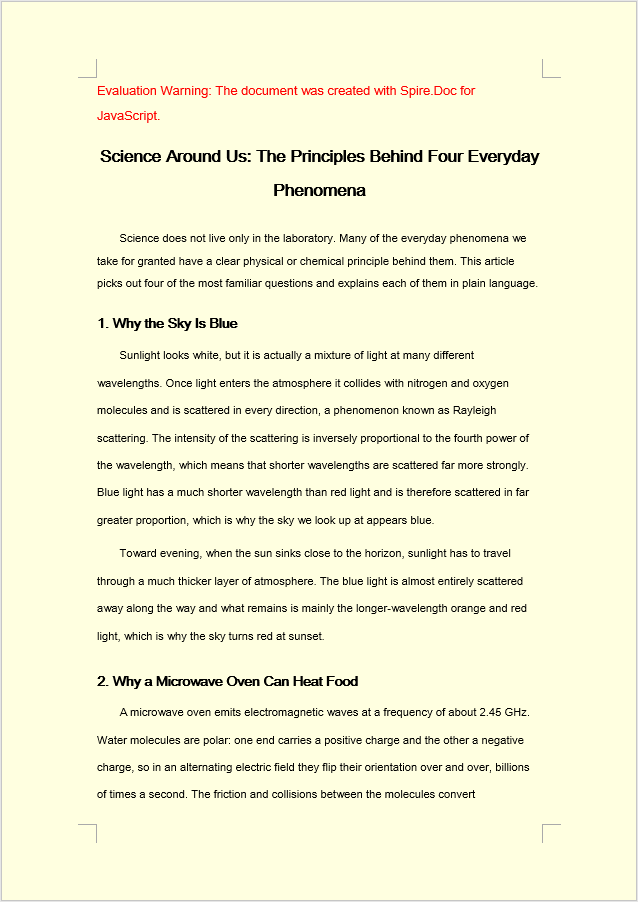
Background.Color가 적용되면 문서의 모든 페이지가 선택한 기본 제공 색상으로 채워집니다. 여기서는 LightYellow입니다.
그라데이션 배경
그라데이션은 단색이 줄 수 없는 입체감을 도입합니다. 예를 들어 흰색에서 옅은 파란색으로 이어지는 위에서 아래 방향의 전환은 하늘과 개방감을 연상시키며, 인증서, 상장, 또는 약간의 격식이 어울리는 모든 문서에 유용합니다. 핵심은 절제입니다. 서로 가까운 두 색상을 선택하고 그라데이션이 조용히 제 역할을 하도록 두세요.
코드는 단색 워크플로를 그대로 따르지만, 중간 단계가 확장됩니다. Background.Type을 BackgroundType.Gradient로 설정한 후, Background.Gradient를 통해 그라데이션 개체를 가져와 네 가지 속성을 구성합니다: Color1(시작 색), Color2(끝 색), ShadingVariant(전환 방향), ShadingStyle(그라데이션의 축).
function App() {
  const SetGradientBackground = async () => {
    const docModule = window.wasmModule?.spiredoc;
    if (!docModule) {
      alert('Spire.Doc is not ready yet');
      return;
    }
    // Load the sample file into the virtual file system (VFS)
    let inputFileName = "ScienceTemplate.docx";
    await window.spire.FetchFileToVFS(inputFileName, "", `${process.env.PUBLIC_URL}static/data/`);

    // Create Word document
    let doc = new docModule.Document();

    // Load the file
    doc.LoadFromFile(inputFileName);

    // Set the background type as Gradient
    doc.Background.Type = docModule.BackgroundType.Gradient;
    let gradient = doc.Background.Gradient;

    // Set the start color and the end color of the gradient
    gradient.Color1 = docModule.Color.get_White();
    gradient.Color2 = docModule.Color.get_LightBlue();

    // Set the shading style and variant of the gradient
    gradient.ShadingVariant = docModule.GradientShadingVariant.ShadingDown;
    gradient.ShadingStyle = docModule.GradientShadingStyle.Horizontal;

    // Define the output file name
    const outputFileName = "SetGradientBackground_out.docx";

    // Save the document to the specified path
    doc.SaveToFile({ fileName: outputFileName, fileFormat: docModule.FileFormat.Docx2013 });

    doc.Dispose();

    const modifiedFileArray = window.dotnetRuntime.Module.FS.readFile(outputFileName);
    const blob = new Blob([modifiedFileArray], { type: 'application/vnd.openxmlformats-officedocument.wordprocessingml.document' });
    const url = URL.createObjectURL(blob);
    const a = document.createElement('a');
    a.href = url;
    a.download = outputFileName;
    a.click();
    URL.revokeObjectURL(url);
  };

 return (
    <div style={{ textAlign: 'center', height: '300px' }}>
      <h1>Set a Gradient Background for a Word Document</h1>
      <button onClick={SetGradientBackground}>Generate</button>
    </div>
  );
}
export default App;
Background.Gradient를 적용하면 페이지가 흰색에서 연한 파란색으로 이어지는 부드러운 가로 전환으로 채워지며, 아래쪽으로 흐릅니다.
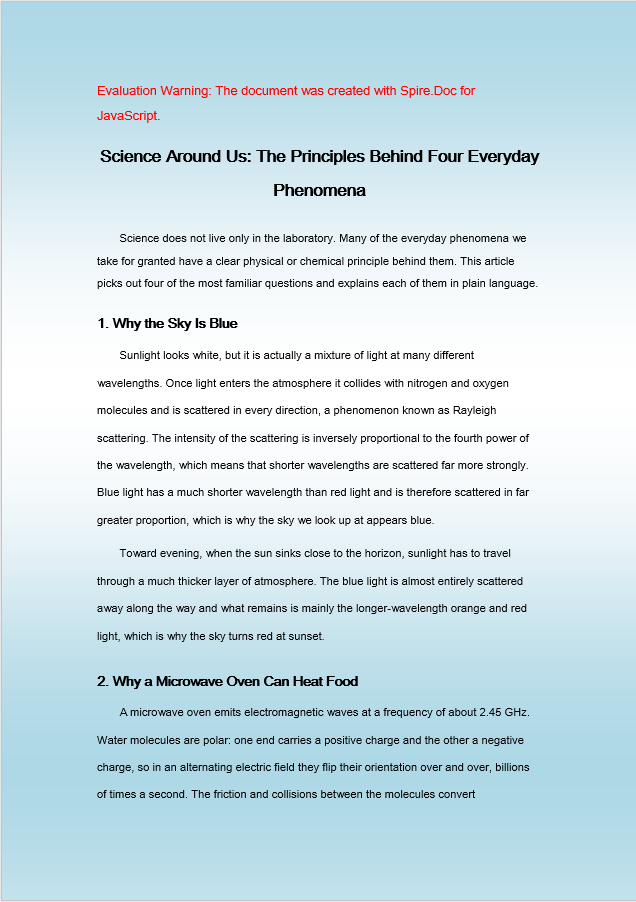
그림 배경
그림 배경은 가장 표현력이 뛰어난 옵션입니다. 은은한 워터마크 패턴, 기업 텍스처, 또는 행사 프로그램용 장식 모티프 등 어떤 것이든, 타일로 반복되는 이미지는 색상과 그라데이션이 단순히 담을 수 없는 브랜딩 요소를 전달할 수 있습니다. 대신 파일 무게가 늘어납니다. 이미지를 문서와 함께 VFS에 로드해야 하므로, 시각적 효과가 추가 리소스를 정당화하는 템플릿에 이 접근법을 사용하세요.
설정은 이전 두 방법과 한 가지 중요한 점에서 다릅니다. 배경 이미지도 참조하기 전에 FetchFileToVFS를 사용하여 VFS에 로드해야 합니다. 문서와 이미지가 모두 VFS에 있으면 Background.Type을 BackgroundType.Picture로 설정하고, 이미지의 VFS 경로를 사용하여 Background.SetPicture를 호출합니다. 그러면 이미지가 모든 페이지에 배경으로 타일링됩니다.
function App() {
  const SetImageBackground = async () => {
    const docModule = window.wasmModule?.spiredoc;
    if (!docModule) {
      alert('Spire.Doc is not ready yet');
      return;
    }
    // Load the sample file into the virtual file system (VFS)
    let inputFileName1 = "ScienceTemplate.docx";
    await window.spire.FetchFileToVFS(inputFileName1, "", `${process.env.PUBLIC_URL}static/data/`);

    // Load the background image into the virtual file system (VFS)
    let inputFileName2 = "Background.png";
    await window.spire.FetchFileToVFS(inputFileName2, "", `${process.env.PUBLIC_URL}static/data/`);

    // Load a Word document
    let doc = new docModule.Document();
    doc.LoadFromFile(inputFileName1);

    // Set the background type as Picture
    doc.Background.Type = docModule.BackgroundType.Picture;

    // Set the background picture
    doc.Background.SetPicture(inputFileName2);

    // Define the output file name
    const outputFileName = "SetImageBackground_out.docx";

    // Save the document to the specified path
    doc.SaveToFile({ fileName: outputFileName, fileFormat: docModule.FileFormat.Docx2013 });

    doc.Dispose();

    const modifiedFileArray = window.dotnetRuntime.Module.FS.readFile(outputFileName);
    const blob = new Blob([modifiedFileArray], { type: 'application/vnd.openxmlformats-officedocument.wordprocessingml.document' });
    const url = URL.createObjectURL(blob);
    const a = document.createElement('a');
    a.href = url;
    a.download = outputFileName;
    a.click();
    URL.revokeObjectURL(url);
  };

 return (
    <div style={{ textAlign: 'center', height: '300px' }}>
      <h1>Set a Picture Background in a Word Document</h1>
      <button onClick={SetImageBackground}>Generate</button>
    </div>
  );
}
export default App;
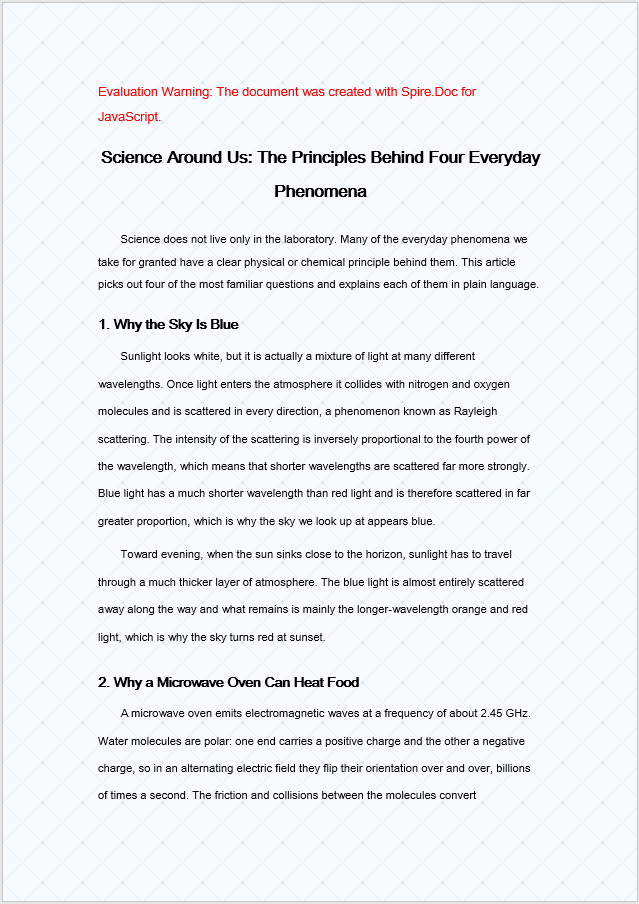
Background.SetPicture를 호출하면 지정한 이미지가 문서 배경으로 전체 페이지 표면에 타일링됩니다.
인쇄 시 고려 사항
많은 개발자를 당황하게 하는 실용적인 주의 사항이 하나 있습니다: Microsoft Word는 기본적으로 페이지 배경을 인쇄하지 않습니다. 이것은 코드의 버그나 Spire.Doc의 제한이 아닙니다. 배경은 문서에 올바르게 저장되며 화면에서는 정상적으로 표시됩니다. Word는 명시적으로 설정하지 않는 한 인쇄 출력에서 이를 생략할 뿐입니다.
인쇄본에 배경이 나타나게 하려면 최종 사용자가 Word 클라이언트에서 특정 설정을 활성화해야 합니다:
- Microsoft Word에서 문서를 엽니다.
- 파일 > 옵션 > 표시로 이동합니다.
- 배경색 및 이미지 인쇄를 선택합니다.
- 평소처럼 인쇄합니다.
독자의 Word 설정과 관계없이 모든 출력 환경에서 배경이 렌더링되도록 해야 한다면, 대체 접근법을 고려하세요. 문서 머리글에 전체 페이지 도형을 배치하거나 워터마크를 사용하여 배경 효과를 시뮬레이션하는 것입니다. 이러한 기법은 페이지 서식이 아니라 콘텐츠로 처리되므로 모든 구성에서 안정적으로 인쇄됩니다.
자주 묻는 질문
문서를 인쇄할 때 배경이 표시되지 않는 이유는 무엇인가요?
이는 예상된 동작입니다. Word는 기본적으로 인쇄 출력에서 페이지 배경을 숨깁니다. 설정은 올바르게 저장되고 화면에서는 렌더링되지만, Word 클라이언트의 인쇄 옵션이 이를 걸러냅니다. 배경이 사라진 것이 아니라 단순히 인쇄 스트림에 포함되지 않았을 뿐입니다.
이 문제를 해결하려면 인쇄하기 전에 Word에서 파일 > 옵션 > 표시 아래의 배경색 및 이미지 인쇄를 활성화하세요. 독자의 인쇄 설정을 제어할 수 없는 환경에서는 머리글에 전체 페이지 도형을 넣거나 워터마크를 사용하여 시각 효과를 복제하세요. 이러한 요소는 인쇄 가능한 콘텐츠로 처리되기 때문입니다.
그림 배경이 효과가 없는 이유는 무엇인가요?
일반적으로 두 가지 이유 중 하나로 발생합니다. SetPicture를 호출하기 전에 Background.Type을 BackgroundType.Picture로 설정하지 않았거나, 이미지 파일이 FetchFileToVFS를 통해 VFS에 로드되지 않아 SetPicture가 해당 파일을 찾을 수 없는 경우입니다.
먼저 배경 유형을 설정하고, 이미 가상 파일 시스템에 로드된 이미지의 정확한 파일 이름을 전달해야 합니다:
document.Background.Type = wasmModule.BackgroundType.Picture;
document.Background.SetPicture("Background.png");
참고 항목
Definir planos de fundo de documentos do Word com JavaScript
Todo contrato, carta oficial e peça de comunicação da marca carrega uma identidade visual implícita. Uma página branca comum cumpre a função, mas não diz nada sobre a organização por trás dela. No momento em que você adiciona uma tonalidade suave, um gradiente sutil de dois tons ou uma imagem de fundo repetida, todo o documento deixa de ser um arquivo genérico e se torna um artefato de marca reconhecível — e seus leitores percebem, mesmo que não consigam explicar o porquê.
Spire.Doc for JavaScript traz esse estilo visual diretamente para o navegador por meio do WebAssembly. Não há ida e volta ao servidor, nem dependência de automação do Office, nem necessidade de instalação no desktop. Você carrega um arquivo do Word no sistema de arquivos virtual (VFS) do WASM, escolhe um dos três modos de plano de fundo e exporta o documento estilizado — tudo do lado do cliente em um aplicativo React.
Este guia aborda cada uma das três opções de plano de fundo não como um catálogo de API, mas como um conjunto de decisões de design. Começamos com uma comparação rápida para que você possa associar a técnica certa ao seu caso de uso e, em seguida, aprofundamos os detalhes de implementação de cada uma.
Três abordagens de plano de fundo em resumo
Antes de escrever qualquer código, é útil entender o que cada tipo de plano de fundo oferece do ponto de vista de design. A tabela abaixo resume o resultado visual, a quantidade de configuração envolvida e os cenários em que cada abordagem se destaca.
| Abordagem | Efeito visual | Esforço de configuração | Mais indicado para |
|---|---|---|---|
| Cor sólida | Uma única cor uniforme preenche todas as páginas | Baixo — defina BackgroundType.Color e atribua uma cor |
Contratos, memorandos internos, cartas oficiais que precisam de um tom de base limpo e profissional |
| Gradiente | Uma mescla direcional de duas cores pela página | Médio — defina Color1, Color2, além de ShadingStyle e ShadingVariant |
Capas, certificados, modelos de marketing que se beneficiam de uma profundidade sutil |
| Imagem | Uma imagem de plano de fundo repetida por toda a página | Médio — carregue a imagem no VFS e depois chame SetPicture |
Papelaria de marca, timbrados com elementos decorativos, modelos de documentos temáticos |
Todas as três compartilham o mesmo fluxo de trabalho geral: carregar o documento de origem no VFS, configurar a propriedade Background em uma instância de Document, salvar o resultado e acionar o download no navegador. As diferenças estão inteiramente na forma como você configura essa propriedade Background — é aí que entram as escolhas de design.
Para configuração do projeto e instruções de instalação, consulte Integrando o Spire.Doc for JavaScript em um projeto React. Os exemplos de código abaixo pressupõem que o módulo WASM já foi inicializado e está disponível em window.wasmModule.
Plano de fundo de cor sólida
Uma cor sólida é a escolha de plano de fundo mais contida — e, muitas vezes, a mais eficaz. Um creme quente ou cinza claro atrás de texto preto reduz o cansaço visual sem competir por atenção. Para documentos formais, como contratos e documentos de políticas, uma tonalidade sutil sinaliza "este documento pertence a uma organização específica" sem chegar a ser decoração.
A implementação segue três etapas claras. Primeiro, use FetchFileToVFS para carregar o arquivo Word de destino (e os arquivos de fonte) no sistema de arquivos virtual do WASM. Segundo, crie um Document, carregue o arquivo, defina Background.Type como BackgroundType.Color e atribua uma cor interna a Background.Color. Terceiro, salve o documento de volta no VFS com SaveToFile, leia o arquivo resultante como uma matriz de bytes, envolva-o em um Blob e inicie um download.
function App() {
  const SetSolidColorBackground = async () => {
    const docModule = window.wasmModule?.spiredoc;
    if (!docModule) {
      alert('Spire.Doc is not ready yet');
      return;
    }
    // Load the sample file into the virtual file system (VFS)
    let inputFileName = "ScienceTemplate.docx";
    await window.spire.FetchFileToVFS(inputFileName, "", `${process.env.PUBLIC_URL}static/data/`);

    // Create Word document
    let doc = new docModule.Document();

    // Load the file
    doc.LoadFromFile(inputFileName);

    // Set the background type as Color
    doc.Background.Type = docModule.BackgroundType.Color;

    // Set the background color
    doc.Background.Color = docModule.Color.get_LightYellow();

    // Define the output file name
    const outputFileName = "SetSolidColorBackground_out.docx";

    // Save the document to the specified path
    doc.SaveToFile({ fileName: outputFileName, fileFormat: docModule.FileFormat.Docx2013 });

    doc.Dispose();

    const modifiedFileArray = window.dotnetRuntime.Module.FS.readFile(outputFileName);
    const blob = new Blob([modifiedFileArray], { type: 'application/vnd.openxmlformats-officedocument.wordprocessingml.document' });
    const url = URL.createObjectURL(blob);
    const a = document.createElement('a');
    a.href = url;
    a.download = outputFileName;
    a.click();
    URL.revokeObjectURL(url);
  };

 return (
    <div style={{ textAlign: 'center', height: '300px' }}>
      <h1>Set a Solid Color Background for a Word Document</h1>
      <button onClick={SetSolidColorBackground}>Generate</button>
    </div>
  );
}
export default App;
Depois que Background.Color é aplicado, todas as páginas do documento são preenchidas com a cor interna escolhida — neste caso, LightYellow.
Plano de fundo com gradiente
Gradientes introduzem uma sensação de dimensão que cores planas não conseguem. Uma transição de cima para baixo, do branco para o azul-claro, por exemplo, evoca céu e abertura — útil para certificados, cartas de premiação ou qualquer documento em que um toque de formalidade seja apropriado. A chave é a contenção: escolha duas cores intimamente relacionadas e deixe o gradiente fazer o trabalho discretamente.
O código espelha o fluxo de trabalho da cor sólida, mas a etapa intermediária se amplia. Depois de definir Background.Type como BackgroundType.Gradient, você recupera o objeto de gradiente via Background.Gradient e configura quatro propriedades: Color1 (cor inicial), Color2 (cor final), ShadingVariant (direção da transição) e ShadingStyle (eixo do gradiente).
function App() {
  const SetGradientBackground = async () => {
    const docModule = window.wasmModule?.spiredoc;
    if (!docModule) {
      alert('Spire.Doc is not ready yet');
      return;
    }
    // Load the sample file into the virtual file system (VFS)
    let inputFileName = "ScienceTemplate.docx";
    await window.spire.FetchFileToVFS(inputFileName, "", `${process.env.PUBLIC_URL}static/data/`);

    // Create Word document
    let doc = new docModule.Document();

    // Load the file
    doc.LoadFromFile(inputFileName);

    // Set the background type as Gradient
    doc.Background.Type = docModule.BackgroundType.Gradient;
    let gradient = doc.Background.Gradient;

    // Set the start color and the end color of the gradient
    gradient.Color1 = docModule.Color.get_White();
    gradient.Color2 = docModule.Color.get_LightBlue();

    // Set the shading style and variant of the gradient
    gradient.ShadingVariant = docModule.GradientShadingVariant.ShadingDown;
    gradient.ShadingStyle = docModule.GradientShadingStyle.Horizontal;

    // Define the output file name
    const outputFileName = "SetGradientBackground_out.docx";

    // Save the document to the specified path
    doc.SaveToFile({ fileName: outputFileName, fileFormat: docModule.FileFormat.Docx2013 });

    doc.Dispose();

    const modifiedFileArray = window.dotnetRuntime.Module.FS.readFile(outputFileName);
    const blob = new Blob([modifiedFileArray], { type: 'application/vnd.openxmlformats-officedocument.wordprocessingml.document' });
    const url = URL.createObjectURL(blob);
    const a = document.createElement('a');
    a.href = url;
    a.download = outputFileName;
    a.click();
    URL.revokeObjectURL(url);
  };

 return (
    <div style={{ textAlign: 'center', height: '300px' }}>
      <h1>Set a Gradient Background for a Word Document</h1>
      <button onClick={SetGradientBackground}>Generate</button>
    </div>
  );
}
export default App;
Depois de aplicar Background.Gradient, a página é preenchida com uma transição horizontal suave de branco para azul-claro, fluindo para baixo.
Plano de fundo com imagem
Um plano de fundo com imagem é a opção mais expressiva. Seja um padrão de marca d'água sutil, uma textura corporativa ou um motivo decorativo para programas de eventos, uma imagem repetida pode carregar elementos de marca que cor e gradiente simplesmente não conseguem. A desvantagem é o peso do arquivo — a imagem precisa ser carregada no VFS junto com o documento —, então reserve essa abordagem para modelos em que o resultado visual justifique o recurso extra.
A configuração difere dos dois métodos anteriores de uma maneira importante: a imagem de plano de fundo também precisa ser carregada no VFS usando FetchFileToVFS antes de poder ser referenciada. Depois que o documento e a imagem estiverem no VFS, defina Background.Type como BackgroundType.Picture e chame Background.SetPicture com o caminho da imagem no VFS. A imagem então é repetida por todas as páginas como plano de fundo.
function App() {
  const SetImageBackground = async () => {
    const docModule = window.wasmModule?.spiredoc;
    if (!docModule) {
      alert('Spire.Doc is not ready yet');
      return;
    }
    // Load the sample file into the virtual file system (VFS)
    let inputFileName1 = "ScienceTemplate.docx";
    await window.spire.FetchFileToVFS(inputFileName1, "", `${process.env.PUBLIC_URL}static/data/`);

    // Load the background image into the virtual file system (VFS)
    let inputFileName2 = "Background.png";
    await window.spire.FetchFileToVFS(inputFileName2, "", `${process.env.PUBLIC_URL}static/data/`);

    // Load a Word document
    let doc = new docModule.Document();
    doc.LoadFromFile(inputFileName1);

    // Set the background type as Picture
    doc.Background.Type = docModule.BackgroundType.Picture;

    // Set the background picture
    doc.Background.SetPicture(inputFileName2);

    // Define the output file name
    const outputFileName = "SetImageBackground_out.docx";

    // Save the document to the specified path
    doc.SaveToFile({ fileName: outputFileName, fileFormat: docModule.FileFormat.Docx2013 });

    doc.Dispose();

    const modifiedFileArray = window.dotnetRuntime.Module.FS.readFile(outputFileName);
    const blob = new Blob([modifiedFileArray], { type: 'application/vnd.openxmlformats-officedocument.wordprocessingml.document' });
    const url = URL.createObjectURL(blob);
    const a = document.createElement('a');
    a.href = url;
    a.download = outputFileName;
    a.click();
    URL.revokeObjectURL(url);
  };

 return (
    <div style={{ textAlign: 'center', height: '300px' }}>
      <h1>Set a Picture Background in a Word Document</h1>
      <button onClick={SetImageBackground}>Generate</button>
    </div>
  );
}
export default App;
Depois de chamar Background.SetPicture, a imagem especificada é repetida por toda a superfície da página como plano de fundo do documento.
Considerações sobre impressão
Há uma ressalva prática que pega muitos desenvolvedores de surpresa: o Microsoft Word não imprime planos de fundo de página por padrão. Isso não é um bug no seu código nem uma limitação do Spire.Doc — o plano de fundo é armazenado corretamente no documento e é exibido normalmente na tela. O Word simplesmente o omite da saída impressa, a menos que você diga explicitamente o contrário.
Para garantir que os planos de fundo apareçam em cópias impressas, o usuário final precisa habilitar uma configuração específica no cliente do Word:
- Abra o documento no Microsoft Word.
- Vá para Arquivo > Opções > Exibir.
- Marque Imprimir cores e imagens de plano de fundo.
- Imprima normalmente.
Se você precisa que o plano de fundo seja renderizado em todos os ambientes de saída, independentemente das configurações do Word do leitor, considere uma abordagem alternativa: coloque uma forma de página inteira no cabeçalho do documento ou use uma marca d'água para simular o efeito de plano de fundo. Essas técnicas são tratadas como conteúdo, e não como formatação de página, então são impressas de forma confiável em todas as configurações.
Perguntas frequentes
Por que o plano de fundo não aparece quando imprimo o documento?
Este é o comportamento esperado. O Word suprime planos de fundo de página na saída de impressão por padrão — a configuração é armazenada corretamente e é renderizada na tela, mas as opções de impressão do cliente Word a filtram. O plano de fundo não foi perdido; ele simplesmente não é incluído no fluxo de impressão.
Para corrigir isso, habilite Imprimir cores e imagens de plano de fundo em Arquivo > Opções > Exibir no Word antes de imprimir. Para ambientes em que você não pode controlar as configurações de impressão do leitor, use uma forma de página inteira no cabeçalho ou uma marca d'água para replicar o efeito visual, pois esses elementos são tratados como conteúdo imprimível.
Por que o plano de fundo com imagem não tem efeito?
Isso geralmente acontece por um de dois motivos: ou Background.Type não foi definido como BackgroundType.Picture antes de chamar SetPicture, ou o arquivo de imagem nunca foi carregado no VFS via FetchFileToVFS, então SetPicture não consegue localizá-lo.
Certifique-se de definir o tipo de plano de fundo primeiro e passar o nome de arquivo exato de uma imagem que já foi carregada no sistema de arquivos virtual:
document.Background.Type = wasmModule.BackgroundType.Picture;
document.Background.SetPicture("Background.png");
Veja também
Converta Documentos Word em HTML no Navegador com JavaScript
Documentos do Word são frequentemente o ponto de partida para conteúdo web — artigos, especificações de produtos e documentos de conformidade, todos precisam eventualmente estar em um site. Passar de .docx para HTML limpo sem um serviço de conversão em backend é o desafio. O Spire.Doc for JavaScript torna isso possível ao executar um mecanismo completo de processamento de documentos em WebAssembly, lendo o arquivo do Word por meio de um sistema de arquivos virtual (VFS), realizando a conversão localmente e permitindo que você baixe o HTML resultante — tudo no lado do cliente, sem ida e volta ao servidor.
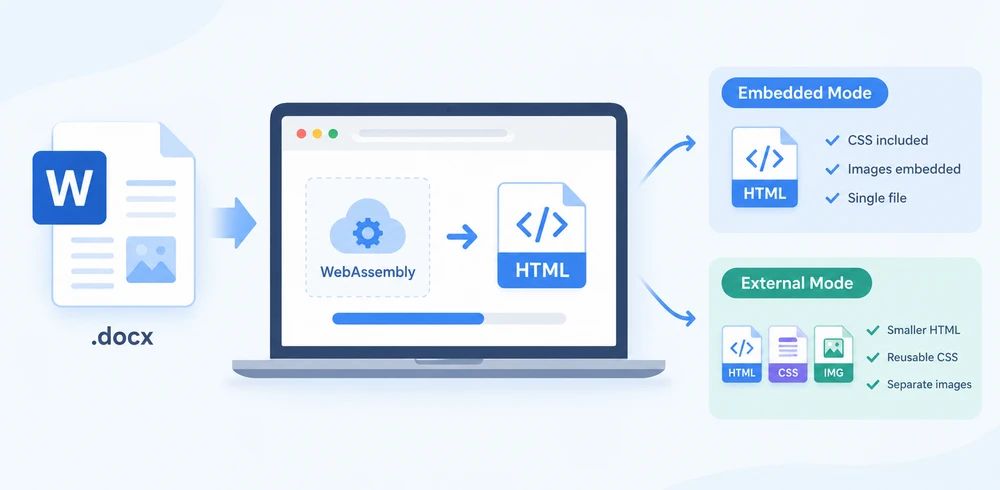
Duas estratégias de exportação dominam o fluxo de trabalho, e escolher entre elas é a verdadeira decisão:
- O modo Incorporado agrupa CSS e imagens diretamente no arquivo HTML, produzindo um único documento autocontido que abre em qualquer lugar.
- O modo Externo grava CSS e imagens em arquivos separados, resultando em um HTML menor, folhas de estilo reutilizáveis e recursos de imagem individuais que você pode gerenciar de forma independente.
Este artigo percorre ambas as abordagens em um projeto React e as compara lado a lado. Para configuração, consulte Integrando o Spire.Doc for JavaScript em um Projeto React. Os exemplos abaixo pressupõem que o Spire.Doc está instalado e o módulo WebAssembly está inicializado.
Conversão Básica: Incorpore Tudo em Um Único Arquivo
A maneira mais simples de publicar um documento do Word como página web é produzir um único arquivo HTML que contenha tudo — marcação, estilos e imagens — em um pacote autocontido. Isso é ideal quando você precisa de um artefato portátil que seja renderizado corretamente onde quer que seja aberto, sem referências a arquivos ausentes ou links quebrados.
A conversão segue três etapas. Primeiro, carregue o arquivo de fonte e o documento de origem do Word no sistema de arquivos virtual do WASM usando FetchFileToVFS. Segundo, crie uma instância de Document, carregue o arquivo, configure HtmlExportOptions para incorporar tanto o CSS quanto as imagens e chame SaveToFile para gravar o HTML. Terceiro, leia o arquivo gerado de volta do VFS, envolva-o em um Blob e dispare o download pelo navegador.
function App() {
  const wordToHtml = async () => {
    // Get the Spire.Doc WASM module
    const docModule = window.wasmModule?.spiredoc;

    // Check if the module is ready
    if (!docModule) {
      alert('Spire.Doc is not ready yet');
      return;
    }

    // Load fonts and the Word file into VFS
    await window.spire.FetchFileToVFS('ARIALUNI.TTF', '/Library/Fonts/', `${process.env.PUBLIC_URL}/static/font/`);
    const inputFileName = 'ToHtml.docx';
    await window.spire.FetchFileToVFS(inputFileName, '', `${process.env.PUBLIC_URL}/static/data/`);

    // Load the Word document
    const wordDocument = new docModule.Document();
    wordDocument.LoadFromFile(inputFileName);

    // Embed the CSS styles into the HTML and embed images as Base64
    wordDocument.HtmlExportOptions.CssStyleSheetType = docModule.CssStyleSheetType.Internal;
    wordDocument.HtmlExportOptions.ImageEmbedded = true;

    // Convert the document to HTML
    const outputFileName = 'ToHtml-result.html';
    wordDocument.SaveToFile({ fileName: outputFileName, fileFormat: docModule.FileFormat.Html });

    // Read the converted file from VFS and trigger download
    const fileArray = window.dotnetRuntime.Module.FS.readFile(outputFileName);
    const blob = new Blob([fileArray], { type: 'text/html;charset=utf-8' });
    const url = URL.createObjectURL(blob);
    const a = window.document.createElement('a');
    a.href = url;
    a.download = outputFileName;
    a.click();
    URL.revokeObjectURL(url);

    // Release resources
    wordDocument.Dispose();
  };

  return (
    <div style={{ textAlign: 'center', height: '300px' }}>
      <h1>Convert Word To HTML</h1>
      <button onClick={wordToHtml}>
        Generate
      </button>
    </div>
  );
}

export default App;
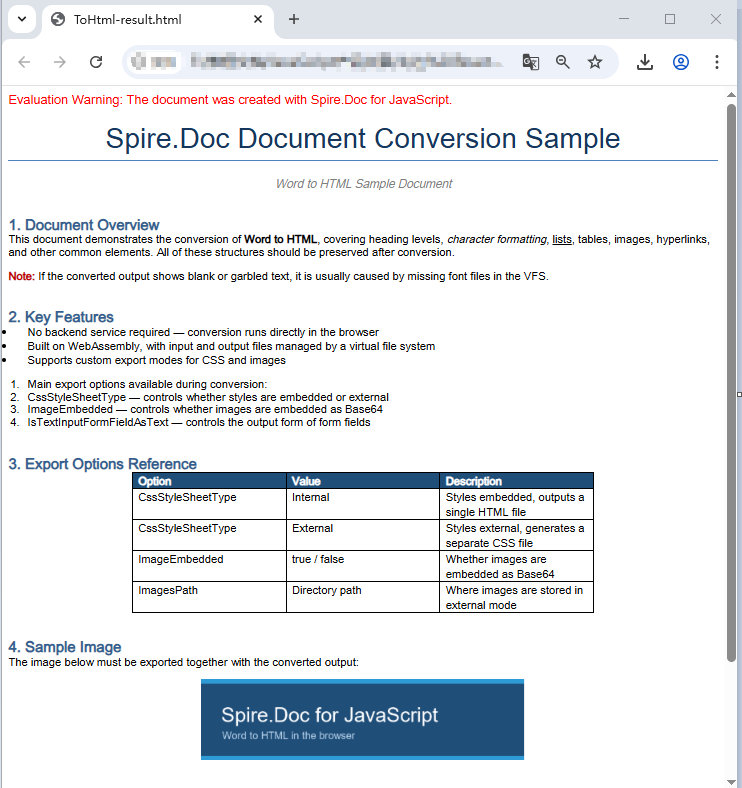
Página HTML gerada a partir de um documento do Word via SaveToFile
Opções de Exportação: CSS e Imagens Separados
Incorporar tudo em um único arquivo é conveniente, mas tem suas desvantagens. Um documento grande com muitas imagens gera um arquivo HTML muito grande, e cada página que compartilha o mesmo estilo carrega sua própria cópia duplicada do CSS. Quando você quer manter estilos de forma centralizada, reutilizar recursos de imagem entre páginas ou manter o payload do HTML pequeno para uma renderização inicial mais rápida, deve exportar o CSS e as imagens como arquivos separados.
HtmlExportOptions oferece controle refinado sobre como cada tipo de recurso é gravado. Você pode direcionar o CSS para um arquivo de folha de estilo nomeado, enviar imagens para um diretório dedicado e até controlar como os campos de formulário são serializados. O resultado não é mais um único arquivo, mas uma estrutura de diretórios contendo o HTML, a folha de estilo e os arquivos de imagem.
O fluxo de trabalho espelha a abordagem incorporada, com dois acréscimos. Antes da conversão, crie um diretório de saída no VFS e use CssStyleSheetFileName e ImagesPath para informar ao Spire.Doc onde gravar cada tipo de recurso. Após a conversão, leia todo o diretório de saída recursivamente, empacote tudo em um arquivo zip usando JSZip e baixe-o em uma única operação.
import JSZip from 'jszip';

function App() {
  const wordToHtmlWithOptions = async () => {
    // Get the Spire.Doc WASM module
    const docModule = window.wasmModule?.spiredoc;

    // Check if the module is ready
    if (!docModule) {
      alert('Spire.Doc is not ready yet');
      return;
    }

    // Load fonts and the Word file into VFS
    await window.spire.FetchFileToVFS('ARIALUNI.TTF', '/Library/Fonts/', `${process.env.PUBLIC_URL}/static/font/`);
    const inputFileName = 'ToHtml.docx';
    await window.spire.FetchFileToVFS(inputFileName, '', `${process.env.PUBLIC_URL}/static/data/`);

    // Create the output directory in VFS
    const outputDirectoryName = 'ToHTMLFolder/';
    window.dotnetRuntime.Module.FS.mkdirTree(outputDirectoryName);

    // Load the Word document
    const wordDocument = new docModule.Document();
    wordDocument.LoadFromFile(inputFileName);

    // Export the CSS styles to a separate file
    wordDocument.HtmlExportOptions.CssStyleSheetFileName = outputDirectoryName + 'sample.css';
    wordDocument.HtmlExportOptions.CssStyleSheetType = docModule.CssStyleSheetType.External;

    // Export images to a separate directory
    wordDocument.HtmlExportOptions.ImageEmbedded = false;
    wordDocument.HtmlExportOptions.ImagesPath = outputDirectoryName + 'Demo/';

    // Export form fields as plain text
    wordDocument.HtmlExportOptions.IsTextInputFormFieldAsText = true;

    // Convert the document to HTML
    const outputFileName = 'ToHtmlExportOption-out.html';
    wordDocument.SaveToFile({ fileName: outputFileName, fileFormat: docModule.FileFormat.Html });

    // Release resources
    wordDocument.Dispose();

    // Read the output directory recursively and write each level of files into the zip
    const zip = new JSZip();
    const addFilesToZip = async (folderPath, zipFolder) => {
      let items = await window.dotnetRuntime.Module.FS.readdir(folderPath);
      items = items.filter((item) => item !== '.' && item !== '..');
      for (const item of items) {
        const itemPath = `${folderPath}/${item}`;
        try {
          const fileData = await window.dotnetRuntime.Module.FS.readFile(itemPath);
          zipFolder.file(item, fileData);
        } catch (error) {
          const zipSubFolder = zipFolder.folder(item);
          await addFilesToZip(itemPath, zipSubFolder);
        }
      }
    };

    // Package the HTML file together with the resource directory
    zip.file(outputFileName, window.dotnetRuntime.Module.FS.readFile(outputFileName));
    await addFilesToZip(outputDirectoryName, zip);
    const zipBlob = await zip.generateAsync({ type: 'blob' });
    const url = URL.createObjectURL(zipBlob);

    // Trigger download
    const a = window.document.createElement('a');
    a.href = url;
    a.download = 'ToHTMLFolder.zip';
    a.click();
    URL.revokeObjectURL(url);
  };

  return (
    <div style={{ textAlign: 'center', height: '300px' }}>
      <h1>Convert Word To HTML With Export Options</h1>
      <button onClick={wordToHtmlWithOptions}>
        Generate
      </button>
    </div>
  );
}

export default App;
Arquivos HTML, CSS e de imagem gerados após configurar as opções de exportação
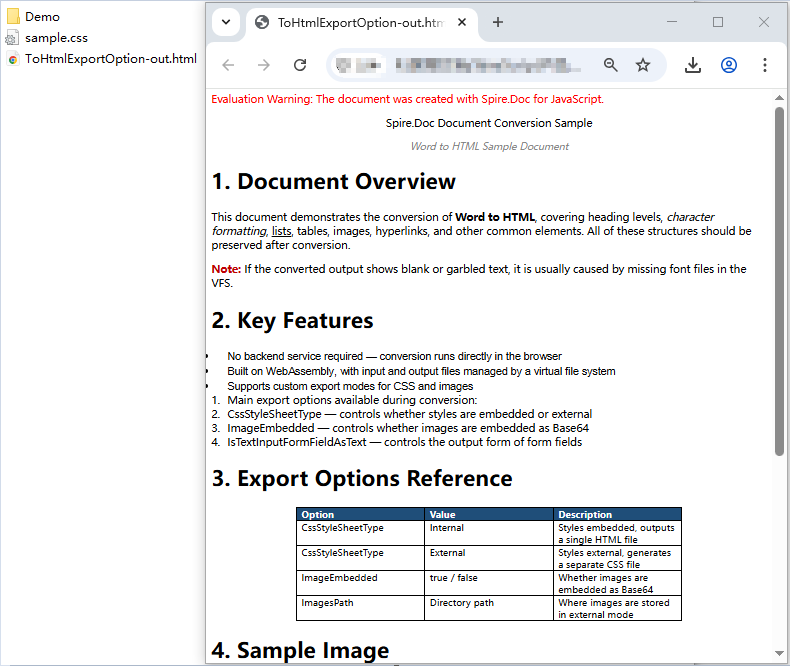
Um detalhe que vale a pena observar: o Spire.Doc não coloca as imagens diretamente no diretório especificado por ImagesPath. Em vez disso, ele cria uma subpasta external_images dentro desse diretório para armazenar os arquivos de imagem. A estrutura resultante se parece com Demo/external_images/*.png, e é por isso que addFilesToZip percorre a árvore de diretórios recursivamente em vez de ler uma lista simples de arquivos.
Incorporado vs. Externo: Escolhendo a Estratégia Certa
Ambos os modos de exportação produzem HTML válido a partir do mesmo documento do Word, mas atendem a necessidades de publicação diferentes. A tabela abaixo resume as principais diferenças para ajudá-lo a decidir qual abordagem se encaixa no seu fluxo de trabalho.
| Aspecto | Incorporado (Arquivo Único) | Externo (Arquivos Separados) |
|---|---|---|
| Saída | Um arquivo .html com CSS embutido e imagens em Base64 |
HTML + .css + arquivos de imagem em um diretório |
| Tamanho do arquivo | Maior — todos os recursos são codificados em Base64 dentro do HTML | HTML menor; o tamanho total é semelhante, mas os recursos são arquivos individuais |
| Portabilidade | Totalmente autocontido; abre corretamente em qualquer lugar, sem dependências | Requer que todos os arquivos permaneçam juntos; os caminhos relativos devem ser preservados |
| Mecanismo de download | Download de arquivo único via Blob | Download de arquivo zip (por exemplo, com JSZip) |
| Reutilização de estilo | Cada documento carrega sua própria cópia do CSS | Várias páginas podem compartilhar um único arquivo de folha de estilo |
| Gerenciamento de imagens | As imagens são strings Base64 dentro do HTML; não podem ser referenciadas ou armazenadas em cache separadamente | As imagens são arquivos individuais que podem ser armazenados em cache, carregados sob demanda ou reutilizados |
| Velocidade de renderização inicial | Mais lenta para documentos grandes — o navegador precisa processar um único arquivo grande | Análise inicial do HTML mais rápida; CSS e imagens carregam em paralelo |
| Ideal para | Anexos de e-mail, pré-visualizações pontuais, capturas para arquivamento, compartilhamento de um único documento | Migração de conteúdo de CMS, publicação em várias páginas, bases de conhecimento, sites com estilos compartilhados |
| Manutenibilidade | Baixa — alterar um estilo significa regenerar todo o arquivo | Alta — edite o arquivo CSS uma vez e todas as páginas vinculadas são atualizadas |
Guia de decisão rápida:
- Escolha o modo incorporado quando precisar de um artefato único e portátil — por exemplo, gerar uma pré-visualização que o usuário baixa e abre offline, ou anexar um documento convertido a um e-mail.
- Escolha o modo externo quando estiver publicando em uma plataforma web onde vários documentos compartilham o mesmo sistema de design, onde você deseja armazenar imagens em cache ou carregá-las sob demanda, ou onde o tamanho do arquivo HTML importa para o desempenho.
Perguntas Frequentes
As fontes no HTML exportado não correspondem ao documento original
Se as fontes no HTML convertido parecerem diferentes do arquivo Word de origem, a causa é quase sempre a ausência de dados de fonte no sistema de arquivos virtual do WASM. O Spire.Doc depende de fontes carregadas no VFS para realizar cálculos precisos de layout e resolução de nomes de fontes durante a conversão. Quando uma fonte necessária não está disponível, o mecanismo substitui por uma fonte alternativa, e as declarações font-family no CSS de saída não corresponderão ao que o documento original especifica. Para documentos que usam fontes de símbolos, como Wingdings, os caracteres afetados também podem ser renderizados como texto ilegível.
A correção é simples: pré-carregue os arquivos de fonte necessários no VFS via FetchFileToVFS antes de executar a conversão. Para documentos que contêm texto em chinês, japonês ou coreano, use uma fonte com ampla cobertura Unicode, como ARIALUNI.TTF:
await window.spire.FetchFileToVFS(
  'ARIALUNI.TTF', '/Library/Fonts/', '/'
);
O HTML exportado perde seus estilos e imagens ao ser aberto
Quando você usa o modo externo (CssStyleSheetType.External com ImageEmbedded = false), os arquivos CSS e de imagem são gravados em locais separados, e o HTML os referencia por meio de caminhos relativos. Se você baixar apenas o arquivo HTML sem seus recursos acompanhantes, o navegador não conseguirá resolver esses caminhos e a página será exibida como texto simples sem estilo e com imagens quebradas.
Para evitar isso, sempre empacote o HTML junto com seu diretório de recursos — a abordagem addFilesToZip mostrada na seção de opções de exportação faz isso agrupando tudo em um único download zip. Como alternativa, se você não precisa realmente de arquivos de recursos separados, mude para o modo incorporado para que tudo permaneça em um único arquivo HTML autocontido:
wordDocument.HtmlExportOptions.CssStyleSheetType = docModule.CssStyleSheetType.Internal;
wordDocument.HtmlExportOptions.ImageEmbedded = true;
Veja Também
JavaScript로 브라우저에서 Word 문서를 HTML로 변환
Word 문서는 종종 웹 콘텐츠의 출발점입니다 — 기사, 제품 사양, 규정 준수 문서 등은 결국 웹사이트에 있어야 합니다. 백엔드 변환 서비스 없이 .docx에서 깔끔한 HTML로 변환하는 것이 과제입니다. Spire.Doc for JavaScript는 WebAssembly에서 전체 문서 처리 엔진을 실행하고, 가상 파일 시스템(VFS)을 통해 Word 파일을 읽고, 로컬에서 변환을 수행하며, 결과 HTML을 다운로드할 수 있게 함으로써 이를 가능하게 합니다 — 모두 클라이언트 측에서 서버 왕복 없이 이루어집니다.
워크플로우를 지배하는 두 가지 내보내기 전략이 있으며, 이 중에서 선택하는 것이 실제 결정입니다:
- 내장 모드는 CSS와 이미지를 HTML 파일에 직접 묶어 어디서나 열리는 단일 자체 포함 문서를 생성합니다.
- 외부 모드는 CSS와 이미지를 별도 파일에 기록하여 더 작은 HTML, 재사용 가능한 스타일시트, 독립적으로 관리할 수 있는 개별 이미지 자산을 제공합니다.
이 문서에서는 React 프로젝트에서 두 접근 방식을 모두 살펴보고 나란히 비교합니다. 설정에 대해서는 React 프로젝트에 Spire.Doc for JavaScript 통합을 참조하세요. 아래 예제는 Spire.Doc이 설치되어 있고 WebAssembly 모듈이 초기화되었다고 가정합니다.
기본 변환: 모든 것을 하나의 파일에 포함
Word 문서를 웹 페이지로 게시하는 가장 간단한 방법은 마크업, 스타일, 이미지 등 모든 것을 하나의 자체 포함 패키지로 포함하는 단일 HTML 파일을 생성하는 것입니다. 이는 파일 누락 참조나 깨진 링크 없이 어디서든 올바르게 렌더링되는 휴대용 아티팩트가 필요할 때 이상적입니다.
변환은 세 단계를 따릅니다. 먼저, FetchFileToVFS를 사용하여 글꼴 파일과 원본 Word 문서를 WASM 가상 파일 시스템에 로드합니다. 둘째, Document 인스턴스를 생성하고, 파일을 로드하고, HtmlExportOptions를 구성하여 CSS와 이미지를 모두 포함하도록 설정하고, SaveToFile을 호출하여 HTML을 작성합니다. 셋째, 생성된 파일을 VFS에서 다시 읽어 Blob으로 감싸고 브라우저 다운로드를 트리거합니다.
function App() {
  const wordToHtml = async () => {
    // Get the Spire.Doc WASM module
    const docModule = window.wasmModule?.spiredoc;

    // Check if the module is ready
    if (!docModule) {
      alert('Spire.Doc is not ready yet');
      return;
    }

    // Load fonts and the Word file into VFS
    await window.spire.FetchFileToVFS('ARIALUNI.TTF', '/Library/Fonts/', `${process.env.PUBLIC_URL}/static/font/`);
    const inputFileName = 'ToHtml.docx';
    await window.spire.FetchFileToVFS(inputFileName, '', `${process.env.PUBLIC_URL}/static/data/`);

    // Load the Word document
    const wordDocument = new docModule.Document();
    wordDocument.LoadFromFile(inputFileName);

    // Embed the CSS styles into the HTML and embed images as Base64
    wordDocument.HtmlExportOptions.CssStyleSheetType = docModule.CssStyleSheetType.Internal;
    wordDocument.HtmlExportOptions.ImageEmbedded = true;

    // Convert the document to HTML
    const outputFileName = 'ToHtml-result.html';
    wordDocument.SaveToFile({ fileName: outputFileName, fileFormat: docModule.FileFormat.Html });

    // Read the converted file from VFS and trigger download
    const fileArray = window.dotnetRuntime.Module.FS.readFile(outputFileName);
    const blob = new Blob([fileArray], { type: 'text/html;charset=utf-8' });
    const url = URL.createObjectURL(blob);
    const a = window.document.createElement('a');
    a.href = url;
    a.download = outputFileName;
    a.click();
    URL.revokeObjectURL(url);

    // Release resources
    wordDocument.Dispose();
  };

  return (
    <div style={{ textAlign: 'center', height: '300px' }}>
      <h1>Convert Word To HTML</h1>
      <button onClick={wordToHtml}>
        Generate
      </button>
    </div>
  );
}

export default App;
SaveToFile을 통해 Word 문서에서 생성된 HTML 페이지
내보내기 옵션: CSS와 이미지 분리
모든 것을 하나의 파일에 포함하는 것은 편리하지만 장단점이 있습니다. 이미지가 많은 큰 문서는 매우 큰 HTML 파일을 생성하며, 동일한 스타일을 공유하는 모든 페이지는 자체 CSS 복사본을 중복으로 포함합니다. 스타일을 중앙에서 유지 관리하거나, 여러 페이지에서 이미지 자산을 재사용하거나, 초기 렌더링 속도를 위해 HTML 페이로드를 작게 유지하려면 CSS와 이미지를 별도 파일로 내보내야 합니다.
HtmlExportOptions는 각 리소스 유형이 작성되는 방식을 세밀하게 제어할 수 있습니다. CSS를 명명된 스타일시트 파일로 보내고, 이미지를 전용 디렉터리로 보내고, 양식 필드가 직렬화되는 방식까지 제어할 수 있습니다. 결과는 더 이상 단일 파일이 아니라 HTML, 스타일시트 및 이미지 파일을 포함하는 디렉터리 구조입니다.
워크플로우는 내장 접근 방식을 따르며 두 가지가 추가됩니다. 변환 전에 VFS에 출력 디렉터리를 생성하고 CssStyleSheetFileName 및 ImagesPath를 사용하여 각 리소스 유형을 어디에 작성할지 Spire.Doc에 알립니다. 변환 후에는 전체 출력 디렉터리를 재귀적으로 읽고 JSZip을 사용하여 모든 것을 zip 아카이브로 패키징한 다음 한 번의 작업으로 다운로드합니다.
import JSZip from 'jszip';

function App() {
  const wordToHtmlWithOptions = async () => {
    // Get the Spire.Doc WASM module
    const docModule = window.wasmModule?.spiredoc;

    // Check if the module is ready
    if (!docModule) {
      alert('Spire.Doc is not ready yet');
      return;
    }

    // Load fonts and the Word file into VFS
    await window.spire.FetchFileToVFS('ARIALUNI.TTF', '/Library/Fonts/', `${process.env.PUBLIC_URL}/static/font/`);
    const inputFileName = 'ToHtml.docx';
    await window.spire.FetchFileToVFS(inputFileName, '', `${process.env.PUBLIC_URL}/static/data/`);

    // Create the output directory in VFS
    const outputDirectoryName = 'ToHTMLFolder/';
    window.dotnetRuntime.Module.FS.mkdirTree(outputDirectoryName);

    // Load the Word document
    const wordDocument = new docModule.Document();
    wordDocument.LoadFromFile(inputFileName);

    // Export the CSS styles to a separate file
    wordDocument.HtmlExportOptions.CssStyleSheetFileName = outputDirectoryName + 'sample.css';
    wordDocument.HtmlExportOptions.CssStyleSheetType = docModule.CssStyleSheetType.External;

    // Export images to a separate directory
    wordDocument.HtmlExportOptions.ImageEmbedded = false;
    wordDocument.HtmlExportOptions.ImagesPath = outputDirectoryName + 'Demo/';

    // Export form fields as plain text
    wordDocument.HtmlExportOptions.IsTextInputFormFieldAsText = true;

    // Convert the document to HTML
    const outputFileName = 'ToHtmlExportOption-out.html';
    wordDocument.SaveToFile({ fileName: outputFileName, fileFormat: docModule.FileFormat.Html });

    // Release resources
    wordDocument.Dispose();

    // Read the output directory recursively and write each level of files into the zip
    const zip = new JSZip();
    const addFilesToZip = async (folderPath, zipFolder) => {
      let items = await window.dotnetRuntime.Module.FS.readdir(folderPath);
      items = items.filter((item) => item !== '.' && item !== '..');
      for (const item of items) {
        const itemPath = `${folderPath}/${item}`;
        try {
          const fileData = await window.dotnetRuntime.Module.FS.readFile(itemPath);
          zipFolder.file(item, fileData);
        } catch (error) {
          const zipSubFolder = zipFolder.folder(item);
          await addFilesToZip(itemPath, zipSubFolder);
        }
      }
    };

    // Package the HTML file together with the resource directory
    zip.file(outputFileName, window.dotnetRuntime.Module.FS.readFile(outputFileName));
    await addFilesToZip(outputDirectoryName, zip);
    const zipBlob = await zip.generateAsync({ type: 'blob' });
    const url = URL.createObjectURL(zipBlob);

    // Trigger download
    const a = window.document.createElement('a');
    a.href = url;
    a.download = 'ToHTMLFolder.zip';
    a.click();
    URL.revokeObjectURL(url);
  };

  return (
    <div style={{ textAlign: 'center', height: '300px' }}>
      <h1>Convert Word To HTML With Export Options</h1>
      <button onClick={wordToHtmlWithOptions}>
        Generate
      </button>
    </div>
  );
}

export default App;
내보내기 옵션을 구성한 후 생성된 HTML, CSS 및 이미지 파일
주목할 만한 세부 사항: Spire.Doc은 ImagesPath로 지정된 디렉터리에 이미지를 직접 배치하지 않습니다. 대신 해당 디렉터리 안에 external_images 하위 폴더를 만들어 이미지 파일을 보관합니다. 결과 구조는 Demo/external_images/*.png와 같이 되며, 이것이 addFilesToZip이 단순 파일 목록을 읽는 대신 디렉터리 트리를 재귀적으로 순회하는 이유입니다.
내장형 vs. 외부형: 올바른 전략 선택
두 내보내기 모드 모두 동일한 Word 문서에서 유효한 HTML을 생성하지만 서로 다른 게시 요구 사항을 충족합니다. 아래 표는 주요 차이점을 요약하여 워크플로우에 맞는 접근 방식을 결정하는 데 도움을 줍니다.
| 항목 | 내장형 (단일 파일) | 외부형 (개별 파일) |
|---|---|---|
| 출력 | 인라인 CSS와 Base64 이미지를 포함한 하나의 .html 파일 |
디렉터리에 있는 HTML + .css + 이미지 파일 |
| 파일 크기 | 더 큼 — 모든 자산이 Base64로 인코딩되어 HTML에 포함됨 | 더 작은 HTML; 전체 크기는 비슷하지만 자산이 개별 파일임 |
| 이식성 | 완전히 독립적; 종속성 없이 어디서나 올바르게 열림 | 모든 파일이 함께 있어야 함; 상대 경로가 유지되어야 함 |
| 다운로드 메커니즘 | Blob을 통한 단일 파일 다운로드 | Zip 아카이브 다운로드 (예: JSZip 사용) |
| 스타일 재사용 | 각 문서가 자체 CSS 복사본을 포함 | 여러 페이지가 하나의 스타일시트 파일을 공유할 수 있음 |
| 이미지 관리 | 이미지는 HTML 내부의 Base64 문자열임; 별도로 참조하거나 캐시할 수 없음 | 이미지는 캐시, 지연 로드 또는 재사용할 수 있는 개별 파일임 |
| 초기 렌더링 속도 | 대용량 문서의 경우 느림 — 브라우저가 하나의 큰 파일을 구문 분석해야 함 | 더 빠른 초기 HTML 구문 분석; CSS와 이미지가 병렬로 로드됨 |
| 최적 용도 | 이메일 첨부 파일, 일회성 미리보기, 보관 스냅샷, 단일 문서 공유 | CMS 콘텐츠 마이그레이션, 다중 페이지 게시, 지식 기반, 공유 스타일이 있는 사이트 |
| 유지보수성 | 낮음 — 스타일 변경 시 전체 파일을 다시 생성해야 함 | 높음 — CSS 파일을 한 번 편집하면 연결된 모든 페이지가 업데이트됨 |
빠른 결정 가이드:
- 단일하고 휴대 가능한 아티팩트가 필요할 때 내장형을 선택하세요 — 예를 들어 사용자가 다운로드하여 오프라인에서 열 수 있는 미리보기를 생성하거나 변환된 문서를 이메일에 첨부하는 경우입니다.
- 여러 문서가 동일한 디자인 시스템을 공유하는 웹 플랫폼에 게시하거나, 이미지를 캐시 또는 지연 로드하려는 경우, 또는 HTML 파일 크기가 성능에 중요한 경우 외부형을 선택하세요.
자주 묻는 질문
내보낸 HTML의 글꼴이 원본 문서와 일치하지 않음
변환된 HTML의 글꼴이 원본 Word 파일과 다르게 보이는 경우, 원인은 거의 항상 WASM 가상 파일 시스템에 글꼴 데이터가 없기 때문입니다. Spire.Doc은 변환 중 정확한 레이아웃 계산과 글꼴 이름 확인을 수행하기 위해 VFS에 로드된 글꼴에 의존합니다. 필요한 글꼴을 사용할 수 없으면 엔진이 대체 글꼴을 사용하며, 출력 CSS의 font-family 선언이 원본 문서에서 지정한 것과 일치하지 않습니다. Wingdings와 같은 기호 글꼴을 사용하는 문서의 경우 영향을 받는 문자가 깨진 텍스트로 렌더링될 수도 있습니다.
해결 방법은 간단합니다: 변환을 실행하기 전에 FetchFileToVFS를 통해 필요한 글꼴 파일을 VFS에 미리 로드하세요. 중국어, 일본어 또는 한국어 텍스트가 포함된 문서의 경우 ARIALUNI.TTF와 같이 유니코드 범위가 넓은 글꼴을 사용하세요:
await window.spire.FetchFileToVFS(
  'ARIALUNI.TTF', '/Library/Fonts/', '/'
);
열 때 내보낸 HTML의 스타일과 이미지가 손실됨
외부 모드(CssStyleSheetType.External 및 ImageEmbedded = false)를 사용하면 CSS 및 이미지 파일이 별도 위치에 작성되고 HTML은 상대 경로를 통해 이를 참조합니다. 해당 리소스 없이 HTML 파일만 다운로드하면 브라우저가 이러한 경로를 확인할 수 없어 페이지가 스타일이 지정되지 않은 일반 텍스트와 깨진 이미지로 대체됩니다.
이를 방지하려면 항상 HTML을 해당 리소스 디렉터리와 함께 패키징하세요 — 내보내기 옵션 섹션에 표시된 addFilesToZip 접근 방식은 모든 것을 단일 zip 다운로드로 묶어 이를 처리합니다. 또는 별도의 리소스 파일이 실제로 필요하지 않은 경우 내장 모드로 전환하여 모든 것이 하나의 자체 포함 HTML 파일에 유지되도록 하세요:
wordDocument.HtmlExportOptions.CssStyleSheetType = docModule.CssStyleSheetType.Internal;
wordDocument.HtmlExportOptions.ImageEmbedded = true;
참고 항목
Convertire documenti Word in HTML nel browser con JavaScript
I documenti Word sono spesso il punto di partenza per i contenuti web: articoli, specifiche di prodotto e documenti di conformità devono prima o poi finire su un sito web. Passare da .docx a HTML pulito senza un servizio di conversione lato backend è la vera sfida. Spire.Doc for JavaScript lo rende possibile eseguendo un motore completo di elaborazione dei documenti su WebAssembly, leggendo il file Word attraverso un file system virtuale (VFS), eseguendo la conversione localmente e permettendoti di scaricare l'HTML risultante — tutto lato client, senza alcun passaggio al server.
Due strategie di esportazione dominano il flusso di lavoro, e scegliere tra esse è la vera decisione:
- Modalità incorporata: raggruppa CSS e immagini direttamente nel file HTML, producendo un unico documento autonomo che si apre ovunque.
- Modalità esterna: scrive CSS e immagini in file separati, offrendoti un HTML più leggero, fogli di stile riutilizzabili e singoli asset immagine che puoi gestire in modo indipendente.
Questo articolo illustra entrambi gli approcci in un progetto React e li confronta fianco a fianco. Per la configurazione, fai riferimento a Integrare Spire.Doc for JavaScript in un progetto React. Gli esempi seguenti presuppongono che Spire.Doc sia installato e che il modulo WebAssembly sia inizializzato.
Conversione di base: incorporare tutto in un unico file
Il modo più semplice per pubblicare un documento Word come pagina web è produrre un unico file HTML che contenga tutto — markup, stili e immagini — in un unico pacchetto autonomo. Questo è l'ideale quando hai bisogno di un artefatto portatile che venga visualizzato correttamente ovunque venga aperto, senza riferimenti a file mancanti o link interrotti.
La conversione segue tre passaggi. Innanzitutto, carica il file dei font e il documento Word di origine nel file system virtuale WASM usando FetchFileToVFS. In secondo luogo, crea un'istanza Document, carica il file, configura HtmlExportOptions per incorporare sia il CSS sia le immagini e chiama SaveToFile per scrivere l'HTML. In terzo luogo, rileggi il file generato dal VFS, avvolgilo in un Blob e attiva il download dal browser.
function App() {
  const wordToHtml = async () => {
    // Get the Spire.Doc WASM module
    const docModule = window.wasmModule?.spiredoc;

    // Check if the module is ready
    if (!docModule) {
      alert('Spire.Doc is not ready yet');
      return;
    }

    // Load fonts and the Word file into VFS
    await window.spire.FetchFileToVFS('ARIALUNI.TTF', '/Library/Fonts/', `${process.env.PUBLIC_URL}/static/font/`);
    const inputFileName = 'ToHtml.docx';
    await window.spire.FetchFileToVFS(inputFileName, '', `${process.env.PUBLIC_URL}/static/data/`);

    // Load the Word document
    const wordDocument = new docModule.Document();
    wordDocument.LoadFromFile(inputFileName);

    // Embed the CSS styles into the HTML and embed images as Base64
    wordDocument.HtmlExportOptions.CssStyleSheetType = docModule.CssStyleSheetType.Internal;
    wordDocument.HtmlExportOptions.ImageEmbedded = true;

    // Convert the document to HTML
    const outputFileName = 'ToHtml-result.html';
    wordDocument.SaveToFile({ fileName: outputFileName, fileFormat: docModule.FileFormat.Html });

    // Read the converted file from VFS and trigger download
    const fileArray = window.dotnetRuntime.Module.FS.readFile(outputFileName);
    const blob = new Blob([fileArray], { type: 'text/html;charset=utf-8' });
    const url = URL.createObjectURL(blob);
    const a = window.document.createElement('a');
    a.href = url;
    a.download = outputFileName;
    a.click();
    URL.revokeObjectURL(url);

    // Release resources
    wordDocument.Dispose();
  };

  return (
    <div style={{ textAlign: 'center', height: '300px' }}>
      <h1>Convert Word To HTML</h1>
      <button onClick={wordToHtml}>
        Generate
      </button>
    </div>
  );
}

export default App;
Pagina HTML generata da un documento Word tramite SaveToFile
Opzioni di esportazione: CSS e immagini separati
Incorporare tutto in un unico file è comodo, ma presenta dei compromessi. Un documento di grandi dimensioni con molte immagini produce un file HTML molto pesante, e ogni pagina che condivide lo stesso stile porta con sé una copia duplicata del CSS. Quando vuoi mantenere gli stili in modo centralizzato, riutilizzare gli asset immagine tra più pagine o mantenere il payload HTML ridotto per un rendering iniziale più rapido, è invece preferibile esportare CSS e immagini come file separati.
HtmlExportOptions ti offre un controllo granulare su come viene scritto ciascun tipo di risorsa. Puoi indirizzare il CSS verso un file di foglio di stile denominato, inviare le immagini in una directory dedicata e persino controllare come vengono serializzati i campi modulo. Il risultato non è più un singolo file ma una struttura di directory contenente l'HTML, il foglio di stile e i file immagine.
Il flusso di lavoro rispecchia l'approccio incorporato, con due aggiunte. Prima della conversione, crea una directory di output nel VFS e usa CssStyleSheetFileName e ImagesPath per indicare a Spire.Doc dove scrivere ciascun tipo di risorsa. Dopo la conversione, leggi ricorsivamente l'intera directory di output, impacchetta tutto in un archivio zip usando JSZip e scaricalo con un'unica operazione.
import JSZip from 'jszip';

function App() {
  const wordToHtmlWithOptions = async () => {
    // Get the Spire.Doc WASM module
    const docModule = window.wasmModule?.spiredoc;

    // Check if the module is ready
    if (!docModule) {
      alert('Spire.Doc is not ready yet');
      return;
    }

    // Load fonts and the Word file into VFS
    await window.spire.FetchFileToVFS('ARIALUNI.TTF', '/Library/Fonts/', `${process.env.PUBLIC_URL}/static/font/`);
    const inputFileName = 'ToHtml.docx';
    await window.spire.FetchFileToVFS(inputFileName, '', `${process.env.PUBLIC_URL}/static/data/`);

    // Create the output directory in VFS
    const outputDirectoryName = 'ToHTMLFolder/';
    window.dotnetRuntime.Module.FS.mkdirTree(outputDirectoryName);

    // Load the Word document
    const wordDocument = new docModule.Document();
    wordDocument.LoadFromFile(inputFileName);

    // Export the CSS styles to a separate file
    wordDocument.HtmlExportOptions.CssStyleSheetFileName = outputDirectoryName + 'sample.css';
    wordDocument.HtmlExportOptions.CssStyleSheetType = docModule.CssStyleSheetType.External;

    // Export images to a separate directory
    wordDocument.HtmlExportOptions.ImageEmbedded = false;
    wordDocument.HtmlExportOptions.ImagesPath = outputDirectoryName + 'Demo/';

    // Export form fields as plain text
    wordDocument.HtmlExportOptions.IsTextInputFormFieldAsText = true;

    // Convert the document to HTML
    const outputFileName = 'ToHtmlExportOption-out.html';
    wordDocument.SaveToFile({ fileName: outputFileName, fileFormat: docModule.FileFormat.Html });

    // Release resources
    wordDocument.Dispose();

    // Read the output directory recursively and write each level of files into the zip
    const zip = new JSZip();
    const addFilesToZip = async (folderPath, zipFolder) => {
      let items = await window.dotnetRuntime.Module.FS.readdir(folderPath);
      items = items.filter((item) => item !== '.' && item !== '..');
      for (const item of items) {
        const itemPath = `${folderPath}/${item}`;
        try {
          const fileData = await window.dotnetRuntime.Module.FS.readFile(itemPath);
          zipFolder.file(item, fileData);
        } catch (error) {
          const zipSubFolder = zipFolder.folder(item);
          await addFilesToZip(itemPath, zipSubFolder);
        }
      }
    };

    // Package the HTML file together with the resource directory
    zip.file(outputFileName, window.dotnetRuntime.Module.FS.readFile(outputFileName));
    await addFilesToZip(outputDirectoryName, zip);
    const zipBlob = await zip.generateAsync({ type: 'blob' });
    const url = URL.createObjectURL(zipBlob);

    // Trigger download
    const a = window.document.createElement('a');
    a.href = url;
    a.download = 'ToHTMLFolder.zip';
    a.click();
    URL.revokeObjectURL(url);
  };

  return (
    <div style={{ textAlign: 'center', height: '300px' }}>
      <h1>Convert Word To HTML With Export Options</h1>
      <button onClick={wordToHtmlWithOptions}>
        Generate
      </button>
    </div>
  );
}

export default App;
File HTML, CSS e immagini generati dopo la configurazione delle opzioni di esportazione
Un dettaglio da notare: Spire.Doc non inserisce le immagini direttamente nella directory specificata da ImagesPath. Crea invece una sottocartella external_images all'interno di quella directory per contenere i file immagine. La struttura risultante è simile a Demo/external_images/*.png, ed è per questo che addFilesToZip percorre l'albero delle directory in modo ricorsivo anziché leggere un elenco piatto di file.
Incorporato vs. esterno: scegliere la strategia giusta
Entrambe le modalità di esportazione producono HTML valido dallo stesso documento Word, ma rispondono a diverse esigenze di pubblicazione. La tabella seguente riassume le differenze principali per aiutarti a decidere quale approccio si adatta al tuo flusso di lavoro.
| Aspetto | Incorporato (file singolo) | Esterno (file separati) |
|---|---|---|
| Output | Un file .html con CSS inline e immagini in Base64 |
HTML + .css + file immagine in una directory |
| Dimensione del file | Maggiore — tutti gli asset sono codificati in Base64 nell'HTML | HTML più leggero; la dimensione totale è simile ma gli asset sono file individuali |
| Portabilità | Completamente autonomo; si apre correttamente ovunque senza dipendenze | Richiede che tutti i file rimangano insieme; i percorsi relativi devono essere preservati |
| Meccanismo di download | Download di un singolo file tramite Blob | Download di un archivio zip (ad es. con JSZip) |
| Riutilizzo degli stili | Ogni documento porta con sé la propria copia del CSS | Più pagine possono condividere un unico file di foglio di stile |
| Gestione delle immagini | Le immagini sono stringhe Base64 all'interno dell'HTML; non possono essere referenziate o memorizzate separatamente nella cache | Le immagini sono file individuali che possono essere memorizzati nella cache, caricati in modo lazy o riutilizzati |
| Velocità di rendering iniziale | Più lenta per documenti di grandi dimensioni — il browser deve analizzare un unico file di grandi dimensioni | Analisi iniziale dell'HTML più rapida; CSS e immagini si caricano in parallelo |
| Ideale per | Allegati email, anteprime occasionali, snapshot di archivio, condivisione di un singolo documento | Migrazione di contenuti CMS, pubblicazione multi-pagina, knowledge base, siti con stili condivisi |
| Manutenibilità | Bassa — modificare uno stile significa rigenerare l'intero file | Alta — modifica il file CSS una volta e tutte le pagine collegate si aggiornano |
Guida rapida alla scelta:
- Scegli la modalità incorporata quando hai bisogno di un unico artefatto portatile — ad esempio, per generare un'anteprima che l'utente scarica e apre offline, o per allegare un documento convertito a un'email.
- Scegli la modalità esterna quando pubblichi su una piattaforma web in cui più documenti condividono lo stesso design system, quando vuoi memorizzare le immagini nella cache o caricarle in modo lazy, o quando la dimensione del file HTML influisce sulle prestazioni.
Domande frequenti
I font nell'HTML esportato non corrispondono al documento originale
Se i font nell'HTML convertito appaiono diversi dal file Word di origine, la causa è quasi sempre la mancanza dei dati dei font nel file system virtuale WASM. Spire.Doc si affida ai font caricati nel VFS per eseguire calcoli accurati del layout e la risoluzione dei nomi dei font durante la conversione. Quando un font richiesto non è disponibile, il motore sostituisce un font di fallback e le dichiarazioni font-family nel CSS di output non corrisponderanno a quelle specificate nel documento originale. Per i documenti che utilizzano font simbolici come Wingdings, i caratteri interessati possono anche essere visualizzati come testo illeggibile.
La soluzione è semplice: precarica i file dei font necessari nel VFS tramite FetchFileToVFS prima di eseguire la conversione. Per i documenti contenenti testo cinese, giapponese o coreano, usa un font con ampia copertura Unicode come ARIALUNI.TTF:
await window.spire.FetchFileToVFS(
  'ARIALUNI.TTF', '/Library/Fonts/', '/'
);
L'HTML esportato perde gli stili e le immagini quando viene aperto
Quando usi la modalità esterna (CssStyleSheetType.External con ImageEmbedded = false), i file CSS e immagine vengono scritti in posizioni separate e l'HTML li referenzia tramite percorsi relativi. Se scarichi solo il file HTML senza le risorse che lo accompagnano, il browser non può risolvere quei percorsi e la pagina ricade su testo semplice senza stile con immagini mancanti.
Per evitarlo, impacchetta sempre l'HTML insieme alla sua directory di risorse — l'approccio addFilesToZip mostrato nella sezione delle opzioni di esportazione lo gestisce raggruppando tutto in un unico download zip. In alternativa, se in realtà non hai bisogno di file di risorse separati, passa alla modalità incorporata in modo che tutto rimanga in un unico file HTML autonomo:
wordDocument.HtmlExportOptions.CssStyleSheetType = docModule.CssStyleSheetType.Internal;
wordDocument.HtmlExportOptions.ImageEmbedded = true;
Vedi anche
Convertir des documents Word en HTML dans le navigateur avec JavaScript
Les documents Word sont souvent le point de départ du contenu web — articles, spécifications produit et documents de conformité doivent tous finir par vivre sur un site web. Passer d'un fichier .docx à un HTML propre sans service de conversion côté serveur, voilà le défi. Spire.Doc for JavaScript rend cela possible en exécutant un moteur complet de traitement de documents sur WebAssembly, en lisant le fichier Word via un système de fichiers virtuel (VFS), en effectuant la conversion localement et en vous permettant de télécharger le HTML obtenu — le tout côté client, sans aller-retour vers un serveur.
Deux stratégies d'exportation dominent le flux de travail, et c'est le choix entre elles qui constitue la véritable décision :
- Le mode intégré regroupe le CSS et les images directement dans le fichier HTML, produisant un document unique et autonome qui s'ouvre partout.
- Le mode externe écrit le CSS et les images dans des fichiers séparés, ce qui donne un HTML plus léger, des feuilles de style réutilisables et des ressources d'images individuelles que vous pouvez gérer indépendamment.
Cet article présente les deux approches dans un projet React et les compare côte à côte. Pour l'installation, reportez-vous à Intégrer Spire.Doc for JavaScript dans un projet React. Les exemples ci-dessous supposent que Spire.Doc est installé et que le module WebAssembly est initialisé.
Conversion de base : tout intégrer dans un seul fichier
La façon la plus simple de publier un document Word sous forme de page web consiste à produire un seul fichier HTML contenant tout — balisage, styles et images — dans un ensemble autonome. C'est idéal lorsque vous avez besoin d'un artefact portable qui s'affiche correctement où qu'il soit ouvert, sans références de fichiers manquants ni liens brisés.
La conversion se déroule en trois étapes. Premièrement, chargez le fichier de police et le document Word source dans le système de fichiers virtuel WASM à l'aide de FetchFileToVFS. Deuxièmement, créez une instance Document, chargez le fichier, configurez HtmlExportOptions pour intégrer à la fois le CSS et les images, puis appelez SaveToFile pour écrire le HTML. Troisièmement, relisez le fichier généré depuis le VFS, encapsulez-le dans un Blob et déclenchez un téléchargement dans le navigateur.
function App() {
  const wordToHtml = async () => {
    // Get the Spire.Doc WASM module
    const docModule = window.wasmModule?.spiredoc;

    // Check if the module is ready
    if (!docModule) {
      alert('Spire.Doc is not ready yet');
      return;
    }

    // Load fonts and the Word file into VFS
    await window.spire.FetchFileToVFS('ARIALUNI.TTF', '/Library/Fonts/', `${process.env.PUBLIC_URL}/static/font/`);
    const inputFileName = 'ToHtml.docx';
    await window.spire.FetchFileToVFS(inputFileName, '', `${process.env.PUBLIC_URL}/static/data/`);

    // Load the Word document
    const wordDocument = new docModule.Document();
    wordDocument.LoadFromFile(inputFileName);

    // Embed the CSS styles into the HTML and embed images as Base64
    wordDocument.HtmlExportOptions.CssStyleSheetType = docModule.CssStyleSheetType.Internal;
    wordDocument.HtmlExportOptions.ImageEmbedded = true;

    // Convert the document to HTML
    const outputFileName = 'ToHtml-result.html';
    wordDocument.SaveToFile({ fileName: outputFileName, fileFormat: docModule.FileFormat.Html });

    // Read the converted file from VFS and trigger download
    const fileArray = window.dotnetRuntime.Module.FS.readFile(outputFileName);
    const blob = new Blob([fileArray], { type: 'text/html;charset=utf-8' });
    const url = URL.createObjectURL(blob);
    const a = window.document.createElement('a');
    a.href = url;
    a.download = outputFileName;
    a.click();
    URL.revokeObjectURL(url);

    // Release resources
    wordDocument.Dispose();
  };

  return (
    <div style={{ textAlign: 'center', height: '300px' }}>
      <h1>Convert Word To HTML</h1>
      <button onClick={wordToHtml}>
        Generate
      </button>
    </div>
  );
}

export default App;
Page HTML générée à partir d'un document Word via SaveToFile
Options d'exportation : séparer le CSS et les images
Tout intégrer dans un seul fichier est pratique, mais cela présente des compromis. Un document volumineux contenant de nombreuses images produit un fichier HTML très lourd, et chaque page qui partage le même style transporte sa propre copie dupliquée du CSS. Lorsque vous souhaitez maintenir les styles de manière centralisée, réutiliser les ressources d'images entre les pages ou garder la charge utile HTML réduite pour un rendu initial plus rapide, vous devriez plutôt exporter le CSS et les images dans des fichiers séparés.
HtmlExportOptions vous offre un contrôle précis sur la manière dont chaque type de ressource est écrit. Vous pouvez diriger le CSS vers un fichier de feuille de style nommé, envoyer les images vers un répertoire dédié et même contrôler la façon dont les champs de formulaire sont sérialisés. Le résultat n'est plus un fichier unique mais une structure de répertoires contenant le HTML, la feuille de style et les fichiers d'images.
Le flux de travail reprend celui de l'approche intégrée, avec deux ajouts. Avant la conversion, créez un répertoire de sortie dans le VFS et utilisez CssStyleSheetFileName et ImagesPath pour indiquer à Spire.Doc où écrire chaque type de ressource. Après la conversion, lisez l'intégralité du répertoire de sortie de manière récursive, empaquetez le tout dans une archive zip à l'aide de JSZip, puis téléchargez-la en une seule opération.
import JSZip from 'jszip';

function App() {
  const wordToHtmlWithOptions = async () => {
    // Get the Spire.Doc WASM module
    const docModule = window.wasmModule?.spiredoc;

    // Check if the module is ready
    if (!docModule) {
      alert('Spire.Doc is not ready yet');
      return;
    }

    // Load fonts and the Word file into VFS
    await window.spire.FetchFileToVFS('ARIALUNI.TTF', '/Library/Fonts/', `${process.env.PUBLIC_URL}/static/font/`);
    const inputFileName = 'ToHtml.docx';
    await window.spire.FetchFileToVFS(inputFileName, '', `${process.env.PUBLIC_URL}/static/data/`);

    // Create the output directory in VFS
    const outputDirectoryName = 'ToHTMLFolder/';
    window.dotnetRuntime.Module.FS.mkdirTree(outputDirectoryName);

    // Load the Word document
    const wordDocument = new docModule.Document();
    wordDocument.LoadFromFile(inputFileName);

    // Export the CSS styles to a separate file
    wordDocument.HtmlExportOptions.CssStyleSheetFileName = outputDirectoryName + 'sample.css';
    wordDocument.HtmlExportOptions.CssStyleSheetType = docModule.CssStyleSheetType.External;

    // Export images to a separate directory
    wordDocument.HtmlExportOptions.ImageEmbedded = false;
    wordDocument.HtmlExportOptions.ImagesPath = outputDirectoryName + 'Demo/';

    // Export form fields as plain text
    wordDocument.HtmlExportOptions.IsTextInputFormFieldAsText = true;

    // Convert the document to HTML
    const outputFileName = 'ToHtmlExportOption-out.html';
    wordDocument.SaveToFile({ fileName: outputFileName, fileFormat: docModule.FileFormat.Html });

    // Release resources
    wordDocument.Dispose();

    // Read the output directory recursively and write each level of files into the zip
    const zip = new JSZip();
    const addFilesToZip = async (folderPath, zipFolder) => {
      let items = await window.dotnetRuntime.Module.FS.readdir(folderPath);
      items = items.filter((item) => item !== '.' && item !== '..');
      for (const item of items) {
        const itemPath = `${folderPath}/${item}`;
        try {
          const fileData = await window.dotnetRuntime.Module.FS.readFile(itemPath);
          zipFolder.file(item, fileData);
        } catch (error) {
          const zipSubFolder = zipFolder.folder(item);
          await addFilesToZip(itemPath, zipSubFolder);
        }
      }
    };

    // Package the HTML file together with the resource directory
    zip.file(outputFileName, window.dotnetRuntime.Module.FS.readFile(outputFileName));
    await addFilesToZip(outputDirectoryName, zip);
    const zipBlob = await zip.generateAsync({ type: 'blob' });
    const url = URL.createObjectURL(zipBlob);

    // Trigger download
    const a = window.document.createElement('a');
    a.href = url;
    a.download = 'ToHTMLFolder.zip';
    a.click();
    URL.revokeObjectURL(url);
  };

  return (
    <div style={{ textAlign: 'center', height: '300px' }}>
      <h1>Convert Word To HTML With Export Options</h1>
      <button onClick={wordToHtmlWithOptions}>
        Generate
      </button>
    </div>
  );
}

export default App;
Fichiers HTML, CSS et images générés après configuration des options d'exportation
Un détail mérite d'être signalé : Spire.Doc ne place pas les images directement dans le répertoire spécifié par ImagesPath. Il crée à la place un sous-dossier external_images dans ce répertoire pour y stocker les fichiers d'images. La structure obtenue ressemble à Demo/external_images/*.png, ce qui explique pourquoi addFilesToZip parcourt l'arborescence des répertoires de manière récursive plutôt que de lire une liste plate de fichiers.
Intégré ou externe : choisir la bonne stratégie
Les deux modes d'exportation produisent un HTML valide à partir du même document Word, mais ils répondent à des besoins de publication différents. Le tableau ci-dessous résume les principales différences pour vous aider à déterminer quelle approche convient à votre flux de travail.
| Aspect | Intégré (fichier unique) | Externe (fichiers séparés) |
|---|---|---|
| Sortie | Un fichier .html avec du CSS en ligne et des images en Base64 |
HTML + .css + fichiers d'images dans un répertoire |
| Taille du fichier | Plus grande — toutes les ressources sont encodées en Base64 dans le HTML | HTML plus léger ; la taille totale est similaire, mais les ressources sont des fichiers individuels |
| Portabilité | Entièrement autonome ; s'ouvre correctement partout, sans aucune dépendance | Nécessite que tous les fichiers restent ensemble ; les chemins relatifs doivent être préservés |
| Mécanisme de téléchargement | Téléchargement d'un seul fichier via Blob | Téléchargement d'une archive zip (par exemple avec JSZip) |
| Réutilisation des styles | Chaque document transporte sa propre copie du CSS | Plusieurs pages peuvent partager une même feuille de style |
| Gestion des images | Les images sont des chaînes Base64 à l'intérieur du HTML ; elles ne peuvent pas être référencées ni mises en cache séparément | Les images sont des fichiers individuels qui peuvent être mis en cache, chargés à la demande ou réutilisés |
| Vitesse de rendu initial | Plus lente pour les documents volumineux — le navigateur doit analyser un seul gros fichier | Analyse initiale du HTML plus rapide ; le CSS et les images se chargent en parallèle |
| Idéal pour | Pièces jointes d'e-mails, aperçus ponctuels, instantanés d'archivage, partage d'un document unique | Migration de contenu CMS, publication multi-pages, bases de connaissances, sites aux styles partagés |
| Maintenabilité | Faible — modifier un style implique de régénérer tout le fichier | Élevée — modifiez le fichier CSS une fois et toutes les pages liées sont mises à jour |
Guide de décision rapide :
- Choisissez le mode intégré lorsque vous avez besoin d'un artefact unique et portable — par exemple, générer un aperçu qu'un utilisateur télécharge et ouvre hors ligne, ou joindre un document converti à un e-mail.
- Choisissez le mode externe lorsque vous publiez sur une plateforme web où plusieurs documents partagent le même système de design, où vous souhaitez mettre en cache ou charger à la demande les images, ou lorsque la taille du fichier HTML importe pour les performances.
FAQ
Les polices du HTML exporté ne correspondent pas au document d'origine
Si les polices de votre HTML converti semblent différentes de celles du fichier Word source, la cause est presque toujours l'absence de données de police dans le système de fichiers virtuel WASM. Spire.Doc s'appuie sur les polices chargées dans le VFS pour effectuer des calculs de mise en page précis et la résolution des noms de polices lors de la conversion. Lorsqu'une police requise n'est pas disponible, le moteur la remplace par une police de secours, et les déclarations font-family dans le CSS de sortie ne correspondront pas à ce que spécifie le document d'origine. Pour les documents qui utilisent des polices symboliques telles que Wingdings, les caractères concernés peuvent également s'afficher sous forme de texte illisible.
La solution est simple : préchargez les fichiers de polices nécessaires dans le VFS via FetchFileToVFS avant de lancer la conversion. Pour les documents contenant du texte chinois, japonais ou coréen, utilisez une police à large couverture Unicode telle qu'ARIALUNI.TTF :
await window.spire.FetchFileToVFS(
  'ARIALUNI.TTF', '/Library/Fonts/', '/'
);
Le HTML exporté perd ses styles et ses images à l'ouverture
Lorsque vous utilisez le mode externe (CssStyleSheetType.External avec ImageEmbedded = false), les fichiers CSS et d'images sont écrits à des emplacements séparés, et le HTML y fait référence via des chemins relatifs. Si vous ne téléchargez que le fichier HTML sans les ressources qui l'accompagnent, le navigateur ne peut pas résoudre ces chemins et la page retombe sur du texte brut sans style, avec des images brisées.
Pour éviter cela, empaquetez toujours le HTML avec son répertoire de ressources — l'approche addFilesToZip présentée dans la section sur les options d'exportation s'en charge en regroupant le tout dans un seul téléchargement zip. Sinon, si vous n'avez pas réellement besoin de fichiers de ressources séparés, passez en mode intégré pour que tout reste dans un seul fichier HTML autonome :
wordDocument.HtmlExportOptions.CssStyleSheetType = docModule.CssStyleSheetType.Internal;
wordDocument.HtmlExportOptions.ImageEmbedded = true;