Comment convertir un PDF en niveaux de gris en JavaScript (React)
Table des matières
Envoyez un rapport très coloré à une imprimante laser monochrome de bureau et vous le payez deux fois : d’abord en toner que l’imprimante gaspille en tentant de simuler du gris à partir de points CMJN, puis en qualité du résultat — les trames et les aplats de graphiques deviennent des taches boueuses au lieu d’un ton net. Envoyez le même fichier à une archive documentaire et la couleur est pire qu’inutile. Les couleurs d’accompagnement vieillissent, la gestion des couleurs dérive d’une machine à l’autre, et chaque réimpression revient légèrement différente de la précédente. Les niveaux de gris sont le format que ces deux usages veulent réellement, et il suffit d’un seul appel une fois que le PDF est traité dans le code.
Cet article transforme un PDF en document en niveaux de gris dans le navigateur avec Spire.PDF for JavaScript. La bibliothèque est compilée en WebAssembly et pilote le document via un système de fichiers virtuel (VFS), de sorte que le fichier est lu et réécrit sur la machine de l’utilisateur et rien n’est confié à un service de conversion.
Pour la configuration du projet, suivez Intégration de Spire.PDF for JavaScript dans un projet React. L’exemple ci-dessous suppose que le package est installé et que le module WebAssembly a terminé son initialisation.
Pourquoi mettre un PDF en niveaux de gris (et quand c’est le mauvais choix)
Trois situations reviennent sans cesse :
- Impression sur du matériel monochrome. Une imprimante laser monochrome n’a qu’un seul toner. Lorsque vous lui confiez un PDF couleur, elle doit approximer chaque couleur avec un motif en simili, ce qui explique pourquoi le texte en couleur et les fines lignes de graphiques ressortent flous. Une source en niveaux de gris élimine toute approximation — l’imprimante reçoit des tons, et non des couleurs à interpréter.
- Archivage et conservation. Les normes de stockage à long terme sont conçues autour d’une apparence fixe et indépendante de l’appareil. Un document en niveaux de gris se reproduit de la même manière sur chaque imprimante et chaque scanner, de sorte que la copie archivée ne peut pas dériver.
- Pipelines de numérisation et d’indexation. Une fois qu’un document a été numérisé et passé par OCR, la couleur ne porte aucune information exploitable par l’index — elle ne représente qu’un poids.
Il y a des cas à laisser de côté. Si la couleur joue un rôle sémantique — un graphique où chaque série a une teinte différente, un élément de marque, un portfolio de photographies — la conversion en niveaux de gris détruit précisément ce dont le lecteur a besoin. C’est également le mauvais outil lorsque le véritable problème est la taille : si l’objectif est un fichier plus petit plutôt qu’une impression moins coûteuse, recourir aux niveaux de gris ne touche que les images et ignore les polices et les flux de contenu, ce qui relève plutôt d’un compresseur.
Ce que les niveaux de gris changent réellement
Il est facile de supposer que « niveaux de gris » signifie que la page est à nouveau rendue sous forme d’image. Ce n’est pas le cas. La conversion s’effectue au niveau des objets :
| Partie de la page | Ce qui se passe |
|---|---|
| Images couleur | Réencodées en niveaux de gris monocanal, une valeur de luminance par pixel au lieu de trois canaux de couleur |
| Texte | Inchangé en tant que texte — toujours sélectionnable, toujours recherchable, toujours copiable |
| Mise en page et nombre de pages | Inchangés ; rien n’est rogné, déplacé ni supprimé |
| Métadonnées du document | Préservées |
Étant donné que les images sont réencodées plutôt que rastérisées en capture d’écran, la sortie est un PDF normal avec un espace colorimétrique réduit — et non une image de PDF. Cette distinction compte dès que quelqu’un tente de rechercher dans le résultat ou de sélectionner une ligne de texte.
Convertir un document en niveaux de gris
Deux membres font le travail : passez le fichier d’entrée au constructeur PdfGrayConverter, puis appelez ToGrayPdf avec le fichier de sortie. Le reste du composant est le chargement VFS et le téléchargement Blob habituels.
function App() {
  const convertToGrayscale = async () => {
    // Get the Spire.PDF WASM module
    const pdfModule = window.wasmModule?.spirepdf;

    // Check whether the module is ready
    if (!pdfModule) {
      alert('Spire.PDF is not ready yet');
      return;
    }

    // Load the PDF file to be converted into the VFS
    const inputFileName = 'Business_Data_Overview.pdf';
    await window.spire.FetchFileToVFS(inputFileName, "", `${process.env.PUBLIC_URL}/data/`);

    // Define the output file name
    const outputFileName = 'GrayscaleDocument.pdf';

    // Construct the grayscale converter from the input file and write out the grayscale document
    const converter = new pdfModule.PdfGrayConverter({ filePath: inputFileName });
    converter.ToGrayPdf({ filePath: outputFileName });
    converter.Dispose();

    // Read the generated file from the VFS and trigger the download
    const fileArray = window.dotnetRuntime.Module.FS.readFile(outputFileName);
    const blob = new Blob([fileArray], { type: 'application/pdf' });
    const url = URL.createObjectURL(blob);
    const a = document.createElement('a');
    a.href = url;
    a.download = outputFileName;
    a.click();
    URL.revokeObjectURL(url);
  };

  return (
    <div style={{ textAlign: 'center', height: '300px' }}>
      <h1>Convert PDF to Grayscale</h1>
      <button onClick={convertToGrayscale}>
        Start Converting
      </button>
    </div>
  );
}

export default App;
Trois détails méritent l’attention. ToGrayPdf écrit un nouveau fichier — l’entrée dans le VFS reste telle quelle, donc une option « conserver la version couleur » ne coûte rien. Dispose libère le convertisseur une fois le fichier écrit. Et ce sont les images couleur de la page que l’appel réécrit réellement ; le texte ne devient jamais une image.
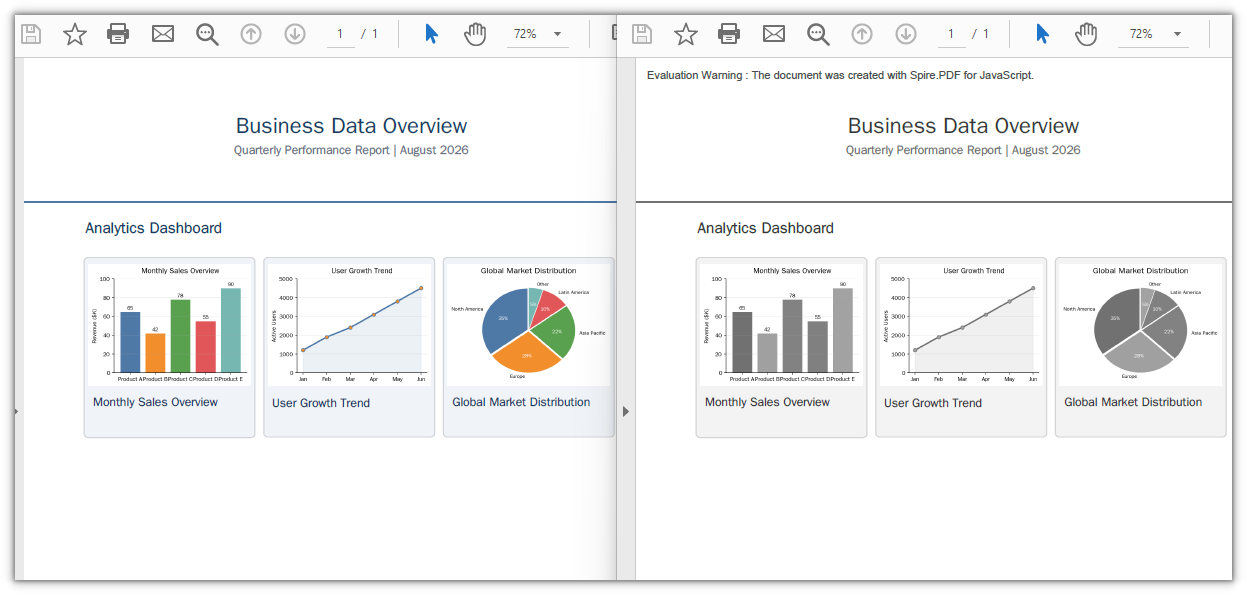
Le document d’exemple après conversion en niveaux de gris, avec les graphiques couleur transformés en niveaux de gris
Niveaux de gris, désaturation et noir et blanc
Trois résultats différents sont tous appelés « niveaux de gris » dans l’usage courant, et ce ne sont pas les mêmes fichiers :
| Sortie | Mode de stockage | Taille des données d’image | Usage approprié |
|---|---|---|---|
| Véritables niveaux de gris | Un seul canal, DeviceGray |
La plus petite — une valeur par pixel | Impression, archivage, documents généraux |
| Couleur désaturée | Trois canaux égaux, DeviceRGB avec R=G=B |
Environ trois fois les données de niveaux de gris | Un filtre visuel rapide lorsque le fichier existe déjà |
| Noir et blanc par seuil | Un bit par pixel, aucun ton | Minuscule | Pages de texte numérisées où le grain est du bruit, pas du détail |
À l’écran, les deux premiers sont indiscernables ; la différence tient entièrement au nombre d’octets que coûte chaque pixel et à la manière dont une imprimante doit l’interpréter. Une conversion par seuil est une opération complètement différente — elle supprime les tons moyens, de sorte que les photographies deviennent des taches et que seuls les dessins au trait et le texte net survivent.
Le convertisseur écrit le premier type : une image en niveaux de gris monocanal, ce qui explique aussi pourquoi c’est le moins coûteux des trois à stocker.
L’effet secondaire sur la taille du fichier
Les niveaux de gris ne sont pas une fonction de compression, mais ils réduisent les fichiers, et il vaut la peine de savoir pourquoi. Dans le document d’exemple, les images couleur étaient des PNG à trois canaux totalisant environ 66 Ko ; après conversion, les mêmes images faisaient environ 31 Ko. Le fichier entier est passé de 82 Ko à 44 Ko — soit une réduction d’environ 46 %, obtenue uniquement en supprimant les canaux de couleur. Le nombre de pages et le texte n’ont pas changé du tout.
Cela vient gratuitement avec l’économie d’encre. Mais lisez le chiffre correctement : le gain dépend de la part du fichier constituée d’images bitmap. Un document composé principalement de texte et d’illustrations vectorielles n’a presque aucune bitmap à réencoder, donc sa conversion en niveaux de gris ne modifie guère la taille — et si la taille est le véritable objectif, les images ne sont que l’un des trois endroits où se cache le poids. Réduire la taille d’un fichier PDF en JavaScript (React) couvre les deux autres.
L’intégrer dans une interface React
Dans un composant réel, le modèle ci-dessus nécessite deux ajustements.
Ne laissez pas l’alerte en place. Le module WebAssembly se charge de manière asynchrone, de sorte que le premier clic peut arriver avant que le convertisseur n’existe. Désactivez le bouton jusqu’à ce que le module signale qu’il est prêt plutôt que d’interrompre l’utilisateur avec une boîte de dialogue :
// The module may not have finished loading on the first render
const [ready, setReady] = useState(false);
// ...
<button disabled={!ready} onClick={convertToGrayscale}>Convert to Grayscale</button>
Traitez le même appel par lots. Comme le convertisseur prend un fichier à la fois et écrit un fichier à la fois, un dossier de documents n’est qu’une boucle — même constructeur, même méthode, un nom de sortie différent par entrée :
// The converter is a one-file operation, so a batch is a loop
for (const name of inputNames) {
  await window.spire.FetchFileToVFS(name, "", `${process.env.PUBLIC_URL}/data/`);
  const out = name.replace(/\.pdf$/i, '-gray.pdf');
  const converter = new pdfModule.PdfGrayConverter({ filePath: name });
  converter.ToGrayPdf({ filePath: out });
  converter.Dispose();
  // read out from the VFS and download (or report per-file sizes)
}
Comme l’original et la copie en niveaux de gris se trouvent tous deux dans le VFS, vous pouvez afficher un véritable chiffre avant/après à côté de chaque ligne au lieu d’un simple lien :
// Both files are in the VFS, so the saving can be measured
const before = window.dotnetRuntime.Module.FS.readFile(name).length;
const after = window.dotnetRuntime.Module.FS.readFile(out).length;
Afficher le pourcentage économisé transforme le bouton en résultat. Si les deux nombres sont presque égaux, le document n’avait rien à récupérer dans ses images — c’est une information, pas un échec.
Problèmes courants
La sortie comporte une ligne d’avertissement supplémentaire.
Une version sans licence insère Evaluation Warning : The document was created with Spire.PDF for JavaScript. dans le document, et elle est ajoutée à chaque appel — convertissez le même fichier deux fois dans une session et la ligne apparaît deux fois. Une licence temporaire la supprime ; contactez le service commercial pour obtenir une clé de 30 jours, qui lève également les limites fonctionnelles.
Le document converti semble identique. Vérifiez de quoi le document est composé. S’il s’agit de texte et d’illustrations vectorielles sans images bitmap, une passe en niveaux de gris n’a que très peu de choses à modifier, et la différence sera invisible. C’est attendu, pas un bug.
Rien ne se passe au premier clic. Le module était encore en cours de chargement. Protégez le gestionnaire en vérifiant la référence du module, ou gardez le bouton désactivé jusqu’à ce qu’il soit prêt, comme indiqué ci-dessus.
Le fichier a à peine diminué. La conversion en niveaux de gris ne touche que les images. Si le poids se trouve dans les polices ou les flux de contenu, cette conversion n’est pas le bon levier — consultez l’article sur la compression lié ci-dessus.
FAQ
La conversion en niveaux de gris rend-elle le texte non sélectionnable ? Non. Le texte n’est pas rastérisé. Seules les images sont réencodées, de sorte que le résultat reste recherchable, sélectionnable et copiable — il n’a simplement pas de couleur.
Puis-je convertir seulement certaines pages ? Le convertisseur travaille sur le document dans son ensemble. Si une partie d’un fichier doit rester en couleur, divisez d’abord le document, convertissez la portion qui doit être en niveaux de gris, puis fusionnez les morceaux à nouveau.
La conversion en niveaux de gris réduit-elle toujours la taille du fichier ? Pas toujours, mais généralement un peu — l’économie provient des images, donc plus il y a de bitmap, plus le gain est important. Les documents déjà composés de texte et de vecteurs peuvent à peine changer.
Dois-je téléverser le fichier quelque part ? Non. Tout se passe dans le navigateur. Le PDF entre dans le système de fichiers virtuel, y est réécrit, puis relu pour le téléchargement, de sorte qu’un document confidentiel ne quitte jamais l’appareil.
Puis-je proposer les deux versions à l’utilisateur ?
Oui. ToGrayPdf écrit dans un nouveau nom de fichier et laisse l’entrée intacte, de sorte que l’original en couleur et la copie en niveaux de gris sont tous deux disponibles dans la même session.
Voir aussi
Cómo convertir PDF a escala de grises en JavaScript (React)
Tabla de contenido
- Por qué convertir un PDF a escala de grises
- Qué cambia realmente la escala de grises
- Convertir un documento a escala de grises
- Escala de grises vs desaturación vs blanco y negro
- El efecto secundario en el tamaño del archivo
- Integrarlo en una interfaz de React
- Problemas comunes
- Preguntas frecuentes
- Véase también
Envía un informe con muchos colores a una impresora láser monocromática de oficina y lo pagarás dos veces: una por el tóner que la impresora desperdicia al intentar simular gris a partir de puntos CMYK, y otra por la calidad del resultado: las tramas y los rellenos de los gráficos se convierten en manchas turbias en lugar de tonos limpios. Envía el mismo archivo a un archivo de registros y el color será peor que inútil. Los colores planos envejecen, la gestión del color se desvía entre máquinas y cada reimpresión sale ligeramente distinta de la anterior. La escala de grises es el formato que ambos trabajos realmente quieren, y está a una sola llamada de distancia una vez que el PDF se maneja en código.
Este artículo convierte un PDF en un documento en escala de grises dentro del navegador con Spire.PDF for JavaScript. La biblioteca está compilada a WebAssembly y controla el documento mediante un sistema de archivos virtual (VFS), por lo que el archivo se lee y se reescribe en la máquina del usuario y no se entrega nada a un servicio de conversión.
Para configurar el proyecto, sigue Integración de Spire.PDF for JavaScript en un proyecto de React. El ejemplo siguiente asume que el paquete está instalado y que el módulo WebAssembly ha terminado de inicializarse.
Por qué convertir un PDF a escala de grises (y cuándo es la decisión equivocada)
Hay tres situaciones que se repiten una y otra vez:
- Impresión en hardware monocromático. Un láser monocromático tiene un solo tóner. Cuando le entregas un PDF en color, tiene que aproximar cada color con un patrón de semitonos, y por eso el texto coloreado y las líneas finas de los gráficos salen borrosos. Un origen en escala de grises elimina la conjetura: la impresora recibe tono, no color que interpretar.
- Registros y archivado. Los estándares de almacenamiento a largo plazo se redactan en torno a una apariencia fija e independiente del dispositivo. Un documento en escala de grises se reproduce igual en cada impresora y cada escáner, por lo que la copia archivada no puede desviarse.
- Flujos de digitalización e indexación. Una vez que un documento se ha escaneado y se le ha aplicado OCR, el color no aporta información que el índice pueda usar: solo es peso.
Hay casos que conviene dejar en paz. Si el color realiza una función semántica —un gráfico donde cada serie es de un tono distinto, un recurso de marca, un portafolio de fotografías—, la conversión a escala de grises destruye justamente lo que el lector necesita. También es la herramienta equivocada cuando el problema real es el tamaño: si el objetivo es un archivo más pequeño en lugar de una impresión más barata, recurrir a la escala de grises ataca solo las imágenes e ignora las fuentes y los flujos de contenido, lo cual es tarea de un compresor.
Qué cambia realmente la escala de grises
Es fácil asumir que "escala de grises" significa que la página se vuelve a renderizar como una imagen. No es así. La conversión trabaja a nivel de objeto:
| Parte de la página | Qué ocurre |
|---|---|
| Imágenes en color | Se recodifican como escala de grises de un solo canal, un valor de luminancia por píxel en lugar de tres canales de color |
| Texto | Intacto como texto: todavía seleccionable, todavía buscable, todavía copiable |
| Diseño y número de páginas | Sin cambios; no se recorta, mueve ni elimina nada |
| Metadatos del documento | Conservados |
Como las imágenes se recodifican en lugar de rasterizarse en una captura de pantalla, la salida es un PDF normal con un espacio de color más pequeño, no una imagen de un PDF. Esa distinción importa en el momento en que alguien intenta buscar en el resultado o seleccionar una línea de texto.
Convertir un documento a escala de grises
Dos miembros hacen el trabajo: pasa el archivo de entrada al constructor PdfGrayConverter y luego llama a ToGrayPdf con el archivo de salida. El resto del componente es la carga habitual en el VFS y la descarga del Blob.
function App() {
  const convertToGrayscale = async () => {
    // Get the Spire.PDF WASM module
    const pdfModule = window.wasmModule?.spirepdf;

    // Check whether the module is ready
    if (!pdfModule) {
      alert('Spire.PDF is not ready yet');
      return;
    }

    // Load the PDF file to be converted into the VFS
    const inputFileName = 'Business_Data_Overview.pdf';
    await window.spire.FetchFileToVFS(inputFileName, "", `${process.env.PUBLIC_URL}/data/`);

    // Define the output file name
    const outputFileName = 'GrayscaleDocument.pdf';

    // Construct the grayscale converter from the input file and write out the grayscale document
    const converter = new pdfModule.PdfGrayConverter({ filePath: inputFileName });
    converter.ToGrayPdf({ filePath: outputFileName });
    converter.Dispose();

    // Read the generated file from the VFS and trigger the download
    const fileArray = window.dotnetRuntime.Module.FS.readFile(outputFileName);
    const blob = new Blob([fileArray], { type: 'application/pdf' });
    const url = URL.createObjectURL(blob);
    const a = document.createElement('a');
    a.href = url;
    a.download = outputFileName;
    a.click();
    URL.revokeObjectURL(url);
  };

  return (
    <div style={{ textAlign: 'center', height: '300px' }}>
      <h1>Convert PDF to Grayscale</h1>
      <button onClick={convertToGrayscale}>
        Start Converting
      </button>
    </div>
  );
}

export default App;
Vale la pena fijarse en tres detalles. ToGrayPdf escribe un archivo nuevo: la entrada en el VFS queda como estaba, así que una opción de "conservar la versión en color" no cuesta nada. Dispose libera el convertidor una vez escrito el archivo. Y las imágenes en color de la página son lo que la llamada reescribe realmente; el texto nunca se convierte en imagen.
El documento de ejemplo después de la conversión a escala de grises, con los gráficos en color convertidos a escala de grises
Escala de grises vs desaturación vs blanco y negro
En el uso coloquial, a tres resultados distintos se les llama "escala de grises", y no son el mismo archivo:
| Salida | Cómo se almacena | Tamaño de los datos de imagen | Dónde encaja |
|---|---|---|---|
| Escala de grises real | Un canal, DeviceGray |
El más pequeño: un valor por píxel | Impresión, archivo, documentos generales |
| Color desaturado | Tres canales iguales, DeviceRGB con R=G=B |
Aproximadamente tres veces los datos de escala de grises | Un filtro visual rápido donde el archivo ya existe |
| Blanco y negro por umbral | Un bit por píxel, sin tonos | Diminuto | Páginas de texto escaneadas donde el grano es ruido, no detalle |
En pantalla, los dos primeros son indistinguibles; la diferencia está enteramente en cuántos bytes cuesta cada píxel y en cómo tiene que interpretarlo una impresora. Una conversión por umbral es una operación completamente distinta: elimina los medios tonos, así que las fotografías se convierten en manchas y solo sobreviven el arte lineal y el texto limpio.
El convertidor escribe el primer tipo: una imagen en escala de grises de un solo canal, y por eso también es la más barata de almacenar de las tres.
El efecto secundario en el tamaño del archivo
La escala de grises no es una función de compresión, pero sí reduce el tamaño de los archivos, y vale la pena saber por qué. En el documento de ejemplo, las imágenes en color eran PNG de tres canales que sumaban unos 66 KB; tras la conversión, las mismas imágenes quedaron en torno a 31 KB. El archivo completo pasó de 82 KB a 44 KB, aproximadamente una reducción del 46 %, lograda puramente al eliminar los canales de color. El número de páginas y el texto no cambiaron en absoluto.
Eso viene gratis junto con el ahorro de tinta. Pero lee el número correctamente: la ganancia escala según cuánto del archivo sea mapa de bits. Un documento que es mayormente texto y arte vectorial apenas tiene mapa de bits que recodificar, así que convertirlo a escala de grises apenas mueve el tamaño; y si el objetivo real es el tamaño, las imágenes son solo uno de los tres lugares donde se esconde el peso. Reducción del tamaño de archivos PDF en JavaScript (React) cubre los otros dos.
Integrarlo en una interfaz de React
En un componente real, el patrón anterior necesita dos ajustes.
No dejes el alert. El módulo WebAssembly se carga de forma asíncrona, así que el primer clic puede llegar antes de que exista el convertidor. Deshabilita el botón hasta que el módulo informe que está listo, en lugar de interrumpir al usuario con un diálogo:
// The module may not have finished loading on the first render
const [ready, setReady] = useState(false);
// ...
<button disabled={!ready} onClick={convertToGrayscale}>Convert to Grayscale</button>
Procesa por lotes la misma llamada. Como el convertidor toma un archivo a la vez y escribe un archivo a la vez, una carpeta de documentos es solo un bucle: el mismo constructor, el mismo método, un nombre de salida distinto por cada entrada:
// The converter is a one-file operation, so a batch is a loop
for (const name of inputNames) {
  await window.spire.FetchFileToVFS(name, "", `${process.env.PUBLIC_URL}/data/`);
  const out = name.replace(/\.pdf$/i, '-gray.pdf');
  const converter = new pdfModule.PdfGrayConverter({ filePath: name });
  converter.ToGrayPdf({ filePath: out });
  converter.Dispose();
  // read out from the VFS and download (or report per-file sizes)
}
Como tanto el original como la copia en escala de grises están en el VFS, puedes informar una cifra real de antes y después junto a cada fila en lugar de un simple enlace:
// Both files are in the VFS, so the saving can be measured
const before = window.dotnetRuntime.Module.FS.readFile(name).length;
const after = window.dotnetRuntime.Module.FS.readFile(out).length;
Mostrar el porcentaje ahorrado convierte el botón en un resultado. Si los dos números son casi iguales, el documento no tenía nada en sus imágenes que devolver: eso es información, no un fallo.
Problemas comunes
La salida incluye una línea de advertencia adicional.
Una compilación sin licencia inserta Evaluation Warning : The document was created with Spire.PDF for JavaScript. en el documento, y se añade por cada llamada: convierte el mismo archivo dos veces en una sesión y la línea aparecerá dos veces. Una licencia temporal la elimina; contacta con ventas para obtener una clave de 30 días, que también elimina los límites funcionales.
El documento convertido se ve idéntico. Comprueba de qué está hecho el documento. Si es texto y arte vectorial sin mapas de bits, hay muy poco que una pasada a escala de grises pueda cambiar, y la diferencia será invisible. Eso es lo esperado, no un error.
No ocurre nada en el primer clic. El módulo todavía se estaba cargando. Protege el controlador con la referencia del módulo, o mantén el botón deshabilitado hasta que esté listo, como se muestra arriba.
El archivo apenas se redujo. La conversión a escala de grises solo toca las imágenes. Si el peso está en las fuentes o en los flujos de contenido, esta conversión no es la palanca adecuada; consulta el artículo de compresión enlazado arriba.
Preguntas frecuentes
¿Convertir a escala de grises hace que el texto no se pueda seleccionar? No. El texto no se rasteriza. Solo se recodifican las imágenes, así que el resultado sigue siendo buscable, seleccionable y copiable; simplemente no tiene color.
¿Puedo convertir solo algunas páginas? El convertidor trabaja sobre el documento en su totalidad. Si parte de un archivo debe permanecer en color, divide primero el documento, convierte la parte que deba quedar en gris y vuelve a unir las piezas.
¿La conversión a escala de grises siempre reduce el tamaño del archivo? No siempre, pero por lo general un poco: el ahorro proviene de las imágenes, así que cuanto más mapa de bits haya, mayor será la ganancia. Los documentos que ya son texto y vectores puede que apenas cambien.
¿Tengo que subir el archivo a algún sitio? No. Todo ocurre en el navegador. El PDF entra en el sistema de archivos virtual, se reescribe allí y se lee de vuelta para descargarlo, así que un documento confidencial nunca sale del dispositivo.
¿Puedo ofrecer ambas versiones al usuario?
Sí. ToGrayPdf escribe en un nuevo nombre de archivo y deja la entrada intacta, así que tanto el original en color como la copia en escala de grises están disponibles en la misma sesión.
Véase también
- Linealizar un PDF para una visualización web rápida en JavaScript (React)
- Reducir el tamaño de archivos PDF: imágenes, fuentes y flujos de contenido en JavaScript (React)
- Cómo convertir páginas de PDF a imágenes en JavaScript (React)
- Integración de Spire.PDF for JavaScript en un proyecto de React
- Página del producto Spire.PDF for JavaScript
So konvertieren Sie PDF in JavaScript (React) in Graustufen
Inhaltsverzeichnis
Wenn Sie einen farbintensiven Bericht an einen monochromen Office-Laserdrucker schicken, zahlen Sie zweimal dafür: einmal für den Toner, den der Drucker verschwendet, um aus CMYK-Punkten Grau vorzutäuschen, und zum anderen mit der Qualität des Ergebnisses – Rasterflächen und Diagrammfüllungen werden zu schlammigem Sprenkelmuster statt zu klaren Tonwerten. Schicken Sie dieselbe Datei an ein Aktenarchiv, ist die Farbe schlimmer als nutzlos. Sonderfarben altern, das Farbmanagement driftet zwischen Maschinen, und jeder Neudruck fällt etwas anders aus als der vorherige. Graustufen sind das Format, das beide Aufgaben tatsächlich brauchen, und es ist nur einen einzigen Aufruf entfernt, sobald die PDF im Code verarbeitet wird.
Dieser Artikel verwandelt eine PDF mit Spire.PDF for JavaScript im Browser in ein Graustufendokument. Die Bibliothek ist nach WebAssembly kompiliert und steuert das Dokument über ein virtuelles Dateisystem (VFS), sodass die Datei auf dem Rechner des Benutzers gelesen und neu geschrieben wird und nichts an einen Konvertierungsdienst weitergegeben wird.
Für die Projekteinrichtung folgen Sie Spire.PDF for JavaScript in ein React-Projekt integrieren. Das folgende Beispiel geht davon aus, dass das Paket installiert ist und das WebAssembly-Modul die Initialisierung abgeschlossen hat.
Warum eine PDF in Graustufen konvertieren (und wann das der falsche Weg ist)
Drei Situationen tauchen immer wieder auf:
- Drucken auf monochromer Hardware. Ein Monolaser hat eine einzige Tonerfarbe. Wenn Sie ihm eine farbige PDF geben, muss er jede Farbe mit einem Halbtonmuster annähern, weshalb farbiger Text und dünne Diagrammlinien unscharf herauskommen. Eine Graustufenvorlage beseitigt das Raten – der Drucker erhält Tonwerte statt Farben, die er erst interpretieren muss.
- Akten und Archivierung. Langzeitarchivierungsstandards sind auf ein festes, geräteunabhängiges Erscheinungsbild ausgelegt. Ein Graustufendokument gibt auf jedem Drucker und jedem Scanner dasselbe wieder, sodass die archivierte Kopie nicht abdriften kann.
- Scan- und Indexierungs-Pipelines. Sobald ein Dokument gescannt und per OCR erfasst wurde, trägt die Farbe keine Information, die der Index nutzen könnte – sie ist nur Ballast.
Es gibt Fälle, die man lieber unangetastet lässt. Wenn Farbe semantische Arbeit leistet – ein Diagramm, in dem jede Reihe einen anderen Farbton hat, ein Marken-Asset, ein Fotoportfolio –, zerstört die Graustufenkonvertierung genau das, was der Leser braucht. Ebenso ist sie das falsche Werkzeug, wenn das eigentliche Problem die Größe ist: Wenn das Ziel eine kleinere Datei statt günstigeres Drucken ist, greift man mit Graustufen nur die Bilder an und ignoriert Schriften und Content-Streams – das ist eine Aufgabe für einen Kompressor.
Was Graustufen tatsächlich verändern
Man nimmt leicht an, dass "Graustufen" bedeutet, die Seite werde als Bild neu gerendert. Dem ist nicht so. Die Konvertierung arbeitet auf Objektebene:
| Bestandteil der Seite | Was geschieht |
|---|---|
| Farbbilder | Neu codiert als einkanalige Graustufen, ein Luminanzwert pro Pixel statt drei Farbkanäle |
| Text | Bleibt als Text unverändert – weiterhin auswählbar, durchsuchbar und kopierbar |
| Layout und Seitenzahl | Unverändert; nichts wird beschnitten, verschoben oder entfernt |
| Dokumentmetadaten | Bleiben erhalten |
Weil die Bilder neu codiert und nicht in einen Screenshot gerastert werden, ist die Ausgabe eine normale PDF mit einem kleineren Farbraum – kein Bild einer PDF. Dieser Unterschied wird in dem Moment wichtig, in dem jemand versucht, das Ergebnis zu durchsuchen oder eine Textzeile auszuwählen.
Ein Dokument in Graustufen konvertieren
Zwei Member erledigen die Arbeit: Übergeben Sie die Eingabedatei an den Konstruktor von PdfGrayConverter und rufen Sie dann ToGrayPdf mit der Ausgabedatei auf. Der Rest der Komponente ist das übliche Laden in das VFS und Herunterladen als Blob.
function App() {
  const convertToGrayscale = async () => {
    // Get the Spire.PDF WASM module
    const pdfModule = window.wasmModule?.spirepdf;

    // Check whether the module is ready
    if (!pdfModule) {
      alert('Spire.PDF is not ready yet');
      return;
    }

    // Load the PDF file to be converted into the VFS
    const inputFileName = 'Business_Data_Overview.pdf';
    await window.spire.FetchFileToVFS(inputFileName, "", `${process.env.PUBLIC_URL}/data/`);

    // Define the output file name
    const outputFileName = 'GrayscaleDocument.pdf';

    // Construct the grayscale converter from the input file and write out the grayscale document
    const converter = new pdfModule.PdfGrayConverter({ filePath: inputFileName });
    converter.ToGrayPdf({ filePath: outputFileName });
    converter.Dispose();

    // Read the generated file from the VFS and trigger the download
    const fileArray = window.dotnetRuntime.Module.FS.readFile(outputFileName);
    const blob = new Blob([fileArray], { type: 'application/pdf' });
    const url = URL.createObjectURL(blob);
    const a = document.createElement('a');
    a.href = url;
    a.download = outputFileName;
    a.click();
    URL.revokeObjectURL(url);
  };

  return (
    <div style={{ textAlign: 'center', height: '300px' }}>
      <h1>Convert PDF to Grayscale</h1>
      <button onClick={convertToGrayscale}>
        Start Converting
      </button>
    </div>
  );
}

export default App;
Drei Details sind bemerkenswert. ToGrayPdf schreibt eine neue Datei – die Eingabe im VFS bleibt unverändert, sodass eine Option „Farbversion behalten" nichts kostet. Dispose gibt den Konverter frei, sobald die Datei geschrieben ist. Und die Farbbilder auf der Seite sind das, was der Aufruf tatsächlich neu schreibt; der Text wird nie zu einem Bild.
Das Beispieldokument nach der Graustufenkonvertierung, mit den farbigen Diagrammen in Graustufen
Graustufen vs. Entsättigung vs. Schwarz-Weiß
Drei verschiedene Ergebnisse werden im alltäglichen Sprachgebrauch alle "Graustufen" genannt, und sie sind nicht dieselbe Datei:
| Ergebnis | Wie es gespeichert wird | Größe der Bilddaten | Wofür es geeignet ist |
|---|---|---|---|
| Echte Graustufen | Ein Kanal, DeviceGray |
Am kleinsten – ein Wert pro Pixel | Druck, Archivierung, allgemeine Dokumente |
| Entsättigte Farbe | Drei gleiche Kanäle, DeviceRGB mit R=G=B |
Etwa dreimal so viele Daten wie Graustufen | Ein schneller visueller Filter, wenn die Datei bereits existiert |
| Schwellenwert-Schwarz-Weiß | Ein Bit pro Pixel, keine Tonwerte | Winzig | Gescannte Textseiten, bei denen Körnung Rauschen und kein Detail ist |
Auf dem Bildschirm sind die ersten beiden nicht zu unterscheiden; der Unterschied liegt ausschließlich darin, wie viele Bytes jedes Pixel kostet und wie ein Drucker es interpretieren muss. Eine Schwellenwertkonvertierung ist eine völlig andere Operation – sie verwirft die Mitteltöne, sodass Fotografien zu Flecken werden und nur Strichzeichnungen und sauberer Text überleben.
Der Konverter schreibt die erste Art: ein einkanaliges Graustufenbild, weshalb es auch von den dreien am günstigsten zu speichern ist.
Der Nebeneffekt bei der Dateigröße
Graustufen sind keine Komprimierungsfunktion, aber sie verkleinern Dateien, und es lohnt sich zu wissen, warum. Im Beispieldokument waren die Farbbilder dreikanalige PNGs mit insgesamt etwa 66 KB; nach der Konvertierung kamen dieselben Bilder auf etwa 31 KB. Die gesamte Datei schrumpfte von 82 KB auf 44 KB – eine Reduzierung um rund 46 %, die allein durch das Weglassen der Farbkanäle erreicht wurde. Seitenzahl und Text änderten sich überhaupt nicht.
Das gibt es gratis zur Tintenersparnis dazu. Doch lesen Sie die Zahl richtig: Der Gewinn skaliert damit, wie viel der Datei aus Bitmaps besteht. Ein Dokument, das überwiegend aus Text und Vektorgrafik besteht, hat fast keine Bitmaps zum Neucodieren, sodass die Graustufenkonvertierung die Größe kaum bewegt – und wenn die Größe das eigentliche Ziel ist, sind Bilder nur eine von drei Stellen, an denen das Gewicht steckt. Die PDF-Dateigröße in JavaScript (React) reduzieren behandelt die anderen beiden.
Einbindung in eine React-UI
In einer echten Komponente braucht das obige Muster zwei Anpassungen.
Lassen Sie den alert nicht drin. Das WebAssembly-Modul lädt asynchron, sodass der erste Klick eintreffen kann, bevor der Konverter existiert. Deaktivieren Sie die Schaltfläche, bis das Modul Bereitschaft meldet, statt den Benutzer mit einem Dialog zu unterbrechen:
// The module may not have finished loading on the first render
const [ready, setReady] = useState(false);
// ...
<button disabled={!ready} onClick={convertToGrayscale}>Convert to Grayscale</button>
Bündeln Sie denselben Aufruf. Da der Konverter jeweils eine Datei annimmt und jeweils eine Datei schreibt, ist ein Ordner voller Dokumente einfach eine Schleife – derselbe Konstruktor, dieselbe Methode, ein anderer Ausgabename pro Eingabe:
// The converter is a one-file operation, so a batch is a loop
for (const name of inputNames) {
  await window.spire.FetchFileToVFS(name, "", `${process.env.PUBLIC_URL}/data/`);
  const out = name.replace(/\.pdf$/i, '-gray.pdf');
  const converter = new pdfModule.PdfGrayConverter({ filePath: name });
  converter.ToGrayPdf({ filePath: out });
  converter.Dispose();
  // read out from the VFS and download (or report per-file sizes)
}
Da sowohl das Original als auch die Graustufenkopie im VFS liegen, können Sie neben jeder Zeile eine echte Vorher-Nachher-Zahl anzeigen statt eines bloßen Links:
// Both files are in the VFS, so the saving can be measured
const before = window.dotnetRuntime.Module.FS.readFile(name).length;
const after = window.dotnetRuntime.Module.FS.readFile(out).length;
Die Anzeige der eingesparten Prozent macht aus dem Button ein Ergebnis. Wenn die beiden Zahlen fast gleich sind, hatten die Bilder des Dokuments nichts herzugeben – das ist eine Information, kein Fehler.
Häufige Probleme
Die Ausgabe enthält eine zusätzliche Warnzeile.
Eine unlizenzierte Build fügt Evaluation Warning : The document was created with Spire.PDF for JavaScript. in das Dokument ein, und sie wird bei jedem Aufruf angehängt – konvertieren Sie dieselbe Datei zweimal in einer Sitzung, erscheint die Zeile zweimal. Eine temporäre Lizenz entfernt sie; wenden Sie sich an den Vertrieb, um einen 30-Tage-Schlüssel zu erhalten, der auch die funktionalen Beschränkungen aufhebt.
Das konvertierte Dokument sieht identisch aus. Prüfen Sie, woraus das Dokument besteht. Wenn es sich um Text und Vektorgrafik ohne Bitmaps handelt, gibt es für einen Graustufendurchlauf sehr wenig zu ändern, und der Unterschied bleibt unsichtbar. Das ist erwartet, kein Fehler.
Beim ersten Klick passiert nichts. Das Modul lud noch. Prüfen Sie im Handler die Modulreferenz, oder halten Sie die Schaltfläche deaktiviert, bis sie bereit ist, wie oben gezeigt.
Die Datei wurde kaum kleiner. Die Graustufenkonvertierung berührt nur die Bilder. Wenn das Gewicht in den Schriften oder den Content-Streams liegt, ist diese Konvertierung nicht der Hebel – siehe den oben verlinkten Komprimierungsartikel.
FAQ
Macht die Konvertierung in Graustufen den Text nicht mehr auswählbar? Nein. Der Text wird nicht gerastert. Nur die Bilder werden neu codiert, sodass das Ergebnis weiterhin durchsuchbar, auswählbar und kopierbar ist – es hat einfach keine Farbe.
Kann ich nur einige Seiten konvertieren? Der Konverter arbeitet mit dem Dokument als Ganzem. Wenn ein Teil einer Datei farbig bleiben soll, teilen Sie das Dokument zuerst auf, konvertieren Sie den Teil, der grau werden soll, und führen Sie die Teile wieder zusammen.
Verringert die Graustufenkonvertierung immer die Dateigröße? Nicht immer, aber meist ein wenig – die Einsparung kommt von den Bildern, je mehr Bitmap vorhanden ist, desto größer der Gewinn. Dokumente, die bereits aus Text und Vektoren bestehen, ändern sich kaum.
Muss ich die Datei irgendwohin hochladen? Nein. Alles geschieht im Browser. Die PDF gelangt in das virtuelle Dateisystem, wird dort neu geschrieben und zum Herunterladen wieder ausgelesen, sodass ein vertrauliches Dokument das Gerät nie verlässt.
Kann ich dem Benutzer beide Versionen anbieten?
Ja. ToGrayPdf schreibt in einen neuen Dateinamen und lässt die Eingabe unangetastet, sodass das farbige Original und die Graustufenkopie in derselben Sitzung beide verfügbar sind.
Siehe auch
- PDF für eine schnelle Webansicht in JavaScript (React) linearisieren
- PDF-Dateigröße reduzieren: Bilder, Schriften & Content-Streams in JavaScript (React)
- PDF-Seiten in JavaScript (React) in Bilder konvertieren
- Spire.PDF for JavaScript in ein React-Projekt integrieren
- Produktseite von Spire.PDF for JavaScript
Как преобразовать PDF в оттенки серого в JavaScript (React)
Содержание
Отправьте насыщенный цветами отчёт на офисный монохромный лазерный принтер — и вы заплатите за это дважды: сначала тонером, который принтер тратит впустую, пытаясь имитировать серый из CMYK-точек, а затем качеством результата — растровые заливки и заливки диаграмм превращаются в мутную рябь вместо чистых тонов. Отправьте тот же файл в архив документов — и цвет окажется хуже, чем бесполезен. Плашечные цвета стареют, цветопередача смещается от машины к машине, и каждая повторная печать получается чуть отличающейся от предыдущей. Оттенки серого — это формат, который нужен обеим этим задачам, и до него всего один вызов, когда PDF обрабатывается в коде.
В этой статье PDF превращается в документ в оттенках серого прямо в браузере с помощью Spire.PDF для JavaScript. Библиотека скомпилирована в WebAssembly и управляет документом через виртуальную файловую систему (VFS), поэтому файл читается и перезаписывается на машине пользователя, и ничего не передаётся в сервис конвертации.
По настройке проекта следуйте руководству Интеграция Spire.PDF для JavaScript в проект React. Пример ниже предполагает, что пакет установлен, а модуль WebAssembly завершил инициализацию.
Зачем переводить PDF в оттенки серого (и когда это неверный шаг)
Три ситуации возникают снова и снова:
- Печать на монохромном оборудовании. У монохромного лазерного принтера один тонер. Когда вы отдаёте ему цветной PDF, он вынужден аппроксимировать каждый цвет растровым узором — именно поэтому цветной текст и тонкие линии диаграмм выходят размытыми. Источник в оттенках серого убирает догадки — принтер получает тон, а не цвет для интерпретации.
- Документы и архивирование. Стандарты долгосрочного хранения строятся вокруг фиксированного, независимого от устройства внешнего вида. Документ в оттенках серого воспроизводится одинаково на любом принтере и любом сканере, поэтому архивная копия не может «уплыть».
- Конвейеры сканирования и индексирования. Как только документ отсканирован и распознан (OCR), цвет не несёт информации, которую мог бы использовать индекс — это только вес.
Есть случаи, когда лучше ничего не трогать. Если цвет выполняет смысловую работу — диаграмма, где каждый ряд имеет свой оттенок, фирменный материал, портфолио фотографий — перевод в оттенки серого уничтожает именно то, что нужно читателю. Это также неверный инструмент, когда настоящая проблема — размер: если цель — меньший файл, а не более дешёвая печать, то перевод в оттенки серого воздействует только на изображения и игнорирует шрифты и потоки содержимого — для этого нужен компрессор.
Что на самом деле меняет оттенки серого
Легко предположить, что «оттенки серого» означают, что страница перерисовывается как картинка. Это не так. Преобразование работает на уровне объектов:
| Часть страницы | Что происходит |
|---|---|
| Цветные изображения | Перекодируются в одноканальные оттенки серого: одно значение яркости на пиксель вместо трёх цветовых каналов |
| Текст | Остаётся нетронутым как текст — по-прежнему выделяемый, доступный для поиска и копирования |
| Макет и число страниц | Не изменяются; ничего не обрезается, не перемещается и не удаляется |
| Метаданные документа | Сохраняются |
Поскольку изображения перекодируются, а не растрируются в скриншот, на выходе получается обычный PDF с меньшим цветовым пространством — а не картинка с PDF. Эта разница важна в тот момент, когда кто-то пытается выполнить поиск по результату или выделить строку текста.
Преобразование документа в оттенки серого
Работу выполняют два члена: передайте входной файл в конструктор PdfGrayConverter, затем вызовите ToGrayPdf с выходным файлом. Остальная часть компонента — это обычная загрузка в VFS и скачивание Blob.
function App() {
  const convertToGrayscale = async () => {
    // Get the Spire.PDF WASM module
    const pdfModule = window.wasmModule?.spirepdf;

    // Check whether the module is ready
    if (!pdfModule) {
      alert('Spire.PDF is not ready yet');
      return;
    }

    // Load the PDF file to be converted into the VFS
    const inputFileName = 'Business_Data_Overview.pdf';
    await window.spire.FetchFileToVFS(inputFileName, "", `${process.env.PUBLIC_URL}/data/`);

    // Define the output file name
    const outputFileName = 'GrayscaleDocument.pdf';

    // Construct the grayscale converter from the input file and write out the grayscale document
    const converter = new pdfModule.PdfGrayConverter({ filePath: inputFileName });
    converter.ToGrayPdf({ filePath: outputFileName });
    converter.Dispose();

    // Read the generated file from the VFS and trigger the download
    const fileArray = window.dotnetRuntime.Module.FS.readFile(outputFileName);
    const blob = new Blob([fileArray], { type: 'application/pdf' });
    const url = URL.createObjectURL(blob);
    const a = document.createElement('a');
    a.href = url;
    a.download = outputFileName;
    a.click();
    URL.revokeObjectURL(url);
  };

  return (
    <div style={{ textAlign: 'center', height: '300px' }}>
      <h1>Convert PDF to Grayscale</h1>
      <button onClick={convertToGrayscale}>
        Start Converting
      </button>
    </div>
  );
}

export default App;
Стоит обратить внимание на три детали. ToGrayPdf записывает новый файл — входной файл в VFS остаётся таким, каким был, поэтому опция «сохранить цветную версию» ничего не стоит. Dispose освобождает конвертер после записи файла. И именно цветные изображения на странице фактически перезаписываются этим вызовом; текст никогда не становится изображением.
Образец документа после перевода в оттенки серого, где цветные диаграммы стали серыми
Оттенки серого, обесцвечивание и черно-белый
Три разных результата в повседневной речи называют «оттенками серого», но это не один и тот же файл:
| Результат | Как он хранится | Размер данных изображения | Где он уместен |
|---|---|---|---|
| Настоящие оттенки серого | Один канал, DeviceGray |
Наименьший — одно значение на пиксель | Печать, архивирование, обычные документы |
| Обесцвеченный цвет | Три равных канала, DeviceRGB с R=G=B |
Примерно втрое больше данных, чем в оттенках серого | Быстрый визуальный фильтр, когда файл уже существует |
| Пороговый черно-белый | Один бит на пиксель, без полутонов | Крошечный | Отсканированные текстовые страницы, где зерно — шум, а не деталь |
На экране первые два неразличимы; разница полностью в том, сколько байт стоит каждый пиксель и как принтер должен его интерпретировать. Пороговое преобразование — совершенно другая операция: оно отбрасывает полутона, поэтому фотографии превращаются в пятна, и выживают только линейная графика и чистый текст.
Конвертер записывает первый вид: одноканальное изображение в оттенках серого — именно поэтому оно также самое дешёвое из трёх по объёму хранения.
Побочный эффект: размер файла
Оттенки серого — это не функция сжатия, но они уменьшают файлы, и стоит понимать почему. В образце документа цветные изображения были трёхканальными PNG общим объёмом около 66 КБ; после преобразования те же изображения стали примерно 31 КБ. Весь файл уменьшился с 82 КБ до 44 КБ — примерно на 46%, и это достигнуто исключительно за счёт отказа от цветовых каналов. Число страниц и текст не изменились вовсе.
Это достаётся бесплатно вместе с экономией тонера. Но читайте цифру правильно: выигрыш масштабируется в зависимости от того, какую часть файла составляют растровые изображения. В документе, который в основном состоит из текста и векторной графики, почти нечего перекодировать, поэтому перевод в оттенки серого едва изменит размер — а если цель именно размер, изображения являются лишь одним из трёх мест, где скрывается вес. Уменьшение размера PDF-файла в JavaScript (React) рассказывает о двух других.
Интеграция в интерфейс React
В реальном компоненте описанный выше шаблон требует двух доработок.
Не оставляйте alert. Модуль WebAssembly загружается асинхронно, поэтому первый клик может произойти раньше, чем конвертер станет доступен. Отключайте кнопку, пока модуль не сообщит о готовности, вместо того чтобы прерывать пользователя диалогом:
// The module may not have finished loading on the first render
const [ready, setReady] = useState(false);
// ...
<button disabled={!ready} onClick={convertToGrayscale}>Convert to Grayscale</button>
Объединяйте вызовы в пакет. Поскольку конвертер принимает по одному файлу и записывает по одному файлу, папка документов — это просто цикл: тот же конструктор, тот же метод, другое имя выходного файла для каждого входного:
// The converter is a one-file operation, so a batch is a loop
for (const name of inputNames) {
  await window.spire.FetchFileToVFS(name, "", `${process.env.PUBLIC_URL}/data/`);
  const out = name.replace(/\.pdf$/i, '-gray.pdf');
  const converter = new pdfModule.PdfGrayConverter({ filePath: name });
  converter.ToGrayPdf({ filePath: out });
  converter.Dispose();
  // read out from the VFS and download (or report per-file sizes)
}
Поскольку и оригинал, и копия в оттенках серого находятся в VFS, вы можете показывать рядом с каждой строкой реальную цифру «до и после» вместо простой ссылки:
// Both files are in the VFS, so the saving can be measured
const before = window.dotnetRuntime.Module.FS.readFile(name).length;
const after = window.dotnetRuntime.Module.FS.readFile(out).length;
Показ сэкономленного процента превращает кнопку в результат. Если два числа почти равны, значит, в изображениях документа нечего было отдавать — это информация, а не ошибка.
Частые проблемы
В выходном файле появляется дополнительная строка предупреждения.
Незалицензированная сборка вставляет в документ строку Evaluation Warning : The document was created with Spire.PDF for JavaScript., и она добавляется при каждом вызове — преобразуйте один и тот же файл дважды за сеанс, и строка появится дважды. Временная лицензия убирает её; свяжитесь с отделом продаж, чтобы получить 30-дневный ключ, который также снимает функциональные ограничения.
Преобразованный документ выглядит точно так же. Проверьте, из чего состоит документ. Если это текст и векторная графика без растровых изображений, переводу в оттенки серого почти нечего менять, и разница будет незаметна. Это ожидаемо, а не ошибка.
При первом клике ничего не происходит. Модуль всё ещё загружался. Защитите обработчик проверкой ссылки на модуль или держите кнопку отключённой, пока модуль не готов, как показано выше.
Файл почти не уменьшился. Перевод в оттенки серого затрагивает только изображения. Если вес заключается в шрифтах или потоках содержимого, это преобразование — не тот рычаг; см. статью о сжатии по ссылке выше.
Часто задаваемые вопросы
Делает ли преобразование в оттенки серого текст невыделяемым? Нет. Текст не растрируется. Перекодируются только изображения, поэтому результат по-прежнему доступен для поиска, выделения и копирования — просто в нём нет цвета.
Можно ли преобразовать только некоторые страницы? Конвертер работает с документом целиком. Если часть файла должна остаться цветной, сначала разделите документ, преобразуйте ту часть, которая должна стать серой, а затем объедините части обратно.
Всегда ли перевод в оттенки серого уменьшает размер файла? Не всегда, но обычно немного — экономия идёт от изображений, поэтому чем больше растровых данных, тем больше выигрыш. Документы, которые уже состоят из текста и векторной графики, могут почти не измениться.
Нужно ли куда-то загружать файл? Нет. Всё происходит в браузере. PDF попадает в виртуальную файловую систему, перезаписывается там и считывается обратно для скачивания, поэтому конфиденциальный документ никогда не покидает устройство.
Могу ли я предложить пользователю обе версии?
Да. ToGrayPdf записывает в новое имя файла и оставляет входной файл нетронутым, поэтому цветной оригинал и копия в оттенках серого доступны в одном сеансе.
См. также
- Линеаризация PDF для быстрого веб-просмотра в JavaScript (React)
- Уменьшение размера PDF-файла: изображения, шрифты и потоки содержимого в JavaScript (React)
- Как преобразовать страницы PDF в изображения в JavaScript (React)
- Интеграция Spire.PDF для JavaScript в проект React
- Страница продукта Spire.PDF для JavaScript
Linearizando um PDF para Visualização Rápida na Web em JavaScript (React)
Índice
Você clica em um link para um PDF grande e recebe um quadro em branco. O indicador gira, alguns megabytes chegam e só então a primeira página aparece. O arquivo estava bom, a rede estava boa — o documento simplesmente foi gravado em uma ordem que obriga o visualizador a esperar pelo todo antes de conseguir desenhar qualquer coisa. É esse o problema que a linearização resolve, e é uma correção estrutural, não uma correção de tamanho: os mesmos bytes, organizados de modo que as partes necessárias para renderizar a primeira página fiquem no início.
Este artigo lineariza um PDF no navegador com o Spire.PDF for JavaScript. A biblioteca roda em WebAssembly e trabalha no documento por meio de um sistema de arquivos virtual (VFS), então um arquivo pode ser reestruturado na máquina do usuário sem ser enviado a um serviço remoto de otimização.
As instruções de configuração estão em Integrando o Spire.PDF for JavaScript em um Projeto React. O exemplo abaixo pressupõe que o pacote esteja instalado e o módulo WebAssembly tenha sido inicializado.
O que realmente significa visualização rápida na web
Um PDF é um contêiner, e seus objetos são armazenados na ordem em que foram gravados por quem o produziu. Um visualizador, por outro lado, precisa de um pequeno conjunto específico — o catálogo do documento, a árvore de páginas e os objetos que sustentam a primeira página — antes de conseguir pintar qualquer coisa. Se esses objetos estiverem perto do fim do arquivo, atrás de uma grande imagem incorporada, o visualizador não tem escolha a não ser continuar baixando até alcançá-los.
Visualização rápida na web é o nome voltado ao consumidor para um PDF linearizado: aquele cujo layout interno coloca os objetos da primeira página perto do início, de modo que um cliente compatível com requisições de intervalo de bytes via HTTP possa solicitar apenas esses bytes, renderizar a primeira página imediatamente e buscar o restante em segundo plano. O leitor vê conteúdo enquanto o download continua, em vez de encarar um quadro vazio.
A consequência prática é que dois arquivos de tamanho idêntico podem parecer completamente diferentes ao abrir. Mesmo número de páginas, mesmas imagens, mesmo texto — tempo diferente até a primeira pintura.
Como a linearização reorganiza um arquivo
A linearização reescreve o layout do arquivo sem tocar no que ele contém:
- Os objetos dos quais a primeira página depende são movidos para o começo do arquivo.
- Um dicionário de linearização é gravado perto do início para que um cliente possa descobrir o layout antes de ler o documento inteiro.
- Uma tabela de dicas registra onde ficam os objetos de cada página, o que permite a um leitor saltar para uma página arbitrária com uma requisição de intervalo de bytes.
- As informações de referência cruzada são posicionadas para poderem ser lidas cedo, em vez de no fim do arquivo.
Tudo o que um leitor realmente vê — texto, imagens, fontes, arte vetorial, links, anotações, favoritos, metadados — é mantido sem alterações. As palavras na página são as mesmas palavras nos mesmos lugares. O que mudou foi a ordem dos bytes, não o conteúdo. É por isso que um documento linearizado é impossível de identificar olhando para ele: abra o original e a saída lado a lado e eles são indistinguíveis, porque a diferença só aparece em quando as peças podem ser lidas.
Linearizando um documento no navegador
O uso espelha os outros conversores da biblioteca: entregue o arquivo de entrada ao PdfToLinearizedPdfConverter e depois chame ToLinearizedPdf para gravar o documento reestruturado.
function App() {
  const convertToLinearized = async () => {
    // Get the Spire.PDF WASM module
    const pdfModule = window.wasmModule?.spirepdf;

    // Check whether the module is ready
    if (!pdfModule) {
      alert('Spire.PDF is not ready yet');
      return;
    }

    // Load the PDF file to be converted into the VFS
    const inputFileName = 'Business_Data_Overview.pdf';
    await window.spire.FetchFileToVFS(inputFileName, "", `${process.env.PUBLIC_URL}/data/`);

    // Define the output file name
    const outputFileName = 'LinearizedDocument.pdf';

    // Construct the linearization converter from the input file and write out the linearized document
    const converter = new pdfModule.PdfToLinearizedPdfConverter({ filePath: inputFileName });
    converter.ToLinearizedPdf({ filePath: outputFileName });
    converter.Dispose();

    // Read the generated file from the VFS and trigger the download
    const fileArray = window.dotnetRuntime.Module.FS.readFile(outputFileName);
    const blob = new Blob([fileArray], { type: 'application/pdf' });
    const url = URL.createObjectURL(blob);
    const a = document.createElement('a');
    a.href = url;
    a.download = outputFileName;
    a.click();
    URL.revokeObjectURL(url);
  };

  return (
    <div style={{ textAlign: 'center', height: '300px' }}>
      <h1>Linearize a PDF</h1>
      <button onClick={convertToLinearized}>
        Start Converting
      </button>
    </div>
  );
}

export default App;
ToLinearizedPdf grava um novo arquivo, então a entrada permanece no VFS e o original fica disponível para comparação. Nada na chamada depende do conteúdo do documento — um relatório, um manual e um arquivo digitalizado passam pelos mesmos dois membros.
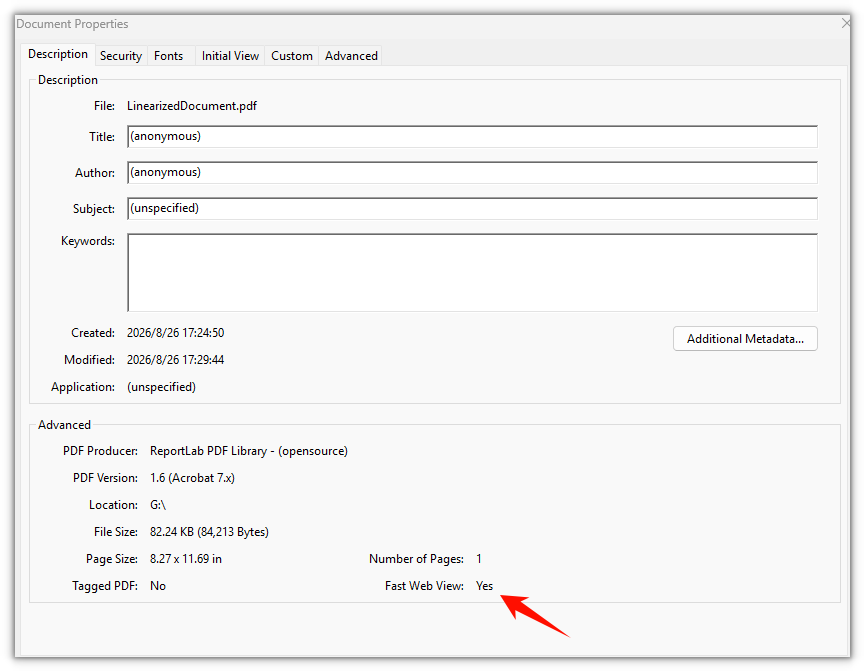
O documento linearizado não parece diferente na página; a mudança está dentro da estrutura do arquivo
Linearizar ou comprimir
Essas duas operações são rotineiramente confundidas porque ambas são descritas como "otimizar um PDF", mas elas respondem a perguntas diferentes.
| Comprimir | Linearizar | |
|---|---|---|
| O que muda | Remove redundância para que o arquivo contenha menos bytes | Reordena os bytes para que os úteis cheguem primeiro |
| Objetivo | Um download menor | Uma primeira página mais rápida |
| Efeito no tamanho do arquivo | É o propósito da operação | Pouco ou nenhum; os bytes são os mesmos bytes |
| Efeito na aparência | Apenas se a qualidade da imagem for sacrificada | Nenhum |
| Gatilho típico | Um limite de upload ou de anexo | Um documento longo publicado para navegação |
Um arquivo pode precisar de ambos, e a ordem importa. A compressão reescreve o documento, e qualquer operação que reescreva um PDF descarta o layout linearizado — então, se você quiser ambos, comprima primeiro e linearize por último, para que a estrutura linearizada seja o estado final do arquivo.
Quando a linearização vale a pena
A linearização compensa em um cenário específico: um documento grande o bastante para que o download seja perceptível, entregue via HTTP a um visualizador compatível com requisições de intervalo.
- Manuais, catálogos e relatórios longos servidos de um site. Este é o caso clássico — dezenas de megabytes, abertos a partir de um link, com leitores que querem ir direto a um capítulo.
- Leitores móveis em conexões lentas. A primeira página aparece a partir dos primeiros bytes solicitados, então o tempo de carregamento percebido cai mesmo quando o download total não cai.
- Documentos que os leitores costumam acessar pelo meio. As requisições de intervalo de bytes permitem que um cliente busque uma página posterior primeiro, o que só é possível com a tabela de dicas que um arquivo linearizado carrega.
Não vale a pena em outros casos. Um arquivo aberto do disco local não é buscado via HTTP, então não há requisição de intervalo para aproveitar. Um documento curto já é renderizado antes que a diferença pudesse ser sentida. E um fluxo de trabalho interno de impressão não faz streaming nem saltos — ele quer o documento inteiro, em ordem, de uma vez.
Confirmando que a saída está linearizada
Como as páginas visíveis são idênticas, "parece certo" não prova nada. A mudança está no arquivo, então a verificação precisa ler o arquivo.
Um PDF linearizado carrega um dicionário de linearização perto do início de seus bytes, e o marcador é texto simples, então os primeiros algumas centenas de bytes da saída bastam para confirmar. Tanto a entrada quanto a saída estão no VFS, o que torna a comparação questão de algumas leituras de arquivo:
// Read the head of the file and look for the linearization marker
const bytes = window.dotnetRuntime.Module.FS.readFile(outputFileName);
const head = new TextDecoder('latin1').decode(bytes.slice(0, 1024));
const linearized = head.includes('/Linearized');
Isso é uma proteção útil para um pipeline: converta um documento e então confirme que o marcador está presente antes de repassar o arquivo. Se ele estiver ausente, o arquivo foi reescrito por algo posteriormente à linearização — lembre-se de que qualquer nova gravação, incluindo uma etapa de compressão, descarta o layout linearizado.
Problemas comuns
A primeira página ainda demora para aparecer. Verifique como o arquivo é entregue. A linearização só ajuda quando o cliente pode solicitar partes do arquivo — servido via HTTP com suporte a intervalos. Se o arquivo inteiro for buscado de uma vez, ou o documento for curto, a operação não pode mudar o que você está vendo.
A saída tem uma linha extra de texto.
Uma compilação sem licença acrescenta Evaluation Warning : The document was created with Spire.PDF for JavaScript. ao documento, uma vez por chamada de conversão. Uma licença temporária de 30 dias remove isso junto com os limites funcionais — entre em contato com a equipe de vendas para obter uma.
O tamanho do arquivo não diminuiu. Normalmente não vai diminuir. A linearização reordena os bytes existentes; não remove nenhum. Se o tamanho é o problema, isso é uma tarefa de compressão, não de linearização.
Nada acontece no primeiro clique.
O módulo WebAssembly carrega de forma assíncrona. if (!pdfModule) return; é a proteção no exemplo; em uma interface real, desabilite o controle até que o módulo esteja pronto em vez de mostrar um alerta.
Perguntas frequentes
Linearizar um PDF altera seu conteúdo ou qualidade? Não. Texto, imagens, fontes, formatação, links e metadados são mantidos exatamente; apenas a ordem interna dos bytes muda. As páginas parecem e se comportam de forma idêntica.
Linearizar é o mesmo que comprimir um PDF? Não. Comprimir remove redundância para produzir menos bytes; linearizar reorganiza os bytes que já existem para que a primeira página possa ser lida mais cedo. Uma visa o tamanho do download, a outra o tempo até a primeira renderização.
Ajuda se o arquivo for aberto do disco local? Raramente. O benefício vem do streaming via HTTP com requisições de intervalo de bytes, então um documento aberto de um caminho local não tem nada a ganhar.
Um arquivo linearizado permanecerá linearizado? Somente até que algo o reescreva. Qualquer ferramenta que grave o documento novamente — uma etapa de compressão, uma edição, uma mesclagem — descarta o layout linearizado, então a linearização deve ser a última etapa do pipeline.
Funciona em um arquivo criptografado ou protegido por senha? A criptografia é uma questão separada do layout. Descriptografe o documento primeiro e deixe o conversor trabalhar em um arquivo já legível.
Posso converter vários arquivos de uma vez? Sim. O conversor é uma operação de um arquivo por vez, então um lote é um laço — os mesmos dois membros, com um nome de saída distinto para cada entrada.
Veja também
- Como converter PDF em escala de cinza em JavaScript (React)
- Reduzindo o tamanho de arquivos PDF: imagens, fontes e fluxos de conteúdo em JavaScript (React)
- Como obter a contagem de páginas de um PDF em JavaScript (React)
- Integrando o Spire.PDF for JavaScript em um Projeto React
- Página do produto Spire.PDF for JavaScript
JavaScript(React)에서 빠른 웹 보기를 위한 PDF 선형화
큰 PDF로 연결되는 링크를 클릭하면 빈 화면이 나타납니다. 로딩 표시가 돌고, 몇 메가바이트가 도착한 뒤에야 첫 페이지가 나타납니다. 파일도 문제없었고 네트워크도 문제없었습니다. 단지 문서가 뷰어로 하여금 무엇이든 그리기 전에 전체 파일을 기다리게 만드는 순서로 작성되었을 뿐입니다. 이것이 선형화가 해결하는 문제이며, 이는 크기 문제가 아니라 구조적 수정입니다. 즉, 동일한 바이트를 첫 페이지를 렌더링하는 데 필요한 부분이 앞쪽에 위치하도록 재배열하는 것입니다.
이 글에서는 Spire.PDF for JavaScript를 사용하여 브라우저에서 PDF를 선형화합니다. 이 라이브러리는 WebAssembly에서 실행되며 가상 파일 시스템(VFS)을 통해 문서를 처리하므로, 파일을 원격 최적화 서비스로 보내지 않고도 사용자의 컴퓨터에서 구조를 변경할 수 있습니다.
설치 방법은 React 프로젝트에 Spire.PDF for JavaScript 통합하기에 나와 있습니다. 아래 예제는 패키지가 설치되고 WebAssembly 모듈이 초기화되었음을 전제로 합니다.
빠른 웹 보기(fast web view)의 실제 의미
PDF는 컨테이너이며, 그 객체들은 이를 생성한 프로그램이 작성한 순서대로 저장됩니다. 반면 뷰어는 무언가를 그리기 전에 특정한 소수의 객체 집합, 즉 문서 카탈로그, 페이지 트리, 그리고 첫 페이지를 뒷받침하는 객체들이 필요합니다. 만약 그 객체들이 커다란 포함 이미지 뒤인 파일 끝부분에 있다면, 뷰어는 그곳에 도달할 때까지 계속 다운로드하는 수밖에 없습니다.
빠른 웹 보기는 선형화된 PDF를 소비자에게 알리는 이름입니다. 즉 내부 배치가 첫 페이지의 객체들을 앞쪽에 두어, HTTP 바이트 범위 요청을 지원하는 클라이언트가 그 바이트만 요청해 첫 페이지를 즉시 렌더링하고 나머지는 백그라운드에서 가져올 수 있게 한 파일입니다. 독자는 빈 화면을 바라보는 대신 다운로드가 계속되는 동안 콘텐츠를 보게 됩니다.
실질적인 결과는 크기가 동일한 두 파일이라도 열 때 완전히 다르게 느껴질 수 있다는 것입니다. 같은 페이지 수, 같은 이미지, 같은 텍스트이지만 첫 화면이 그려지기까지 걸리는 시간이 다릅니다.
선형화가 파일을 재배열하는 방식
선형화는 파일의 내용은 건드리지 않고 배치 방식만 다시 작성합니다.
- 첫 페이지가 의존하는 객체들이 파일의 시작 부분으로 이동합니다.
- 클라이언트가 문서 전체를 읽기 전에 배치를 파악할 수 있도록 선형화 사전(linearization dictionary)이 시작 부분 근처에 기록됩니다.
- 힌트 테이블(hint table)이 각 페이지의 객체가 어디에 있는지 기록하며, 이를 통해 리더가 바이트 범위 요청으로 임의의 페이지로 건너뛸 수 있습니다.
- 상호 참조 정보가 파일 끝이 아니라 이른 시점에 읽을 수 있는 위치에 배치됩니다.
독자가 실제로 보는 모든 것 — 텍스트, 이미지, 글꼴, 벡터 아트, 링크, 주석, 책갈피, 메타데이터 — 은 변경 없이 그대로 유지됩니다. 페이지 위의 글자는 같은 위치에 있는 같은 글자입니다. 바뀐 것은 내용이 아니라 바이트 순서입니다. 그래서 선형화된 문서는 눈으로 보아서는 알아볼 수 없습니다. 원본과 결과물을 나란히 열어 보면 구별할 수 없는데, 차이는 오직 조각들을 언제 읽을 수 있는지에만 나타나기 때문입니다.
브라우저에서 문서 선형화하기
사용 방법은 라이브러리의 다른 변환기와 같습니다. 입력 파일을 PdfToLinearizedPdfConverter에 넘긴 다음 ToLinearizedPdf를 호출하여 재구성된 문서를 작성합니다.
function App() {
  const convertToLinearized = async () => {
    // Get the Spire.PDF WASM module
    const pdfModule = window.wasmModule?.spirepdf;

    // Check whether the module is ready
    if (!pdfModule) {
      alert('Spire.PDF is not ready yet');
      return;
    }

    // Load the PDF file to be converted into the VFS
    const inputFileName = 'Business_Data_Overview.pdf';
    await window.spire.FetchFileToVFS(inputFileName, "", `${process.env.PUBLIC_URL}/data/`);

    // Define the output file name
    const outputFileName = 'LinearizedDocument.pdf';

    // Construct the linearization converter from the input file and write out the linearized document
    const converter = new pdfModule.PdfToLinearizedPdfConverter({ filePath: inputFileName });
    converter.ToLinearizedPdf({ filePath: outputFileName });
    converter.Dispose();

    // Read the generated file from the VFS and trigger the download
    const fileArray = window.dotnetRuntime.Module.FS.readFile(outputFileName);
    const blob = new Blob([fileArray], { type: 'application/pdf' });
    const url = URL.createObjectURL(blob);
    const a = document.createElement('a');
    a.href = url;
    a.download = outputFileName;
    a.click();
    URL.revokeObjectURL(url);
  };

  return (
    <div style={{ textAlign: 'center', height: '300px' }}>
      <h1>Linearize a PDF</h1>
      <button onClick={convertToLinearized}>
        Start Converting
      </button>
    </div>
  );
}

export default App;
ToLinearizedPdf는 새 파일을 작성하므로 입력 파일은 VFS에 그대로 남아 있어 원본과 비교할 수 있습니다. 이 호출은 문서 내용에 따라 달라지는 것이 없습니다. 보고서, 설명서, 스캔한 아카이브 모두 동일한 두 멤버를 거쳐 처리됩니다.
선형화된 문서는 페이지상으로 전혀 달라 보이지 않으며, 변경 사항은 파일 구조 내부에 있습니다
선형화와 압축
이 두 작업은 둘 다 "PDF 최적화"라고 설명되기 때문에 흔히 혼동되지만, 서로 다른 질문에 답합니다.
| 압축 | 선형화 | |
|---|---|---|
| 변경하는 것 | 중복을 제거하여 파일이 더 적은 바이트를 담도록 함 | 바이트 순서를 재배열하여 유용한 바이트가 먼저 도착하도록 함 |
| 목표 | 더 작은 다운로드 | 더 빠른 첫 페이지 |
| 파일 크기에 미치는 영향 | 작업의 핵심 목적 | 거의 또는 전혀 없음. 바이트는 동일한 바이트임 |
| 모양에 미치는 영향 | 이미지 품질을 희생하는 경우에만 | 전혀 없음 |
| 일반적인 사용 시점 | 업로드 제한이나 첨부 파일 용량 제한이 있을 때 | 열람용으로 게시되는 긴 문서일 때 |
파일에 두 작업이 모두 필요할 수 있으며, 순서가 중요합니다. 압축은 문서를 다시 작성하고, PDF를 다시 작성하는 모든 작업은 선형화된 배치를 없애 버립니다. 따라서 둘 다 원한다면 먼저 압축하고 마지막에 선형화하여, 선형화된 구조가 파일의 최종 상태가 되도록 하십시오.
선형화가 가치 있는 경우
선형화는 특정 상황에서 효과를 발휘합니다. 즉, 다운로드가 눈에 띌 만큼 큰 문서를 범위 요청을 지원하는 뷰어로 HTTP를 통해 전송하는 경우입니다.
- 사이트에서 제공되는 설명서, 카탈로그, 긴 보고서. 가장 전형적인 사례로, 수십 메가바이트에 달하며 링크로 열리고 독자는 곧바로 특정 장으로 건너뛰기를 원합니다.
- 느린 연결의 모바일 독자. 첫 페이지가 요청한 첫 바이트들로부터 나타나므로, 전체 다운로드 시간이 줄지 않아도 체감 로딩 시간은 줄어듭니다.
- 독자가 보통 중간부터 보는 문서. 바이트 범위 요청을 사용하면 클라이언트가 뒤쪽 페이지를 먼저 가져올 수 있는데, 이는 선형화된 파일이 지닌 힌트 테이블이 있어야만 가능합니다.
그렇지 않은 경우에는 이 작업이 가치가 없습니다. 로컬 디스크에서 여는 파일은 HTTP로 가져오지 않으므로 활용할 범위 요청이 없습니다. 짧은 문서는 차이를 느끼기도 전에 이미 렌더링이 끝납니다. 그리고 내부 인쇄 워크플로는 스트리밍도, 건너뛰기도 하지 않습니다. 순서대로 전체 문서를 한 번에 원합니다.
출력이 선형화되었는지 확인하기
보이는 페이지가 동일하기 때문에 "제대로 보인다"는 것은 아무것도 증명하지 못합니다. 변경 사항은 파일 안에 있으므로 확인하려면 파일을 읽어야 합니다.
선형화된 PDF는 바이트 시작 부분 근처에 선형화 사전을 포함하며, 그 표시는 일반 텍스트이므로 출력의 처음 몇백 바이트만으로도 확인할 수 있습니다. 입력과 출력 모두 VFS에 있으므로 비교는 파일을 몇 번 읽는 것으로 끝납니다.
// Read the head of the file and look for the linearization marker
const bytes = window.dotnetRuntime.Module.FS.readFile(outputFileName);
const head = new TextDecoder('latin1').decode(bytes.slice(0, 1024));
const linearized = head.includes('/Linearized');
이는 파이프라인에 유용한 안전장치가 됩니다. 문서를 변환한 다음, 파일을 넘기기 전에 해당 표시가 있는지 확인하는 것입니다. 만약 없다면 선형화 이후에 하위 단계의 무언가가 파일을 다시 작성한 것입니다. 압축 작업을 포함한 모든 재저장은 선형화된 배치를 없앤다는 점을 기억하십시오.
일반적인 문제
첫 페이지가 여전히 표시되는 데 시간이 걸립니다. 파일이 어떻게 전달되는지 확인하십시오. 선형화는 클라이언트가 파일의 일부를 요청할 수 있을 때, 즉 범위 지원과 함께 HTTP로 제공될 때만 도움이 됩니다. 파일 전체를 한 번에 가져오거나 문서가 짧다면, 이 작업으로는 보이는 상황을 바꿀 수 없습니다.
출력에 텍스트 한 줄이 추가로 표시됩니다.
라이선스가 없는 빌드는 변환 호출마다 한 번씩 문서에 Evaluation Warning : The document was created with Spire.PDF for JavaScript.를 덧붙입니다. 임시 30일 라이선스를 사용하면 기능 제한과 함께 이 문구도 사라집니다. 발급받으려면 영업팀에 문의하십시오.
파일 크기가 줄지 않았습니다. 보통 줄지 않습니다. 선형화는 기존 바이트의 순서를 바꿀 뿐, 어떤 바이트도 제거하지 않습니다. 크기가 문제라면 그것은 압축 작업이지 선형화 작업이 아닙니다.
첫 클릭에 아무 일도 일어나지 않습니다.
WebAssembly 모듈은 비동기적으로 로드됩니다. 샘플에서는 if (!pdfModule) return;이 이를 방어하지만, 실제 UI에서는 경고창을 띄우는 대신 모듈이 준비될 때까지 컨트롤을 비활성화하십시오.
FAQ
PDF를 선형화하면 내용이나 품질이 바뀌나요? 아니요. 텍스트, 이미지, 글꼴, 서식, 링크, 메타데이터는 모두 그대로 유지되며 내부 바이트 순서만 바뀝니다. 페이지는 동일하게 보이고 동일하게 동작합니다.
선형화는 PDF 압축과 같은 것인가요? 아니요. 압축은 중복을 제거하여 더 적은 바이트를 만들어 내고, 선형화는 이미 가진 바이트를 재배열하여 첫 페이지를 더 빨리 읽을 수 있게 합니다. 하나는 다운로드 크기를, 다른 하나는 첫 렌더링까지의 시간을 목표로 합니다.
로컬 디스크에서 파일을 열 때도 도움이 되나요? 거의 없습니다. 이점은 바이트 범위 요청을 사용하는 HTTP 스트리밍에서 나오므로, 로컬 경로에서 연 문서는 얻을 것이 없습니다.
선형화된 파일은 계속 선형화 상태로 유지되나요? 무언가가 파일을 다시 작성하기 전까지만 그렇습니다. 압축 작업, 편집, 병합 등 문서를 재저장하는 모든 도구는 선형화된 배치를 없애므로, 선형화는 파이프라인의 마지막 단계여야 합니다.
암호화되었거나 암호로 보호된 파일에도 작동하나요? 암호화는 배치와는 별개의 문제입니다. 먼저 문서를 복호화한 다음, 이미 읽을 수 있는 파일에 변환기를 적용하십시오.
여러 파일을 한 번에 변환할 수 있나요? 예. 변환기는 파일 하나씩 처리하는 작업이므로, 일괄 처리는 반복문이 됩니다. 즉 동일한 두 멤버를 사용하되 입력마다 서로 다른 출력 이름을 지정하면 됩니다.
함께 보기
Linearizzare un PDF per la visualizzazione web veloce in JavaScript (React)
Indice dei contenuti
Fai clic su un link a un PDF di grandi dimensioni e ottieni un riquadro vuoto. Lo spinner gira, arrivano alcuni megabyte e solo allora compare la prima pagina. Il file era a posto, la rete era a posto: il documento era semplicemente scritto in un ordine che costringe il visualizzatore ad attendere l'intero file prima di poter disegnare qualsiasi cosa. Questo è il problema che la linearizzazione risolve, ed è una correzione strutturale, non una correzione di dimensione: gli stessi byte, disposti in modo che le parti necessarie per renderizzare la prima pagina si trovino all'inizio.
Questo articolo linearizza un PDF nel browser con Spire.PDF for JavaScript. La libreria funziona su WebAssembly e opera sul documento tramite un file system virtuale (VFS), così un file può essere ristrutturato sulla macchina dell'utente senza essere inviato attraverso un servizio di ottimizzazione remoto.
Le istruzioni di configurazione si trovano in Integrare Spire.PDF for JavaScript in un progetto React. L'esempio seguente presuppone che il pacchetto sia installato e che il modulo WebAssembly sia stato inizializzato.
Cosa significa realmente la visualizzazione web veloce
Un PDF è un contenitore, e i suoi oggetti sono memorizzati nell'ordine in cui sono stati scritti da qualunque cosa lo abbia prodotto. Un visualizzatore, d'altra parte, ha bisogno di un piccolo insieme specifico — il catalogo del documento, l'albero delle pagine e gli oggetti che costituiscono la prima pagina — prima di poter disegnare qualsiasi cosa. Se quegli oggetti si trovano vicino alla fine del file, dietro una grande immagine incorporata, il visualizzatore non ha altra scelta che continuare a scaricare finché non li raggiunge.
Visualizzazione web veloce è il nome rivolto al consumatore di un PDF linearizzato: uno la cui disposizione interna colloca gli oggetti della prima pagina vicino all'inizio, così un client che supporta le richieste HTTP byte-range può richiedere solo quei byte, renderizzare immediatamente la prima pagina e recuperare il resto in background. Il lettore vede il contenuto mentre il download continua, invece di fissare un riquadro vuoto.
La conseguenza pratica è che due file di dimensioni identiche possono risultare completamente diversi all'apertura. Stesso numero di pagine, stesse immagini, stesso testo — diverso tempo al primo rendering.
Come la linearizzazione riorganizza un file
La linearizzazione riscrive il modo in cui il file è disposto senza toccare ciò che contiene:
- Gli oggetti da cui dipende la prima pagina vengono spostati all'inizio del file.
- Un dizionario di linearizzazione viene scritto vicino all'inizio, così un client può scoprire la disposizione prima di aver letto l'intero documento.
- Una tabella di suggerimenti registra dove si trovano gli oggetti di ogni pagina, ed è ciò che consente a un lettore di saltare avanti a una pagina arbitraria con una richiesta byte-range.
- Le informazioni di riferimento incrociato vengono posizionate in modo da poter essere lette presto anziché alla fine del file.
Tutto ciò che un lettore vede effettivamente — testo, immagini, font, grafica vettoriale, link, annotazioni, segnalibri, metadati — viene mantenuto invariato. Le parole sulla pagina sono le stesse parole nelle stesse posizioni. Ciò che è cambiato è l'ordinamento dei byte, non il contenuto. Ecco perché un documento linearizzato è impossibile da individuare guardandolo: apri l'originale e il risultato affiancati e sono indistinguibili, perché la differenza si manifesta solo in quando le parti possono essere lette.
Linearizzare un documento nel browser
L'utilizzo rispecchia gli altri convertitori della libreria: passa il file di input a PdfToLinearizedPdfConverter, poi chiama ToLinearizedPdf per scrivere il documento ristrutturato.
function App() {
  const convertToLinearized = async () => {
    // Get the Spire.PDF WASM module
    const pdfModule = window.wasmModule?.spirepdf;

    // Check whether the module is ready
    if (!pdfModule) {
      alert('Spire.PDF is not ready yet');
      return;
    }

    // Load the PDF file to be converted into the VFS
    const inputFileName = 'Business_Data_Overview.pdf';
    await window.spire.FetchFileToVFS(inputFileName, "", `${process.env.PUBLIC_URL}/data/`);

    // Define the output file name
    const outputFileName = 'LinearizedDocument.pdf';

    // Construct the linearization converter from the input file and write out the linearized document
    const converter = new pdfModule.PdfToLinearizedPdfConverter({ filePath: inputFileName });
    converter.ToLinearizedPdf({ filePath: outputFileName });
    converter.Dispose();

    // Read the generated file from the VFS and trigger the download
    const fileArray = window.dotnetRuntime.Module.FS.readFile(outputFileName);
    const blob = new Blob([fileArray], { type: 'application/pdf' });
    const url = URL.createObjectURL(blob);
    const a = document.createElement('a');
    a.href = url;
    a.download = outputFileName;
    a.click();
    URL.revokeObjectURL(url);
  };

  return (
    <div style={{ textAlign: 'center', height: '300px' }}>
      <h1>Linearize a PDF</h1>
      <button onClick={convertToLinearized}>
        Start Converting
      </button>
    </div>
  );
}

export default App;
ToLinearizedPdf scrive un nuovo file, quindi l'input rimane nel VFS e l'originale è disponibile per il confronto. Nulla nella chiamata dipende dal contenuto del documento: un report, un manuale e un archivio scansionato passano tutti attraverso gli stessi due membri.
Il documento linearizzato non appare diverso sulla pagina, il cambiamento è all'interno della struttura del file
Linearizzare o comprimere
Questi due passaggi vengono abitualmente confusi perché entrambi sono descritti come "ottimizzare un PDF", ma rispondono a domande diverse.
| Compressione | Linearizzazione | |
|---|---|---|
| Cosa cambia | Rimuove la ridondanza in modo che il file contenga meno byte | Riordina i byte in modo che quelli utili arrivino per primi |
| Obiettivo | Un download più piccolo | Una prima pagina più veloce |
| Effetto sulla dimensione del file | È lo scopo dell'operazione | Poco o nullo; i byte sono gli stessi byte |
| Effetto sull'aspetto | Solo se si sacrifica la qualità delle immagini | Nessuno |
| Attivazione tipica | Un limite di caricamento o un limite per gli allegati | Un documento lungo pubblicato per la consultazione |
Un file può aver bisogno di entrambi, e l'ordine è importante. La compressione riscrive il documento, e qualsiasi passaggio che riscrive un PDF elimina la disposizione linearizzata: quindi se vuoi entrambi, comprimi prima e linearizza per ultimo, così la struttura linearizzata è lo stato finale del file.
Quando vale la pena linearizzare
La linearizzazione conviene in una situazione specifica: un documento abbastanza grande da rendere il download percepibile, distribuito via HTTP a un visualizzatore che supporta le richieste range.
- Manuali, cataloghi e report lunghi pubblicati da un sito. Questo è il caso classico — decine di megabyte, aperti da un link, con lettori che vogliono saltare direttamente a un capitolo.
- Lettori mobili su connessioni lente. La prima pagina appare dai primi byte richiesti, quindi il tempo di caricamento percepito diminuisce anche quando il download totale non cambia.
- Documenti che i lettori di solito aprono dal centro. Le richieste byte-range consentono a un client di recuperare prima una pagina successiva, cosa possibile solo con la tabella di suggerimenti che un file linearizzato contiene.
In altri casi non ne vale la pena. Un file aperto da disco locale non viene recuperato via HTTP, quindi non c'è alcuna richiesta range da sfruttare. Un documento breve viene già renderizzato prima che la differenza possa essere percepita. E un flusso di lavoro di stampa interno non esegue streaming né salti: vuole l'intero documento, in ordine, tutto in una volta.
Verificare che l'output sia linearizzato
Poiché le pagine visibili sono identiche, "sembra corretto" non dimostra nulla. Il cambiamento è nel file, quindi la verifica deve leggere il file.
Un PDF linearizzato contiene un dizionario di linearizzazione vicino all'inizio dei suoi byte, e il marcatore è testo in chiaro, quindi le prime centinaia di byte dell'output sono sufficienti per confermarlo. Sia l'input che l'output sono nel VFS, il che rende il confronto questione di un paio di letture di file:
// Read the head of the file and look for the linearization marker
const bytes = window.dotnetRuntime.Module.FS.readFile(outputFileName);
const head = new TextDecoder('latin1').decode(bytes.slice(0, 1024));
const linearized = head.includes('/Linearized');
Si tratta di una protezione utile per una pipeline: converti un documento, poi verifica che il marcatore sia presente prima di passare il file. Se manca, il file è stato riscritto da qualcosa a valle dopo la linearizzazione — ricorda che qualsiasi nuovo salvataggio, inclusa una fase di compressione, elimina la disposizione linearizzata.
Problemi comuni
La prima pagina richiede comunque tempo per apparire. Controlla come viene distribuito il file. La linearizzazione aiuta solo quando il client può richiedere parti del file — servito via HTTP con supporto range. Se l'intero file viene recuperato in una volta, o se il documento è breve, il passaggio non può cambiare ciò che stai vedendo.
L'output presenta una riga di testo in più.
Una build non licenziata aggiunge al documento Evaluation Warning : The document was created with Spire.PDF for JavaScript., una volta per ogni chiamata di conversione. Una licenza temporanea di 30 giorni la rimuove insieme ai limiti funzionali — contatta il reparto vendite per ottenerla.
La dimensione del file non è diminuita. Di solito non diminuirà. La linearizzazione riordina i byte esistenti; non ne rimuove nessuno. Se la dimensione è il problema, quello è un lavoro di compressione, non di linearizzazione.
Non succede nulla al primo clic.
Il modulo WebAssembly viene caricato in modo asincrono. if (!pdfModule) return; è la protezione nell'esempio; in un'interfaccia reale, disabilita il controllo finché il modulo non è pronto invece di mostrare un avviso.
Domande frequenti
Linearizzare un PDF ne modifica il contenuto o la qualità? No. Testo, immagini, font, formattazione, link e metadati vengono mantenuti esattamente; cambia solo l'ordinamento interno dei byte. Le pagine appaiono e si comportano in modo identico.
La linearizzazione è la stessa cosa della compressione di un PDF? No. La compressione rimuove la ridondanza per produrre meno byte; la linearizzazione riorganizza i byte che già possiede in modo che la prima pagina possa essere letta prima. Una mira alla dimensione del download, l'altra al tempo al primo rendering.
È utile se il file viene aperto dal disco locale? Raramente. Il vantaggio deriva dallo streaming via HTTP con richieste byte-range, quindi un documento aperto da un percorso locale non ha nulla da guadagnare.
Un file linearizzato rimarrà linearizzato? Solo finché qualcosa non lo riscrive. Qualsiasi strumento che risalva il documento — una fase di compressione, una modifica, un'unione — elimina la disposizione linearizzata, quindi la linearizzazione dovrebbe essere l'ultimo passaggio della pipeline.
Funziona su un file cifrato o protetto da password? La cifratura è una questione separata dalla disposizione. Decifra prima il documento e lascia che il convertitore lavori su un file già leggibile.
Posso convertire più file contemporaneamente? Sì. Il convertitore è un'operazione su singolo file, quindi un batch è un ciclo — gli stessi due membri, con un nome di output distinto per ogni input.
Vedi anche
- Come convertire un PDF in scala di grigi in JavaScript (React)
- Ridurre la dimensione dei file PDF: immagini, font e flussi di contenuto in JavaScript (React)
- Come ottenere il numero di pagine di un PDF in JavaScript (React)
- Integrare Spire.PDF for JavaScript in un progetto React
- Pagina del prodotto Spire.PDF for JavaScript
Linéariser un PDF pour un affichage web rapide en JavaScript (React)
Table des matières
Vous cliquez sur un lien vers un PDF volumineux et vous obtenez un cadre vide. L'indicateur tourne, quelques mégaoctets arrivent, et ce n'est qu'alors que la première page apparaît. Le fichier était correct, le réseau aussi — le document était simplement écrit dans un ordre qui oblige la visionneuse à attendre l'intégralité avant de pouvoir dessiner quoi que ce soit. C'est le problème que résout la linéarisation, et il s'agit d'un correctif structurel, pas d'un correctif de taille : les mêmes octets, organisés de sorte que les parties nécessaires au rendu de la première page se trouvent au début.
Cet article linéarise un PDF dans le navigateur avec Spire.PDF for JavaScript. La bibliothèque s'exécute sur WebAssembly et travaille sur le document via un système de fichiers virtuel (VFS), ce qui permet de restructurer un fichier sur la machine de l'utilisateur sans le faire passer par un service d'optimisation distant.
Les instructions d'installation se trouvent dans Intégrer Spire.PDF for JavaScript dans un projet React. L'exemple ci-dessous suppose que le package est installé et que le module WebAssembly a été initialisé.
Ce que signifie réellement l'affichage web rapide
Un PDF est un conteneur, et ses objets sont stockés dans l'ordre dans lequel ils ont été écrits par ce qui l'a produit. Une visionneuse, en revanche, a besoin d'un petit ensemble précis — le catalogue du document, l'arbre des pages et les objets qui sous-tendent la première page — avant de pouvoir afficher quoi que ce soit. Si ces objets se trouvent près de la fin du fichier, derrière une grande image incorporée, la visionneuse n'a d'autre choix que de continuer à télécharger jusqu'à les atteindre.
L'affichage web rapide est le nom grand public d'un PDF linéarisé : un PDF dont la disposition interne place les objets de la première page près du début, de sorte qu'un client prenant en charge les requêtes HTTP à plage d'octets peut demander uniquement ces octets, afficher immédiatement la première page et récupérer le reste en arrière-plan. Le lecteur voit du contenu pendant que le téléchargement se poursuit au lieu de fixer un cadre vide.
La conséquence pratique est que deux fichiers de taille identique peuvent sembler totalement différents à l'ouverture. Même nombre de pages, mêmes images, même texte — temps d'affichage de la première page différent.
Comment la linéarisation réorganise un fichier
La linéarisation réécrit la disposition du fichier sans toucher à son contenu :
- Les objets dont dépend la première page sont déplacés au début du fichier.
- Un dictionnaire de linéarisation est écrit près du début afin qu'un client puisse découvrir la disposition avant d'avoir lu tout le document.
- Une table d'indices enregistre l'emplacement des objets de chaque page, ce qui permet à un lecteur de sauter en avant vers une page arbitraire au moyen d'une requête à plage d'octets.
- Les informations de référence croisée sont placées de manière à pouvoir être lues tôt plutôt qu'à la fin du fichier.
Tout ce qu'un lecteur voit réellement — texte, images, polices, illustrations vectorielles, liens, annotations, signets, métadonnées — est conservé tel quel. Les mots sur la page sont les mêmes mots aux mêmes endroits. Ce qui a changé, c'est l'ordre des octets, pas le contenu. C'est pourquoi un document linéarisé est impossible à repérer à l'œil nu : ouvrez l'original et le résultat côte à côte et ils sont indiscernables, car la différence ne se manifeste que dans le moment où les éléments peuvent être lus.
Linéariser un document dans le navigateur
L'utilisation reprend celle des autres convertisseurs de la bibliothèque : transmettez le fichier d'entrée à PdfToLinearizedPdfConverter, puis appelez ToLinearizedPdf pour écrire le document restructuré.
function App() {
  const convertToLinearized = async () => {
    // Get the Spire.PDF WASM module
    const pdfModule = window.wasmModule?.spirepdf;

    // Check whether the module is ready
    if (!pdfModule) {
      alert('Spire.PDF is not ready yet');
      return;
    }

    // Load the PDF file to be converted into the VFS
    const inputFileName = 'Business_Data_Overview.pdf';
    await window.spire.FetchFileToVFS(inputFileName, "", `${process.env.PUBLIC_URL}/data/`);

    // Define the output file name
    const outputFileName = 'LinearizedDocument.pdf';

    // Construct the linearization converter from the input file and write out the linearized document
    const converter = new pdfModule.PdfToLinearizedPdfConverter({ filePath: inputFileName });
    converter.ToLinearizedPdf({ filePath: outputFileName });
    converter.Dispose();

    // Read the generated file from the VFS and trigger the download
    const fileArray = window.dotnetRuntime.Module.FS.readFile(outputFileName);
    const blob = new Blob([fileArray], { type: 'application/pdf' });
    const url = URL.createObjectURL(blob);
    const a = document.createElement('a');
    a.href = url;
    a.download = outputFileName;
    a.click();
    URL.revokeObjectURL(url);
  };

  return (
    <div style={{ textAlign: 'center', height: '300px' }}>
      <h1>Linearize a PDF</h1>
      <button onClick={convertToLinearized}>
        Start Converting
      </button>
    </div>
  );
}

export default App;
ToLinearizedPdf écrit un nouveau fichier, de sorte que l'entrée reste dans le VFS et que l'original est disponible pour comparaison. Rien dans l'appel ne dépend du contenu du document — un rapport, un manuel et une archive numérisée passent tous par les deux mêmes membres.
Le document linéarisé ne présente aucune différence à l'affichage, le changement se situe dans la structure du fichier
Linéariser ou compresser
Ces deux opérations sont régulièrement confondues parce qu'elles sont toutes deux décrites comme consistant à « optimiser un PDF », mais elles répondent à des questions différentes.
| Compression | Linéarisation | |
|---|---|---|
| Ce qu'elle modifie | Supprime la redondance afin que le fichier contienne moins d'octets | Réorganise les octets afin que les plus utiles arrivent en premier |
| Objectif | Un téléchargement plus léger | Une première page plus rapide |
| Effet sur la taille du fichier | C'est le but même de l'opération | Peu ou pas ; les octets sont les mêmes |
| Effet sur l'apparence | Uniquement si la qualité d'image est sacrifiée | Aucun |
| Déclencheur typique | Une limite de téléversement ou une taille maximale de pièce jointe | Un long document publié pour consultation |
Un fichier peut avoir besoin des deux, et l'ordre compte. La compression réécrit le document, et toute opération qui réécrit un PDF supprime la disposition linéarisée — donc si vous voulez les deux, compressez d'abord et linéarisez en dernier, afin que la structure linéarisée soit l'état final du fichier.
Quand la linéarisation vaut la peine
La linéarisation est bénéfique dans un contexte précis : un document suffisamment volumineux pour que le téléchargement soit perceptible, diffusé via HTTP vers une visionneuse prenant en charge les requêtes à plage d'octets.
- Manuels, catalogues et longs rapports servis depuis un site. C'est le cas classique — des dizaines de mégaoctets, ouverts à partir d'un lien, avec des lecteurs qui veulent aller directement à un chapitre.
- Lecteurs mobiles sur connexions lentes. La première page apparaît dès les premiers octets demandés, de sorte que le temps de chargement perçu diminue même lorsque le téléchargement total ne change pas.
- Documents que les lecteurs consultent généralement au milieu. Les requêtes à plage d'octets permettent à un client de récupérer d'abord une page ultérieure, ce qui n'est possible qu'avec la table d'indices que porte un fichier linéarisé.
Elle ne vaut pas la peine dans d'autres cas. Un fichier ouvert depuis un disque local n'est pas récupéré via HTTP, il n'y a donc aucune requête à plage d'octets à exploiter. Un document court s'affiche déjà avant que la différence puisse être ressentie. Et un flux de travail d'impression interne ne diffuse ni ne saute de page — il veut tout le document, dans l'ordre, d'un coup.
Confirmer que le résultat est linéarisé
Comme les pages visibles sont identiques, « cela semble correct » ne prouve rien. Le changement se situe dans le fichier, la vérification doit donc lire le fichier.
Un PDF linéarisé porte un dictionnaire de linéarisation près du début de ses octets, et le marqueur est en texte brut, de sorte que les quelques centaines de premiers octets du résultat suffisent à le confirmer. L'entrée et la sortie se trouvent dans le VFS, ce qui réduit la comparaison à quelques lectures de fichier :
// Read the head of the file and look for the linearization marker
const bytes = window.dotnetRuntime.Module.FS.readFile(outputFileName);
const head = new TextDecoder('latin1').decode(bytes.slice(0, 1024));
const linearized = head.includes('/Linearized');
C'est une protection utile pour un pipeline : convertissez un document, puis vérifiez que le marqueur est présent avant de transmettre le fichier. S'il est absent, le fichier a été réécrit par quelque chose en aval après la linéarisation — rappelez-vous que tout nouvel enregistrement, y compris une passe de compression, supprime la disposition linéarisée.
Problèmes courants
La première page met encore du temps à apparaître. Vérifiez la manière dont le fichier est diffusé. La linéarisation n'aide que lorsque le client peut demander des parties du fichier — servi via HTTP avec prise en charge des plages. Si le fichier entier est récupéré d'un coup, ou si le document est court, l'opération ne peut pas changer ce que vous observez.
Le résultat contient une ligne de texte supplémentaire.
Une version non licenciée ajoute Evaluation Warning : The document was created with Spire.PDF for JavaScript. au document, une fois par appel de conversion. Une licence temporaire de 30 jours la supprime ainsi que les limitations fonctionnelles — contactez le service commercial pour en obtenir une.
La taille du fichier n'a pas diminué. En général, elle ne diminuera pas. La linéarisation réorganise les octets existants ; elle n'en supprime aucun. Si la taille est le problème, c'est une tâche de compression, pas de linéarisation.
Rien ne se passe au premier clic.
Le module WebAssembly se charge de manière asynchrone. if (!pdfModule) return; est la protection utilisée dans l'exemple ; dans une véritable interface, désactivez le contrôle jusqu'à ce que le module soit prêt plutôt que d'afficher une alerte.
FAQ
La linéarisation d'un PDF modifie-t-elle son contenu ou sa qualité ? Non. Le texte, les images, les polices, la mise en forme, les liens et les métadonnées sont tous conservés à l'identique ; seul l'ordre interne des octets change. Les pages ont le même aspect et le même comportement.
La linéarisation est-elle identique à la compression d'un PDF ? Non. La compression supprime la redondance pour produire moins d'octets ; la linéarisation réorganise les octets déjà présents afin que la première page puisse être lue plus tôt. L'une cible la taille du téléchargement, l'autre le temps d'affichage de la première page.
Est-ce utile si le fichier est ouvert depuis le disque local ? Rarement. Le bénéfice provient de la diffusion via HTTP avec des requêtes à plage d'octets, donc un document ouvert depuis un chemin local n'a rien à y gagner.
Un fichier linéarisé restera-t-il linéarisé ? Uniquement jusqu'à ce que quelque chose le réécrive. Tout outil qui réenregistre le document — une passe de compression, une modification, une fusion — supprime la disposition linéarisée, la linéarisation doit donc être la dernière étape du pipeline.
Cela fonctionne-t-il sur un fichier chiffré ou protégé par mot de passe ? Le chiffrement est une préoccupation distincte de la disposition. Déchiffrez d'abord le document et laissez le convertisseur travailler sur un fichier déjà lisible.
Puis-je convertir plusieurs fichiers à la fois ? Oui. Le convertisseur traite un seul fichier, donc un lot est une boucle — les deux mêmes membres, avec un nom de sortie distinct pour chaque entrée.
Voir aussi
- Comment convertir un PDF en niveaux de gris en JavaScript (React)
- Réduire la taille d'un fichier PDF : images, polices et flux de contenu en JavaScript (React)
- Comment obtenir le nombre de pages d'un PDF en JavaScript (React)
- Intégrer Spire.PDF for JavaScript dans un projet React
- Page produit Spire.PDF for JavaScript
Linearizar un PDF para visualización web rápida en JavaScript (React)
Tabla de contenidos
Haces clic en un enlace a un PDF grande y obtienes un marco en blanco. El indicador de carga gira, llegan unos cuantos megabytes y solo entonces aparece la primera página. El archivo estaba bien, la red estaba bien; el documento simplemente se escribió en un orden que obliga al visor a esperar a que llegue todo antes de poder dibujar algo. Ese es el problema que resuelve la linealización, y es una solución estructural, no una solución de tamaño: los mismos bytes, organizados de modo que las partes necesarias para renderizar la primera página queden al principio.
En este artículo se linealiza un PDF en el navegador con Spire.PDF for JavaScript. La biblioteca se ejecuta sobre WebAssembly y trabaja con el documento a través de un sistema de archivos virtual (VFS), por lo que un archivo puede reestructurarse en la máquina del usuario sin tener que pasar por un servicio de optimización remoto.
Las instrucciones de configuración se encuentran en Integración de Spire.PDF for JavaScript en un proyecto de React. El ejemplo siguiente supone que el paquete está instalado y que el módulo WebAssembly se ha inicializado.
Qué significa realmente la vista web rápida
Un PDF es un contenedor, y sus objetos se almacenan en el orden en que los escribió quien lo produjo. Un visor, en cambio, necesita un conjunto pequeño y específico —el catálogo del documento, el árbol de páginas y los objetos que respaldan la primera página— antes de poder dibujar nada. Si esos objetos están cerca del final del archivo, detrás de una imagen incrustada grande, el visor no tiene más remedio que seguir descargando hasta llegar a ellos.
Vista web rápida es el nombre que se da al usuario para un PDF linealizado: aquel cuya disposición interna coloca los objetos de la primera página cerca del principio, de modo que un cliente que admite solicitudes de rango de bytes HTTP puede pedir solo esos bytes, renderizar la primera página de inmediato y obtener el resto en segundo plano. El lector ve contenido mientras continúa la descarga, en lugar de mirar fijamente un marco vacío.
La consecuencia práctica es que dos archivos de idéntico tamaño pueden sentirse completamente distintos al abrirlos. La misma cantidad de páginas, las mismas imágenes, el mismo texto: distinto tiempo hasta el primer pintado.
Cómo la linealización reorganiza un archivo
La linealización reescribe cómo se dispone el archivo sin tocar lo que contiene:
- Los objetos de los que depende la primera página se trasladan al principio del archivo.
- Se escribe un diccionario de linealización cerca del inicio para que un cliente pueda descubrir la disposición antes de haber leído todo el documento.
- Una tabla de indicaciones registra dónde se encuentran los objetos de cada página, que es lo que permite a un lector saltar hacia delante a una página arbitraria con una solicitud de rango de bytes.
- La información de referencias cruzadas se coloca de modo que pueda leerse pronto en lugar de al final del archivo.
Todo lo que un lector ve realmente —texto, imágenes, fuentes, gráficos vectoriales, enlaces, anotaciones, marcadores, metadatos— se traslada sin cambios. Las palabras de la página son las mismas palabras en los mismos lugares. Lo que cambió es el orden de los bytes, no el contenido. Por eso es imposible detectar un documento linealizado a simple vista: abre el original y la salida uno al lado del otro y son indistinguibles, porque la diferencia solo se manifiesta en cuándo pueden leerse las piezas.
Linealizar un documento en el navegador
El uso es similar al de los demás convertidores de la biblioteca: entrega el archivo de entrada a PdfToLinearizedPdfConverter y luego llama a ToLinearizedPdf para escribir el documento reestructurado.
function App() {
  const convertToLinearized = async () => {
    // Get the Spire.PDF WASM module
    const pdfModule = window.wasmModule?.spirepdf;

    // Check whether the module is ready
    if (!pdfModule) {
      alert('Spire.PDF is not ready yet');
      return;
    }

    // Load the PDF file to be converted into the VFS
    const inputFileName = 'Business_Data_Overview.pdf';
    await window.spire.FetchFileToVFS(inputFileName, "", `${process.env.PUBLIC_URL}/data/`);

    // Define the output file name
    const outputFileName = 'LinearizedDocument.pdf';

    // Construct the linearization converter from the input file and write out the linearized document
    const converter = new pdfModule.PdfToLinearizedPdfConverter({ filePath: inputFileName });
    converter.ToLinearizedPdf({ filePath: outputFileName });
    converter.Dispose();

    // Read the generated file from the VFS and trigger the download
    const fileArray = window.dotnetRuntime.Module.FS.readFile(outputFileName);
    const blob = new Blob([fileArray], { type: 'application/pdf' });
    const url = URL.createObjectURL(blob);
    const a = document.createElement('a');
    a.href = url;
    a.download = outputFileName;
    a.click();
    URL.revokeObjectURL(url);
  };

  return (
    <div style={{ textAlign: 'center', height: '300px' }}>
      <h1>Linearize a PDF</h1>
      <button onClick={convertToLinearized}>
        Start Converting
      </button>
    </div>
  );
}

export default App;
ToLinearizedPdf escribe un archivo nuevo, por lo que la entrada permanece en el VFS y el original queda disponible para comparación. Nada de la llamada depende del contenido del documento: un informe, un manual y un archivo escaneado pasan todos por los mismos dos miembros.
El documento linealizado no se ve diferente en la página; el cambio está dentro de la estructura del archivo
Linealizar o comprimir
Estas dos operaciones se confunden con frecuencia porque a ambas se las describe como "optimizar un PDF", pero responden a preguntas diferentes.
| Comprimir | Linealizar | |
|---|---|---|
| Qué cambia | Elimina redundancia para que el archivo contenga menos bytes | Reordena los bytes para que los útiles lleguen primero |
| Objetivo | Una descarga más pequeña | Una primera página más rápida |
| Efecto en el tamaño del archivo | Es el propósito de la operación | Poco o ninguno; los bytes son los mismos bytes |
| Efecto en la apariencia | Solo si se sacrifica la calidad de imagen | Ninguno en absoluto |
| Desencadenante típico | Un límite de subida o un tope de adjuntos | Un documento largo publicado para navegar |
Un archivo puede necesitar ambas, y el orden importa. La compresión reescribe el documento, y cualquier operación que reescriba un PDF descarta la disposición linealizada; así que si quieres ambas, comprime primero y linealiza al final, de modo que la estructura linealizada sea el estado final del archivo.
Cuándo vale la pena la linealización
La linealización vale la pena en un contexto específico: un documento lo bastante grande como para que la descarga sea perceptible, entregado por HTTP a un visor que admite solicitudes de rango.
- Manuales, catálogos e informes largos servidos desde un sitio. Este es el caso clásico: decenas de megabytes, abiertos desde un enlace, con lectores que quieren saltar directamente a un capítulo.
- Lectores móviles con conexiones lentas. La primera página aparece con los primeros bytes solicitados, por lo que el tiempo de carga percibido disminuye aunque la descarga total no lo haga.
- Documentos en los que los lectores suelen entrar por el medio. Las solicitudes de rango de bytes permiten que un cliente obtenga primero una página posterior, lo cual solo es posible con la tabla de indicaciones que lleva un archivo linealizado.
No vale la pena en otros casos. Un archivo abierto desde el disco local no se obtiene por HTTP, así que no hay ninguna solicitud de rango de la que aprovecharse. Un documento corto ya se renderiza antes de que la diferencia pudiera percibirse. Y un flujo de trabajo interno de impresión ni transmite ni salta: quiere el documento completo, en orden, de una vez.
Confirmar que la salida está linealizada
Como las páginas visibles son idénticas, "se ve bien" no demuestra nada. El cambio está en el archivo, así que la comprobación tiene que leer el archivo.
Un PDF linealizado lleva un diccionario de linealización cerca del inicio de sus bytes, y el marcador es texto plano, por lo que los primeros cientos de bytes de la salida bastan para confirmarlo. Tanto la entrada como la salida están en el VFS, lo que convierte la comparación en un par de lecturas de archivo:
// Read the head of the file and look for the linearization marker
const bytes = window.dotnetRuntime.Module.FS.readFile(outputFileName);
const head = new TextDecoder('latin1').decode(bytes.slice(0, 1024));
const linearized = head.includes('/Linearized');
Eso es una protección útil para una canalización: convierte un documento y luego verifica que el marcador esté presente antes de pasar el archivo. Si falta, el archivo fue reescrito por algo posterior a la linealización; recuerda que cualquier reguardado, incluida una operación de compresión, descarta la disposición linealizada.
Problemas comunes
La primera página sigue tardando en aparecer. Comprueba cómo se entrega el archivo. La linealización solo ayuda cuando el cliente puede solicitar partes del archivo: servido por HTTP con soporte de rangos. Si el archivo completo se obtiene de una vez, o si el documento es corto, la operación no puede cambiar lo que estás viendo.
La salida tiene una línea de texto adicional.
Una compilación sin licencia añade Evaluation Warning : The document was created with Spire.PDF for JavaScript. al documento, una vez por cada llamada de conversión. Una licencia temporal de 30 días la elimina junto con los límites funcionales; contacta con ventas para obtener una.
El tamaño del archivo no disminuyó. Normalmente no lo hará. La linealización reordena los bytes existentes; no elimina ninguno. Si el tamaño es el problema, eso es trabajo de compresión, no de linealización.
No ocurre nada en el primer clic.
El módulo WebAssembly se carga de forma asíncrona. if (!pdfModule) return; es la protección en el ejemplo; en una interfaz real, deshabilita el control hasta que el módulo esté listo en lugar de mostrar una alerta.
Preguntas frecuentes
¿Linealizar un PDF cambia su contenido o su calidad? No. El texto, las imágenes, las fuentes, el formato, los enlaces y los metadatos se trasladan exactamente igual; solo cambia el orden interno de los bytes. Las páginas se ven y se comportan de forma idéntica.
¿Es la linealización lo mismo que comprimir un PDF? No. Comprimir elimina redundancia para producir menos bytes; linealizar reorganiza los bytes que ya tiene para que la primera página pueda leerse antes. Una apunta al tamaño de descarga, la otra al tiempo hasta el primer renderizado.
¿Ayuda si el archivo se abre desde el disco local? Rara vez. El beneficio proviene de la transmisión por HTTP con solicitudes de rango de bytes, así que un documento abierto desde una ruta local no tiene nada que ganar.
¿Un archivo linealizado seguirá estando linealizado? Solo hasta que algo lo reescriba. Cualquier herramienta que vuelva a guardar el documento —una operación de compresión, una edición, una combinación— descarta la disposición linealizada, por lo que la linealización debería ser el último paso de la canalización.
¿Funciona con un archivo cifrado o protegido con contraseña? El cifrado es una cuestión aparte de la disposición. Descifra primero el documento y deja que el convertidor trabaje con un archivo ya legible.
¿Puedo convertir varios archivos a la vez? Sí. El convertidor es una operación de un solo archivo, así que un lote es un bucle: los mismos dos miembros, con un nombre de salida distinto para cada entrada.
Véase también
- Cómo convertir PDF a escala de grises en JavaScript (React)
- Reducir el tamaño de archivo PDF: imágenes, fuentes y flujos de contenido en JavaScript (React)
- Cómo obtener el número de páginas de un PDF en JavaScript (React)
- Integración de Spire.PDF for JavaScript en un proyecto de React
- Página del producto Spire.PDF for JavaScript
PDF für Fast Web View in JavaScript (React) linearisieren
Inhaltsverzeichnis
Sie klicken auf einen Link zu einer großen PDF-Datei und erhalten einen leeren Frame. Der Spinner dreht sich, ein paar Megabyte kommen an, und erst dann erscheint Seite eins. Die Datei war in Ordnung, das Netzwerk war in Ordnung – das Dokument wurde einfach in einer Reihenfolge geschrieben, die den Viewer dazu zwingt, auf das Ganze zu warten, bevor er etwas zeichnen kann. Das ist das Problem, das die Linearisierung löst, und es ist eine strukturelle Lösung, keine Größenlösung: dieselben Bytes, so angeordnet, dass die zum Rendern der ersten Seite benötigten Teile am Anfang stehen.
In diesem Artikel wird eine PDF im Browser mit Spire.PDF für JavaScript linearisiert. Die Bibliothek läuft auf WebAssembly und arbeitet über ein virtuelles Dateisystem (VFS) mit dem Dokument, sodass eine Datei auf dem Rechner des Benutzers neu strukturiert werden kann, ohne durch einen entfernten Optimierungsdienst geschickt zu werden.
Einrichtungsanweisungen finden Sie in Spire.PDF für JavaScript in ein React-Projekt integrieren. Das folgende Beispiel geht davon aus, dass das Paket installiert und das WebAssembly-Modul initialisiert wurde.
Was Fast Web View tatsächlich bedeutet
Eine PDF ist ein Container, und ihre Objekte werden in der Reihenfolge gespeichert, in der sie von dem Programm geschrieben wurden, das sie erzeugt hat. Ein Viewer hingegen benötigt einen bestimmten kleinen Satz – den Dokumentkatalog, den Seitenbaum und die Objekte, die Seite eins zugrunde liegen –, bevor er überhaupt etwas zeichnen kann. Wenn diese Objekte zufällig gegen Ende der Datei liegen, hinter einem großen eingebetteten Bild, bleibt dem Viewer nichts anderes übrig, als weiter herunterzuladen, bis er sie erreicht.
Fast Web View ist der verbraucherorientierte Name für eine linearisierte PDF: eine, deren interne Anordnung die Objekte der ersten Seite nach vorne legt, sodass ein Client, der HTTP-Byte-Range-Anfragen unterstützt, nur diese Bytes anfordern, Seite eins sofort rendern und den Rest im Hintergrund abrufen kann. Der Leser sieht Inhalte, während der Download weiterläuft, anstatt auf einen leeren Frame zu starren.
Die praktische Konsequenz ist, dass zwei Dateien mit identischer Größe sich beim Öffnen völlig unterschiedlich anfühlen können. Gleiche Seitenzahl, gleiche Bilder, gleicher Text – unterschiedliche Zeit bis zum ersten Rendern.
Wie die Linearisierung eine Datei neu anordnet
Die Linearisierung schreibt das Layout der Datei neu, ohne ihren Inhalt anzutasten:
- Die Objekte, von denen Seite eins abhängt, werden an den Anfang der Datei verschoben.
- Ein Linearisierungswörterbuch wird nahe dem Anfang geschrieben, damit ein Client das Layout entdecken kann, bevor er das gesamte Dokument gelesen hat.
- Eine Hinweistabelle zeichnet auf, wo die Objekte jeder Seite liegen; dies ermöglicht es einem Reader, mit einer Byte-Range-Anfrage zu einer beliebigen Seite vorzuspringen.
- Die Querverweistabelle wird so platziert, dass sie früh gelesen werden kann und nicht erst am Ende der Datei.
Alles, was ein Leser tatsächlich sieht – Text, Bilder, Schriftarten, Vektorgrafiken, Links, Anmerkungen, Lesezeichen, Metadaten – wird unverändert übernommen. Die Wörter auf der Seite sind dieselben Wörter an denselben Stellen. Was sich geändert hat, ist die Byte-Reihenfolge, nicht der Inhalt. Deshalb ist ein linearisiertes Dokument nicht durch bloßes Ansehen zu erkennen: Öffnen Sie das Original und die Ausgabe nebeneinander, und sie sind nicht zu unterscheiden, weil der Unterschied nur darin besteht, wann die Teile gelesen werden können.
Ein Dokument im Browser linearisieren
Die Verwendung entspricht den anderen Konvertern der Bibliothek: Übergeben Sie die Eingabedatei an PdfToLinearizedPdfConverter und rufen Sie dann ToLinearizedPdf auf, um das neu strukturierte Dokument zu schreiben.
function App() {
  const convertToLinearized = async () => {
    // Get the Spire.PDF WASM module
    const pdfModule = window.wasmModule?.spirepdf;

    // Check whether the module is ready
    if (!pdfModule) {
      alert('Spire.PDF is not ready yet');
      return;
    }

    // Load the PDF file to be converted into the VFS
    const inputFileName = 'Business_Data_Overview.pdf';
    await window.spire.FetchFileToVFS(inputFileName, "", `${process.env.PUBLIC_URL}/data/`);

    // Define the output file name
    const outputFileName = 'LinearizedDocument.pdf';

    // Construct the linearization converter from the input file and write out the linearized document
    const converter = new pdfModule.PdfToLinearizedPdfConverter({ filePath: inputFileName });
    converter.ToLinearizedPdf({ filePath: outputFileName });
    converter.Dispose();

    // Read the generated file from the VFS and trigger the download
    const fileArray = window.dotnetRuntime.Module.FS.readFile(outputFileName);
    const blob = new Blob([fileArray], { type: 'application/pdf' });
    const url = URL.createObjectURL(blob);
    const a = document.createElement('a');
    a.href = url;
    a.download = outputFileName;
    a.click();
    URL.revokeObjectURL(url);
  };

  return (
    <div style={{ textAlign: 'center', height: '300px' }}>
      <h1>Linearize a PDF</h1>
      <button onClick={convertToLinearized}>
        Start Converting
      </button>
    </div>
  );
}

export default App;
ToLinearizedPdf schreibt eine neue Datei, sodass die Eingabe im VFS bleibt und das Original zum Vergleich verfügbar ist. Nichts an dem Aufruf hängt vom Inhalt des Dokuments ab – ein Bericht, ein Handbuch und ein gescanntes Archiv durchlaufen alle dieselben zwei Member.
Das linearisierte Dokument sieht auf der Seite nicht anders aus; die Änderung liegt in der Dateistruktur
Linearisieren oder komprimieren
Diese beiden Durchgänge werden häufig verwechselt, weil beide als „Optimieren einer PDF“ beschrieben werden, aber sie beantworten unterschiedliche Fragen.
| Komprimieren | Linearisieren | |
|---|---|---|
| Was sich ändert | Entfernt Redundanz, sodass die Datei weniger Bytes enthält | Ordnet Bytes neu an, sodass die nützlichen zuerst ankommen |
| Ziel | Ein kleinerer Download | Eine schnellere erste Seite |
| Auswirkung auf die Dateigröße | Der Sinn der Sache | Kaum bis keine; die Bytes sind dieselben Bytes |
| Auswirkung auf das Erscheinungsbild | Nur wenn Bildqualität geopfert wird | Überhaupt keine |
| Typischer Auslöser | Ein Upload-Limit oder eine Anhangsbeschränkung | Ein langes Dokument, das zum Durchsuchen veröffentlicht wird |
Eine Datei kann beides benötigen, und die Reihenfolge ist wichtig. Die Komprimierung schreibt das Dokument neu, und jeder Durchgang, der eine PDF neu schreibt, verwirft das linearisierte Layout – wenn Sie also beides möchten, komprimieren Sie zuerst und linearisieren Sie zuletzt, damit die linearisierte Struktur der Endzustand der Datei ist.
Wann sich die Linearisierung lohnt
Die Linearisierung zahlt sich in einer bestimmten Situation aus: ein Dokument, das groß genug ist, dass der Download auffällt, über HTTP an einen Viewer geliefert, der Bereichsanfragen unterstützt.
- Handbücher, Kataloge und lange Berichte, die von einer Website bereitgestellt werden. Dies ist der klassische Fall – zig Megabyte, über einen Link geöffnet, mit Lesern, die direkt zu einem Kapitel springen möchten.
- Mobile Leser mit langsamen Verbindungen. Die erste Seite erscheint aus den ersten angeforderten Bytes, sodass die wahrgenommene Ladezeit sinkt, selbst wenn der Gesamtdownload es nicht tut.
- Dokumente, die Leser üblicherweise in der Mitte aufschlagen. Byte-Range-Anfragen ermöglichen es einem Client, zuerst eine spätere Seite abzurufen, was nur mit der Hinweistabelle möglich ist, die eine linearisierte Datei enthält.
In anderen Fällen lohnt sich der Durchgang nicht. Eine Datei, die von der lokalen Festplatte geöffnet wird, wird nicht über HTTP abgerufen, sodass es keine Bereichsanfrage gibt, die genutzt werden könnte. Ein kurzes Dokument wird bereits gerendert, bevor der Unterschied spürbar wäre. Und ein interner Druckworkflow streamt weder noch springt er – er möchte das gesamte Dokument, in der richtigen Reihenfolge, auf einmal.
Bestätigen, dass die Ausgabe linearisiert ist
Da die sichtbaren Seiten identisch sind, beweist „es sieht richtig aus“ nichts. Die Änderung liegt in der Datei, daher muss die Prüfung die Datei lesen.
Eine linearisierte PDF enthält ein Linearisierungswörterbuch nahe dem Anfang ihrer Bytes, und die Markierung ist Klartext, sodass die ersten paar hundert Bytes der Ausgabe ausreichen, um sie zu bestätigen. Sowohl die Eingabe als auch die Ausgabe befinden sich im VFS, was den Vergleich zu ein paar Dateilesevorgängen macht:
// Read the head of the file and look for the linearization marker
const bytes = window.dotnetRuntime.Module.FS.readFile(outputFileName);
const head = new TextDecoder('latin1').decode(bytes.slice(0, 1024));
const linearized = head.includes('/Linearized');
Das ist eine nützliche Absicherung für eine Pipeline: Konvertieren Sie ein Dokument und prüfen Sie dann, ob die Markierung vorhanden ist, bevor Sie die Datei weitergeben. Wenn sie fehlt, wurde die Datei nach der Linearisierung von etwas Nachgelagertem neu geschrieben – denken Sie daran, dass jedes erneute Speichern, einschließlich eines Komprimierungsdurchgangs, das linearisierte Layout verwirft.
Häufige Probleme
Die erste Seite braucht immer noch Zeit, um zu erscheinen. Prüfen Sie, wie die Datei bereitgestellt wird. Die Linearisierung hilft nur, wenn der Client Teile der Datei anfordern kann – über HTTP mit Bereichsunterstützung bereitgestellt. Wenn die gesamte Datei auf einmal abgerufen wird oder das Dokument kurz ist, kann der Durchgang nicht ändern, was Sie sehen.
Die Ausgabe enthält eine zusätzliche Textzeile.
Ein nicht lizenzierter Build hängt Evaluation Warning : The document was created with Spire.PDF for JavaScript. an das Dokument an, einmal pro Konvertierungsaufruf. Eine temporäre 30-Tage-Lizenz entfernt sie zusammen mit den funktionalen Einschränkungen – kontaktieren Sie den Vertrieb, um eine zu erhalten.
Die Dateigröße ist nicht gesunken. Das wird sie normalerweise auch nicht. Die Linearisierung ordnet die vorhandenen Bytes neu an; sie entfernt keine. Wenn die Größe das Problem ist, ist das eine Aufgabe für die Komprimierung, nicht für die Linearisierung.
Beim ersten Klick passiert nichts.
Das WebAssembly-Modul lädt asynchron. if (!pdfModule) return; ist die Absicherung im Beispiel; in einer echten UI deaktivieren Sie das Steuerelement, bis das Modul bereit ist, anstatt eine Warnung anzuzeigen.
FAQ
Ändert die Linearisierung einer PDF ihren Inhalt oder ihre Qualität? Nein. Text, Bilder, Schriftarten, Formatierung, Links und Metadaten werden exakt übernommen; nur die interne Byte-Reihenfolge ändert sich. Die Seiten sehen identisch aus und verhalten sich identisch.
Ist die Linearisierung dasselbe wie das Komprimieren einer PDF? Nein. Komprimieren entfernt Redundanz, um weniger Bytes zu erzeugen; Linearisieren ordnet die bereits vorhandenen Bytes neu an, damit die erste Seite früher gelesen werden kann. Das eine zielt auf die Downloadgröße, das andere auf die Zeit bis zum ersten Rendern.
Hilft es, wenn die Datei von der lokalen Festplatte geöffnet wird? Selten. Der Vorteil entsteht durch Streaming über HTTP mit Byte-Range-Anfragen, sodass ein Dokument, das von einem lokalen Pfad geöffnet wird, nichts zu gewinnen hat.
Bleibt eine linearisierte Datei linearisiert? Nur bis etwas sie neu schreibt. Jedes Tool, das das Dokument erneut speichert – ein Komprimierungsdurchgang, eine Bearbeitung, eine Zusammenführung –, verwirft das linearisierte Layout, daher sollte die Linearisierung der letzte Schritt in der Pipeline sein.
Funktioniert es mit einer verschlüsselten oder passwortgeschützten Datei? Verschlüsselung ist ein separates Anliegen vom Layout. Entschlüsseln Sie das Dokument zuerst und lassen Sie den Konverter mit einer bereits lesbaren Datei arbeiten.
Kann ich mehrere Dateien gleichzeitig konvertieren? Ja. Der Konverter ist eine Einzeldatei-Operation, daher ist eine Stapelverarbeitung eine Schleife – dieselben zwei Member, mit einem eigenen Ausgabenamen für jede Eingabe.
Siehe auch
- Wie man PDF in JavaScript (React) in Graustufen konvertiert
- PDF-Dateigröße reduzieren: Bilder, Schriftarten und Inhaltsströme in JavaScript (React)
- Wie man die Seitenzahl einer PDF in JavaScript (React) ermittelt
- Spire.PDF für JavaScript in ein React-Projekt integrieren
- Spire.PDF für JavaScript Produktseite