Word-Dokumente mit JavaScript schützen: Bearbeitung einschränken
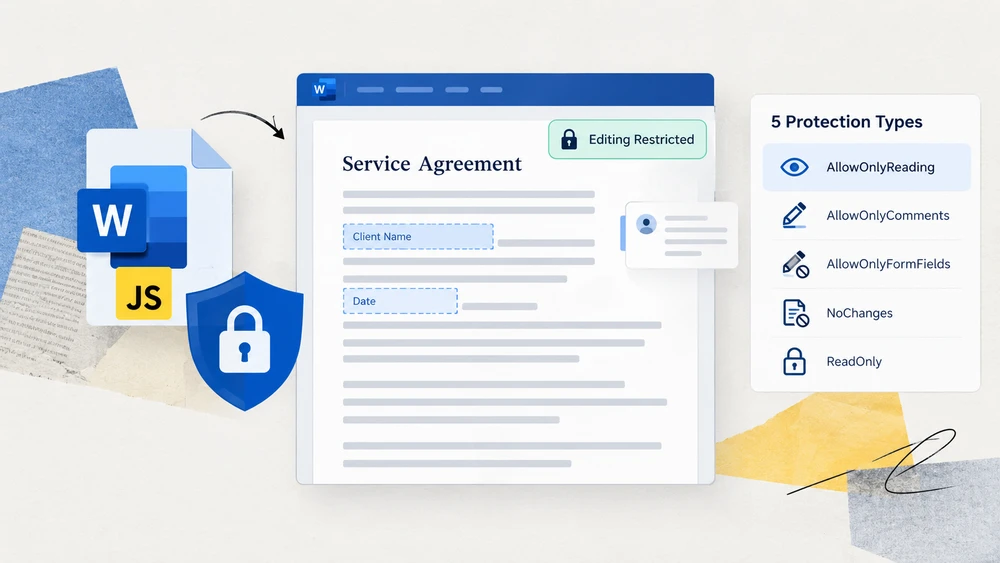
Wenn Entwickler von „ein Word-Dokument schützen“ hören, denken sie zuerst meist an Verschlüsselung – ein Passwort festlegen, damit niemand die Datei öffnen kann. Doch es gibt eine zweite, ebenso wichtige Ebene der Dokumentsicherheit: einzuschränken, was ein Leser tun kann, nachdem das Dokument geöffnet wurde. Eine an einen Kunden gesendete Vertragsvorlage sollte es ihm ermöglichen, die Lücken auszufüllen, ohne die vereinbarten Bedingungen zu ändern. Ein zur Überprüfung verteilter finaler Entwurf sollte Kommentare zulassen, aber direkte Änderungen am Fließtext blockieren. Solche Szenarien erfordern Bearbeitungseinschränkungen, nicht eine Öffnungs-Passwort-Verschlüsselung.
Spire.Doc for JavaScript bringt diese Fähigkeit über WebAssembly direkt in den Browser. Mithilfe eines virtuellen Dateisystems (VFS) zur Verwaltung von Schriftarten und Dateiressourcen verarbeitet es Word-Dokumente vollständig auf der Client-Seite – kein Backend-Server, kein Datei-Upload, keine Roundtrip-Verzögerung. Die Methode Protect akzeptiert einen ProtectionType-Enum-Wert zusammen mit einem Passwort und wendet die entsprechende Bearbeitungseinschränkung auf das Dokument an.
Dieser Artikel führt durch die fünf Schutztypen, die in Spire.Doc for JavaScript verfügbar sind, vergleicht sie in einer einzigen Referenztabelle und zeigt dann, wie man einen Schutztyp auf das gesamte Dokument anwendet und wie man nur bestimmte Abschnitte sperrt, während andere bearbeitbar bleiben.
Schutz vs. Verschlüsselung: Zwei unterschiedliche Ziele
Bevor wir in die Schutztypen eintauchen, lohnt es sich, klar zwischen zwei Konzepten zu unterscheiden, die häufig verwechselt werden:
- Verschlüsselung (Öffnungspasswort) steuert, wer das Dokument öffnen kann. Ohne das Passwort sind die Dateiinhalte nicht zugänglich.
- Bearbeitungseinschränkungen (Schutztyp) steuern, was ein Leser ändern kann, nachdem das Dokument bereits geöffnet ist. Der Leser kann den Inhalt frei anzeigen; die Einschränkung begrenzt, welche Bearbeitungsaktionen verfügbar sind.
Bearbeitungseinschränkungen verhindern nicht das Markieren, Kopieren oder Suchen – sie blockieren nur Änderungen. Wenn Ihr Ziel darin besteht, zu verhindern, dass der Inhalt entnommen wird, benötigen Sie Verschlüsselung. Wenn Ihr Ziel darin besteht, zu verhindern, dass der Inhalt geändert wird, während er weiterhin gelesen werden kann, benötigen Sie eine Bearbeitungseinschränkung. Die beiden Mechanismen ergänzen sich und können zusammen verwendet werden, erfüllen aber unterschiedliche Zwecke.
Schutztypen im Überblick
Spire.Doc for JavaScript stellt fünf ProtectionType-Enum-Werte bereit. Jeder definiert einen anderen bearbeitbaren Bereich – von vollständig offen bis vollständig gesperrt. Die folgende Tabelle fasst alle fünf zusammen, damit Sie auf einen Blick den richtigen auswählen können.
| ProtectionType | Auswirkung auf das Dokument | Typischer Anwendungsfall |
|---|---|---|
NoProtection |
Keine Einschränkung angewendet; alle Bearbeitungsaktionen sind verfügbar. | Entfernen einer bestehenden Einschränkung oder Start von einem unbelasteten Zustand aus. |
AllowOnlyReading |
Das Dokument kann angezeigt, aber nicht bearbeitet werden. Bearbeitungsbefehle im Menüband sind deaktiviert. | Abschlussberichte, veröffentlichte Bekanntmachungen oder jedes schreibgeschützte Ergebnis. |
AllowOnlyComments |
Leser können Kommentare hinzufügen, aber den Fließtext nicht ändern. | Überprüfungszyklen, in denen Prüfer Feedback hinterlassen sollen, ohne den Inhalt zu verändern. |
AllowOnlyFormFields |
Nur Formularfelder sind bearbeitbar; der Rest des Dokuments ist gesperrt. | Verträge, Umfragen und Vorlagen mit auszufüllenden Lücken. |
AllowOnlyRevisions |
Alle Änderungen werden als nachverfolgte Änderungen übernommen und können später überprüft werden. | Gemeinsames Verfassen, bei dem jede Änderung sichtbar und umkehrbar sein muss. |
Wie man wählt: Wenn der Leser nichts ändern soll, verwenden Sie AllowOnlyReading. Wenn der Leser nur die vorgesehenen Lücken ausfüllen soll, verwenden Sie AllowOnlyFormFields. Wenn der Leser Feedback hinterlassen soll, ohne den Text anzutasten, verwenden Sie AllowOnlyComments. Wenn jede Änderung für eine spätere Überprüfung nachverfolgt werden soll, verwenden Sie AllowOnlyRevisions. Wenn Sie eine zuvor angewendete Einschränkung entfernen müssen, verwenden Sie NoProtection.
Einen Schutztyp auf das gesamte Dokument anwenden
Der geradlinigste Ansatz besteht darin, das gesamte Dokument mit einem einzigen ProtectionType-Wert zu schützen. Der Ablauf hat drei Phasen: Laden Sie die Schriftartdateien und das Ziel-Word-Dokument über FetchFileToVFS in das virtuelle WASM-Dateisystem; instanziieren Sie ein Document, laden Sie die Datei und rufen Sie Protect mit dem gewünschten Schutztyp und dem Passwort auf, mit dem die Einschränkung später aufgehoben wird; speichern Sie anschließend das Dokument, lesen Sie die erzeugte Datei aus dem VFS, verpacken Sie sie als Blob und lösen Sie einen Browser-Download aus.
Das folgende Beispiel verwendet AllowOnlyReading, aber Sie können jeden der fünf ProtectionType-Werte aus der obigen Tabelle einsetzen.
function App() {
  const protectWithSpecifiedType = async () => {
    const docModule = window.wasmModule?.spiredoc;
    if (!docModule) {
      alert('Spire.Doc is not ready yet');
      return;
    }

    const inputFileName = 'Template.docx';
    await window.spire.FetchFileToVFS(inputFileName, '', `${process.env.PUBLIC_URL}/data/`);

    // Load the document
    const doc = new docModule.Document();
    doc.LoadFromFile(inputFileName);

    // Protect the document with the "AllowOnlyReading" type; the password lifts the restriction
    doc.Protect({ type: docModule.ProtectionType.AllowOnlyReading, password: "123456" });

    // Define the output file name and save
    const outputFileName = "SpecifiedProtectionType.docx";
    doc.SaveToFile({ fileName: outputFileName, fileFormat: docModule.FileFormat.Docx2013 });
    doc.Dispose();

    const modifiedFileArray = window.dotnetRuntime.Module.FS.readFile(outputFileName);
    const blob = new Blob([modifiedFileArray], { type: 'application/vnd.openxmlformats-officedocument.wordprocessingml.document' });
    const url = URL.createObjectURL(blob);
    const a = document.createElement('a');
    a.href = url;
    a.download = outputFileName;
    a.click();
    URL.revokeObjectURL(url);
  };

 return (
    <div style={{ textAlign: 'center', height: '300px' }}>
      <h1>Protect a Document with a Specified Type</h1>
      <button onClick={protectWithSpecifiedType}>Generate</button>
    </div>
  );
}
export default App;
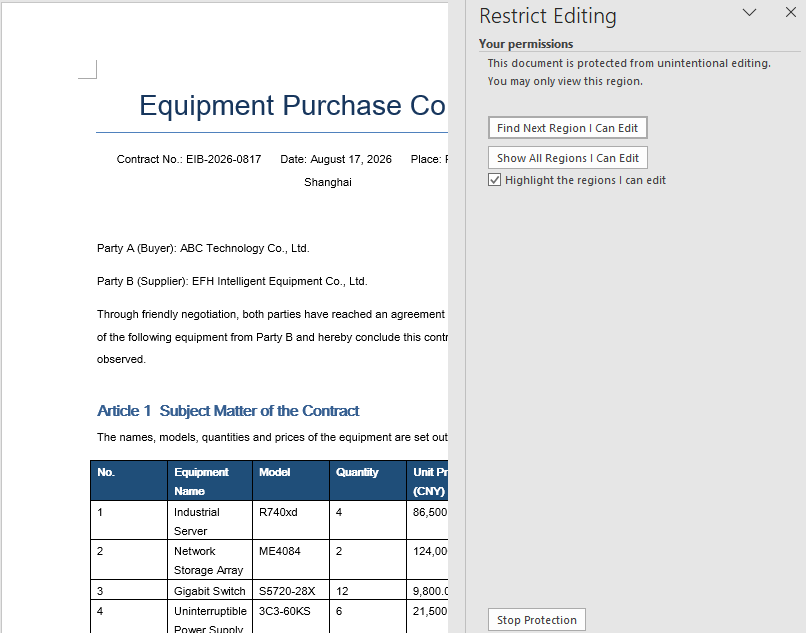
Sobald das Dokument mit dem Typ AllowOnlyReading geschützt ist, kann sein Inhalt nur angezeigt werden und die Bearbeitungsbefehle im Menüband sind eingeschränkt.
Nur bestimmte Abschnitte sperren
Das gesamte Dokument einheitlich zu schützen, funktioniert gut für einfache Ergebnisse, aber viele reale Dokumente benötigen ein feineres Vorgehen. Eine Angebotsvorlage beispielsweise kann feste Bedingungen enthalten, die gesperrt bleiben müssen, neben einem Abschnitt, in dem der Kunde seine Angaben einträgt. Spire.Doc for JavaScript löst dies, indem es den Schutz des gesamten Dokuments mit Überschreibungen pro Abschnitt kombiniert.
Die Strategie lautet: Schützen Sie zuerst das gesamte Dokument mit AllowOnlyFormFields und setzen Sie dann die ProtectForm-Eigenschaft jedes Abschnitts, der bearbeitbar bleiben soll, auf false. Dadurch werden einzelne Abschnitte gezielt freigegeben, während der Rest des Dokuments gesperrt bleibt.
Der Ablauf hat drei Phasen: Laden Sie die Schriftartdateien über FetchFileToVFS in das virtuelle WASM-Dateisystem; instanziieren Sie ein Document, erstellen Sie Abschnitte mit AddSection und schreiben Sie Inhalte hinein, rufen Sie Protect auf, um das gesamte Dokument nur für Formularfelder zu sperren, und setzen Sie ProtectForm für den freizugebenden Abschnitt auf false; speichern Sie anschließend das Dokument, lesen Sie die erzeugte Datei aus dem VFS, verpacken Sie sie als Blob und lösen Sie einen Browser-Download aus.
function App() {
  const lockSpecifiedSections = async () => {
    const docModule = window.wasmModule?.spiredoc;
    if (!docModule) {
      alert('Spire.Doc is not ready yet');
      return;
    }

    // Create a new document and add two sections
    const doc = new docModule.Document();
    let s1 = doc.AddSection();
    let s2 = doc.AddSection();

    // Write content into each of the two sections
    s1.AddParagraph().AppendText("Spire.Doc demo, section 1");
    s2.AddParagraph().AppendText("Spire.Doc demo, section 2");

    // Protect the whole document for form fields only
    doc.Protect({ type: docModule.ProtectionType.AllowOnlyFormFields, password: "123" });

    // Release section 2 on its own so that it can be edited
    s2.ProtectForm = false;

    // Define the output file name and save
    const outputFileName = 'LockSpecifiedSections.docx';
    doc.SaveToFile({ fileName: outputFileName, fileFormat: docModule.FileFormat.Docx2013 });
    doc.Dispose();

    const modifiedFileArray = window.dotnetRuntime.Module.FS.readFile(outputFileName);
    const blob = new Blob([modifiedFileArray], { type: 'application/vnd.openxmlformats-officedocument.wordprocessingml.document' });
    const url = URL.createObjectURL(blob);
    const a = document.createElement('a');
    a.href = url;
    a.download = outputFileName;
    a.click();
    URL.revokeObjectURL(url);
  };

 return (
    <div style={{ textAlign: 'center', height: '300px' }}>
      <h1>Lock Specified Sections of a Word Document</h1>
      <button onClick={lockSpecifiedSections}>Generate</button>
    </div>
  );
}
export default App;
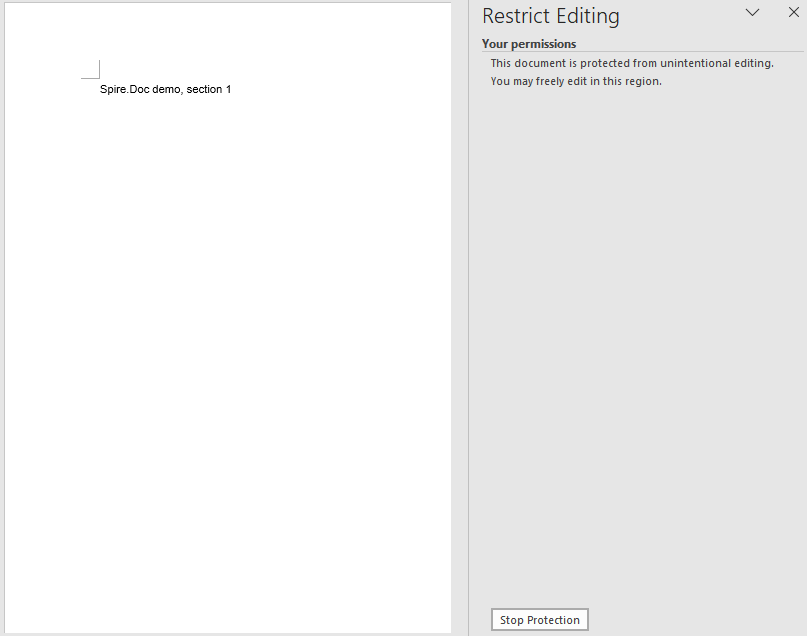
Sobald Abschnitt 2 freigegeben wurde, behält nur Abschnitt 1 seine Bearbeitungseinschränkung im Dokument.
FAQ
Ein Abschnitt ist nach ProtectForm = false immer noch nicht bearbeitbar
Die ProtectForm-Eigenschaft wirkt nur, wenn das Dokument mit AllowOnlyFormFields geschützt wurde. Wenn ein anderer Schutztyp wie AllowOnlyReading aktiv ist, gibt das Setzen von ProtectForm auf false für einen einzelnen Abschnitt diesen nicht frei – die Einschränkung des gesamten Dokuments hat Vorrang.
Um dies zu beheben, stellen Sie sicher, dass der an Protect übergebene Schutztyp AllowOnlyFormFields ist, bevor Sie einzelne Abschnitte freigeben:
doc.Protect({ type: wasmModule.ProtectionType.AllowOnlyFormFields, password: "123" });
s2.ProtectForm = false;
Ein geschütztes Dokument kann weiterhin markiert und kopiert werden
Alle fünf Schutztypen schränken das Bearbeitungsverhalten ein, nicht das Leseverhalten. AllowOnlyReading beispielsweise verhindert Änderungen am Fließtext, blockiert aber nicht das Markieren, Kopieren oder Suchen von Text. Das ist beabsichtigt – Bearbeitungseinschränkungen steuern, was Benutzer ändern können, nicht, was sie anzeigen oder entnehmen können.
Wenn der Inhalt für unbefugte Benutzer nicht kopierbar oder einsehbar sein darf, verwenden Sie stattdessen Dokumentverschlüsselung (ein Öffnungspasswort) anstelle einer Bearbeitungseinschränkung. Die beiden Ansätze adressieren unterschiedliche Bedrohungen und können kombiniert werden, wenn sowohl Vertraulichkeit als auch Bearbeitungskontrolle erforderlich sind:
doc.Protect({ type: wasmModule.ProtectionType.AllowOnlyReading, password: "123456" });
Siehe auch
Защита документов Word с помощью JavaScript: ограничение редактирования
Когда разработчики слышат «защитить документ Word», первое, что часто приходит на ум, — это шифрование: установить пароль, чтобы никто не мог открыть файл. Но существует второй, не менее важный уровень защиты документа: ограничение действий, которые может выполнять читатель после открытия документа. Шаблон договора, отправленный клиенту, должен позволять ему заполнять пропуски, не меняя согласованные условия. Чистовик, разосланный на проверку, должен разрешать комментарии, но блокировать прямое редактирование основного текста. В таких сценариях нужны ограничения редактирования, а не шифрование с паролем на открытие.
Spire.Doc for JavaScript предоставляет эту возможность непосредственно в браузере через WebAssembly. Используя виртуальную файловую систему (VFS) для управления шрифтами и файловыми ресурсами, он обрабатывает документы Word полностью на стороне клиента — без серверной части, без загрузки файлов, без задержек на обмен данными. Метод Protect принимает значение перечисления ProtectionType вместе с паролем и применяет соответствующее ограничение редактирования к документу.
В этой статье рассматриваются пять типов защиты, доступных в Spire.Doc for JavaScript, они сравниваются в одной справочной таблице, а затем демонстрируется, как применить тип защиты ко всему документу и как заблокировать только определённые разделы, оставив остальные редактируемыми.
Защита и шифрование: две разные цели
Прежде чем переходить к типам защиты, стоит чётко разграничить два понятия, которые часто путают:
- Шифрование (пароль на открытие) определяет, кто может открыть документ. Без пароля содержимое файла недоступно.
- Ограничения редактирования (тип защиты) определяют, что читатель может изменить после того, как документ уже открыт. Читатель может свободно просматривать содержимое; ограничение определяет, какие действия редактирования доступны.
Ограничения редактирования не препятствуют выделению, копированию или поиску — они блокируют только изменения. Если ваша цель — не дать забрать содержимое, нужно шифрование. Если ваша цель — не дать изменить содержимое, но по-прежнему разрешить его чтение, нужно ограничение редактирования. Эти два механизма дополняют друг друга и могут использоваться вместе, но служат разным целям.
Типы защиты: краткий обзор
Spire.Doc for JavaScript предоставляет пять значений перечисления ProtectionType. Каждое из них определяет свою область редактирования — от полностью открытой до полностью заблокированной. В таблице ниже приведены все пять, чтобы вы могли сразу выбрать подходящее.
| ProtectionType | Влияние на документ | Типичный сценарий использования |
|---|---|---|
NoProtection |
Ограничения не применяются; доступны все действия редактирования. | Снятие существующего ограничения или начало с чистого состояния. |
AllowOnlyReading |
Документ можно просматривать, но нельзя редактировать. Команды редактирования на ленте отключены. | Итоговые отчёты, опубликованные уведомления или любые материалы только для чтения. |
AllowOnlyComments |
Читатели могут добавлять комментарии, но не могут изменять основной текст. | Циклы проверки, где рецензенты должны оставить отзыв, не изменяя содержимое. |
AllowOnlyFormFields |
Редактировать можно только поля формы; остальная часть документа заблокирована. | Договоры, опросы и шаблоны с полями для заполнения. |
AllowOnlyRevisions |
Все правки принимаются как отслеживаемые изменения и могут быть проверены позже. | Совместная работа над черновиком, где каждое изменение должно быть видимым и обратимым. |
Как выбрать: Если читатель не должен ничего менять, используйте AllowOnlyReading. Если читатель должен заполнять только отведённые пустые поля, используйте AllowOnlyFormFields. Если читатель должен оставить отзыв, не трогая текст, используйте AllowOnlyComments. Если каждое изменение должно отслеживаться для последующей проверки, используйте AllowOnlyRevisions. Если нужно снять ранее применённое ограничение, используйте NoProtection.
Применение типа защиты ко всему документу
Самый простой подход — защитить весь документ одним значением ProtectionType. Рабочий процесс состоит из трёх этапов: загрузить файлы шрифтов и целевой документ Word в виртуальную файловую систему WASM с помощью FetchFileToVFS; создать экземпляр Document, загрузить файл и вызвать Protect с нужным типом защиты и паролем, который позже снимет ограничение; затем сохранить документ, прочитать созданный файл из VFS, обернуть его в Blob и запустить скачивание в браузере.
В приведённом ниже примере используется AllowOnlyReading, но вы можете подставить любое из пяти значений ProtectionType из таблицы выше.
function App() {
  const protectWithSpecifiedType = async () => {
    const docModule = window.wasmModule?.spiredoc;
    if (!docModule) {
      alert('Spire.Doc is not ready yet');
      return;
    }

    const inputFileName = 'Template.docx';
    await window.spire.FetchFileToVFS(inputFileName, '', `${process.env.PUBLIC_URL}/data/`);

    // Load the document
    const doc = new docModule.Document();
    doc.LoadFromFile(inputFileName);

    // Protect the document with the "AllowOnlyReading" type; the password lifts the restriction
    doc.Protect({ type: docModule.ProtectionType.AllowOnlyReading, password: "123456" });

    // Define the output file name and save
    const outputFileName = "SpecifiedProtectionType.docx";
    doc.SaveToFile({ fileName: outputFileName, fileFormat: docModule.FileFormat.Docx2013 });
    doc.Dispose();

    const modifiedFileArray = window.dotnetRuntime.Module.FS.readFile(outputFileName);
    const blob = new Blob([modifiedFileArray], { type: 'application/vnd.openxmlformats-officedocument.wordprocessingml.document' });
    const url = URL.createObjectURL(blob);
    const a = document.createElement('a');
    a.href = url;
    a.download = outputFileName;
    a.click();
    URL.revokeObjectURL(url);
  };

 return (
    <div style={{ textAlign: 'center', height: '300px' }}>
      <h1>Protect a Document with a Specified Type</h1>
      <button onClick={protectWithSpecifiedType}>Generate</button>
    </div>
  );
}
export default App;
После защиты документа типом AllowOnlyReading его содержимое можно только просматривать, а команды редактирования на ленте ограничены.
Блокировка только указанных разделов
Равномерная защита всего документа хорошо подходит для простых материалов, но многие реальные документы требуют более тонкой настройки. Например, шаблон коммерческого предложения может содержать фиксированные условия, которые должны оставаться заблокированными, наряду с разделом, где клиент вводит свои данные. Spire.Doc for JavaScript решает эту задачу, сочетая защиту всего документа с переопределениями для отдельных разделов.
Стратегия такова: сначала защитить весь документ с помощью AllowOnlyFormFields, затем установить свойство ProtectForm любого раздела, который должен оставаться редактируемым, в false. Это выборочно освобождает отдельные разделы, пока остальная часть документа остаётся заблокированной.
Рабочий процесс состоит из трёх этапов: загрузить файлы шрифтов в виртуальную файловую систему WASM с помощью FetchFileToVFS; создать экземпляр Document, создать разделы с помощью AddSection и записать в них содержимое, вызвать Protect, чтобы заблокировать весь документ только для полей формы, и установить ProtectForm в false для раздела, который нужно освободить; затем сохранить документ, прочитать созданный файл из VFS, обернуть его в Blob и запустить скачивание в браузере.
function App() {
  const lockSpecifiedSections = async () => {
    const docModule = window.wasmModule?.spiredoc;
    if (!docModule) {
      alert('Spire.Doc is not ready yet');
      return;
    }

    // Create a new document and add two sections
    const doc = new docModule.Document();
    let s1 = doc.AddSection();
    let s2 = doc.AddSection();

    // Write content into each of the two sections
    s1.AddParagraph().AppendText("Spire.Doc demo, section 1");
    s2.AddParagraph().AppendText("Spire.Doc demo, section 2");

    // Protect the whole document for form fields only
    doc.Protect({ type: docModule.ProtectionType.AllowOnlyFormFields, password: "123" });

    // Release section 2 on its own so that it can be edited
    s2.ProtectForm = false;

    // Define the output file name and save
    const outputFileName = 'LockSpecifiedSections.docx';
    doc.SaveToFile({ fileName: outputFileName, fileFormat: docModule.FileFormat.Docx2013 });
    doc.Dispose();

    const modifiedFileArray = window.dotnetRuntime.Module.FS.readFile(outputFileName);
    const blob = new Blob([modifiedFileArray], { type: 'application/vnd.openxmlformats-officedocument.wordprocessingml.document' });
    const url = URL.createObjectURL(blob);
    const a = document.createElement('a');
    a.href = url;
    a.download = outputFileName;
    a.click();
    URL.revokeObjectURL(url);
  };

 return (
    <div style={{ textAlign: 'center', height: '300px' }}>
      <h1>Lock Specified Sections of a Word Document</h1>
      <button onClick={lockSpecifiedSections}>Generate</button>
    </div>
  );
}
export default App;
После освобождения раздела 2 только раздел 1 сохраняет ограничение редактирования в документе.
Часто задаваемые вопросы
Раздел всё ещё не редактируется после ProtectForm = false
Свойство ProtectForm действует только тогда, когда документ был защищён с помощью AllowOnlyFormFields. Если активен другой тип защиты, например AllowOnlyReading, установка ProtectForm в false для отдельного раздела не освободит его — ограничение всего документа имеет приоритет.
Чтобы исправить это, убедитесь, что в Protect передаётся тип защиты AllowOnlyFormFields, прежде чем освобождать отдельные разделы:
doc.Protect({ type: wasmModule.ProtectionType.AllowOnlyFormFields, password: "123" });
s2.ProtectForm = false;
Защищённый документ всё ещё можно выделять и копировать
Все пять типов защиты ограничивают редактирование, а не чтение. Например, AllowOnlyReading предотвращает изменения основного текста, но не блокирует выделение, копирование или поиск текста. Так и задумано — ограничения редактирования управляют тем, что пользователи могут изменять, а не тем, что они могут просматривать или извлекать.
Если содержимое не должно быть доступно для копирования или просмотра неавторизованными пользователями, используйте шифрование документа (пароль на открытие) вместо ограничения редактирования. Эти два подхода решают разные задачи и могут сочетаться, когда требуются и конфиденциальность, и контроль редактирования:
doc.Protect({ type: wasmModule.ProtectionType.AllowOnlyReading, password: "123456" });
См. также
Controle Quebras de Página em Documentos do Word com JavaScript
Índice
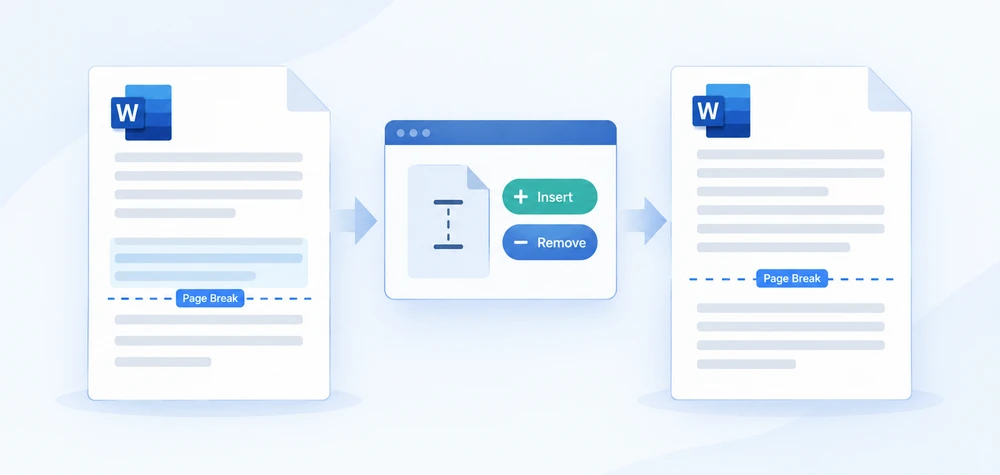
Qualquer pessoa que já formatou um documento longo do Word no navegador conhece a dor: um título de seção fica órfão na parte inferior de uma página enquanto seu texto começa na página seguinte, ou conteúdo colado de outro arquivo arrasta consigo uma sequência de páginas em branco indesejadas. Ambos os problemas quase sempre remontam a quebras de página — ou ausentes onde deveriam estar, ou deixadas onde não deveriam.
O Spire.Doc for JavaScript é executado inteiramente no navegador por meio de WebAssembly, usando um sistema de arquivos virtual (VFS) para lidar com E/S de arquivos. Isso significa que você pode inserir e remover quebras de página sem nenhuma ida e volta ao backend. Este guia cobre ambas as operações e aborda dois casos extremos que surgem frequentemente com documentos do mundo real:
- Inserir uma quebra de página em um parágrafo específico
- Remover todas as quebras de página em uma única passagem
- Corrigir a linha em branco extra que aparece após inserir uma quebra
- Corrigir o documento que ainda é paginado após as quebras serem removidas
Para instalação e configuração do projeto, consulte Integrando o Spire.Doc for JavaScript em um Projeto React. Os exemplos abaixo pressupõem que o módulo WASM já esteja inicializado.
Inserir uma Quebra de Página em um Parágrafo Específico
O fluxo de trabalho consiste em três etapas: carregar o documento de destino no sistema de arquivos virtual do WASM por meio de FetchFileToVFS, abri-lo como um objeto Document e, em seguida, localizar o parágrafo onde você deseja que a divisão aconteça e chamar AppendBreak com BreakType.PageBreak. A quebra é anexada como um objeto filho ao final desse parágrafo, de modo que tudo após ela flui para a próxima página. Por fim, leia o arquivo salvo do VFS, envolva-o como um Blob e dispare um download pelo navegador.
function App() {
  const InsertPageBreak = async () => {
    const docModule = window.wasmModule?.spiredoc;
    if (!docModule) {
      alert('Spire.Doc is not ready yet');
      return;
    }

    // Load the target Word document into VFS
    const inputFileName = "Template_Docx_1.docx";
    await window.spire.FetchFileToVFS(inputFileName, "", `${process.env.PUBLIC_URL}static/data/`);

    // Create a Document instance and load the document
    const doc = new docModule.Document();
    doc.LoadFromFile(inputFileName);

    // Locate the fourth paragraph of the first section and append a page break to its end
    doc.Sections.get_Item(0).Paragraphs.get_Item(3).AppendBreak(docModule.BreakType.PageBreak);

    // Define the output file name
    const outputFileName = "InsertPageBreak_out.docx";

    // Save the document to VFS
    doc.SaveToFile({ fileName: outputFileName, fileFormat: docModule.FileFormat.Docx2013 });

    doc.Dispose();

    const modifiedFileArray = window.dotnetRuntime.Module.FS.readFile(outputFileName);
    const blob = new Blob([modifiedFileArray], { type: 'application/vnd.openxmlformats-officedocument.wordprocessingml.document' });
    const url = URL.createObjectURL(blob);
    const a = document.createElement('a');
    a.href = url;
    a.download = outputFileName;
    a.click();
    URL.revokeObjectURL(url);
  };

 return (
    <div style={{ textAlign: 'center', height: '300px' }}>
      <h1>Insert a Page Break into a Word Document</h1>
      <button onClick={InsertPageBreak}>Generate</button>
    </div>
  );
}
export default App;
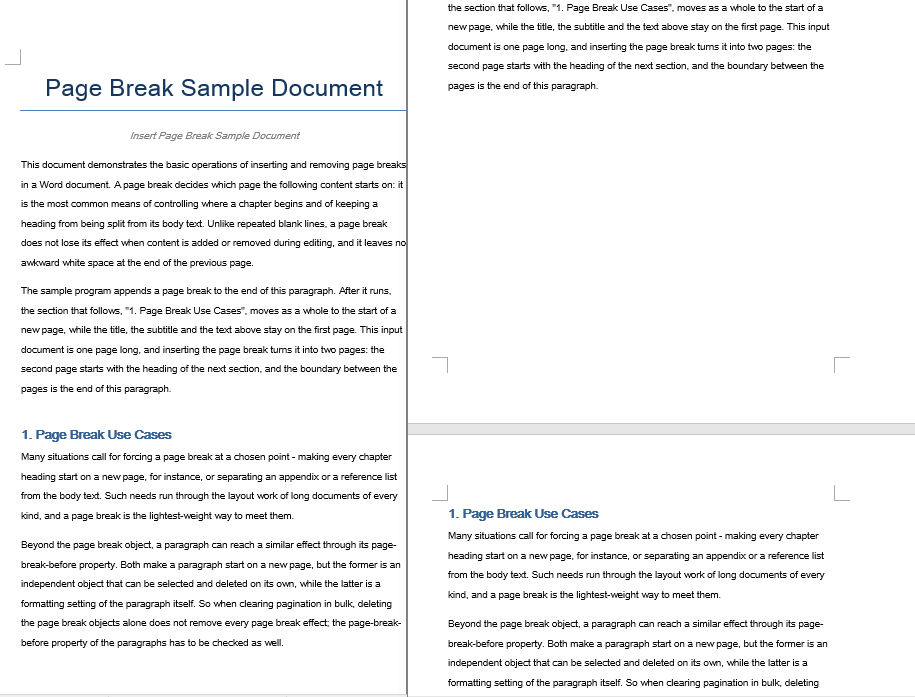
O documento após uma quebra de página ser anexada ao final do quarto parágrafo
Remover Todas as Quebras de Página em Uma Única Passagem
Quando um documento acumula quebras de página de edições repetidas ou operações de copiar e colar, muitas vezes você precisa removê-las todas e deixar o conteúdo fluir naturalmente. A abordagem: iterar sobre cada parágrafo na seção de destino e inspecionar cada objeto filho. Quando um filho é identificado como um Break com BreakType.PageBreak, remova-o por meio de ChildObjects.Remove.
Um detalhe crítico no laço interno — os objetos filhos são percorridos de trás para frente, do último índice até zero. Remover um elemento de uma coleção percorrida para frente desloca os índices de todos os elementos subsequentes, o que pode causar itens ignorados ou acesso fora dos limites. A travessia reversa contorna esse problema inteiramente, porque cada remoção afeta apenas índices que você já processou.
function App() {
  const RemovePageBreaks = async () => {
    const docModule = window.wasmModule?.spiredoc;
    if (!docModule) {
      alert('Spire.Doc is not ready yet');
      return;
    }

    // Load the target Word document into VFS
    const inputFileName = "Template_Docx_4.docx";
    await window.spire.FetchFileToVFS(inputFileName, "", `${process.env.PUBLIC_URL}static/data/`);

    // Create a Document instance and load the document
    const doc = new docModule.Document();
    doc.LoadFromFile(inputFileName);

    // Get the first section
    const section = doc.Sections.get_Item(0);

    // Walk through every paragraph in the section
    for (let j = 0; j < section.Paragraphs.Count; j++) {
        const p = section.Paragraphs.get_Item(j);

        // Walk the paragraph's child objects backwards, so that removing an element does not shift the indices still to come
        for (let i = p.ChildObjects.Count - 1; i >= 0; i--) {
            const obj = p.ChildObjects.get_Item(i);

            // Test whether the object is a page break
            if (obj.DocumentObjectType == docModule.DocumentObjectType.Break
                && obj.BreakType == docModule.BreakType.PageBreak) {
                // Remove the page break from the paragraph
                p.ChildObjects.Remove(obj);
            }
        }
    }

    // Define the output file name
    const outputFileName = "RemovePageBreaks_out.docx";

    // Save the document to VFS
    doc.SaveToFile({ fileName: outputFileName, fileFormat: docModule.FileFormat.Docx2013 });
    doc.Dispose();

    const modifiedFileArray = window.dotnetRuntime.Module.FS.readFile(outputFileName);
    const blob = new Blob([modifiedFileArray], { type: 'application/vnd.openxmlformats-officedocument.wordprocessingml.document' });
    const url = URL.createObjectURL(blob);
    const a = document.createElement('a');
    a.href = url;
    a.download = outputFileName;
    a.click();
    URL.revokeObjectURL(url);
  };

 return (
    <div style={{ textAlign: 'center', height: '300px' }}>
      <h1>Remove Page Breaks from a Word Document</h1>
      <button onClick={RemovePageBreaks}>Generate</button>
    </div>
  );
}
export default App;
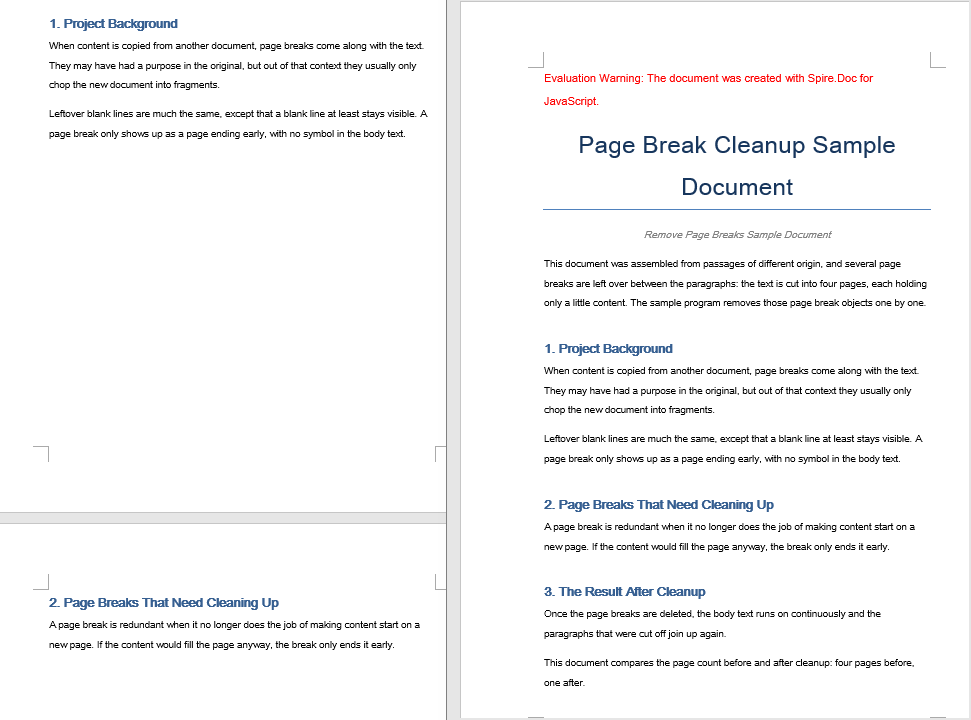
O documento após todas as quebras de página terem sido removidas
Linha em Branco Extra Após Inserir uma Quebra de Página
Após chamar AppendBreak, você pode notar uma faixa em branco indesejada no topo da nova página. Isso ocorre porque AppendBreak anexa a quebra ao final do parágrafo de destino, e a configuração de "espaçamento após" desse parágrafo é transportada para o início da próxima página. Quando o espaçamento automático está habilitado, a lacuna ainda escala com o tamanho da fonte — tornando-a especialmente visível após títulos grandes.
A correção é neutralizar o espaçamento final do parágrafo antes de anexar a quebra:
const para = document.Sections.get_Item(0).Paragraphs.get_Item(3);

// Turn off automatic spacing after the paragraph and set the space after it to 0
para.Format.AfterAutoSpacing = false;
para.Format.AfterSpacing = 0;

// Then insert the page break
para.AppendBreak(wasmModule.BreakType.PageBreak);
Definir AfterAutoSpacing como false e AfterSpacing como 0 garante que o parágrafo não contribua com nenhuma lacuna vertical após a quebra, de modo que a nova página comece rente à margem superior.
Documento Ainda Paginado Após Remover as Quebras
Mesmo após remover com sucesso todos os objetos de quebra de página, o documento ainda pode se dividir nas mesmas posições. O motivo: a paginação também pode se originar de uma propriedade em nível de parágrafo chamada "quebra de página antes". Quando esse sinalizador está definido em um parágrafo, esse parágrafo sempre começa em uma nova página — independentemente de existir ou não um objeto Break. O laço de remoção acima visa apenas objetos de quebra, portanto os parágrafos que carregam esse sinalizador permanecem intactos.
Para eliminar completamente a paginação forçada, redefina o sinalizador PageBreakBefore em cada parágrafo junto com a limpeza dos objetos de quebra:
const section = document.Sections.get_Item(0);

for (let j = 0; j < section.Paragraphs.Count; j++) {
  const p = section.Paragraphs.get_Item(j);

  // Clear the page-break-before property set on the paragraph
  if (p.Format.PageBreakBefore) {
    p.Format.PageBreakBefore = false;
  }
}
Você pode executar este laço na mesma passagem da remoção dos objetos de quebra ou como uma etapa separada depois — a ordem não importa, pois as duas operações visam propriedades independentes.
Perguntas Frequentes
Como obtenho uma licença gratuita do Spire.Doc for JavaScript?
O Spire.Doc for JavaScript oferece uma licença de avaliação gratuita de 30 dias com todos os recursos e sem limitações funcionais. Você pode solicitar aqui para avaliar o produto antes de comprá-lo.
Veja Também
JavaScript로 Word 문서의 페이지 나누기 제어하기
브라우저에서 긴 Word 문서의 서식을 지정해 본 사람이라면 누구나 그 고충을 압니다: 섹션 제목이 페이지 하단에 외롭게 남아 있고 본문 텍스트는 다음 페이지에서 시작하거나, 다른 파일에서 붙여넣은 내용이 원치 않는 빈 페이지 체인을 끌고 오는 경우입니다. 두 문제 모두 거의 항상 페이지 나누기 때문입니다. 있어야 할 곳에 없거나, 없어야 할 곳에 남아 있는 것입니다.
Spire.Doc for JavaScript는 WebAssembly를 통해 전적으로 브라우저에서 실행되며, 파일 I/O를 처리하기 위해 VFS(가상 파일 시스템)를 사용합니다. 즉, 백엔드 왕복 없이 페이지 나누기를 삽입하고 제거할 수 있습니다. 이 가이드에서는 두 작업을 모두 다루고 실제 문서에서 자주 나타나는 두 가지 에지 케이스를 해결합니다:
설치 및 프로젝트 설정은 React 프로젝트에 Spire.Doc for JavaScript 통합하기를 참조하세요. 아래 예제는 WASM 모듈이 이미 초기화되었다고 가정합니다.
특정 단락에 페이지 나누기 삽입
워크플로는 세 단계입니다: FetchFileToVFS를 통해 대상 문서를 WASM 가상 파일 시스템에 로드하고, Document 개체로 연 다음, 분할할 단락을 찾아 BreakType.PageBreak와 함께 AppendBreak를 호출합니다. 나누기는 해당 단락의 끝에 자식 개체로 추가되므로 그 뒤의 모든 내용이 다음 페이지로 흘러갑니다. 마지막으로 VFS에서 저장된 파일을 읽어 Blob으로 감싸고 브라우저 다운로드를 트리거합니다.
function App() {
  const InsertPageBreak = async () => {
    const docModule = window.wasmModule?.spiredoc;
    if (!docModule) {
      alert('Spire.Doc is not ready yet');
      return;
    }

    // Load the target Word document into VFS
    const inputFileName = "Template_Docx_1.docx";
    await window.spire.FetchFileToVFS(inputFileName, "", `${process.env.PUBLIC_URL}static/data/`);

    // Create a Document instance and load the document
    const doc = new docModule.Document();
    doc.LoadFromFile(inputFileName);

    // Locate the fourth paragraph of the first section and append a page break to its end
    doc.Sections.get_Item(0).Paragraphs.get_Item(3).AppendBreak(docModule.BreakType.PageBreak);

    // Define the output file name
    const outputFileName = "InsertPageBreak_out.docx";

    // Save the document to VFS
    doc.SaveToFile({ fileName: outputFileName, fileFormat: docModule.FileFormat.Docx2013 });

    doc.Dispose();

    const modifiedFileArray = window.dotnetRuntime.Module.FS.readFile(outputFileName);
    const blob = new Blob([modifiedFileArray], { type: 'application/vnd.openxmlformats-officedocument.wordprocessingml.document' });
    const url = URL.createObjectURL(blob);
    const a = document.createElement('a');
    a.href = url;
    a.download = outputFileName;
    a.click();
    URL.revokeObjectURL(url);
  };

 return (
    <div style={{ textAlign: 'center', height: '300px' }}>
      <h1>Insert a Page Break into a Word Document</h1>
      <button onClick={InsertPageBreak}>Generate</button>
    </div>
  );
}
export default App;
페이지 나누기가 네 번째 단락 끝에 추가된 후의 문서
한 번에 모든 페이지 나누기 제거
문서가 반복된 편집이나 복사-붙여넣기 작업으로 페이지 나누기를 수집한 경우, 종종 모두 제거하고 콘텐츠가 자연스럽게 다시 흐르도록 해야 합니다. 접근 방식은 다음과 같습니다: 대상 섹션의 모든 단락을 반복하고 각 자식 개체를 검사합니다. 자식이 BreakType.PageBreak인 Break로 식별되면 ChildObjects.Remove를 통해 제거합니다.
내부 루프의 중요한 세부 사항 — 자식 개체는 마지막 인덱스부터 0까지 역방향으로 순회됩니다. 앞으로 순회되는 컬렉션에서 요소를 제거하면 이후 모든 요소의 인덱스가 이동하여 항목 건너뛰기나 범위를 벗어난 접근이 발생할 수 있습니다. 역방향 순회는 각 제거가 이미 처리한 인덱스에만 영향을 미치므로 이 문제를 완전히 피할 수 있습니다.
function App() {
  const RemovePageBreaks = async () => {
    const docModule = window.wasmModule?.spiredoc;
    if (!docModule) {
      alert('Spire.Doc is not ready yet');
      return;
    }

    // Load the target Word document into VFS
    const inputFileName = "Template_Docx_4.docx";
    await window.spire.FetchFileToVFS(inputFileName, "", `${process.env.PUBLIC_URL}static/data/`);

    // Create a Document instance and load the document
    const doc = new docModule.Document();
    doc.LoadFromFile(inputFileName);

    // Get the first section
    const section = doc.Sections.get_Item(0);

    // Walk through every paragraph in the section
    for (let j = 0; j < section.Paragraphs.Count; j++) {
        const p = section.Paragraphs.get_Item(j);

        // Walk the paragraph's child objects backwards, so that removing an element does not shift the indices still to come
        for (let i = p.ChildObjects.Count - 1; i >= 0; i--) {
            const obj = p.ChildObjects.get_Item(i);

            // Test whether the object is a page break
            if (obj.DocumentObjectType == docModule.DocumentObjectType.Break
                && obj.BreakType == docModule.BreakType.PageBreak) {
                // Remove the page break from the paragraph
                p.ChildObjects.Remove(obj);
            }
        }
    }

    // Define the output file name
    const outputFileName = "RemovePageBreaks_out.docx";

    // Save the document to VFS
    doc.SaveToFile({ fileName: outputFileName, fileFormat: docModule.FileFormat.Docx2013 });
    doc.Dispose();

    const modifiedFileArray = window.dotnetRuntime.Module.FS.readFile(outputFileName);
    const blob = new Blob([modifiedFileArray], { type: 'application/vnd.openxmlformats-officedocument.wordprocessingml.document' });
    const url = URL.createObjectURL(blob);
    const a = document.createElement('a');
    a.href = url;
    a.download = outputFileName;
    a.click();
    URL.revokeObjectURL(url);
  };

 return (
    <div style={{ textAlign: 'center', height: '300px' }}>
      <h1>Remove Page Breaks from a Word Document</h1>
      <button onClick={RemovePageBreaks}>Generate</button>
    </div>
  );
}
export default App;
모든 페이지 나누기가 제거된 후의 문서
페이지 나누기 삽입 후 추가된 빈 줄
AppendBreak를 호출한 후 새 페이지 상단에 원치 않는 빈 띠가 보일 수 있습니다. 이는 AppendBreak가 나누기를 대상 단락의 끝에 연결하고, 해당 단락의 "단락 뒤 간격" 설정이 다음 페이지 시작 부분으로 이어지기 때문에 발생합니다. 자동 간격이 활성화된 경우 간격은 글꼴 크기에 따라 조정되어 큰 제목 뒤에서 특히 눈에 띕니다.
해결 방법은 나누기를 추가하기 전에 단락의 뒤쪽 간격을 무효화하는 것입니다:
const para = document.Sections.get_Item(0).Paragraphs.get_Item(3);

// Turn off automatic spacing after the paragraph and set the space after it to 0
para.Format.AfterAutoSpacing = false;
para.Format.AfterSpacing = 0;

// Then insert the page break
para.AppendBreak(wasmModule.BreakType.PageBreak);
AfterAutoSpacing를 false로, AfterSpacing을 0으로 설정하면 단락이 나누기 뒤에 수직 간격을 추가하지 않도록 하므로 새 페이지가 위쪽 여백에 딱 맞게 시작됩니다.
나누기 제거 후에도 문서가 여전히 페이지로 나뉨
모든 페이지 나누기 개체를 성공적으로 제거한 후에도 문서가 동일한 위치에서 계속 나뉠 수 있습니다. 그 이유는 페이지 나누기가 "앞에 페이지 나누기"라는 단락 수준 속성에서 비롯될 수도 있기 때문입니다. 이 플래그가 단락에 설정되면 해당 단락은 Break 개체가 있는지 여부에 관계없이 항상 새 페이지에서 시작합니다. 위의 제거 루프는 나누기 개체만 대상으로 하므로 이 플래그가 있는 단락은 그대로 남습니다.
강제 페이지 나누기를 완전히 제거하려면 나누기 개체 정리와 함께 모든 단락의 PageBreakBefore 플래그를 재설정하세요:
const section = document.Sections.get_Item(0);

for (let j = 0; j < section.Paragraphs.Count; j++) {
  const p = section.Paragraphs.get_Item(j);

  // Clear the page-break-before property set on the paragraph
  if (p.Format.PageBreakBefore) {
    p.Format.PageBreakBefore = false;
  }
}
이 루프는 나누기 개체 제거와 동일한 패스에서 실행하거나 이후 별도 단계로 실행할 수 있습니다. 두 작업은 서로 독립적인 속성을 대상으로 하므로 순서는 중요하지 않습니다.
자주 묻는 질문
Spire.Doc for JavaScript의 무료 라이선스는 어떻게 받나요?
Spire.Doc for JavaScript는 기능 제한 없이 30일 동안 모든 기능을 사용할 수 있는 무료 평가판 라이선스를 제공합니다. 구매 전에 제품을 평가하려면 여기에서 신청할 수 있습니다.
참고 항목
Controllare le interruzioni di pagina nei documenti Word con JavaScript
Indice dei contenuti
Chiunque abbia formattato un lungo documento Word nel browser conosce il problema: il titolo di una sezione rimane orfano in fondo a una pagina mentre il suo testo inizia in quella successiva, oppure il contenuto incollato da un altro file si porta dietro una catena di pagine bianche indesiderate. Entrambi i problemi quasi sempre risalgono alle interruzioni di pagina: assenti dove dovrebbero esserci, o lasciate dove non dovrebbero esserci.
Spire.Doc for JavaScript funziona interamente nel browser tramite WebAssembly, utilizzando un file system virtuale (VFS) per gestire l'I/O dei file. Ciò significa che puoi inserire e rimuovere interruzioni di pagina senza alcun passaggio a un backend. Questa guida copre entrambe le operazioni e affronta due casi limite che emergono frequentemente con documenti reali:
- Inserire un'interruzione di pagina in un paragrafo specifico
- Rimuovere tutte le interruzioni di pagina in un'unica operazione
- Correggere la riga vuota extra che compare dopo l'inserimento di un'interruzione
- Correggere il documento che rimane paginato dopo la rimozione delle interruzioni
Per l'installazione e la configurazione del progetto, consulta Integrare Spire.Doc for JavaScript in un progetto React. Gli esempi seguenti presuppongono che il modulo WASM sia già inizializzato.
Inserire un'interruzione di pagina in un paragrafo specifico
Il flusso di lavoro si articola in tre passaggi: caricare il documento di destinazione nel file system virtuale WASM tramite FetchFileToVFS, aprirlo come oggetto Document, quindi individuare il paragrafo in cui si desidera che avvenga la divisione e chiamare AppendBreak con BreakType.PageBreak. L'interruzione viene aggiunta come oggetto figlio alla fine di quel paragrafo, quindi tutto ciò che segue scorre sulla pagina successiva. Infine, leggi il file salvato dal VFS, avvolgilo come Blob e attiva il download dal browser.
function App() {
  const InsertPageBreak = async () => {
    const docModule = window.wasmModule?.spiredoc;
    if (!docModule) {
      alert('Spire.Doc is not ready yet');
      return;
    }

    // Load the target Word document into VFS
    const inputFileName = "Template_Docx_1.docx";
    await window.spire.FetchFileToVFS(inputFileName, "", `${process.env.PUBLIC_URL}static/data/`);

    // Create a Document instance and load the document
    const doc = new docModule.Document();
    doc.LoadFromFile(inputFileName);

    // Locate the fourth paragraph of the first section and append a page break to its end
    doc.Sections.get_Item(0).Paragraphs.get_Item(3).AppendBreak(docModule.BreakType.PageBreak);

    // Define the output file name
    const outputFileName = "InsertPageBreak_out.docx";

    // Save the document to VFS
    doc.SaveToFile({ fileName: outputFileName, fileFormat: docModule.FileFormat.Docx2013 });

    doc.Dispose();

    const modifiedFileArray = window.dotnetRuntime.Module.FS.readFile(outputFileName);
    const blob = new Blob([modifiedFileArray], { type: 'application/vnd.openxmlformats-officedocument.wordprocessingml.document' });
    const url = URL.createObjectURL(blob);
    const a = document.createElement('a');
    a.href = url;
    a.download = outputFileName;
    a.click();
    URL.revokeObjectURL(url);
  };

 return (
    <div style={{ textAlign: 'center', height: '300px' }}>
      <h1>Insert a Page Break into a Word Document</h1>
      <button onClick={InsertPageBreak}>Generate</button>
    </div>
  );
}
export default App;
Il documento dopo che un'interruzione di pagina è stata aggiunta alla fine del quarto paragrafo
Rimuovere tutte le interruzioni di pagina in un'unica operazione
Quando un documento accumula interruzioni di pagina a causa di modifiche ripetute o operazioni di copia-incolla, spesso è necessario eliminarle tutte e lasciare che il contenuto si ridisponi naturalmente. L'approccio: scorrere ogni paragrafo della sezione di destinazione e ispezionare ciascun oggetto figlio. Quando un figlio viene identificato come Break con BreakType.PageBreak, rimuovilo tramite ChildObjects.Remove.
Un dettaglio fondamentale nel ciclo interno: gli oggetti figli vengono percorsi all'indietro, dall'ultimo indice fino a zero. Rimuovere un elemento da una collezione percorsa in avanti sposta gli indici di ogni elemento successivo, il che può causare elementi saltati o accessi fuori dai limiti. Il percorso inverso evita completamente questo problema perché ogni rimozione influisce solo sugli indici già elaborati.
function App() {
  const RemovePageBreaks = async () => {
    const docModule = window.wasmModule?.spiredoc;
    if (!docModule) {
      alert('Spire.Doc is not ready yet');
      return;
    }

    // Load the target Word document into VFS
    const inputFileName = "Template_Docx_4.docx";
    await window.spire.FetchFileToVFS(inputFileName, "", `${process.env.PUBLIC_URL}static/data/`);

    // Create a Document instance and load the document
    const doc = new docModule.Document();
    doc.LoadFromFile(inputFileName);

    // Get the first section
    const section = doc.Sections.get_Item(0);

    // Walk through every paragraph in the section
    for (let j = 0; j < section.Paragraphs.Count; j++) {
        const p = section.Paragraphs.get_Item(j);

        // Walk the paragraph's child objects backwards, so that removing an element does not shift the indices still to come
        for (let i = p.ChildObjects.Count - 1; i >= 0; i--) {
            const obj = p.ChildObjects.get_Item(i);

            // Test whether the object is a page break
            if (obj.DocumentObjectType == docModule.DocumentObjectType.Break
                && obj.BreakType == docModule.BreakType.PageBreak) {
                // Remove the page break from the paragraph
                p.ChildObjects.Remove(obj);
            }
        }
    }

    // Define the output file name
    const outputFileName = "RemovePageBreaks_out.docx";

    // Save the document to VFS
    doc.SaveToFile({ fileName: outputFileName, fileFormat: docModule.FileFormat.Docx2013 });
    doc.Dispose();

    const modifiedFileArray = window.dotnetRuntime.Module.FS.readFile(outputFileName);
    const blob = new Blob([modifiedFileArray], { type: 'application/vnd.openxmlformats-officedocument.wordprocessingml.document' });
    const url = URL.createObjectURL(blob);
    const a = document.createElement('a');
    a.href = url;
    a.download = outputFileName;
    a.click();
    URL.revokeObjectURL(url);
  };

 return (
    <div style={{ textAlign: 'center', height: '300px' }}>
      <h1>Remove Page Breaks from a Word Document</h1>
      <button onClick={RemovePageBreaks}>Generate</button>
    </div>
  );
}
export default App;
Il documento dopo che ogni interruzione di pagina è stata rimossa
Riga vuota extra dopo l'inserimento di un'interruzione di pagina
Dopo aver chiamato AppendBreak, potresti notare una striscia vuota indesiderata nella parte superiore della nuova pagina. Ciò accade perché AppendBreak collega l'interruzione alla fine del paragrafo di destinazione, e l'impostazione di "spazio dopo" di quel paragrafo si trasferisce all'inizio della pagina successiva. Quando la spaziatura automatica è attiva, lo spazio si adatta persino alla dimensione del carattere, rendendolo particolarmente visibile dopo titoli di grandi dimensioni.
La soluzione consiste nel neutralizzare la spaziatura finale del paragrafo prima di aggiungere l'interruzione:
const para = document.Sections.get_Item(0).Paragraphs.get_Item(3);

// Turn off automatic spacing after the paragraph and set the space after it to 0
para.Format.AfterAutoSpacing = false;
para.Format.AfterSpacing = 0;

// Then insert the page break
para.AppendBreak(wasmModule.BreakType.PageBreak);
Impostare AfterAutoSpacing su false e AfterSpacing su 0 assicura che il paragrafo non contribuisca con alcuno spazio verticale dopo l'interruzione, così la nuova pagina inizia a filo del margine superiore.
Il documento rimane paginato dopo la rimozione delle interruzioni
Anche dopo aver eliminato con successo ogni oggetto interruzione di pagina, il documento potrebbe ancora dividersi nelle stesse posizioni. Il motivo: la paginazione può derivare anche da una proprietà a livello di paragrafo chiamata "interruzione di pagina prima". Quando questo flag è impostato su un paragrafo, quel paragrafo inizia sempre su una nuova pagina, indipendentemente dall'esistenza di un oggetto Break. Il ciclo di rimozione precedente prende di mira solo gli oggetti interruzione, quindi i paragrafi che portano questo flag rimangono invariati.
Per eliminare completamente la paginazione forzata, reimposta il flag PageBreakBefore su ogni paragrafo insieme alla pulizia degli oggetti interruzione:
const section = document.Sections.get_Item(0);

for (let j = 0; j < section.Paragraphs.Count; j++) {
  const p = section.Paragraphs.get_Item(j);

  // Clear the page-break-before property set on the paragraph
  if (p.Format.PageBreakBefore) {
    p.Format.PageBreakBefore = false;
  }
}
Puoi eseguire questo ciclo nella stessa passata della rimozione degli oggetti interruzione oppure come passaggio separato successivo: l'ordine non ha importanza perché le due operazioni agiscono su proprietà indipendenti.
Domande frequenti
Come posso ottenere una licenza gratuita per Spire.Doc for JavaScript?
Spire.Doc for JavaScript offre una licenza di prova gratuita di 30 giorni con tutte le funzionalità e senza limitazioni funzionali. Puoi richiederla qui per valutare il prodotto prima dell'acquisto.
Vedi anche
Contrôler les sauts de page dans les documents Word avec JavaScript
Table des matières
Quiconque a déjà mis en forme un long document Word dans le navigateur connaît cette souffrance : un titre de section reste orphelin en bas d'une page tandis que son corps de texte commence sur la suivante, ou bien du contenu collé depuis un autre fichier traîne derrière lui une série de pages blanches indésirables. Ces deux problèmes remontent presque toujours aux sauts de page — soit absents là où ils devraient être, soit laissés là où ils ne devraient pas être.
Spire.Doc for JavaScript s'exécute entièrement dans le navigateur via WebAssembly, en utilisant un système de fichiers virtuel (VFS) pour gérer les entrées/sorties de fichiers. Cela signifie que vous pouvez insérer et supprimer des sauts de page sans aucun aller-retour vers un serveur. Ce guide couvre les deux opérations et aborde deux cas limites qui apparaissent fréquemment avec des documents réels :
- Insérer un saut de page à un paragraphe spécifique
- Supprimer tous les sauts de page en une seule passe
- Corriger la ligne vide supplémentaire qui apparaît après l'insertion d'un saut
- Corriger le document qui reste encore paginé après la suppression des sauts
Pour l'installation et la configuration du projet, consultez Intégrer Spire.Doc for JavaScript dans un projet React. Les exemples ci-dessous supposent que le module WASM est déjà initialisé.
Insérer un saut de page à un paragraphe spécifique
Le flux de travail comporte trois étapes : charger le document cible dans le système de fichiers virtuel WASM via FetchFileToVFS, l'ouvrir en tant qu'objet Document, puis localiser le paragraphe où vous souhaitez que la coupure se produise et appeler AppendBreak avec BreakType.PageBreak. Le saut est ajouté en tant qu'objet enfant à la fin de ce paragraphe, de sorte que tout ce qui suit passe sur la page suivante. Enfin, lisez le fichier enregistré depuis le VFS, encapsulez-le dans un Blob et déclenchez un téléchargement dans le navigateur.
function App() {
  const InsertPageBreak = async () => {
    const docModule = window.wasmModule?.spiredoc;
    if (!docModule) {
      alert('Spire.Doc is not ready yet');
      return;
    }

    // Load the target Word document into VFS
    const inputFileName = "Template_Docx_1.docx";
    await window.spire.FetchFileToVFS(inputFileName, "", `${process.env.PUBLIC_URL}static/data/`);

    // Create a Document instance and load the document
    const doc = new docModule.Document();
    doc.LoadFromFile(inputFileName);

    // Locate the fourth paragraph of the first section and append a page break to its end
    doc.Sections.get_Item(0).Paragraphs.get_Item(3).AppendBreak(docModule.BreakType.PageBreak);

    // Define the output file name
    const outputFileName = "InsertPageBreak_out.docx";

    // Save the document to VFS
    doc.SaveToFile({ fileName: outputFileName, fileFormat: docModule.FileFormat.Docx2013 });

    doc.Dispose();

    const modifiedFileArray = window.dotnetRuntime.Module.FS.readFile(outputFileName);
    const blob = new Blob([modifiedFileArray], { type: 'application/vnd.openxmlformats-officedocument.wordprocessingml.document' });
    const url = URL.createObjectURL(blob);
    const a = document.createElement('a');
    a.href = url;
    a.download = outputFileName;
    a.click();
    URL.revokeObjectURL(url);
  };

 return (
    <div style={{ textAlign: 'center', height: '300px' }}>
      <h1>Insert a Page Break into a Word Document</h1>
      <button onClick={InsertPageBreak}>Generate</button>
    </div>
  );
}
export default App;
Le document après qu'un saut de page a été ajouté à la fin du quatrième paragraphe
Supprimer tous les sauts de page en une seule passe
Lorsqu'un document accumule des sauts de page à force de modifications répétées ou d'opérations de copier-coller, vous devez souvent les supprimer tous et laisser le contenu se réorganiser naturellement. L'approche : parcourir chaque paragraphe de la section cible et inspecter chaque objet enfant. Lorsqu'un enfant est identifié comme un Break avec BreakType.PageBreak, le supprimer via ChildObjects.Remove.
Un détail crucial dans la boucle interne — les objets enfants sont parcourus en sens inverse, du dernier index jusqu'à zéro. Supprimer un élément d'une collection parcourue vers l'avant décale les index de tous les éléments suivants, ce qui peut entraîner des éléments ignorés ou des accès hors limites. Le parcours inversé contourne entièrement ce problème, car chaque suppression n'affecte que des index que vous avez déjà traités.
function App() {
  const RemovePageBreaks = async () => {
    const docModule = window.wasmModule?.spiredoc;
    if (!docModule) {
      alert('Spire.Doc is not ready yet');
      return;
    }

    // Load the target Word document into VFS
    const inputFileName = "Template_Docx_4.docx";
    await window.spire.FetchFileToVFS(inputFileName, "", `${process.env.PUBLIC_URL}static/data/`);

    // Create a Document instance and load the document
    const doc = new docModule.Document();
    doc.LoadFromFile(inputFileName);

    // Get the first section
    const section = doc.Sections.get_Item(0);

    // Walk through every paragraph in the section
    for (let j = 0; j < section.Paragraphs.Count; j++) {
        const p = section.Paragraphs.get_Item(j);

        // Walk the paragraph's child objects backwards, so that removing an element does not shift the indices still to come
        for (let i = p.ChildObjects.Count - 1; i >= 0; i--) {
            const obj = p.ChildObjects.get_Item(i);

            // Test whether the object is a page break
            if (obj.DocumentObjectType == docModule.DocumentObjectType.Break
                && obj.BreakType == docModule.BreakType.PageBreak) {
                // Remove the page break from the paragraph
                p.ChildObjects.Remove(obj);
            }
        }
    }

    // Define the output file name
    const outputFileName = "RemovePageBreaks_out.docx";

    // Save the document to VFS
    doc.SaveToFile({ fileName: outputFileName, fileFormat: docModule.FileFormat.Docx2013 });
    doc.Dispose();

    const modifiedFileArray = window.dotnetRuntime.Module.FS.readFile(outputFileName);
    const blob = new Blob([modifiedFileArray], { type: 'application/vnd.openxmlformats-officedocument.wordprocessingml.document' });
    const url = URL.createObjectURL(blob);
    const a = document.createElement('a');
    a.href = url;
    a.download = outputFileName;
    a.click();
    URL.revokeObjectURL(url);
  };

 return (
    <div style={{ textAlign: 'center', height: '300px' }}>
      <h1>Remove Page Breaks from a Word Document</h1>
      <button onClick={RemovePageBreaks}>Generate</button>
    </div>
  );
}
export default App;
Le document après la suppression de tous les sauts de page
Ligne vide supplémentaire après l'insertion d'un saut de page
Après avoir appelé AppendBreak, vous pouvez remarquer une bande blanche indésirable en haut de la nouvelle page. Cela se produit parce que AppendBreak attache le saut à la fin du paragraphe cible, et que le paramètre « espace après » de ce paragraphe se répercute au début de la page suivante. Lorsque l'espacement automatique est activé, l'écart s'adapte même à la taille de police — ce qui le rend particulièrement visible après de grands titres.
La solution consiste à neutraliser l'espacement de fin du paragraphe avant d'ajouter le saut :
const para = document.Sections.get_Item(0).Paragraphs.get_Item(3);

// Turn off automatic spacing after the paragraph and set the space after it to 0
para.Format.AfterAutoSpacing = false;
para.Format.AfterSpacing = 0;

// Then insert the page break
para.AppendBreak(wasmModule.BreakType.PageBreak);
Définir AfterAutoSpacing sur false et AfterSpacing sur 0 garantit que le paragraphe n'ajoute aucun espace vertical après le saut, de sorte que la nouvelle page commence au ras de la marge supérieure.
Le document reste paginé après la suppression des sauts
Même après avoir supprimé avec succès chaque objet de saut de page, le document peut encore se scinder aux mêmes endroits. La raison : la pagination peut également provenir d'une propriété au niveau du paragraphe appelée « saut de page avant ». Lorsque cet indicateur est activé sur un paragraphe, ce paragraphe commence toujours sur une nouvelle page — indépendamment de l'existence d'un objet Break. La boucle de suppression ci-dessus ne cible que les objets de saut, de sorte que les paragraphes portant cet indicateur restent inchangés.
Pour éliminer complètement la pagination forcée, réinitialisez l'indicateur PageBreakBefore sur chaque paragraphe en même temps que le nettoyage des objets de saut :
const section = document.Sections.get_Item(0);

for (let j = 0; j < section.Paragraphs.Count; j++) {
  const p = section.Paragraphs.get_Item(j);

  // Clear the page-break-before property set on the paragraph
  if (p.Format.PageBreakBefore) {
    p.Format.PageBreakBefore = false;
  }
}
Vous pouvez exécuter cette boucle dans la même passe que la suppression des objets de saut, ou comme étape distincte par la suite — l'ordre n'a pas d'importance, car les deux opérations ciblent des propriétés indépendantes.
FAQ
Comment obtenir une licence gratuite pour Spire.Doc for JavaScript ?
Spire.Doc for JavaScript propose une licence d'essai gratuite de 30 jours avec toutes les fonctionnalités et sans limitation fonctionnelle. Vous pouvez faire une demande ici pour évaluer le produit avant de l'acheter.
Voir aussi
Controlar saltos de página en documentos de Word con JavaScript
Tabla de contenido
Cualquiera que haya dado formato a un documento de Word extenso en el navegador conoce el problema: un encabezado de sección queda huérfano al final de una página mientras que su texto de cuerpo comienza en la siguiente, o el contenido pegado desde otro archivo arrastra consigo una cadena de páginas en blanco no deseadas. Ambos problemas casi siempre se remontan a los saltos de página: ya sea ausentes donde deberían estar, o dejados atrás donde no deberían.
Spire.Doc for JavaScript se ejecuta por completo en el navegador mediante WebAssembly, utilizando un sistema de archivos virtual (VFS) para gestionar la E/S de archivos. Eso significa que puede insertar y eliminar saltos de página sin ninguna ida y vuelta al backend. Esta guía cubre ambas operaciones y aborda dos casos límite que suelen aparecer con documentos del mundo real:
- Insertar un salto de página en un párrafo específico
- Eliminar todos los saltos de página en una sola pasada
- Corregir la línea en blanco adicional que aparece después de insertar un salto
- Corregir el documento que sigue paginándose después de eliminar los saltos
Para la instalación y la configuración del proyecto, consulte Integrar Spire.Doc for JavaScript en un proyecto de React. Los ejemplos a continuación asumen que el módulo WASM ya está inicializado.
Insertar un salto de página en un párrafo específico
El flujo de trabajo consta de tres pasos: cargar el documento de destino en el sistema de archivos virtual de WASM mediante FetchFileToVFS, abrirlo como un objeto Document y, a continuación, localizar el párrafo donde desea que se produzca la división y llamar a AppendBreak con BreakType.PageBreak. El salto se añade como un objeto hijo al final de ese párrafo, por lo que todo lo que le sigue fluye a la página siguiente. Por último, lea el archivo guardado desde el VFS, envuélvalo como un Blob y active una descarga en el navegador.
function App() {
  const InsertPageBreak = async () => {
    const docModule = window.wasmModule?.spiredoc;
    if (!docModule) {
      alert('Spire.Doc is not ready yet');
      return;
    }

    // Load the target Word document into VFS
    const inputFileName = "Template_Docx_1.docx";
    await window.spire.FetchFileToVFS(inputFileName, "", `${process.env.PUBLIC_URL}static/data/`);

    // Create a Document instance and load the document
    const doc = new docModule.Document();
    doc.LoadFromFile(inputFileName);

    // Locate the fourth paragraph of the first section and append a page break to its end
    doc.Sections.get_Item(0).Paragraphs.get_Item(3).AppendBreak(docModule.BreakType.PageBreak);

    // Define the output file name
    const outputFileName = "InsertPageBreak_out.docx";

    // Save the document to VFS
    doc.SaveToFile({ fileName: outputFileName, fileFormat: docModule.FileFormat.Docx2013 });

    doc.Dispose();

    const modifiedFileArray = window.dotnetRuntime.Module.FS.readFile(outputFileName);
    const blob = new Blob([modifiedFileArray], { type: 'application/vnd.openxmlformats-officedocument.wordprocessingml.document' });
    const url = URL.createObjectURL(blob);
    const a = document.createElement('a');
    a.href = url;
    a.download = outputFileName;
    a.click();
    URL.revokeObjectURL(url);
  };

 return (
    <div style={{ textAlign: 'center', height: '300px' }}>
      <h1>Insert a Page Break into a Word Document</h1>
      <button onClick={InsertPageBreak}>Generate</button>
    </div>
  );
}
export default App;
El documento después de que se añade un salto de página al final del cuarto párrafo
Eliminar todos los saltos de página en una sola pasada
Cuando un documento acumula saltos de página por ediciones repetidas u operaciones de copiar y pegar, a menudo es necesario eliminarlos todos y dejar que el contenido se refluya de forma natural. El enfoque: recorrer cada párrafo de la sección de destino e inspeccionar cada objeto hijo. Cuando un hijo se identifica como un Break con BreakType.PageBreak, se elimina mediante ChildObjects.Remove.
Un detalle crítico en el bucle interno: los objetos hijos se recorren hacia atrás, desde el último índice hasta cero. Eliminar un elemento de una colección recorrida hacia adelante desplaza los índices de todos los elementos siguientes, lo que puede provocar que se omitan elementos o accesos fuera de los límites. El recorrido inverso evita por completo este problema, porque cada eliminación solo afecta a índices que ya se han procesado.
function App() {
  const RemovePageBreaks = async () => {
    const docModule = window.wasmModule?.spiredoc;
    if (!docModule) {
      alert('Spire.Doc is not ready yet');
      return;
    }

    // Load the target Word document into VFS
    const inputFileName = "Template_Docx_4.docx";
    await window.spire.FetchFileToVFS(inputFileName, "", `${process.env.PUBLIC_URL}static/data/`);

    // Create a Document instance and load the document
    const doc = new docModule.Document();
    doc.LoadFromFile(inputFileName);

    // Get the first section
    const section = doc.Sections.get_Item(0);

    // Walk through every paragraph in the section
    for (let j = 0; j < section.Paragraphs.Count; j++) {
        const p = section.Paragraphs.get_Item(j);

        // Walk the paragraph's child objects backwards, so that removing an element does not shift the indices still to come
        for (let i = p.ChildObjects.Count - 1; i >= 0; i--) {
            const obj = p.ChildObjects.get_Item(i);

            // Test whether the object is a page break
            if (obj.DocumentObjectType == docModule.DocumentObjectType.Break
                && obj.BreakType == docModule.BreakType.PageBreak) {
                // Remove the page break from the paragraph
                p.ChildObjects.Remove(obj);
            }
        }
    }

    // Define the output file name
    const outputFileName = "RemovePageBreaks_out.docx";

    // Save the document to VFS
    doc.SaveToFile({ fileName: outputFileName, fileFormat: docModule.FileFormat.Docx2013 });
    doc.Dispose();

    const modifiedFileArray = window.dotnetRuntime.Module.FS.readFile(outputFileName);
    const blob = new Blob([modifiedFileArray], { type: 'application/vnd.openxmlformats-officedocument.wordprocessingml.document' });
    const url = URL.createObjectURL(blob);
    const a = document.createElement('a');
    a.href = url;
    a.download = outputFileName;
    a.click();
    URL.revokeObjectURL(url);
  };

 return (
    <div style={{ textAlign: 'center', height: '300px' }}>
      <h1>Remove Page Breaks from a Word Document</h1>
      <button onClick={RemovePageBreaks}>Generate</button>
    </div>
  );
}
export default App;
El documento después de que se haya eliminado cada salto de página
Línea en blanco adicional después de insertar un salto de página
Después de llamar a AppendBreak, es posible que observe una franja en blanco no deseada en la parte superior de la nueva página. Esto ocurre porque AppendBreak adjunta el salto al final del párrafo de destino, y la configuración de "espacio después" de ese párrafo se traslada al comienzo de la página siguiente. Cuando el espaciado automático está habilitado, el hueco incluso escala con el tamaño de la fuente, lo que lo hace especialmente visible después de encabezados grandes.
La solución consiste en neutralizar el espaciado final del párrafo antes de añadir el salto:
const para = document.Sections.get_Item(0).Paragraphs.get_Item(3);

// Turn off automatic spacing after the paragraph and set the space after it to 0
para.Format.AfterAutoSpacing = false;
para.Format.AfterSpacing = 0;

// Then insert the page break
para.AppendBreak(wasmModule.BreakType.PageBreak);
Establecer AfterAutoSpacing en false y AfterSpacing en 0 garantiza que el párrafo no aporte ningún hueco vertical después del salto, de modo que la nueva página comience al ras del margen superior.
El documento sigue paginado después de eliminar los saltos
Incluso después de eliminar correctamente cada objeto de salto de página, el documento puede seguir dividiéndose en las mismas posiciones. La razón: la paginación también puede originarse en una propiedad a nivel de párrafo llamada "salto de página anterior". Cuando esta marca está establecida en un párrafo, ese párrafo siempre comienza en una página nueva, independientemente de si existe un objeto Break. El bucle de eliminación anterior solo apunta a los objetos de salto, por lo que los párrafos que llevan esta marca permanecen intactos.
Para eliminar por completo la paginación forzada, restablezca la marca PageBreakBefore en cada párrafo junto con la limpieza de los objetos de salto:
const section = document.Sections.get_Item(0);

for (let j = 0; j < section.Paragraphs.Count; j++) {
  const p = section.Paragraphs.get_Item(j);

  // Clear the page-break-before property set on the paragraph
  if (p.Format.PageBreakBefore) {
    p.Format.PageBreakBefore = false;
  }
}
Puede ejecutar este bucle en la misma pasada que la eliminación de los objetos de salto o como un paso separado posteriormente; el orden no importa porque las dos operaciones afectan a propiedades independientes.
Preguntas frecuentes
¿Cómo obtengo una licencia gratuita de Spire.Doc for JavaScript?
Spire.Doc for JavaScript ofrece una licencia de prueba gratuita de 30 días con todas las funciones y sin limitaciones funcionales. Puede solicitarla aquí para evaluar el producto antes de comprarlo.
Véase también
Seitenumbrüche in Word-Dokumenten mit JavaScript steuern
Inhaltsverzeichnis
Jeder, der ein langes Word-Dokument im Browser formatiert hat, kennt das Problem: Eine Abschnittsüberschrift steht verwaist am unteren Rand einer Seite, während ihr Fließtext auf der nächsten Seite beginnt, oder aus einer anderen Datei eingefügter Inhalt zieht eine Kette unerwünschter leerer Seiten mit sich. Beide Probleme lassen sich fast immer auf Seitenumbrüche zurückführen – entweder fehlen sie dort, wo sie sein sollten, oder sie bleiben dort zurück, wo sie nicht sein sollten.
Spire.Doc for JavaScript läuft vollständig im Browser über WebAssembly und verwendet ein virtuelles Dateisystem (VFS) für Datei-Ein-/Ausgabe. Das bedeutet, Sie können Seitenumbrüche einfügen und entfernen, ohne einen Umweg über das Backend. Dieser Leitfaden behandelt beide Vorgänge und geht auf zwei Randfälle ein, die bei realen Dokumenten häufig auftreten:
- Einen Seitenumbruch an einem bestimmten Absatz einfügen
- Alle Seitenumbrüche in einem Durchgang entfernen
- Die zusätzliche leere Zeile beheben, die nach dem Einfügen eines Umbruchs auftritt
- Das Dokument beheben, das nach dem Entfernen der Umbrüche weiterhin paginiert wird
Informationen zur Installation und Projekteinrichtung finden Sie unter Integrieren von Spire.Doc for JavaScript in ein React-Projekt. Die folgenden Beispiele gehen davon aus, dass das WASM-Modul bereits initialisiert ist.
Einen Seitenumbruch an einem bestimmten Absatz einfügen
Der Ablauf besteht aus drei Schritten: Laden Sie das Zieldokument über FetchFileToVFS in das virtuelle Dateisystem von WASM, öffnen Sie es als Document-Objekt, suchen Sie dann den Absatz, an dem der Umbruch erfolgen soll, und rufen Sie AppendBreak mit BreakType.PageBreak auf. Der Umbruch wird als untergeordnetes Objekt am Ende dieses Absatzes angefügt, sodass alles danach auf die nächste Seite fließt. Lesen Sie schließlich die gespeicherte Datei aus dem VFS, verpacken Sie sie als Blob und lösen Sie einen Browser-Download aus.
function App() {
  const InsertPageBreak = async () => {
    const docModule = window.wasmModule?.spiredoc;
    if (!docModule) {
      alert('Spire.Doc is not ready yet');
      return;
    }

    // Load the target Word document into VFS
    const inputFileName = "Template_Docx_1.docx";
    await window.spire.FetchFileToVFS(inputFileName, "", `${process.env.PUBLIC_URL}static/data/`);

    // Create a Document instance and load the document
    const doc = new docModule.Document();
    doc.LoadFromFile(inputFileName);

    // Locate the fourth paragraph of the first section and append a page break to its end
    doc.Sections.get_Item(0).Paragraphs.get_Item(3).AppendBreak(docModule.BreakType.PageBreak);

    // Define the output file name
    const outputFileName = "InsertPageBreak_out.docx";

    // Save the document to VFS
    doc.SaveToFile({ fileName: outputFileName, fileFormat: docModule.FileFormat.Docx2013 });

    doc.Dispose();

    const modifiedFileArray = window.dotnetRuntime.Module.FS.readFile(outputFileName);
    const blob = new Blob([modifiedFileArray], { type: 'application/vnd.openxmlformats-officedocument.wordprocessingml.document' });
    const url = URL.createObjectURL(blob);
    const a = document.createElement('a');
    a.href = url;
    a.download = outputFileName;
    a.click();
    URL.revokeObjectURL(url);
  };

 return (
    <div style={{ textAlign: 'center', height: '300px' }}>
      <h1>Insert a Page Break into a Word Document</h1>
      <button onClick={InsertPageBreak}>Generate</button>
    </div>
  );
}
export default App;
Das Dokument, nachdem am Ende des vierten Absatzes ein Seitenumbruch angefügt wurde
Alle Seitenumbrüche in einem Durchgang entfernen
Wenn ein Dokument durch wiederholte Bearbeitungen oder Kopier- und Einfügevorgänge Seitenumbrüche ansammelt, müssen Sie sie oft alle entfernen und den Inhalt natürlich neu fließen lassen. Der Ansatz: Durchlaufen Sie jeden Absatz im Zielabschnitt und prüfen Sie jedes untergeordnete Objekt. Wenn ein untergeordnetes Objekt als Break mit BreakType.PageBreak identifiziert wird, entfernen Sie es über ChildObjects.Remove.
Ein kritisches Detail in der inneren Schleife – die untergeordneten Objekte werden rückwärts durchlaufen, vom letzten Index bis null. Das Entfernen eines Elements aus einer vorwärts durchlaufenen Sammlung verschiebt die Indizes jedes nachfolgenden Elements, was zu übersprungenen Elementen oder Zugriffen außerhalb des gültigen Bereichs führen kann. Die Rückwärtsdurchquerung umgeht dieses Problem vollständig, da sich jede Entfernung nur auf Indizes auswirkt, die bereits verarbeitet wurden.
function App() {
  const RemovePageBreaks = async () => {
    const docModule = window.wasmModule?.spiredoc;
    if (!docModule) {
      alert('Spire.Doc is not ready yet');
      return;
    }

    // Load the target Word document into VFS
    const inputFileName = "Template_Docx_4.docx";
    await window.spire.FetchFileToVFS(inputFileName, "", `${process.env.PUBLIC_URL}static/data/`);

    // Create a Document instance and load the document
    const doc = new docModule.Document();
    doc.LoadFromFile(inputFileName);

    // Get the first section
    const section = doc.Sections.get_Item(0);

    // Walk through every paragraph in the section
    for (let j = 0; j < section.Paragraphs.Count; j++) {
        const p = section.Paragraphs.get_Item(j);

        // Walk the paragraph's child objects backwards, so that removing an element does not shift the indices still to come
        for (let i = p.ChildObjects.Count - 1; i >= 0; i--) {
            const obj = p.ChildObjects.get_Item(i);

            // Test whether the object is a page break
            if (obj.DocumentObjectType == docModule.DocumentObjectType.Break
                && obj.BreakType == docModule.BreakType.PageBreak) {
                // Remove the page break from the paragraph
                p.ChildObjects.Remove(obj);
            }
        }
    }

    // Define the output file name
    const outputFileName = "RemovePageBreaks_out.docx";

    // Save the document to VFS
    doc.SaveToFile({ fileName: outputFileName, fileFormat: docModule.FileFormat.Docx2013 });
    doc.Dispose();

    const modifiedFileArray = window.dotnetRuntime.Module.FS.readFile(outputFileName);
    const blob = new Blob([modifiedFileArray], { type: 'application/vnd.openxmlformats-officedocument.wordprocessingml.document' });
    const url = URL.createObjectURL(blob);
    const a = document.createElement('a');
    a.href = url;
    a.download = outputFileName;
    a.click();
    URL.revokeObjectURL(url);
  };

 return (
    <div style={{ textAlign: 'center', height: '300px' }}>
      <h1>Remove Page Breaks from a Word Document</h1>
      <button onClick={RemovePageBreaks}>Generate</button>
    </div>
  );
}
export default App;
Das Dokument, nachdem jeder Seitenumbruch entfernt wurde
Zusätzliche leere Zeile nach dem Einfügen eines Seitenumbruchs
Nach dem Aufruf von AppendBreak können Sie oben auf der neuen Seite einen unerwünschten leeren Streifen bemerken. Dies geschieht, weil AppendBreak den Umbruch an das Ende des Zielabsatzes anhängt und die Einstellung „Abstand danach“ dieses Absatzes auf den Anfang der nächsten Seite übertragen wird. Wenn der automatische Abstand aktiviert ist, skaliert die Lücke sogar mit der Schriftgröße – was besonders nach großen Überschriften sichtbar wird.
Die Lösung besteht darin, den nachfolgenden Abstand des Absatzes vor dem Anfügen des Umbruchs zu neutralisieren:
const para = document.Sections.get_Item(0).Paragraphs.get_Item(3);

// Turn off automatic spacing after the paragraph and set the space after it to 0
para.Format.AfterAutoSpacing = false;
para.Format.AfterSpacing = 0;

// Then insert the page break
para.AppendBreak(wasmModule.BreakType.PageBreak);
Wenn Sie AfterAutoSpacing auf false und AfterSpacing auf 0 setzen, wird sichergestellt, dass der Absatz nach dem Umbruch keinen vertikalen Abstand beiträgt, sodass die neue Seite bündig am oberen Rand beginnt.
Dokument ist nach dem Entfernen der Umbrüche weiterhin paginiert
Selbst nachdem alle Seitenumbruch-Objekte erfolgreich entfernt wurden, kann das Dokument weiterhin an denselben Stellen geteilt werden. Der Grund: Die Paginierung kann auch von einer Absatzeigenschaft namens „Seitenumbruch davor“ stammen. Wenn dieses Kennzeichen für einen Absatz gesetzt ist, beginnt dieser Absatz immer auf einer neuen Seite – unabhängig davon, ob ein Break-Objekt vorhanden ist. Die oben genannte Entfernungsschleife zielt nur auf Umbruch-Objekte ab, sodass Absätze mit diesem Kennzeichen unverändert bleiben.
Um erzwungene Paginierung vollständig zu beseitigen, setzen Sie das Kennzeichen PageBreakBefore bei jedem Absatz zusammen mit der Bereinigung der Umbruch-Objekte zurück:
const section = document.Sections.get_Item(0);

for (let j = 0; j < section.Paragraphs.Count; j++) {
  const p = section.Paragraphs.get_Item(j);

  // Clear the page-break-before property set on the paragraph
  if (p.Format.PageBreakBefore) {
    p.Format.PageBreakBefore = false;
  }
}
Sie können diese Schleife im selben Durchgang wie das Entfernen der Umbruch-Objekte ausführen oder als separaten Schritt danach – die Reihenfolge spielt keine Rolle, da die beiden Vorgänge auf unabhängige Eigenschaften abzielen.
FAQ
Wie erhalte ich eine kostenlose Lizenz für Spire.Doc for JavaScript?
Spire.Doc for JavaScript bietet eine 30-tägige kostenlose Testlizenz mit vollem Funktionsumfang und ohne funktionale Einschränkungen. Sie können hier beantragen, um das Produkt vor dem Kauf zu testen.
Siehe auch
Управление разрывами страниц в документах Word с помощью JavaScript
Содержание
Каждый, кому доводилось форматировать длинный документ Word в браузере, знает эту боль: заголовок раздела остаётся одиноко висеть внизу страницы, а его основной текст начинается на следующей, или же вставленное из другого файла содержимое тянет за собой целую цепочку нежелательных пустых страниц. Обе проблемы почти всегда связаны с разрывами страниц — либо их нет там, где они должны быть, либо они остались там, где их быть не должно.
Spire.Doc for JavaScript полностью работает в браузере через WebAssembly, используя виртуальную файловую систему (VFS) для операций ввода-вывода файлов. Это значит, что вы можете вставлять и удалять разрывы страниц без каких-либо обращений к серверу. В этом руководстве рассматриваются обе операции и два особых случая, которые часто возникают при работе с реальными документами:
- Вставить разрыв страницы в определённом абзаце
- Удалить все разрывы страниц за один проход
- Исправить лишнюю пустую строку, появляющуюся после вставки разрыва
- Исправить документ, который всё ещё разбивается на страницы после удаления разрывов
По вопросам установки и настройки проекта обратитесь к разделу Интеграция Spire.Doc for JavaScript в проект React. Примеры ниже предполагают, что модуль WASM уже инициализирован.
Вставка разрыва страницы в определённом абзаце
Процесс состоит из трёх шагов: загрузите целевой документ в виртуальную файловую систему WASM с помощью FetchFileToVFS, откройте его как объект Document, затем найдите абзац, в котором нужно сделать разрыв, и вызовите AppendBreak с BreakType.PageBreak. Разрыв добавляется как дочерний объект в конец этого абзаца, поэтому всё после него переносится на следующую страницу. Наконец, прочитайте сохранённый файл из VFS, оберните его в Blob и инициируйте скачивание в браузере.
function App() {
  const InsertPageBreak = async () => {
    const docModule = window.wasmModule?.spiredoc;
    if (!docModule) {
      alert('Spire.Doc is not ready yet');
      return;
    }

    // Load the target Word document into VFS
    const inputFileName = "Template_Docx_1.docx";
    await window.spire.FetchFileToVFS(inputFileName, "", `${process.env.PUBLIC_URL}static/data/`);

    // Create a Document instance and load the document
    const doc = new docModule.Document();
    doc.LoadFromFile(inputFileName);

    // Locate the fourth paragraph of the first section and append a page break to its end
    doc.Sections.get_Item(0).Paragraphs.get_Item(3).AppendBreak(docModule.BreakType.PageBreak);

    // Define the output file name
    const outputFileName = "InsertPageBreak_out.docx";

    // Save the document to VFS
    doc.SaveToFile({ fileName: outputFileName, fileFormat: docModule.FileFormat.Docx2013 });

    doc.Dispose();

    const modifiedFileArray = window.dotnetRuntime.Module.FS.readFile(outputFileName);
    const blob = new Blob([modifiedFileArray], { type: 'application/vnd.openxmlformats-officedocument.wordprocessingml.document' });
    const url = URL.createObjectURL(blob);
    const a = document.createElement('a');
    a.href = url;
    a.download = outputFileName;
    a.click();
    URL.revokeObjectURL(url);
  };

 return (
    <div style={{ textAlign: 'center', height: '300px' }}>
      <h1>Insert a Page Break into a Word Document</h1>
      <button onClick={InsertPageBreak}>Generate</button>
    </div>
  );
}
export default App;
Документ после добавления разрыва страницы в конец четвёртого абзаца
Удаление всех разрывов страниц за один проход
Когда в документе накапливаются разрывы страниц из-за многократного редактирования или операций копирования и вставки, часто требуется удалить их все и позволить содержимому перестроиться естественным образом. Подход таков: переберите все абзацы в целевом разделе и проверьте каждый дочерний объект. Если дочерний объект определён как Break с BreakType.PageBreak, удалите его с помощью ChildObjects.Remove.
Важная деталь во внутреннем цикле — дочерние объекты перебираются в обратном порядке, от последнего индекса до нуля. Удаление элемента из коллекции, обходимой в прямом порядке, сдвигает индексы всех последующих элементов, что может привести к пропуску элементов или выходу за границы. Обратный обход полностью устраняет эту проблему, поскольку каждое удаление затрагивает только уже обработанные индексы.
function App() {
  const RemovePageBreaks = async () => {
    const docModule = window.wasmModule?.spiredoc;
    if (!docModule) {
      alert('Spire.Doc is not ready yet');
      return;
    }

    // Load the target Word document into VFS
    const inputFileName = "Template_Docx_4.docx";
    await window.spire.FetchFileToVFS(inputFileName, "", `${process.env.PUBLIC_URL}static/data/`);

    // Create a Document instance and load the document
    const doc = new docModule.Document();
    doc.LoadFromFile(inputFileName);

    // Get the first section
    const section = doc.Sections.get_Item(0);

    // Walk through every paragraph in the section
    for (let j = 0; j < section.Paragraphs.Count; j++) {
        const p = section.Paragraphs.get_Item(j);

        // Walk the paragraph's child objects backwards, so that removing an element does not shift the indices still to come
        for (let i = p.ChildObjects.Count - 1; i >= 0; i--) {
            const obj = p.ChildObjects.get_Item(i);

            // Test whether the object is a page break
            if (obj.DocumentObjectType == docModule.DocumentObjectType.Break
                && obj.BreakType == docModule.BreakType.PageBreak) {
                // Remove the page break from the paragraph
                p.ChildObjects.Remove(obj);
            }
        }
    }

    // Define the output file name
    const outputFileName = "RemovePageBreaks_out.docx";

    // Save the document to VFS
    doc.SaveToFile({ fileName: outputFileName, fileFormat: docModule.FileFormat.Docx2013 });
    doc.Dispose();

    const modifiedFileArray = window.dotnetRuntime.Module.FS.readFile(outputFileName);
    const blob = new Blob([modifiedFileArray], { type: 'application/vnd.openxmlformats-officedocument.wordprocessingml.document' });
    const url = URL.createObjectURL(blob);
    const a = document.createElement('a');
    a.href = url;
    a.download = outputFileName;
    a.click();
    URL.revokeObjectURL(url);
  };

 return (
    <div style={{ textAlign: 'center', height: '300px' }}>
      <h1>Remove Page Breaks from a Word Document</h1>
      <button onClick={RemovePageBreaks}>Generate</button>
    </div>
  );
}
export default App;
Документ после удаления всех разрывов страниц
Лишняя пустая строка после вставки разрыва страницы
После вызова AppendBreak вы можете заметить нежелательную пустую полосу в верхней части новой страницы. Это происходит потому, что AppendBreak прикрепляет разрыв к концу целевого абзаца, и настройка «интервал после» этого абзаца переносится на начало следующей страницы. Когда включён автоматический интервал, промежуток даже масштабируется вместе с размером шрифта — это особенно заметно после крупных заголовков.
Решение — обнулить конечный интервал абзаца перед добавлением разрыва:
const para = document.Sections.get_Item(0).Paragraphs.get_Item(3);

// Turn off automatic spacing after the paragraph and set the space after it to 0
para.Format.AfterAutoSpacing = false;
para.Format.AfterSpacing = 0;

// Then insert the page break
para.AppendBreak(wasmModule.BreakType.PageBreak);
Установка AfterAutoSpacing в false и AfterSpacing в 0 гарантирует, что абзац не добавит вертикального промежутка после разрыва, поэтому новая страница начнётся ровно от верхнего поля.
Документ всё ещё разбивается на страницы после удаления разрывов
Даже после успешного удаления всех объектов разрывов страниц документ может по-прежнему разбиваться в тех же местах. Причина: разбиение на страницы также может возникать из-за свойства уровня абзаца под названием «разрыв страницы перед». Когда этот флаг установлен для абзаца, этот абзац всегда начинается с новой страницы — независимо от того, существует ли объект Break. Приведённый выше цикл удаления нацелен только на объекты разрывов, поэтому абзацы с этим флагом остаются нетронутыми.
Чтобы полностью устранить принудительное разбиение на страницы, сбросьте флаг PageBreakBefore для каждого абзаца вместе с очисткой объектов разрывов:
const section = document.Sections.get_Item(0);

for (let j = 0; j < section.Paragraphs.Count; j++) {
  const p = section.Paragraphs.get_Item(j);

  // Clear the page-break-before property set on the paragraph
  if (p.Format.PageBreakBefore) {
    p.Format.PageBreakBefore = false;
  }
}
Вы можете выполнить этот цикл в том же проходе, что и удаление объектов разрывов, или отдельным этапом после него — порядок не важен, поскольку эти две операции воздействуют на независимые свойства.
Часто задаваемые вопросы
Как получить бесплатную лицензию для Spire.Doc for JavaScript?
Spire.Doc for JavaScript предлагает 30-дневную полнофункциональную бесплатную пробную лицензию без ограничений по функциональности. Вы можете оставить заявку здесь, чтобы оценить продукт перед покупкой.
См. также
Protect Word Documents with JavaScript: Restrict Editing
When developers hear "protect a Word document," the first thing that often comes to mind is encryption — setting a password so that nobody can open the file. But there is a second, equally important layer of document security: restricting what a reader can do once the document is open. A contract template sent to a client should let them fill in the blanks without altering the agreed terms. A final draft circulated for review should permit comments but block direct edits to the body text. These scenarios call for editing restrictions, not open-password encryption.
Spire.Doc for JavaScript brings this capability directly into the browser through WebAssembly. Using a virtual file system (VFS) to manage fonts and file resources, it processes Word documents entirely on the client side — no backend server, no file upload, no round-trip latency. The Protect method accepts a ProtectionType enum value together with a password, and applies the corresponding editing restriction to the document.
This article walks through the five protection types available in Spire.Doc for JavaScript, compares them in a single reference table, and then demonstrates how to apply a protection type to the whole document and how to lock only specific sections while leaving others editable.
Protection vs. Encryption: Two Different Goals
Before diving into the protection types, it is worth drawing a clear line between two concepts that are frequently conflated:
- Encryption (open password) controls who can open the document. Without the password, the file contents are inaccessible.
- Editing restrictions (protection type) control what a reader can change after the document is already open. The reader can view the content freely; the restriction limits which editing actions are available.
Editing restrictions do not prevent selection, copying, or searching — they only block modifications. If your goal is to stop the content from being taken away, you need encryption. If your goal is to stop the content from being changed while still allowing it to be read, you need an editing restriction. The two mechanisms are complementary and can be used together, but they serve distinct purposes.
Protection Types at a Glance
Spire.Doc for JavaScript exposes five ProtectionType enum values. Each one defines a different editable scope — from fully open to fully locked. The table below summarizes all five so you can pick the right one at a glance.
| ProtectionType | Effect on the Document | Typical Use Case |
|---|---|---|
NoProtection |
No restriction applied; all editing actions are available. | Removing an existing restriction or starting from a clean state. |
AllowOnlyReading |
The document can be viewed but not edited. Ribbon editing commands are disabled. | Final reports, published notices, or any read-only deliverable. |
AllowOnlyComments |
Readers can add comments but cannot modify the body text. | Review cycles where reviewers should leave feedback without altering content. |
AllowOnlyFormFields |
Only form fields are editable; the rest of the document is locked. | Contracts, surveys, and templates with fill-in-the-blank areas. |
AllowOnlyRevisions |
All edits are accepted as tracked changes and can be reviewed later. | Collaborative drafting where every change must be visible and reversible. |
How to choose: If the reader should not change anything, use AllowOnlyReading. If the reader should only fill in designated blanks, use AllowOnlyFormFields. If the reader should leave feedback without touching the text, use AllowOnlyComments. If every change should be tracked for later review, use AllowOnlyRevisions. If you need to remove a previously applied restriction, use NoProtection.
Apply a Protection Type to the Whole Document
The most straightforward approach is to protect the entire document with a single ProtectionType value. The workflow has three stages: load the font files and the target Word document into the WASM virtual file system via FetchFileToVFS; instantiate a Document, load the file, and call Protect with the desired protection type and the password that will later lift the restriction; then save the document, read the generated file from VFS, wrap it as a Blob, and trigger a browser download.
The example below uses AllowOnlyReading, but you can swap in any of the five ProtectionType values from the table above.
function App() {
  const protectWithSpecifiedType = async () => {
    const docModule = window.wasmModule?.spiredoc;
    if (!docModule) {
      alert('Spire.Doc is not ready yet');
      return;
    }

    const inputFileName = 'Template.docx';
    await window.spire.FetchFileToVFS(inputFileName, '', `${process.env.PUBLIC_URL}/data/`);

    // Load the document
    const doc = new docModule.Document();
    doc.LoadFromFile(inputFileName);

    // Protect the document with the "AllowOnlyReading" type; the password lifts the restriction
    doc.Protect({ type: docModule.ProtectionType.AllowOnlyReading, password: "123456" });

    // Define the output file name and save
    const outputFileName = "SpecifiedProtectionType.docx";
    doc.SaveToFile({ fileName: outputFileName, fileFormat: docModule.FileFormat.Docx2013 });
    doc.Dispose();

    const modifiedFileArray = window.dotnetRuntime.Module.FS.readFile(outputFileName);
    const blob = new Blob([modifiedFileArray], { type: 'application/vnd.openxmlformats-officedocument.wordprocessingml.document' });
    const url = URL.createObjectURL(blob);
    const a = document.createElement('a');
    a.href = url;
    a.download = outputFileName;
    a.click();
    URL.revokeObjectURL(url);
  };

 return (
    <div style={{ textAlign: 'center', height: '300px' }}>
      <h1>Protect a Document with a Specified Type</h1>
      <button onClick={protectWithSpecifiedType}>Generate</button>
    </div>
  );
}
export default App;
Once the document is protected with the AllowOnlyReading type, its content can only be viewed and the editing commands on the ribbon are restricted.
Lock Only Specified Sections
Protecting the entire document uniformly works well for simple deliverables, but many real-world documents need a finer touch. A quotation template, for instance, may have fixed terms that must stay locked alongside a section where the client enters their details. Spire.Doc for JavaScript handles this by combining whole-document protection with per-section overrides.
The strategy is: first protect the whole document with AllowOnlyFormFields, then set the ProtectForm property of any section that should remain editable to false. This selectively releases individual sections while the rest of the document stays locked.
The workflow has three stages: load the font files into the WASM virtual file system via FetchFileToVFS; instantiate a Document, create sections with AddSection and write content into them, call Protect to lock the whole document for form fields only, and set ProtectForm to false on the section to be released; then save the document, read the generated file from VFS, wrap it as a Blob, and trigger a browser download.
function App() {
  const lockSpecifiedSections = async () => {
    const docModule = window.wasmModule?.spiredoc;
    if (!docModule) {
      alert('Spire.Doc is not ready yet');
      return;
    }

    // Create a new document and add two sections
    const doc = new docModule.Document();
    let s1 = doc.AddSection();
    let s2 = doc.AddSection();

    // Write content into each of the two sections
    s1.AddParagraph().AppendText("Spire.Doc demo, section 1");
    s2.AddParagraph().AppendText("Spire.Doc demo, section 2");

    // Protect the whole document for form fields only
    doc.Protect({ type: docModule.ProtectionType.AllowOnlyFormFields, password: "123" });

    // Release section 2 on its own so that it can be edited
    s2.ProtectForm = false;

    // Define the output file name and save
    const outputFileName = 'LockSpecifiedSections.docx';
    doc.SaveToFile({ fileName: outputFileName, fileFormat: docModule.FileFormat.Docx2013 });
    doc.Dispose();

    const modifiedFileArray = window.dotnetRuntime.Module.FS.readFile(outputFileName);
    const blob = new Blob([modifiedFileArray], { type: 'application/vnd.openxmlformats-officedocument.wordprocessingml.document' });
    const url = URL.createObjectURL(blob);
    const a = document.createElement('a');
    a.href = url;
    a.download = outputFileName;
    a.click();
    URL.revokeObjectURL(url);
  };

 return (
    <div style={{ textAlign: 'center', height: '300px' }}>
      <h1>Lock Specified Sections of a Word Document</h1>
      <button onClick={lockSpecifiedSections}>Generate</button>
    </div>
  );
}
export default App;
Once section 2 has been released, only section 1 keeps its editing restriction in the document.
FAQ
A section is still not editable after ProtectForm = false
The ProtectForm property only takes effect when the document has been protected with AllowOnlyFormFields. If a different protection type such as AllowOnlyReading is active, setting ProtectForm to false on an individual section will not release it — the whole-document restriction takes precedence.
To fix this, make sure the protection type passed to Protect is AllowOnlyFormFields before releasing individual sections:
doc.Protect({ type: wasmModule.ProtectionType.AllowOnlyFormFields, password: "123" });
s2.ProtectForm = false;
A protected document can still be selected and copied
All five protection types restrict editing behavior, not reading behavior. AllowOnlyReading, for example, prevents changes to the body text but does not block text selection, copying, or searching. This is by design — editing restrictions control what users can modify, not what they can view or extract.
If the content must not be copyable or viewable by unauthorized users, use document encryption (an open password) instead of an editing restriction. The two approaches address different threats and can be combined when both confidentiality and edit control are required:
doc.Protect({ type: wasmModule.ProtectionType.AllowOnlyReading, password: "123456" });