Crie um Sumário Clicável em um PDF com JavaScript (React)
Índice
- Por que os PDFs gerados são entregues sem uma página de índice
- Inserindo a página de índice na posição correta
- Desenhando entradas, pontos de preenchimento e números de página
- Tornando cada entrada clicável
- Encontrando a área de clique por meio da busca de texto
- Estendendo para um índice com vários níveis
- Problemas comuns
- Perguntas frequentes
- Veja também

Quando um relatório gerado volta com reclamações, elas quase nunca são sobre o conteúdo — são sobre encontrá-lo. Algumas centenas de páginas montadas por um pipeline de relatórios, sem página de índice, e o leitor fica arrastando a barra de rolagem ou digitando palavras na caixa de busca do visualizador para localizar o capítulo quatro. O documento tem uma estrutura; ele apenas nunca contou isso a ninguém.
Este artigo constrói essa estrutura: uma página de índice desenhada exatamente na posição que deveria ocupar, com entradas de capítulos, pontos de preenchimento e números de página, e com cada entrada clicável para que o leitor chegue ao capítulo em vez de ao topo do arquivo. Ele usa o Spire.PDF for JavaScript, que carrega, edita e salva documentos no navegador via WebAssembly, lendo e gravando por meio de um sistema de arquivos virtual (VFS).
Dois pontos são abordados aqui:
Para instalação e configuração do projeto, consulte Integrating Spire.PDF for JavaScript in a React Project. Os exemplos pressupõem que o pacote está instalado e que o módulo WebAssembly foi inicializado.
Por que os PDFs gerados são entregues sem uma página de índice
Duas coisas são chamadas de índice em um PDF, e vale a pena separá-las antes de escrever qualquer código.
A primeira é uma página de índice visível — uma lista impressa de capítulos com números de página, situada depois da capa. É isso que a maioria dos leitores quer dizer quando pede um índice, é o que sobrevive quando o arquivo é impresso e é o que este artigo constrói.
A segunda é o sumário (outline) que um visualizador exibe em uma barra lateral, que é uma estrutura de dados separada dentro do arquivo. Um gerador que monta páginas a partir de modelos normalmente não produz nenhum dos dois: ele sabe como diagramar um capítulo, mas não tem o conceito de lista de capítulos, então a navegação simplesmente não é escrita.
Saber os números de página antes de desenhar a lista é a outra metade do trabalho. Esses números vêm do próprio documento — se você precisar derivá-los em vez de codificá-los manualmente, obter a contagem de páginas do PDF é onde a aritmética começa.
Inserindo a página de índice na posição correta
A página de índice precisa existir antes que qualquer coisa possa ser desenhada nela, e precisa cair em um local específico: depois da capa, antes do capítulo um. Pages.Insert({ index }) insere uma página em um determinado índice e a retorna, pronta para receber desenhos.
// Insert the contents page after the cover; the body pages shift down by one
const tocPage = doc.Pages.Insert({ index: 1 });
Há uma consequência escondida nessa única chamada, e ela causa o bug mais comum de todo este exercício: a inserção desloca todas as páginas seguintes em uma posição. Se a capa era a página 1 e o capítulo um era a página 2 antes da inserção, depois de inserir a página de índice o capítulo um passa a ser a página 3. Qualquer número de página escrito na página de índice precisa refletir o documento como ele está agora, e não como estava quando a lista de capítulos foi compilada.
Desenhando entradas, pontos de preenchimento e números de página
Uma página de índice é desenhada, não composta tipograficamente — o título, cada entrada, os pontos de preenchimento e os números de página são cada um uma chamada individual de Canvas.DrawString. As fontes vêm de uma família incorporada, o título é centralizado com um PdfStringFormat e as entradas são medidas com MeasureString para que sua largura seja conhecida antes de qualquer coisa ser posicionada em relação a elas.
function App() {
  const createTocPage = async () => {
    // Get the Spire.PDF WASM module
    const pdfModule = window.wasmModule?.spirepdf;

    // Check whether the module is ready
    if (!pdfModule) {
      alert('Spire.PDF is not ready yet');
      return;
    }

    // Load the PDF to process into the VFS
    const inputFileName = 'Chapter_Document.pdf';
    await window.spire.FetchFileToVFS(inputFileName, '', `${process.env.PUBLIC_URL}/data/`);

    // Create a PdfDocument object and load the PDF
    let doc = new pdfModule.PdfDocument();
    doc.LoadFromFile(inputFileName);

    // Insert the contents page after the cover; the body pages shift down by one
    const tocPage = doc.Pages.Insert({ index: 1 });

    // Fonts for the title and the entries, using the built-in Helvetica (no font file to load)
    const titleFont = new pdfModule.PdfFont({ fontFamily: pdfModule.PdfFontFamily.Helvetica, size: 20, style: pdfModule.PdfFontStyle.Bold });
    const entryFont = new pdfModule.PdfFont({ fontFamily: pdfModule.PdfFontFamily.Helvetica, size: 14 });
    const centerFormat = new pdfModule.PdfStringFormat({ alignment: pdfModule.PdfTextAlignment.Center });

    // Draw the centered contents title
    const title = 'Contents';
    tocPage.Canvas.DrawString({
      s: title,
      font: titleFont,
      brush: pdfModule.PdfBrushes.get_Black(),
      point: new pdfModule.PointF(tocPage.Canvas.ClientSize.Width / 2, 50),
      format: centerFormat
    });

    // Chapter titles and their page numbers after the contents page is inserted
    const chapters = [
      { title: 'Chapter 1 Overview', page: 3 },
      { title: 'Chapter 2 Architecture', page: 4 },
      { title: 'Chapter 3 Deployment', page: 5 },
      { title: 'Chapter 4 Maintenance', page: 6 }
    ];

    const width = tocPage.Canvas.ClientSize.Width;
    let y = 110;
    for (const chapter of chapters) {
      // Entry text
      const titleSize = entryFont.MeasureString({ text: chapter.title });
      tocPage.Canvas.DrawString({ s: chapter.title, font: entryFont, brush: pdfModule.PdfBrushes.get_Black(), x: 40, y: y });

      // Right-aligned page number
      const pageText = chapter.page.toString();
      const pageSize = entryFont.MeasureString({ text: pageText });
      tocPage.Canvas.DrawString({ s: pageText, font: entryFont, brush: pdfModule.PdfBrushes.get_Black(), x: width - 40 - pageSize.Width, y: y });

      // Leader dots: fill from the end of the entry to the start of the page number
      const dotStart = 40 + titleSize.Width + 6;
      const dotEnd = width - 40 - pageSize.Width - 6;
      for (let x = dotStart; x < dotEnd; x += 6) {
        tocPage.Canvas.DrawString({ s: '.', font: entryFont, brush: pdfModule.PdfBrushes.get_Gray(), x: x, y: y });
      }

      y += 24;
    }

    // Define the output file name and save
    const outputFileName = 'Document-with-TOC.pdf';
    doc.SaveToFile(outputFileName);
    doc.Close();

    // Read the generated file from the VFS and trigger the download
    const fileArray = window.dotnetRuntime.Module.FS.readFile(outputFileName);
    const blob = new Blob([fileArray], { type: 'application/pdf' });
    const url = URL.createObjectURL(blob);
    const a = document.createElement('a');
    a.href = url;
    a.download = outputFileName;
    a.click();
    URL.revokeObjectURL(url);
  };

  return (
    <div style={{ textAlign: 'center', height: '300px' }}>
      <h1>Create a Table of Contents Page</h1>
      <button id="btn-1" onClick={createTocPage}>
        Create TOC
      </button>
    </div>
  );
}

export default App;
Cada posição x é derivada em vez de codificada manualmente. A entrada começa na margem esquerda de 40, o número de página fica em width - 40 - pageSize.Width para se alinhar à direita com essa mesma margem, e os pontos de preenchimento vão de logo após a entrada até pouco antes do número — mude a margem e os pontos acompanham.
O documento com uma página de índice: a página após a capa lista cada capítulo com seu número de página
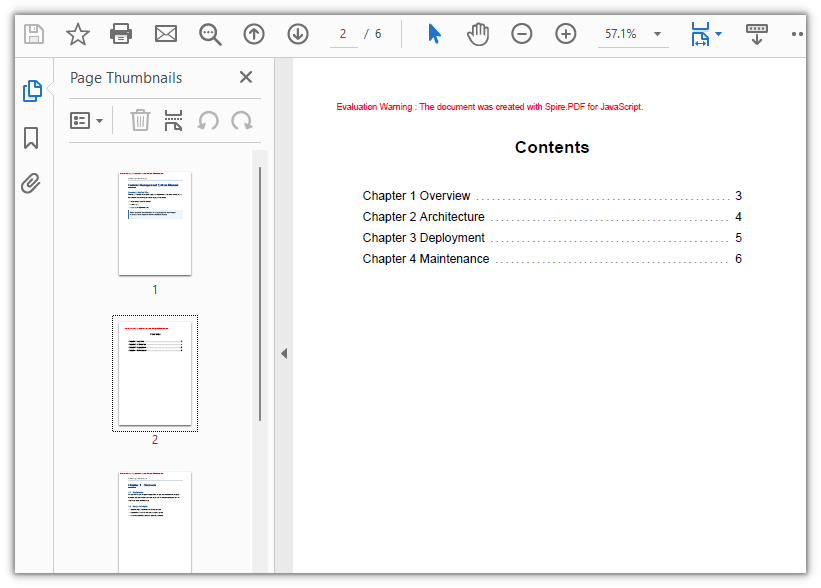
Neste ponto a página parece pronta, e essa é a armadilha. Cada entrada é tinta. Clicar em uma não faz nada, porque uma página de texto desenhado não tem nenhum elemento interativo.
Tornando cada entrada clicável
A interação em um PDF vem de anotações, não do texto em si. Para fazer uma linha da página de índice responder a um clique, ela precisa ser coberta por um PdfActionAnnotation cuja ação seja um PdfGoToAction que carregue um PdfDestination — o destino nomeia a página para a qual saltar.
function App() {
  const addTocNavigation = async () => {
    // Get the Spire.PDF WASM module
    const pdfModule = window.wasmModule?.spirepdf;

    // Check whether the module is ready
    if (!pdfModule) {
      alert('Spire.PDF is not ready yet');
      return;
    }

    // Load the document generated in the previous step
    const inputFileName = 'Document-with-TOC.pdf';
    await window.spire.FetchFileToVFS(inputFileName, '', `${process.env.PUBLIC_URL}/data/`);

    let doc = new pdfModule.PdfDocument();
    doc.LoadFromFile(inputFileName);

    // The contents page is page 2 of the document (index 1)
    const tocPage = doc.Pages.get_Item(1);

    // The entry text and the page each one should jump to
    const chapters = [
      { title: 'Chapter 1 Overview', page: 3 },
      { title: 'Chapter 2 Architecture', page: 4 },
      { title: 'Chapter 3 Deployment', page: 5 },
      { title: 'Chapter 4 Maintenance', page: 6 }
    ];

    // Search the contents page by keyword
    const finder = new pdfModule.PdfTextFinder(tocPage);

    for (const chapter of chapters) {
      const found = finder.Find(chapter.title);
      if (found.length === 0) {
        continue;
      }

      // Define the hit area based on the keyword position
      const lineBounds = found.get(0).Bounds[0];
      const bounds = new pdfModule.RectangleF({
        location: new pdfModule.PointF(0, lineBounds.Y),
        size: new pdfModule.SizeF({ width: tocPage.Canvas.ClientSize.Width, height: lineBounds.Height })
      });

      // The jump target is the chapter's page, aligned to the top-left corner of the body
      const targetPage = doc.Pages.get_Item(chapter.page - 1);
      const destination = new pdfModule.PdfDestination({
        page: targetPage,
        location: new pdfModule.PointF(0, 0)
      });

      // Attach the jump action and set the border width to 0
      const action = new pdfModule.PdfActionAnnotation(bounds, new pdfModule.PdfGoToAction({ destination }));
      action.Border = new pdfModule.PdfAnnotationBorder({ borderWidth: 0 });
      tocPage.Annotations.Add(action);
    }

    // Define the output file name and save
    const outputFileName = 'Clickable-TOC.pdf';
    doc.SaveToFile(outputFileName);
    doc.Close();

    // Read the generated file from the VFS and trigger the download
    const fileArray = window.dotnetRuntime.Module.FS.readFile(outputFileName);
    const blob = new Blob([fileArray], { type: 'application/pdf' });
    const url = URL.createObjectURL(blob);
    const a = document.createElement('a');
    a.href = url;
    a.download = outputFileName;
    a.click();
    URL.revokeObjectURL(url);
  };

  return (
    <div style={{ textAlign: 'center', height: '300px' }}>
      <h1>Add Navigation to Table of Contents Entries</h1>
      <button id="btn-2" onClick={addTocNavigation}>
        Add Navigation
      </button>
    </div>
  );
}

export default App;
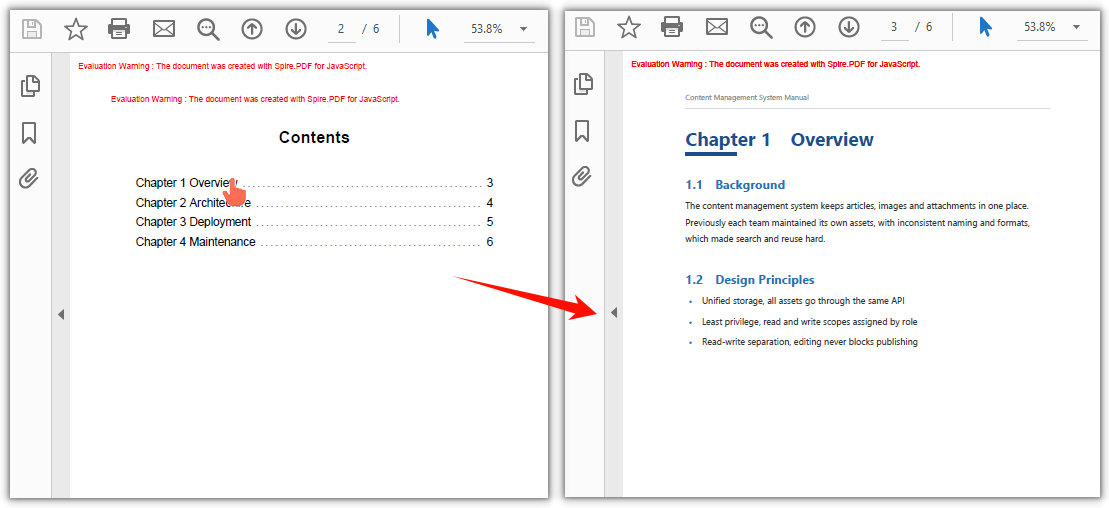
Duas escolhas ali são deliberadas. Border é zerado, porque uma borda visível desenha um retângulo ao redor de cada entrada — o leitor deve ver uma lista, não um formulário com caixas. E o destino é obtido como um objeto de página real com doc.Pages.get_Item(...), já que um destino precisa de uma página, não de um índice.
Clicar no título de um capítulo na página de índice salta para essa página
Encontrando a área de clique por meio da busca de texto
A parte interessante desse laço é a área de clique. A abordagem óbvia é calculá-la a partir das coordenadas de desenho — a entrada foi desenhada em y, a linha tem a altura de entryFont, então o retângulo vai ali. Funciona para a primeira linha e vai se desviando até a última.
O y do desenho e o retângulo da anotação estão em referenciais diferentes: o texto foi desenhado de cima para baixo, enquanto a área de clique precisa ser expressa em coordenadas de página. Conciliar os dois significa levar em conta a altura da página e uma margem superior, e qualquer erro nas métricas da fonte ou no espaçamento entre linhas se acumula linha a linha — até o clique cair na linha de baixo.
A solução é parar de derivar a posição e ir consultá-la. O PdfTextFinder busca um trecho de texto em uma página e retorna os retângulos que ele ocupa, já em coordenadas de página:
const finder = new pdfModule.PdfTextFinder(tocPage);
const found = finder.Find(chapter.title);
const lineBounds = found.get(0).Bounds[0];
const bounds = new pdfModule.RectangleF({
  location: new pdfModule.PointF(0, lineBounds.Y),
  size: new pdfModule.SizeF({ width: tocPage.Canvas.ClientSize.Width, height: lineBounds.Height })
});
const targetPage = doc.Pages.get_Item(chapter.page - 1);
const action = new pdfModule.PdfActionAnnotation(bounds, new pdfModule.PdfGoToAction({ destination }));
Buscar pelo próprio texto da entrada retorna onde esse texto realmente acabou ficando, então nenhuma margem superior precisa ser adicionada e nenhuma suposição de espaçamento entre linhas precisa se manter. O retângulo é então ampliado para abranger toda a largura da página, de modo que a linha inteira seja clicável em vez de apenas os glifos, e a altura do resultado da busca define a altura da linha. Se uma entrada não for encontrada, Find retorna uma lista vazia e o laço a ignora — um continue em vez de um link apontando para lugar nenhum.
É também por isso que desenhar e vincular são passagens separadas: a busca precisa que as entradas existam como texto antes de poder encontrá-las.
Estendendo para um índice com vários níveis
Um manual de verdade tem capítulos e seções, não uma lista plana. A mecânica acima escala com três ajustes.
| Alteração | O que ajustar |
|---|---|
| Subentradas recuadas | Desloque o x da subentrada para a direita e inicie os pontos de preenchimento a partir do novo fim do texto |
| Subentradas mais discretas | Desenhe-as com um tamanho menor ou um pincel cinza para que a hierarquia seja percebida de imediato |
| Espaçamento mais compacto | Reduza o passo de y nas linhas de seção para que um capítulo e suas seções sejam lidos como um grupo |
Duas advertências vêm junto. Os pontos de preenchimento começam a partir da largura medida da entrada, então uma subentrada recuada precisa ter seus pontos calculados a partir da margem recuada, ou eles vão se sobrepor ao texto. E a área de clique é encontrada buscando pelo texto, então duas entradas com o mesmo texto resultam na primeira ocorrência — numerar as seções (2.1, 2.2) contorna isso.
Se a lista passar de uma página, insira uma segunda página de índice e busque cada entrada na página em que ela foi desenhada — o localizador é criado por página.
Problemas comuns
Os números de página estão todos errados por um. A página de índice foi inserida no documento, então todas as páginas seguintes desceram uma posição. Escreva os números como eles estão depois da inserção. Se a capa era a página 1 e o capítulo um era a página 2, então, depois que a página de índice fica no índice 1, o capítulo um passa a ser a página 3.
Clicar em uma entrada salta para o capítulo errado, ou nada acontece. A área de clique foi derivada das coordenadas de desenho em vez de ser buscada. Deslocamentos medidos se acumulam ao longo da página, então o retângulo se desvia da sua linha. Busque na página de índice pelo texto da entrada e use o retângulo retornado — ele já está em coordenadas de página.
Apareceu uma caixa visível ao redor de cada entrada.
Essa é a borda da anotação. Defina action.Border com um PdfAnnotationBorder com borderWidth: 0 para que a área de clique permaneça invisível.
O primeiro clique não faz nada. O módulo WebAssembly ainda não havia terminado de carregar. Faça uma verificação na referência do módulo, ou mantenha o controle desabilitado até que ele esteja pronto.
Perguntas frequentes
Os números de página podem ser preenchidos automaticamente? A lista precisa ser informada de em qual página cada capítulo começa — a página de índice não consegue inferir a estrutura do seu documento sozinha. Leia a contagem de páginas do documento e monte a lista de entradas a partir dos seus próprios metadados de capítulos, lembrando de levar em conta as páginas que a própria página de índice acrescenta.
Os links sobrevivem à impressão? Não, e não deveriam. A impressão produz a página de índice visível com seus números de página; o comportamento de clique só existe no arquivo digital, onde o leitor pode usá-lo.
Posso mudar a aparência da página de índice?
Sim. O título e as entradas usam PdfFont, então família, tamanho e estilo são você quem define, e as cores vêm de PdfBrushes — os pontos de preenchimento do exemplo são desenhados em cinza para recuarem atrás das entradas.
A entrada clicável precisa de um sublinhado ou cor visível? Não. A área de clique é uma anotação invisível que cobre a linha, então a entrada parece texto comum e ainda assim responde a um clique. É por isso que a largura da borda é zerada.
Algo disso precisa de um servidor? Não. O documento é carregado, editado e salvo no navegador por meio do sistema de arquivos virtual, e o arquivo resultante é lido de volta para download.
Veja também
JavaScript(React)로 PDF에서 클릭 가능한 목차 만들기
생성된 보고서에 대한 불만이 돌아올 때, 그 불만은 거의 내용에 관한 것이 아니라 내용을 찾는 것에 관한 것입니다. 보고 파이프라인이 조립한 수백 페이지 분량의 문서에 목차 페이지가 없으면, 독자는 4장을 찾기 위해 스크롤바를 끌거나 뷰어의 검색 상자에 단어를 입력해야 합니다. 문서에는 구조가 있습니다. 다만 그 구조를 아무에게도 알려주지 않았을 뿐입니다.
이 글에서는 그 구조를 만들어 봅니다. 즉, 마땅히 있어야 할 위치에 정확히 그려진 목차 페이지를 만들고, 장 항목과 리더 점, 페이지 번호를 넣으며, 각 항목을 클릭할 수 있게 하여 독자가 파일 맨 위가 아니라 해당 장으로 바로 이동하도록 합니다. 여기에는 WebAssembly 기반으로 브라우저에서 문서를 로드, 편집, 저장하고 가상 파일 시스템(VFS)을 통해 읽고 쓰는 Spire.PDF for JavaScript를 사용합니다.
여기에서는 두 가지를 다룹니다:
설치 및 프로젝트 구성에 대해서는 React 프로젝트에서 Spire.PDF for JavaScript 통합하기를 참조하세요. 예제는 패키지가 설치되어 있고 WebAssembly 모듈이 초기화되었다고 가정합니다.
생성된 PDF에 목차 페이지가 없는 이유
PDF에서 목차라고 불리는 것은 두 가지이며, 코드를 작성하기 전에 이 둘을 구분해 두는 것이 좋습니다.
첫 번째는 눈에 보이는 목차 페이지입니다. 즉, 표지 뒤에 위치한 페이지 번호가 붙은 장 목록 인쇄본입니다. 대부분의 독자가 목차를 요청할 때 의미하는 것이 바로 이것이며, 파일을 인쇄해도 그대로 남는 것이고, 이 글에서 만드는 것입니다.
두 번째는 뷰어가 사이드바에 표시하는 개요(outline)로, 파일 내부의 별도 데이터 구조입니다. 템플릿으로 페이지를 조립하는 생성기는 보통 둘 다 만들지 않습니다. 장을 배치하는 방법은 알지만 장 목록이라는 개념이 없어서 탐색 정보가 아예 기록되지 않습니다.
목록을 그리기 전에 페이지 번호를 알아내는 것이 나머지 절반입니다. 이 번호는 문서 자체에서 나옵니다. 번호를 하드코딩하지 않고 계산해 내야 한다면, PDF의 페이지 수 구하기가 그 계산의 출발점입니다.
올바른 인덱스에 목차 페이지 삽입하기
목차 페이지는 그 위에 무엇이든 그리기 전에 존재해야 하며, 특정 위치, 즉 표지 뒤, 1장 앞에 들어가야 합니다. Pages.Insert({ index })는 지정한 인덱스에 페이지를 삽입하고 그 페이지를 반환하므로 바로 그릴 수 있습니다.
// Insert the contents page after the cover; the body pages shift down by one
const tocPage = doc.Pages.Insert({ index: 1 });
그 한 번의 호출에는 숨은 결과가 있는데, 이것이 이 작업 전체에서 가장 흔한 버그를 일으킵니다. 바로 삽입으로 인해 그 뒤의 모든 페이지가 하나씩 밀린다는 점입니다. 삽입 전에 표지가 1페이지이고 1장이 2페이지였다면, 목차 페이지를 삽입한 후 1장은 3페이지가 됩니다. 목차 페이지에 적히는 페이지 번호는 장 목록을 작성했을 때가 아니라 현재 상태의 문서를 반영해야 합니다.
항목, 리더 점, 페이지 번호 그리기
목차 페이지는 조판되는 것이 아니라 그려집니다. 제목, 모든 항목, 리더 점, 페이지 번호가 각각 개별적인 Canvas.DrawString 호출입니다. 글꼴은 내장 글꼴 패밀리에서 가져오고, 제목은 PdfStringFormat으로 가운데 정렬하며, 항목은 MeasureString으로 측정하여 그 옆에 무언가를 배치하기 전에 너비를 알 수 있습니다.
function App() {
  const createTocPage = async () => {
    // Get the Spire.PDF WASM module
    const pdfModule = window.wasmModule?.spirepdf;

    // Check whether the module is ready
    if (!pdfModule) {
      alert('Spire.PDF is not ready yet');
      return;
    }

    // Load the PDF to process into the VFS
    const inputFileName = 'Chapter_Document.pdf';
    await window.spire.FetchFileToVFS(inputFileName, '', `${process.env.PUBLIC_URL}/data/`);

    // Create a PdfDocument object and load the PDF
    let doc = new pdfModule.PdfDocument();
    doc.LoadFromFile(inputFileName);

    // Insert the contents page after the cover; the body pages shift down by one
    const tocPage = doc.Pages.Insert({ index: 1 });

    // Fonts for the title and the entries, using the built-in Helvetica (no font file to load)
    const titleFont = new pdfModule.PdfFont({ fontFamily: pdfModule.PdfFontFamily.Helvetica, size: 20, style: pdfModule.PdfFontStyle.Bold });
    const entryFont = new pdfModule.PdfFont({ fontFamily: pdfModule.PdfFontFamily.Helvetica, size: 14 });
    const centerFormat = new pdfModule.PdfStringFormat({ alignment: pdfModule.PdfTextAlignment.Center });

    // Draw the centered contents title
    const title = 'Contents';
    tocPage.Canvas.DrawString({
      s: title,
      font: titleFont,
      brush: pdfModule.PdfBrushes.get_Black(),
      point: new pdfModule.PointF(tocPage.Canvas.ClientSize.Width / 2, 50),
      format: centerFormat
    });

    // Chapter titles and their page numbers after the contents page is inserted
    const chapters = [
      { title: 'Chapter 1 Overview', page: 3 },
      { title: 'Chapter 2 Architecture', page: 4 },
      { title: 'Chapter 3 Deployment', page: 5 },
      { title: 'Chapter 4 Maintenance', page: 6 }
    ];

    const width = tocPage.Canvas.ClientSize.Width;
    let y = 110;
    for (const chapter of chapters) {
      // Entry text
      const titleSize = entryFont.MeasureString({ text: chapter.title });
      tocPage.Canvas.DrawString({ s: chapter.title, font: entryFont, brush: pdfModule.PdfBrushes.get_Black(), x: 40, y: y });

      // Right-aligned page number
      const pageText = chapter.page.toString();
      const pageSize = entryFont.MeasureString({ text: pageText });
      tocPage.Canvas.DrawString({ s: pageText, font: entryFont, brush: pdfModule.PdfBrushes.get_Black(), x: width - 40 - pageSize.Width, y: y });

      // Leader dots: fill from the end of the entry to the start of the page number
      const dotStart = 40 + titleSize.Width + 6;
      const dotEnd = width - 40 - pageSize.Width - 6;
      for (let x = dotStart; x < dotEnd; x += 6) {
        tocPage.Canvas.DrawString({ s: '.', font: entryFont, brush: pdfModule.PdfBrushes.get_Gray(), x: x, y: y });
      }

      y += 24;
    }

    // Define the output file name and save
    const outputFileName = 'Document-with-TOC.pdf';
    doc.SaveToFile(outputFileName);
    doc.Close();

    // Read the generated file from the VFS and trigger the download
    const fileArray = window.dotnetRuntime.Module.FS.readFile(outputFileName);
    const blob = new Blob([fileArray], { type: 'application/pdf' });
    const url = URL.createObjectURL(blob);
    const a = document.createElement('a');
    a.href = url;
    a.download = outputFileName;
    a.click();
    URL.revokeObjectURL(url);
  };

  return (
    <div style={{ textAlign: 'center', height: '300px' }}>
      <h1>Create a Table of Contents Page</h1>
      <button id="btn-1" onClick={createTocPage}>
        Create TOC
      </button>
    </div>
  );
}

export default App;
모든 x 좌표는 하드코딩이 아니라 계산으로 도출됩니다. 항목은 왼쪽 여백 40에서 시작하고, 페이지 번호는 width - 40 - pageSize.Width에 놓여 같은 여백에 오른쪽 정렬되며, 리더 점은 항목 바로 뒤에서 번호 바로 앞까지 이어집니다. 여백을 옮기면 점들도 따라갑니다.
목차 페이지가 있는 문서: 표지 다음 페이지에 각 장과 해당 페이지 번호가 나열됩니다
이 시점에서 페이지는 완성된 것처럼 보입니다. 그리고 그것이 함정입니다. 모든 항목은 잉크일 뿐입니다. 클릭해도 아무 일도 일어나지 않는데, 그려진 텍스트로 이루어진 페이지에는 상호작용 요소가 전혀 없기 때문입니다.
각 항목을 클릭 가능하게 만들기
PDF의 상호작용은 텍스트 자체가 아니라 주석(annotation)에서 나옵니다. 목차 페이지의 한 줄이 클릭에 반응하게 하려면, 그 줄을 PdfActionAnnotation으로 덮어야 하며, 그 동작(action)은 PdfDestination을 담은 PdfGoToAction이어야 합니다. 이 대상(destination)이 이동할 페이지를 지정합니다.
function App() {
  const addTocNavigation = async () => {
    // Get the Spire.PDF WASM module
    const pdfModule = window.wasmModule?.spirepdf;

    // Check whether the module is ready
    if (!pdfModule) {
      alert('Spire.PDF is not ready yet');
      return;
    }

    // Load the document generated in the previous step
    const inputFileName = 'Document-with-TOC.pdf';
    await window.spire.FetchFileToVFS(inputFileName, '', `${process.env.PUBLIC_URL}/data/`);

    let doc = new pdfModule.PdfDocument();
    doc.LoadFromFile(inputFileName);

    // The contents page is page 2 of the document (index 1)
    const tocPage = doc.Pages.get_Item(1);

    // The entry text and the page each one should jump to
    const chapters = [
      { title: 'Chapter 1 Overview', page: 3 },
      { title: 'Chapter 2 Architecture', page: 4 },
      { title: 'Chapter 3 Deployment', page: 5 },
      { title: 'Chapter 4 Maintenance', page: 6 }
    ];

    // Search the contents page by keyword
    const finder = new pdfModule.PdfTextFinder(tocPage);

    for (const chapter of chapters) {
      const found = finder.Find(chapter.title);
      if (found.length === 0) {
        continue;
      }

      // Define the hit area based on the keyword position
      const lineBounds = found.get(0).Bounds[0];
      const bounds = new pdfModule.RectangleF({
        location: new pdfModule.PointF(0, lineBounds.Y),
        size: new pdfModule.SizeF({ width: tocPage.Canvas.ClientSize.Width, height: lineBounds.Height })
      });

      // The jump target is the chapter's page, aligned to the top-left corner of the body
      const targetPage = doc.Pages.get_Item(chapter.page - 1);
      const destination = new pdfModule.PdfDestination({
        page: targetPage,
        location: new pdfModule.PointF(0, 0)
      });

      // Attach the jump action and set the border width to 0
      const action = new pdfModule.PdfActionAnnotation(bounds, new pdfModule.PdfGoToAction({ destination }));
      action.Border = new pdfModule.PdfAnnotationBorder({ borderWidth: 0 });
      tocPage.Annotations.Add(action);
    }

    // Define the output file name and save
    const outputFileName = 'Clickable-TOC.pdf';
    doc.SaveToFile(outputFileName);
    doc.Close();

    // Read the generated file from the VFS and trigger the download
    const fileArray = window.dotnetRuntime.Module.FS.readFile(outputFileName);
    const blob = new Blob([fileArray], { type: 'application/pdf' });
    const url = URL.createObjectURL(blob);
    const a = document.createElement('a');
    a.href = url;
    a.download = outputFileName;
    a.click();
    URL.revokeObjectURL(url);
  };

  return (
    <div style={{ textAlign: 'center', height: '300px' }}>
      <h1>Add Navigation to Table of Contents Entries</h1>
      <button id="btn-2" onClick={addTocNavigation}>
        Add Navigation
      </button>
    </div>
  );
}

export default App;
여기에는 의도적인 선택 두 가지가 있습니다. Border를 0으로 설정했는데, 테두리가 보이면 각 항목 주위에 사각형이 그려지기 때문입니다. 독자는 상자 형태가 아니라 목록을 봐야 합니다. 또한 대상은 doc.Pages.get_Item(...)으로 실제 페이지 객체로 가져오는데, 대상에는 인덱스가 아니라 페이지가 필요하기 때문입니다.
목차 페이지에서 장 제목을 클릭하면 해당 페이지로 이동합니다
텍스트 검색으로 클릭 영역 찾기
그 반복문에서 흥미로운 부분은 클릭 영역입니다. 뻔한 방법은 그리기 좌표에서 계산하는 것입니다. 항목은 y에 그려졌고 줄 높이는 entryFont이므로 사각형을 거기에 놓는 것입니다. 이 방법은 첫 번째 행에서는 맞지만 마지막 행에서는 어긋납니다.
그리기 y와 주석 사각형은 서로 다른 기준 좌표계에 있습니다. 텍스트는 위에서 아래로 그려졌지만, 클릭 영역은 페이지 좌표로 표현되어야 합니다. 이 둘을 연결하려면 페이지 높이와 위쪽 여백을 고려해야 하며, 글꼴 메트릭이나 줄 간격의 오차가 행마다 누적되어 결국 클릭이 아래 행에 걸리게 됩니다.
해결책은 위치를 계산하지 않고 찾아보는 것입니다. PdfTextFinder는 페이지에서 특정 텍스트를 검색하고 그것이 차지하는 사각형들을 이미 페이지 좌표로 반환합니다:
const finder = new pdfModule.PdfTextFinder(tocPage);
const found = finder.Find(chapter.title);
const lineBounds = found.get(0).Bounds[0];
const bounds = new pdfModule.RectangleF({
  location: new pdfModule.PointF(0, lineBounds.Y),
  size: new pdfModule.SizeF({ width: tocPage.Canvas.ClientSize.Width, height: lineBounds.Height })
});
const targetPage = doc.Pages.get_Item(chapter.page - 1);
const action = new pdfModule.PdfActionAnnotation(bounds, new pdfModule.PdfGoToAction({ destination }));
항목 자체의 텍스트를 검색하면 그 텍스트가 실제로 어디에 놓였는지 돌려받으므로, 위쪽 여백을 더할 필요도 없고 줄 간격을 가정할 필요도 없습니다. 그다음 사각형을 페이지 전체 너비로 넓혀 글자뿐 아니라 행 전체를 클릭할 수 있게 하고, 검색 결과의 높이가 행 높이가 됩니다. 항목을 찾지 못하면 Find가 빈 목록을 반환하고 반복문은 그 항목을 건너뜁니다. 아무 데도 가리키지 않는 링크 대신 continue를 쓰는 것입니다.
이것이 그리기와 링크 연결이 별도의 단계로 나뉘는 이유이기도 합니다. 검색은 항목이 텍스트로 존재해야만 찾을 수 있기 때문입니다.
다단계 목차로 확장하기
실제 매뉴얼에는 평면적인 목록 하나가 아니라 장과 절이 있습니다. 위의 방식은 세 가지 조정으로 확장할 수 있습니다.
| 변경 사항 | 조정할 내용 |
|---|---|
| 하위 항목 들여쓰기 | 하위 항목의 x를 오른쪽으로 옮기고, 리더 점을 새 텍스트 끝에서 시작합니다 |
| 하위 항목을 더 차분하게 | 더 작은 크기나 회색 브러시로 그려서 계층 구조가 한눈에 읽히도록 합니다 |
| 더 좁은 간격 | 절 행의 y 간격을 줄여서 장과 그 절들이 한 그룹으로 읽히도록 합니다 |
여기에는 두 가지 주의 사항이 따릅니다. 리더 점은 항목의 측정된 너비에서 시작하므로, 들여쓴 하위 항목은 들여쓴 여백을 기준으로 점을 계산해야 하며 그렇지 않으면 텍스트와 겹칩니다. 또한 클릭 영역은 텍스트 검색으로 찾기 때문에, 같은 내용을 가진 두 항목은 첫 번째 항목으로 귀결됩니다. 절에 번호(2.1, 2.2)를 붙이면 이 문제를 피할 수 있습니다.
목록이 한 페이지를 넘으면 두 번째 목차 페이지를 삽입하고 각 항목이 그려진 페이지에서 검색하세요. 검색기(finder)는 페이지마다 생성합니다.
일반적인 문제
페이지 번호가 모두 하나씩 어긋납니다. 목차 페이지가 문서에 삽입되어 그 뒤의 모든 페이지가 하나씩 밀렸습니다. 삽입 이후의 상태를 기준으로 번호를 적으세요. 표지가 1페이지이고 1장이 2페이지였다면, 목차 페이지가 인덱스 1에 놓이는 순간 1장은 3페이지가 됩니다.
항목을 클릭하면 엉뚱한 장으로 이동하거나 아무 일도 일어나지 않습니다. 클릭 영역을 검색하지 않고 그리기 좌표에서 계산했습니다. 측정 오프셋은 페이지 아래로 갈수록 누적되므로 사각형이 제 행에서 벗어납니다. 목차 페이지에서 항목의 텍스트를 검색하고 반환된 사각형을 사용하세요. 이미 페이지 좌표입니다.
모든 항목 주위에 보이는 상자가 나타났습니다.
그것은 주석 테두리입니다. action.Border를 borderWidth: 0인 PdfAnnotationBorder로 설정하여 클릭 영역이 보이지 않게 하세요.
첫 클릭이 아무 효과가 없습니다. WebAssembly 모듈이 아직 로딩을 마치지 않은 것입니다. 모듈 참조에 대한 가드를 두거나, 준비될 때까지 컨트롤을 비활성화해 두세요.
자주 묻는 질문
페이지 번호를 자동으로 채울 수 있나요? 목록에는 각 장이 어느 페이지에서 시작하는지 알려줘야 합니다. 목차 페이지는 문서 구조를 스스로 추론할 수 없습니다. 문서의 페이지 수를 읽고 자체 장 메타데이터로 항목 목록을 구성하되, 목차 페이지 자체가 추가하는 페이지도 고려해야 합니다.
링크는 인쇄해도 유지되나요? 아니요, 그리고 그럴 필요도 없습니다. 인쇄는 페이지 번호가 있는 눈에 보이는 목차 페이지를 만들 뿐이며, 클릭 동작은 독자가 실제로 사용할 수 있는 디지털 파일에만 존재합니다.
목차 페이지의 모양을 바꿀 수 있나요?
네. 제목과 항목은 PdfFont를 사용하므로 패밀리, 크기, 스타일을 원하는 대로 설정할 수 있고, 색상은 PdfBrushes에서 가져옵니다. 예제의 리더 점은 항목 뒤로 물러나 보이도록 회색으로 그려져 있습니다.
클릭 가능한 항목에 눈에 보이는 밑줄이나 색이 필요한가요? 아니요. 클릭 영역은 행을 덮는 보이지 않는 주석이므로 항목은 평범한 텍스트처럼 보이면서도 클릭에 반응합니다. 그래서 테두리 너비를 0으로 설정합니다.
이 작업에 서버가 필요한가요? 아니요. 문서는 가상 파일 시스템을 통해 브라우저에서 로드, 편집, 저장되며, 결과 파일은 다시 읽어내어 다운로드합니다.
함께 보기
Crea un indice cliccabile in un PDF con JavaScript (React)
Indice dei contenuti
- Perché i PDF generati vengono distribuiti senza una pagina di indice
- Inserire la pagina di indice all'indice corretto
- Disegnare le voci, i puntini di riempimento e i numeri di pagina
- Rendere cliccabile ogni voce
- Trovare l'area di clic tramite la ricerca testuale
- Estendere a un indice multilivello
- Problemi comuni
- FAQ
- Vedi anche
Quando un report generato torna indietro con delle lamentele, queste non riguardano quasi mai il contenuto — riguardano la sua reperibilità. Qualche centinaio di pagine assemblate da una pipeline di reporting, nessuna pagina di indice, e il lettore è costretto a trascinare una barra di scorrimento o a digitare parole nella casella di ricerca del visualizzatore per individuare il capitolo quattro. Il documento ha una struttura; semplicemente non l'ha mai comunicata a nessuno.
Questo articolo costruisce proprio quella struttura: una pagina di indice disegnata esattamente nella posizione che dovrebbe occupare, con le voci dei capitoli, i puntini di riempimento e i numeri di pagina, e con ogni voce cliccabile in modo che il lettore arrivi al capitolo invece che all'inizio del file. Utilizza Spire.PDF for JavaScript, che carica, modifica e salva documenti nel browser su WebAssembly, leggendo e scrivendo tramite un file system virtuale (VFS).
Qui vengono trattati due aspetti:
Per l'installazione e la configurazione del progetto, fare riferimento a Integrare Spire.PDF for JavaScript in un progetto React. Gli esempi presuppongono che il pacchetto sia installato e che il modulo WebAssembly sia stato inizializzato.
Perché i PDF generati vengono distribuiti senza una pagina di indice
Due cose vengono chiamate indice in un PDF, e vale la pena separarle prima di scrivere qualsiasi codice.
La prima è una pagina di indice visibile — un elenco stampato di capitoli con i numeri di pagina, posto dopo la copertina. È ciò che la maggior parte dei lettori intende quando ne chiede una, è ciò che sopravvive quando il file viene stampato, ed è ciò che questo articolo costruisce.
La seconda è la struttura di navigazione che un visualizzatore mostra in una barra laterale, che è una struttura dati separata all'interno del file. Un generatore che assembla pagine da modelli in genere non produce nessuna delle due: sa come impaginare un capitolo ma non ha alcun concetto di elenco dei capitoli, quindi la navigazione semplicemente non viene scritta.
Conoscere i numeri di pagina prima di disegnare l'elenco è l'altra metà del lavoro. Quei numeri provengono dal documento stesso — se hai bisogno di ricavarli invece di codificarli a mano, ottenere il numero di pagine del PDF è il punto da cui parte l'aritmetica.
Inserire la pagina di indice all'indice corretto
La pagina di indice deve esistere prima che vi si possa disegnare qualcosa, e deve finire in uno slot specifico: dopo la copertina, prima del capitolo uno. Pages.Insert({ index }) inserisce una pagina a un dato indice e la restituisce, pronta per essere disegnata.
// Insert the contents page after the cover; the body pages shift down by one
const tocPage = doc.Pages.Insert({ index: 1 });
C'è una conseguenza nascosta in quella singola chiamata, e causa il bug più comune in tutto questo esercizio: l'inserimento sposta ogni pagina successiva di uno verso il basso. Se la copertina era la pagina 1 e il capitolo uno era la pagina 2 prima dell'inserimento, dopo aver inserito la pagina di indice il capitolo uno è la pagina 3. Qualsiasi numero di pagina scritto sulla pagina di indice deve riflettere il documento così come si presenta ora, non come era quando è stato compilato l'elenco dei capitoli.
Disegnare le voci, i puntini di riempimento e i numeri di pagina
Una pagina di indice viene disegnata, non composta tipograficamente — il titolo, ogni voce, i puntini di riempimento e i numeri di pagina sono ciascuno una singola chiamata Canvas.DrawString. I font provengono da una famiglia integrata, il titolo è centrato con un PdfStringFormat, e le voci vengono misurate con MeasureString in modo che la loro larghezza sia nota prima di posizionare qualsiasi cosa rispetto ad esse.
function App() {
  const createTocPage = async () => {
    // Get the Spire.PDF WASM module
    const pdfModule = window.wasmModule?.spirepdf;

    // Check whether the module is ready
    if (!pdfModule) {
      alert('Spire.PDF is not ready yet');
      return;
    }

    // Load the PDF to process into the VFS
    const inputFileName = 'Chapter_Document.pdf';
    await window.spire.FetchFileToVFS(inputFileName, '', `${process.env.PUBLIC_URL}/data/`);

    // Create a PdfDocument object and load the PDF
    let doc = new pdfModule.PdfDocument();
    doc.LoadFromFile(inputFileName);

    // Insert the contents page after the cover; the body pages shift down by one
    const tocPage = doc.Pages.Insert({ index: 1 });

    // Fonts for the title and the entries, using the built-in Helvetica (no font file to load)
    const titleFont = new pdfModule.PdfFont({ fontFamily: pdfModule.PdfFontFamily.Helvetica, size: 20, style: pdfModule.PdfFontStyle.Bold });
    const entryFont = new pdfModule.PdfFont({ fontFamily: pdfModule.PdfFontFamily.Helvetica, size: 14 });
    const centerFormat = new pdfModule.PdfStringFormat({ alignment: pdfModule.PdfTextAlignment.Center });

    // Draw the centered contents title
    const title = 'Contents';
    tocPage.Canvas.DrawString({
      s: title,
      font: titleFont,
      brush: pdfModule.PdfBrushes.get_Black(),
      point: new pdfModule.PointF(tocPage.Canvas.ClientSize.Width / 2, 50),
      format: centerFormat
    });

    // Chapter titles and their page numbers after the contents page is inserted
    const chapters = [
      { title: 'Chapter 1 Overview', page: 3 },
      { title: 'Chapter 2 Architecture', page: 4 },
      { title: 'Chapter 3 Deployment', page: 5 },
      { title: 'Chapter 4 Maintenance', page: 6 }
    ];

    const width = tocPage.Canvas.ClientSize.Width;
    let y = 110;
    for (const chapter of chapters) {
      // Entry text
      const titleSize = entryFont.MeasureString({ text: chapter.title });
      tocPage.Canvas.DrawString({ s: chapter.title, font: entryFont, brush: pdfModule.PdfBrushes.get_Black(), x: 40, y: y });

      // Right-aligned page number
      const pageText = chapter.page.toString();
      const pageSize = entryFont.MeasureString({ text: pageText });
      tocPage.Canvas.DrawString({ s: pageText, font: entryFont, brush: pdfModule.PdfBrushes.get_Black(), x: width - 40 - pageSize.Width, y: y });

      // Leader dots: fill from the end of the entry to the start of the page number
      const dotStart = 40 + titleSize.Width + 6;
      const dotEnd = width - 40 - pageSize.Width - 6;
      for (let x = dotStart; x < dotEnd; x += 6) {
        tocPage.Canvas.DrawString({ s: '.', font: entryFont, brush: pdfModule.PdfBrushes.get_Gray(), x: x, y: y });
      }

      y += 24;
    }

    // Define the output file name and save
    const outputFileName = 'Document-with-TOC.pdf';
    doc.SaveToFile(outputFileName);
    doc.Close();

    // Read the generated file from the VFS and trigger the download
    const fileArray = window.dotnetRuntime.Module.FS.readFile(outputFileName);
    const blob = new Blob([fileArray], { type: 'application/pdf' });
    const url = URL.createObjectURL(blob);
    const a = document.createElement('a');
    a.href = url;
    a.download = outputFileName;
    a.click();
    URL.revokeObjectURL(url);
  };

  return (
    <div style={{ textAlign: 'center', height: '300px' }}>
      <h1>Create a Table of Contents Page</h1>
      <button id="btn-1" onClick={createTocPage}>
        Create TOC
      </button>
    </div>
  );
}

export default App;
Ogni posizione x è derivata anziché codificata a mano. La voce inizia dal margine sinistro di 40, il numero di pagina finisce a width - 40 - pageSize.Width in modo da allinearsi a destra su quello stesso margine, e i puntini di riempimento vanno da poco dopo la voce a poco prima del numero — sposta il margine e i puntini lo seguono.
Il documento con una pagina di indice: la pagina dopo la copertina elenca ogni capitolo con il suo numero di pagina
A questo punto la pagina sembra finita, e questa è la trappola. Ogni voce è inchiostro. Cliccarne una non fa nulla, perché una pagina di testo disegnato non ha alcun elemento interattivo.
Rendere cliccabile ogni voce
L'interazione in un PDF deriva dalle annotazioni, non dal testo stesso. Per rendere una riga della pagina di indice sensibile a un clic, deve essere coperta da una PdfActionAnnotation la cui azione è una PdfGoToAction che porta una PdfDestination — la destinazione indica la pagina a cui saltare.
function App() {
  const addTocNavigation = async () => {
    // Get the Spire.PDF WASM module
    const pdfModule = window.wasmModule?.spirepdf;

    // Check whether the module is ready
    if (!pdfModule) {
      alert('Spire.PDF is not ready yet');
      return;
    }

    // Load the document generated in the previous step
    const inputFileName = 'Document-with-TOC.pdf';
    await window.spire.FetchFileToVFS(inputFileName, '', `${process.env.PUBLIC_URL}/data/`);

    let doc = new pdfModule.PdfDocument();
    doc.LoadFromFile(inputFileName);

    // The contents page is page 2 of the document (index 1)
    const tocPage = doc.Pages.get_Item(1);

    // The entry text and the page each one should jump to
    const chapters = [
      { title: 'Chapter 1 Overview', page: 3 },
      { title: 'Chapter 2 Architecture', page: 4 },
      { title: 'Chapter 3 Deployment', page: 5 },
      { title: 'Chapter 4 Maintenance', page: 6 }
    ];

    // Search the contents page by keyword
    const finder = new pdfModule.PdfTextFinder(tocPage);

    for (const chapter of chapters) {
      const found = finder.Find(chapter.title);
      if (found.length === 0) {
        continue;
      }

      // Define the hit area based on the keyword position
      const lineBounds = found.get(0).Bounds[0];
      const bounds = new pdfModule.RectangleF({
        location: new pdfModule.PointF(0, lineBounds.Y),
        size: new pdfModule.SizeF({ width: tocPage.Canvas.ClientSize.Width, height: lineBounds.Height })
      });

      // The jump target is the chapter's page, aligned to the top-left corner of the body
      const targetPage = doc.Pages.get_Item(chapter.page - 1);
      const destination = new pdfModule.PdfDestination({
        page: targetPage,
        location: new pdfModule.PointF(0, 0)
      });

      // Attach the jump action and set the border width to 0
      const action = new pdfModule.PdfActionAnnotation(bounds, new pdfModule.PdfGoToAction({ destination }));
      action.Border = new pdfModule.PdfAnnotationBorder({ borderWidth: 0 });
      tocPage.Annotations.Add(action);
    }

    // Define the output file name and save
    const outputFileName = 'Clickable-TOC.pdf';
    doc.SaveToFile(outputFileName);
    doc.Close();

    // Read the generated file from the VFS and trigger the download
    const fileArray = window.dotnetRuntime.Module.FS.readFile(outputFileName);
    const blob = new Blob([fileArray], { type: 'application/pdf' });
    const url = URL.createObjectURL(blob);
    const a = document.createElement('a');
    a.href = url;
    a.download = outputFileName;
    a.click();
    URL.revokeObjectURL(url);
  };

  return (
    <div style={{ textAlign: 'center', height: '300px' }}>
      <h1>Add Navigation to Table of Contents Entries</h1>
      <button id="btn-2" onClick={addTocNavigation}>
        Add Navigation
      </button>
    </div>
  );
}

export default App;
Due scelte al suo interno sono deliberate. Border è azzerato, perché un bordo visibile disegna un rettangolo attorno a ogni voce — il lettore dovrebbe vedere un elenco, non un modulo incorniciato. E la destinazione viene recuperata come un vero oggetto pagina con doc.Pages.get_Item(...), poiché una destinazione richiede una pagina, non un indice.
Cliccando il titolo di un capitolo nella pagina di indice si salta a quella pagina
Trovare l'area di clic tramite la ricerca testuale
La parte interessante di quel ciclo è l'area di clic. L'approccio ovvio è calcolarla dalle coordinate di disegno — la voce è stata disegnata a y, la riga è alta quanto entryFont, quindi il rettangolo va lì. Funziona per la prima riga e va fuori registro per l'ultima.
Il y di disegno e il rettangolo dell'annotazione si trovano in sistemi di riferimento diversi: il testo è stato disegnato verso il basso dall'alto, mentre l'area di clic deve essere espressa in coordinate di pagina. Collegarli significa tenere conto dell'altezza della pagina e di un margine superiore, e qualsiasi errore nelle metriche dei font o nell'interlinea si accumula riga dopo riga — finché il clic non finisce sulla riga sottostante.
La soluzione è smettere di derivare la posizione e andarla a cercare. PdfTextFinder cerca un frammento di testo in una pagina e restituisce i rettangoli che occupa, già in coordinate di pagina:
const finder = new pdfModule.PdfTextFinder(tocPage);
const found = finder.Find(chapter.title);
const lineBounds = found.get(0).Bounds[0];
const bounds = new pdfModule.RectangleF({
  location: new pdfModule.PointF(0, lineBounds.Y),
  size: new pdfModule.SizeF({ width: tocPage.Canvas.ClientSize.Width, height: lineBounds.Height })
});
const targetPage = doc.Pages.get_Item(chapter.page - 1);
const action = new pdfModule.PdfActionAnnotation(bounds, new pdfModule.PdfGoToAction({ destination }));
Cercare il testo stesso della voce restituisce dove quel testo è effettivamente finito, quindi non deve essere aggiunto alcun margine superiore e non deve valere alcuna assunzione sull'interlinea. Il rettangolo viene poi ampliato per coprire l'intera larghezza della pagina, in modo che l'intera riga sia cliccabile e non solo i glifi, e l'altezza del risultato della ricerca determina l'altezza della riga. Se una voce non viene trovata, Find restituisce un elenco vuoto e il ciclo la salta — un continue invece di un link che non punta a nulla.
Questo è anche il motivo per cui disegno e collegamento sono passaggi separati: la ricerca ha bisogno che le voci esistano come testo prima di poterle trovare.
Estendere a un indice multilivello
Un vero manuale ha capitoli e sezioni, non un unico elenco piatto. La meccanica di cui sopra si estende con tre accorgimenti.
| Modifica | Cosa regolare |
|---|---|
| Sottovoci rientrate | Sposta la x della sottovoce verso destra, e fai partire i puntini di riempimento dalla nuova fine del testo |
| Sottovoci più discrete | Disegnale con una dimensione più piccola o un pennello grigio, così la gerarchia si legge a colpo d'occhio |
| Spaziatura più stretta | Riduci il passo di y per le righe delle sezioni, così un capitolo e le sue sezioni si leggono come un gruppo |
Ciò comporta due avvertenze. I puntini di riempimento partono dalla larghezza misurata della voce, quindi una sottovoce rientrata necessita che i suoi puntini siano calcolati dal margine rientrato, altrimenti si sovrapporranno al testo. E l'area di clic viene trovata cercando il testo, quindi due voci che riportano la stessa cosa si risolvono alla prima occorrenza — numerare le sezioni (2.1, 2.2) aggira il problema.
Se l'elenco supera una pagina, inserisci una seconda pagina di indice e cerca ogni voce sulla pagina in cui è stata disegnata — il finder viene creato per pagina.
Problemi comuni
I numeri di pagina sono tutti sfalsati di uno. La pagina di indice è stata inserita nel documento, quindi ogni pagina successiva si è spostata di uno verso il basso. Scrivi i numeri come sono dopo l'inserimento. Se la copertina era la pagina 1 e il capitolo uno era la pagina 2, una volta che la pagina di indice si trova all'indice 1, il capitolo uno è la pagina 3.
Cliccando una voce si salta al capitolo sbagliato, o non succede nulla. L'area di clic è stata derivata dalle coordinate di disegno invece di essere cercata. Gli scostamenti misurati si accumulano scendendo lungo la pagina, quindi il rettangolo va fuori registro rispetto alla sua riga. Cerca il testo della voce nella pagina di indice e usa il rettangolo restituito — è già in coordinate di pagina.
È comparso un riquadro visibile attorno a ogni voce.
Quello è il bordo dell'annotazione. Imposta action.Border su una PdfAnnotationBorder con borderWidth: 0 in modo che l'area di clic resti invisibile.
Il primo clic non fa nulla. Il modulo WebAssembly non aveva finito di caricarsi. Proteggi con un controllo sul riferimento del modulo, oppure mantieni il controllo disabilitato finché non è pronto.
FAQ
I numeri di pagina possono essere inseriti automaticamente? Bisogna indicare all'elenco su quale pagina inizia ogni capitolo — la pagina di indice non può dedurre da sola la struttura del tuo documento. Leggi il numero di pagine del documento e costruisci l'elenco delle voci dai tuoi metadati dei capitoli, ricordando di tenere conto delle pagine che la pagina di indice stessa aggiunge.
I link sopravvivono alla stampa? No, e non è previsto che lo facciano. La stampa produce la pagina di indice visibile con i suoi numeri di pagina; il comportamento al clic esiste solo nel file digitale, dove un lettore può agire su di esso.
Posso cambiare l'aspetto della pagina di indice?
Sì. Il titolo e le voci usano PdfFont, quindi famiglia, dimensione e stile sono a tua disposizione, e i colori provengono da PdfBrushes — i puntini di riempimento nell'esempio sono disegnati in grigio in modo che si attenuino dietro le voci.
La voce cliccabile ha bisogno di una sottolineatura o di un colore visibile? No. L'area di clic è un'annotazione invisibile che copre la riga, quindi la voce appare come testo normale e risponde comunque al clic. Ecco perché la larghezza del bordo è azzerata.
Qualcuno di questi aspetti richiede un server? No. Il documento viene caricato, modificato e salvato nel browser attraverso il file system virtuale, e il file risultante viene riletto per il download.
Vedi anche
- Come ottenere il numero di pagine di un PDF in JavaScript (React)
- Come copiare pagine in un PDF in JavaScript (React)
- Ridurre le dimensioni di un file PDF: immagini, font e stream di contenuto in JavaScript (React)
- Integrare Spire.PDF for JavaScript in un progetto React
- Pagina del prodotto Spire.PDF for JavaScript
Créer une table des matières cliquable dans un PDF avec JavaScript (React)
Table des matières
- Pourquoi les PDF générés sont livrés sans table des matières
- Insérer la table des matières au bon index
- Dessiner les entrées, les points de conduite et les numéros de page
- Rendre chaque entrée cliquable
- Trouver la zone de clic par recherche de texte
- Étendre à une table des matières à plusieurs niveaux
- Problèmes courants
- FAQ
- Voir aussi
Lorsqu'un rapport généré revient avec des plaintes, celles-ci ne portent presque jamais sur le contenu — elles portent sur la façon de le trouver. Quelques centaines de pages assemblées par un pipeline de reporting, aucune table des matières, et le lecteur doit faire glisser une barre de défilement ou taper des mots dans la zone de recherche du visualiseur pour localiser le chapitre quatre. Le document a une structure ; il ne l'a simplement jamais fait savoir.
Cet article construit cette structure : une table des matières dessinée exactement à la position qu'elle doit occuper, avec des entrées de chapitre, des points de conduite et des numéros de page, et avec chaque entrée cliquable afin que le lecteur arrive sur le chapitre plutôt qu'en haut du fichier. Il utilise Spire.PDF for JavaScript, qui charge, modifie et enregistre des documents dans le navigateur via WebAssembly, en lisant et écrivant dans un système de fichiers virtuel (VFS).
Deux éléments sont traités ici :
Pour l'installation et la configuration du projet, reportez-vous à Intégration de Spire.PDF for JavaScript dans un projet React. Les exemples supposent que le package est installé et que le module WebAssembly a été initialisé.
Pourquoi les PDF générés sont livrés sans table des matières
Deux choses sont appelées table des matières dans un PDF, et il vaut la peine de les distinguer avant d'écrire du code.
La première est une page de table des matières visible — une liste imprimée de chapitres avec numéros de page, située après la couverture. C'est ce que la plupart des lecteurs entendent lorsqu'ils en demandent une, c'est ce qui subsiste lorsque le fichier est imprimé, et c'est ce que cet article construit.
La seconde est le plan que le visualiseur affiche dans une barre latérale, qui est une structure de données distincte à l'intérieur du fichier. Un générateur qui assemble des pages à partir de modèles ne produit généralement ni l'une ni l'autre : il sait comment mettre en page un chapitre mais n'a aucune notion de liste de chapitres, donc la navigation n'est tout simplement pas écrite.
Connaître les numéros de page avant de dessiner la liste est l'autre moitié du travail. Ces numéros proviennent du document lui-même — si vous devez les déduire plutôt que les coder en dur, obtenir le nombre de pages du PDF est le point de départ du calcul.
Insérer la table des matières au bon index
La table des matières doit exister avant que quoi que ce soit puisse y être dessiné, et elle doit atterrir à un emplacement précis : après la couverture, avant le chapitre un. Pages.Insert({ index }) insère une page à un index donné et la renvoie, prête à recevoir des dessins.
// Insert the contents page after the cover; the body pages shift down by one
const tocPage = doc.Pages.Insert({ index: 1 });
Il y a une conséquence cachée dans cet appel, et elle cause le bug le plus courant de tout cet exercice : l'insertion décale chaque page suivante d'un rang. Si la couverture était la page 1 et le chapitre un la page 2 avant l'insertion, alors après l'insertion de la table des matières, le chapitre un est la page 3. Tout numéro de page écrit sur la table des matières doit refléter le document tel qu'il se présente maintenant, et non tel qu'il était lorsque la liste des chapitres a été compilée.
Dessiner les entrées, les points de conduite et les numéros de page
Une table des matières est dessinée, pas composée — le titre, chaque entrée, les points de conduite et les numéros de page sont chacun un appel individuel à Canvas.DrawString. Les polices proviennent d'une famille intégrée, le titre est centré avec un PdfStringFormat, et les entrées sont mesurées avec MeasureString afin que leur largeur soit connue avant que quoi que ce soit ne soit placé à leur contact.
function App() {
  const createTocPage = async () => {
    // Get the Spire.PDF WASM module
    const pdfModule = window.wasmModule?.spirepdf;

    // Check whether the module is ready
    if (!pdfModule) {
      alert('Spire.PDF is not ready yet');
      return;
    }

    // Load the PDF to process into the VFS
    const inputFileName = 'Chapter_Document.pdf';
    await window.spire.FetchFileToVFS(inputFileName, '', `${process.env.PUBLIC_URL}/data/`);

    // Create a PdfDocument object and load the PDF
    let doc = new pdfModule.PdfDocument();
    doc.LoadFromFile(inputFileName);

    // Insert the contents page after the cover; the body pages shift down by one
    const tocPage = doc.Pages.Insert({ index: 1 });

    // Fonts for the title and the entries, using the built-in Helvetica (no font file to load)
    const titleFont = new pdfModule.PdfFont({ fontFamily: pdfModule.PdfFontFamily.Helvetica, size: 20, style: pdfModule.PdfFontStyle.Bold });
    const entryFont = new pdfModule.PdfFont({ fontFamily: pdfModule.PdfFontFamily.Helvetica, size: 14 });
    const centerFormat = new pdfModule.PdfStringFormat({ alignment: pdfModule.PdfTextAlignment.Center });

    // Draw the centered contents title
    const title = 'Contents';
    tocPage.Canvas.DrawString({
      s: title,
      font: titleFont,
      brush: pdfModule.PdfBrushes.get_Black(),
      point: new pdfModule.PointF(tocPage.Canvas.ClientSize.Width / 2, 50),
      format: centerFormat
    });

    // Chapter titles and their page numbers after the contents page is inserted
    const chapters = [
      { title: 'Chapter 1 Overview', page: 3 },
      { title: 'Chapter 2 Architecture', page: 4 },
      { title: 'Chapter 3 Deployment', page: 5 },
      { title: 'Chapter 4 Maintenance', page: 6 }
    ];

    const width = tocPage.Canvas.ClientSize.Width;
    let y = 110;
    for (const chapter of chapters) {
      // Entry text
      const titleSize = entryFont.MeasureString({ text: chapter.title });
      tocPage.Canvas.DrawString({ s: chapter.title, font: entryFont, brush: pdfModule.PdfBrushes.get_Black(), x: 40, y: y });

      // Right-aligned page number
      const pageText = chapter.page.toString();
      const pageSize = entryFont.MeasureString({ text: pageText });
      tocPage.Canvas.DrawString({ s: pageText, font: entryFont, brush: pdfModule.PdfBrushes.get_Black(), x: width - 40 - pageSize.Width, y: y });

      // Leader dots: fill from the end of the entry to the start of the page number
      const dotStart = 40 + titleSize.Width + 6;
      const dotEnd = width - 40 - pageSize.Width - 6;
      for (let x = dotStart; x < dotEnd; x += 6) {
        tocPage.Canvas.DrawString({ s: '.', font: entryFont, brush: pdfModule.PdfBrushes.get_Gray(), x: x, y: y });
      }

      y += 24;
    }

    // Define the output file name and save
    const outputFileName = 'Document-with-TOC.pdf';
    doc.SaveToFile(outputFileName);
    doc.Close();

    // Read the generated file from the VFS and trigger the download
    const fileArray = window.dotnetRuntime.Module.FS.readFile(outputFileName);
    const blob = new Blob([fileArray], { type: 'application/pdf' });
    const url = URL.createObjectURL(blob);
    const a = document.createElement('a');
    a.href = url;
    a.download = outputFileName;
    a.click();
    URL.revokeObjectURL(url);
  };

  return (
    <div style={{ textAlign: 'center', height: '300px' }}>
      <h1>Create a Table of Contents Page</h1>
      <button id="btn-1" onClick={createTocPage}>
        Create TOC
      </button>
    </div>
  );
}

export default App;
Chaque position x est déduite plutôt que codée en dur. L'entrée commence à la marge gauche de 40, le numéro de page arrive à width - 40 - pageSize.Width de façon à s'aligner à droite sur cette même marge, et les points de conduite vont de juste après l'entrée à juste avant le numéro — déplacez la marge et les points suivent.
Le document avec une table des matières : la page après la couverture liste chaque chapitre avec son numéro de page
À ce stade, la page semble terminée, et c'est le piège. Chaque entrée n'est que de l'encre. Cliquer sur l'une d'elles ne fait rien, car une page de texte dessiné n'a aucun élément interactif.
Rendre chaque entrée cliquable
L'interaction dans un PDF provient des annotations, et non du texte lui-même. Pour qu'une ligne de la table des matières réagisse à un clic, elle doit être couverte par une PdfActionAnnotation dont l'action est une PdfGoToAction portant une PdfDestination — la destination nomme la page vers laquelle sauter.
function App() {
  const addTocNavigation = async () => {
    // Get the Spire.PDF WASM module
    const pdfModule = window.wasmModule?.spirepdf;

    // Check whether the module is ready
    if (!pdfModule) {
      alert('Spire.PDF is not ready yet');
      return;
    }

    // Load the document generated in the previous step
    const inputFileName = 'Document-with-TOC.pdf';
    await window.spire.FetchFileToVFS(inputFileName, '', `${process.env.PUBLIC_URL}/data/`);

    let doc = new pdfModule.PdfDocument();
    doc.LoadFromFile(inputFileName);

    // The contents page is page 2 of the document (index 1)
    const tocPage = doc.Pages.get_Item(1);

    // The entry text and the page each one should jump to
    const chapters = [
      { title: 'Chapter 1 Overview', page: 3 },
      { title: 'Chapter 2 Architecture', page: 4 },
      { title: 'Chapter 3 Deployment', page: 5 },
      { title: 'Chapter 4 Maintenance', page: 6 }
    ];

    // Search the contents page by keyword
    const finder = new pdfModule.PdfTextFinder(tocPage);

    for (const chapter of chapters) {
      const found = finder.Find(chapter.title);
      if (found.length === 0) {
        continue;
      }

      // Define the hit area based on the keyword position
      const lineBounds = found.get(0).Bounds[0];
      const bounds = new pdfModule.RectangleF({
        location: new pdfModule.PointF(0, lineBounds.Y),
        size: new pdfModule.SizeF({ width: tocPage.Canvas.ClientSize.Width, height: lineBounds.Height })
      });

      // The jump target is the chapter's page, aligned to the top-left corner of the body
      const targetPage = doc.Pages.get_Item(chapter.page - 1);
      const destination = new pdfModule.PdfDestination({
        page: targetPage,
        location: new pdfModule.PointF(0, 0)
      });

      // Attach the jump action and set the border width to 0
      const action = new pdfModule.PdfActionAnnotation(bounds, new pdfModule.PdfGoToAction({ destination }));
      action.Border = new pdfModule.PdfAnnotationBorder({ borderWidth: 0 });
      tocPage.Annotations.Add(action);
    }

    // Define the output file name and save
    const outputFileName = 'Clickable-TOC.pdf';
    doc.SaveToFile(outputFileName);
    doc.Close();

    // Read the generated file from the VFS and trigger the download
    const fileArray = window.dotnetRuntime.Module.FS.readFile(outputFileName);
    const blob = new Blob([fileArray], { type: 'application/pdf' });
    const url = URL.createObjectURL(blob);
    const a = document.createElement('a');
    a.href = url;
    a.download = outputFileName;
    a.click();
    URL.revokeObjectURL(url);
  };

  return (
    <div style={{ textAlign: 'center', height: '300px' }}>
      <h1>Add Navigation to Table of Contents Entries</h1>
      <button id="btn-2" onClick={addTocNavigation}>
        Add Navigation
      </button>
    </div>
  );
}

export default App;
Deux choix y sont délibérés. Border est mis à zéro, car une bordure visible dessine un rectangle autour de chaque entrée — le lecteur doit voir une liste, pas un formulaire encadré. Et la cible est récupérée en tant qu'objet page réel avec doc.Pages.get_Item(...), car une destination a besoin d'une page, pas d'un index.
Cliquer sur un titre de chapitre dans la table des matières saute à cette page
Trouver la zone de clic par recherche de texte
La partie intéressante de cette boucle est la zone de clic. L'approche évidente consiste à la calculer à partir des coordonnées de dessin — l'entrée a été dessinée à y, la ligne a la hauteur de entryFont, donc le rectangle va là. Cela fonctionne pour la première ligne et dérive pour la dernière.
Le y de dessin et le rectangle d'annotation se situent dans des référentiels différents : le texte a été dessiné vers le bas depuis le haut, tandis que la zone de clic doit être exprimée en coordonnées de page. Faire le lien entre eux implique de tenir compte de la hauteur de page et d'une marge supérieure, et toute erreur dans les métriques de police ou l'interligne s'accumule ligne après ligne — jusqu'à ce que le clic atterrisse sur la ligne du dessous.
La solution consiste à arrêter de déduire la position et à aller la chercher. PdfTextFinder recherche un morceau de texte dans une page et renvoie les rectangles qu'il occupe, déjà en coordonnées de page :
const finder = new pdfModule.PdfTextFinder(tocPage);
const found = finder.Find(chapter.title);
const lineBounds = found.get(0).Bounds[0];
const bounds = new pdfModule.RectangleF({
  location: new pdfModule.PointF(0, lineBounds.Y),
  size: new pdfModule.SizeF({ width: tocPage.Canvas.ClientSize.Width, height: lineBounds.Height })
});
const targetPage = doc.Pages.get_Item(chapter.page - 1);
const action = new pdfModule.PdfActionAnnotation(bounds, new pdfModule.PdfGoToAction({ destination }));
Rechercher le texte de l'entrée elle-même renvoie l'endroit où ce texte a réellement abouti, donc aucune marge supérieure n'a besoin d'être ajoutée et aucune hypothèse d'interligne n'a besoin d'être vérifiée. Le rectangle est ensuite élargi pour couvrir toute la largeur de la page, afin que toute la ligne soit cliquable et pas seulement les glyphes, et la hauteur du résultat de recherche définit la hauteur de ligne. Si une entrée n'est pas trouvée, Find renvoie une liste vide et la boucle l'ignore — un continue au lieu d'un lien ne pointant nulle part.
C'est aussi pourquoi le dessin et la liaison sont deux passes séparées : la recherche a besoin que les entrées existent sous forme de texte avant de pouvoir les trouver.
Étendre à une table des matières à plusieurs niveaux
Un vrai manuel comporte des chapitres et des sections, pas une simple liste plate. La mécanique ci-dessus s'adapte avec trois ajustements.
| Modification | Ce qu'il faut ajuster |
|---|---|
| Sous-entrées en retrait | Décalez le x de la sous-entrée vers la droite et commencez les points de conduite à partir de la nouvelle fin du texte |
| Sous-entrées plus discrètes | Dessinez-les dans une taille plus petite ou avec un pinceau gris afin que la hiérarchie se lise d'un coup d'œil |
| Espacement plus serré | Réduisez le pas de y pour les lignes de section afin qu'un chapitre et ses sections se lisent comme un groupe |
Deux mises en garde l'accompagnent. Les points de conduite commencent à partir de la largeur mesurée de l'entrée, donc une sous-entrée en retrait doit voir ses points calculés à partir de la marge en retrait, sinon ils chevaucheront le texte. Et la zone de clic est trouvée en recherchant le texte, donc deux entrées identiques se résolvent à la première occurrence — numéroter les sections (2.1, 2.2) permet d'éviter cela.
Si la liste dépasse une page, insérez une seconde page de table des matières et recherchez chaque entrée sur la page où elle a été dessinée — le chercheur est créé par page.
Problèmes courants
Les numéros de page sont tous décalés de un. La table des matières a été insérée dans le document, donc chaque page après elle a été décalée de un. Écrivez les numéros tels qu'ils sont après l'insertion. Si la couverture était la page 1 et le chapitre un la page 2, alors une fois la table des matières placée à l'index 1, le chapitre un est la page 3.
Cliquer sur une entrée saute au mauvais chapitre, ou rien ne se passe. La zone de clic a été déduite des coordonnées de dessin au lieu d'être recherchée. Les décalages mesurés s'accumulent au fil de la page, donc le rectangle dérive par rapport à sa ligne. Recherchez le texte de l'entrée dans la table des matières et utilisez le rectangle renvoyé — il est déjà en coordonnées de page.
Une boîte visible est apparue autour de chaque entrée.
C'est la bordure de l'annotation. Définissez action.Border sur un PdfAnnotationBorder avec borderWidth: 0 afin que la zone de clic reste invisible.
Le premier clic ne fait rien. Le module WebAssembly n'avait pas fini de charger. Protégez-vous avec la référence du module, ou gardez le contrôle désactivé jusqu'à ce qu'il soit prêt.
FAQ
Les numéros de page peuvent-ils être remplis automatiquement ? La liste doit indiquer sur quelle page commence chaque chapitre — la table des matières ne peut pas déduire la structure de votre document par elle-même. Lisez le nombre de pages du document et construisez la liste des entrées à partir de vos propres métadonnées de chapitre, en n'oubliant pas de tenir compte des pages que la table des matières ajoute elle-même.
Les liens survivent-ils à l'impression ? Non, et ils ne sont pas censés le faire. L'impression produit la table des matières visible avec ses numéros de page ; le comportement au clic n'existe que dans le fichier numérique, où un lecteur peut l'utiliser.
Puis-je modifier l'apparence de la table des matières ?
Oui. Le titre et les entrées utilisent PdfFont, donc la famille, la taille et le style sont à votre main, et les couleurs proviennent de PdfBrushes — les points de conduite de l'exemple sont dessinés en gris afin de s'effacer derrière les entrées.
L'entrée cliquable a-t-elle besoin d'un soulignement ou d'une couleur visibles ? Non. La zone de clic est une annotation invisible couvrant la ligne, donc l'entrée ressemble à du texte ordinaire et répond toujours au clic. C'est pourquoi la largeur de bordure est mise à zéro.
Tout cela nécessite-t-il un serveur ? Non. Le document est chargé, modifié et enregistré dans le navigateur via le système de fichiers virtuel, et le fichier résultant est relu pour le téléchargement.
Voir aussi
- Comment obtenir le nombre de pages d'un PDF en JavaScript (React)
- Comment copier des pages dans un PDF en JavaScript (React)
- Réduire la taille d'un fichier PDF : images, polices et flux de contenu en JavaScript (React)
- Intégration de Spire.PDF for JavaScript dans un projet React
- Page produit de Spire.PDF for JavaScript
Cómo crear una tabla de contenido clicable en un PDF con JavaScript (React)
Índice de contenidos
- Por qué los PDF generados se entregan sin una página de contenido
- Insertar la página de contenido en el índice correcto
- Dibujar entradas, puntos conductores y números de página
- Hacer que cada entrada sea clicable
- Encontrar el área de clic mediante la búsqueda de texto
- Ampliar a un contenido de varios niveles
- Problemas comunes
- Preguntas frecuentes
- Véase también
Cuando un informe generado vuelve con quejas, casi nunca son sobre el contenido, sino sobre encontrarlo. Unos cientos de páginas ensambladas por una canalización de informes, sin página de contenido, y el lector se queda arrastrando una barra de desplazamiento o escribiendo palabras en el cuadro de búsqueda del visor para localizar el capítulo cuatro. El documento tiene una estructura; simplemente nunca se la comunicó a nadie.
Este artículo construye esa estructura: una página de contenido dibujada exactamente en la posición que debería ocupar, con entradas de capítulos, puntos conductores y números de página, y con cada entrada clicable para que el lector llegue al capítulo en lugar de a la parte superior del archivo. Utiliza Spire.PDF for JavaScript, que carga, edita y guarda documentos en el navegador sobre WebAssembly, leyendo y escribiendo a través de un sistema de archivos virtual (VFS).
Aquí se cubren dos partes:
Para la instalación y la configuración del proyecto, consulte Integrating Spire.PDF for JavaScript in a React Project. Los ejemplos asumen que el paquete está instalado y que el módulo WebAssembly se ha inicializado.
Por qué los PDF generados se entregan sin una página de contenido
Hay dos cosas a las que se llama índice de contenidos en un PDF, y conviene separarlas antes de escribir cualquier código.
La primera es una página de contenido visible: una lista impresa de capítulos con números de página, situada después de la portada. Es lo que la mayoría de los lectores quiere decir cuando pide una, es lo que perdura cuando el archivo se imprime, y es lo que construye este artículo.
La segunda es el esquema que un visor muestra en una barra lateral, que es una estructura de datos independiente dentro del archivo. Un generador que ensambla páginas a partir de plantillas normalmente no produce ninguna de las dos: sabe cómo maquetar un capítulo, pero no tiene ningún concepto de lista de capítulos, así que la navegación simplemente no se escribe.
Conocer los números de página antes de dibujar la lista es la otra mitad del trabajo. Esos números provienen del propio documento: si necesita deducirlos en lugar de codificarlos de forma fija, obtener el número de páginas del PDF es donde empieza la aritmética.
Insertar la página de contenido en el índice correcto
La página de contenido tiene que existir antes de que se pueda dibujar nada en ella, y tiene que colocarse en una posición concreta: después de la portada, antes del capítulo uno. Pages.Insert({ index }) inserta una página en un índice dado y la devuelve, lista para dibujar en ella.
// Insert the contents page after the cover; the body pages shift down by one
const tocPage = doc.Pages.Insert({ index: 1 });
Hay una consecuencia oculta en esa única llamada, y provoca el error más común de todo este ejercicio: la inserción desplaza todas las páginas posteriores una posición hacia abajo. Si la portada era la página 1 y el capítulo uno era la página 2 antes de la inserción, después de insertar la página de contenido, el capítulo uno es la página 3. Cualquier número de página escrito en la página de contenido tiene que reflejar el documento tal como está ahora, no como estaba cuando se recopiló la lista de capítulos.
Dibujar entradas, puntos conductores y números de página
Una página de contenido se dibuja, no se compone tipográficamente: el título, cada entrada, los puntos conductores y los números de página son cada uno una llamada individual a Canvas.DrawString. Las fuentes provienen de una familia integrada, el título se centra con un PdfStringFormat, y las entradas se miden con MeasureString para conocer su ancho antes de colocar algo junto a ellas.
function App() {
  const createTocPage = async () => {
    // Get the Spire.PDF WASM module
    const pdfModule = window.wasmModule?.spirepdf;

    // Check whether the module is ready
    if (!pdfModule) {
      alert('Spire.PDF is not ready yet');
      return;
    }

    // Load the PDF to process into the VFS
    const inputFileName = 'Chapter_Document.pdf';
    await window.spire.FetchFileToVFS(inputFileName, '', `${process.env.PUBLIC_URL}/data/`);

    // Create a PdfDocument object and load the PDF
    let doc = new pdfModule.PdfDocument();
    doc.LoadFromFile(inputFileName);

    // Insert the contents page after the cover; the body pages shift down by one
    const tocPage = doc.Pages.Insert({ index: 1 });

    // Fonts for the title and the entries, using the built-in Helvetica (no font file to load)
    const titleFont = new pdfModule.PdfFont({ fontFamily: pdfModule.PdfFontFamily.Helvetica, size: 20, style: pdfModule.PdfFontStyle.Bold });
    const entryFont = new pdfModule.PdfFont({ fontFamily: pdfModule.PdfFontFamily.Helvetica, size: 14 });
    const centerFormat = new pdfModule.PdfStringFormat({ alignment: pdfModule.PdfTextAlignment.Center });

    // Draw the centered contents title
    const title = 'Contents';
    tocPage.Canvas.DrawString({
      s: title,
      font: titleFont,
      brush: pdfModule.PdfBrushes.get_Black(),
      point: new pdfModule.PointF(tocPage.Canvas.ClientSize.Width / 2, 50),
      format: centerFormat
    });

    // Chapter titles and their page numbers after the contents page is inserted
    const chapters = [
      { title: 'Chapter 1 Overview', page: 3 },
      { title: 'Chapter 2 Architecture', page: 4 },
      { title: 'Chapter 3 Deployment', page: 5 },
      { title: 'Chapter 4 Maintenance', page: 6 }
    ];

    const width = tocPage.Canvas.ClientSize.Width;
    let y = 110;
    for (const chapter of chapters) {
      // Entry text
      const titleSize = entryFont.MeasureString({ text: chapter.title });
      tocPage.Canvas.DrawString({ s: chapter.title, font: entryFont, brush: pdfModule.PdfBrushes.get_Black(), x: 40, y: y });

      // Right-aligned page number
      const pageText = chapter.page.toString();
      const pageSize = entryFont.MeasureString({ text: pageText });
      tocPage.Canvas.DrawString({ s: pageText, font: entryFont, brush: pdfModule.PdfBrushes.get_Black(), x: width - 40 - pageSize.Width, y: y });

      // Leader dots: fill from the end of the entry to the start of the page number
      const dotStart = 40 + titleSize.Width + 6;
      const dotEnd = width - 40 - pageSize.Width - 6;
      for (let x = dotStart; x < dotEnd; x += 6) {
        tocPage.Canvas.DrawString({ s: '.', font: entryFont, brush: pdfModule.PdfBrushes.get_Gray(), x: x, y: y });
      }

      y += 24;
    }

    // Define the output file name and save
    const outputFileName = 'Document-with-TOC.pdf';
    doc.SaveToFile(outputFileName);
    doc.Close();

    // Read the generated file from the VFS and trigger the download
    const fileArray = window.dotnetRuntime.Module.FS.readFile(outputFileName);
    const blob = new Blob([fileArray], { type: 'application/pdf' });
    const url = URL.createObjectURL(blob);
    const a = document.createElement('a');
    a.href = url;
    a.download = outputFileName;
    a.click();
    URL.revokeObjectURL(url);
  };

  return (
    <div style={{ textAlign: 'center', height: '300px' }}>
      <h1>Create a Table of Contents Page</h1>
      <button id="btn-1" onClick={createTocPage}>
        Create TOC
      </button>
    </div>
  );
}

export default App;
Cada posición x se deriva en lugar de codificarse de forma fija. La entrada comienza en el margen izquierdo de 40, el número de página se coloca en width - 40 - pageSize.Width para que se alinee a la derecha con ese mismo margen, y los puntos conductores van desde justo después de la entrada hasta justo antes del número: mueva el margen y los puntos lo seguirán.
El documento con una página de contenido: la página después de la portada enumera cada capítulo con su número de página
En este punto la página parece terminada, y esa es la trampa. Cada entrada es tinta. Hacer clic en una no hace nada, porque una página de texto dibujado no tiene ningún elemento interactivo.
Hacer que cada entrada sea clicable
La interacción en un PDF proviene de las anotaciones, no del propio texto. Para que una línea de la página de contenido responda a un clic, tiene que estar cubierta por una PdfActionAnnotation cuya acción sea una PdfGoToAction que lleve un PdfDestination: el destino nombra la página a la que saltar.
function App() {
  const addTocNavigation = async () => {
    // Get the Spire.PDF WASM module
    const pdfModule = window.wasmModule?.spirepdf;

    // Check whether the module is ready
    if (!pdfModule) {
      alert('Spire.PDF is not ready yet');
      return;
    }

    // Load the document generated in the previous step
    const inputFileName = 'Document-with-TOC.pdf';
    await window.spire.FetchFileToVFS(inputFileName, '', `${process.env.PUBLIC_URL}/data/`);

    let doc = new pdfModule.PdfDocument();
    doc.LoadFromFile(inputFileName);

    // The contents page is page 2 of the document (index 1)
    const tocPage = doc.Pages.get_Item(1);

    // The entry text and the page each one should jump to
    const chapters = [
      { title: 'Chapter 1 Overview', page: 3 },
      { title: 'Chapter 2 Architecture', page: 4 },
      { title: 'Chapter 3 Deployment', page: 5 },
      { title: 'Chapter 4 Maintenance', page: 6 }
    ];

    // Search the contents page by keyword
    const finder = new pdfModule.PdfTextFinder(tocPage);

    for (const chapter of chapters) {
      const found = finder.Find(chapter.title);
      if (found.length === 0) {
        continue;
      }

      // Define the hit area based on the keyword position
      const lineBounds = found.get(0).Bounds[0];
      const bounds = new pdfModule.RectangleF({
        location: new pdfModule.PointF(0, lineBounds.Y),
        size: new pdfModule.SizeF({ width: tocPage.Canvas.ClientSize.Width, height: lineBounds.Height })
      });

      // The jump target is the chapter's page, aligned to the top-left corner of the body
      const targetPage = doc.Pages.get_Item(chapter.page - 1);
      const destination = new pdfModule.PdfDestination({
        page: targetPage,
        location: new pdfModule.PointF(0, 0)
      });

      // Attach the jump action and set the border width to 0
      const action = new pdfModule.PdfActionAnnotation(bounds, new pdfModule.PdfGoToAction({ destination }));
      action.Border = new pdfModule.PdfAnnotationBorder({ borderWidth: 0 });
      tocPage.Annotations.Add(action);
    }

    // Define the output file name and save
    const outputFileName = 'Clickable-TOC.pdf';
    doc.SaveToFile(outputFileName);
    doc.Close();

    // Read the generated file from the VFS and trigger the download
    const fileArray = window.dotnetRuntime.Module.FS.readFile(outputFileName);
    const blob = new Blob([fileArray], { type: 'application/pdf' });
    const url = URL.createObjectURL(blob);
    const a = document.createElement('a');
    a.href = url;
    a.download = outputFileName;
    a.click();
    URL.revokeObjectURL(url);
  };

  return (
    <div style={{ textAlign: 'center', height: '300px' }}>
      <h1>Add Navigation to Table of Contents Entries</h1>
      <button id="btn-2" onClick={addTocNavigation}>
        Add Navigation
      </button>
    </div>
  );
}

export default App;
Dos decisiones ahí son deliberadas. Border se pone a cero, porque un borde visible dibuja un rectángulo alrededor de cada entrada: el lector debería ver una lista, no un formulario encuadrado. Y el destino se obtiene como un objeto de página real con doc.Pages.get_Item(...), ya que un destino necesita una página, no un índice.
Al hacer clic en el título de un capítulo en la página de contenido se salta a esa página
Encontrar el área de clic mediante la búsqueda de texto
La parte interesante de ese bucle es el área de clic. El enfoque obvio es calcularla a partir de las coordenadas de dibujo: la entrada se dibujó en y, la línea tiene la altura de entryFont, así que el rectángulo va ahí. Funciona para la primera fila y se desvía en la última.
La y de dibujo y el rectángulo de la anotación están en marcos de referencia distintos: el texto se dibujó hacia abajo desde la parte superior, mientras que el área de clic debe expresarse en coordenadas de página. Salvarlos significa tener en cuenta la altura de la página y un margen superior, y cualquier error en las métricas de la fuente o en el interlineado se acumula fila a fila, hasta que el clic cae en la fila de abajo.
La solución es dejar de deducir la posición y buscarla. PdfTextFinder busca un fragmento de texto en una página y devuelve los rectángulos que ocupa, ya en coordenadas de página:
const finder = new pdfModule.PdfTextFinder(tocPage);
const found = finder.Find(chapter.title);
const lineBounds = found.get(0).Bounds[0];
const bounds = new pdfModule.RectangleF({
  location: new pdfModule.PointF(0, lineBounds.Y),
  size: new pdfModule.SizeF({ width: tocPage.Canvas.ClientSize.Width, height: lineBounds.Height })
});
const targetPage = doc.Pages.get_Item(chapter.page - 1);
const action = new pdfModule.PdfActionAnnotation(bounds, new pdfModule.PdfGoToAction({ destination }));
Buscar el propio texto de la entrada devuelve dónde acabó realmente ese texto, así que no hay que añadir ningún margen superior ni debe cumplirse ninguna suposición sobre el interlineado. Luego el rectángulo se ensancha para abarcar todo el ancho de la página, de modo que toda la fila sea clicable y no solo los glifos, y la altura del resultado de la búsqueda establece la altura de la fila. Si no se encuentra una entrada, Find devuelve una lista vacía y el bucle la omite: un continue en lugar de un enlace que no apunta a ningún sitio.
Esto también es la razón de que dibujar y enlazar sean pasadas separadas: la búsqueda necesita que las entradas existan como texto antes de poder encontrarlas.
Ampliar a un contenido de varios niveles
Un manual real tiene capítulos y secciones, no una única lista plana. La mecánica anterior escala con tres ajustes.
| Cambio | Qué ajustar |
|---|---|
| Subentradas con sangría | Desplace la x de la subentrada hacia la derecha y comience los puntos conductores desde el nuevo final del texto |
| Subentradas más discretas | Dibújelas en un tamaño menor o con un pincel gris para que la jerarquía se lea de un vistazo |
| Espaciado más ajustado | Reduzca el paso de y para las filas de sección de modo que un capítulo y sus secciones se lean como un grupo |
Con ello vienen dos advertencias. Los puntos conductores comienzan desde el ancho medido de la entrada, así que una subentrada con sangría necesita que sus puntos se calculen desde el margen con sangría, o se superpondrán al texto. Y el área de clic se encuentra buscando el texto, así que dos entradas que digan lo mismo se resuelven en la primera aparición: numerar las secciones (2.1, 2.2) evita eso.
Si la lista supera una página, inserte una segunda página de contenido y busque cada entrada en la página en la que se dibujó: el buscador se crea por página.
Problemas comunes
Los números de página están todos desfasados en uno. La página de contenido se insertó en el documento, así que todas las páginas posteriores bajaron una posición. Escriba los números tal como están después de la inserción. Si la portada era la página 1 y el capítulo uno era la página 2, una vez que la página de contenido ocupa el índice 1, el capítulo uno es la página 3.
Al hacer clic en una entrada se salta al capítulo equivocado, o no ocurre nada. El área de clic se dedujo de las coordenadas de dibujo en lugar de buscarla. Los desplazamientos medidos se acumulan a lo largo de la página, así que el rectángulo se desvía de su fila. Busque en la página de contenido el texto de la entrada y use el rectángulo devuelto: ya está en coordenadas de página.
Apareció un cuadro visible alrededor de cada entrada.
Ese es el borde de la anotación. Establezca action.Border en un PdfAnnotationBorder con borderWidth: 0 para que el área de clic permanezca invisible.
El primer clic no hace nada. El módulo WebAssembly aún no había terminado de cargarse. Proteja la referencia al módulo o mantenga el control deshabilitado hasta que esté listo.
Preguntas frecuentes
¿Se pueden rellenar los números de página automáticamente? Hay que indicar a la lista en qué página comienza cada capítulo: la página de contenido no puede inferir por sí sola la estructura de su documento. Lea el número de páginas del documento y construya la lista de entradas a partir de sus propios metadatos de capítulos, recordando tener en cuenta las páginas que añade la propia página de contenido.
¿Los enlaces sobreviven a la impresión? No, y no se supone que lo hagan. La impresión produce la página de contenido visible con sus números de página; el comportamiento de clic solo existe en el archivo digital, donde un lector puede usarlo.
¿Puedo cambiar el aspecto de la página de contenido?
Sí. El título y las entradas usan PdfFont, así que la familia, el tamaño y el estilo son suyos para configurarlos, y los colores provienen de PdfBrushes: los puntos conductores del ejemplo se dibujan en gris para que queden en segundo plano respecto a las entradas.
¿La entrada clicable necesita un subrayado o un color visibles? No. El área de clic es una anotación invisible que cubre la fila, así que la entrada parece texto normal y aun así responde al clic. Por eso el ancho del borde se pone a cero.
¿Algo de esto necesita un servidor? No. El documento se carga, se edita y se guarda en el navegador a través del sistema de archivos virtual, y el archivo resultante se lee de vuelta para descargarlo.
Véase también
Ein anklickbares Inhaltsverzeichnis in einem PDF mit JavaScript (React) erstellen
Inhaltsverzeichnis
- Warum generierte PDFs ohne Inhaltsverzeichnis ausgeliefert werden
- Einfügen der Inhaltsseite am richtigen Index
- Einträge, Führungspunkte und Seitenzahlen zeichnen
- Jeden Eintrag anklickbar machen
- Die Trefferfläche per Textsuche finden
- Erweiterung zu einem mehrstufigen Inhaltsverzeichnis
- Häufige Probleme
- Häufig gestellte Fragen
- Siehe auch
Wenn ein generierter Bericht mit Beschwerden zurückkommt, geht es fast nie um den Inhalt – es geht darum, ihn zu finden. Ein paar hundert Seiten, die von einer Reporting-Pipeline zusammengestellt wurden, kein Inhaltsverzeichnis, und der Leser bleibt zurück und zieht eine Bildlaufleiste oder tippt Wörter in das Suchfeld des Viewers, um Kapitel vier zu finden. Das Dokument hat eine Struktur; es hat nur niemandem davon erzählt.
Dieser Artikel baut diese Struktur auf: eine Inhaltsseite, die genau an der Position gezeichnet wird, die sie einnehmen soll, mit Kapitel-Einträgen, Führungspunkten und Seitenzahlen und mit jedem Eintrag anklickbar, sodass ein Leser beim Kapitel landet statt am Anfang der Datei. Er verwendet Spire.PDF for JavaScript, das Dokumente im Browser auf WebAssembly lädt, bearbeitet und speichert und dabei über ein virtuelles Dateisystem (VFS) liest und schreibt.
Zwei Teile werden hier behandelt:
Zur Installation und Projektkonfiguration siehe Integrieren von Spire.PDF for JavaScript in ein React-Projekt. Die Beispiele gehen davon aus, dass das Paket installiert und das WebAssembly-Modul initialisiert wurde.
Warum generierte PDFs ohne Inhaltsverzeichnis ausgeliefert werden
Zwei Dinge werden in einer PDF als Inhaltsverzeichnis bezeichnet, und es lohnt sich, sie zu unterscheiden, bevor Code geschrieben wird.
Das erste ist eine sichtbare Inhaltsseite – eine gedruckte Liste der Kapitel mit Seitenzahlen, die nach dem Deckblatt steht. Das ist es, was die meisten Leser meinen, wenn sie danach fragen, es ist das, was beim Drucken der Datei erhalten bleibt, und es ist das, was dieser Artikel erstellt.
Das zweite ist die Gliederung, die ein Viewer in einer Seitenleiste anzeigt, eine separate Datenstruktur innerhalb der Datei. Ein Generator, der Seiten aus Vorlagen zusammenstellt, erzeugt normalerweise keines von beiden: Er weiß, wie ein Kapitel zu setzen ist, hat aber kein Konzept einer Kapitelliste, daher wird die Navigation einfach nicht geschrieben.
Die Inhaltsseite am richtigen Index einfügen
Die Inhaltsseite muss existieren, bevor etwas darauf gezeichnet werden kann, und sie muss an einer bestimmten Stelle landen: nach dem Deckblatt, vor Kapitel eins. Pages.Insert({ index }) fügt eine Seite an einem bestimmten Index ein und gibt sie zurück, bereit zum Zeichnen.
// Insert the contents page after the cover; the body pages shift down by one
const tocPage = doc.Pages.Insert({ index: 1 });
Eine Konsequenz steckt in diesem einen Aufruf, und sie verursacht den häufigsten Fehler in dieser ganzen Übung: Das Einfügen verschiebt jede Seite danach um eins nach unten. Wenn das Deckblatt vor dem Einfügen Seite 1 und Kapitel eins Seite 2 war, dann ist Kapitel eins nach dem Einfügen der Inhaltsseite Seite 3. Jede Seitenzahl, die auf die Inhaltsseite geschrieben wird, muss das Dokument so widerspiegeln, wie es jetzt ist, nicht so, wie es war, als die Kapitelliste zusammengestellt wurde.
Einträge, Führungspunkte und Seitenzahlen zeichnen
Eine Inhaltsseite wird gezeichnet, nicht gesetzt – der Titel, jeder Eintrag, die Führungspunkte und die Seitenzahlen sind jeweils ein einzelner Canvas.DrawString-Aufruf. Schriftarten stammen aus einer integrierten Familie, der Titel wird mit einem PdfStringFormat zentriert, und Einträge werden mit MeasureString gemessen, damit ihre Breite bekannt ist, bevor etwas daneben platziert wird.
function App() {
  const createTocPage = async () => {
    // Get the Spire.PDF WASM module
    const pdfModule = window.wasmModule?.spirepdf;

    // Check whether the module is ready
    if (!pdfModule) {
      alert('Spire.PDF is not ready yet');
      return;
    }

    // Load the PDF to process into the VFS
    const inputFileName = 'Chapter_Document.pdf';
    await window.spire.FetchFileToVFS(inputFileName, '', `${process.env.PUBLIC_URL}/data/`);

    // Create a PdfDocument object and load the PDF
    let doc = new pdfModule.PdfDocument();
    doc.LoadFromFile(inputFileName);

    // Insert the contents page after the cover; the body pages shift down by one
    const tocPage = doc.Pages.Insert({ index: 1 });

    // Fonts for the title and the entries, using the built-in Helvetica (no font file to load)
    const titleFont = new pdfModule.PdfFont({ fontFamily: pdfModule.PdfFontFamily.Helvetica, size: 20, style: pdfModule.PdfFontStyle.Bold });
    const entryFont = new pdfModule.PdfFont({ fontFamily: pdfModule.PdfFontFamily.Helvetica, size: 14 });
    const centerFormat = new pdfModule.PdfStringFormat({ alignment: pdfModule.PdfTextAlignment.Center });

    // Draw the centered contents title
    const title = 'Contents';
    tocPage.Canvas.DrawString({
      s: title,
      font: titleFont,
      brush: pdfModule.PdfBrushes.get_Black(),
      point: new pdfModule.PointF(tocPage.Canvas.ClientSize.Width / 2, 50),
      format: centerFormat
    });

    // Chapter titles and their page numbers after the contents page is inserted
    const chapters = [
      { title: 'Chapter 1 Overview', page: 3 },
      { title: 'Chapter 2 Architecture', page: 4 },
      { title: 'Chapter 3 Deployment', page: 5 },
      { title: 'Chapter 4 Maintenance', page: 6 }
    ];

    const width = tocPage.Canvas.ClientSize.Width;
    let y = 110;
    for (const chapter of chapters) {
      // Entry text
      const titleSize = entryFont.MeasureString({ text: chapter.title });
      tocPage.Canvas.DrawString({ s: chapter.title, font: entryFont, brush: pdfModule.PdfBrushes.get_Black(), x: 40, y: y });

      // Right-aligned page number
      const pageText = chapter.page.toString();
      const pageSize = entryFont.MeasureString({ text: pageText });
      tocPage.Canvas.DrawString({ s: pageText, font: entryFont, brush: pdfModule.PdfBrushes.get_Black(), x: width - 40 - pageSize.Width, y: y });

      // Leader dots: fill from the end of the entry to the start of the page number
      const dotStart = 40 + titleSize.Width + 6;
      const dotEnd = width - 40 - pageSize.Width - 6;
      for (let x = dotStart; x < dotEnd; x += 6) {
        tocPage.Canvas.DrawString({ s: '.', font: entryFont, brush: pdfModule.PdfBrushes.get_Gray(), x: x, y: y });
      }

      y += 24;
    }

    // Define the output file name and save
    const outputFileName = 'Document-with-TOC.pdf';
    doc.SaveToFile(outputFileName);
    doc.Close();

    // Read the generated file from the VFS and trigger the download
    const fileArray = window.dotnetRuntime.Module.FS.readFile(outputFileName);
    const blob = new Blob([fileArray], { type: 'application/pdf' });
    const url = URL.createObjectURL(blob);
    const a = document.createElement('a');
    a.href = url;
    a.download = outputFileName;
    a.click();
    URL.revokeObjectURL(url);
  };

  return (
    <div style={{ textAlign: 'center', height: '300px' }}>
      <h1>Create a Table of Contents Page</h1>
      <button id="btn-1" onClick={createTocPage}>
        Create TOC
      </button>
    </div>
  );
}

export default App;
Jede x-Position wird abgeleitet statt fest codiert. Der Eintrag beginnt am linken Rand von 40, die Seitenzahl landet bei width - 40 - pageSize.Width, sodass sie rechtsbündig an demselben Rand ausgerichtet ist, und die Führungspunkte verlaufen von kurz hinter dem Eintrag bis kurz vor die Zahl – verschieben Sie den Rand, und die Punkte folgen.
Das Dokument mit einer Inhaltsseite: Die Seite nach dem Deckblatt listet jedes Kapitel mit seiner Seitenzahl auf
An diesem Punkt sieht die Seite fertig aus, und das ist die Falle. Jeder Eintrag ist Tinte. Ein Klick darauf bewirkt nichts, denn eine Seite mit gezeichnetem Text hat überhaupt keine interaktiven Elemente.
Jeden Eintrag anklickbar machen
Interaktion in einer PDF kommt von Annotationen, nicht vom Text selbst. Damit eine Zeile der Inhaltsseite auf einen Klick reagiert, muss sie von einer PdfActionAnnotation abgedeckt sein, deren Aktion eine PdfGoToAction ist, die ein PdfDestination trägt – das Ziel benennt die Seite, zu der gesprungen werden soll.
function App() {
  const addTocNavigation = async () => {
    // Get the Spire.PDF WASM module
    const pdfModule = window.wasmModule?.spirepdf;

    // Check whether the module is ready
    if (!pdfModule) {
      alert('Spire.PDF is not ready yet');
      return;
    }

    // Load the document generated in the previous step
    const inputFileName = 'Document-with-TOC.pdf';
    await window.spire.FetchFileToVFS(inputFileName, '', `${process.env.PUBLIC_URL}/data/`);

    let doc = new pdfModule.PdfDocument();
    doc.LoadFromFile(inputFileName);

    // The contents page is page 2 of the document (index 1)
    const tocPage = doc.Pages.get_Item(1);

    // The entry text and the page each one should jump to
    const chapters = [
      { title: 'Chapter 1 Overview', page: 3 },
      { title: 'Chapter 2 Architecture', page: 4 },
      { title: 'Chapter 3 Deployment', page: 5 },
      { title: 'Chapter 4 Maintenance', page: 6 }
    ];

    // Search the contents page by keyword
    const finder = new pdfModule.PdfTextFinder(tocPage);

    for (const chapter of chapters) {
      const found = finder.Find(chapter.title);
      if (found.length === 0) {
        continue;
      }

      // Define the hit area based on the keyword position
      const lineBounds = found.get(0).Bounds[0];
      const bounds = new pdfModule.RectangleF({
        location: new pdfModule.PointF(0, lineBounds.Y),
        size: new pdfModule.SizeF({ width: tocPage.Canvas.ClientSize.Width, height: lineBounds.Height })
      });

      // The jump target is the chapter's page, aligned to the top-left corner of the body
      const targetPage = doc.Pages.get_Item(chapter.page - 1);
      const destination = new pdfModule.PdfDestination({
        page: targetPage,
        location: new pdfModule.PointF(0, 0)
      });

      // Attach the jump action and set the border width to 0
      const action = new pdfModule.PdfActionAnnotation(bounds, new pdfModule.PdfGoToAction({ destination }));
      action.Border = new pdfModule.PdfAnnotationBorder({ borderWidth: 0 });
      tocPage.Annotations.Add(action);
    }

    // Define the output file name and save
    const outputFileName = 'Clickable-TOC.pdf';
    doc.SaveToFile(outputFileName);
    doc.Close();

    // Read the generated file from the VFS and trigger the download
    const fileArray = window.dotnetRuntime.Module.FS.readFile(outputFileName);
    const blob = new Blob([fileArray], { type: 'application/pdf' });
    const url = URL.createObjectURL(blob);
    const a = document.createElement('a');
    a.href = url;
    a.download = outputFileName;
    a.click();
    URL.revokeObjectURL(url);
  };

  return (
    <div style={{ textAlign: 'center', height: '300px' }}>
      <h1>Add Navigation to Table of Contents Entries</h1>
      <button id="btn-2" onClick={addTocNavigation}>
        Add Navigation
      </button>
    </div>
  );
}

export default App;
Zwei Entscheidungen darin sind absichtlich. Border wird auf null gesetzt, weil ein sichtbarer Rahmen ein Rechteck um jeden Eintrag zeichnet – der Leser sollte eine Liste sehen, kein umrandetes Formular. Und das Ziel wird als echtes Seitenobjekt mit doc.Pages.get_Item(...) abgerufen, da ein Ziel eine Seite braucht, keinen Index.
Ein Klick auf einen Kapiteltitel in der Inhaltsseite springt zu dieser Seite
Die Trefferfläche per Textsuche finden
Der interessante Teil dieser Schleife ist die Trefferfläche. Der naheliegende Ansatz ist, sie aus den Zeichenkoordinaten zu berechnen – der Eintrag wurde bei y gezeichnet, die Zeile ist entryFont hoch, also kommt das Rechteck dorthin. Das funktioniert für die erste Zeile und verschiebt sich bis zur letzten.
Das Zeichnen von y und das Annotationsrechteck liegen in unterschiedlichen Bezugssystemen: Der Text wurde von oben nach unten gezeichnet, während die Trefferfläche in Seitenkoordinaten ausgedrückt werden muss. Sie zu überbrücken bedeutet, Seitenhöhe und einen oberen Rand zu berücksichtigen, und jeder Fehler bei Schriftmetriken oder Zeilenabstand summiert sich Zeile für Zeile – bis der Klick in der darunterliegenden Zeile landet.
Die Lösung besteht darin, die Position nicht mehr abzuleiten und sie stattdessen nachzuschlagen. PdfTextFinder durchsucht eine Seite nach einem Textstück und gibt die Rechtecke zurück, die es einnimmt, bereits in Seitenkoordinaten:
const finder = new pdfModule.PdfTextFinder(tocPage);
const found = finder.Find(chapter.title);
const lineBounds = found.get(0).Bounds[0];
const bounds = new pdfModule.RectangleF({
  location: new pdfModule.PointF(0, lineBounds.Y),
  size: new pdfModule.SizeF({ width: tocPage.Canvas.ClientSize.Width, height: lineBounds.Height })
});
const targetPage = doc.Pages.get_Item(chapter.page - 1);
const action = new pdfModule.PdfActionAnnotation(bounds, new pdfModule.PdfGoToAction({ destination }));
Die Suche nach dem Text des Eintrags selbst liefert zurück, wo dieser Text tatsächlich gelandet ist, sodass kein oberer Rand hinzugefügt werden muss und keine Annahme zum Zeilenabstand gelten muss. Das Rechteck wird dann auf die volle Seitenbreite erweitert, sodass die ganze Zeile anklickbar ist und nicht nur die Glyphen, und die Höhe des Suchergebnisses legt die Zeilenhöhe fest. Wenn ein Eintrag nicht gefunden wird, gibt Find eine leere Liste zurück und die Schleife überspringt ihn – ein continue statt eines Links, der nirgendwohin zeigt.
Das ist auch der Grund, warum Zeichnen und Verlinken separate Durchgänge sind: Die Suche benötigt die Einträge als Text, bevor sie sie finden kann.
Erweiterung zu einem mehrstufigen Inhaltsverzeichnis
Ein echtes Handbuch hat Kapitel und Abschnitte, keine einzige flache Liste. Die obige Mechanik lässt sich mit drei Anpassungen skalieren.
| Änderung | Was angepasst werden muss |
|---|---|
| Untereinträge einrücken | Verschieben Sie das x des Untereintrags nach rechts und starten Sie die Führungspunkte am neuen Textende |
| Untereinträge dezenter | Zeichnen Sie sie in einer kleineren Größe oder mit einem grauen Pinsel, damit die Hierarchie auf einen Blick erkennbar ist |
| Engerer Abstand | Reduzieren Sie den y-Schritt für Abschnittszeilen, damit ein Kapitel und seine Abschnitte als Gruppe gelesen werden |
Zwei Warnungen gehen damit einher. Führungspunkte beginnen an der gemessenen Breite des Eintrags, daher müssen bei einem eingerückten Untereintrag die Punkte vom eingerückten Rand aus berechnet werden, sonst überlappen sie den Text. Und die Trefferfläche wird durch Suchen nach dem Text gefunden, daher verweisen zwei Einträge mit demselben Wortlaut auf das erste Vorkommen – das Nummerieren von Abschnitten (2.1, 2.2) umgeht das.
Wenn die Liste eine Seite sprengt, fügen Sie eine zweite Inhaltsseite ein und suchen Sie jeden Eintrag auf der Seite, auf der er gezeichnet wurde – der Finder wird pro Seite erstellt.
Häufige Probleme
Die Seitenzahlen sind alle um eins verschoben. Die Inhaltsseite wurde in das Dokument eingefügt, daher wurde jede Seite danach um eins nach unten verschoben. Schreiben Sie die Zahlen so, wie sie nach dem Einfügen stehen. Wenn das Deckblatt Seite 1 und Kapitel eins Seite 2 war, dann ist Kapitel eins, sobald die Inhaltsseite bei Index 1 liegt, Seite 3.
Ein Klick auf einen Eintrag springt zum falschen Kapitel, oder es passiert nichts. Die Trefferfläche wurde aus den Zeichenkoordinaten abgeleitet, anstatt gesucht zu werden. Gemessene Versätze summieren sich über die Seite, daher driftet das Rechteck von seiner Zeile weg. Durchsuchen Sie die Inhaltsseite nach dem Text des Eintrags und verwenden Sie das zurückgegebene Rechteck – es liegt bereits in Seitenkoordinaten vor.
Um jeden Eintrag ist ein sichtbarer Rahmen erschienen.
Das ist der Annotationsrahmen. Setzen Sie action.Border auf eine PdfAnnotationBorder mit borderWidth: 0, damit die Trefferfläche unsichtbar bleibt.
Der erste Klick bewirkt nichts. Das WebAssembly-Modul hatte noch nicht fertig geladen. Prüfen Sie die Modulreferenz, oder lassen Sie das Steuerelement deaktiviert, bis es bereit ist.
Häufig gestellte Fragen
Können die Seitenzahlen automatisch ausgefüllt werden? Der Liste muss gesagt werden, auf welcher Seite jedes Kapitel beginnt – die Inhaltsseite kann die Struktur Ihres Dokuments nicht von selbst ableiten. Lesen Sie die Seitenanzahl des Dokuments und erstellen Sie die Eintragsliste aus Ihren eigenen Kapitelmetadaten; denken Sie daran, die Seiten zu berücksichtigen, die die Inhaltsseite selbst hinzufügt.
Überleben die Links das Drucken? Nein, und das sollen sie auch nicht. Beim Drucken entsteht die sichtbare Inhaltsseite mit ihren Seitenzahlen; das Klickverhalten existiert nur in der digitalen Datei, wo ein Leser darauf reagieren kann.
Kann ich das Aussehen der Inhaltsseite ändern?
Ja. Titel und Einträge verwenden PdfFont, daher können Sie Familie, Größe und Stil festlegen, und die Farben stammen aus PdfBrushes – die Führungspunkte im Beispiel werden in Grau gezeichnet, damit sie hinter den Einträgen zurücktreten.
Braucht der anklickbare Eintrag eine sichtbare Unterstreichung oder Farbe? Nein. Die Trefferfläche ist eine unsichtbare Annotation, die die Zeile abdeckt, sodass der Eintrag wie normaler Text aussieht und trotzdem auf einen Klick reagiert. Deshalb wird die Rahmenbreite auf null gesetzt.
Braucht irgendetwas davon einen Server? Nein. Das Dokument wird im Browser über das virtuelle Dateisystem geladen, bearbeitet und gespeichert, und die resultierende Datei wird zum Herunterladen wieder ausgelesen.
Siehe auch
- So erhalten Sie die Seitenanzahl einer PDF in JavaScript (React)
- So kopieren Sie Seiten in einer PDF in JavaScript (React)
- Reduzieren der PDF-Dateigröße: Bilder, Schriftarten & Inhaltsströme in JavaScript (React)
- Integrieren von Spire.PDF for JavaScript in ein React-Projekt
- Spire.PDF for JavaScript Produktseite
Создание кликабельного оглавления в PDF с помощью JavaScript (React)
Содержание
- Почему сгенерированные PDF-файлы выходят без страницы содержания
- Вставка страницы содержания по правильному индексу
- Отрисовка записей, отточий и номеров страниц
- Делаем каждую запись кликабельной
- Поиск области нажатия с помощью текстового поиска
- Расширение до многоуровневого содержания
- Частые проблемы
- Часто задаваемые вопросы
- См. также
Когда по сгенерированному отчёту возвращаются с жалобами, они почти никогда не касаются содержания — они касаются его поиска. Несколько сотен страниц, собранных конвейером отчётности, без страницы содержания, и читатель вынужден тащить полосу прокрутки или вводить слова в поле поиска программы просмотра, чтобы найти четвёртую главу. В документе есть структура; просто о ней никто не сообщил.
В этой статье создаётся такая структура: страница содержания, отрисованная точно в той позиции, которую она должна занимать, с записями глав, отточиями и номерами страниц, причём каждая запись кликабельна, чтобы читатель попадал сразу в главу, а не в начало файла. Используется Spire.PDF для JavaScript, который загружает, редактирует и сохраняет документы в браузере на WebAssembly, читая и записывая через виртуальную файловую систему (VFS).
Здесь рассматриваются две части:
По вопросам установки и настройки проекта обратитесь к статье Интеграция Spire.PDF для JavaScript в проект React. Примеры предполагают, что пакет установлен, а модуль WebAssembly инициализирован.
Почему сгенерированные PDF-файлы выходят без страницы содержания
В PDF таблицей содержания называют две разные вещи, и их стоит разделить до написания любого кода.
Первая — это видимая страница содержания — напечатанный список глав с номерами страниц, расположенный после обложки. Именно её обычно имеют в виду читатели, запрашивая содержание; именно она сохраняется при печати файла, и именно её создаёт эта статья.
Вторая — это оглавление, которое программа просмотра показывает на боковой панели; это отдельная структура данных внутри файла. Генератор, собирающий страницы из шаблонов, обычно не создаёт ни того, ни другого: он умеет компоновать главу, но не имеет понятия о списке глав, поэтому навигация просто не записывается.
Знать номера страниц до отрисовки списка — вторая половина задачи. Эти номера берутся из самого документа — если их нужно вычислять, а не задавать жёстко, получение количества страниц PDF — это то, с чего начинаются расчёты.
Вставка страницы содержания по правильному индексу
Страница содержания должна существовать до того, как на неё можно будет что-то нарисовать, и она должна попасть в определённое место: после обложки, перед первой главой. Pages.Insert({ index }) вставляет страницу по заданному индексу и возвращает её, готовую для отрисовки.
// Insert the contents page after the cover; the body pages shift down by one
const tocPage = doc.Pages.Insert({ index: 1 });
В этом одном вызове скрыто следствие, и оно вызывает самую распространённую ошибку во всём этом упражнении: вставка сдвигает каждую страницу после неё на одну вниз. Если до вставки обложка была страницей 1, а первая глава — страницей 2, то после вставки страницы содержания первая глава становится страницей 3. Любой номер страницы, записанный на странице содержания, должен отражать документ в его текущем состоянии, а не таким, каким он был при составлении списка глав.
Отрисовка записей, отточий и номеров страниц
Страница содержания именно отрисовывается, а не верстается — заголовок, каждая запись, отточия и номера страниц — это отдельные вызовы Canvas.DrawString. Шрифты берутся из встроенного семейства, заголовок центрируется с помощью PdfStringFormat, а записи измеряются через MeasureString, чтобы их ширина была известна до того, как что-либо будет размещено рядом с ними.
function App() {
  const createTocPage = async () => {
    // Get the Spire.PDF WASM module
    const pdfModule = window.wasmModule?.spirepdf;

    // Check whether the module is ready
    if (!pdfModule) {
      alert('Spire.PDF is not ready yet');
      return;
    }

    // Load the PDF to process into the VFS
    const inputFileName = 'Chapter_Document.pdf';
    await window.spire.FetchFileToVFS(inputFileName, '', `${process.env.PUBLIC_URL}/data/`);

    // Create a PdfDocument object and load the PDF
    let doc = new pdfModule.PdfDocument();
    doc.LoadFromFile(inputFileName);

    // Insert the contents page after the cover; the body pages shift down by one
    const tocPage = doc.Pages.Insert({ index: 1 });

    // Fonts for the title and the entries, using the built-in Helvetica (no font file to load)
    const titleFont = new pdfModule.PdfFont({ fontFamily: pdfModule.PdfFontFamily.Helvetica, size: 20, style: pdfModule.PdfFontStyle.Bold });
    const entryFont = new pdfModule.PdfFont({ fontFamily: pdfModule.PdfFontFamily.Helvetica, size: 14 });
    const centerFormat = new pdfModule.PdfStringFormat({ alignment: pdfModule.PdfTextAlignment.Center });

    // Draw the centered contents title
    const title = 'Contents';
    tocPage.Canvas.DrawString({
      s: title,
      font: titleFont,
      brush: pdfModule.PdfBrushes.get_Black(),
      point: new pdfModule.PointF(tocPage.Canvas.ClientSize.Width / 2, 50),
      format: centerFormat
    });

    // Chapter titles and their page numbers after the contents page is inserted
    const chapters = [
      { title: 'Chapter 1 Overview', page: 3 },
      { title: 'Chapter 2 Architecture', page: 4 },
      { title: 'Chapter 3 Deployment', page: 5 },
      { title: 'Chapter 4 Maintenance', page: 6 }
    ];

    const width = tocPage.Canvas.ClientSize.Width;
    let y = 110;
    for (const chapter of chapters) {
      // Entry text
      const titleSize = entryFont.MeasureString({ text: chapter.title });
      tocPage.Canvas.DrawString({ s: chapter.title, font: entryFont, brush: pdfModule.PdfBrushes.get_Black(), x: 40, y: y });

      // Right-aligned page number
      const pageText = chapter.page.toString();
      const pageSize = entryFont.MeasureString({ text: pageText });
      tocPage.Canvas.DrawString({ s: pageText, font: entryFont, brush: pdfModule.PdfBrushes.get_Black(), x: width - 40 - pageSize.Width, y: y });

      // Leader dots: fill from the end of the entry to the start of the page number
      const dotStart = 40 + titleSize.Width + 6;
      const dotEnd = width - 40 - pageSize.Width - 6;
      for (let x = dotStart; x < dotEnd; x += 6) {
        tocPage.Canvas.DrawString({ s: '.', font: entryFont, brush: pdfModule.PdfBrushes.get_Gray(), x: x, y: y });
      }

      y += 24;
    }

    // Define the output file name and save
    const outputFileName = 'Document-with-TOC.pdf';
    doc.SaveToFile(outputFileName);
    doc.Close();

    // Read the generated file from the VFS and trigger the download
    const fileArray = window.dotnetRuntime.Module.FS.readFile(outputFileName);
    const blob = new Blob([fileArray], { type: 'application/pdf' });
    const url = URL.createObjectURL(blob);
    const a = document.createElement('a');
    a.href = url;
    a.download = outputFileName;
    a.click();
    URL.revokeObjectURL(url);
  };

  return (
    <div style={{ textAlign: 'center', height: '300px' }}>
      <h1>Create a Table of Contents Page</h1>
      <button id="btn-1" onClick={createTocPage}>
        Create TOC
      </button>
    </div>
  );
}

export default App;
Каждая x-позиция вычисляется, а не задаётся жёстко. Запись начинается с левого поля 40, номер страницы попадает в width - 40 - pageSize.Width, выравниваясь по правому краю к тому же полю, а отточия идут от конца записи до начала номера — сдвиньте поле, и отточия последуют за ним.
Документ со страницей содержания: страница после обложки перечисляет каждую главу с её номером страницы
На этом этапе страница выглядит законченной, и в этом ловушка. Каждая запись — это просто краска. Клик по ней ничего не делает, потому что страница с нарисованным текстом вообще не имеет интерактивных элементов.
Делаем каждую запись кликабельной
Интерактивность в PDF обеспечивается аннотациями, а не самим текстом. Чтобы строка страницы содержания реагировала на клик, её нужно накрыть PdfActionAnnotation, действие которого — PdfGoToAction, несущее PdfDestination — назначение указывает страницу для перехода.
function App() {
  const addTocNavigation = async () => {
    // Get the Spire.PDF WASM module
    const pdfModule = window.wasmModule?.spirepdf;

    // Check whether the module is ready
    if (!pdfModule) {
      alert('Spire.PDF is not ready yet');
      return;
    }

    // Load the document generated in the previous step
    const inputFileName = 'Document-with-TOC.pdf';
    await window.spire.FetchFileToVFS(inputFileName, '', `${process.env.PUBLIC_URL}/data/`);

    let doc = new pdfModule.PdfDocument();
    doc.LoadFromFile(inputFileName);

    // The contents page is page 2 of the document (index 1)
    const tocPage = doc.Pages.get_Item(1);

    // The entry text and the page each one should jump to
    const chapters = [
      { title: 'Chapter 1 Overview', page: 3 },
      { title: 'Chapter 2 Architecture', page: 4 },
      { title: 'Chapter 3 Deployment', page: 5 },
      { title: 'Chapter 4 Maintenance', page: 6 }
    ];

    // Search the contents page by keyword
    const finder = new pdfModule.PdfTextFinder(tocPage);

    for (const chapter of chapters) {
      const found = finder.Find(chapter.title);
      if (found.length === 0) {
        continue;
      }

      // Define the hit area based on the keyword position
      const lineBounds = found.get(0).Bounds[0];
      const bounds = new pdfModule.RectangleF({
        location: new pdfModule.PointF(0, lineBounds.Y),
        size: new pdfModule.SizeF({ width: tocPage.Canvas.ClientSize.Width, height: lineBounds.Height })
      });

      // The jump target is the chapter's page, aligned to the top-left corner of the body
      const targetPage = doc.Pages.get_Item(chapter.page - 1);
      const destination = new pdfModule.PdfDestination({
        page: targetPage,
        location: new pdfModule.PointF(0, 0)
      });

      // Attach the jump action and set the border width to 0
      const action = new pdfModule.PdfActionAnnotation(bounds, new pdfModule.PdfGoToAction({ destination }));
      action.Border = new pdfModule.PdfAnnotationBorder({ borderWidth: 0 });
      tocPage.Annotations.Add(action);
    }

    // Define the output file name and save
    const outputFileName = 'Clickable-TOC.pdf';
    doc.SaveToFile(outputFileName);
    doc.Close();

    // Read the generated file from the VFS and trigger the download
    const fileArray = window.dotnetRuntime.Module.FS.readFile(outputFileName);
    const blob = new Blob([fileArray], { type: 'application/pdf' });
    const url = URL.createObjectURL(blob);
    const a = document.createElement('a');
    a.href = url;
    a.download = outputFileName;
    a.click();
    URL.revokeObjectURL(url);
  };

  return (
    <div style={{ textAlign: 'center', height: '300px' }}>
      <h1>Add Navigation to Table of Contents Entries</h1>
      <button id="btn-2" onClick={addTocNavigation}>
        Add Navigation
      </button>
    </div>
  );
}

export default App;
Два решения здесь намеренные. Border обнуляется, потому что видимая граница рисует прямоугольник вокруг каждой записи — читатель должен видеть список, а не форму в рамках. И цель извлекается как настоящий объект страницы через doc.Pages.get_Item(...), поскольку назначению нужна страница, а не индекс.
Клик по названию главы на странице содержания приводит к переходу на эту страницу
Поиск области нажатия с помощью текстового поиска
Самое интересное в этом цикле — область нажатия. Очевидный подход — вычислить её из координат отрисовки: запись была нарисована на y, строка имеет высоту entryFont, значит, прямоугольник должен быть там. Это работает для первой строки и смещается к последней.
Отрисовочный y и прямоугольник аннотации находятся в разных системах координат: текст рисовался сверху вниз, а область нажатия должна быть выражена в координатах страницы. Чтобы их связать, нужно учитывать высоту страницы и верхнее поле, и любая ошибка в метриках шрифта или межстрочном интервале накапливается строка за строкой — пока клик не попадёт на строку ниже.
Решение — перестать вычислять позицию и вместо этого найти её. PdfTextFinder ищет на странице фрагмент текста и возвращает прямоугольники, которые он занимает, уже в координатах страницы:
const finder = new pdfModule.PdfTextFinder(tocPage);
const found = finder.Find(chapter.title);
const lineBounds = found.get(0).Bounds[0];
const bounds = new pdfModule.RectangleF({
  location: new pdfModule.PointF(0, lineBounds.Y),
  size: new pdfModule.SizeF({ width: tocPage.Canvas.ClientSize.Width, height: lineBounds.Height })
});
const targetPage = doc.Pages.get_Item(chapter.page - 1);
const action = new pdfModule.PdfActionAnnotation(bounds, new pdfModule.PdfGoToAction({ destination }));
Поиск по тексту самой записи возвращает то место, где этот текст действительно оказался, поэтому не нужно добавлять верхнее поле и не нужно полагаться на предположение о межстрочном интервале. Затем прямоугольник расширяется на всю ширину страницы, чтобы кликабельной была вся строка, а не только глифы, и высота результата поиска задаёт высоту строки. Если запись не найдена, Find возвращает пустой список, и цикл её пропускает — continue вместо ссылки, ведущей в никуда.
Именно поэтому отрисовка и связывание — отдельные проходы: поиску нужно, чтобы записи уже существовали как текст, прежде чем он сможет их найти.
Расширение до многоуровневого содержания
В настоящем руководстве есть главы и разделы, а не один плоский список. Описанная механика масштабируется тремя изменениями.
| Изменение | Что настроить |
|---|---|
| Подзаписи с отступом | Сдвиньте x подзаписи вправо и начинайте отточия от нового конца текста |
| Подзаписи менее заметны | Рисуйте их меньшим размером или серой кистью, чтобы иерархия читалась с первого взгляда |
| Более плотный интервал | Уменьшите шаг y для строк разделов, чтобы глава и её разделы читались как группа |
С этим связаны две оговорки. Отточия начинаются от измеренной ширины записи, поэтому для подзаписи с отступом их нужно вычислять от отступа, иначе они перекроют текст. А область нажатия находится поиском по тексту, поэтому две записи с одинаковым текстом разрешаются в первое вхождение — нумерация разделов (2.1, 2.2) позволяет этого избежать.
Если список перерастает одну страницу, вставьте вторую страницу содержания и ищите каждую запись на той странице, где она была нарисована — объект поиска создаётся для каждой страницы.
Частые проблемы
Все номера страниц смещены на единицу. Страница содержания была вставлена в документ, поэтому каждая страница после неё сдвинулась на одну вниз. Записывайте номера такими, какими они являются после вставки. Если обложка была страницей 1, а первая глава — страницей 2, то когда страница содержания занимает индекс 1, первая глава становится страницей 3.
Клик по записи переходит не к той главе или ничего не происходит. Область нажатия была вычислена из координат отрисовки вместо поиска. Измеренные смещения накапливаются по странице, поэтому прямоугольник смещается со своей строки. Найдите на странице содержания текст записи и используйте возвращённый прямоугольник — он уже в координатах страницы.
Вокруг каждой записи появилась видимая рамка.
Это граница аннотации. Установите для action.Border значение PdfAnnotationBorder с borderWidth: 0, чтобы область нажатия оставалась невидимой.
Первый клик ничего не делает. Модуль WebAssembly ещё не завершил загрузку. Проверяйте ссылку на модуль или держите элемент управления отключённым, пока он не будет готов.
Часто задаваемые вопросы
Можно ли заполнять номера страниц автоматически? Списку нужно сообщить, с какой страницы начинается каждая глава, — страница содержания не может сама вывести структуру вашего документа. Прочитайте количество страниц документа и постройте список записей из собственных метаданных глав, не забывая учитывать страницы, которые добавляет сама страница содержания.
Сохраняются ли ссылки при печати? Нет, и не должны. Печать создаёт видимую страницу содержания с номерами страниц; поведение при клике существует только в цифровом файле, где читатель может им воспользоваться.
Можно ли изменить внешний вид страницы содержания?
Да. Заголовок и записи используют PdfFont, поэтому семейство, размер и стиль задаёте вы, а цвета берутся из PdfBrushes — отточия в примере нарисованы серым, чтобы они отступали на задний план за записями.
Нужно ли кликабельной записи видимое подчёркивание или цвет? Нет. Область нажатия — это невидимая аннотация, покрывающая строку, поэтому запись выглядит как обычный текст и всё равно реагирует на клик. Именно поэтому ширина границы обнуляется.
Требует ли что-либо из этого сервера? Нет. Документ загружается, редактируется и сохраняется в браузере через виртуальную файловую систему, а полученный файл считывается обратно для скачивания.
См. также
Como Converter PDF em Escala de Cinza no JavaScript (React)
Índice
Envie um relatório cheio de cores para uma impressora laser mono de escritório e você pagará por isso duas vezes: uma pelo toner que a impressora desperdiça tentando simular cinza a partir de pontos CMYK, e outra pela qualidade do resultado — retículas e preenchimentos de gráficos viram manchas turvas em vez de tons limpos. Envie o mesmo arquivo para um arquivo de registros e a cor será pior que inútil. Cores especiais envelhecem, o gerenciamento de cores varia entre máquinas e cada reimpressão sai um pouco diferente da anterior. A escala de cinza é o formato que ambos os trabalhos realmente desejam, e está a uma única chamada de distância quando o PDF é manipulado em código.
Este artigo transforma um PDF em um documento em escala de cinza dentro do navegador com o Spire.PDF for JavaScript. A biblioteca é compilada para WebAssembly e conduz o documento por meio de um sistema de arquivos virtual (VFS), de modo que o arquivo é lido e regravado na máquina do usuário e nada é enviado a um serviço de conversão.
Para a configuração do projeto, siga Integrating Spire.PDF for JavaScript in a React Project. O exemplo abaixo pressupõe que o pacote esteja instalado e que o módulo WebAssembly tenha terminado de inicializar.
Por que converter um PDF para escala de cinza (e quando essa é a decisão errada)
Três situações surgem repetidamente:
- Impressão em hardware monocromático. Um laser mono tem um único toner. Quando você entrega a ele um PDF colorido, ele precisa aproximar cada cor com um padrão de meio-tom, e é por isso que textos coloridos e linhas finas de gráficos saem borrados. Um documento em escala de cinza elimina o palpite — a impressora recebe tom, não cor a interpretar.
- Registros e arquivamento. As normas de armazenamento de longo prazo são escritas em torno de uma aparência fixa e independente de dispositivo. Um documento em escala de cinza é reproduzido da mesma forma em qualquer impressora e em qualquer scanner, de modo que a cópia arquivada não pode se degradar.
- Fluxos de digitalização e indexação. Depois que um documento foi digitalizado e passou por OCR, a cor não carrega nenhuma informação que o índice possa usar — é apenas peso.
Há casos em que é melhor não mexer. Se a cor desempenha um papel semântico — um gráfico em que cada série tem uma tonalidade diferente, um ativo de marca, um portfólio de fotografias — a conversão para escala de cinza destrói exatamente aquilo de que o leitor precisa. Também é a ferramenta errada quando o problema real é o tamanho: se o objetivo é um arquivo menor em vez de uma impressão mais econômica, recorrer à escala de cinza ataca apenas as imagens e ignora fontes e fluxos de conteúdo, o que é trabalho para um compressor.
O que a escala de cinza realmente altera
É fácil supor que "escala de cinza" significa que a página é renderizada novamente como uma imagem. Não é o caso. A conversão funciona no nível dos objetos:
| Parte da página | O que acontece |
|---|---|
| Imagens coloridas | Recodificadas como escala de cinza de canal único, um valor de luminância por pixel em vez de três canais de cor |
| Texto | Intocado como texto — continua selecionável, pesquisável e copiável |
| Layout e número de páginas | Inalterados; nada é cortado, movido ou removido |
| Metadados do documento | Preservados |
Como as imagens são recodificadas em vez de rasterizadas em uma captura de tela, a saída é um PDF normal com um espaço de cor menor — não uma foto de um PDF. Essa distinção importa no momento em que alguém tenta pesquisar no resultado ou selecionar uma linha de texto.
Convertendo um documento para escala de cinza
Dois membros fazem o trabalho: passe o arquivo de entrada para o construtor PdfGrayConverter e, em seguida, chame ToGrayPdf com o arquivo de saída. O restante do componente é o habitual carregamento no VFS e download via Blob.
function App() {
  const convertToGrayscale = async () => {
    // Get the Spire.PDF WASM module
    const pdfModule = window.wasmModule?.spirepdf;

    // Check whether the module is ready
    if (!pdfModule) {
      alert('Spire.PDF is not ready yet');
      return;
    }

    // Load the PDF file to be converted into the VFS
    const inputFileName = 'Business_Data_Overview.pdf';
    await window.spire.FetchFileToVFS(inputFileName, "", `${process.env.PUBLIC_URL}/data/`);

    // Define the output file name
    const outputFileName = 'GrayscaleDocument.pdf';

    // Construct the grayscale converter from the input file and write out the grayscale document
    const converter = new pdfModule.PdfGrayConverter({ filePath: inputFileName });
    converter.ToGrayPdf({ filePath: outputFileName });
    converter.Dispose();

    // Read the generated file from the VFS and trigger the download
    const fileArray = window.dotnetRuntime.Module.FS.readFile(outputFileName);
    const blob = new Blob([fileArray], { type: 'application/pdf' });
    const url = URL.createObjectURL(blob);
    const a = document.createElement('a');
    a.href = url;
    a.download = outputFileName;
    a.click();
    URL.revokeObjectURL(url);
  };

  return (
    <div style={{ textAlign: 'center', height: '300px' }}>
      <h1>Convert PDF to Grayscale</h1>
      <button onClick={convertToGrayscale}>
        Start Converting
      </button>
    </div>
  );
}

export default App;
Vale a pena observar três detalhes. ToGrayPdf grava um arquivo novo — a entrada no VFS permanece como estava, de modo que uma opção de "manter a versão colorida" não custa nada. Dispose libera o conversor assim que o arquivo é gravado. E são as imagens coloridas da página que a chamada realmente regrava; o texto nunca se transforma em imagem.
O documento de exemplo após a conversão para escala de cinza, com os gráficos coloridos transformados em escala de cinza
Escala de cinza vs dessaturação vs preto e branco
Três resultados diferentes costumam ser chamados de "escala de cinza" no uso cotidiano, e eles não são o mesmo arquivo:
| Saída | Como é armazenada | Tamanho dos dados de imagem | Onde se aplica |
|---|---|---|---|
| Escala de cinza verdadeira | Um canal, DeviceGray |
O menor — um valor por pixel | Impressão, arquivamento, documentos em geral |
| Cor dessaturada | Três canais iguais, DeviceRGB com R=G=B |
Cerca de três vezes os dados da escala de cinza | Um filtro visual rápido quando o arquivo já existe |
| Preto e branco por limiar | Um bit por pixel, sem tons | Minúsculo | Páginas de texto digitalizadas, em que o ruído é sujeira, não detalhe |
Na tela, os dois primeiros são indistinguíveis; a diferença está inteiramente em quantos bytes cada pixel custa e em como uma impressora precisa interpretá-lo. Uma conversão por limiar é uma operação completamente diferente — ela descarta os meios-tons, de modo que as fotografias viram manchas e só a arte de linha e o texto limpo sobrevivem.
O conversor grava o primeiro tipo: uma imagem em escala de cinza de canal único, que é também o mais econômico dos três em termos de armazenamento.
O efeito colateral no tamanho do arquivo
Escala de cinza não é um recurso de compressão, mas reduz o tamanho dos arquivos, e vale a pena entender por quê. No documento de exemplo, as imagens coloridas eram PNGs de três canais totalizando cerca de 66 KB; após a conversão, as mesmas imagens ficaram em torno de 31 KB. O arquivo inteiro passou de 82 KB para 44 KB — uma redução de aproximadamente 46%, alcançada apenas ao eliminar os canais de cor. O número de páginas e o texto não mudaram em nada.
Isso vem de graça junto com a economia de tinta. Mas leia o número corretamente: o ganho escala com a proporção do arquivo que é bitmap. Um documento composto principalmente de texto e arte vetorial quase não tem bitmap para recodificar, então convertê-lo para escala de cinza mal altera o tamanho — e, se o tamanho é o objetivo real, as imagens são apenas um dos três lugares onde o peso se esconde. Reducing PDF file size in JavaScript (React) aborda os outros dois.
Integrando a uma interface React
Em um componente real, o padrão acima precisa de dois ajustes.
Não deixe o alerta no código. O módulo WebAssembly carrega de forma assíncrona, então o primeiro clique pode chegar antes que o conversor exista. Desative o botão até que o módulo informe que está pronto, em vez de interromper o usuário com uma caixa de diálogo:
// The module may not have finished loading on the first render
const [ready, setReady] = useState(false);
// ...
<button disabled={!ready} onClick={convertToGrayscale}>Convert to Grayscale</button>
Faça lotes com a mesma chamada. Como o conversor processa um arquivo por vez e grava um arquivo por vez, uma pasta de documentos é apenas um laço — mesmo construtor, mesmo método, um nome de saída diferente por entrada:
// The converter is a one-file operation, so a batch is a loop
for (const name of inputNames) {
  await window.spire.FetchFileToVFS(name, "", `${process.env.PUBLIC_URL}/data/`);
  const out = name.replace(/\.pdf$/i, '-gray.pdf');
  const converter = new pdfModule.PdfGrayConverter({ filePath: name });
  converter.ToGrayPdf({ filePath: out });
  converter.Dispose();
  // read out from the VFS and download (or report per-file sizes)
}
Como tanto o original quanto a cópia em escala de cinza ficam no VFS, você pode exibir um número real de antes e depois ao lado de cada linha, em vez de um simples link:
// Both files are in the VFS, so the saving can be measured
const before = window.dotnetRuntime.Module.FS.readFile(name).length;
const after = window.dotnetRuntime.Module.FS.readFile(out).length;
Exibir a porcentagem economizada transforma o botão em um resultado. Se os dois números forem quase iguais, o documento não tinha nada em suas imagens para devolver — isso é informação, não uma falha.
Problemas comuns
A saída traz uma linha de aviso extra.
Uma compilação sem licença insere Evaluation Warning : The document was created with Spire.PDF for JavaScript. no documento, e isso é acrescentado a cada chamada — converta o mesmo arquivo duas vezes em uma sessão e a linha aparecerá duas vezes. Uma licença temporária a remove; entre em contato com vendas para obter uma chave de 30 dias, que também remove os limites funcionais.
O documento convertido parece idêntico. Verifique do que o documento é feito. Se for texto e arte vetorial sem bitmaps, há muito pouco para uma conversão em escala de cinza alterar, e a diferença será invisível. Isso é esperado, não é um bug.
Nada acontece no primeiro clique. O módulo ainda estava carregando. Proteja o manipulador com base na referência do módulo, ou mantenha o botão desativado até que ele esteja pronto, como mostrado acima.
O arquivo quase não diminuiu. A conversão para escala de cinza afeta apenas as imagens. Se o peso está nas fontes ou nos fluxos de conteúdo, esta conversão não é a alavanca — consulte o artigo sobre compressão indicado acima.
Perguntas frequentes
Converter para escala de cinza torna o texto não selecionável? Não. O texto não é rasterizado. Apenas as imagens são recodificadas, então o resultado continua pesquisável, selecionável e copiável — ele simplesmente não tem cor.
Posso converter apenas algumas páginas? O conversor trabalha com o documento como um todo. Se parte de um arquivo precisar permanecer colorida, divida o documento primeiro, converta a parte que deve ficar em cinza e mescle as partes novamente.
A conversão para escala de cinza sempre reduzirá o tamanho do arquivo? Não sempre, mas geralmente um pouco — a economia vem das imagens, então quanto mais bitmap houver, maior o ganho. Documentos que já são de texto e vetores podem quase não mudar.
Preciso enviar o arquivo para algum lugar? Não. Tudo acontece no navegador. O PDF entra no sistema de arquivos virtual, é regravado ali e é lido de volta para download, de modo que um documento confidencial nunca sai do dispositivo.
Posso oferecer as duas versões ao usuário?
Sim. ToGrayPdf grava em um novo nome de arquivo e deixa a entrada intocada, então o original colorido e a cópia em escala de cinza ficam ambos disponíveis na mesma sessão.
Veja também
JavaScript(React)에서 PDF를 그레이스케일로 변환하는 방법
색상이 많은 보고서를 사무실 흑백 레이저 프린터로 보내면 두 번 비용을 치르게 됩니다. 한 번은 프린터가 CMYK 점으로 회색을 흉내 내느라 낭비하는 토너이고, 또 한 번은 결과 품질입니다. 스크린과 차트 채우기가 깔끔한 톤 대신 탁한 반점으로 변합니다. 같은 파일을 기록 보관소에 보내면 색상은 쓸모없는 것보다 더 나쁩니다. 별색은 변하고, 색상 관리는 기기마다 달라지며, 다시 인쇄할 때마다 이전과 조금씩 다르게 나옵니다. 그레이스케일은 이 두 작업 모두가 실제로 원하는 형식이며, PDF를 코드로 다루기 시작하면 단 한 번의 호출로 멀리 떨어져 있지 않습니다.
이 문서에서는 Spire.PDF for JavaScript를 사용하여 브라우저 내에서 PDF를 그레이스케일 문서로 변환합니다. 이 라이브러리는 WebAssembly로 컴파일되고 가상 파일 시스템(VFS)을 통해 문서를 처리하므로, 파일은 사용자 컴퓨터에서 읽고 다시 작성되며 변환 서비스에 아무것도 전달되지 않습니다.
프로젝트 설정은 React 프로젝트에서 Spire.PDF for JavaScript 통합하기를 따르세요. 아래 예제는 패키지가 설치되어 있고 WebAssembly 모듈의 초기화가 완료되었다고 가정합니다.
PDF를 그레이스케일로 변환하는 이유(그리고 그것이 잘못된 선택인 경우)
세 가지 상황이 반복적으로 발생합니다:
- 단색 하드웨어에서 인쇄. 흑백 레이저 프린터에는 토너가 하나뿐입니다. 컬러 PDF를 넘기면 모든 색을 하프톤 패턴으로 근사해야 하므로, 색상 텍스트와 얇은 차트 선이 흐릿하게 나옵니다. 그레이스케일 소스는 추측을 없애줍니다. 프린터는 해석할 색상이 아니라 톤을 받습니다.
- 기록 및 보관. 장기 저장 표준은 고정된, 장치 독립적인 모양을 기준으로 작성됩니다. 그레이스케일 문서는 모든 프린터와 스캐너에서 동일하게 재현되므로 보관된 사본이 달라질 수 없습니다.
- 스캔 및 인덱싱 파이프라인. 문서를 스캔하고 OCR한 후에는 색상이 인덱스가 사용할 수 있는 정보를 전혀 담지 않습니다. 색상은 그저 무게일 뿐입니다.
그대로 두어야 하는 경우도 있습니다. 색상이 의미론적 역할을 하는 경우, 예를 들어 각 시리즈가 다른 색조인 차트, 브랜드 자산, 사진 포트폴리오 같은 경우 그레이스케일 변환은 독자가 필요로 하는 바로 그 요소를 파괴합니다. 실제 문제가 크기일 때도 잘못된 도구입니다. 더 저렴한 인쇄가 아니라 더 작은 파일이 목표라면 그레이스케일은 이미지만 공격하고 글꼴과 콘텐츠 스트림은 무시합니다. 그런 작업은 대신 압축기가 할 일입니다.
그레이스케일이 실제로 바꾸는 것
"그레이스케일"이 페이지를 그림으로 다시 렌더링한다는 의미라고 쉽게 가정할 수 있습니다. 그렇지 않습니다. 변환은 객체 수준에서 작동합니다:
| 페이지 부분 | 발생하는 일 |
|---|---|
| 컬러 이미지 | 단일 채널 그레이스케일로 다시 인코딩되며, 세 가지 색상 채널 대신 픽셀당 하나의 휘도 값을 가짐 |
| 텍스트 | 텍스트로 그대로 유지됨 — 여전히 선택, 검색, 복사 가능 |
| 레이아웃 및 페이지 수 | 변경되지 않음. 아무것도 잘리거나 이동되거나 제거되지 않음 |
| 문서 메타데이터 | 유지됨 |
이미지가 스크린샷으로 래스터화되는 대신 다시 인코딩되므로, 출력은 더 작은 색 공간을 가진 일반 PDF이지 PDF의 그림이 아닙니다. 이 차이는 누군가 결과를 검색하거나 텍스트 한 줄을 선택하려는 순간 중요해집니다.
문서를 그레이스케일로 변환하기
두 멤버가 작업을 수행합니다. 입력 파일을 PdfGrayConverter 생성자에 전달한 다음 출력 파일과 함께 ToGrayPdf를 호출합니다. 나머지 컴포넌트는 일반적인 VFS 로드와 Blob 다운로드입니다.
function App() {
  const convertToGrayscale = async () => {
    // Get the Spire.PDF WASM module
    const pdfModule = window.wasmModule?.spirepdf;

    // Check whether the module is ready
    if (!pdfModule) {
      alert('Spire.PDF is not ready yet');
      return;
    }

    // Load the PDF file to be converted into the VFS
    const inputFileName = 'Business_Data_Overview.pdf';
    await window.spire.FetchFileToVFS(inputFileName, "", `${process.env.PUBLIC_URL}/data/`);

    // Define the output file name
    const outputFileName = 'GrayscaleDocument.pdf';

    // Construct the grayscale converter from the input file and write out the grayscale document
    const converter = new pdfModule.PdfGrayConverter({ filePath: inputFileName });
    converter.ToGrayPdf({ filePath: outputFileName });
    converter.Dispose();

    // Read the generated file from the VFS and trigger the download
    const fileArray = window.dotnetRuntime.Module.FS.readFile(outputFileName);
    const blob = new Blob([fileArray], { type: 'application/pdf' });
    const url = URL.createObjectURL(blob);
    const a = document.createElement('a');
    a.href = url;
    a.download = outputFileName;
    a.click();
    URL.revokeObjectURL(url);
  };

  return (
    <div style={{ textAlign: 'center', height: '300px' }}>
      <h1>Convert PDF to Grayscale</h1>
      <button onClick={convertToGrayscale}>
        Start Converting
      </button>
    </div>
  );
}

export default App;
세 가지 세부 사항을 눈여겨볼 가치가 있습니다. ToGrayPdf는 새 파일을 작성합니다. VFS의 입력은 그대로 남으므로 "컬러 버전 유지" 옵션은 비용이 들지 않습니다. Dispose는 파일이 작성되면 변환기를 해제합니다. 그리고 페이지의 컬러 이미지가 이 호출이 실제로 다시 작성하는 대상이며, 텍스트는 결코 이미지가 되지 않습니다.
그레이스케일 변환 후의 샘플 문서. 컬러 차트가 그레이스케일로 바뀌었습니다
그레이스케일 vs 채도 감소 vs 흑백
일상적인 사용에서 세 가지 서로 다른 결과가 모두 "그레이스케일"이라고 불리지만, 같은 파일이 아닙니다:
| 출력 | 저장 방식 | 이미지 데이터 크기 | 적합한 용도 |
|---|---|---|---|
| 진정한 그레이스케일 | 단일 채널, DeviceGray |
가장 작음 — 픽셀당 하나의 값 | 인쇄, 보관, 일반 문서 |
| 채도 감소 색상 | 세 개의 동일한 채널, R=G=B인 DeviceRGB |
대략 그레이스케일 데이터의 세 배 | 파일이 이미 존재할 때 빠른 시각적 필터 |
| 임계값 흑백 | 픽셀당 1비트, 톤 없음 | 매우 작음 | 입자가 세부 정보가 아니라 노이즈인 스캔한 텍스트 페이지 |
화면에서는 처음 두 가지를 구분할 수 없습니다. 차이는 전적으로 각 픽셀이 차지하는 바이트 수와 프린터가 이를 해석해야 하는 방식에 있습니다. 임계값 변환은 완전히 다른 작업입니다. 중간 톤을 없애므로 사진은 얼룩으로 변하고 선 그림과 깨끗한 텍스트만 살아남습니다.
변환기는 첫 번째 종류, 즉 단일 채널 그레이스케일 이미지를 작성합니다. 그래서 세 가지 중 저장 비용이 가장 저렴합니다.
파일 크기 부작용
그레이스케일은 압축 기능은 아니지만 파일을 줄여 주며, 그 이유를 아는 것이 좋습니다. 샘플 문서에서 컬러 이미지는 총 약 66KB의 3채널 PNG였고, 변환 후 같은 이미지는 약 31KB가 되었습니다. 전체 파일은 82KB에서 44KB로 줄었습니다. 대략 46% 감소였으며, 순전히 색상 채널을 제거하여 달성한 것입니다. 페이지 수와 텍스트는 전혀 변하지 않았습니다.
이는 잉크 절약과 함께 무료로 얻어집니다. 하지만 숫자를 올바르게 읽어야 합니다. 이득은 파일에서 비트맵이 차지하는 비율에 따라 달라집니다. 대부분 텍스트와 벡터 아트로 이루어진 문서는 다시 인코딩할 비트맵이 거의 없으므로 그레이스케일로 만들어도 크기가 거의 변하지 않습니다. 그리고 크기가 실제 목표라면 이미지는 무게가 숨는 세 곳 중 하나일 뿐입니다. JavaScript(React)에서 PDF 파일 크기 줄이기에서 나머지 두 가지를 다룹니다.
React UI에 연결하기
실제 컴포넌트에서는 위 패턴에 두 가지 조정이 필요합니다.
alert를 그대로 두지 마세요. WebAssembly 모듈은 비동기적으로 로드되므로, 변환기가 존재하기 전에 첫 클릭이 들어올 수 있습니다. 대화상자로 사용자를 방해하는 대신 모듈이 준비되었다고 보고할 때까지 버튼을 비활성화하세요:
// The module may not have finished loading on the first render
const [ready, setReady] = useState(false);
// ...
<button disabled={!ready} onClick={convertToGrayscale}>Convert to Grayscale</button>
같은 호출을 일괄 처리하세요. 변환기는 한 번에 하나의 파일을 받아 하나의 파일을 작성하므로, 문서 폴더는 그냥 반복문입니다. 동일한 생성자, 동일한 메서드, 입력마다 다른 출력 이름을 사용합니다:
// The converter is a one-file operation, so a batch is a loop
for (const name of inputNames) {
  await window.spire.FetchFileToVFS(name, "", `${process.env.PUBLIC_URL}/data/`);
  const out = name.replace(/\.pdf$/i, '-gray.pdf');
  const converter = new pdfModule.PdfGrayConverter({ filePath: name });
  converter.ToGrayPdf({ filePath: out });
  converter.Dispose();
  // read out from the VFS and download (or report per-file sizes)
}
원본과 그레이스케일 사본이 모두 VFS에 있으므로, 각 행 옆에 단순한 링크 대신 실제 전후 수치를 표시할 수 있습니다:
// Both files are in the VFS, so the saving can be measured
const before = window.dotnetRuntime.Module.FS.readFile(name).length;
const after = window.dotnetRuntime.Module.FS.readFile(out).length;
절약된 비율을 표시하면 버튼이 결과로 바뀝니다. 두 숫자가 거의 같다면 문서의 이미지에서 돌려줄 것이 없었다는 뜻입니다. 그것은 실패가 아니라 정보입니다.
일반적인 문제
출력에 추가 경고 줄이 포함됩니다.
라이선스가 없는 빌드는 문서에 Evaluation Warning : The document was created with Spire.PDF for JavaScript.를 삽입하며, 이는 호출마다 추가됩니다. 한 세션에서 같은 파일을 두 번 변환하면 경고 줄이 두 번 나타납니다. 임시 라이선스는 이를 제거합니다. 30일 키를 원하면 영업팀에 문의하세요. 기능 제한도 해제됩니다.
변환된 문서가 똑같아 보입니다. 문서가 무엇으로 만들어졌는지 확인하세요. 비트맵 없이 텍스트와 벡터 아트로만 되어 있다면 그레이스케일 패스가 바꿀 것이 거의 없으며 차이는 보이지 않습니다. 이는 버그가 아니라 예상된 동작입니다.
첫 클릭에서 아무 일도 일어나지 않습니다. 모듈이 아직 로드 중이었습니다. 모듈 참조에서 핸들러를 보호하거나, 위에서 보여준 것처럼 준비될 때까지 버튼을 비활성화하세요.
파일이 거의 줄지 않았습니다. 그레이스케일 변환은 이미지만 건드립니다. 무게가 글꼴이나 콘텐츠 스트림에 있다면 이 변환은 지렛대가 아닙니다. 위에 링크된 압축 문서를 참조하세요.
자주 묻는 질문
그레이스케일로 변환하면 텍스트를 선택할 수 없게 되나요? 아니요. 텍스트는 래스터화되지 않습니다. 이미지만 다시 인코딩되므로 결과는 여전히 검색, 선택, 복사할 수 있습니다. 단지 색상이 없을 뿐입니다.
일부 페이지만 변환할 수 있나요? 변환기는 문서 전체를 대상으로 작동합니다. 파일의 일부를 컬러로 유지해야 한다면 먼저 문서를 분할하고, 회색으로 만들어야 할 부분을 변환한 다음, 조각들을 다시 병합하세요.
그레이스케일 변환은 항상 파일 크기를 줄여 주나요? 항상은 아니지만 보통 조금 줄어듭니다. 절약은 이미지에서 오므로 비트맵이 많을수록 이득이 커집니다. 이미 텍스트와 벡터로만 된 문서는 거의 변하지 않을 수 있습니다.
파일을 어딘가에 업로드해야 하나요? 아니요. 모든 것이 브라우저에서 이루어집니다. PDF는 가상 파일 시스템에 들어가고, 그곳에서 다시 작성되며, 다운로드를 위해 다시 읽혀 나옵니다. 따라서 기밀 문서는 기기를 떠나지 않습니다.
사용자에게 두 버전을 모두 제공할 수 있나요?
예. ToGrayPdf는 새 파일 이름에 작성하고 입력을 그대로 둡니다. 따라서 같은 세션에서 컬러 원본과 그레이스케일 사본을 모두 사용할 수 있습니다.
참고 항목
Come convertire PDF in scala di grigi in JavaScript (React)
Sommario
Inviare un report ricco di colori a una laser monocromatica da ufficio ti costa due volte: la prima nel toner che la stampante spreca cercando di simulare il grigio con punti CMYK, la seconda nella qualità del risultato — retini e riempimenti dei grafici si trasformano in macchie fangose invece che in tonalità pulite. Inviare lo stesso file a un archivio documentale e il colore è peggio che inutile. I colori spot invecchiano, la gestione del colore varia da macchina a macchina e ogni ristampa risulta leggermente diversa dalla precedente. La scala di grigi è il formato che entrambi questi utilizzi vogliono davvero, ed è a una sola chiamata di distanza una volta che il PDF viene gestito tramite codice.
Questo articolo trasforma un PDF in un documento in scala di grigi direttamente nel browser con Spire.PDF for JavaScript. La libreria è compilata in WebAssembly e gestisce il documento tramite un file system virtuale (VFS), quindi il file viene letto e riscritto sulla macchina dell'utente e nulla viene inviato a un servizio di conversione.
Per la configurazione del progetto, segui Integrare Spire.PDF for JavaScript in un progetto React. L'esempio seguente presuppone che il pacchetto sia installato e che il modulo WebAssembly abbia terminato l'inizializzazione.
Perché convertire un PDF in scala di grigi (e quando è la scelta sbagliata)
Tre situazioni si presentano continuamente:
- Stampa su hardware monocromatico. Una laser monocromatica ha un solo toner. Quando le si affida un PDF a colori, deve approssimare ogni colore con un motivo a mezzetinte, ed è per questo che il testo colorato e le linee sottili dei grafici risultano sfocati. Un sorgente in scala di grigi elimina l'approssimazione — la stampante riceve tonalità, non colori da interpretare.
- Registri e archiviazione. Gli standard di conservazione a lungo termine sono definiti attorno a un aspetto fisso e indipendente dal dispositivo. Un documento in scala di grigi si riproduce allo stesso modo su ogni stampante e ogni scanner, quindi la copia archiviata non può cambiare.
- Pipeline di scansione e indicizzazione. Una volta che un documento è stato scansionato e sottoposto a OCR, il colore non porta alcuna informazione utilizzabile dall'indice — è solo peso.
Ci sono casi in cui è meglio non intervenire. Se il colore svolge un ruolo semantico — un grafico in cui ogni serie è di una tonalità diversa, un asset di brand, un portfolio fotografico — la conversione in scala di grigi distrugge proprio ciò di cui il lettore ha bisogno. È inoltre lo strumento sbagliato quando il problema reale è la dimensione: se l'obiettivo è un file più piccolo anziché una stampa più economica, ricorrere alla scala di grigi interviene solo sulle immagini e ignora font e flussi di contenuto, un lavoro che spetta invece a un compressore.
Cosa cambia davvero la scala di grigi
È facile pensare che "scala di grigi" significhi che la pagina viene ri-renderizzata come immagine. Non è così. La conversione opera a livello di oggetto:
| Parte della pagina | Cosa succede |
|---|---|
| Immagini a colori | Ricodificate in scala di grigi a canale singolo, un valore di luminanza per pixel invece di tre canali di colore |
| Testo | Inalterato come testo — ancora selezionabile, ancora ricercabile, ancora copiabile |
| Impaginazione e numero di pagine | Invariati; nulla viene ritagliato, spostato o rimosso |
| Metadati del documento | Preservati |
Poiché le immagini vengono ricodificate anziché rasterizzate in uno screenshot, il risultato è un PDF normale con uno spazio colore più piccolo — non l'immagine di un PDF. Questa distinzione conta nel momento in cui qualcuno prova a cercare nel risultato o a selezionare una riga di testo.
Convertire un documento in scala di grigi
Due membri fanno il lavoro: passa il file di input al costruttore di PdfGrayConverter, quindi chiama ToGrayPdf con il file di output. Il resto del componente è il consueto caricamento nel VFS e download del Blob.
function App() {
  const convertToGrayscale = async () => {
    // Get the Spire.PDF WASM module
    const pdfModule = window.wasmModule?.spirepdf;

    // Check whether the module is ready
    if (!pdfModule) {
      alert('Spire.PDF is not ready yet');
      return;
    }

    // Load the PDF file to be converted into the VFS
    const inputFileName = 'Business_Data_Overview.pdf';
    await window.spire.FetchFileToVFS(inputFileName, "", `${process.env.PUBLIC_URL}/data/`);

    // Define the output file name
    const outputFileName = 'GrayscaleDocument.pdf';

    // Construct the grayscale converter from the input file and write out the grayscale document
    const converter = new pdfModule.PdfGrayConverter({ filePath: inputFileName });
    converter.ToGrayPdf({ filePath: outputFileName });
    converter.Dispose();

    // Read the generated file from the VFS and trigger the download
    const fileArray = window.dotnetRuntime.Module.FS.readFile(outputFileName);
    const blob = new Blob([fileArray], { type: 'application/pdf' });
    const url = URL.createObjectURL(blob);
    const a = document.createElement('a');
    a.href = url;
    a.download = outputFileName;
    a.click();
    URL.revokeObjectURL(url);
  };

  return (
    <div style={{ textAlign: 'center', height: '300px' }}>
      <h1>Convert PDF to Grayscale</h1>
      <button onClick={convertToGrayscale}>
        Start Converting
      </button>
    </div>
  );
}

export default App;
Tre dettagli meritano attenzione. ToGrayPdf scrive un nuovo file — l'input nel VFS rimane com'era, quindi un'opzione "mantieni la versione a colori" non costa nulla. Dispose rilascia il convertitore una volta scritto il file. E sono le immagini a colori della pagina ciò che la chiamata riscrive davvero; il testo non diventa mai un'immagine.
Il documento di esempio dopo la conversione in scala di grigi, con i grafici a colori trasformati in scala di grigi
Scala di grigi vs desaturazione vs bianco e nero
Tre risultati diversi vengono tutti chiamati "scala di grigi" nell'uso comune, ma non sono lo stesso file:
| Output | Come viene memorizzato | Dimensione dei dati immagine | A cosa è destinato |
|---|---|---|---|
| Vera scala di grigi | Un canale, DeviceGray |
Minima — un valore per pixel | Stampa, archiviazione, documenti generici |
| Colore desaturato | Tre canali uguali, DeviceRGB con R=G=B |
Circa tre volte i dati della scala di grigi | Un filtro visivo rapido quando il file esiste già |
| Bianco e nero a soglia | Un bit per pixel, senza tonalità | Minuscola | Pagine di testo scansionate dove il rumore è disturbo, non dettaglio |
Sullo schermo i primi due sono indistinguibili; la differenza sta interamente in quanti byte costa ogni pixel e in come una stampante deve interpretarlo. Una conversione a soglia è un'operazione completamente diversa — elimina i mezzitoni, quindi le fotografie diventano macchie e sopravvivono solo il line art e il testo pulito.
Il convertitore produce il primo tipo: un'immagine in scala di grigi a canale singolo, ed è anche il più economico dei tre da memorizzare.
L'effetto collaterale sulla dimensione del file
La scala di grigi non è una funzione di compressione, ma riduce comunque i file, e vale la pena sapere perché. Nel documento di esempio le immagini a colori erano PNG a tre canali per un totale di circa 66 KB; dopo la conversione le stesse immagini risultavano di circa 31 KB. L'intero file è passato da 82 KB a 44 KB — una riduzione di circa il 46%, ottenuta semplicemente eliminando i canali di colore. Il numero di pagine e il testo non sono cambiati affatto.
Questo arriva gratis insieme al risparmio d'inchiostro. Ma leggi il dato correttamente: il guadagno è proporzionale a quanto del file è bitmap. Un documento composto principalmente da testo e grafica vettoriale non ha quasi nulla di bitmap da ricodificare, quindi convertirlo in scala di grigi sposta appena la dimensione — e se l'obiettivo reale è la dimensione, le immagini sono solo uno dei tre posti in cui si nasconde il peso. Ridurre la dimensione del file PDF in JavaScript (React) tratta gli altri due.
Integrarlo in un'interfaccia React
In un componente reale il pattern precedente richiede due adattamenti.
Non lasciare l'alert. Il modulo WebAssembly si carica in modo asincrono, quindi il primo clic può arrivare prima che il convertitore esista. Disabilita il pulsante finché il modulo non segnala di essere pronto, invece di interrompere l'utente con una finestra di dialogo:
// The module may not have finished loading on the first render
const [ready, setReady] = useState(false);
// ...
<button disabled={!ready} onClick={convertToGrayscale}>Convert to Grayscale</button>
Esegui la stessa chiamata in batch. Poiché il convertitore prende un file alla volta e ne scrive uno alla volta, una cartella di documenti è semplicemente un ciclo — stesso costruttore, stesso metodo, un nome di output diverso per ogni input:
// The converter is a one-file operation, so a batch is a loop
for (const name of inputNames) {
  await window.spire.FetchFileToVFS(name, "", `${process.env.PUBLIC_URL}/data/`);
  const out = name.replace(/\.pdf$/i, '-gray.pdf');
  const converter = new pdfModule.PdfGrayConverter({ filePath: name });
  converter.ToGrayPdf({ filePath: out });
  converter.Dispose();
  // read out from the VFS and download (or report per-file sizes)
}
Dato che sia l'originale sia la copia in scala di grigi risiedono nel VFS, puoi mostrare un dato reale di prima e dopo accanto a ogni riga invece di un semplice link:
// Both files are in the VFS, so the saving can be measured
const before = window.dotnetRuntime.Module.FS.readFile(name).length;
const after = window.dotnetRuntime.Module.FS.readFile(out).length;
Mostrare la percentuale risparmiata trasforma il pulsante in un risultato. Se i due numeri sono quasi uguali, il documento non aveva nulla nelle sue immagini da restituire — questa è un'informazione, non un fallimento.
Problemi comuni
L'output contiene una riga di avviso in più.
Una build senza licenza inserisce Evaluation Warning : The document was created with Spire.PDF for JavaScript. nel documento, e viene aggiunta a ogni chiamata — converti lo stesso file due volte in una sessione e la riga compare due volte. Una licenza temporanea la rimuove; contatta il reparto vendite per una chiave di 30 giorni, che elimina anche i limiti funzionali.
Il documento convertito sembra identico. Controlla di cosa è fatto il documento. Se è testo e grafica vettoriale senza bitmap, c'è molto poco che una conversione in scala di grigi possa cambiare, e la differenza sarà invisibile. È previsto, non è un bug.
Al primo clic non succede nulla. Il modulo era ancora in caricamento. Proteggi il gestore sulla reference del modulo, oppure mantieni il pulsante disabilitato finché non è pronto, come mostrato sopra.
Il file si è ridotto appena. La conversione in scala di grigi tocca solo le immagini. Se il peso è nei font o nei flussi di contenuto, questa conversione non è la leva giusta — vedi l'articolo sulla compressione linkato sopra.
FAQ
La conversione in scala di grigi rende il testo non selezionabile? No. Il testo non viene rasterizzato. Solo le immagini vengono ricodificate, quindi il risultato è ancora ricercabile, selezionabile e copiabile — semplicemente non ha colore.
Posso convertire solo alcune pagine? Il convertitore opera sull'intero documento. Se una parte di un file deve rimanere a colori, dividi prima il documento, converti la parte che deve essere in grigio e unisci di nuovo i pezzi.
La scala di grigi riduce sempre la dimensione del file? Non sempre, ma di solito un po' — il risparmio deriva dalle immagini, quindi più bitmap c'è, maggiore è il guadagno. I documenti già composti da testo e vettori potrebbero ridursi appena.
Devo caricare il file da qualche parte? No. Tutto avviene nel browser. Il PDF entra nel file system virtuale, viene riscritto lì e viene riletto per il download, quindi un documento riservato non lascia mai il dispositivo.
Posso offrire entrambe le versioni all'utente?
Sì. ToGrayPdf scrive su un nuovo nome di file e lascia l'input intatto, quindi l'originale a colori e la copia in scala di grigi sono entrambi disponibili nella stessa sessione.
Vedi anche
- Linearizzare un PDF per il Fast Web View in JavaScript (React)
- Ridurre la dimensione del file PDF: immagini, font e flussi di contenuto in JavaScript (React)
- Come convertire le pagine PDF in immagini in JavaScript (React)
- Integrare Spire.PDF for JavaScript in un progetto React
- Pagina del prodotto Spire.PDF for JavaScript