Le guide ultime pour télécharger des PDF à partir d'une URL pour tous les utilisateurs
Table des matières
Installer avec Nuget
PM> Install-Package Spire.PDF
Liens connexes
Contenu de la page :
- Méthode 1. Enregistrer une page Web au format PDF directement depuis votre navigateur
- Méthode 2. Télécharger un PDF depuis une URL avec une bibliothèque PDF dédiée
- Bonus : Comment télécharger une URL au format PDF sur mobile
Dans le monde numérique d'aujourd'hui, les documents sont souvent partagés en ligne au format PDF, qu'il s'agisse d'un livre électronique, d'un rapport d'entreprise ou d'une facture. Mais que faire si vous devez télécharger un PDF directement depuis une URL ? Au lieu de cliquer sur plusieurs liens ou de lutter avec des téléchargements interrompus, il existe des moyens plus rapides et plus fiables de sauvegarder un fichier PDF sur votre appareil.
Dans cet article, nous expliquerons pourquoi il est utile de télécharger des PDF depuis une URL, nous vous montrerons différentes méthodes pour le faire et nous partagerons quelques outils pratiques que vous pouvez utiliser. Continuez à lire cet article pour plus d'informations détaillées.
Pourquoi télécharger des PDF depuis une URL ?
Les PDF sont partout de nos jours, mais parfois, les ouvrir simplement dans votre navigateur ne suffit pas, et vous avez besoin d'une copie enregistrée sur votre appareil. C'est pourquoi tant de gens recherchent comment télécharger un PDF depuis une URL. Que ce soit pour un accès hors ligne, pour la tenue de registres ou pour un partage facile, avoir une version locale vous assure de pouvoir utiliser le document quand et comme vous en avez besoin.
Quelques raisons sont énumérées ci-dessous :
- Accès hors ligne : Enregistrez des documents pour les lire sans accès à Internet.
- Archivage : Conservez des copies de reçus, de rapports ou de dossiers pour un usage personnel ou professionnel.
- Automatisation : Les développeurs ont souvent besoin de télécharger en masse des PDF depuis des URL pour les traiter.
- Partage : Stockez et transférez des documents importants sans dépendre du lien original.
Quelle que soit la raison de gérer la conversion d'URL en PDF, télécharger des PDF depuis une URL est simple une fois que vous connaissez la bonne méthode.
Méthode 1. Enregistrer une page Web au format PDF directement depuis votre navigateur
Idéal pour : Les téléchargements rapides et ponctuels.
Limites : Pas idéal pour le téléchargement en masse ou les flux de travail automatisés.
Lorsque vous avez besoin d'accéder rapidement à un PDF depuis le Web, l'utilisation d'un navigateur pour télécharger directement le fichier peut être l'approche la plus simple. Cette méthode est parfaite pour les utilisateurs qui préfèrent la simplicité et la rapidité, sans nécessiter de logiciel supplémentaire ou de configuration technique.
Ci-dessous, nous vous guiderons à travers le processus complet de téléchargement d'un fichier PDF en utilisant uniquement votre navigateur Web :
Étape 1. Ouvrez la page Web que vous souhaitez télécharger au format PDF avec le navigateur.
Étape 2. Appuyez sur "Ctrl + P" pour Windows ou "Commande + P" pour les utilisateurs de Mac sur votre clavier. Une nouvelle fenêtre apparaîtra pour vous permettre de choisir les paramètres.
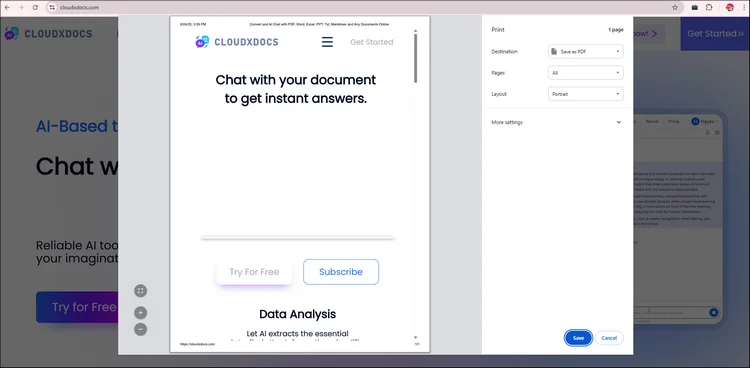
Étape 3. Ajustez les paramètres en fonction de vos besoins spécifiques, puis cliquez sur "Enregistrer".
Étape 4. Ensuite, vous parcourrez les dossiers et déciderez où vous souhaitez enregistrer ce fichier. Après avoir sélectionné l'emplacement de votre fichier, cliquez sur "OK" et le navigateur téléchargera automatiquement la page Web au format PDF.
Méthode 2. Télécharger un PDF depuis une URL avec une bibliothèque PDF dédiée
Idéal pour : Les développeurs et les entreprises qui ont besoin de solutions robustes et automatisées.
Limites : Nécessite l'installation d'une bibliothèque PDF ou d'un SDK.
Pour les applications professionnelles, en particulier lors de la gestion de grands volumes de PDF, une bibliothèque dédiée comme Spire.PDF for .NET peut faire une énorme différence. Elle est optimisée pour la création, la manipulation, la conversion et le rendu efficaces de PDF, offrant des fonctionnalités puissantes pour des tâches telles que la gestion du cryptage, le traitement par lots et l'édition de documents complexes. Spire.PDF offre une solution fiable et performante pour rationaliser les flux de travail PDF et augmenter la productivité.
Avec Spire.PDF, vous pouvez :
- Télécharger des PDF directement depuis des URL.
- Fusionner, diviser et sécuriser des fichiers PDF.
- Extraire du texte et des images de documents téléchargés.
- Automatiser des flux de travail entiers sans intervention manuelle.
- Plus de fonctionnalités à explorer…
Installer Spire.PDF for .NET :
Pour commencer, vous devez installer Spire.PDF for .NET sur votre ordinateur. Vous pouvez le télécharger depuis la page de téléchargement officielle ou utiliser NuGet :
PM> Install-Package Spire.PDF
Exemple de code C# avec Spire.PDF :
using System.IO;
using System.Net;
using Spire.Pdf;

namespace DownloadPdfFromUrl
{
    class Program
    {
        static void Main(string[] args)
        {
            //Create a PdfDocument object
            PdfDocument doc = new PdfDocument();

            //Create a WebClient object
            WebClient webClient = new WebClient();

            //Download data from URL and save as memory stream
            using (MemoryStream ms = new MemoryStream(webClient.DownloadData("https://www.e-iceblue.com/article/toDownload.pdf")))
            {
                //Load the stream
                doc.LoadFromStream(ms);
            }

            //Save to PDF file
            doc.SaveToFile("result.pdf", FileFormat.PDF);
        }
    }
}
Bonus : Comment télécharger une URL au format PDF sur mobile
Bien que le téléchargement de PDF à partir d'un navigateur sur un ordinateur de bureau soit simple, de nombreux utilisateurs ont besoin de la flexibilité d'accéder et de sauvegarder des fichiers en déplacement. Heureusement, télécharger des PDF depuis des URL sur des appareils mobiles est tout aussi facile. Que vous utilisiez un appareil Android ou iOS, vous pouvez également télécharger des PDF depuis une URL.
Les étapes sont assez simples :
-
iPhone/iPad :
Étape 1. Ouvrez le lien avec un navigateur comme Safari, puis appuyez sur l'icône Partager en bas.
Étape 2. Cliquez sur "Options" et choisissez le format de fichier "PDF".
Étape 3. Ensuite, vous pouvez enregistrer la page Web au format PDF avec "Enregistrer dans Fichiers".
-
Android : Ouvrez le lien avec le navigateur par défaut de votre téléphone, puis appuyez sur "Télécharger" pour enregistrer la page Web en PDF ou utilisez une application de gestion de fichiers.
Conclusion
Apprendre à télécharger un PDF depuis une URL permet de gagner du temps et de s'assurer que vous avez toujours les fichiers importants à portée de main. Des simples téléchargements par navigateur aux solutions programmatiques puissantes, il existe une méthode pour chaque type d'utilisateur.
Quels que soient vos besoins, télécharger des PDF depuis des URL n'a pas à être compliqué, il vous suffit d'avoir le bon outil pour le travail.
Lire la suite :
La guía definitiva para descargar archivos PDF desde una URL para todos los usuarios
Tabla de Contenidos
Instalar con Nuget
PM> Install-Package Spire.PDF
Enlaces Relacionados
Contenido de la Página:
- Método 1. Guardar página web en formato PDF usando su navegador directamente
- Método 2. Descargar PDF desde URL con una biblioteca de PDF dedicada
- Bono: Cómo descargar URL en formato PDF con el móvil
En el mundo digital de hoy, los documentos se comparten a menudo en línea en formato PDF, ya sea un libro electrónico, un informe comercial o una factura. Pero, ¿qué pasa si necesita descargar un PDF directamente desde una URL? En lugar de hacer clic en múltiples enlaces o luchar con descargas interrumpidas, existen formas más rápidas y confiables de guardar un archivo PDF en su dispositivo.
En esta publicación, explicaremos por qué es útil descargar archivos PDF desde una URL, le mostraremos diferentes métodos para hacerlo y compartiremos algunas herramientas prácticas que puede usar. Siga leyendo esta publicación para obtener información más detallada.
¿Por qué descargar archivos PDF desde una URL?
Los PDF están en todas partes en estos días, pero a veces simplemente abrirlos en su navegador не es suficiente, y necesita una copia guardada en su dispositivo. Es por eso que tanta gente busca cómo descargar un PDF desde una URL. Ya sea para acceso sin conexión, mantenimiento de registros o para compartir fácilmente, tener una versión local garantiza que pueda usar el documento cuando y como lo necesite.
A continuación se enumeran algunas razones:
- Acceso sin conexión: Guarde documentos para leerlos sin acceso a Internet.
- Archivado: Conserve copias de recibos, informes o registros para uso personal o comercial.
- Automatización: Los desarrolladores a menudo necesitan descargar masivamente archivos PDF desde URL para su procesamiento.
- Compartir: Almacene y reenvíe documentos importantes sin depender del enlace original.
No importa cuál sea la razón para gestionar la conversión de URL a PDF, descargar archivos PDF desde una URL es simple una vez que conoce el método correcto.
Método 1. Guardar página web en formato PDF usando su navegador directamente
Ideal para: Descargas rápidas y únicas.
Limitaciones: No es ideal para descargas masivas o flujos de trabajo automatizados.
Cuando necesita acceder rápidamente a un PDF desde la web, usar un navegador para descargar el archivo directamente puede ser el enfoque más sencillo. Este método es perfecto para los usuarios que prefieren la simplicidad y la velocidad, sin necesidad de software adicional o configuración técnica.
A continuación, le guiaremos a través del proceso completo de descarga de un archivo PDF utilizando solo su navegador web:
Paso 1. Abra la página web que le gustaría descargar en formato PDF con el navegador.
Paso 2. Presione "Ctrl + P" para Windows o "Comando + P" para usuarios de Mac en su teclado. Aparecerá una nueva ventana que le permitirá elegir la configuración.
Paso 3. Ajuste la configuración según sus necesidades específicas y luego haga clic en "Guardar".
Paso 4. Luego, explorará las carpetas y decidirá dónde le gustaría guardar este archivo. Después de seleccionar la ubicación del archivo, haga clic en "OK" y el navegador descargará automáticamente la página web en formato PDF.
Método 2. Descargar PDF desde URL con una biblioteca de PDF dedicada
Ideal para: Desarrolladores y empresas que necesitan soluciones robustas y automatizadas.
Limitaciones: Requiere la instalación de una biblioteca de PDF o un SDK.
Para aplicaciones profesionales, especialmente al manejar grandes volúmenes de PDF, una biblioteca dedicada como Spire.PDF for .NET puede marcar una gran diferencia. Está optimizada para la creación, manipulación, conversión y renderización eficiente de PDF, proporcionando potentes características para tareas como el manejo de cifrado, procesamiento por lotes y edición de documentos complejos. Spire.PDF ofrece una solución confiable y de alto rendimiento para agilizar los flujos de trabajo de PDF y aumentar la productividad.
Con Spire.PDF, puede:
- Descargar archivos PDF directamente desde URL.
- Fusionar, dividir y proteger archivos PDF.
- Extraer texto e imágenes de documentos descargados.
- Automatizar flujos de trabajo completos sin intervención manual.
- Más características esperando a que las explore…
Instalar Spire.PDF for .NET:
Para empezar, debe instalar Spire.PDF for .NET en su computadora. Puede descargarlo desde la página de descarga oficial o usar NuGet:
PM> Install-Package Spire.PDF
Código de ejemplo en C# con Spire.PDF:
using System.IO;
using System.Net;
using Spire.Pdf;

namespace DownloadPdfFromUrl
{
    class Program
    {
        static void Main(string[] args)
        {
            //Create a PdfDocument object
            PdfDocument doc = new PdfDocument();

            //Create a WebClient object
            WebClient webClient = new WebClient();

            //Download data from URL and save as memory stream
            using (MemoryStream ms = new MemoryStream(webClient.DownloadData("https://www.e-iceblue.com/article/toDownload.pdf")))
            {
                //Load the stream
                doc.LoadFromStream(ms);
            }

            //Save to PDF file
            doc.SaveToFile("result.pdf", FileFormat.PDF);
        }
    }
}
Bono: Cómo descargar URL en formato PDF con el móvil
Aunque descargar archivos PDF desde un navegador en un escritorio es simple, muchos usuarios necesitan la flexibilidad de acceder y guardar archivos mientras están en movimiento. Afortunadamente, descargar archivos PDF desde URL en dispositivos móviles es igual de fácil. Ya sea que esté usando un dispositivo Android o iOS, también puede descargar archivos PDF desde una URL.
Los pasos son bastante fáciles:
-
iPhone/iPad:
Paso 1. Abra el enlace con un navegador como Safari, luego toque el ícono de Compartir en la parte inferior.
Paso 2. Haga clic en "Opciones" y elija el formato de archivo como "PDF".
Paso 3. Luego, puede guardar la página web en formato PDF con "Guardar en Archivos".
-
Android: Abra el enlace con el navegador predeterminado en su teléfono, luego toque "Descargar" para guardar la página web como PDF o use una aplicación de administrador de archivos.
Conclusión
Aprender a descargar un PDF desde una URL ahorra tiempo y garantiza que siempre tenga a mano los archivos importantes. Desde simples descargas en el navegador hasta potentes soluciones programáticas, existe un método para cada tipo de usuario.
No importa cuáles sean sus necesidades, descargar archivos PDF desde URL no tiene por qué ser complicado, solo necesita la herramienta adecuada para el trabajo.
Leer más:
Die ultimative Anleitung zum Herunterladen von PDFs von einer URL für alle Benutzer
Inhaltsverzeichnis
Mit Nuget installieren
PM> Install-Package Spire.PDF
Verwandte Links
Seiteninhalt:
- Methode 1. Webseite direkt über Ihren Browser im PDF-Format speichern
- Methode 2. PDF von URL mit einer dedizierten PDF-Bibliothek herunterladen
- Bonus: Wie man eine URL im PDF-Format auf dem Handy herunterlädt
In der heutigen digitalen Welt werden Dokumente oft online im PDF-Format geteilt, sei es ein E-Book, ein Geschäftsbericht oder eine Rechnung. Aber was ist, wenn Sie ein PDF direkt von einer URL herunterladen müssen? Anstatt auf mehrere Links zu klicken oder mit fehlerhaften Downloads zu kämpfen, gibt es schnellere und zuverlässigere Möglichkeiten, eine PDF-Datei auf Ihrem Gerät zu speichern.
In diesem Beitrag erklären wir, warum das Herunterladen von PDFs von einer URL nützlich ist, zeigen Ihnen verschiedene Methoden dafür und teilen einige praktische Tools, die Sie verwenden können. Lesen Sie diesen Beitrag für weitere detaillierte Informationen.
Warum PDFs von einer URL herunterladen?
PDFs sind heutzutage allgegenwärtig, aber manchmal reicht es nicht aus, sie einfach in Ihrem Browser zu öffnen, und Sie benötigen eine auf Ihrem Gerät gespeicherte Kopie. Deshalb suchen so viele Leute nach Informationen, wie man ein PDF von einer URL herunterlädt. Ob für den Offline-Zugriff, die Aufbewahrung von Unterlagen oder den einfachen Austausch, eine lokale Version stellt sicher, dass Sie das Dokument jederzeit und nach Bedarf verwenden können.
Einige Gründe sind unten aufgeführt:
- Offline-Zugriff: Speichern Sie Dokumente, um sie ohne Internetzugang zu lesen.
- Archivierung: Bewahren Sie Kopien von Belegen, Berichten oder Aufzeichnungen für den persönlichen oder geschäftlichen Gebrauch auf.
- Automatisierung: Entwickler müssen oft PDFs in großen Mengen von URLs zur Verarbeitung herunterladen.
- Teilen: Speichern und leiten Sie wichtige Dokumente weiter, ohne vom ursprünglichen Link abhängig zu sein.
Egal aus welchem Grund Sie die Konvertierung von URL in PDF verwalten, das Herunterladen von PDFs von einer URL ist einfach, sobald Sie die richtige Methode kennen.
Methode 1. Webseite direkt über Ihren Browser im PDF-Format speichern
Am besten für: Schnelle, einmalige Downloads.
Einschränkungen: Nicht ideal für Massen-Downloads oder automatisierte Arbeitsabläufe.
Wenn Sie schnell auf ein PDF aus dem Web zugreifen müssen, kann die Verwendung eines Browsers zum direkten Herunterladen der Datei der einfachste Ansatz sein. Diese Methode ist perfekt für Benutzer, die Einfachheit und Geschwindigkeit bevorzugen, ohne zusätzliche Software oder technische Einrichtung.
Nachfolgend führen wir Sie durch den gesamten Prozess des Herunterladens einer PDF-Datei nur mit Ihrem Webbrowser:
Schritt 1. Öffnen Sie die Webseite, die Sie im PDF-Format herunterladen möchten, mit dem Browser.
Schritt 2. Drücken Sie "Strg + P" für Windows oder "Befehl + P" für Mac-Benutzer auf Ihrer Tastatur. Ein neues Fenster wird geöffnet, in dem Sie Einstellungen auswählen können.
Schritt 3. Passen Sie die Einstellungen an Ihre spezifischen Bedürfnisse an und klicken Sie dann auf "Speichern".
Schritt 4. Anschließend können Sie Ordner durchsuchen und entscheiden, wo Sie diese Datei speichern möchten. Nachdem Sie Ihren Dateispeicherort ausgewählt haben, klicken Sie auf "OK" und der Browser lädt die Webseite automatisch im PDF-Format herunter.
Methode 2. PDF von URL mit einer dedizierten PDF-Bibliothek herunterladen
Am besten für: Entwickler und Unternehmen, die robuste, automatisierte Lösungen benötigen.
Einschränkungen: Erfordert die Installation einer PDF-Bibliothek oder eines SDK.
Für professionelle Anwendungen, insbesondere bei der Verarbeitung großer PDF-Mengen, kann eine dedizierte Bibliothek wie Spire.PDF for .NET einen großen Unterschied machen. Sie ist für die effiziente Erstellung, Bearbeitung, Konvertierung und Darstellung von PDFs optimiert und bietet leistungsstarke Funktionen für Aufgaben wie die Handhabung von Verschlüsselung, Stapelverarbeitung und komplexe Dokumentenbearbeitung. Spire.PDF bietet eine zuverlässige und leistungsstarke Lösung zur Optimierung von PDF-Arbeitsabläufen und zur Steigerung der Produktivität.
Mit Spire.PDF können Sie:
- PDFs direkt von URLs herunterladen.
- PDF-Dateien zusammenführen, aufteilen und sichern.
- Text extrahieren und Bilder aus heruntergeladenen Dokumenten.
- Ganze Arbeitsabläufe ohne manuellen Eingriff automatisieren.
- Weitere Funktionen warten darauf, von Ihnen entdeckt zu werden…
Spire.PDF for .NET installieren:
Zunächst sollten Sie Spire.PDF for .NET auf Ihrem Computer installieren. Sie können es von der offiziellen Download-Seite herunterladen oder NuGet verwenden:
PM> Install-Package Spire.PDF
Beispiel C#-Code mit Spire.PDF:
using System.IO;
using System.Net;
using Spire.Pdf;

namespace DownloadPdfFromUrl
{
    class Program
    {
        static void Main(string[] args)
        {
            //Create a PdfDocument object
            PdfDocument doc = new PdfDocument();

            //Create a WebClient object
            WebClient webClient = new WebClient();

            //Download data from URL and save as memory stream
            using (MemoryStream ms = new MemoryStream(webClient.DownloadData("https://www.e-iceblue.com/article/toDownload.pdf")))
            {
                //Load the stream
                doc.LoadFromStream(ms);
            }

            //Save to PDF file
            doc.SaveToFile("result.pdf", FileFormat.PDF);
        }
    }
}
Bonus: Wie man eine URL im PDF-Format auf dem Handy herunterlädt
Während das Herunterladen von PDFs aus einem Browser auf einem Desktop einfach ist, benötigen viele Benutzer die Flexibilität, unterwegs auf Dateien zuzugreifen und sie zu speichern. Glücklicherweise ist das Herunterladen von PDFs von URLs auf mobilen Geräten genauso einfach. Egal, ob Sie ein Android- oder iOS-Gerät verwenden, Sie können auch PDFs von einer URL herunterladen.
Die Schritte sind ziemlich einfach:
-
iPhone/iPad:
Schritt 1. Öffnen Sie den Link mit einem Browser wie Safari und tippen Sie dann auf das Teilen-Symbol unten.
Schritt 2. Klicken Sie auf "Optionen" und wählen Sie als Dateiformat "PDF".
Schritt 3. Anschließend können Sie die Webseite im PDF-Format mit "In Dateien sichern" speichern.
-
Android: Öffnen Sie den Link mit dem Standardbrowser auf Ihrem Telefon und tippen Sie dann auf "Herunterladen", um die Webseite als PDF zu speichern, oder verwenden Sie eine Dateimanager-App.
Fazit
Zu lernen, wie man ein PDF von einer URL herunterlädt, spart Zeit und stellt sicher, dass Sie wichtige Dateien immer zur Hand haben. Von einfachen Browser-Downloads bis hin zu leistungsstarken programmatischen Lösungen gibt es eine Methode für jeden Benutzertyp.
Egal, was Ihre Bedürfnisse sind, das Herunterladen von PDFs von URLs muss nicht kompliziert sein, Sie benötigen nur das richtige Werkzeug für die Aufgabe.
Lesen Sie mehr:
Полное руководство по загрузке PDF-файлов по URL-адресу для всех пользователей
Содержание
Установить с помощью Nuget
PM> Install-Package Spire.PDF
Похожие ссылки
Содержание страницы:
- Метод 1. Сохранение веб-страницы в формате PDF непосредственно через браузер
- Метод 2. Загрузка PDF с URL с помощью специализированной PDF-библиотеки
- Бонус: Как загрузить URL в формате PDF на мобильном устройстве
В современном цифровом мире документы часто распространяются онлайн в формате PDF, будь то электронная книга, бизнес-отчет или счет-фактура. Но что делать, если вам нужно загрузить PDF непосредственно с URL? Вместо того чтобы нажимать на несколько ссылок или бороться с прерванными загрузками, существуют более быстрые и надежные способы сохранить PDF-файл на ваше устройство.
В этом посте мы объясним, почему полезно скачивать PDF с URL, покажем вам различные способы это сделать и поделимся некоторыми практическими инструментами, которые вы можете использовать. Продолжайте читать этот пост для получения более подробной информации.
Зачем скачивать PDF с URL?
В наши дни PDF-файлы повсюду, но иногда простого открытия их в браузере недостаточно, и вам нужна копия, сохраненная на вашем устройстве. Вот почему так много людей ищут, как скачать PDF с URL. Будь то для офлайн-доступа, ведения учета или простого обмена, наличие локальной версии гарантирует, что вы сможете использовать документ в любое время и любым способом.
Ниже перечислены некоторые причины:
- Офлайн-доступ: Сохраняйте документы для чтения без доступа в Интернет.
- Архивирование: Храните копии квитанций, отчетов или записей для личного или делового использования.
- Автоматизация: Разработчикам часто требуется массовая загрузка PDF-файлов с URL для обработки.
- Обмен: Храните и пересылайте важные документы, не завися от исходной ссылки.
Независимо от причины управления преобразованием URL в PDF, загрузка PDF-файлов с URL-адреса проста, как только вы узнаете правильный метод.
Метод 1. Сохранение веб-страницы в формате PDF непосредственно через браузер
Лучше всего подходит для: Быстрых, одноразовых загрузок.
Ограничения: Не идеально для массовой загрузки или автоматизированных рабочих процессов.
Когда вам нужно быстро получить доступ к PDF из веба, использование браузера для прямой загрузки файла может быть самым простым подходом. Этот метод идеально подходит для пользователей, которые предпочитают простоту и скорость, без необходимости в дополнительном программном обеспечении или технической настройке.
Ниже мы проведем вас через полный процесс загрузки PDF-файла с помощью только вашего веб-браузера:
Шаг 1. Откройте в браузере веб-страницу, которую вы хотите загрузить в формате PDF.
Шаг 2. Нажмите "Ctrl + P" для Windows или "Command + P" для пользователей Mac на клавиатуре. Появится новое окно, в котором можно выбрать настройки.
Шаг 3. Настройте параметры в соответствии с вашими конкретными потребностями, а затем нажмите "Сохранить".
Шаг 4. Затем вы сможете просмотреть папки и решить, где вы хотите сохранить этот файл. После выбора места для файла нажмите "OK", и браузер автоматически загрузит веб-страницу в формате PDF.
Метод 2. Загрузка PDF с URL с помощью специализированной PDF-библиотеки
Лучше всего подходит для: Разработчиков и предприятий, которым нужны надежные, автоматизированные решения.
Ограничения: Требуется установка PDF-библиотеки или SDK.
Для профессиональных приложений, особенно при обработке больших объемов PDF-файлов, специализированная библиотека, такая как Spire.PDF for .NET, может иметь огромное значение. Она оптимизирована для эффективного создания, манипулирования, преобразования и рендеринга PDF, предоставляя мощные функции для таких задач, как обработка шифрования, пакетная обработка и сложное редактирование документов. Spire.PDF предлагает надежное и высокопроизводительное решение для оптимизации рабочих процессов с PDF и повышения производительности.
С помощью Spire.PDF вы можете:
- Загружать PDF-файлы непосредственно с URL-адресов.
- Объединять, разделять и защищать PDF-файлы.
- Извлекать текст и изображения из загруженных документов.
- Автоматизировать целые рабочие процессы без ручного вмешательства.
- И еще много функций, которые ждут вашего изучения…
Установка Spire.PDF for .NET:
Для начала вам следует установить Spire.PDF for .NET на свой компьютер. Вы можете скачать его с официальной страницы загрузки или использовать NuGet:
PM> Install-Package Spire.PDF
Пример кода на C# с использованием Spire.PDF:
using System.IO;
using System.Net;
using Spire.Pdf;

namespace DownloadPdfFromUrl
{
    class Program
    {
        static void Main(string[] args)
        {
            //Create a PdfDocument object
            PdfDocument doc = new PdfDocument();

            //Create a WebClient object
            WebClient webClient = new WebClient();

            //Download data from URL and save as memory stream
            using (MemoryStream ms = new MemoryStream(webClient.DownloadData("https://www.e-iceblue.com/article/toDownload.pdf")))
            {
                //Load the stream
                doc.LoadFromStream(ms);
            }

            //Save to PDF file
            doc.SaveToFile("result.pdf", FileFormat.PDF);
        }
    }
}
Бонус: Как загрузить URL в формате PDF на мобильном устройстве
Хотя загрузка PDF-файлов из браузера на настольном компьютере проста, многим пользователям нужна гибкость для доступа и сохранения файлов в пути. К счастью, загрузка PDF-файлов с URL на мобильных устройствах так же проста. Независимо от того, используете ли вы устройство Android или iOS, вы также можете загружать PDF-файлы с URL.
Шаги довольно просты:
-
iPhone/iPad:
Шаг 1. Откройте ссылку в браузере, таком как Safari, затем нажмите значок Поделиться внизу.
Шаг 2. Нажмите "Параметры" и выберите формат файла "PDF".
Шаг 3. Затем вы можете сохранить веб-страницу в формате PDF с помощью "Сохранить в Файлы".
-
Android: Откройте ссылку в браузере по умолчанию на вашем телефоне, затем нажмите "Загрузить", чтобы сохранить веб-страницу в формате PDF, или используйте приложение для управления файлами.
Заключение
Научившись скачивать PDF с URL, вы экономите время и гарантируете, что важные файлы всегда будут у вас под рукой. От простых загрузок через браузер до мощных программных решений — существует метод для любого типа пользователя.
Независимо от ваших потребностей, загрузка PDF-файлов с URL не должна быть сложной, вам просто нужен правильный инструмент для работы.
Читайте также:
The Ultimate Guide to Downloading PDFs from a URL for All Users
Table of Contents
Install with Nuget
PM> Install-Package Spire.PDF
Related Links
Page Content:
- Method 1. Save Webpage in PDF Format Using Your Browser Directly
- Method 2. Download PDF from URL with a Dedicated PDF Library
- Bonus: How to Download URL in PDF Format with Mobile
In today's digital world, documents are often shared online in PDF format, whether it's an eBook, a business report, or an invoice. But what if you need to download a PDF directly from a URL? Instead of clicking multiple links or struggling with broken downloads, there are faster and more reliable ways to save a PDF file to your device.
In this post, we'll explain why downloading PDFs from a URL is useful, show you different methods to do it, and share some practical tools you can use. Keep reading this post for more detailed information.
Why Download PDFs from a URL?
PDFs are everywhere these days, but sometimes simply opening them in your browser isn't enough, and you need a copy saved to your device. That's why so many people look up how to download a PDF from a URL. Whether it’s for offline access, record-keeping, or easy sharing, having a local version ensures you can use the document whenever and however you need.
Some reasons are listed below:
- Offline Access: Save documents to read without internet access.
- Archiving: Keep copies of receipts, reports, or records for personal or business use.
- Automation: Developers often need to bulk-download PDFs from URLs for processing.
- Sharing: Store and forward important documents without depending on the original link.
No matter what the reason is to manage URL to PDF conversion, downloading PDFs from a URL is simple once you know the right method.
Method 1. Save Webpage in PDF Format Using Your Browser Directly
Best for: Quick, one-time downloads.
Limitations: Not ideal for bulk downloading or automated workflows.
When you need to quickly access a PDF from the web, using a browser to download the file directly can be the most straightforward approach. This method is perfect for users who prefer simplicity and speed, with no additional software or technical setup required.
Below, we'll walk you through the complete process of downloading a PDF file using just your web browser:
Step 1. Open the webpage you'd like to download in PDF format with the browser.
Step 2. Press "Ctrl + P" for Windows or "Command + P" for Mac users on your keyboard. A new window will pop out to let you choose settings.
Step 3. Adjust settings according to your specific needs, and then click "Save".
Step 4. Then, you will browse folders and decide where you'd like to save this file. After selecting your file location, click "OK" and the browser will automatically download the webpage in PDF format.
Method 2. Download PDF from URL with a Dedicated PDF Library
Best for: Developers and enterprises who need robust, automated solutions.
Limitations: Requires installing a PDF library or SDK.
For professional applications, especially when handling large volumes of PDFs, a dedicated library like Spire.PDF for .NET can make a huge difference. It is optimized for efficient PDF creation, manipulation, conversion, and rendering, providing powerful features for tasks like encryption handling, batch processing, and complex document editing. Spire.PDF offers a reliable and high-performance solution to streamline PDF workflows and boost productivity.
With Spire.PDF, you can:
- Download PDFs directly from URLs.
- Merge, split, and secure PDF files.
- Extract text and images from downloaded documents.
- Automate entire workflows without manual intervention.
- More features waiting for you to explore…
Install Spire.PDF for .NET:
To begin with, you should install Spire.PDF for .NET to your computer. You can download from the official download page or use NuGet:
PM> Install-Package Spire.PDF
Sample C# Code with Spire.PDF:
using System.IO;
using System.Net;
using Spire.Pdf;

namespace DownloadPdfFromUrl
{
    class Program
    {
        static void Main(string[] args)
        {
            //Create a PdfDocument object
            PdfDocument doc = new PdfDocument();

            //Create a WebClient object
            WebClient webClient = new WebClient();

            //Download data from URL and save as memory stream
            using (MemoryStream ms = new MemoryStream(webClient.DownloadData("https://www.e-iceblue.com/article/toDownload.pdf")))
            {
                //Load the stream
                doc.LoadFromStream(ms);
            }

            //Save to PDF file
            doc.SaveToFile("result.pdf", FileFormat.PDF);
        }
    }
}
Bonus: How to Download URL in PDF Format with Mobile
While downloading PDFs from a browser on a desktop is simple, many users need the flexibility to access and save files while on the go. Thankfully, downloading PDFs from URLs on mobile devices is just as easy. Whether you're using an Android or iOS device, you can also download PDFs from a URL.
The steps are quite easy:
-
iPhone/iPad:
Step 1. Open the link with browser like Safari, then tap the Share icon from the bottom.
Step 2. Click "Options" and choose file format as "PDF".
Step 3. Then, you can save the webpage in PDF format with "Save to Files".
-
Android: Open the link with the default browser on your phone, then tap "Download" to save the webpage as PDF or use a file manager app.
Conclusion
Learning how to download a PDF from a URL saves time and ensures you always have important files at your fingertips. From simple browser downloads to powerful programmatic solutions, there's a method for every type of user.
No matter your needs, downloading PDFs from URLs doesn’t have to be complicated, you just need the right tool for the job.
Read More:
Unire PDF gratis senza Acrobat (4 modi)
Indice dei contenuti
- Metodo 1: Unire PDF Online Gratuitamente (Usando PDF24)
- Metodo 2: Combinare PDF su Windows con PDFsam Basic
- Metodo 3: Unire PDF su Mac con Anteprima (Strumento Integrato)
- Metodo 4: Automatizzare l'Unione di PDF in Python (con Free Spire.PDF)
- Riepilogo: Scegliere il Modo Migliore per Unire i PDF
- Domande Frequenti
Installa con Pypi
pip install spire.pdf.free
Link Correlati
Unire file PDF è diventata una necessità comune sia per compiti personali che professionali. Che si tratti di combinare report, consolidare documenti per una presentazione o semplicemente organizzare file, avere un metodo affidabile per unire i PDF è essenziale. Fortunatamente, ci sono vari modi per farlo senza la necessità di Adobe Acrobat.
Questo articolo esplora diversi metodi per unire PDF gratuitamente senza usare Acrobat, inclusi strumenti online, applicazioni desktop e soluzioni automatizzate usando Python. Ogni metodo si adatta a diverse esigenze, permettendoti di scegliere quello che meglio si adatta al tuo flusso di lavoro.
Metodo 1: Unire PDF Online Gratuitamente (Usando PDF24)
Un modo rapido e semplice per unire PDF senza installare nulla è tramite strumenti online. PDF24 è un'opzione popolare.
Cos'è PDF24?
PDF24 offre una suite di strumenti gratuiti nel tuo browser (e anche una versione desktop). Tra questi strumenti c'è "Unisci PDF", che ti permette di caricare più file PDF e combinarli.

Come Usare PDF24 per Unire i PDF
- Vai alla pagina Unisci PDF su PDF24 Tools.
- Carica o trascina i file PDF che vuoi combinare.
- (Opzionale) Riorganizza i file trascinandoli nell'ordine preferito.
- Clicca sul pulsante “Unisci PDF” per avviare il processo di unione.
- Scarica il PDF combinato risultante.
Funzionalità Avanzate
PDF24 offre una modalità Pagina, che ti permette di selezionare singole pagine dai tuoi PDF caricati per l'unione. Puoi cambiare l'ordine di queste pagine nel documento risultante, fornendo un controllo ancora maggiore sul tuo PDF unito.
Pro e Contro di PDF24
| Pro | Contro |
|---|---|
| Nessuna installazione richiesta; funziona in qualsiasi browser. | Richiede una connessione a Internet. |
| Gratuito; nessun account necessario. | Il caricamento di file comporta sempre un certo rischio per la privacy. |
| Supporta la selezione delle pagine durante l'unione. | |
| Fornisce strumenti utili aggiuntivi per modificare i file PDF. |
Metodo 2: Combinare PDF su Windows con PDFsam Basic
Se lavori su un PC Windows e preferisci strumenti offline, PDFsam Basic è un'applicazione desktop gratuita e open-source altamente raccomandata per la manipolazione di PDF.
Cos'è PDFsam Basic?
PDFsam Basic è uno strumento dedicato focalizzato sulla riorganizzazione delle pagine PDF.
- “PDFsam” sta per PDF Split and Merge (Dividi e Unisci PDF). Basic è la loro edizione gratuita.
- Permette di unire interi file PDF, riordinare le pagine, estrarre pagine, ruotare pagine, ecc.
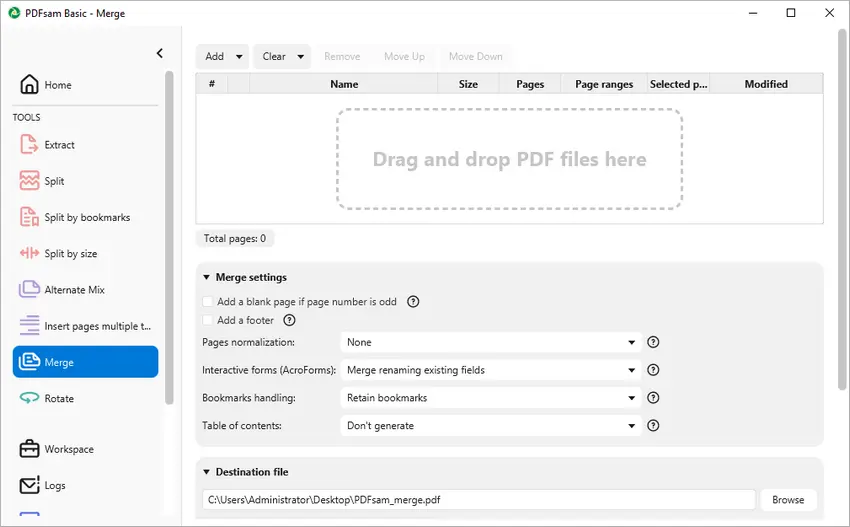
Come Unire Usando PDFsam Basic
- Scarica e installa PDFsam Basic dal sito ufficiale.
- Avvia l'app, scegli il modulo “Unisci” dal menu principale.
- Aggiungi o trascina i file PDF che vuoi combinare nella coda di unione.
- (Opzionale) Disponi i file nell'ordine desiderato.
- Imposta il nome e il percorso del file PDF risultante.
- Clicca su “Esegui” per produrre il PDF combinato.
Funzionalità Avanzate
PDFsam Basic offre diverse impostazioni di unione per personalizzare il tuo output:
- Normalizzazione Pagina: Adatta le dimensioni di tutte le pagine a quella della prima pagina.
- Moduli Interattivi: Scegli se unire, scartare o appiattire i campi del modulo.
- Gestione Segnalibri: Decidi se mantenere o rimuovere i segnalibri.
- Indice: Opzione per generare un indice per il documento unito.
- Compressione File: Comprimi i file di output per ridurne le dimensioni.
- Controllo Versione PDF: Imposta la versione del PDF di output su 1.5, 1.6, 1.7 o 2.0.
Con queste funzionalità, PDFsam Basic fornisce una soluzione versatile per unire i PDF secondo le tue esigenze specifiche.
Pro e Contro di PDFsam Basic
| Pro | Contro |
|---|---|
| Funziona completamente offline; nessun caricamento necessario. | Richiede installazione. |
| Gratuito; nessun account richiesto. | Interfaccia meno intuitiva per i principianti. |
| Opzioni flessibili per l'unione e l'output. | Non può unire pagine selettive tra i file. |
Metodo 3: Unire PDF su Mac con Anteprima (Strumento Integrato)
Se usi macOS, l'app integrata Anteprima può unire i PDF senza bisogno di strumenti esterni o costi aggiuntivi.
Cos'è Anteprima?
Anteprima è l'applicazione predefinita integrata di Apple su macOS per visualizzare ed effettuare modifiche di base a immagini e PDF. Offre funzionalità come l'unione di PDF, la compilazione di moduli e la modifica di immagini, il tutto all'interno di un'interfaccia user-friendly. Essendo un'applicazione preinstallata, Anteprima fornisce potenti funzionalità senza la necessità di software aggiuntivo.
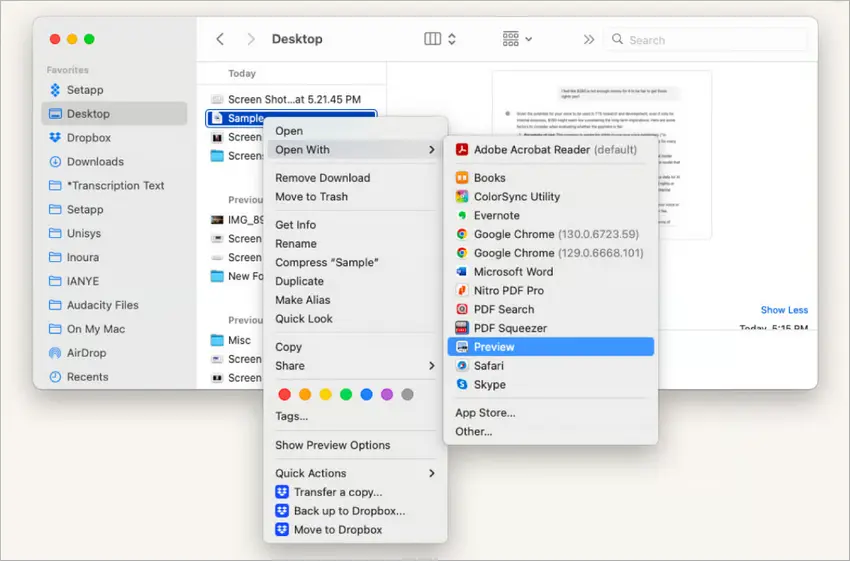
Come Combinare i PDF con Anteprima
- Apri uno dei PDF in Anteprima.
- Seleziona Vista > Miniature per visualizzare la barra laterale con tutte le pagine.
- Apri il secondo PDF selezionando File > Apri o trascinandolo nella barra laterale delle miniature.
- Trascina e rilascia le pagine dal secondo PDF per posizionarle all'interno del primo PDF.
- Vai su File > Esporta come PDF o File > Salva per salvare il documento unito.
Funzionalità Avanzate
Anteprima consente agli utenti di unire non solo file interi, ma anche pagine individuali trascinandole tra i documenti nella vista miniature. Puoi riordinare, ruotare o eliminare le pagine prima di salvare, dandoti un maggiore controllo sul PDF finale.
Pro e Contro dell'Uso di Anteprima
| Pro | Contro |
|---|---|
| Preinstallato su ogni Mac. | Funzionalità di modifica limitate. |
| Interfaccia semplice drag-and-drop. | Nessuna automazione batch senza strumenti extra. |
| Funziona offline; preserva la privacy. | Meno comodo per file grandi o numerosi. |
Metodo 4: Automatizzare l'Unione di PDF in Python (con Free Spire.PDF)
Per i programmatori o chiunque abbia bisogno di automatizzare i flussi di lavoro (ad es. unire report durante la notte, combinare molti file), l'uso di una libreria Python come Free Spire.PDF è un'ottima opzione.
Cos'è Free Spire.PDF for Python?
Free Spire.PDF for Python è una potente libreria progettata per lavorare con file PDF in applicazioni Python. Permette agli sviluppatori di manipolare facilmente documenti PDF, includendo funzionalità essenziali come la divisione e l'unione di file. Con la sua API user-friendly, Free Spire.PDF consente un'integrazione perfetta nei progetti, rendendolo una scelta eccellente per compiti che coinvolgono la gestione dei documenti.
Come Unire i PDF in Python
- Installa Free Spire.PDF tramite pip: pip install spire.pdf.free.
- Importa i moduli spire.pdf richiesti.
- Prepara un elenco di percorsi di file PDF da unire.
- Chiama PdfDocument.MergeFiles() con l'elenco.
- Salva il documento unito in un nuovo file.
Di seguito è riportato lo snippet di codice di esempio per unire più PDF con Free Spire.PDF:
from spire.pdf.common import *
from spire.pdf import *

# Elenca i file PDF che vuoi combinare
input_files = ["report1.pdf", "report2.pdf", "appendix.pdf"]

# Unisci i file in un unico documento
merged_doc = PdfDocument.MergeFiles(input_files)

# Salva il PDF combinato
merged_doc.Save("merged_output.pdf")

# Pulisci / libera le risorse
merged_doc.Close()
Funzionalità Avanzate
- Unisci Pagine Specifiche: Estrai e unisci pagine selezionate da ogni PDF.
- Unione in Batch: Elabora tutti i PDF in una cartella contemporaneamente.
- Input Basati su Stream: Combina PDF direttamente dalla memoria o da fonti di rete invece che dal disco.
- Logica Avanzata: Includi funzionalità come saltare le pagine vuote, aggiungere numeri di pagina e crittografare i PDF con una password.
- Opzioni di Esportazione Versatili: Esporta i documenti generati come Word, HTML, immagini e altro.
Pro e Contro dell'Automazione con Spire.PDF
| Pro | Contro |
|---|---|
| Flessibile e completamente automatizzabile. | Richiede conoscenze di programmazione. |
| Funziona in script, cron job e app lato server. | Errori negli script possono causare output errati. |
| Efficiente per compiti in blocco o ripetitivi. | La versione gratuita ha limiti sul numero di pagine. |
| Potenziale per funzionalità avanzate. |
Nota Importante
La versione gratuita è limitata a 10 pagine durante il caricamento o la creazione di PDF. Per gestire documenti PDF di grandi dimensioni, puoi considerare l'uso della versione commerciale di Spire.PDF for Python.
Riepilogo: Scegliere il Modo Migliore per Unire i PDF
Unire i PDF senza Adobe Acrobat è più facile di quanto molti pensino, ma il metodo giusto dipende dalla tua situazione. Strumenti online come PDF24 sono veloci e convenienti, mentre PDFsam Basic ti dà più controllo quando lavori offline. Anteprima è la scelta più semplice per gli utenti Mac, e per coloro che necessitano di automazione o gestiscono regolarmente file in blocco, Spire.PDF è l'opzione più potente.
| La Tua Situazione | Metodo Migliore |
|---|---|
| Necessità di unire pochi file rapidamente, da qualsiasi dispositivo, senza installazione | Online (PDF24 o simile) |
| Lavoro sensibile alla privacy, file di grandi dimensioni, si desidera il pieno controllo offline | App desktop (PDFsam Basic, o altri) |
| Usi Mac, vuoi qualcosa di integrato e semplice | Anteprima su macOS |
| Automatizzare batch o integrare nei flussi di lavoro | Python / Spire.PDF (o altri script) |
In breve, che tu dia priorità alla velocità, alla privacy, alla convenienza o all'automazione, c'è una soluzione gratuita che si adatta al tuo flusso di lavoro — senza bisogno di Acrobat.
Domande Frequenti:
Q1: È sicuro unire i PDF online?
Molti strumenti online sono sicuri, specialmente quelli ben noti. Ma dovresti verificare che utilizzino trasferimenti sicuri (HTTPS) e che il servizio elimini i file dopo l'uso. Se i tuoi documenti sono sensibili, preferisci strumenti offline o codice che controlli tu.
Q2: Devo installare un software per unire i PDF?
Non necessariamente. Puoi unire i PDF online senza installazione. Tuttavia, le applicazioni desktop offrono spesso più funzionalità e una migliore privacy. Scegli in base alle tue esigenze.
Q3: L'unione dei PDF ridurrà la qualità?
Di solito no, a condizione che l'unione non comporti conversioni o compressioni.
Q4: Posso unire più PDF in batch contemporaneamente?
Sì, molte applicazioni desktop e librerie di programmazione come Spire.PDF ti consentono di unire più PDF in batch contemporaneamente.
Q5: Come combinare e unire i PDF su Mac?
Usa l'app Anteprima per aprire il primo PDF, aggiungi altri PDF trascinandoli nella barra laterale, riorganizza le pagine secondo necessità e quindi salva il documento unito.
Vedi Anche
Mesclar PDFs de graça sem o Acrobat (4 maneiras)
Índice
- Método 1: Juntar PDFs Online Gratuitamente (Usando PDF24)
- Método 2: Combinar PDFs no Windows com o PDFsam Basic
- Método 3: Juntar PDFs no Mac com o Preview (Ferramenta Integrada)
- Método 4: Automatizar a Junção de PDFs em Python (com o Free Spire.PDF)
- Resumo: Escolhendo a Melhor Maneira de Juntar PDFs
- FAQs
Instalar com Pypi
pip install spire.pdf.free
Links Relacionados
Juntar arquivos PDF tornou-se uma necessidade comum para tarefas pessoais e profissionais. Seja combinando relatórios, consolidando documentos para uma apresentação ou simplesmente organizando arquivos, ter um método confiável para juntar PDFs é essencial. Felizmente, existem várias maneiras de fazer isso sem a necessidade do Adobe Acrobat.
Este artigo explora vários métodos para juntar PDFs gratuitamente sem usar o Acrobat, incluindo ferramentas online, aplicativos de desktop e soluções automatizadas usando Python. Cada método atende a diferentes necessidades, permitindo que você escolha o que melhor se adapta ao seu fluxo de trabalho.
Método 1: Juntar PDFs Online Gratuitamente (Usando PDF24)
Uma maneira rápida e fácil de juntar PDFs sem instalar nada é através de ferramentas online. O PDF24 é uma opção popular.
O que é o PDF24?
O PDF24 oferece um conjunto de ferramentas gratuitas no seu navegador (e também uma versão para desktop). Entre essas ferramentas está o "Juntar PDF", que permite enviar vários arquivos PDF e combiná-los.
Como Usar o PDF24 para Juntar PDFs
- Vá para a página Juntar PDF no PDF24 Tools.
- Envie ou arraste e solte os arquivos PDF que você deseja combinar.
- (Opcional) Reorganize os arquivos arrastando e soltando-os na ordem de sua preferência.
- Clique no botão “Juntar PDF” para iniciar o processo de junção.
- Baixe o PDF combinado resultante.
Recursos Avançados
O PDF24 oferece um modo de Página, permitindo que você selecione páginas individuais dos seus PDFs enviados para a junção. Você pode alterar a ordem dessas páginas no documento resultante, proporcionando ainda mais controle sobre o seu PDF mesclado.
Prós e Contras do PDF24
| Prós | Contras |
|---|---|
| Nenhuma instalação necessária; funciona em qualquer navegador. | Requer conexão com a internet. |
| Gratuito; não é necessário criar conta. | O envio de arquivos sempre acarreta algum risco de privacidade. |
| Suporta a seleção de páginas durante a junção. | |
| Fornece ferramentas úteis adicionais para editar arquivos PDF. |
Método 2: Combinar PDFs no Windows com o PDFsam Basic
Se você está trabalhando em um PC com Windows e prefere ferramentas offline, o PDFsam Basic é um aplicativo de desktop gratuito e de código aberto altamente recomendado para manipulação de PDFs.
O que é o PDFsam Basic?
O PDFsam Basic é uma ferramenta dedicada focada na reorganização de páginas de PDF.
- “PDFsam” significa PDF Split and Merge (Dividir e Juntar PDF). Basic é a sua edição gratuita.
- Ele permite juntar arquivos PDF inteiros, reordenar páginas, extrair páginas, girar páginas, etc.
Como Juntar Usando o PDFsam Basic
- Baixe e instale o PDFsam Basic do site oficial.
- Inicie o aplicativo, escolha o módulo “Juntar” no menu principal.
- Adicione ou arraste e solte os arquivos PDF que você deseja combinar na fila de junção.
- (Opcional) Organize os arquivos na ordem desejada.
- Defina o nome e o caminho do arquivo PDF resultante.
- Clique em “Executar” para produzir o PDF combinado.
Recursos Avançados
O PDFsam Basic oferece várias configurações de junção para personalizar sua saída:
- Normalização de Página: Ajusta todos os tamanhos de página para corresponder à primeira página.
- Formulários Interativos: Escolha juntar, descartar ou achatar campos de formulário.
- Manuseio de Marcadores: Decida se deseja manter ou remover marcadores.
- Sumário: Opção para gerar um sumário para o documento mesclado.
- Compressão de Arquivo: Comprime os arquivos de saída para reduzir o tamanho.
- Controle de Versão do PDF: Defina a versão do PDF de saída para 1.5, 1.6, 1.7 ou 2.0.
Com esses recursos, o PDFsam Basic fornece uma solução versátil para juntar PDFs de acordo com suas necessidades específicas.
Prós e Contras do PDFsam Basic
| Prós | Contras |
|---|---|
| Funciona totalmente offline; não são necessários envios. | Requer instalação. |
| Gratuito; não é necessária conta. | Interface menos intuitiva para iniciantes. |
| Opções flexíveis para junção e saída. | Não é possível juntar páginas seletivas entre arquivos. |
Método 3: Juntar PDFs no Mac com o Preview (Ferramenta Integrada)
Se você usa o macOS, o aplicativo Preview integrado pode juntar PDFs sem a necessidade de ferramentas externas ou custo extra.
O que é o Preview?
O Preview é o aplicativo padrão integrado da Apple no macOS para visualizar e fazer edições básicas em imagens e PDFs. Ele oferece recursos como junção de PDFs, preenchimento de formulários e edição de imagens, tudo dentro de uma interface amigável. Como um aplicativo pré-instalado, o Preview oferece funcionalidades poderosas sem a necessidade de software adicional.
Como Combinar PDFs com o Preview
- Abra um dos PDFs no Preview.
- Selecione Visualizar > Miniaturas para exibir a barra lateral com todas as páginas.
- Abra o segundo PDF selecionando Arquivo > Abrir ou arrastando-o para a barra lateral de miniaturas.
- Arraste e solte as páginas do segundo PDF para posicioná-las dentro do primeiro PDF.
- Vá para Arquivo > Exportar como PDF ou Arquivo > Salvar para salvar o documento mesclado.
Recursos Avançados
O Preview permite que os usuários juntem não apenas arquivos inteiros, mas também páginas individuais arrastando-as entre os documentos na visualização de miniaturas. Você pode reordenar, girar ou excluir páginas antes de salvar, dando mais controle sobre o PDF final.
Prós e Contras de Usar o Preview
| Prós | Contras |
|---|---|
| Pré-instalado em todos os Macs. | Recursos de edição limitados. |
| Interface simples de arrastar e soltar. | Sem automação em lote sem ferramentas extras. |
| Funciona offline; preserva a privacidade. | Menos conveniente para arquivos grandes ou muitos arquivos. |
Método 4: Automatizar a Junção de PDFs em Python (com o Free Spire.PDF)
Para programadores ou qualquer pessoa que precise automatizar fluxos de trabalho (por exemplo, juntar relatórios durante a noite, combinar muitos arquivos), usar uma biblioteca Python como o Free Spire.PDF é uma ótima opção.
O que é o Free Spire.PDF for Python?
O Free Spire.PDF for Python é uma biblioteca poderosa projetada para trabalhar com arquivos PDF em aplicações Python. Ele permite que os desenvolvedores manipulem facilmente documentos PDF, incluindo recursos essenciais como dividir e juntar arquivos. Com sua API amigável, o Free Spire.PDF permite uma integração perfeita em projetos, tornando-se uma excelente escolha para tarefas que envolvem gerenciamento de documentos.
Como Juntar PDFs em Python
- Instale o Free Spire.PDF através do pip: pip install spire.pdf.free.
- Importe os módulos spire.pdf necessários.
- Prepare uma lista de caminhos de arquivos PDF a serem mesclados.
- Chame PdfDocument.MergeFiles() com a lista.
- Salve o documento mesclado em um novo arquivo.
O seguinte é o trecho de código de exemplo para juntar vários PDFs com o Free Spire.PDF:
from spire.pdf.common import *
from spire.pdf import *

# Liste os arquivos PDF que você deseja combinar
input_files = ["report1.pdf", "report2.pdf", "appendix.pdf"]

# Junte os arquivos em um único documento
merged_doc = PdfDocument.MergeFiles(input_files)

# Salve o PDF combinado
merged_doc.Save("merged_output.pdf")

# Limpe / libere os recursos
merged_doc.Close()
Recursos Avançados
- Juntar Páginas Específicas: Extraia e junte páginas selecionadas de cada PDF.
- Junção em Lote: Processe todos os PDFs em uma pasta simultaneamente.
- Entradas Baseadas em Fluxo: Combine PDFs diretamente da memória ou de fontes de rede em vez do disco.
- Lógica Aprimorada: Inclua recursos como pular páginas vazias, adicionar números de página e criptografar PDFs com uma senha.
- Opções de Exportação Versáteis: Exporte documentos gerados como Word, HTML, imagens e muito mais.
Prós e Contras da Automação com Spire.PDF
| Prós | Contras |
|---|---|
| Flexível e totalmente automatizável. | Requer conhecimento de programação. |
| Funciona em scripts, tarefas cron e aplicativos do lado do servidor. | Erros nos scripts podem causar saídas incorretas. |
| Eficiente para tarefas em massa ou repetitivas. | A versão gratuita tem limites de contagem de páginas. |
| Potencial para recursos avançados. |
Nota Importante
A versão gratuita é limitada a 10 páginas ao carregar ou criar PDFs. Para lidar com documentos PDF grandes, você pode considerar o uso da versão comercial do Spire.PDF for Python.
Resumo: Escolhendo a Melhor Maneira de Juntar PDFs
Juntar PDFs sem o Adobe Acrobat é mais fácil do que muitas pessoas pensam, mas o método certo depende da sua situação. Ferramentas online como o PDF24 são rápidas e convenientes, enquanto o PDFsam Basic oferece mais controle ao trabalhar offline. O Preview é a escolha mais direta para usuários de Mac, e para aqueles que precisam de automação ou lidam com arquivos em massa regularmente, o Spire.PDF é a opção mais poderosa.
| Sua Situação | Melhor Método |
|---|---|
| Precisa juntar alguns arquivos rapidamente, de qualquer dispositivo, sem instalação | Online (PDF24 ou similar) |
| Trabalho sensível à privacidade, arquivos grandes, deseja controle total offline | Aplicativo de desktop (PDFsam Basic, ou outros) |
| Usando Mac, quer algo integrado e simples | Preview no macOS |
| Automatizando lotes ou integrando em fluxos de trabalho | Python / Spire.PDF (ou outros scripts) |
Em suma, quer você priorize velocidade, privacidade, conveniência ou automação, existe uma solução gratuita que se adapta ao seu fluxo de trabalho — sem a necessidade do Acrobat.
FAQs:
Q1: É seguro juntar PDFs online?
Muitas ferramentas online são seguras, especialmente as conhecidas. Mas você deve verificar se elas usam transferências seguras (HTTPS) e se o serviço exclui os arquivos após o uso. Se seus documentos forem sensíveis, prefira ferramentas offline ou código que você controla.
Q2: Preciso instalar software para juntar PDFs?
Não necessariamente. Você pode juntar PDFs online sem instalação. No entanto, os aplicativos de desktop geralmente oferecem mais recursos e melhor privacidade. Escolha com base em suas necessidades.
Q3: Juntar PDFs reduz a qualidade?
Normalmente não, desde que a junção não envolva conversão ou compressão.
Q4: Posso juntar vários PDFs em lote de uma vez?
Sim, muitos aplicativos de desktop e bibliotecas de programação como o Spire.PDF permitem que você junte vários PDFs em lote simultaneamente.
Q5: Como combinar e juntar PDFs no Mac?
Use o aplicativo Preview para abrir o primeiro PDF, adicione PDFs adicionais arrastando-os para a barra lateral, reorganize as páginas conforme necessário e, em seguida, salve o documento mesclado.
Veja Também
Acrobat 없이 무료로 PDF 병합하기 (4가지 방법)
목차
Pypi로 설치
pip install spire.pdf.free
관련 링크
PDF 파일 병합은 개인 및 전문 작업 모두에서 일반적인 필요 사항이 되었습니다. 보고서를 결합하거나, 프레젠테이션을 위해 문서를 통합하거나, 단순히 파일을 정리하는 경우에도 PDF를 병합하는 신뢰할 수 있는 방법이 필수적입니다. 다행히도 Adobe Acrobat 없이도 이를 달성할 수 있는 다양한 방법이 있습니다.
이 기사에서는 Python을 사용하는 온라인 도구, 데스크톱 애플리케이션 및 자동화된 솔루션을 포함하여 Acrobat을 사용하지 않고 무료로 PDF를 병합하는 여러 가지 방법을 살펴봅니다. 각 방법은 다양한 요구에 맞춰져 있으므로 작업 흐름에 가장 적합한 방법을 선택할 수 있습니다.
방법 1: 온라인에서 무료로 PDF 병합 (PDF24 사용)
아무것도 설치하지 않고 PDF를 병합하는 빠르고 쉬운 방법 중 하나는 온라인 도구를 사용하는 것입니다. PDF24는 인기 있는 옵션입니다.
PDF24란 무엇인가요?
PDF24는 브라우저에서 무료 도구 모음(데스크톱 버전도 있음)을 제공합니다. 이러한 도구 중에는 여러 PDF 파일을 업로드하고 결합할 수 있는 "PDF 병합"이 있습니다.
PDF24를 사용하여 PDF를 병합하는 방법
- PDF24 Tools의 PDF 병합 페이지로 이동합니다.
- 결합하려는 PDF 파일을 업로드하거나 드래그 앤 드롭합니다.
- (선택 사항) 파일을 원하는 순서로 끌어다 놓아 재정렬합니다.
- "PDF 병합" 버튼을 클릭하여 병합 프로세스를 시작합니다.
- 결합된 결과 PDF를 다운로드합니다.
고급 기능
PDF24는 업로드된 PDF에서 병합할 개별 페이지를 선택할 수 있는 페이지 모드를 제공합니다. 결과 문서에서 이러한 페이지의 순서를 변경할 수 있어 병합된 PDF에 대한 더 큰 제어권을 제공합니다.
PDF24의 장단점
| 장점 | 단점 |
|---|---|
| 설치가 필요 없으며 모든 브라우저에서 작동합니다. | 인터넷 연결이 필요합니다. |
| 무료이며 계정이 필요 없습니다. | 파일 업로드는 항상 약간의 개인 정보 보호 위험을 수반합니다. |
| 병합 시 페이지 선택을 지원합니다. | |
| PDF 파일 편집을 위한 추가 유용한 도구를 제공합니다. |
방법 2: Windows에서 PDFsam Basic으로 PDF 결합
Windows PC에서 작업하고 오프라인 도구를 선호하는 경우 PDFsam Basic은 PDF 조작을 위한 매우 권장되는 무료 오픈 소스 데스크톱 애플리케이션입니다.
PDFsam Basic이란 무엇인가요?
PDFsam Basic은 PDF 페이지 재구성에 중점을 둔 전용 도구입니다.
- "PDFsam"은 PDF 분할 및 병합(Split and Merge)을 의미합니다. Basic은 무료 버전입니다.
- 전체 PDF 파일을 병합하고, 페이지 순서를 변경하고, 페이지를 추출하고, 페이지를 회전하는 등의 작업을 수행할 수 있습니다.
PDFsam Basic을 사용하여 병합하는 방법
- 공식 사이트에서 PDFsam Basic을 다운로드하고 설치합니다.
- 앱을 실행하고 주 메뉴에서 "병합" 모듈을 선택합니다.
- 결합하려는 PDF 파일을 병합 대기열에 추가하거나 드래그 앤 드롭합니다.
- (선택 사항) 파일을 원하는 순서로 정렬합니다.
- 결과 PDF 파일 이름과 경로를 설정합니다.
- "실행"을 클릭하여 결합된 PDF를 생성합니다.
고급 기능
PDFsam Basic은 출력을 사용자 지정할 수 있는 여러 병합 설정을 제공합니다.
- 페이지 정규화: 모든 페이지 크기를 첫 페이지와 일치하도록 조정합니다.
- 대화형 양식: 양식 필드를 병합, 삭제 또는 평탄화할지 선택합니다.
- 책갈피 처리: 책갈피를 유지할지 제거할지 결정합니다.
- 목차: 병합된 문서의 목차를 생성하는 옵션.
- 파일 압축: 출력 파일을 압축하여 크기를 줄입니다.
- PDF 버전 제어: 출력 PDF 버전을 1.5, 1.6, 1.7 또는 2.0으로 설정합니다.
이러한 기능을 통해 PDFsam Basic은 특정 요구에 따라 PDF를 병합하는 다양한 솔루션을 제공합니다.
PDFsam Basic의 장단점
| 장점 | 단점 |
|---|---|
| 완전히 오프라인으로 작동하며 업로드가 필요 없습니다. | 설치가 필요합니다. |
| 무료이며 계정이 필요 없습니다. | 초보자에게는 인터페이스가 덜 직관적입니다. |
| 병합 및 출력에 대한 유연한 옵션. | 파일 간에 선택적 페이지를 병합할 수 없습니다. |
방법 3: Mac에서 미리보기(내장 도구)로 PDF 병합
macOS를 사용하는 경우 내장된 미리보기 앱으로 외부 도구나 추가 비용 없이 PDF를 병합할 수 있습니다.
미리보기란 무엇인가요?
미리보기는 macOS에서 이미지와 PDF를 보고 기본 편집을 수행하기 위한 Apple의 내장 기본 애플리케이션입니다. PDF 병합, 양식 작성, 이미지 편집과 같은 기능을 사용자 친화적인 인터페이스 내에서 제공합니다. 사전 설치된 애플리케이션으로서 미리보기는 추가 소프트웨어 없이 강력한 기능을 제공합니다.
미리보기로 PDF를 결합하는 방법
- 미리보기에서 PDF 중 하나를 엽니다.
- 보기 > 축소판을 선택하여 모든 페이지가 있는 사이드바를 표시합니다.
- 파일 > 열기를 선택하거나 축소판 사이드바로 드래그하여 두 번째 PDF를 엽니다.
- 두 번째 PDF의 페이지를 첫 번째 PDF 내에 위치시키도록 드래그 앤 드롭합니다.
- 파일 > PDF로 내보내기 또는 파일 > 저장으로 이동하여 병합된 문서를 저장합니다.
고급 기능
미리보기는 사용자가 전체 파일뿐만 아니라 축소판 보기에서 문서 간에 페이지를 드래그하여 개별 페이지를 병합할 수 있도록 합니다. 저장하기 전에 페이지를 재정렬, 회전 또는 삭제할 수 있어 최종 PDF에 대한 더 많은 제어권을 가질 수 있습니다.
미리보기 사용의 장단점
| 장점 | 단점 |
|---|---|
| 모든 Mac에 사전 설치되어 있습니다. | 편집 기능이 제한적입니다. |
| 간단한 드래그 앤 드롭 인터페이스. | 추가 도구 없이는 일괄 자동화가 불가능합니다. |
| 오프라인으로 작동하며 개인 정보를 보호합니다. | 크거나 많은 파일에는 덜 편리합니다. |
방법 4: Python에서 PDF 병합 자동화 (Free Spire.PDF 사용)
코더나 작업 흐름을 자동화해야 하는 사람(예: 야간 보고서 병합, 많은 파일 결합)에게는 Free Spire.PDF와 같은 Python 라이브러리를 사용하는 것이 좋습니다.
Free Spire.PDF for Python이란 무엇인가요?
Free Spire.PDF for Python은 Python 애플리케이션에서 PDF 파일을 작업하도록 설계된 강력한 라이브러리입니다. 개발자가 파일 분할 및 병합과 같은 필수 기능을 포함하여 PDF 문서를 쉽게 조작할 수 있도록 합니다. 사용자 친화적인 API를 통해 Free Spire.PDF는 프로젝트에 원활하게 통합되어 문서 관리와 관련된 작업에 탁월한 선택이 됩니다.
Python에서 PDF를 병합하는 방법
- pip를 통해 Free Spire.PDF를 설치합니다: pip install spire.pdf.free.
- 필요한 spire.pdf 모듈을 가져옵니다.
- 병합할 PDF 파일 경로 목록을 준비합니다.
- 목록과 함께 PdfDocument.MergeFiles()를 호출합니다.
- 병합된 문서를 새 파일에 저장합니다.
다음은 Free Spire.PDF로 여러 PDF를 병합하는 샘플 코드 조각입니다.
from spire.pdf.common import *
from spire.pdf import *

# List the PDF files you want to combine
input_files = ["report1.pdf", "report2.pdf", "appendix.pdf"]

# Merge the files into one document
merged_doc = PdfDocument.MergeFiles(input_files)

# Save the combined PDF
merged_doc.Save("merged_output.pdf")

# Clean up / free resources
merged_doc.Close()
고급 기능
- 특정 페이지 병합: 각 PDF에서 선택한 페이지를 추출하고 병합합니다.
- 일괄 병합: 폴더의 모든 PDF를 동시에 처리합니다.
- 스트림 기반 입력: 디스크 대신 메모리나 네트워크 소스에서 직접 PDF를 결합합니다.
- 향상된 로직: 빈 페이지 건너뛰기, 페이지 번호 추가, 비밀번호로 PDF 암호화와 같은 기능을 포함합니다.
- 다양한 내보내기 옵션: 생성된 문서를 Word, HTML, 이미지 등으로 내보냅니다.
Spire.PDF 자동화의 장단점
| 장점 | 단점 |
|---|---|
| 유연하고 완전히 자동화 가능. | 코딩 지식이 필요합니다. |
| 스크립트, cron 작업 및 서버 측 앱에서 작동. | 스크립트의 오류로 인해 잘못된 출력이 발생할 수 있음. |
| 대량 또는 반복 작업에 효율적. | 무료 버전에는 페이지 수 제한이 있습니다. |
| 고급 기능의 잠재력. |
중요 참고 사항
무료 버전은 PDF를 로드하거나 생성할 때 10페이지로 제한됩니다. 큰 PDF 문서를 처리하려면 Spire.PDF for Python의 상용 버전을 사용하는 것을 고려할 수 있습니다.
요약: PDF 병합을 위한 최상의 방법 선택
Adobe Acrobat 없이 PDF를 병합하는 것은 많은 사람들이 생각하는 것보다 쉽지만, 올바른 방법은 상황에 따라 다릅니다. PDF24와 같은 온라인 도구는 빠르고 편리하며, PDFsam Basic은 오프라인으로 작업할 때 더 많은 제어권을 제공합니다. 미리보기는 Mac 사용자에게 가장 간단한 선택이며, 자동화가 필요하거나 정기적으로 대량 파일을 처리하는 사람들에게는 **Spire.PDF **가 가장 강력한 옵션입니다.
| 귀하의 상황 | 최상의 방법 |
|---|---|
| 설치 없이 모든 장치에서 몇 개의 파일을 빠르게 병합해야 함 | 온라인 (PDF24 또는 유사) |
| 개인 정보에 민감한 작업, 큰 파일, 오프라인에서 완전한 제어를 원함 | 데스크톱 앱 (PDFsam Basic 또는 기타) |
| Mac 사용, 내장되고 간단한 것을 원함 | macOS의 미리보기 |
| 일괄 처리 자동화 또는 작업 흐름에 통합 | Python / Spire.PDF (또는 기타 스크립트) |
요컨대, 속도, 개인 정보 보호, 편의성 또는 자동화를 우선시하든, 작업 흐름에 맞는 무료 솔루션이 있습니다. Acrobat은 필요 없습니다.
자주 묻는 질문:
Q1: 온라인에서 PDF를 병합하는 것이 안전한가요?
많은 온라인 도구, 특히 잘 알려진 도구는 안전합니다. 그러나 보안 전송(HTTPS)을 사용하는지, 서비스가 사용 후 파일을 삭제하는지 확인해야 합니다. 문서가 민감한 경우 오프라인 도구나 제어할 수 있는 코드를 선호하십시오.
Q2: PDF를 병합하려면 소프트웨어를 설치해야 하나요?
반드시 그렇지는 않습니다. 설치 없이 온라인으로 PDF를 병합할 수 있습니다. 그러나 데스크톱 애플리케이션은 종종 더 많은 기능과 더 나은 개인 정보 보호를 제공합니다. 필요에 따라 선택하십시오.
Q3: PDF를 병합하면 품질이 저하되나요?
일반적으로 변환이나 압축이 포함되지 않는 한 그렇지 않습니다.
Q4: 한 번에 여러 PDF를 일괄 병합할 수 있나요?
예, PDFsam Basic 및 Spire.PDF와 같은 많은 데스크톱 애플리케이션 및 프로그래밍 라이브러리를 사용하면 여러 PDF를 동시에 일괄 병합할 수 있습니다.
Q5: Mac에서 PDF를 결합하고 병합하는 방법은 무엇인가요?
미리보기 앱을 사용하여 첫 번째 PDF를 열고, 사이드바에 추가 PDF를 드래그하여 추가하고, 필요에 따라 페이지를 재정렬한 다음 병합된 문서를 저장합니다.
참고 항목
Fusionner des PDF gratuitement sans Acrobat (4 méthodes)
Table des matières
- Méthode 1 : Fusionner des PDF en ligne gratuitement (avec PDF24)
- Méthode 2 : Combiner des PDF sur Windows avec PDFsam Basic
- Méthode 3 : Fusionner des PDF sur Mac avec Aperçu (outil intégré)
- Méthode 4 : Automatiser la fusion de PDF en Python (avec Free Spire.PDF)
- Résumé : Choisir la meilleure façon de fusionner des PDF
- FAQ
Installer avec Pypi
pip install spire.pdf.free
Liens connexes
La fusion de fichiers PDF est devenue une nécessité courante pour les tâches personnelles et professionnelles. Que vous combiniez des rapports, consolidiez des documents pour une présentation ou organisiez simplement des fichiers, disposer d'une méthode fiable pour fusionner des PDF est essentiel. Heureusement, il existe différentes manières de le faire sans avoir besoin d'Adobe Acrobat.
Cet article explore plusieurs méthodes pour fusionner des PDF gratuitement sans utiliser Acrobat, y compris des outils en ligne, des applications de bureau et des solutions automatisées utilisant Python. Chaque méthode répond à des besoins différents, vous permettant de choisir celle qui correspond le mieux à votre flux de travail.
Méthode 1 : Fusionner des PDF en ligne gratuitement (avec PDF24)
Un moyen rapide et facile de fusionner des PDF sans rien installer est d'utiliser des outils en ligne. PDF24 est une option populaire.
Qu'est-ce que PDF24 ?
PDF24 propose une suite d'outils gratuits dans votre navigateur (et aussi une version de bureau). Parmi ces outils se trouve « Fusionner PDF », qui vous permet de télécharger plusieurs fichiers PDF et de les combiner.
Comment utiliser PDF24 pour fusionner des PDF
- Allez sur la page Fusionner PDF de PDF24 Tools.
- Téléchargez ou glissez-déposez les fichiers PDF que vous souhaitez combiner.
- (Facultatif) Réorganisez les fichiers en les faisant glisser et en les déposant dans l'ordre de votre choix.
- Cliquez sur le bouton « Fusionner PDF » pour démarrer le processus de fusion.
- Téléchargez le PDF combiné qui en résulte.
Fonctionnalités avancées
PDF24 propose un mode Page, vous permettant de sélectionner des pages individuelles de vos PDF téléchargés pour la fusion. Vous pouvez changer l'ordre de ces pages dans le document résultant, offrant ainsi un contrôle encore plus grand sur votre PDF fusionné.
Avantages et inconvénients de PDF24
| Avantages | Inconvénients |
|---|---|
| Aucune installation requise ; fonctionne dans n'importe quel navigateur. | Nécessite une connexion Internet. |
| Gratuit ; aucun compte nécessaire. | Le téléchargement de fichiers comporte toujours un certain risque pour la vie privée. |
| Prend en charge la sélection de pages lors de la fusion. | |
| Fournit des outils utiles supplémentaires pour l'édition de fichiers PDF. |
Méthode 2 : Combiner des PDF sur Windows avec PDFsam Basic
Si vous travaillez sur un PC Windows et préférez les outils hors ligne, PDFsam Basic est une application de bureau gratuite et open-source hautement recommandée pour la manipulation de PDF.
Qu'est-ce que PDFsam Basic ?
PDFsam Basic est un outil dédié axé sur la réorganisation des pages PDF.
- « PDFsam » signifie PDF Split and Merge (Diviser et Fusionner PDF). Basic est leur édition gratuite.
- Il vous permet de fusionner des fichiers PDF entiers, de réorganiser des pages, d'extraire des pages, de faire pivoter des pages, etc.
Comment fusionner avec PDFsam Basic
- Téléchargez et installez PDFsam Basic depuis le site officiel.
- Lancez l'application, choisissez le module « Fusionner » dans le menu principal.
- Ajoutez ou glissez-déposez les fichiers PDF que vous souhaitez combiner dans la file d'attente de fusion.
- (Facultatif) Organisez les fichiers dans l'ordre souhaité.
- Définissez le nom et le chemin du fichier PDF résultant.
- Cliquez sur « Exécuter » pour produire le PDF combiné.
Fonctionnalités avancées
PDFsam Basic propose plusieurs paramètres de fusion pour personnaliser votre sortie :
- Normalisation des pages : ajuste la taille de toutes les pages pour qu'elle corresponde à la première page.
- Formulaires interactifs : choisissez de fusionner, d'ignorer ou d'aplatir les champs de formulaire.
- Gestion des signets : décidez de conserver ou de supprimer les signets.
- Table des matières : option pour générer une table des matières pour le document fusionné.
- Compression de fichiers : compressez les fichiers de sortie pour réduire leur taille.
- Contrôle de version PDF : définissez la version du PDF de sortie sur 1.5, 1.6, 1.7 ou 2.0.
Avec ces fonctionnalités, PDFsam Basic offre une solution polyvalente pour fusionner des PDF selon vos besoins spécifiques.
Avantages et inconvénients de PDFsam Basic
| Avantages | Inconvénients |
|---|---|
| Fonctionne entièrement hors ligne ; aucun téléchargement nécessaire. | Nécessite une installation. |
| Gratuit ; aucun compte requis. | Interface moins intuitive pour les débutants. |
| Options flexibles pour la fusion et la sortie. | Ne peut pas fusionner des pages sélectives entre les fichiers. |
Méthode 3 : Fusionner des PDF sur Mac avec Aperçu (outil intégré)
Si vous utilisez macOS, l'application intégrée Aperçu peut fusionner des PDF sans avoir besoin d'outils externes ou de coûts supplémentaires.
Qu'est-ce qu'Aperçu ?
Aperçu est l'application par défaut intégrée d'Apple sur macOS pour visualiser et effectuer des modifications de base sur les images et les PDF. Elle offre des fonctionnalités telles que la fusion de PDF, le remplissage de formulaires et l'édition d'images, le tout dans une interface conviviale. En tant qu'application préinstallée, Aperçu offre des fonctionnalités puissantes sans nécessiter de logiciels supplémentaires.
Comment combiner des PDF avec Aperçu
- Ouvrez l'un des PDF dans Aperçu.
- Sélectionnez Présentation > Vignettes pour afficher la barre latérale avec toutes les pages.
- Ouvrez le deuxième PDF en sélectionnant Fichier > Ouvrir ou en le faisant glisser dans la barre latérale des vignettes.
- Faites glisser et déposez des pages du deuxième PDF pour les positionner dans le premier PDF.
- Allez dans Fichier > Exporter en PDF ou Fichier > Enregistrer pour sauvegarder le document fusionné.
Fonctionnalités avancées
Aperçu permet aux utilisateurs de fusionner non seulement des fichiers entiers, mais aussi des pages individuelles en les faisant glisser entre les documents dans la vue des vignettes. Vous pouvez réorganiser, faire pivoter ou supprimer des pages avant de sauvegarder, ce qui vous donne plus de contrôle sur le PDF final.
Avantages et inconvénients de l'utilisation d'Aperçu
| Avantages | Inconvénients |
|---|---|
| Pré-installé sur chaque Mac. | Fonctionnalités d'édition limitées. |
| Interface simple par glisser-déposer. | Pas d'automatisation par lots sans outils supplémentaires. |
| Fonctionne hors ligne ; préserve la confidentialité. | Moins pratique pour les fichiers volumineux ou nombreux. |
Méthode 4 : Automatiser la fusion de PDF en Python (avec Free Spire.PDF)
Pour les codeurs ou toute personne ayant besoin d'automatiser des flux de travail (par exemple, fusionner des rapports pendant la nuit, combiner de nombreux fichiers), l'utilisation d'une bibliothèque Python comme Free Spire.PDF est une excellente option.
Qu'est-ce que Free Spire.PDF for Python ?
Free Spire.PDF for Python est une bibliothèque puissante conçue pour travailler avec des fichiers PDF dans des applications Python. Elle permet aux développeurs de manipuler facilement des documents PDF, y compris des fonctionnalités essentielles comme la division et la fusion de fichiers. Avec son API conviviale, Free Spire.PDF permet une intégration transparente dans les projets, ce qui en fait un excellent choix pour les tâches impliquant la gestion de documents.
Comment fusionner des PDF en Python
- Installez Free Spire.PDF via pip : pip install spire.pdf.free.
- Importez les modules requis de spire.pdf.
- Préparez une liste des chemins des fichiers PDF à fusionner.
- Appelez PdfDocument.MergeFiles() avec la liste.
- Enregistrez le document fusionné dans un nouveau fichier.
Voici l'exemple de code pour fusionner plusieurs PDF avec Free Spire.PDF :
from spire.pdf.common import *
from spire.pdf import *

# List the PDF files you want to combine
input_files = ["report1.pdf", "report2.pdf", "appendix.pdf"]

# Merge the files into one document
merged_doc = PdfDocument.MergeFiles(input_files)

# Save the combined PDF
merged_doc.Save("merged_output.pdf")

# Clean up / free resources
merged_doc.Close()
Fonctionnalités avancées
- Fusionner des pages spécifiques : Extrayez et fusionnez des pages sélectionnées de chaque PDF.
- Fusion par lots : Traitez tous les PDF d'un dossier simultanément.
- Entrées basées sur des flux : Combinez des PDF directement depuis la mémoire ou des sources réseau au lieu du disque.
- Logique améliorée : Incluez des fonctionnalités comme sauter les pages vides, ajouter des numéros de page et chiffrer les PDF avec un mot de passe.
- Options d'exportation polyvalentes : Exportez les documents générés en Word, HTML, images, et plus encore.
Avantages et inconvénients de l'automatisation avec Spire.PDF
| Avantages | Inconvénients |
|---|---|
| Flexible et entièrement automatisable. | Nécessite des connaissances en codage. |
| Fonctionne dans les scripts, les tâches cron et les applications côté serveur. | Les erreurs dans les scripts peuvent entraîner une sortie incorrecte. |
| Efficace pour les tâches en vrac ou répétitives. | La version gratuite a des limites de nombre de pages. |
| Potentiel pour des fonctionnalités avancées. |
Note importante
La version gratuite est limitée à 10 pages lors du chargement ou de la création de PDF. Pour traiter de grands documents PDF, vous pouvez envisager d'utiliser la version commerciale de Spire.PDF for Python.
Résumé : Choisir la meilleure façon de fusionner des PDF
Fusionner des PDF sans Adobe Acrobat est plus facile que beaucoup de gens ne le pensent, mais la bonne méthode dépend de votre situation. Les outils en ligne comme PDF24 sont rapides et pratiques, tandis que PDFsam Basic vous donne plus de contrôle lorsque vous travaillez hors ligne. Aperçu est le choix le plus simple pour les utilisateurs de Mac, et pour ceux qui ont besoin d'automatisation ou qui manipulent régulièrement des fichiers en vrac, **Spire.PDF ** est l'option la plus puissante.
| Votre Situation | Meilleure Méthode |
|---|---|
| Besoin de fusionner quelques fichiers rapidement, depuis n'importe quel appareil, sans installation | En ligne (PDF24 ou similaire) |
| Travail sensible à la confidentialité, fichiers volumineux, besoin d'un contrôle total hors ligne | Application de bureau (PDFsam Basic, ou autres) |
| Utilisation de Mac, besoin de quelque chose d'intégré et de simple | Aperçu sur macOS |
| Automatisation de lots ou intégration dans des flux de travail | Python / Spire.PDF (ou autres scripts) |
En bref, que vous donniez la priorité à la vitesse, à la confidentialité, à la commodité ou à l'automatisation, il existe une solution gratuite qui correspond à votre flux de travail — aucun Acrobat n'est requis.
FAQ :
Q1 : Est-il sûr de fusionner des PDF en ligne ?
De nombreux outils en ligne sont sûrs, en particulier les plus connus. Mais vous devez vérifier qu'ils utilisent des transferts sécurisés (HTTPS) et que le service supprime les fichiers après utilisation. Si vos documents sont sensibles, préférez les outils hors ligne ou le code que vous contrôlez.
Q2 : Dois-je installer un logiciel pour fusionner des PDF ?
Pas nécessairement. Vous pouvez fusionner des PDF en ligne sans installation. Cependant, les applications de bureau offrent souvent plus de fonctionnalités et une meilleure confidentialité. Choisissez en fonction de vos besoins.
Q3 : La fusion de PDF réduira-t-elle la qualité ?
Généralement non, tant que la fusion n'implique pas de conversion ou de compression.
Q4 : Puis-je fusionner plusieurs PDF à la fois par lots ?
Oui, de nombreuses applications de bureau et bibliothèques de programmation comme Spire.PDF vous permettent de fusionner plusieurs PDF simultanément par lots.
Q5 : Comment combiner et fusionner des PDF sur Mac ?
Utilisez l'application Aperçu pour ouvrir le premier PDF, ajoutez des PDF supplémentaires en les faisant glisser dans la barre latérale, réorganisez les pages si nécessaire, puis enregistrez le document fusionné.
Voir aussi
Combinar PDFs gratis sin Acrobat (4 maneras)
Tabla de Contenidos
- Método 1: Unir PDF en línea gratis (usando PDF24)
- Método 2: Combinar PDF en Windows con PDFsam Basic
- Método 3: Unir PDF en Mac con Vista Previa (herramienta integrada)
- Método 4: Automatizar la unión de PDF en Python (con Free Spire.PDF)
- Resumen: Elegir la mejor manera de unir PDF
- Preguntas frecuentes
Instalar con Pypi
pip install spire.pdf.free
Enlaces Relacionados
La unión de archivos PDF se ha convertido en una necesidad común tanto para tareas personales como profesionales. Ya sea que estés combinando informes, consolidando documentos para una presentación o simplemente organizando archivos, tener un método confiable para unir PDF es esencial. Afortunadamente, existen varias formas de lograr esto sin la necesidad de Adobe Acrobat.
Este artículo explora múltiples métodos para unir PDF de forma gratuita sin usar Acrobat, incluyendo herramientas en línea, aplicaciones de escritorio y soluciones automatizadas usando Python. Cada método se adapta a diferentes necesidades, permitiéndote elegir el que mejor se ajuste a tu flujo de trabajo.
Método 1: Unir PDF en línea gratis (usando PDF24)
Una forma rápida y fácil de unir PDF sin instalar nada es a través de herramientas en línea. PDF24 es una opción popular.
¿Qué es PDF24?
PDF24 ofrece un conjunto de herramientas gratuitas en tu navegador (y también una versión de escritorio). Entre esas herramientas se encuentra "Unir PDF", que te permite subir múltiples archivos PDF y combinarlos.
Cómo usar PDF24 para unir PDF
- Ve a la página Unir PDF en PDF24 Tools.
- Sube o arrastra y suelta los archivos PDF que quieres combinar.
- (Opcional) Reorganiza los archivos arrastrándolos y soltándolos en tu orden preferido.
- Haz clic en el botón “Unir PDF” para iniciar el proceso de unión.
- Descarga el PDF combinado resultante.
Funciones Avanzadas
PDF24 ofrece un modo de página, que te permite seleccionar páginas individuales de tus PDF subidos para unirlas. Puedes cambiar el orden de estas páginas en el documento resultante, lo que proporciona un control aún mayor sobre tu PDF combinado.
Pros y Contras de PDF24
| Pros | Contras |
|---|---|
| No requiere instalación; funciona en cualquier navegador. | Requiere conexión a internet. |
| Gratis; no se necesita cuenta. | Subir archivos siempre conlleva cierto riesgo de privacidad. |
| Admite la selección de páginas al unir. | |
| Proporciona herramientas útiles adicionales para editar archivos PDF. |
Método 2: Combinar PDF en Windows con PDFsam Basic
Si trabajas en una PC con Windows y prefieres herramientas sin conexión, PDFsam Basic es una aplicación de escritorio gratuita y de código abierto muy recomendada para la manipulación de PDF.
¿Qué es PDFsam Basic?
PDFsam Basic es una herramienta dedicada centrada en la reorganización de páginas PDF.
- “PDFsam” significa PDF Split and Merge (Dividir y Unir PDF). Basic es su edición gratuita.
- Permite unir archivos PDF completos, reordenar páginas, extraer páginas, rotar páginas, etc.
Cómo unir usando PDFsam Basic
- Descarga e instala PDFsam Basic desde el sitio oficial.
- Inicia la aplicación, elige el módulo “Unir” del menú principal.
- Agrega o arrastra y suelta los archivos PDF que quieres combinar en la cola de unión.
- (Opcional) Organiza los archivos en el orden deseado.
- Establece el nombre y la ruta del archivo PDF resultante.
- Haz clic en “Ejecutar” para producir el PDF combinado.
Funciones Avanzadas
PDFsam Basic ofrece varias configuraciones de unión para personalizar tu salida:
- Normalización de páginas: ajusta todos los tamaños de página para que coincidan con la primera página.
- Formularios interactivos: elige unir, descartar o aplanar los campos del formulario.
- Manejo de marcadores: decide si conservar o eliminar los marcadores.
- Tabla de contenido: opción para generar una tabla de contenido para el documento unido.
- Compresión de archivos: comprime los archivos de salida para reducir el tamaño.
- Control de versión de PDF: establece la versión del PDF de salida en 1.5, 1.6, 1.7 o 2.0.
Con estas características, PDFsam Basic proporciona una solución versátil para unir PDF según tus necesidades específicas.
Pros y Contras de PDFsam Basic
| Pros | Contras |
|---|---|
| Funciona completamente sin conexión; no se necesitan subidas. | Requiere instalación. |
| Gratis; no se requiere cuenta. | Interfaz menos intuitiva para principiantes. |
| Opciones flexibles para unir y generar la salida. | No puede unir páginas selectivas entre archivos. |
Método 3: Unir PDF en Mac con Vista Previa (herramienta integrada)
Si usas macOS, la aplicación integrada Vista Previa puede unir PDF sin necesidad de herramientas externas ni costos adicionales.
¿Qué es Vista Previa?
Vista Previa es la aplicación predeterminada integrada de Apple en macOS para ver y realizar ediciones básicas en imágenes y PDF. Ofrece funciones como unir PDF, rellenar formularios y editar imágenes, todo dentro de una interfaz fácil de usar. Como aplicación preinstalada, Vista Previa proporciona una potente funcionalidad sin necesidad de software adicional.
Cómo combinar PDF con Vista Previa
- Abre uno de los PDF en Vista Previa.
- Selecciona Visualización > Miniaturas para mostrar la barra lateral con todas las páginas.
- Abre el segundo PDF seleccionando Archivo > Abrir o arrastrándolo a la barra lateral de miniaturas.
- Arrastra y suelta páginas del segundo PDF para posicionarlas dentro del primer PDF.
- Ve a Archivo > Exportar como PDF o Archivo > Guardar para guardar el documento unido.
Funciones Avanzadas
Vista Previa permite a los usuarios unir no solo archivos completos, sino también páginas individuales arrastrándolas entre documentos en la vista de miniaturas. Puedes reordenar, rotar o eliminar páginas antes de guardar, lo que te da más control sobre el PDF final.
Pros y Contras de usar Vista Previa
| Pros | Contras |
|---|---|
| Preinstalado en cada Mac. | Funciones de edición limitadas. |
| Interfaz simple de arrastrar y soltar. | Sin automatización por lotes sin herramientas adicionales. |
| Funciona sin conexión; preserva la privacidad. | Menos conveniente para archivos grandes o muchos archivos. |
Método 4: Automatizar la unión de PDF en Python (con Free Spire.PDF)
Para programadores o cualquiera que necesite automatizar flujos de trabajo (por ejemplo, unir informes durante la noche, combinar muchos archivos), usar una biblioteca de Python como Free Spire.PDF es una excelente opción.
¿Qué es Free Spire.PDF for Python?
Free Spire.PDF for Python es una potente biblioteca diseñada para trabajar con archivos PDF en aplicaciones de Python. Permite a los desarrolladores manipular fácilmente documentos PDF, incluyendo características esenciales como dividir y unir archivos. Con su API fácil de usar, Free Spire.PDF permite una integración perfecta en los proyectos, lo que lo convierte en una excelente opción para tareas que involucran la gestión de documentos.
Cómo unir PDF en Python
- Instala Free Spire.PDF a través de pip: pip install spire.pdf.free.
- Importa los módulos requeridos de spire.pdf.
- Prepara una lista de rutas de archivos PDF que se van a unir.
- Llama a PdfDocument.MergeFiles() con la lista.
- Guarda el documento unido en un nuevo archivo.
El siguiente es el fragmento de código de ejemplo para unir múltiples PDF con Free Spire.PDF:
from spire.pdf.common import *
from spire.pdf import *

# List the PDF files you want to combine
input_files = ["report1.pdf", "report2.pdf", "appendix.pdf"]

# Merge the files into one document
merged_doc = PdfDocument.MergeFiles(input_files)

# Save the combined PDF
merged_doc.Save("merged_output.pdf")

# Clean up / free resources
merged_doc.Close()
Funciones Avanzadas
- Unir páginas específicas: extrae y une páginas seleccionadas de cada PDF.
- Unión por lotes: procesa todos los PDF en una carpeta simultáneamente.
- Entradas basadas en flujos: combina PDF directamente desde la memoria o fuentes de red en lugar de desde el disco.
- Lógica mejorada: incluye características como omitir páginas en blanco, agregar números de página y cifrar PDF con una contraseña.
- Opciones de exportación versátiles: exporta los documentos generados como Word, HTML, imágenes y más.
Pros y Contras de la automatización con Spire.PDF
| Pros | Contras |
|---|---|
| Flexible y totalmente automatizable. | Requiere conocimientos de programación. |
| Funciona en scripts, trabajos cron y aplicaciones del lado del servidor. | Los errores en los scripts pueden causar una salida incorrecta. |
| Eficiente para tareas masivas o repetitivas. | La versión gratuita tiene límites de conteo de páginas. |
| Potencial para características avanzadas. |
Nota Importante
La versión gratuita está limitada a 10 páginas al cargar o crear PDF. Para tratar con documentos PDF grandes, puede considerar usar la versión comercial de Spire.PDF for Python.
Resumen: Elegir la mejor manera de unir PDF
Unir PDF sin Adobe Acrobat es más fácil de lo que mucha gente piensa, pero el método correcto depende de tu situación. Las herramientas en línea como PDF24 son rápidas y convenientes, mientras que PDFsam Basic te da más control cuando trabajas sin conexión. Vista Previa es la opción más sencilla para los usuarios de Mac, y para aquellos que necesitan automatización o manejan archivos masivos regularmente, **Spire.PDF ** es la opción más poderosa.
| Tu Situación | Mejor Método |
|---|---|
| Necesitas unir unos pocos archivos rápidamente, desde cualquier dispositivo, sin instalación | En línea (PDF24 o similar) |
| Trabajo sensible a la privacidad, archivos grandes, quieres control total sin conexión | Aplicación de escritorio (PDFsam Basic, u otras) |
| Usas Mac, quieres algo integrado y simple | Vista Previa en macOS |
| Automatización de lotes o integración en flujos de trabajo | Python / Spire.PDF (u otros scripts) |
En resumen, ya sea que priorices la velocidad, la privacidad, la conveniencia o la automatización, existe una solución gratuita que se adapta a tu flujo de trabajo, sin necesidad de Acrobat.
Preguntas frecuentes:
P1: ¿Es seguro unir PDF en línea?
Muchas herramientas en línea son seguras, especialmente las conocidas. Pero debes verificar que usen transferencias seguras (HTTPS) y que el servicio elimine los archivos después de su uso. Si tus documentos son sensibles, prefiere herramientas sin conexión o código que controles.
P2: ¿Necesito instalar software para unir PDF?
No necesariamente. Puedes unir PDF en línea sin instalación. Sin embargo, las aplicaciones de escritorio a menudo proporcionan más funciones y mejor privacidad. Elige según tus necesidades.
P3: ¿La unión de PDF reducirá la calidad?
Generalmente no, siempre que la unión no implique conversión o compresión.
P4: ¿Puedo unir múltiples PDF a la vez por lotes?
Sí, muchas aplicaciones de escritorio y bibliotecas de programación como Spire.PDF te permiten unir múltiples PDF simultáneamente por lotes.
P5: ¿Cómo combinar y unir PDF en Mac?
Usa la aplicación Vista Previa para abrir el primer PDF, agrega PDF adicionales arrastrándolos a la barra lateral, reorganiza las páginas según sea necesario y luego guarda el documento unido.