An Zellgröße anpassen in Excel: So passen Sie Text oder Zellen an den Zellinhalt an
Inhaltsverzeichnis
Mit Pypi installieren
pip install spire.xls
Verwandte Links
Bei der Arbeit mit Excel ist eine der häufigsten Frustrationen, dass Ihr Text nicht in die Zellen passt. Ein langer Produktname, ein detaillierter Kommentar oder eine Kundenadresse können leicht in benachbarte Zellen überlaufen oder abgeschnitten erscheinen. Viele Benutzer greifen zur Option An Zellgröße anpassen, während andere nach Möglichkeiten suchen, die Zellen selbst automatisch in der Größe zu ändern.
In diesem Artikel erklären wir, was An Zellgröße anpassen in Excel wirklich bewirkt, wie es sich von der automatischen Anpassung von Spaltenbreiten und Zeilenhöhen unterscheidet und wie Sie beide Ziele erreichen können – das Schrumpfen von Text und das Schrumpfen von Zellen. Wir werden auch Automatisierungsmethoden mit VBA und Python behandeln und schließlich Druckoptionen wie Blatt auf einer Seite anpassen betrachten.
Methodenübersicht:
- So passen Sie Text in Excel an
- So passen Sie Zellen an den Text in Excel an
- An Zellgröße anpassen in Excel mit VBA
- Automatisierung von 'An Zellgröße anpassen' mit Python ohne Excel
- Druckoptionen: Blatt auf einer Seite anpassen
Was bedeutet „An Zellgröße anpassen“ in Excel?
Die Option An Zellgröße anpassen in Excel verringert automatisch die Schriftgröße, sodass der Text horizontal in eine Zelle passt, ohne die Spaltenbreite zu ändern. Es passt nur die Textgröße in einer einzigen Zeile an, sodass Text, der auf mehrere Zeilen umbricht oder die Zellhöhe vertikal überschreitet, immer noch abgeschnitten werden kann. Diese Funktion ist erreichbar über:
- Rechtsklick auf eine Zelle → Zellen formatieren → Ausrichtung → An Zellgröße anpassen
- Menübandpfad: Start → Gruppe Ausrichtung → Dialogfeld Zellen formatieren
- Tastenkombination: Strg + 1 (öffnet das Dialogfeld Zellen formatieren)
Wichtige Punkte zu „An Zellgröße anpassen“:
- Es ändert nicht die Größe der Zelle; stattdessen wird der Text kleiner gemacht.
- Wenn der Text sehr lang ist, kann die resultierende Schrift zu klein werden, um bequem gelesen zu werden.
- Es kann zusammen mit Zellen verbinden verwendet werden, funktioniert aber nicht gut mit Zeilenumbruch.
Diese Funktion ist besonders nützlich, wenn Sie ein festes Tabellenlayout beibehalten möchten, aber dennoch sicherstellen wollen, dass alle horizontal zu langen Daten in jeder Zelle sichtbar sind.
„An Zellgröße anpassen“ behandelt nur den horizontalen Überlauf. Wenn der Text eine Zelle vertikal überschreitet und Sie die Zeilenhöhe unverändert lassen möchten, können Sie die Schriftgröße von Excel-Zellen programmgesteuert anpassen, um sicherzustellen, dass der gesamte Inhalt sichtbar ist.
So passen Sie Text in Excel an
In vielen Fällen möchten Benutzer einfach langen Text in eine einzelne Zelle einpassen, ohne die Spaltenbreiten zu ändern. Excel bietet eine integrierte Möglichkeit, Text an die Zellgröße anzupassen, was direkt über das Menüband erfolgen kann. Sie können diese Methode auch mit Zeilenumbruch vergleichen, um zu sehen, welche für Ihre Daten besser geeignet ist.
1. Verwendung des Menübands
- Wählen Sie die Zielzelle(n) aus.
- Gehen Sie zu Start → Ausrichtung → Zellen formatieren → Registerkarte Ausrichtung.
- Aktivieren Sie die Option An Zellgröße anpassen und klicken Sie auf OK.
Der folgende Screenshot zeigt die Registerkarte Ausrichtung im Dialogfeld Zellen formatieren, wo Sie An Zellgröße anpassen für die ausgewählte(n) Zelle(n) aktivieren können.
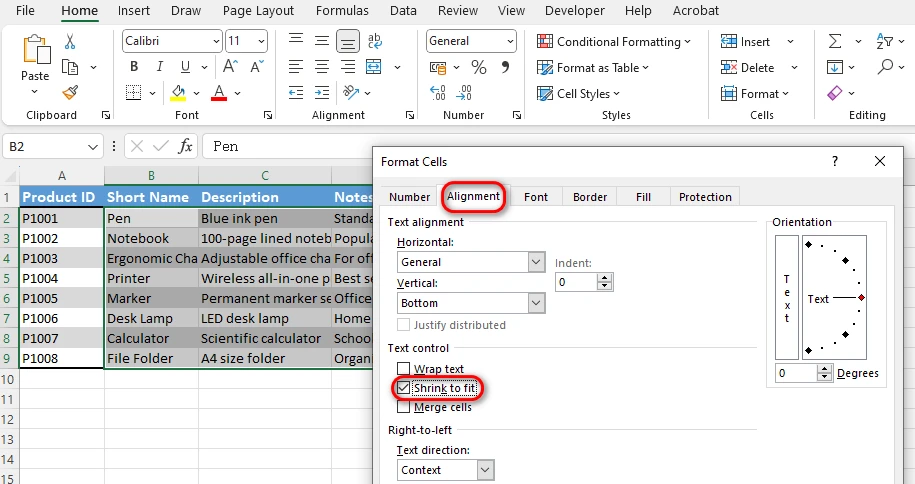
Nach der Aktivierung verringert An Zellgröße anpassen die Schriftgröße, sodass langer Text horizontal in die Zelle passt. Beispielsweise kann eine lange Kundenadresse in einer einzigen Spalte bleiben, ohne überzulaufen.
2. An Zellgröße anpassen vs. Zeilenumbruch
- An Zellgröße anpassen → Verringert die Schriftgröße, um den Text horizontal in einer Zeile zu halten.
- Zeilenumbruch → Bricht den Text in mehrere Zeilen innerhalb derselben Zelle um und erhöht die Zeilenhöhe.
Der folgende Screenshot veranschaulicht den Unterschied zwischen An Zellgröße anpassen und Zeilenumbruch, sodass Sie sehen können, wie sich jede Option auf das Erscheinungsbild des Zellinhalts auswirkt:
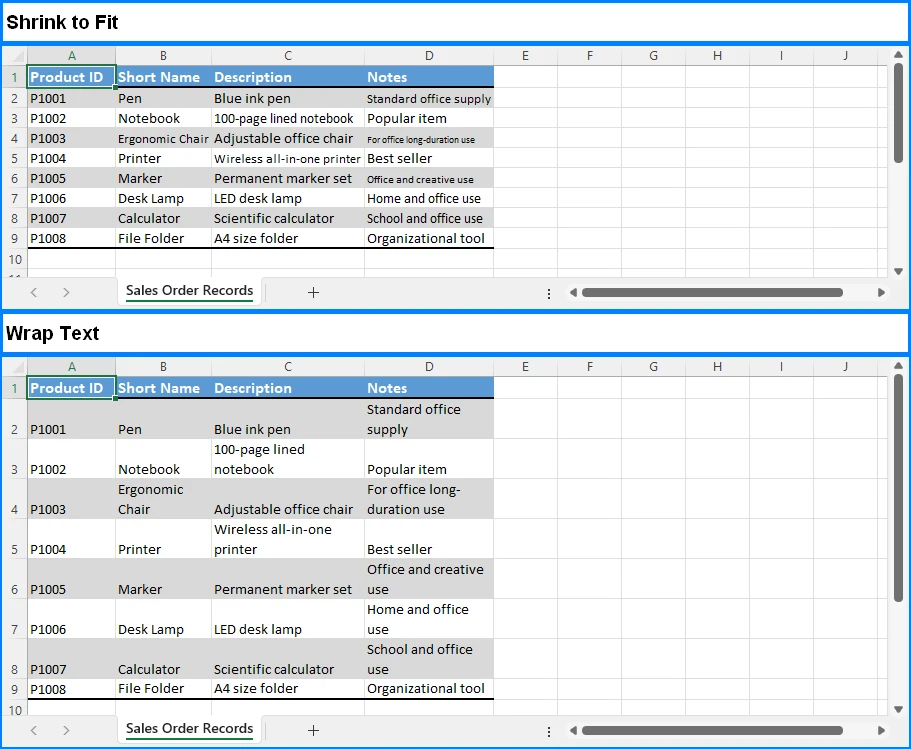
Wenn die Lesbarkeit wichtiger ist als die Kompaktheit der Tabelle, ist Zeilenumbruch möglicherweise die bessere Wahl.
So passen Sie Zellen an den Text in Excel an
Der Ausdruck „Zellen an den Text anpassen“ kann etwas irreführend sein. In Excel verringert die Option „An Zellgröße anpassen“ die Schriftgröße, sodass der Text in die vorhandene Zellenbreite passt, aber die Zelle selbst wird nicht in der Größe geändert. Wenn Ihr Ziel darin besteht, dass sich die Zelle selbst an den Inhalt anpasst, ist das richtige Werkzeug AutoAnpassen, das die Spaltenbreite oder Zeilenhöhe automatisch an den Text anpasst.
1. Spaltenbreite und Zeilenhöhe automatisch anpassen
Um sowohl die Spaltenbreite als auch die Zeilenhöhe automatisch an den Text anzupassen, können Sie entweder doppelt auf die Spalten- oder Zeilengrenzen klicken oder das Menüband verwenden:
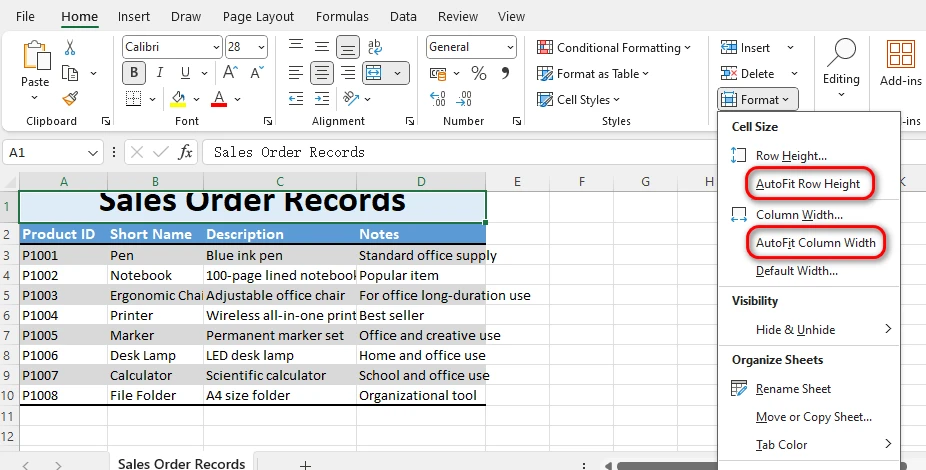
- Start → Zellen → Format → Spaltenbreite automatisch anpassen / Zeilenhöhe automatisch anpassen
Der folgende Screenshot zeigt, wie AutoAnpassen die Größe der ausgewählten Spalte und Zeile automatisch an den Inhalt anpasst:
2. Vor- und Nachteile von AutoAnpassen vs. An Zellgröße anpassen
- An Zellgröße anpassen: Hält die Zellgröße konstant, verkleinert aber den Text. Am besten, wenn die Tabellenabmessungen fest bleiben müssen.
- AutoAnpassen: Hält die Schriftgröße konstant, ändert aber die Größe der Zellen. Am besten, wenn die Lesbarkeit Priorität hat.
Der folgende Screenshot zeigt den Unterschied zwischen An Zellgröße anpassen und AutoAnpassen in Excel-Zellen.
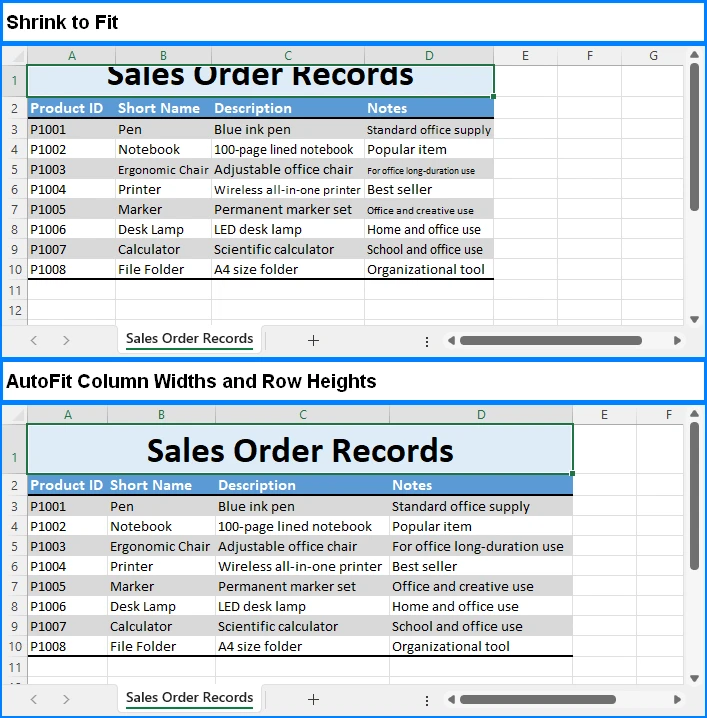
Indem Sie beide Methoden verstehen, können Sie je nach Ihren Berichts- oder Dateneingabeanforderungen den richtigen Ansatz wählen.
An Zellgröße anpassen in Excel mit VBA
Für sich wiederholende Aufgaben können Sie die Eigenschaft Range.ShrinkToFit in VBA (Visual Basic for Applications) verwenden, um die Textanpassung zu automatisieren. Dies ermöglicht es Ihnen, „An Zellgröße anpassen“ oder „AutoAnpassen“ auf mehrere Bereiche in einem Schritt anzuwenden und so Zeit bei der Bearbeitung großer Arbeitsblätter zu sparen.
Beispiel: An Zellgröße anpassen über VBA aktivieren
Der folgende VBA-Code aktiviert An Zellgröße anpassen für einen angegebenen Zellbereich, wodurch langer Text automatisch in den Zellen verkleinert wird:
Sub ApplyShrinkToFit()
    Dim ws As Worksheet
    Set ws = ThisWorkbook.Sheets("Sheet1")
    ws.Range("A1:A10").ShrinkToFit = True
End Sub
Beispiel: AutoAnpassen über VBA anwenden
Wenn Sie Spalten und Zeilen an die Textgröße anpassen möchten, anstatt die Schriftarten zu verkleinern, können Sie die Methode AutoAnpassen verwenden:
Sub AutoFitColumnsAndRows()
    Dim ws As Worksheet
    Set ws = ThisWorkbook.Sheets("Sheet1")
    ws.Columns("A:C").AutoFit
    ws.Rows("1:10").AutoFit
End Sub
Auf diese Weise können Sie Hunderte von Zellen auf einmal automatisch verarbeiten, anstatt sie manuell einzeln anzupassen.
Automatisierung von 'An Zellgröße anpassen' mit Python ohne Excel
Wenn Sie mit Python arbeiten und Excel-Dateien programmgesteuert ohne GUI verwalten möchten, bietet Spire.XLS for Python eine vollständige API für die Excel-Automatisierung. Im Gegensatz zu VBA funktioniert es unabhängig von Excel und kann in Webanwendungen oder Datenpipelines integriert werden.
Bevor Sie beginnen, stellen Sie sicher, dass Sie Spire.XLS for Python in Ihrer Umgebung installiert haben:
pip install spire.xls
Beispiel: An Zellgröße anpassen in Python aktivieren
Das folgende Python-Beispiel zeigt, wie An Zellgröße anpassen für Excel-Zellen programmgesteuert aktiviert wird. Mit diesem Ansatz können Sie die Funktionalität Python an Zellgröße anpassen Excel einfach erreichen und sicherstellen, dass der Text immer in die vorgegebenen Zellgrenzen passt:
from spire.xls import Workbook

workbook = Workbook()
workbook.LoadFromFile("Sample1.xlsx")
sheet = workbook.Worksheets[0]

cells = sheet.AllocatedRange
cells.Style.ShrinkToFit = True

workbook.SaveToFile("output/shrink_to_fit.xlsx")
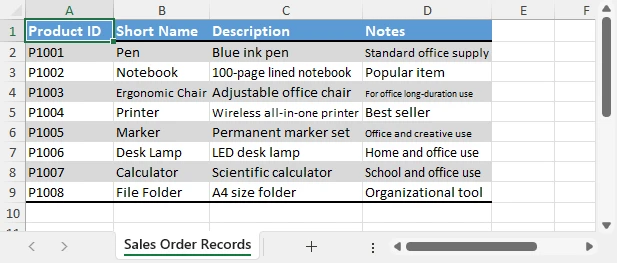
Das folgende Bild zeigt das Ergebnis des obigen Python-Codes, bei dem An Zellgröße anpassen angewendet wird, sodass eine lange Textzeichenfolge in eine einzelne Zelle passt.
Beispiel: Spalten und Zeilen in Python automatisch anpassen
Wenn Sie Spalten und Zeilen automatisch an den Inhalt anpassen möchten, können Sie die Methoden AutoFitColumns und AutoFitRows verwenden:
from spire.xls import Workbook

workbook = Workbook()
workbook.LoadFromFile("Sample2.xlsx")
sheet = workbook.Worksheets[0]

sheet.AllocatedRange.AutoFitColumns()
sheet.AllocatedRange.AutoFitRows()

workbook.SaveToFile("output/autofit_column_row.xlsx")
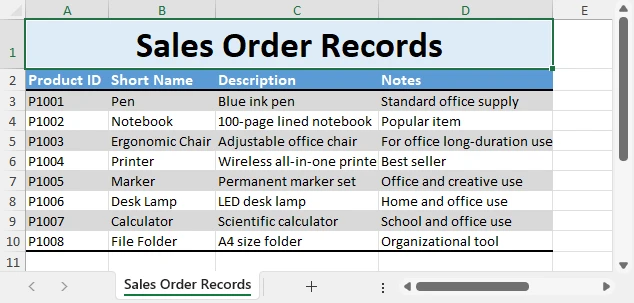
Das folgende Bild zeigt das Ergebnis des obigen Python-Codes, bei dem AutoAnpassen auf Spalten und Zeilen angewendet wurde, sodass sich die Zellgrößen automatisch an den Inhalt anpassen.
Dieser Ansatz ist ideal für die automatische Erstellung von Berichten mit konsistenter Formatierung über Tausende von Datensätzen hinweg. Wenn Sie weitere Tipps zur Excel-Automatisierung mit Python benötigen, sehen Sie sich die offiziellen Spire.XLS for Python-Tutorials an.
Druckoptionen: Blatt auf einer Seite anpassen
Neben der Verwaltung von Zellinhalten auf dem Bildschirm müssen viele Benutzer auch Arbeitsblätter für den Druck optimieren. In solchen Fällen können Sie die Option Blatt auf einer Seite anpassen verwenden, die das gesamte Blatt skaliert, damit es sauber auf eine gedruckte Seite passt.
Schritte:
- Gehen Sie zu Seitenlayout → Anpassen → Blatt auf einer Seite anpassen.
- Alternativ: Datei → Drucken → Skalierung → Blatt auf einer Seite anpassen.
Der folgende Screenshot zeigt die Seiteneinrichtungsoptionen in Excel, wo Sie „Blatt auf einer Seite anpassen“ für den Druck aktivieren können.
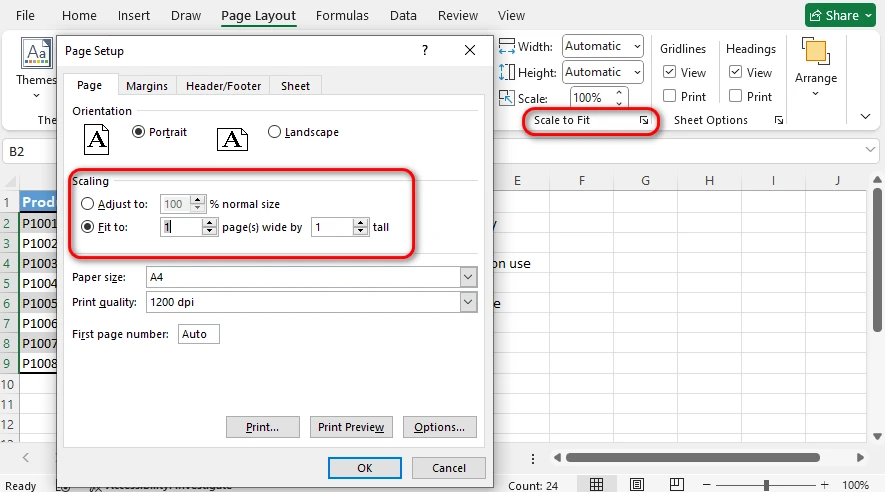
Diese Funktion reduziert die Gesamtskalierung des Arbeitsblatts, sodass es sauber auf einer einzigen Seite gedruckt wird. Sie ist besonders nützlich für:
- Finanzberichte
- Lange Produktkataloge
- Jahreszusammenfassungen
Bedenken Sie jedoch, dass eine übermäßige Skalierung zu sehr kleinem Text führen kann, was die Lesbarkeit auf Papier beeinträchtigen könnte.
Für die Druckautomatisierung können Sie C# verwenden, um Excel-Druckaufgaben zu automatisieren. Weitere Informationen finden Sie unter So automatisieren Sie den Excel-Druck mit C#.
Bewährte Praktiken für das Textmanagement in Excel
- Verwenden Sie An Zellgröße anpassen, wenn das Tabellenlayout unverändert bleiben muss.
- Hinweis: „An Zellgröße anpassen“ funktioniert nur bei horizontalem Überlauf, nicht bei vertikalem.
- Verwenden Sie AutoAnpassen, wenn die Lesbarkeit wichtiger ist.
- Kombinieren Sie Zeilenumbruch mit AutoAnpassen für mehrzeilige Adressen oder Kommentare.
- Automatisieren Sie mit VBA oder Python bei der Verarbeitung großer Datensätze.
- Verwenden Sie für den Druck Blatt auf einer Seite anpassen, um professionell aussehende Berichte zu gewährleisten.
Fazit
Excel bietet mehrere Möglichkeiten, mit Textüberlauf in Zellen umzugehen. Die Funktion An Zellgröße anpassen verkleinert die Schriftgröße, um horizontalen Überlauf zu beheben, während AutoAnpassen die Zellen (sowohl Spaltenbreite als auch Zeilenhöhe) erweitert, um den Text in beide Richtungen anzupassen. Wenn Sie mehr Flexibilität benötigen, können VBA und Spire.XLS for Python beide Ansätze automatisieren. Für den Druck stellt die Option Blatt auf einer Seite anpassen sicher, dass große Blätter sauber und professionell aussehen.
Indem Sie die Unterschiede verstehen und die richtige Methode anwenden, können Sie Ihre Excel-Dateien sowohl lesbar als auch professionell aussehend gestalten, egal wie viel Text sie enthalten.
FAQ
F1: Was ist „An Zellgröße anpassen“ in Excel?
„An Zellgröße anpassen“ ist eine Zellformatierungsoption, die automatisch die Schriftgröße verringert, sodass der Text in die Breite der Zelle passt, ohne die Spaltenbreite oder Zeilenhöhe zu ändern. Sie funktioniert nur bei horizontalem Überlauf.
F2: Wie passt man Text in Excel an?
Wählen Sie die Zelle aus, öffnen Sie Zellen formatieren → Ausrichtung und aktivieren Sie An Zellgröße anpassen. Excel verringert die Schriftgröße, bis der Text in die Zellenbreite passt.
F3: Wie passt man Excel-Zellen an den Text an?
In Excel verringert die Option An Zellgröße anpassen die Schriftgröße, sodass der Text in die Zelle passt, aber sie ändert nicht die Größe der Zelle selbst. Um die Zelle an den Inhalt anzupassen, verwenden Sie AutoAnpassen, das die Spaltenbreite oder Zeilenhöhe automatisch an den Text anpasst.
F4: Wie mache ich einen Zeilenumbruch und passe die Höhe automatisch an?
Aktivieren Sie Zeilenumbruch in den Ausrichtungsoptionen und verwenden Sie dann Zeilenhöhe automatisch anpassen, um die Zeile automatisch zu erweitern, sodass alle Textzeilen sichtbar sind.
Siehe auch
Entdecken Sie verwandte Tutorials, um Ihre Fähigkeiten in der Excel-Automatisierung und -Formatierung zu verbessern:
Сжать до нужного размера в Excel: Как сжать текст или ячейки по содержимому ячейки
Содержание
Установить с помощью Pypi
pip install spire.xls
Похожие ссылки
При работе с Excel одной из самых частых проблем является то, что текст не помещается в ячейки. Длинное название продукта, подробный комментарий или адрес клиента могут легко переходить в соседние ячейки или отображаться обрезанными. Многие пользователи прибегают к опции Сжать до размера, в то время как другие ищут способы автоматического изменения размера самих ячеек.
В этой статье мы объясним, что на самом деле делает Сжать до размера в Excel, чем это отличается от автоматического подбора ширины столбцов и высоты строк, и как вы можете достичь обеих целей — сжатия текста и сжатия ячеек. Мы также рассмотрим методы автоматизации с использованием VBA и Python и, наконец, рассмотрим параметры печати, такие как Вписать лист на одну страницу.
Обзор методов:
- Как сжать текст по размеру в Excel
- Как сжать ячейки по размеру текста в Excel
- Сжать до размера в Excel с помощью VBA
- Автоматизация сжатия до размера с помощью Python без Excel
- Параметры печати: Вписать лист на одну страницу
Что означает «Сжать до размера» в Excel?
Опция Сжать до размера в Excel автоматически уменьшает размер шрифта, чтобы текст помещался горизонтально внутри ячейки, не изменяя ширину столбца. Она регулирует размер текста только в одной строке, поэтому текст, который переносится на несколько строк или превышает высоту ячейки по вертикали, все равно может быть обрезан. Эта функция доступна из:
- Щелчок правой кнопкой мыши по ячейке → Формат ячеек → Выравнивание → Сжать до размера
- Путь на ленте: Главная → группа Выравнивание → диалоговое окно Формат ячеек
- Горячая клавиша: Ctrl + 1 (открывает диалоговое окно Формат ячеек)
Ключевые моменты о «Сжать до размера»:
- Она не изменяет размер ячейки; вместо этого она делает текст меньше.
- Если текст очень длинный, результирующий шрифт может стать слишком маленьким для комфортного чтения.
- Ее можно использовать вместе с Объединить ячейки, но она плохо работает с Переносить текст.
Эта функция особенно полезна, когда вы хотите сохранить фиксированную структуру таблицы, но при этом убедиться, что все данные, которые слишком длинные по горизонтали, видны внутри каждой ячейки.
«Сжать до размера» обрабатывает только горизонтальное переполнение. Если текст превышает ячейку по вертикали, и вы хотите сохранить высоту строки неизменной, вы можете программно настроить размер шрифта ячеек Excel, чтобы обеспечить видимость всего содержимого.
Как сжать текст по размеру в Excel
Во многих случаях пользователи просто хотят, чтобы длинный текст помещался в одной ячейке без изменения ширины столбцов. Excel предоставляет встроенный способ сжать текст по размеру ячейки, что можно сделать прямо из меню на ленте. Вы также можете сравнить этот метод с Переносить текст, чтобы увидеть, какой из них больше подходит для ваших данных.
1. Использование меню на ленте
- Выберите целевую ячейку(и).
- Перейдите в Главная → Выравнивание → Формат ячеек → вкладка Выравнивание.
- Установите флажок Сжать до размера и нажмите OK.
На скриншоте ниже показана вкладка Выравнивание в диалоговом окне Формат ячеек, где вы можете включить Сжать до размера для выбранной ячейки(ек).
После включения Сжать до размера уменьшает размер шрифта, чтобы длинный текст помещался по горизонтали внутри ячейки. Например, длинный адрес клиента может оставаться в одном столбце без переполнения.
2. Сжать до размера vs Переносить текст
- Сжать до размера → Уменьшает размер шрифта, чтобы текст оставался в одной строке по горизонтали.
- Переносить текст → Разбивает текст на несколько строк внутри одной ячейки, увеличивая высоту строки.
На скриншоте ниже показана разница между Сжать до размера и Переносить текст, чтобы вы могли видеть, как каждая опция влияет на внешний вид содержимого ячейки:
Если читаемость важнее сохранения компактности таблицы, Переносить текст может быть лучшим выбором.
Как сжать ячейки по размеру текста в Excel
Выражение «сжать ячейки по размеру текста» может быть немного вводящим в заблуждение. В Excel опция «Сжать до размера» уменьшает размер шрифта, чтобы текст помещался в существующую ширину ячейки, но она фактически не изменяет размер ячейки. Если ваша цель — заставить саму ячейку подстраиваться под содержимое, правильным инструментом является Автоподбор, который автоматически изменяет ширину столбца или высоту строки в соответствии с текстом.
1. Автоподбор ширины столбца и высоты строки
Чтобы автоматически настроить ширину столбца и высоту строки по тексту, вы можете либо дважды щелкнуть по границам столбца или строки, либо использовать меню на ленте:
- Главная → Ячейки → Формат → Автоподбор ширины столбца / Автоподбор высоты строки
На скриншоте ниже показано, как Автоподбор автоматически изменяет размер выбранного столбца и строки для соответствия содержимому:
2. Плюсы и минусы Автоподбора vs Сжать до размера
- Сжать до размера: Сохраняет размер ячейки постоянным, но сжимает текст. Лучше всего, когда размеры таблицы должны оставаться фиксированными.
- Автоподбор: Сохраняет размер шрифта постоянным, но изменяет размер ячеек. Лучше всего, когда приоритетом является читаемость.
На скриншоте ниже показана разница между Сжать до размера и Автоподбор в ячейках Excel.
Понимая оба метода, вы можете выбрать правильный подход в зависимости от ваших отчетов или потребностей ввода данных.
Сжать до размера в Excel с помощью VBA
Для повторяющихся задач вы можете использовать свойство Range.ShrinkToFit в VBA (Visual Basic for Applications) для автоматизации подгонки текста. Это позволяет применять «Сжать до размера» или «Автоподбор» к нескольким диапазонам за один шаг, экономя время при работе с большими листами.
Пример: Включение «Сжать до размера» через VBA
Следующий код VBA включает Сжать до размера для указанного диапазона ячеек, заставляя длинный текст автоматически сжиматься внутри ячеек:
Sub ApplyShrinkToFit()
    Dim ws As Worksheet
    Set ws = ThisWorkbook.Sheets("Sheet1")
    ws.Range("A1:A10").ShrinkToFit = True
End Sub
Пример: Применение Автоподбора через VBA
Если вы хотите настроить столбцы и строки в соответствии с размером текста вместо сжатия шрифтов, вы можете использовать метод Автоподбор:
Sub AutoFitColumnsAndRows()
    Dim ws As Worksheet
    Set ws = ThisWorkbook.Sheets("Sheet1")
    ws.Columns("A:C").AutoFit
    ws.Rows("1:10").AutoFit
End Sub
Таким образом, вы можете автоматически обрабатывать сотни ячеек одновременно, вместо того чтобы настраивать их вручную по одной.
Автоматизация сжатия до размера с помощью Python без Excel
Если вы работаете с Python и хотите управлять файлами Excel программно без графического интерфейса, Spire.XLS for Python предоставляет полный API для автоматизации Excel. В отличие от VBA, он работает независимо от Excel и может быть интегрирован в веб-приложения или конвейеры данных.
Прежде чем начать, убедитесь, что у вас установлен Spire.XLS for Python в вашей среде:
pip install spire.xls
Пример: Включение «Сжать до размера» на Python
Следующий пример на Python демонстрирует, как программно включить Сжать до размера для ячеек Excel. С помощью этого подхода вы можете легко реализовать функциональность Python сжать до размера Excel и обеспечить, чтобы текст всегда помещался в заданные границы ячейки:
from spire.xls import Workbook

workbook = Workbook()
workbook.LoadFromFile("Sample1.xlsx")
sheet = workbook.Worksheets[0]

cells = sheet.AllocatedRange
cells.Style.ShrinkToFit = True

workbook.SaveToFile("output/shrink_to_fit.xlsx")
На изображении ниже показан результат выполнения приведенного выше кода Python, где применено Сжать до размера, чтобы длинная текстовая строка помещалась в одной ячейке.
Пример: Автоподбор столбцов и строк на Python
Аналогично, если вы хотите автоматически изменять размер столбцов и строк в соответствии с содержимым, вы можете использовать методы AutoFitColumns и AutoFitRows:
from spire.xls import Workbook

workbook = Workbook()
workbook.LoadFromFile("Sample2.xlsx")
sheet = workbook.Worksheets[0]

sheet.AllocatedRange.AutoFitColumns()
sheet.AllocatedRange.AutoFitRows()

workbook.SaveToFile("output/autofit_column_row.xlsx")
На изображении ниже показан результат выполнения приведенного выше кода Python, где Автоподбор был применен к столбцам и строкам, чтобы размеры ячеек автоматически подстраивались под содержимое.
Этот подход идеален для автоматического создания отчетов с единообразным форматированием для тысяч записей. Если вам нужно больше советов по автоматизации Excel с помощью Python, ознакомьтесь с официальными руководствами Spire.XLS for Python.
Параметры печати: Вписать лист на одну страницу
Помимо управления содержимым ячеек на экране, многим пользователям также необходимо оптимизировать листы для печати. В таких случаях вы можете использовать опцию Вписать лист на одну страницу, которая масштабирует весь лист, чтобы он аккуратно помещался на одной печатной странице.
Шаги:
- Перейдите в Разметка страницы → Вписать в → Вписать лист на одну страницу.
- Или: Файл → Печать → Масштабирование → Вписать лист на одну страницу.
На скриншоте ниже показаны параметры настройки страницы в Excel, где вы можете включить «Вписать лист на одну страницу» для печати.
Эта функция уменьшает общий масштаб листа, чтобы он аккуратно печатался на одной странице. Это особенно полезно для:
- Финансовых отчетов
- Длинных каталогов продуктов
- Годовых отчетов
Однако имейте в виду, что чрезмерное масштабирование может привести к очень мелкому тексту, что может снизить читаемость на бумаге.
Для автоматизации печати вы можете использовать C# для автоматизации задач печати в Excel. Пожалуйста, обратитесь к Как автоматизировать печать в Excel с помощью C# для получения подробной информации.
Лучшие практики управления текстом в Excel
- Используйте Сжать до размера, когда макет таблицы должен оставаться неизменным.
- Примечание: «Сжать до размера» работает только для горизонтального переполнения, но не для вертикального.
- Используйте Автоподбор, когда читаемость важнее.
- Комбинируйте Переносить текст с Автоподбором для многострочных адресов или комментариев.
- Автоматизируйте с помощью VBA или Python при работе с большими наборами данных.
- Для печати используйте Вписать лист на одну страницу, чтобы обеспечить профессиональный вид отчетов.
Заключение
Excel предоставляет несколько способов обработки переполнения текста внутри ячеек. Функция Сжать до размера уменьшает размер шрифта для решения проблемы горизонтального переполнения, в то время как Автоподбор расширяет ячейки (как ширину столбца, так и высоту строки) для соответствия тексту в любом направлении. Если вам нужна большая гибкость, VBA и Spire.XLS for Python могут автоматизировать оба подхода. Для печати опция Вписать лист на одну страницу гарантирует, что большие листы будут выглядеть аккуратно и профессионально.
Понимая различия и применяя правильный метод, вы можете сделать свои файлы Excel одновременно читаемыми и профессионально выглядящими, независимо от того, сколько текста они содержат.
FAQ
В1: Что такое «Сжать до размера» в Excel?
«Сжать до размера» — это опция форматирования ячейки, которая автоматически уменьшает размер шрифта, чтобы текст помещался в ширину ячейки без изменения ширины столбца или высоты строки. Она работает только для горизонтального переполнения.
В2: Как сжать текст по размеру в Excel?
Выберите ячейку, откройте Формат ячеек → Выравнивание и установите флажок Сжать до размера. Excel уменьшит размер шрифта до тех пор, пока текст не поместится в ширину ячейки.
В3: Как сжать ячейки Excel по размеру текста?
В Excel опция Сжать до размера уменьшает размер шрифта, чтобы текст помещался в ячейке, но она не изменяет размер самой ячейки. Чтобы заставить ячейку подстраиваться под содержимое, используйте Автоподбор, который автоматически изменяет ширину столбца или высоту строки в соответствии с текстом.
В4: Как перенести текст и автоматически подогнать высоту?
Включите Переносить текст в параметрах выравнивания, затем используйте Автоподбор высоты строки, чтобы автоматически расширить строку так, чтобы все строки текста были видны.
Смотрите также
Ознакомьтесь с соответствующими руководствами, чтобы улучшить свои навыки автоматизации и форматирования в Excel:
Reduzir para Ajustar no Excel: Como reduzir o texto ou as células para caber no conteúdo da célula
Índice
Instalar com Pypi
pip install spire.xls
Links Relacionados
Ao trabalhar com o Excel, uma das frustrações mais comuns é que o seu texto не cabe dentro das células. Um nome de produto longo, um comentário detalhado ou um endereço de cliente podem facilmente transbordar para as células adjacentes ou aparecer cortados. Muitos usuários recorrem à opção Reduzir para Ajustar, enquanto outros procuram maneiras de redimensionar automaticamente as próprias células.
Neste artigo, explicaremos o que Reduzir para Ajustar no Excel realmente faz, como difere do autoajuste da largura das colunas e da altura das linhas, e como você pode atingir ambos os objetivos — reduzir o texto e reduzir as células. Também abordaremos métodos de automação usando VBA e Python e, finalmente, veremos as opções de impressão, como Ajustar Planilha em Uma Página.
Visão Geral dos Métodos:
- Como Reduzir o Texto para Ajustar no Excel
- Como Reduzir as Células para Ajustar ao Texto no Excel
- Reduzir para Ajustar no Excel com VBA
- Automatizando o Reduzir para Ajustar Usando Python Sem Excel
- Opções de Impressão: Ajustar Planilha em Uma Página
O que significa “Reduzir para Ajustar” no Excel?
A opção Reduzir para Ajustar no Excel reduz automaticamente o tamanho da fonte para que o texto se ajuste horizontalmente dentro de uma célula sem alterar a largura da coluna. Ela ajusta apenas o tamanho do texto em uma única linha, então o texto que quebra em várias linhas ou excede a altura da célula verticalmente ainda pode ser cortado. Este recurso é acessível a partir de:
- Clique com o botão direito em uma célula → Formatar Células → Alinhamento → Reduzir para ajustar
- Caminho da faixa de opções: Página Inicial → grupo Alinhamento → caixa de diálogo Formatar Células
- Atalho do teclado: Ctrl + 1 (abre a caixa de diálogo Formatar Células)
Pontos-chave sobre Reduzir para Ajustar:
- Ele não redimensiona a célula; em vez disso, torna o texto menor.
- Se o texto for muito longo, a fonte resultante pode se tornar muito pequena para ser lida confortavelmente.
- Pode ser usado junto com Mesclar Células, mas не funciona bem com Quebrar Texto Automaticamente.
Este recurso é especialmente útil quando você deseja manter um layout de tabela fixo, mas ainda garantir que todos os dados que são horizontalmente muito longos sejam visíveis dentro de cada célula.
Reduzir para Ajustar lida apenas com o excesso horizontal. Se o texto exceder uma célula verticalmente e você quiser manter a altura da linha inalterada, você pode ajustar o tamanho da fonte das células do Excel programaticamente para garantir que todo o conteúdo seja visível.
Como Reduzir o Texto para Ajustar no Excel
Em muitos casos, os usuários simplesmente querem que o texto longo caiba em uma única célula sem alterar a largura das colunas. O Excel fornece uma maneira integrada de reduzir o texto para ajustar ao tamanho da célula, o que pode ser feito diretamente no menu da Faixa de Opções. Você também pode comparar este método com Quebrar Texto Automaticamente para ver qual é mais apropriado para seus dados.
1. Usando o Menu da Faixa de Opções
- Selecione a(s) célula(s) de destino.
- Vá para Página Inicial → Alinhamento → Formatar Células → guia Alinhamento.
- Marque a opção Reduzir para ajustar e clique em OK.
A captura de tela abaixo mostra a guia Alinhamento na caixa de diálogo Formatar Células, onde você pode habilitar Reduzir para ajustar para a(s) célula(s) selecionada(s).
Uma vez habilitado, Reduzir para ajustar reduz o tamanho da fonte para que o texto longo se ajuste horizontalmente dentro da célula. Por exemplo, um endereço de cliente longo pode permanecer em uma única coluna sem transbordar.
2. Reduzir para Ajustar vs. Quebrar Texto Automaticamente
- Reduzir para Ajustar → Reduz o tamanho da fonte para manter o texto em uma linha horizontalmente.
- Quebrar Texto Automaticamente → Quebra o texto em várias linhas dentro da mesma célula, aumentando a altura da linha.
A captura de tela abaixo ilustra a diferença entre Reduzir para Ajustar e Quebrar Texto Automaticamente, para que você possa ver como cada opção afeta a aparência do conteúdo da célula:
Se a legibilidade for mais importante do que manter a tabela compacta, Quebrar Texto Automaticamente pode ser uma escolha melhor.
Como Reduzir as Células para Ajustar ao Texto no Excel
A expressão “reduzir as células para ajustar ao texto” pode ser um pouco enganadora. No Excel, a opção Reduzir para Ajustar reduz o tamanho da fonte para que o texto caiba na largura da célula existente, mas não redimensiona a célula. Se o seu objetivo é fazer com que a própria célula se ajuste ao conteúdo, a ferramenta correta é o AutoAjuste, que altera automaticamente a largura da coluna ou a altura da linha para corresponder ao texto.
1. AutoAjuste da Largura da Coluna e Altura da Linha
Para ajustar automaticamente tanto a largura da coluna quanto a altura da linha para caber o texto, você pode clicar duas vezes nas bordas da coluna ou da linha, ou usar o menu da Faixa de Opções:
- Página Inicial → Células → Formato → AutoAjuste da Largura da Coluna / AutoAjuste da Altura da Linha
A captura de tela abaixo mostra como o AutoAjuste redimensiona automaticamente a coluna e a linha selecionadas para se ajustar ao conteúdo:
2. Prós e Contras do AutoAjuste vs. Reduzir para Ajustar
- Reduzir para Ajustar: Mantém o tamanho da célula constante, mas encolhe o texto. Melhor quando as dimensões da tabela devem permanecer fixas.
- AutoAjuste: Mantém o tamanho da fonte constante, mas redimensiona as células. Melhor quando a legibilidade é uma prioridade.
A captura de tela abaixo mostra a diferença entre Reduzir para Ajustar e AutoAjuste nas células do Excel.
Ao entender ambos os métodos, você pode escolher a abordagem certa dependendo de suas necessidades de relatório ou entrada de dados.
Reduzir para Ajustar no Excel com VBA
Para tarefas repetitivas, você pode usar a propriedade Range.ShrinkToFit no VBA (Visual Basic for Applications) para automatizar o ajuste do texto. Isso permite que você aplique Reduzir para Ajustar ou AutoAjuste a vários intervalos em uma única etapa, economizando tempo ao lidar com planilhas grandes.
Exemplo: Habilitar Reduzir para Ajustar via VBA
O código VBA a seguir habilita o Reduzir para Ajustar para um intervalo de células especificado, fazendo com que o texto longo se reduza automaticamente dentro das células:
Sub ApplyShrinkToFit()
    Dim ws As Worksheet
    Set ws = ThisWorkbook.Sheets("Sheet1")
    ws.Range("A1:A10").ShrinkToFit = True
End Sub
Exemplo: Aplicar AutoAjuste via VBA
Se você quiser ajustar colunas e linhas para corresponder ao tamanho do texto em vez de reduzir as fontes, pode usar o método AutoAjuste:
Sub AutoFitColumnsAndRows()
    Dim ws As Worksheet
    Set ws = ThisWorkbook.Sheets("Sheet1")
    ws.Columns("A:C").AutoFit
    ws.Rows("1:10").AutoFit
End Sub
Dessa forma, você pode processar centenas de células de uma vez automaticamente, em vez de ajustá-las manualmente uma por uma.
Automatizando o Reduzir para Ajustar Usando Python Sem Excel
Se você está trabalhando com Python e deseja gerenciar arquivos do Excel programaticamente sem uma GUI, o Spire.XLS for Python fornece uma API completa para automação do Excel. Diferente do VBA, ele funciona independentemente do Excel e pode ser integrado em aplicações web ou pipelines de dados.
Antes de começar, certifique-se de ter instalado o Spire.XLS for Python em seu ambiente:
pip install spire.xls
Exemplo: Habilitar Reduzir para Ajustar em Python
O exemplo Python a seguir demonstra como habilitar o Reduzir para Ajustar para células do Excel programaticamente. Com esta abordagem, você pode facilmente alcançar a funcionalidade Python reduzir para ajustar Excel e garantir que o texto sempre caiba dentro dos limites da célula:
from spire.xls import Workbook

workbook = Workbook()
workbook.LoadFromFile("Sample1.xlsx")
sheet = workbook.Worksheets[0]

cells = sheet.AllocatedRange
cells.Style.ShrinkToFit = True

workbook.SaveToFile("output/shrink_to_fit.xlsx")
A imagem abaixo mostra o resultado do código Python acima, onde Reduzir para Ajustar é aplicado para que uma longa string de texto caiba em uma única célula.
Exemplo: AutoAjuste de Colunas e Linhas em Python
Da mesma forma, se você quiser redimensionar automaticamente colunas e linhas para se ajustar ao conteúdo, pode usar os métodos AutoFitColumns e AutoFitRows:
from spire.xls import Workbook

workbook = Workbook()
workbook.LoadFromFile("Sample2.xlsx")
sheet = workbook.Worksheets[0]

sheet.AllocatedRange.AutoFitColumns()
sheet.AllocatedRange.AutoFitRows()

workbook.SaveToFile("output/autofit_column_row.xlsx")
A imagem abaixo mostra o resultado do código Python acima, onde o AutoAjuste foi aplicado a colunas e linhas para que os tamanhos das células se ajustem automaticamente ao conteúdo.
Esta abordagem é ideal para gerar relatórios automaticamente com formatação consistente em milhares de registros. Se precisar de mais dicas de automação do Excel com Python, confira os tutoriais oficiais do Spire.XLS for Python.
Opções de Impressão: Ajustar Planilha em Uma Página
Além de gerenciar o conteúdo das células na tela, muitos usuários também precisam otimizar as planilhas para impressão. Nesses casos, você pode usar a opção Ajustar Planilha em Uma Página, que dimensiona toda a planilha para caber perfeitamente em uma página impressa.
Passos:
- Vá para Layout da Página → Dimensionar para Ajustar → Ajustar Planilha em Uma Página.
- Alternativamente: Arquivo → Imprimir → Dimensionamento → Ajustar Planilha em Uma Página.
A captura de tela abaixo mostra as opções de Configuração de Página no Excel, onde você pode habilitar Ajustar Planilha em Uma Página para impressão.
Este recurso reduz o dimensionamento geral da planilha para que ela seja impressa de forma organizada em uma única página. É particularmente útil para:
- Relatórios financeiros
- Catálogos de produtos longos
- Resumos anuais
No entanto, tenha em mente que o dimensionamento excessivo pode resultar em texto muito pequeno, o que pode reduzir a legibilidade no papel.
Para automação de impressão, você pode usar C# para automatizar tarefas de impressão do Excel. Consulte Como Automatizar a Impressão do Excel Usando C# para detalhes.
Melhores Práticas para Gerenciamento de Texto no Excel
- Use Reduzir para Ajustar quando o layout da tabela deve permanecer inalterado.
- Nota: Reduzir para Ajustar só funciona para excesso horizontal, não vertical.
- Use AutoAjuste quando a legibilidade for mais importante.
- Combine Quebrar Texto Automaticamente com AutoAjuste para endereços ou comentários de várias linhas.
- Automatize com VBA ou Python ao lidar com grandes conjuntos de dados.
- Para impressão, use Ajustar Planilha em Uma Página para garantir relatórios com aparência profissional.
Conclusão
O Excel oferece várias maneiras de lidar com o excesso de texto dentro das células. O recurso Reduzir para Ajustar diminui o tamanho da fonte para resolver o excesso horizontal, enquanto o AutoAjuste expande as células (tanto a largura da coluna quanto a altura da linha) para se ajustar ao texto em qualquer direção. Se precisar de mais flexibilidade, o VBA e o Spire.XLS for Python podem automatizar ambas as abordagens. Para impressão, a opção Ajustar Planilha em Uma Página garante que planilhas grandes pareçam organizadas e profissionais.
Ao entender as diferenças e aplicar o método certo, você pode tornar seus arquivos do Excel legíveis e com aparência profissional, não importa quanto texto eles contenham.
FAQ
Q1: O que é Reduzir para Ajustar no Excel?
Reduzir para Ajustar é uma opção de formatação de célula que reduz automaticamente o tamanho da fonte para que o texto caiba na largura da célula sem alterar a largura da coluna ou a altura da linha. Funciona apenas para excesso horizontal.
Q2: Como você reduz o texto para ajustar no Excel?
Selecione a célula, abra Formatar Células → Alinhamento e marque Reduzir para ajustar. O Excel reduzirá o tamanho da fonte até que o texto caiba na largura da célula.
Q3: Como reduzir as células do Excel para ajustar ao texto?
No Excel, a opção Reduzir para Ajustar reduz o tamanho da fonte para que o texto caiba na célula, mas não redimensiona a célula em si. Para fazer com que a célula se ajuste ao conteúdo, use o AutoAjuste, que altera automaticamente a largura da coluna ou a altura da linha para se ajustar ao texto.
Q4: Como eu quebro o texto e autoajusto a altura?
Habilite Quebrar Texto Automaticamente nas opções de Alinhamento e, em seguida, use AutoAjuste da Altura da Linha para expandir automaticamente a linha para que todas as linhas de texto fiquem visíveis.
Veja Também
Explore tutoriais relacionados para aprimorar suas habilidades de automação e formatação do Excel:
Shrink to Fit in Excel: How to Shrink Text or Cells to Fit Cell Content
Table of Contents
Install with Pypi
pip install spire.xls
Related Links
When working with Excel, one of the most common frustrations is that your text doesn’t fit inside the cells. A long product name, a detailed comment, or a customer address can easily spill over into adjacent cells or appear cut off. Many users turn to the Shrink to Fit option, while others look for ways to automatically resize the cells themselves.
In this article, we will explain what Shrink to Fit in Excel really does, how it differs from auto-fiting column widths and row heights, and how you can achieve both goals—shrinking text and shrinking cells. We’ll also cover automation methods using VBA and Python, and finally look at printing options such as Fit Sheet on One Page.
Methods Overview:
- How to Shrink Text to Fit in Excel
- How to Shrink Cells to Fit Text in Excel
- Shrink to Fit in Excel with VBA
- Automating Shrink to Fit Using Python Without Excel
- Print Options: Fit Sheet on One Page
What Does “Shrink to Fit” in Excel Mean?
The Shrink to Fit option in Excel automatically reduces the font size so that text fits horizontally within a cell without changing the column width. It only adjusts the text size in a single line, so text that wraps onto multiple lines or exceeds the cell height vertically may still be cut off. This feature is accessible from:
- Right-click a cell → Format Cells → Alignment → Shrink to Fit
- Ribbon path: Home → Alignment group → Format Cells dialog
- Keyboard shortcut: Ctrl + 1 (opens the Format Cells dialog)
Key points about Shrink to Fit:
- It does not resize the cell; instead, it makes the text smaller.
- If the text is very long, the resulting font can become too small to read comfortably.
- It can be used together with Merge Cells, but it does not work well with Wrap Text.
This feature is especially useful when you want to maintain a fixed table layout but still ensure that all data that is horizontally too long is visible inside each cell.
Shrink to Fit only handles horizontal overflow. If text exceeds a cell vertically and you want to keep the row height unchanged, you can adjust the font size of Excel cells programmatically to ensure all content is visible.
How to Shrink Text to Fit in Excel
In many cases, users simply want to make long text fit within a single cell without changing column widths. Excel provides a built-in way to shrink text to fit cell size, which can be done directly from the Ribbon menu. You can also compare this method with Wrap Text to see which is more appropriate for your data.
1. Using the Ribbon Menu
- Select the target cell(s).
- Go to Home → Alignment → Format Cells → Alignment tab.
- Check the option Shrink to Fit and click OK.
The screenshot below shows the Alignment tab in the Format Cells dialog, where you can enable Shrink to Fit for the selected cell(s).
Once enabled, Shrink to Fit reduces the font size so that long text fits horizontally within the cell. For example, a long customer address can remain in a single column without overflowing.
2. Shrink to Fit vs Wrap Text
- Shrink to Fit → Reduces font size to keep text in one line horizontally.
- Wrap Text → Breaks text into multiple lines inside the same cell, increasing row height.
The screenshot below illustrates the difference between Shrink to Fit and Wrap Text, so you can see how each option affects the appearance of cell content:
If readability is more important than keeping the table compact, Wrap Text may be a better choice.
How to Shrink Cells to Fit Text in Excel
The expression “shrink cells to fit text” can be a little misleading. In Excel, the Shrink to Fit option reduces the font size so that text fits within the existing cell width, but it does not actually resize the cell. If your goal is to make the cell itself adjust to the content, the correct tool is AutoFit, which automatically changes the column width or row height to match the text.
1. AutoFit Column Width and Row Height
To automatically adjust both column width and row height to fit the text, you can either double-click the column or row boundaries, or use the Ribbon menu:
- Home → Cells → Format → AutoFit Column Width / AutoFit Row Height
The screenshot below shows how AutoFit automatically resizes the selected column and row to fit the content:
2. Pros and Cons of AutoFit vs Shrink to Fit
- Shrink to Fit: Keeps cell size constant but shrinks text. Best when table dimensions must remain fixed.
- AutoFit: Keeps font size constant but resizes cells. Best when readability is a priority.
The screenshot below shows the difference between Shrink to Fit and AutoFit in Excel cells.
By understanding both methods, you can choose the right approach depending on your report or data entry needs.
Shrink to Fit in Excel with VBA
For repetitive tasks, you can use the Range.ShrinkToFit property in VBA (Visual Basic for Applications) to automate text fitting. This allows you to apply Shrink to Fit or AutoFit to multiple ranges in one step, saving time when handling large worksheets.
Example: Enable Shrink to Fit via VBA
The following VBA code enables Shrink to Fit for a specified cell range, making long text shrink automatically inside the cells:
Sub ApplyShrinkToFit()
    Dim ws As Worksheet
    Set ws = ThisWorkbook.Sheets("Sheet1")
    ws.Range("A1:A10").ShrinkToFit = True
End Sub
Example: Apply AutoFit via VBA
If you want to adjust columns and rows to match text size instead of shrinking fonts, you can use the AutoFit method:
Sub AutoFitColumnsAndRows()
    Dim ws As Worksheet
    Set ws = ThisWorkbook.Sheets("Sheet1")
    ws.Columns("A:C").AutoFit
    ws.Rows("1:10").AutoFit
End Sub
This way, you can process hundreds of cells at once automatically instead of adjusting them manually one by one.
Automating Shrink to Fit Using Python Without Excel
If you are working with Python and want to manage Excel files programmatically without a GUI, Spire.XLS for Python provides a complete API for Excel automation. Unlike VBA, it works independently of Excel and can be integrated into web applications or data pipelines.
Before you start, make sure you have installed Spire.XLS for Python in your environment:
pip install spire.xls
Example: Enable Shrink to Fit in Python
The following Python example demonstrates how to enable Shrink to Fit for Excel cells programmatically. With this approach, you can easily achieve Python shrink to fit Excel functionality and ensure that text always fits within the given cell boundaries:
from spire.xls import Workbook

workbook = Workbook()
workbook.LoadFromFile("Sample1.xlsx")
sheet = workbook.Worksheets[0]

cells = sheet.AllocatedRange
cells.Style.ShrinkToFit = True

workbook.SaveToFile("output/shrink_to_fit.xlsx")
The image below shows the result of the above Python code, where Shrink to Fit is applied so that a long text string fits within a single cell.
Example: AutoFit Columns and Rows in Python
Similarly, if you want to automatically resize columns and rows to fit the content, you can use the AutoFitColumns and AutoFitRows methods:
from spire.xls import Workbook

workbook = Workbook()
workbook.LoadFromFile("Sample2.xlsx")
sheet = workbook.Worksheets[0]

sheet.AllocatedRange.AutoFitColumns()
sheet.AllocatedRange.AutoFitRows()

workbook.SaveToFile("output/autofit_column_row.xlsx")
The image below shows the result of the above Python code, where AutoFit has been applied to columns and rows so that the cell sizes automatically adjust to fit the content.
This approach is ideal for automatically generating reports with consistent formatting across thousands of records. If you need more Excel automation tips with Python, check out the official Spire.XLS for Python tutorials.
Print Options: Fit Sheet on One Page
Besides managing cell content on screen, many users also need to optimize worksheets for printing. In such cases, you can use the Fit Sheet on One Page option, which scales the entire sheet to fit neatly onto one printed page.
Steps:
- Go to Page Layout → Scale to Fit → Fit Sheet on One Page.
- Alternatively: File → Print → Scaling → Fit Sheet on One Page.
The screenshot below shows the Page Setup options in Excel, where you can enable Fit Sheet on One Page for printing.
This feature reduces the overall scaling of the worksheet so that it prints neatly on a single page. It’s particularly useful for:
- Financial reports
- Long product catalogs
- Annual summaries
However, keep in mind that excessive scaling may result in very small text, which could reduce readability on paper.
For printing automation, you can use C# to automate Excel printing tasks. Please refer to How to Automate Excel Printing Using C# for details.
Best Practices for Text Management in Excel
- Use Shrink to Fit when table layout must remain unchanged.
- Note: Shrink to Fit only works for horizontal overflow, not vertical.
- Use AutoFit when readability is more important.
- Combine Wrap Text with AutoFit for multiline addresses or comments.
- Automate with VBA or Python when dealing with large datasets.
- For printing, use Fit Sheet on One Page to ensure professional-looking reports.
Conclusion
Excel provides multiple ways to handle text overflow inside cells. The Shrink to Fit feature shrinks the font size to resolve horizontal overflow, while AutoFit expands cells (both column width and row height) to fit text in either direction. If you need more flexibility, VBA and Spire.XLS for Python can automate both approaches. For printing, the Fit Sheet on One Page option ensures that large sheets look neat and professional.
By understanding the differences and applying the right method, you can make your Excel files both readable and professional-looking, no matter how much text they contain.
FAQ
Q1: What is Shrink to Fit in Excel?
Shrink to Fit is a cell formatting option that automatically reduces the font size so text fits within the cell’s width without changing column width or row height. It only works for horizontal overflow.
Q2: How do you shrink text to fit in Excel?
Select the cell, open Format Cells → Alignment, and check Shrink to Fit. Excel will reduce the font size until the text fits within the cell width.
Q3: How to shrink Excel cells to fit text?
In Excel, the Shrink to Fit option reduces the font size so text fits within the cell, but it does not resize the cell itself. To make the cell adjust to the content, use AutoFit, which automatically changes the column width or row height to fit the text.
Q4: How do I wrap text and autofit height?
Enable Wrap Text in the Alignment options, then use AutoFit Row Height to automatically expand the row so all lines of text are visible.
See Also
Explore related tutorials to enhance your Excel automation and formatting skills:
Convertire testo in PDF facilmente: 4 metodi veloci e professionali
Indice dei contenuti
- Panoramica
- Perché convertire testo in PDF
- Metodo 1: Utilizzare le funzionalità integrate del sistema operativo per convertire testo in PDF
- Metodo 2: Convertire testo in PDF online gratuitamente
- Metodo 3: Salvare file di testo come PDF utilizzando Microsoft Word
- Metodo 4: Automatizzare la conversione da testo a PDF con Python
- Conclusione: Scegliere il metodo migliore per convertire testo in PDF
- Domande Frequenti (FAQ)
Installa con Pypi
pip install Spire.Pdf
Link Correlati
Indice dei contenuti
- Panoramica
- Perché convertire testo in PDF
- Metodo 1: Utilizzare le funzionalità integrate del sistema operativo per convertire testo in PDF
- Metodo 2: Convertire testo in PDF online gratuitamente
- Metodo 3: Salvare file di testo come PDF utilizzando Microsoft Word
- Metodo 4: Automatizzare la conversione da testo a PDF con Python
- Conclusione: Scegliere il metodo migliore per convertire testo in PDF
- Domande Frequenti (FAQ)
Panoramica
La conversione di file di testo in PDF è una necessità comune per studenti, professionisti e sviluppatori. Mentre i file di testo semplice (.txt) sono semplici e leggeri, i PDF offrono una formattazione coerente, un migliore controllo e funzionalità avanzate, rendendoli ideali per documenti professionali, condivisione su larga scala o archiviazione sicura.
In questa guida, scoprirai 4 semplici modi per convertire testo in PDF, utilizzando le funzionalità integrate del sistema operativo, strumenti online gratuiti, Microsoft Word o Python per conversioni batch automatizzate. Ogni metodo include istruzioni passo-passo in modo da poter scegliere rapidamente l'approccio che si adatta alle tue esigenze. Che tu desideri una conversione rapida e occasionale, un documento professionale curato o la creazione automatizzata di PDF, questa guida fa al caso tuo.
Perché convertire testo in PDF
La conversione di file di testo in PDF offre diversi importanti vantaggi rispetto ai semplici documenti .txt:
- Compatibilità universale: i PDF si aprono in modo coerente su qualsiasi dispositivo, indipendentemente dal sistema operativo o dal software.
- Aspetto professionale: applica caratteri personalizzati, intestazioni, spaziatura, interruzioni di pagina e branding per documenti curati e pronti per la presentazione.
- Sicurezza avanzata: aggiungi password, crittografia, firme digitali o filigrane per proteggere le informazioni sensibili.
- Archiviazione e accesso a lungo termine: la conformità a PDF/A garantisce che i tuoi documenti rimangano accessibili e formattati correttamente per anni.
- Facile condivisione e distribuzione: i PDF sono ideali per rapporti aziendali, contratti, eBook e altri documenti che devono essere ampiamente condivisi senza problemi di formattazione.
Trasformando i file di testo in PDF, si trasforma un semplice testo in un formato professionale, sicuro e ampiamente compatibile, adatto sia per uso personale che aziendale.
Metodo 1: Utilizzare le funzionalità integrate del sistema operativo per convertire testo in PDF
La maggior parte dei sistemi operativi moderni include una funzione integrata "Stampa su PDF" che consente di salvare rapidamente i file di testo come PDF senza installare software aggiuntivo. Questo metodo è ideale per gli utenti occasionali che necessitano solo di conversioni di base.
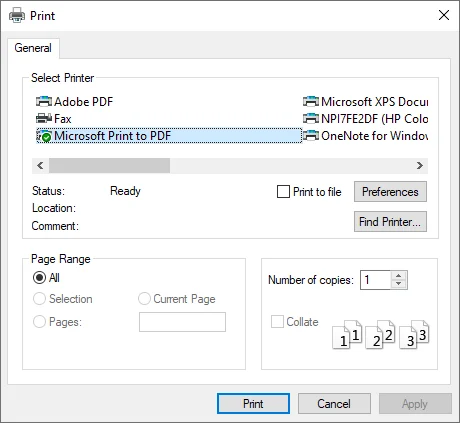
Passaggi per convertire file di testo in PDF su Windows e macOS:
- Windows: Apri il file .txt in Blocco note, vai su File > Stampa e seleziona Microsoft Print to PDF.
- macOS: Apri il file .txt in TextEdit, premi Cmd + P e scegli Salva come PDF.
Pro:
- Veloce e gratuito (non è necessario alcun software aggiuntivo)
- Funziona offline e supporta qualsiasi file .txt
- Disponibile su tutti i principali sistemi operativi
Contro:
- Personalizzazione limitata (caratteri, margini e stili non possono essere modificati)
- Solo PDF di base - nessuna metadati, filigrane o crittografia
- Non adatto per conversioni professionali o di massa
Suggerimento: se non vedi la stampante Microsoft PDF installata sul tuo sistema Windows, consulta questo articolo per aggiungerla o reinstallarla: Come aggiungere o reinstallare la stampante Microsoft PDF.
Metodo 2: Convertire testo in PDF online gratuitamente
Se desideri trasformare i tuoi file di testo in PDF online nel tuo browser, i convertitori online come Sodapdf forniscono una soluzione conveniente. Questo approccio è utile per conversioni rapide e occasionali quando si dispone di una connessione Internet.
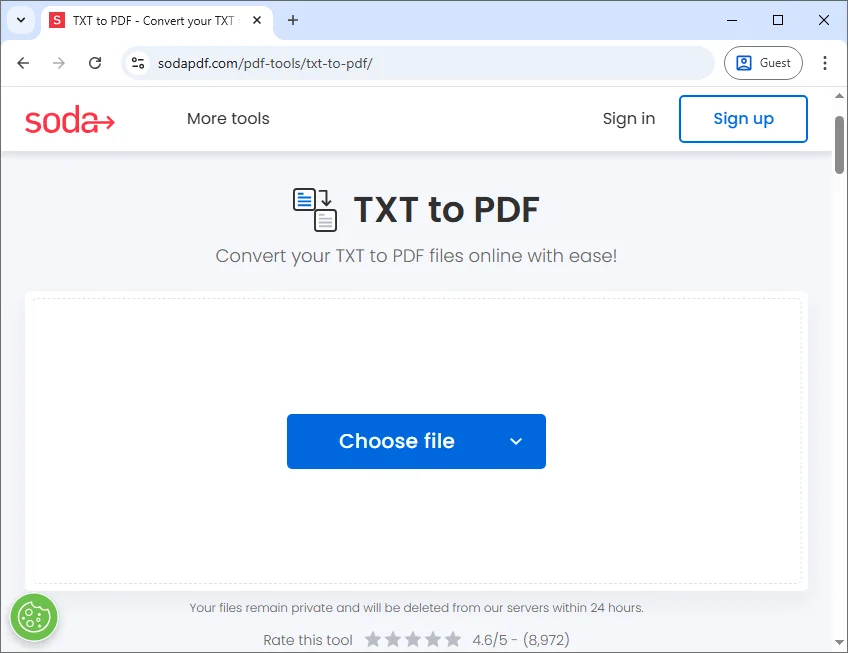
Passaggi per convertire file di testo in PDF online gratuitamente:
- Trascina un file di testo nel convertitore da TXT a PDF di Sodapdf.
- Il file si converte istantaneamente dopo il caricamento.
- Scarica il PDF convertito.
Pro:
- Nessuna installazione richiesta - funziona direttamente nel browser
- Interfaccia semplice e intuitiva
- Disponibile su qualsiasi dispositivo (desktop, tablet, cellulare)
Contro:
- Rischi per la privacy - i file sensibili vengono caricati su server di terze parti
- Richiede una connessione a Internet
- Funzionalità avanzate limitate (ad es. crittografia, metadati, elaborazione batch spesso a pagamento)
Metodo 3: Salvare file di testo come PDF utilizzando Microsoft Word
Se hai bisogno di dare uno stile al tuo testo prima di convertirlo, i word processor come Microsoft Word sono un'opzione eccellente. Ti permette di aggiungere caratteri, intestazioni, spaziatura e persino immagini prima di esportare in PDF.
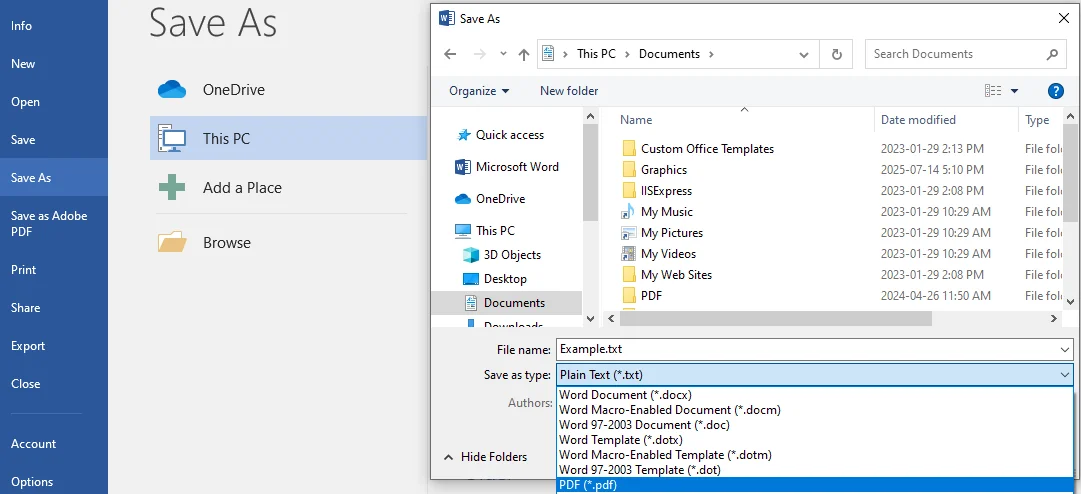
Passaggi per esportare file di testo in PDF in Microsoft Word:
- Avvia Microsoft Word, vai su File > Apri e seleziona il tuo file .txt.
- Applica la formattazione se necessario (caratteri, margini, interruzioni di pagina, intestazioni, piè di pagina, ecc.).
- Fai clic su File > Salva con nome, scegli la posizione in cui desideri salvare il file.
- Nel menu a discesa Salva come, seleziona PDF (*.pdf).
- Regola le opzioni se necessario (come l'intervallo di pagine o l'ottimizzazione per dimensioni standard/minime).
- Fai clic su Salva e Word creerà una versione PDF del tuo file di testo.
Pro:
- Ottimo per documenti dall'aspetto professionale
- Supporta stili, tabelle e immagini
- I PDF sono ricercabili e ben formattati
Contro:
- Richiede uno sforzo manuale per la formattazione (richiede tempo per documenti di grandi dimensioni)
- Non ideale per l'automazione di massa
- Richiede l'installazione di Microsoft Word
Metodo 4: Automatizzare la conversione da testo a PDF con Python
Per sviluppatori e professionisti IT, Python offre un controllo programmatico sulla conversione da testo a PDF. Utilizzando librerie come Spire.PDF for Python, è possibile automatizzare conversioni su larga scala e personalizzare caratteri, layout, colori e aggiungere la crittografia.
Passaggi per convertire testo in PDF in Python:
- Installa Spire.PDF for Python da PyPI usando il comando pip:
pip install Spire.PDF - Importa le classi richieste:
from spire.pdf import - Apri il file di testo e leggi il contenuto da esso.
- Crea un documento PDF usando PdfDocument().
- Aggiungi una pagina usando pdf.Pages.Add().
- Crea un carattere e un pennello usando PdfFont() e PdfBrushes.get_Black().
- Imposta l'allineamento del testo e l'interlinea usando PdfStringFormat().
- Definisci il layout del testo usando PdfTextLayout() con le opzioni FitPage e Paginate.
- Crea un widget di testo per contenere il contenuto testuale usando PdfTextWidget().
- Disegna il widget di testo sulla pagina usando Draw().
- Salva il PDF usando SaveToFile() e rilascia le risorse del documento.
Codice di Esempio:
from spire.pdf.common import *
from spire.pdf import *

inputFile = "input.txt"
outputFile = "TextToPdf.pdf"

# Read text directly from the txt file
with open(inputFile, 'r') as f:
    text = f.read()

# Create a PdfDocument instance
pdf = PdfDocument()

# Add a page
page = pdf.Pages.Add()

# Create a PDF font and PDF brush
font = PdfFont(PdfFontFamily.TimesRoman, 11.0)
brush = PdfBrushes.get_Black()

# Set the text alignment and line spacing
strformat = PdfStringFormat()
strformat.LineSpacing = 10.0
strformat.Alignment = PdfTextAlignment.Justify

# Set the text layout
textLayout = PdfTextLayout()
textLayout.Break = PdfLayoutBreakType.FitPage
textLayout.Layout = PdfLayoutType.Paginate

# Create a PdfTextWidget instance to hold the text content
textWidget = PdfTextWidget(text, font, brush)

# Set the text format
textWidget.StringFormat = strformat

# Draw the text at the specified location on the page
bounds = RectangleF(PointF(0.0, 20.0), page.Canvas.ClientSize)
textWidget.Draw(page, bounds, textLayout)

# Save the result file
pdf.SaveToFile(outputFile, FileFormat.PDF)
pdf.Close()
Pro:
- Completamente personalizzabile (caratteri, immagini, colori, layout di pagina)
- Ideale per l'automazione e l'elaborazione di massa
- Può aggiungere funzionalità avanzate (numero di pagina, intestazione/piè di pagina, crittografia, metadati, filigrane)
Contro:
- Richiede conoscenze di programmazione
- L'impostazione richiede più tempo rispetto ai metodi manuali
- Potrebbe richiedere librerie di terze parti per stili complessi
Conclusione: Scegliere il metodo migliore per convertire testo in PDF
Ogni metodo per convertire testo in PDF ha i suoi punti di forza. La tabella seguente fornisce una chiara panoramica:
| Metodo / Strumento | Facilità d'uso | Personalizzazione | Sicurezza | Automazione | Miglior caso d'uso |
|---|---|---|---|---|---|
| Stampa su PDF del SO | Facile | Bassa - solo layout di base | Bassa - nessuna crittografia o metadati | No | Conversioni rapide e occasionali di semplici file di testo |
| Convertitori Online | Facile | Media - formattazione limitata | Bassa - i file potrebbero essere esposti online | No | Conveniente per un uso occasionale su qualsiasi dispositivo con internet |
| Microsoft Word | Facile | Media - supporta caratteri, tabelle, immagini | Media - può aggiungere password | Limitata | PDF dall'aspetto professionale con testo stilizzato, intestazioni e piè di pagina |
| Librerie Python (es. Spire.PDF) | Moderato | Alta - pieno controllo di caratteri, layout, metadati | Alta - supporto per crittografia e PDF/A | Sì | Conversioni automatizzate e di massa con personalizzazione e sicurezza complete |
Come scegliere il metodo giusto?
- Per conversioni semplici e veloci: utilizzare Stampa su PDF del SO o strumenti online.
- Per PDF stilizzati e professionali: utilizzare Microsoft Word.
- Per l'elaborazione automatizzata o di massa: utilizzare librerie Python come Spire.PDF.
Domande Frequenti (FAQ)
D1: Ho bisogno di una connessione a Internet per convertire testo in PDF?
R1: Solo i convertitori online richiedono l'accesso a Internet. Gli strumenti integrati del sistema operativo, Word e le librerie Python funzionano offline.
D2: Posso includere immagini o tabelle durante la conversione da testo semplice?
R2: Il testo semplice di per sé non contiene immagini o tabelle, ma è possibile inserirle in Word o programmaticamente con Python prima di esportare in PDF.
D3: La conversione di testo in PDF influenzerà la leggibilità del file su dispositivi diversi?
R3: No. I PDF preservano il layout del testo, garantendo una leggibilità coerente su PC, Mac, tablet e dispositivi mobili.
D4: Esistono rischi per la sicurezza quando si utilizzano convertitori online?
R4: Sì. Il caricamento di file di testo sensibili su server di terze parti potrebbe esporre informazioni riservate. Per i documenti sicuri, gli strumenti offline o i metodi programmatici sono più sicuri.
D5: Posso convertire file di testo in PDF in blocco senza aprire ogni file manualmente?
R5: Sì. L'automazione tramite script Python consente la conversione batch di più file di testo in PDF in modo efficiente.
Vedi Anche
Converta texto em PDF facilmente: 4 métodos rápidos e profissionais
Índice
- Visão Geral
- Por que Converter Texto para PDF
- Método 1: Usar Recursos Nativos do SO para Converter Texto para PDF
- Método 2: Converter Texto para PDF Online Gratuitamente
- Método 3: Salvar Arquivos de Texto como PDF Usando o Microsoft Word
- Método 4: Automatizar a Conversão de Texto para PDF com Python
- Conclusão: Escolha o Melhor Método para Converter Texto para PDF
- Perguntas Frequentes (FAQs)
Instalar com Pypi
pip install Spire.Pdf
Links Relacionados
Índice
- Visão Geral
- Por que Converter Texto para PDF
- Método 1: Usar Recursos Nativos do SO para Converter Texto para PDF
- Método 2: Converter Texto para PDF Online Gratuitamente
- Método 3: Salvar Arquivos de Texto como PDF Usando o Microsoft Word
- Método 4: Automatizar a Conversão de Texto para PDF com Python
- Conclusão: Escolha o Melhor Método para Converter Texto para PDF
- Perguntas Frequentes (FAQs)
Visão Geral
A conversão de arquivos de texto para PDF é uma necessidade comum para estudantes, profissionais e desenvolvedores. Embora os arquivos de texto simples (.txt) sejam simples e leves, os PDFs fornecem formatação consistente, melhor controle e recursos avançados, tornando-os ideais para documentos profissionais, compartilhamento em larga escala ou armazenamento seguro.
Neste guia, você descobrirá 4 maneiras fáceis de converter texto para PDF - usando recursos nativos do sistema operacional, ferramentas online gratuitas, Microsoft Word ou Python para conversões em lote automatizadas. Cada método inclui instruções passo a passo para que você possa escolher rapidamente a abordagem que se adapta às suas necessidades. Se você deseja uma conversão rápida e única, um documento profissional polido ou a criação automatizada de PDF, este guia tem tudo o que você precisa.
Por que Converter Texto para PDF
A conversão de arquivos de texto para PDF oferece várias vantagens importantes em relação aos documentos .txt simples:
- Compatibilidade universal: os PDFs abrem de forma consistente em qualquer dispositivo, independentemente do sistema operacional ou software.
- Aparência profissional: aplique fontes personalizadas, títulos, espaçamento, quebras de página e branding para documentos polidos e prontos para apresentação.
- Segurança aprimorada: adicione senhas, criptografia, assinaturas digitais ou marcas d'água para proteger informações confidenciais.
- Arquivamento e acesso a longo prazo: a conformidade com PDF/A garante que seus documentos permaneçam acessíveis e formatados corretamente por anos.
- Fácil compartilhamento e distribuição: os PDFs são ideais para relatórios de negócios, contratos, eBooks e outros documentos que precisam ser amplamente compartilhados sem problemas de formatação.
Ao transformar arquivos de texto em PDFs, você transforma um texto simples em um formato profissional, seguro e amplamente compatível, adequado para uso pessoal e comercial.
Método 1: Usar Recursos Nativos do SO para Converter Texto para PDF
A maioria dos sistemas operacionais modernos inclui um recurso integrado de "Imprimir para PDF" que permite salvar rapidamente arquivos de texto como PDFs sem instalar software extra. Este método é ideal para usuários casuais que precisam apenas de conversões básicas.
Passos para Converter Arquivos de Texto para PDF no Windows e macOS:
- Windows: Abra o arquivo .txt no Bloco de Notas, vá para Arquivo > Imprimir e selecione Microsoft Print to PDF.
- macOS: Abra o arquivo .txt no TextEdit, pressione Cmd + P e escolha Salvar como PDF.
Prós:
- Rápido e gratuito (sem necessidade de software extra)
- Funciona offline e suporta qualquer arquivo .txt
- Disponível em todos os principais sistemas operacionais
Contras:
- Personalização limitada (fontes, margens e estilo não podem ser alterados)
- Apenas PDFs básicos - sem metadados, marcas d'água ou criptografia
- Não adequado para conversões profissionais ou em lote
Dica: Se você não vir a Impressora Microsoft PDF instalada no seu sistema Windows, consulte este artigo para adicioná-la ou reinstalá-la: Como Adicionar ou Reinstalar a Impressora Microsoft PDF.
Método 2: Converter Texto para PDF Online Gratuitamente
Se você deseja transformar seus arquivos de texto em PDFs online no seu navegador, conversores online como o Sodapdf fornecem uma solução conveniente. Essa abordagem é útil para conversões rápidas e únicas quando você tem uma conexão com a internet.
Passos para Converter Arquivos de Texto para PDF Online Gratuitamente:
- Arraste um arquivo de texto para o conversor TXT para PDF do Sodapdf.
- O arquivo é convertido instantaneamente após o upload.
- Baixe o PDF convertido.
Prós:
- Nenhuma instalação necessária - funciona diretamente no navegador
- Interface simples e amigável
- Disponível em qualquer dispositivo (desktop, tablet, celular)
Contras:
- Riscos de privacidade - arquivos confidenciais são enviados para servidores de terceiros
- Requer uma conexão com a internet
- Recursos avançados limitados (por exemplo, criptografia, metadados, processamento em lote geralmente atrás de um paywall)
Método 3: Salvar Arquivos de Texto como PDF Usando o Microsoft Word
Se você precisa estilizar seu texto antes de converter, processadores de texto como o Microsoft Word são uma excelente opção. Ele permite adicionar fontes, títulos, espaçamento e até imagens antes de exportar para PDF.
Passos para Exportar Arquivos de Texto para PDF no Microsoft Word:
- Inicie o Microsoft Word, vá para Arquivo > Abrir e selecione seu arquivo .txt.
- Aplique a formatação, se necessário (fontes, margens, quebras de página, cabeçalhos, rodapés, etc.).
- Clique em Arquivo > Salvar Como, escolha o local onde deseja salvar o arquivo.
- No menu suspenso Salvar como tipo, selecione PDF (*.pdf).
- Ajuste as opções, se necessário (como intervalo de páginas ou otimizar para tamanho padrão/mínimo).
- Clique em Salvar, e o Word criará uma versão em PDF do seu arquivo de texto.
Prós:
- Ótimo para documentos com aparência profissional
- Suporta estilos, tabelas e imagens
- Os PDFs são pesquisáveis e bem formatados
Contras:
- Requer esforço manual para formatação (consome tempo para documentos grandes)
- Não é ideal para automação em massa
- Requer que o Microsoft Word esteja instalado
Método 4: Automatizar a Conversão de Texto para PDF com Python
Para desenvolvedores e profissionais de TI, o Python oferece controle programático sobre a conversão de texto para PDF. Usando bibliotecas como Spire.PDF for Python, você pode automatizar conversões em larga escala e personalizar fontes, layouts, cores e adicionar criptografia.
Passos para Converter Texto para PDF em Python:
- Instale o Spire.PDF for Python do PyPI usando o comando pip:
pip install Spire.PDF - Importe as classes necessárias:
from spire.pdf import - Abra o arquivo de texto e leia o conteúdo dele.
- Crie um documento PDF usando PdfDocument().
- Adicione uma página usando pdf.Pages.Add().
- Crie fonte e pincel usando PdfFont() e PdfBrushes.get_Black().
- Defina o alinhamento do texto e o espaçamento entre linhas usando PdfStringFormat().
- Defina o layout do texto usando PdfTextLayout() com as opções FitPage e Paginate.
- Crie um widget de texto para conter o conteúdo do texto usando PdfTextWidget().
- Desenhe o widget de texto na página usando Draw().
- Salve o PDF usando SaveToFile() e libere os recursos do documento.
Exemplo de Código:
from spire.pdf.common import *
from spire.pdf import *

inputFile = "input.txt"
outputFile = "TextToPdf.pdf"

# Read text directly from the txt file
with open(inputFile, 'r') as f:
    text = f.read()

# Create a PdfDocument instance
pdf = PdfDocument()

# Add a page
page = pdf.Pages.Add()

# Create a PDF font and PDF brush
font = PdfFont(PdfFontFamily.TimesRoman, 11.0)
brush = PdfBrushes.get_Black()

# Set the text alignment and line spacing
strformat = PdfStringFormat()
strformat.LineSpacing = 10.0
strformat.Alignment = PdfTextAlignment.Justify

# Set the text layout
textLayout = PdfTextLayout()
textLayout.Break = PdfLayoutBreakType.FitPage
textLayout.Layout = PdfLayoutType.Paginate

# Create a PdfTextWidget instance to hold the text content
textWidget = PdfTextWidget(text, font, brush)

# Set the text format
textWidget.StringFormat = strformat

# Draw the text at the specified location on the page
bounds = RectangleF(PointF(0.0, 20.0), page.Canvas.ClientSize)
textWidget.Draw(page, bounds, textLayout)

# Save the result file
pdf.SaveToFile(outputFile, FileFormat.PDF)
pdf.Close()
Prós:
- Totalmente personalizável (fontes, imagens, cores, layouts de página)
- Ideal para automação e processamento em lote
- Pode adicionar recursos avançados (número de página, cabeçalho/rodapé, criptografia, metadados, marcas d'água)
Contras:
- Requer conhecimento de programação
- A configuração leva mais tempo do que os métodos manuais
- Pode precisar de bibliotecas de terceiros para estilos complexos
Conclusão: Escolha o Melhor Método para Converter Texto para PDF
Cada método para converter texto para PDF tem seus próprios pontos fortes. A tabela abaixo fornece uma visão geral clara:
| Método / Ferramenta | Facilidade de Uso | Personalização | Segurança | Automação | Melhor Caso de Uso |
|---|---|---|---|---|---|
| Imprimir para PDF do SO | Fácil | Baixa - apenas layout básico | Baixa - sem criptografia ou metadados | Não | Conversões rápidas e únicas de arquivos de texto simples |
| Conversores Online | Fácil | Média - formatação limitada | Baixa - arquivos podem ser expostos online | Não | Conveniente para uso ocasional em qualquer dispositivo com internet |
| Microsoft Word | Fácil | Média - suporta fontes, tabelas, imagens | Média - pode adicionar senhas | Limitada | PDFs com aparência profissional com texto estilizado, cabeçalhos e rodapés |
| Bibliotecas Python (ex., Spire.PDF) | Moderado | Alta - controle total de fontes, layouts, metadados | Alta - suporte a criptografia e PDF/A | Sim | Conversões automatizadas e em lote com personalização e segurança completas |
Como Escolher o Método Certo?
- Para conversões simples e rápidas: use Imprimir para PDF do SO ou ferramentas online.
- Para PDFs estilizados e profissionais: use o Microsoft Word.
- Para processamento automatizado ou em lote: use bibliotecas Python como o Spire.PDF.
Perguntas Frequentes (FAQs)
P1: Preciso de uma conexão com a internet para converter texto para PDF?
R1: Apenas os conversores online exigem acesso à internet. As ferramentas nativas do SO, o Word e as bibliotecas Python funcionam offline.
P2: Posso incluir imagens ou tabelas ao converter de texto simples?
R2: O texto simples em si não contém imagens ou tabelas, mas você pode inseri-las no Word ou programaticamente com Python antes de exportar para PDF.
P3: A conversão de texto para PDF afetará a legibilidade do arquivo em diferentes dispositivos?
R3: Não. Os PDFs preservam o layout do texto, garantindo uma legibilidade consistente em PCs, Macs, tablets e dispositivos móveis.
P4: Existem riscos de segurança ao usar conversores online?
R4: Sim. O upload de arquivos de texto confidenciais para servidores de terceiros pode expor informações confidenciais. Para documentos seguros, ferramentas offline ou métodos programáticos são mais seguros.
P5: Posso converter arquivos de texto para PDF em lote sem abrir cada arquivo manualmente?
R5: Sim. A automação usando scripts Python permite a conversão em lote de vários arquivos de texto em PDFs de forma eficiente.
Veja Também
텍스트를 PDF로 쉽게 변환하기: 4가지 빠르고 전문적인 방법
목차
- 개요
- 텍스트를 PDF로 변환하는 이유
- 방법 1: 내장된 OS 기능을 사용하여 텍스트를 PDF로 변환
- 방법 2: 온라인에서 무료로 텍스트를 PDF로 변환
- 방법 3: Microsoft Word를 사용하여 텍스트 파일을 PDF로 저장
- 방법 4: Python으로 텍스트에서 PDF로의 변환 자동화
- 결론: 텍스트를 PDF로 변환하는 최상의 방법 선택
- 자주 묻는 질문(FAQs)
개요
텍스트 파일을 PDF로 변환하는 것은 학생, 전문가 및 개발자에게 공통된 요구 사항입니다. 일반 텍스트(.txt) 파일은 간단하고 가볍지만 PDF는 일관된 서식, 더 나은 제어 및 고급 기능을 제공하므로 전문 문서, 대규모 공유 또는 안전한 저장에 이상적입니다.
이 가이드에서는 내장된 OS 기능, 무료 온라인 도구, Microsoft Word 또는 자동화된 일괄 변환을 위한 Python을 사용하여 텍스트를 PDF로 변환하는 4가지 쉬운 방법을 알아봅니다. 각 방법에는 단계별 지침이 포함되어 있어 필요에 맞는 접근 방식을 신속하게 선택할 수 있습니다. 빠른 일회성 변환, 세련된 전문 문서 또는 자동화된 PDF 생성을 원하든 이 가이드가 모든 것을 다룹니다.
텍스트를 PDF로 변환하는 이유
텍스트 파일을 PDF로 변환하면 일반 .txt 문서에 비해 몇 가지 중요한 이점이 있습니다.
- 보편적인 호환성: PDF는 운영 체제나 소프트웨어에 관계없이 모든 장치에서 일관되게 열립니다.
- 전문적인 외관: 세련되고 프레젠테이션 준비가 된 문서를 위해 사용자 정의 글꼴, 제목, 간격, 페이지 나누기 및 브랜딩을 적용합니다.
- 향상된 보안: 민감한 정보를 보호하기 위해 암호, 암호화, 디지털 서명 또는 워터마크를 추가합니다.
- 보관 및 장기 액세스: PDF/A 준수는 문서가 수년 동안 액세스 가능하고 올바르게 서식 지정되도록 보장합니다.
- 쉬운 공유 및 배포: PDF는 서식 문제 없이 널리 공유해야 하는 비즈니스 보고서, 계약서, eBook 및 기타 문서에 이상적입니다.
텍스트 파일을 PDF로 변환함으로써 간단한 일반 텍스트를 개인 및 비즈니스 용도 모두에 적합한 전문적이고 안전하며 널리 호환되는 형식으로 변환합니다.
방법 1: 내장된 OS 기능을 사용하여 텍스트를 PDF로 변환
대부분의 최신 운영 체제에는 추가 소프트웨어를 설치하지 않고도 텍스트 파일을 PDF로 빠르게 저장할 수 있는 내장 "PDF로 인쇄" 기능이 포함되어 있습니다. 이 방법은 기본 변환만 필요한 일반 사용자에게 가장 적합합니다.
Windows 및 macOS에서 텍스트 파일을 PDF로 변환하는 단계:
- Windows: 메모장에서 .txt 파일을 열고 파일 > 인쇄로 이동하여 Microsoft Print to PDF를 선택합니다.
- macOS: TextEdit에서 .txt 파일을 열고 Cmd + P를 누른 다음 PDF로 저장을 선택합니다.
장점:
- 빠르고 무료(추가 소프트웨어 필요 없음)
- 오프라인으로 작동하며 모든 .txt 파일을 지원
- 모든 주요 운영 체제에서 사용 가능
단점:
- 제한된 사용자 정의(글꼴, 여백 및 스타일링 변경 불가)
- 기본 PDF만 가능 - 메타데이터, 워터마크 또는 암호화 없음
- 전문적이거나 대량 변환에는 적합하지 않음
팁: Windows 시스템에 Microsoft PDF 프린터가 설치되어 있지 않은 경우 이 문서를 참조하여 추가하거나 다시 설치하십시오: Microsoft PDF 프린터를 추가하거나 다시 설치하는 방법.
방법 2: 온라인에서 무료로 텍스트를 PDF로 변환
브라우저에서 온라인으로 텍스트 파일을 PDF로 변환하려면 Sodapdf와 같은 온라인 변환기가 편리한 솔루션을 제공합니다. 이 접근 방식은 인터넷에 연결되어 있을 때 빠른 일회성 변환에 유용합니다.
온라인에서 무료로 텍스트 파일을 PDF로 변환하는 단계:
- 텍스트 파일을 Sodapdf의 TXT to PDF 변환기로 드래그합니다.
- 업로드 후 파일이 즉시 변환됩니다.
- 변환된 PDF를 다운로드합니다.
장점:
- 설치 필요 없음 - 브라우저에서 직접 작동
- 간단하고 사용자 친화적인 인터페이스
- 모든 장치(데스크톱, 태블릿, 모바일)에서 사용 가능
단점:
- 개인 정보 보호 위험 - 민감한 파일이 타사 서버에 업로드됨
- 인터넷 연결 필요
- 제한된 고급 기능(예: 암호화, 메타데이터, 일괄 처리 등은 유료 기능인 경우가 많음)
방법 3: Microsoft Word를 사용하여 텍스트 파일을 PDF로 저장
변환하기 전에 텍스트에 스타일을 지정해야 하는 경우 Microsoft Word와 같은 워드 프로세서가 훌륭한 옵션입니다. PDF로 내보내기 전에 글꼴, 제목, 간격 및 이미지까지 추가할 수 있습니다.
Microsoft Word에서 텍스트 파일을 PDF로 내보내는 단계:
- Microsoft Word를 실행하고 파일 > 열기로 이동하여 .txt 파일을 선택합니다.
- 필요한 경우 서식을 적용합니다(글꼴, 여백, 페이지 나누기, 머리글, 바닥글 등).
- 파일 > 다른 이름으로 저장을 클릭하고 파일을 저장할 위치를 선택합니다.
- 파일 형식 드롭다운에서 PDF (*.pdf)를 선택합니다.
- 필요한 경우 옵션을 조정합니다(예: 페이지 범위 또는 표준/최소 크기에 최적화).
- 저장을 클릭하면 Word가 텍스트 파일의 PDF 버전을 만듭니다.
장점:
- 전문적으로 보이는 문서에 적합
- 스타일링, 표 및 이미지 지원
- PDF는 검색 가능하고 잘 서식 지정됨
단점:
- 서식 지정을 위해 수작업이 필요함(큰 문서의 경우 시간이 많이 소요됨)
- 대량 자동화에는 이상적이지 않음
- Microsoft Word 설치 필요
방법 4: Python으로 텍스트에서 PDF로의 변환 자동화
개발자 및 IT 전문가에게 Python은 텍스트에서 PDF로의 변환에 대한 프로그래밍 방식의 제어를 제공합니다. Spire.PDF for Python과 같은 라이브러리를 사용하면 대규모 변환을 자동화하고 글꼴, 레이아웃, 색상을 사용자 정의하고 암호화를 추가할 수 있습니다.
Python에서 텍스트를 PDF로 변환하는 단계:
- pip 명령을 사용하여 PyPI에서 Spire.PDF for Python을 설치합니다:
pip install Spire.PDF - 필요한 클래스를 가져옵니다:
from spire.pdf import - 텍스트 파일을 열고 내용을 읽습니다.
- PdfDocument()를 사용하여 PDF 문서를 만듭니다.
- pdf.Pages.Add()를 사용하여 페이지를 추가합니다.
- PdfFont() 및 PdfBrushes.get_Black()을 사용하여 글꼴과 브러시를 만듭니다.
- PdfStringFormat()을 사용하여 텍스트 정렬 및 줄 간격을 설정합니다.
- FitPage 및 Paginate 옵션으로 PdfTextLayout()을 사용하여 텍스트 레이아웃을 정의합니다.
- PdfTextWidget()을 사용하여 텍스트 내용을 담을 텍스트 위젯을 만듭니다.
- Draw()를 사용하여 페이지에 텍스트 위젯을 그립니다.
- SaveToFile()을 사용하여 PDF를 저장하고 문서 리소스를 해제합니다.
예제 코드:
from spire.pdf.common import *
from spire.pdf import *

inputFile = "input.txt"
outputFile = "TextToPdf.pdf"

# Read text directly from the txt file
with open(inputFile, 'r') as f:
    text = f.read()

# Create a PdfDocument instance
pdf = PdfDocument()

# Add a page
page = pdf.Pages.Add()

# Create a PDF font and PDF brush
font = PdfFont(PdfFontFamily.TimesRoman, 11.0)
brush = PdfBrushes.get_Black()

# Set the text alignment and line spacing
strformat = PdfStringFormat()
strformat.LineSpacing = 10.0
strformat.Alignment = PdfTextAlignment.Justify

# Set the text layout
textLayout = PdfTextLayout()
textLayout.Break = PdfLayoutBreakType.FitPage
textLayout.Layout = PdfLayoutType.Paginate

# Create a PdfTextWidget instance to hold the text content
textWidget = PdfTextWidget(text, font, brush)

# Set the text format
textWidget.StringFormat = strformat

# Draw the text at the specified location on the page
bounds = RectangleF(PointF(0.0, 20.0), page.Canvas.ClientSize)
textWidget.Draw(page, bounds, textLayout)

# Save the result file
pdf.SaveToFile(outputFile, FileFormat.PDF)
pdf.Close()
장점:
- 완벽하게 사용자 정의 가능(글꼴, 이미지, 색상, 페이지 레이아웃)
- 자동화 및 일괄 처리에 이상적
- 고급 기능 추가 가능(페이지 번호, 머리글/바닥글, 암호화, 메타데이터, 워터마크)
단점:
- 프로그래밍 지식 필요
- 설정이 수동 방법보다 오래 걸림
- 복잡한 스타일링을 위해 타사 라이브러리가 필요할 수 있음
결론: 텍스트를 PDF로 변환하는 최상의 방법 선택
텍스트를 PDF로 변환하는 각 방법에는 고유한 장점이 있습니다. 아래 표는 명확한 개요를 제공합니다.
| 방법 / 도구 | 사용 용이성 | 사용자 정의 | 보안 | 자동화 | 최적 사용 사례 |
|---|---|---|---|---|---|
| OS PDF로 인쇄 | 쉬움 | 낮음 - 기본 레이아웃만 | 낮음 - 암호화 또는 메타데이터 없음 | 아니요 | 간단한 텍스트 파일의 빠른 일회성 변환 |
| 온라인 변환기 | 쉬움 | 중간 - 제한된 서식 | 낮음 - 파일이 온라인에 노출될 수 있음 | 아니요 | 인터넷이 있는 모든 장치에서 가끔 사용하기에 편리함 |
| Microsoft Word | 쉬움 | 중간 - 글꼴, 표, 이미지 지원 | 중간 - 암호 추가 가능 | 제한적 | 스타일이 적용된 텍스트, 머리글 및 바닥글이 있는 전문적인 PDF |
| Python 라이브러리(예: Spire.PDF) | 보통 | 높음 - 글꼴, 레이아웃, 메타데이터 완전 제어 | 높음 - 암호화 및 PDF/A 지원 | 예 | 완벽한 사용자 정의 및 보안을 갖춘 자동화된 대량 변환 |
올바른 방법을 선택하는 방법은?
- 간단하고 빠른 변환의 경우: OS PDF로 인쇄 또는 온라인 도구를 사용하십시오.
- 스타일이 적용된 전문적인 PDF의 경우: Microsoft Word를 사용하십시오.
- 자동화되거나 일괄 처리의 경우: Spire.PDF와 같은 Python 라이브러리를 사용하십시오.
자주 묻는 질문(FAQs)
Q1: 텍스트를 PDF로 변환하려면 인터넷 연결이 필요한가요?
A1: 온라인 변환기만 인터넷 액세스가 필요합니다. OS 내장 도구, Word 및 Python 라이브러리는 오프라인으로 작동합니다.
Q2: 일반 텍스트에서 변환할 때 이미지나 표를 포함할 수 있나요?
A2: 일반 텍스트 자체에는 이미지나 표가 포함되어 있지 않지만, PDF로 내보내기 전에 Word나 Python을 사용하여 프로그래밍 방식으로 삽입할 수 있습니다.
Q3: 텍스트를 PDF로 변환하면 다른 장치에서 파일의 가독성에 영향을 미치나요?
A3: 아니요. PDF는 텍스트 레이아웃을 보존하여 PC, Mac, 태블릿 및 모바일 장치에서 일관된 가독성을 보장합니다.
Q4: 온라인 변환기를 사용할 때 보안 위험이 있나요?
A4: 예. 민감한 텍스트 파일을 타사 서버에 업로드하면 기밀 정보가 노출될 수 있습니다. 안전한 문서를 위해서는 오프라인 도구나 프로그래밍 방식의 방법이 더 안전합니다.
Q5: 각 파일을 수동으로 열지 않고 텍스트 파일을 PDF로 대량 변환할 수 있나요?
A5: 예. Python 스크립트를 사용한 자동화를 통해 여러 텍스트 파일을 PDF로 효율적으로 일괄 변환할 수 있습니다.
참고 항목
Convertir du texte en PDF facilement : 4 méthodes rapides et professionnelles
Table des matières
- Aperçu
- Pourquoi convertir du texte en PDF
- Méthode 1 : Utiliser les fonctionnalités intégrées du système d'exploitation pour convertir du texte en PDF
- Méthode 2 : Convertir du texte en PDF en ligne gratuitement
- Méthode 3 : Enregistrer des fichiers texte en PDF à l'aide de Microsoft Word
- Méthode 4 : Automatiser la conversion de texte en PDF avec Python
- Conclusion : Choisir la meilleure méthode pour convertir du texte en PDF
- Foire aux questions (FAQ)
Installer avec Pypi
pip install Spire.Pdf
Liens connexes
Table des matières
- Aperçu
- Pourquoi convertir du texte en PDF
- Méthode 1 : Utiliser les fonctionnalités intégrées du système d'exploitation pour convertir du texte en PDF
- Méthode 2 : Convertir du texte en PDF en ligne gratuitement
- Méthode 3 : Enregistrer des fichiers texte en PDF à l'aide de Microsoft Word
- Méthode 4 : Automatiser la conversion de texte en PDF avec Python
- Conclusion : Choisir la meilleure méthode pour convertir du texte en PDF
- Foire aux questions (FAQ)
Aperçu
La conversion de fichiers texte en PDF est un besoin courant pour les étudiants, les professionnels et les développeurs. Alors que les fichiers texte brut (.txt) sont simples et légers, les PDF offrent une mise en forme cohérente, un meilleur contrôle et des fonctionnalités avancées, ce qui les rend idéaux pour les documents professionnels, le partage à grande échelle ou le stockage sécurisé.
Dans ce guide, vous découvrirez 4 manières simples de convertir du texte en PDF - en utilisant les fonctionnalités intégrées du système d'exploitation, des outils en ligne gratuits, Microsoft Word ou Python pour des conversions par lots automatisées. Chaque méthode comprend des instructions étape par étape afin que vous puissiez choisir rapidement l'approche qui correspond à vos besoins. Que vous souhaitiez une conversion ponctuelle rapide, un document professionnel soigné ou la création automatisée de PDF, ce guide a tout ce qu'il vous faut.
Pourquoi convertir du texte en PDF
La conversion de fichiers texte en PDF offre plusieurs avantages importants par rapport aux documents .txt bruts :
- Compatibilité universelle : les PDF s'ouvrent de manière cohérente sur n'importe quel appareil, quel que soit le système d'exploitation ou le logiciel.
- Apparence professionnelle : appliquez des polices personnalisées, des en-têtes, des espacements, des sauts de page et une image de marque pour des documents soignés et prêts à être présentés.
- Sécurité renforcée : ajoutez des mots de passe, un cryptage, des signatures numériques ou des filigranes pour protéger les informations sensibles.
- Archivage et accès à long terme : la conformité PDF/A garantit que vos documents restent accessibles et correctement formatés pendant des années.
- Partage et distribution faciles : les PDF sont idéaux pour les rapports d'entreprise, les contrats, les livres électroniques et autres documents qui doivent être largement partagés sans problèmes de mise en forme.
En transformant des fichiers texte en PDF, vous transformez un simple texte brut en un format professionnel, sécurisé et largement compatible, adapté à un usage personnel et professionnel.
Méthode 1 : Utiliser les fonctionnalités intégrées du système d'exploitation pour convertir du texte en PDF
La plupart des systèmes d'exploitation modernes incluent une fonctionnalité intégrée « Imprimer en PDF » qui vous permet de sauvegarder rapidement des fichiers texte en PDF sans installer de logiciel supplémentaire. Cette méthode est idéale pour les utilisateurs occasionnels qui n'ont besoin que de conversions de base.
Étapes pour convertir des fichiers texte en PDF sur Windows et macOS :
- Windows : Ouvrez le fichier .txt dans le Bloc-notes, allez dans Fichier > Imprimer, et sélectionnez Microsoft Print to PDF.
- macOS : Ouvrez le fichier .txt dans TextEdit, appuyez sur Cmd + P, et choisissez Enregistrer en PDF.
Avantages :
- Rapide et gratuit (aucun logiciel supplémentaire n'est nécessaire)
- Fonctionne hors ligne et prend en charge n'importe quel fichier .txt
- Disponible sur tous les principaux systèmes d'exploitation
Inconvénients :
- Personnalisation limitée (les polices, les marges et le style ne peuvent pas être modifiés)
- PDF de base uniquement - pas de métadonnées, de filigranes ou de cryptage
- Ne convient pas aux conversions professionnelles ou en masse
Conseil : Si vous ne voyez pas l'imprimante Microsoft PDF installée sur votre système Windows, consultez cet article pour l'ajouter ou la réinstaller : Comment ajouter ou réinstaller l'imprimante Microsoft PDF.
Méthode 2 : Convertir du texte en PDF en ligne gratuitement
Si vous souhaitez transformer vos fichiers texte en PDF en ligne dans votre navigateur, des convertisseurs en ligne comme Sodapdf offrent une solution pratique. Cette approche est utile pour des conversions ponctuelles rapides lorsque vous disposez d'une connexion Internet.
Étapes pour convertir des fichiers texte en PDF en ligne gratuitement :
- Faites glisser un fichier texte dans le convertisseur TXT vers PDF de Sodapdf.
- Le fichier se convertit instantanément après le téléchargement.
- Téléchargez le PDF converti.
Avantages :
- Aucune installation requise - fonctionne directement dans le navigateur
- Interface simple et conviviale
- Disponible sur n'importe quel appareil (ordinateur de bureau, tablette, mobile)
Inconvénients :
- Risques de confidentialité - les fichiers sensibles sont téléchargés sur des serveurs tiers
- Nécessite une connexion Internet
- Fonctionnalités avancées limitées (par exemple, cryptage, métadonnées, traitement par lots souvent derrière un paywall)
Méthode 3 : Enregistrer des fichiers texte en PDF à l'aide de Microsoft Word
Si vous avez besoin de styliser votre texte avant de le convertir, les traitements de texte comme Microsoft Word sont une excellente option. Il vous permet d'ajouter des polices, des en-têtes, des espacements et même des images avant d'exporter en PDF.
Étapes pour exporter des fichiers texte en PDF dans Microsoft Word :
- Lancez Microsoft Word, allez dans Fichier > Ouvrir, et sélectionnez votre fichier .txt.
- Appliquez la mise en forme si nécessaire (polices, marges, sauts de page, en-têtes, pieds de page, etc.).
- Cliquez sur Fichier > Enregistrer sous, choisissez l'emplacement où vous souhaitez enregistrer le fichier.
- Dans le menu déroulant Type de fichier, sélectionnez PDF (*.pdf).
- Ajustez les options si nécessaire (comme la plage de pages ou l'optimisation pour une taille standard/minimale).
- Cliquez sur Enregistrer, et Word créera une version PDF de votre fichier texte.
Avantages :
- Idéal pour des documents d'aspect professionnel
- Prend en charge le style, les tableaux et les images
- Les PDF sont interrogeables et bien formatés
Inconvénients :
- Nécessite un effort manuel pour la mise en forme (chronophage pour les documents volumineux)
- Pas idéal pour l'automatisation en masse
- Nécessite l'installation de Microsoft Word
Méthode 4 : Automatiser la conversion de texte en PDF avec Python
Pour les développeurs et les professionnels de l'informatique, Python offre un contrôle programmatique sur la conversion de texte en PDF. En utilisant des bibliothèques comme Spire.PDF for Python, vous pouvez automatiser des conversions à grande échelle et personnaliser les polices, les mises en page, les couleurs, et ajouter un cryptage.
Étapes pour convertir du texte en PDF en Python :
- Installez Spire.PDF for Python depuis PyPI à l'aide de la commande pip :
pip install Spire.PDF - Importez les classes requises :
from spire.pdf import - Ouvrez le fichier texte et lisez son contenu.
- Créez un document PDF à l'aide de PdfDocument().
- Ajoutez une page à l'aide de pdf.Pages.Add().
- Créez une police et un pinceau à l'aide de PdfFont() et PdfBrushes.get_Black().
- Définissez l'alignement du texte et l'interligne à l'aide de PdfStringFormat().
- Définissez la mise en page du texte à l'aide de PdfTextLayout() avec les options FitPage et Paginate.
- Créez un widget de texte pour contenir le contenu textuel à l'aide de PdfTextWidget().
- Dessinez le widget de texte sur la page à l'aide de Draw().
- Enregistrez le PDF à l'aide de SaveToFile() et libérez les ressources du document.
Exemple de code :
from spire.pdf.common import *
from spire.pdf import *

inputFile = "input.txt"
outputFile = "TextToPdf.pdf"

# Read text directly from the txt file
with open(inputFile, 'r') as f:
    text = f.read()

# Create a PdfDocument instance
pdf = PdfDocument()

# Add a page
page = pdf.Pages.Add()

# Create a PDF font and PDF brush
font = PdfFont(PdfFontFamily.TimesRoman, 11.0)
brush = PdfBrushes.get_Black()

# Set the text alignment and line spacing
strformat = PdfStringFormat()
strformat.LineSpacing = 10.0
strformat.Alignment = PdfTextAlignment.Justify

# Set the text layout
textLayout = PdfTextLayout()
textLayout.Break = PdfLayoutBreakType.FitPage
textLayout.Layout = PdfLayoutType.Paginate

# Create a PdfTextWidget instance to hold the text content
textWidget = PdfTextWidget(text, font, brush)

# Set the text format
textWidget.StringFormat = strformat

# Draw the text at the specified location on the page
bounds = RectangleF(PointF(0.0, 20.0), page.Canvas.ClientSize)
textWidget.Draw(page, bounds, textLayout)

# Save the result file
pdf.SaveToFile(outputFile, FileFormat.PDF)
pdf.Close()
Avantages :
- Entièrement personnalisable (polices, images, couleurs, mises en page)
- Idéal pour l'automatisation et le traitement par lots
- Peut ajouter des fonctionnalités avancées (numéro de page, en-tête/pied de page, cryptage, métadonnées, filigranes)
Inconvénients :
- Nécessite des connaissances en programmation
- La configuration prend plus de temps que les méthodes manuelles
- Peut nécessiter des bibliothèques tierces pour un style complexe
Conclusion : Choisir la meilleure méthode pour convertir du texte en PDF
Chaque méthode de conversion de texte en PDF a ses propres atouts. Le tableau ci-dessous offre un aperçu clair :
| Méthode / Outil | Facilité d'utilisation | Personnalisation | Sécurité | Automatisation | Meilleur cas d'utilisation |
|---|---|---|---|---|---|
| Imprimer en PDF du SE | Facile | Faible - mise en page de base uniquement | Faible - pas de cryptage ni de métadonnées | Non | Conversions rapides et ponctuelles de fichiers texte simples |
| Convertisseurs en ligne | Facile | Moyenne - mise en forme limitée | Faible - les fichiers peuvent être exposés en ligne | Non | Pratique pour une utilisation occasionnelle sur n'importe quel appareil avec Internet |
| Microsoft Word | Facile | Moyenne - prend en charge les polices, les tableaux, les images | Moyenne - peut ajouter des mots de passe | Limitée | PDF d'aspect professionnel avec du texte stylisé, des en-têtes et des pieds de page |
| Bibliothèques Python (par ex., Spire.PDF) | Modéré | Élevée - contrôle total des polices, des mises en page, des métadonnées | Élevée - prise en charge du cryptage et de PDF/A | Oui | Conversions automatisées et en masse avec personnalisation et sécurité complètes |
Comment choisir la bonne méthode ?
- Pour des conversions simples et rapides : utilisez l'impression en PDF du SE ou des outils en ligne.
- Pour des PDF stylisés et professionnels : utilisez Microsoft Word.
- Pour un traitement automatisé ou en masse : utilisez des bibliothèques Python comme Spire.PDF.
Foire aux questions (FAQ)
Q1 : Ai-je besoin d'une connexion Internet pour convertir du texte en PDF ?
R1 : Seuls les convertisseurs en ligne nécessitent un accès à Internet. Les outils intégrés au système d'exploitation, Word et les bibliothèques Python fonctionnent hors ligne.
Q2 : Puis-je inclure des images ou des tableaux lors de la conversion à partir de texte brut ?
R2 : Le texte brut lui-même ne contient pas d'images ou de tableaux, mais vous pouvez les insérer dans Word ou par programme avec Python avant d'exporter en PDF.
Q3 : La conversion de texte en PDF affectera-t-elle la lisibilité du fichier sur différents appareils ?
R3 : Non. Les PDF préservent la mise en page du texte, garantissant une lisibilité cohérente sur les PC, Mac, tablettes et appareils mobiles.
Q4 : Y a-t-il des risques de sécurité lors de l'utilisation de convertisseurs en ligne ?
R4 : Oui. Le téléchargement de fichiers texte sensibles sur des serveurs tiers peut exposer des informations confidentielles. Pour les documents sécurisés, les outils hors ligne ou les méthodes programmatiques sont plus sûrs.
Q5 : Puis-je convertir des fichiers texte en PDF en masse sans ouvrir chaque fichier manuellement ?
R5 : Oui. L'automatisation à l'aide de scripts Python permet une conversion par lots efficace de plusieurs fichiers texte en PDF.
Voir aussi
Convertir texto a PDF fácilmente: 4 métodos rápidos y profesionales
Tabla de Contenidos
- Resumen
- Por qué convertir texto a PDF
- Método 1: Usar funciones integradas del sistema operativo para convertir texto a PDF
- Método 2: Convertir texto a PDF en línea de forma gratuita
- Método 3: Guardar archivos de texto como PDF usando Microsoft Word
- Método 4: Automatizar la conversión de texto a PDF con Python
- Conclusión: Elegir el mejor método para convertir texto a PDF
- Preguntas Frecuentes (FAQs)
Instalar con Pypi
pip install Spire.Pdf
Enlaces Relacionados
Tabla de Contenidos
- Resumen
- Por qué convertir texto a PDF
- Método 1: Usar funciones integradas del sistema operativo para convertir texto a PDF
- Método 2: Convertir texto a PDF en línea de forma gratuita
- Método 3: Guardar archivos de texto como PDF usando Microsoft Word
- Método 4: Automatizar la conversión de texto a PDF con Python
- Conclusión: Elegir el mejor método para convertir texto a PDF
- Preguntas Frecuentes (FAQs)
Resumen
Convertir archivos de texto a PDF es una necesidad común para estudiantes, profesionales y desarrolladores. Mientras que los archivos de texto sin formato (.txt) son simples y ligeros, los PDF proporcionan un formato consistente, mejor control y características avanzadas, lo que los hace ideales para documentos profesionales, compartición a gran escala o almacenamiento seguro.
En esta guía, descubrirás 4 formas sencillas de convertir texto a PDF, utilizando las funciones integradas del sistema operativo, herramientas en línea gratuitas, Microsoft Word o Python para conversiones por lotes automatizadas. Cada método incluye instrucciones paso a paso para que puedas elegir rápidamente el enfoque que se ajuste a tus necesidades. Ya sea que desees una conversión rápida y única, un documento profesional pulido o la creación automatizada de PDF, esta guía te tiene cubierto.
Por qué convertir texto a PDF
Convertir archivos de texto a PDF ofrece varias ventajas importantes sobre los documentos .txt sin formato:
- Compatibilidad universal: los PDF se abren de manera consistente en cualquier dispositivo, independientemente del sistema operativo o el software.
- Apariencia profesional: aplique fuentes personalizadas, encabezados, espaciado, saltos de página y marca para documentos pulidos y listos para presentar.
- Seguridad mejorada: agregue contraseñas, cifrado, firmas digitales o marcas de agua para proteger la información sensible.
- Archivo y acceso a largo plazo: el cumplimiento de PDF/A garantiza que sus documentos permanezcan accesibles y formateados correctamente durante años.
- Fácil compartición y distribución: los PDF son ideales para informes comerciales, contratos, libros electrónicos y otros documentos que necesitan ser ampliamente compartidos sin problemas de formato.
Al convertir archivos de texto en PDF, transforma un texto sin formato simple en un formato profesional, seguro y ampliamente compatible, adecuado tanto para uso personal como comercial.
Método 1: Usar funciones integradas del sistema operativo para convertir texto a PDF
La mayoría de los sistemas operativos modernos incluyen una función integrada de "Imprimir a PDF" que le permite guardar rápidamente archivos de texto como PDF sin instalar software adicional. Este método es ideal para usuarios ocasionales que solo necesitan conversiones básicas.
Pasos para convertir archivos de texto a PDF en Windows y macOS:
- Windows: Abra el archivo .txt en el Bloc de notas, vaya a Archivo > Imprimir y seleccione Microsoft Print to PDF.
- macOS: Abra el archivo .txt en TextEdit, presione Cmd + P y elija Guardar como PDF.
Pros:
- Rápido y gratuito (no se necesita software adicional)
- Funciona sin conexión y admite cualquier archivo .txt
- Disponible en todos los principales sistemas operativos
Contras:
- Personalización limitada (las fuentes, los márgenes y el estilo no se pueden cambiar)
- Solo PDF básicos: sin metadatos, marcas de agua ni cifrado
- No es adecuado para conversiones profesionales o masivas
Consejo: Si no ve la impresora Microsoft PDF instalada en su sistema Windows, consulte este artículo para agregarla o reinstalarla: Cómo agregar o reinstalar la impresora Microsoft PDF.
Método 2: Convertir texto a PDF en línea de forma gratuita
Si desea convertir sus archivos de texto en PDF en línea en su navegador, los convertidores en línea como Sodapdf proporcionan una solución conveniente. Este enfoque es útil para conversiones rápidas y únicas cuando tiene una conexión a Internet.
Pasos para convertir archivos de texto a PDF en línea de forma gratuita:
- Arrastre un archivo de texto al convertidor TXT a PDF de Sodapdf.
- El archivo se convierte instantáneamente después de la carga.
- Descargue el PDF convertido.
Pros:
- No requiere instalación: funciona directamente en el navegador
- Interfaz simple y fácil de usar
- Disponible en cualquier dispositivo (escritorio, tableta, móvil)
Contras:
- Riesgos de privacidad: los archivos confidenciales se cargan en servidores de terceros
- Requiere una conexión a Internet
- Funciones avanzadas limitadas (p. ej., cifrado, metadatos, procesamiento por lotes a menudo detrás de un muro de pago)
Método 3: Guardar archivos de texto como PDF usando Microsoft Word
Si necesita dar estilo a su texto antes de convertirlo, los procesadores de texto como Microsoft Word son una excelente opción. Le permite agregar fuentes, encabezados, espaciado e incluso imágenes antes de exportar a PDF.
Pasos para exportar archivos de texto a PDF en Microsoft Word:
- Inicie Microsoft Word, vaya a Archivo > Abrir y seleccione su archivo .txt.
- Aplique el formato si es necesario (fuentes, márgenes, saltos de página, encabezados, pies de página, etc.).
- Haga clic en Archivo > Guardar como, elija la ubicación donde desea guardar el archivo.
- En el menú desplegable Guardar como tipo, seleccione PDF (*.pdf).
- Ajuste las opciones si es necesario (como el rango de páginas u optimizar para tamaño estándar/mínimo).
- Haga clic en Guardar y Word creará una versión en PDF de su archivo de texto.
Pros:
- Ideal para documentos de aspecto profesional
- Admite estilos, tablas e imágenes
- Los PDF son buscables y están bien formateados
Contras:
- Requiere esfuerzo manual para el formato (consume mucho tiempo para documentos grandes)
- No es ideal para la automatización masiva
- Requiere que Microsoft Word esté instalado
Método 4: Automatizar la conversión de texto a PDF con Python
Para desarrolladores y profesionales de TI, Python proporciona un control programático sobre la conversión de texto a PDF. Usando bibliotecas como Spire.PDF for Python, puede automatizar conversiones a gran escala y personalizar fuentes, diseños, colores y agregar cifrado.
Pasos para convertir texto a PDF en Python:
- Instale Spire.PDF for Python desde PyPI usando el comando pip:
pip install Spire.PDF - Importe las clases requeridas:
from spire.pdf import - Abra el archivo de texto y lea su contenido.
- Cree un documento PDF usando PdfDocument().
- Agregue una página usando pdf.Pages.Add().
- Cree una fuente y un pincel usando PdfFont() y PdfBrushes.get_Black().
- Establezca la alineación del texto y el interlineado usando PdfStringFormat().
- Defina el diseño del texto usando PdfTextLayout() con las opciones FitPage y Paginate.
- Cree un widget de texto para contener el contenido del texto usando PdfTextWidget().
- Dibuje el widget de texto en la página usando Draw().
- Guarde el PDF usando SaveToFile() y libere los recursos del documento.
Código de ejemplo:
from spire.pdf.common import *
from spire.pdf import *

inputFile = "input.txt"
outputFile = "TextToPdf.pdf"

# Read text directly from the txt file
with open(inputFile, 'r') as f:
    text = f.read()

# Create a PdfDocument instance
pdf = PdfDocument()

# Add a page
page = pdf.Pages.Add()

# Create a PDF font and PDF brush
font = PdfFont(PdfFontFamily.TimesRoman, 11.0)
brush = PdfBrushes.get_Black()

# Set the text alignment and line spacing
strformat = PdfStringFormat()
strformat.LineSpacing = 10.0
strformat.Alignment = PdfTextAlignment.Justify

# Set the text layout
textLayout = PdfTextLayout()
textLayout.Break = PdfLayoutBreakType.FitPage
textLayout.Layout = PdfLayoutType.Paginate

# Create a PdfTextWidget instance to hold the text content
textWidget = PdfTextWidget(text, font, brush)

# Set the text format
textWidget.StringFormat = strformat

# Draw the text at the specified location on the page
bounds = RectangleF(PointF(0.0, 20.0), page.Canvas.ClientSize)
textWidget.Draw(page, bounds, textLayout)

# Save the result file
pdf.SaveToFile(outputFile, FileFormat.PDF)
pdf.Close()
Pros:
- Totalmente personalizable (fuentes, imágenes, colores, diseños de página)
- Ideal para la automatización y el procesamiento por lotes
- Puede agregar funciones avanzadas (número de página, encabezado/pie de página, cifrado, metadatos, marcas de agua)
Contras:
- Requiere conocimientos de programación
- La configuración lleva más tiempo que los métodos manuales
- Puede necesitar bibliotecas de terceros para un estilo complejo
Conclusión: Elegir el mejor método para convertir texto a PDF
Cada método para convertir texto a PDF tiene sus propias fortalezas. La siguiente tabla proporciona una visión general clara:
| Método / Herramienta | Facilidad de uso | Personalización | Seguridad | Automatización | Mejor caso de uso |
|---|---|---|---|---|---|
| Imprimir a PDF del SO | Fácil | Baja - solo diseño básico | Baja - sin cifrado ni metadatos | No | Conversiones rápidas y únicas de archivos de texto simples |
| Convertidores en línea | Fácil | Media - formato limitado | Baja - los archivos pueden estar expuestos en línea | No | Conveniente para uso ocasional en cualquier dispositivo con internet |
| Microsoft Word | Fácil | Media - admite fuentes, tablas, imágenes | Media - puede agregar contraseñas | Limitada | PDF de aspecto profesional con texto con estilo, encabezados y pies de página |
| Bibliotecas de Python (p. ej., Spire.PDF) | Moderado | Alta - control total de fuentes, diseños, metadatos | Alta - soporte de cifrado y PDF/A | Sí | Conversiones automatizadas y masivas con personalización y seguridad completas |
¿Cómo elegir el método correcto?
- Para conversiones simples y rápidas: use Imprimir a PDF del SO o herramientas en línea.
- Para PDF con estilo y profesionales: use Microsoft Word.
- Para procesamiento automatizado o por lotes: use bibliotecas de Python como Spire.PDF.
Preguntas Frecuentes (FAQs)
P1: ¿Necesito una conexión a Internet para convertir texto a PDF?
R1: Solo los convertidores en línea requieren acceso a Internet. Las herramientas integradas del SO, Word y las bibliotecas de Python funcionan sin conexión.
P2: ¿Puedo incluir imágenes o tablas al convertir desde texto sin formato?
R2: El texto sin formato en sí mismo no contiene imágenes ni tablas, pero puede insertarlas en Word o mediante programación con Python antes de exportar a PDF.
P3: ¿Convertir texto a PDF afectará la legibilidad del archivo en diferentes dispositivos?
R3: No. Los PDF preservan el diseño del texto, lo que garantiza una legibilidad constante en PC, Mac, tabletas y dispositivos móviles.
P4: ¿Existen riesgos de seguridad al usar convertidores en línea?
R4: Sí. Cargar archivos de texto confidenciales en servidores de terceros puede exponer información confidencial. Para documentos seguros, las herramientas sin conexión o los métodos programáticos son más seguros.
P5: ¿Puedo convertir archivos de texto a PDF en masa sin abrir cada archivo manualmente?
R5: Sí. La automatización mediante scripts de Python permite la conversión por lotes de múltiples archivos de texto a PDF de manera eficiente.
Ver también
Text einfach in PDF umwandeln: 4 schnelle und professionelle Methoden
Inhaltsverzeichnis
- Übersicht
- Warum Text in PDF umwandeln
- Methode 1: Integrierte BS-Funktionen verwenden, um Text in PDF zu konvertieren
- Methode 2: Text online kostenlos in PDF umwandeln
- Methode 3: Textdateien mit Microsoft Word als PDF speichern
- Methode 4: Text-zu-PDF-Konvertierung mit Python automatisieren
- Fazit: Die beste Methode zur Konvertierung von Text in PDF wählen
- Häufig gestellte Fragen (FAQs)
Mit Pypi installieren
pip install Spire.Pdf
Verwandte Links
Inhaltsverzeichnis
- Übersicht
- Warum Text in PDF umwandeln
- Methode 1: Integrierte BS-Funktionen verwenden, um Text in PDF zu konvertieren
- Methode 2: Text online kostenlos in PDF umwandeln
- Methode 3: Textdateien mit Microsoft Word als PDF speichern
- Methode 4: Text-zu-PDF-Konvertierung mit Python automatisieren
- Fazit: Die beste Methode zur Konvertierung von Text in PDF wählen
- Häufig gestellte Fragen (FAQs)
Übersicht
Das Konvertieren von Textdateien in PDF ist ein häufiger Bedarf für Studenten, Fachleute und Entwickler. Während reine Textdateien (.txt) einfach und leicht sind, bieten PDFs eine konsistente Formatierung, bessere Kontrolle und erweiterte Funktionen, was sie ideal für professionelle Dokumente, den Austausch in großem Maßstab oder die sichere Speicherung macht.
In diesem Leitfaden entdecken Sie 4 einfache Möglichkeiten, Text in PDF zu konvertieren – unter Verwendung integrierter BS-Funktionen, kostenloser Online-Tools, Microsoft Word oder Python für automatisierte Stapelkonvertierungen. Jede Methode enthält Schritt-für-Schritt-Anleitungen, damit Sie schnell den Ansatz wählen können, der Ihren Bedürfnissen entspricht. Ob Sie eine schnelle einmalige Konvertierung, ein ausgefeiltes professionelles Dokument oder die automatisierte PDF-Erstellung wünschen, dieser Leitfaden hat alles für Sie.
Warum Text in PDF umwandeln
Das Konvertieren von Textdateien in PDF bietet mehrere wichtige Vorteile gegenüber reinen .txt-Dokumenten:
- Universelle Kompatibilität: PDFs werden auf jedem Gerät konsistent geöffnet, unabhängig von Betriebssystem oder Software.
- Professionelles Erscheinungsbild: Wenden Sie benutzerdefinierte Schriftarten, Überschriften, Abstände, Seitenumbrüche und Branding für ausgefeilte, präsentationsreife Dokumente an.
- Erhöhte Sicherheit: Fügen Sie Passwörter, Verschlüsselung, digitale Signaturen oder Wasserzeichen hinzu, um sensible Informationen zu schützen.
- Archivierung und langfristiger Zugriff: Die PDF/A-Konformität stellt sicher, dass Ihre Dokumente über Jahre hinweg zugänglich und ordnungsgemäß formatiert bleiben.
- Einfacher Austausch und Verteilung: PDFs sind ideal für Geschäftsberichte, Verträge, E-Books und andere Dokumente, die ohne Formatierungsprobleme weit verbreitet werden müssen.
Indem Sie Textdateien in PDFs umwandeln, verwandeln Sie einfachen reinen Text in ein professionelles, sicheres und weithin kompatibles Format, das sowohl für den persönlichen als auch für den geschäftlichen Gebrauch geeignet ist.
Methode 1: Integrierte BS-Funktionen verwenden, um Text in PDF zu konvertieren
Die meisten modernen Betriebssysteme verfügen über eine integrierte „Drucken in PDF“-Funktion, mit der Sie Textdateien schnell als PDFs speichern können, ohne zusätzliche Software zu installieren. Diese Methode eignet sich am besten für gelegentliche Benutzer, die nur grundlegende Konvertierungen benötigen.
Schritte zum Konvertieren von Textdateien in PDF unter Windows und macOS:
- Windows: Öffnen Sie die .txt-Datei im Editor, gehen Sie zu Datei > Drucken und wählen Sie Microsoft Print to PDF.
- macOS: Öffnen Sie die .txt-Datei in TextEdit, drücken Sie Cmd + P und wählen Sie Als PDF speichern.
Vorteile:
- Schnell und kostenlos (keine zusätzliche Software erforderlich)
- Funktioniert offline und unterstützt jede .txt-Datei
- Verfügbar auf allen wichtigen Betriebssystemen
Nachteile:
- Begrenzte Anpassungsmöglichkeiten (Schriftarten, Ränder und Stile können nicht geändert werden)
- Nur einfache PDFs – keine Metadaten, Wasserzeichen oder Verschlüsselung
- Nicht geeignet für professionelle oder Massenkonvertierungen
Tipp: Wenn der Microsoft PDF-Drucker auf Ihrem Windows-System nicht installiert ist, lesen Sie diesen Artikel, um ihn hinzuzufügen oder neu zu installieren: So fügen Sie den Microsoft PDF-Drucker hinzu oder installieren ihn neu.
Methode 2: Text online kostenlos in PDF umwandeln
Wenn Sie Ihre Textdateien online in Ihrem Browser in PDFs umwandeln möchten, bieten Online-Konverter wie Sodapdf eine bequeme Lösung. Dieser Ansatz ist nützlich für schnelle, einmalige Konvertierungen, wenn Sie eine Internetverbindung haben.
Schritte zum kostenlosen Online-Konvertieren von Textdateien in PDF:
- Ziehen Sie eine Textdatei in den TXT zu PDF Konverter von Sodapdf.
- Die Datei wird sofort nach dem Hochladen konvertiert.
- Laden Sie das konvertierte PDF herunter.
Vorteile:
- Keine Installation erforderlich – funktioniert direkt im Browser
- Einfache und benutzerfreundliche Oberfläche
- Verfügbar auf jedem Gerät (Desktop, Tablet, Mobilgerät)
Nachteile:
- Datenschutzrisiken – sensible Dateien werden auf Server von Drittanbietern hochgeladen
- Erfordert eine Internetverbindung
- Begrenzte erweiterte Funktionen (z. B. Verschlüsselung, Metadaten, Stapelverarbeitung oft hinter einer Paywall)
Methode 3: Textdateien mit Microsoft Word als PDF speichern
Wenn Sie Ihren Text vor dem Konvertieren formatieren müssen, sind Textverarbeitungsprogramme wie Microsoft Word eine ausgezeichnete Option. Es ermöglicht Ihnen, Schriftarten, Überschriften, Abstände und sogar Bilder hinzuzufügen, bevor Sie in PDF exportieren.
Schritte zum Exportieren von Textdateien in PDF in Microsoft Word:
- Starten Sie Microsoft Word, gehen Sie zu Datei > Öffnen und wählen Sie Ihre .txt-Datei aus.
- Wenden Sie bei Bedarf Formatierungen an (Schriftarten, Ränder, Seitenumbrüche, Kopf- und Fußzeilen usw.).
- Klicken Sie auf Datei > Speichern unter, wählen Sie den Speicherort für die Datei.
- Wählen Sie im Dropdown-Menü Dateityp die Option PDF (*.pdf) aus.
- Passen Sie bei Bedarf die Optionen an (z. B. Seitenbereich oder Optimierung für Standard-/Mindestgröße).
- Klicken Sie auf Speichern, und Word erstellt eine PDF-Version Ihrer Textdatei.
Vorteile:
- Ideal für professionell aussehende Dokumente
- Unterstützt Formatierung, Tabellen und Bilder
- PDFs sind durchsuchbar und gut formatiert
Nachteile:
- Erfordert manuellen Aufwand für die Formatierung (zeitaufwändig bei großen Dokumenten)
- Nicht ideal für die Massenautomatisierung
- Erfordert die Installation von Microsoft Word
Methode 4: Text-zu-PDF-Konvertierung mit Python automatisieren
Für Entwickler und IT-Experten bietet Python eine programmgesteuerte Kontrolle über die Text-zu-PDF-Konvertierung. Mit Bibliotheken wie Spire.PDF for Python können Sie groß angelegte Konvertierungen automatisieren und Schriftarten, Layouts, Farben anpassen sowie Verschlüsselung hinzufügen.
Schritte zum Konvertieren von Text in PDF mit Python:
- Installieren Sie Spire.PDF for Python von PyPI mit dem Befehl pip:
pip install Spire.PDF - Importieren Sie die erforderlichen Klassen:
from spire.pdf import - Öffnen Sie die Textdatei und lesen Sie den Inhalt daraus.
- Erstellen Sie ein PDF-Dokument mit PdfDocument().
- Fügen Sie eine Seite mit pdf.Pages.Add() hinzu.
- Erstellen Sie Schriftart und Pinsel mit PdfFont() und PdfBrushes.get_Black().
- Legen Sie die Textausrichtung und den Zeilenabstand mit PdfStringFormat() fest.
- Definieren Sie das Textlayout mit PdfTextLayout() und den Optionen FitPage und Paginate.
- Erstellen Sie ein Text-Widget, um den Textinhalt mit PdfTextWidget() zu halten.
- Zeichnen Sie das Text-Widget mit Draw() auf die Seite.
- Speichern Sie das PDF mit SaveToFile() und geben Sie die Dokumentressourcen frei.
Beispielcode:
from spire.pdf.common import *
from spire.pdf import *

inputFile = "input.txt"
outputFile = "TextToPdf.pdf"

# Read text directly from the txt file
with open(inputFile, 'r') as f:
    text = f.read()

# Create a PdfDocument instance
pdf = PdfDocument()

# Add a page
page = pdf.Pages.Add()

# Create a PDF font and PDF brush
font = PdfFont(PdfFontFamily.TimesRoman, 11.0)
brush = PdfBrushes.get_Black()

# Set the text alignment and line spacing
strformat = PdfStringFormat()
strformat.LineSpacing = 10.0
strformat.Alignment = PdfTextAlignment.Justify

# Set the text layout
textLayout = PdfTextLayout()
textLayout.Break = PdfLayoutBreakType.FitPage
textLayout.Layout = PdfLayoutType.Paginate

# Create a PdfTextWidget instance to hold the text content
textWidget = PdfTextWidget(text, font, brush)

# Set the text format
textWidget.StringFormat = strformat

# Draw the text at the specified location on the page
bounds = RectangleF(PointF(0.0, 20.0), page.Canvas.ClientSize)
textWidget.Draw(page, bounds, textLayout)

# Save the result file
pdf.SaveToFile(outputFile, FileFormat.PDF)
pdf.Close()
Vorteile:
- Vollständig anpassbar (Schriftarten, Bilder, Farben, Seitenlayouts)
- Ideal für Automatisierung und Stapelverarbeitung
- Kann erweiterte Funktionen hinzufügen (Seitennummer, Kopf-/Fußzeile, Verschlüsselung, Metadaten, Wasserzeichen)
Nachteile:
- Erfordert Programmierkenntnisse
- Die Einrichtung dauert länger als bei manuellen Methoden
- Benötigt möglicherweise Bibliotheken von Drittanbietern für komplexes Styling
Fazit: Die beste Methode zur Konvertierung von Text in PDF wählen
Jede Methode zur Konvertierung von Text in PDF hat ihre eigenen Stärken. Die folgende Tabelle bietet einen klaren Überblick:
| Methode / Werkzeug | Benutzerfreundlichkeit | Anpassung | Sicherheit | Automatisierung | Bester Anwendungsfall |
|---|---|---|---|---|---|
| BS Drucken in PDF | Einfach | Niedrig - nur Grundlayout | Niedrig - keine Verschlüsselung oder Metadaten | Nein | Schnelle, einmalige Konvertierungen von einfachen Textdateien |
| Online-Konverter | Einfach | Mittel - begrenzte Formatierung | Niedrig - Dateien können online preisgegeben werden | Nein | Bequem für den gelegentlichen Gebrauch auf jedem Gerät mit Internet |
| Microsoft Word | Einfach | Mittel - unterstützt Schriftarten, Tabellen, Bilder | Mittel - kann Passwörter hinzufügen | Begrenzt | Professionell aussehende PDFs mit formatiertem Text, Kopf- und Fußzeilen |
| Python-Bibliotheken (z. B. Spire.PDF) | Mäßig | Hoch - volle Kontrolle über Schriftarten, Layouts, Metadaten | Hoch - Unterstützung für Verschlüsselung und PDF/A | Ja | Automatisierte, Massenkonvertierungen mit voller Anpassung und Sicherheit |
Wie wählt man die richtige Methode?
- Für einfache, schnelle Konvertierungen: verwenden Sie BS Drucken in PDF oder Online-Tools.
- Für formatierte, professionelle PDFs: verwenden Sie Microsoft Word.
- Für automatisierte oder Stapelverarbeitung: verwenden Sie Python-Bibliotheken wie Spire.PDF.
Häufig gestellte Fragen (FAQs)
F1: Benötige ich eine Internetverbindung, um Text in PDF zu konvertieren?
A1: Nur Online-Konverter benötigen einen Internetzugang. Integrierte BS-Tools, Word und Python-Bibliotheken funktionieren offline.
F2: Kann ich Bilder oder Tabellen einfügen, wenn ich aus reinem Text konvertiere?
A2: Reiner Text selbst enthält keine Bilder oder Tabellen, aber Sie können sie in Word oder programmgesteuert mit Python einfügen, bevor Sie in PDF exportieren.
F3: Beeinträchtigt die Konvertierung von Text in PDF die Lesbarkeit der Datei auf verschiedenen Geräten?
A3: Nein. PDFs erhalten das Textlayout und gewährleisten eine konsistente Lesbarkeit auf PCs, Macs, Tablets und Mobilgeräten.
F4: Gibt es Sicherheitsrisiken bei der Verwendung von Online-Konvertern?
A4: Ja. Das Hochladen sensibler Textdateien auf Server von Drittanbietern kann vertrauliche Informationen preisgeben. Für sichere Dokumente sind Offline-Tools oder programmgesteuerte Methoden sicherer.
F5: Kann ich Textdateien in großen Mengen in PDF konvertieren, ohne jede Datei manuell zu öffnen?
A5: Ja. Die Automatisierung mit Python-Skripten ermöglicht die effiziente Stapelkonvertierung mehrerer Textdateien in PDFs.