Разделить листы Excel на отдельные файлы (вручную и автоматически)
Содержание
Установить с помощью Pypi
pip install Spire.Xls
Похожие ссылки

Excel — один из наиболее широко используемых инструментов для обработки структурированных данных, от финансовых моделей до отчетов о продажах и всего, что между ними. Но по мере того, как рабочие книги становятся больше, с несколькими листами, охватывающими разные темы или отделы, управление ими и их совместное использование становится громоздким.
Представьте ситуацию, когда вы хотите отправить только лист "Продажи" команде продаж, лист "HR" отделу кадров и лист "Финансы" вашему бухгалтеру. Хранение всего в одной гигантской рабочей книге делает это грязным. Лучшее решение — разделить листы Excel на отдельные файлы — чтобы каждый получатель получал только те данные, которые ему нужны.
В этой статье мы рассмотрим три проверенных метода для достижения этой цели. Мы начнем с быстрого ручного метода, перейдем к макросам VBA внутри Excel и закончим подходом на Python, который идеально подходит для разработчиков и сценариев автоматизации.
Зачем разделять листы Excel на отдельные файлы?
Существует несколько практических причин, по которым разделение рабочей книги на несколько файлов полезно:
- Выборочный обмен: не каждому заинтересованному лицу нужен доступ ко всем данным. Разделение листов позволяет распространять только релевантные файлы.
- Улучшенная производительность: большие рабочие книги с множеством листов могут медленно открываться и обрабатываться. Разделение их на файлы меньшего размера улучшает производительность.
- Лучшая организация: отдельные файлы могут сделать управление проектами и отчетность более структурированными.
- Автоматизация и отчетность: разделение часто является частью автоматизированных рабочих процессов, где для разных отделов создаются разные отчеты.
- Контроль версий: файлы меньшего размера легче отслеживать и поддерживать в системах контроля версий по сравнению с одной гигантской рабочей книгой.
Независимо от того, являетесь ли вы обычным пользователем Excel или разработчиком, создающим автоматизированные конвейеры отчетности, разделение листов — это задача, которую стоит освоить.
Быстрый ручной способ: копирование листов в новые книги
Если вам нужно разделить всего несколько листов и вы не против немного покликать, встроенный интерфейс Excel предоставляет простой способ сделать это.
Как это работает:
- Откройте свою рабочую книгу с помощью MS Excel.
- Щелкните правой кнопкой мыши на вкладке листа, который вы хотите отделить, и выберите Переместить или скопировать....
- В выпадающем списке В книгу: выберите (новая книга).
- Установите флажок Создать копию, затем нажмите OK.
- Сохраните новую рабочую книгу под новым именем.
- Повторите этот процесс для каждого листа, который вы хотите разделить на отдельный файл.
Плюсы:
- Не требует навыков программирования.
- Встроено прямо в Excel — не требуется установка.
- Просто и надежно для одноразовых задач.
Минусы:
- Занимает много времени, если вам нужно разделить много листов.
- Склонность к ошибкам (забыть сохранить или правильно переименовать файлы).
- Нет автоматизации — вы должны повторять шаги вручную каждый раз.
Лучше всего подходит для:
- Пользователей, которым редко нужно разделять листы.
- Быстрых, одноразовых задач, где требуется отделить всего пару листов.
Автоматизация в Excel: макрос VBA для разделения листов
Для более частого использования встроенный в Excel редактор VBA (Visual Basic for Applications) предоставляет способ автоматизировать разделение. С помощью небольшого макроса Excel может пройтись по каждому листу и сохранить его как новую рабочую книгу, экономя часы ручной работы.
Как это работает:
- Откройте Excel и нажмите Alt + F11, чтобы открыть редактор VBA.
- Перейдите в Insert > Module.
- Вставьте следующий код в окно модуля:
- Нажмите F5 (или перейдите в > Run Sub/UserForm), чтобы выполнить макрос.
- Excel создаст отдельные файлы для каждого листа в той же папке, что и ваша исходная рабочая книга.
Sub SplitSheetsIntoWorkbooks()
    Dim ws As Worksheet
    Dim newWorkbook As Workbook
    Dim originalWorkbook As Workbook

    Set originalWorkbook = ThisWorkbook
    Application.ScreenUpdating = False

    For Each ws In originalWorkbook.Worksheets
        ws.Copy
        Set newWorkbook = ActiveWorkbook
        newWorkbook.SaveAs Filename:=originalWorkbook.Path & "\" & ws.Name & ".xlsx"
        newWorkbook.Close SaveChanges:=False
Next ws

MsgBox "Все листы были сохранены как отдельные файлы!"
End Sub
Плюсы:
- Полностью автоматизировано — один клик, и каждый лист экспортирован.
- Встроено в Excel — не требуется дополнительное программное обеспечение.
- Значительно экономит время по сравнению с ручным подходом.
Минусы:
- Требует включения макросов, что некоторые организации ограничивают из соображений безопасности.
- VBA несколько устарел, и отладка ошибок может быть утомительной для новичков.
- Ограниченная гибкость (например, обработка очень больших рабочих книг или пользовательские правила экспорта требуют редактирования макроса).
Лучше всего подходит для:
- Пользователей Excel среднего и продвинутого уровня.
- Сценариев, когда вам часто нужно разделять листы в рабочих книгах.
Автоматизация с помощью Python: сохранение каждого листа как отдельного файла
Если вы разработчик или вам нужна максимальная гибкость, Python предлагает современный подход. Используя библиотеки, такие как Spire.XLS for Python, вы можете обрабатывать файлы Excel программно и разделять листы в пакетном режиме. Это идеально подходит для рабочих процессов, связанных с большими файлами, несколькими рабочими книгами или интеграцией с другими системами.
Как это работает:
- Установите Python (если у вас его еще нет).
- Установите библиотеку Spire.XLS for Python:
- Используйте следующий скрипт:
pip install spire.xlsfrom spire.xls import *
from spire.xls.common import *
# Create an object of the Workbook class
workbook = Workbook()
# Load an Excel file
workbook.LoadFromFile("Sample.xlsx")
# Specify the folder path for the generated Excel files
folderPath = "C:\\Users\\Administrator\\Desktop\\Output\\"
# Iterate through all worksheets in the Excel file
for worksheet in workbook.Worksheets:
# For each worksheet, create a new Workbook object
newWorkbook = Workbook()
# Remove the worksheets from the new workbook
newWorkbook.Worksheets.Clear()
# Copy the worksheet from the Excel file to the new workbook
newWorkbook.Worksheets.AddCopy(worksheet)
# Save the new workbook to the specified folder
newWorkbook.SaveToFile(folderPath + worksheet.Name + ".xlsx", FileFormat.Version2016)
workbook.Dispose()
Вот полное руководство о том, как разделить Excel по листам, строкам и столбцам в Python.
Плюсы:
- Высокая гибкость — вы можете расширить скрипт для фильтрации листов, разделения по строкам/столбцам или экспорта в CSV/PDF.
- Идеально подходит для пакетной обработки и крупномасштабной автоматизации.
- Интегрируется с другими системами и рабочими процессами.
Минусы:
- Требует некоторых знаний в области программирования.
- Начальная настройка (Python + библиотеки) занимает больше времени, чем VBA.
Лучше всего подходит для:
- Разработчиков, автоматизирующих конвейеры данных.
- Предприятий с большими, повторяющимися задачами разделения.
- Продвинутых пользователей, которым нужно больше контроля, чем предлагает VBA.
Итог: какой метод выбрать?
Разделение листов Excel на отдельные файлы — распространенная задача, но правильный метод зависит от вашего контекста:
- Быстрый ручной способ: идеально, если вам нужно отделить пару листов время от времени. Это легко и не требует никакого кодирования.
- Макрос VBA: основной метод для опытных пользователей Excel. После настройки он может сэкономить часы ручной работы, особенно если вы часто разделяете рабочие книги.
- Скрипт Python: лучший вариант для разработчиков или всех, кто создает автоматизированные рабочие процессы. Он обеспечивает полный контроль, масштабируемость и возможность расширения решения для соответствия сложным бизнес-требованиям.
В конце концов, выбранный вами метод сводится к тому, как часто вам нужно разделять листы и насколько вам комфортно с автоматизацией. Случайные пользователи могут положиться на интерфейс Excel, в то время как профессионалы получают больше преимуществ от автоматизации с помощью VBA или Python.
Смотрите также
Automate Excel Writing in Python: Professional Reporting Practices
Excel remains one of the most widely used tools for organizing, analyzing, and presenting data. From financial reports to operational dashboards, many workflows require exporting data into Excel for better readability and sharing. Instead of manually entering information, automating Excel file writing with Python makes it faster, more reliable, and more scalable.
This tutorial explains how to write data to Excel files with Python, covering structured data insertion, formatting, and exporting. The examples use a Python Excel library that allows programmatic creation and customization of workbooks.
What's Included in This Tutorial:
- Setting Up the Environment
- Writing Data into Excel Files
- Formatting While Writing
- Working with Multiple Worksheets
- Best Practices
- Conclusion
- FAQ
Setting Up the Environment
Before writing Excel files in Python, you need a library that supports creating, loading, and saving workbooks programmatically. Spire.XLS for Python provides a complete API for these operations, enabling automated report generation and data processing.
Install the package using pip:
pip install spire.xls
Once installed, you can handle Excel files using three core operations:
- Creating a new workbook – initialize a new Excel document with Workbook().
- Loading an existing workbook – open an existing Excel file using LoadFromFile().
- Saving a workbook – export the workbook to the desired format with SaveToFile(), supporting .xlsx, .xls, CSV, and more.
These operations form the foundation for further data writing, formatting, and multi-sheet management in Python.
Writing Data into Excel Files with Python
In real-world business scenarios, you may need to create new Excel files, update existing reports, or write different types of data—such as text, numbers, dates, and formulas. This section demonstrates how to efficiently write and manage data in Excel files with Python across these common use cases.
Appending Data to an Existing Excel File
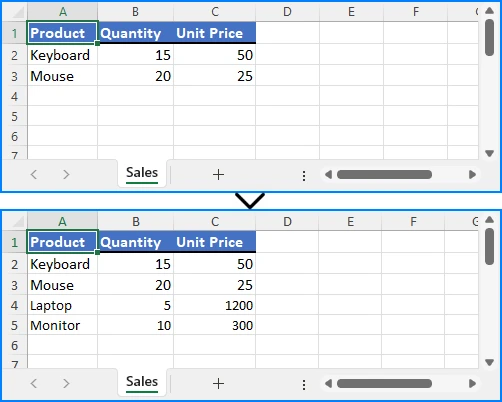
When you need to update an existing Excel workbook with new information—such as adding recent sales records, inventory updates, or additional data rows—you can open the file, append the data programmatically, and save it without overwriting existing content:
from spire.xls import Workbook, ExcelVersion

workbook = Workbook()
workbook.LoadFromFile("Sample.xlsx")
sheet = workbook.Worksheets[0]

# Add new rows
sheet.Range["A4"].Value = "Laptop"
sheet.Range["B4"].NumberValue = 5
sheet.Range["C4"].NumberValue = 1200.00

sheet.Range["A5"].Value = "Monitor"
sheet.Range["B5"].NumberValue = 10
sheet.Range["C5"].NumberValue = 300.00

workbook.SaveToFile("output/updated_excel.xlsx", ExcelVersion.Version2016)
Key elements used:
- LoadFromFile() – loads an existing Excel file into the workbook object.
- Range["CellName"] – references a specific cell in the sheet using its name.
- Value / NumberValue – assigns text or numeric data to cells.
- SaveToFile() – saves the workbook to a file in the specified Excel format.
This method allows continuous updates to reports while preserving existing content.
Example showing appended data:
Writing Multiple Rows and Columns to a New Excel File
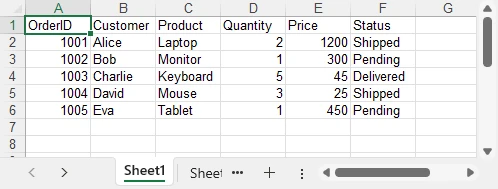
When dealing with larger datasets, writing multiple rows and columns at once is much more efficient than updating individual cells one by one. This approach not only saves time but also ensures consistent data insertion across the worksheet:
from spire.xls import Workbook, ExcelVersion

# Create a new Excel workbook
workbook = Workbook()
sheet = workbook.Worksheets[0]

orders = [
    ["OrderID", "Customer", "Product", "Quantity", "Price", "Status"],
    [1001, "Alice", "Laptop", 2, 1200.00, "Shipped"],
    [1002, "Bob", "Monitor", 1, 300.00, "Pending"],
    [1003, "Charlie", "Keyboard", 5, 45.00, "Delivered"],
    [1004, "David", "Mouse", 3, 25.00, "Shipped"],
    [1005, "Eva", "Tablet", 1, 450.00, "Pending"]
]

for row_index, row_data in enumerate(orders, start=1):
    for col_index, value in enumerate(row_data, start=1):
        if isinstance(value, (int, float)):
            sheet.Range[row_index, col_index].NumberValue = value
        else:
            sheet.Range[row_index, col_index].Value = value

workbook.SaveToFile("output/orders.xlsx", ExcelVersion.Version2016)
Important elements in this example:
- enumerate() – provides row and column indices for looping.
- Range[row, col] – references a cell in the worksheet by its row and column indexes.
Batch writing ensures efficiency, especially when exporting database query results or operational reports.
Example showing batch data insertion:
Writing Different Data Types
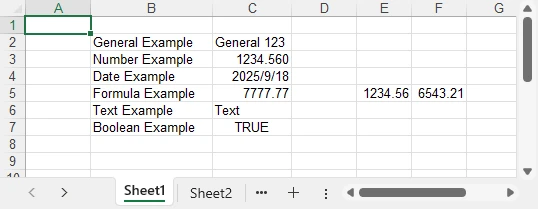
Excel cells can contain various types of data, such as text, numbers, dates, formulas, and more. Using the correct properties and methods ensures that each type is stored and displayed appropriately, allowing accurate calculations and proper formatting:
from spire.xls import Workbook, ExcelVersion, DateTime, TimeSpan

workbook = Workbook()
sheet = workbook.Worksheets[0]

# Set general value
sheet.Range[2, 2].Text = "General Example"
sheet.Range[2, 3].Value = "General 123"

# Set number value
sheet.Range[3, 2].Text = "Number Example"
sheet.Range[3, 3].NumberValue = 1234.56
sheet.Range[3, 3].NumberFormat = "0.000"

# Set datetime value
sheet.Range[4, 2].Text = "Date Example"
sheet.Range[4, 3].DateTimeValue = DateTime.get_UtcNow()

# Set formula value
sheet.Range[5, 2].Text = "Formula Example"
sheet.Range[5, 5].NumberValue = 1234.56
sheet.Range[5, 6].NumberValue = 6543.21
sheet.Range[5, 3].Formula = "=SUM(E5:F5)"

# Set text
sheet.Range[6, 2].Text = "Text Example"
sheet.Range[6, 3].Text = "Text"

# Set boolean value
sheet.Range[7, 2].Text = "Boolean Example"
sheet.Range[7, 3].BooleanValue = True

sheet.AllocatedRange.AutoFitColumns()

workbook.SaveToFile("output/value_types.xlsx", ExcelVersion.Version2016)
Key functions and properties used:
- Value – assigns or retrieves the general value of a cell, suitable for text or mixed content.
- NumberValue – specifically handles numeric values in a cell, ensuring proper number formatting and calculations.
- DateTimeValue – used to input or obtain date and time values in a cell with correct formatting.
- Formula – sets or retrieves the formula expression in a cell to perform dynamic calculations.
- BooleanValue – stores or returns a Boolean (True/False) value in a cell.
- Text – retrieves the displayed text of a cell, including any applied formatting.
Proper handling of different data types is essential for accurate business calculations and reporting. For more details on supported data types, see the XlsRange API reference.
Example showing mixed data types:
Formatting Excel While Writing Data with Python
To make Excel reports clear and professional, it’s important to apply formatting while entering or updating data. This section demonstrates how to enhance readability and presentation by styling cells, setting number formats, and adjusting column widths and row heights as you write data into Excel.
Applying Cell Styles
You can enhance the readability and appearance of your Excel sheet by applying various styles to cells, such as fonts, borders, and background colors:
from spire.xls import Workbook, Color, FontUnderlineType, ExcelVersion

workbook = Workbook()
sheet = workbook.Worksheets[0]
sheet.Range["A1"].Value = "Product"
sheet.Range["B1"].Value = "Category"
sheet.Range["C1"].Value = "Price"
sheet.Range["D1"].Value = "Quantity"
sheet.Range["E1"].Value = "Total"
sheet.Range["A2"].Value = "MacBook Pro"
sheet.Range["B2"].Value = "Laptop"
sheet.Range["C2"].NumberValue = 999.99
sheet.Range["D2"].NumberValue = 1
sheet.Range["E2"].Formula = "=C2*D2"
sheet.Range["A3"].Value = "iPhone 16 Pro"
sheet.Range["B3"].Value = "Smartphone"
sheet.Range["C3"].NumberValue = 899.99
sheet.Range["D3"].NumberValue = 1
sheet.Range["E3"].Formula = "=C3*D3"

# Set header style
header = sheet.Range["A1:E1"]
header.Style.Font.FontName = "Arial"
header.Style.Font.Size = 14.0
header.Style.Font.IsBold = True
header.Style.Font.Underline = FontUnderlineType.Single
header.Style.Interior.Color = Color.get_LightGray()
header.Style.Borders[BordersLineType.EdgeRight].LineStyle = LineStyleType.Medium
Core components demonstrated:
- Style.Font – controls font-related settings such as bold, underline, and more (full list of supported properties can be found in the Style.Font API documentation).
- FontUnderlineType.Single – applies a single underline.
- Interior.Color – fills the cell background with a specified color.
- Borders.LineStyle – adds borders around cells.
Styled cells enhance readability and emphasize critical sections.
Setting Number Formats for Excel Cells
Numbers in Excel often require specific display formats to improve readability and presentation. Using CellRange.NumberFormat, you can control how numeric values appear, such as applying currency, percentage, or integer formats:
# Apply number formats
sheet.Range["C2:C3"].NumberFormat = "$#,##0.00"   # Currency format
sheet.Range["D2:D3"].NumberFormat = "0"           # Integer format
sheet.Range["E2:E3"].NumberFormat = "$#,##0.00"
Key highlights:
- NumberFormat – enables reading and setting Excel cell number formats, controlling how numbers are displayed while keeping the raw data intact.
- Format codes define display rules such as currency symbols, decimal places, or percentage styles, giving you flexibility in presenting numerical data.
With proper number formatting, financial data is easier to interpret and looks more professional. For more details and a full list of format codes, see our dedicated guide on Setting Excel Cell Number Format in Python.
Adjusting Column Widths and Row Heights
Properly adjusting column widths and row heights ensures that all content is clearly visible. You can set them manually or use automatic fitting to match the content:
# Auto-fit column widths and row heights
for col in range(1, 5):
    sheet.AutoFitColumn(col)
for row in range(1, 3):
    sheet.AutoFitRow(row)

# Auto-fit a specific range of cells
#sheet.Range["A1:E3"].AutoFitColumns()
#sheet.Range["A1:E3"].AutoFitRows()

# Set a fixed column width and row height
sheet.Columns[1].Width = 150
sheet.Rows[1].Height = 30

workbook.SaveToFile("output/formatted_excel.xlsx", ExcelVersion.Version2016)
Key highlights:
- AutoFitColumn(colIndex) / AutoFitRow(rowIndex) – automatically adjust a single column or row to fit its content.
- CellRange.AutoFitColumns() / AutoFitRows() – automatically adjust all columns or rows within a specified cell range.
- Columns[colIndex].Width / Rows[rowIndex].Height – manually set a fixed width or height for precise control.
With these options, you can choose between automatic fitting for dynamic data or fixed dimensions for consistent layout, ensuring your Excel worksheets remain both readable and professionally formatted.
Example showing styled and auto-fitted headers:
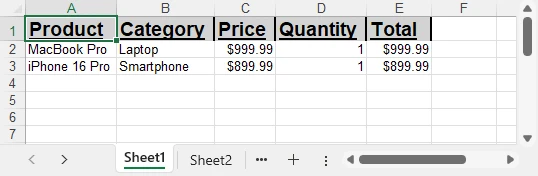
To explore more advanced techniques for formatting Excel sheets in Python, including fonts, colors, borders, and conditional formatting, check out our dedicated guide on Formatting Excel in Python for detailed instructions.
Managing Multiple Worksheets in Excel with Python
In Excel, organizing data into multiple worksheets helps keep related information separated and easy to manage. For example, you can maintain separate sheets for sales, purchases, inventory, or other categories within the same workbook. This section demonstrates how to create, access, and manage multiple worksheets using Python.
from spire.xls import Workbook, ExcelVersion

workbook = Workbook()

sheet = workbook.Worksheets[0]
sheet.Name = "Sales"

sheet1 = workbook.Worksheets["Sheet2"]
sheet1.Name = "Purchases"

sheet2 = workbook.Worksheets.Add("Inventory")
sheet2.Range["A1"].Value = "ProductID"
sheet2.Range["B1"].Value = "Stock"

workbook.SaveToFile("output/multi_sheet.xlsx", ExcelVersion.Version2016)
Main features highlighted:
- Worksheets[Index] – access a worksheet by its position in the workbook (useful for iterating over all sheets or referencing the first/last sheet).
- Worksheets["SheetName"] – access a worksheet by its name, which is more readable and reliable if the sheet order might change.
- Worksheets.Add("SheetName") – create a new worksheet to organize different categories of data such as departments, sales regions, or product lines.
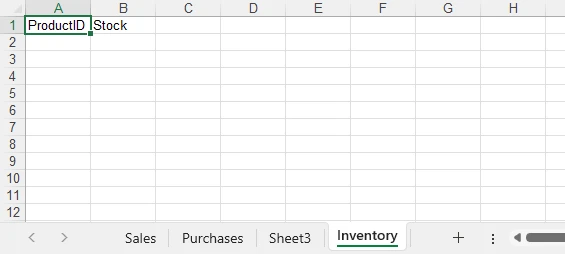
These methods allow you to structure your Excel file efficiently, keeping related data on separate sheets for clarity and easier management.
Example showing multiple worksheets:
Best Practices for Writing Excel Files with Python
When writing Excel files with Python, follow best practices to maintain efficiency, consistency, and usability:
- Use descriptive sheet names like “Sales_2024” instead of “Sheet1.”
- Batch write large datasets instead of individual cell updates to improve performance.
- Apply consistent formatting for headers, totals, and key columns.
- Leverage Excel formulas to maintain dynamic calculations.
- Validate data types to prevent misinterpretation in charts or formulas.
- Choose file formats suited to the audience: .xlsx for modern users, .xls only for legacy compatibility.
- Organize worksheets logically, grouping related datasets for easy navigation.
Implementing these practices avoids common pitfalls and produces professional, reusable reports.
Conclusion
Automating Excel writing in Python significantly streamlines reporting. By creating workbooks, writing data efficiently, applying styles, managing worksheets, and handling diverse data types, developers can ensure consistent, accurate, and professional Excel reports. To explore the library further, you can request a free temporary license or try the Free Spire.XLS for Python edition.
Python Excel Writing FAQ
Q1: Can Python write to an existing Excel file?
Yes, Python can load an existing workbook, append or modify data, and save it while preserving all previously entered content.
Q2: How to efficiently handle large datasets in Python?
Batch writing multiple rows and minimizing formatting during data insertion helps maintain high performance even with thousands of rows.
Q3: Can formulas be included in Excel files?
Yes, you can insert formulas, including =SUM() and more complex calculations, to keep your Excel reports dynamic and automatically updated.
Q4: Which Excel formats are supported?
Spire.XLS for Python can save files in .xlsx, .xls, CSV, and even export to PDF, covering most common use cases and compatibility needs.
Come convertire rapidamente Markdown in Word: 4 metodi esperti comprovati
Indice dei contenuti
Installa con Maven
Install-Package Spire.Doc
Link Correlati

Contenuto della pagina:
- Metodo 1. Convertire Markdown in Word manualmente
- Metodo 2. Salvare i file Markdown in formato Word con il plugin di MS Word
- Metodo 3. Convertire i file Markdown in DOCX con un convertitore online
- Metodo 4. (Per sviluppatori) Convertire Markdown in Word con librerie di codice
Markdown è diventato uno dei linguaggi di markup leggeri più popolari per scrittori, sviluppatori e creatori di contenuti. La sua semplicità ti permette di concentrarti sulla scrittura senza perderti nella formattazione.
Tuttavia, quando si tratta di condividere documenti in contesti professionali o accademici, spesso è necessario fornire un file Microsoft Word (.docx). È allora che sorge la domanda: come convertire Markdown in Word in modo facile ed efficiente?
In questa guida, ti illustreremo diversi metodi, dalla conversione manuale agli strumenti automatizzati, in modo che tu possa scegliere quello che meglio si adatta al tuo flusso di lavoro.
Perché convertire Markdown in Word?
Prima di immergersi nei metodi, comprendere le ragioni alla base di questa conversione ti aiuterà a decidere se è la soluzione giusta per il tuo flusso di lavoro.
- Scopi di collaborazione: Molte aziende e team si affidano pesantemente ai documenti Word. Se vuoi che le tue note Markdown o le bozze del blog vengano revisionate dai colleghi, convertirle in Word garantisce la compatibilità.
- Formattazione per la distribuzione: Word supporta la formattazione avanzata, le intestazioni, i layout di pagina e gli stili. Convertire Markdown in Word facilita la distribuzione di documenti rifiniti.
- Requisiti di invio: Istituzioni accademiche, editori e organizzazioni richiedono spesso file in .docx.
- Controllo versione + Output professionale: Puoi scrivere in Markdown per semplicità, controllo versione e portabilità, per poi convertirlo in Word per la presentazione finale.
Esistono diversi modi per ottenere la conversione da Markdown a Word. Alcuni richiedono conoscenze tecniche, mentre altri sono semplici soluzioni online. Esaminiamo ogni metodo per vedere quale si adatta meglio a te.
Metodo 1. Convertire Markdown in Word manualmente
Pro
- Non sono necessari strumenti aggiuntivi.
- Funziona per file Markdown brevi e semplici.
Contro:
- La formattazione potrebbe rompersi.
- Inefficiente per documenti lunghi o complessi.
Il primo approccio consiste nel convertire manualmente i file Markdown in Word. Questo metodo non richiede alcuno strumento aggiuntivo. Devi solo aprire il tuo file Markdown, copiare il contenuto e quindi incollarlo in Word. Sebbene semplice, richiede spesso ulteriori aggiustamenti di formattazione per mantenere la struttura e la leggibilità.
La tabella seguente elenca i significati di diversi codici principali nel file Markdown per consentirti di regolare meglio la formattazione durante la conversione:
| Markdown | Word |
|---|---|
# Heading 1 |
Intestazione 1 (Titolo grande in grassetto) |
## Heading 2 |
Intestazione 2 (Sottotitolo più piccolo in grassetto) |
**bold text** |
testo in grassetto |
*italic text* |
testo in corsivo |
- Item 1 |
• Elemento 1 • Elemento 2 (elenco puntato) |
1. Step one |
1. Primo passo 2. Secondo passo (elenco numerato) |
[E-ICEBLUE](https://www.e-iceblue.com/) |
E-ICEBLUE |
 |
Immagine inserita con testo alternativo (in Word: oggetto immagine) |
> Quoted text |
Testo citato (appare come un blocco rientrato) |
Vai al sito della guida ufficiale per verificare le differenze complete tra i file Markdown e Word: Differenze tra i formati Markdown e Word
Metodo 2. Salvare i file Markdown in formato Word con il plugin di MS Word
Pro:
- Integrazione perfetta con Word.
- Non sono necessarie app esterne.
Contro:
- Disponibilità limitata di buoni componenti aggiuntivi per Markdown.
- Potrebbe non supportare tutta la sintassi Markdown.
Un altro modo comodo per convertire Markdown in Word è utilizzare i plugin o i componenti aggiuntivi di Word. Questi strumenti si integrano direttamente in Microsoft Word, consentendoti di importare file Markdown e di visualizzarli automaticamente con la formattazione e gli stili corretti.
I passaggi su come utilizzare i componenti aggiuntivi di Word per convertire i file Markdown in formato Word sono elencati di seguito:
Passaggio 1. Apri Microsoft AppSource e accedi al tuo account Microsoft.
Passaggio 2. Cerca il plugin "Markdown" per Microsoft Word. Fai clic su "Ottienilo ora" per scaricarlo.

Passaggio 3. Apri Microsoft Word sul tuo computer per installare l'estensione "Markdown".
Passaggio 4. Successivamente, puoi aprire i file Markdown all'interno di Word senza altri strumenti. Puoi regolare il codice Markdown e ottenere un'anteprima dalla barra di destra come nello screenshot qui sotto (fornito da Microsoft):
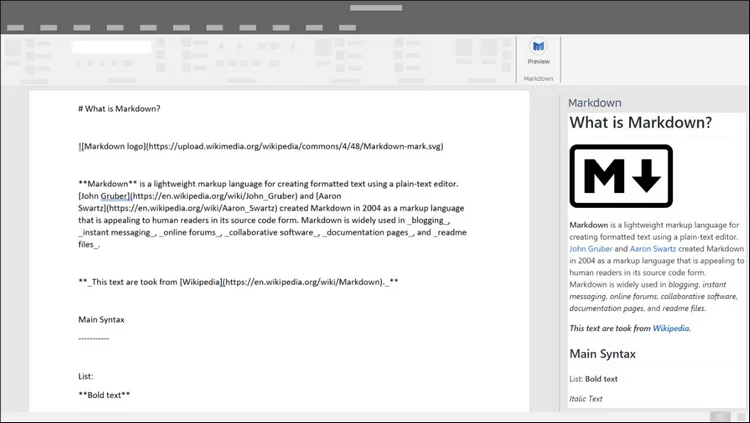
Passaggio 5. Vai su "File" dalla barra multifunzione per salvare il file corrente in formato .doc o .docx.
Metodo 3. Convertire i file Markdown in DOCX con un convertitore online
Pro:
- Nessuna installazione richiesta.
- Interfaccia user-friendly.
- Funziona su qualsiasi dispositivo con un browser.
Contro:
- Richiede l'accesso a Internet.
- Preoccupazioni per la privacy (non caricare file sensibili).
- La formattazione può variare a seconda dello strumento.
Per gli utenti che non vogliono avere a che fare con le righe di comando, i convertitori online sono la scelta più semplice. Siti web come CloudxDocs forniscono una conversione gratuita e rapida, consentendoti di caricare semplicemente un file Markdown e scaricare il documento Word corrispondente in pochi secondi.
Questo metodo è particolarmente utile per i principianti o per coloro che necessitano di una conversione una tantum da Markdown a Word senza installare software aggiuntivo.
Ecco la guida su come utilizzare il convertitore online da Markdown a Word di CloudxDocs:
Passaggio 1. Vai al sito ufficiale del convertitore online da Markdown a Word di CloudxDocs.
Passaggio 2. Fai clic o trascina per caricare il tuo file .md. Il convertitore online avvierà automaticamente l'analisi e la conversione del file. Devi solo attendere il completamento del processo.
Passaggio 3. Dopo la conversione, scarica il file .docx convertito e salvalo sul tuo computer.
Metodo 4. (Per sviluppatori) Convertire Markdown in Word con librerie di codice
Pro:
- Completamente automatizzato.
- Ottimo per l'elaborazione batch.
- Può essere integrato nei flussi di lavoro.
Contro:
- Richiede conoscenze di programmazione.
- L'impostazione può variare a seconda del linguaggio.
Se stai creando applicazioni o pipeline automatizzate, potresti preferire la conversione di Markdown a livello di codice. Questo approccio ti offre un maggiore controllo, consentendo l'elaborazione batch, l'integrazione con i flussi di lavoro esistenti e la personalizzazione degli stili di output.
Una soluzione pratica per gestire in modo efficiente i documenti Word è Spire.Doc. Questo prodotto è sviluppato dal team di sviluppo E-ICEBLUE. È una libreria di codice professionale progettata per creare, leggere, modificare, convertire e stampare documenti Word senza dipendere da Microsoft Office. Supporta i formati DOC, DOCX, RTF, TXT, HTML e PDF, rendendolo estremamente versatile per l'elaborazione di documenti.
Con Spire.Doc, gli sviluppatori possono automatizzare attività come l'inserimento di testo, immagini, tabelle, intestazioni, piè di pagina, filigrane e firme digitali. Offre anche potenti funzionalità di conversione, inclusa la trasformazione di documenti Word in PDF, HTML o immagini e viceversa. Che tu stia creando strumenti di automazione per l'ufficio, sistemi di gestione documentale o applicazioni di elaborazione batch, Spire.Doc offre una soluzione affidabile, veloce e flessibile.
Codice di esempio in .NET:
Passaggio 1. Per iniziare, dovresti installare la libreria Spire.Doc for .NET dalla pagina di download ufficiale o da NuGet con la riga di codice sottostante.
Install-Package Spire.DocPassaggio 2. Copia e personalizza il seguente codice per gestire senza problemi la conversione:
using Spire.Doc;

namespace MdToDocx
{
    class Program
    {
        static void Main(string[] args)
        {
            // Create an object of Document class
            Document doc = new Document();

            // Load a Markdown file
            doc.LoadFromFile("Sample.md", FileFormat.Markdown);

            // Convert the Markdown file to a Word document
            doc.SaveToFile("MarkdownToWord.docx", FileFormat.Docx);
            doc.Close();
        }
    }
}
RISULTATO:
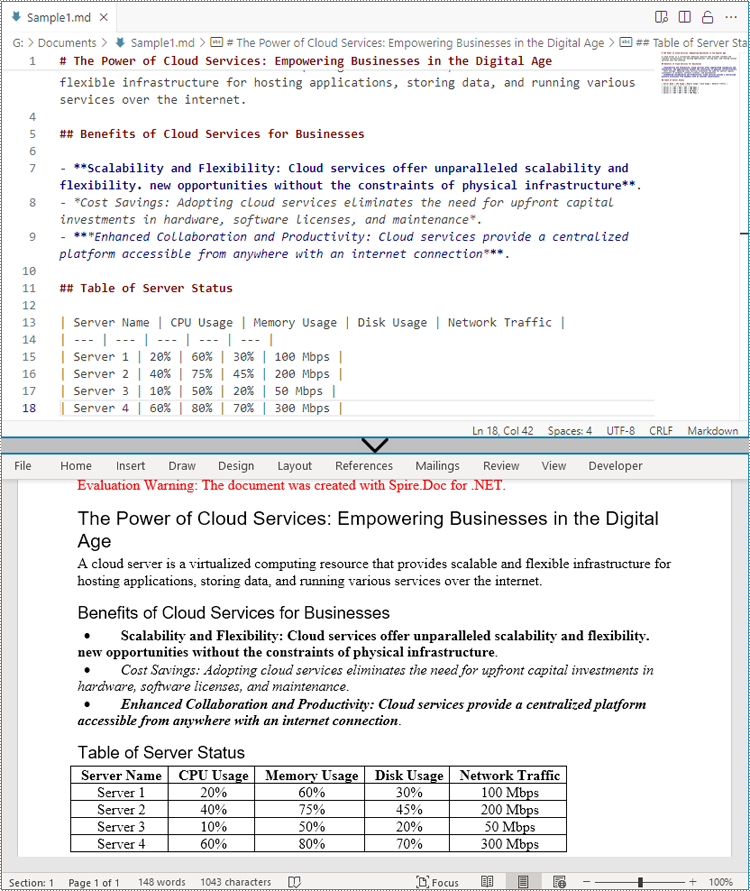
Considerazioni finali
Markdown è eccellente per la scrittura e la modifica, ma Word rimane lo standard per la distribuzione professionale. Sapere come convertire Markdown in Word garantisce che il tuo lavoro sia facile da scrivere e facile da condividere.
Che tu sia un blogger occasionale, uno studente che prepara compiti o uno sviluppatore che automatizza le pipeline di documentazione, questo post ti ha fornito tutte le soluzioni, dagli strumenti online veloci alle potenti librerie di codice come Spire.Doc.
Quindi la prossima volta che scrivi una bozza in Markdown, non dovrai preoccuparti della compatibilità. Con il giusto metodo di conversione, puoi condividere con sicurezza il tuo lavoro in formato Word.
Leggi anche:
Como converter Markdown em Word rapidamente: 4 métodos comprovados por especialistas
Índice
Instalar com Maven
Install-Package Spire.Doc
Links Relacionados
Conteúdo da Página:
- Método 1. Converter Markdown para Word Manualmente
- Método 2. Salvar Arquivos Markdown no Formato Word com Plugin do MS Word
- Método 3. Converter Arquivos Markdown para DOCX com Conversor Online
- Método 4. (Para Desenvolvedores) Converter Markdown para Word com Bibliotecas de Código
Markdown tornou-se uma das linguagens de marcação leve mais populares para escritores, desenvolvedores e criadores de conteúdo. Sua simplicidade permite que você se concentre na escrita sem se perder na formatação.
No entanto, quando se trata de compartilhar documentos em ambientes profissionais ou acadêmicos, muitas vezes você precisará fornecer um arquivo Microsoft Word (.docx). É quando surge a pergunta: como converter Markdown para Word de forma fácil e eficiente?
Neste guia, vamos orientá-lo através de múltiplos métodos — desde a conversão manual até ferramentas automatizadas — para que você possa escolher aquele que melhor se adapta ao seu fluxo de trabalho.
Por que converter Markdown para Word?
Antes de mergulhar nos métodos, entender as razões por trás dessa conversão ajudará você a decidir se é a solução certa para o seu fluxo de trabalho.
- Propósitos de Colaboração: Muitas empresas e equipes dependem fortemente de documentos do Word. Se você quer que suas notas em Markdown ou rascunhos de blog sejam revisados por colegas, convertê-los para Word garante a compatibilidade.
- Formatação para Distribuição: O Word suporta formatação rica, cabeçalhos, layouts de página e estilos. Converter Markdown para Word facilita a distribuição de documentos polidos.
- Requisitos de Submissão: Instituições acadêmicas, editoras e organizações frequentemente solicitam arquivos em .docx.
- Controle de Versão + Saída Profissional: Você pode escrever em Markdown para simplicidade, controle de versão e portabilidade, e então convertê-lo para Word para a apresentação final.
Existem várias maneiras de realizar a conversão de Markdown para Word. Algumas exigem conhecimento técnico, enquanto outras são soluções online diretas. Vamos analisar cada método para ver qual deles se adapta melhor a você.
Método 1. Converter Markdown para Word Manualmente
Prós
- Não são necessárias ferramentas extras.
- Funciona para arquivos Markdown curtos e simples.
Contras:
- A formatação pode quebrar.
- Ineficiente para documentos longos ou complexos.
A primeira abordagem é converter arquivos Markdown para Word manualmente. Este método não requer nenhuma ferramenta extra. Você só precisa abrir seu arquivo Markdown, copiar o conteúdo e colá-lo no Word. Embora direto, muitas vezes precisa de ajustes de formatação adicionais para manter a estrutura e a legibilidade.
A tabela a seguir lista os significados de vários códigos principais no arquivo Markdown para você ajustar melhor a formatação ao converter:
| Markdown | Word |
|---|---|
# Heading 1 |
Título 1 (Título grande em negrito) |
## Heading 2 |
Título 2 (Subtítulo menor em negrito) |
**bold text** |
texto em negrito |
*italic text* |
texto em itálico |
- Item 1 |
• Item 1 • Item 2 (lista com marcadores) |
1. Step one |
1. Primeiro passo 2. Segundo passo (lista numerada) |
[E-ICEBLUE](https://www.e-iceblue.com/) |
E-ICEBLUE |
 |
Imagem inserida com texto alternativo (no Word: objeto de imagem) |
> Quoted text |
Texto citado (aparece como um bloco recuado) |
Vá para o site do guia oficial para verificar as diferenças completas entre arquivos Markdown e Word: Diferenças dos Formatos Markdown e Word
Método 2. Salvar Arquivos Markdown no Formato Word com Plugin do MS Word
Prós:
- Integração perfeita com o Word.
- Não são necessários aplicativos externos.
Contras:
- Disponibilidade limitada de bons add-ins de Markdown.
- Pode não suportar toda a sintaxe do Markdown.
Outra maneira conveniente de converter Markdown para Word é usando plugins ou add-ins do Word. Essas ferramentas se integram diretamente ao Microsoft Word, permitindo importar arquivos Markdown e renderizá-los automaticamente com a formatação e estilos adequados.
Os passos de como usar add-ins do Word para converter arquivos Markdown para o formato Word estão listados abaixo:
Passo 1. Abra o Microsoft AppSource e faça login na sua conta da Microsoft.
Passo 2. Procure pelo plugin "Markdown" para Microsoft Word. Clique em "Obter Agora" para baixá-lo.
Passo 3. Abra o Microsoft Word no seu computador para instalar a extensão "Markdown".
Passo 4. Depois, você pode abrir arquivos Markdown dentro do Word sem outras ferramentas. Você pode ajustar o código Markdown e obter uma prévia na barra direita como na captura de tela abaixo (fornecida pela Microsoft):
Passo 5. Vá para "Arquivo" na Faixa de Opções para salvar o arquivo atual no formato .doc ou .docx.
Método 3. Converter Arquivos Markdown para DOCX com Conversor Online
Prós:
- Nenhuma instalação é necessária.
- Interface amigável.
- Funciona em qualquer dispositivo com um navegador.
Contras:
- Requer acesso à internet.
- Preocupações com privacidade (não carregue arquivos sensíveis).
- A formatação pode variar dependendo da ferramenta.
Para usuários que não querem lidar com linhas de comando, os conversores online são a escolha mais fácil. Sites como CloudxDocs fornecem conversão gratuita e rápida, permitindo que você simplesmente carregue um arquivo Markdown e baixe o documento Word correspondente em segundos.
Este método é especialmente útil para iniciantes ou para quem precisa de uma conversão única de Markdown para Word sem instalar software adicional.
Aqui está o guia sobre como usar o Conversor Online de Markdown para Word do CloudxDocs:
Passo 1. Vá para o site oficial do Conversor Online de Markdown para Word do CloudxDocs.
Passo 2. Clique ou arraste para carregar seu arquivo .md. O conversor online iniciará a análise e conversão do arquivo automaticamente. Você só precisa esperar o processo ser concluído.
Passo 3. Após a conversão, baixe o arquivo .docx convertido e salve-o no seu computador.
Método 4. (Para Desenvolvedores) Converter Markdown para Word com Bibliotecas de Código
Prós:
- Totalmente automatizado.
- Ótimo para processamento em lote.
- Pode ser integrado em fluxos de trabalho.
Contras:
- Requer conhecimento de programação.
- A configuração pode variar por idioma.
Se você está construindo aplicações ou pipelines automatizados, pode preferir converter Markdown programmaticamente. Essa abordagem oferece mais controle, permitindo processamento em lote, integração com fluxos de trabalho existentes e personalização de estilos de saída.
Uma solução prática para lidar com documentos do Word de forma eficiente é o Spire.Doc. Este produto é desenvolvido pela Equipe de Desenvolvimento E-ICEBLUE. É uma biblioteca de código profissional projetada para criar, ler, editar, converter e imprimir documentos do Word sem depender do Microsoft Office. Suporta os formatos DOC, DOCX, RTF, TXT, HTML e PDF, tornando-o altamente versátil para processamento de documentos.
Com o Spire.Doc, os desenvolvedores podem automatizar tarefas como inserir texto, imagens, tabelas, cabeçalhos, rodapés, marcas d'água e assinaturas digitais. Ele também oferece recursos poderosos de conversão, incluindo transformar documentos do Word em PDF, HTML ou imagens, e vice-versa. Esteja você construindo ferramentas de automação de escritório, sistemas de gerenciamento de documentos ou aplicações de processamento em lote, o Spire.Doc fornece uma solução confiável, rápida e flexível.
Exemplo de Código em .NET:
Passo 1. Para começar, você deve instalar a biblioteca Spire.Doc for .NET a partir da página de download oficial ou NuGet com a linha de código abaixo.
Install-Package Spire.DocPasso 2. Copie e personalize o código a seguir para gerenciar suavemente a conversão:
using Spire.Doc;

namespace MdToDocx
{
    class Program
    {
        static void Main(string[] args)
        {
            // Create an object of Document class
            Document doc = new Document();

            // Load a Markdown file
            doc.LoadFromFile("Sample.md", FileFormat.Markdown);

            // Convert the Markdown file to a Word document
            doc.SaveToFile("MarkdownToWord.docx", FileFormat.Docx);
            doc.Close();
        }
    }
}
RESULTADO:
Considerações Finais
Markdown é excelente para escrever e editar, mas o Word continua sendo o padrão para distribuição profissional. Saber como converter Markdown para Word garante que seu trabalho seja fácil de escrever e fácil de compartilhar.
Seja você um blogueiro casual, um estudante preparando trabalhos ou um desenvolvedor automatizando pipelines de documentação, este post forneceu todas as soluções para você — desde ferramentas online rápidas até poderosas bibliotecas de código como o Spire.Doc.
Então, da próxima vez que você redigir em Markdown, não precisará se preocupar com a compatibilidade. Com o método de conversão certo, você pode compartilhar seu trabalho com confiança no formato Word.
Leia Também:
Markdown을 Word로 빠르게 변환하는 방법: 검증된 4가지 전문가 방법
목차
Maven으로 설치
Install-Package Spire.Doc
관련 링크
페이지 내용:
- 방법 1. Markdown을 Word로 수동 변환
- 방법 2. MS Word 플러그인을 사용하여 Markdown 파일을 Word 형식으로 저장
- 방법 3. 온라인 변환기를 사용하여 Markdown 파일을 DOCX로 변환
- 방법 4. (개발자용) 코드 라이브러리를 사용하여 Markdown을 Word로 변환
Markdown은 작가, 개발자 및 콘텐츠 제작자에게 가장 인기 있는 경량 마크업 언어 중 하나가 되었습니다. 그 단순성 덕분에 서식에 얽매이지 않고 글쓰기에 집중할 수 있습니다.
그러나 전문적이거나 학술적인 환경에서 문서를 공유할 때는 Microsoft Word(.docx) 파일을 대신 제공해야 하는 경우가 많습니다. 바로 그때 Markdown을 Word로 쉽고 효율적으로 변환하는 방법에 대한 질문이 생깁니다.
이 가이드에서는 수동 변환에서 자동화된 도구에 이르기까지 여러 가지 방법을 안내하여 작업 흐름에 가장 적합한 방법을 선택할 수 있도록 합니다.
Markdown을 Word로 변환하는 이유는 무엇인가요?
방법을 살펴보기 전에 이 변환의 이유를 이해하면 작업 흐름에 적합한 솔루션인지 결정하는 데 도움이 됩니다.
- 공동 작업 목적: 많은 회사와 팀이 Word 문서에 크게 의존합니다. Markdown 메모나 블로그 초안을 동료가 검토하도록 하려면 Word로 변환하여 호환성을 보장해야 합니다.
- 배포용 서식 지정: Word는 서식 있는 서식, 머리글, 페이지 레이아웃 및 스타일을 지원합니다. Markdown을 Word로 변환하면 세련된 문서를 더 쉽게 배포할 수 있습니다.
- 제출 요구 사항: 학술 기관, 출판사 및 조직에서는 종종 .docx 형식의 파일을 요청합니다.
- 버전 관리 + 전문적인 출력: 단순성, 버전 관리 및 이식성을 위해 Markdown으로 작성한 다음 최종 프레젠테이션을 위해 Word로 변환할 수 있습니다.
Markdown-to-Word 변환을 달성하는 방법에는 여러 가지가 있습니다. 일부는 기술적 지식이 필요하지만 다른 일부는 간단한 온라인 솔루션입니다. 각 방법을 살펴보고 어떤 방법이 가장 적합한지 알아보겠습니다.
방법 1. Markdown을 Word로 수동 변환
장점
- 추가 도구가 필요 없습니다.
- 짧고 간단한 Markdown 파일에 적합합니다.
단점:
- 서식이 깨질 수 있습니다.
- 길거나 복잡한 문서에는 비효율적입니다.
첫 번째 접근 방식은 Markdown 파일을 Word로 수동 변환하는 것입니다. 이 방법은 추가 도구가 전혀 필요하지 않습니다. Markdown 파일을 열고 내용을 복사한 다음 Word에 붙여넣기만 하면 됩니다. 간단하지만 구조와 가독성을 유지하기 위해 추가적인 서식 조정이 필요한 경우가 많습니다.
다음 표에는 변환 시 서식을 더 잘 조정할 수 있도록 Markdown 파일의 몇 가지 주요 코드 의미가 나열되어 있습니다.
| Markdown | Word |
|---|---|
# Heading 1 |
제목 1 (크고 굵은 제목) |
## Heading 2 |
제목 2 (더 작은 굵은 부제목) |
**bold text** |
굵은 텍스트 |
*italic text* |
기울임꼴 텍스트 |
- Item 1 |
• 항목 1 • 항목 2 (글머리 기호 목록) |
1. Step one |
1. 첫 번째 단계 2. 두 번째 단계 (번호 매기기 목록) |
[E-ICEBLUE](https://www.e-iceblue.com/) |
E-ICEBLUE |
 |
대체 텍스트가 있는 삽입된 이미지 (Word: 그림 개체) |
> Quoted text |
인용된 텍스트 (들여쓴 블록으로 표시됨) |
Markdown과 Word 파일 간의 전체 차이점을 확인하려면 공식 가이드 사이트로 이동하세요: Markdown과 Word 형식의 차이점
방법 2. MS Word 플러그인을 사용하여 Markdown 파일을 Word 형식으로 저장
장점:
- Word와의 원활한 통합.
- 외부 앱이 필요 없습니다.
단점:
- 좋은 Markdown 추가 기능의 가용성이 제한적입니다.
- 모든 Markdown 구문을 지원하지 않을 수 있습니다.
Markdown을 Word로 변환하는 또 다른 편리한 방법은 Word 플러그인 또는 추가 기능을 사용하는 것입니다. 이러한 도구는 Microsoft Word에 직접 통합되어 Markdown 파일을 가져오고 적절한 서식과 스타일로 자동 렌더링할 수 있습니다.
Word 추가 기능을 사용하여 Markdown 파일을 Word 형식으로 변환하는 단계는 다음과 같습니다.
1단계. Microsoft AppSource를 열고 Microsoft 계정에 로그인합니다.
2단계. Microsoft Word용 "Markdown" 플러그인을 검색합니다. "지금 받기"를 클릭하여 다운로드합니다.
3단계. 컴퓨터에서 Microsoft Word를 열어 "Markdown" 확장 프로그램을 설치합니다.
4단계. 그 후에는 다른 도구 없이 Word 내에서 Markdown 파일을 열 수 있습니다. 아래 스크린샷(Microsoft 제공)과 같이 오른쪽 막대에서 Markdown 코드를 조정하고 미리보기를 얻을 수 있습니다.
5단계. 리본에서 "파일"로 이동하여 현재 파일을 .doc 또는 .docx 형식으로 저장합니다.
방법 3. 온라인 변환기를 사용하여 Markdown 파일을 DOCX로 변환
장점:
- 설치가 필요 없습니다.
- 사용자 친화적인 인터페이스.
- 브라우저가 있는 모든 장치에서 작동합니다.
단점:
- 인터넷 액세스가 필요합니다.
- 개인 정보 보호 문제 (민감한 파일을 업로드하지 마세요).
- 도구에 따라 서식이 다를 수 있습니다.
명령줄을 다루고 싶지 않은 사용자에게는 온라인 변환기가 가장 쉬운 선택입니다. CloudxDocs와 같은 웹사이트는 무료로 빠른 변환을 제공하므로 Markdown 파일을 간단히 업로드하고 몇 초 안에 해당 Word 문서를 다운로드할 수 있습니다.
이 방법은 특히 초보자나 추가 소프트웨어를 설치하지 않고 일회성 Markdown to Word 변환이 필요한 사람들에게 유용합니다.
CloudxDocs 온라인 Markdown to Word 변환기 사용 방법은 다음과 같습니다.
1단계. CloudxDocs 온라인 Markdown to Word 변환기의 공식 사이트로 이동합니다.
2단계. .md 파일을 클릭하거나 끌어서 업로드합니다. 온라인 변환기가 자동으로 파일 분석 및 변환을 시작합니다. 프로세스가 완료될 때까지 기다리기만 하면 됩니다.
3단계. 변환 후 변환된 .docx 파일을 다운로드하여 컴퓨터에 저장합니다.
방법 4. (개발자용) 코드 라이브러리를 사용하여 Markdown을 Word로 변환
장점:
- 완전 자동화.
- 일괄 처리에 적합합니다.
- 워크플로에 통합할 수 있습니다.
단점:
- 프로그래밍 지식이 필요합니다.
- 설정은 언어에 따라 다를 수 있습니다.
애플리케이션이나 자동화된 파이프라인을 구축하는 경우 프로그래밍 방식으로 Markdown을 변환하는 것을 선호할 수 있습니다. 이 접근 방식은 일괄 처리, 기존 워크플로와의 통합 및 출력 스타일 사용자 지정을 허용하여 더 많은 제어 권한을 제공합니다.
Word 문서를 효율적으로 처리하기 위한 실용적인 솔루션 중 하나는 Spire.Doc입니다. 이 제품은 E-ICEBLUE 개발팀에서 개발했습니다. Microsoft Office에 의존하지 않고 Word 문서를 생성, 읽기, 편집, 변환 및 인쇄하도록 설계된 전문 코드 라이브러리입니다. DOC, DOCX, RTF, TXT, HTML 및 PDF 형식을 지원하여 문서 처리에 매우 다용도로 사용할 수 있습니다.
Spire.Doc을 사용하면 개발자는 텍스트, 이미지, 표, 머리글, 바닥글, 워터마크 및 디지털 서명 삽입과 같은 작업을 자동화할 수 있습니다. 또한 Word 문서를 PDF로 변환, HTML 또는 이미지로 변환하는 등 강력한 변환 기능을 제공합니다. 사무 자동화 도구, 문서 관리 시스템 또는 일괄 처리 애플리케이션을 구축하든 Spire.Doc은 안정적이고 빠르며 유연한 솔루션을 제공합니다.
.NET 예제 코드:
1단계. 먼저 공식 다운로드 페이지 또는 NuGet에서 아래 코드 라인을 사용하여 Spire.Doc for .NET 라이브러리를 설치해야 합니다.
Install-Package Spire.Doc2단계. 변환을 원활하게 관리하려면 다음 코드를 복사하고 사용자 지정하십시오.
using Spire.Doc;

namespace MdToDocx
{
    class Program
    {
        static void Main(string[] args)
        {
            // Create an object of Document class
            Document doc = new Document();

            // Load a Markdown file
            doc.LoadFromFile("Sample.md", FileFormat.Markdown);

            // Convert the Markdown file to a Word document
            doc.SaveToFile("MarkdownToWord.docx", FileFormat.Docx);
            doc.Close();
        }
    }
}
결과:
마지막 생각
Markdown은 작성 및 편집에 탁월하지만 Word는 전문적인 배포의 표준으로 남아 있습니다. Markdown을 Word로 변환하는 방법을 알면 작업을 쉽게 작성하고 쉽게 공유할 수 있습니다.
간단한 블로거든, 과제를 준비하는 학생이든, 문서화 파이프라인을 자동화하는 개발자든, 이 게시물은 빠른 온라인 도구부터 Spire.Doc과 같은 강력한 코드 라이브러리에 이르기까지 모든 솔루션을 제공합니다.
따라서 다음에 Markdown으로 초안을 작성할 때 호환성에 대해 걱정할 필요가 없습니다. 올바른 변환 방법을 사용하면 Word 형식으로 작업을 자신 있게 공유할 수 있습니다.
함께 읽어보기:
Comment convertir rapidement Markdown en Word : 4 méthodes d’experts éprouvées
Table des matières
- Méthode 1. Convertir Markdown en Word manuellement
- Méthode 2. Enregistrer les fichiers Markdown au format Word avec le plugin MS Word
- Méthode 3. Convertir les fichiers Markdown en DOCX avec un convertisseur en ligne
- Méthode 4. (Pour les développeurs) Convertir Markdown en Word avec des bibliothèques de code
Installer avec Maven
Install-Package Spire.Doc
Liens connexes
Contenu de la page :
- Méthode 1. Convertir Markdown en Word manuellement
- Méthode 2. Enregistrer les fichiers Markdown au format Word avec le plugin MS Word
- Méthode 3. Convertir les fichiers Markdown en DOCX avec un convertisseur en ligne
- Méthode 4. (Pour les développeurs) Convertir Markdown en Word avec des bibliothèques de code
Markdown est devenu l'un des langages de balisage léger les plus populaires pour les écrivains, les développeurs et les créateurs de contenu. Sa simplicité vous permet de vous concentrer sur l'écriture sans vous perdre dans la mise en forme.
Cependant, lorsqu'il s'agit de partager des documents dans des contextes professionnels ou académiques, vous devrez souvent fournir un fichier Microsoft Word (.docx) à la place. C'est alors que la question se pose : comment convertir Markdown en Word facilement et efficacement ?
Dans ce guide, nous vous présenterons plusieurs méthodes, de la conversion manuelle aux outils automatisés, afin que vous puissiez choisir celle qui convient le mieux à votre flux de travail.
Pourquoi convertir Markdown en Word ?
Avant de plonger dans les méthodes, comprendre les raisons de cette conversion vous aidera à décider si c'est la bonne solution pour votre flux de travail.
- Objectifs de collaboration : De nombreuses entreprises et équipes s'appuient fortement sur les documents Word. Si vous souhaitez que vos notes Markdown ou vos brouillons de blog soient relus par des collègues, leur conversion en Word garantit la compatibilité.
- Mise en forme pour la distribution : Word prend en charge une mise en forme riche, des en-têtes, des mises en page et des styles. La conversion de Markdown en Word facilite la distribution de documents soignés.
- Exigences de soumission : Les établissements universitaires, les éditeurs et les organisations demandent souvent des fichiers au format .docx.
- Contrôle de version + Sortie professionnelle : Vous pouvez écrire en Markdown pour la simplicité, le contrôle de version et la portabilité, puis le convertir en Word pour la présentation finale.
Il existe plusieurs façons de réaliser la conversion de Markdown en Word. Certaines nécessitent des connaissances techniques, tandis que d'autres sont des solutions en ligne simples. Passons en revue chaque méthode pour voir celle qui vous convient le mieux.
Méthode 1. Convertir Markdown en Word manuellement
Avantages
- Aucun outil supplémentaire n'est nécessaire.
- Fonctionne pour les fichiers Markdown courts et simples.
Inconvénients :
- La mise en forme peut être rompue.
- Inefficace pour les documents longs ou complexes.
La première approche consiste à convertir manuellement les fichiers Markdown en Word. Cette méthode ne nécessite aucun outil supplémentaire. Il vous suffit d'ouvrir votre fichier Markdown, de copier le contenu, puis de le coller dans Word. Bien que simple, elle nécessite souvent des ajustements de mise en forme supplémentaires pour maintenir la structure et la lisibilité.
Le tableau suivant répertorie la signification de plusieurs codes principaux dans un fichier Markdown pour vous aider à mieux ajuster la mise en forme lors de la conversion :
| Markdown | Word |
|---|---|
# Heading 1 |
Titre 1 (Grand titre en gras) |
## Heading 2 |
Titre 2 (Sous-titre plus petit en gras) |
**bold text** |
texte en gras |
*italic text* |
texte en italique |
- Item 1 |
• Élément 1 • Élément 2 (liste à puces) |
1. Step one |
1. Première étape 2. Deuxième étape (liste numérotée) |
[E-ICEBLUE](https://www.e-iceblue.com/) |
E-ICEBLUE |
 |
Image insérée avec texte alternatif (dans Word : objet image) |
> Quoted text |
Texte cité (apparaît comme un bloc en retrait) |
Accédez au site du guide officiel pour consulter les différences complètes entre les fichiers Markdown et Word : Différences entre les formats Markdown et Word
Méthode 2. Enregistrer les fichiers Markdown au format Word avec le plugin MS Word
Avantages :
- Intégration transparente avec Word.
- Aucune application externe n'est nécessaire.
Inconvénients :
- Disponibilité limitée de bons compléments Markdown.
- Peut ne pas prendre en charge toute la syntaxe Markdown.
Une autre façon pratique de convertir Markdown en Word consiste à utiliser des plugins ou des compléments Word. Ces outils s'intègrent directement dans Microsoft Word, vous permettant d'importer des fichiers Markdown et de les restituer automatiquement avec la mise en forme et les styles appropriés.
Les étapes d'utilisation des compléments Word pour convertir des fichiers Markdown au format Word sont répertoriées ci-dessous :
Étape 1. Ouvrez Microsoft AppSource et connectez-vous à votre compte Microsoft.
Étape 2. Recherchez le plugin "Markdown" pour Microsoft Word. Cliquez sur "Obtenir maintenant" pour le télécharger.
Étape 3. Ouvrez Microsoft Word sur votre ordinateur pour installer l'extension "Markdown".
Étape 4. Ensuite, vous pouvez ouvrir des fichiers Markdown dans Word sans autres outils. Vous pouvez ajuster le code Markdown et obtenir un aperçu dans la barre de droite comme la capture d'écran ci-dessous (fournie par Microsoft) :
Étape 5. Allez dans "Fichier" depuis le ruban pour enregistrer le fichier actuel au format .doc ou .docx.
Méthode 3. Convertir les fichiers Markdown en DOCX avec un convertisseur en ligne
Avantages :
- Aucune installation n'est requise.
- Interface conviviale.
- Fonctionne sur n'importe quel appareil avec un navigateur.
Inconvénients :
- Nécessite un accès à Internet.
- Problèmes de confidentialité (ne téléchargez pas de fichiers sensibles).
- La mise en forme peut varier en fonction de l'outil.
Pour les utilisateurs qui ne veulent pas s'occuper des lignes de commande, les convertisseurs en ligne sont le choix le plus simple. Des sites Web comme CloudxDocs offrent une conversion gratuite et rapide, vous permettant de télécharger simplement un fichier Markdown et de télécharger le document Word correspondant en quelques secondes.
Cette méthode est particulièrement utile pour les débutants ou ceux qui ont besoin d'une conversion ponctuelle de Markdown en Word sans installer de logiciel supplémentaire.
Voici le guide sur la façon d'utiliser le convertisseur en ligne de Markdown en Word de CloudxDocs :
Étape 1. Allez sur le site officiel du convertisseur en ligne de Markdown en Word de CloudxDocs.
Étape 2. Cliquez ou faites glisser pour télécharger votre fichier .md. Le convertisseur en ligne commencera automatiquement l'analyse et la conversion du fichier. Il vous suffit d'attendre que le processus soit terminé.
Étape 3. Après la conversion, téléchargez le fichier .docx converti et enregistrez-le sur votre ordinateur.
Méthode 4. (Pour les développeurs) Convertir Markdown en Word avec des bibliothèques de code
Avantages :
- Entièrement automatisé.
- Idéal pour le traitement par lots.
- Peut être intégré dans les flux de travail.
Inconvénients :
- Nécessite des connaissances en programmation.
- La configuration peut varier selon le langage.
Si vous créez des applications ou des pipelines automatisés, vous préférerez peut-être convertir Markdown par programme. Cette approche vous donne plus de contrôle, permettant le traitement par lots, l'intégration avec les flux de travail existants et la personnalisation des styles de sortie.
Une solution pratique pour gérer efficacement les documents Word est Spire.Doc. Ce produit est développé par l'équipe de développement d'E-ICEBLUE. Il s'agit d'une bibliothèque de code professionnelle conçue pour créer, lire, modifier, convertir et imprimer des documents Word sans dépendre de Microsoft Office. Il prend en charge les formats DOC, DOCX, RTF, TXT, HTML et PDF, ce qui le rend très polyvalent pour le traitement de documents.
Avec Spire.Doc, les développeurs peuvent automatiser des tâches telles que l'insertion de texte, d'images, de tableaux, d'en-têtes, de pieds de page, de filigranes et de signatures numériques. Il offre également de puissantes fonctionnalités de conversion, notamment la transformation de documents Word en PDF, HTML ou images, et vice-versa. Que vous construisiez des outils d'automatisation de bureau, des systèmes de gestion de documents ou des applications de traitement par lots, Spire.Doc offre une solution fiable, rapide et flexible.
Exemple de code en .NET :
Étape 1. Pour commencer, vous devez installer la bibliothèque Spire.Doc for .NET à partir de la page de téléchargement officielle ou de NuGet avec la ligne de code ci-dessous.
Install-Package Spire.DocÉtape 2. Copiez et personnalisez le code suivant pour gérer en douceur la conversion :
using Spire.Doc;

namespace MdToDocx
{
    class Program
    {
        static void Main(string[] args)
        {
            // Create an object of Document class
            Document doc = new Document();

            // Load a Markdown file
            doc.LoadFromFile("Sample.md", FileFormat.Markdown);

            // Convert the Markdown file to a Word document
            doc.SaveToFile("MarkdownToWord.docx", FileFormat.Docx);
            doc.Close();
        }
    }
}
RÉSULTAT :
Réflexions finales
Markdown est excellent pour l'écriture et l'édition, mais Word reste la norme pour la distribution professionnelle. Savoir comment convertir Markdown en Word garantit que votre travail est à la fois facile à écrire et facile à partager.
Que vous soyez un blogueur occasionnel, un étudiant préparant des devoirs ou un développeur automatisant des pipelines de documentation, cet article vous a fourni toutes les solutions, des outils en ligne rapides aux puissantes bibliothèques de code comme Spire.Doc.
Ainsi, la prochaine fois que vous rédigerez en Markdown, vous n'aurez pas à vous soucier de la compatibilité. Avec la bonne méthode de conversion, vous pouvez partager votre travail en toute confiance au format Word.
Lisez aussi :
Cómo convertir Markdown a Word rápidamente: 4 métodos expertos comprobados
Tabla de Contenidos
Instalar con Maven
Install-Package Spire.Doc
Enlaces Relacionados
Contenido de la Página:
- Método 1. Convertir Markdown a Word manualmente
- Método 2. Guardar archivos Markdown en formato Word con el plugin de MS Word
- Método 3. Convertir archivos Markdown a DOCX con un convertidor en línea
- Método 4. (Para desarrolladores) Convertir Markdown a Word con bibliotecas de código
Markdown se ha convertido en uno de los lenguajes de marcado ligero más populares para escritores, desarrolladores y creadores de contenido. Su simplicidad le permite concentrarse en escribir sin perderse en el formato.
Sin embargo, cuando se trata de compartir documentos en entornos profesionales o académicos, a menudo necesitará proporcionar un archivo de Microsoft Word (.docx) en su lugar. Es entonces cuando surge la pregunta: ¿cómo convertir Markdown a Word de manera fácil y eficiente?
En esta guía, le guiaremos a través de múltiples métodos, desde la conversión manual hasta herramientas automatizadas, para que pueda elegir el que mejor se adapte a su flujo de trabajo.
¿Por qué convertir Markdown a Word?
Antes de sumergirse en los métodos, comprender las razones detrás de esta conversión le ayudará a decidir si es la solución adecuada para su flujo de trabajo.
- Propósitos de colaboración: Muchas empresas y equipos dependen en gran medida de los documentos de Word. Si desea que sus notas de Markdown o borradores de blog sean revisados por colegas, convertirlos a Word garantiza la compatibilidad.
- Formato para distribución: Word admite formato enriquecido, encabezados, diseños de página y estilos. Convertir Markdown a Word facilita la distribución de documentos pulidos.
- Requisitos de envío: Instituciones académicas, editores y organizaciones a menudo solicitan archivos en .docx.
- Control de versiones + Salida profesional: Puede escribir en Markdown por simplicidad, control de versiones y portabilidad, y luego convertirlo a Word para la presentación final.
Hay varias formas de lograr la conversión de Markdown a Word. Algunas requieren conocimientos técnicos, mientras que otras son soluciones en línea sencillas. Repasemos cada método para ver cuál se adapta mejor a usted.
Método 1. Convertir Markdown a Word manualmente
Pros
- No se necesitan herramientas adicionales.
- Funciona para archivos Markdown cortos y simples.
Contras:
- El formato podría romperse.
- Ineficiente para documentos largos o complejos.
El primer enfoque es convertir archivos Markdown a Word manualmente. Este método no requiere ninguna herramienta adicional. Solo necesita abrir su archivo Markdown, copiar el contenido y luego pegarlo en Word. Aunque es sencillo, a menudo necesita ajustes de formato adicionales para mantener la estructura y la legibilidad.
La siguiente tabla enumera los significados de varios códigos principales en el archivo Markdown para que pueda ajustar mejor el formato al convertir:
| Markdown | Word |
|---|---|
# Heading 1 |
Encabezado 1 (Título grande en negrita) |
## Heading 2 |
Encabezado 2 (Subtítulo más pequeño en negrita) |
**bold text** |
texto en negrita |
*italic text* |
texto en cursiva |
- Item 1 |
• Elemento 1 • Elemento 2 (lista con viñetas) |
1. Step one |
1. Primer paso 2. Segundo paso (lista numerada) |
[E-ICEBLUE](https://www.e-iceblue.com/) |
E-ICEBLUE |
 |
Imagen insertada con texto alternativo (en Word: objeto de imagen) |
> Quoted text |
Texto citado (aparece como un bloque con sangría) |
Vaya al sitio de la guía oficial para consultar las diferencias completas entre los archivos Markdown y Word: Diferencias de los formatos Markdown y Word
Método 2. Guardar archivos Markdown en formato Word con el plugin de MS Word
Pros:
- Integración perfecta con Word.
- No se necesitan aplicaciones externas.
Contras:
- Disponibilidad limitada de buenos complementos de Markdown.
- Es posible que no admita toda la sintaxis de Markdown.
Otra forma conveniente de convertir Markdown a Word es mediante el uso de plugins o complementos de Word. Estas herramientas se integran directamente en Microsoft Word, lo que le permite importar archivos Markdown y renderizarlos automáticamente con el formato y los estilos adecuados.
A continuación se enumeran los pasos sobre cómo usar los complementos de Word para convertir archivos Markdown al formato de Word:
Paso 1. Abra Microsoft AppSource e inicie sesión en su cuenta de Microsoft.
Paso 2. Busque el plugin "Markdown" para Microsoft Word. Haga clic en "Obtenerla ahora" para descargarlo.
Paso 3. Abra Microsoft Word en su computadora para instalar la extensión "Markdown".
Paso 4. Después, puede abrir archivos Markdown dentro de Word sin otras herramientas. Puede ajustar el código Markdown y obtener una vista previa desde la barra derecha como en la captura de pantalla a continuación (proporcionada por Microsoft):
Paso 5. Vaya a "Archivo" desde la cinta de opciones para guardar el archivo actual en formato .doc o .docx.
Método 3. Convertir archivos Markdown a DOCX con un convertidor en línea
Pros:
- No requiere instalación.
- Interfaz fácil de usar.
- Funciona en cualquier dispositivo con un navegador.
Contras:
- Requiere acceso a Internet.
- Preocupaciones de privacidad (no suba archivos confidenciales).
- El formato puede variar según la herramienta.
Para los usuarios que no quieren lidiar con líneas de comando, los convertidores en línea son la opción más fácil. Sitios web como CloudxDocs proporcionan una conversión gratuita y rápida, lo que le permite simplemente cargar un archivo Markdown y descargar el documento de Word correspondiente en cuestión de segundos.
Este método es especialmente útil para principiantes o para aquellos que necesitan una conversión única de Markdown a Word sin instalar software adicional.
Aquí está la guía sobre cómo usar el convertidor en línea de Markdown a Word de CloudxDocs:
Paso 1. Vaya al sitio oficial del convertidor en línea de Markdown a Word de CloudxDocs.
Paso 2. Haga clic o arrastre para cargar su archivo .md. El convertidor en línea comenzará el análisis y la conversión del archivo automáticamente. Solo necesita esperar a que se complete el proceso.
Paso 3. Después de la conversión, descargue el archivo .docx convertido y guárdelo en su computadora.
Método 4. (Para desarrolladores) Convertir Markdown a Word con bibliotecas de código
Pros:
- Totalmente automatizado.
- Excelente para el procesamiento por lotes.
- Se puede integrar en flujos de trabajo.
Contras:
- Requiere conocimientos de programación.
- La configuración puede variar según el idioma.
Si está creando aplicaciones o canalizaciones automatizadas, es posible que prefiera convertir Markdown mediante programación. Este enfoque le brinda más control, lo que permite el procesamiento por lotes, la integración con los flujos de trabajo existentes y la personalización de los estilos de salida.
Una solución práctica para manejar documentos de Word de manera eficiente es Spire.Doc. Este producto es desarrollado por el equipo de desarrollo de E-ICEBLUE. Es una biblioteca de código profesional diseñada para crear, leer, editar, convertir e imprimir documentos de Word sin depender de Microsoft Office. Admite los formatos DOC, DOCX, RTF, TXT, HTML y PDF, lo que lo hace muy versátil para el procesamiento de documentos.
Con Spire.Doc, los desarrolladores pueden automatizar tareas como la inserción de texto, imágenes, tablas, encabezados, pies de página, marcas de agua y firmas digitales. También ofrece potentes funciones de conversión, incluida la transformación de documentos de Word a PDF, HTML o imágenes, y viceversa. Ya sea que esté creando herramientas de automatización de oficina, sistemas de gestión de documentos o aplicaciones de procesamiento por lotes, Spire.Doc proporciona una solución confiable, rápida y flexible.
Código de ejemplo en .NET:
Paso 1. Para empezar, debe instalar la biblioteca Spire.Doc for .NET desde la página de descarga oficial o NuGet con la línea de código a continuación.
Install-Package Spire.DocPaso 2. Copie y personalice el siguiente código para gestionar sin problemas la conversión:
using Spire.Doc;

namespace MdToDocx
{
    class Program
    {
        static void Main(string[] args)
        {
            // Create an object of Document class
            Document doc = new Document();

            // Load a Markdown file
            doc.LoadFromFile("Sample.md", FileFormat.Markdown);

            // Convert the Markdown file to a Word document
            doc.SaveToFile("MarkdownToWord.docx", FileFormat.Docx);
            doc.Close();
        }
    }
}
RESULTADO:
Consideraciones Finales
Markdown es excelente para escribir y editar, pero Word sigue siendo el estándar para la distribución profesional. Saber cómo convertir Markdown a Word garantiza que su trabajo sea fácil de escribir y de compartir.
Ya sea que sea un blogger ocasional, un estudiante que prepara tareas o un desarrollador que automatiza canalizaciones de documentación, esta publicación le ha proporcionado todas las soluciones, desde herramientas rápidas en línea hasta potentes bibliotecas de código como Spire.Doc.
Así que la próxima vez que redacte en Markdown, no tendrá que preocuparse por la compatibilidad. Con el método de conversión adecuado, puede compartir su trabajo con confianza en formato Word.
Lea también:
Markdown schnell in Word konvertieren: 4 erprobte Expertenmethoden
Inhaltsverzeichnis
Mit Maven installieren
Install-Package Spire.Doc
Verwandte Links
Seiteninhalt:
- Methode 1. Markdown manuell in Word konvertieren
- Methode 2. Markdown-Dateien mit MS Word-Plugin im Word-Format speichern
- Methode 3. Markdown-Dateien mit Online-Konverter in DOCX konvertieren
- Methode 4. (Für Entwickler) Markdown mit Code-Bibliotheken in Word konvertieren
Markdown hat sich zu einer der beliebtesten leichtgewichtigen Auszeichnungssprachen für Autoren, Entwickler und Content-Ersteller entwickelt. Seine Einfachheit ermöglicht es Ihnen, sich auf das Schreiben zu konzentrieren, ohne sich in der Formatierung zu verlieren.
Wenn es jedoch darum geht, Dokumente in beruflichen oder akademischen Umgebungen zu teilen, müssen Sie oft stattdessen eine Microsoft Word-Datei (.docx) bereitstellen. Dann stellt sich die Frage: Wie konvertiert man Markdown einfach und effizient in Word?
In diesem Leitfaden führen wir Sie durch verschiedene Methoden – von der manuellen Konvertierung bis hin zu automatisierten Tools – damit Sie diejenige auswählen können, die am besten zu Ihrem Arbeitsablauf passt.
Warum Markdown in Word konvertieren?
Bevor wir uns den Methoden zuwenden, hilft das Verständnis der Gründe für diese Konvertierung Ihnen bei der Entscheidung, ob dies die richtige Lösung für Ihren Arbeitsablauf ist.
- Zwecke der Zusammenarbeit: Viele Unternehmen und Teams verlassen sich stark auf Word-Dokumente. Wenn Sie möchten, dass Ihre Markdown-Notizen oder Blog-Entwürfe von Kollegen überprüft werden, stellt die Konvertierung in Word die Kompatibilität sicher.
- Formatierung für die Verteilung: Word unterstützt umfangreiche Formatierungen, Kopfzeilen, Seitenlayouts und Stile. Die Konvertierung von Markdown in Word erleichtert die Verteilung ausgefeilter Dokumente.
- Anforderungen für Einreichungen: Akademische Einrichtungen, Verlage und Organisationen fordern häufig Dateien im .docx-Format an.
- Versionskontrolle + Professionelle Ausgabe: Sie können in Markdown schreiben, um Einfachheit, Versionskontrolle und Portabilität zu gewährleisten, und es dann für die endgültige Präsentation in Word konvertieren.
Es gibt verschiedene Möglichkeiten, die Konvertierung von Markdown in Word zu erreichen. Einige erfordern technisches Wissen, während andere unkomplizierte Online-Lösungen sind. Lassen Sie uns jede Methode durchgehen, um zu sehen, welche am besten zu Ihnen passt.
Methode 1. Markdown manuell in Word konvertieren
Vorteile
- Keine zusätzlichen Tools erforderlich.
- Funktioniert für kurze, einfache Markdown-Dateien.
Nachteile:
- Die Formatierung kann beschädigt werden.
- Ineffizient für lange oder komplexe Dokumente.
Der erste Ansatz besteht darin, Markdown-Dateien manuell in Word zu konvertieren. Diese Methode erfordert überhaupt keine zusätzlichen Tools. Sie müssen nur Ihre Markdown-Datei öffnen, den Inhalt kopieren und ihn dann in Word einfügen. Obwohl dies unkompliziert ist, erfordert es oft zusätzliche Formatierungsanpassungen, um Struktur und Lesbarkeit zu erhalten.
Die folgende Tabelle listet die Bedeutung mehrerer Hauptcodes in Markdown-Dateien auf, damit Sie die Formatierung bei der Konvertierung besser anpassen können:
| Markdown | Word |
|---|---|
# Heading 1 |
Überschrift 1 (Großer fetter Titel) |
## Heading 2 |
Überschrift 2 (Kleinere fette Unterüberschrift) |
**bold text** |
fetter Text |
*italic text* |
kursiver Text |
- Item 1 |
• Punkt 1 • Punkt 2 (Aufzählungsliste) |
1. Step one |
1. Schritt eins 2. Schritt zwei (nummerierte Liste) |
[E-ICEBLUE](https://www.e-iceblue.com/) |
E-ICEBLUE |
 |
Eingefügtes Bild mit Alternativtext (in Word: Bildobjekt) |
> Quoted text |
Zitierter Text (erscheint als eingerückter Block) |
Springen Sie zur offiziellen Anleitungsseite, um die vollständigen Unterschiede zwischen Markdown- und Word-Dateien zu überprüfen: Unterschiede zwischen Markdown- und Word-Formaten
Methode 2. Markdown-Dateien mit MS Word-Plugin im Word-Format speichern
Vorteile:
- Nahtlose Integration mit Word.
- Keine externen Apps erforderlich.
Nachteile:
- Begrenzte Verfügbarkeit guter Markdown-Add-Ins.
- Unterstützt möglicherweise nicht die gesamte Markdown-Syntax.
Eine weitere bequeme Möglichkeit, Markdown in Word zu konvertieren, ist die Verwendung von Word-Plugins oder Add-Ins. Diese Tools integrieren sich direkt in Microsoft Word, sodass Sie Markdown-Dateien importieren und sie automatisch mit der richtigen Formatierung und den richtigen Stilen rendern können.
Die Schritte zur Verwendung von Word-Add-Ins zur Konvertierung von Markdown-Dateien in das Word-Format sind unten aufgeführt:
Schritt 1. Öffnen Sie Microsoft AppSource und melden Sie sich bei Ihrem Microsoft-Konto an.
Schritt 2. Suchen Sie nach dem "Markdown"-Plugin für Microsoft Word. Klicken Sie auf "Jetzt herunterladen", um es herunterzuladen.
Schritt 3. Öffnen Sie Microsoft Word auf Ihrem Computer, um die "Markdown"-Erweiterung zu installieren.
Schritt 4. Anschließend können Sie Markdown-Dateien in Word ohne andere Tools öffnen. Sie können den Markdown-Code anpassen und eine Vorschau in der rechten Leiste erhalten, wie im folgenden Screenshot (von Microsoft bereitgestellt):
Schritt 5. Gehen Sie im Menüband zu "Datei", um die aktuelle Datei im Format .doc oder .docx zu speichern.
Methode 3. Markdown-Dateien mit Online-Konverter in DOCX konvertieren
Vorteile:
- Keine Installation erforderlich.
- Benutzerfreundliche Oberfläche.
- Funktioniert auf jedem Gerät mit einem Browser.
Nachteile:
- Erfordert Internetzugang.
- Datenschutzbedenken (laden Sie keine sensiblen Dateien hoch).
- Die Formatierung kann je nach Tool variieren.
Für Benutzer, die sich nicht mit Befehlszeilen herumschlagen möchten, sind Online-Konverter die einfachste Wahl. Websites wie CloudxDocs bieten eine kostenlose und schnelle Konvertierung, mit der Sie einfach eine Markdown-Datei hochladen und das entsprechende Word-Dokument innerhalb von Sekunden herunterladen können.
Diese Methode ist besonders nützlich für Anfänger oder diejenigen, die eine einmalige Markdown-zu-Word-Konvertierung benötigen, ohne zusätzliche Software zu installieren.
Hier ist die Anleitung zur Verwendung des CloudxDocs Online Markdown zu Word Konverters:
Schritt 1. Gehen Sie zur offiziellen Website des CloudxDocs Online Markdown zu Word Konverters.
Schritt 2. Klicken oder ziehen Sie, um Ihre .md-Datei hochzuladen. Der Online-Konverter beginnt automatisch mit der Dateianalyse und Konvertierung. Sie müssen nur warten, bis der Vorgang abgeschlossen ist.
Schritt 3. Laden Sie nach der Konvertierung die konvertierte .docx-Datei herunter und speichern Sie sie auf Ihrem Computer.
Methode 4. (Für Entwickler) Markdown mit Code-Bibliotheken in Word konvertieren
Vorteile:
- Vollständig automatisiert.
- Hervorragend für die Stapelverarbeitung geeignet.
- Kann in Arbeitsabläufe integriert werden.
Nachteile:
- Erfordert Programmierkenntnisse.
- Die Einrichtung kann je nach Sprache variieren.
Wenn Sie Anwendungen oder automatisierte Pipelines erstellen, bevorzugen Sie möglicherweise die programmgesteuerte Konvertierung von Markdown. Dieser Ansatz gibt Ihnen mehr Kontrolle und ermöglicht die Stapelverarbeitung, die Integration in bestehende Arbeitsabläufe und die Anpassung der Ausgabestile.
Eine praktische Lösung für die effiziente Verarbeitung von Word-Dokumenten ist Spire.Doc. Dieses Produkt wird vom E-ICEBLUE Develop Team entwickelt. Es ist eine professionelle Code-Bibliothek, die zum Erstellen, Lesen, Bearbeiten, Konvertieren und Drucken von Word-Dokumenten entwickelt wurde, ohne auf Microsoft Office angewiesen zu sein. Es unterstützt die Formate DOC, DOCX, RTF, TXT, HTML und PDF und ist somit äußerst vielseitig für die Dokumentenverarbeitung.
Mit Spire.Doc können Entwickler Aufgaben wie das Einfügen von Text, Bildern, Tabellen, Kopf- und Fußzeilen, Wasserzeichen und digitalen Signaturen automatisieren. Es bietet auch leistungsstarke Konvertierungsfunktionen, einschließlich der Umwandlung von Word-Dokumenten in PDF, HTML oder Bilder und umgekehrt. Egal, ob Sie Büroautomatisierungstools, Dokumentenmanagementsysteme oder Stapelverarbeitungsanwendungen erstellen, Spire.Doc bietet eine zuverlässige, schnelle und flexible Lösung.
Beispielcode in .NET:
Schritt 1. Zunächst sollten Sie die Spire.Doc for .NET-Bibliothek von der offiziellen Download-Seite oder NuGet mit der folgenden Codezeile installieren.
Install-Package Spire.DocSchritt 2. Kopieren Sie den folgenden Code und passen Sie ihn an, um die Konvertierung reibungslos zu verwalten:
using Spire.Doc;

namespace MdToDocx
{
    class Program
    {
        static void Main(string[] args)
        {
            // Create an object of Document class
            Document doc = new Document();

            // Load a Markdown file
            doc.LoadFromFile("Sample.md", FileFormat.Markdown);

            // Convert the Markdown file to a Word document
            doc.SaveToFile("MarkdownToWord.docx", FileFormat.Docx);
            doc.Close();
        }
    }
}
ERGEBNIS:
Abschließende Gedanken
Markdown eignet sich hervorragend zum Schreiben und Bearbeiten, aber Word bleibt der Standard für die professionelle Verteilung. Zu wissen, wie man Markdown in Word konvertiert, stellt sicher, dass Ihre Arbeit sowohl einfach zu schreiben als auch einfach zu teilen ist.
Egal, ob Sie ein gelegentlicher Blogger, ein Student, der Aufgaben vorbereitet, oder ein Entwickler sind, der Dokumentationspipelines automatisiert, dieser Beitrag hat Ihnen alle Lösungen geboten – von schnellen Online-Tools bis hin zu leistungsstarken Code-Bibliotheken wie Spire.Doc.
Wenn Sie also das nächste Mal in Markdown entwerfen, müssen Sie sich keine Sorgen um die Kompatibilität machen. Mit der richtigen Konvertierungsmethode können Sie Ihre Arbeit selbstbewusst im Word-Format teilen.
Lesen Sie auch:
Как быстро конвертировать Markdown в Word: 4 проверенных экспертных метода
Содержание
Установить с помощью Maven
Install-Package Spire.Doc
Похожие ссылки
Содержание страницы:
- Метод 1. Преобразование Markdown в Word вручную
- Метод 2. Сохранение файлов Markdown в формате Word с помощью плагина MS Word
- Метод 3. Преобразование файлов Markdown в DOCX с помощью онлайн-конвертера
- Метод 4. (Для разработчиков) Преобразование Markdown в Word с помощью библиотек кода
Markdown стал одним из самых популярных облегченных языков разметки для писателей, разработчиков и создателей контента. Его простота позволяет сосредоточиться на написании, не теряясь в форматировании.
Однако, когда дело доходит до обмена документами в профессиональной или академической среде, вам часто требуется предоставить файл Microsoft Word (.docx). Вот тогда и возникает вопрос: как легко и эффективно преобразовать Markdown в Word?
В этом руководстве мы рассмотрим несколько методов — от ручного преобразования до автоматизированных инструментов — чтобы вы могли выбрать тот, который лучше всего подходит для вашего рабочего процесса.
Зачем преобразовывать Markdown в Word?
Прежде чем погрузиться в методы, понимание причин этого преобразования поможет вам решить, является ли это правильным решением для вашего рабочего процесса.
- Цели совместной работы: Многие компании и команды активно используют документы Word. Если вы хотите, чтобы ваши заметки в Markdown или черновики блогов были просмотрены коллегами, преобразование их в Word обеспечивает совместимость.
- Форматирование для распространения: Word поддерживает богатое форматирование, заголовки, макеты страниц и стили. Преобразование Markdown в Word упрощает распространение отполированных документов.
- Требования к подаче документов: Академические учреждения, издатели и организации часто запрашивают файлы в формате .docx.
- Контроль версий + Профессиональный вывод: Вы можете писать в Markdown для простоты, контроля версий и переносимости, а затем преобразовывать его в Word для окончательной презентации.
Существует несколько способов достижения преобразования Markdown в Word. Некоторые требуют технических знаний, в то время как другие являются простыми онлайн-решениями. Давайте рассмотрим каждый метод, чтобы увидеть, какой из них подходит вам лучше всего.
Метод 1. Преобразование Markdown в Word вручную
Плюсы
- Не требуются дополнительные инструменты.
- Подходит для коротких, простых файлов Markdown.
Минусы:
- Форматирование может нарушиться.
- Неэффективно для длинных или сложных документов.
Первый подход — преобразовать файлы Markdown в Word вручную. Этот метод вообще не требует дополнительных инструментов. Вам просто нужно открыть файл Markdown, скопировать содержимое, а затем вставить его в Word. Хотя это и просто, часто требуются дополнительные настройки форматирования для поддержания структуры и читаемости.
В следующей таблице перечислены значения нескольких основных кодов в файле Markdown, чтобы вам было легче настраивать форматирование при преобразовании:
| Markdown | Word |
|---|---|
# Heading 1 |
Заголовок 1 (Крупный жирный заголовок) |
## Heading 2 |
Заголовок 2 (Меньший жирный подзаголовок) |
**bold text** |
жирный текст |
*italic text* |
курсивный текст |
- Item 1 |
• Пункт 1 • Пункт 2 (маркированный список) |
1. Step one |
1. Шаг первый 2. Шаг второй (нумерованный список) |
[E-ICEBLUE](https://www.e-iceblue.com/) |
E-ICEBLUE |
 |
Вставленное изображение с замещающим текстом (в Word: объект-рисунок) |
> Quoted text |
Цитируемый текст (отображается как блок с отступом) |
Перейдите на официальный сайт руководства, чтобы проверить полные различия между файлами Markdown и Word: Различия форматов Markdown и Word
Метод 2. Сохранение файлов Markdown в формате Word с помощью плагина MS Word
Плюсы:
- Бесшовная интеграция с Word.
- Не требуются внешние приложения.
Минусы:
- Ограниченная доступность хороших надстроек Markdown.
- Может не поддерживать весь синтаксис Markdown.
Еще один удобный способ преобразования Markdown в Word — использование плагинов или надстроек Word. Эти инструменты интегрируются непосредственно в Microsoft Word, позволяя импортировать файлы Markdown и автоматически отображать их с правильным форматированием и стилями.
Ниже перечислены шаги по использованию надстроек Word для преобразования файлов Markdown в формат Word:
Шаг 1. Откройте Microsoft AppSource и войдите в свою учетную запись Microsoft.
Шаг 2. Найдите плагин "Markdown" для Microsoft Word. Нажмите "Получить сейчас", чтобы загрузить его.
Шаг 3. Откройте Microsoft Word на своем компьютере, чтобы установить расширение "Markdown".
Шаг 4. После этого вы можете открывать файлы Markdown в Word без других инструментов. Вы можете настраивать код Markdown и получать предварительный просмотр на правой панели, как на скриншоте ниже (предоставлено Microsoft):
Шаг 5. Перейдите в "Файл" на ленте, чтобы сохранить текущий файл в формате .doc или .docx.
Метод 3. Преобразование файлов Markdown в DOCX с помощью онлайн-конвертера
Плюсы:
- Не требуется установка.
- Удобный интерфейс.
- Работает на любом устройстве с браузером.
Минусы:
- Требуется доступ в Интернет.
- Проблемы с конфиденциальностью (не загружайте конфиденциальные файлы).
- Форматирование может варьироваться в зависимости от инструмента.
Для пользователей, которые не хотят иметь дело с командными строками, онлайн-конвертеры — самый простой выбор. Веб-сайты, такие как CloudxDocs, предоставляют бесплатное и быстрое преобразование, позволяя вам просто загрузить файл Markdown и скачать соответствующий документ Word в течение нескольких секунд.
Этот метод особенно полезен для начинающих или тех, кому нужно однократное преобразование Markdown в Word без установки дополнительного программного обеспечения.
Вот руководство по использованию онлайн-конвертера Markdown в Word от CloudxDocs:
Шаг 1. Перейдите на официальный сайт онлайн-конвертера Markdown в Word от CloudxDocs.
Шаг 2. Нажмите или перетащите, чтобы загрузить ваш файл .md. Онлайн-конвертер начнет анализ файла и преобразование автоматически. Вам просто нужно дождаться завершения процесса.
Шаг 3. После преобразования загрузите преобразованный файл .docx и сохраните его на своем компьютере.
Метод 4. (Для разработчиков) Преобразование Markdown в Word с помощью библиотек кода
Плюсы:
- Полностью автоматизировано.
- Отлично подходит для пакетной обработки.
- Может быть интегрировано в рабочие процессы.
Минусы:
- Требуются знания в области программирования.
- Настройка может отличаться в зависимости от языка.
Если вы создаете приложения или автоматизированные конвейеры, вы можете предпочесть программное преобразование Markdown. Этот подход дает вам больше контроля, позволяя пакетную обработку, интеграцию с существующими рабочими процессами и настройку стилей вывода.
Одним из практичных решений для эффективной обработки документов Word является Spire.Doc. Этот продукт разработан командой E-ICEBLUE Develop Team. Это профессиональная библиотека кода, предназначенная для создания, чтения, редактирования, преобразования и печати документов Word без зависимости от Microsoft Office. Он поддерживает форматы DOC, DOCX, RTF, TXT, HTML и PDF, что делает его очень универсальным для обработки документов.
С помощью Spire.Doc разработчики могут автоматизировать такие задачи, как вставка текста, изображений, таблиц, верхних и нижних колонтитулов, водяных знаков и цифровых подписей. Он также предлагает мощные функции преобразования, включая преобразование документов Word в PDF, HTML или изображения, и наоборот. Независимо от того, создаете ли вы инструменты автоматизации офиса, системы управления документами или приложения для пакетной обработки, Spire.Doc предоставляет надежное, быстрое и гибкое решение.
Пример кода на .NET:
Шаг 1. Для начала вам следует установить библиотеку Spire.Doc for .NET с официальной страницы загрузки или NuGet, используя приведенную ниже строку кода.
Install-Package Spire.DocШаг 2. Скопируйте и настройте следующий код для плавного управления преобразованием:
using Spire.Doc;

namespace MdToDocx
{
    class Program
    {
        static void Main(string[] args)
        {
            // Create an object of Document class
            Document doc = new Document();

            // Load a Markdown file
            doc.LoadFromFile("Sample.md", FileFormat.Markdown);

            // Convert the Markdown file to a Word document
            doc.SaveToFile("MarkdownToWord.docx", FileFormat.Docx);
            doc.Close();
        }
    }
}
РЕЗУЛЬТАТ:
Заключительные мысли
Markdown отлично подходит для написания и редактирования, но Word остается стандартом для профессионального распространения. Знание того, как преобразовать Markdown в Word, гарантирует, что вашу работу будет легко как писать, так и делиться ею.
Независимо от того, являетесь ли вы случайным блоггером, студентом, готовящим задания, или разработчиком, автоматизирующим конвейеры документации, этот пост предоставил вам все решения — от быстрых онлайн-инструментов до мощных библиотек кода, таких как Spire.Doc.
Так что в следующий раз, когда вы будете составлять черновик в Markdown, вам не придется беспокоиться о совместимости. С правильным методом преобразования вы можете уверенно делиться своей работой в формате Word.
Читайте также:
How to Convert Markdown to Word Fast: 4 Proven Expert Methods
Table of Contents
Install with Maven
Install-Package Spire.Doc
Related Links
Page Content:
- Method 1. Convert Markdown to Word Manually
- Method 2. Save Markdown Files in Word Format with MS Word Plugin
- Method 3. Convert Markdown Files to DOCX with Online Converter
- Method 4. (For Developers) Convert Markdown to Word with Code Libraries
Markdown has become one of the most popular lightweight markup languages for writers, developers, and content creators. Its simplicity allows you to focus on writing without getting lost in formatting.
However, when it comes to sharing documents in professional or academic settings, you'll often need to provide a Microsoft Word (.docx) file instead. That's when the question arises: how to convert Markdown to Word easily and efficiently?
In this guide, we'll walk you through multiple methods—from manual conversion to automated tools—so you can choose the one that best fits your workflow.
Why Convert Markdown to Word?
Before diving into the methods, understanding the reasons behind this conversion will help you decide whether it's the right solution for your workflow.
- Collaboration Purposes: Many companies and teams rely heavily on Word documents. If you want your Markdown notes or blog drafts to be reviewed by colleagues, converting them to Word ensures compatibility.
- Formatting for Distribution: Word supports rich formatting, headers, page layouts, and styles. Converting Markdown to Word makes it easier to distribute polished documents.
- Submission Requirements: Academic institutions, publishers, and organizations often request files in .docx.
- Version Control + Professional Output: You can write in Markdown for simplicity, version control, and portability, then convert it to Word for final presentation.
There are several ways to achieve Markdown-to-Word conversion. Some require technical knowledge, while others are straightforward online solutions. Let’s go through each method to see which one suits you best.
Method 1. Convert Markdown to Word Manually
Pros
- No extra tools needed.
- Works for short, simple Markdown files.
Cons:
- Formatting might break.
- Inefficient for long or complex documents.
The first approach is to convert Markdown files to Word manually. This method requires no extra tools at all. You just need to open your Markdown file, copy the content, and then paste it into Word. While straightforward, it often needs additional formatting adjustments to maintain structure and readability.
The following table lists meanings of several main codes in Markdown file for you to better adjust formatting when converting:
| Markdown | Word |
|---|---|
# Heading 1 |
Heading 1 (Large bold title) |
## Heading 2 |
Heading 2 (Smaller bold subheading) |
**bold text** |
bold text |
*italic text* |
italic text |
- Item 1 |
• Item 1 • Item 2 (bullet list) |
1. Step one |
1. Step one 2. Step two (numbered list) |
[E-ICEBLUE](https://www.e-iceblue.com/) |
E-ICEBLUE |
 |
Inserted image with alt text (in Word: picture object) |
> Quoted text |
Quoted text (appears as an indented block) |
Jump to the official guide site to check full differences between Markdown and Word Files: Differences of Markdown and Word Formats
Method 2. Save Markdown Files in Word Format with MS Word Plugin
Pros:
- Seamless integration with Word.
- No external apps are needed.
Cons:
- Limited availability of good Markdown add-ins.
- May not support all Markdown syntax.
Another convenient way to convert Markdown into Word is by using Word plugins or add-ins. These tools integrate directly into Microsoft Word, letting you import Markdown files and automatically render them with proper formatting and styles.
The steps of how to use Word add-ins to convert Markdown files into Word format are listed below:
Step 1. Open Microsoft AppSource and sign in to your Microsoft account.
Step 2. Search for the "Markdown" Plugin for Microsoft Word. Click "Get it Now" to download it.
Step 3. Open Microsoft Word on your computer to install the "Markdown" extension.
Step 4. Afterwards, you can open Markdown files within Word without other tools. You can adjust Markdown code and get preview from the right bar like the screenshot below (provided by Microsoft):
Step 5. Go to "File" from the Ribbon to save the current file in .doc or .docx format.
Method 3. Convert Markdown Files to DOCX with Online Converter
Pros:
- No installation is required.
- User-friendly interface.
- Works on any device with a browser.
Cons:
- Requires internet access.
- Privacy concerns (don't upload sensitive files).
- Formatting may vary depending on the tool.
For users who don't want to deal with command lines, online converters are the easiest choice. Websites like CloudxDocs provide free and quick conversion, allowing you to simply upload a Markdown file and download the corresponding Word document within seconds.
This method is especially useful for beginners or those who need a one-time Markdown to Word conversion without installing additional software.
Here is the guide on how to use CloudxDocs Online Markdown to Word Converter:
Step 1. Go to the official site of CloudxDocs Online Markdown to Word Converter.
Step 2. Click or drag to upload your .md file. The online converter will begin file analysis and conversion automatically. You just need to wait for the process to be completed.
Step 3. After conversion, download the converted .docx file and save it on your computer.
Method 4. (For Developers) Convert Markdown to Word with Code Libraries
Pros:
- Fully automated.
- Great for batch processing.
- Can be integrated into workflows.
Cons:
- Requires programming knowledge.
- Setup may vary by language.
If you're building applications or automated pipelines, you might prefer converting Markdown programmatically. This approach gives you more control, allowing batch processing, integration with existing workflows, and customization of output styles.
One practical solution for handling Word documents efficiently is Spire.Doc. This product is developed by E-ICEBLUE Develop Team. It is a professional code library designed for creating, reading, editing, converting, and printing Word documents without relying on Microsoft Office. It supports DOC, DOCX, RTF, TXT, HTML, and PDF formats, making it highly versatile for document processing.
With Spire.Doc, developers can automate tasks such as inserting text, images, tables, headers, footers, watermarks, and digital signatures. It also offers powerful conversion features, including transforming Word documents into PDF, HTML, or images, and vice versa. Whether you're building office automation tools, document management systems, or batch processing applications, Spire.Doc provides a reliable, fast, and flexible solution.
Example Code in .NET:
Step 1. To begin with, you should install Spire.Doc for .NET library from the official download page or NuGet with the code line below.
Install-Package Spire.DocStep 2. Copy and customize the following code to smoothly manage the conversion:
using Spire.Doc;

namespace MdToDocx
{
    class Program
    {
        static void Main(string[] args)
        {
            // Create an object of Document class
            Document doc = new Document();

            // Load a Markdown file
            doc.LoadFromFile("Sample.md", FileFormat.Markdown);

            // Convert the Markdown file to a Word document
            doc.SaveToFile("MarkdownToWord.docx", FileFormat.Docx);
            doc.Close();
        }
    }
}
RESULT:
Final Thoughts
Markdown is excellent for writing and editing, but Word remains the standard for professional distribution. Knowing how to convert Markdown to Word ensures your work is both easy to write and easy to share.
Whether you're a casual blogger, a student preparing assignments, or a developer automating documentation pipelines, this post has provided all solutions for you—from quick online tools to powerful code libraries like Spire.Doc.
So next time you draft in Markdown, you don’t have to worry about compatibility. With the right conversion method, you can confidently share your work in Word format.
Read Also: