Convert PDF and Byte Array in C# (Load, Edit, Save in Memory)
Working with PDFs as byte arrays is common in C# development. Developers often need to store PDF documents in a database, transfer them through an API, or process them entirely in memory without touching the file system. In such cases, converting between PDF and bytes using C# becomes essential.
This tutorial explains how to perform these operations step by step using Spire.PDF for .NET. You will learn how to convert a byte array to PDF, convert a PDF back into a byte array, and even edit a PDF directly from memory with C# code.
Jump right where you need
- Why Work with Byte Arrays and PDFs in C#?
- Convert Byte Array to PDF in C#
- Convert PDF to Byte Array in C#
- Create and Edit PDF Directly from a Byte Array
- Advantages of Using Spire.PDF for .NET
- Conclusion
- FAQ
Why Work with Byte Arrays and PDFs in C#?
Using byte[] as the transport format lets you avoid temporary files and makes your code friendlier to cloud and container environments.
- Database storage (BLOB): Persist PDFs as raw bytes; hydrate only when needed.
- Web APIs: Send/receive PDFs over HTTP without touching disk.
- In-memory processing: Transform or watermark PDFs entirely in streams.
- Security & isolation: Limit file I/O, reduce temp-file risks.
Getting set up: before running the examples, add the NuGet package of Spire.PDF for .NET so the API surface is available in your project.
Install-Package Spire.PDF
Once installed, you can load from byte[] or Stream, edit pages, and write outputs back to memory or disk—no extra converters required.
Convert Byte Array to PDF in C#
When an upstream service (e.g., an API or message queue) hands you a byte[] that represents a PDF, you often need to materialize it as a document for further processing or for a one-time save to disk. With Spire.PDF for .NET, this is a direct load operation—no intermediate temp file.
Scenario & approach: we’ll accept a byte[] (from DB/API), construct a PdfDocument in memory, optionally validate basic metadata, and then save the document.
using Spire.Pdf;
using System.IO;

class Program
{
    static void Main()
    {
        // Example source: byte[] retrieved from DB/API
        byte[] pdfBytes = File.ReadAllBytes("Sample.pdf"); // substitute with your source

        // 1) Load PDF from raw bytes (in memory)
        PdfDocument doc = new PdfDocument();
        doc.LoadFromBytes(pdfBytes);

        // 2) (Optional) inspect basic info before saving or further processing
        // int pageCount = doc.Pages.Count;

        // 3) Save to a file
        doc.SaveToFile("Output.pdf");
        doc.Close();
    }
}
The diagram below illustrates the byte[] to PDF conversion workflow:
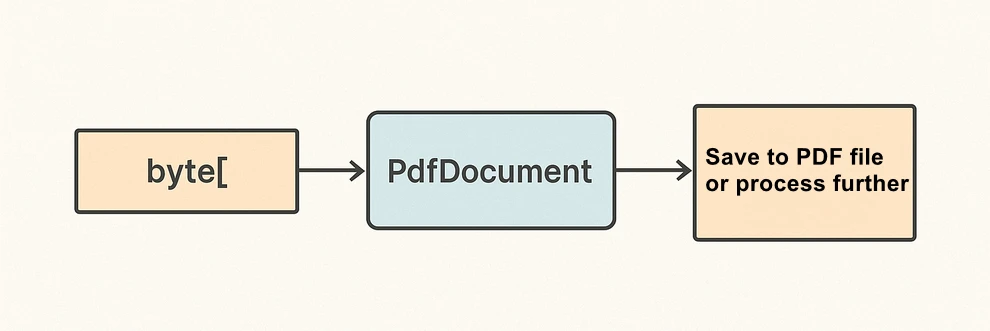
What the code is doing & why it matters:
- LoadFromBytes(byte[]) initializes the PDF entirely in memory—perfect for services without write access.
- You can branch after loading: validate pages, redact, stamp, or route elsewhere.
- SaveToFile(string) saves the document to disk for downstream processing or storing.
Convert PDF to Byte Array in C#
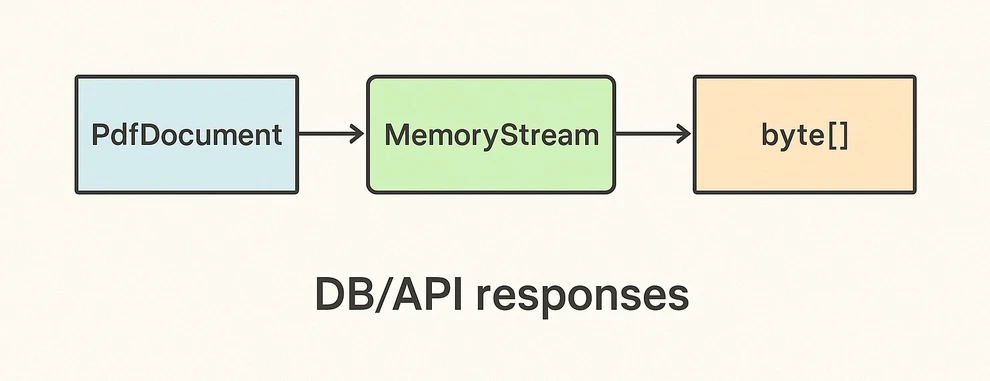
In the reverse direction, converting a PDF to a byte[] enables database writes, caching, or streaming the file through an HTTP response. Spire.PDF for .NET writes directly to a MemoryStream, which you can convert to a byte array with ToArray().
Scenario & approach: load an existing PDF, push the document into a MemoryStream, then extract the byte[]. This pattern is especially useful when returning PDFs from APIs or persisting them to databases.
using Spire.Pdf;
using System.IO;

class Program
{
    static void Main()
    {
        // 1) Load a PDF from disk, network share, or embedded resource
        PdfDocument doc = new PdfDocument();
        doc.LoadFromFile("Input.pdf");

        // 2) Save to a MemoryStream for fileless output
        byte[] pdfBytes;
        using (var ms = new MemoryStream())
        {
            doc.SaveToStream(ms);
            pdfBytes = ms.ToArray();
        }

        doc.Close();

        // pdfBytes now contains the full document (ready for DB/API)
        // e.g., return File(pdfBytes, "application/pdf");
    }
}
The diagram below shows the PDF to byte[] conversion workflow:
Key takeaways after the code:
- SaveToStream → ToArray is the standard way to obtain a PDF as bytes in C# without creating temp files.
- This approach scales for large PDFs; the only limit is available memory.
- Great for ASP.NET: return the byte array directly in your controller or minimal API endpoint.
If you want to learn more about working with streams, check out our guide on loading and saving PDF documents via streams in C#.
Create and Edit PDF Directly from a Byte Array
The real power comes from editing PDFs fully in memory. You can load from byte[], add text or images, stamp a watermark, fill form fields, and save the edited result back into a new byte[]. This enables fileless pipelines and is well-suited for microservices.
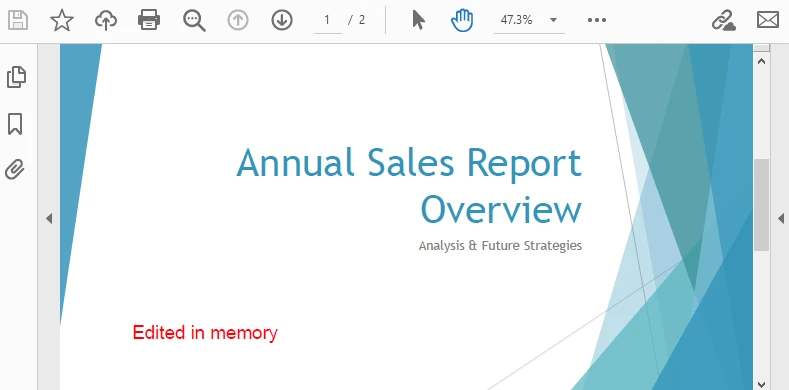
Scenario & approach: we’ll load a PDF from bytes, draw a small text annotation on page 1 (stand-in for any edit operation), and emit the edited document as a fresh byte array.
using Spire.Pdf;
using Spire.Pdf.Graphics;
using System.Drawing;
using System.IO;

class Program
{
    static void Main()
    {
        // Source could be DB, API, or file — represented as byte[]
        byte[] inputBytes = File.ReadAllBytes("Input.pdf");

        // 1) Load in memory
        var doc = new PdfDocument();
        doc.LoadFromBytes(inputBytes);

        // 2) Edit: write a small marker on the first page
        PdfPageBase page = doc.Pages[0];
        page.Canvas.DrawString(
            "Edited in memory",
            new PdfFont(PdfFontFamily.Helvetica, 12f),
            PdfBrushes.DarkBlue,
            new PointF(100, page.Size.Height - 100)
        );

        // 3) Save the edited PDF back to byte[]
        byte[] editedBytes;
        using (var ms = new MemoryStream())
        {
            doc.SaveToStream(ms);
            editedBytes = ms.ToArray();
        }

        doc.Close();

        // editedBytes can now be persisted or returned by an API
    }
}
The image below shows the edited PDF page:
After-code insights:
- The same pattern works for text, images, watermarks, annotations, and form fields.
- Keep edits idempotent (e.g., check if you already stamped a page) for safe reprocessing.
- For ASP.NET, this is ideal for on-the-fly stamping or conditional redaction before returning the response.
For a step-by-step tutorial on building a PDF from scratch, see our article on creating PDF documents in C#.
Advantages of Using Spire.PDF for .NET
A concise view of why this API pairs well with byte-array workflows:
| Concern | What you get with Spire.PDF for .NET |
|---|---|
| I/O flexibility | Load/save from file path, Stream, or byte[] with the same PdfDocument API. |
| In-memory editing | Draw text/images, manage annotations/forms, watermark, and more—no temp files. |
| Service-friendly | Clean integration with ASP.NET endpoints and background workers. |
| Scales to real docs | Handles multi-page PDFs; you control memory via streams. |
| Straightforward code | Minimal boilerplate; avoids manual byte fiddling and fragile interop. |
Conclusion
You’ve seen how to convert byte array to PDF in C#, how to convert PDF to byte array, and how to edit a PDF directly from memory—all with concise code. Keeping everything in streams and byte[] simplifies API design, accelerates response times, and plays nicely with databases and cloud hosting. Spire.PDF for .NET gives you a consistent, fileless workflow that’s easy to extend from quick conversions to full in-memory document processing.
If you want to try these features without limitations, you can request a free 30-day temporary license. Alternatively, you can explore Free Spire.PDF for .NET for lightweight PDF tasks.
FAQ
Can I create a PDF from a byte array in C# without saving to disk?
Yes. Load from byte[] with LoadFromBytes, then either save to a MemoryStream or return it directly from an API—no disk required.
How do I convert PDF to byte array in C# for database storage?
Use SaveToStream on PdfDocument and call ToArray() on the MemoryStream. Store that byte[] as a BLOB (or forward it to another service).
Can I edit a PDF that only exists as a byte array?
Absolutely. Load from bytes, apply edits (text, images, watermarks, annotations, form fill), then save the result back to a new byte[].
Any tips for performance and reliability?
Dispose streams promptly, reuse buffers when appropriate, and create a new PdfDocument per operation/thread. For large files, stream I/O keeps memory usage predictable.
Read CSV Files in Java Efficiently: Step-by-Step Examples
CSV (Comma-Separated Values) remains a universal format for data exchange due to its simplicity, readability, and wide compatibility across platforms. If you're looking for a robust and efficient method to read CSV in Java, the Spire.XLS for Java library offers a powerful and straightforward solution.
This guide will walk you through how to use Java to load and read CSV files, as well as convert them into structured DataTables for seamless data manipulation and analysis in your applications.
- Why Choose Spire.XLS for Java to Parse CSV Files?
- Step-by-Step: Read a CSV File in Java
- Advanced: Read CSV into DataTable in Java
- Frequently Asked Questions
- Conclusion
Why Choose Spire.XLS for Java to Parse CSV Files?
Compared with other CSV parser in Java, Spire.XLS offers several advantages for CSV processing:
- Simplified API for reading CSV files
- Support for custom delimiters (not just commas)
- Built-in range detection to avoid empty rows/columns
- Natively converts CSV data to DataTable
- Seamlessly switch between CSV, XLS, and XLSX formats
Step-by-Step: Read a CSV File in Java
Spire.XLS for Java provides the Workbook class to load CSV files and the Worksheet class to access data. Below are the steps to read CSV files line by line with automatic delimiter detection:
1. Setup and Dependencies
First, ensure you have Spire.XLS for Java included in your project. You can add it via Maven by including the following dependency:
<repositories>
    <repository>
        <id>com.e-iceblue</id>
        <name>e-iceblue</name>
        <url>https://repo.e-iceblue.com/nexus/content/groups/public/</url>
    </repository>
</repositories>
<dependencies>
    <dependency>
        <groupId>e-iceblue</groupId>
        <artifactId>spire.xls</artifactId>
        <version>16.8.4</version>
    </dependency>
</dependencies>
2. Load the CSV File
Spire.XLS for Java loads CSV files into a Workbook object, where each CSV row becomes a worksheet row.
import com.spire.xls.*;

public class ReadCSV {
    public static void main(String[] args) {
        // Create Workbook instance
        Workbook workbook = new Workbook();

        // Load CSV file (specify delimiter)
        workbook.loadFromFile("sample.csv", ",", 1, 1);
    }
}
Parameters:
The loadFromFile() method accepts four parameters:
- "sample.csv": The input CSV file path.
- ", ": Custom delimiter (e.g."," ";" or "\t").
- 1: Start row index.
- 1: Start column index.
3. Access Worksheet & Read CSV Data
Spire.XLS treats CSV files as single-worksheet workbooks, so we access the first worksheet and then iterate through rows/columns:
// Get the first worksheet
Worksheet sheet = workbook.getWorksheets().get(0);

// Get the used range (avoids iterating over empty rows/columns)
CellRange dataRange = sheet.getAllocatedRange();

//Iterate through the rows
for (int i = 0; i < dataRange.getRowCount(); i++) {

    //Iterate through the columns
    for (int j = 0; j < dataRange.getColumnCount(); j++) {
        // Get cell text
        CellRange cell = dataRange.get(i+1,j+1);
        System.out.print(cell.getText() + "\t"); // Use tab to separate columns
    }
    System.out.println(); // New line per row
Output: Read data from a CSV file and print out with tab separation for readability.

Advanced: Read CSV into DataTable in Java
For structured data manipulation, converting CSV to a DataTable is invaluable. A DataTable organizes data into rows and columns, making it easy to query, filter, or integrate with databases.
Java code to read a CSV file and export to a DataTable:
import com.spire.xls.*;
import com.spire.xls.data.table.DataTable;

public class CSVtoDataTable {
    public static void main(String[] args) {

        // Create a workbook and load a csv file
        Workbook workbook = new Workbook();
        workbook.loadFromFile("sample.csv", ",", 1, 1);

        // Get the first worksheet
        Worksheet sheet = workbook.getWorksheets().get(0);

        // Export to DataTable
        DataTable dataTable = sheet.exportDataTable();

        // Get row and column count
        System.out.println("Total columns: " + dataTable.getColumns().size());
        System.out.println("Total rows: " + dataTable.getRows().size());
        System.out.println();

        // Print column names
        for (int i = 0; i < dataTable.getColumns().size(); i++) {
            System.out.print(dataTable.getColumns().get(i).getColumnName() + "  | ");
        }
        System.out.println();
        System.out.println("----------------------------------------------------------");
        // Print rows
        for (int i = 0; i < dataTable.getRows().size(); i++) {
            for (int j = 0; j < dataTable.getColumns().size(); j++) {
                System.out.print(dataTable.getRows().get(i).getString(j) + "\t");
            }
            System.out.println();
        }
    }
}
Key Explanations:
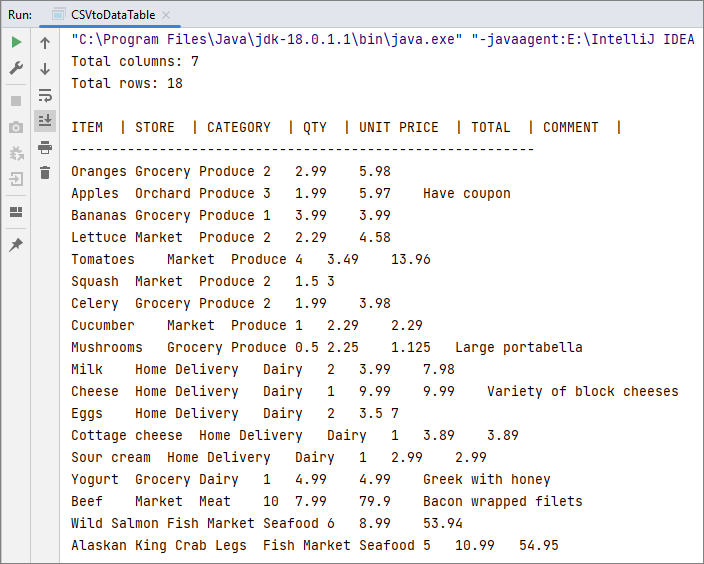
- exportDataTable(): convert CSV data into a DataTable directly, no manual row/column mapping required.
- DataTable Benefits: Easily access basic information such as column count, row count, column names, and row data etc.
Output:
You may also read: Convert CSV to Excel in Java
Frequently Asked Questions
Q1: How do I handle CSV files with different delimiters (semicolon, tab, etc.)?
A: Specify the delimiter in the loadFromFile() method:
// For semicolon-delimited files
workbook.loadFromFile("sample.csv", ";", 0, 0);

// For tab-delimited files
workbook.loadFromFile("sample.csv", "\t", 0, 0);

// For pipe-delimited files
workbook.loadFromFile("sample.csv", "|", 0, 0);
Q2: How do I skip header rows in a CSV file?
A: You can skip header rows by iterating from the second row. For example, if your CSV has 2 header rows (rows 1 and 2) and data starts at row 3:
// Start reading from the third row
for (int i = 2; i < dataRange.getRowCount(); i++) {
    for (int j = 0; j < dataRange.getColumnCount(); j++) {
        // Convert 0-based loop index to Spire.XLS's 1-based cell index
        CellRange cell = dataRange.get(i + 1, j + 1);
        System.out.print(cell.getText() + "\t");
Q3. Can I export a specific range of a CSV to a DataTable?
A: Yes. Spire.XLS lets you define a precise cell range and export it to a DataTable with the exportDataTable(CellRange range, boolean exportColumnNames) method.
Conclusion
Spire.XLS for Java simplifies CSV file reading in Java, offering a robust alternative to manual parsing or basic libraries. Whether you need to read a simple CSV, or convert it to a structured DataTable, this guide provides the corresponding examples to help you implement CSV parsing efficiently.
For more advanced features (e.g., exporting to PDF), check the Spire.XLS for Java Documentation.
Spire.XLS for Java 15.8.3 supports converting Excel to HTML while preserving comments
We're pleased to announce the release of Spire.XLS for Java 15.8.3. This version adds support for converting Excel files to HTML while preserving comments. Additionally, it includes several bug fixes related to Excel-to-PDF conversion, column widths, and HTML conversion. See the details below.
Here is a list of changes made in this release
| Category | ID | Description |
| New feature | SPIREXLS-5879 | Supports converting Excel to HTML while preserving comments.
HTMLOptions options = new HTMLOptions(); options.isSaveComment(true); |
| Bug | SPIREXLS-5820 | Fixes incorrect checkboxes when converting Excel to PDF. |
| Bug | SPIREXLS-5887 | Fixes the issue where non-compliant defaultColWidthPt attribute was added when saving Excel documents according to the OpenXML specification. |
| Bug | SPIREXLS-5897 | Fixes incorrect conversion of plain text to `<a>` tag content when converting a worksheet to HTML. |
| Bug | SPIREXLS-5901 | Fixes incorrect text alignment when converting Excel to PDF. |
| Bug | SPIREXLS-5905 | Fixes text truncation issues when converting Excel to PDF. |
| Bug | SPIREXLS-5906 | Fixes incorrect column widths when converting XLSX to XLSM. |
| Bug | SPIREXLS-5916 | Fixes "NullPointerException" thrown when saving Excel documents. |
How to Read CSV Files in Python: A Comprehensive Guide
In development, reading CSV files in Python is a common task in data processing, analytics, and backend integration. While Python offers built-in modules like csv and pandas for handling CSV files, Spire.XLS for Python provides a powerful, feature-rich alternative for working with CSV and Excel files programmatically.
In this article, you’ll learn how to use Python to read CSV files, from basic CSV parsing to advanced techniques.
- Getting Started with Spire.XLS for Python
- Basic Example: Read a CSV in Python
- Advanced CSV Reading Techniques
- Conclusion
Getting Started with Spire.XLS for Python
Spire.XLS for Python is a feature-rich library for processing Excel and CSV files. Unlike basic CSV parsers in Python, it offers advanced capabilities such as:
- Simple API to load, read, and manipulate CSV data.
- Reading/writing CSV files with support for custom delimiters.
- Converting CSV files to Excel formats (XLSX, XLS) and vice versa.
These features make Spire.XLS ideal for data analysts, developers, and anyone working with structured data in CSV format.
Install via pip
Before getting started, install the library via pip. It works with Python 3.6+ on Windows, macOS, and Linux:
pip install Spire.XLS
Basic Example: Read a CSV in Python
Let’s start with a simple example: parsing a CSV file and extracting its data. Suppose we have a CSV file named “input.csv” with the following content:
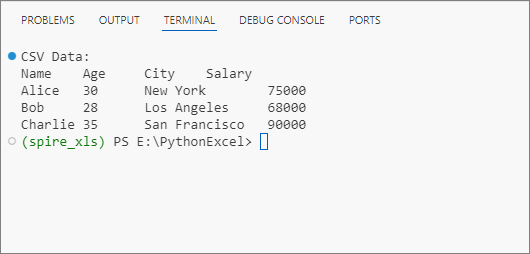
Name,Age,City,Salary
Alice,30,New York,75000
Bob,28,Los Angeles,68000
Charlie,35,San Francisco,90000
Python Code to Read the CSV File
Here’s how to load and get data from the CSV file with Python:
from spire.xls import *
from spire.xls.common import *

# Create a Workbook object
workbook = Workbook()

# Load a CSV file
workbook.LoadFromFile("input.csv", ",", 1, 1)

# Get the first worksheet (CSV files are loaded as a single sheet)
worksheet = workbook.Worksheets[0]

# Get the number of rows and columns with data
row_count = worksheet.LastRow
col_count = worksheet.LastColumn

# Iterate through rows and columns to print data
print("CSV Data:")
for row in range(row_count):
    for col in range(col_count):
        # Get cell value
        cell_value = worksheet.Range[row+1, col+1].Value
        print(cell_value, end="\t")
    print()  # New line after each row

# Close the workbook
workbook.Dispose()
Explanation:
-
Workbook Initialization: The Workbook class is the core object for handling Excel files.
-
Load CSV File: LoadFromFile() imports the CSV data. Its parameters are:
- fileName: The CSV file to read.
- separator: Specified delimiter (e.g., “,”).
- row/column: The starting row/column index.
-
Access Worksheet: The CSV data is loaded into the first worksheet.
-
Read Data: Iterate through rows and columns to extract cell values via worksheet.Range[].Value.
Output: Get data from a CSV file and print in a tabular format.
Advanced CSV Reading Techniques
1. Read CSV with Custom Delimiters
Not all CSVs use commas. If your CSV file uses a different delimiter (e.g., ;), specify it during loading:
# Load a CSV file
workbook.LoadFromFile("input.csv", ";", 1, 1)
2. Skip Header Rows
If your CSV has headers, skip them by adjusting the row iteration to start from the second row instead of the first.
for row in range(1, row_count):
    for col in range(col_count):
        # Get cell value (row+1 because Spire.XLS uses 1-based indexing)
        cell_value = worksheet.Range[row+1, col+1].Value
        print(cell_value, end="\t")
3. Convert CSV to Excel in Python
One of the most powerful features of Spire.XLS is the ability to convert a CSV file into a native Excel format effortlessly. For example, you can read a CSV and then:
- Apply Excel formatting (e.g., set cell colors, borders).
- Create charts (e.g., a bar chart for sales by region).
- Save the data as an Excel file (.xlsx) for sharing.
Code Example: Convert CSV to Excel (XLSX) in Python – Single & Batch
Conclusion
Reading CSV files in Python with Spire.XLS simplifies both basic and advanced data processing tasks. Whether you need to extract CSV data, convert it to Excel, or handle advanced scenarios like custom delimiters, the examples outlined in this guide enables you to implement robust CSV reading capabilities in your projects with minimal effort.
Try the examples above, and explore the online documentation for more advanced features!
Base64 a PDF e PDF a Base64 in Java (solo JDK + Pro)
Tabla de contenidos
Instalar con Maven
<dependency>
    <groupId>e-iceblue</groupId>
    <artifactId>spire.pdf</artifactId>
    <version>11.8.3</version>
</dependency>
Enlaces relacionados
Al trabajar con archivos PDF en Java, a menudo es necesario convertir entre datos binarios y formatos basados en texto. La codificación Base64 permite que el contenido de un PDF se represente como texto sin formato, lo cual es útil al transmitir documentos en JSON, enviarlos a través de envíos de formularios o almacenarlos en sistemas basados en texto. La biblioteca estándar de Java proporciona java.util.Base64, lo que facilita la implementación de conversiones tanto de Base64 a PDF como de PDF a Base64 sin dependencias adicionales.
En este tutorial, exploraremos cómo manejar estas conversiones usando solo el JDK, así como cómo trabajar con imágenes Base64 e incrustarlas en archivos PDF. Para operaciones más avanzadas, como editar un PDF recibido como Base64 y exportarlo de nuevo, demostraremos el uso de Free Spire.PDF for Java.
Tabla de contenidos
- Convertir Base64 a PDF en Java (solo JDK)
- Convertir PDF a Base64 en Java (solo JDK)
- Consejos de validación y seguridad
- Guardar imágenes Base64 como PDF en Java
- Cargar PDF Base64, modificar y guardar de nuevo como Base64
- Consideraciones de rendimiento y memoria
- Preguntas frecuentes
Convertir Base64 a PDF en Java (solo JDK)
El enfoque más simple es leer una cadena Base64 en la memoria, eliminar cualquier prefijo opcional (como data:application/pdf;base64,) y luego decodificarla en un PDF. Esto funciona bien para archivos de tamaño pequeño a mediano.
import java.nio.file.*;
import java.nio.charset.StandardCharsets;
import java.util.Base64;

public class Base64ToPdf {
    public static void main(String[] args) throws Exception {
        // Leer texto Base64 de un archivo (o cualquier otra fuente)
        String base64 = Files.readString(Paths.get("sample.pdf.b64"), StandardCharsets.UTF_8);

        // Eliminar prefijos comunes de URI de datos si están presentes
        base64 = stripDataPrefix(base64);

        // Decodificar Base64 en bytes de PDF sin procesar
        // El decodificador MIME tolera saltos de línea y texto ajustado
        byte[] pdfBytes = Base64.getMimeDecoder().decode(base64);

        // Escribir los bytes decodificados en un archivo PDF
        Files.write(Paths.get("output.pdf"), pdfBytes);
    }

    /** Utilidad para eliminar "data:application/pdf;base64," si está incluido */
    private static String stripDataPrefix(String src) {
        String s = src.trim();
        int comma = s.indexOf(',');
        if (comma > 0 && s.substring(0, comma).toLowerCase().contains("base64")) {
            return s.substring(comma + 1).trim();
        }
        return s;
    }
}
Explicación Este ejemplo es sencillo y fiable para contenido Base64 que cabe cómodamente en la memoria. Se elige Base64.getMimeDecoder() porque maneja con elegancia los saltos de línea, que son comunes en el texto Base64 exportado desde sistemas de correo electrónico o API. Si sabe que su cadena Base64 no contiene saltos de línea, también podría usar Base64.getDecoder().
Asegúrese de eliminar cualquier prefijo de URI de datos (data:application/pdf;base64,) antes de decodificar, ya que no forma parte de la carga útil de Base64. El método de ayuda stripDataPrefix() lo hace automáticamente.
Variante de transmisión (sin la cadena completa en memoria)
Para archivos PDF grandes, es mejor procesar Base64 de forma continua. Esto evita cargar toda la cadena Base64 en la memoria de una sola vez.
import java.io.*;
import java.nio.file.*;
import java.util.Base64;

public class Base64ToPdfStreamed {
    public static void main(String[] args) throws Exception {
        // Entrada: archivo de texto que contiene PDF codificado en Base64
        Path in = Paths.get("sample.pdf.b64");

        // Salida: archivo PDF decodificado
        Path out = Paths.get("output.pdf");

        // Envolver el decodificador Base64 alrededor del flujo de entrada
        try (InputStream b64In = Base64.getMimeDecoder().wrap(Files.newInputStream(in));
             OutputStream pdfOut = Files.newOutputStream(out)) {

            // Transmitir los bytes decodificados directamente a la salida del PDF
            b64In.transferTo(pdfOut);
        }
    }
}
Explicación Este enfoque basado en la transmisión es más eficiente en cuanto a la memoria, ya que decodifica los datos sobre la marcha en lugar de almacenar en búfer toda la cadena. Es el método recomendado para archivos grandes o flujos continuos (por ejemplo, sockets de red).
- Se utiliza Base64.getMimeDecoder() para tolerar los saltos de línea en la entrada.
- El método transferTo() copia eficientemente los bytes decodificados de la entrada a la salida sin manejo manual del búfer.
- En el uso en el mundo real, considere agregar manejo de excepciones para gestionar errores de acceso a archivos o escrituras parciales.
Convertir PDF a Base64 en Java (solo JDK)
Codificar un PDF en Base64 es igual de simple. Para archivos más pequeños, leer todo el PDF en la memoria está bien:
import java.nio.file.*;
import java.util.Base64;

public class PdfToBase64 {
    public static void main(String[] args) throws Exception {
        // Leer el archivo PDF en un array de bytes
        byte[] pdfBytes = Files.readAllBytes(Paths.get("input.pdf"));

        // Codificar los bytes del PDF como una cadena Base64
        String base64 = Base64.getEncoder().encodeToString(pdfBytes);

        // Escribir la cadena Base64 en un archivo de texto
        Files.writeString(Paths.get("output.pdf.b64"), base64);
    }
}
Explicación Este enfoque es simple y funciona bien para archivos de tamaño pequeño o mediano. Todo el PDF se lee en un array de bytes y se codifica como una única cadena Base64. Esta cadena se puede almacenar, transmitir en JSON o incrustar en un URI de datos.
Codificador de transmisión (maneja archivos grandes de manera eficiente)
Para archivos PDF grandes, puede evitar la sobrecarga de memoria codificando directamente como un flujo:
import java.io.*;
import java.nio.file.*;
import java.util.Base64;

public class PdfToBase64Streamed {
    public static void main(String[] args) throws Exception {
        // Entrada: archivo PDF binario
        try (InputStream pdfIn = Files.newInputStream(Paths.get("input.pdf"));
             // Flujo de salida sin procesar para el archivo de texto Base64
             OutputStream rawOut = Files.newOutputStream(Paths.get("output.pdf.b64"));
             // Envolver el flujo de salida con el codificador Base64
             OutputStream b64Out = Base64.getEncoder().wrap(rawOut)) {

            // Transmitir los bytes del PDF directamente a la salida codificada en Base64
            pdfIn.transferTo(b64Out);
        }
    }
}
Explicación El codificador de transmisión maneja eficientemente archivos grandes codificando datos de forma incremental en lugar de cargar todo en la memoria. El método Base64.getEncoder().wrap() convierte un flujo de salida regular en uno que escribe texto Base64 automáticamente.
Este diseño se escala mejor para archivos PDF grandes, flujos de red o servicios que deben manejar muchos documentos simultáneamente sin sufrir presión de memoria.
Consejos de validación y seguridad
- Detectar URIs de datos: los usuarios pueden enviar prefijos data:application/pdf;base64,. Elimínelos antes de decodificar.
- Saltos de línea: al decodificar texto que puede contener líneas ajustadas (correos electrónicos, registros), use Base64.getMimeDecoder().
- Comprobación rápida de cordura: después de decodificar, los primeros bytes de un PDF válido generalmente comienzan con %PDF-. Puede afirmar esto para una detección temprana de fallas.
- Codificación de caracteres: trate el texto Base64 como UTF-8 (o US-ASCII) al leer/escribir archivos .b64.
- Manejo de errores: envuelva la decodificación/codificación en try/catch y muestre mensajes procesables (por ejemplo, tamaño, discrepancia de encabezado).
Guardar imágenes Base64 como PDF en Java
A veces recibe imágenes (por ejemplo, PNG o JPEG) como cadenas Base64 y necesita envolverlas en un PDF. Si bien la biblioteca estándar de Java no tiene API de PDF, Free Spire.PDF for Java lo hace sencillo.
Puede descargar Free Spire.PDF for Java y agregarlo a su proyecto o instalar Free Spire.PDF for Java desde el repositorio de Maven.
Conceptos clave de Spire.PDF
- PdfDocument: el contenedor de una o más páginas PDF.
- PdfPageBase: representa una página en la que se puede dibujar.
- PdfImage.fromImage(): carga una BufferedImage o un flujo en una imagen PDF dibujable.
- drawImage(): coloca la imagen en las coordenadas y el tamaño especificados.
- Sistema de coordenadas: Spire.PDF utiliza un sistema de coordenadas donde (0,0) es la esquina superior izquierda.
Ejemplo: Convertir imagen Base64 a PDF usando Java
import com.spire.pdf.PdfDocument;
import com.spire.pdf.PdfPageBase;
import com.spire.pdf.graphics.PdfImage;

import java.io.*;
import java.nio.charset.StandardCharsets;
import java.nio.file.*;
import java.util.Base64;

public class Base64ImageToPdf {
    public static void main(String[] args) throws Exception {
        // 1) Leer archivo Base64 y decodificar (eliminar prefijo de URI de datos si existe)
        String base64Image = Files.readString(Paths.get("G:/Document/image.b64"), StandardCharsets.UTF_8).trim();
        int comma = base64Image.indexOf(',');
        if (comma > 0 && base64Image.substring(0, comma).toLowerCase().contains("base64")) {
            base64Image = base64Image.substring(comma + 1).trim();
        }
        byte[] imageBytes = Base64.getMimeDecoder().decode(base64Image);

        // 2) Crear PDF e insertar la imagen
        PdfDocument pdf = new PdfDocument();
        try (ByteArrayInputStream in = new ByteArrayInputStream(imageBytes)) {
            PdfImage img = PdfImage.fromStream(in);
            pdf.getPageSettings().setWidth(img.getWidth());
            pdf.getPageSettings().setHeight(img.getHeight());
            pdf.getPageSettings().setMargins(0, 0, 0, 0);
            PdfPageBase page = pdf.getPages().add();
            page.getCanvas().drawImage(img, 0, 0);
        }

        // 3) Guardar archivo PDF
        pdf.saveToFile("output/image.pdf");
    }
}
El siguiente ejemplo decodifica una imagen Base64 y la incrusta en una página PDF. El resultado se ve así:
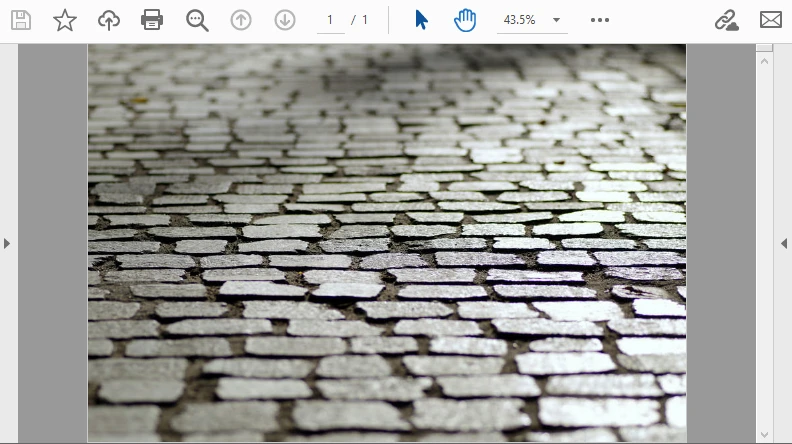
Este flujo de trabajo es ideal para incrustar documentos escaneados o firmas que llegan como Base64.
Para gráficos vectoriales, también puede consultar nuestra guía sobre conversión de SVG a PDF en Java.
Cargar PDF Base64, modificar y guardar de nuevo como Base64
En muchas API, un PDF llega como Base64. Con Spire.PDF puede cargarlo, dibujar en las páginas (texto/marcas de agua) y devolverlo de nuevo como Base64, ideal para funciones sin servidor o microservicios.
Conceptos clave de Spire.PDF utilizados aquí
- PdfDocument.loadFromBytes(byte[]): construye un documento directamente a partir de bytes decodificados.
- PdfPageBase#getCanvas(): obtiene una superficie de dibujo para colocar texto, formas o imágenes.
- Fuentes y pinceles: por ejemplo, PdfTrueTypeFont o fuentes integradas a través de PdfFont, con PdfSolidBrush para colorear.
- Guardar en memoria: pdf.saveToStream(ByteArrayOutputStream) produce bytes sin procesar, que puede volver a codificar con Base64.
Ejemplo: Cargar, modificar y guardar PDF Base64 en Java
import com.spire.pdf.*;
import com.spire.pdf.graphics.*;

import java.awt.*;
import java.io.*;
import java.util.Base64;

public class EditBase64Pdf {
    public static void main(String[] args) throws Exception {
        String base64Pdf = "..."; // cadena de PDF Base64 entrante

        // Decodificar a bytes
        byte[] pdfBytes = Base64.getDecoder().decode(base64Pdf);

        // Cargar PDF
        PdfDocument pdf = new PdfDocument();
        pdf.loadFromBytes(pdfBytes);

        // Agregar sello en cada página
        for (PdfPageBase page : (Iterable<PdfPageBase>) pdf.getPages()) {
            PdfTrueTypeFont font = new PdfTrueTypeFont(new Font("Arial", Font.BOLD, 36));
            PdfSolidBrush brush = new PdfSolidBrush(new PdfRGBColor(Color.BLUE));
            page.getCanvas().drawString("Procesado", font, brush, 100, 100);
        }

        // Guardar en memoria y volver a codificar a Base64
        ByteArrayOutputStream output = new ByteArrayOutputStream();
        pdf.saveToStream(output);
        pdf.close();

        String resultBase64 = Base64.getEncoder().encodeToString(output.toByteArray());
        System.out.println(resultBase64);
    }
}
En este ejemplo, se agrega una marca de agua azul "Procesado" a cada página del PDF antes de volver a codificarlo en Base64. El resultado se ve así:
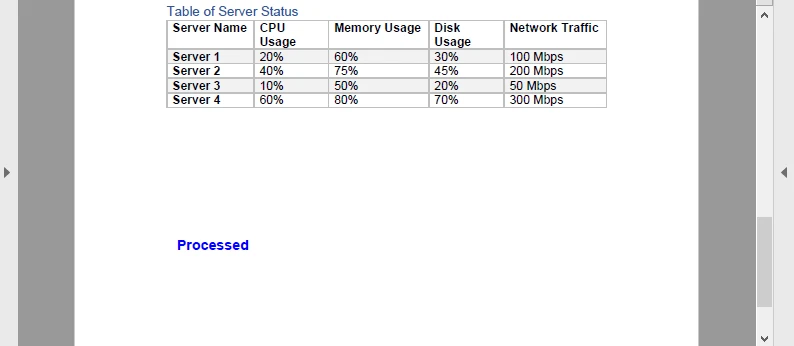
Este viaje de ida y vuelta (Base64 → PDF → Base64) es útil para pipelines de documentos, como sellar facturas o agregar firmas dinámicas en un servicio en la nube.
Tutoriales relacionados:
Extraer texto de PDF en Java | Crear documentos PDF en Java
Consideraciones de rendimiento y memoria
- Transmisión frente a E/S de archivos: al tratar con Base64, prefiera ByteArrayInputStream y ByteArrayOutputStream para evitar archivos temporales innecesarios.
- PDF con muchas imágenes: la decodificación de imágenes Base64 puede aumentar el uso de la memoria; considere escalar o comprimir antes de incrustar.
- PDF grandes: Spire.PDF maneja PDF de varios MB, pero para documentos muy grandes considere el procesamiento página por página.
- Funciones sin servidor: los flujos de trabajo de Base64 encajan bien porque se evita la dependencia del sistema de archivos y se devuelven los resultados directamente a través de las respuestas de la API.
Preguntas frecuentes
P: ¿Puedo convertir Base64 a PDF usando solo el JDK?
Sí. Java SE proporciona utilidades de Base64 y E/S de archivos, por lo que puede manejar la conversión sin bibliotecas adicionales.
P: ¿Puedo editar un PDF con la biblioteca estándar de Java?
No. Java SE no admite el análisis ni la representación de la estructura de PDF. Para editar, use una biblioteca dedicada como Spire.PDF for Java.
P: ¿Es suficiente Free Spire.PDF for Java?
Sí. Free Spire.PDF for Java tiene un tamaño de documento limitado, pero es suficiente para pruebas o proyectos a pequeña escala.
P: ¿Necesito guardar los PDF en el disco?
No siempre. La conversión también se puede ejecutar en memoria usando flujos, lo que a menudo se prefiere para API y aplicaciones en la nube.
Véase también
Base64 para PDF e PDF para Base64 em Java (somente JDK + Pro)
Índice
Instalar com Maven
<dependency>
    <groupId>e-iceblue</groupId>
    <artifactId>spire.pdf</artifactId>
    <version>11.8.3</version>
</dependency>
Links Relacionados
Ao trabalhar com arquivos PDF em Java, muitas vezes é necessário converter entre dados binários e formatos baseados em texto. A codificação Base64 permite que o conteúdo do PDF seja representado como texto simples, o que é útil ao transmitir documentos em JSON, enviá-los por meio de formulários ou armazená-los em sistemas baseados em texto. A biblioteca padrão do Java fornece java.util.Base64, tornando simples a implementação de conversões de Base64 para PDF e PDF para Base64 sem dependências adicionais.
Neste tutorial, exploraremos como lidar com essas conversões usando apenas o JDK, bem como como trabalhar com imagens Base64 e incorporá-las em PDFs. Para operações mais avançadas, como editar um PDF recebido como Base64 e exportá-lo de volta, demonstraremos o uso do Free Spire.PDF for Java.
Índice
- Converter Base64 para PDF em Java (apenas JDK)
- Converter PDF para Base64 em Java (apenas JDK)
- Dicas de Validação e Segurança
- Salvar Imagens Base64 como PDF em Java
- Carregar PDF Base64, Modificar e Salvar de Volta como Base64
- Considerações de Desempenho e Memória
- FAQ
Converter Base64 para PDF em Java (apenas JDK)
A abordagem mais simples é ler uma string Base64 na memória, remover quaisquer prefixos opcionais (como data:application/pdf;base64,) e, em seguida, decodificá-la em um PDF. Isso funciona bem para arquivos de pequeno a médio porte.
import java.nio.file.*;
import java.nio.charset.StandardCharsets;
import java.util.Base64;

public class Base64ToPdf {
    public static void main(String[] args) throws Exception {
        // Ler texto Base64 de um arquivo (ou qualquer outra fonte)
        String base64 = Files.readString(Paths.get("sample.pdf.b64"), StandardCharsets.UTF_8);

        // Remover prefixos de URI de dados comuns, se presentes
        base64 = stripDataPrefix(base64);

        // Decodificar Base64 em bytes de PDF brutos
        // O decodificador MIME tolera quebras de linha e texto quebrado
        byte[] pdfBytes = Base64.getMimeDecoder().decode(base64);

        // Escrever os bytes decodificados em um arquivo PDF
        Files.write(Paths.get("output.pdf"), pdfBytes);
    }

    /** Utilitário para remover o prefixo "data:application/pdf;base64,", se incluído */
    private static String stripDataPrefix(String src) {
        String s = src.trim();
        int comma = s.indexOf(',');
        if (comma > 0 && s.substring(0, comma).toLowerCase().contains("base64")) {
            return s.substring(comma + 1).trim();
        }
        return s;
    }
}
Explicação Este exemplo é direto e confiável para conteúdo Base64 que cabe confortavelmente na memória. O Base64.getMimeDecoder() é escolhido porque lida elegantemente com quebras de linha, que são comuns em texto Base64 exportado de sistemas de e-mail ou APIs. Se você sabe que sua string Base64 não contém novas linhas, também pode usar Base64.getDecoder().
Certifique-se de remover qualquer prefixo de URI de dados (data:application/pdf;base64,) antes de decodificar, pois não faz parte da carga útil do Base64. O método auxiliar stripDataPrefix() faz isso automaticamente.
Variante de streaming (sem a string completa na memória)
Para PDFs grandes, é melhor processar o Base64 de forma contínua. Isso evita carregar toda a string Base64 na memória de uma vez.
import java.io.*;
import java.nio.file.*;
import java.util.Base64;

public class Base64ToPdfStreamed {
    public static void main(String[] args) throws Exception {
        // Entrada: arquivo de texto contendo PDF codificado em Base64
        Path in = Paths.get("sample.pdf.b64");

        // Saída: arquivo PDF decodificado
        Path out = Paths.get("output.pdf");

        // Envolver o decodificador Base64 em torno do fluxo de entrada
        try (InputStream b64In = Base64.getMimeDecoder().wrap(Files.newInputStream(in));
             OutputStream pdfOut = Files.newOutputStream(out)) {

            // Transmitir os bytes decodificados diretamente para a saída do PDF
            b64In.transferTo(pdfOut);
        }
    }
}
Explicação Essa abordagem baseada em streaming é mais eficiente em termos de memória, pois decodifica os dados em tempo real, em vez de armazenar a string inteira em buffer. É o método recomendado para arquivos grandes ou fluxos contínuos (por exemplo, soquetes de rede).
- Base64.getMimeDecoder() é usado para tolerar quebras de linha na entrada.
- O método transferTo() copia eficientemente os bytes decodificados da entrada para a saída sem o manuseio manual do buffer.
- No uso real, considere adicionar tratamento de exceções para gerenciar erros de acesso a arquivos ou gravações parciais.
Converter PDF para Base64 em Java (apenas JDK)
Codificar um PDF em Base64 é igualmente simples. Para arquivos menores, ler o PDF inteiro na memória é suficiente:
import java.nio.file.*;
import java.util.Base64;

public class PdfToBase64 {
    public static void main(String[] args) throws Exception {
        // Ler o arquivo PDF em um array de bytes
        byte[] pdfBytes = Files.readAllBytes(Paths.get("input.pdf"));

        // Codificar os bytes do PDF como uma string Base64
        String base64 = Base64.getEncoder().encodeToString(pdfBytes);

        // Escrever a string Base64 em um arquivo de texto
        Files.writeString(Paths.get("output.pdf.b64"), base64);
    }
}
Explicação Essa abordagem é simples e funciona bem para arquivos de pequeno a médio porte. O arquivo PDF inteiro é lido em um array de bytes e codificado como uma única string Base64. Essa string pode ser armazenada, transmitida em JSON ou incorporada em uma URI de dados.
Codificador de streaming (lida com arquivos grandes de forma eficiente)
Para PDFs grandes, você pode evitar a sobrecarga de memória codificando diretamente como um fluxo:
import java.io.*;
import java.nio.file.*;
import java.util.Base64;

public class PdfToBase64Streamed {
    public static void main(String[] args) throws Exception {
        // Entrada: arquivo PDF binário
        try (InputStream pdfIn = Files.newInputStream(Paths.get("input.pdf"));
             // Fluxo de saída bruto para arquivo de texto Base64
             OutputStream rawOut = Files.newOutputStream(Paths.get("output.pdf.b64"));
             // Envolver o fluxo de saída com o codificador Base64
             OutputStream b64Out = Base64.getEncoder().wrap(rawOut)) {

            // Transmitir bytes de PDF diretamente para a saída codificada em Base64
            pdfIn.transferTo(b64Out);
        }
    }
}
Explicação O codificador de streaming lida eficientemente com arquivos grandes, codificando os dados de forma incremental em vez de carregar tudo na memória. O método Base64.getEncoder().wrap() transforma um fluxo de saída regular em um que grava texto Base64 automaticamente.
Este design escala melhor para PDFs grandes, fluxos de rede ou serviços que devem lidar com muitos documentos simultaneamente sem sofrer pressão de memória.
Dicas de Validação e Segurança
- Detectar URIs de Dados: os usuários podem enviar prefixos data:application/pdf;base64,. Remova-os antes de decodificar.
- Quebras de linha: ao decodificar texto que pode conter linhas quebradas (e-mails, logs), use Base64.getMimeDecoder().
- Verificação rápida de sanidade: após a decodificação, os primeiros bytes de um PDF válido geralmente começam com %PDF-. Você pode verificar isso para detecção precoce de falhas.
- Codificação de caracteres: trate o texto Base64 como UTF-8 (ou US-ASCII) ao ler/escrever arquivos .b64.
- Tratamento de erros: envolva a decodificação/codificação em blocos try/catch e exiba mensagens acionáveis (por exemplo, tamanho, incompatibilidade de cabeçalho).
Salvar Imagens Base64 como PDF em Java
Às vezes, você recebe imagens (por exemplo, PNG ou JPEG) como strings Base64 e precisa envolvê-las em um PDF. Embora a biblioteca padrão do Java não tenha APIs de PDF, o Free Spire.PDF for Java torna isso simples.
Você pode baixar o Free Spire.PDF for Java e adicioná-lo ao seu projeto ou instalar o Free Spire.PDF for Java a partir do repositório Maven.
Conceitos-chave do Spire.PDF
- PdfDocument — o contêiner para uma ou mais páginas de PDF.
- PdfPageBase — representa uma página na qual você pode desenhar.
- PdfImage.fromImage() — carrega uma BufferedImage ou um fluxo em uma imagem PDF desenhável.
- drawImage() — posiciona a imagem nas coordenadas e no tamanho especificados.
- Sistema de Coordenadas — o Spire.PDF usa um sistema de coordenadas onde (0,0) é o canto superior esquerdo.
Exemplo: Converter imagem Base64 para PDF usando Java
import com.spire.pdf.PdfDocument;
import com.spire.pdf.PdfPageBase;
import com.spire.pdf.graphics.PdfImage;

import java.io.*;
import java.nio.charset.StandardCharsets;
import java.nio.file.*;
import java.util.Base64;

public class Base64ImageToPdf {
    public static void main(String[] args) throws Exception {
        // 1) Ler arquivo Base64 e decodificar (remover prefixo de URI de dados, se existir)
        String base64Image = Files.readString(Paths.get("G:/Document/image.b64"), StandardCharsets.UTF_8).trim();
        int comma = base64Image.indexOf(',');
        if (comma > 0 && base64Image.substring(0, comma).toLowerCase().contains("base64")) {
            base64Image = base64Image.substring(comma + 1).trim();
        }
        byte[] imageBytes = Base64.getMimeDecoder().decode(base64Image);

        // 2) Criar PDF e inserir a imagem
        PdfDocument pdf = new PdfDocument();
        try (ByteArrayInputStream in = new ByteArrayInputStream(imageBytes)) {
            PdfImage img = PdfImage.fromStream(in);
            pdf.getPageSettings().setWidth(img.getWidth());
            pdf.getPageSettings().setHeight(img.getHeight());
            pdf.getPageSettings().setMargins(0, 0, 0, 0);
            PdfPageBase page = pdf.getPages().add();
            page.getCanvas().drawImage(img, 0, 0);
        }

        // 3) Salvar arquivo PDF
        pdf.saveToFile("output/image.pdf");
    }
}
O exemplo a seguir decodifica uma imagem Base64 e a incorpora em uma página de PDF. A saída se parece com isto:
Este fluxo de trabalho é ideal para incorporar documentos digitalizados ou assinaturas que chegam como Base64.
Para gráficos vetoriais, você também pode consultar nosso guia sobre Converter SVG para PDF em Java.
Carregar PDF Base64, Modificar e Salvar de Volta como Base64
Em muitas APIs, um PDF chega como Base64. Com o Spire.PDF, você pode carregá-lo, desenhar nas páginas (texto/marcas d'água) e retornar Base64 novamente — ideal para funções sem servidor ou microsserviços.
Conceitos-chave do Spire.PDF usados aqui
- PdfDocument.loadFromBytes(byte[]) — constrói um documento diretamente a partir de bytes decodificados.
- PdfPageBase#getCanvas() — obtém uma superfície de desenho para colocar texto, formas ou imagens.
- Fontes e pincéis — por exemplo, PdfTrueTypeFont ou fontes integradas via PdfFont, com PdfSolidBrush para colorir.
- Salvar na memória — pdf.saveToStream(ByteArrayOutputStream) produz bytes brutos, que você pode recodificar com Base64.
Exemplo: Carregar, modificar e salvar PDF Base64 em Java
import com.spire.pdf.*;
import com.spire.pdf.graphics.*;

import java.awt.*;
import java.io.*;
import java.util.Base64;

public class EditBase64Pdf {
    public static void main(String[] args) throws Exception {
        String base64Pdf = "..."; // string de PDF Base64 recebida

        // Decodificar para bytes
        byte[] pdfBytes = Base64.getDecoder().decode(base64Pdf);

        // Carregar PDF
        PdfDocument pdf = new PdfDocument();
        pdf.loadFromBytes(pdfBytes);

        // Adicionar carimbo em cada página
        for (PdfPageBase page : (Iterable) pdf.getPages()) {
            PdfTrueTypeFont font = new PdfTrueTypeFont(new Font("Arial", Font.BOLD, 36));
            PdfSolidBrush brush = new PdfSolidBrush(new PdfRGBColor(Color.BLUE));
            page.getCanvas().drawString("Processed", font, brush, 100, 100);
        }

        // Salvar na memória e codificar de volta para Base64
        ByteArrayOutputStream output = new ByteArrayOutputStream();
        pdf.saveToStream(output);
        pdf.close();

        String resultBase64 = Base64.getEncoder().encodeToString(output.toByteArray());
        System.out.println(resultBase64);
    }
}
Neste exemplo, uma marca d'água azul "Processado" é adicionada a cada página do PDF antes de recodificá-lo de volta para Base64. O resultado se parece com isto:
Esta viagem de ida e volta (Base64 → PDF → Base64) é útil para pipelines de documentos, como carimbar faturas ou adicionar assinaturas dinâmicas em um serviço de nuvem.
Tutoriais relacionados:
Extrair Texto de PDF em Java | Criar Documentos PDF em Java
Considerações de Desempenho e Memória
- Streaming vs. E/S de arquivos — ao lidar com Base64, prefira ByteArrayInputStream e ByteArrayOutputStream para evitar arquivos temporários desnecessários.
- PDFs com muitas imagens — a decodificação de imagens Base64 pode aumentar o uso da memória; considere redimensionar ou comprimir antes de incorporar.
- PDFs grandes — o Spire.PDF lida com PDFs de vários MB, mas para documentos muito grandes, considere o processamento página por página.
- Funções sem servidor — os fluxos de trabalho Base64 se encaixam bem porque você evita a dependência do sistema de arquivos e retorna os resultados diretamente por meio de respostas de API.
FAQ
P: Posso converter Base64 para PDF usando apenas o JDK?
Sim. O Java SE fornece utilitários de Base64 e E/S de arquivos, para que você possa lidar com a conversão sem bibliotecas extras.
P: Posso editar um PDF com a biblioteca padrão do Java?
Não. O Java SE não suporta a análise da estrutura ou a renderização de PDF. Para edição, use uma biblioteca dedicada como Spire.PDF for Java.
P: O Free Spire.PDF for Java é suficiente?
Sim. O Free Spire.PDF for Java é limitado no tamanho do documento, mas suficiente para testes ou projetos de pequena escala.
P: Preciso salvar os PDFs no disco?
Nem sempre. A conversão também pode ser executada na memória usando fluxos, o que é frequentemente preferido para APIs e aplicativos em nuvem.
Veja Também
Java에서 Base64를 PDF로, PDF를 Base64로 변환 (JDK 전용 + Pro)
목차
Maven으로 설치
<dependency>
    <groupId>e-iceblue</groupId>
    <artifactId>spire.pdf</artifactId>
    <version>11.8.3</version>
</dependency>
관련 링크
Java에서 PDF 파일로 작업할 때 바이너리 데이터와 텍스트 기반 형식 간에 변환해야 하는 경우가 많습니다. Base64 인코딩을 사용하면 PDF 콘텐츠를 일반 텍스트로 나타낼 수 있으며, 이는 문서를 JSON으로 전송하거나, 양식 제출을 통해 보내거나, 텍스트 기반 시스템에 저장할 때 유용합니다. Java의 표준 라이브러리는 java.util.Base64를 제공하여 추가 종속성 없이 Base64를 PDF로 및 PDF를 Base64로 변환하는 작업을 간단하게 구현할 수 있습니다.
이 튜토리얼에서는 JDK만 사용하여 이러한 변환을 처리하는 방법과 Base64 이미지로 작업하고 이를 PDF에 포함하는 방법을 살펴봅니다. Base64로 받은 PDF를 편집하고 다시 내보내는 것과 같은 고급 작업의 경우 Free Spire.PDF for Java를 사용하는 방법을 시연합니다.
목차
- Java에서 Base64를 PDF로 변환 (JDK만 사용)
- Java에서 PDF를 Base64로 변환 (JDK만 사용)
- 유효성 검사 및 안전 팁
- Java에서 Base64 이미지를 PDF로 저장
- Base64 PDF 로드, 수정 및 Base64로 다시 저장
- 성능 및 메모리 고려 사항
- FAQ
Java에서 Base64를 PDF로 변환 (JDK만 사용)
가장 간단한 방법은 Base64 문자열을 메모리로 읽어들인 다음, 선택적 접두사(예: data:application/pdf;base64,)를 제거하고 PDF로 디코딩하는 것입니다. 이 방법은 중소 규모 파일에 적합합니다.
import java.nio.file.*;
import java.nio.charset.StandardCharsets;
import java.util.Base64;

public class Base64ToPdf {
    public static void main(String[] args) throws Exception {
        // 파일(또는 다른 소스)에서 Base64 텍스트 읽기
        String base64 = Files.readString(Paths.get("sample.pdf.b64"), StandardCharsets.UTF_8);

        // 존재하는 경우 일반적인 데이터 URI 접두사 제거
        base64 = stripDataPrefix(base64);

        // Base64를 원시 PDF 바이트로 디코딩
        // MIME 디코더는 줄 바꿈 및 줄 바꿈된 텍스트를 허용합니다
        byte[] pdfBytes = Base64.getMimeDecoder().decode(base64);

        // 디코딩된 바이트를 PDF 파일에 쓰기
        Files.write(Paths.get("output.pdf"), pdfBytes);
    }

    /** "data:application/pdf;base64," 접두사를 제거하는 유틸리티 */
    private static String stripDataPrefix(String src) {
        String s = src.trim();
        int comma = s.indexOf(',');
        if (comma > 0 && s.substring(0, comma).toLowerCase().contains("base64")) {
            return s.substring(comma + 1).trim();
        }
        return s;
    }
}
설명 이 예제는 메모리에 편안하게 맞는 Base64 콘텐츠에 대해 간단하고 신뢰할 수 있습니다. Base64.getMimeDecoder()는 이메일 시스템이나 API에서 내보낸 Base64 텍스트에서 흔히 볼 수 있는 줄 바꿈을 정상적으로 처리하기 때문에 선택되었습니다. Base64 문자열에 줄 바꿈이 없다는 것을 알고 있다면 Base64.getDecoder()를 사용할 수도 있습니다.
디코딩하기 전에 데이터 URI 접두사(data:application/pdf;base64,)를 제거해야 합니다. 이는 Base64 페이로드의 일부가 아니기 때문입니다. 도우미 메서드 stripDataPrefix()가 이를 자동으로 수행합니다.
스트리밍 변형 (메모리에 전체 문자열 없음)
대용량 PDF의 경우 Base64를 스트리밍 방식으로 처리하는 것이 좋습니다. 이렇게 하면 전체 Base64 문자열을 한 번에 메모리에 로드하는 것을 피할 수 있습니다.
import java.io.*;
import java.nio.file.*;
import java.util.Base64;

public class Base64ToPdfStreamed {
    public static void main(String[] args) throws Exception {
        // 입력: Base64로 인코딩된 PDF가 포함된 텍스트 파일
        Path in = Paths.get("sample.pdf.b64");

        // 출력: 디코딩된 PDF 파일
        Path out = Paths.get("output.pdf");

        // 입력 스트림 주위에 Base64 디코더 래핑
        try (InputStream b64In = Base64.getMimeDecoder().wrap(Files.newInputStream(in));
             OutputStream pdfOut = Files.newOutputStream(out)) {

            // 디코딩된 바이트를 PDF 출력으로 직접 스트리밍
            b64In.transferTo(pdfOut);
        }
    }
}
설명 이 스트리밍 기반 접근 방식은 전체 문자열을 버퍼링하는 대신 데이터를 즉시 디코딩하므로 메모리 효율성이 더 높습니다. 대용량 파일이나 연속적인 스트림(예: 네트워크 소켓)에 권장되는 방법입니다.
- Base64.getMimeDecoder()는 입력의 줄 바꿈을 허용하는 데 사용됩니다.
- transferTo() 메서드는 수동 버퍼 처리 없이 디코딩된 바이트를 입력에서 출력으로 효율적으로 복사합니다.
- 실제 사용 시에는 파일 접근 오류나 부분 쓰기를 관리하기 위해 예외 처리를 추가하는 것을 고려하십시오.
Java에서 PDF를 Base64로 변환 (JDK만 사용)
PDF를 Base64로 인코딩하는 것도 마찬가지로 간단합니다. 작은 파일의 경우 전체 PDF를 메모리로 읽는 것이 좋습니다.
import java.nio.file.*;
import java.util.Base64;

public class PdfToBase64 {
    public static void main(String[] args) throws Exception {
        // PDF 파일을 바이트 배열로 읽기
        byte[] pdfBytes = Files.readAllBytes(Paths.get("input.pdf"));

        // PDF 바이트를 Base64 문자열로 인코딩
        String base64 = Base64.getEncoder().encodeToString(pdfBytes);

        // Base64 문자열을 텍스트 파일에 쓰기
        Files.writeString(Paths.get("output.pdf.b64"), base64);
    }
}
설명 이 접근 방식은 간단하며 중소 규모 파일에 적합합니다. 전체 PDF 파일이 바이트 배열로 읽혀 단일 Base64 문자열로 인코딩됩니다. 이 문자열은 저장하거나 JSON으로 전송하거나 데이터 URI에 포함할 수 있습니다.
스트리밍 인코더 (대용량 파일을 효율적으로 처리)
대용량 PDF의 경우 스트림으로 직접 인코딩하여 메모리 오버헤드를 피할 수 있습니다.
import java.io.*;
import java.nio.file.*;
import java.util.Base64;

public class PdfToBase64Streamed {
    public static void main(String[] args) throws Exception {
        // 입력: 바이너리 PDF 파일
        try (InputStream pdfIn = Files.newInputStream(Paths.get("input.pdf"));
             // Base64 텍스트 파일을 위한 원시 출력 스트림
             OutputStream rawOut = Files.newOutputStream(Paths.get("output.pdf.b64"));
             // 출력 스트림을 Base64 인코더로 래핑
             OutputStream b64Out = Base64.getEncoder().wrap(rawOut)) {

            // PDF 바이트를 Base64로 인코딩된 출력으로 직접 스트리밍
            pdfIn.transferTo(b64Out);
        }
    }
}
설명 스트리밍 인코더는 모든 것을 메모리에 로드하는 대신 데이터를 점진적으로 인코딩하여 대용량 파일을 효율적으로 처리합니다. Base64.getEncoder().wrap() 메서드는 일반 출력 스트림을 자동으로 Base64 텍스트를 쓰는 스트림으로 변환합니다.
이 디자인은 대용량 PDF, 네트워크 스트림 또는 메모리 부담 없이 동시에 많은 문서를 처리해야 하는 서비스에 더 잘 확장됩니다.
유효성 검사 및 안전 팁
- 데이터 URI 감지: 사용자가 data:application/pdf;base64, 접두사를 보낼 수 있습니다. 디코딩하기 전에 제거하십시오.
- 줄 바꿈: 줄 바꿈된 줄이 포함될 수 있는 텍스트(이메일, 로그)를 디코딩할 때는 Base64.getMimeDecoder()를 사용하십시오.
- 빠른 온전성 검사: 디코딩 후 유효한 PDF의 첫 번째 바이트는 일반적으로 %PDF-로 시작합니다. 조기 실패 감지를 위해 이를 확인할 수 있습니다.
- 문자 인코딩: .b64 파일을 읽고 쓸 때 Base64 텍스트를 UTF-8(또는 US-ASCII)로 처리하십시오.
- 오류 처리: 디코드/인코드 작업을 try/catch로 감싸고 실행 가능한 메시지(예: 크기, 헤더 불일치)를 표시하십시오.
Java에서 Base64 이미지를 PDF로 저장
때때로 이미지(예: PNG 또는 JPEG)를 Base64 문자열로 받고 이를 PDF로 래핑해야 하는 경우가 있습니다. Java의 표준 라이브러리에는 PDF API가 없지만 Free Spire.PDF for Java를 사용하면 간단하게 할 수 있습니다.
Free Spire.PDF for Java를 다운로드하여 프로젝트에 추가하거나 Maven 저장소에서 Free Spire.PDF for Java를 설치할 수 있습니다.
주요 Spire.PDF 개념
- PdfDocument — 하나 이상의 PDF 페이지를 담는 컨테이너입니다.
- PdfPageBase — 그릴 수 있는 페이지를 나타냅니다.
- PdfImage.fromImage() — BufferedImage 또는 스트림을 그릴 수 있는 PDF 이미지로 로드합니다.
- drawImage() — 지정된 좌표와 크기로 이미지를 배치합니다.
- 좌표계 — Spire.PDF는 (0,0)이 왼쪽 상단 모서리인 좌표계를 사용합니다.
예제: Java를 사용하여 Base64 이미지를 PDF로 변환
import com.spire.pdf.PdfDocument;
import com.spire.pdf.PdfPageBase;
import com.spire.pdf.graphics.PdfImage;

import java.io.*;
import java.nio.charset.StandardCharsets;
import java.nio.file.*;
import java.util.Base64;

public class Base64ImageToPdf {
    public static void main(String[] args) throws Exception {
        // 1) Base64 파일 읽기 및 디코딩 (데이터 URI 접두사가 있는 경우 제거)
        String base64Image = Files.readString(Paths.get("G:/Document/image.b64"), StandardCharsets.UTF_8).trim();
        int comma = base64Image.indexOf(',');
        if (comma > 0 && base64Image.substring(0, comma).toLowerCase().contains("base64")) {
            base64Image = base64Image.substring(comma + 1).trim();
        }
        byte[] imageBytes = Base64.getMimeDecoder().decode(base64Image);

        // 2) PDF 생성 및 이미지 삽입
        PdfDocument pdf = new PdfDocument();
        try (ByteArrayInputStream in = new ByteArrayInputStream(imageBytes)) {
            PdfImage img = PdfImage.fromStream(in);
            pdf.getPageSettings().setWidth(img.getWidth());
            pdf.getPageSettings().setHeight(img.getHeight());
            pdf.getPageSettings().setMargins(0, 0, 0, 0);
            PdfPageBase page = pdf.getPages().add();
            page.getCanvas().drawImage(img, 0, 0);
        }

        // 3) PDF 파일 저장
        pdf.saveToFile("output/image.pdf");
    }
}
다음 예제는 Base64 이미지를 디코딩하여 PDF 페이지에 포함시킵니다. 출력은 다음과 같습니다.
이 워크플로는 Base64로 도착하는 스캔된 문서나 서명을 포함하는 데 이상적입니다.
벡터 그래픽의 경우 Java에서 SVG를 PDF로 변환하는 가이드를 참조할 수도 있습니다.
Base64 PDF 로드, 수정 및 Base64로 다시 저장
많은 API에서 PDF는 Base64로 도착합니다. Spire.PDF를 사용하면 이를 로드하고, 페이지에 그림(텍스트/워터마크)을 그리고, 다시 Base64를 반환할 수 있어 서버리스 함수나 마이크로서비스에 이상적입니다.
여기서 사용되는 주요 Spire.PDF 개념
- PdfDocument.loadFromBytes(byte[]) — 디코딩된 바이트에서 직접 문서를 구성합니다.
- PdfPageBase#getCanvas() — 텍스트, 도형 또는 이미지를 배치할 그리기 표면을 가져옵니다.
- 글꼴 및 브러시 — 예: PdfTrueTypeFont 또는 PdfFont를 통한 내장 글꼴, 색칠을 위한 PdfSolidBrush.
- 메모리에 저장 — pdf.saveToStream(ByteArrayOutputStream)은 원시 바이트를 생성하며, 이를 Base64로 다시 인코딩할 수 있습니다.
예제: Java에서 Base64 PDF 로드, 수정 및 저장
import com.spire.pdf.*;
import com.spire.pdf.graphics.*;

import java.awt.*;
import java.io.*;
import java.util.Base64;

public class EditBase64Pdf {
    public static void main(String[] args) throws Exception {
        String base64Pdf = "..."; // 들어오는 Base64 PDF 문자열

        // 바이트로 디코딩
        byte[] pdfBytes = Base64.getDecoder().decode(base64Pdf);

        // PDF 로드
        PdfDocument pdf = new PdfDocument();
        pdf.loadFromBytes(pdfBytes);

        // 각 페이지에 스탬프 추가
        for (PdfPageBase page : (Iterable) pdf.getPages()) {
            PdfTrueTypeFont font = new PdfTrueTypeFont(new Font("Arial", Font.BOLD, 36));
            PdfSolidBrush brush = new PdfSolidBrush(new PdfRGBColor(Color.BLUE));
            page.getCanvas().drawString("Processed", font, brush, 100, 100);
        }

        // 메모리에 저장하고 다시 Base64로 인코딩
        ByteArrayOutputStream output = new ByteArrayOutputStream();
        pdf.saveToStream(output);
        pdf.close();

        String resultBase64 = Base64.getEncoder().encodeToString(output.toByteArray());
        System.out.println(resultBase64);
    }
}
이 예제에서는 PDF의 각 페이지에 파란색 'Processed' 워터마크를 추가한 다음 다시 Base64로 인코딩합니다. 결과는 다음과 같습니다.
이 왕복(Base64 → PDF → Base64)은 송장 스탬핑이나 클라우드 서비스에서 동적 서명 추가와 같은 문서 파이프라인에 유용합니다.
관련 튜토리얼:
Java에서 PDF 텍스트 추출 | Java에서 PDF 문서 생성
성능 및 메모리 고려 사항
- 스트리밍 대 파일 I/O — Base64를 다룰 때 불필요한 임시 파일을 피하기 위해 ByteArrayInputStream 및 ByteArrayOutputStream을 선호합니다.
- 이미지가 많은 PDF — Base64 이미지 디코딩은 메모리 사용량을 급증시킬 수 있습니다. 포함하기 전에 크기를 조정하거나 압축하는 것을 고려하십시오.
- 대용량 PDF — Spire.PDF는 수 MB의 PDF를 처리하지만 매우 큰 문서의 경우 페이지별 처리를 고려하십시오.
- 서버리스 함수 — Base64 워크플로는 파일 시스템 종속성을 피하고 API 응답을 통해 직접 결과를 반환하기 때문에 잘 맞습니다.
FAQ
Q: JDK만 사용하여 Base64를 PDF로 변환할 수 있나요?
예. Java SE는 Base64 및 파일 I/O 유틸리티를 제공하므로 추가 라이브러리 없이 변환을 처리할 수 있습니다.
Q: 표준 Java 라이브러리로 PDF를 편집할 수 있나요?
아니요. Java SE는 PDF 구조 구문 분석이나 렌더링을 지원하지 않습니다. 편집을 위해서는 Spire.PDF for Java와 같은 전용 라이브러리를 사용하십시오.
Q: Free Spire.PDF for Java로 충분한가요?
예. Free Spire.PDF for Java는 문서 크기가 제한되지만 테스트나 소규모 프로젝트에는 충분합니다.
Q: PDF를 디스크에 저장해야 하나요?
항상 그런 것은 아닙니다. 변환은 종종 API 및 클라우드 앱에 선호되는 스트림을 사용하여 메모리 내에서 실행될 수도 있습니다.
참고 항목
Base64 vers PDF et PDF vers Base64 en Java (JDK uniquement + Pro)
Table des matières
Installer avec Maven
<dependency>
    <groupId>e-iceblue</groupId>
    <artifactId>spire.pdf</artifactId>
    <version>11.8.3</version>
</dependency>
Liens connexes
Lorsque l'on travaille avec des fichiers PDF en Java, il est souvent nécessaire de convertir entre des données binaires et des formats textuels. L'encodage Base64 permet de représenter le contenu d'un PDF sous forme de texte brut, ce qui est utile lors de la transmission de documents en JSON, de leur envoi via des soumissions de formulaires ou de leur stockage dans des systèmes basés sur du texte. La bibliothèque standard de Java fournit java.util.Base64, ce qui facilite la mise en œuvre des conversions Base64 vers PDF et PDF vers Base64 sans dépendances supplémentaires.
Dans ce tutoriel, nous explorerons comment gérer ces conversions en utilisant uniquement le JDK, ainsi que comment travailler avec des images Base64 et les intégrer dans des PDF. Pour des opérations plus avancées, telles que la modification d'un PDF reçu en Base64 et son réexportation, nous démontrerons l'utilisation de Free Spire.PDF for Java.
Table des matières
- Convertir Base64 en PDF en Java (JDK uniquement)
- Convertir PDF en Base64 en Java (JDK uniquement)
- Conseils de validation et de sécurité
- Enregistrer des images Base64 en PDF en Java
- Charger un PDF Base64, le modifier et le réenregistrer en Base64
- Considérations sur les performances et la mémoire
- FAQ
Convertir Base64 en PDF en Java (JDK uniquement)
L'approche la plus simple consiste à lire une chaîne Base64 en mémoire, à supprimer les préfixes facultatifs (tels que data:application/pdf;base64,), puis à la décoder en PDF. Cela fonctionne bien pour les fichiers de petite à moyenne taille.
import java.nio.file.*;
import java.nio.charset.StandardCharsets;
import java.util.Base64;

public class Base64ToPdf {
    public static void main(String[] args) throws Exception {
        // Lire le texte Base64 d'un fichier (ou de toute autre source)
        String base64 = Files.readString(Paths.get("sample.pdf.b64"), StandardCharsets.UTF_8);

        // Supprimer les préfixes d'URI de données courants s'ils sont présents
        base64 = stripDataPrefix(base64);

        // Décoder le Base64 en octets PDF bruts
        // Le décodeur MIME tolère les sauts de ligne et le texte enveloppé
        byte[] pdfBytes = Base64.getMimeDecoder().decode(base64);

        // Écrire les octets décodés dans un fichier PDF
        Files.write(Paths.get("output.pdf"), pdfBytes);
    }

    /** Utilitaire pour supprimer le préfixe "data:application/pdf;base64,", s'il est inclus */
    private static String stripDataPrefix(String src) {
        String s = src.trim();
        int comma = s.indexOf(',');
        if (comma > 0 && s.substring(0, comma).toLowerCase().contains("base64")) {
            return s.substring(comma + 1).trim();
        }
        return s;
    }
}
Explication Cet exemple est simple et fiable pour le contenu Base64 qui tient confortablement en mémoire. Le Base64.getMimeDecoder() est choisi car il gère avec élégance les sauts de ligne, qui sont courants dans le texte Base64 exporté depuis des systèmes de messagerie ou des API. Si vous savez que votre chaîne Base64 ne contient aucun saut de ligne, vous pouvez également utiliser Base64.getDecoder().
Assurez-vous de supprimer tout préfixe d'URI de données (data:application/pdf;base64,) avant de décoder, car il ne fait pas partie de la charge utile Base64. La méthode d'aide stripDataPrefix() le fait automatiquement.
Variante en streaming (pas de chaîne complète en mémoire)
Pour les gros PDF, il est préférable de traiter le Base64 en mode streaming. Cela évite de charger toute la chaîne Base64 en mémoire en une seule fois.
import java.io.*;
import java.nio.file.*;
import java.util.Base64;

public class Base64ToPdfStreamed {
    public static void main(String[] args) throws Exception {
        // Entrée : fichier texte contenant un PDF encodé en Base64
        Path in = Paths.get("sample.pdf.b64");

        // Sortie : fichier PDF décodé
        Path out = Paths.get("output.pdf");

        // Envelopper le décodeur Base64 autour du flux d'entrée
        try (InputStream b64In = Base64.getMimeDecoder().wrap(Files.newInputStream(in));
             OutputStream pdfOut = Files.newOutputStream(out)) {

            // Transférer les octets décodés directement vers la sortie PDF
            b64In.transferTo(pdfOut);
        }
    }
}
Explication Cette approche basée sur le streaming est plus efficace en termes de mémoire, car elle décode les données à la volée plutôt que de mettre en mémoire tampon la chaîne entière. C'est la méthode recommandée pour les fichiers volumineux ou les flux continus (par exemple, les sockets réseau).
- Base64.getMimeDecoder() est utilisé pour tolérer les sauts de ligne dans l'entrée.
- La méthode transferTo() copie efficacement les octets décodés de l'entrée vers la sortie sans gestion manuelle de la mémoire tampon.
- Dans un cas d'utilisation réel, envisagez d'ajouter une gestion des exceptions pour gérer les erreurs d'accès aux fichiers ou les écritures partielles.
Convertir PDF en Base64 en Java (JDK uniquement)
Encoder un PDF en Base64 est tout aussi simple. Pour les fichiers plus petits, lire l'intégralité du PDF en mémoire convient parfaitement :
import java.nio.file.*;
import java.util.Base64;

public class PdfToBase64 {
    public static void main(String[] args) throws Exception {
        // Lire le fichier PDF dans un tableau d'octets
        byte[] pdfBytes = Files.readAllBytes(Paths.get("input.pdf"));

        // Encoder les octets du PDF en une chaîne Base64
        String base64 = Base64.getEncoder().encodeToString(pdfBytes);

        // Écrire la chaîne Base64 dans un fichier texte
        Files.writeString(Paths.get("output.pdf.b64"), base64);
    }
}
Explication Cette approche est simple et fonctionne bien pour les fichiers de petite ou moyenne taille. L'intégralité du fichier PDF est lue dans un tableau d'octets et encodée en une seule chaîne Base64. Cette chaîne peut être stockée, transmise en JSON ou intégrée dans une URI de données.
Encodeur en streaming (gère efficacement les gros fichiers)
Pour les gros PDF, vous pouvez éviter la surcharge de mémoire en encodant directement en tant que flux :
import java.io.*;
import java.nio.file.*;
import java.util.Base64;

public class PdfToBase64Streamed {
    public static void main(String[] args) throws Exception {
        // Entrée : fichier PDF binaire
        try (InputStream pdfIn = Files.newInputStream(Paths.get("input.pdf"));
             // Flux de sortie brut pour le fichier texte Base64
             OutputStream rawOut = Files.newOutputStream(Paths.get("output.pdf.b64"));
             // Envelopper le flux de sortie avec l'encodeur Base64
             OutputStream b64Out = Base64.getEncoder().wrap(rawOut)) {

            // Transférer les octets du PDF directement dans la sortie encodée en Base64
            pdfIn.transferTo(b64Out);
        }
    }
}
Explication L'encodeur en streaming gère efficacement les fichiers volumineux en encodant les données de manière incrémentielle au lieu de tout charger en mémoire. La méthode Base64.getEncoder().wrap() transforme un flux de sortie ordinaire en un flux qui écrit automatiquement du texte Base64.
Cette conception s'adapte mieux aux PDF volumineux, aux flux réseau ou aux services qui doivent gérer de nombreux documents simultanément sans subir de pression sur la mémoire.
Conseils de validation et de sécurité
- Détecter les URI de données : les utilisateurs peuvent envoyer des préfixes data:application/pdf;base64,. Supprimez-les avant de décoder.
- Sauts de ligne : lors du décodage de texte pouvant contenir des lignes enveloppées (e-mails, journaux), utilisez Base64.getMimeDecoder().
- Vérification rapide : après le décodage, les premiers octets d'un PDF valide commencent généralement par %PDF-. Vous pouvez l'affirmer pour une détection précoce des défaillances.
- Encodage des caractères : traitez le texte Base64 en UTF-8 (ou US-ASCII) lors de la lecture/écriture de fichiers .b64.
- Gestion des erreurs : enveloppez le décodage/encodage dans des blocs try/catch et affichez des messages exploitables (par exemple, taille, discordance d'en-tête).
Enregistrer des images Base64 en PDF en Java
Parfois, vous recevez des images (par exemple, PNG ou JPEG) sous forme de chaînes Base64 et vous devez les encapsuler dans un PDF. Bien que la bibliothèque standard de Java ne dispose pas d'API PDF, Free Spire.PDF for Java rend cela simple.
Vous pouvez télécharger Free Spire.PDF for Java et l'ajouter à votre projet ou installer Free Spire.PDF for Java depuis le référentiel Maven.
Concepts clés de Spire.PDF
- PdfDocument — le conteneur pour une ou plusieurs pages PDF.
- PdfPageBase — représente une page sur laquelle vous pouvez dessiner.
- PdfImage.fromImage() — charge une BufferedImage ou un flux dans une image PDF dessinable.
- drawImage() — place l'image aux coordonnées et à la taille spécifiées.
- Système de coordonnées — Spire.PDF utilise un système de coordonnées où (0,0) est le coin supérieur gauche.
Exemple : Convertir une image Base64 en PDF en utilisant Java
import com.spire.pdf.PdfDocument;
import com.spire.pdf.PdfPageBase;
import com.spire.pdf.graphics.PdfImage;

import java.io.*;
import java.nio.charset.StandardCharsets;
import java.nio.file.*;
import java.util.Base64;

public class Base64ImageToPdf {
    public static void main(String[] args) throws Exception {
        // 1) Lire le fichier Base64 et décoder (supprimer le préfixe de l'URI de données s'il existe)
        String base64Image = Files.readString(Paths.get("G:/Document/image.b64"), StandardCharsets.UTF_8).trim();
        int comma = base64Image.indexOf(',');
        if (comma > 0 && base64Image.substring(0, comma).toLowerCase().contains("base64")) {
            base64Image = base64Image.substring(comma + 1).trim();
        }
        byte[] imageBytes = Base64.getMimeDecoder().decode(base64Image);

        // 2) Créer un PDF et y insérer l'image
        PdfDocument pdf = new PdfDocument();
        try (ByteArrayInputStream in = new ByteArrayInputStream(imageBytes)) {
            PdfImage img = PdfImage.fromStream(in);
            pdf.getPageSettings().setWidth(img.getWidth());
            pdf.getPageSettings().setHeight(img.getHeight());
            pdf.getPageSettings().setMargins(0, 0, 0, 0);
            PdfPageBase page = pdf.getPages().add();
            page.getCanvas().drawImage(img, 0, 0);
        }

        // 3) Enregistrer le fichier PDF
        pdf.saveToFile("output/image.pdf");
    }
}
L'exemple suivant décode une image Base64 et l'intègre dans une page PDF. La sortie ressemble à ceci :
Ce flux de travail est idéal pour intégrer des documents numérisés ou des signatures qui arrivent en Base64.
Pour les graphiques vectoriels, vous pouvez également consulter notre guide sur la conversion de SVG en PDF en Java.
Charger un PDF Base64, le modifier et le réenregistrer en Base64
Dans de nombreuses API, un PDF arrive en Base64. Avec Spire.PDF, vous pouvez le charger, dessiner sur les pages (texte/filigranes) et renvoyer à nouveau du Base64 — idéal pour les fonctions sans serveur ou les microservices.
Concepts clés de Spire.PDF utilisés ici
- PdfDocument.loadFromBytes(byte[]) — construit un document directement à partir d'octets décodés.
- PdfPageBase#getCanvas() — obtient une surface de dessin pour placer du texte, des formes ou des images.
- Polices et pinceaux — par ex., PdfTrueTypeFont ou polices intégrées via PdfFont, avec PdfSolidBrush pour la coloration.
- Enregistrement en mémoire — pdf.saveToStream(ByteArrayOutputStream) produit des octets bruts, que vous pouvez réencoder avec Base64.
Exemple : Charger, modifier et enregistrer un PDF Base64 en Java
import com.spire.pdf.*;
import com.spire.pdf.graphics.*;

import java.awt.*;
import java.io.*;
import java.util.Base64;

public class EditBase64Pdf {
    public static void main(String[] args) throws Exception {
        String base64Pdf = "..."; // chaîne PDF en Base64 entrante

        // Décoder en octets
        byte[] pdfBytes = Base64.getDecoder().decode(base64Pdf);

        // Charger le PDF
        PdfDocument pdf = new PdfDocument();
        pdf.loadFromBytes(pdfBytes);

        // Ajouter un tampon sur chaque page
        for (PdfPageBase page : (Iterable) pdf.getPages()) {
            PdfTrueTypeFont font = new PdfTrueTypeFont(new Font("Arial", Font.BOLD, 36));
            PdfSolidBrush brush = new PdfSolidBrush(new PdfRGBColor(Color.BLUE));
            page.getCanvas().drawString("Processed", font, brush, 100, 100);
        }

        // Enregistrer en mémoire et réencoder en Base64
        ByteArrayOutputStream output = new ByteArrayOutputStream();
        pdf.saveToStream(output);
        pdf.close();

        String resultBase64 = Base64.getEncoder().encodeToString(output.toByteArray());
        System.out.println(resultBase64);
    }
}
Dans cet exemple, un filigrane bleu « Processed » est ajouté à chaque page du PDF avant de le réencoder en Base64. Le résultat ressemble à ceci :
Ce cycle (Base64 → PDF → Base64) est utile pour les pipelines de documents, tels que l'estampillage de factures ou l'ajout de signatures dynamiques dans un service cloud.
Tutoriels associés :
Extraire du texte d'un PDF en Java | Créer des documents PDF en Java
Considérations sur les performances et la mémoire
- Streaming vs. E/S de fichiers — lors du traitement de Base64, préférez ByteArrayInputStream et ByteArrayOutputStream pour éviter les fichiers temporaires inutiles.
- PDF riches en images — le décodage d'images Base64 peut augmenter considérablement l'utilisation de la mémoire ; envisagez de les redimensionner ou de les compresser avant de les intégrer.
- Gros PDF — Spire.PDF gère les PDF de plusieurs Mo, mais pour les documents très volumineux, envisagez un traitement page par page.
- Fonctions sans serveur — les flux de travail Base64 s'intègrent bien car vous évitez la dépendance au système de fichiers et renvoyez les résultats directement via les réponses de l'API.
FAQ
Q : Puis-je convertir Base64 en PDF en utilisant uniquement le JDK ?
Oui. Java SE fournit des utilitaires Base64 et d'E/S de fichiers, vous pouvez donc gérer la conversion sans bibliothèques supplémentaires.
Q : Puis-je modifier un PDF avec la bibliothèque standard de Java ?
Non. Java SE ne prend pas en charge l'analyse de la structure ou le rendu des PDF. Pour l'édition, utilisez une bibliothèque dédiée telle que Spire.PDF for Java.
Q : Free Spire.PDF for Java est-il suffisant ?
Oui. La version gratuite de Spire.PDF for Java est limitée en taille de document, mais suffisante pour les tests ou les projets à petite échelle.
Q : Dois-je enregistrer les PDF sur le disque ?
Pas toujours. La conversion peut également s'exécuter en mémoire à l'aide de flux, ce qui est souvent préférable pour les API et les applications cloud.
Voir aussi
Base64 a PDF y PDF a Base64 en Java (solo JDK + Pro)
Tabla de contenidos
Instalar con Maven
<dependency>
    <groupId>e-iceblue</groupId>
    <artifactId>spire.pdf</artifactId>
    <version>11.8.3</version>
</dependency>
Enlaces relacionados
Al trabajar con archivos PDF en Java, a menudo es necesario convertir entre datos binarios y formatos basados en texto. La codificación Base64 permite representar el contenido de un PDF como texto sin formato, lo cual es útil al transmitir documentos en JSON, enviarlos a través de envíos de formularios o almacenarlos en sistemas basados en texto. La biblioteca estándar de Java proporciona java.util.Base64, lo que facilita la implementación de conversiones de Base64 a PDF y de PDF a Base64 sin dependencias adicionales.
En este tutorial, exploraremos cómo manejar estas conversiones utilizando únicamente el JDK, así como cómo trabajar con imágenes en Base64 e incrustarlas en archivos PDF. Para operaciones más avanzadas, como editar un PDF recibido como Base64 y exportarlo de nuevo, demostraremos el uso de Free Spire.PDF for Java.
Tabla de contenidos
- Convertir Base64 a PDF en Java (solo JDK)
- Convertir PDF a Base64 en Java (solo JDK)
- Consejos de validación y seguridad
- Guardar imágenes Base64 como PDF en Java
- Cargar PDF en Base64, modificar y guardar de nuevo como Base64
- Consideraciones de rendimiento y memoria
- FAQ
Convertir Base64 a PDF en Java (solo JDK)
El enfoque más sencillo es leer una cadena Base64 en la memoria, eliminar cualquier prefijo opcional (como data:application/pdf;base64,) y luego decodificarla en un PDF. Esto funciona bien para archivos de tamaño pequeño a mediano.
import java.nio.file.*;
import java.nio.charset.StandardCharsets;
import java.util.Base64;

public class Base64ToPdf {
    public static void main(String[] args) throws Exception {
        // Leer texto Base64 de un archivo (o cualquier otra fuente)
        String base64 = Files.readString(Paths.get("sample.pdf.b64"), StandardCharsets.UTF_8);

        // Eliminar prefijos comunes de URI de datos si están presentes
        base64 = stripDataPrefix(base64);

        // Decodificar Base64 en bytes de PDF sin procesar
        // El decodificador MIME tolera saltos de línea y texto ajustado
        byte[] pdfBytes = Base64.getMimeDecoder().decode(base64);

        // Escribir los bytes decodificados en un archivo PDF
        Files.write(Paths.get("output.pdf"), pdfBytes);
    }

    /** Utilidad para eliminar el prefijo "data:application/pdf;base64,", si está incluido */
    private static String stripDataPrefix(String src) {
        String s = src.trim();
        int comma = s.indexOf(',');
        if (comma > 0 && s.substring(0, comma).toLowerCase().contains("base64")) {
            return s.substring(comma + 1).trim();
        }
        return s;
    }
}
Explicación Este ejemplo es sencillo y fiable para contenido Base64 que cabe cómodamente en la memoria. Se elige Base64.getMimeDecoder() porque maneja con elegancia los saltos de línea, que son comunes en el texto Base64 exportado desde sistemas de correo electrónico o API. Si sabe que su cadena Base64 no contiene saltos de línea, también podría usar Base64.getDecoder().
Asegúrese de eliminar cualquier prefijo de URI de datos (data:application/pdf;base64,) antes de decodificar, ya que no forma parte de la carga útil de Base64. El método de ayuda stripDataPrefix() lo hace automáticamente.
Variante de transmisión (sin la cadena completa en memoria)
Para archivos PDF grandes, es mejor procesar Base64 en modo de transmisión. Esto evita cargar toda la cadena Base64 en la memoria de una vez.
import java.io.*;
import java.nio.file.*;
import java.util.Base64;

public class Base64ToPdfStreamed {
    public static void main(String[] args) throws Exception {
        // Entrada: archivo de texto que contiene PDF codificado en Base64
        Path in = Paths.get("sample.pdf.b64");

        // Salida: archivo PDF decodificado
        Path out = Paths.get("output.pdf");

        // Envolver el decodificador Base64 alrededor del flujo de entrada
        try (InputStream b64In = Base64.getMimeDecoder().wrap(Files.newInputStream(in));
             OutputStream pdfOut = Files.newOutputStream(out)) {

            // Transmitir los bytes decodificados directamente a la salida PDF
            b64In.transferTo(pdfOut);
        }
    }
}
Explicación Este enfoque basado en la transmisión es más eficiente en cuanto a memoria, ya que decodifica los datos sobre la marcha en lugar de almacenar en búfer toda la cadena. Es el método recomendado para archivos grandes o flujos continuos (por ejemplo, sockets de red).
- Se utiliza Base64.getMimeDecoder() para tolerar los saltos de línea en la entrada.
- El método transferTo() copia eficientemente los bytes decodificados de la entrada a la salida sin manejo manual de búfer.
- En el uso en el mundo real, considere agregar manejo de excepciones para gestionar errores de acceso a archivos o escrituras parciales.
Convertir PDF a Base64 en Java (solo JDK)
Codificar un PDF en Base64 es igual de simple. Para archivos más pequeños, leer todo el PDF en la memoria está bien:
import java.nio.file.*;
import java.util.Base64;

public class PdfToBase64 {
    public static void main(String[] args) throws Exception {
        // Leer el archivo PDF en un arreglo de bytes
        byte[] pdfBytes = Files.readAllBytes(Paths.get("input.pdf"));

        // Codificar los bytes del PDF como una cadena Base64
        String base64 = Base64.getEncoder().encodeToString(pdfBytes);

        // Escribir la cadena Base64 en un archivo de texto
        Files.writeString(Paths.get("output.pdf.b64"), base64);
    }
}
Explicación Este enfoque es simple y funciona bien para archivos de tamaño pequeño o mediano. Todo el archivo PDF se lee en un arreglo de bytes y se codifica como una única cadena Base64. Esta cadena se puede almacenar, transmitir en JSON o incrustar en una URI de datos.
Codificador de transmisión (maneja archivos grandes de manera eficiente)
Para archivos PDF grandes, puede evitar la sobrecarga de memoria codificando directamente como un flujo:
import java.io.*;
import java.nio.file.*;
import java.util.Base64;

public class PdfToBase64Streamed {
    public static void main(String[] args) throws Exception {
        // Entrada: archivo PDF binario
        try (InputStream pdfIn = Files.newInputStream(Paths.get("input.pdf"));
             // Flujo de salida sin procesar para el archivo de texto Base64
             OutputStream rawOut = Files.newOutputStream(Paths.get("output.pdf.b64"));
             // Envolver el flujo de salida con el codificador Base64
             OutputStream b64Out = Base64.getEncoder().wrap(rawOut)) {

            // Transmitir los bytes del PDF directamente a la salida codificada en Base64
            pdfIn.transferTo(b64Out);
        }
    }
}
Explicación El codificador de transmisión maneja eficientemente archivos grandes codificando datos de forma incremental en lugar de cargar todo en la memoria. El método Base64.getEncoder().wrap() convierte un flujo de salida regular en uno que escribe texto Base64 automáticamente.
Este diseño se escala mejor para archivos PDF grandes, flujos de red o servicios que deben manejar muchos documentos simultáneamente sin sufrir problemas de memoria.
Consejos de validación y seguridad
- Detectar URIs de datos: los usuarios pueden enviar prefijos data:application/pdf;base64,. Elimínelos antes de decodificar.
- Saltos de línea: al decodificar texto que puede contener líneas ajustadas (correos electrónicos, registros), use Base64.getMimeDecoder().
- Verificación rápida de cordura: después de la decodificación, los primeros bytes de un PDF válido generalmente comienzan con %PDF-. Puede afirmar esto para la detección temprana de fallas.
- Codificación de caracteres: trate el texto Base64 como UTF-8 (o US-ASCII) al leer/escribir archivos .b64.
- Manejo de errores: envuelva la decodificación/codificación en bloques try/catch y muestre mensajes procesables (por ejemplo, tamaño, discrepancia de encabezado).
Guardar imágenes Base64 como PDF en Java
A veces recibe imágenes (por ejemplo, PNG o JPEG) como cadenas Base64 y necesita envolverlas en un PDF. Si bien la biblioteca estándar de Java no tiene API de PDF, Free Spire.PDF for Java lo hace sencillo.
Puede descargar Free Spire.PDF for Java y agregarlo a su proyecto o instalar Free Spire.PDF for Java desde el repositorio de Maven.
Conceptos clave de Spire.PDF
- PdfDocument — el contenedor para una o más páginas PDF.
- PdfPageBase — representa una página en la que puede dibujar.
- PdfImage.fromImage() — carga una BufferedImage o un flujo en una imagen PDF dibujable.
- drawImage() — coloca la imagen en las coordenadas y el tamaño especificados.
- Sistema de coordenadas — Spire.PDF utiliza un sistema de coordenadas donde (0,0) es la esquina superior izquierda.
Ejemplo: Convertir una imagen Base64 a PDF usando Java
import com.spire.pdf.PdfDocument;
import com.spire.pdf.PdfPageBase;
import com.spire.pdf.graphics.PdfImage;

import java.io.*;
import java.nio.charset.StandardCharsets;
import java.nio.file.*;
import java.util.Base64;

public class Base64ImageToPdf {
    public static void main(String[] args) throws Exception {
        // 1) Leer el archivo Base64 y decodificar (eliminar el prefijo de URI de datos si existe)
        String base64Image = Files.readString(Paths.get("G:/Document/image.b64"), StandardCharsets.UTF_8).trim();
        int comma = base64Image.indexOf(',');
        if (comma > 0 && base64Image.substring(0, comma).toLowerCase().contains("base64")) {
            base64Image = base64Image.substring(comma + 1).trim();
        }
        byte[] imageBytes = Base64.getMimeDecoder().decode(base64Image);

        // 2) Crear PDF e insertar la imagen
        PdfDocument pdf = new PdfDocument();
        try (ByteArrayInputStream in = new ByteArrayInputStream(imageBytes)) {
            PdfImage img = PdfImage.fromStream(in);
            pdf.getPageSettings().setWidth(img.getWidth());
            pdf.getPageSettings().setHeight(img.getHeight());
            pdf.getPageSettings().setMargins(0, 0, 0, 0);
            PdfPageBase page = pdf.getPages().add();
            page.getCanvas().drawImage(img, 0, 0);
        }

        // 3) Guardar el archivo PDF
        pdf.saveToFile("output/image.pdf");
    }
}
El siguiente ejemplo decodifica una imagen Base64 y la incrusta en una página PDF. La salida se ve así:
Este flujo de trabajo es ideal para incrustar documentos escaneados o firmas que llegan como Base64.
Para gráficos vectoriales, también puede consultar nuestra guía sobre Convertir SVG a PDF en Java.
Cargar PDF en Base64, modificar y guardar de nuevo como Base64
En muchas API, un PDF llega como Base64. Con Spire.PDF puede cargarlo, dibujar en las páginas (texto/marcas de agua) y devolver Base64 nuevamente, ideal para funciones sin servidor o microservicios.
Conceptos clave de Spire.PDF utilizados aquí
- PdfDocument.loadFromBytes(byte[]) — construye un documento directamente a partir de bytes decodificados.
- PdfPageBase#getCanvas() — obtiene una superficie de dibujo para colocar texto, formas o imágenes.
- Fuentes y pinceles — por ejemplo, PdfTrueTypeFont o fuentes integradas a través de PdfFont, con PdfSolidBrush para colorear.
- Guardar en memoria — pdf.saveToStream(ByteArrayOutputStream) produce bytes sin procesar, que puede volver a codificar con Base64.
Ejemplo: Cargar, modificar y guardar PDF en Base64 en Java
import com.spire.pdf.*;
import com.spire.pdf.graphics.*;

import java.awt.*;
import java.io.*;
import java.util.Base64;

public class EditBase64Pdf {
    public static void main(String[] args) throws Exception {
        String base64Pdf = "..."; // cadena de PDF en Base64 entrante

        // Decodificar a bytes
        byte[] pdfBytes = Base64.getDecoder().decode(base64Pdf);

        // Cargar PDF
        PdfDocument pdf = new PdfDocument();
        pdf.loadFromBytes(pdfBytes);

        // Agregar sello en cada página
        for (PdfPageBase page : (Iterable) pdf.getPages()) {
            PdfTrueTypeFont font = new PdfTrueTypeFont(new Font("Arial", Font.BOLD, 36));
            PdfSolidBrush brush = new PdfSolidBrush(new PdfRGBColor(Color.BLUE));
            page.getCanvas().drawString("Processed", font, brush, 100, 100);
        }

        // Guardar en memoria y volver a codificar en Base64
        ByteArrayOutputStream output = new ByteArrayOutputStream();
        pdf.saveToStream(output);
        pdf.close();

        String resultBase64 = Base64.getEncoder().encodeToString(output.toByteArray());
        System.out.println(resultBase64);
    }
}
En este ejemplo, se agrega una marca de agua azul "Procesado" a cada página del PDF antes de volver a codificarlo en Base64. El resultado se ve así:
Este viaje de ida y vuelta (Base64 → PDF → Base64) es útil para pipelines de documentos, como estampar facturas o agregar firmas dinámicas en un servicio en la nube.
Tutoriales relacionados:
Extraer texto de PDF en Java | Crear documentos PDF en Java
Consideraciones de rendimiento y memoria
- Transmisión vs. E/S de archivos — cuando se trata de Base64, prefiera ByteArrayInputStream y ByteArrayOutputStream para evitar archivos temporales innecesarios.
- PDF con muchas imágenes — la decodificación de imágenes Base64 puede aumentar el uso de la memoria; considere escalar o comprimir antes de incrustar.
- PDF grandes — Spire.PDF maneja PDF de varios MB, pero para documentos muy grandes considere el procesamiento página por página.
- Funciones sin servidor — los flujos de trabajo de Base64 encajan bien porque se evita la dependencia del sistema de archivos y se devuelven los resultados directamente a través de las respuestas de la API.
FAQ
P: ¿Puedo convertir Base64 a PDF usando solo el JDK?
Sí. Java SE proporciona utilidades de Base64 y E/S de archivos, por lo que puede manejar la conversión sin bibliotecas adicionales.
P: ¿Puedo editar PDF con la biblioteca estándar de Java?
No. Java SE no admite el análisis de la estructura ni la representación de PDF. Para editar, use una biblioteca dedicada como Spire.PDF for Java.
P: ¿Es suficiente Free Spire.PDF for Java?
Sí. La edición gratuita de Spire.PDF for Java tiene un tamaño de documento limitado, pero es suficiente para pruebas o proyectos a pequeña escala.
P: ¿Necesito guardar los PDF en el disco?
No siempre. La conversión también se puede ejecutar en memoria usando flujos, lo que a menudo se prefiere para API y aplicaciones en la nube.
Véase también
Base64 zu PDF und PDF zu Base64 in Java (nur JDK + Pro)
Inhaltsverzeichnis
Installation mit Maven
<dependency>
    <groupId>e-iceblue</groupId>
    <artifactId>spire.pdf</artifactId>
    <version>11.8.3</version>
</dependency>
Verwandte Links
Bei der Arbeit mit PDF-Dateien in Java ist es oft notwendig, zwischen Binärdaten und textbasierten Formaten zu konvertieren. Die Base64-Kodierung ermöglicht es, PDF-Inhalte als reinen Text darzustellen, was nützlich ist, wenn Dokumente in JSON übertragen, über Formulare gesendet oder in textbasierten Systemen gespeichert werden. Die Standardbibliothek von Java bietet java.util.Base64, was die Implementierung von Konvertierungen von Base64 in PDF und von PDF in Base64 ohne zusätzliche Abhängigkeiten unkompliziert macht.
In diesem Tutorial werden wir untersuchen, wie diese Konvertierungen nur mit dem JDK gehandhabt werden, sowie wie man mit Base64-Bildern arbeitet und sie in PDFs einbettet. Für fortgeschrittenere Operationen, wie das Bearbeiten eines als Base64 empfangenen PDFs und das erneute Exportieren, werden wir die Verwendung von Free Spire.PDF for Java demonstrieren.
Inhaltsverzeichnis
- Base64 in PDF in Java konvertieren (nur JDK)
- PDF in Base64 in Java konvertieren (nur JDK)
- Validierungs- und Sicherheitstipps
- Base64-Bilder als PDF in Java speichern
- Base64-PDF laden, ändern und wieder als Base64 speichern
- Leistungs- und Speicherüberlegungen
- FAQ
Base64 in PDF in Java konvertieren (nur JDK)
Der einfachste Ansatz besteht darin, eine Base64-Zeichenfolge in den Speicher zu lesen, optionale Präfixe (wie data:application/pdf;base64,) zu entfernen und sie dann in ein PDF zu dekodieren. Dies funktioniert gut für kleine bis mittelgroße Dateien.
import java.nio.file.*;
import java.nio.charset.StandardCharsets;
import java.util.Base64;

public class Base64ToPdf {
    public static void main(String[] args) throws Exception {
        // Base64-Text aus einer Datei (oder einer anderen Quelle) lesen
        String base64 = Files.readString(Paths.get("sample.pdf.b64"), StandardCharsets.UTF_8);

        // Gängige Daten-URI-Präfixe entfernen, falls vorhanden
        base64 = stripDataPrefix(base64);

        // Base64 in rohe PDF-Bytes dekodieren
        // Der MIME-Dekodierer toleriert Zeilenumbrüche und umgebrochenen Text
        byte[] pdfBytes = Base64.getMimeDecoder().decode(base64);

        // Dekodierte Bytes in eine PDF-Datei schreiben
        Files.write(Paths.get("output.pdf"), pdfBytes);
    }

    /** Hilfsprogramm zum Entfernen von "data:application/pdf;base64,", falls enthalten */
    private static String stripDataPrefix(String src) {
        String s = src.trim();
        int comma = s.indexOf(',');
        if (comma > 0 && s.substring(0, comma).toLowerCase().contains("base64")) {
            return s.substring(comma + 1).trim();
        }
        return s;
    }
}
Erklärung Dieses Beispiel ist unkompliziert und zuverlässig für Base64-Inhalte, die bequem in den Speicher passen. Der Base64.getMimeDecoder() wird gewählt, weil er Zeilenumbrüche problemlos handhabt, die in aus E-Mail-Systemen oder APIs exportiertem Base64-Text üblich sind. Wenn Sie wissen, dass Ihre Base64-Zeichenfolge keine Zeilenumbrüche enthält, können Sie auch Base64.getDecoder() verwenden.
Stellen Sie sicher, dass Sie vor dem Dekodieren alle Daten-URI-Präfixe (data:application/pdf;base64,) entfernen, da sie nicht Teil der Base64-Nutzlast sind. Die Hilfsmethode stripDataPrefix() erledigt dies automatisch.
Streaming-Variante (keine vollständige Zeichenfolge im Speicher)
Für große PDFs ist es besser, Base64 im Streaming-Verfahren zu verarbeiten. Dies vermeidet das Laden der gesamten Base64-Zeichenfolge auf einmal in den Speicher.
import java.io.*;
import java.nio.file.*;
import java.util.Base64;

public class Base64ToPdfStreamed {
    public static void main(String[] args) throws Exception {
        // Eingabe: Textdatei mit Base64-kodiertem PDF
        Path in = Paths.get("sample.pdf.b64");

        // Ausgabe: dekodierte PDF-Datei
        Path out = Paths.get("output.pdf");

        // Den Base64-Dekodierer um den Eingabestream wickeln
        try (InputStream b64In = Base64.getMimeDecoder().wrap(Files.newInputStream(in));
             OutputStream pdfOut = Files.newOutputStream(out)) {

            // Dekodierte Bytes direkt in die PDF-Ausgabe streamen
            b64In.transferTo(pdfOut);
        }
    }
}
Erklärung Dieser streamingbasierte Ansatz ist speichereffizienter, da er Daten on-the-fly dekodiert, anstatt die gesamte Zeichenfolge zu puffern. Es ist die empfohlene Methode für große Dateien oder kontinuierliche Streams (z. B. Netzwerk-Sockets).
- Base64.getMimeDecoder() wird verwendet, um Zeilenumbrüche in der Eingabe zu tolerieren.
- Die Methode transferTo() kopiert dekodierte Bytes effizient vom Eingang zum Ausgang ohne manuelle Pufferbehandlung.
- Im realen Einsatz sollten Sie eine Ausnahmebehandlung hinzufügen, um Dateizugriffsfehler или Teil-Schreibvorgänge zu verwalten.
PDF in Base64 in Java konvertieren (nur JDK)
Das Kodieren eines PDFs in Base64 ist genauso einfach. Für kleinere Dateien ist es in Ordnung, das gesamte PDF in den Speicher zu lesen:
import java.nio.file.*;
import java.util.Base64;

public class PdfToBase64 {
    public static void main(String[] args) throws Exception {
        // Die PDF-Datei in ein Byte-Array lesen
        byte[] pdfBytes = Files.readAllBytes(Paths.get("input.pdf"));

        // Die PDF-Bytes als Base64-Zeichenfolge kodieren
        String base64 = Base64.getEncoder().encodeToString(pdfBytes);

        // Die Base64-Zeichenfolge in eine Textdatei schreiben
        Files.writeString(Paths.get("output.pdf.b64"), base64);
    }
}
Erklärung Dieser Ansatz ist einfach und funktioniert gut für kleine oder mittelgroße Dateien. Das gesamte PDF wird in ein Byte-Array eingelesen und als einzelne Base64-Zeichenfolge kodiert. Diese Zeichenfolge kann gespeichert, in JSON übertragen oder in eine Daten-URI eingebettet werden.
Streaming-Encoder (behandelt große Dateien effizient)
Für große PDFs können Sie den Speicher-Overhead vermeiden, indem Sie direkt als Stream kodieren:
import java.io.*;
import java.nio.file.*;
import java.util.Base64;

public class PdfToBase64Streamed {
    public static void main(String[] args) throws Exception {
        // Eingabe: binäre PDF-Datei
        try (InputStream pdfIn = Files.newInputStream(Paths.get("input.pdf"));
             // Roher Ausgabestream für die Base64-Textdatei
             OutputStream rawOut = Files.newOutputStream(Paths.get("output.pdf.b64"));
             // Ausgabestream mit Base64-Encoder umwickeln
             OutputStream b64Out = Base64.getEncoder().wrap(rawOut)) {

            // PDF-Bytes direkt in die Base64-kodierte Ausgabe streamen
            pdfIn.transferTo(b64Out);
        }
    }
}
Erklärung Der Streaming-Encoder behandelt große Dateien effizient, indem er Daten inkrementell kodiert, anstatt alles in den Speicher zu laden. Die Methode Base64.getEncoder().wrap() verwandelt einen regulären Ausgabestream in einen, der automatisch Base64-Text schreibt.
Dieses Design skaliert besser für große PDFs, Netzwerk-Streams oder Dienste, die viele Dokumente gleichzeitig ohne Speicherprobleme verarbeiten müssen.
Validierungs- und Sicherheitstipps
- Daten-URIs erkennen: Benutzer könnten Präfixe wie data:application/pdf;base64, senden. Entfernen Sie diese vor dem Dekodieren.
- Zeilenumbrüche: Beim Dekodieren von Text, der umgebrochene Zeilen enthalten könnte (E-Mails, Protokolle), verwenden Sie Base64.getMimeDecoder().
- Schnelle Plausibilitätsprüfung: Nach dem Dekodieren beginnen die ersten Bytes eines gültigen PDFs normalerweise mit %PDF-. Sie können dies zur frühzeitigen Fehlererkennung überprüfen.
- Zeichenkodierung: Behandeln Sie Base64-Text als UTF-8 (oder US-ASCII), wenn Sie .b64-Dateien lesen/schreiben.
- Fehlerbehandlung: Umschließen Sie Dekodierung/Kodierung mit try/catch und geben Sie aussagekräftige Meldungen aus (z. B. Größe, Header-Fehlanpassung).
Base64-Bilder als PDF in Java speichern
Manchmal erhalten Sie Bilder (z. B. PNG oder JPEG) als Base64-Zeichenfolgen und müssen sie in ein PDF einbetten. Während die Standardbibliothek von Java keine PDF-APIs hat, macht Free Spire.PDF for Java dies unkompliziert.
Sie können Free Spire.PDF for Java herunterladen und zu Ihrem Projekt hinzufügen oder Free Spire.PDF for Java aus dem Maven-Repository installieren.
Wichtige Spire.PDF-Konzepte
- PdfDocument — der Container für eine oder mehrere PDF-Seiten.
- PdfPageBase — repräsentiert eine Seite, auf der Sie zeichnen können.
- PdfImage.fromImage() — lädt ein BufferedImage oder einen Stream in ein zeichenbares PDF-Bild.
- drawImage() — platziert das Bild an den angegebenen Koordinaten und in der angegebenen Größe.
- Koordinatensystem — Spire.PDF verwendet ein Koordinatensystem, bei dem (0,0) die obere linke Ecke ist.
Beispiel: Base64-Bild in PDF konvertieren mit Java
import com.spire.pdf.PdfDocument;
import com.spire.pdf.PdfPageBase;
import com.spire.pdf.graphics.PdfImage;

import java.io.*;
import java.nio.charset.StandardCharsets;
import java.nio.file.*;
import java.util.Base64;

public class Base64ImageToPdf {
    public static void main(String[] args) throws Exception {
        // 1) Base64-Datei lesen und dekodieren (Daten-URI-Präfix entfernen, falls vorhanden)
        String base64Image = Files.readString(Paths.get("G:/Document/image.b64"), StandardCharsets.UTF_8).trim();
        int comma = base64Image.indexOf(',');
        if (comma > 0 && base64Image.substring(0, comma).toLowerCase().contains("base64")) {
            base64Image = base64Image.substring(comma + 1).trim();
        }
        byte[] imageBytes = Base64.getMimeDecoder().decode(base64Image);

        // 2) PDF erstellen und das Bild einfügen
        PdfDocument pdf = new PdfDocument();
        try (ByteArrayInputStream in = new ByteArrayInputStream(imageBytes)) {
            PdfImage img = PdfImage.fromStream(in);
            pdf.getPageSettings().setWidth(img.getWidth());
            pdf.getPageSettings().setHeight(img.getHeight());
            pdf.getPageSettings().setMargins(0, 0, 0, 0);
            PdfPageBase page = pdf.getPages().add();
            page.getCanvas().drawImage(img, 0, 0);
        }

        // 3) PDF-Datei speichern
        pdf.saveToFile("output/image.pdf");
    }
}
Das folgende Beispiel dekodiert ein Base64-Bild und bettet es in eine PDF-Seite ein. Die Ausgabe sieht so aus:
Dieser Workflow ist ideal zum Einbetten von gescannten Dokumenten oder Signaturen, die als Base64 ankommen.
Für Vektorgrafiken können Sie auch unsere Anleitung zum Konvertieren von SVG in PDF in Java einsehen.
Base64-PDF laden, ändern und wieder als Base64 speichern
In vielen APIs kommt ein PDF als Base64 an. Mit Spire.PDF können Sie es laden, auf Seiten zeichnen (Text/Wasserzeichen) und wieder Base64 zurückgeben – ideal für serverlose Funktionen oder Microservices.
Hier verwendete wichtige Spire.PDF-Konzepte
- PdfDocument.loadFromBytes(byte[]) — erstellt ein Dokument direkt aus dekodierten Bytes.
- PdfPageBase#getCanvas() — erhält eine Zeichenfläche zum Platzieren von Text, Formen oder Bildern.
- Schriftarten und Pinsel — z.B. PdfTrueTypeFont oder integrierte Schriftarten über PdfFont, mit PdfSolidBrush zum Färben.
- Speichern im Speicher — pdf.saveToStream(ByteArrayOutputStream) liefert rohe Bytes, die Sie mit Base64 erneut kodieren können.
Beispiel: Base64-PDF in Java laden, ändern und speichern
import com.spire.pdf.*;
import com.spire.pdf.graphics.*;

import java.awt.*;
import java.io.*;
import java.util.Base64;

public class EditBase64Pdf {
    public static void main(String[] args) throws Exception {
        String base64Pdf = "..."; // eingehende Base64-PDF-Zeichenfolge

        // In Bytes dekodieren
        byte[] pdfBytes = Base64.getDecoder().decode(base64Pdf);

        // PDF laden
        PdfDocument pdf = new PdfDocument();
        pdf.loadFromBytes(pdfBytes);

        // Stempel auf jede Seite hinzufügen
        for (PdfPageBase page : (Iterable<PdfPageBase>) pdf.getPages()) {
            PdfTrueTypeFont font = new PdfTrueTypeFont(new Font("Arial", Font.BOLD, 36));
            PdfSolidBrush brush = new PdfSolidBrush(new PdfRGBColor(Color.BLUE));
            page.getCanvas().drawString("Processed", font, brush, 100, 100);
        }

        // In den Speicher speichern und zurück in Base64 kodieren
        ByteArrayOutputStream output = new ByteArrayOutputStream();
        pdf.saveToStream(output);
        pdf.close();

        String resultBase64 = Base64.getEncoder().encodeToString(output.toByteArray());
        System.out.println(resultBase64);
    }
}
In diesem Beispiel wird jeder Seite des PDFs ein blauer „Processed“-Wasserzeichen hinzugefügt, bevor es wieder in Base64 kodiert wird. Das Ergebnis sieht so aus:
Dieser Round-Trip (Base64 → PDF → Base64) ist nützlich für Dokumenten-Pipelines, wie z.B. das Stempeln von Rechnungen oder das Hinzufügen dynamischer Signaturen in einem Cloud-Dienst.
Verwandte Tutorials:
Text aus PDF in Java extrahieren | PDF-Dokumente in Java erstellen
Leistungs- und Speicherüberlegungen
- Streaming vs. Datei-I/O — bei der Arbeit mit Base64 bevorzugen Sie ByteArrayInputStream und ByteArrayOutputStream, um unnötige temporäre Dateien zu vermeiden.
- Bildlastige PDFs — das Dekodieren von Base64-Bildern kann den Speicherverbrauch stark erhöhen; erwägen Sie eine Skalierung oder Komprimierung vor dem Einbetten.
- Große PDFs — Spire.PDF verarbeitet PDFs mit mehreren MB, aber für sehr große Dokumente sollten Sie eine seitenweise Verarbeitung in Betracht ziehen.
- Serverlose Funktionen — Base64-Workflows passen gut, da Sie die Abhängigkeit vom Dateisystem vermeiden und Ergebnisse direkt über API-Antworten zurückgeben.
FAQ
F: Kann ich Base64 nur mit dem JDK in PDF konvertieren?
Ja. Java SE bietet Dienstprogramme für Base64 und Datei-I/O, sodass Sie die Konvertierung ohne zusätzliche Bibliotheken durchführen können.
F: Kann ich PDF mit der Standard-Java-Bibliothek bearbeiten?
Nein. Java SE unterstützt weder das Parsen von PDF-Strukturen noch das Rendern. Verwenden Sie zum Bearbeiten eine dedizierte Bibliothek wie Spire.PDF for Java.
F: Ist Free Spire.PDF for Java ausreichend?
Ja. Die Free Spire.PDF for Java ist in der Dokumentengröße begrenzt, aber für Tests oder kleine Projekte ausreichend.
F: Muss ich PDFs auf der Festplatte speichern?
Nicht immer. Die Konvertierung kann auch im Speicher mit Streams ausgeführt werden, was oft für APIs und Cloud-Apps bevorzugt wird.