An Excel workbook is more than a collection of text. It may also contain formulas, numbers, and formatting that make the data usable. A successful translation changes the words readers need while keeping those other parts intact.
The right approach depends on how much text you have and where it appears. This guide walks through three options: a formula in Google Sheets for text columns, ChatGPT for translating a workbook through a prompt, and Spire.Agent.Office for developers building a repeatable C# workflow.
Quick Navigation:
- Method 1. Translate Text Columns in Google Sheets
- Method 2. Translate the Workbook with ChatGPT
- Method 3. Automate Translation in C# with Spire.Agent.Office
Method 1. Translate Text Columns in Google Sheets
If the text is arranged in columns, Google Sheets lets you translate it alongside the original data with GOOGLETRANSLATE. You can review each result before putting it back into the workbook.
Step 1. Upload a copy of the Excel file to Google Drive and open it in Google Sheets. If necessary, save it as a Google Sheets file to use the function; keep the original Excel file for comparison.
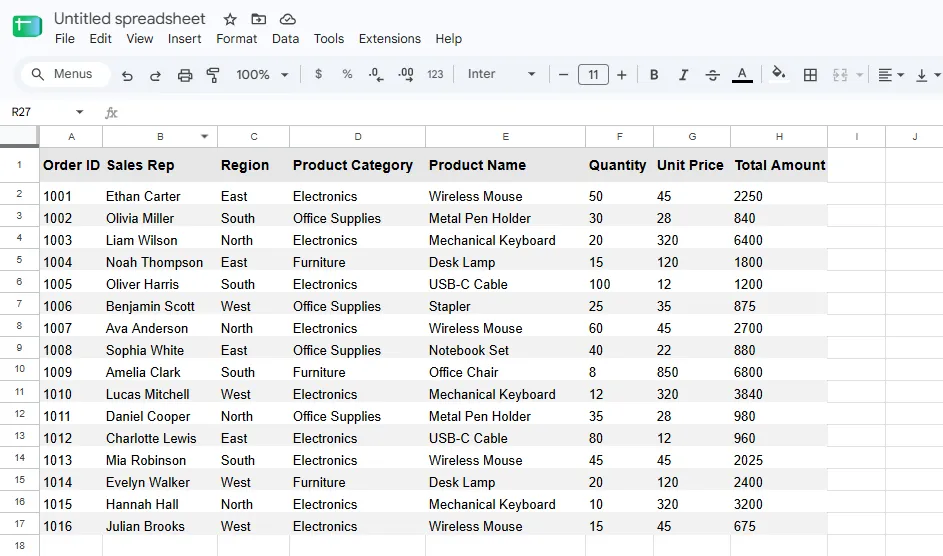
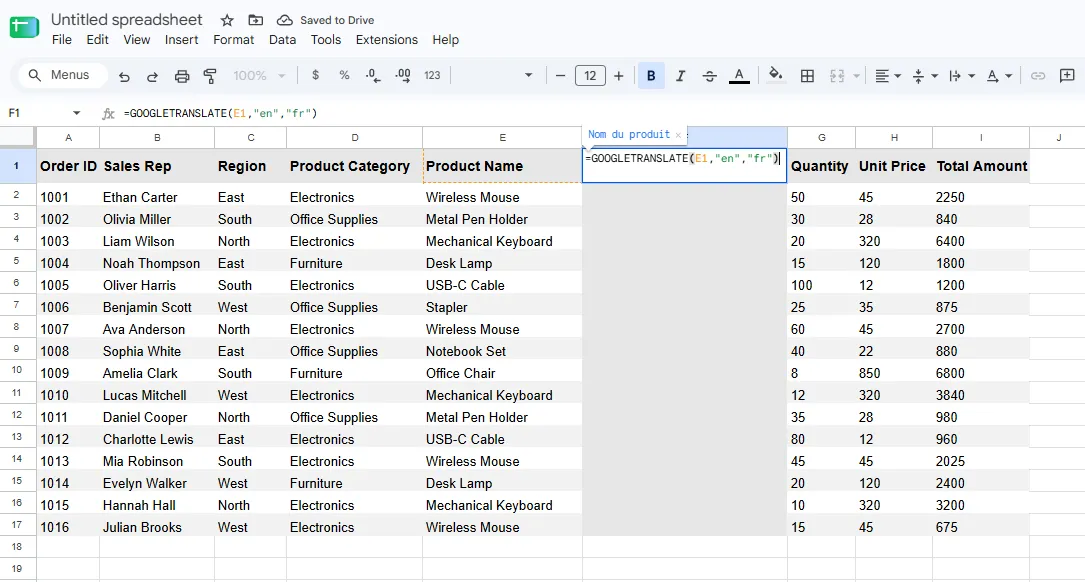
Step 2. Suppose the product names are in column E. Insert a helper column beside it and enter =GOOGLETRANSLATE(E1,"en","fr") in the adjacent cell. Here en means English and fr means French.
Step 3. Drag the fill handle or copy the formula to the remaining rows. Each translation will refer to the corresponding source cell.
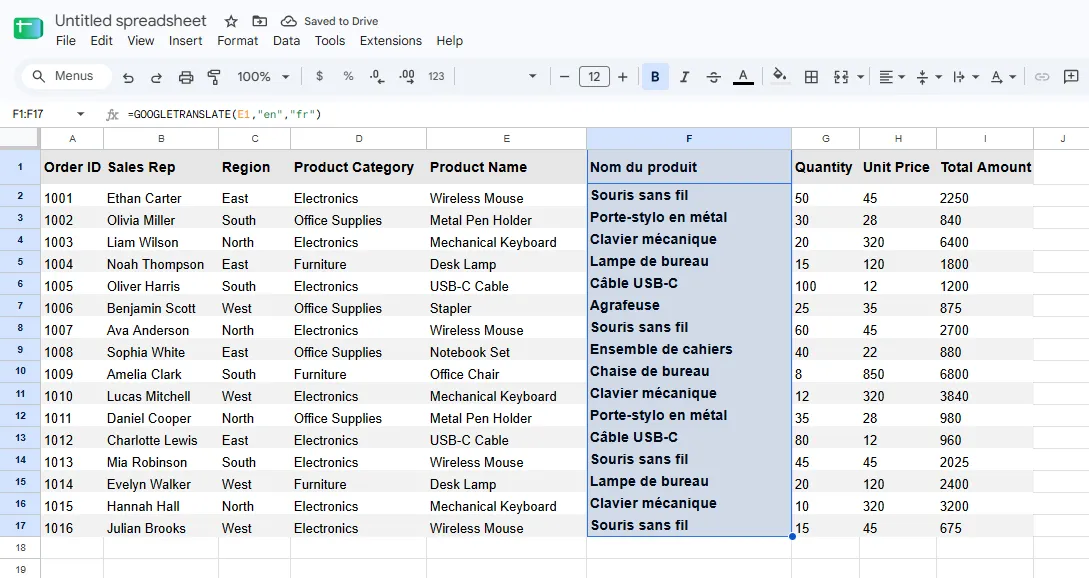
Step 4. Review the translations, then copy the results and paste them into the corresponding original cells using Paste special → Values only. This replaces the text without pasting translation formulas. Delete the helper column afterward.
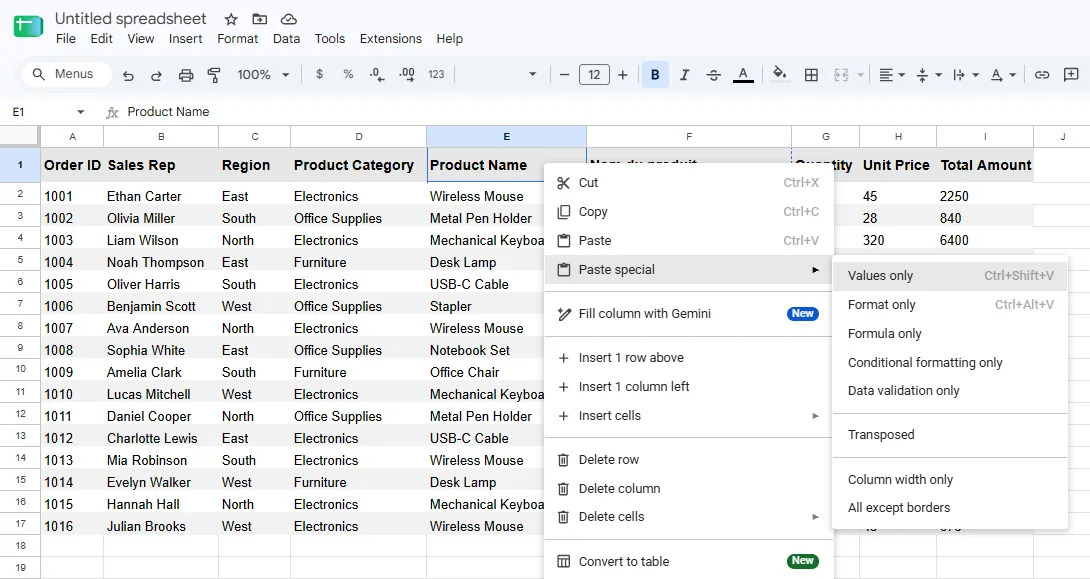
Step 5. Repeat for other text columns, such as regions and categories, and translate headings individually. Download the result as an .xlsx file and open it in Excel to check the formulas and layout.
Microsoft 365 offers a similar function, =TRANSLATE(E1,"en","fr"), if you prefer to stay in Excel. The helper-column and paste-values workflow is essentially the same.
This approach is straightforward for a few regular text columns. It becomes repetitive when text is scattered across multiple sheets, and exporting from Sheets calls for an extra compatibility check in Excel.
Method 2. Translate the Workbook with ChatGPT
When text appears in several places, ChatGPT can work from the uploaded .xlsx file and return a translated copy. The key is to specify which content should change and which workbook elements must remain untouched.
Step 1. Upload a copy of the .xlsx workbook to ChatGPT.

Step 2. Provide a prompt that specifies the target language, the text to translate, and what must remain unchanged. For example:
Translate the English text in this Excel workbook into French. Translate column headings, region names, product categories, and product names in their original cells. Keep sales representatives’ names, order IDs, numbers, prices, and all formulas unchanged. Preserve the worksheet structure and cell formatting. Return an editable
.xlsxfile.

Step 3. Download the translated workbook, open it in Excel, and compare the translations, formulas, and formatting with the original.
For example, in a sales workbook containing 16 formula cells, the translated copy retained the original formulas and cell styles while translating headings, regions, categories, and product names. The result shows what this workflow can accomplish for a straightforward file. More complex features, such as macros, pivot tables, charts, or conditional formatting, should be checked separately.
ChatGPT is convenient when you want an updated file without creating helper columns or writing code. As with any translation, review the wording and verify the resulting workbook before sharing it.
Method 3. Automate Translation in C# with Spire.Agent.Office
If Excel translation is part of an application or a recurring process, a developer can automate the same task in C#. Spire.Agent.Office accepts an Excel Workbook and a natural-language instruction, then saves the processed file as a new .xlsx. Its published document translation example also covers Word and PowerPoint; only the Excel workflow is shown here.
Step 1. Install the package.
dotnet add package Spire.Agent.Office
Step 2. Load the Excel file, specify the translation rules, and execute the instruction.
using System;
using Spire.Agent.Office.AI;
using Spire.Agent.Office.Extensions;
using Spire.Xls;

string inputPath = @"C:\Documents\input.xlsx";
string outputPath = @"C:\Documents\translated-fr.xlsx";
string spireToken = "your spireToken";

string instruction = """
Translate the English text in this Excel workbook into French.
Translate column headings, region names, product categories, and product names.
Keep people's names, order IDs, URLs, and technical identifiers unchanged.
Do not change any formulas, numbers, dates, quantities, or prices.
Preserve the original worksheets, cell positions, merged cells, and formatting,
including fonts, fills, borders, alignment, and number formats.
Do not add worksheets, notes, or explanations to the workbook.
""";

AIOptions options = new AIOptions { SpireToken = spireToken };

using Workbook workbook = new Workbook();
workbook.LoadFromFile(inputPath);

AIDocumentProcessor processor = workbook.AI(options);
AIResult result = processor.ExecuteInstruction(
    workbook, instruction, outputPath);

if (!result.Success)
    throw new InvalidOperationException(result.ErrorMessage);

Console.WriteLine({BODY_CONTENT}quot;Translated workbook saved to: {outputPath}");
Step 3. Compare formula text and formula-cell positions between the input and output. Check worksheet names, merged ranges, number formats, and important cell styles. Open the file in Excel to catch text that no longer fits its cells. The instruction defines the intended result; these checks confirm what was saved.
The distinction matters when formulas use text as a condition. For example, =COUNTIF(C2:C17,"East") can remain textually identical but return a different result after East becomes Est. Decide whether those source labels should stay in English or whether dependent formulas should be deliberately updated and tested. For business-critical workbooks, treat this as a data-model decision rather than a translation detail.
This method suits developers processing multiple workbooks or adding translation to an application. It requires setup, credentials, and validation suited to the files being processed.
Summary: Which Method Should You Choose?
| Method | Ease of use | Best use | How translations are returned | Main check |
|---|---|---|---|---|
| Google Sheets formula | Easy for one column; manual for many areas | A few regular text columns | Copy results and paste values into original cells | Cell alignment and Excel export compatibility |
| ChatGPT | Easiest to start | Text spread across a workbook | Download an updated .xlsx file |
Translations, formulas, and formatting |
| C# AI Agent SDK | Requires development setup | Repeatable or batch workflows | Save a new workbook from C# | Automated comparisons and visual review |
For a small, orderly sheet, a translation formula gives you direct control. ChatGPT is a practical choice when you want the whole file updated with less manual work. The C# workflow makes more sense when translation must run repeatedly or within an application. Whichever route you choose, keep the original and inspect both the translated text and the workbook's behavior.
FAQs
Can I translate an entire Excel workbook with GOOGLETRANSLATE?
Not with a single formula. GOOGLETRANSLATE translates the text supplied to it, usually a cell reference. You can fill a formula down a column, but you still need to handle other columns, headings, and sheets, then return the reviewed translations to the right cells. For scattered text, the ChatGPT or C# workflow may require less manual work.
Will translating cell text leave every formula working?
Leaving formula expressions unchanged is necessary, but it may not be sufficient. A formula such as =COUNTIF(C2:C17,"East") depends on a specific English label; translating the values in column C to Est changes its result. Check both the formula text and the calculated results, especially for lookups, conditional counts, and references to text labels.
Does pasting translated text as values preserve the original formatting?
Pasting values only into existing cells normally keeps those cells' formatting. Still, check whether longer translated phrases are clipped or spill visually into adjacent cells. When an Excel workbook has been edited in Google Sheets, also inspect the exported .xlsx file in Excel.
Can ChatGPT or an AI Agent guarantee that complex Excel features remain intact?
No. A workbook with macros, pivot tables, charts, external links, or intricate formatting needs its own before-and-after checks. Keep the original file and test important calculations before using the translated version.