If you've ever submitted an essay with a 2,000-word cap, billed a client by the word for a translation job, or tried to trim a report down to size, you've run into the same question: how many words is this document, exactly?
Microsoft Word makes checking word count easy for a single file. But when you're dealing with dozens or hundreds of documents, clicking through each one is a waste of time. This guide covers 7 practical ways to count words in Word across PC and mobile—including a C# script to automate the process for bulk files.
Quick Summary: Best Method to Check Word Count
Showing word count in Word is easy, but the ideal approach depends on your current workflow, device, and scale. The table below compares seven practical options to help you choose the right one before following the detailed steps.
| Method | Best for | Limitations | Skill Level |
|---|---|---|---|
| 1. Status Bar | Daily writing — checking count as you type | Shows total only unless clicked | Beginner |
| 2. Word Count Dialog | Detailed stats — pages, chars, paragraphs, lines | Requires manual opening, not real-time | Beginner |
| 3. File Metadata | Quick check without opening Word | May not reflect recent or unsaved changes | Intermediate |
| 4. NumWords Field | Reports where count needs to appear in the document | Must be refreshed manually or configured to update before printing | Intermediate |
| 5. Word Online | Browser-based editing on any device | Fewer advanced features than desktop version | Beginner |
| 6. Word Mobile App | Checking lengths on the go via iPhone, iPad, or Android | Hidden inside sub-menus by default to save screen space | Beginner |
| 7. C# Automation | Counting dozens or hundreds of files | Requires basic coding knowledge | Advanced |
1. Check Word Count as You Type (Status Bar)
The status bar is the easiest way to count words in a Word document. It updates in real time as you type, making it easy to track your progress without interrupting your flow. This method is available in almost all desktop versions, including Word 2016, 2019, 2021, 2024, and Word for Microsoft 365.
Steps to Check Word Count from the Status Bar
-
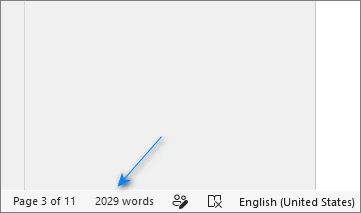
To check the total word count: Look at the bottom-left corner of the Word window.
-
To count a specific section: Select the text range you want to count. The status bar will show the selected word count alongside the document total, for example, “150 of 2000 words”.
What to Do If the Word Count Is Missing?
If the word count does not appear at the bottom-left of the Word window:
-
Right-click an empty area of the status bar.
-
Select Word Count from the menu.
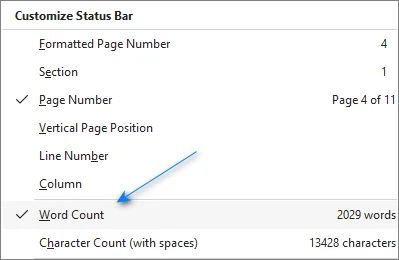
Once enabled, the count will remain visible while you edit the document.
2. View Detailed Statistics: Pages, Characters & Paragraphs (Word Count Dialog)
By default, the status bar shows only the total. The Word Count dialog breaks it down further: pages, words, characters (with and without spaces), paragraphs, and lines.
Steps to Open the Word Count Dialog
-
Open the Review tab on the top ribbon.
-
Click Word Count in the Proofing group. The Word Count dialog will appear with the detailed document statistics.
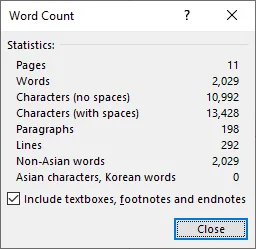
You can also open this dialog by pressing Ctrl+Shift+G (Windows) or Cmd+Shift+G (Mac), or by clicking the word total on the status bar.
Tip: The Word Count dialog includes an “Include textboxes, footnotes and endnotes” checkbox at the bottom. Tick it when you need a total that covers everything; untick it to count only the main body text.
3. Check Word Count Without Opening the File (File Metadata)
If you need a quick estimate of a saved document's length, you do not need to open the file in Word at all.
Step-by-Step Instructions
-
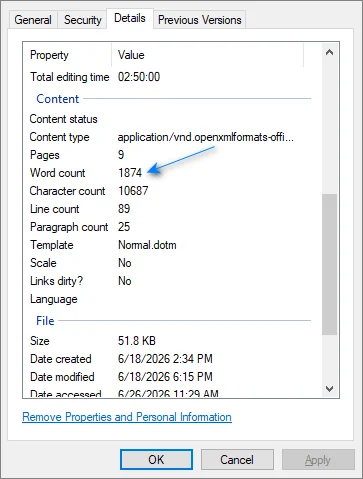
Right-click the Word file and select Properties.
-
Switch to the Details tab.
-
Look for Word count under the Content section.
Important:
- The count shown in file metadata reflects the count from the last save, not any changes made since. Open the file in Word if you need the current number.
- The word count is not guaranteed to appear for every file. It may be missing in documents created or converted by third-party applications.
4. Show the Word Count in the Document (NumWords Field)
If you need the word count to display on your document page—for a book title page, essay cover, or contract—use the NumWords field.
Steps
-
Place your cursor where you want the count to appear.
-
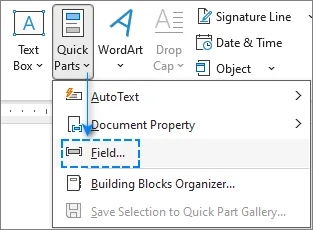
Go to Insert > Quick Parts > Field.
-
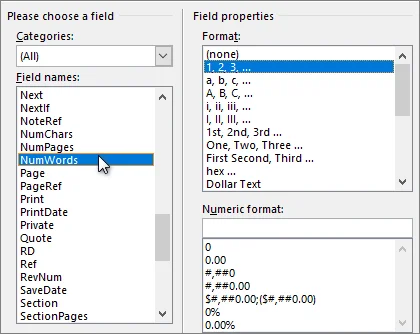
Select NumWords from the Field names list, and click OK.
Note: The NumWords field does not update in real time as you type. After editing the document, you can update it using the following methods:
- Single field: Right-click the field and select Update Field, or press F9.
- Entire document: Press Ctrl + A to select the entire document, then press F9 to update multiple fields at once.
If you want the field to update automatically before printing:
- Go to File > Options > Display.
- Under Printing options, check the box for Update fields before printing.
5. Check Word Count in a Browser (Word Online)
When working from a browser on a Chromebook, public computer, or any device without the desktop application, the online version of Word (Microsoft 365 online) tracks your text seamlessly.
How to Count Words in Word online
- Status Bar: Look at the bottom-left of your browser window—you'll see a real-time word counter that updates as you type.
- Review Tab: Click Review > Word Count to open a popup with detailed statistics (words, characters, and paragraphs).
⚠️ Limitation: Word for the Web counts only the main body text. It does not include text boxes, headers, footers, or most SmartArt graphics. For documents with complex layouts, open the file in desktop Word for a complete count.
6. Count Words on Mobile (Word App for iOS & Android)
To maximize reading and typing space on phones and tablets, the mobile Word app hides the word count by default. You can easily reveal it with just a few taps.
On iPhone & iPad
- Open your document and tap the Edit icon (the letter A with a pencil symbol) on the top toolbar.
- In the menu pane that appears at the bottom, tap the Home tab and select Review.
- Tap Word Count to see a full breakdown of pages, words, and characters.
On Android
- Open your document and tap the upward arrow (▲) in the bottom-right corner to expand the menu ribbon.
- Tap the Home tab on the left of the ribbon, then select Review.
- Tap Word Count to view your document statistics.
Common Issues and Troubleshooting
1. The Status Bar Doesn't Show Word Count
- On desktop, right-click the status bar and ensure Word Count is checked. If it is already checked and still missing, try restarting Word.
2. The Word Count Seems Wrong
- Check whether Include textboxes, footnotes and endnotes is selected in the Word Count dialog. Also verify that you haven't accidentally selected a text range, as the status bar shows selection count when text is highlighted.
3. The File Metadata Shows a Different Number Than Word
- File metadata stores the count from the last time the file was saved. Open the document and check the status bar for the current count.
4. Word Counts Words Differently Than I Expect
- Word counts hyphenated compounds (like “well-known”) and formatted numbers (like “1,000”) as single words. This is standard behavior across most word processing software.
7. Programmatic Word Counting with C# and Spire.Doc
Opening dozens of files manually to check word counts wastes valuable time. If you need to batch-process folders of reports, translations, or student submissions, you can automate the task using a short C# script.
Spire.Doc for .NET allows you to read and extract document metadata—such as word, character, and page counts—directly from Word files using C#. Because it runs standalone, it does not require Microsoft Word to be installed, making it ideal for cloud servers or automated pipelines.
Step 1: Install the Library
Run this command in the NuGet Package Manager Console to install the library:
PM> Install-Package Spire.Doc
Alternatively, you can download the package and manually add references to the DLLs in your project.
Step 2: Implement the C# Automation Code
The following C# script scans a designated folder, extracts advanced document statistics from every Word file, and exports the compiled data into a standard CSV file:
using System;
using System.IO;
using System.Text;
using Spire.Doc;

class WordCountAutomation
{
    static void Main(string[] args)
    {
        string targetFolder = @"C:\YourDocumentFolder";
        string csvOutputPath = @"C:\YourDocumentFolder\WordCountReport.csv";

        // 1. Find all .doc and .docx files (including subfolders)
        var wordFiles = Directory.GetFiles(
            targetFolder,
            "*.*",
            SearchOption.AllDirectories);

        StringBuilder csvData = new StringBuilder();
        csvData.AppendLine("File Name,Pages,Words,Characters,Paragraphs");

        foreach (var file in wordFiles)
        {
            string ext = Path.GetExtension(file).ToLower();

            if (ext == ".doc" || ext == ".docx")
            {
                try
                {
                    // 2. Load the document without launching MS Word
                    Document doc = new Document();
                    doc.LoadFromFile(file);

                    // Recalculate word, paragraph, and character statistics
                    doc.UpdateWordCount();

                    // 3. Extract built-in document properties
                    int pages = doc.BuiltinDocumentProperties.PageCount;
                    int words = doc.BuiltinDocumentProperties.WordCount;
                    int chars = doc.BuiltinDocumentProperties.CharCount;
                    int paragraphs = doc.BuiltinDocumentProperties.ParagraphCount;

                    // 4. Append to dataset
                    string fileName = Path.GetFileName(file);
                    csvData.AppendLine(
                        $"\"{fileName}\",{pages},{words},{chars},{paragraphs}");

                    doc.Close();
                }
                catch (Exception ex)
                {
                    Console.WriteLine(
                        $"Error processing {Path.GetFileName(file)}: {ex.Message}");
                }
            }
        }

        // 5. Save the final report
        File.WriteAllText(
            csvOutputPath,
            csvData.ToString(),
            Encoding.UTF8);

        Console.WriteLine(
            $"Batch word count completed. Report saved to: {csvOutputPath}");
    }
}
Developer Notes & Best Practices:
-
File Format Flexibility: This code natively processes both legacy
.docand modern.docxfiles without requiring pre-conversion. -
Deep Folder Scanning: By utilizing
SearchOption.AllDirectoriesin theDirectory.GetFilesmethod, the script automatically traverses nested subfolders. Remove this parameter if you only want to scan the top-level directory. - Perform a sample check first: Before running batch processing, it's a good practice to select a few representative documents and compare their statistics with those from the desktop version of Word.
Frequently Asked Questions
Does Microsoft Word Count Spaces as Words?
No, Microsoft Word counts individual clusters of letters or characters separated by spaces as unique words. Spaces themselves are only logged under character count metrics (“Characters with spaces”).
Are Hyphens Counted as Separate Words?
Word treats a hyphenated compound word (such as up-to-date or state-of-the-art) as a single word. If you separate words using long dashes (—) with spaces on either side, it will change your layout metrics depending on the exact spacing rules applied.
How Do You Count Words in Text Boxes?
The real-time status bar skips text inside floating shapes and text boxes. To count them, open the main Word Count Dialog box (via the Review tab) and make sure “Include textboxes, footnotes and endnotes” is fully checked.
Why Does the Metadata Word Count Look Different from My Live Document?
File properties metadata updates exclusively during explicit file-save routines. If you have been drafting active updates without hitting save, your system file explorer properties will show outdated text metrics until your next hard save.
Conclusion and Recommendations
You now know how to count words in a Word document across different tools. Choose the method that best aligns with your current platform and workflow:
- For PC users: Stick with the native status bar or Word Count dialog in desktop Word for seamless, real-time tracking.
- For Mobile users (iOS & Android): Utilize the Review tab in the mobile Word app to quickly reveal the hidden count.
- For Web users: Word Online is suitable if you prefer working in a browser.
- For Developers & enterprise workflows: Use C# automation to batch-process folders of files.