Adding videos to Microsoft Word can make reports, manuals, and technical guides more interactive by combining text instructions with visual content. However, Word supports several ways to add videos, including online videos, hyperlinks, and embedded files. Choosing the right method depends on how you plan to share the document. Whether you want to embed a video in a Word document for interactive online playback or link a local file cleanly, here are three practical ways to insert a video in Microsoft Word while keeping the formatting clean and file size under control.
- Insert an Online Video in Word for Direct Playback
- Insert a Video in a Word Document with Hyperlinks
- Embed a Video in Word Documents as an Object
- Which Method Should You Choose
- FAQs
How to Insert an Online Video in Word for Direct Playback
Inserting an online video is one of the simplest ways to add video content to a Word document. Instead of redirecting readers to an external web browser, Microsoft Word renders an interactive player component directly on the page. This allows readers to access supported online videos directly from the document interface without manually opening a separate browser window.
Here are the steps to embed a YouTube video in a Word document:
- Step 1: Open a Word document and place the cursor where you want the video player to appear.
- Step 2: Go to the Insert tab on the top ribbon menu.
- Step 3: In the Media group, click the Online Video option.
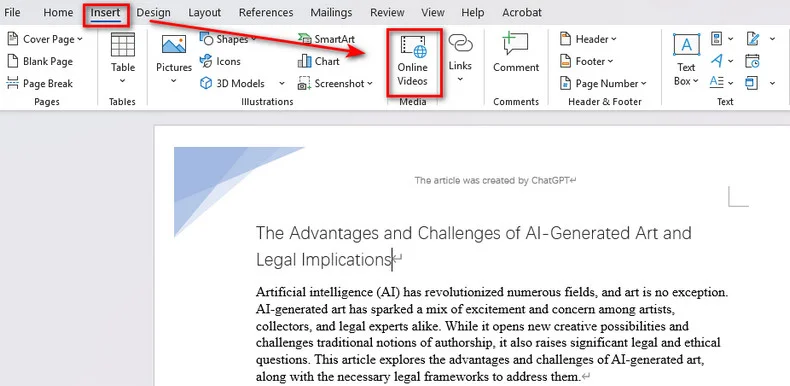
- Step 4: Paste the web link of a YouTube video.
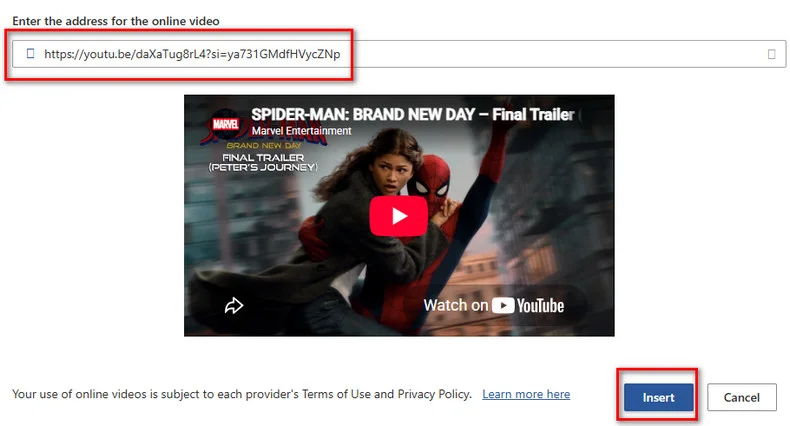
- Step 5: Click Insert. Word will immediately generate a responsive video thumbnail with a play icon on your page.
Troubleshooting: Why is the "Online Video" button grayed out?
If the button is disabled, you have likely opened a DOC document in **compatibility mode. Click File > Info > Convert to upgrade it to the DOCX format. Also, ensure Protected View is turned off and your privacy settings allow connected experiences.
How to Insert a Video in a Word Document with Hyperlinks
If you need to reference local MP4 files or customize the appearance of a video link, inserting a hyperlink is usually a more flexible option. Unlike the native online video tool, this technique attaches a web URL or local file path to a text string or a custom image cover. When readers click the link, it seamlessly opens the video in their default web browser or local media player.
1. Manually Insert a Video Link in Word
Setting up a video hyperlink manually takes only a few seconds and works seamlessly for any web or local file.
- Step 1: Select the text or image (such as a video cover thumbnail) in your Word document where you want to add the link.
- Step 2: Right-click the selected object and select Link, or go to the top ribbon and click Insert > Link.
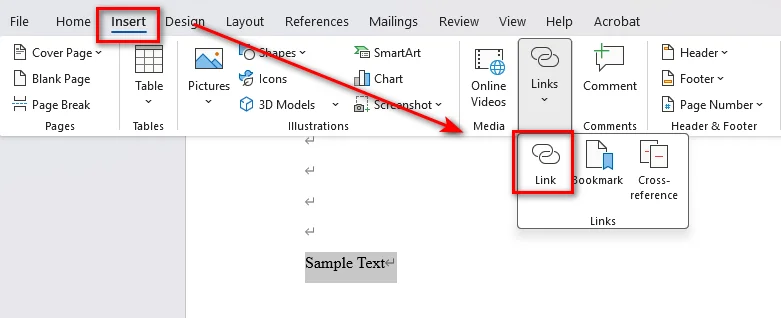
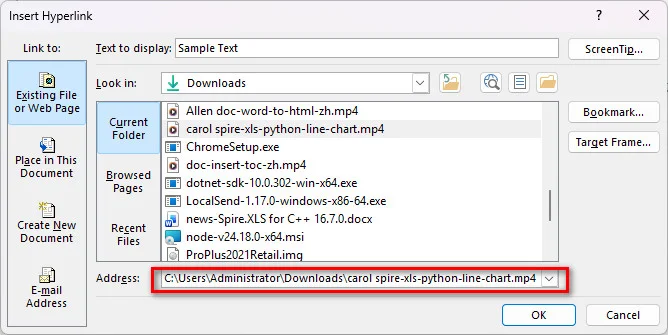
- Step 3: In the pop-up window, paste your online video URL or click Existing File or Web Page to select a local video file path, then click OK.
2. Insert Video Hyperlinks Automatically with Python
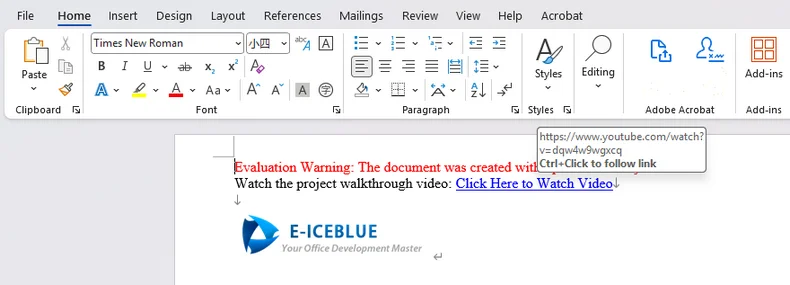
For developers generating automated reports, batch-processing documentation, or building docx generation pipelines, you can insert a video link in Word programmatically using Free Spire.Doc for Python. It is a standalone Python library that enables developers to create, edit, and convert Word documents without Microsoft Office. It also provides hyperlink-related APIs that can be used to add video URLs or local file links to text and image elements in Word documents.
from spire.doc import *
from spire.doc.common import *

# Initialize a new Word document
doc = Document()

# Add a section and a paragraph
section = doc.AddSection()
paragraph = section.AddParagraph()

# Insert a text hyperlink pointing to an online video
video_url = "https://www.youtube.com/watch?v=dQw4w9WgXcQ"
paragraph.AppendText("Watch the project walkthrough video: ")
paragraph.AppendHyperlink(video_url, "Click Here to Watch Video", HyperlinkType.WebLink)

# Add line breaks
paragraph.AppendBreak(BreakType.LineBreak)
paragraph.AppendBreak(BreakType.LineBreak)

# Insert an image hyperlink (thumbnail + video link)
thumbnail_path = "/Logo1.png"
picture = paragraph.AppendPicture(thumbnail_path)

# Attach the video URL to the thumbnail image
paragraph.AppendHyperlink(video_url, picture, HyperlinkType.WebLink)

# Save the generated document
doc.SaveToFile("/output/VideoLinksDocument.docx", FileFormat.Docx2019)
doc.Dispose()
Embed a Video in Word Documents as an Object
If you are delivering files to clients in an offline environment, you can choose to embed a video in Word as an embedded binary object. This approach forces Word to package the raw video file directly inside the file container. It is best suited for scenarios where external links are forbidden and recipient devices lack internet access, but it will increase the document's size.
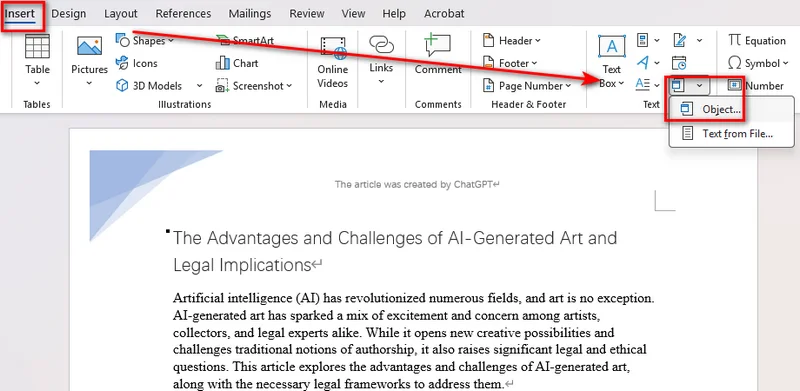
- Step 1: Navigate to the Insert tab on the top ribbon.
- Step 2: Locate the Text section, click the Object dropdown, and choose Object....
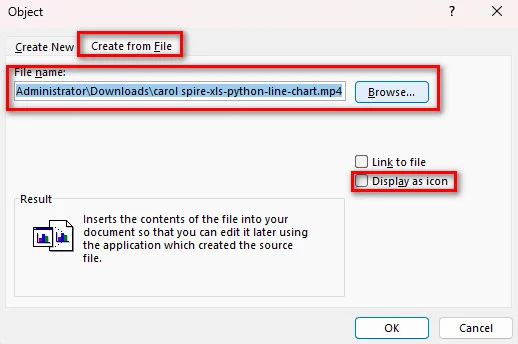
- Step 3: In the pop-up dialog, switch to the Create from File tab.
- Step 4: Click Browse to locate your local video file (MP4, AVI, MOV).
- Step 5: Check the Display as Icon box to ensure it appears as a clean file attachment, then click OK.
Unlike PowerPoint, Word does not render native video preview frames for embedded local video files. It displays a system icon or a plain square. Double-clicking launches your default local media player.
You may like: How to Attach Files to a Word Document (5 Effective Ways)
Which Method Should You Choose?
Use this quick comparison table to pick the right method for your document needs:
| Method | Playback Experience | File Size Impact | Internet Required? | Supports Automation? |
|---|---|---|---|---|
| Online Video | Direct popup player inside Word | Negligible (bytes) | Yes | Limited |
| Video Hyperlink | Opens default browser / player | Negligible (bytes) | Optional | Yes (Python) |
| Embedded Object | Double-click to open player | Extremely Large | No | Yes |
FAQs about Inserting Video in Word
1. Can I embed a video directly into Word like in PowerPoint?
Yes, but playback behavior depends on the video source:
- Online Videos (YouTube, Vimeo, etc.): Plays directly inside Word via an inline popup window with a native play button.
- Local Video Files (MP4, MOV, etc.): Cannot play inline. They insert as file icons (or hyperlinked images) that launch your default media player when clicked.
2. How do I insert a video into Word without increasing file size?
To keep your document lightweight, use Method 1 (Online Video) or Method 2 (Image Cover Hyperlink). Both methods link to external resources and won't enlarge the Word document.
3. Why won't my embedded video play in Microsoft Word?
If your video fails to play, check if your document is saved in the **compatibility mode. Also, ensure your network connection is active for online videos, or verify that your local media player supports the video format.
Conclusion
Adding videos correctly helps you create Word documents that are easier to understand and more interactive for readers. Whether you choose to embed a video in a Word document using Microsoft Word's native Online Video feature, link custom image thumbnails manually or via Python automation, or attach offline video objects, selecting the right method depends on your audience's technical constraints. Choose online videos for seamless web playback, hyperlinks for flexible local storage, and embedded objects strictly for offline sharing.