Every contract, official letter, and brand collateral piece carries an implicit visual identity. A plain white page gets the job done, but it says nothing about the organization behind it. The moment you add a soft tint, a subtle two-tone gradient, or a tiled background image, the entire document shifts from a generic file into a recognizable branded artifact — and your readers notice, even if they cannot articulate why.
Spire.Doc for JavaScript brings this visual styling directly into the browser through WebAssembly. There is no server round-trip, no Office automation dependency, and no desktop install requirement. You load a Word file into the WASM virtual file system (VFS), pick one of three background modes, and export the styled document — all client-side in a React application.
This guide walks through each of the three background options not as an API catalog, but as a set of design decisions. We start with a quick comparison so you can match the right technique to your use case, then dive into the implementation details for each one.
Three Background Approaches at a Glance
Before writing any code, it helps to understand what each background type brings to the table from a design perspective. The table below summarizes the visual outcome, the amount of configuration involved, and the scenarios where each approach shines.
| Approach | Visual Effect | Configuration Effort | Best Suited For |
|---|---|---|---|
| Solid Color | A single uniform color fills every page | Low — set BackgroundType.Color and assign one color |
Contracts, internal memos, official letters that need a clean, professional base tone |
| Gradient | A two-color directional blend across the page | Medium — define Color1, Color2, plus ShadingStyle and ShadingVariant
|
Cover pages, certificates, marketing templates that benefit from subtle depth |
| Picture | A background image tiled across the entire page | Medium — load the image into VFS, then call SetPicture
|
Branded stationery, letterhead with decorative elements, themed document templates |
All three share the same overall workflow: load the source document into the VFS, configure the Background property on a Document instance, save the result, and trigger a browser download. The differences lie entirely in how you configure that Background property — which is where the design choices come in.
For project setup and installation instructions, see Integrating Spire.Doc for JavaScript in a React Project. The code examples below assume the WASM module is already initialized and available on window.wasmModule.
Solid Color Background
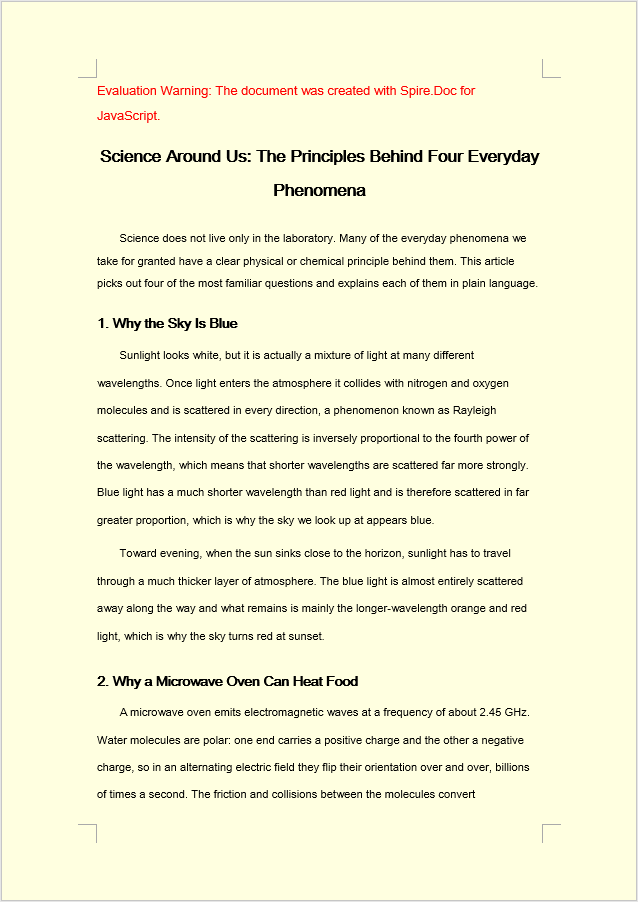
A solid color is the most restrained background choice — and often the most effective. A warm cream or pale gray behind black text reduces eye strain without competing for attention. For formal documents like contracts and policy papers, a subtle tint signals "this document belongs to a specific organization" without crossing into decoration.
The implementation follows three clean steps. First, use FetchFileToVFS to load the target Word file (and font files) into the WASM virtual file system. Second, create a Document, load the file, set Background.Type to BackgroundType.Color, and assign a built-in color to Background.Color. Third, save the document back to the VFS with SaveToFile, read the resulting file as a byte array, wrap it in a Blob, and initiate a download.
function App() {
  const SetSolidColorBackground = async () => {
    const docModule = window.wasmModule?.spiredoc;
    if (!docModule) {
      alert('Spire.Doc is not ready yet');
      return;
    }
    // Load the sample file into the virtual file system (VFS)
    let inputFileName = "ScienceTemplate.docx";
    await window.spire.FetchFileToVFS(inputFileName, "", `${process.env.PUBLIC_URL}static/data/`);

    // Create Word document
    let doc = new docModule.Document();

    // Load the file
    doc.LoadFromFile(inputFileName);

    // Set the background type as Color
    doc.Background.Type = docModule.BackgroundType.Color;

    // Set the background color
    doc.Background.Color = docModule.Color.get_LightYellow();

    // Define the output file name
    const outputFileName = "SetSolidColorBackground_out.docx";

    // Save the document to the specified path
    doc.SaveToFile({ fileName: outputFileName, fileFormat: docModule.FileFormat.Docx2013 });

    doc.Dispose();

    const modifiedFileArray = window.dotnetRuntime.Module.FS.readFile(outputFileName);
    const blob = new Blob([modifiedFileArray], { type: 'application/vnd.openxmlformats-officedocument.wordprocessingml.document' });
    const url = URL.createObjectURL(blob);
    const a = document.createElement('a');
    a.href = url;
    a.download = outputFileName;
    a.click();
    URL.revokeObjectURL(url);
  };

 return (
    <div style={{ textAlign: 'center', height: '300px' }}>
      <h1>Set a Solid Color Background for a Word Document</h1>
      <button onClick={SetSolidColorBackground}>Generate</button>
    </div>
  );
}
export default App;
Once Background.Color is applied, every page in the document is filled with the chosen built-in color — in this case, LightYellow.
Gradient Background
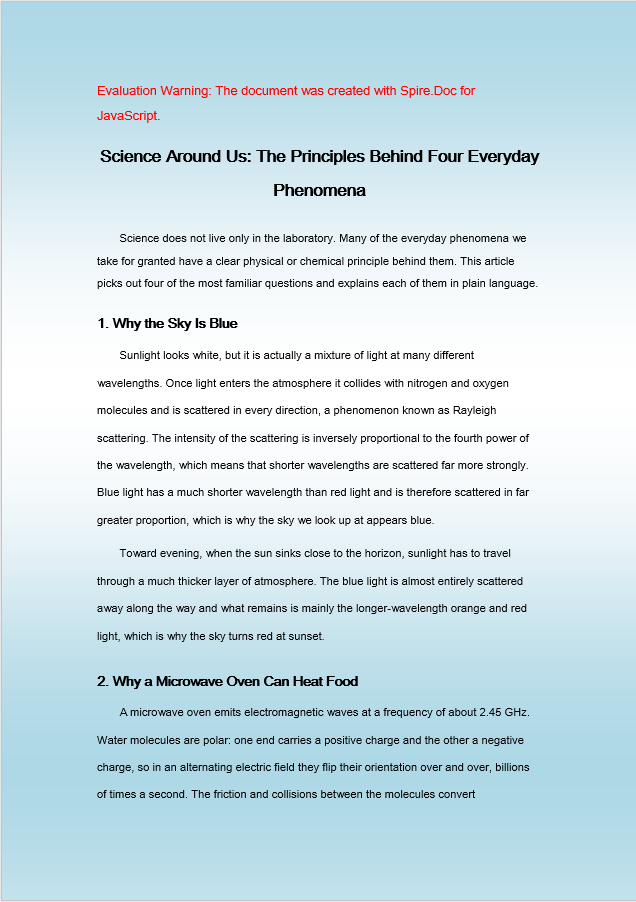
Gradients introduce a sense of dimension that flat colors cannot. A top-to-bottom transition from white to pale blue, for example, evokes sky and openness — useful for certificates, award letters, or any document where a touch of ceremony is appropriate. The key is restraint: pick two closely related colors and let the gradient do the work quietly.
The code mirrors the solid color workflow, but the middle step expands. After setting Background.Type to BackgroundType.Gradient, you retrieve the gradient object via Background.Gradient and configure four properties: Color1 (start color), Color2 (end color), ShadingVariant (transition direction), and ShadingStyle (axis of the gradient).
function App() {
  const SetGradientBackground = async () => {
    const docModule = window.wasmModule?.spiredoc;
    if (!docModule) {
      alert('Spire.Doc is not ready yet');
      return;
    }
    // Load the sample file into the virtual file system (VFS)
    let inputFileName = "ScienceTemplate.docx";
    await window.spire.FetchFileToVFS(inputFileName, "", `${process.env.PUBLIC_URL}static/data/`);

    // Create Word document
    let doc = new docModule.Document();

    // Load the file
    doc.LoadFromFile(inputFileName);

    // Set the background type as Gradient
    doc.Background.Type = docModule.BackgroundType.Gradient;
    let gradient = doc.Background.Gradient;

    // Set the start color and the end color of the gradient
    gradient.Color1 = docModule.Color.get_White();
    gradient.Color2 = docModule.Color.get_LightBlue();

    // Set the shading style and variant of the gradient
    gradient.ShadingVariant = docModule.GradientShadingVariant.ShadingDown;
    gradient.ShadingStyle = docModule.GradientShadingStyle.Horizontal;

    // Define the output file name
    const outputFileName = "SetGradientBackground_out.docx";

    // Save the document to the specified path
    doc.SaveToFile({ fileName: outputFileName, fileFormat: docModule.FileFormat.Docx2013 });

    doc.Dispose();

    const modifiedFileArray = window.dotnetRuntime.Module.FS.readFile(outputFileName);
    const blob = new Blob([modifiedFileArray], { type: 'application/vnd.openxmlformats-officedocument.wordprocessingml.document' });
    const url = URL.createObjectURL(blob);
    const a = document.createElement('a');
    a.href = url;
    a.download = outputFileName;
    a.click();
    URL.revokeObjectURL(url);
  };

 return (
    <div style={{ textAlign: 'center', height: '300px' }}>
      <h1>Set a Gradient Background for a Word Document</h1>
      <button onClick={SetGradientBackground}>Generate</button>
    </div>
  );
}
export default App;
After applying Background.Gradient, the page is filled with a smooth horizontal transition from white to light blue, flowing downward.
Picture Background
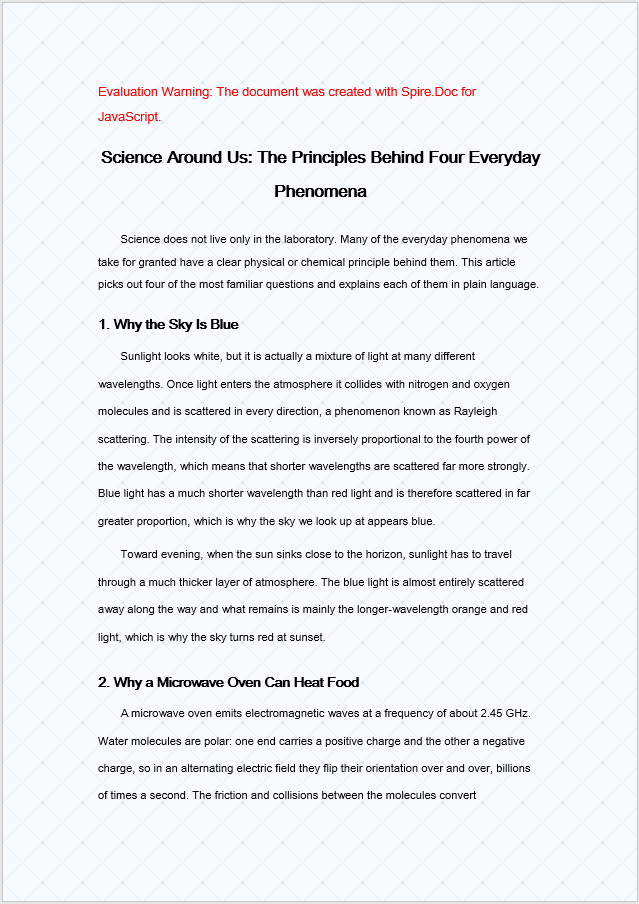
A picture background is the most expressive option. Whether it is a subtle watermark pattern, a corporate texture, or a decorative motif for event programs, a tiled image can carry branding elements that color and gradient simply cannot. The trade-off is file weight — the image must be loaded into the VFS alongside the document — so reserve this approach for templates where the visual payoff justifies the extra resource.
The setup differs from the previous two methods in one important way: the background image must also be loaded into the VFS using FetchFileToVFS before it can be referenced. Once both the document and the image are in the VFS, set Background.Type to BackgroundType.Picture and call Background.SetPicture with the image's VFS path. The image is then tiled across every page as the background.
function App() {
  const SetImageBackground = async () => {
    const docModule = window.wasmModule?.spiredoc;
    if (!docModule) {
      alert('Spire.Doc is not ready yet');
      return;
    }
    // Load the sample file into the virtual file system (VFS)
    let inputFileName1 = "ScienceTemplate.docx";
    await window.spire.FetchFileToVFS(inputFileName1, "", `${process.env.PUBLIC_URL}static/data/`);

    // Load the background image into the virtual file system (VFS)
    let inputFileName2 = "Background.png";
    await window.spire.FetchFileToVFS(inputFileName2, "", `${process.env.PUBLIC_URL}static/data/`);

    // Load a Word document
    let doc = new docModule.Document();
    doc.LoadFromFile(inputFileName1);

    // Set the background type as Picture
    doc.Background.Type = docModule.BackgroundType.Picture;

    // Set the background picture
    doc.Background.SetPicture(inputFileName2);

    // Define the output file name
    const outputFileName = "SetImageBackground_out.docx";

    // Save the document to the specified path
    doc.SaveToFile({ fileName: outputFileName, fileFormat: docModule.FileFormat.Docx2013 });

    doc.Dispose();

    const modifiedFileArray = window.dotnetRuntime.Module.FS.readFile(outputFileName);
    const blob = new Blob([modifiedFileArray], { type: 'application/vnd.openxmlformats-officedocument.wordprocessingml.document' });
    const url = URL.createObjectURL(blob);
    const a = document.createElement('a');
    a.href = url;
    a.download = outputFileName;
    a.click();
    URL.revokeObjectURL(url);
  };

 return (
    <div style={{ textAlign: 'center', height: '300px' }}>
      <h1>Set a Picture Background in a Word Document</h1>
      <button onClick={SetImageBackground}>Generate</button>
    </div>
  );
}
export default App;
After calling Background.SetPicture, the specified image is tiled across the entire page surface as the document background.
Printing Considerations
There is one practical caveat that catches many developers off guard: Microsoft Word does not print page backgrounds by default. This is not a bug in your code or a limitation of Spire.Doc — the background is correctly stored in the document and displays normally on screen. Word simply omits it from printed output unless you explicitly tell it otherwise.
To ensure backgrounds appear in printed copies, the end user needs to enable a specific setting in their Word client:
- Open the document in Microsoft Word.
- Go to File > Options > Display.
- Check Print background colors and images.
- Print as usual.
If you need the background to render in every output environment regardless of the reader's Word settings, consider an alternative approach: place a full-page shape in the document header or use a watermark to simulate the background effect. These techniques are treated as content rather than page formatting, so they print reliably across all configurations.
FAQ
Why does the background not show up when I print the document?
This is expected behavior. Word suppresses page backgrounds in print output by default — the setting is stored correctly and renders on screen, but the Word client's print options filter it out. The background has not been lost; it is simply not included in the print stream.
To fix this, enable Print background colors and images under File > Options > Display in Word before printing. For environments where you cannot control the reader's print settings, use a full-page shape in the header or a watermark to replicate the visual effect, as those elements are treated as printable content.
Why does the picture background have no effect?
This typically happens for one of two reasons: either Background.Type was not set to BackgroundType.Picture before calling SetPicture, or the image file was never loaded into the VFS via FetchFileToVFS, so SetPicture cannot locate it.
Make sure you set the background type first and pass the exact filename of an image that has already been loaded into the virtual file system:
document.Background.Type = wasmModule.BackgroundType.Picture;
document.Background.SetPicture("Background.png");