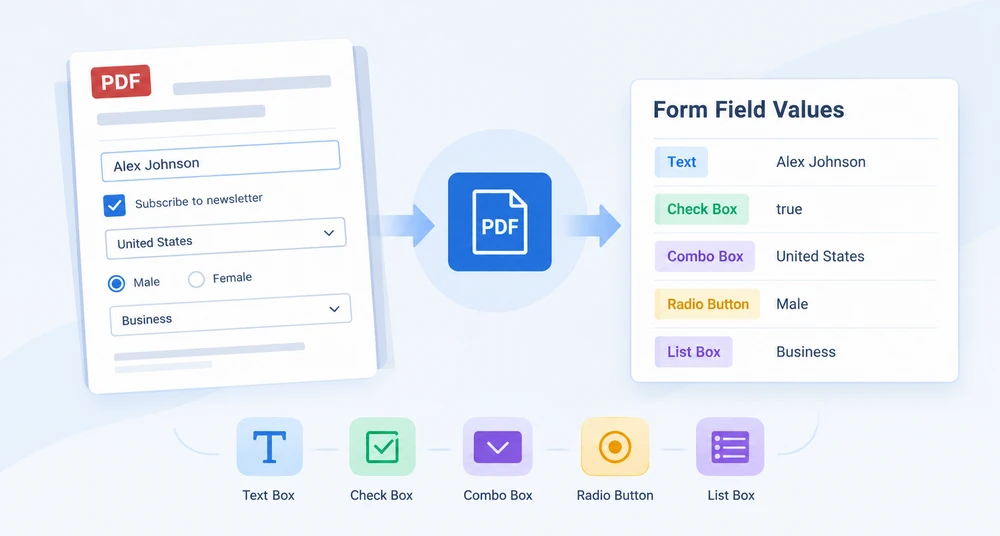
When someone fills out a PDF form and saves it, the entered values live inside the document's field structures — not as plain text you can search or copy in bulk. For a form with thirty or forty fields, hand-transcription becomes a bottleneck. The deeper problem is that each field type stores its value differently: a text box exposes a string, a check box reports a boolean, a combo box separates options from the selection, and a radio button stores its chosen item. A single uniform "give me the value" call does not exist.
This article walks through extracting form field values from a PDF using Spire.PDF for JavaScript. The library runs on WebAssembly in the browser, so the document is parsed locally through a virtual file system with no server round-trip. You will see how to walk the field collection, dispatch on each field's type, and read the correct property for text boxes, list boxes, combo boxes, radio buttons, and check boxes.
For setup and project configuration, refer to Integrate Spire.PDF for JavaScript in a React Project. The code below assumes Spire.PDF is installed and the WASM module is initialized.
Field Types at a Glance
Before diving into the implementation, it helps to map out how each field type exposes its value. Spire.PDF for JavaScript represents form fields as widget classes, and the property that holds the current value differs from one type to the next:
| Field Type | Widget Class | Read Property | Notes |
|---|---|---|---|
| Text Box | PdfTextBoxFieldWidget |
Text |
Returns the entered string directly. |
| List Box | PdfListBoxWidgetFieldWidget |
SelectedValue |
Values is the full option list, not the user's pick. |
| Combo Box | PdfComboBoxWidgetFieldWidget |
SelectedValue |
Same dual-property model as the list box. |
| Radio Button | PdfRadioButtonListFieldWidget |
Value |
Gives the selected item string in one step. |
| Check Box | PdfCheckBoxWidgetFieldWidget |
Checked |
Boolean state. Value is undefined — do not use it. |
The pattern is clear: there is no single universal property. The extraction logic must test each field's type and read the matching property, which is exactly what the next section implements.
Iterate Fields and Read by Type
The core workflow has three steps: load the PDF, obtain its form as a PdfFormWidget, then loop through the FieldsWidget collection and branch on each field's class with instanceof. At each branch, read the type-specific property and append the result to a report string. Because the dispatch covers every supported type, you do not need to know which fields the document contains ahead of time — unrecognized fields simply fall through to a default label.
function App() {
  const getAllFieldValues = async () => {
    // Get the Spire.PDF WASM module
    const pdfModule = window.wasmModule?.spirepdf;

    // Check that the module is ready
    if (!pdfModule) {
      alert('Spire.PDF is not ready yet');
      return;
    }

    // Load the PDF file to be read into the VFS
    const inputFileName = 'ApplicationForm.pdf';
    await window.spire.FetchFileToVFS(inputFileName, "", `${process.env.PUBLIC_URL}/data/`);

    // Create a PdfDocument object and load the PDF document
    const doc = new pdfModule.PdfDocument();
    doc.LoadFromFile(inputFileName);

    // Build a PdfFormWidget from the document's form handle; FieldsWidget is its field collection
    const formWidget = new pdfModule.PdfFormWidget(doc.Form.H);
    const fields = formWidget.FieldsWidget;

    let report = '';

    // Walk the field collection, check each type, and read the matching value
    for (let i = 0; i < fields.Count; i++) {
      const field = fields.get_Item({ index: i });

      // Both the type name and the value are filled in by the type dispatch
      let type = 'Unknown';
      let value = '(Unrecognized field type)';

      if (field instanceof pdfModule.PdfTextBoxFieldWidget) {
        // Text box field: read Text directly
        type = 'TextBox';
        value = field.Text;
      } else if (field instanceof pdfModule.PdfListBoxWidgetFieldWidget) {
        // List box field: Values holds every option, SelectedValue is the current one
        const options = [];
        for (let j = 0; j < field.Values.Count; j++) {
          options.push(field.Values.get_Item(j).Value);
        }
        type = 'ListBox';
        value = `Selected ${field.SelectedValue}, options ${options.join(', ')}`;
      } else if (field instanceof pdfModule.PdfComboBoxWidgetFieldWidget) {
        // Combo box field: like a list box, it has an option collection and a selected value
        const options = [];
        for (let j = 0; j < field.Values.Count; j++) {
          options.push(field.Values.get_Item(j).Value);
        }
        type = 'ComboBox';
        value = `Selected ${field.SelectedValue}, options ${options.join(', ')}`;
      } else if (field instanceof pdfModule.PdfRadioButtonListFieldWidget) {
        // Radio button field: Value is the selected item
        type = 'RadioButton';
        value = `Selected ${field.Value}`;
      } else if (field instanceof pdfModule.PdfCheckBoxWidgetFieldWidget) {
        // Check box field: Checked gives the state, not Value
        type = 'CheckBox';
        value = field.Checked ? 'Checked' : 'Not checked';
      }

      report += `Field "${field.Name}" (${type}): ${value}\n`;
    }

    const outputFileName = 'AllFieldValues.txt';
    window.dotnetRuntime.Module.FS.writeFile(outputFileName, report);
    doc.Close();

    // Read the generated file from the VFS and trigger the download
    const fileArray = window.dotnetRuntime.Module.FS.readFile(outputFileName);
    const blob = new Blob([fileArray], { type: 'text/plain' });
    const url = URL.createObjectURL(blob);
    const a = document.createElement('a');
    a.href = url;
    a.download = outputFileName;
    a.click();
    URL.revokeObjectURL(url);
  };

  return (
    <div style={{ textAlign: 'center', height: '300px' }}>
      <h1>Extract Form Field Values</h1>
      <button onClick={getAllFieldValues}>
        Extract values
      </button>
    </div>
  );
}

export default App;
After the loop finishes, the report string contains one line per field with its name, type, and current value. The file is written to the virtual file system and then downloaded as a text file:

The instanceof chain is the heart of the approach. Each branch knows exactly which property to read, so the output is correct regardless of how many field types the document mixes together. The next three sections address the pitfalls that arise when a field's value property is not the one you might expect.
Check Boxes: Checked vs Value
A common mistake when reading check box fields is reaching for a Value property. The check box widget — PdfCheckBoxWidgetFieldWidget — does not expose Value at all; attempting to read it returns undefined. Under the hood, a check box tracks its state through export values: Off when unticked, and Yes or a custom export string when ticked. A raw string cannot reliably tell you whether the box is selected, so the API surface deliberately omits Value and offers Checked instead.
The fix is straightforward — always use the boolean Checked property:
// Check the state with Checked, not Value
const checked = field.Checked;
This returns true when the box is ticked and false otherwise, giving you a clean boolean for downstream logic without any string parsing.
List Boxes and Combo Boxes: SelectedValue vs Values
List boxes and combo boxes share a two-part data model that trips up many developers. Both PdfListBoxWidgetFieldWidget and PdfComboBoxWidgetFieldWidget expose a Values collection and a SelectedValue string, and it is easy to assume Values holds the user's entry. It does not.
Values is the complete set of available options. Each element in the collection is a PdfListWidgetItem object, so you must unwrap it with .Value to get the option text. Walking Values tells you what the user could have chosen, not what they actually selected. The user's real selection lives on SelectedValue as a plain string.
Use SelectedValue for the current value, and walk Values only when you need to enumerate the available choices:
// The text of the currently selected item
const selected = field.SelectedValue;

// Every available option
const options = [];
for (let j = 0; j < field.Values.Count; j++) {
  options.push(field.Values.get_Item(j).Value);
}
Keeping these two properties straight is essential: treating Values as the answer gives you the option list instead of the filled-in result, and the two are rarely the same length.
Handling Encrypted PDFs
Form extraction begins with opening the document. If the PDF is password-protected, calling LoadFromFile with only the file name throws an error — "Can not open an encrypted document. The password is invalid." — and no document object is returned. The form fields are never reached.
The solution is to pass the open password as the second argument:
doc.LoadFromFile(inputFileName, 'spire123');
Once the document opens successfully, the rest of the extraction flow — building the PdfFormWidget, walking the fields, dispatching by type — works exactly the same way as with an unencrypted file. The password only gates the initial load; it does not change how field values are read.
See Also
- Integrate Spire.PDF for JavaScript in a React Project — setup, installation, and WASM initialization
- Fill PDF Form Fields with Spire.PDF for JavaScript — write values into form fields programmatically
- Import and Export PDF Form Data with Spire.PDF for JavaScript — serialize form data to FDF/XFDF files
If you want to remove the evaluation message from the result document, or to get rid of the feature limitations, contact sales for a temporary license valid for 30 days.