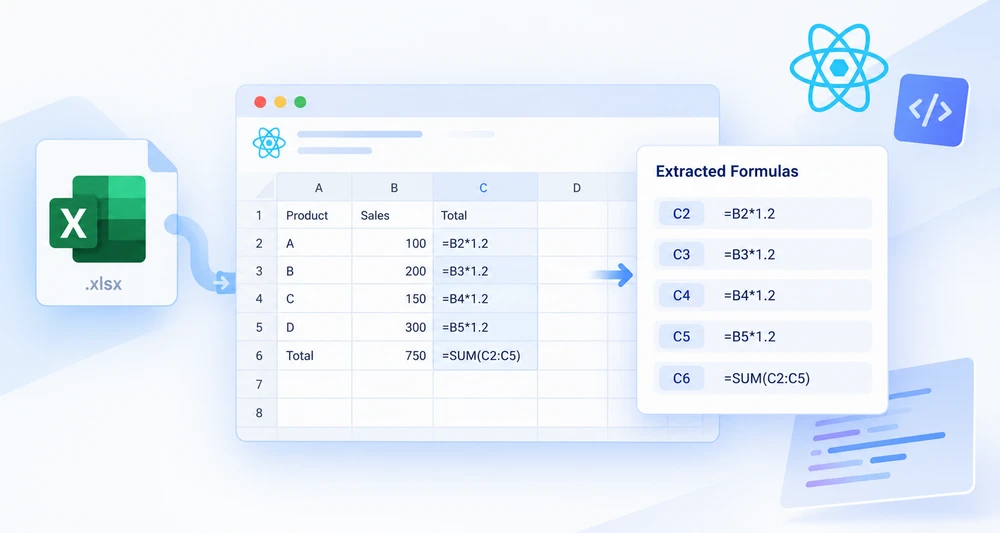
Somebody built this workbook years ago. It recalculates when the data changes, the totals move in ways nobody predicts any more, and there is no documentation — because the formulas are the documentation. Reading the numbers will not tell you how they were produced. Reading the rules will.
Spire.XLS for JavaScript compiles a spreadsheet engine to WebAssembly, so a React app can open an existing .xlsx in the browser, walk its cells, and pull out the rule behind each one. The workbook travels through a virtual file system (VFS), so nothing is uploaded, and no backend is involved.
Two questions get asked of every cell: does it hold a formula, and if so, what does that formula say? The first is a property check. The second is a read. Almost everything in this article follows from keeping those two apart.
For project setup, see Integrating Spire.XLS for JavaScript in a React Project. The examples below assume the package is installed and the WebAssembly module has been initialized.
When you need the formulas, not the numbers
The reason to read rules rather than values is almost always one of these:
- Taking over a model nobody documented. The rules are the only surviving description of what the workbook does.
- Moving calculations out of the spreadsheet. Reimplementing a calculation in application code requires knowing the exact expression, not just its last result.
- Checking consistency. One row quietly using a different rule than the rows around it is invisible in the values and obvious in the formulas.
- Producing a change request. A list of cells and the rules they contain is something a business user can review and correct.
- Verifying a workbook your own code generated. Confirming that what was written is what got stored — see How to Insert Excel Formulas and Functions in JavaScript (React) for the writing side of that pair.
Prerequisites
You need a React project with Spire.XLS for JavaScript installed and the WebAssembly module initialized, reachable at window.wasmModule.spirexls. The workbook you want to inspect should already be in the VFS — loaded from your application's public folder with FetchFileToVFS, or written there as bytes if it arrived from elsewhere.
If the result is going to be formatted — column widths and the like — load a font into the VFS as well, as the example does.
The two questions to ask of every cell
Start by asking the worksheet for the region it actually uses:
// The region the sheet actually uses — not the whole grid
const usedRange = sheet.AllocatedRange;

for (const cell of usedRange.Cells) {
  if (cell.HasFormula) {
    // this cell holds a rule
  }
}
AllocatedRange is the half of that snippet that protects you. Looping over A1:Z1000 on a sheet with twelve used rows spends most of its time on empty cells, and leaves you filtering them out afterwards. Asking the sheet for its allocated region keeps the loop proportional to the content, which matters as soon as the workbook is real.
Then HasFormula decides what is worth reading. It is a plain boolean, and it answers exactly one question — whether the cell holds a formula — which turns out to be a narrower question than it sounds.
A complete example
The component below loads an existing workbook, walks its used range, and writes every formula it finds into a fresh sheet as a readable line — the cell address and the rule stored in it:
function App() {
  const readFormulasAndFunctions = async () => {
    // Get the Spire.XLS WASM module
    const xlsModule = window.wasmModule?.spirexls;

    // Check whether the module is ready
    if (!xlsModule) {
      alert('Spire.Xls is not ready yet');
      return;
    }

    // Load the font and Excel file into the VFS
    await window.spire.FetchFileToVFS('ARIAL.TTF', '/Library/Fonts/', `${process.env.PUBLIC_URL}/font/`);
    const inputFileName = 'FormulasAndFunctions.xlsx';
    await window.spire.FetchFileToVFS(inputFileName, '', `${process.env.PUBLIC_URL}data/`);

    // Create a Workbook object
    const workbook = new xlsModule.Workbook();

    // Load the Excel workbook
    workbook.LoadFromFile({ fileName: inputFileName });

    // Get the first worksheet
    const sheet = workbook.Worksheets.get(0);

    // Get the used cell range of the worksheet
    const usedRange = sheet.AllocatedRange;

    // Create an output workbook
    const output = new xlsModule.Workbook();
    const outSheet = output.Worksheets.get(0);
    let outRow = 1;

    // Loop through the used cells
    for (const cell of usedRange.Cells) {
      // Check whether the cell contains a formula or function
      if (cell.HasFormula) {
        // Get the cell name
        const cellname = cell.RangeAddressLocal;

        // Get the formula or function in the cell
        const formula = cell.Formula;

        // Write the cell name and formula that were read
        outSheet.Range.get({ row: outRow, column: 1 }).Value = "Cell " + cellname + " contains: " + formula;
        outRow += 1;
      }
    }

    // Set the output column width so the text displays completely
    outSheet.SetColumnWidth(1, 45);

    // Save the output workbook
    const outputFileName = 'ReadFormulasAndFunctions_output.xlsx';
    output.SaveToFile({ fileName: outputFileName, version: xlsModule.ExcelVersion.Version2010 });

    // Release resources
    output.Dispose();

    // Read the converted file from the VFS and trigger a download
    const fileArray = window.dotnetRuntime.Module.FS.readFile(outputFileName);
    const blob = new Blob([fileArray], { type: 'application/vnd.openxmlformats-officedocument.spreadsheetml.sheet' });
    const url = URL.createObjectURL(blob);
    const a = document.createElement('a');
    a.href = url;
    a.download = outputFileName;
    a.click();
    URL.revokeObjectURL(url);
  };

  return (
    <div style={{ textAlign: 'center', height: '300px' }}>
      <h1>Read Formulas and Functions</h1>
      <button onClick={readFormulasAndFunctions}>
        Start
      </button>
    </div>
  );
}

export default App;
Read formulas and function results from Excel worksheets
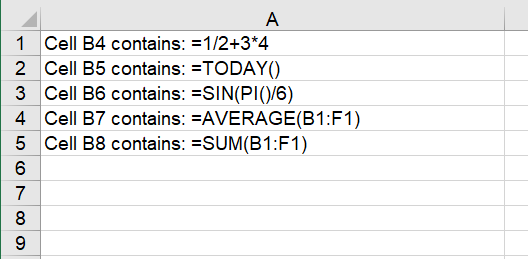
Note what the code does with the source workbook: it reads it and nothing else. A second Workbook is created for the output, so the file being inspected is never modified. That matters when you are examining someone else's document — the inspection should be non-destructive by construction, not by remembering not to save.
Formula or value
Here is where the narrow reading of HasFormula pays off, because the properties you can read from a cell do not all return the same thing:
| Property | What you get | Reach for it when |
|---|---|---|
HasFormula |
Whether the cell holds a formula | Screening a range before reading anything |
Formula |
The formula string as stored — =SUM(B1:F1)
|
You need the rule |
FormulaNumberValue |
The numeric result of evaluating that formula | You need the number the rule produced |
NumberValue |
The number held in a data cell | The cell is data rather than a rule |
Text |
The text as written into the cell | You want the display string |
The pair that causes the most confusion is Formula versus FormulaNumberValue: the same cell, two completely different answers. One is the rule; the other is what the rule produced. Ask for the wrong one and you will get a technically valid value that is not the thing you were looking for — a formula audit that returns numbers, or a value extraction that returns formulas.
Assembling a formula inventory
The example writes each hit into a second workbook and downloads it. That is the right shape when the inventory is itself a document — something to hand to a reviewer or attach to a ticket.
When the inventory is for the screen instead, collect the same data first and decide how to present it afterwards:
// Collect first, then decide how to present it
const inventory = [];
for (const cell of usedRange.Cells) {
  if (cell.HasFormula) {
    inventory.push({ cell: cell.RangeAddressLocal, formula: cell.Formula });
  }
}
RangeAddressLocal is what makes the result usable. It returns the address in the sheet's own notation — the name a person would use when discussing the cell — rather than a row-and-column pair, which is technically equivalent and practically unreadable. An entry that says B7 can be acted on; an entry that says row 7, column 2 has to be translated first.
More than one worksheet
The loop above covers one sheet. A workbook-level inventory means repeating it for each worksheet in turn, fetching each one the same way the first is fetched, with Workbook.Worksheets.get(i) taking the index.
Two details are worth getting right before you scale it up. Record which worksheet each entry came from, because B7 on two sheets is two different cells and a list that does not distinguish them is ambiguous at exactly the moment it matters. And keep the output column wide enough — the addresses and rule strings are long, and a truncated inventory is worse than a narrow one.
Why a formula cell can go undetected
A cell that displays =SUM(B1:F1) is not necessarily holding a formula. If it was written through Text or Value instead of Formula, or typed into a cell that was already formatted as text, then the characters are stored as a string. The sheet shows a formula; the cell contains a label.
HasFormula reports this correctly as false, and a scan expecting to find that cell comes up empty. This is the trap in this workflow because it does not look like a failure: the workbook visibly contains formulas, the code runs without error, and the inventory is short by however many cells were typed in as text.
When a formula appears to be missing from an inventory, check how it was written before checking the reading code. If the workbook is generated by your own application, this is the same property distinction that inserting formulas covers from the writing end.
Common issues
The scan finds nothing, but the sheet is full of formulas.
They are stored as text. See the section above — HasFormula only reports real formulas.
The result is a number when I wanted the formula, or the reverse.
You read the wrong property. Formula gives the rule, FormulaNumberValue gives the computed number.
The loop is slow or produces hundreds of empty entries.
It is walking a fixed rectangular range instead of the sheet's allocated region. Use AllocatedRange as the source of the iteration.
Cells from a second sheet are missing. The loop runs on one worksheet. Repeat it for each worksheet, and keep the sheet alongside each entry.
The source workbook changed after running.
It should not have — the example reads one workbook and writes to another. Check that the output is being saved to a different Workbook object, as in the code above.
FAQ
Do I need Excel installed to read formulas from a workbook?
No. The engine is bundled with the package and runs as WebAssembly inside the browser. The original spreadsheet application is not involved at any point.
Can I read the calculated value instead of the formula?
Yes. Read FormulaNumberValue rather than Formula from the same cell. Use HasFormula first so you only ask that question of cells where it means something.
Does reading a workbook modify it?
Reading does not. The example opens the input, creates a separate output workbook for the results, and saves only that — so the file being inspected is left as it was.
Which Excel formats can I read?
Both the legacy .xls format and modern .xlsx files are supported by the same API, so a workbook does not need converting before it can be inspected.
Does this work for workbooks stored on a server?
Yes, if you can get the bytes into the browser. Write them into the VFS and load from there — the reading itself is entirely client-side, and the workbook is only uploaded if your own application chooses to upload it.