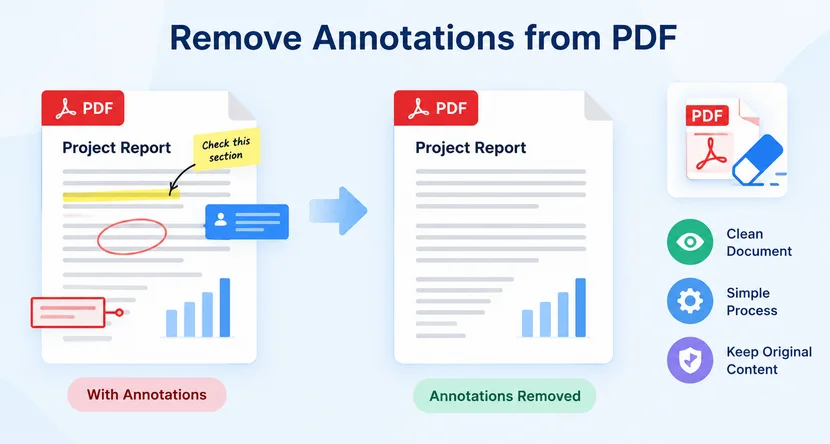
PDF annotations are incredibly useful during document reviews. Team members add sticky notes, text highlights, drawing markups, stamps, and text comments to suggest edits, flag questions, or leave feedback. However, when a document is finalized for sharing, printing, or archiving, those digital marks can make it look unfinished or even expose internal feedback. In such cases, removing PDF annotations is essential to deliver polished, professional-quality files.
This guide explains how to remove annotations from PDFs using Adobe Acrobat, Python automation, and free online tools. It also covers the difference between deleting and flattening annotations, and how to remove only specific annotation types.
- What Are PDF Annotations?
- Delete vs. Flatten: What's the Difference?
- Method 1: Remove PDF Annotations with Adobe Acrobat
- Method 2: Remove Annotations from PDF Using Python
- Method 3: Remove Annotations from PDF Online
- Frequently Asked Questions (FAQs)
What Are PDF Annotations?
PDF annotations are separate interactive objects layered on top of page content. They do not alter the original text or images, which makes them safe to add and remove. Common types include:
- Sticky notes and pop-up comments
- Text highlights, underlines, strikethroughs
- Freehand drawings, shapes, arrows
- Text boxes and callouts
- Stamps, signatures (annotation stamps)
- Audio and file attachments attached as comments
Since annotations exist as an independent layer, deleting them is typically lossless—the original document remains intact.
Delete vs. Flatten: What's the Difference?
Before removing annotations, it is critical to distinguish these two frequently confused operations:
| Action | What It Does | When to Use |
|---|---|---|
| Delete (Remove) | Permanently strips the annotation layer. Marks disappear; the base content is unchanged. | When you need a clean, unmarked document for sharing or archiving. |
| Flatten | Merges annotations into the page content, making them permanent and visible but non-editable. | When you want annotations to remain visible but locked in place (e.g., finalizing a contract). |
For most sharing and publishing scenarios, deletion is the correct choice. Flattening is better for archival records where proof of review is required.
Method 1: Remove PDF Annotations with Adobe Acrobat
Adobe Acrobat (Standard / Pro) is the most mature desktop solution, supporting both selective single‑annotation removal and bulk clearing of all comments.
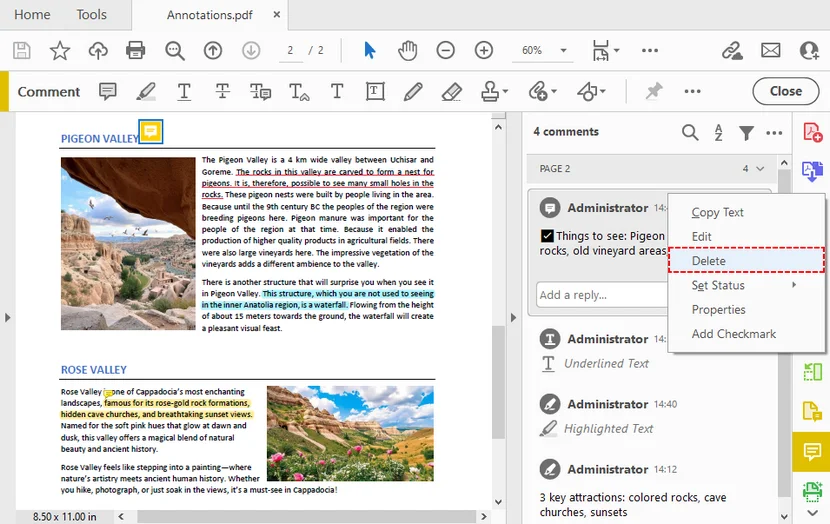
Delete Individual Annotations
- Open the PDF in Adobe Acrobat.
- Select Comments from the right-hand panel to open the annotation pane.
- Select the PDF markup you intend to delete. Click Options and choose Delete, or simply press the Delete key on your keyboard.
Delete All Annotations at Once
-
Using the Comments Pane:
- Open the Comments pane
- Select all entries (
Ctrl+Aon Windows,Command+Aon Mac) - Press Delete
- Then save the new PDF
-
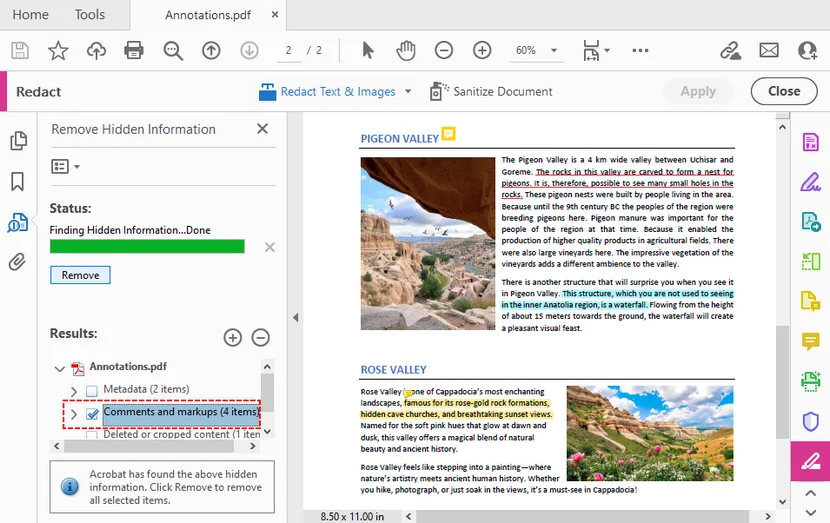
Using the Redaction Tool (Pro only):
- Go to Tools > Redact > Sanitize Document
- Choose the option to remove hidden information
- select Comments and markups to strip all annotations from the document
✅ Pros: Reliable, preserves PDF structure, supports large business files.
❌ Cons: Adobe Acrobat Pro requires a paid subscription license.
Removing annotations is often part of document pre‑sharing preparation. To further protect privacy, you may also remove PDF metadata such as author names, timestamps, XMP metadata, and hidden document properties.
Method 2: Remove Annotations from PDF Using Python
For developers and teams needing batch PDF cleaning, Free Spire.PDF for Python is a great offline library. It runs locally, no file uploads, and can clear all annotations across every page automatically. This works for highlights, sticky notes, stamps, drawing comments and other annotation widgets.
Installation
Install the library via pip:
pip install Spire.Pdf.Free
Full Python code to remove all annotations from PDF
The following script loads a PDF, iterates through every page, delete all annotations in PDF, and saves the cleaned document:
from spire.pdf.common import *
from spire.pdf import *

# Create an object of PDF class
document = PdfDocument()

# Load the PDF file
document.LoadFromFile("Annotations.pdf")

# Loop through all pages in the PDF document
for i in range(document.Pages.Count):
    # Get a specific page
    page = document.Pages[i]
    # Remove all annotations from the page
    page.AnnotationsWidget.Clear()

# Save the resulting document
document.SaveToFile("delete_all_annotations.pdf", FileFormat.PDF)
document.Close()
How It Works
-
LoadFromFile()opens the source PDF from disk. -
document.Pages.Countfetches total page count for iteration. -
page.AnnotationsWidget.Clear()removes every annotation (highlights, notes, stamps, drawings, etc.) from the current page. -
SaveToFile()writes the cleaned PDF to the specified output path.
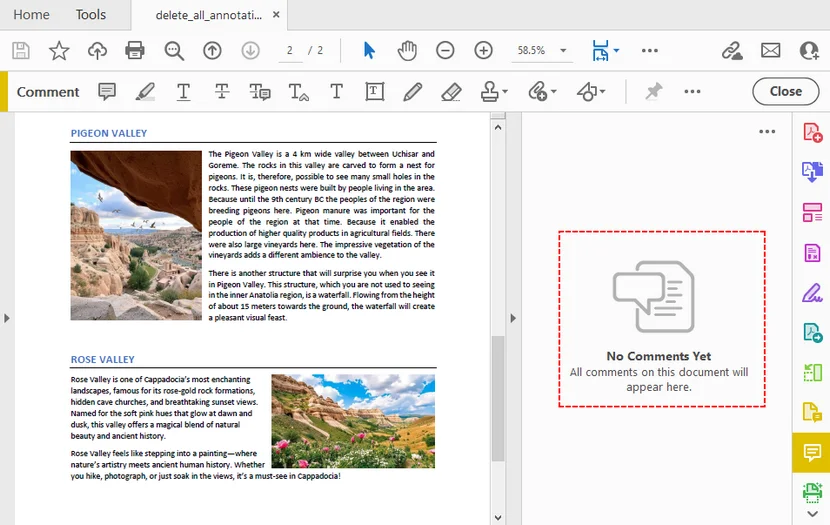
Result:
Advanced: Remove Only Specific Annotation Types
If you need to remove only certain annotations (e.g., highlights but not comments), you can iterate through the annotation collection and delete by type. For example:
for i in range(document.Pages.Count):
    page = document.Pages[i]
    for j in range(page.AnnotationsWidget.Count - 1, -1, -1):
        annotation = page.AnnotationsWidget[j]
        # Remove only text markup annotations (highlights, underlines, strikethroughs)
        if isinstance(annotation, PdfTextMarkupAnnotationWidget):
            page.AnnotationsWidget.RemoveAt(j)
This selective approach gives you fine-grained control over which annotations are stripped.
✅ Pros: Local processing, privacy-safe for confidential documents, easy to wrap into a batch loop for hundreds of PDFs.
❌ Cons: Requires basic Python knowledge; free version has 10-page limits.
Beyond removing, Free Spire.PDF also enables developers to add multiple annotation types to PDF documents, such as highlights, stamps, free-text comments, and shapes.
Method 3: Remove Annotations from PDF Online
If you do not want to download software, browser-based tools offer a quick solution. They run inside browsers and are compatible with Windows, macOS, Chromebook, and mobile operating systems.
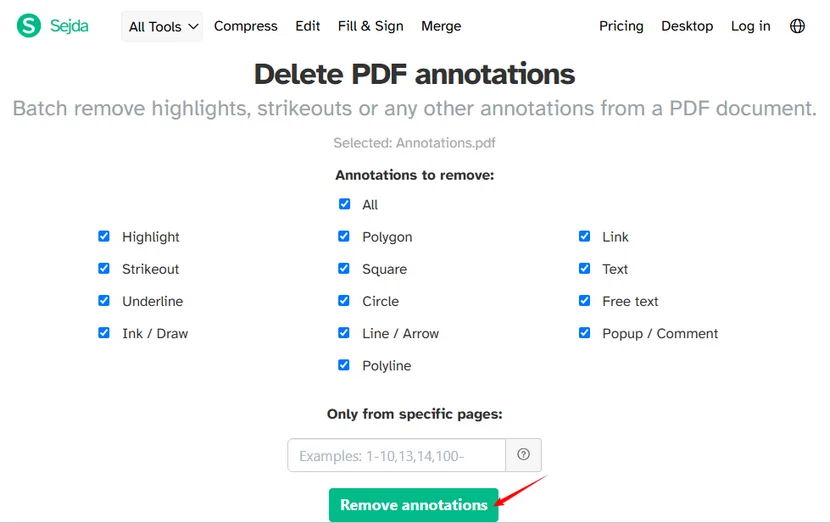
General workflow for most online PDF annotation removers:
- Search for and select an online annotation remover.
- Upload or drag-and-drop your PDF file.
- Select the annotation types you want to remove.
- (Optional) Define a custom page range for partial processing.
- Export and download your cleaned PDF.
Example of using Sejda:
✅ Pros: Zero installation, cross‑platform compatibility, fast for small files.
❌ Cons: File size limits, privacy risk for sensitive documents, some tools add watermarks.
⚠️ Security note: Avoid uploading confidential PDFs with sensitive personal data, contracts, or internal documents to public online tools. Use offline desktop methods or local Python automation for private files instead.
Conclusion
Removing annotations from a PDF becomes simple once you match your tool to your privacy requirements and workflow. Use Adobe Acrobat for full manual control on individual documents. Choose Free Spire.PDF for Python for secure offline batch‑processing and custom automation. And pick online web tools for quick, occasional use with non‑sensitive small‑volume files.
Always create a backup copy of your original PDF before editing. Double‑check the final output to verify markups are handled as expected prior to sharing.
Frequently Asked Questions (FAQs)
Q: Can I remove annotations from a PDF without Adobe Acrobat?
A: Yes. Use free online PDF editors, or Python with Free Spire.PDF for Python for batch jobs.
Q: Does removing annotations delete the original text?
A: No. Annotations are stored as a separate layer. Deleting them removes only the marks, not the underlying page content.
Q: Can I remove only highlights and keep sticky notes?
A: Yes. Most PDF editors separate annotation types. Open the comment panel, filter by annotation type, and delete only highlights or underlines while leaving other comments intact. With Free Spire.PDF, you can add conditional logic to filter specific annotation types instead of clearing everything.
Q: Can I remove annotations from a scanned image PDF?
A: Scanned PDFs are essentially images. If highlights or notes were added as PDF annotations on top, you can delete them normally. If the markups are burned into the scanned image itself, you will need photo editing instead of PDF annotation removal.