An ODS (OpenDocument Spreadsheet) file is commonly used to store and edit tables, formulas, and charts in apps like LibreOffice Calc. However, when you need to distribute a report, share a budget, or print a spreadsheet, converting ODS to PDF is often a better choice because PDF preserves the layout and can be opened without spreadsheet software.
In this article, we will show you 4 practical methods to convert ODS to PDF: using desktop apps (LibreOffice Calc & Microsoft Excel), online converters (CloudConvert & Zamzar), and Python for automated bulk conversion. You will also learn how to adjust page layout and minimize common issues during conversion.
Choose the Right ODS to PDF Conversion Method
Different methods have different advantages depending on your workflow. Compare them below to choose the right approach for converting your ODS files to PDF.
| Method | Best For | Pros | Cons |
|---|---|---|---|
| LibreOffice Calc | Users who need a free desktop solution with layout control | Native ODS support; adjustable print settings | Requires installation; manual conversion |
| Microsoft Excel | Users who already have Excel installed | Built-in PDF export; familiar interface | Some ODS formatting may change |
| Online Converters | Users who need quick conversions without installing software | Browser-based; simple to use | Requires file uploads; limited layout control; possible file-size limits |
| Python | Developers who need automated or batch conversions | Programmatic conversion; efficient for repetitive processing | Requires Python knowledge |
Method 1: Convert ODS to PDF with LibreOffice Calc
LibreOffice Calc is a free, open-source spreadsheet application that uses ODS as its native spreadsheet format. This makes it a reliable choice for converting formatting-sensitive ODS files, such as financial reports, invoices, and complex tables, to PDF while preserving their original layout.
Step-by-Step Guide
-
Open the ODS file.
Launch LibreOffice Calc and go to File > Open. Select the ODS file you want to convert. -
Adjust the page layout (optional).
Go to Format > Page Style to configure the paper size and orientation under the Page tab. For wide spreadsheets, switch to the Sheet tab and adjust the scaling settings to fit the content onto fewer pages. -
Preview the output.
Go to File > Print Preview to check how the spreadsheet will be arranged across PDF pages. -
Open the PDF export dialog.
Select File > Export As > Export as PDF. In the PDF Options dialog, select All under Range to export all defined print ranges, or the entire document if no print ranges are defined.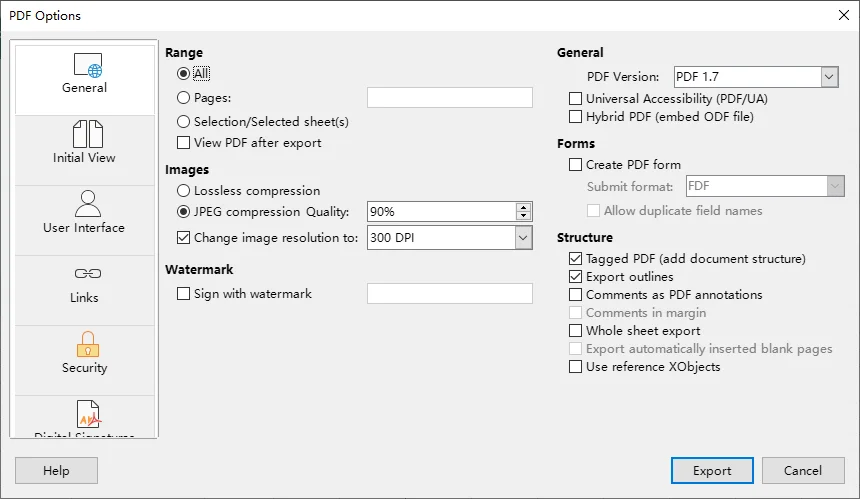
-
Save the PDF.
Click Export, choose a destination folder, enter a file name, and click Save to create the PDF.
Tips
- To export only a specific cell range, select the cells and go to Format > Print Ranges > Define to set the print area before exporting.
- To prevent wide tables from being split horizontally across pages, go to Format > Page Style > Sheet and choose Shrink print range(s) to width/height under Scaling mode. Set Width in pages to 1 and uncheck Height in pages to allow the content to span multiple pages vertically.
Method 2: Export ODS to PDF with Microsoft Excel
If you already have Microsoft Excel installed, you can use its built-in PDF export feature to convert ODS files without additional software. Excel also provides page layout and printing options to help you control how your spreadsheet appears in the PDF.
However, because Excel and LibreOffice Calc may handle some ODS formatting differently, it's a good idea to review the spreadsheet before exporting it to PDF.
Step-by-Step Guide
-
Open the ODS file.
Launch Microsoft Excel and go to File > Open > Browse. Locate your ODS file and click Open. -
Check the formatting and page layout.
Make sure the spreadsheet's content, formatting, and layout appear as expected. If necessary, use the Page Layout tab to adjust the page orientation, margins, and scaling. -
Preview the PDF layout.
Go to File > Print to see how the spreadsheet will appear on PDF pages. Adjust the print settings if any columns or rows are split across pages. -
Choose PDF as the output format.
Go to File > Save As > Browse and select PDF (*.pdf) from the Save as type dropdown list. If needed, click Options to choose whether to export the active sheet(s) or the entire workbook.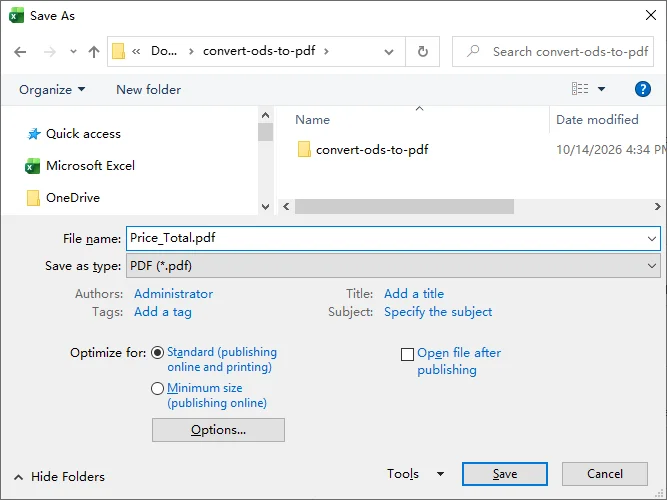
-
Save the PDF.
Choose a destination folder, enter a file name, and click Save to create the PDF.
Tip: If your spreadsheet is too wide and gets split across multiple PDF pages, go to Page Layout > Scale to Fit, set Width to 1 page, and leave Height set to Automatic. You can also select a specific cell range and use Page Layout > Print Area > Set Print Area to control which cells are included in the output.
If you need an editable Excel workbook instead of a PDF, see our guide on how to convert ODS to Excel.
Method 3: Convert an ODS File to PDF with Online Converters
If you don't want to install additional software, online converters offer a convenient way to convert ODS files to PDF directly through your browser. Two popular options are CloudConvert and Zamzar, both of which support ODS-to-PDF conversion.
However, online converters require you to upload files to third-party servers and typically offer fewer page layout controls than desktop applications. For sensitive or confidential ODS files, consider using an offline conversion method instead.
Option 1: CloudConvert
-
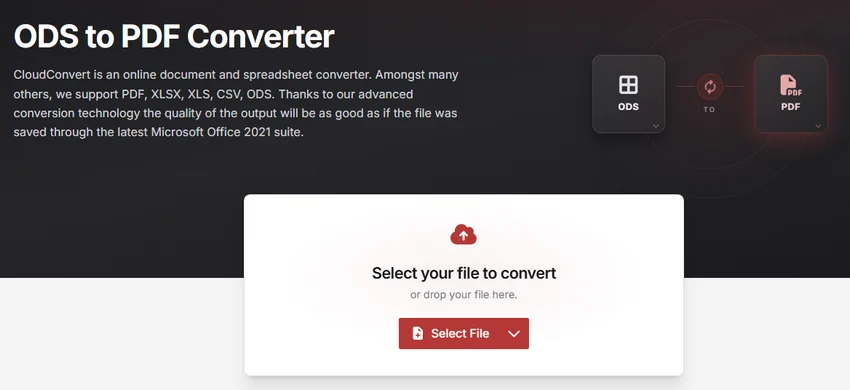
Visit the ODS to PDF converter on the CloudConvert website.
-
Click Select File and choose the ODS file you want to convert, or drag and drop it onto the page.
-
Make sure PDF is selected as the output format, then click Convert to start the conversion.
-
Once the conversion is complete, click Download to save the PDF file to your device.
Option 2: Zamzar
-
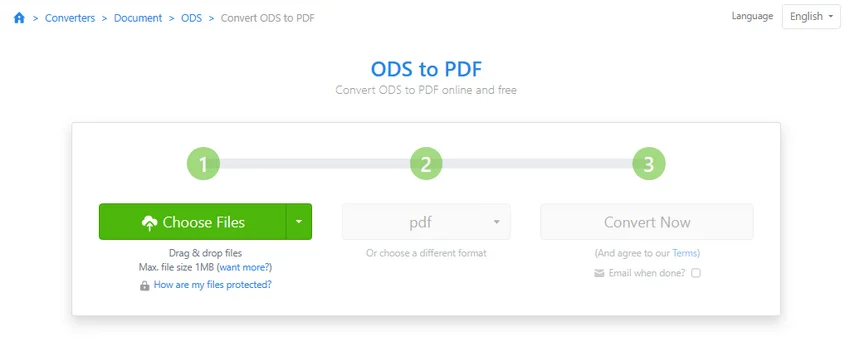
Go to the ODS to PDF converter on the Zamzar website.
-
Click Choose Files and select the ODS file from your computer.
-
Make sure PDF is selected as the target format.
-
Click Convert Now to start the conversion. Once the process is complete, download the converted PDF file.
Note: CloudConvert's free plan offers 10 conversion credits per day, with a maximum file size of 1 GB and a maximum processing time of 5 minutes. Zamzar's free service allows up to two conversions every 24 hours, with a 1 MB file-size limit for ODS-to-PDF conversions. These limits may change.
Method 4: Batch Convert ODS Files to PDF with Python
If you need to convert multiple ODS files to PDF, Python can help automate the process and eliminate repetitive manual work.
With Spire.XLS for Python, you can batch convert ODS spreadsheets to PDF without installing Microsoft Excel or LibreOffice. You can also customize the conversion to export specific worksheets or cell ranges.
Install Spire.XLS for Python
First, install Spire.XLS for Python using pip:
pip install spire.xls
Batch Convert Multiple ODS Files to PDF
Before running the script, create an ods_files folder in your current working directory and place the ODS files you want to convert inside it. The script below converts each ODS workbook into a separate PDF and saves the results in the automatically created pdf_files folder. If a conversion fails, it reports the error and continues processing the remaining files.
Note: The generated PDFs may include an evaluation watermark if no valid license is applied. You can request a temporary license to remove it.
from pathlib import Path
from spire.xls import Workbook, FileFormat

# Define input and output folders
input_folder = Path("ods_files")
output_folder = Path("pdf_files")
output_folder.mkdir(parents=True, exist_ok=True)

# Loop through all ODS files in the input folder
for ods_file in sorted(input_folder.iterdir()):
    if not ods_file.is_file() or ods_file.suffix.lower() != ".ods":
        continue

    # Set the output PDF path
    pdf_file = output_folder / f"{ods_file.stem}.pdf"

    # Create a Workbook object
    workbook = Workbook()

    try:
        # Load the ODS file
        workbook.LoadFromFile(str(ods_file))

        # Convert the entire workbook to PDF
        workbook.SaveToFile(str(pdf_file), FileFormat.PDF)

        print(f"Converted: {ods_file.name}")

    except Exception as e:
        print(f"Failed to convert {ods_file.name}: {e}")

    finally:
        # Release resources
        workbook.Dispose()
Optional: Export a Specific Worksheet or Cell Range
By default, the script above exports entire workbooks. If you only need specific content, you can modify the PDF export code inside the try block.
1. Export a specific worksheet
To export only the first worksheet of each ODS file, replace the workbook.SaveToFile() statement with:
# Get the first worksheet
worksheet = workbook.Worksheets[0]

# Export the selected worksheet to PDF
worksheet.SaveToPdf(str(pdf_file))
Worksheet indices start at 0. You can change the index to select a different worksheet.
2. Export a specific cell range
To export only a particular cell range, such as A1:F20, replace the workbook.SaveToFile() statement with:
# Get the first worksheet
worksheet = workbook.Worksheets[0]

# Set the print area
worksheet.PageSetup.PrintArea = "A1:F20"

# Export the specified cell range to PDF
worksheet.SaveToPdf(str(pdf_file))
The PageSetup.PrintArea property defines the area to include in the PDF output. You can change the cell range and worksheet index according to your needs.
Tip: For wide spreadsheets, you can use workbook.ConverterSetting.SheetFitToWidth = True before exporting to fit the worksheet content to the page width. Review the generated PDF to ensure the text remains readable.
Troubleshooting Common ODS-to-PDF Conversion Problems
Even when conversion succeeds, the PDF may not look as expected. Here are four common issues and how to resolve them.
1. Columns Are Cut Off or Split Across Pages
-
Possible cause: The worksheet is wider than the printable page area.
-
How to fix: Switch to landscape orientation, review paper size and margins, or adjust page scaling to fit the columns within the page width. Avoid excessive scaling, which can make text difficult to read.
2. Some Cells or Worksheets Are Missing
-
Possible cause: A print range, selected export scope, or worksheet-specific operation excludes the required content.
-
How to fix: Review print ranges and PDF export options in LibreOffice Calc or Microsoft Excel. If you're using Python, use
Workbook.SaveToFile()to export the entire workbook orWorksheet.SaveToPdf()to export a specific worksheet. Make sure no print area settings exclude the content you need.
3. Fonts, Charts, or Formatting Look Different
-
Possible cause: The conversion tool renders some spreadsheet features differently from the original application, or the necessary fonts are not available.
-
How to fix: Compare the PDF with the original spreadsheet. If formatting changes when converting through Microsoft Excel or an online converter, try exporting directly from LibreOffice Calc, which supports ODS natively. Also ensure the required fonts are installed.
4. The PDF Contains Unexpected Blank or Extra Pages
-
Possible cause: An oversized print range, formatting outside the intended table, or manual page breaks may create extra pages.
-
How to fix: Review the print range and used area, remove unnecessary formatting outside the report, and check and remove unnessesary page breaks before exporting again.
Conclusion
Choosing the right ODS-to-PDF conversion method depends on your needs. LibreOffice Calc is a good choice for preserving spreadsheet layouts, Microsoft Excel works well if you already have it installed, and online converters are convenient for occasional conversions. For batch processing or automated workflows, Python with Spire.XLS offers greater flexibility.
Whichever method you choose, review the resulting PDF to ensure the content, formatting, and page layout appear as expected.
FAQs
Q: Can I Convert ODS to PDF for Free?
A: Yes. LibreOffice Calc lets you convert ODS files to PDF for free. Online converters such as CloudConvert and Zamzar also offer free conversions with certain file-size or usage limits.
Q: Can I Convert ODS to PDF Without Installing Software?
A: Yes. You can use online converters such as CloudConvert or Zamzar directly in your browser. However, avoid uploading confidential spreadsheets without first reviewing the service's privacy and data-handling policies.
Q: Are Formulas and Charts Preserved When Converting ODS to PDF?
A: A PDF can preserve the displayed results of formulas and the visual appearance of charts, but it does not retain editable spreadsheet formulas or interactive chart functionality. Keep the original ODS file if you need to update the data or formulas later.