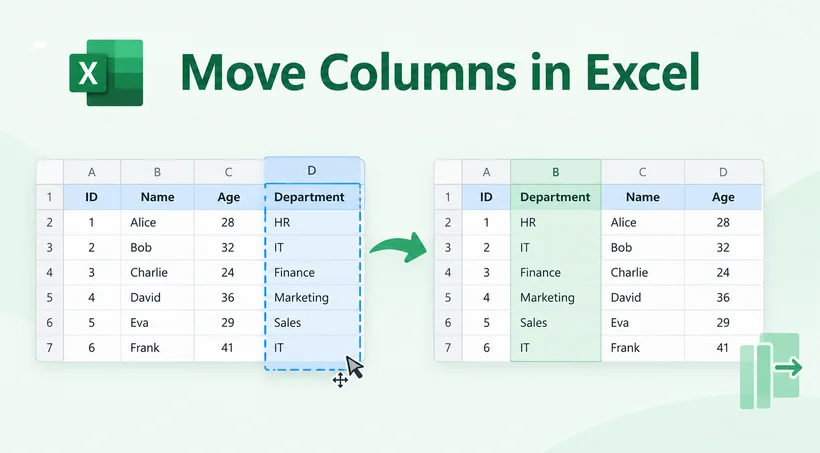
Reordering columns is one of the most common Excel tasks. Whether you clean raw exported data, prepare reports, or build dashboards, knowing how to move Excel columns quickly saves hours of manual editing.
Many users accidentally overwrite data or run into frustrating errors when dragging columns. This guide covers the most reliable ways to rearrange columns in Excel, from the simplest drag-and-drop technique to Python automation for batch processing.
- Method 1: Drag and Drop with Shift Key (Fastest Method)
- Method 2: Cut and Insert (Safest for Formulas)
- Method 3: Reorder Columns in Excel with Python (Automated Workflow)
- Pro Tip: Handling Formulas (Absolute vs. Relative References)
- Frequently Asked Questions (FAQs)
Method 1: Drag and Drop with Shift Key (Fastest Method)
If you are working on a small dataset and just need to move a column a few spaces over, the mouse drag method is the quickest.
- Click the column letter on the header to select the entire column (e.g., Column B).
- Hover your mouse over the edge of the selected column until your cursor turns into a four-headed move arrow.
- Hold down the Shift key.
- Click and drag the column. A thin green line appears to show where the column will be inserted.
- Release the mouse first, then release Shift.
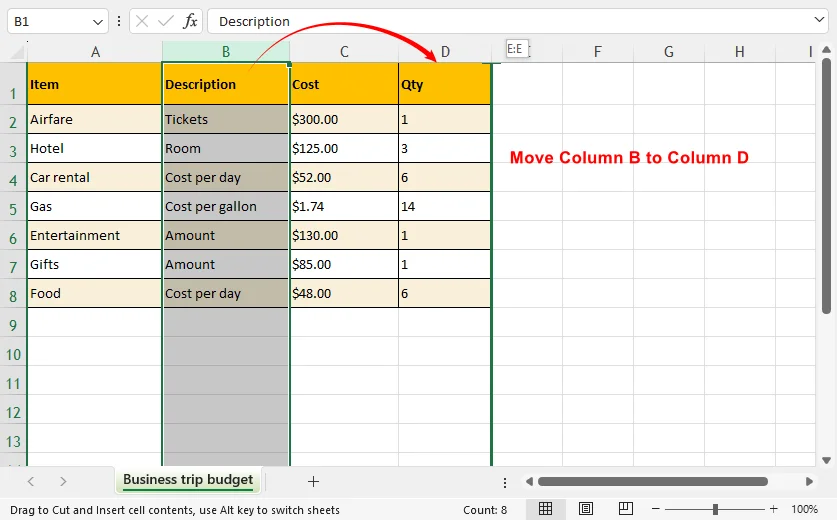
Important Note: Without holding Shift, dragging will overwrite the target column data instead of shifting existing columns aside.
Method 2: Cut and Insert (Safest for Formulas)
If you are moving a column that contains formulas referencing other sheets or cells, the Cut and Insert method is the safest option. Unlike standard copy-and-paste, this method ensures relative references in formulas update to reflect the new location.
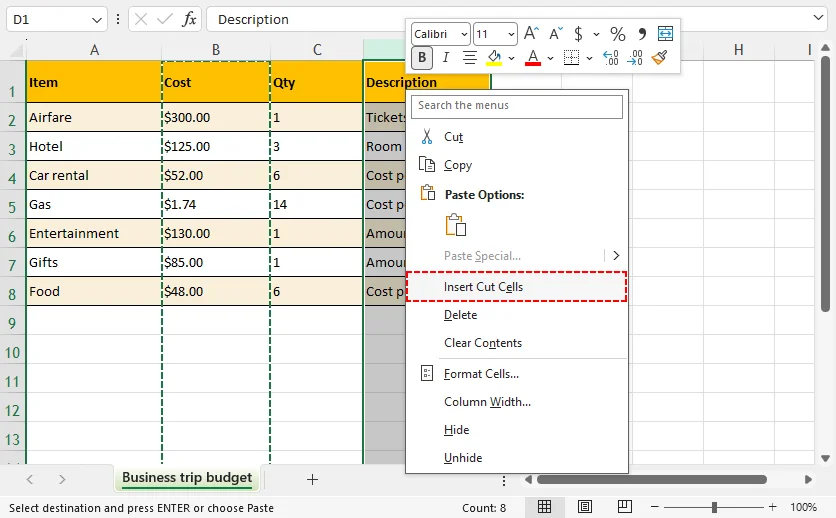
- Click the column header to select the full column you want to move.
- Press Ctrl + X (Windows) or Cmd + X (Mac). Alternatively, right-click the header and select Cut.
- Right-click the column header where you want to insert your cut column.
- Choose Insert Cut Cells. Excel shifts all existing columns to the right automatically and inserts your column in place.
If your goal is not just to reorder columns but to change their orientation entirely, follow this guide to convert columns to rows in Excel.
Method 3: Reorder Columns in Excel with Python (Automated Workflow)
Manually moving columns in Excel becomes inefficient when processing batches of Excel spreadsheets. Using the Free Spire.XLS for Python library, you can programmatically restructure column sequences while preserving values, cell formatting, and column widths.
Prerequisite
Install Free Spire.XLS for Python first:
pip install Spire.Xls.Free
Python Code to Reorder Excel Columns
This script copies source columns into a new custom sequence, preserves cell values, formatting, and column widths. Column indexes start at 0.
from spire.xls import *
from spire.xls.common import *

# Create a Workbook object
workbook = Workbook()

# Load the Excel document
workbook.LoadFromFile("SampleData1.xlsx")

# Get a specific worksheet
targetSheet = workbook.Worksheets[0]

# Specify the new column order in a list (the column index starts from 0)
newColumnOrder = [1, 0, 3, 2, 4, 5 ]

# Add a temporary worksheet
tempSheet = workbook.Worksheets.Add("temp")

# Copy data from the target worksheet to the temporary sheet
tempSheet.CopyFrom(targetSheet)

# Iterate through the newColumnOrder list
for i in range(len(newColumnOrder)):

    # Copy the column from the temporary sheet to the target sheet in the new order
    tempSheet.Columns[newColumnOrder[i]].Copy(targetSheet.Columns[i], True, True)

    # Reset the column width in the target sheet
    targetSheet.Columns[i].ColumnWidth = tempSheet.Columns[newColumnOrder[i]].ColumnWidth

# Remove the temporary sheet
workbook.Worksheets.Remove(tempSheet)

# Save the workbook to another Excel file
workbook.SaveToFile("ReorderColumns.xlsx", FileFormat.Version2016)

# Dispose resources
workbook.Dispose()
How the script works
- Load the input Excel file and select the target worksheet.
- Define your desired column sequence in newColumnOrder.
- Create a temporary sheet as a data backup before rewriting columns.
- Loop through your custom order and copy columns one by one, retaining cell formatting and column width.
- Delete the temporary sheet and export the reordered Excel file.
Result:
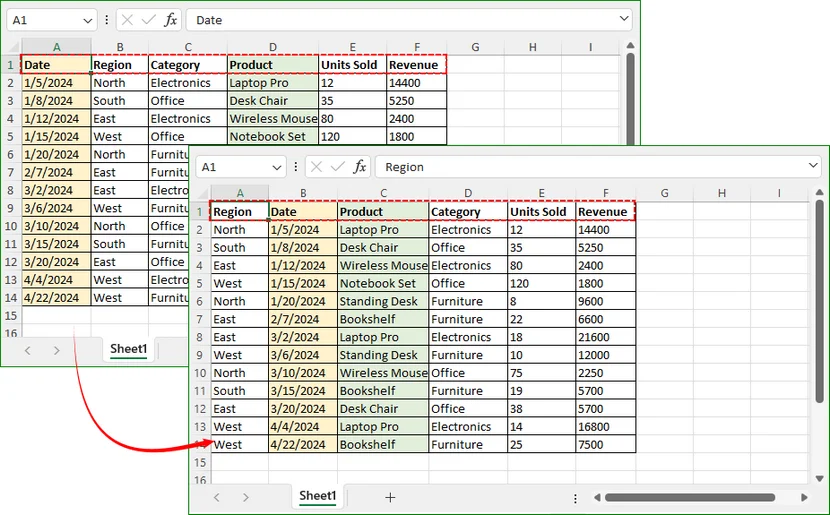
newColumnOrder = [1, 0, 3, 2, 4, 5] moves the second column (index 1) to the first position; the third column (index 2) moves to the fourth position.
Free Spire.XLS also supports many other column and row operations, such as inserting, copying, and deleting rows or columns.
Pro Tip: Handling Formulas (Absolute vs. Relative References)
When you move columns, Excel generally handles relative references well. However, if your formulas use absolute references (such as $A$1 instead of A1), moving the column will not change the reference in the formula.
To double-check your formulas after moving columns:
- Click on a cell that contains a formula.
- Check the formula bar.
- If you encounter
#REF!error values, you will need to manually update the reference to match the new column location.
If you want to remove formulas to avoid such potential error before processing, refer to our guide on How to Remove Formulas in Excel but Keep Data.
Final Thoughts
The best way to move columns in Excel depends on the size of the task and the risk to your data. For quick adjustments, drag-and-drop with Shift is the fastest method. For formula-heavy worksheets, Cut and Insert is safer. For recurring or bulk reordering tasks, Python automation can save significant time and reduce manual errors.
Whichever method you choose, follow three simple safeguards: save a backup before restructuring, verify formulas after the move, and check that column widths and formatting remain intact. With the right method, rearranging Excel columns becomes a quick, predictable task instead of a risky one.
Frequently Asked Questions (FAQs)
Q: Can I move multiple columns at once?
Yes, for adjacent columns. Select the column headers as a block, then Shift-drag the block or use Cut and Insert. For non-adjacent columns, move them one at a time or use Power Query/Python for a custom order.
Q: Why does Excel overwrite data when I drag a column?
Excel treats a normal drag as a move-and-replace operation. Holding Shift changes it to an insert-and-shift operation. If data was overwritten, press Ctrl + Z immediately.
Q: How do I move columns in Power Query?
In Power Query Editor, select the column and drag it to the new position, or use Transform > Move. Then load the query back to Excel.
Q: How do I move columns using only the keyboard?
Select the column with Ctrl + Space, cut it with Ctrl + X, navigate to the destination column, then open the context menu with Shift + F10 and choose Insert Cut Cells. Exact keyboard behavior can vary slightly by Excel version.