.NET (1327)
Children categories
Spire.PDF provides developers two methods to detect if a PDF file is PDF/A. The one is to use PdfDocument.Conformance property, the other is to use PdfDocument.XmpMetaData property. The following examples demonstrate how we can detect if a PDF file is PDF/A using these two methods.
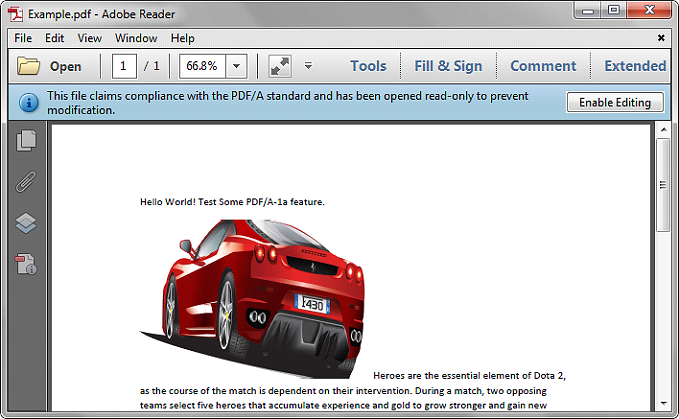
Below is the screenshot of the sample file we used for demonstration:
Using PdfDocument.Conformance
using Spire.Pdf;
using System;

namespace Detect
{
    class Program
    {
        static void Main(string[] args)
        {
            //Initialize a PdfDocument object
            PdfDocument pdf = new PdfDocument();
            //Load the PDF file
            pdf.LoadFromFile("Example.pdf");

            //Get the conformance level of the PDF file
            PdfConformanceLevel conformance = pdf.Conformance;
            Console.WriteLine("This PDF file is " + conformance.ToString());
        }
    }
}
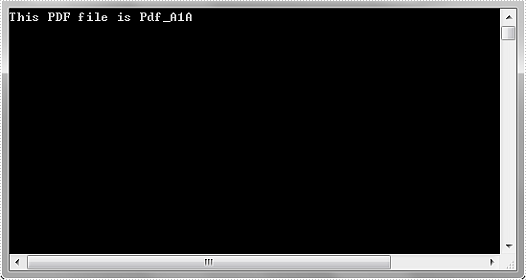
Output:
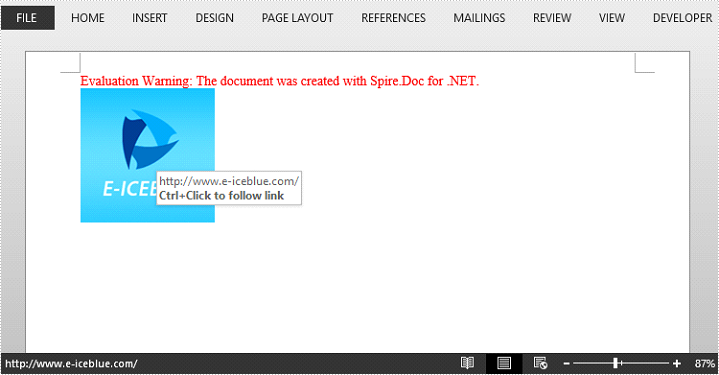
With linked images, you can direct users to a URL when they click the image. This article will show you how to create image hyperlinks in a Word document by using Spire.Doc.
Step 1: Create a Word document, add a section and a paragraph.
Document doc = new Document();
Section section = doc.AddSection();
Paragraph paragraph = section.AddParagraph();
Step 2: Load an image to a DocPicture object.
DocPicture picture = new DocPicture(doc);
picture.LoadImage(Image.FromFile("logo.png"));
Step 3: Add an image hyperlink to the paragraph.
paragraph.AppendHyperlink("www.e-iceblue.com", picture, HyperlinkType.WebLink);
Step 4: Save the file.
doc.SaveToFile("output.docx", FileFormat.Docx);
Output:
Full Code:
using Spire.Doc;
using Spire.Doc.Documents;
using Spire.Doc.Fields;
using System.Drawing;
namespace CreateLink
{
    class Program
    {

        static void Main(string[] args)
        {

            Document doc = new Document();
            Section section = doc.AddSection();

            Paragraph paragraph = section.AddParagraph();
            Image image = Image.FromFile("logo.png");
            DocPicture picture = new DocPicture(doc);
            picture.LoadImage(image);
            paragraph.AppendHyperlink("www.e-iceblue.com", picture, HyperlinkType.WebLink);

            doc.SaveToFile("output.docx", FileFormat.Docx);
        }
    }
}
Imports Spire.Doc
Imports Spire.Doc.Documents
Imports Spire.Doc.Fields
Imports System.Drawing
Namespace CreateLink
	Class Program

		Private Shared Sub Main(args As String())

			Dim doc As New Document()
			Dim section As Section = doc.AddSection()

			Dim paragraph As Paragraph = section.AddParagraph()
			Dim image__1 As Image = Image.FromFile("logo.png")
			Dim picture As New DocPicture(doc)
			picture.LoadImage(image__1)
			paragraph.AppendHyperlink("www.e-iceblue.com", picture, HyperlinkType.WebLink)

			doc.SaveToFile("output.docx", FileFormat.Docx)
		End Sub
	End Class
End Namespace
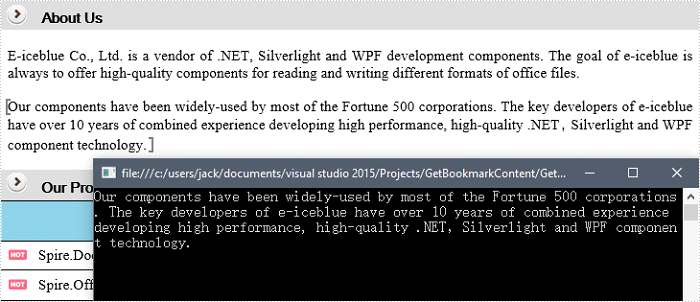
Spire.Doc supports to retrieve, replace and delete bookmark content of a specified bookmark. This article will show you how we can get the plain text within a bookmark by using Spire.Doc with C# and VB.NET.
Step 1: Create a Document instance, and load a sample Word document.
Document doc = new Document();
doc.LoadFromFile("Bookmark.docx");
Step 2: Creates a BookmarkNavigator instance to access the bookmark.
BookmarksNavigator navigator = new BookmarksNavigator(doc);
Step 3: Locate a specific bookmark by bookmark name. Call the method GetBookmarkContent to get content within the bookmark.
navigator.MoveToBookmark("bookmark_1");
TextBodyPart textBodyPart = navigator.GetBookmarkContent();
Step 4: Iterate through the items in the bookmark content to get the plain, unformatted text of the bookmark.
string text = null;
foreach (var item in textBodyPart.BodyItems)
{
    if (item is Paragraph)
    {
        foreach (var childObject in (item as Paragraph).ChildObjects)
        {
            if (childObject is TextRange)
            {
                text += (childObject as TextRange).Text;
            }
        }
    }
}
Result:
Full Code:
using Spire.Doc;
using Spire.Doc.Documents;
using Spire.Doc.Fields;
using System;
namespace GetText
{
    class Program
    {

        static void Main(string[] args)
        {

            Document doc = new Document();
            doc.LoadFromFile("Bookmark.docx");

            BookmarksNavigator navigator = new BookmarksNavigator(doc);
            navigator.MoveToBookmark("bookmark_1");
            TextBodyPart textBodyPart = navigator.GetBookmarkContent();

            string text = null;
            foreach (var item in textBodyPart.BodyItems)
            {
                if (item is Paragraph)
                {
                    foreach (var childObject in (item as Paragraph).ChildObjects)
                    {
                        if (childObject is TextRange)
                        {
                            text += (childObject as TextRange).Text;
                        }
                    }
                }
            }
            Console.WriteLine(text);
        }
    }
}
Imports Spire.Doc
Imports Spire.Doc.Documents
Imports Spire.Doc.Fields
Namespace GetText
	Class Program

		Private Shared Sub Main(args As String())

			Dim doc As New Document()
			doc.LoadFromFile("Bookmark.docx")

			Dim navigator As New BookmarksNavigator(doc)
			navigator.MoveToBookmark("bookmark_1")
			Dim textBodyPart As TextBodyPart = navigator.GetBookmarkContent()

			Dim text As String = Nothing
			For Each item As var In textBodyPart.BodyItems
				If TypeOf item Is Paragraph Then
					For Each childObject As var In TryCast(item, Paragraph).ChildObjects
						If TypeOf childObject Is TextRange Then
							text += TryCast(childObject, TextRange).Text
						End If
					Next
				End If
			Next
			Console.WriteLine(text)
		End Sub
	End Class
End Namespace
Set the border type and color for the table on Presentation slides
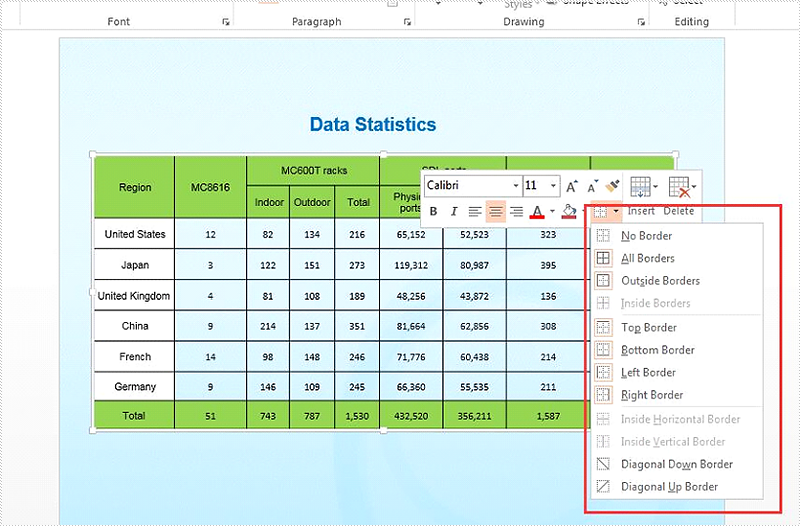
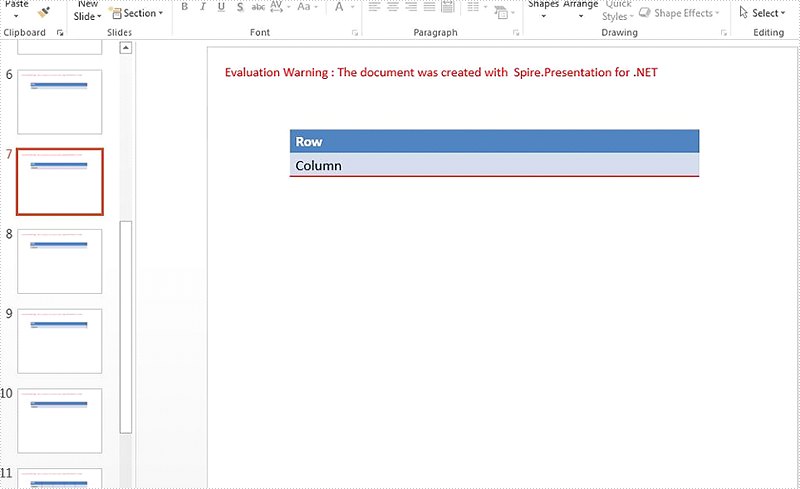
2018-01-03 08:33:55 Written by KoohjiWith the help of Spire.Presentation, we can easily set the border type and color of a whole table on the presentation slides. This article will focus on demonstrating how to set the border for the table in C#.
Firstly, view the 12 border types for the table on PowerPoint file:
How to set the border type and color for an existing table on presentation slide:
//create a presentation document and load the file from disk
Presentation presentation = new Presentation();
presentation.LoadFromFile("Sample.pptx");

//get the table from the first slide of the sample document
ISlide slide = presentation.Slides[0];
ITable table = slide.Shapes[1] as ITable;

//set the border type as Inside and the border color as blue
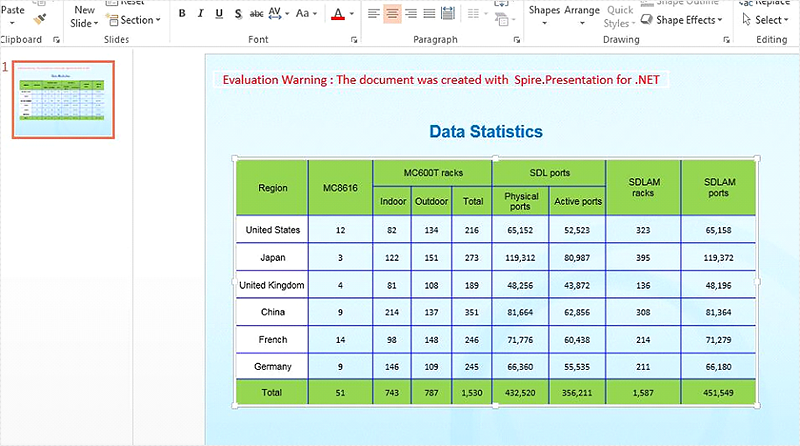
table.SetTableBorder(TableBorderType.Inside, 1, Color.Blue);

//save the document to file
presentation.SaveToFile("Insideborder.pptx", FileFormat.Pptx2010);
Effective screenshot after set the border type for an existing table on presentation slide:
How to set the border type and color for newly added tables on presentation slide:
using Spire.Presentation;
using System;

namespace Set_border_type_and_color
{

    class Program
    {
        static void Main(string[] args)
        {

            //create a presentation document
            Presentation presentation = new Presentation();

            //set the table width and height for each table cell
            double[] tableWidth = new double[] { 100, 100, 100, 100, 100 };
            double[] tableHeight = new double[] { 20, 20 };

            //traverse all the border type of the table
            foreach (TableBorderType item in Enum.GetValues(typeof(TableBorderType)))

            //add a table to the presentation slide with the setting width and height
            {
                ITable itable = presentation.Slides.Append().Shapes.AppendTable(100, 100, tableWidth, tableHeight);

                //add some text to the table cell
                itable.TableRows[0][0].TextFrame.Text = "Row";
                itable.TableRows[1][0].TextFrame.Text = "Column";

                //set the border type, border width and the border color for the table
                itable.SetTableBorder(item, 1.5, Color.Red);

            }

            //save the document to file
            presentation.SaveToFile("Addtablewithborder.pptx", FileFormat.Pptx2010);

        }
    }
}
Retrieve Style Names of all TextRanges in a Word Document in C#, VB.NET
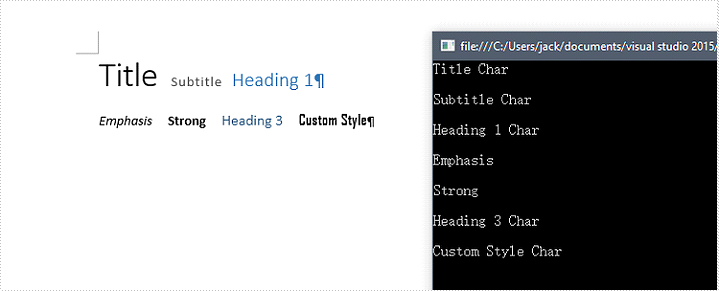
2017-12-26 02:59:14 Written by KoohjiProgrammers may need to determine the style name of a section of text, or find the text in a document that appear in a specified style name, such as “Heading 1”. This article will show you how to retrieve style names that are applied in a Word document by using Spire.Doc with C# and VB.NET.
Step 1: Create a Document instance.
Document doc = new Document();
Step 2: Load a sample Word file.
doc.LoadFromFile("Sample.docx");
Step 3: Traverse all TextRanges in the document and get their style names through StyleName property.
foreach (Section section in doc.Sections)
{
    foreach (Paragraph paragraph in section.Paragraphs)
    {
        foreach (DocumentObject docObject in paragraph.ChildObjects)
        {
            if (docObject.DocumentObjectType == DocumentObjectType.TextRange)
            {
                TextRange text = docObject as TextRange;
                Console.WriteLine(text.StyleName);
            }
        }
    }
}
Result:
Full Code:
using Spire.Doc;
using Spire.Doc.Documents;
using Spire.Doc.Fields;
using System;
using System.Text.RegularExpressions;
namespace RetrieveStyleNames
{
    class Program
    {
        static void Main(string[] args)
        {
            Document doc = new Document();
            doc.LoadFromFile("Sample.docx");

            foreach (Section section in doc.Sections)
            {
                foreach (Paragraph paragraph in section.Paragraphs)
                {
                    foreach (DocumentObject docObject in paragraph.ChildObjects)
                    {
                        if (docObject.DocumentObjectType == DocumentObjectType.TextRange)
                        {
                            TextRange text = docObject as TextRange;
                            Console.WriteLine(text.StyleName);
                        }
                    }
                    Console.WriteLine();
                }
            }
        }
    }
}
Imports Spire.Doc
Imports Spire.Doc.Documents
Imports Spire.Doc.Fields
Imports System.Text.RegularExpressions
Namespace RetrieveStyleNames
	Class Program
		Private Shared Sub Main(args As String())
			Dim doc As New Document()
			doc.LoadFromFile("Sample.docx")

			For Each section As Section In doc.Sections
				For Each paragraph As Paragraph In section.Paragraphs
					For Each docObject As DocumentObject In paragraph.ChildObjects
						If docObject.DocumentObjectType = DocumentObjectType.TextRange Then
							Dim text As TextRange = TryCast(docObject, TextRange)
							Console.WriteLine(text.StyleName)
						End If
					Next
					Console.WriteLine()
				Next
			Next
		End Sub
	End Class
End Namespace
How to reset the position of the date time and slide number for the presentation slides
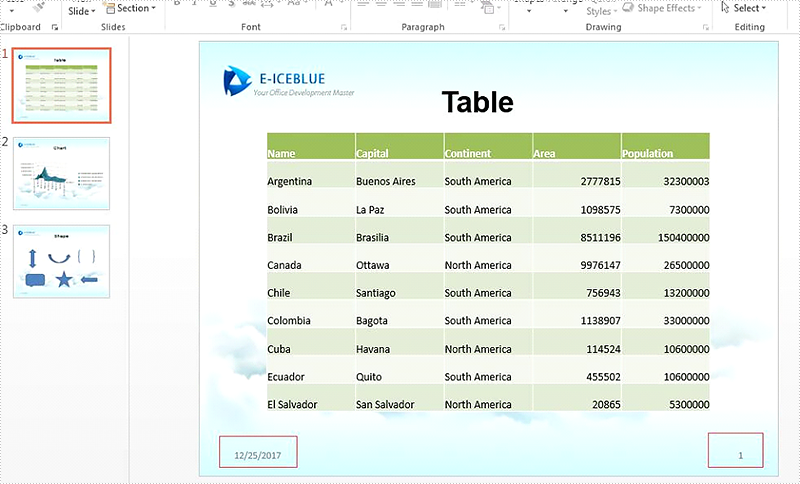
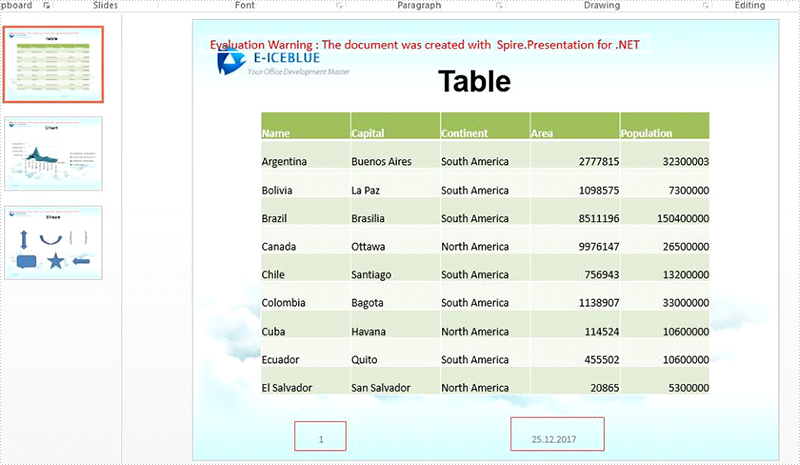
2017-12-25 09:12:30 Written by KoohjiWe have already demonstrated whether to display the additional information for presentation slides on header and footer area, such as hide or display date and time, the slide number, and the footer with the help of Spire.Presentation. This article will show you how to reset the position of the slide number and the date time in C#. We will also demonstrate how to reset the display format for the date and time from MM/dd/yyyy to yy.MM.yyyy on the presentation slides.
Firstly, view the default position of the date time at the left and the slide number at the right.
Step 1: Create a presentation document and load the file from disk.
Presentation presentation = new Presentation();
presentation.LoadFromFile("Sample.pptx", FileFormat.Pptx2013);
Step 2: Get the first slide from the sample document.
ISlide slide = presentation.Slides[0];
Step 3: Reset the position of the slide number to the left and date time to the center, and reset the date time display style.
foreach (IShape shapeToMove in slide.Shapes)
{
    if (shapeToMove.Name.Contains("Slide Number Placeholder"))
    {
        shapeToMove.Left =0;
     }

    else if (shapeToMove.Name.Contains("Date Placeholder"))
    {
        shapeToMove.Left = presentation.SlideSize.Size.Width / 2;

        (shapeToMove as IAutoShape).TextFrame.TextRange.Paragraph.Text = DateTime.Now.ToString("dd.MM.yyyy");
        (shapeToMove as IAutoShape).TextFrame.IsCentered = true;
    }
}
Step 4: Save the document to file.
presentation.SaveToFile("Result.pptx", FileFormat.Pptx2013);
Effective screenshot after reset the position and the format for the date time and slide number.
Full codes of how to reset the position of slide number and date time:
using Spire.Presentation;
using System;
namespace ResetPosition
{

    class Program
    {

        static void Main(string[] args)
        {
            Presentation presentation = new Presentation();

            presentation.LoadFromFile("Sample.pptx", Spire.Presentation.FileFormat.Pptx2013);

            ISlide slide = presentation.Slides[0];

            foreach (IShape shapeToMove in slide.Shapes)
            {
                if (shapeToMove.Name.Contains("Slide Number Placeholder"))
                {
                    shapeToMove.Left = 0;

                }

                else if (shapeToMove.Name.Contains("Date Placeholder"))
                {
                    shapeToMove.Left = presentation.SlideSize.Size.Width / 2;

                    (shapeToMove as IAutoShape).TextFrame.TextRange.Paragraph.Text = DateTime.Now.ToString("dd.MM.yyyy");
                    (shapeToMove as IAutoShape).TextFrame.IsCentered = true;
                }

            }
            presentation.SaveToFile("Result.pptx", Spire.Presentation.FileFormat.Pptx2013);

        }
    }
}
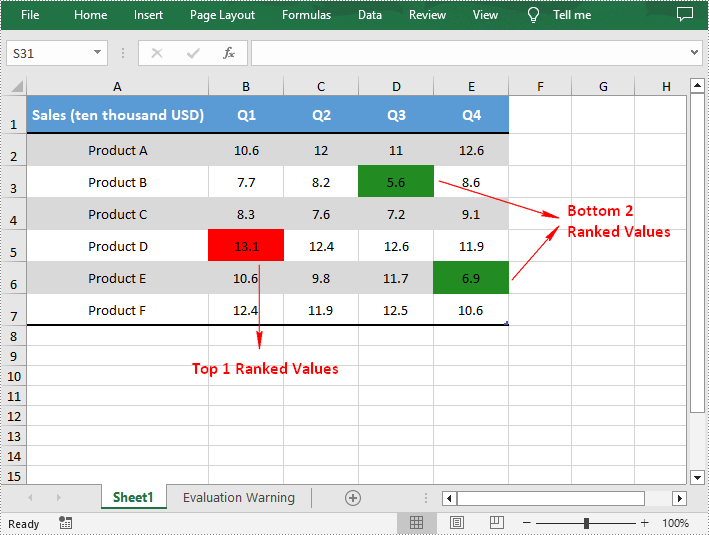
Searching for high or low values in large amounts of data can be cumbersome and error-prone. Fortunately, in Excel, you can apply conditional formatting to quickly highlight a specified number of top or bottom ranked values in a selected cell range. In this article, you will learn how to programmatically highlight top and bottom values in Excel using Spire.XLS for .NET.
Install Spire.XLS for .NET
To begin with, you need to add the DLL files included in the Spire.XLS for .NET package as references in your .NET project. The DLL files can be either downloaded from this link or installed via NuGet.
PM> Install-Package Spire.XLS
Highlight Top and Bottom Values in Excel in C# and VB.NET
Spire.XLS for .NET provides the XlsConditionalFormats.AddTopBottomCondition(TopBottomType topBottomType, int rank) method to specify the top N or bottom N ranked values, and then you can highlight these values with a background color. The following are the detailed steps.
- Create a Workbook instance.
- Load a sample Excel document using Workbook.LoadFromFile() method.
- Get a specified worksheet by its index using Workbook.Worksheets[sheetIndex] property.
- Add a conditional formatting to the worksheet using Worksheet.ConditionalFormats.Add() method and return an object of XlsConditionalFormats class.
- Set the cell range where the conditional formatting will be applied using XlsConditionalFormats.AddRange() method.
- Add a top condition to specify the highest or top N ranked values using XlsConditionalFormats.AddTopBottomCondition(TopBottomType topBottomType, int rank) method. Then highlight the cells that meet the condition with a background color using IConditionalFormat.BackColor property.
- Add a bottom condition to specify the lowest or bottom N ranked values and highlight the cells that meet the condition with a background color.
- Save the result document using Workbook.SaveToFile() method.
- C#
- VB.NET
using Spire.Xls;
using Spire.Xls.Core;
using Spire.Xls.Core.Spreadsheet.Collections;
using System.Drawing;

namespace HighlightValues
{
    class Program
    {
        static void Main(string[] args)
        {
            {

                //Create a Workbook instance
                Workbook workbook = new Workbook();

                //Load a sample Excel document
                workbook.LoadFromFile("sample.xlsx");

                //Get the first worksheet
                Worksheet sheet = workbook.Worksheets[0];

                //Add a conditional format to the worksheet
                XlsConditionalFormats format = sheet.ConditionalFormats.Add();

                //Set the range where the conditional format will be applied
                format.AddRange(sheet.Range["B2:F7"]);

                //Apply conditional formatting to highlight the highest values
                IConditionalFormat condition1 = format.AddTopBottomCondition(TopBottomType.Top, 1);
                condition1.BackColor = Color.Red;

                //Apply conditional formatting to highlight the bottom two values
                IConditionalFormat condition2 = format.AddTopBottomCondition(TopBottomType.Bottom, 2);
                condition2.BackColor = Color.ForestGreen;

                //Save the result document
                workbook.SaveToFile("TopBottomValues.xlsx", ExcelVersion.Version2013);

            }
        }
    }
}
Apply for a Temporary License
If you'd like to remove the evaluation message from the generated documents, or to get rid of the function limitations, please request a 30-day trial license for yourself.
Create a Cross-Reference to Bookmark in Word in C#, VB.NET
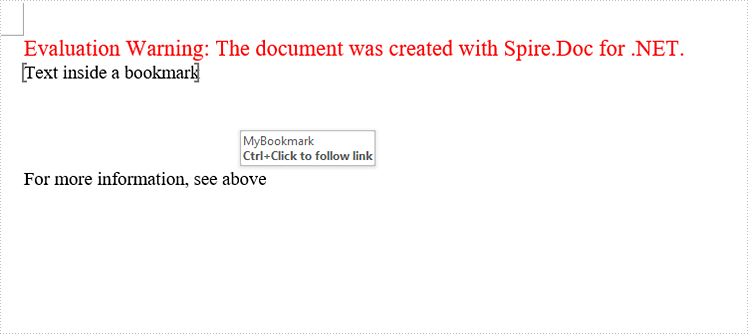
2017-12-21 07:54:20 Written by AdministratorA cross-reference refers to related information elsewhere in the same document. You can create cross-references to any existing items such as headings, footnotes, bookmarks, captions, and numbered paragraphs. This article will show you how to create a cross-reference to bookmark using Spire.Doc with C# and VB.NET.
Step 1: Create a Document instance.
Document doc = new Document();
Section section = doc.AddSection();
Step 2: Insert a bookmark.
Paragraph paragraph = section.AddParagraph();
paragraph.AppendBookmarkStart("MyBookmark");
paragraph.AppendText("Text inside a bookmark");
paragraph.AppendBookmarkEnd("MyBookmark");
Step 3: Create a cross-reference field, and link it to the bookmark through bookmark name.
Field field = new Field(doc);
field.Type = FieldType.FieldRef;
field.Code = @"REF MyBookmark \p \h";
Step 4: Add a paragraph, and insert the field to the paragraph.
paragraph = section.AddParagraph();
paragraph.AppendText("For more information, see ");
paragraph.ChildObjects.Add(field);
Step 5: Insert a FieldSeparator object to the paragraph, which works as separator in a field.
FieldMark fieldSeparator= new FieldMark(doc, FieldMarkType.FieldSeparator);
paragraph.ChildObjects.Add(fieldSeparator);
Step 6: Set the display text of the cross-reference field.
TextRange tr = new TextRange(doc);
tr.Text = "above";
paragraph.ChildObjects.Add(tr);
Step 7: Insert a FieldEnd object to the paragraph, which is used to mark the end of a field.
FieldMark fieldEnd = new FieldMark(doc, FieldMarkType.FieldEnd);
paragraph.ChildObjects.Add(fieldEnd);
Step 8: Save to file.
doc.SaveToFile("output.docx", FileFormat.Docx2013);
Output:
The cross-reference appears as a link that takes the reader to the referenced item.
Full Code:
using Spire.Doc;
using Spire.Doc.Documents;
using Spire.Doc.Fields;
namespace CreatCR
{
    class Program
    {
        static void Main(string[] args)
        {
            Document doc = new Document();
            Section section = doc.AddSection();
            //create a bookmark
            Paragraph paragraph = section.AddParagraph();
            paragraph.AppendBookmarkStart("MyBookmark");
            paragraph.AppendText("Text inside a bookmark");
            paragraph.AppendBookmarkEnd("MyBookmark");
            //insert line breaks
            for (int i = 0; i < 4; i++)
            {
                paragraph.AppendBreak(BreakType.LineBreak);
            }
            //create a cross-reference field, and link it to bookmark
            Field field = new Field(doc);
            field.Type = FieldType.FieldRef;
            field.Code = @"REF MyBookmark \p \h";
            //insert field to paragraph
            paragraph = section.AddParagraph();
            paragraph.AppendText("For more information, see ");
            paragraph.ChildObjects.Add(field);
            //insert FieldSeparator object
            FieldMark fieldSeparator = new FieldMark(doc, FieldMarkType.FieldSeparator);
            paragraph.ChildObjects.Add(fieldSeparator);
            //set display text of the field
            TextRange tr = new TextRange(doc);
            tr.Text = "above";
            paragraph.ChildObjects.Add(tr);
            //insert FieldEnd object to mark the end of the field
            FieldMark fieldEnd = new FieldMark(doc, FieldMarkType.FieldEnd);
            paragraph.ChildObjects.Add(fieldEnd);
            //save file
            doc.SaveToFile("output.docx", FileFormat.Docx2013);

        }
    }
}
Imports Spire.Doc
Imports Spire.Doc.Documents
Imports Spire.Doc.Fields
Namespace CreatCR
	Class Program
		Private Shared Sub Main(args As String())
			Dim doc As New Document()
			Dim section As Section = doc.AddSection()
			'create a bookmark
			Dim paragraph As Paragraph = section.AddParagraph()
			paragraph.AppendBookmarkStart("MyBookmark")
			paragraph.AppendText("Text inside a bookmark")
			paragraph.AppendBookmarkEnd("MyBookmark")
			'insert line breaks
			For i As Integer = 0 To 3
				paragraph.AppendBreak(BreakType.LineBreak)
			Next
			'create a cross-reference field, and link it to bookmark
			Dim field As New Field(doc)
			field.Type = FieldType.FieldRef
			field.Code = "REF MyBookmark \p \h"
			'insert field to paragraph
			paragraph = section.AddParagraph()
			paragraph.AppendText("For more information, see ")
			paragraph.ChildObjects.Add(field)
			'insert FieldSeparator object
			Dim fieldSeparator As New FieldMark(doc, FieldMarkType.FieldSeparator)
			paragraph.ChildObjects.Add(fieldSeparator)
			'set display text of the field
			Dim tr As New TextRange(doc)
			tr.Text = "above"
			paragraph.ChildObjects.Add(tr)
			'insert FieldEnd object to mark the end of the field
			Dim fieldEnd As New FieldMark(doc, FieldMarkType.FieldEnd)
			paragraph.ChildObjects.Add(fieldEnd)
			'save file
			doc.SaveToFile("output.docx", FileFormat.Docx2013)

		End Sub
	End Class
End Namespace
Shapes in Excel serve as visual elements that can decorate or optimize worksheets, including objects such as text boxes and images. By inserting shapes, users are able to present data in a more intuitive manner and emphasize vital information, ultimately improving the readability of the spreadsheets. When it becomes necessary to deal with the contents within the shapes independently, you can programmatically extract them from shapes for further processing. In this article, we will show you how to extract text and images from excel shapes by using Spire.XLS for .NET.
Install Spire.XLS for .NET
To begin with, you need to add the DLL files included in the Spire.XLS for.NET package as references in your .NET project. The DLLs files can be either downloaded from this link or installed via NuGet.
PM> Install-Package Spire.XLS
Extract Text from Excel Shapes
Spire.XLS for .NET allows users to extract text from shape object by using IPrstGeomShape.Text property and write it to a new .txt file. The following are detailed steps.
- Create a Workbook object.
- Load an Excel file using Workbook.LoadFromFile() method.
- Get the first worksheet by Workbook.Worksheets[] property.
- Get the second shape by Worksheet.PrstGeomShapes[] property.
- Extract text content from the second shape and save it to the string variable.
- Create a StringBuilder object and append the extracted text to it.
- Write the text to a .txt file using File.WriteAllText() method.
- C#
- VB.NET
using System.IO;
using System.Text;
using Spire.Xls;
using Spire.Xls.Core;

namespace Extracttext
{
    class Program
    {
        static void Main(string[] args)
        {
            //Create a Workbook object
            Workbook workbook = new Workbook();

            //Load the Excel file
            workbook.LoadFromFile("sample.xlsx");

            //Get the first worksheet
            Worksheet sheet = workbook.Worksheets[0];

            //Get the second shape and extract text from it
            IPrstGeomShape shape1 = sheet.PrstGeomShapes[1];
            string s = shape1.Text;

            //Append the extracted text to StringBuilder object
            StringBuilder sb = new StringBuilder();
            sb.AppendLine(s);

            //Write the text to a .txt file
            File.WriteAllText("ShapeText.txt", sb.ToString());
            workbook.Dispose();
        }
    }
}
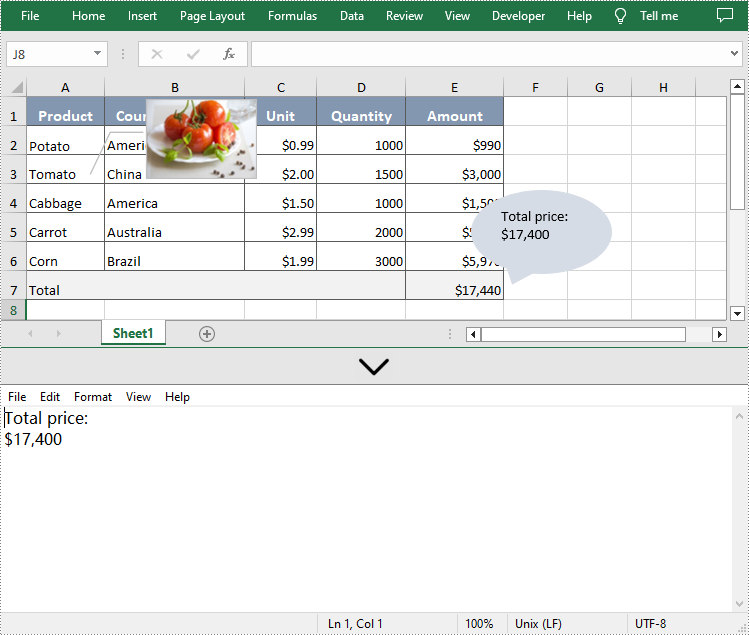
Extract Images from Excel Shapes
Additionally, Spire.XLS for .NET also supports extracting the image by using IPrstGeomShape.Fill.Picture property and save it to a local folder. The related steps are as follows.
- Create a Workbook object.
- Load an Excel file using Workbook.LoadFromFile() method.
- Get the first worksheet by Workbook.Worksheets[] property.
- Get the first shape by Worksheet.PrstGeomShapes[] property.
- Extract the image from the first shape by its Fill and Picture property.
- Save the extracted image to a folder by using Image.Save() method.
- C#
- VB.NET
using System.Drawing;
using System.Drawing.Imaging;
using Spire.Xls;
using Spire.Xls.Core;

namespace Extractimage
{
    class Program
    {
        static void Main(string[] args)
        {
            //Create a Workbook object
            Workbook workbook = new Workbook();

            //Load the Excel file
            workbook.LoadFromFile("sample.xlsx");

            //Get the first worksheet
            Worksheet sheet = workbook.Worksheets[0];

            //Get the first shape and extract the image from it
            IPrstGeomShape shape2 = sheet.PrstGeomShapes[0];
            Image image = shape2.Fill.Picture;

            //Save the extracted image to a folder
            image.Save(@"Image\ShapeImage.png", ImageFormat.Png);
            workbook.Dispose();
        }
    }
}
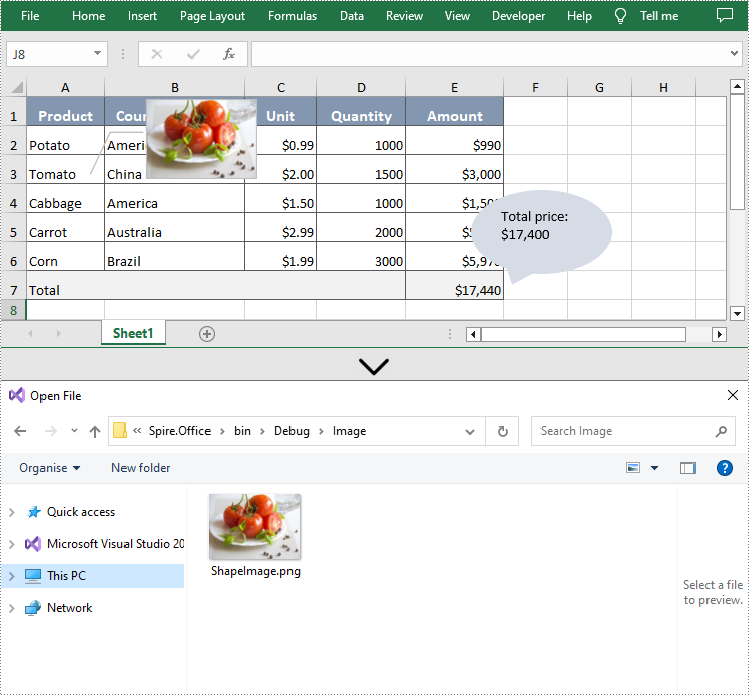
Apply for a Temporary License
If you'd like to remove the evaluation message from the generated documents, or to get rid of the function limitations, please request a 30-day trial license for yourself.
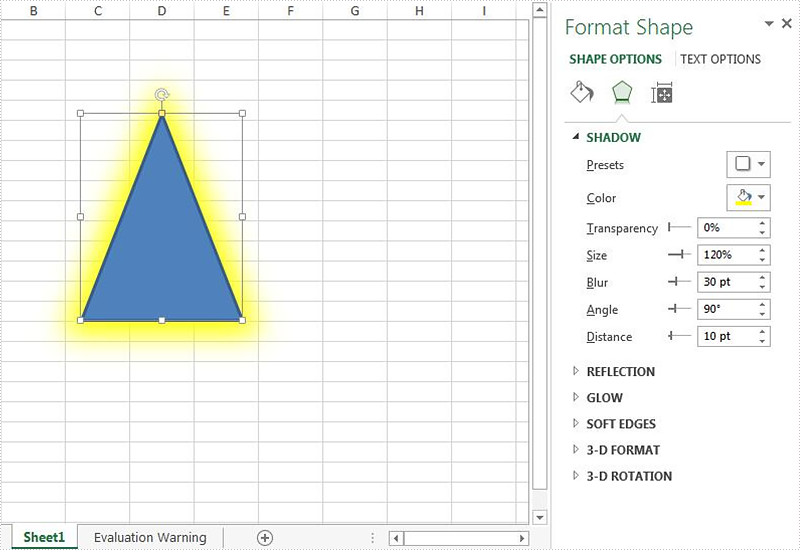
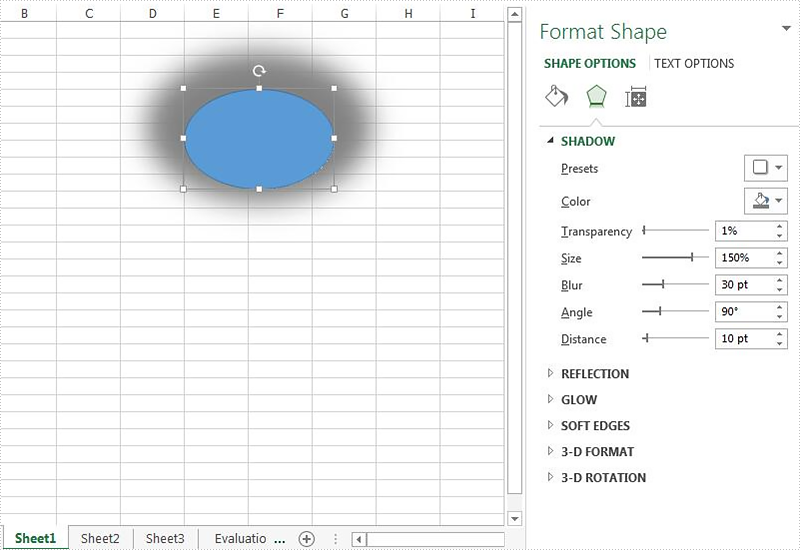
With the help of Spire.XLS, we can easily add shapes to the Excel worksheet. This article will demonstrate how to format the shadow of shape on Excel in C#. We can use Spire.XLS to set the color, size, blur, angle, transparency and distance of the shadow for the shape on Excel worksheet.
Set the shadow style when we add new shape to the Excel worksheet:
using Spire.Xls;
using Spire.Xls.Core;
using System.Drawing;
namespace SetShadowStyle
{
    class Program
    {
        static void Main(string[] args)
        {
            //instantiate a Workbook object and get the first worksheet
            Workbook workbook = new Workbook();
            Worksheet sheet = workbook.Worksheets[0];

            //add an ellipse shape
            IPrstGeomShape ellipse = sheet.PrstGeomShapes.AddPrstGeomShape(5, 5, 150, 100, PrstGeomShapeType.Ellipse);

            //set the shadow style for the ellipse
            ellipse.Shadow.Angle = 90;
            ellipse.Shadow.Distance = 10;
            ellipse.Shadow.Size = 150;
            ellipse.Shadow.Color = Color.Gray;
            ellipse.Shadow.Blur = 30;
            ellipse.Shadow.Transparency = 1;
            ellipse.Shadow.HasCustomStyle = true;

            //save the document to file
            workbook.SaveToFile("Shapeshadow.xlsx", FileFormat.Version2010);
        }
    }
}
Effective screenshot after setting the shadow style for the shape on the Excel worksheet:
Set the shadow style when we loaded an Excel document with shape:
using Spire.Xls;
using Spire.Xls.Core;
using System.Drawing;
namespace SetShadowStyle
{
    class Program
    {
        static void Main(string[] args)
        {
            //create an instance of workbook and load the document from file
            Workbook workbook = new Workbook();
            workbook.LoadFromFile("Sample.xlsx");

            //get the first worksheet from the sample document
            Worksheet sheet = workbook.Worksheets[0];

            //get the first shape from the worksheet
            IPrstGeomShape shape = sheet.PrstGeomShapes[0];

            //set the shadow style for the shape
            shape.Shadow.Angle = 90;
            shape.Shadow.Distance = 10;
            shape.Shadow.Size = 120;
            shape.Shadow.Color = Color.Yellow;
            shape.Shadow.Blur = 30;
            shape.Shadow.HasCustomStyle = true;

            //save the document to file
            workbook.SaveToFile("ShadowStyle.xlsx", FileFormat.Version2010);

        }
    }
}
Effective screenshot after setting the shadow style for the shape on the Excel worksheet: