
Knowledgebase (2370)
Children categories
Word Marco is widely used to record the operation that needs to be done repeatedly and you can apply it with only a single click. It can save lots of time for you. It is not an easy work to load a word document with Macro in C# and sometimes, you need to remove the Marco in the word documents in C#. This article will focus on demonstrate how to load and save word document with Marco, and clear the Marco by using Spire.Doc in C# in simple lines of codes.
First, download Spire.Doc and install on your system. The Spire.Doc installation is clean, professional and wrapped up in a MSI installer.
Then adds Spire.Doc.dll as reference in the downloaded Bin folder though the below path: "..\Spire.Doc\Bin\NET4.0\ Spire.Doc.dll".
Here comes to the steps.
Step 1: Load and save the document with Marco. Spire.Doc for .NET supports .doc, .docx(Word 97-2003) document with macros and .docm(Word 2007 and Word 2010) document.
//Loading document with macros.
document.LoadFromFile(@"D:\Macros.docm", FileFormat.Docm);
//Save docm file.
document.SaveToFile("Sample.docm", FileFormat.Docm);
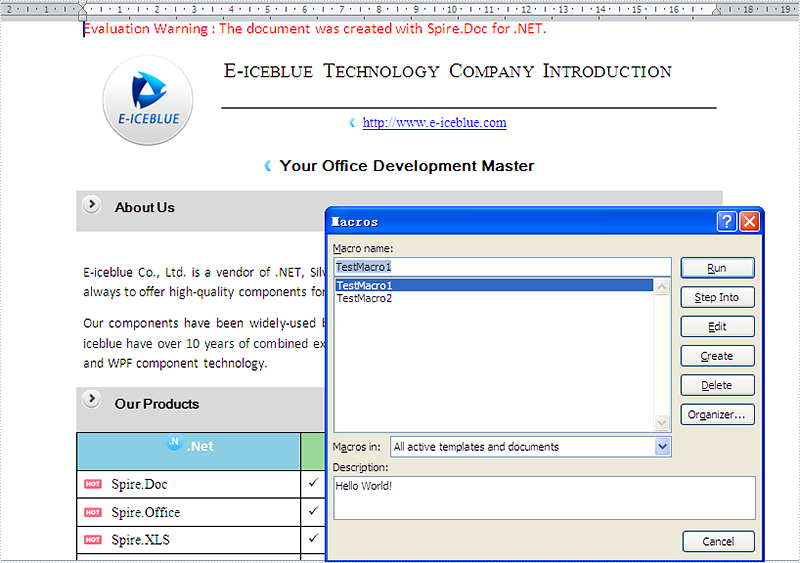
Step 2: Clear the Marco in word document. With Spire.Doc, you only need one line of code to remove all the Marcos at one time.
//Removes the macros from the document
document.ClearMacros();
//Save docm file.
document.SaveToFile("Sample.docm", FileFormat.Docm);
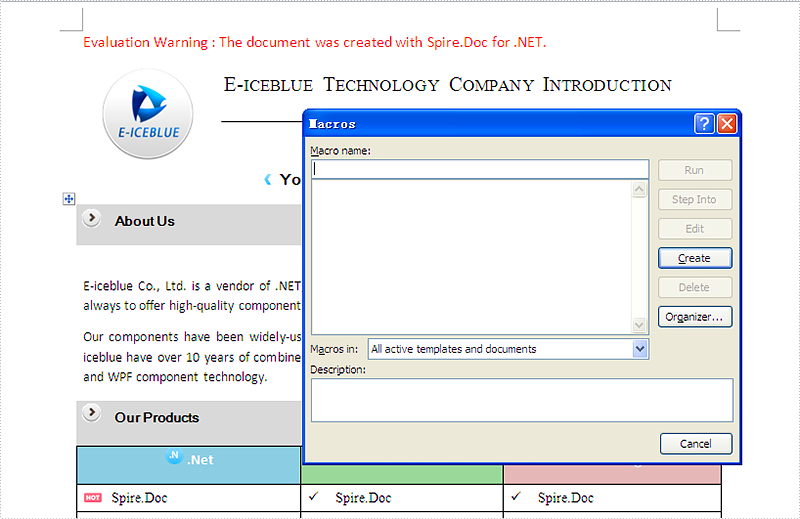
Here comes to the screenshot which has removed the Marco in word document.
Insert Image at Specified Location in C#, VB.NET
2014-03-06 02:26:37Image can add interest and take effect to your Word documents. Suppose you've written an article introducing a city about its beautiful scenery. Just using words describe, you cannot present perfect scenery to your readers, because that page of text looks indistinct and dull. You need image to embellish your scenery.
Spire.Doc for .NET, a professional .NET word component to fast generate, open, modify and save Word documents without using MS Office Automation, enables users to insert image into Word document and set its size according to page by using C#.NET. This guide introduces an easy method how to insert image via Spire.Doc for .NET.
At first, create new Word document and add section, paragraph for this document. Then, insert image in the new created paragraph. You can set this image's size, position, rotate it and choice the wrapping-style about the text. Download and Install Spire.Doc for .NET. Use the following code to insert image in Word by using C#.
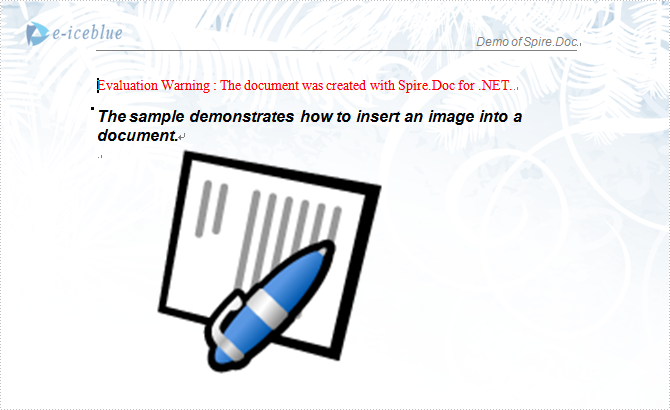
The sample demo shows how to insert an image into a document.
using System;
using Spire.Doc;
using Spire.Doc.Documents;
using Spire.Doc.Fields;
using System.Drawing;

namespace Insert_image_to_Word_Document
{
    class Program
    {
        static void Main(string[] args)
        {
 //Open a blank word document as template
            Document document = new Document(@"Blank.doc");
            Section section = document.Sections[0];
            Paragraph paragraph
                = section.Paragraphs.Count > 0 ? section.Paragraphs[0] : section.AddParagraph();
            paragraph.AppendText("The sample demonstrates how to insert an image into a document.");
            paragraph.ApplyStyle(BuiltinStyle.Heading2);
            paragraph = section.AddParagraph();

            //get original image
            Bitmap p = new Bitmap(Image.FromFile(@"Word.jpg"));

            //rotate image and insert image to word document
            p.RotateFlip(RotateFlipType.Rotate90FlipX);

            DocPicture picture = document.Sections[0].Paragraphs[0].AppendPicture(p);

            //set image's position
            picture.HorizontalPosition = 50.0F;
            picture.VerticalPosition = 60.0F;

            //set image's size
            picture.Width = 200;
            picture.Height = 200;

            //set textWrappingStyle with image;
            picture.TextWrappingStyle = TextWrappingStyle.Through;

            //Save doc file.
            document.SaveToFile("Sample.doc", FileFormat.Doc);

            //Launching the MS Word file.            System.Diagnostics.Process.Start("Sample.doc");
        }
       }
}
If you have finished the tutorial Spire.Doc Quick Start, the steps above will be simpler.
With Spire.Doc, you can insert an image into your Word documents and do more same thing in your ASP.NET, WPF and Silverlight applications without Word automation and any other third party add-ins.
When uploading or submitting PDF files on certain platforms, you are sometimes faced with the dilemma that the platforms require a specific version of PDF file. If your PDF files fail to meet the requirements, it is necessary to convert them to a different version for compatibility purposes. This article will demonstrate how to programmatically convert PDF between different versions using Spire.PDF for .NET.
Install Spire.PDF for .NET
To begin with, you need to add the DLL files included in the Spire.PDF for.NET package as references in your .NET project. The DLL files can be either downloaded from this link or installed via NuGet.
PM> Install-Package Spire.PDF
Change PDF Version in C# and VB.NET
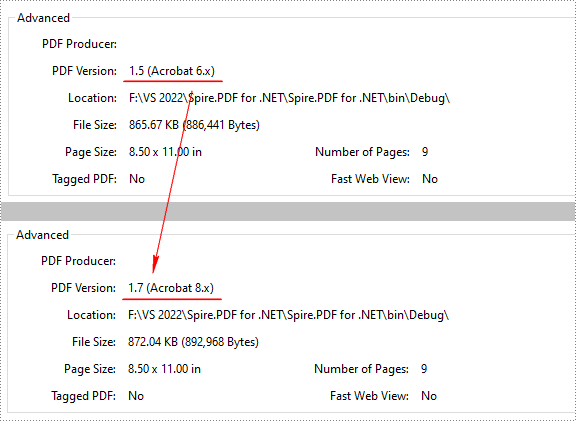
Spire.PDF for .NET supports PDF versions from 1.0 to 1.7. To convert a PDF file to a newer or older version, you can use the PdfDocument.FileInfo.Version property. The following are the detailed steps.
- Create a PdfDocument object.
- Load a sample PDF file using PdfDocument.LoadFromFile() method.
- Change the PDF version to a newer or older version using PdfDocument.FileInfo.Version property.
- Save the result document using PdfDocument.SaveToFile() method.
- C#
- VB.NET
using Spire.Pdf;

namespace ConvertPDFVersion
{
    class Program
    {
        static void Main(string[] args)
        {
            //Create a PdfDocument object
            PdfDocument pdf = new PdfDocument();

            //Load a sample PDF file
            pdf.LoadFromFile("sample.pdf");

            //Change the PDF to version 1.7
            pdf.FileInfo.Version = PdfVersion.Version1_7;

            //Save the result file
            pdf.SaveToFile("PDFVersion.pdf");
        }
    }
}
Apply for a Temporary License
If you'd like to remove the evaluation message from the generated documents, or to get rid of the function limitations, please request a 30-day trial license for yourself.
