
Knowledgebase (2370)
Children categories
Set border and shading in PowerPoint document in C#, VB.NET
2014-04-23 03:39:09 Written by AdministratorSuppose you want your doc document more attract and prominent your content. You would use a kind of border and shading style to beatify your document and give prominence to the key points. AS well as doc document the PPT document also can set shape to as border and shading.
Spire.Presentation for .NET, a professional .NET PPT component to allow users to manipulate PPT documents without automation. It can set kinds of shape types which can help users to beatify their document as their expectation
Below demonstrate the effect by a screenshot which shows a shape type in PPT document with C#, VB.NET via Spire.Presentation for .NET.
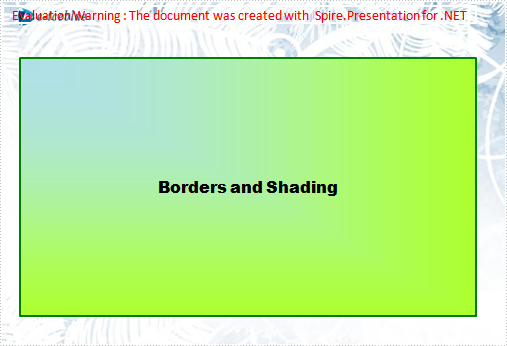
There is a guide to introduce a method to set shape type to achieve above screenshot with C#, VB.NET via Spire.Presentation for .NET.
This method is:
First, new a PPT document and set its slide. Then, new a shape and set its line color and gradient color. Last set the font and fill style for the paragraph. Now Download and install Spire.Presentation for .NET and use below code to experience this method to set shape type in PPT document.
The full code:
using System;
using System.Drawing;
using Spire.Presentation;
using Spire.Presentation.Drawing;

namespace BorderAndShading
{
    class Program
    {
        static void Main(string[] args)
        {
            Presentation presentation = new Presentation();

            //set background Image
            string ImageFile = @" bg.png";
            RectangleF rect = new RectangleF(0, 0, presentation.SlideSize.Size.Width, presentation.SlideSize.Size.Height);
            presentation.Slides[0].Shapes.AppendEmbedImage(ShapeType.Rectangle, ImageFile, rect);
            presentation.Slides[0].Shapes[0].Line.FillFormat.SolidFillColor.Color = Color.FloralWhite;

            //append new shape
            IAutoShape shape = presentation.Slides[0].Shapes.AppendShape(ShapeType.Rectangle,
                new RectangleF(120, 70, 450, 300));

            //set the LineColor
            shape.ShapeStyle.LineColor.Color = Color.Green;

            //set the gradient color of shape
            shape.Fill.FillType = Spire.Presentation.Drawing.FillFormatType.Gradient;
            shape.Fill.Gradient.GradientShape = Spire.Presentation.Drawing.GradientShapeType.Rectangle;
            shape.Fill.Gradient.GradientStyle = Spire.Presentation.Drawing.GradientStyle.FromTopLeftCorner;
            shape.Fill.Gradient.GradientStops.Append(1f, KnownColors.GreenYellow);
            shape.Fill.Gradient.GradientStops.Append(0, KnownColors.PowderBlue);
            shape.AppendTextFrame("Borders and Shading");

            //set the Font
            shape.TextFrame.Paragraphs[0].TextRanges[0].LatinFont = new TextFont("Arial Black");
            shape.TextFrame.Paragraphs[0].TextRanges[0].Fill.FillType = FillFormatType.Solid;
            shape.TextFrame.Paragraphs[0].TextRanges[0].Fill.SolidColor.Color = Color.Black;

            //save the document
            presentation.SaveToFile("BordersAndShading.pptx", FileFormat.Pptx2007);
            System.Diagnostics.Process.Start("BordersAndShading.pptx");
        }
    }
}
Imports System.Text
Imports System.Drawing
Imports Spire.Presentation
Imports Spire.Presentation.Drawing

Module Module1

    Sub Main()
        'create PPT document
        Dim presentation As New Presentation()

        'set background Image
        Dim ImageFile As String = "bg.png"
        Dim rect As New RectangleF(0, 0, presentation.SlideSize.Size.Width, presentation.SlideSize.Size.Height)
        presentation.Slides(0).Shapes.AppendEmbedImage(ShapeType.Rectangle, ImageFile, rect)
        presentation.Slides(0).Shapes(0).Line.FillFormat.SolidFillColor.Color = Color.FloralWhite

        'append new shape
        Dim shape As IAutoShape = presentation.Slides(0).Shapes.AppendShape(ShapeType.Rectangle, New RectangleF(30, 70, 550, 300))

        'set the LineColor
        shape.ShapeStyle.LineColor.Color = Color.Green

        'set the gradient color of shape
        shape.Fill.FillType = Spire.Presentation.Drawing.FillFormatType.Gradient
        shape.Fill.Gradient.GradientShape = Spire.Presentation.Drawing.GradientShapeType.Rectangle
        shape.Fill.Gradient.GradientStyle = Spire.Presentation.Drawing.GradientStyle.FromTopLeftCorner
        shape.Fill.Gradient.GradientStops.Append(1.0F, KnownColors.GreenYellow)

        shape.Fill.Gradient.GradientStops.Append(0, KnownColors.PowderBlue)
        shape.AppendTextFrame("Borders and Shading")

        'set the Font
        shape.TextFrame.Paragraphs(0).TextRanges(0).LatinFont = New TextFont("Arial Black")
        shape.TextFrame.Paragraphs(0).TextRanges(0).Fill.FillType = FillFormatType.Solid
        shape.TextFrame.Paragraphs(0).TextRanges(0).Fill.SolidColor.Color = Color.Black

        'save the document
        presentation.SaveToFile("BordersAndShading.pptx", FileFormat.Pptx2007)
        System.Diagnostics.Process.Start("BordersAndShading.pptx")

    End Sub

End Module
Converting PowerPoint presentations to PDF offers portability, compatibility, and secure sharing capabilities. By transforming dynamic slides into a static, universally accessible format, users ensure seamless viewing across different devices and platforms.
This article explains how to convert PowerPoint presentations to PDFs using C# and Spire.Presentation for .NET. You'll learn to customize the conversion, including options like including hidden slides, securing PDFs with passwords, and enforcing compliance standards.
- Convert PowerPoint to PDF in C#
- Convert PowerPoint to PDF/A in C#
- Convert PowerPoint to Password-Protected PDF in C#
- Convert PowerPoint to PDF with Hidden Slides in C#
- Convert PowerPoint to PDF with Custom Slide Size in C#
- Convert a Specific Slide in PowerPoint to PDF in C#
Install Spire.Presentation for .NET
To begin with, you need to add the DLL files included in the Spire.Presentation for.NET package as references in your .NET project. The DLL files can be either downloaded from this link or installed via NuGet.
PM> Install-Package Spire.Presentation
Convert PowerPoint to PDF in C#
To convert a PowerPoint document to PDF without any customization, you can first load the document using the Presentation.LoadFromFile() method, and then save it as a PDF file using the Presentation.SaveToFile() method.
The steps to convert a PowerPoint document to PDF using C# are as follows:
- Create a Presentation object.
- Load a PowerPoint document using Presetation.LoadFromFile() method.
- Convert it to PDF using Presentation.SaveToFile() method.
- C#
using Spire.Presentation;

namespace ConvertPowerPointToPdf
{
    class Program
    {
        static void Main(string[] args)
        {
            // Create a Presentation object
            Presentation presentation = new Presentation();

            // Load a PowerPoint file
            presentation.LoadFromFile("C:\\Users\\Administrator\\Desktop\\Input.pptx");

            // Save it to PDF
            presentation.SaveToFile("ToPdf.pdf", FileFormat.PDF);

            // Dispose resources
            presentation.Dispose();
        }
    }
}

Convert PowerPoint to PDF/A in C#
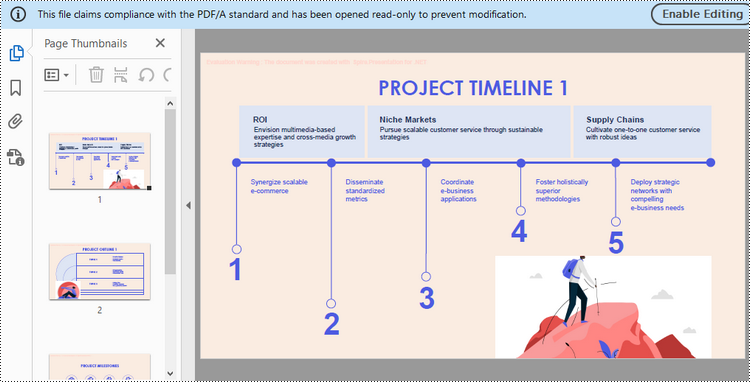
Spire.Presentation provides the SaveToPdfOption class, which allows you to configure the options for PowerPoint-to-PDF conversion. For instance, you can set the conformance level of the generated PDF document to Pdf/A-1a.
The steps to convert a PowerPoint presentation to a PDF/A document using C# are as follows:
- Create a Presentation object.
- Load a PowerPoint document using Presetation.LoadFromFile() method.
- Get the SaveToPdfOption object using Presentation.SaveToPdfOption property.
- Set the conformance level to Pdf_A1A using SaveToPdfOption.PdfConformanceLevel property.
- Convert the presentation to PDF using Presentation.SaveToFile() method.
- C#
using Spire.Presentation;
using Spire.Presentation.External.Pdf;

namespace ConvertPowerPointToPdfa
{
    class Program
    {
        static void Main(string[] args)
        {
            // Create a Presentation object
            Presentation presentation = new Presentation();

            // Load a PowerPoint file
            presentation.LoadFromFile("C:\\Users\\Administrator\\Desktop\\Input.pptx");

            // Get the SaveToPdfOption object
            SaveToPdfOption options = presentation.SaveToPdfOption;

            // Set the pdf conformance level to pdf_a1a
            options.PdfConformanceLevel = PdfConformanceLevel.Pdf_A1A;

            // Save the presentation to PDF
            presentation.SaveToFile("ToPdfa.pdf",FileFormat.PDF);

            // Dispose resources
            presentation.Dispose();
        }
    }
}
Convert PowerPoint to Password-Protected PDF in C#
The SaveToPdfOption class offers the PdfSecurity.Encrypt() method, which enables you to protect the generated PDF document with a password and set document processing permissions, such as allowing printing and filling form fields.
The steps to convert a PowerPoint presentation to a password-protected PDF using C# are as follows.
- Create a Presentation object.
- Load a PowerPoint document using Presetation.LoadFromFile() method.
- Get the SaveToPdfOption object using Presentation.SaveToPdfOption property.
- Encrypt the generated PDF with a password using SaveToPdfOption.PdfSecurity.Encrypt() method.
- Convert the presentation to PDF using Presentation.SaveToFile() method.
- C#
using Spire.Presentation;
using Spire.Presentation.External.Pdf;

namespace ConvertPowerPointToPasswordProtectedPdf
{
    class Program
    {
        static void Main(string[] args)
        {
            // Create a Presentation object
            Presentation presentation = new Presentation();

            // Load a PowerPoint file
            presentation.LoadFromFile("C:\\Users\\Administrator\\Desktop\\Input.pptx");

            // Get the SaveToPdfOption object
            SaveToPdfOption option = presentation.SaveToPdfOption;

            // Encrypt the generated document with a password
            option.PdfSecurity.Encrypt("abc-123",PdfPermissionsFlags.Print | PdfPermissionsFlags.FillFields);

            // Save the presentation to PDF
            presentation.SaveToFile("ToEncryptedPdf.pdf", FileFormat.PDF);

            // Dispose resources
            presentation.Dispose();
        }
    }
}
Convert PowerPoint to PDF with Hidden Slides in C#
When converting a PowerPoint document to PDF, you can include any hidden slides by setting the SaveToPdfOption.ContainHiddenSlides property to true.
The following are the steps to convert PowerPoint to PDF with hidden slides using C#.
- Create a Presentation object.
- Load a PowerPoint document using Presetation.LoadFromFile() method.
- Get the SaveToPdfOption object using Presentation.SaveToPdfOption property.
- Set the SaveToPdfOption.ContainHiddenSlides property to true to include hidden when converting PowerPoint to PDF.
- Convert the presentation to PDF using Presentation.SaveToFile() method.
- C#
using Spire.Presentation;

namespace ConvertPowerPointToPdfWithHiddenSlides
{
    class Program
    {
        static void Main(string[] args)
        {
            // Create a Presentation object
            Presentation presentation = new Presentation();

            // Load a PowerPoint file
            presentation.LoadFromFile("C:\\Users\\Administrator\\Desktop\\Input.pptx");

            // Get the SaveToPdfOption object
            SaveToPdfOption option = presentation.SaveToPdfOption;

            // Enable ContainHiddenSlides option
            option.ContainHiddenSlides = true;

            // Save the presentation to PDF
            presentation.SaveToFile("ToPdfWithHiddenSlides.pdf", FileFormat.PDF);

            // Dispose resources
            presentation.Dispose();
        }
    }
}
Convert PowerPoint to PDF with Custom Slide Size in C#
Customizing the slide size allows you to optimize the PDF for printing on specific paper sizes, like A4, Letter, or even custom sizes. This can be achieved by adjusting the Presentation.SlideSize.Type and Presentation.SlideSize.Size properties.
The steps to convert PowerPoint to PDF with custom slide size are as follows.
- Create a Presentation object.
- Load a PowerPoint document using Presetation.LoadFromFile() method.
- Change the slide size using Presentation.SlideSize.Type and Presentation.SlideSize.Size properties.
- Auto fit content to the slide by setting Presentation.SlideSizeAutoFit to true.
- Convert the presentation to PDF using Presentation.SaveToFile() method.
- C#
using Spire.Presentation;
using System.Drawing;

namespace ConvertPowerPointToPdfWithCustomSlideSize
{
    class Program
    {
        static void Main(string[] args)
        {
            // Create a Presentation object
            Presentation presentation = new Presentation();

            // Load a PowerPoint file
            presentation.LoadFromFile("C:\\Users\\Administrator\\Desktop\\Input.pptx");

            // Set the slide size type as custom
            presentation.SlideSize.Type = SlideSizeType.Custom;

            // Set the custom slide size
            presentation.SlideSize.Size = new SizeF(750, 500);

            // Or, you can set the slide size to a standard slide size like A4
            // presentation.SlideSize.Type = SlideSizeType.A4;

            // Fit content to the new size of slide
            presentation.SlideSizeAutoFit = true;

            // Save the presentation to PDF
            presentation.SaveToFile("ToPdfWithCustomSlideSize.pdf", FileFormat.PDF);

            // Dispose resources
            presentation.Dispose();
        }
    }
}
Convert a Specific Slide in PowerPoint to PDF in C#
To convert a specific slide in a PowerPoint document into a PDF file, you can use the ISlide.SaveToFile() method. Here are the detailed steps.
- Create a Presentation object.
- Load a PowerPoint document using Presetation.LoadFromFile() method.
- Get a specific slide using Presentation.Slides[index] property.
- Convert it to PDF using ISlide.SaveToFile() method.
- C#
using Spire.Presentation;

namespace ConvertSpecificSlideToPdf
{
    class Program
    {
        static void Main(string[] args)
        {
            // Create a Presentation object
            Presentation presentation = new Presentation();

            // Load a PowerPoint file
            presentation.LoadFromFile("C:\\Users\\Administrator\\Desktop\\Input.pptx");

            // Get a specific slide
            ISlide slide = presentation.Slides[1];

            // Save it to PDF
            slide.SaveToFile("SlideToPdf.pdf", FileFormat.PDF);

            // Dispose resources
            presentation.Dispose();
        }
    }
}

Apply for a Temporary License
If you'd like to remove the evaluation message from the generated documents, or to get rid of the function limitations, please request a 30-day trial license for yourself.
Generally, we tend to insert graphics, animation effects, audio frames or video frames into our PPT slides to make it more vivid and persuasive. Adding high-quality audio, background music for example, to a slide presentation can greatly increase the impact that it has on your viewers.
Spire.Presentation for .NET is a comprehensive toolkit which allows developers to process PPT slides in massive ways, including multitude of graphics and multimedia features. In this topic, we will make a simple introduction of how to insert audio into PPT using C#.
Step 1: Create a new PPT document first
Presentation presentation = new Presentation()
Step 2: Basically, we need to set a background image before inserting Audio file
string ImageFile = "bg.png";

            RectangleF rect = new RectangleF(0, 0, presentation.SlideSize.Size.Width, presentation.SlideSize.Size.Height);
            presentation.Slides[0].Shapes.AppendEmbedImage(ShapeType.Rectangle, ImageFile, rect);
            presentation.Slides[0].Shapes[0].Line.FillFormat.SolidFillColor.Color = Color.FloralWhite;
Step 3: Load the Audio file from disk
presentation.Slides[0].Shapes.AppendAudioMedia(Path.GetFullPath("paipai_sound.wav"), new RectangleF(100, 100, 20, 20));
Step 4: Set properties of AutoShape
IAutoShape shape = presentation.Slides[0].Shapes.AppendShape(ShapeType.Rectangle, new RectangleF(50, 150, 600, 250));
            shape.ShapeStyle.LineColor.Color = Color.White;
            shape.Fill.FillType = Spire.Presentation.Drawing.FillFormatType.None;
Step 5: Save PPT file
presentation.SaveToFile("Audio.pptx", FileFormat.Pptx2010);
            System.Diagnostics.Process.Start("Audio.pptx");
Effect Screenshot:
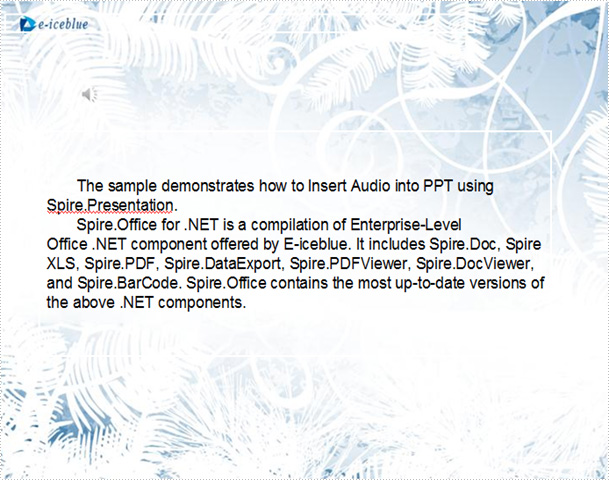
With Spire.Presentation, you can insert audio into your PowerPoint documents and do more same thing in your any .NET(C#, VB.NET, ASP.NET) applications without PowerPoint automation and any other third party add-ins.
