Knowledgebase (2370)
Children categories
C#/VB.NET: Create, Edit, or Delete Named Ranges in Excel
2023-07-03 02:29:00 Written by AdministratorA named range in Excel is a user-defined name given to a specific cell or range of cells. It allows you to assign a meaningful and descriptive name to a set of data, making it easier to refer to that data in formulas, functions, and other parts of the spreadsheet. In this article, you will learn how to create, edit or delete named ranges in Excel in C# and VB.NET using Spire.XLS for .NET.
- Create a Named Range in Excel in C# and VB.NET
- Edit an Existing Named Range in Excel in C# and VB.NET
- Delete a Named Range from Excel in C# and VB.NET
Install Spire.XLS for .NET
To begin with, you need to add the DLL files included in the Spire.XLS for .NET package as references in your .NET project. The DLL files can be either downloaded from this link or installed via NuGet.
PM> Install-Package Spire.XLS
Create a Named Range in Excel in C# and VB.NET
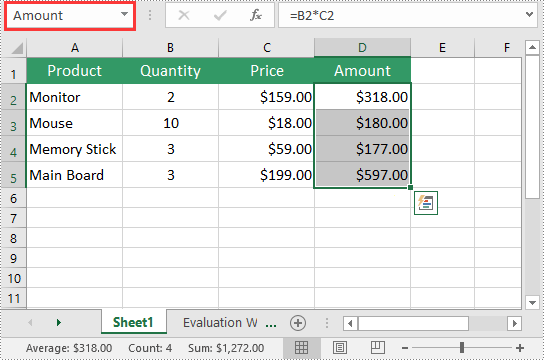
You can use the Workbook.NameRanges.Add(string name) method provided by Spire.XLS for .NET to add a named range to an Excel workbook. Once the named range is added, you can define the cell or range of cells it refers to using the INamedRange.RefersToRange property.
The following steps explain how to create a named range in Excel using Spire.XLS for .NET:
- Initialize an instance of the Workbook class.
- Load an Excel workbook using the Workbook.LoadFromFile() method.
- Add a named range to the workbook using the Workbook.NameRanges.Add(string name) method.
- Get a specific worksheet in the workbook using the Workbook.Worksheets[int index] property.
- Set the cell range that the named range refers to using the INamedRange.RefersToRange property.
- Save the result file using the Workbook.SaveToFile() method.
- C#
- VB.NET
using Spire.Xls;
using Spire.Xls.Core;

namespace CreateNamedRanges
{
    internal class Program
    {
        static void Main(string[] args)
        {
            //Initialize an instance of the Workbook class
            Workbook workbook = new Workbook();
            //Load an Excel workbook
            workbook.LoadFromFile(@"Sample.xlsx");

            //Add a named range to the workbook
            INamedRange namedRange = workbook.NameRanges.Add("Amount");

            //Get a specific worksheet in the workbook
            Worksheet sheet = workbook.Worksheets[0];

            //Set the cell range that the named range references
            namedRange.RefersToRange = sheet.Range["D2:D5"];

            //Save the result file to a specific location
            string result = "CreateNamedRange.xlsx";
            workbook.SaveToFile(result, ExcelVersion.Version2013);
            workbook.Dispose();
        }
    }
}
Edit an Existing Named Range in Excel in C# and VB.NET
After you've created a named range, you may want to modify its name or adjust the cells it refers to.
The following steps explain how to modify the name and cell references of an existing named range in Excel using Spire.XLS for .NET:
- Initialize an instance of the Workbook class.
- Load an Excel workbook using the Workbook.LoadFromFile() method.
- Get a specific named range in the workbook using the Workbook.NameRanges[int index] property.
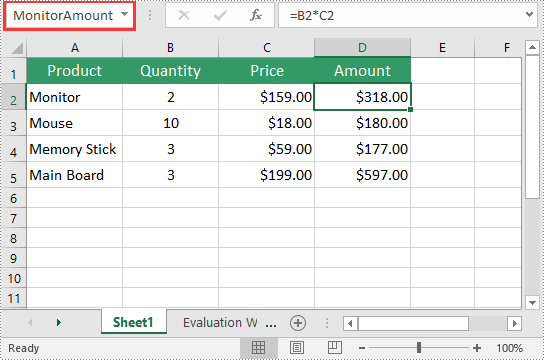
- Modify the name of the named range using the INamedRange.Name property.
- Modify the cells that the named range refers to using the INamedRange.RefersToRange property.
- Save the result file using the Workbook.SaveToFile() method.
- C#
- VB.NET
using Spire.Xls;
using Spire.Xls.Core;

namespace ModifyNamedRanges
{
    internal class Program
    {
        static void Main(string[] args)
        {
            //Initialize an instance of the Workbook class
            Workbook workbook = new Workbook();
            //Load an Excel workbook
            workbook.LoadFromFile(@"CreateNamedRange.xlsx");

            //Get a specific named range in the workbook
            INamedRange namedRange = workbook.NameRanges[0];

            //Change the name of the named range
            namedRange.Name = "MonitorAmount";

            //Set the cell range that the named range references
            namedRange.RefersToRange = workbook.Worksheets[0].Range["D2"];

            //Save the result file to a specific location
            string result = "ModifyNamedRange.xlsx";
            workbook.SaveToFile(result, ExcelVersion.Version2013);
            workbook.Dispose();
        }
    }
}
Delete a Named Range from Excel in C# and VB.NET
If you have made significant changes to the structure or layout of your spreadsheet, it might be necessary to delete a named range that is no longer relevant or accurate.
The following steps explain how to delete a named range from Excel using Spire.XLS for .NET:
- Initialize an instance of the Workbook class.
- Load an Excel workbook using the Workbook.LoadFromFile() method.
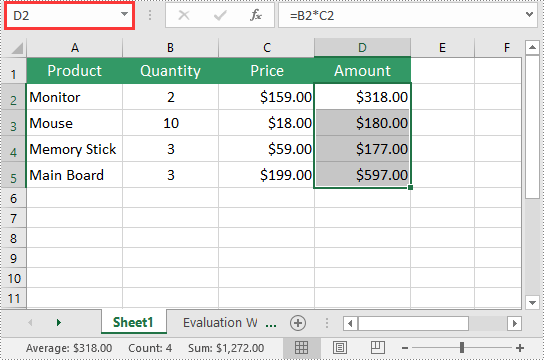
- Remove a specific named range by its index or name using the Workbook.NameRanges.RemoveAt(int index) or Workbook.NameRanges.Remove(string name) method.
- Save the result file using the Workbook.SaveToFile() method.
- C#
- VB.NET
using Spire.Xls;
using Spire.Xls.Core;

namespace RemoveNamedRanges
{
    internal class Program
    {
        static void Main(string[] args)
        {
            //Initialize an instance of the Workbook class
            Workbook workbook = new Workbook();
            //Load an Excel workbook
            workbook.LoadFromFile(@"CreateNamedRange.xlsx");

            //Remove a specific named range by its index
            workbook.NameRanges.RemoveAt(0);

            //Remove a specific named range by its name
            //workbook.NameRanges.Remove("Amount");

            //Save the result file to a specific location
            string result = "RemoveNamedRange.xlsx";
            workbook.SaveToFile(result, ExcelVersion.Version2013);
            workbook.Dispose();
        }
    }
}
Apply for a Temporary License
If you'd like to remove the evaluation message from the generated documents, or to get rid of the function limitations, please request a 30-day trial license for yourself.
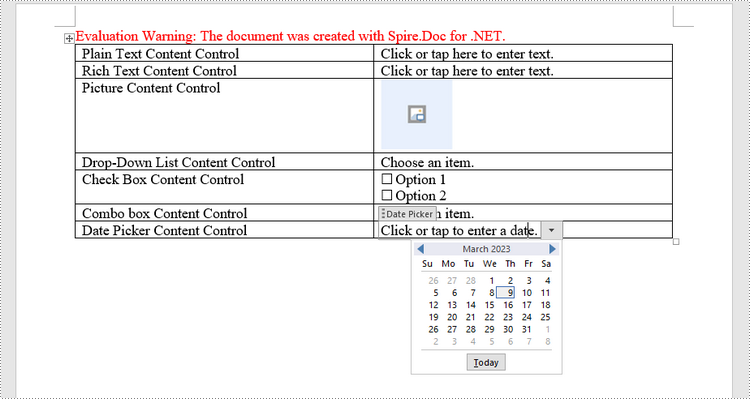
A form allows you to create placeholders for different types of information, such as text, dates, images and yes-no questions. This makes it easier for readers to know what type of information to include, and it also helps ensure all of the information is formatted the same way. In order to create a fillable form in Word, you will need to use the following tools.
- Content Controls: The areas where users input information in a form.
- Tables: Tables are used in forms to align text and form fields, and to create borders and boxes.
- Protection: Allows users to populate fields but not to make changes to the rest of the document.
Content controls in Word are containers for content that let users build structured documents. A structured document controls where content appears within the document. There are basically ten types of content controls available in Word 2013. This article focuses on how to create a fillable form in Word consisting of the following seven common content controls using Spire.Doc for .NET.
| Content Control | Description |
| Plain Text | A text field limited to plain text, so no formatting can be included. |
| Rich Text | A text field that can contain formatted text or other items, such as tables, pictures, or other content controls. |
| Picture | Accepts a single picture. |
| Drop-Down List | A drop-down list displays a predefined list of items for the user to choose from. |
| Combo Box | A combo box enables users to select a predefined value in a list or type their own value in the text box of the control. |
| Check Box | A check box provides a graphical widget that allows the user to make a binary choice: yes (checked) or no (not checked). |
| Date Picker | Contains a calendar control from which the user can select a date. |
Install Spire.Doc for .NET
To begin with, you need to add the DLL files included in the Spire.Doc for .NET package as references in your .NET project. The DLL files can be either downloaded from this link or installed via NuGet.
PM> Install-Package Spire.Doc
Create a Fillable Form in Word in C# and VB.NET
The StructureDocumentTagInline class provided by Spire.Doc for .NET is used to create structured document tags for inline-level structures (DrawingML object, fields, etc.) in a paragraph. The SDTProperties property and the SDTContent property under this class shall be used to specify the properties and content of the current structured document tag. The following are the detailed steps to create a fillable form with content controls in Word.
- Create a Document object.
- Add a section using Document.AddSection() method.
- Add a table using Section.AddTable() method.
- Add a paragraph to a specific table cell using TableCell.AddParagraph() method.
- Create an instance of StructureDocumentTagInline class, and add it to the paragraph as a child object using Paragraph.ChildObjects.Add() method.
- Specify the properties and content of the structured document tag though the SDTProperties property and the SDTContent property of the StructureDocumentTagInline object. The type of the structured document tag is set through SDTProperties.SDTType property.
- Prevent users from editing content outside form fields using Document.Protect() method.
- Save the document using Document.SaveToFile() method.
- C#
- VB.NET
using Spire.Doc;
using Spire.Doc.Documents;
using Spire.Doc.Fields;
using System.Drawing;

namespace CreateFormInWord
{
    class Program
    {
        static void Main(string[] args)
        {
            //Create a Document object
            Document doc = new Document();

            //Add a section
            Section section = doc.AddSection();

            //add a table
            Table table = section.AddTable(true);
            table.ResetCells(7, 2);

            //Add text to the cells of the first column
            Paragraph paragraph = table.Rows[0].Cells[0].AddParagraph();
            paragraph.AppendText("Plain Text Content Control");
            paragraph = table.Rows[1].Cells[0].AddParagraph();
            paragraph.AppendText("Rich Text Content Control");
            paragraph = table.Rows[2].Cells[0].AddParagraph();
            paragraph.AppendText("Picture Content Control");
            paragraph = table.Rows[3].Cells[0].AddParagraph();
            paragraph.AppendText("Drop-Down List Content Control");
            paragraph = table.Rows[4].Cells[0].AddParagraph();
            paragraph.AppendText("Check Box Content Control");
            paragraph = table.Rows[5].Cells[0].AddParagraph();
            paragraph.AppendText("Combo box Content Control");
            paragraph = table.Rows[6].Cells[0].AddParagraph();
            paragraph.AppendText("Date Picker Content Control");

            //Add a plain text content control to the cell (0,1)
            paragraph = table.Rows[0].Cells[1].AddParagraph();
            StructureDocumentTagInline sdt = new StructureDocumentTagInline(doc);
            paragraph.ChildObjects.Add(sdt);
            sdt.SDTProperties.SDTType = SdtType.Text;
            sdt.SDTProperties.Alias = "Plain Text";
            sdt.SDTProperties.Tag = "Plain Text";
            sdt.SDTProperties.IsShowingPlaceHolder = true;
            SdtText text = new SdtText(true);
            text.IsMultiline = false;
            sdt.SDTProperties.ControlProperties = text;
            TextRange tr = new TextRange(doc);
            tr.Text = "Click or tap here to enter text.";
            sdt.SDTContent.ChildObjects.Add(tr);

            //Add a rich text content control to the cell (1,1)
            paragraph = table.Rows[1].Cells[1].AddParagraph();
            sdt = new StructureDocumentTagInline(doc);
            paragraph.ChildObjects.Add(sdt);
            sdt.SDTProperties.SDTType = SdtType.RichText;
            sdt.SDTProperties.Alias = "Rich Text";
            sdt.SDTProperties.Tag = "Rich Text";
            sdt.SDTProperties.IsShowingPlaceHolder = true;
            text = new SdtText(true);
            text.IsMultiline = false;
            sdt.SDTProperties.ControlProperties = text;
            tr = new TextRange(doc);
            tr.Text = "Click or tap here to enter text.";
            sdt.SDTContent.ChildObjects.Add(tr);

            //Add a picture content control to the cell (2,1)
            paragraph = table.Rows[2].Cells[1].AddParagraph();
            sdt = new StructureDocumentTagInline(doc);
            paragraph.ChildObjects.Add(sdt);
            sdt.SDTProperties.SDTType = SdtType.Picture;
            sdt.SDTProperties.Alias = "Picture";
            sdt.SDTProperties.Tag = "Picture";
            SdtPicture sdtPicture = new SdtPicture();
            sdt.SDTProperties.ControlProperties = sdtPicture;
            DocPicture pic = new DocPicture(doc);
            pic.LoadImage(Image.FromFile("C:\\Users\\Administrator\\Desktop\\ChooseImage.png"));
            sdt.SDTContent.ChildObjects.Add(pic);

            //Add a dropdown list content control to the cell(3,1)
            paragraph = table.Rows[3].Cells[1].AddParagraph();
            sdt = new StructureDocumentTagInline(doc);
            sdt.SDTProperties.SDTType = SdtType.DropDownList;
            sdt.SDTProperties.Alias = "Dropdown List";
            sdt.SDTProperties.Tag = "Dropdown List";
            paragraph.ChildObjects.Add(sdt);
            SdtDropDownList sddl = new SdtDropDownList();
            sddl.ListItems.Add(new SdtListItem("Choose an item.", "1"));
            sddl.ListItems.Add(new SdtListItem("Item 2", "2"));
            sddl.ListItems.Add(new SdtListItem("Item 3", "3"));
            sddl.ListItems.Add(new SdtListItem("Item 4", "4"));
            sdt.SDTProperties.ControlProperties = sddl;
            tr = new TextRange(doc);
            tr.Text = sddl.ListItems[0].DisplayText;
            sdt.SDTContent.ChildObjects.Add(tr);

            //Add two check box content controls to the cell (4,1)
            paragraph = table.Rows[4].Cells[1].AddParagraph();
            sdt = new StructureDocumentTagInline(doc);
            paragraph.ChildObjects.Add(sdt);
            sdt.SDTProperties.SDTType = SdtType.CheckBox;
            SdtCheckBox scb = new SdtCheckBox();
            sdt.SDTProperties.ControlProperties = scb;
            tr = new TextRange(doc);
            sdt.ChildObjects.Add(tr);
            scb.Checked = false;
            paragraph.AppendText(" Option 1");

            paragraph = table.Rows[4].Cells[1].AddParagraph();
            sdt = new StructureDocumentTagInline(doc);
            paragraph.ChildObjects.Add(sdt);
            sdt.SDTProperties.SDTType = SdtType.CheckBox;
            scb = new SdtCheckBox();
            sdt.SDTProperties.ControlProperties = scb;
            tr = new TextRange(doc);
            sdt.ChildObjects.Add(tr);
            scb.Checked = false;
            paragraph.AppendText(" Option 2");

            //Add a combo box content control to the cell (5,1)
            paragraph = table.Rows[5].Cells[1].AddParagraph();
            sdt = new StructureDocumentTagInline(doc);
            paragraph.ChildObjects.Add(sdt);
            sdt.SDTProperties.SDTType = SdtType.ComboBox;
            sdt.SDTProperties.Alias = "Combo Box";
            sdt.SDTProperties.Tag = "Combo Box";
            SdtComboBox cb = new SdtComboBox();
            cb.ListItems.Add(new SdtListItem("Choose an item."));
            cb.ListItems.Add(new SdtListItem("Item 2"));
            cb.ListItems.Add(new SdtListItem("Item 3"));
            sdt.SDTProperties.ControlProperties = cb;
            tr = new TextRange(doc);
            tr.Text = cb.ListItems[0].DisplayText;
            sdt.SDTContent.ChildObjects.Add(tr);

            //Add a date picker content control to the cell (6,1)
            paragraph = table.Rows[6].Cells[1].AddParagraph();
            sdt = new StructureDocumentTagInline(doc);
            paragraph.ChildObjects.Add(sdt);
            sdt.SDTProperties.SDTType = SdtType.DatePicker;
            sdt.SDTProperties.Alias = "Date Picker";
            sdt.SDTProperties.Tag = "Date Picker";
            SdtDate date = new SdtDate();
            date.CalendarType = CalendarType.Default;
            date.DateFormat = "yyyy.MM.dd";
            date.FullDate = DateTime.Now;
            sdt.SDTProperties.ControlProperties = date;
            tr = new TextRange(doc);
            tr.Text = "Click or tap to enter a date.";
            sdt.SDTContent.ChildObjects.Add(tr);

            //Allow users to edit the form fields only
            doc.Protect(ProtectionType.AllowOnlyFormFields, "permission-psd");

            //Save to file
            doc.SaveToFile("WordForm.docx", FileFormat.Docx2013);
        }
    }
}
Apply for a Temporary License
If you'd like to remove the evaluation message from the generated documents, or to get rid of the function limitations, please request a 30-day trial license for yourself.
Unmerging and merging Excel cells are indispensable for handling Excel worksheet. This article aims at introducing the solution to unmerge Excel cells in c# through several lines of code. We need an Excel .NET component called Spire.XLS to help us complete the process.
First we need to complete the preparatory work before unmerge Excel cells in C#:
- Download the Spire.XLS and install it on your machine.
- Add the Spire.XLS.dll files as reference.
- Open bin folder and select the three dll files under .NET 4.0.
- Right click property and select properties in its menu.
- Set the target framework as .NET 4.
- Add Spire.XLS as namespace.
Here comes to the explanation of the code:
Step 1: Create an instance of Spire.XLS.Workbook.
Workbook book = new Workbook();
Step 2: Load the file base on a specified file path.
book.LoadFromFile(@"..\..\abc.xlsx");
Step 3: Get the first worksheet.
Worksheet sheet = book.Worksheets[0];
Step 4: Unmerge the cells.
sheet.Range["A2"].UnMerge();
Step5: Save as the generated file.
book.SaveToFile(@"..\..\result.xlsx", ExcelVersion.Version2010);
Here is the whole code:
using Spire.Xls;
namespace UnmergeExcelCell
{
    class Program
    {

        static void Main(string[] args)
        {
            Workbook book = new Workbook();
            book.LoadFromFile(@"..\..\abc.xlsx");
            Worksheet sheet = book.Worksheets[0];
            sheet.Range["A2"].UnMerge();
            book.SaveToFile(@"..\..\result.xlsx", ExcelVersion.Version2010);
        }

    }
}
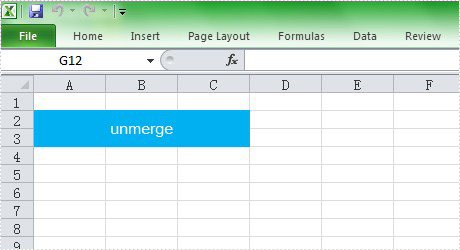
Please preview the original effect screenshot:
And the generated effect screenshot: