
Knowledgebase (2370)
Children categories
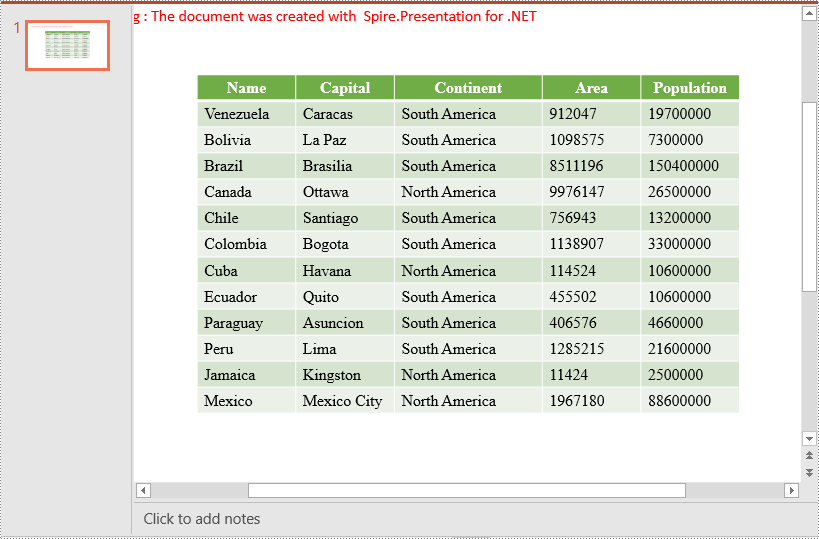
Tables in PowerPoint are a powerful tool that allows you to present and organize data in a clear, concise, and visually appealing manner. By using tables, you can effectively communicate complex information to your audience, making it easier for them to understand and remember key points. In this article, you will learn how to insert a table into a PowerPoint Presentation in C# and VB.NET using Spire.Presentation for .NET.
Install Spire.Presentation for .NET
To begin with, you need to add the DLL files included in the Spire.Presentation for.NET package as references in your .NET project. The DLL files can be either downloaded from this link or installed via NuGet.
PM> Install-Package Spire.Presentation
Insert a table into a PowerPoint Presentation in C# and VB.NET
You can use the ISlide.Shapes.AppendTable(float x, float y, double[] widths, double[] heights) method to add a table to a specific slide of a PowerPoint presentation. The detailed steps are as follows:
- Initialize an instance of the Presentation class.
- Load a PowerPoint presentation using Presentation.LoadFromFile(string file) method.
- Get a specific slide using Presentation.Slides[int index] property.
- Define two double arrays, widths and heights, which specify the number and size of rows and columns in table.
- Add a table with the specified number and size of rows and columns to a specific position on the slide using ISlide.Shapes.AppendTable(float x, float y, double[] widths, double[] heights) method.
- Store the table data in a two-dimensional string array.
- Loop through the string array, and assign the corresponding data to each cell of the table using ITable[int columnIndex, int rowIndex].TextFrame.Text property.
- Set the alignment of the first row of the table to center.
- Apply a built-in style to the table using ITable.StylePreset property.
- Save the presentation using Presentation.SaveToFile(string file, FileFormat fileFormat) method.
- C#
- VB.NET
using Spire.Presentation;

namespace InsertTable
{
    internal class Program
    {
        static void Main(string[] args)
        {
            //Initialize an instance of the Presentation class
            Presentation presentation = new Presentation();
            //Load a PowerPoint presentation
            presentation.LoadFromFile(@"Input.pptx");

            //Get the first slide
            ISlide slide = presentation.Slides[0];

            //Define two double arrays, widths and heights, which specify the number and size of rows and columns in table
            double[] widths = new double[] { 100, 100, 150, 100, 100 };
            double[] heights = new double[] { 15, 15, 15, 15, 15, 15, 15, 15, 15, 15, 15, 15, 15 };

            //Add a table with the specified number and size of rows and columns to a specific position on the slide
            ITable table = slide.Shapes.AppendTable(presentation.SlideSize.Size.Width / 2 - 275, 90, widths, heights);

            //Store table data in a two-dimensional string array
            string[,] data = new string[,]{
            {"Name", "Capital", "Continent", "Area", "Population"},
            {"Venezuela", "Caracas", "South America", "912047", "19700000"},
            {"Bolivia", "La Paz", "South America", "1098575", "7300000"},
            {"Brazil", "Brasilia", "South America", "8511196", "150400000"},
            {"Canada", "Ottawa", "North America", "9976147", "26500000"},
            {"Chile", "Santiago", "South America", "756943", "13200000"},
            {"Colombia", "Bogota", "South America", "1138907", "33000000"},
            {"Cuba", "Havana", "North America", "114524", "10600000"},
            {"Ecuador", "Quito", "South America", "455502", "10600000"},
            {"Paraguay", "Asuncion", "South America", "406576", "4660000"},
            {"Peru", "Lima", "South America", "1285215", "21600000"},
            {"Jamaica", "Kingston", "North America", "11424", "2500000"},
            {"Mexico", "Mexico City", "North America", "1967180", "88600000"}
            };

            //Loop through the string array and assign data to each cell of the table
            for (int i = 0; i < 13; i++)
                for (int j = 0; j < 5; j++)
                {
                    //Fill each cell of the table with data
                    table[j, i].TextFrame.Text = data[i, j];
                    //Set font name and font size
                    table[j, i].TextFrame.Paragraphs[0].TextRanges[0].LatinFont = new TextFont("Times New Roman");
                    table[j, i].TextFrame.Paragraphs[0].TextRanges[0].FontHeight = 16;
                }

            //Set the alignment of the first row of the table to center
            for (int i = 0; i < 5; i++)
            {
                table[i, 0].TextFrame.Paragraphs[0].Alignment = TextAlignmentType.Center;
            }

            //Apply a style to the table
            table.StylePreset = TableStylePreset.MediumStyle2Accent6;

            //Save the presentation to a file
            presentation.SaveToFile("InsertTable.pptx", FileFormat.Pptx2013);
            presentation.Dispose();
        }
    }
}
Apply for a Temporary License
If you'd like to remove the evaluation message from the generated documents, or to get rid of the function limitations, please request a 30-day trial license for yourself.
Merging cells means combining two or more cells into one larger cell, while splitting cells means dividing one cell into two or more smaller cells. When creating or editing tables in Microsoft Word, you may often need to merge or split table cells in order to better present your data. In this article, you will learn how to merge or split table cells in a Word document in C# and VB.NET using Spire.Doc for .NET.
Install Spire.Doc for .NET
To begin with, you need to add the DLL files included in the Spire.Doc for.NET package as references in your .NET project. The DLL files can be either downloaded from this link or installed via NuGet.
PM> Install-Package Spire.Doc
Merge Table Cells in Word Using C# and VB.NET
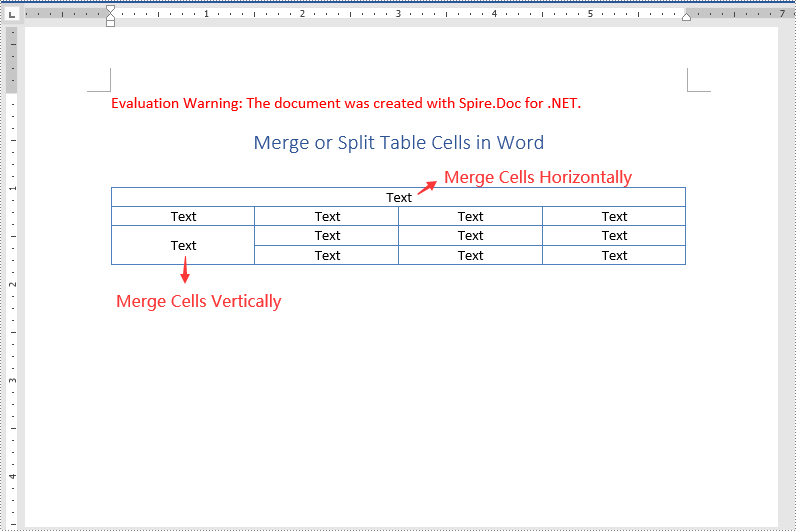
In Microsoft Word, you can merge two or more adjacent cells horizontally or vertically into a larger cell. In Spire.Doc, you can achieve the same using the Table.ApplyHorizontalMerge() or Table.ApplyVerticalMerge() method. The following are the detailed steps:
- Initialize an instance of the Document class.
- Load a Word document using Document.LoadFromFile() method.
- Get a specific section in the document by its index through Document.Sections[int] property.
- Add a table to the section using Section.AddTable() method.
- Specify the number of rows and columns of the table using Table.ResetCells() method.
- Horizontally merge specific cells in the table using Table.ApplyHorizontalMerge() method.
- Vertically merge specific cells in the table using Table.ApplyVerticalMerge() method.
- Add some data to the table.
- Apply a style to the table.
- Save the result document using Document.SaveToFile() method.
- C#
- VB.NET
using Spire.Doc;
using Spire.Doc.Documents;

namespace MergeTableCells
{
    class Program
    {
        static void Main(string[] args)
        {
            //Create a Document instance
            Document document = new Document();
            //Load a Word document
            document.LoadFromFile("Input.docx");

            //Get the first section
            Section section = document.Sections[0];

            //Add a 4 x 4 table to the section
            Table table = section.AddTable();
            table.ResetCells(4, 4);

            //Horizontally merge cells 1, 2, 3, and 4 in the first row
            table.ApplyHorizontalMerge(0, 0, 3);
            //Vertically merge cells 3 and 4 in the first column
            table.ApplyVerticalMerge(0, 2, 3);

            //Add some data to the table
            for (int row = 0; row < table.Rows.Count; row++)
            {
                for (int col = 0; col < table.Rows[row].Cells.Count; col++)
                {
                    TableCell cell = table[row, col];
                    cell.CellFormat.VerticalAlignment = VerticalAlignment.Middle;
                    Paragraph paragraph = cell.AddParagraph();
                    paragraph.Format.HorizontalAlignment = HorizontalAlignment.Center;
                    paragraph.Text = "Text";
                }
            }

            //Apply a style to the table
            table.ApplyStyle(DefaultTableStyle.LightGridAccent1);

            //Save the result document
            document.SaveToFile("MergeCells.docx", FileFormat.Docx2013);
        }
    }
}
Split Table Cells in Word Using C# and VB.NET
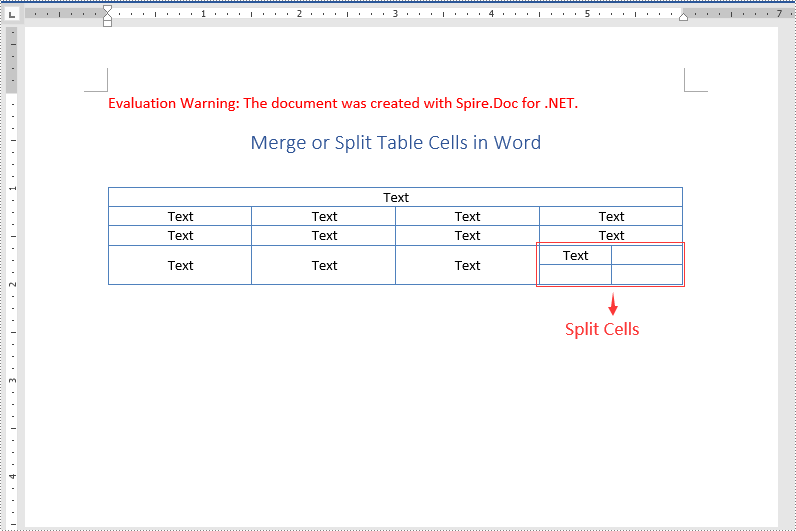
Spire.Doc for .NET offers the TableCell.SplitCell() method that enables you to split a cell in a Word table into two or more cells. The following are the detailed steps:
- Initialize an instance of the Document class.
- Load a Word document using Document.LoadFromFile() method.
- Get a specific section in the document by its index through Document.Sections[int] property.
- Get a specific table in the section by its index through Section.Tables[int] property.
- Get the table cell that you want to split through Table.Rows[int].Cells[int] property.
- Split the cell into specific number of columns and rows using TableCell.SplitCell() method.
- Save the result document using Document.SaveToFile() method.
- C#
- VB.NET
using Spire.Doc;

namespace SplitTableCells
{
    class Program
    {
        static void Main(string[] args)
        {
            //Create a Document instance
            Document document = new Document();
            //Load a Word Document
            document.LoadFromFile("MergeCells.docx");

            //Get the first section
            Section section = document.Sections[0];

            //Get the first table in the section
            Table table = section.Tables[0] as Table;

            //Get the 4th cell in the 4th row
            TableCell cell1 = table.Rows[3].Cells[3];
            //Split the cell into 2 columns and 2 rows
            cell1.SplitCell(2, 2);

            //save the result document
            document.SaveToFile("SplitCells.docx", FileFormat.Docx2013);
        }
    }
}
Apply for a Temporary License
If you'd like to remove the evaluation message from the generated documents, or to get rid of the function limitations, please request a 30-day trial license for yourself.
Adding, modifying, and removing footers in a PowerPoint document is crucial for enhancing the professionalism and readability of a presentation. By adding footers, you can include key information such as presentation titles, authors, dates, or page numbers, which helps the audience better understand the content. Modifying footers allows you to update information, making it more attractive and practical. Additionally, removing footers is also necessary, especially in certain situations such as when specific information is not required to be displayed at the bottom of each page for a particular occasion. In this article, you will learn how to add, modify, or remove footers in PowerPoint documents in C# using Spire.Presentation for .NET.
- C# Add Footers in PowerPoint Documents
- C# Modify Footers in PowerPoint Documents
- C# Remove Footers in PowerPoint Documents
Install Spire.Presentation for .NET
To begin with, you need to add the DLL files included in the Spire.Presentation for.NET package as references in your .NET project. The DLL files can be either downloaded from this link or installed via NuGet.
PM> Install-Package Spire.Presentation
C# Add Footers in PowerPoint Documents
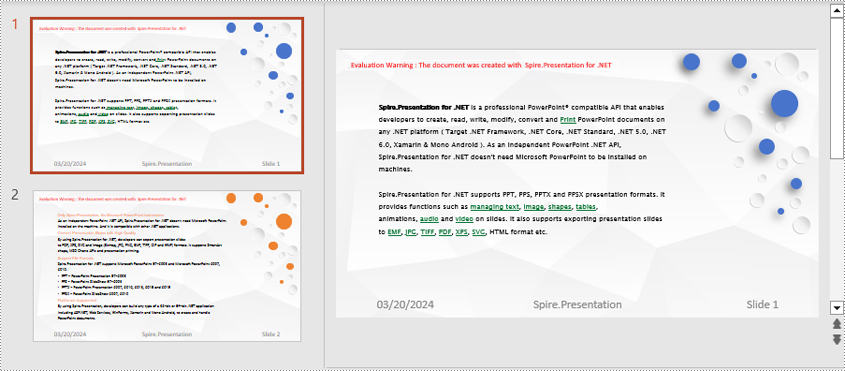
Spire.Presentation enables the addition of footer, slide number, and date placeholders at the bottom of PowerPoint document pages to uniformly add the same footer content across all pages. Here are the detailed steps:
- Create a Presentation object.
- Load a PowerPoint document using the lisentation.LoadFromFile() method.
- Set Presentation.FooterVisible = true to make the footer visible and set the footer text.
- Set Presentation.SlideNumberVisible = true to make slide numbers visible, then iterate through each slide, check for the existence of a slide number placeholder, and modify the text to "Slide X" format if found.
- Set Presentation.DateTimeVisible = true to make date and time visible.
- Use the Presentation.SetDateTime() method to set the date format.
- Save the document using the Presentation.SaveToFile() method.
- C#
using Spire.Presentation;

namespace SpirePresentationDemo
{
    internal class Program
    {
        static void Main(string[] args)
        {
            // Create a Presentation object
            Presentation presentation = new Presentation();

            // Load the presentation from a file
            presentation.LoadFromFile("Sample1.pptx");

            // Set the footer visible
            presentation.FooterVisible = true;

            // Set the footer text to "Spire.Presentation"
            presentation.SetFooterText("Spire.Presentation");

            // Set slide number visible
            presentation.SlideNumberVisible = true;

            // Iterate through each slide in the presentation
            foreach (ISlide slide in presentation.Slides)
            {
                foreach (IShape shape in slide.Shapes)
                {
                    if (shape.Placeholder != null)
                    {
                        // If it is a slide number placeholder
                        if (shape.Placeholder.Type.Equals(PlaceholderType.SlideNumber))
                        {
                            TextParagraph textParagraph = (shape as IAutoShape).TextFrame.TextRange.Paragraph;
                            String text = textParagraph.Text;

                            // Modify the slide number text to "Slide X"
                            textParagraph.Text = "Slide " + text;
                        }
                    }
                }
            }

            // Set date time visible
            presentation.DateTimeVisible = true;

            // Set date time format
            presentation.SetDateTime(DateTime.Now, "MM/dd/yyyy");

            // Save the modified presentation to a file
            presentation.SaveToFile("AddFooter.pptx", FileFormat.Pptx2016);

            // Dispose of the Presentation object resources
            presentation.Dispose();
        }
    }
}
C# Modify Footers in PowerPoint Documents
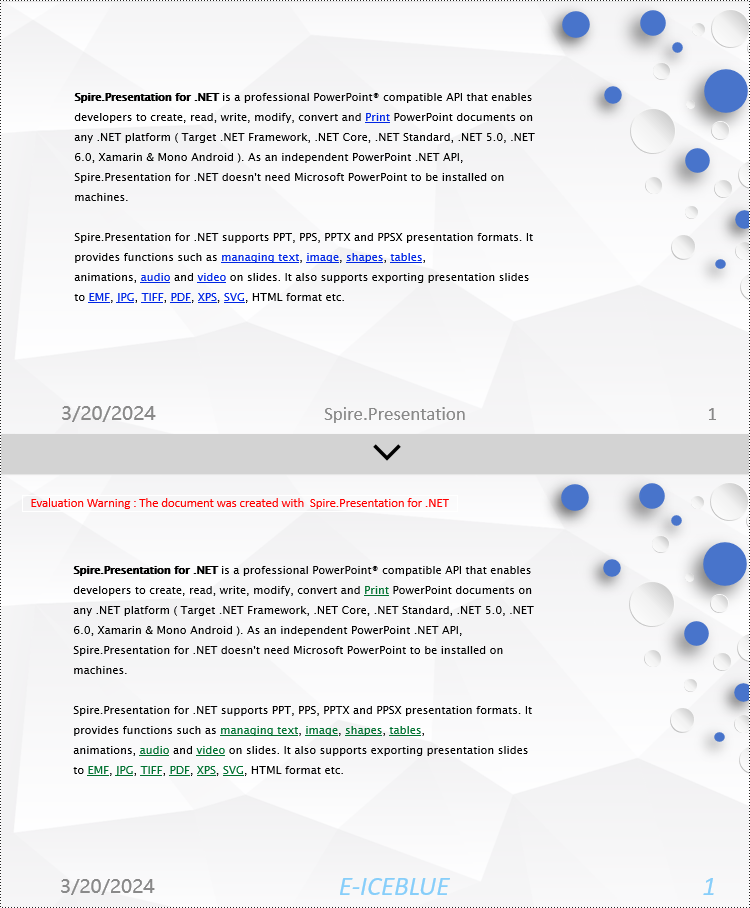
To modify footers in a PowerPoint document, you first need to individually inspect the shapes on each slide, identify footer placeholders, page number placeholders, etc., and then set specific content and formats for each type of placeholder. Here are the detailed steps:
- Create a Presentation object.
- Load a PowerPoint document using the Presentation.LoadFromFile() method.
- Use the Presentation.Slides[index] property to retrieve a slide.
- Use a for loop to iterate through the shapes on the slide, individually checking each shape to determine if it is a placeholder for a footer, page number, etc., and then modify its content or format accordingly.
- Save the document using the Presentation.SaveToFile() method.
- C#
using Spire.Presentation;

namespace SpirePresentationDemo
{
    internal class Program
    {
        static void Main(string[] args)
        {
            // Create a Presentation object
            Presentation presentation = new Presentation();

            // Load the presentation from a file
            presentation.LoadFromFile("Sample2.pptx");

            // Get the first slide
            ISlide slide = presentation.Slides[0];

            // Iterate through shapes in the slide
            for (int i = 0; i < slide.Shapes.Count; i++)
            {
                // Check if the shape is a placeholder
                if (slide.Shapes[i].Placeholder != null)
                {
                    // Get the placeholder type
                    PlaceholderType type = slide.Shapes[i].Placeholder.Type;

                    // If it is a footer placeholder
                    if (type == PlaceholderType.Footer)
                    {
                        // Convert the shape to IAutoShape type
                        IAutoShape autoShape = (IAutoShape)slide.Shapes[i];

                        // Set the text content to "E-ICEBLUE"
                        autoShape.TextFrame.Text = "E-ICEBLUE";

                        // Modify the text font
                        ChangeFont1(autoShape.TextFrame.Paragraphs[0]);
                    }
                    // If it is a slide number placeholder
                    if (type == PlaceholderType.SlideNumber)
                    {
                        // Convert the shape to IAutoShape type
                        IAutoShape autoShape = (IAutoShape)slide.Shapes[i];

                        // Modify the text font
                        ChangeFont1(autoShape.TextFrame.Paragraphs[0]);
                    }
                }
            }

            // Save the modified presentation to a file
            presentation.SaveToFile("ModifyFooter.pptx", FileFormat.Pptx2016);

            // Dispose of the Presentation object resources
            presentation.Dispose();
        }
       static void ChangeFont1(TextParagraph paragraph)
        {
            // Iterate through each text range in the paragraph
            foreach (TextRange textRange in paragraph.TextRanges)
            {
                // Set the text style to italic
                textRange.IsItalic = TriState.True;

                // Set the text font
                textRange.EastAsianFont = new TextFont("Times New Roman");

                // Set the text font size to 34
                textRange.FontHeight = 34;

                // Set the text color
                textRange.Fill.FillType = Spire.Presentation.Drawing.FillFormatType.Solid;
                textRange.Fill.SolidColor.Color = System.Drawing.Color.LightSkyBlue;
            }
        }
   }
}
C# Remove Footers in PowerPoint Documents
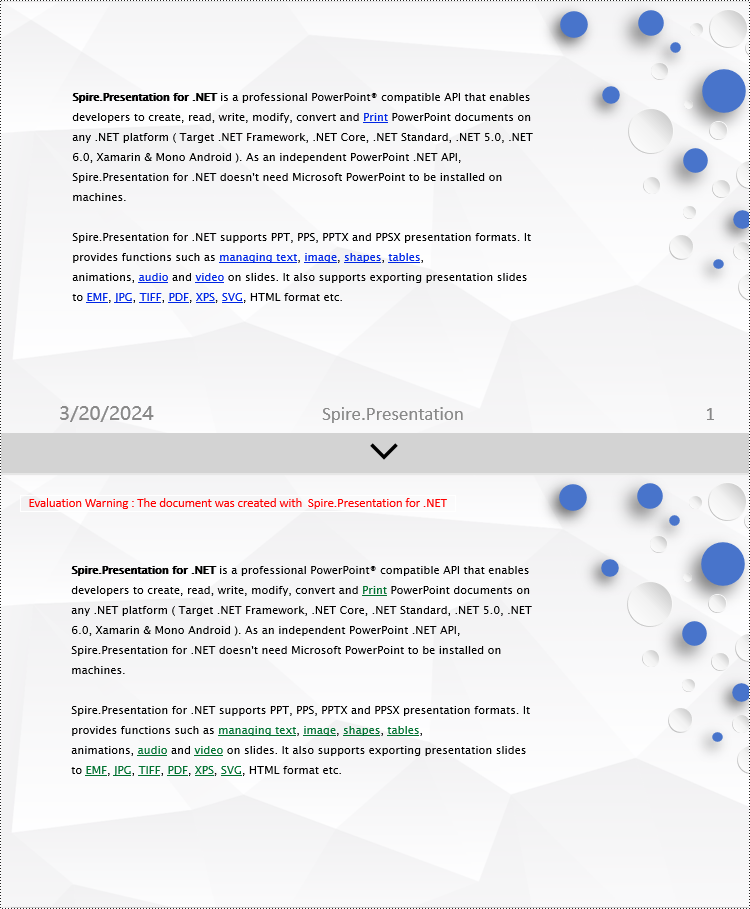
To remove footers from a PowerPoint document, you first need to locate footer placeholders, page number placeholders, date placeholders, etc., within the slides, and then remove them from the collection of shapes on the slide. Here are the detailed steps:
- Create a Presentation object.
- Load a PowerPoint document using the Presentation.LoadFromFile() method.
- Use the Presentation.Slides[index] property to retrieve a slide.
- Use a for loop to iterate through the shapes on the slide, check if it is a placeholder, and if it is a footer placeholder, page number placeholder, date placeholder, remove it from the slide.
- Save the document using the Presentation.SaveToFile() method.
- C#
using Spire.Presentation;

namespace SpirePresentationDemo
{
    internal class Program
    {
        static void Main(string[] args)
        {
            // Create a Presentation object
            Presentation presentation = new Presentation();

            // Load the presentation from a file
            presentation.LoadFromFile("Sample2.pptx");

            // Get the first slide
            ISlide slide = presentation.Slides[0];

            // Iterate through shapes in the slide in reverse order
            for (int i = slide.Shapes.Count - 1; i >= 0; i--)
            {
                // Check if the shape is a placeholder
                if (slide.Shapes[i].Placeholder != null)
                {
                    // Get the placeholder type
                    PlaceholderType type = slide.Shapes[i].Placeholder.Type;

                    // If it is a footer placeholder, slide number placeholder, or date placeholder
                    if (type == PlaceholderType.Footer || type == PlaceholderType.SlideNumber || type == PlaceholderType.DateAndTime)
                    {
                        // Remove it from the slide
                        slide.Shapes.RemoveAt(i);
                    }
                }
            }

            // Save the modified presentation to a file
            presentation.SaveToFile("RemoveFooter.pptx", FileFormat.Pptx2016);

            // Dispose of the Presentation object resources
            presentation.Dispose();
        }
    }
}
Apply for a Temporary License
If you'd like to remove the evaluation message from the generated documents, or to get rid of the function limitations, please request a 30-day trial license for yourself.
