
Knowledgebase (2370)
Children categories
How to Export Data from Datatable to Word Document in C#?
2013-10-10 07:39:18 Written by AdministratorThere are some requirements to export datatable or dataset to word file on many occasions at work. The aim of this article is to help you complete this requirement. Spire.DataExport can help easily load data from the datatable and create a new Word file for storing the data. In addition to this, Spire.DataExport (or Spire.Office) can export data into MS Excel, HTML, XML, PDF, MS Access, DBF, SQL Script, SYLK, DIF, CSV and MS Clipboard format as well, which can be downloaded here. The following code is the example of showing how Spire.DataExport works.
Step 1: Function to fill data in datatable
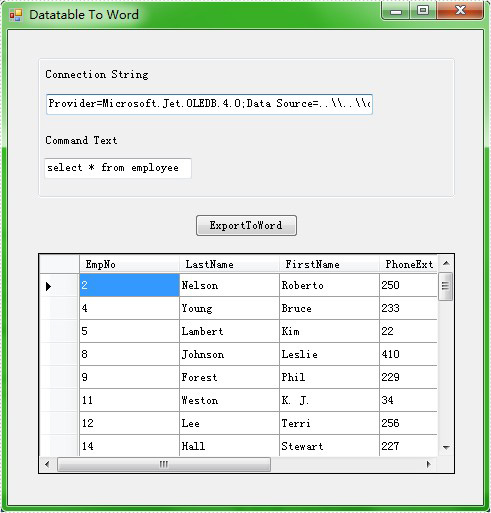
In this step, Spire.DataExport will help load Data information from the datatable. After setting up the data source and SQL command, it allows you to preview and edit data in DataGridView component before exporting.
private void Form1_Load(object sender, EventArgs e)
        {
            oleDbConnection1.ConnectionString = txtConnectString.Text;
            oleDbCommand1.CommandText = txtCommandText.Text;
            using (OleDbDataAdapter da = new OleDbDataAdapter())
            {
                da.SelectCommand = oleDbCommand1;
                da.SelectCommand.Connection = oleDbConnection1;
                DataTable dt = new DataTable();
                da.Fill(dt);
                dataGridView1.DataSource = dt;
            }
        }
Effect Picture
Step 2: Export Data to word document
The code below shows how to export data from the datatable to Word file. Spire.DataExport will create a new MS Word for storing exported Data. It also allows you to rename the generated Word file in this step.
private void btnExportToWord_Click(object sender, EventArgs e)
        {
            Spire.DataExport.RTF.RTFExport rtfExport = new Spire.DataExport.RTF.RTFExport();
            rtfExport.DataSource = Spire.DataExport.Common.ExportSource.DataTable;
            rtfExport.DataTable = this.dataGridView1.DataSource as DataTable;
            rtfExport.ActionAfterExport = Spire.DataExport.Common.ActionType.OpenView;
            RTFStyle rtfStyle = new RTFStyle();
            rtfStyle.FontColor = Color.Blue;
            rtfStyle.BackgroundColor = Color.LightGreen;
            rtfExport.RTFOptions.DataStyle = rtfStyle;
            rtfExport.FileName=@"..\..\ToWord.doc";
            rtfExport.SaveToFile();
        }
Effect Picture

Extracting images from PDFs is a common task for many users, whether it's for repurposing visuals in a presentation, archiving important graphics, or facilitating easier analysis. By mastering image extraction using C#, developers can enhance resource management and streamline their workflow.
In this article, you will learn how to extract images from individual PDF pages as well as from entire documents using C# and Spire.PDF for .NET.
Install Spire.PDF for .NET
To begin with, you need to add the DLL files included in the Spire.PDF for.NET package as references in your .NET project. The DLL files can be either downloaded from this link or installed via NuGet.
PM> Install-Package Spire.PDF
Extract Images from a Specific PDF Page
The PdfImageHelper class in Spire.PDF for .NET is designed to help users manage images within PDF documents. It allows for various operations, such as deleting, replacing, and retrieving images.
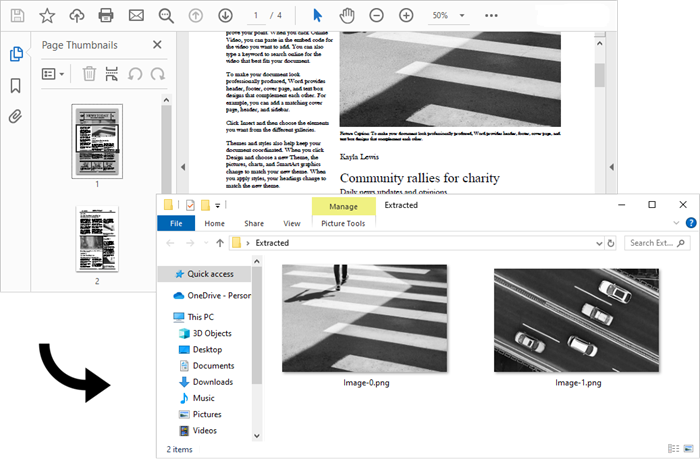
To obtain information about the images on a specific PDF page, developers can utilize the PdfImageHelper.GetImagesInfo(PdfPageBase page) method. Once they have the image information, they can save the images to files using the PdfImageInfo.Image.Save() method.
The steps to extract images from a specific PDF page are as follows:
- Create a PdfDocument object.
- Load a PDF file using PdfDocument.LoadFromFile() method.
- Get a specific page using PdfDocument.Pages[index] property.
- Create a PdfImageHelper object.
- Get the image information collection from the page using PdfImageHelper.GetImagesInfo() method.
- Iterate through the image information collection and save each instance as a PNG file using PdfImageInfo.Image.Save() method.
- C#
using Spire.Pdf;
using Spire.Pdf.Utilities;
using System.Drawing;

namespace ExtractImagesFromSpecificPage
{
    class Program
    {
        static void Main(string[] args)
        {
            // Create a PdfDocument object
            PdfDocument doc = new PdfDocument();

            // Load a PDF document
            doc.LoadFromFile("C:\\Users\\Administrator\\Desktop\\Input.pdf");

            // Get a specific page
            PdfPageBase page = doc.Pages[0];

            // Create a PdfImageHelper object
            PdfImageHelper imageHelper = new PdfImageHelper();

            // Get all image information from the page
            PdfImageInfo[] imageInfos = imageHelper.GetImagesInfo(page);

            // Iterate through the image information
            for (int i = 0; i < imageInfos.Length; i++)
            {
                // Get a specific image information
                PdfImageInfo imageInfo = imageInfos[i];

                // Get the image
                Image image = imageInfo.Image;

                // Save the image to a png file
                image.Save("C:\\Users\\Administrator\\Desktop\\Extracted\\Image-" + i + ".png");
            }

            // Dispose resources
            doc.Dispose();
        }
    }
}
Extract All Images from an Entire PDF Document
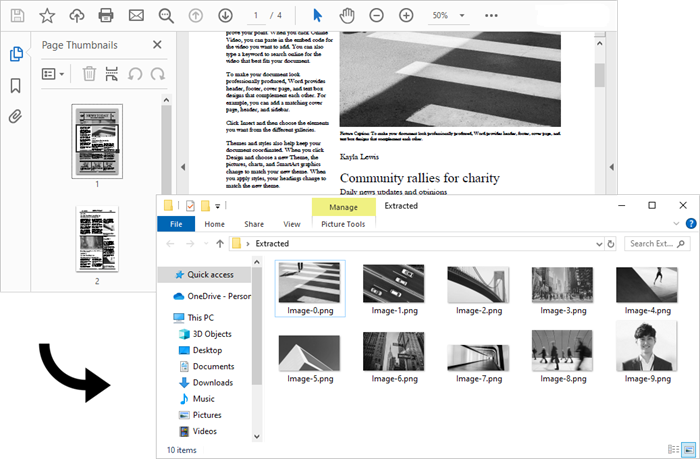
Now that you know how to extract images from a specific page, you can iterate through the pages in a PDF document and extract images from each page. This allows you to collect all the images contained in the document.
The steps to extract all images throughout an entire PDF document are as follows:
- Create a PdfDocument object.
- Load a PDF file using PdfDocument.LoadFromFile() method.
- Create a PdfImageHelper object.
- Iterate through the pages in the document.
- Get a specific page using PdfDocument.Pages[index] property.
- Get the image information collection from the page using PdfImageHelper.GetImagesInfo() method.
- Iterate through the image information collection and save each instance as a PNG file using PdfImageInfo.Image.Save() method.
- C#
using Spire.Pdf;
using Spire.Pdf.Utilities;
using System.Drawing;

namespace ExtractAllImages
{
    class Program
    {
        static void Main(string[] args)
        {
            // Create a PdfDocument object
            PdfDocument doc = new PdfDocument();

            // Load a PDF document
            doc.LoadFromFile("C:\\Users\\Administrator\\Desktop\\Input.pdf");

            // Create a PdfImageHelper object
            PdfImageHelper imageHelper = new PdfImageHelper();

            // Declare an int variable
            int m = 0;

            // Iterate through the pages
            for (int i = 0; i < doc.Pages.Count; i++)
            {
                // Get a specific page
                PdfPageBase page = doc.Pages[i];

                // Get all image information from the page
                PdfImageInfo[] imageInfos = imageHelper.GetImagesInfo(page);

                // Iterate through the image information
                for (int j = 0; j < imageInfos.Length; j++)
                {
                    // Get a specific image information
                    PdfImageInfo imageInfo = imageInfos[j];

                    // Get the image
                    Image image = imageInfo.Image;

                    // Save the image to a png file
                    image.Save("C:\\Users\\Administrator\\Desktop\\Extracted\\Image-" + m + ".png");
                    m++;
                }

            }

            // Dispose resources
            doc.Dispose();
        }
    }
}
Apply for a Temporary License
If you'd like to remove the evaluation message from the generated documents, or to get rid of the function limitations, please request a 30-day trial license for yourself.
Background
PDF is now widely used to represent document in independent specification. It encapsulates a complete description of a fixed-layout flat document, including the text, fonts and graphics and so on. Due to its powerful functions, it is difficult for developers to parse its format. Or more specifically, to parse content out from PDF document and convert it to different image format is a tough task for some developers. This article will help you solve this problem by using PDF document viewer component Spire.PDFViewer for WPF by 5 easy steps. Firstly, you can download Spire.PDFViewer for WPF.
Target
To convert a specified or random page including frames of images from PDF file to TIFF programmatically.
Step 1: To create WPF application in Visual Studio and reference Spire.PdfViewer.WPF dlls.
Set .NET 4 as target framework
Step 2: Instance an object of Spire.PdfViewer.Wpf.PdfDocumentViewer
PdfDocumentViewer pdfViewer = new PdfDocumentViewer();
Step 3: Call the “LoadFromFile”of PdfDocumentViewer object and load a PDF file.
pdfViewer.LoadFromFile ("sample.pdf");
Step 4: Create an array and save all pages of this PDF file.
int[] pageNumbers=new int[pageCount];
            for (int i=0;i
Step 5: Save it to Tiff image format
pdfViewer.SaveAsImage("sample.tiff",pageNumbers);
The following code snippet shows all the code when converting pdf page to tiff image:
private void Button_Click(object sender, RoutedEventArgs e)
        {
            // Instance an object of Spire.PdfViewer.Wpf.PdfDocumentViewer
            PdfDocumentViewer pdfViewer = new PdfDocumentViewer();
            //Load a pdf file
            pdfViewer.LoadFromFile("sample.pdf");
            int pageCount = pdfViewer.PageCount;
            // create an array and save all pages of this PDF file.
            int[] pageNumbers=new int[pageCount];
            for (int i=0;i
Screenshot

Spire.PDFViewer for WPF is a powerful WPF PDF Viewer control which enables developers to display PDF documents with their WPF applications without Adobe Reader. It’s available to load and view PDF documents like PDF/A-1B, PDF/X1A, and even encrypted from stream, file and byte array with support for printing, zooming, etc.
