
Knowledgebase (2370)
Children categories
Users can change Word view mode according to own reading habit. This guide introduces a solution to set Word view modes in C# and VB.NET.
There are several Word View Modes provided with customers, including Print Layout, Web Layout, Full Screen, Draft, Outline and Zoom in/out with specified percentage. The view mode can be selected when opening to make the document to be presented to match readers’ reading habit. This guide focuses on demonstrating how to set Word view mode in C# and VB.NET via Spire.Doc for .NET. The screenshot presents the result after setting Word view mode.
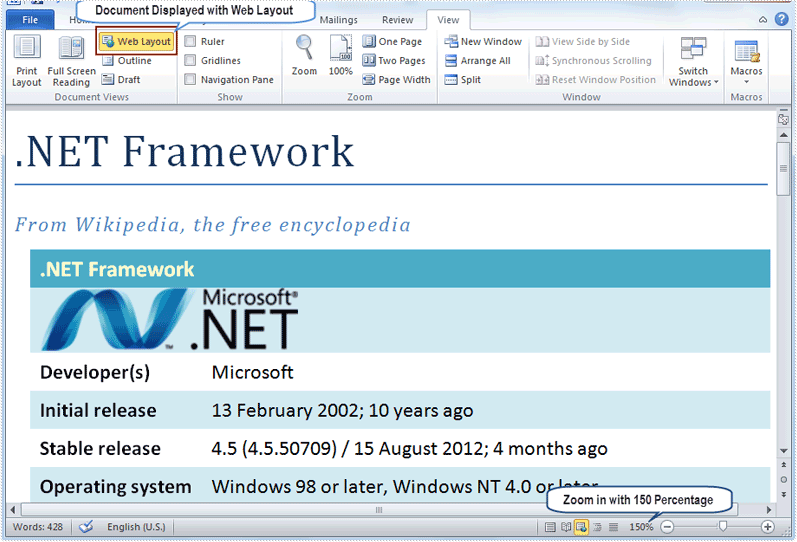
Spire.Doc for .NET, specializing in operating Word in .NET, offers a ViewSetup class to enable users to set Word view modes through assigning specified values for its properties. In this example, the Word view modes will be set as Web Layout with zoom out 150 percent. Therefore, the set properties of ViewSetup class include DocumentViewType, ZoomPercent and ZoomType.
DocumentViewTyp: There are five types provided by Spire.Doc for .NET: None, NormalLayout, OutlineLayout, PrintLayout and WebLayout.
ZoomPercent: The default ZoomPercent is 100. User can set other percent according to requirements. In this example, ZoomPercent is set as 150.
ZoomType: There are four zoom types provided by Spire.Doc for .NET: Full Page to automatically recalculate zoom percentage to fit one full page; None to use the explicit zoom percentage; PageWidth to automatically recalculate zoom percentage to fit page width; TextFit to automatically recalculate zoom percentage to fit text. Because the zoom percentage is set as 150, so the ZoomType is set as None in this example.
Download and install Spire.Doc for .NET and follow the code:
using Spire.Doc;

namespace WordViewMode
{
    class Program
    {
        static void Main(string[] args)
        {
            Document doc = new Document();
            doc.LoadFromFile(@"E:\Work\Documents\WordDocuments\.NET Framework.docx");

            doc.ViewSetup.DocumentViewType = DocumentViewType.WebLayout;
            doc.ViewSetup.ZoomPercent = 150;
            doc.ViewSetup.ZoomType = ZoomType.None;

            doc.SaveToFile("WordViewMode.docx", FileFormat.Docx2010);
            System.Diagnostics.Process.Start("WordViewMode.docx");
        }
    }
}
Imports Spire.Doc

Namespace WordViewMode
    Friend Class Program
        Shared Sub Main(ByVal args() As String)
            Dim doc As New Document()
            doc.LoadFromFile("E:\Work\Documents\WordDocuments\.NET Framework.docx")

            doc.ViewSetup.DocumentViewType = DocumentViewType.WebLayout
            doc.ViewSetup.ZoomPercent = 150
            doc.ViewSetup.ZoomType = ZoomType.None

            doc.SaveToFile("WordViewMode.docx", FileFormat.Docx2010)
            System.Diagnostics.Process.Start("WordViewMode.docx")
        End Sub
    End Class
End Namespace
Spire.Doc, professional Word component, is specially designed for developers to fast generate, write, modify and save Word documents in .NET, Silverlight and WPF with C# and VB.NET. Also, it supports conversion between Word and other popular formats, such as PDF, HTML, Image, Text and so on, in .NET and WPF platform.
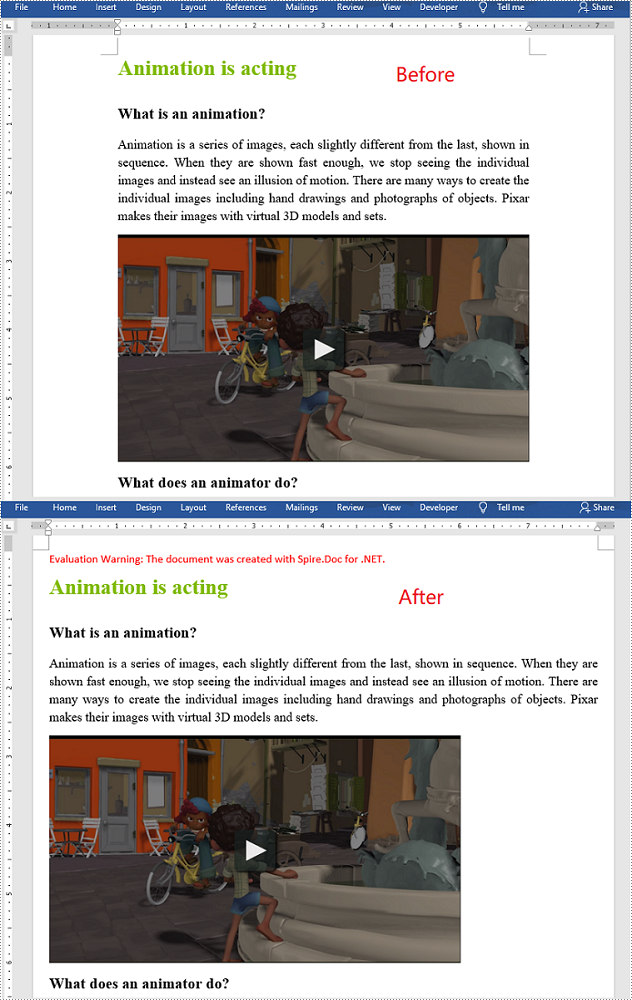
Page margins are the distance from the page edges to the content area. They are helpful in making a document look neat and professional. When generating a document in Microsoft Word, you may need to set page margins to make the document look better. In this article, we will demonstrate how to set page margins for Word documents in C# and VB.NET using Spire.Doc for .NET.
Install Spire.Doc for .NET
To begin with, you need to add the DLL files included in the Spire.Doc for .NET package as references in your .NET project. The DLL files can be either downloaded from this link or installed via NuGet.
PM> Install-Package Spire.Doc
Set Page Margins in Word in C# and VB.NET
The following are the steps to set page margins in Word:
- Initialize an instance of Document class.
- Load a Word document using Document.LoadFromFile() method.
- Get the desired section through Document.Sections[sectionIndex] property.
- Set the top, bottom, left and right margins for the pages in the section through Section.PageSetup.Margins.Top, Section.PageSetup.Margins.Bottom, Section.PageSetup.Margins.Left, Section.PageSetup.Margins.Right properties.
- Save the result document using Document.SaveToFile() method.
- C#
- VB.NET
using Spire.Doc;

namespace PageMargins
{
    class Program
    {
        static void Main(string[] args)
        {
            //Create a Document instance
            Document document = new Document();
            //Load a Word document
            document.LoadFromFile(@"Sample.docx");

            //Get the first section
            Section section = document.Sections[0];

            //Set top, bottom, left and right page margins for the section
            section.PageSetup.Margins.Top = 17.9f;
            section.PageSetup.Margins.Bottom = 17.9f;
            section.PageSetup.Margins.Left = 17.9f;
            section.PageSetup.Margins.Right = 17.9f;

            //Save the result document
            document.SaveToFile("SetMargins.docx", FileFormat.Docx2013);
        }
    }
}
Apply for a Temporary License
If you'd like to remove the evaluation message from the generated documents, or to get rid of the function limitations, please request a 30-day trial license for yourself.
Modifying passwords of PDF file is really a rational choice especially when the passwords are known by someone and your PDF file is no longer safe. Spire.PDF for .NET enables you to modify passwords of your encrypted PDF file in C#, VB.NET. You can modify your owner password as well as user password and set user restrictions when access the PDF file. Now please see the process of modifying encrypted PDF passwords as below picture:
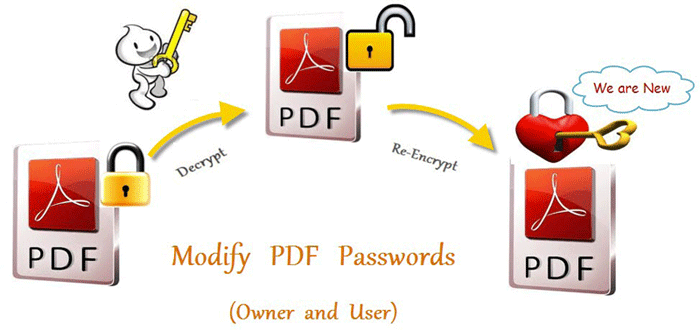
From above picture, you can easily find that the first step is to decrypt PDF file by owner password. So the original owner password is necessary. You can decrypt it by this method: Spire.Pdf.PdfDocument(string filename, string password)
Then, modify passwords by resetting owner password and user password. PDFSecurity class which is in the namespace Spire.PDFDocument.Security can help you not only to set owner password and user password, but also can set user permissions to restrict user access.
Below shows the whole code of modifying passwords of encrypted PDF file, please download Spire.PDF for .NET and install it on system before following the code:
using Spire.Pdf;
using Spire.Pdf.Security;

namespace modify_PDF_passwords
{
    class Program
    {
        static void Main(string[] args)
        {

            //load a encrypted file and decrypt it
            String encryptedPdf = @""..\Encrypt.pdf"";
            PdfDocument doc = new PdfDocument(encryptedPdf, ""e-iceblue"");

            // Define user and owner passwords
            string userPassword = ""user"";
            string ownerPassword = ""owner"";

            // Create a security policy with the specified passwords
            PdfSecurityPolicy securityPolicy = new PdfPasswordSecurityPolicy(userPassword, ownerPassword);

            // Set the encryption algorithm to AES 128-bit
            securityPolicy.EncryptionAlgorithm = PdfEncryptionAlgorithm.AES_128;

            // Allow printing of the document
            securityPolicy.DocumentPrivilege.AllowPrint = true;

            // Allow filling form fields in the document
            securityPolicy.DocumentPrivilege.AllowFillFormFields = true;

            // Allow copying content from the document
            securityPolicy.DocumentPrivilege.AllowContentCopying = true;

            // Encrypt the PDF document using the specified security policy
            doc.Encrypt(securityPolicy);

            // Save the encrypted PDF document to a file named ""SecurityPermission.pdf""
           doc.SaveToFile(""Encryption-result.pdf"");

        }
    }
}
Imports Spire.Pdf
Imports Spire.Pdf.Security

Namespace modify_PDF_passwords
	Class Program
		Private Shared Sub Main(args As String())

		  load a encrypted file and decrypt it
		  Dim encryptedPdf As String = ""..\Encrypt.pdf""
		  Dim doc As New PdfDocument(encryptedPdf, ""e-iceblue"")

		  ' Define user and owner passwords
		  Dim userPassword As String = ""user""
		  Dim ownerPassword As String = ""owner""

		  ' Create a security policy with the specified passwords
		  Dim securityPolicy As PdfSecurityPolicy = New PdfPasswordSecurityPolicy(userPassword, ownerPassword)

		  ' Set the encryption algorithm to AES 128-bit
		  securityPolicy.EncryptionAlgorithm = PdfEncryptionAlgorithm.AES_128

		  ' Allow printing of the document
		  securityPolicy.DocumentPrivilege.AllowPrint = True

		  ' Allow filling form fields in the document
		  securityPolicy.DocumentPrivilege.AllowFillFormFields = True

		  ' Allow copying content from the document
		  securityPolicy.DocumentPrivilege.AllowContentCopying = True

		  ' Encrypt the PDF document using the specified security policy
		  doc.Encrypt(securityPolicy)

		  ' Save the encrypted PDF document to a file named ""SecurityPermission.pdf""
		  doc.SaveToFile(""Encryption-result.pdf"")

		End Sub
	End Class
End Namespace
Spire.PDF for .NET is a .NET PDF component that enables you to generate, read, edit and manipulate PDF files in C#, VB.NET.
