
Knowledgebase (2370)
Children categories
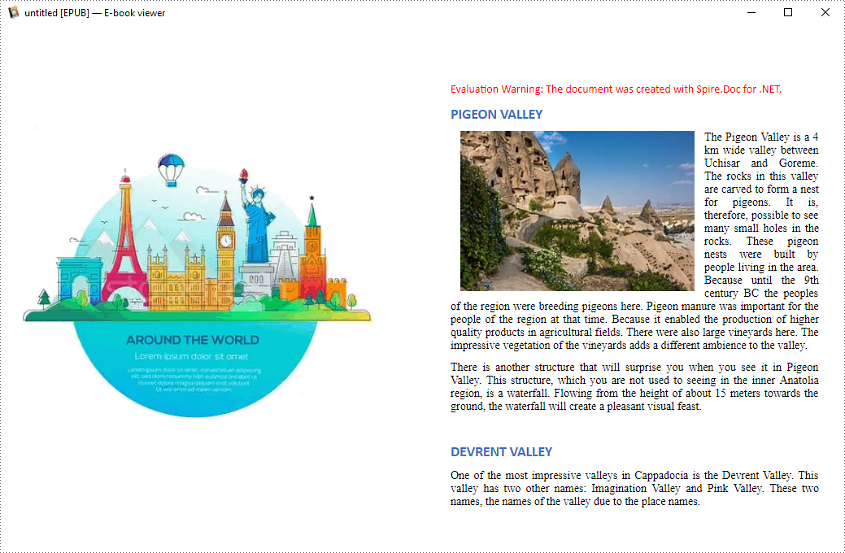
EPUB is a standard file format for publishing eBooks or other electronic documents. The content in an EPUB file is reflowable, which means that the content automatically adjusts itself to fit the screen it is being displayed on. People who want to publish their eBooks may need to convert their works stored in Word documents to EPUB files. In this article, you will learn how to programmatically achieve this task using Spire.Doc for .NET.
Install Spire.Doc for .NET
To begin with, you need to add the DLL files included in the Spire.Doc for .NET package as references in your .NET project. The DLL files can be either downloaded from this link or installed via NuGet.
PM> Install-Package Spire.Doc
Convert Word to EPUB
The detailed steps are as follows:
- Create a Document instance.
- Load a sample Word document using Document.LoadFromFile() method.
- Save the document to EPUB using Document.SaveToFile() method.
- C#
- VB.NET
using Spire.Doc;

namespace WordtoEPUB
{
    class Epub
    {
        static void Main(string[] args)
        {
            //Create a Document instance
            Document document = new Document();

            //Load a sample Word document
            document.LoadFromFile("demo.docx");

            //Convert the Word document to EPUB
            document.SaveToFile("ToEpub.epub", FileFormat.EPub);
        }
    }
}

Convert Word to EPUB with a Cover Image
The detailed steps are as follows.
- Create a Document instance.
- Load a sample Word document using Document.LoadFromFile() method.
- Create a DocPicture instance, and then load an image using DocPicture.LoadImage() method.
- Save the Word document to EPUB with cover image using Document.SaveToEpub(String, DocPicture) method.
- C#
- VB.NET
using Spire.Doc;
using Spire.Doc.Fields;
using System.Drawing;

namespace ConvertWordToEpubWithCoverImage
{
    class Program
    {
        static void Main(string[] args)
        {

            //Create a Document instance
            Document doc = new Document();

            //Load a sample Word document
            doc.LoadFromFile("demo.docx");

            //Create a DocPicture instance
            DocPicture picture = new DocPicture(doc);

            //Load an image
            picture.LoadImage(Image.FromFile("CoverImage.png"));

            //Save the Word document to EPUB with cover image
            doc.SaveToEpub("ToEpubWithCoverImage.epub", picture);
        }
    }
}
Apply for a Temporary License
If you'd like to remove the evaluation message from the generated documents, or to get rid of the function limitations, please request a 30-day trial license for yourself.
This section aims at providing developers a solution on how to insert Excel background image in C#, VB.NET via a .NET Excel library Spire.XLS for .NET.
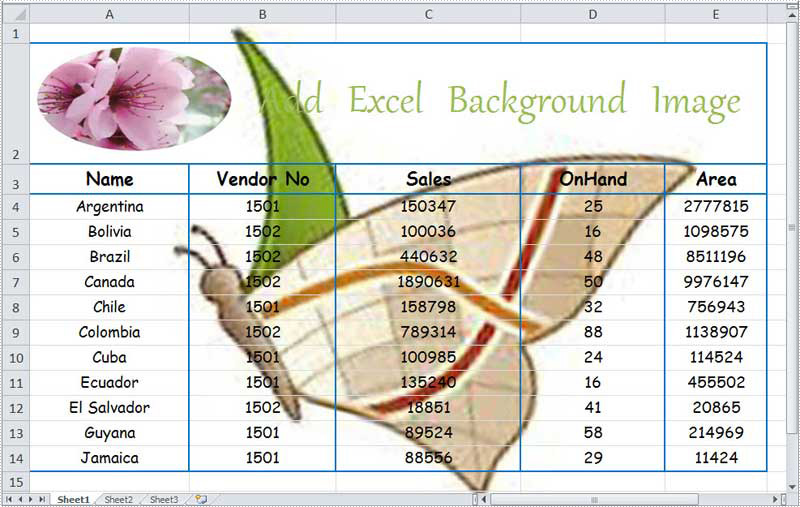
Spire.XLS for .NET enables you to add background image in your Excel file by setting BackgroundImage property of the object PageSetup to be the image you want to insert, you can see the code here: Spire.Xls.Worksheet.PageSetup.BackgroundImage. Now let us start our task.
Task:
If you are not familiar with Spire.XLS for .NET, please allow me to give a short description of it. Spire.XLS for .NET is an Excel application which enables users to perform a wide range of processing tasks in Excel documents such as generate, edit and handle Excel files in C#.
You will use Spire.XLS for .NET, so we can download Spire.XLS for .NET first. After installing it on system, please start your project either in C# Console Application or VB.NET Console Application. You also can create your project in Windows Forms Application. Please do not forget to add Spire.Xls as reference. The default path is “..\Spire.XLS\Bin\Bin\NET4.0\ Spire.XLS.dll”. Below shows the whole code of my project:
using Spire.Xls;
using System.Drawing;
namespace InsertExcelBackgroundImage
{
    class Program
    {
        static void Main(string[] args)
        {
            //initialize a new instance of Workbook
            Workbook workbook = new Workbook();
            //import an Excel file from system
            workbook.LoadFromFile(@"..\Excel background image.xlsx");
            //get the first worksheet
            Worksheet sheet = workbook.Worksheets[0];
            //open an image
            Bitmap bm = new Bitmap(Image.FromFile(@"..\butterflytable.jpg"));
            //set the image to be background image of the worksheet
            sheet.PageSetup.BackgoundImage = bm;
            //save excel file
            workbook.SaveToFile("result.xlsx", ExcelVersion.Version2010);
            //launch the file
            System.Diagnostics.Process.Start("result.xlsx");
        }
    }
}
Imports Spire.Xls
Imports System.Drawing
Namespace InsertExcelBackgroundImage
	Class Program
		Private Shared Sub Main(args As String())
			'initialize a new instance of Workbook
			Dim workbook As New Workbook()
			'import an Excel file from system
			workbook.LoadFromFile("..\Excel background image.xlsx")
			'get the first worksheet
			Dim sheet As Worksheet = workbook.Worksheets(0)
			'open an image
			Dim bm As New Bitmap(Image.FromFile("..\butterflytable.jpg"))
			'set the image to be background image of the worksheet
			sheet.PageSetup.BackgoundImage = bm
			'save excel file
			workbook.SaveToFile("result.xlsx", ExcelVersion.Version2010)
			'launch the file
			System.Diagnostics.Process.Start("result.xlsx")
		End Sub
	End Class
End Namespace
Output File:
After executing above code, I successfully add background image in Excel file, you can see the output file as below:
In this section, I have introduced the detail solution on how to insert background image in Excel file with C#, VB.NET. I wish it can help you. If you have any questions, comments or advice, you can add it at E-iceblue Forum, our professionals will give prompt reply.
The purpose of creating dropdown lists in an Excel document is to provide a convenient way for data input, restricting users to select only from predefined options. This helps prevent input errors and ensures data accuracy. With dropdown lists, users can choose from a fixed list of options without the need to manually enter data, thereby reducing the possibility of input errors. This article will introduce how to use Spire.XLS for .NET to create dropdown lists in Excel documents within a C# project.
- Create Dropdown List using String Array in C#
- Create Dropdown List using Data from the Same Worksheet in C#
- Create Dropdown List using Data from Different Worksheets in C#
- Create Linked Dropdown Lists in the Same Worksheet in C#
- Create Linked Dropdown Lists across Different Worksheets in C#
Install Spire.XLS for .NET
To begin with, you need to add the DLL files included in the Spire.XLS for .NET package as references in your .NET project. The DLL files can be either downloaded from this link or installed via NuGet.
PM> Install-Package Spire.XLS
Create Dropdown List using String Array in C#
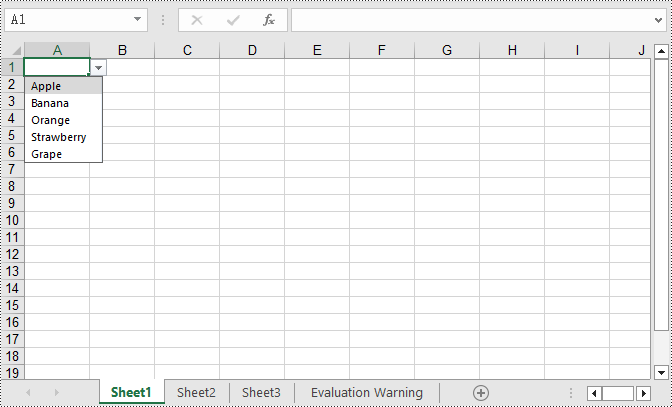
Using Spire.XLS, you can easily create dropdown lists in cells by assigning a string array to the CellRange.DataValidation.Values property. Here are the detailed steps:
- Create a Workbook object.
- Use Workbook.Worksheets[0] to get the first worksheet in the workbook.
- Create a string array and assign it to the CellRange.DataValidation.Values property.
- Save the document to a specified path using the Workbook.SaveToFile() method.
- C#
using Spire.Xls;

namespace SpireXlsDemo
{
    internal class Program
    {
        static void Main(string[] args)
        {
            // Create a Workbook object
            Workbook workbook = new Workbook();

            // Get the first Worksheet in the Workbook object
            Worksheet worksheet = workbook.Worksheets[0];

            // Create a string array
            string[] values = new string[] { "Apple", "Banana", "Orange", "Strawberry", "Grape" };

            // Set data validation in cell A1 of the worksheet, restricting selectable values to those in the values array
            worksheet.Range["A1"].DataValidation.Values = values;

            // Save the Workbook object as an Excel file
            workbook.SaveToFile("DropdownListCreatedFromArray.xlsx", ExcelVersion.Version2016);

            // Dispose of the resources occupied by the Workbook object
            workbook.Dispose();
        }
    }
}
Create Dropdown List using Data from the Same Worksheet in C#
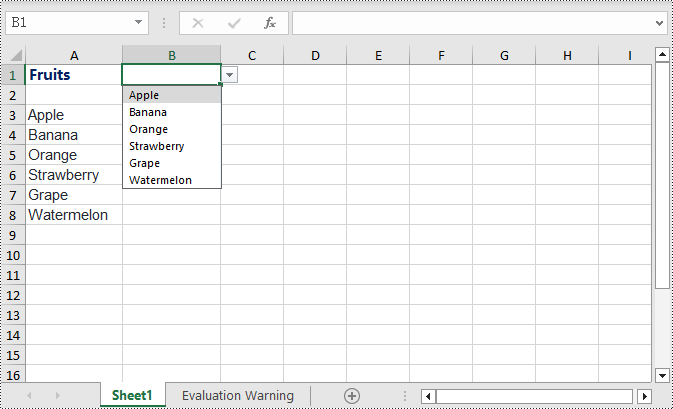
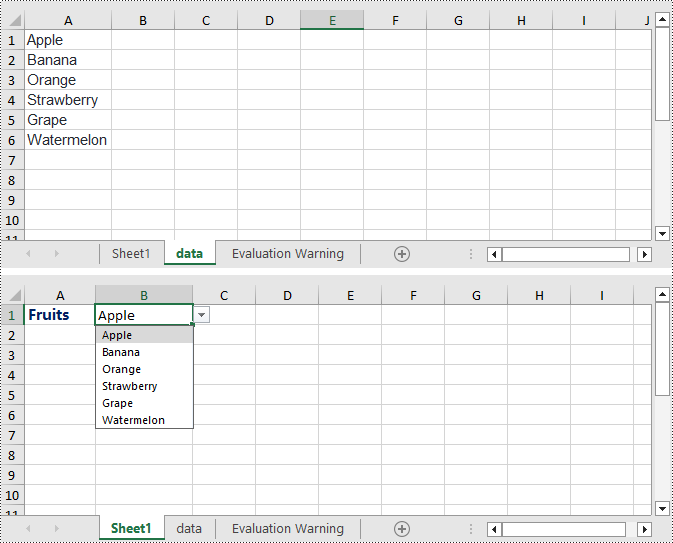
The following example demonstrates creating a dropdown list in the worksheet where the data is located by specifying the data range and applying it to the corresponding cell. Here are the detailed steps:
- Create a Workbook object.
- Load an Excel document using the Workbook.LoadFromFile() method.
- Access the first worksheet in the workbook using Workbook.Worksheets[0].
- Get the data range using Worksheet.Range[""].
- Specify cell B1 as a dropdown list and set the data range using Worksheet.Range["B1"].DataValidation.DataRange.
- Save the document to a specified path using the Workbook.SaveToFile() method.
- C#
using Spire.Xls;

namespace SpireXlsDemo
{
    internal class Program
    {
        static void Main(string[] args)
        {
            // Create a new workbook object
            Workbook workbook = new Workbook();

            // Load workbook data from a file
            workbook.LoadFromFile("Sample1.xlsx");

            // Get the first worksheet in the workbook
            Worksheet worksheet = workbook.Worksheets[0];

            // Get the cell range from A3 to A8 in the worksheet
            CellRange dataRange = worksheet.Range["A3:A8"];

            // Set cell B1 as a dropdown with data range obtained earlier
            worksheet.Range["B1"].DataValidation.DataRange = dataRange;

            // Save the workbook to a new file
            workbook.SaveToFile("CreateDropdownInSameWorksheet.xlsx", ExcelVersion.Version2016);

            // Dispose of the workbook resources
            workbook.Dispose();
        }
    }
}
Create Dropdown List using Data from Different Worksheets in C#
This example demonstrates how to specify a data range in one worksheet and apply it to a specific cell in another worksheet. In this process, it is necessary to ensure that Worksheet.ParentWorkbook.Allow3DRangesInDataValidation = true is set to enable the functionality of creating dropdown lists across different worksheets. Here are the detailed steps:
- Create a Workbook object.
- Load an Excel document using the Workbook.LoadFromFile() method.
- Retrieve a specific worksheet from the workbook using Workbook.Worksheets[].
- Set Worksheet.ParentWorkbook.Allow3DRangesInDataValidation = true to enable the use of 3D ranges in data validation within the worksheet.
- Use CellRange.DataValidation.DataRange to specify a cell as a dropdown list and set the data range.
- Save the document to a specified path using the Workbook.SaveToFile() method.
- C#
using Spire.Xls;

namespace SpireXlsDemo
{
    internal class Program
    {
        static void Main(string[] args)
        {
            // Create a Workbook object
            Workbook workbook = new Workbook();

            // Load the workbook from a file
            workbook.LoadFromFile("Sample2.xlsx");

            // Get the first worksheet
            Worksheet worksheet1 = workbook.Worksheets[0];

            // Get the second worksheet
            Worksheet worksheet2 = workbook.Worksheets[1];

            // Allow the use of 3D ranges in data validation
            worksheet1.ParentWorkbook.Allow3DRangesInDataValidation = true;

            // Define the data range
            CellRange dataRange = worksheet2.Range["A1:A6"];

            // Apply the data range to cell B1 in worksheet 1 as data validation
            worksheet1.Range["B1"].DataValidation.DataRange = dataRange;

            // Save the workbook to a file
            workbook.SaveToFile("Create the Dropdowns Across Different Worksheets.xlsx", ExcelVersion.Version2016);

            // Release the resources of the workbook
            workbook.Dispose();
        }
    }
}
Create Linked Dropdown Lists in the Same Worksheet in C#
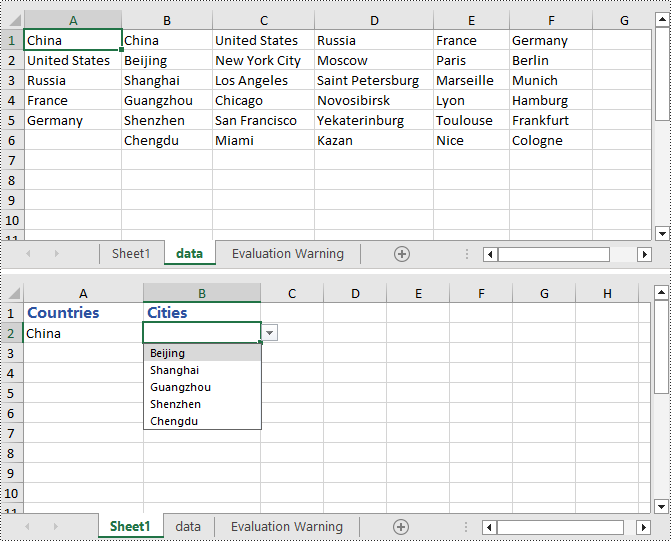
Linked dropdown menus refer to the automatic updating of options in one dropdown menu based on the selection made in another dropdown menu. This example demonstrates how to create linked dropdown lists (dropdown menus) functionality within the same worksheet. This is achieved by adding an INameRange object and setting the reference range, as well as setting the data range and formula for data validation to achieve the linked dropdown effect. Here are the detailed steps:
- Create a Workbook object.
- Load an Excel document using the Workbook.LoadFromFile() method.
- Retrieve a specific worksheet from the workbook using Workbook.Worksheets[].
- Add an INamedRange object and set the reference range.
- Set Worksheet.ParentWorkbook.Allow3DRangesInDataValidation = true to enable the use of 3D ranges in data validation within the worksheet.
- Use CellRange.DataValidation.DataRange to specify a cell as a dropdown box and set the data range.
- Set CellRange.DataValidation.AllowType = CellDataType.User to specify the data validation type for cells in the worksheet as user-defined.
- Set CellRange.DataValidation.Formula1 = "=INDIRECT(SUBSTITUTE(A2,\" \",\"_\"))", which means that the data validation for this cell will dynamically select the data range based on the value in the cell.
- Save the document to a specified path using the Workbook.SaveToFile() method.
- C#
using Spire.Xls;

namespace SpireXlsDemo
{
    internal class Program
    {
        static void Main(string[] args)
        {
            // Create a new workbook object
            Workbook workbook = new Workbook();

            // Load the workbook from a file
            workbook.LoadFromFile("Sample3.xlsx");

            // Get the first worksheet
            Worksheet worksheet1 = workbook.Worksheets[0];

            // Get the second worksheet
            Worksheet worksheet2 = workbook.Worksheets[1];

            // Add named range objects and set reference ranges
            Spire.Xls.Core.INamedRange namedRange = workbook.NameRanges.Add(worksheet2.Range["A1"].Text);
            namedRange.RefersToRange = worksheet2.Range["B2:B6"];
            namedRange = workbook.NameRanges.Add(worksheet2.Range["A2"].Text.Replace(" ", "_"));
            namedRange.RefersToRange = worksheet2.Range["C2:C6"];
            namedRange = workbook.NameRanges.Add(worksheet2.Range["A3"].Text);
            namedRange.RefersToRange = worksheet2.Range["D2:D6"];
            namedRange = workbook.NameRanges.Add(worksheet2.Range["A4"].Text);
            namedRange.RefersToRange = worksheet2.Range["E2:E6"];
            namedRange = workbook.NameRanges.Add(worksheet2.Range["A5"].Text);
            namedRange.RefersToRange = worksheet2.Range["F2:F6"];

            // Allow 3D ranges in data validation
            worksheet1.ParentWorkbook.Allow3DRangesInDataValidation = true;

            // Set the data range for data validation
            worksheet1.Range["A2"].DataValidation.DataRange = worksheet2.Range["A1:A5"];
            worksheet1.Range["B2"].DataValidation.AllowType = CellDataType.User;

            // Set the formula
            worksheet1.Range["B2"].DataValidation.Formula1 = "=INDIRECT(SUBSTITUTE(A2,\" \",\"_\"))";

            // Save the workbook to a file
            workbook.SaveToFile("Linked Dropdowns in the Same Worksheet.xlsx", ExcelVersion.Version2016);

            // Dispose of the workbook resources
            workbook.Dispose();
        }
    }
}
Create Linked Dropdown Lists across Different Worksheets in C#
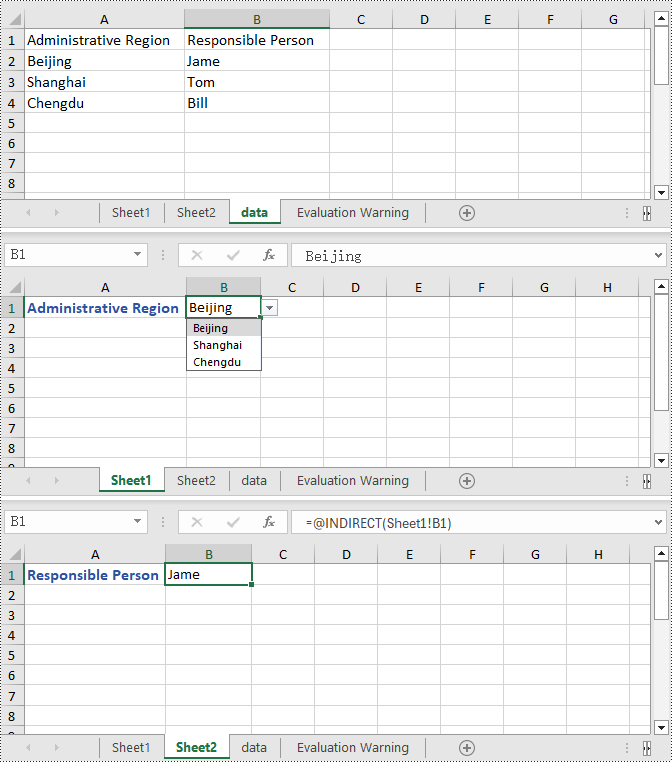
This example demonstrates how to implement linked dropdown lists between different worksheets in an Excel document. By adding an INameRange object and setting the reference range, you can set the data validation range in the first worksheet and set the cell formula in the second worksheet to achieve the linked dropdown effect. Here are the detailed steps:
- Create a Workbook object.
- Load an Excel document using the Workbook.LoadFromFile() method.
- Retrieve a specific worksheet from the workbook using Workbook.Worksheets[].
- Add an INamedRange object and set the reference range.
- Set Worksheet.ParentWorkbook.Allow3DRangesInDataValidation = true to enable data validation using 3D ranges in the worksheet.
- Set the data validation range using CellRange.DataValidation.DataRange.
- Set the formula in a cell in the second worksheet using CellRange.Formula = "=INDIRECT(" + worksheet1.Name + "!B1)" to indirectly reference the value of a cell in the first worksheet.
- Save the document to a specified path using the Workbook.SaveToFile() method.
- C#
using Spire.Xls;

namespace SpireXlsDemo
{
	internal class Program
	{
		static void Main(string[] args)
		{
                                     // Create a Workbook object
                                     Workbook workbook = new Workbook();

                                     // Load the workbook from a file
                                     workbook.LoadFromFile("Sample4.xlsx");

                                     // Get the first worksheet
                                     Worksheet worksheet1 = workbook.Worksheets[0];

                                     // Get the second worksheet
                                     Worksheet worksheet2 = workbook.Worksheets[1];

                                     // Get the data worksheet
                                     Worksheet dataSheet = workbook.Worksheets[2];

                                     // Add a named range object and set the reference range
                                     Spire.Xls.Core.INamedRange namedRange = workbook.NameRanges.Add(dataSheet.Range["A2"].Text);
                                     namedRange.RefersToRange = dataSheet.Range["B2"];
                                     namedRange = workbook.NameRanges.Add(dataSheet.Range["A3"].Text);
                                     namedRange.RefersToRange = dataSheet.Range["B3"];
                                     namedRange = workbook.NameRanges.Add(dataSheet.Range["A4"].Text);
                                     namedRange.RefersToRange = dataSheet.Range["B4"];

                                     // Allow 3D ranges in data validation
                                     worksheet1.ParentWorkbook.Allow3DRangesInDataValidation = true;

                                     // Set the data range for data validation
                                     worksheet1.Range["B1"].DataValidation.DataRange = dataSheet.Range["A2:A4"];

                                     // Set the formula for cell B1 in the second worksheet
                                     worksheet2.Range["B1"].Formula = "=INDIRECT(" + worksheet1.Name + "!B1)";

                                     // Save the workbook to a file
                                     workbook.SaveToFile("Creating Linked Dropdowns Across Different Worksheets.xlsx", ExcelVersion.Version2016);

                                     // Release the resources of the workbook
                                     workbook.Dispose();
		}
	}
}
Apply for a Temporary License
If you'd like to remove the evaluation message from the generated documents, or to get rid of the function limitations, please request a 30-day trial license for yourself.
