
Knowledgebase (2370)
Children categories
Overview
We always very thank for long-term support from our customers and would like consider more for customer to get our product with a more acceptable price. Therefore, we launch a discount system for offering customers the best value for money.
No Discount After Sale
We are not able to provide discounts once the order finished due to the cost involved to refund the partial payment. It is very important to contact our sales team(sales@e-iceblue.com) for coupon code before purchasing our products.
Purchase Quantity
You will get 12% off discount automatically to buy at least 3 same licenses (no license type limit) of any products in our store.
Competitive Discount
We offer 30% discount for customers who would like to switch to use E-iceblue products from other component vendors. Also, we are very appreciated if you share your views or opinions to help us improve our products.
For getting the competitive discount, you need to follow the following principles.
- It is not available to or through resellers.
- Just one time for one address or company.
- We must verify if you have used the products of our competitors before, so please share with us the invoice or any other document that proves you were/are using a similar product.
- We will ask for reasons why you would like to use our products rather than your current products.
For applying the competitive discount, you need to send a request to our sales team. Please show the following points in your post:
- The product you are using right now
- The reason you would like to have a change
- The proof you purchase the products from our competitors.
Our staff will send you the coupon code after reviewing and approving your request.
Share your Story with others via Video about using our products
If you have tried our product and found it useful, you are welcomed to make a video by sharing your reviews or steps by using our product. Then send it to sales@e-iceblue.com for us to review it. We will offer you a competitive discount for purchasing our product.
For More Discount
- Certain Discount-Purchase through reseller in your country
- 5% to 8% Discount-Write and publish review of our products on your website or professional reviews website
- 2% to 5% discount-Share our company link on your website or facebook
Discount for Non-Profit Organizations
If you are non-profit, educational organizations or government agency, please send a discount request to our sales team. Please provide all of your organization details in the request, including organization name, local address, website, Email address etc. After checking your request, our staff will send you the coupon code.
If you still have questions, please don’t hesitate to contact our sales team. We will reply you within 1 business day.
Creating barcodes in a Word document is a useful technique for enhancing productivity and organization. Barcodes facilitate quick scanning and tracking, making them essential for businesses, events, and personal projects.
This article explains two methods for creating barcodes in a Word document using C#: one with barcode fonts via Spire.Doc for .NET API, and the other using a Barcode API alongside the Word API.
- Create Barcodes in a Word Document Using Barcode Fonts
- Create Barcodes in a Word Document Using Barcode API
Install Spire.Doc for .NET
To begin with, you need to add the DLL files included in the Spire.Doc for .NET package as references in your .NET project. The DLL files can be either downloaded from this link or installed via NuGet.
PM> Install-Package Spire.Doc
Create Barcodes in a Word Document Using Barcode Fonts
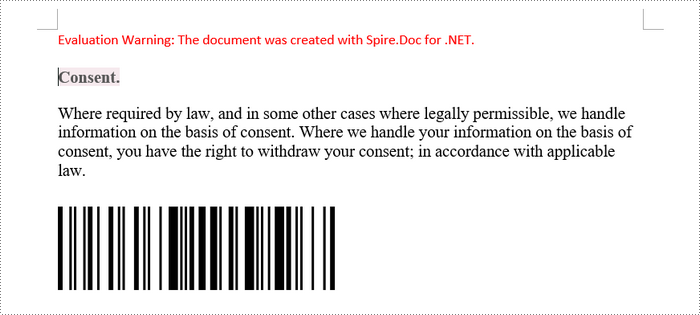
A barcode font is a typeface that converts alphanumeric data into a scannable format of bars and spaces. To use it, you typically need to install the font on your system and then format text in a Word document.
The steps to create barcodes in a Word document using barcode fonts are as follows:
- Download and install the desired barcode font on your computer.
- Create a Document object.
- Load a Word file using Document.LoadFromFile() method.
- Get a specific section and add a paragraph using Section.AddParagraph() method.
- Add text to the paragraph using Paragraph.AppendText() method.
- Apply the barcode font to the text using TextRange.CharacterFormat.FontName property.
- Set the font size and color for the text.
- Save the document to a different Word file.
- C#
using Spire.Doc;
using Spire.Doc.Documents;
using Spire.Doc.Fields;
using System.Drawing;

namespace Name
{
    class Program
    {
        static void Main(string[] args)
        {
            // Create a Document object
            Document document = new Document();

            // Load a Word file
            document.LoadFromFile("C:\\Users\\Administrator\\Desktop\\input.docx");

            // Get a specific section
            Section section = document.Sections[0];

            // Add a paragraph
            Paragraph paragraph = section.AddParagraph();

            // Append text to the paragraph
            TextRange txtRang = paragraph.AppendText("Hello,World");

            // Apply barcode font to the text
            txtRang.CharacterFormat.FontName = "Code 128";

            // Set the font size and text color
            txtRang.CharacterFormat.FontSize = 80;
            txtRang.CharacterFormat.TextColor = Color.Black;

            // Save the document to a different Word file
            document.SaveToFile("Barcode.docx", FileFormat.Docx);

            // Dispose resources
            document.Dispose();
        }
    }
}
Create Barcodes in a Word Document Using Barcode API
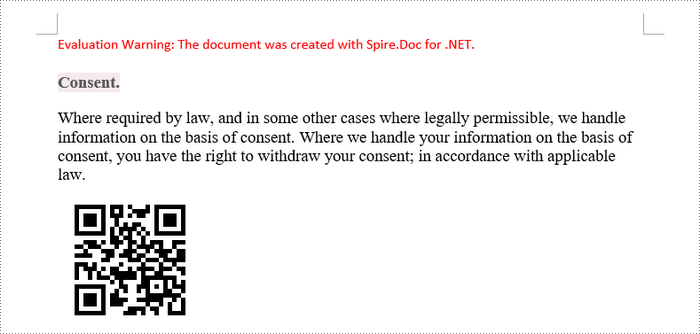
Spire.Barcode for .NET is a Barcode API that allows you to easily create a barcode with customized settings, such as barcode type, data, size, and color. You can install the library from NuGet using the following command.
PM> Install-Package Spire.Barcode
After the barcode image is created, you can then insert it to a Word document with the help of the Spire.Doc for .NET library.
The steps to create barcode in a Word document using a Barcode API are as follows:
- Install Spire.Barcode for .NET in your .NET program.
- Create a BarcodeSettings object.
- Specify the barcode type, data, width and other attributes using the properties under the BarcodeSettings object.
- Generate a barcode image based on the settings using BarCodeGenerator.GenerateImage() method.
- Create a Document object.
- Load a Word file using Document.LoadFromFile() method.
- Get a specific section and add a paragraph using Section.AddParagraph() method.
- Add the barcode image to the paragraph using Paragraph.AppendPicture() method.
- Save the document to a different Word file.
- C#
using Spire.Barcode;
using Spire.Doc;
using Spire.Doc.Documents;
using System.Drawing;

namespace Name
{
    class Program
    {
        static void Main(string[] args)
        {
            // Create a BarcodeSettings object
            BarcodeSettings settings = new BarcodeSettings();

            // Set barcode type
            settings.Type = BarCodeType.QRCode;

            // Set barcode data
            settings.Data2D = "Hello, World";

            // Set the other attributes of the barcode
            settings.X = 1.5f;
            settings.QRCodeECL = QRCodeECL.H;
            settings.ShowTopText = false;
            settings.ShowText = false;

            // Create a BarCodeGenerator object
            BarCodeGenerator generator = new BarCodeGenerator(settings);

            // Generate a barcode image
            Image image = generator.GenerateImage();

            // Create a Document object
            Document document = new Document();

            // Load a Word file
            document.LoadFromFile("C:\\Users\\Administrator\\Desktop\\target.docx");

            // Get a specific section
            Section section = document.Sections[0];

            // Add a paragraph
            Paragraph paragraph = section.AddParagraph();

            // Add the barcode image to the paragraph
            paragraph.AppendPicture(image);

            // Save the document to a different Word file
            document.SaveToFile("Barcode.docx", FileFormat.Docx);

            // Dispose resources
            document.Dispose();
        }
    }
}
Apply for a Temporary License
If you'd like to remove the evaluation message from the generated documents, or to get rid of the function limitations, please request a 30-day trial license for yourself.
Why to Renew the Subscription
The One Year Subscription only guarantees your one year products update and prior technology/sales support. When the subscription expires, any latest products release or hotfix can’t be enjoyed any more.
When to Renew the Subscription
Generally, you can renew your subscription anytime you want. However we usually send an email to the register email address to remind you to renew your subscription before your subscription goes expired. To renew an existed subscription only costs 60% of the current price, while to re-activate an expired subscription costs 75% of the current product price.
How to Renew the Subscription
You just need to log in to our website with the username with which you bought the product , place a new order of the subscription which needs renewal, apply the coupon code and finish the payment.
If you bought the product from our resellers, you can contact them to renew it or purchase a new subscription.
If you have any problems or any changes, please contact our sales department and we will help you.
