
Knowledgebase (2370)
Children categories
Convert PDF Page to Image with Specified Resolution
2013-11-15 08:01:20Spire.PDF is an easy-to-use and powerful .NET PDF library. It can do a lot of conversions, and one of them is converting PDF page to image. As to converting PDF page to image, it works conveniently and flexibly. It has 6 overloaded functions named SaveAsImage that can make sure you find one meeting your need.
You can use Spire.PDF to convert any specific page of PDF document to BMP and Metafile image. Check it here.
In this article, we will discuss conversion with specified resolution.
public Image SaveAsImage(int pageIndex, int dpiX, int dpiY)
- pageIndex: specify which page to convert, 0 indicates the first page.
- dpiX: specify the resolution of x coordinate axis in PDF page when converting.
- dpiX: specify the resolution of y coordinate axis in PDF page when converting.
Image image = documemt.SaveAsImage(0, PdfImageType.Bitmap, false, 400, 400)
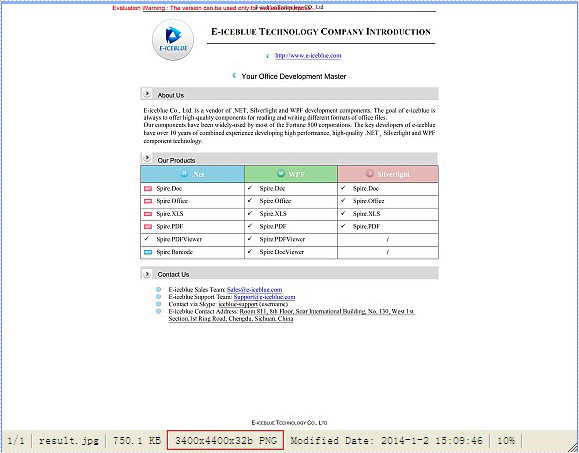
In the sample code, the size of PDF page is Width = 612.0, Height = 792.0. We set the resolution to 400, 400. And we will get an image with width = 3400, height = 4400.
Here is sample code:
PdfDocument documemt = new PdfDocument();
documemt.LoadFromFile(@"..\..\EnglishText.pdf");
Image image = documemt.SaveAsImage(0, PdfImageType.Bitmap, false, 400, 400);
image.Save(@"..\..\result.jpg");
documemt.Close();
Effect Screentshot:
Convert Word document to HTML is popular and widely used by programmers and developers. With the help of Spire.Doc for .NET, a professional word component, without installing MS Word, developers can convert word to html with only two lines of key code in C#. At the same time, Spire.Doc supports convert HTML to word document easily and quickly.
This article still focuses on convert word from/to HTML, while it mainly about the supports of embed image in the word document and HTML. With the improvements of Spire.Doc (starts from Spire.Doc V. 4.9.32), now it supports the new function of ImageEmbedded.
Please download Spire.Doc (version 4.9.32 or above) with .NET framework together and follow the simple steps as below:
Convert Word to HTML in C#:
Step 1: Create the word document.
Document document = new Document();
Step 2: Set the value of imageEmbedded attribute.
doc.HtmlExportOptions.ImageEmbedded=true;
Step 3: Save word document to HTML.
doc.SaveToFile("result.html",FileFormat.Html);
Spire.Doc also supports load the result HTML page and convert it into word document in only three lines of codes as below.
doc.SaveToFile("htmltoword.docx",FileFormat.Docx);
Besides conversion of word from/to HTML, Spire.Doc also supports Convert Word to PDF, Convert Word to Image and Convert Word to XPS in C#.
For the function of converting image to PDF, Spire.PDF can handle it quickly and effectively. This .NET PDF library can not only convert images of commonly used formats to PDF document such as jpg, bmp, png, but also convert gif, tif and ico images to PDF. Just download it here.
To convert multipage image to a PDF file with Spire.PDF, just copy the following code to your application and call method ConvertImagetoPDF and you will get it done.
Step 1: Method to split multipage image
Spire.Pdf has a method called DrawImage to convert image to PDF. But it cannot handle multipage image directly. So before conversion, multipage image need to be split into several one-page images.
Guid guid = image.FrameDimensionsList[0];
FrameDimension dimension = new FrameDimension(guid);
int pageCount = image.GetFrameCount(dimension);
This step is to get the total number of frames (pages) in the multipage image.
image.SelectActiveFrame(dimension, i);
And this step is to select one frame of frames within this image object.
image.Save(buffer, format);
Save the selected frame to the buffer.
Step 2: Convert image to PDF
After splitting multipage image, Spire.Pdf can draw these split images directly to PDF using method DrawImage.
PdfImage pdfImg = PdfImage.FromImage(img[i])
Load image file as PdfImage.
page.Canvas.DrawImage(pdfImg, x, 0, width, height);
Draw PdfImage to PDF. The only thing to do is to specify the location of image on PDF. Width and height is the size of area that image will be drawn on. Sometimes we need to scale up or down the size of the original size of image until it fit the PDF page. x and 0 locate the coordinate.
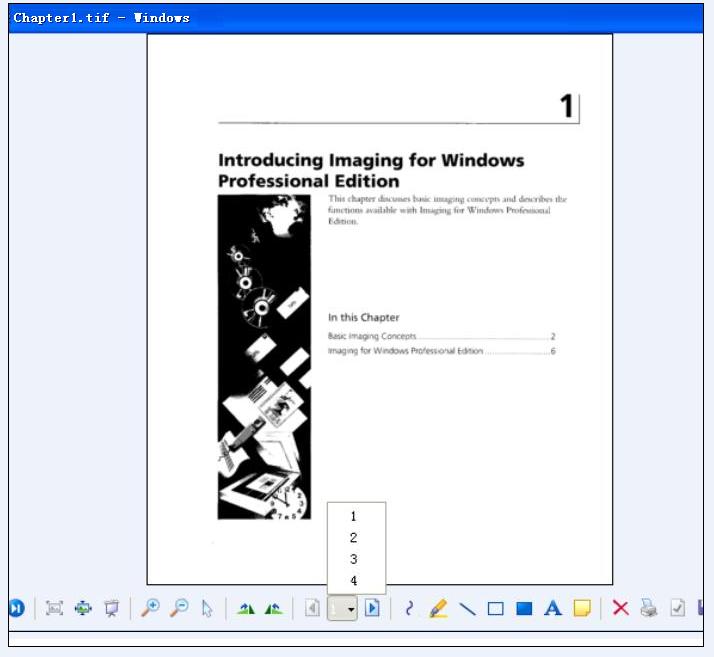
Check the effective screenshots for the original TIF file.
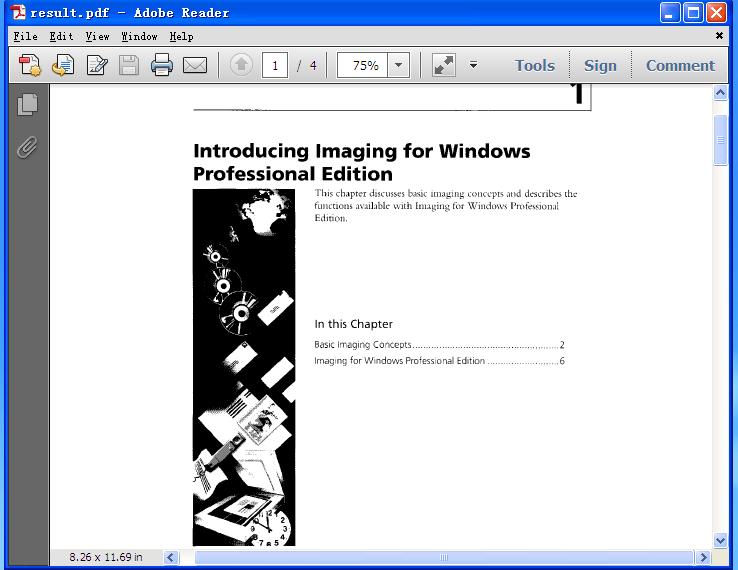
The target PDF file:
Full demo:
using Spire.Pdf;
using Spire.Pdf.Graphics;
using System;
using System.Drawing;
using System.Drawing.Imaging;
using System.IO;

namespace ConvertMultipageImagetoPDF
{
    class Program
    {
        static void Main(string[] args)
        {
            {
                ConvertImagetoPDF(@"..\..\Chapter1.tif");
            }
        }

        public static void ConvertImagetoPDF(String ImageFilename)
        {
            using (PdfDocument pdfDoc = new PdfDocument())
            {
                Image image = Image.FromFile(ImageFilename);

                Image[] img = SplitImages(image, ImageFormat.Png);

                for (int i = 0; i < img.Length; i++)
                {
                    PdfImage pdfImg = PdfImage.FromImage(img[i]);
                    PdfPageBase page = pdfDoc.Pages.Add();
                    float width = pdfImg.Width * 0.3f;
                    float height = pdfImg.Height * 0.3f;
                    float x = (page.Canvas.ClientSize.Width - width) / 2;

                    page.Canvas.DrawImage(pdfImg, x, 0, width, height);
                }

                string PdfFilename = "result.pdf";
                pdfDoc.SaveToFile(PdfFilename);
                System.Diagnostics.Process.Start(PdfFilename);
            }
        }

        public static Image[] SplitImages(Image image, ImageFormat format)
        {
            Guid guid = image.FrameDimensionsList[0];
            FrameDimension dimension = new FrameDimension(guid);
            int pageCount = image.GetFrameCount(dimension);

            Image[] frames = new Image[pageCount];

            for (int i = 0; i < pageCount; i++)
            {
                using (MemoryStream buffer = new MemoryStream())
                {
                    image.SelectActiveFrame(dimension, i);
                    image.Save(buffer, format);
                    frames[i] = Image.FromStream(buffer);
                }
            }
            return frames;
        }
    }
}
