Knowledgebase (2370)
Children categories
OLE, short for Object Linking and Embedding, is a powerful technology integrated into Microsoft Word and other Microsoft Office applications. Its primary purpose is to seamlessly integrate objects from external programs directly into your documents. These objects can range from simple images or charts to more complex items like spreadsheets, presentations, multimedia files and more. In this article, we will demonstrate how to insert OLE objects as well as extract OLE objects in Word documents in C# using Spire.Doc for .NET.
Install Spire.Doc for .NET
To begin with, you need to add the DLL files included in the Spire.Doc for .NET package as references in your .NET project. The DLL files can be either downloaded from this link or installed via NuGet.
PM> Install-Package Spire.Doc
Insert OLE Objects in Word in C#
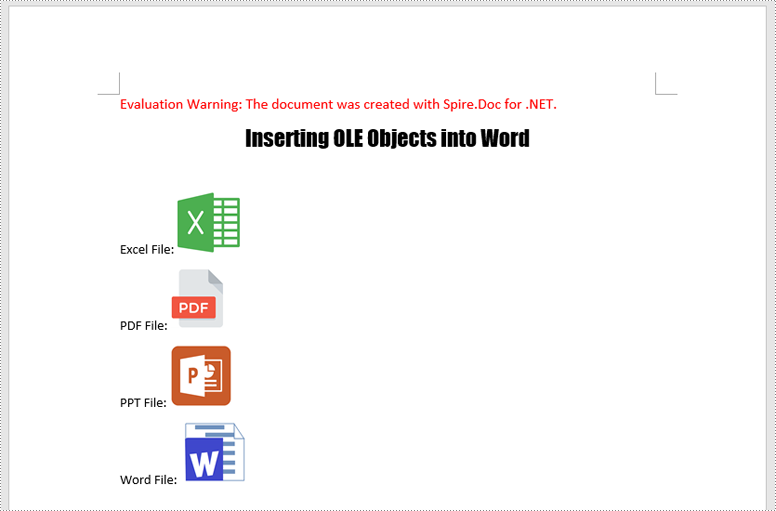
Spire.Doc for .NET offers the Paragraph.AppendOleObject(string pathToFile, DocPicture olePicture), OleObjectType type) method, which allows you to insert various types of documents (including Excel spreadsheets, PDF files, Word documents, PowerPoint presentations, and more) as OLE objects into a Word document.
The detailed steps are as follows:
- Create an instance of the Document class.
- Load a Word document using the Document.LoadFromFile() method.
- Get a specific section using the Document.Sections[index] property.
- Add a paragraph to the section using the Section.AddParagraph() method.
- Create an instance of the DocPicture class.
- Load an image that will be used as the icon of the embedded object using the DocPicture.LoadImage() method, and then set image width and height.
- Append an Excel spreadsheet as an OLE object to the paragraph using the Paragraph.AppendOleObject(string pathToFile, DocPicture olePicture, OleObjectType type) method.
- Repeat the above 4-7 steps to add more paragraphs and append more types of documents, like a PDF file, a PowerPoint presentation, and a Word document as OLE objects.
- Save the result file using the Document.SaveToFile() method.
- C#
using Spire.Doc;
using Spire.Doc.Documents;
using Spire.Doc.Fields;

namespace InsertOleObjects
{
    internal class Program
    {
        static void Main(string[] args)
        {
            // Create an instance of the Document class
            Document doc = new Document();
            // Load a Word document
            doc.LoadFromFile("Example.docx");

            // Get the first section
            Section section = doc.Sections[0];

            // Add a paragraph to the section
            Paragraph para1 = section.AddParagraph();
            para1.AppendText("Excel File: ");
            // Load an image that will be used as the icon of the OLE object
            DocPicture picture1 = new DocPicture(doc);
            picture1.LoadImage("Excel-Icon.png");
            picture1.Width = 50;
            picture1.Height = 50;
            // Append an Excel spreadsheet to the paragraph as an OLE object
            para1.AppendOleObject("Budget.xlsx", picture1, OleObjectType.ExcelWorksheet);

            // Add a paragraph to the section
            Paragraph para2 = section.AddParagraph();
            para2.AppendText("PDF File: ");
            // Load an image that will be used as the icon of the OLE object
            DocPicture picture2 = new DocPicture(doc);
            picture2.LoadImage("PDF-Icon.png");
            picture2.Width = 50;
            picture2.Height = 50;
            // Append a PDF file to the paragraph as an OLE object
            para2.AppendOleObject("Report.pdf", picture2, OleObjectType.AdobeAcrobatDocument);

            // Add a paragraph to the section
            Paragraph para3 = section.AddParagraph();
            para3.AppendText("PPT File: ");
            // Load an image that will be used as the icon of the OLE object
            DocPicture picture3 = new DocPicture(doc);
            picture3.LoadImage("PPT-Icon.png");
            picture3.Width = 50;
            picture3.Height = 50;
            // Append a PowerPoint presentation to the paragraph as an OLE object
            para3.AppendOleObject("Plan.pptx", picture3, OleObjectType.PowerPointPresentation);

            // Add a paragraph to the section
            Paragraph para4 = section.AddParagraph();
            para4.AppendText("Word File: ");
            // Load an image that will be used as the icon of the OLE object
            DocPicture picture4 = new DocPicture(doc);
            picture4.LoadImage("Word-Icon.png");
            picture4.Width = 50;
            picture4.Height = 50;
            // Append a Word document to the paragraph as an OLE object
            para4.AppendOleObject("Introduction.docx", picture4, OleObjectType.WordDocument);

            doc.SaveToFile("InsertOLE.docx", FileFormat.Docx2013);
            doc.Close();
        }
    }
}
Extract OLE Objects from Word in C#
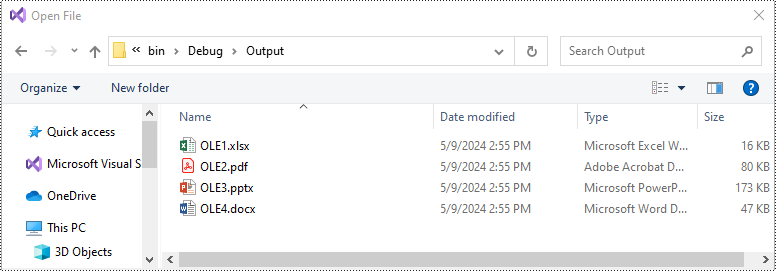
To extract OLE objects from a Word document, you need to locate the OLE objects within the document first. Once located, identify the file format of each OLE object. Finally, save the data of each OLE object to a file in its original format.
The detailed steps are as follows:
- Create an instance of the Document class.
- Load a Word document using the Document.LoadFromFile() method.
- Iterate through all sections of the document.
- Iterate through all child objects in the body of each section.
- Identify the paragraphs within each section.
- Iterate through the child objects in each paragraph.
- Locate the OLE object within the paragraph.
- Determine the file format of the OLE object.
- Save the data of the OLE object to a file in its native file format.
- C#
using Spire.Doc;
using Spire.Doc.Documents;
using Spire.Doc.Fields;
using System;

namespace InsertOrExtractOleObjects
{
    internal class Program
    {
        static void Main(string[] args)
        {
            // Create an instance of the Document class
            Document doc = new Document();
            // Load a Word document
            doc.LoadFromFile("InsertOLE.docx");

            int i = 1;
            // Iterate through all sections of the Word document
            foreach (Section sec in doc.Sections)
            {
                // Iterate through all child objects in the body of each section
                foreach (DocumentObject obj in sec.Body.ChildObjects)
                {
                    // Check if the child object is a paragraph
                    if (obj is Paragraph par)
                    {
                        // Iterate through the child objects in the paragraph
                        foreach (DocumentObject o in par.ChildObjects)
                        {
                            // Check if the child object is an OLE object
                            if (o is DocOleObject ole)
                            {
                                string s = ole.ObjectType;
                                string ext = "";

                                // Check if the OLE object is a PDF file
                                if (s.StartsWith("AcroExch.Document"))
                                {
                                    ext = ".pdf";
                                }
                                // Check if the OLE object is an Excel spreadsheet
                                else if (s.StartsWith("Excel.Sheet"))
                                {
                                    ext = ".xlsx";
                                }
                                // Check if the OLE object is a PowerPoint presentation
                                else if (s.StartsWith("PowerPoint.Show"))
                                {
                                    ext = ".pptx";
                                }
                                // Check if the OLE object is a Word document
                                else if (s.StartsWith("Word.Document"))
                                {
                                    ext = ".docx";
                                }
                                else
                                {
                                    continue;
                                }

                                // Write the data of OLE into a file in its native format
                                using (var file = System.IO.File.OpenWrite($"Output/OLE{i}{ext}"))
                                {
                                    file.Write(ole.NativeData, 0, ole.NativeData.Length);
                                }

                                i++;
                            }
                        }
                    }
                }
            }

            doc.Close();
        }
    }
}
Apply for a Temporary License
If you'd like to remove the evaluation message from the generated documents, or to get rid of the function limitations, please request a 30-day trial license for yourself.
Digital signature is more advanced and more popular to detect forgery and tampering today compared with traditional handwritten signature. Especially in business world, digital signature becomes an effective method to safeguard and authenticate your documents. As long as a digital signature is created and singed, the document has not been tampered and the recipients can view both the document version history and any changes that were made to it. Now, it is time to see how to create a PDF digital signature via a WPF PDF component Spire.PDF for WPF.
Spire.PDF for WPF, as a PDF component, enables you to create PDF digital signature in a simple way which can not only ensure your data information has not been altered since it was sent but also verify the signer's digital identity. The key procedure only requires six lines of code. Please preview the effective screenshot below, and then, view the key code.

Please feel free to Download Spire.PDF for WPF first before the key code below. In this solution, for constructing one instance of a Spire.Pdf.Sercurity.PdfCertificate class named cert, we reference a certificate file and its file protect password as parameters. Then, cert is applied to create an instance of a PdfSignature class we name it signature. Setting signature “page” parameter allows you to sign the digital signature of any PDF page. And DocumentPermissions, one property of signature, can be set: AllowComments, AllowFormFill and ForbidChanges.
Core Code:
String pfxPath = @"..\Data\Demo.pfx";
PdfCertificate cert = new PdfCertificate(pfxPath, "e-iceblue");
PdfSignature signature = new PdfSignature(doc, page, cert, "demo");
signature.ContactInfo = "Harry Hu";
signature.Certificated = true;
signature.DocumentPermissions = PdfCertificationFlags.AllowFormFill;
Dim pfxPath As String = "..\Data\Demo.pfx"
Dim cert As New PdfCertificate(pfxPath, "e-iceblue")
Dim signature As New PdfSignature(doc, page, cert, "demo")
signature.ContactInfo = "Harry Hu"
signature.Certificated = True
signature.DocumentPermissions = PdfCertificationFlags.AllowFormFill
For PDF security, people are more likely to encrypt PDF file by setting up to two passwords: owner password and user password. The essential difference between these two passwords is that people can fully control the document by owner password, while only can open or have to subject to some restrictions by user password. This section will introduce a solution to easily encrypt your PDF by the two passwords via Spire.PDF for WPF.
Spire.PDF for WPF is a WPF PDF component, which can encrypt your PDF not only by owner password but also by restricting nine permissions when setting user password. In the solution, these two passwords are set by an object of PDFSecurity class which is contained in the namespace Spire.PDFDocument.Security.
Before you start, please feel free to download Spire.PDF for WPF first and encrypt your PDF file by below key steps after loading it.
Step1: Set PDF password size
In this step, three kinds of key size are applicable by the enum Spire.Pdf.Security.PdfEncryptionKeySize. They are: Key128Bit, Key256Bit and Key40Bit. You can choose any of the three according to your own situation.
doc.Security.KeySize = PdfEncryptionKeySize.Key256Bit;
doc.Security.KeySize = PdfEncryptionKeySize.Key256Bit
Step 2: Secure PDF file by passwords
Owner password and user password are set to encrypt your PDF file. Please make sure that the password size should not be over the key size you set in last step.
doc.Security.OwnerPassword = "e-iceblue";
doc.Security.UserPassword = "pdf";
doc.Security.OwnerPassword = "e-iceblue"
doc.Security.UserPassword = "pdf"
Step 3: Restrict certain permissions of user password
Nine access permissions of user password can be specified in the step, you can view them as below picture:
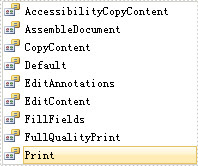
- AccessibilityCopyContent: copy accessibility content.
- AssembleDocument: assemble document permission. (Only for 128 bits key).
- CopyContent: copy content.
- Default: default value means users are authorized all permissions.
- EditAnnotations: add or modify text annotations, fill in interactive form fields.
- EditContent: edit content.
- FillFields: fill form fields. (Only for 128 bits key).
- FullQualityPrint: print document with full quality.
- Print: print document.
Here, three permissions are authorized: AccessibilityCopyContent, Print and EditAnnotations. Now, see following code:
doc.Security.Permissions = PdfPermissionsFlags.AccessibilityCopyContent | PdfPermissionsFlags.Print | PdfPermissionsFlags.EditAnnotations;
doc.Security.Permissions = PdfPermissionsFlags. AccessibilityCopyContent Or PdfPermissionsFlags. Print Or PdfPermissionsFlags.EditAnnotations
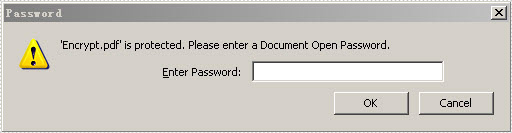
After you run the project, appears a dialog box in which you need to input password before opening the PDF document. You can look at the effective screenshot below: