Technical documentation, API references and release notes are increasingly maintained in Markdown: it is easy to keep in a code repository, easy to review, and easy to compare between versions. For external delivery, however, the recipient usually needs a Word or PDF document. Copying and pasting into a desktop application loses the formatting, and tables and code blocks have to be rearranged by hand; converting on a server takes the source file off the user's device.
This article converts Markdown to Word documents and PDF documents in the browser with Spire.Doc for JavaScript. The library runs in the browser as a WebAssembly module, the source file is read through a virtual file system (VFS), and the conversion result is written back to the VFS before the download is triggered. The whole process requires neither an Office installation nor any backend service.
This article covers three features:
- Convert a Markdown Document to Word
- Convert a Markdown Document to PDF
- Use Template Styles to Convert Markdown to Word
For installation and project setup, refer to Integrating Spire.Doc for JavaScript in a React Project. The examples below assume that Spire.Doc is installed and the WebAssembly module is initialized. The sample Markdown source and the template document are placed in the public/data/ directory, and the font files in the public/static/font/ directory. To make them easy to run directly, the code for each feature is a complete single file, so the content of App.js can be replaced with it wholesale.
Convert a Markdown Document to Word
Spire.Doc for JavaScript loads the source file with Document.LoadFromFile(), and the second parameter specifies the file format. Pass FileFormat.Markdown when loading Markdown: the library parses headings, paragraphs, lists, tables, quotes, code blocks and images according to Markdown syntax rules, and turns them into the corresponding Word document objects.
The syntax used in the source file and the styles applied after conversion correspond as follows:
| Markdown syntax | Style applied after conversion | Notes |
|---|---|---|
# to ###### |
Heading 1 to Heading 6 | The six heading levels map to the six built-in heading styles respectively |
| Ordinary paragraphs | Normal | Paragraph text and inline formatting such as bold and italic are kept |
> quotes |
Quote | Converted to an indented quote paragraph |
- lists, 1. lists |
List paragraphs | Bulleted and numbered lists become automatically numbered items |
| Pipe tables | Word tables | The first row becomes the header, and cells carry thin borders |
| Backtick inline code | InlineCode | A character-level style that affects only the marked text |
| Fenced code blocks | FencedCode plus the language name | A code block marked js, for example, is given FencedCodejs |
| Indented code blocks | FencedCode | Code blocks without a language label |
The specific steps are as follows:
- Get the Spire.Doc WASM module and confirm that it is ready.
- Load the Markdown source file into the virtual file system (VFS).
- Create a
Documentinstance and load the source file withLoadFromFile()asFileFormat.Markdown. - Save the document with
SaveToFile()as a DOCX file. - Read the result file from the VFS and trigger its browser download.
The code for converting a Markdown document to a Word document is as follows:
function App() {
  const convertToWord = async () => {
    // Get the Spire.Doc WASM module
    const docModule = window.wasmModule?.spiredoc;

    // Make sure the WASM module has fully loaded
    if (!docModule) {
      alert('Spire.Doc is not ready yet');
      return;
    }

    // Load the Markdown source and the images it references into VFS
    await window.spire.FetchFileToVFS('Sample.md', "", `${process.env.PUBLIC_URL}/data/`);
    await window.spire.FetchFileToVFS('pipeline.png', "", `${process.env.PUBLIC_URL}/data/`);
    await window.spire.FetchFileToVFS('msyh.ttc', "/Library/Fonts/", `${process.env.PUBLIC_URL}/static/font/`);
    await window.spire.FetchFileToVFS('msyhbd.ttc', "/Library/Fonts/", `${process.env.PUBLIC_URL}/static/font/`);

    // Create a Document instance and load the source file as Markdown
    const doc = new docModule.Document();
    doc.LoadFromFile('Sample.md', docModule.FileFormat.Markdown);

    // Save as a Word document
    const outputFileName = 'MarkdownToWord.docx';
    doc.SaveToFile({ fileName: outputFileName, fileFormat: docModule.FileFormat.Docx2016 });
    doc.Dispose();

    // Read the generated file from VFS and trigger the download
    const fileArray = window.dotnetRuntime.Module.FS.readFile(outputFileName);
    const blob = new Blob([fileArray], { type: 'application/vnd.openxmlformats-officedocument.wordprocessingml.document' });
    const url = URL.createObjectURL(blob);
    const a = document.createElement('a');
    a.href = url;
    a.download = outputFileName;
    a.click();
    URL.revokeObjectURL(url);
  };

  return (
    <div style={{ textAlign: 'center', height: '300px' }}>
      <h1>Convert Markdown to Word</h1>
      <button onClick={convertToWord}>
        Convert to Word
      </button>
    </div>
  );
}

export default App;
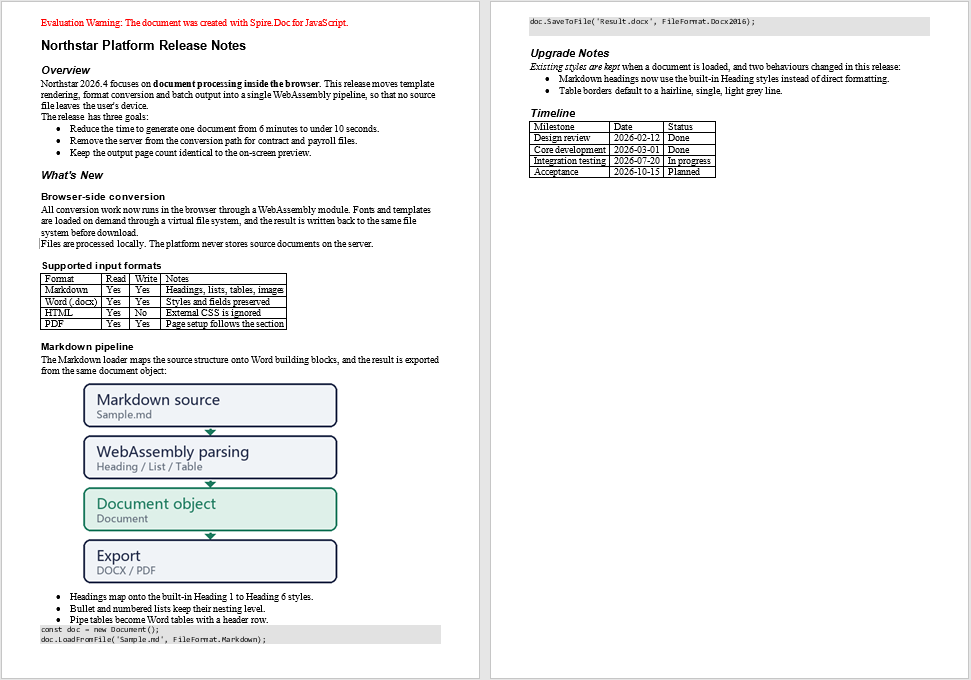
The converted Word document is shown below; the headings, lists, quotes, tables and code blocks have all been restored according to the structure of the source file:
Word document converted with the default styles
Convert a Markdown Document to PDF
Once Markdown has been loaded, the result is a complete Word document object, so the same object can be saved as DOCX or exported directly to PDF without reading the source file again. For export, simply change the fileFormat of SaveToFile() to FileFormat.PDF. The page size and margins follow the section settings of the document, and the pagination is determined by the layout computed during export.
Unlike DOCX, PDF requires the text to be genuinely rasterized, so before export the fonts used by the document should be loaded into the font directory of the virtual file system; the examples place the fonts in /Library/Fonts/.
The specific steps are as follows:
- Get the Spire.Doc WASM module and confirm that it is ready.
- Load the Markdown source file and the font files into the virtual file system (VFS).
- Create a
Documentinstance and load the source file withLoadFromFile()asFileFormat.Markdown. - Export the document with
SaveToFile()as a PDF file. - Read the result file from the VFS and trigger its browser download.
The code for converting a Markdown document to a PDF document is as follows:
function App() {
  const convertToPdf = async () => {
    // Get the Spire.Doc WASM module
    const docModule = window.wasmModule?.spiredoc;

    // Make sure the WASM module has fully loaded
    if (!docModule) {
      alert('Spire.Doc is not ready yet');
      return;
    }

    // Load the Markdown source and the fonts into VFS
    await window.spire.FetchFileToVFS('Sample.md', "", `${process.env.PUBLIC_URL}/data/`);
    await window.spire.FetchFileToVFS('pipeline.png', "", `${process.env.PUBLIC_URL}/data/`);
    await window.spire.FetchFileToVFS('msyh.ttc', "/Library/Fonts/", `${process.env.PUBLIC_URL}/static/font/`);
    await window.spire.FetchFileToVFS('msyhbd.ttc', "/Library/Fonts/", `${process.env.PUBLIC_URL}/static/font/`);

    // Create a Document instance and load the source file as Markdown
    const doc = new docModule.Document();
    doc.LoadFromFile('Sample.md', docModule.FileFormat.Markdown);

    // Export as a PDF document
    const outputFileName = 'MarkdownToPdf.pdf';
    doc.SaveToFile({ fileName: outputFileName, fileFormat: docModule.FileFormat.PDF });
    doc.Dispose();

    // Read the generated file from VFS and trigger the download
    const fileArray = window.dotnetRuntime.Module.FS.readFile(outputFileName);
    const blob = new Blob([fileArray], { type: 'application/pdf' });
    const url = URL.createObjectURL(blob);
    const a = document.createElement('a');
    a.href = url;
    a.download = outputFileName;
    a.click();
    URL.revokeObjectURL(url);
  };

  return (
    <div style={{ textAlign: 'center', height: '300px' }}>
      <h1>Convert Markdown to PDF</h1>
      <button onClick={convertToPdf}>
        Convert to PDF
      </button>
    </div>
  );
}

export default App;
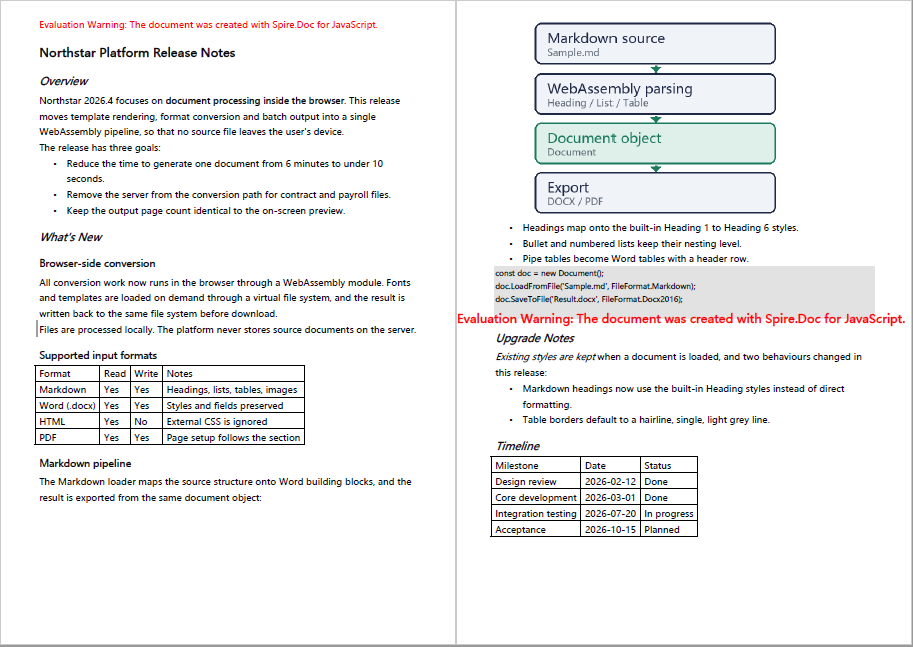
The PDF document exported from the same Markdown is shown below:
PDF document exported from the same Markdown
Use Template Styles to Convert Markdown to Word
The document produced by the default rules uses the built-in styles, whose fonts, color schemes and line spacing are generic in appearance. In actual delivery, a document often has to meet the layout requirements of a company or department: which font size the headings use, which line spacing the body text uses, whether a separator line appears below a heading. These requirements have usually already been organized into a Word template; all that is needed is to copy the styles of the template onto the conversion result.
The current JavaScript version does not provide a method that copies all template styles at once, so the example handles it as follows: first find the style of the same name in the target document, then copy the character formatting and paragraph formatting of the template style onto it item by item. The style names in the template therefore have to match the names of the styles produced by the conversion; the common correspondences are as follows:
| Template style name | Affected content | Settings in the sample template |
|---|---|---|
| Normal | Body paragraphs | Microsoft YaHei 10.5 pt, grey text, 1.35 line spacing |
| Heading 1 | # level-one headings |
18 pt bold, dark blue, separator line below |
| Heading 2 | ## level-two headings |
14 pt bold, dark green |
| Heading 3 | ### level-three headings |
12 pt bold, dark blue |
| Quote | > quote paragraphs |
10 pt italic, dark green, left indent |
The specific steps are as follows:
- Get the Spire.Doc WASM module and confirm that it is ready.
- Load the Markdown source file and the template document into the virtual file system (VFS).
- Create a
Documentinstance and load the source file withLoadFromFile()asFileFormat.Markdown. - Create another
Documentinstance and load the template document, then take its styles by name. - Use the
copyStyle()helper to copy the character formatting and paragraph formatting of each template style onto the style of the same name in the target document. - Save the result file with
SaveToFile(), then read it from the VFS and trigger the download.
The code for converting Markdown with the template styles is as follows:
// Names of the styles to copy from the template; they must match the styles applied by the Markdown conversion
const TEMPLATE_STYLES = ['Normal', 'Heading 1', 'Heading 2', 'Heading 3', 'Quote'];

// Copy one style from the template document to the style of the same name in the target document
function copyStyle(src, dst) {
  // Character formatting: font, font size, bold, italic, text color
  const sf = src.CharacterFormat;
  const df = dst.CharacterFormat;
  df.FontName = sf.FontName;
  df.FontSize = sf.FontSize;
  df.Bold = sf.Bold;
  df.Italic = sf.Italic;
  df.TextColor = sf.TextColor;

  // Paragraph formatting: spacing before and after, line spacing, indent, alignment and pagination control
  const sp = src.ParagraphFormat;
  const dp = dst.ParagraphFormat;
  dp.BeforeSpacing = sp.BeforeSpacing;
  dp.AfterSpacing = sp.AfterSpacing;
  dp.LineSpacing = sp.LineSpacing;
  dp.LineSpacingRule = sp.LineSpacingRule;
  dp.LeftIndent = sp.LeftIndent;
  dp.FirstLineIndent = sp.FirstLineIndent;
  dp.HorizontalAlignment = sp.HorizontalAlignment;
  dp.KeepFollow = sp.KeepFollow;

  // Paragraph borders: the separator line below a heading
  const sb = sp.Borders.Bottom;
  const db = dp.Borders.Bottom;
  db.BorderType = sb.BorderType;
  db.LineWidth = sb.LineWidth;
  db.Color = sb.Color;
  db.Space = sb.Space;
}

function App() {
  const convertWithTemplate = async () => {
    // Get the Spire.Doc WASM module
    const docModule = window.wasmModule?.spiredoc;

    // Make sure the WASM module has fully loaded
    if (!docModule) {
      alert('Spire.Doc is not ready yet');
      return;
    }

    // Load the Markdown source and the template document into VFS
    await window.spire.FetchFileToVFS('Sample.md', "", `${process.env.PUBLIC_URL}/data/`);
    await window.spire.FetchFileToVFS('Template.docx', "", `${process.env.PUBLIC_URL}/data/`);
    await window.spire.FetchFileToVFS('msyh.ttc', "/Library/Fonts/", `${process.env.PUBLIC_URL}/static/font/`);
    await window.spire.FetchFileToVFS('msyhbd.ttc', "/Library/Fonts/", `${process.env.PUBLIC_URL}/static/font/`);

    // Load the source file as Markdown
    const doc = new docModule.Document();
    doc.LoadFromFile('Sample.md', docModule.FileFormat.Markdown);

    // Load the template document and take only its styles
    const template = new docModule.Document();
    template.LoadFromFile('Template.docx');

    // Copy each template style onto the style of the same name in the target document
    TEMPLATE_STYLES.forEach((name) => {
      const src = template.Styles.FindByName(name);
      const dst = doc.Styles.FindByName(name);
      if (src && dst) {
        copyStyle(src, dst);
      }
    });
    template.Dispose();

    // Save as a Word document
    const outputFileName = 'MarkdownToWordWithTemplate.docx';
    doc.SaveToFile({ fileName: outputFileName, fileFormat: docModule.FileFormat.Docx2016 });
    doc.Dispose();

    // Read the generated file from VFS and trigger the download
    const fileArray = window.dotnetRuntime.Module.FS.readFile(outputFileName);
    const blob = new Blob([fileArray], { type: 'application/vnd.openxmlformats-officedocument.wordprocessingml.document' });
    const url = URL.createObjectURL(blob);
    const a = document.createElement('a');
    a.href = url;
    a.download = outputFileName;
    a.click();
    URL.revokeObjectURL(url);
  };

  return (
    <div style={{ textAlign: 'center', height: '300px' }}>
      <h1>Convert Markdown with Template Styles</h1>
      <button onClick={convertWithTemplate}>
        Convert and Apply Template Styles
      </button>
    </div>
  );
}

export default App;
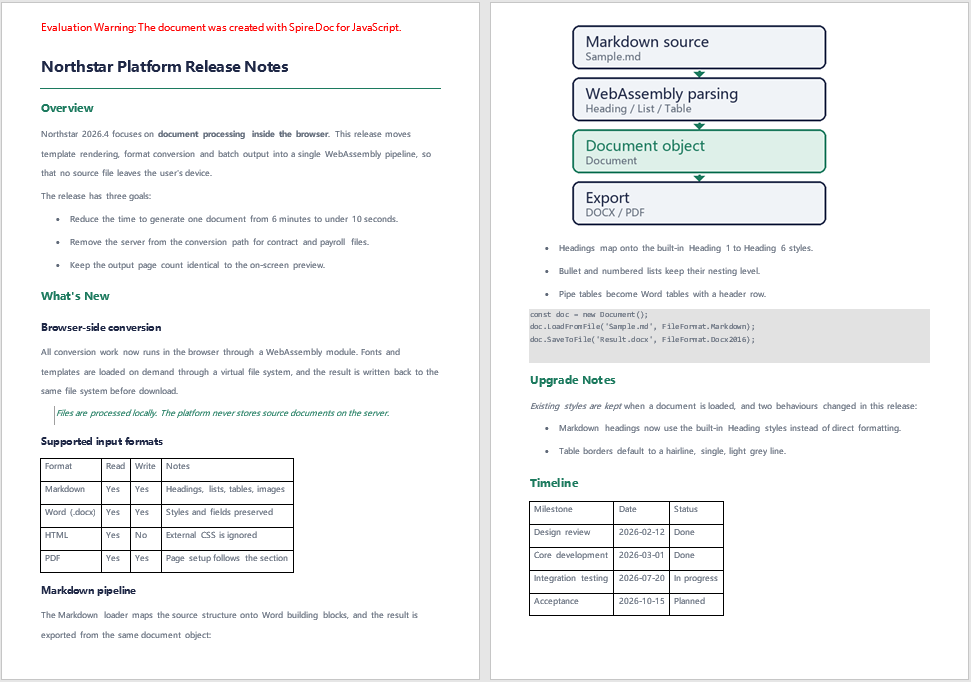
The first page of the Word document after the template styles are applied is shown below; the headings, body text, quotes and tables all follow the fonts, color scheme and line spacing of the template:
First page of the Word document after applying the template styles
The Sample Markdown File
All three features share the same Sample.md, which is placed in the public/data/ directory. The sample is a product release note covering level-one to level-three headings, bulleted lists, quotes, pipe tables, fenced code blocks, inline code, images, and bold and italic text, so that the conversion result of each syntax in Word can be observed side by side.
Images are referenced by relative path; before conversion, the image files have to be loaded into the virtual file system under the same path as written in the Markdown.
The content of the sample Markdown file is as follows:
# Northstar Platform Release Notes
## Overview
Northstar 2026.4 focuses on **document processing inside the browser**. This release moves template rendering, format conversion and batch output into a single WebAssembly pipeline, so that no source file leaves the user's device.
The release has three goals:
- Reduce the time to generate one document from 6 minutes to under 10 seconds.
- Remove the server from the conversion path for contract and payroll files.
- Keep the output page count identical to the on-screen preview.
## What's New
### Browser-side conversion
All conversion work now runs in the browser through a WebAssembly module. Fonts and templates are loaded on demand through a virtual file system, and the result is written back to the same file system before download.
> Files are processed locally. The platform never stores source documents on the server.
### Supported input formats
| Format | Read | Write | Notes |
|---|---|---|---|
| Markdown | Yes | Yes | Headings, lists, tables, images |
| Word (.docx) | Yes | Yes | Styles and fields preserved |
| HTML | Yes | No | External CSS is ignored |
| PDF | Yes | Yes | Page setup follows the section |
### Markdown pipeline
The Markdown loader maps the source structure onto Word building blocks, and the result is exported from the same document object:

- Headings map onto the built-in Heading 1 to Heading 6 styles.
- Bullet and numbered lists keep their nesting level.
- Pipe tables become Word tables with a header row.
```js
const doc = new Document();
doc.LoadFromFile('Sample.md', FileFormat.Markdown);
doc.SaveToFile('Result.docx', FileFormat.Docx2016);
```
## Upgrade Notes
*Existing styles are kept* when a document is loaded, and two behaviours changed in this release:
- Markdown headings now use the built-in Heading styles instead of direct formatting.
- Table borders default to a hairline, single, light grey line.
## Timeline
| Milestone | Date | Status |
|---|---|---|
| Design review | 2026-02-12 | Done |
| Core development | 2026-03-01 | Done |
| Integration testing | 2026-07-20 | In progress |
| Acceptance | 2026-10-15 | Planned |
The template document Template.docx only provides styles; its body content does not take part in the conversion. The style names in the template have to match the names of the styles produced by the conversion (Normal, Heading 1, Heading 2, Heading 3, Quote); styles whose names do not match are not copied.
FAQ
Why is the first paragraph of the converted document a red line of English text
Cause: This line is an evaluation notice inserted by Spire.Doc for JavaScript when the file is saved. Its content is Evaluation Warning: The document was created with Spire.Doc for JavaScript., and it has nothing to do with the content of the source file.
Solution: The notice exists only in the evaluation version; once a license is applied, the saved file no longer contains this paragraph.
Why do the converted headings and body text not use the font and line spacing I expect
Cause: LoadFromFile() converts Markdown with the built-in styles — headings use Heading 1 to Heading 6 and body text uses Normal — and these styles themselves do not define the fonts and color schemes commonly used in corporate documents.
Solution: Organize the layout requirements into a Word template and copy the styles as described in Use Template Styles to Convert Markdown to Word; alternatively, after loading, modify the CharacterFormat and ParagraphFormat of the corresponding styles in doc.Styles directly.
Why do the entries after the first one in a multi-item ordered list end up merged into the first paragraph
Cause: The parser recognizes ordered lists by paragraph; when there is no blank line between items, the text of the second item onwards is treated as a continuation line of the first, and the number is kept in the paragraph as plain text.
Solution: Leave a blank line between items so that each one becomes an independently numbered list item; bulleted lists are not subject to this restriction and can be written consecutively:
1. First step.

2. Second step.

3. Third step.
Why are the images in the Markdown not displayed, or displayed exceptionally large
Cause: Images are read from the virtual file system by the path written in the Markdown; when the file has not been loaded into the VFS it cannot be embedded. Image size is converted from the original pixel dimensions at 96 dpi, so an image with a large pixel width may exceed the text width on an A4 page.
Solution: Load the image into the VFS first, under the same path as written in the Markdown:
await window.spire.FetchFileToVFS('pipeline.png', "", `${process.env.PUBLIC_URL}/data/`);
To specify a width, write the image as an HTML img tag; the width attribute is written into the document in pixels:
<img src="pipeline.png" width="360">
What should I do when the Chinese font in the exported PDF is wrong, or appears blank or as boxes
Cause: A DOCX records only font names, which Word resolves when the file is opened; PDF requires the text to be rendered as graphics, so when the font file has not been loaded, the export can only use a substitute font or leave the text blank.
Solution: Before exporting to PDF, load the fonts used by the document into the font directory of the virtual file system; the examples place them in /Library/Fonts/. When there are many Chinese fonts, it is advisable to load both the regular and the bold face:
await window.spire.FetchFileToVFS('msyh.ttc', "/Library/Fonts/", `${process.env.PUBLIC_URL}/static/font/`);
await window.spire.FetchFileToVFS('msyhbd.ttc', "/Library/Fonts/", `${process.env.PUBLIC_URL}/static/font/`);
Get a Free License
Spire.Doc for JavaScript offers a 30-day full-featured free trial license with no functional limitations. Apply here to evaluate before purchasing.
